

Page 1
For more information about the ProDVD 175, please contact the website: www.prodvd.philips.com
Professional DVD Video Player
Technical
Manual
Document version v2.0
Professional DVD Video Player
Applicable for players with firmware version:
V3.50.08/V3.50.09/V3.50.11
Page 2

2
ProDVD 175
ProDVD 175
For more information about the ProDVD 175, please contact the website: www.prodvd.philips.com
INTRODUCTION
This is the technical documentation for the
ProDVD 175 series of DVD-Video Players. This
documentation is especially made to support
development of sophisticated DVD-Video
applications for this special player.
Please notice that this document is valid for
ProDVD 175 players executed with firmware
version: v3.50.08;v3.50.09;v3.50.11
If you have any questions about this document,
please feel free to contact Asint International
([email protected]).
Procedure to check the DVD 175 firmware
version:
The firmware version of the ProDVD 175
player can easily be checked by switching on the
ProDVD 175 player without a disc and then pushing the “setup” button on the remote. Then push
the “Menu Down Cursor Movement button”
on the remote (Yellow button with downwards
arrow) till you reach the
“Access Control”
selec-
tion field. Then push the “Menu Right Cursor
Movement Button” on the remote control to
select the “Access Control” selection field.
Then push the “Menu Down Cursor Movement
Button” till you reach the “Help Text selection
field. One extra click on the “Menu Down Cursor
Movement button” of the remote (Yellow button
with downwards arrow) and the content of the
Help Text field will change in (C)‘00-’01 x.y.z.
..... where x.y.z. stands for the firmware release
version.
Example: (C) ‘00-’01 3.50.11 020708 P107 5.1.14
Disclaimer
The information contained herein is believed to
be accurate at date of publication, however, NV
Philips will not be liable for any damages, including
indirect or consequential, from the use of this
document or the reliance on the accuracy of this
document. The information contained herein is
subject to change without notice.
This technical documentation is published by
NV Philips.
All rights are reserved. Reproduction of the
document or part of it, in whatever form, is prohibited
without express and written permission of
NV Philips.
Page 3

3
ProDVD 175
ProDVD 175
For more information about the ProDVD 175, please contact the website: www.prodvd.philips.com
TABLE OF CONTENTS
Introduction 2
I/O port 5
Relative coordinate and maneuvering devices 7
Absolute screen devices and absolute coordinate devices 7
Additional bytes pointing devices 8
External control commands 9
External control status 13
Asynchronous responses 15
Trade Mode 17
Navigation and Handling Non Volatile Memory 17
Error codes 18
Rom Code Table Range 19
Overview of commands 20
Page 4

4
ProDVD 175
ProDVD 175
For more information about the ProDVD 175, please contact the website: www.prodvd.philips.com
The ProDVD 175 professional DVD player can
also be controlled by an external controller or a
pointing device. This can be done via the I/O port
at the rear of the player. The connector type is
a D-sub 9 male. One and the same interface is
used for pointing devices as well as for external
control.
• The pointing device protocol has an automatic
pointing device protocol activated when the
transmission speed is 1200 baud.
• The control via an external controller is activated
when the transmission speed is 9600 baud.
Pinning input (sub-D9 male
on the player):
Pin signal I/O
1
2 RXD I
3 TXD O
4 +5V max 200mA
5 GND
6
7 RTS O
8 CTS I
9
I = input signal for the Player
O = output signal from the Player
RATINGS:
+5V output from the player:
− accuracy: +5V 10%
− supply current: min 200mA
RXD /TXD
− logical 1: -15V < signal level < +0.8V
− logical 0: +2.4V < signal level < +15V
(Output impedance pointing device max 4.7kOhm)
RTS /CTS
− Off (Negated): -15V < signal level <+0.8V
− On (Asserted): +2.4V < signal level <+15V
This interface allows for pointing devices and accessories
which are powered from the player using logic circuits
operating on 5V only.
Pointing device protocol
Communications signals follow the RS -232- C
specifications. For details of this see the EIA RS 232- C standard.
− 1 start bit
− 7 data bits LSB first
− 2 stop bits
− Speed 1200 bauds
For pointing devices only two signal lines carry
data. The first is RTS, which is always output from
the player. The second is RXD, which is always
input to the player.
I/O PORT
Page 5
5
ProDVD 175
ProDVD 175
For more information about the ProDVD 175, please contact the website: www.prodvd.philips.com
Device identification pointing devices
Every pointing device is to transmit its type
identification (ID) byte on request. This allows the
player to identify the device type that is connected
to it for maximum flexibility and ease of use.
Device ID sequence
• Negate RTS: Current data transmission to the
player is stopped.
• Assert RTS.
• The device sends its 1-byte device ID.
Note: It is adviseable to send a complete data packet
after the identification byte to establish the state of
the buttons.
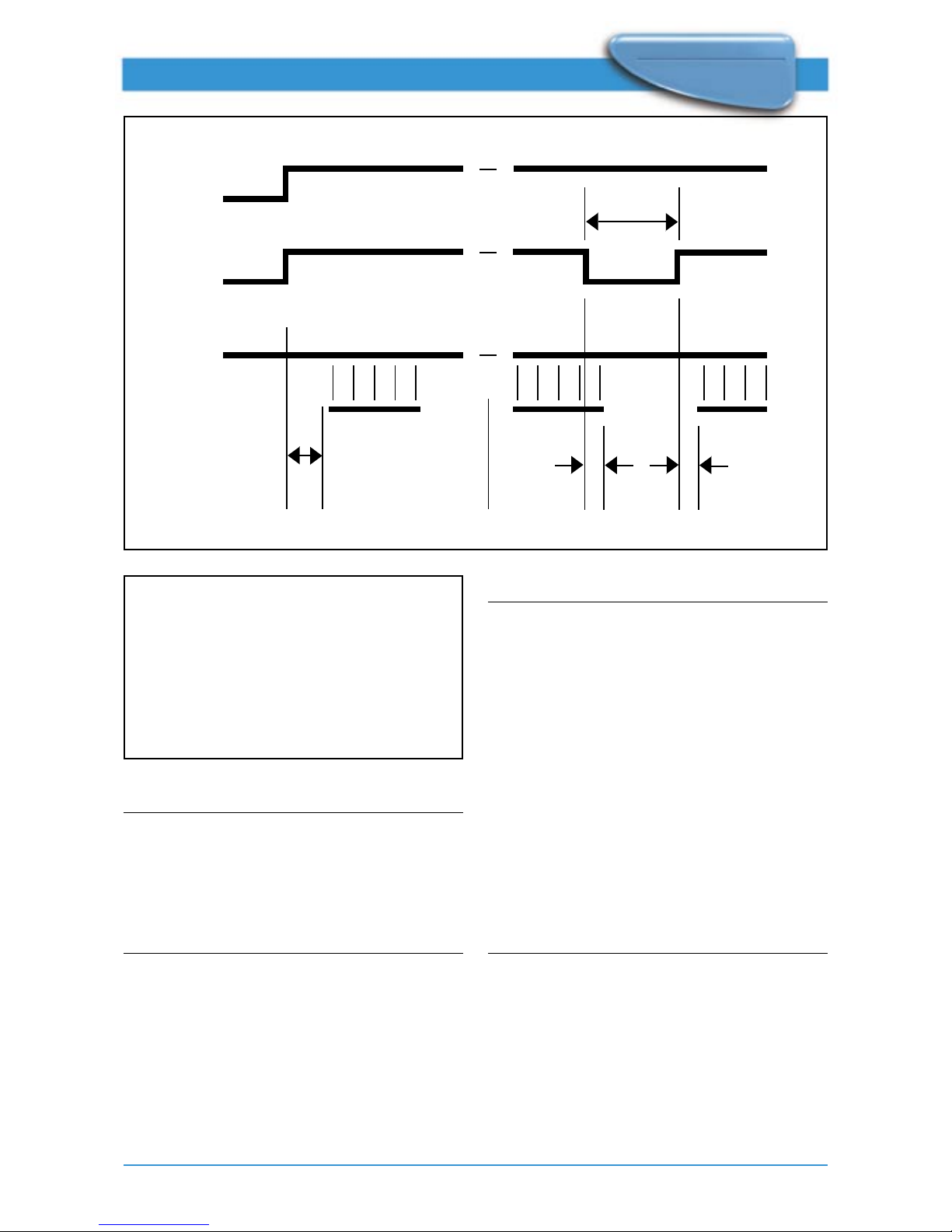
Device ID timing
• A: device power-on to ID byte timing
− Min. 100ms
− Max. 500ms.
• B: negate RTS timing:
− Min. 10ms
− Max. irrelevant.
• C: Residual data transmission time when RTS is
negated:
− Min. 0 ms.
− Max. 1 byte period (1200 baud = 8.3ms)
• D: Assert RTS to ID byte timing when device is
powered:
− Max. 10ms.
External controller protocol
The communication with an external ProDVD
controller is done with the following settings:
− 8 data bits,
− 1 stop,
− no parity bit
− speed of 9600 Baud.
Device
Power
RTS
RXD
ABD
D
D
B D
Device ID codes
Device Type d6- -d0 ASCII
Relative 1001101 ’M’
Maneuvering 1001010 ’J’
Absolute 1010100 ’T’
Absolute Screen 1010011 ’S’
Page 6

6
ProDVD 175
ProDVD 175
For more information about the ProDVD 175, please contact the website: www.prodvd.philips.com
Communication between a ProDVD controller
and the DVD player consist of 3 different types of
information:
• External control commands
• External control status
• Asynchronous responses
The messages between the ProDVD and the
ProDVD controller look like: “[group, command,
parameterlist]\ r”
A group, command and parameter-list
betweensquare-brackets, followed by a carriagereturn character (\r).
The group and command are not case sensitive;
there is no difference in the usage of uppercase
and lowercase characters. The parameter-list
exists of comma separated parameters, and are
case sensitive.
When the player receives a message from the
external controller, it will be acknowledged. This
acknowledgment will be done in 2 different ways.
• For external control commands, the acknowledgment will look like:
− group: group specified in the
received message (PC)
− command: command specified in the
received message
− parameter-list ReturnValue
ReturnValue can have one of the following values
− 0: No error
− x: Error code x
Example:
− player receives: [PC, RC, 66]\r
− player sends: [PC, RC, 0]\r
When the external controller receives the
response this implies that the player has verified
the received message (syntax), and the command
will be executed (It does not imply that the
command is executed without errors).
• For external control status messages there is
specified a response message on a request.
The response is the acknowledgment of the
request.
Example:
− Request: [PS, GetAudioStream]\r
− Response: [PS, GetAudioStream, 0, 2]\r
When the external controller receives the
response, the player has executed the command.
• When an external control command causes an
error, an asynchronous error message will be
send to the external controller.
Example:
− Player receives: [PC, RC, 44]\r
− Player sends: [PC, RC, 0]\r
− Player sends: [PR, Error, 10]\r
When the external controller receives the
response, the player has verified the message
(syntax), and when no errors occurred, the
command will be executed.
If an internal error occurs and the command can
not be executed, an error message will be send.
• When the command does not cause an error,
but execution of this command changes the
state of the player, this status change will be
send to the external controller. Also other
asynchronous responses, e.g. start of chapter,
can be expected.
Example:
− Player receives: [PC, RC, 44]\r
− Player sends: [PC, RC, 0]\r
− Player sends: [PR, StatusChange, 4]\r
− Player sends: [PR, SOC, 2]\r
Page 7

7
ProDVD 175
ProDVD 175
For more information about the ProDVD 175, please contact the website: www.prodvd.philips.com
RELATIVE COORDINATE
AND MANEUVERING
DEVICES
Relative Coordinate devices e.g. Mice, Trackballs
and Maneuvering devices e.g. Joysticks and joypads
Data Flow
During normal operation (RTS asserted):
• Data is sent to the player via RXD.
• Every time the device is moved or button state
is changed, 3-byte data packets should be transmitted to the player.
• No data should be transmitted when the device
is stationary (in center position) and the button
state is unchanged (pressed or released).
• A button state change or device position change
should not interrupt a data packet transmission.
• To allow for additional buttons on the pointing
device, one additional byte (with d6 =0) may be
added to the data package. Systems specified to
work with the specific device will react to this
byte; other systems will ignore it.
bt 1 = button 1: 1 = pressed
0 = not pressed
bt 2 = button 2: 1 = pressed
0 = not pressed
X7..XO: 8-bit data horizontal
movement. 2’s complement.
left direction = negative
($FF..$80)
right direction = positive
($01 ..$7F)
Y7..YO: 8-bit data vertical
movement.
2’s complement. up direction = negative ($FF..
$80) down direction = positive ($01..S7F) A
value of $00 for horizontal or vertical movement
indicates no movement in that direction.
note: bt1 and bt2 will be implemented as OK button
ABSOLUTE SCREEN
DEVICES AND ABSOLUTE
COORDINATE DEVICES
Absolute screen devices and absolute coordinate
devices e.g. Touch Screens, Light Pens.
Data flow
During normal operation (RTS asserted):
• Data is sent to the player via RXD.
• Every time the pointing indicator is in motion in
the active area or a button state is changed, 4byte data packets should be transmitted to the
player.
• No data should be transmitted when the
pointing indicator is not in the active area and
the button state is unchanged (pressed or
released).
• A button state change or device position change
should not interrupt a data packet transmission.
• To allow for additional buttons on the pointing
device, one additional byte (with d6 =0) may be
added to the data package. Systems specified to
work with the specific device will react to this
byte; other systems will ignore it.
d6 d5 d4 d3 d2 d1 d0
Byte 0 1 bt1 bt2 Y7 Y6 X7 X6
Byte 1 0 X5 X4 X3 X2 X1 X0
Byte 2 0 Y5 Y4 Y3 Y2 Y1 Y0
Byte 3 0
(optional)
Page 8

8
ProDVD 175
ProDVD 175
For more information about the ProDVD 175, please contact the website: www.prodvd.philips.com
bt 1 = button 1: 1 = pressed
0 = not pressed
bt 2 = button 2: 1 = pressed
0 = not pressed
pd 0 = when screen is pressed
1 = when screen is released
followed by pd=0
X9..XO: 10-bit absolute horizontal
position. Outermost left
position $000.
Outermost right position
$3FF
Y9..YO: 10-bit absolute vertical
position. Outermost upper
position $000.
Outermost
Note: bt1 and bt2 are not supported in the DVD175
ADDITIONAL BYTES
POINTING DEVICES
Key Value
Keys released $00
Menu $10
Stand-by $11
Mute on/off $12
Help $1C
Player/TV $1D
Volume up $1E
Volume down $1F
Play $20
Stop $21
Pause $22
next $23
Previous $24
Search forward $25
Search reverse $26
Repeat $27
Next disc $28
Previous disc $29
Still forward $2A
Still reverse $2B
Slow forward $2C
Slow reverse $2D
Return $2E
Open/close $3B
#0 $30
#1 $31
#2 $32
#3 $33
#4 $34
#5 $35
#6 $36
#7 $37
#8 $38
#9 $39
Zoom $40
Angle $41
d6 d5 d4 d3 d2 d1 d0
Byte 0 1 bt1 bt2 X9 X8 X7 X6
Byte 1 0 pd 0 Y9 Y8 Y7 Y6
Byte 2 0 X5 X4 X3 X2 X1 X0
Byte 3 0 Y5 Y4 Y3 Y2 Y1 Y0
Byte 4
(optional) 0 not supported in DVD175
Page 9

9
ProDVD 175
ProDVD 175
For more information about the ProDVD 175, please contact the website: www.prodvd.philips.com
EXTERNAL CONTROL
COMMANDS
Remote control commands
group: PC
command: RC
parameter list: RCCode
RCCode: The RC6 code of the remote
control signal to execute.
See Appendix for the list of supported RC
commands
Example: [PC, RC, 66]\r
Player will react as if the the Open/Close button
was pressed.
Play title
group: PC
command: PlayT
parameter list: TitleNumber
TitleNumber: Number of the title (DVD)
or track (VCD or CDDA) to
play
Example: [PC, PlayT, 3]\r
Player will start playing the first chapter of title
3 (in the case of a DVD disc). Player will start
playing from the beginning of track 3 (in the case
of a VCD or CDDA disc).
Note: The behaviour of the PlayT and PlayC commands
are influenced by the SetPlayMode command.
Play chapter
group: PC
command: PlayC
parameter list: TitleNumber,
ChapterNumber
TitleNumber: Number of the title (DVD) or
track(VCD) to play
ChapterNumber: Number of the chapter
(DVD) or entry (VCD) to
start in the specified title or
track.
Example: [PC, PlayC, 3, 2]\r
The player will start playing chapter 2 of title 3
(DVD) or entry 2 of track 3 (VCD).
Note 1: The behaviour of the PlayT and PlayC com mands are influenced by the SetPlayMode command.
Note 2: When the player is in ‘stop’ or ‘pause’ mode,
the player starts playing chapter 1 regardless of the
chapter number that is being used.
Switch on/off OSD (On Screen Display)
By this command the player can be forced not
to show OSD icons like for instance “pause” and
“play” during the playback of a disc.
When the disc is stopped the normal OSD with
title/chapter/track information remains displayed.
group: PC
command: OSD
parameter list: Mode
Mode can have one of the following values:
“OFF”: OSD is switched OFF
“ON”: OSD is switched ON
Example: [PC, OSD, ON]\r OSD is
switched ON.
Note: The status of this feature remains unchanged
after switching off and on the power of the player.
(Stored in NVRAM).
Page 10

10
ProDVD 175
ProDVD 175
For more information about the ProDVD 175, please contact the website: www.prodvd.philips.com
Switch on/off LKC (Local Keyboard Control)
This command allows to switch on/off all the
buttons of the keyboard at the front of the player.
group: PC
command: LKC
parameter list: Mode
Mode can have one of the following values:
“OFF”: Local keyboard is
switched OFF
“ON”: Local keyboard is
switched ON
Example: [PC, LKC, ON]\r Local
keyboard is switched ON.
Note: The LKC mode will always be switched ON after
starting up the player by switching on the power of the
player.
Switch on/off RC (Remote Control)
This command allows to enable/disable the
execution of RC commands received from the
Remote Control.
group: PC
command: RCC
parameter list: Mode
Mode can have one of the following values:
“OFF”: RC is switched OFF
“ON”: RC is switched ON
Example: [PC, RCC, OFF]\r RC is
switched OFF.
The DVD player will not react on a RC command.
Note 1: RC commands sent via RS232 are not affected
by this command and therefore will be executed.
Note 2: The RC mode will always be switched ON
after starting up the player by switching on the power
of the player.
Note 3: When the RC is switched off, the DVD player
will not react on a RC command
Note 4: When the RC is switched off, the RC eye still
blinks after receiving a command
Note 5: When the RC is switched off, a cross is shown
On OSD if an RC button is pressed. If OSD is switched
off this cross is not shown.
Note 6: RCC lock status shall be stored in NVRAM.
On start-up, RCC lock control is based on the value
stored in NVRAM.
Note 7: The default for RCC lock is OFF, which means
that RCC is not locked by default
Switch on/off UOPs
group: PC
command: UOP
parameter list: Mode
Mode can have one of the following values:
“OFF”: the check on UOPs
is switched OFF
“ON”: the check on UOPs is
switched ON
Example: [PC, UOP, OFF]\r
The DVD player will ignore the UOPs.
Warning: This feature can be dangerous especially
with DVD disc not tested specifically for this non
standard DVD feature. The system may crash.
Use with care !
Page 11

11
ProDVD 175
ProDVD 175
For more information about the ProDVD 175, please contact the website: www.prodvd.philips.com
Set audio stream
This command allows to change the language
version
group: PC
command: SetAST
parameter list: AudioStreamNumber
AudioStreamNumber: Number of the selected
audio stream
Example: [PC, SetAST, 1]\r
The DVD player will change the audio stream to
stream number 1.
Set sub-picture stream
group: PC
command: SetSPST
parameter list: SubPictureStreamNumber
SubPictureStreamNumber: Number of the
selected sub-picture stream
Example: [PC, SetSPST, 4]\r
The DVD player will change the sub-picture
stream to stream number 4.
CD- DA Lock
group: PC
command: CDDALock
parameter list: Lock
Lock can have one of the following values:
“OFF”: Lock is switched off.
“ON”: Lock is switched on.
Example: [PC, CDDALock, ON]\r
The DVD player will not play any CD-DA disc
until the lock is switched off.
Note: The status of this feature remains unchanged
after switching off and on the power of the player.
(Stored in NVRAM)
Provider lock
group: PC
command: PVRLock
parameter list: Lock, ProviderID
Lock can have one of the following values:
“OFF”: Lock is switched off.
“ON”: Lock is switched on,
ProviderID: The identification of the
provider. When Lock is
“OFF”, this parameter is
ignored.
Example: [PC, PVRLock, ON,
PRODVDGPRM]\r
The DVD player will only play DVD discs from the
specified publisher. This lock will be active from
the next started disc onwards.
Important: The provider lock implies a CD -DA
Lock.
Note 1: The provider ID will be searched in either the
Publisher field “Primary volume descriptor of
ISO9660” of the disc or the player will check whether
there is an info.id f ile located on the disc. For more
information about the info.id file, please check the
available NVRAM manual.
Note 2: There is no interface function available to
retrieve the actual set ProviderID the player is looking
for when the provider lock is activated.
Note 3: The status of this feature remains unchanged
after switching off and on the power of the player.
(Stored in NVRAM)
Set play mode
group: PC
command: SetPlayMode
parameter list: PlayMode,
Page 12

12
ProDVD 175
ProDVD 175
For more information about the ProDVD 175, please contact the website: www.prodvd.philips.com
PlayMode is one of the following strings:
“CHAPTER”:
The disc will stop when a chapter is played.
“TITLE”:
The disc will stop when the last chapter of a title
are played.
“DISC”:
The disc will start the next title when a title is
played and stop after the last titles of the disc are
played.
“OFF”
SetPlayMode is inactive.
Example: [PC, SetPlayMode,
CHAPTER]\r
The play mode is set to chapter play.
Note 1: The parameter list is case sensitive, thus the
PlayMode must be in uppercase.
Note 2: The behaviour of this feature can be influenced by and combined with user settings like for
instance “repeat disc” and “repeat chapter” given by
the user trough the remote control or the RS-232.
Note 3: The play mode status will be set to the standard setting after switching on the power of the player.
(not stored in NVRAM)
Note 4: The default playmode is disc.
Time Search
Group: PC
Command: Time
Parameter list: Time Search
A typical EC command line for time search input
may look like this:
Example: [PC, Time, 1,35,15]
The player is supposed to start playing at 1:35:15
Further, Time Search (though EC) behavior would
be same as handled through RC, i. e. whenever
time search icon is required to be disabled on the
menubar, time search request through EC would
be ignored and it would result in an error message
to EC.
Note 1: In following circumstances time search icon is
disabled on the menubar (SW3.xx.xx behavior):
• Presence of any child menu (like FTS menu, user
preference menu, etc.) of the menubar on the
screen
• Active special modes like FTS ON, PBC ON for PSD
discs, etc.
Note 2: if the time search window is present on the
menu bar, time search request through EC would be
ignored
Note 3: If the time search request can be handled
through the menubar via RC, then time search request
through EC would require a start of play as in time
search through RC.
Note 4: On entry of any time value through EC command line, that’s syntactically correct (in terms of
commas, etc.), if the time value entered in the com mand line is not meaningful (for eg. time value happens to be greater than the duration of the disc), the
request also would be ignored and it would result in an
error message. However, the user would not be immediately prohibited from entering the time (as on the
screen) in the command line that can’t be played.
In all cases, where EC gets an error message, the
type of error message would be in line with other
error messages that EC gets on erroneous inputs.
Page 13

13
ProDVD 175
ProDVD 175
For more information about the ProDVD 175, please contact the website: www.prodvd.philips.com
EXTERNAL CONTROL
STATUS
Player status
Message from external controller to DVD
group: PS
command: GetStatus
Message from DVD to external controller.
group: PS
command: GetStatus
parameter list: ReturnValue, Status
Status can have one of the following values:
0: Error
1: Opened
2: No Disc
3: Stopped
4: Playing
5: Paused
Example:
Request: [PS, GetStatus]\r
Response: [PS, GetStatus, 0, 4]\r
The player is in the “playing” state.
Disc type
Message from external controller to DVD
group: PS
command: GetDiscType
Message from DVD to external controller
group: PS
command: GetDiscType
parameter list: ReturnValue, DiscType
DiscType can have one of the following values
0: No disc
1: DVD
2: VCD or SVCD
3: CD-DA
Example:
Request: [PS, GetDiscType]\r
Response: [PS, GetDiscType, 0, 3]\r
There is a CD-DA disc in the tray
Note: When the player does not recognise the disc,
asking the disc type will result in 0: No disc
Current audio stream
Message from external controller to DVD
group: PS
command: GetAST
Message from DVD to external controller
group: PS
command: GetAST
parameter list: ReturnValue,
AudioStreamNumber
AudioStreamNumber: Number of the current
audio stream.
Example:
Request: [PS, GetAST]\r
Response: [PS, GetAST, 0, 2]\r
The current audio stream is audio stream number
2.
Current sub-picture stream
Message from external controller to DVD
group: PS
command: GetSPST
Message from DVD to external controller
group: PS
command: GetSPST
parameter list: ReturnValue,
SubPictureStreamNumber
SubPictureStreamNumber: Number of the
current sub-picture stream.
Page 14

14
ProDVD 175
ProDVD 175
For more information about the ProDVD 175, please contact the website: www.prodvd.philips.com
Example:
Request: [PS, GetSPST]\r
Response: [PS, GetSPST, 0, 2]\r
The current sub -picture stream is sub- picture
stream number 2.
Number of titles
Message from external controller to DVD
group: PS
command: GetNrT
Message from DVD to external controller
group: PS
command: GetNrT
parameter list: ReturnValue, NrTitles
NrTitles: Number of titles (DVD) or number of
tracks (VCD, CD- DA) of the current disc.
Example:
Request: [PS, GetNrT]\r
Response: [PS, GetNrT, 0, 32]\r
The current disc contains 32 titles (DVD) or
tracks (VCD, CD- DA).
Number of chapters
Message from external controller to DVD
group: PS
command: GetNrC
parameter list: TitleNr
TitleNr: Number of the title (DVD) or track
(VCD).
Message from DVD to external controller
group: PS
command: GetNrC
parameter list: ReturnValue, NrChapters
NrChapters: Number of chapters (DVD) or
entries (VCD) of the requested title or track.
Example:
Request: [PS, GetNrC, 2]\r
Response: [PS, GetNrC, 0, 13]\r
Title 2 contains 13 chapters (DVD) or track 2
contains 13 entries (VCD).
Current title
Message from external controller to DVD
group: PS
command: GetT
Message from DVD to external controller
group: PS
command: GetT
parameter list: ReturnValue, TitleNr
TitleNr: Number of the current title (DVD) or
track (VCD, CD-DA).
Example:
Request: [PS, GetT]\r
Response: [PS, GetT, 0, 6]\r
The current title (DVD) or track is 6 (VCD, CDDA).
Current chapter
Message from external controller to DVD
group: PS
command: GetC
Message from DVD to external controller
group: PS
command: GetC
parameter list: ReturnValue, TitleNr,
ChapterNr
TitleNr:Title (DVD) or track (VCD) number of
the current title or track
ChapterNr: Chapter (DVD) or entry (VCD)
number of the current chapter or entry.
Page 15

15
ProDVD 175
ProDVD 175
For more information about the ProDVD 175, please contact the website: www.prodvd.philips.com
Example:
Request: [PS, GetC]\r
Response: [PS, GetC, 0, 1 7]\r
Current chapter is chapter 7 of title 1 (DVD) or
the current entry is entry 7 of track 1 (VCD).
Disc ID (only for DVD)
Message from external controller to DVD
group: PS
command: GetDiscID
By player caculated string of 16 bytes. of currently
inserted disc
Message from DVD to external controller
group: PS
command: GetDiscID
parameter list: ReturnValue, DiscID
DiscID: ID of the disc
Example:
Request: [PS, GetDiscID]\r
Response: [PS, GetDiscID, 0, Disc
123]\r
The ID of the current disc id “Disc 123”
Download data from DVD disc
Message from external controller to DVD
group: PS
command: GetSector
parameter list: SectorNr
SectorNr: Address of the sector to start
downloading
Message from DVD to external controller
group: PS
command: GetSector
parameter list: ReturnValue, NumOfBytes
NumOfBytes: Number of bytes read from the
disc <binary data>:Binary data from the DVD disc
found at the specified sector.
Note: The binary data is not within the ‘[‘ and ‘]\r’
pair.
Example:
Request:
[PS, GetSector, 123456789]\r
Response: [PS, GetSector, 0, 2048]\
r<binairy data>
2048 Bytes of <binary data> is read from the
DVD disc started from sector 123456789.
Note: The data is only sent in the case the ReturnValue
is 0.
ASYNCHRONOUS
RESPONSES
End of a title
Message from DVD to external controller
group: PR
command: EOT
parameter list: ReturnValue, TitleNr
TitleNr:Number of the title (DVD) or track
(VCD, CDDA) of which the end is reached
Example: [PR, EOT, 3]\r
End of title 3 (DVD) or end of track 3 (VCD, CDDA) is reached
Note: This message will be sent if a new title is started
or if the disc is finished. It can not be guaranteed that
no frames from the next title are played when the
stop command is given immediately after the End of
title message is received and the disc mode is DISC.
Page 16

16
ProDVD 175
ProDVD 175
For more information about the ProDVD 175, please contact the website: www.prodvd.philips.com
Start of a chapter
Message from DVD to external controller
group: PR
command: SOC
parameter list: ReturnValue, ChapterNr
ChapterNr: Number of the chapter of which
playing is started.
Example: [PR, SOC, 0 , 2]\r
Chapter 2 is started to be played.
End of a chapter
Message from DVD to external controller
group: PR
command: EOC
parameter list: ReturnValue, ChapterNr
ChapterNr: Number of the chapter of which the
end is reached
Example: [PR, EOC, 2]\r
End of chapter 2 is reached
Note: This message will be sent if a new chapter is
started or if the disc is finished. It can not be guaranteed that no frames from the next title are played
when the stop command is given immediately after
the End of chapter message is received and the disc
mode is TITLE or DISC.
Execution of a command
Notification of a status changes:
Message from DVD to external controller
group: PR
command: StatusChange
parameter list: ReturnValue, ReturnStatus
Status can have one of the following values, and is
only valid in the case no error has occurred:
0: Error
1: Opened
2: No Disc
3: Stopped
4: Playing
5: Paused
Example: [PR, StatusChange, 5]\r
The player is in the pause state.
Note: The player distinguishes internally more detailed
status information, e.g. search forward, search backward, slow forward, slow backward, menu, or setup.
This data is not made available. When the player goes
to a state which is not made available, no message is
sent to the external controller.
Error notification
Notification of an error:
Message from DVD to external controller
group: PR
command: Error
parameter list: ReturnValue, Error code
A list with error codes is appended
Example: [PR, Error, 4]\r
A command is send to the player which caused an
error. Error code 4 identifies the occurred error.
Page 17

17
ProDVD 175
ProDVD 175
For more information about the ProDVD 175, please contact the website: www.prodvd.philips.com
TRADE MODE
The DVD 175 player can be brought into a “Trade
Lock” mode by pushing two player control
buttons ( less than 2 seconds) on the front while
switching on the player.
These buttons are:
“OPEN/CLOSE button + PREV button.
After this has been done the player will act as
below:
• Auto play at power on. (All playable formats)
• After end of title automatic “Repeat” function.
• All control buttons are disabled on the player
front.
• All remote control buttons remain operational.
Disc change can still be done by pushing the
STOP button on the remote control till the
tray opens.
The player can be “Delocked” by pushing two
player control buttons on the front (OPEN/
CLOSE button and PREV button) less than 2
seconds while swithching on the player.
Remark:
To check in what “mode” the player is the user
only has to check the functionality of the “Open/
Close” button.
Special Mode Entries:
To enter into special modes like PAL NTSC,
VIRGIN Mode, TRADE Mode, DIAGNOSTIC
Mode, DLA Mode, key1 and key 2 with power on
has to be used. The key combinations are listed in
the Table 1.
SL.No Action Key 1 key 2
1 PAL + NTSC switching STOP NEXT
2 VIRGIN Mode OPEN PLAY
3 TRADE Mode OPEN PREV
4 DIAGNOSTIC Mode OPEN PAUSE
5 DLA Mode STOP PLAY
6 Service Mode OPEN STOP
Table 1 LK Special mode key Map
NAVIGATION AND
HANDLING NON
VOLATILE MEMORY
The ProDVD 175 professional DVD-Video player
is equipped with NVRAM (Non Volatile Random
Access Memory) for saving application data. The
data written to the NVRAM will be available
every time the application is played or can be
used to transfer data from one disc-application to
another disc- application.
The DVD application will be able to set, update
and react on the contents of this non-volatile
data. This data can be retrieved through the
players’ RS232 interface for data processing or
statistical analysis.
A few examples of what you can do with NVRAM
are:
• Playlist: Create your own selection of video
sequences and automatically play this selection
every time you power on the player.
• Let the user take a test and save the results of
the test for later (protected) reviews by the
manager.
•
Allow certain ProDVD 175 players to play spe cific video fragments while other ProDVD 175
players will not play these video fragments, using
the same disc.
• Store visitors’ statistics: how many times have
people made specific selections at the kiosk?
NVRAM manual
More information about what you can do with the
NVRAM functionality and how it can be used can
be found in the special NVRAM manual.
Page 18

18
ProDVD 175
ProDVD 175
For more information about the ProDVD 175, please contact the website: www.prodvd.philips.com
Name Code Description
ecEXT_ERR_OK 0 No error
ecEXT_ERR_UNKNOWN 1 Cause of error not known
ecEXT_ERR_INVALID_PARAM 2 Invalid parameter
ecEXT_ERR_INV_BUF_SIZE 3 Message exceeds buffer size
ecEXT_ERR_INV_MSG 4 Message syntax not valid
ecEXT_ERR_INV_CMD 5 Command not valid
ecEXT_ERR_COMM_ERROR 6 Communication error
ecEXT_ERR_FLOW_OFF 7 No more commands can be sent
ecEXT_ERR_FLOW_ON 8 Commands can be sent again
ecEXT_ERR_UOP_ERROR 9 Command not executed due to UOP
ecEXT_ERR_INVALID_NA_DISC_ERROR 10 Command not valid for current disc
ecEXT_ERR_DISC_ERROR 11 Disc read error
ecEXT_ERR_DIRTY_DISC_ERROR 12 Disc error due to dirty disc
ecEXT_ERR_INVALID_COMMAND_STATE 13 Command not allowed in this state of
the player
ecEXT_ERR_NO_GPRM_AVAILABLE 14 Requested GPRMs not available
ecEXT_ERR_CMD_NOT_ALLOWED 15 Command to deliver binary data not
ERROR CODES
Page 19
19
ProDVD 175
ProDVD 175
For more information about the ProDVD 175, please contact the website: www.prodvd.philips.com
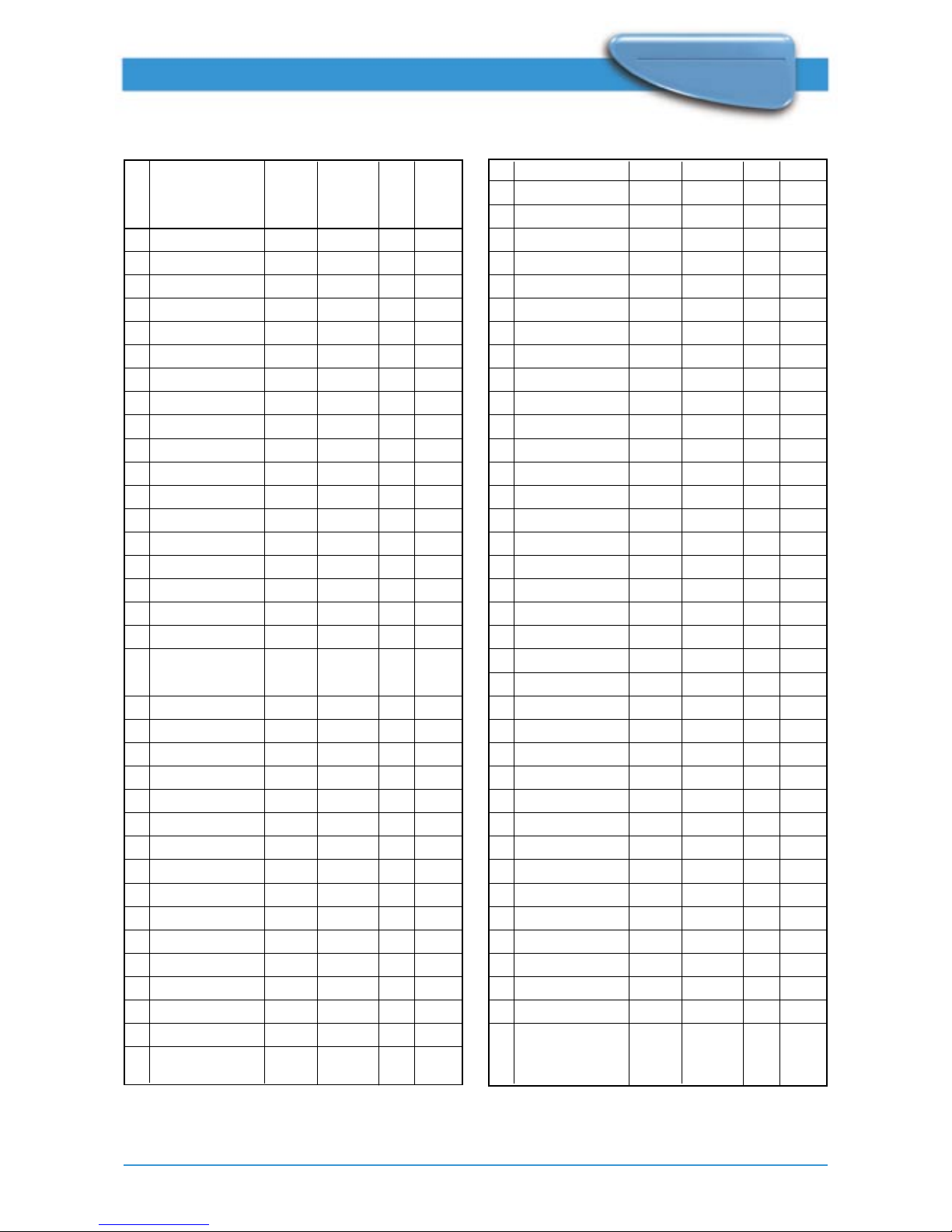
ROM CODE TABLE RANGE
No KEYS CODE Supported EC MDV
by
RCC
1. Open/Close 004:066 X X X
2. Play 004.044 X X X
3. Stop 004.049 X X X
4. Next 004.032 X X X
5. Prev 004.033 X X X
6. Pause/Step 004.048 X X X
7. Cursor Up 004.088 X X
8. Cursor Down 004.089 X X
9. Cursor Left 004.090 X X
10. Cursor Right 004.091 X X
11. OK (enter) 004.092 X X X
12. System (Menu) 004.130 X X
13. Disc (Menu) 004.084 X X X
14. Title Menu 004.113 X X
15. Key Menu 004.209 X X
16. OSD On/Off 004:015 X X
17. Key Access 004:235 X
18. Return 004.131 X X X
19. Display
(Bit Rate/ CD Text) 004.239 X N/A N/A
20. Resume 004.215 X X
21. Title 004:201 X
22. Chapter 004:202 X
23. FTS 004.251 X X
24. TimeSearch 004.242 X
25. Memory 004:069 X N/A
26. Disc Lock 004:243 X N/A
27. T/C 004.200 X X
28. TV/DVD 004:067 X X X
29. Aspect Ratio 004:249 X N/A N/A
30. Option 004:250 X N/A N/A
31. PBC On/Off 004.214 X
32. Display Dim 004.019 X
33. Standby (Power) 004.012 X X X
34. Digit 1 004.001 X X X
35. Digit 2 004.002 X X X
36. Digit 3 004.003 X X X
37. Digit 4 004.004 X X X
38. Digit 5 004.005 X X X
39. Digit 6 004.006 X X X
40. Digit 7 004.007 X X X
41. Digit 8 004.008 X X X
42. Digit 9 004.009 X X X
43. Digit 0 004.000 X X X
44. Angle 004.133 X X X
45. Subtitle 004.075 X X
46. Subtitle On/Off 004.227 X X
47. Audio 004.078 X X X
48. Repeat 004.029 X X X
49. Repeat A-B 004.059 X X
50. Shufe 004.028 X X
51. 3D Sound 004:082 X N/A
52. Scan 004.042 X X
53. Zoom 004.247 X N/A
54. Forward 004.040 X X X
55. Forward 4x 004.223 X X
56. Forward 8x 004.224 X X X
57. Backward 004.041 X X X
58. Backward 4x 004.222 X X
59. Backward 8x 004.221 X X X
60. Slow Forward 004.034 X X
61. Slow Forward 1/8 004.216 X X X
62. Slow Backward 004.035 X X
63. Slow Backward 1/8 004.219 X X X
64. Step Forward 004.246 X X
65. Step Backward 004.245 X X
66. Playback Reverse 004.045 X X
67. Karaoke On/Off 004:228 X N/A
68. Karaoke Key + 004:236 X N/A
69. Karaoke Key - 004:237 X N/A
70. Echo + 004:233 X N/A
71. Echo - 004:234 X N/A
72. Vocal 004:231 X N/A
73. Once More 004:229 X N/A
Note: RC key codes for Display (Bit rate/CD Text), PBC On/Off, Display Dim will not be supported
through EC. (RCC = Remote Control Command, EC = External Control).
Page 20

20
ProDVD 175
ProDVD 175
For more information about the ProDVD 175, please contact the website: www.prodvd.philips.com
Overview external control commands
(group PC)
command parameter-list
RC RCCode
PlayT TitleNumber
PlayC TitleNumber,
ChapterNumber
OSD Mode
LKC Mode
RCC Mode
UOP Mode
SetAST AudioStreamNumber
SetSPST SubPictureStreamNumber
CDDALock Lock
PVRLock Lock, ProviderID
SetPlayMode CHAPTER | TITLE | DISC
Overview asynchronous response
(group PR)
command parameter-list
EOT ReturnValue, TitleNr
EOC ReturnValue, ChapterNr
StatusChange ReturnValue, Status
Error ReturnValue, ErrorNr
OVERVIEW OF COMMANDS
Overview external control status (group PS)
command parameter-list request parameter-list response binary
data
GetStatus ReturnValue, Status GetDiscType ReturnValue, DiscType GetAST ReturnValue, AudioStreamNumber GetSPST ReturnValue, SubPictureStreamNumber GetNrT ReturnValue, NrTitles GetNrC TitleNr ReturnValue, NrChapters GetT ReturnValue, TitleNr GetC ReturnValue, TitleNr, ChapterNr GetDiscID ReturnValue, DiscID GetSector SectorNr ReturnValue, NumBytes Yes
GetCyclicBuffer ReturnValue, NumBytes Yes
Note: In case binary data is “Yes”, the Binary data will be send immediately after the ASCII parameter
list response. It will only be send in case Return Value = 0.
 Loading...