

Page 1

PM3
Front Cover Art
Page 2

IntroductionTable of Contents
Introduction ......................................................3
Setup ...............................................................4
Battery Installation .......................................4
Battery Saver...............................................4
Code Saver ................................................. 4
Power-On default ........................................4
TV Punch Through Feature ..........................5
VCR/DVD Punch Through Feature .............. 5
Code Setup ................................................. 5
Button Functions............................................... 6
Advanced Functions .........................................8
DVD But ton Func tio ns.................................8
VCR/DVD Punch-Through Feature ............. 9
TV/VCR/INPUT ......................................... 9
TV/VCR and TV/DVD Combo units ........... 9
Code Entry.....................................................10
Direct Code Entry......................................10
Code Search ............................................. 11
Brand Search.............................................12
Code Identification Feature ........................14
Sleep Timer .................................................... 15
Product Operation.......................................... 16
Troubleshooting ..............................................17
Congratulations on your purchase of a Philips
Magnavox Universal Remote Control. Philips
Magnavox Universal Remotes let you replace a
broken or lost remote or combine more than one
remote into one.
This remote control operates the common features
of most but not all models and brands of IR
Infrared Controlled V ideo Equipment. This
remote may provide functions that are not
available on your equipment. Some functions of
your particular equipment (e.g. menu functions)
may not be controlled by this remote. In such
cases, use the original remote control for your
equipment. Please use this manual to become
familiar with your Philips Magnavox Universal
Remote. After you are familiar with your remote
the first thing you need to do is to install batteries
and setup your remote for your particular product
and brand.
Thank you for buying a Philips Magnavox remote
and we hope it will give you many years of
service.
32
Page 3

Setup
Setup, cont.
Battery Installation
1. On the back of the remote,
push down on the tab and
lift the cover off.
2. Match the batteries to the
+ and - marks inside the
battery case, then insert 2
AAA Alkaline batteries.
3. Press the battery cover
back into place.
Battery Saver
Y our remote automatically
turns off if the buttons are
depressed more than 30
seconds. This will save your
batteries should your remote
get stuck in a place where the
buttons remain depressed
(e.g., between the sofa
cushions).
Code Saver
Y ou will have up to 10 minutes to change the batteries
in your remote without losing codes you have
programmed. However, do not press any buttons until
batteries are installed in the remote. If buttons are
pressed without batteries in the remote, all codes will be
lost.
Power-On Default
The remote powers on in TV mode.
TV V olume/Mute Punch-Thr ough Feature
The TV Volume/Mute punch-through feature lets you
control the Volume and Mute function of your TV in any
mode programmed to be a VCR, DVD, CABLE or SA T
device, without needing to change to TV mode.
VCR/DVD Punch-Through Feature
Punch-through to VCR/DVD mode i.e. the 6 keys (PLAY,
PAUSE, STOP, FF, REWIND, and REC) is only allowed
in modes programmed for TV or Cable codes.
Code Setup
The CODE SEARCH button is used to setup the remote.
You can either setup the remote using the code for your
brand of product, from the code tables (on separate
sheet), or you can search through the library of codes
until you find a code that works for your product.
Please refer to “Programming with Code Search” on page
11 for more information on using the code search feature
to learn how to search through the library of codes for
your products.
NOTE: You can store any kind of code under any mode
(except TV). I.E. you can store a VCR code under the
CBL button, or a DVD code under the VCR button, etc.
However, you can only store TV codes under the TV
button.
POWER
VCR
CODE SEARCH
QUIT
INFO
SELECT
VOL
SEARCHSLEEP
CHA
C
H
CODE
DVD
R
E
T
P
OK
A
P
T
E
R
CBLTV
/
C
H
A
N
VOL
MENU
IN/OUT
N
A
H
C
/
SUB
PREV.
TITLE
CHAN
REPEAT
54
Page 4

REC
SCAN REW SCAN
CODE
SLEEP
PREV.
CHAN
INFO
MENU
VOL
VOL
TV
C
H
A
P
T
E
R
/
C
H
AN
CHA
P
T
E
R
/
C
H
AN
ENT
Button Functions
Button Functions, cont.
Some buttons on the remote might have functions that
are referred to by different names on the device you are
controlling. E.G. PREV.CHAN may be called RECALL, or
ENTER may be called DISPLAY. These differences depend
on the brand and model of your product. Also, this
remote can only operate features that exist on your
product. E.G., your product must have PREV.CHAN
ability for the PREV.CHAN button to operate this feature.
MUTE Turns off
the TV sound
while the picture
remains. Use for
TV , VCR/DVD,
CBL Selects
product to be
operated.
Indicator light
Lights when any
button is pressed.
OK/SELECT in
Menu mode.
VCR
DVD
E
T
OK
T
E
POWER
CBLTV
R
C
/
H
AN
VOL
MENU
IN/O UT
AN
H
C
/
R
SUB
PREV.
TITLE
CHAN
REPEAT
CHAPTER +/-
controls DVD track
selection i.e. DVD
Track Skip Up/Down
(in DVD mode). Note
the DVD Transport
keys also control DVD
when in DVD Mode.
INFO/SELECT
displays/selects
on-screen channel
information, etc.
SLEEP Turns off the
TV after a period of 1
QUIT
INFO
SELECT
P
HA
C
VOL
C
H
A
P
CODE
SEARCHSLEEP
to 99 minutes.
CHANNEL UP/
DOWN Changes
the channels.
QUIT exits
from Menu
mode.
QUIT
SELECT
VCR
DVD
OK
SEARCH
PLA Y
STOP PAUSE
SUB
TITLE
POWER
REPEAT
INP UT
POWER
Turns
product On
or Off.
CBL
IN/O UT
TV/
VCR
FF
VOLUME UP/
DOWN Changes
the volume level
of the product,
normally the TV .
MENU IN/OUT
Toggles in and out
of menu mode.
Accesses the Menu
functions of the
device you are
controlling.
PREV.CHAN Returns
to the previously
selected channel, or
DVD repeat toggle.
REPEAT performs DVD
players “A-B Repeat”
(or RPT A.B) function
for repeat play of
current Chapter or
Track.
CC (SUBTITLE)
TV Closed
Caption (if your
TV has this
feature) or DVD
Subtitle toggle.
CODE SEARCH For setup.
NUMBERS
Enter numbers for
direct channel
selection. Some
products require Enter
to be pressed after
channel selection.
ENTER
Used after direct
channel number
entry to immediately
change to the
selected channel.
INP UT
ENT
SCAN REW SCAN FF
PLA Y
STOP PAUSEREC
VCR
TV/
RECORD, PLA Y , STOP ,
REW , FF, PAUSE VCR
control buttons operate
your VCR even when the
remote is set to operate
the TV. Also operates
DVD Scan -/+.
TV/VCR/INPUT
For some TVs, press
repeatedly to select
from available
viewing sources
(TV , CBL, etc.).
Note: The REC button must
be pressed TWICE to record
from your VCR. For some
brands of VCRs, you might
need to press the REC
button once, then press it
again for three seconds.
76
Page 5

Advanced Button Functions
Advanced Functions, cont.
DVD Functions
SCAN+ and SCAN- buttons control the speed of Fast
Forward and Reverse Playback respectively.
CHAPTER+ and CHAPTER- buttons respectively
locate the succeeding or preceding Chapters or Tracks
on a disc.
SUBTITLE button turns the subtitles on or off.
REPEAT button performs DVD players “A-B Repeat” (or
RPT A.B) function for repeat play of current Chapter or
Track.
INFO/SELECT button brings up DVD Display or
Control Menu for Chapter/Track/T itle number , Time
remaining/elapsed indication, system information, etc.
QUIT button is used to Exit or Clear on-screen Menu
displays.
PLAY button is used to start Disc playback and for
Menu selection on some DVD players.
STOP button stops Disc playback.
PAUSE button pauses Disc playback - press PLAY to
resume.
INPUT button activates the DVD Player’ s SETUP Menu.
MENU IN/OUT
The Menu In/Out button allows you to toggle in and out
of Menu Mode. Pressing Menu In/Out brings up your
device Menu. While in Menu mode the remote’s red
indicator light blinks continuously . The remote will exit
Menu Mode after 20 seconds if no keys are pressed.
While Menu Mode is active, the Menu, Channel,
V olume, Mute and Mode keys perform the following
functions:
MENU IN/OUT Exits/Enters Menu mode.
CHANNEL UP/DOWN Up/Down commands for on-
screen Menu navigation.
VOLUME UP/DOWN Right/Left commands for onscreen Menu navigation.
MUTE OK command for on-screen Menu selection.
TV Mode Key Quit, Exit or Clear command to quit on-
screen Menu and return the remote to normal operation
(red indicator is now off). Note this action is also
available by pressing any Mode key.
VCR/DVD Punch-Through Feature
This remote lets you Punch-through to the last VCR or
DVD device used. Normally other types of remotes only
punch-through (from another Mode) on the 6 VCR
buttons, to the device programmed under the VCR
Mode button. This is not much use if you are using a
DVD programmed under a Mode other than VCR. This
remote punches-through to the last VCR or DVD device
you used. For example, if you have 3 DVD/VCR devices
programmed into this remote, the last one you accessed
on the remote will be the one that has control of the 6
VCR/DVD buttons when in any other mode.
TV/VCR/INPUT
When in TV mode the TV/VCR/INPUT button performs
the INPUT source switch function.
When in a mode that has been programmed for VCR the
TV/VCR/INPUT button performs the TV/VCR antenna
switch function.
When in a mode that has been programmed for Cable the
TV/VCR/INPUT button performs the A.B switch
function.
When in a mode that has been programmed for SAT the
TV/VCR/INPUT button performs the TV/SA T switch
function.
When in a mode that has been programmed for DVD the
TV/VCR/INPUT button performs the DVD Setup
function.
TV/VCR and TV/DVD Combo units
Note that for some TV/VCR and TV/DVD combo units
you might need to set up two different buttons to
control both parts of the combo unit. E.G., (referring to
the Direct Code Entry section on the following page)
you might need to set up a code under the TV button to
control the TV part of the combo unit AND a separate
code for the VCR or DVD under any other button you
choose.
Misc.
OK means same as SELECT - some manufacturers use
OK label and others use SELECT label on their remotes.
CC will activate the Closed Caption feature if your
device has that feature.
98
Page 6
CODE
SLEEP
PREV.
CHAN
INFO
MENU
VOL
VOL
TV
C
H
A
P
T
E
R
/
C
H
AN
C
HA
P
T
E
R
/
C
H
AN
Code Entry
Code Entry, cont.
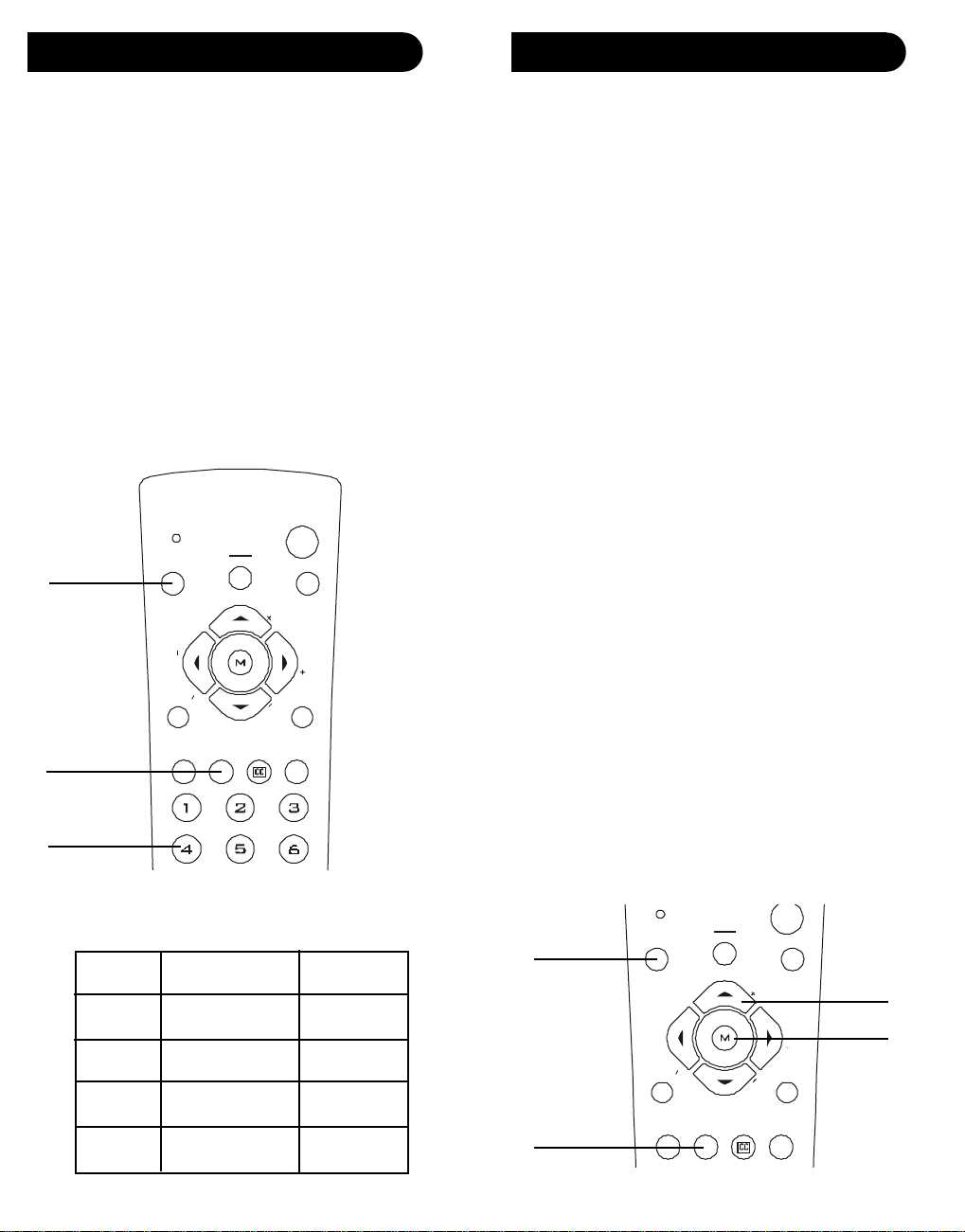
Direct Code Entry
1. Press and hold the CODE SEARCH button until the
red indicator stays on, then release the CODE
SEARCH button.
2. Press and release the desired mode button (TV, VCR,
etc.). The red indicator blinks, then stays lit.
3. Enter the 3 digit code from the code tables (on
separate sheet). Note: after a valid code entry, the
red indicator turns off. For an invalid code, the red
indicator flashes.
4. With your device on, press CHANNEL UP. If the
device responds, no further programming is
required. Note: If some buttons do not operate your
equipment, try one of the other codes for your
brand.
POWER
VCR
DVD
2.
QUIT
INFO
SELECT
VOL
SEARCHSLEEP
CHA
C
H
CODE
R
E
T
P
OK
A
P
T
E
R
1.
3.
CBLTV
/
C
H
A
N
VOL
MENU
IN/OUT
N
A
H
C
/
SUB
PREV.
TITLE
CHAN
REPEAT
Programming with Code Search
If your product does not respond after you have tried all
the codes for your brand, or if your brand is not listed,
try searching for your code by following these steps.
1. Manually turn on the device (TV, VCR, etc.) to be
controlled.
2. Press and hold the CODE SEARCH button until the
red indicator stays on, then release the CODE
SEARCH button.
3. Press and quickly release the desired mode button
(TV, VCR, etc.). The red indicator blinks off once.
4. Press the CHANNEL UP button repeatedly (up to 300
times) until the device to be controlled changes
channel. The red indicator blinks off with each
button press. If you accidentally overshoot the
code required, press the CHANNEL DOWN button
to backtrack through the library until the device
changes channel. Pressing CHANNEL UP changes
direction to forward again.
5. Press and release MUTE to install the code.
Most users will store VCR codes under the VCR button,
Satellite codes under SAT , etc. If (for example) you want
to store a VCR code under SAT, first follow the procedure
for Direct Code Entry (page 10) and press SAT in step 2
of Direct Code Entry, then enter ANY VCR code in step 3
of Direct Code Entry. Then follow the steps above for
Code Search (or Brand Search, page 12).
Note: If the device does not have a CHANNEL UP
button, use PLAY (VCR only) or POWER instead. Code
Search starts from the currently stored three digit
number under that mode.
Write your codes down here for easy reference later.
Type Type stored Code
TV TV
VCR
DVD
Cable
VCR
DVD
3.
QUIT
CBL
4.
OK
5.
SELECT
SEARCH
2.
SUB
TITLE
IN/O UT
REPEAT
1110
Page 7
Code Entry, cont. Code Entry, cont.
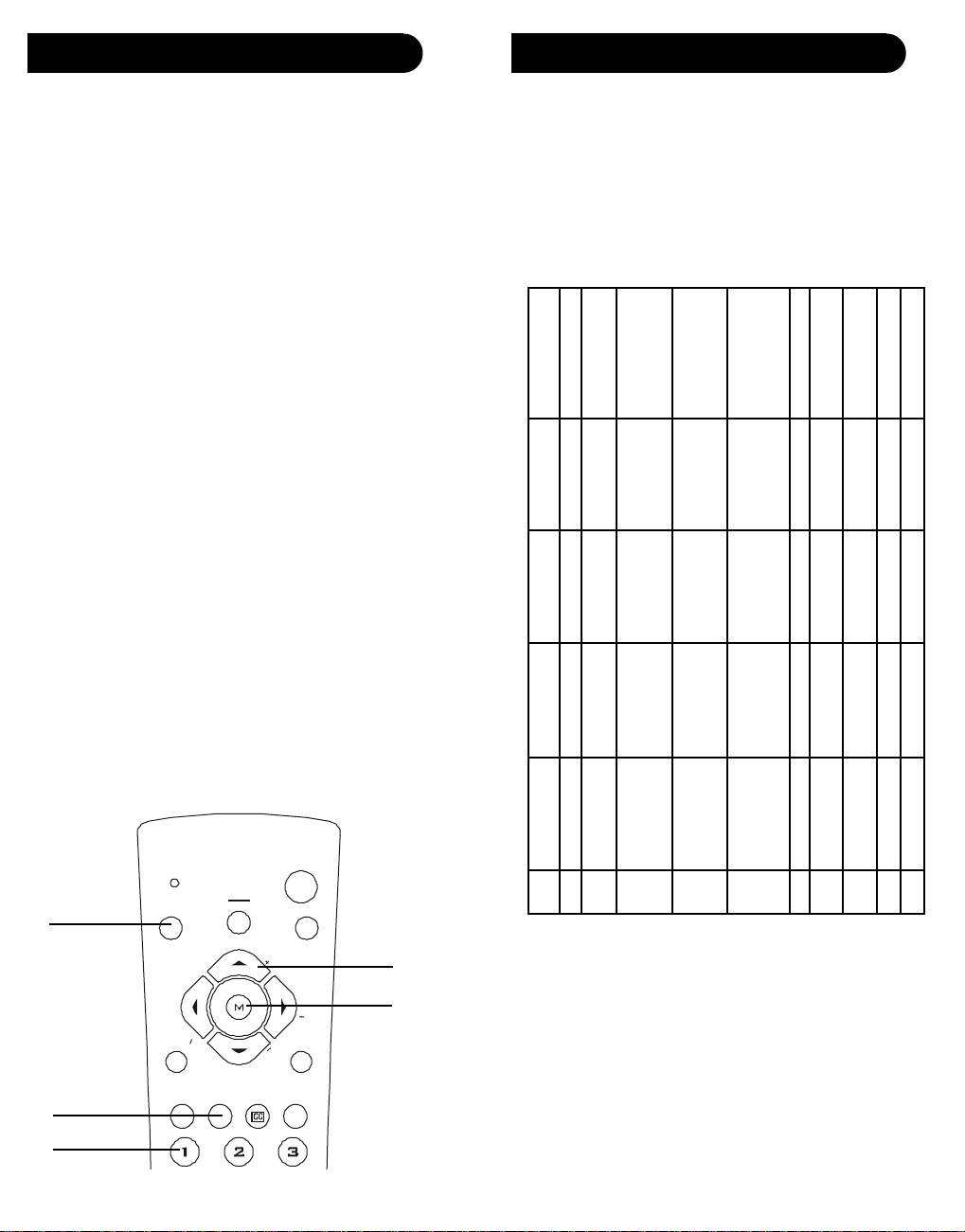
Code Search by Brand
Lets you search for a code for a specific Brand within
the Code Library for a particular manufacturer.
1. Turn on the device (TV, VCR, etc.) to be controlled.
2. Press and hold the CODE SEARCH button until the
red indicator remains on, then release CODE
SEARCH button.
3. Press and quickly release the desired mode button
(TV, VCR, etc.). The red indicator blinks off once.
4. Press and release the numeric button (0-9)
corresponding to desired Manufacturer (see table on
next page). The red indicator blinks off once. Note,
pressing “0” performs a full library search same as
normal Code Search Method on previous page.
5. Press the CHANNEL UP button ((or POWER or PLAY
(VCR only)) repeatedly until the device to be
controlled changes channel. The red indicator blinks
off with each button press. If you accidentally
overshoot the code required, press the CHANNEL
DOWN button to backtrack through the library until
the device changes channel. Pressing CHANNEL UP
changes direction to forward again.
6. Press and release MUTE to install the code.
Brand Search T able
Look up your brand in the appropriate column (TV, VCR,
etc.). Look to see what digit (1, 2, 3, etc.) applies to your
brand, and enter it in step 4 of “Code Search by Brand”
on the previous page.
CD/AUDIO
ZENITH
PHILIPS, MAGNAVOX,
MARANTZ
SONY, PANASONIC,
TECHNICS, SHARP,
TOSHIBA
HITACHI, SANYO, JVC,
LG-GOLDSTAR,
SAMSUNG, MITSUBISHI
SYLVANIA, CURTIS-
MATHES, FISHER,
EMERSON, OPTIMUS
PIONEER, TEAC, NAD
KENWOOD, YAMAHA,
DENON, ONKYO
RCA, GE, PROSCAN
N/A
ALL
SAT/DBS
ZENITH, GEMINI
PHILIPS, MAGNAVOX
SONY, PANASONIC,
TOSHIBA, SHARP
HITACHI, JVC,
SAMSUNG
GENERAL
INSTRUMENT,
ECHOSTAR, DISH,
HUGHES, PRIMESTAR
N/A
N/A
RCA, GE, PROSCAN,
PIONEER
N/A
ALL
CABLE
JERROLD
GENERAL
INSTRUMENT, TOCOM
RCA, GE, PROSCAN,
PIONEER
ZENITH, GEMINI
PHILIPS, MAGNAVOX
N/A
N/A
SCIENTIFIC ATLANTA
N/A
ALL
Brand Search Method entry is now complete.
Note: When all codes under a Brand have been searched
the red indicator flashes rapidly for 3 seconds.
POWER
VCR
DVD
CBLTV
3.
QUIT
VOL
INFO
SELECT
SLEEP
2.
P
CHA
C
H
A
P
CODE
SEARCH
R
C
/
E
H
T
AN
5.
OK
VOL
6.
MENU
IN/O UT
AN
H
T
C
/
E
R
SUB
PREV.
TITLE
CHAN
REPEAT
4.
VCR/DVD/DVR
ZENITH, APEX
PHILIPS, MAGNAVOX,
TV
ZENITH
PHILIPS, MAGNAVOX
DIGIT12
MARANTZ
SONY, PANASONIC,
SONY, PANASONIC,
3
SHARP, TOSHIBA,
DAEWOO, YAMAHA,
DENON
SHARP, TOSHIBA,
DAEWOO
HITACHI, SANYO,
JVC, LG-GOLDSTAR,
SAMSUNG,
MITSUBISHI
HITACHI, SANYO,
JVC, LG-GOLDSTAR,
SAMSUNG,
MITSUBISHI
4
1312
SYLVANIA, CURTIS-
MATHES, FISHER,
EMERSON
SYLVANIA, CURTIS-
MATHES, FISHER,
EMERSON
5
N/A
N/A
6
N/A
RCA, GE, PROSCAN
N/A
RCA, GE, PROSCAN
7
8
N/A
N/A
9
ALL
ALL
0
Page 8
CODE
SLEEP
PREV.
CHAN
INFO
MENU
VOL
VOL
C
H
A
P
T
E
R
/
C
H
AN
CHA
P
T
E
R
/
C
H
AN
Code Identification
Sleep Timer
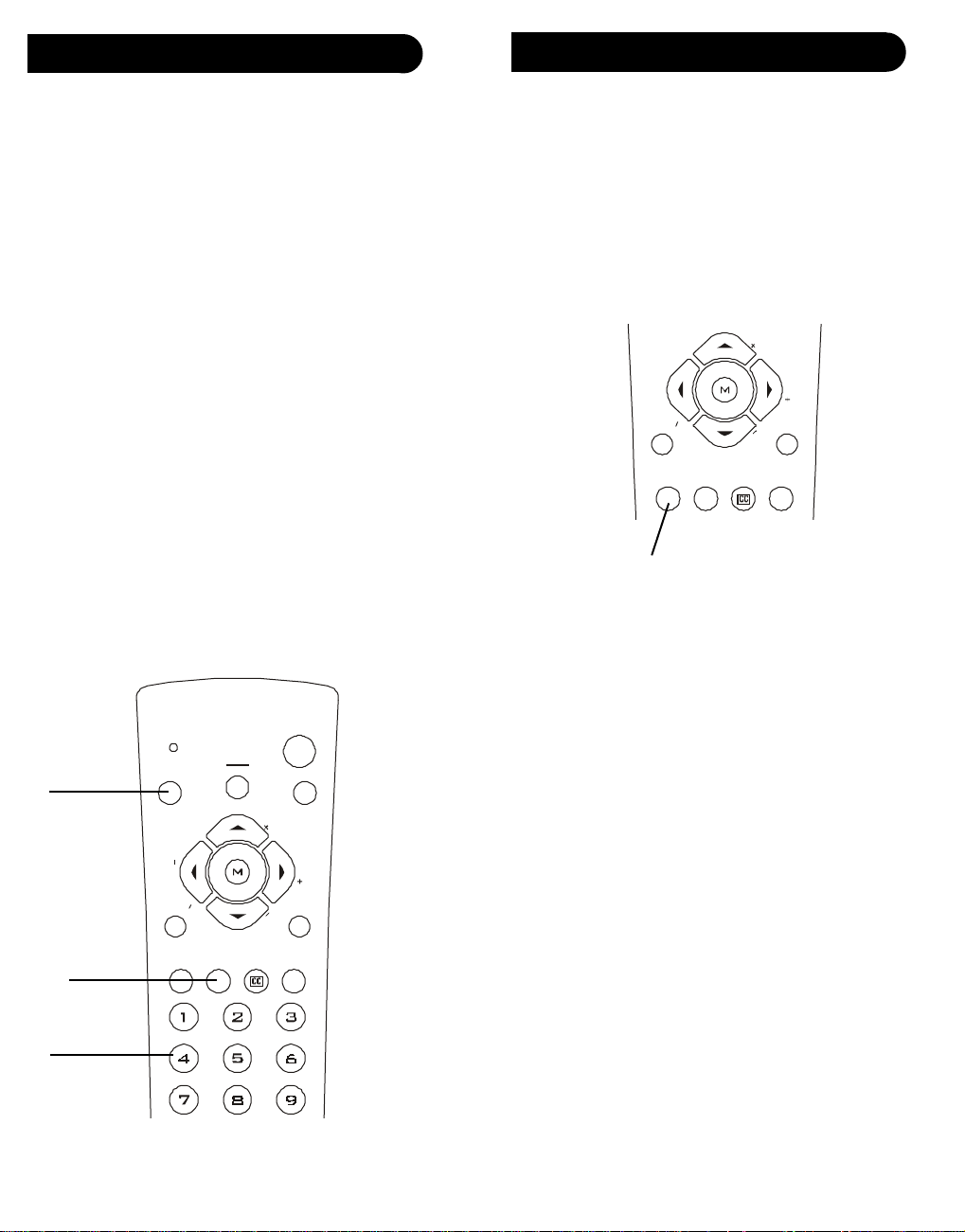
Code Identification Feature
The Code Identification Feature allows you to identify
the three digit library code stored under your device key.
For example, if you want to find out what three digit
code is stored under your TV device key, follow the six
steps below:
1. Press and hold the CODE SEARCH button until the
red indicator stays on. Release the CODE SEARCH
button.
2. Press and release the desired mode button (TV,
VCR, etc.). The red indicator blinks, then stays lit.
3. Press and release the CODE SEARCH button. The
red indicator blinks off.
4. T o find the first digit for the code stored under the
mode key pressed in step 2, press each numeric key
from 0-9 in turn. When the red indicator blinks off
the number you pressed is the first digit for the code
you are searching for.
5. T o find the second digit, repeat step 4, this time
when the red indicator blinks off this is the second
digit.
6. Repeat step 4 again to find the third digit.
POWER
VCR
2.
1, 3.
QUIT
INFO
SELECT
VOL
SEARCHSLEEP
CHA
C
H
CODE
DVD
R
E
T
P
OK
A
P
T
E
R
/
C
/
H
C
TITLE
SUB
CBLTV
A
N
VOL
MENU
IN/OUT
N
A
H
PREV.
CHAN
REPEAT
The Sleep feature enables the remote to turn off the TV
after a period of 1 to 99 minutes. Remote is to be in TV
mode to set a Sleep Timer. This feature works even if
your TV does not have this feature.
1. Press and release the TV Mode button.
2. Press and hold the SLEEP button until red indicator
remains on (occurring after approx. 2-3 seconds).
QUIT
OK
SELECT
SEARCH
SUB
TITLE
IN/O UT
REPEAT
3. Release the SLEEP button.
4. Press and release the numeric buttons (01-99) for the
time required. The red indicator blinks off to indicate
button press acceptance and remains off after the
second button press.
5. TV Sleep Timer now set.
6. Leave the Remote pointing towards
the TV with an unobstructed path.
To cancel the Sleep Timer, press and hold the SLEEP key
for 2-3 seconds until the red indicator blinks or press
and release the POWER button in TV Mode.
4.
1514
Page 9
Product Operation
PLAY
STOP
PAUSE
REC
SCAN REW SCAN
F
F
SUB
TITLE
CODE
SEARCH
SLEEP
PREV.
CHAN
REPEAT
INFO
SELECT
MENU
IN/OUT
VOL
VOL
OK
CBL
TV
QUI T
INPUT
POWER
C
H
A
P
T
E
R
/
C
H
AN
C
HA
P
T
E
R
/
C
H
A
N
VCR
DVD
TV/
VCR
ENT
Troubleshooting
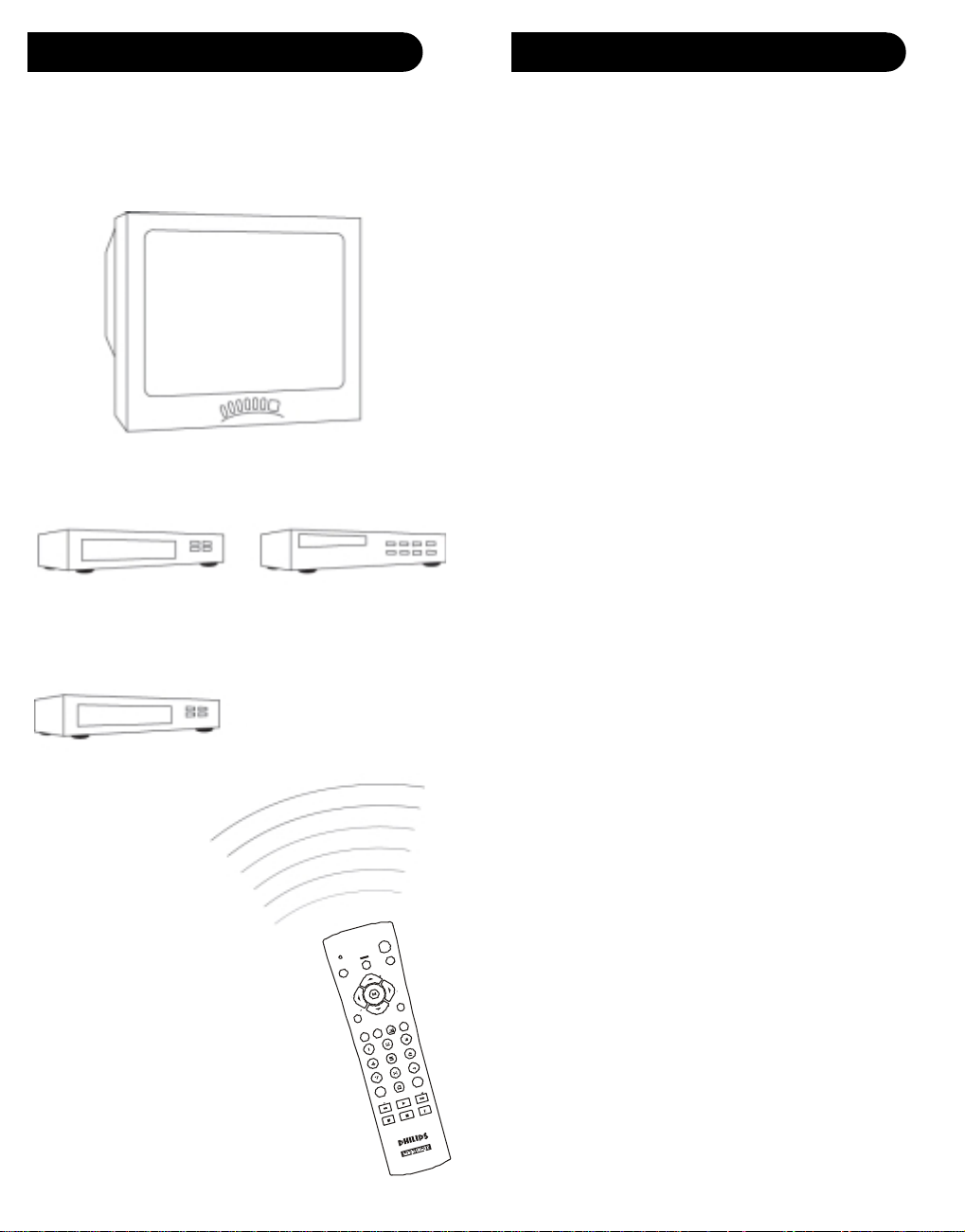
After the batteries are installed and you have
programmed the remote for the codes that operate your
products, you can use your remote to operate a TV, VCR,
DVD, or Cable Box.
TV (Press TV First)
VCR
(Press VCR/DVD first)
DVD Player
(Press VCR/DVD first)
Remote does not operate your product.
• Press the mode button of the product you want to
control.
• Program the remote with a new code.
• Install new batteries. (You might have to reprogram
your remote after installing new batteries.)
• Remote may not be compatible with your product.
Remote does not operate some features of your product.
• Program remote with a new code.
• Remote may not be able to operate all features of
your product or button names might be different
than your product.
Indicator light blinks after you program a product
code.
• Remote did not accept the code.
• Try to program the code again or try a different
code.
For help with setup, please call: 919-573-7854.
Cable Box
(Press CBL first)
To Operate:
1. Press the TV, VCR/DVD, or
CBL button (depending on
which product you want to
operate).
2. Aim the remote at the product.
3. Press POWER to turn on the
product.
4. Press other buttons to operate
the features of your product.
1716
Page 10

Notes Notes
1918
Page 11

90 Day Warranty
This product is manufactured to PHILIPS MAGNA VOX
specifications and is free from defects in material,
workmanship and assembly. This warranty extends only
to the original purchaser and is nontransferable. Should
a defect occur under normal operating conditions within
90 days from the date of purchase, PHILIPS
MAGNAVOX will provide a comparable replacement free
of charge within the warranty period, to the original
purchaser. Defective product must be returned, with the
dated proof of purchase, to the place of purchase for
replacement. This warranty does not extend to the
product if it has been damaged or rendered defective as
a result of accident, misuse, abuse, tampering with or
modification. THIS W ARRANTY IS IN LIEU OF ALL
OTHER W ARRANTIES, EXPRESS OR IMPLIED,
INCLUDING THE IMPLIED W ARRANTIES OF MERCHANT ABILITY OR FITNESS FOR A P AR TICULAR
PURPOSE. IN NO EVENT SHALL PHILIPS
MAGNA VOX BE LIABLE FOR SPECIAL, INDIRECT ,
INCIDENTAL OR CONSEQUENTIAL DAMAGES,
WHETHER IN CONTRACT , TOR T OR NEGLIGENCE.
Some States do not allow limitations on how long an
implied warranty lasts, so the above limitation may not
apply to you. Some States do not allow exclusion or
limitation of incidental or consequential damages, so the
above limitation or exclusion may not apply to you. This
warranty gives you specific rights and you may also
have other rights, which vary from State to State.
Made in China-TC, Quality Assured in USA
Clifton, NJ 07014-1115
PM3 Back
Cover Art
 Loading...