

Page 1

Register your product and get support at
www.philips.com/welcome
EN User manual
PD7007
Page 2

Contents
1 Important 4
Important Safety Instructions 4
Notice 6
2 Your portable DVD player 9
Introduction 9
What’s in the box 9
Overview of the main unit 10
Overview of the remote control 12
3 Get started 14
Install remote control batteries 14
Connect additional equipment 15
Charge the battery 16
4 Play 18
Turn on 18
Select OSD language 18
Play discs 18
Play options 19
5 Watch TV 21
Set up your TV 21
6 Adjust settings 22
7 Product information 24
8 Troubleshooting 25
English
EN
3
Page 3

1 Important
Important Safety Instructions
a Read these instructions.
b Keep these instructions.
c Heed all warnings.
d Follow all instructions.
e Do not use this apparatus near water.
f Clean only with dry cloth.
g Do not install near any heat sources such as radiators, heat
registers, stoves, or other apparatus (including amplifi ers) that
produce heat.
h Protect the power cord from being walked on or pinched,
particularly at plugs, convenience receptacles, and the point where
they exit from the apparatus.
i Only use attachments/accessories specifi ed by the manufacturer.
j Unplug this apparatus during lightning storms or when unused for
long periods of time.
k Refer all servicing to qualifi ed service personnel. Servicing is
required when the apparatus has been damaged in any way, such
as power-supply cord or plug is damaged, liquid has been spilled
or objects have fallen into the apparatus, the apparatus has been
exposed to rain or moisture, does not operate normally, or has
been dropped.
l Battery usage CAUTION – To prevent battery leakage which may
result in bodily injury, property damage, or damage to the unit:
Install all bat teries correctly, + and - as marked on the unit. •
Do not mix bat teries (old and new or car bon and alkaline, etc.).•
Remove batteries when the unit is not used for a long time.•
m Batteries (battery pack or batteries installed) shall not be exposed
to excessive heat such as sunshine, fi re or the like.
n Apparatus shall not be exposed to dripping or splashing.
4
EN
Page 4
o Do not place any sources of danger on the apparatus (e.g. liquid
fi lled objects, lighted candles).
p Where the MAINS plug or an appliance coupler is used as the
disconnect device, the disconnect device shall remain readily
operable.
Warning
Never remove t he cas ing of this apparatus. •
Never lubricate any par t of this a ppar atus. •
Never place this apparatus on other elec trical equipment. •
Keep this apparatus away fr om direct sunlight, nake d fl ames or heat . •
Never look into the laser bea m insid e this apparatus. •
Ensur e that you alway s have easy acces s to the power cord, plug or adaptor to •
disconnect this appara tus from the power.
Hearing safety
Listen at a moderate volume.
Using headphones at a high volume can impair your hearing. This •
product can produce sounds in decibel ranges that may cause hearing
loss for a normal person, even for exposure less than a minute. The
higher decibel ranges are offered for those that may have already
experienced some hearing loss.
Sound can be deceiving. Over time your hearing ‘comfort level’ •
adapts to higher volumes of sound. So after prolonged listening, what
sounds ‘normal’ can actually be loud and harmful to your hearing. To
guard against this, set your volume to a safe level before your hearing
adapts and leave it there.
To establish a safe volume level:
Set your volume control at a low setting. •
Slowly increase the sound until you can hear it comfortably and •
clearly, without distortion.
Listen for reasonable periods of time:
Prolonged exposure to sound, even at normally ‘safe’ levels, can also •
cause hearing loss.
Be sure to use your equipment reasonably and take appropriate •
breaks.
English
EN
5
Page 5
Be sure to observe the following guidelines when using your
headphones.
Listen at reasonable volumes for reasonable periods of time.•
Be careful not to adjust the volume as your hearing adapts.•
Do not turn up the volume so high that you can’t hear what’s around •
you.
You should use caution or temporarily discontinue use in potentially •
hazardous situations. Do not use headphones while operating a
motorized vehicle, cycling, skateboarding, etc.; it may create a traffi c
hazard and is illegal in many areas.
Caution
Use of controls or adjustments or perfo rmance of procedures other than herein •
may res ult in hazar dous r adiation exposure or othe r unsafe operation .
Notice
Any changes or modifi cations made to this device that are not expressly
approved by Philips Consumer Lifestyle may void the user’s authority to
operate the equipment.
This product complies with the radio interference requirements of the
European Community.
Environmental information
All unnecessary packaging has been omitted. We have tried to make
the packaging easy to separate into three materials: cardboard (box),
polys tyrene foam (buffer) and polyethylene (bags, protective foam sheet.)
Your sys tem consists of materials which can be recycled and reused
if disassembled by a specialized company. Please observe the local
regulations regarding the disposal of packaging materials, exhaus ted
batteries and old equipment.
6
EN
Page 6
Recycling
Your product is designed and manufactured with high quality materials and
components, which can be recycled and reused.
When you see the crossed-out wheel bin symbol attached to a product, it
means the product is covered by the European Directive 2002/96/EC:
Never dispose of your product with other household waste. Please inform
yourself about the local rules on the separate collection of electrical
and electronic products. The correct disposal of your old product helps
prevent potentially negative consequences on the environment and human
health.
Your product contains batteries covered by the European Directive
2006/66/EC, which cannot be disposed of with normal household waste.
Please inform yourself about the local rules on separate collection of
batteries. The correct disposal of batteries helps prevent potentially
negative consequences on the environment and human health.
Always bring your produc t to a professional to remove the built-in battery.
The making of unauthorized copies of copy-protected material, including
computer programs, fi les, broadcasts and sound recordings, may be
an infringement of copyr ights and constitute a criminal offence. This
equipment should not be used for such purposes.
Recording and playback of material might require consent. See Copyright
Act 1956 and The Performer’s Protection Acts 1958 to 1972.
This product incorporates copyright protection technology that is
protected by method claims of cer tain U.S . patents and other intellec tual
property rights owned by Macrovision Corporation and other r ights
owner s. Use of this copyright protec tion technology must be authorized
by Macrovision Corporation, and is intended for home and other
limited viewing uses only unless otherwise authorized by Macrovision
Corporation. Reverse engineering or disassembly is prohibited.
English
EN
7
Page 7
“DivX, DivX” Cer tifi ed, and associated logos are trademarks of DivX, Inc.
and are used under license.
Manufactured under license from Dolby Laboratories.
“Dolby” and the double-D symbol are trademarks of Dolby Laboratories.
This apparatus includes this label:
8
EN
Page 8

2 Your portable DVD player
Congratulations on your purchase, and welcome to Philips! To fully benefi t
from the support that Philips offers, register your product at www.philips.
com/welcome.
Introduction
Your portable DVD player plays digital video discs that conform to the
universal DVD Video standard. With it, you can play movies with true cinema
picture quality and stereo or multi-channel sound (depending on disc and
playback set-up).
You can also select sound track, subtitle languages, and different angle of view
(again depending on DVD disc). Besides, you can restrict the play of discs that
are not suitable for children.
You can play the following discs on the DVD player (including CD-R , CDRW, DVD±R and DVD±RW):
DVD-Video•
Video CD•
Audio CD•
MP3 CD•
DivX•
Discs with JPEG fi les•
What’s in the box
Check and identify the contents of your package:
1 x Portable DVD player•
1 x Remote control and 2 A AA batteries•
1 x AC power adaptor - AY5806, AY5808 or ASCU12E-090080 •
(Philips)
1 x Car adaptor•
1 x AV cable•
1 x Antenna•
1 x User manual•
1 x Quick start guide•
English
EN
9
Page 9
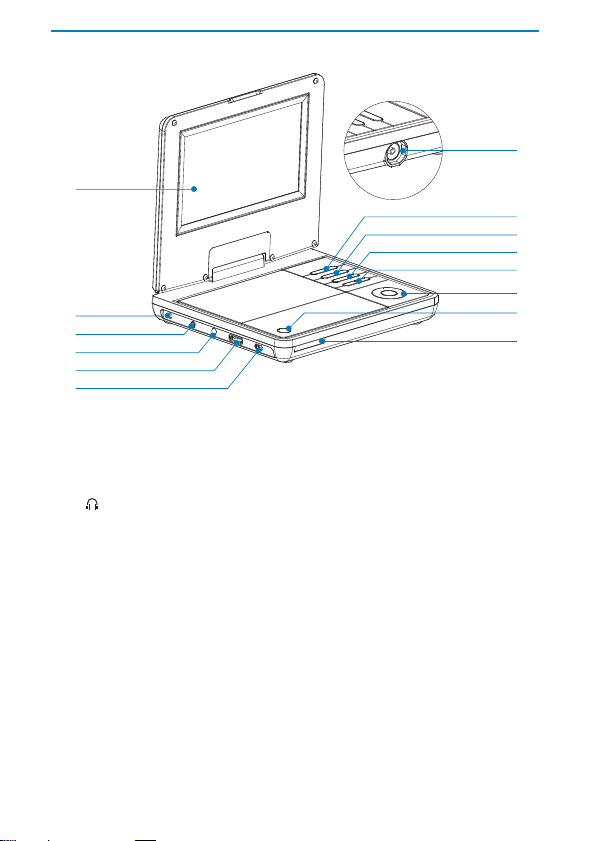
Overview of the main unit
a
b
c
d
e
f
a Display panel
b DC IN
c
d AV OUT
e + VOL -
f POWER ON/OFF (CHR)
g IR / CHR / PWR
h OPEN
Power supply socket.•
Headphone jack.•
Audio/video output jack.•
Increases or decreases volume.•
Turns on/off DVD player.•
Remote control sensor/Charging indicator/Power indicator. •
Opens the disc compartment.•
n
m
l
k
j
i
h
g
10
EN
Page 10

i ( CH+ ), ( CH- ), ,
Navigates menus.•
( CH+ ), ( CH- )
Switches to the nex t or previous channel.•
,
Searches backward/forward at different speeds. •
/ OK
Confi rms an entr y or selection.•
Starts, pauses or resumes disc play.•
,
j
Skips to the previous or next title, chapter, or track .•
k
Stops disc play.•
l MENU
For DVD, accesses or exits disc menu.•
For VCD, turns on or off PBC (Playback Control) mode.•
For VCD version 2.0 or SVCD with PBC turned on, returns to •
the menu.
For TV, turns on the T V setup menu. •
For data discs, goes to the fi le manager screen. •
m DVD / TV
Switches between DVD and TV.•
n ANTENNA
Antenna jack. •
English
EN
11
Page 11
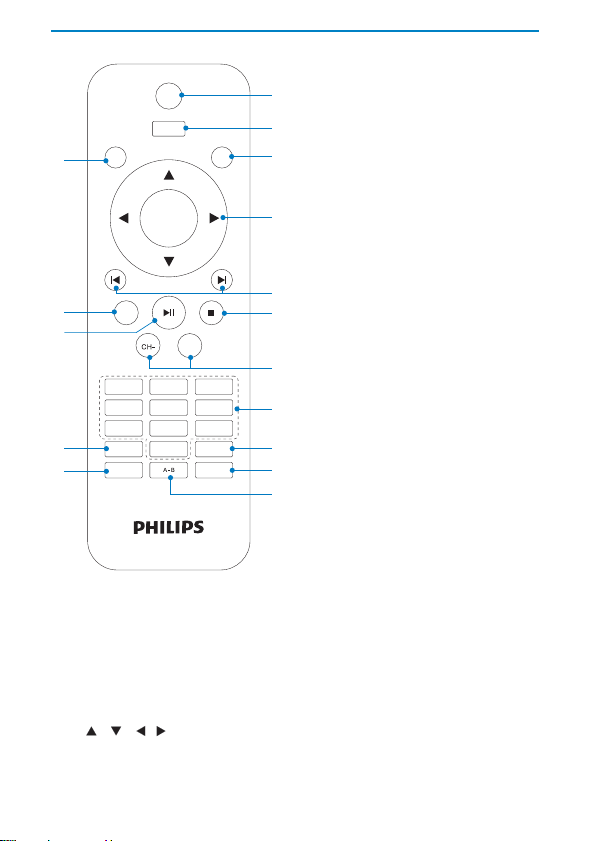
Overview of the remote control
SOURCE
MENU
SETUP
p
DISPLAY
a
b
c
OK
o
n
m
l
MUTE
CH+
123
456
7809
SUBTITLE
AUDIO
TV AUDIO
REPEAT
ZOOM
a SOURCE
b MENU
c DISPLAY
d
Switches between DVD and TV.•
Accesses or exits the disc/TV menu.•
Adjusts the display value of the system.•
, , ,
Navigates menus.•
d
e
f
g
h
i
j
k
12
EN
Page 12

,
Searches backward/forward at different speeds. •
OK
Confi rms an entr y or selection.•
e
,
Skips to the previous or next title, chapter, or track .•
f
Stops disc play.•
g CH+ / CH-
Switches to the nex t or previous channel.•
h 0-9
Numeric keypad. •
i REPEAT
Repeats a chapter/track/title.•
j ZOOM
Zooms into a video scene or picture.•
k A-B
Marks the section for repeat play.•
l AUDIO / TV AUDIO
For DVD, selec ts an audio language.•
For VCD, selec ts an audio mode.•
For TV, selects the audio system.•
m SUBTITLE
Selects DVD subtitle language.•
n
Starts or resumes disc play.•
o MUTE
Mutes or restores volume.•
p SETUP
Accesses or exits the setup menu.•
English
EN
13
Page 13
3 Get started
Caution
Use the controls only as stated in this user manual. •
Always follow t he ins tructions in this chapte r in sequence. •
If you contact Philips, you will be asked for the model and serial number of
your player. The model number and serial number are on the bottom of your
player. Write the numbers here:
Model No. __________________________
Serial No. ___________________________
Install remote control batteries
Caution
Risk of explosion! Keep bat ter ies away f rom heat, sunshine or fi re. Never d iscar d •
batteries in fi re.
Risk of decre ased battery life! Never mix differ ent br ands or types of batteries.
•
Risk of produ ct damage! W hen the remot e contr ol is not used for long periods, •
remove the batter ies.
Dange r of explosion if battery is incorrectly replaced . Repla ce only with the same or
•
equivalent type. •
Bat teri es cont ain che mical substances, they s hould b e disposed of properly. •
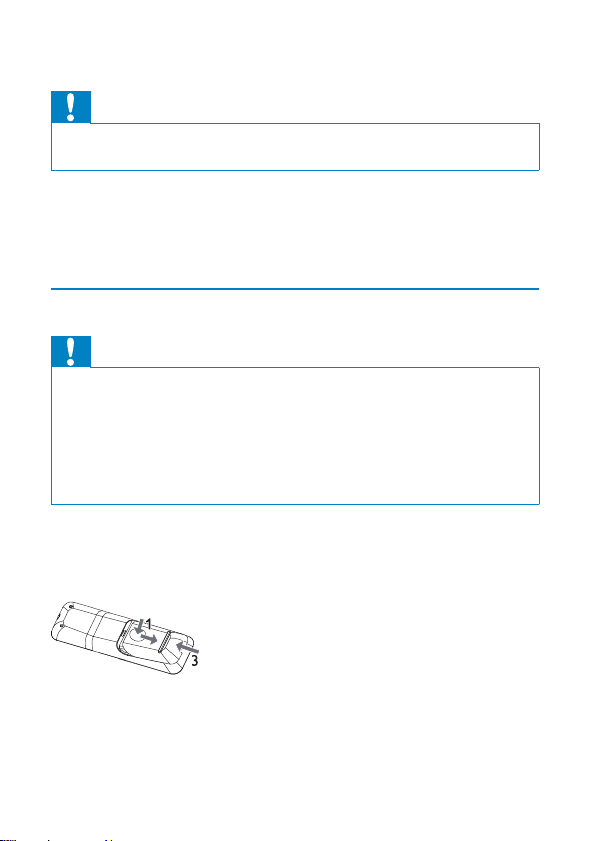
1 Open the battery compartment.
2 Insert 2 AAA batteries with correct polarity (+/-) as indicated.
3 Close the bat ter y compartment.
14
EN
Page 14
Connect additional equipment
Connect a TV
Caution
Turn off your playe r befor e connecting to any add itional equipment. •
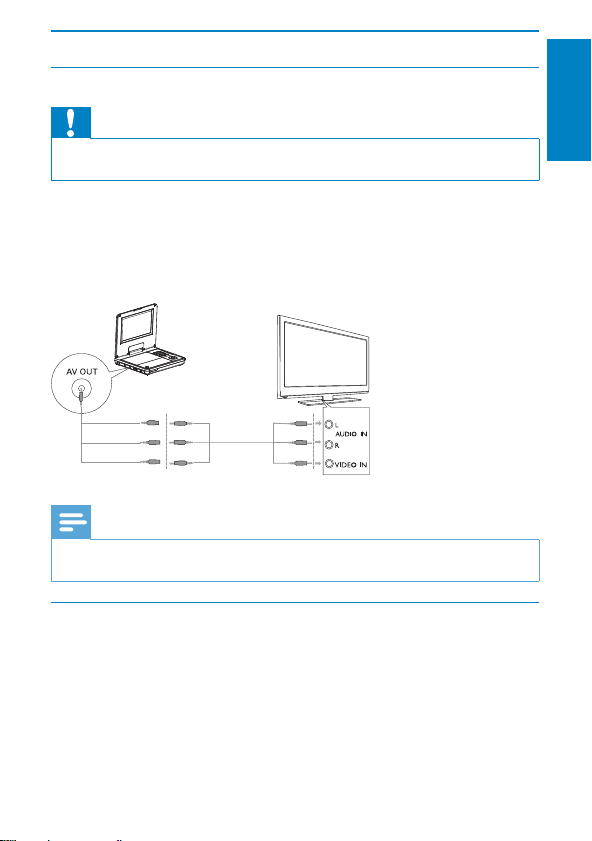
You can connect the player to a TV or an amplifi er to enjoy DVDs.
Match the color of the AV cables (the AV cable connected to the TV is not
supplied) with the jacks:
the yellow cable is for the yellow video jack.•
the red/white cable is for the red/white audio jacks.•
TV
Note
You cannot o utpu t the T V content from the player to a TV. •
Connect TV antenna
You can connect your player to the supplied antenna or home antenna to
receive digital TV program.
1 Connect the antenna to the ANTENNA jack.
not supplied
English
EN
15
Page 15
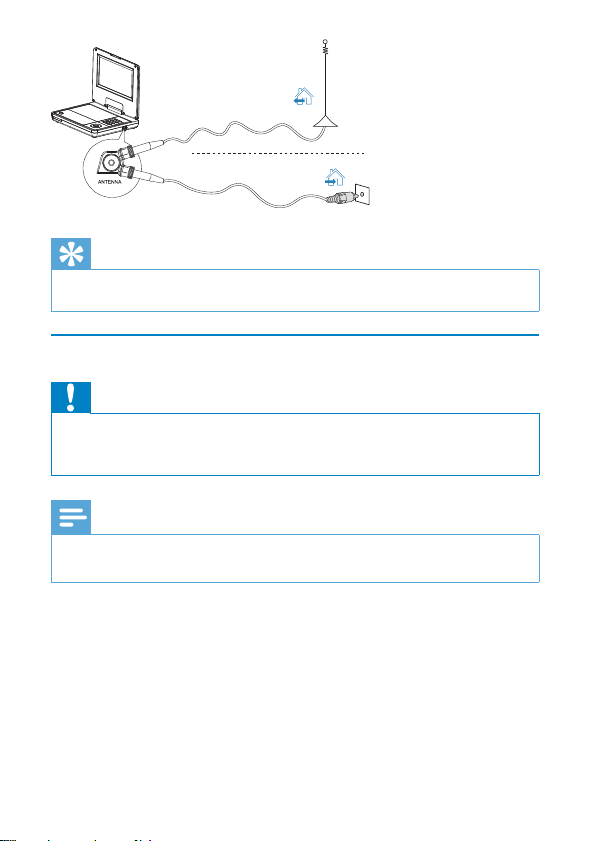
Cable
Tip
For better r eception, connect the player to hom e antenna. •
Charge the battery
Caution
Risk of produ ct damage! Ensure t hat the power supply voltage corresponds to the •
voltage printed on the bot tom of the player.
Use onl y the supplied AC adaptor to char ge the batte ry.
•
Note
The type plate is located on the bottom of the player. •
You can only charge the player when it is in power- off mode. •
1 Slide the POWER ON/OFF (CHR) switch to OFF position.
2 Connect the supplied AC adaptor to the player and to the AC outlet.
16
EN
Page 16
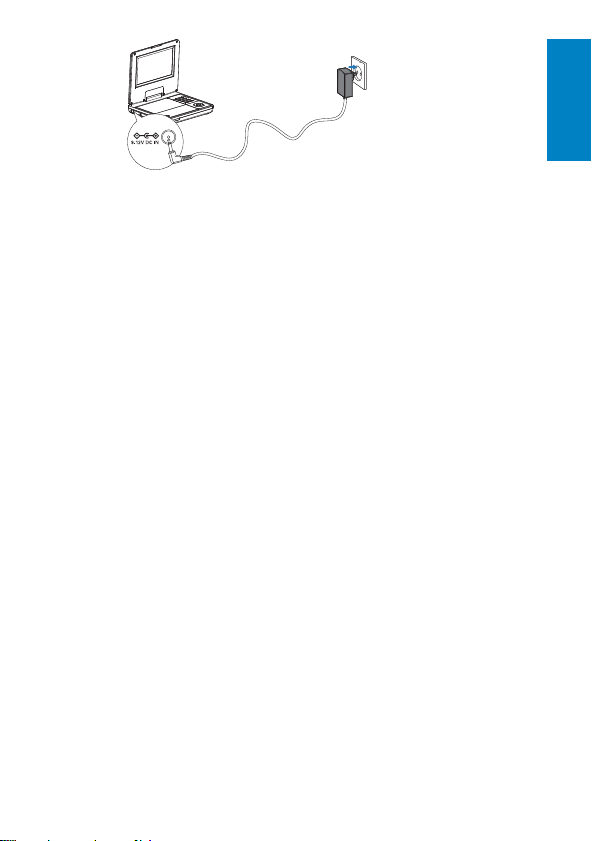
The charge indicator turns on. It takes about 7 hours to fully charge »
the battery.
When the battery is fully charged, the charge indicator turns off. »
English
EN
17
Page 17
4 Play
Turn on
Slide the POWER ON/OFF (CHR) switch to the ON position.
Select OSD language
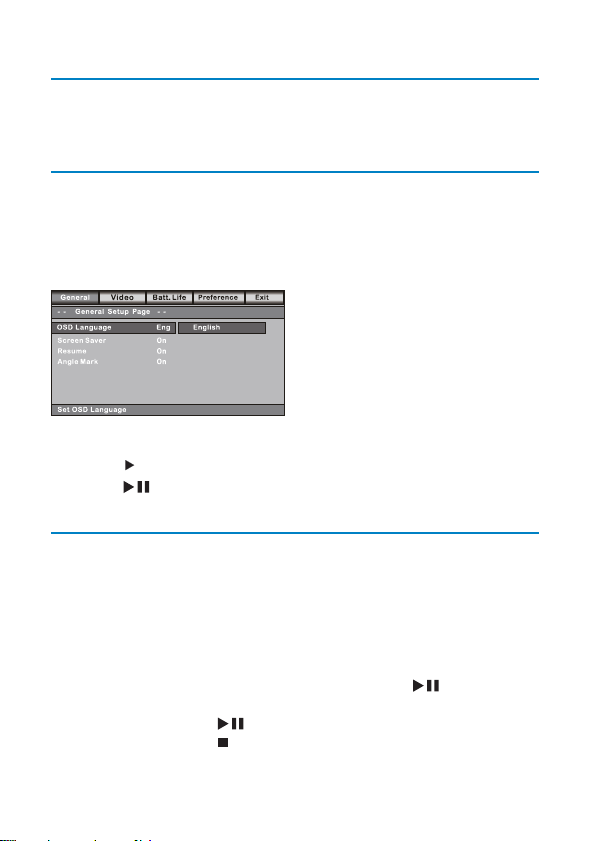
You can choose a different language for the on-screen display text.
1 Press SETUP .
The » PWR indicator turns on.
The setup menu appears. »
French
German
2 Go to [-- General Setup Page --] > [OSD Language] .
3 Press to select an option.
4 Press / OK to confi rm.
5 Press SETUP to exit.
Play discs
1 Press SOURCE to switch to disc mode.
2 Press OPEN on the main unit to open the disc compartment.
3 Insert a disc with the label side facing up.
4 Push down to close the disc compar tment.
Play starts automatically. »
If a menu appears, select an item, then press •
play.
To pause, pres • / OK . Press again to resume play.
To stop, press • .
/ OK to start
18
EN
Page 18
To select the previous/next item, press • or .
To star t search within video/audio, press and hold • or .
Briefl y press or during search to adjust search speed.
Play options
Select audio language
For DVDs that contain two or more audio languages.
During play, press • AUDIO repeatedly until the language is selected.
Select subtitle language
For DVDs that contain two or more subtitle languages.
During play, press • SUBTITLE repeatedly until the language is
selected.
Repeat
During play, press • REPEAT repeatedly to select different repeat
options.
Tip
For VCDs, if PBC is on, you cannot r epeat items . •
Repeat a section
You can repeat a specifi c section of audio/video within a title/chapter/track
(repeat A-B).
1 During play, at the chosen start point, press A-B .
» [ A] is displayed.
2 At the chosen end point, press A-B again.
» [ AB] is displayed.
The selected section plays repeatedly. »
3 Press A-B to cancel.
English
EN
19
Page 19

Zoom
For DVDs, VCDs and JPEG CDs, you can zoom in and out for video
images or pictures.
1 Press ZOOM repeatedly to zoom in and out.
2 When the video image or picture is enlarged, press , , , to pan
through it.
Rotate pictures
For JPEG CDs only. While the JPEG is displayed:
Press • to rotate counter-clockwise.
Press • to rotate clockwise.
Press • to fl ip up/down.
Press • to fl ip left/right.
20
EN
Page 20
5 Watch TV
Note
Befor e you st ar t, ensure that you have connec ted th e antenna to the player. •
Make sure you are in an area with suf fi cient signa l coverage. You can check the signal •
cover age with the T V broadcas t authority of your countr y or visit www.philips .com/
support.
Set up your TV
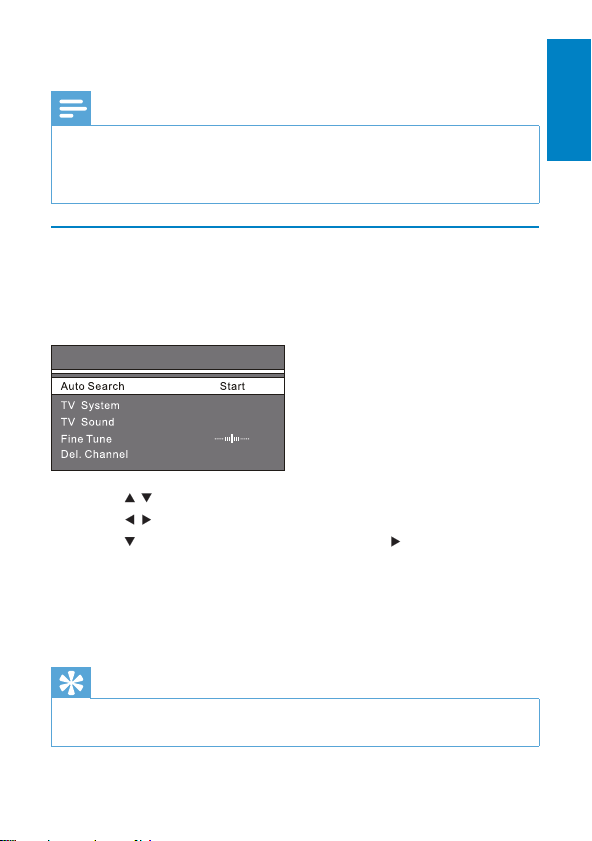
1 Press SOURCE to select T V mode.
2 Press MENU .
The TV menu is displayed. »
TV Menu
PAL
DK
3 Press / to switch to an item.
4 Press / to select an option.
5 Press to switch to [Auto Search] , and press to star t.
Auto search starts. »
All available TV channels will be searched and stored. »
To watch another channel, press • CH+ / CH- .
To delete a channel, switch to the channel, and select • [TV
Menu] > [Del. Channel] .
Tip
Check with lo cal TV broad cas t authorit ies for T V sys tem and TV sound •
confi gurations.
English
EN
21
Page 21
6 Adjust settings
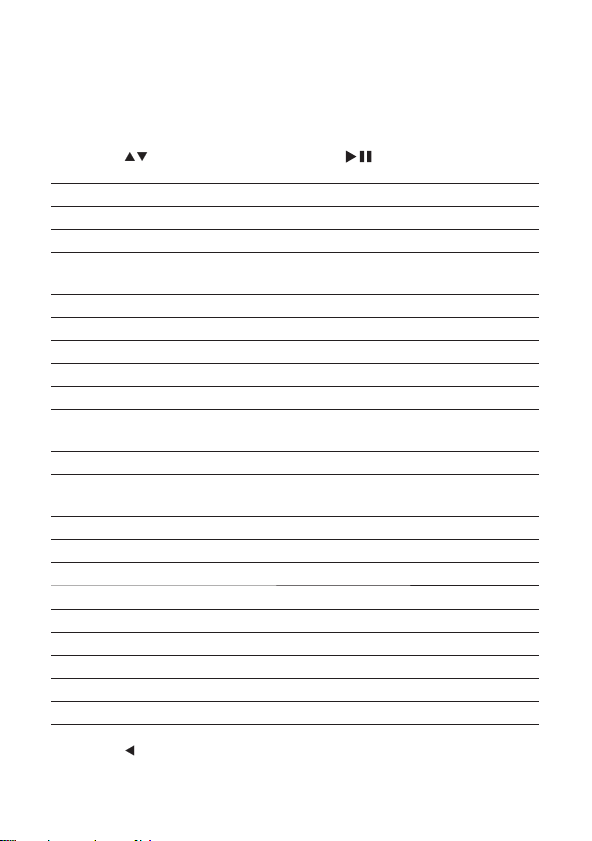
To maximize your play experience, use SETUP to fi ne tune your settings.
1 Press SETUP .
2 Press to selec t an option and press / OK to confi rm.
The setup menu is displayed. »
[-- General Setup Page --]
[OSD Language] Select on-screen display language.
[Screen Saver] Activate/deactivate screen saver.
[Resume] Select whether to start play from the
point where it was last stopped.
[Angle M ark] Select angle mark display options.
[-- Video Setup Page --]
[Brightness] Adjust screen brightness.
[Contr ast] Adjust screen contrast.
[Screen Display] Select display aspect ratio.
[System Type] Select video output format to TV
system.
[-- Battery Life Setup Page --]
[LCD Backlight] Adjust the default brightness level of
screen backlight.
[-- Preference Page --]
[Audio] Select audio language.
[DVD Subtitle] Select DVD subtitle language.
[DivX Subtitle] Select DivX subtitle language.
[DivX VOD] Get DivX registration code.
[Disc Menu] Selec t disc menu language.
[Parental] Select parental level.
[Password] Change password (3308 by default).
[Default] Restore original settings.
3 Press to go back to the previous menu level.
22
EN
Page 22

4 Press SETUP to exit.
English
EN
23
Page 23
7 Product information
Note
Product informa tion is subjec t to change wit hout prior notice. •
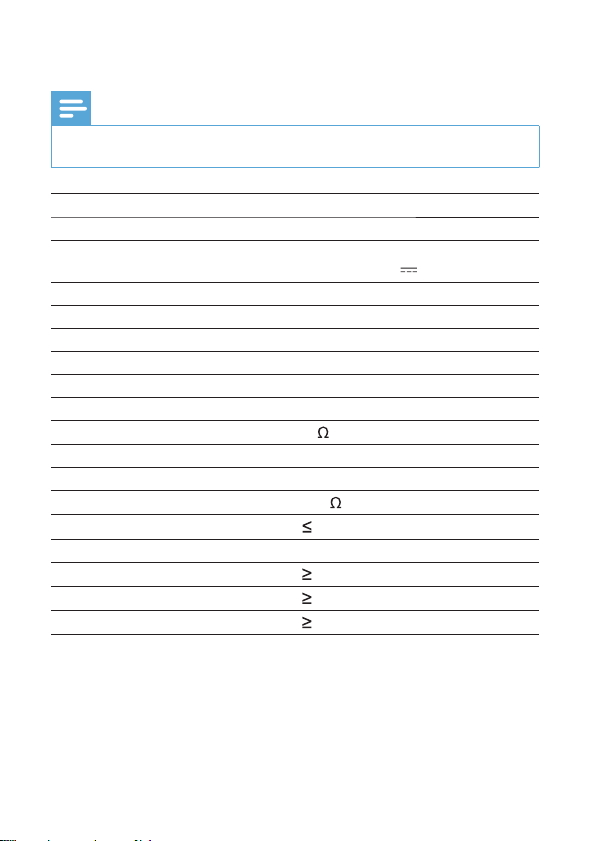
Dimensions (W x H x D) 210 x 39 x 178 mm
Weigh t 1 kg
Power supply Input: 100-240V 50/60Hz
Power consumption 9 W
Operating temperature range 0-45°C
Laser wavelength 650 nm
Video output
Format PAL & NTSC
Output level 1Vp - p ± 20%
Load impedance
Audio line out
Audio out (analog audio) Output level: 2V ± 10%
Load impedance
Audio distortion + noise
Frequency response 20Hz-20KHz ± 3dB
Signal/noise ratio
Channel separation
Dynamic range
Output: DC 9V
75
10 K
-80 (1KHz)
80 dB
80 dB
80 dB
0.8A minimum
24
EN
Page 24

8 Troubleshooting
Warning
Risk of electric s hock. Never r emove t he casing of the player. •
To keep the warranty valid, never try to repair the system yourself.
If you encounter problems when using the player, check the following points
before requesting service. If the problem remains unsolved, register your
player and get support at www.philips.com/welcome.
No power
Ensure that both plugs of the mains cord are properly connected. •
Ensure that there is power at the AC outlet. •
Check if the built-in battery is drained. •
No sound
Ensure that the AV cable is connected correctly.•
No response to the remote control
Ensure that the path between the remote control and the player is •
clear from obstacles.
From a close distance, point the remote control directly at the player. •
Replace the remote control batteries. •
The function does not work for this disc. Refer to the disc •
instructions.
Distorted picture
Clean the disc. With a clean, soft, lint-free cloth, wipe the disc •
outwards from the center.
Make sure that the video output format of the disc is compatible with •
the TV.
Change the video output format to match your TV or program. •
The LCD is manufactured using high precision technolog y. You may, •
however, see tiny black points and/or br ight points(red, blue, green)
that continuously appear on the LCD. This is a normal result of the
manufacturing process and does not indicate a malfunction.
English
EN
25
Page 25

Cannot play disc
Ensure the disc label is upwards. •
Clean the disc. With a clean, soft, lint-free cloth, wipe the disc •
outwards from the center.
Check if the disc is defective by trying another disc. •
No response to operating commands
The operation is not permitted by the disc.•
The player feels warm
When the player is in use for a long period of time, its surface will be •
heated. This is normal.
No/weak signal displayed on the screen
TV signal is too weak or out of TV signal covering area. •
Make sure you are in an area with suffi cient coverage. •
Connect to your home TV antenna socket. •
Receiving TV in a driving car may cause signal problems. •
TV reception with Black and White picture or no sound
Ensure that you set the TV system and TV sound correctly according •
to local TV broadcast specifi cations. If you do not know the
information, contact local TV broadcast authorities for help.
26
EN
Page 26

© 2010 Koninklijke Philips Electronics N.V.
All rights reserved.
PD7007_98_UM_V1.0
 Loading...