

Page 1
<< FEF
<< FEF
CCC Update
FEF
Hints and Tips
Valere De Seranno
Philips CE / Euroservice
CCC Front End Filtering
November 23, 2006
Set Type?
Fault Symptom?
Service
Service
simplicity
simplicity
FTV
identification
MFD /UFD?
MFD?
UFD?
DFU FTL2.x DFU FJ3.x DFU LC04.x
V1.1
CSM
Operation part (front LED)
Operation part (front LED)
Channel Installation
Channel Installation
Set Type XXPFxxxx(D)/1x
Picture?
Picture?
TXT Functions
TXT Functions
Other
Other
FAQ
FAQ
Philips CE / Euroservice, Valere De Seranno, November 23, 2006
Audio?
Audio?
Connectivity
Connectivity
CSM – Customer Service Mode
CSM – Customer Service Mode
Software & Update UFD
Software & Update UFD
Chapter: 01 page: 1
2
Page 2
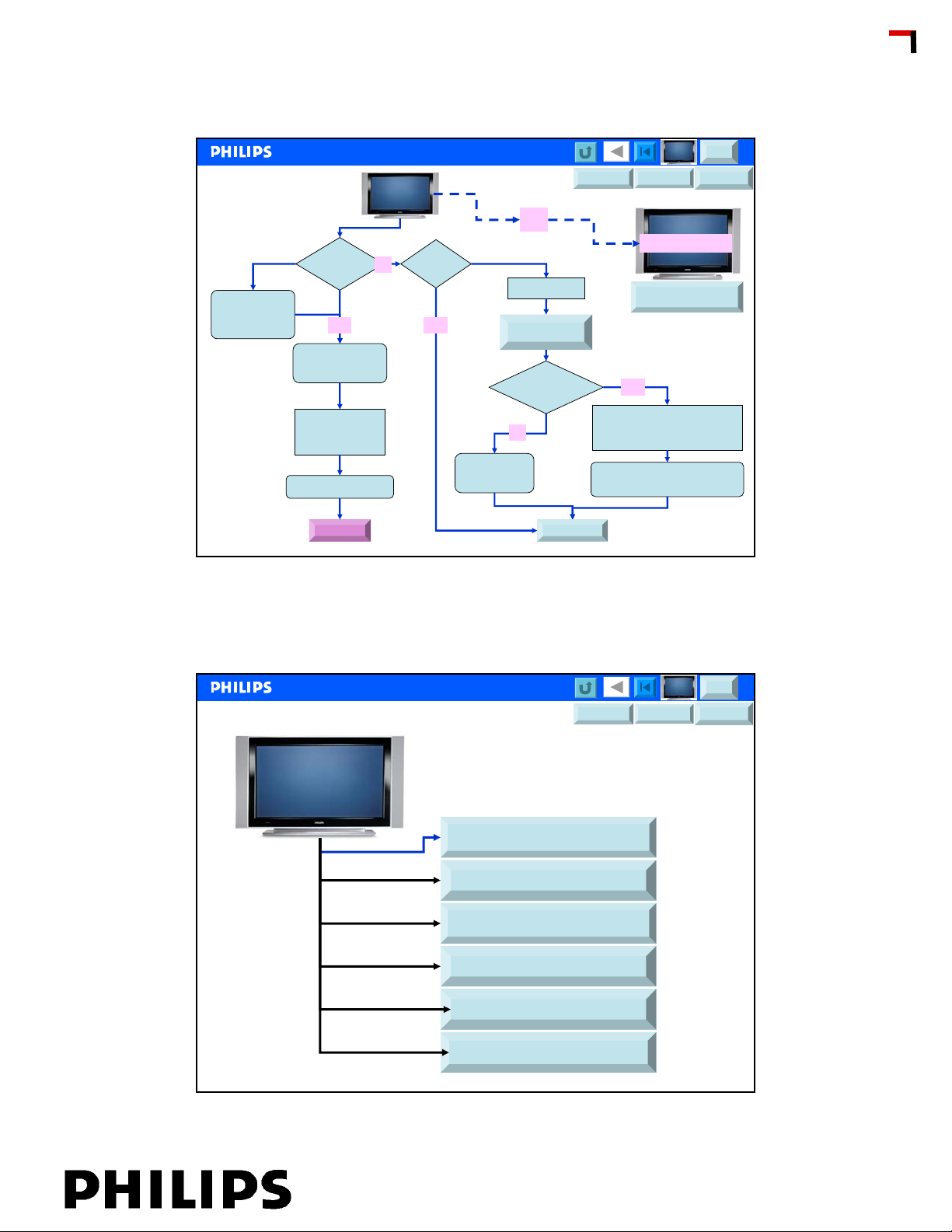
No Picture
Audio is
OK
But no picture
remains dark?
Ambilights
AL are working?
Display defective
Bleu
screen?
Noise?
No
Display
If set has
No picture
Y
Menu?
No
Menu is OK
Go to Install and
Reinstall all presets
Y
Picture &
Audio = OK
Or
Picture &
Audio?
MFD?
UFD?
DFU FTL2.x DFU FJ3.x DFU LC04.x
Picture Faults ?
Picture Faults
No
Try External source
Scart, CVBS or RGB
VGA, DVI or HDMI
If picture is OK from External
= Tuner or Antenna problem
CSM
<< FEF
<< FEF
CCC Update
RMA
Picture faults
Picture Faults ?
Philips CE / Euroservice, Valere De Seranno, November 23, 2006
Try CSM
Picture Format
Lines over the Display
Picture Quality
Display Pixel faults
MFD?
UFD?
DFU FTL2.x DFU FJ3.x DFU LC04.x
3
CSM
Frozen Picture
Bleu Mute
Philips CE / Euroservice, Valere De Seranno, November 23, 2006
4
Chapter: 01 page: 2
Page 3
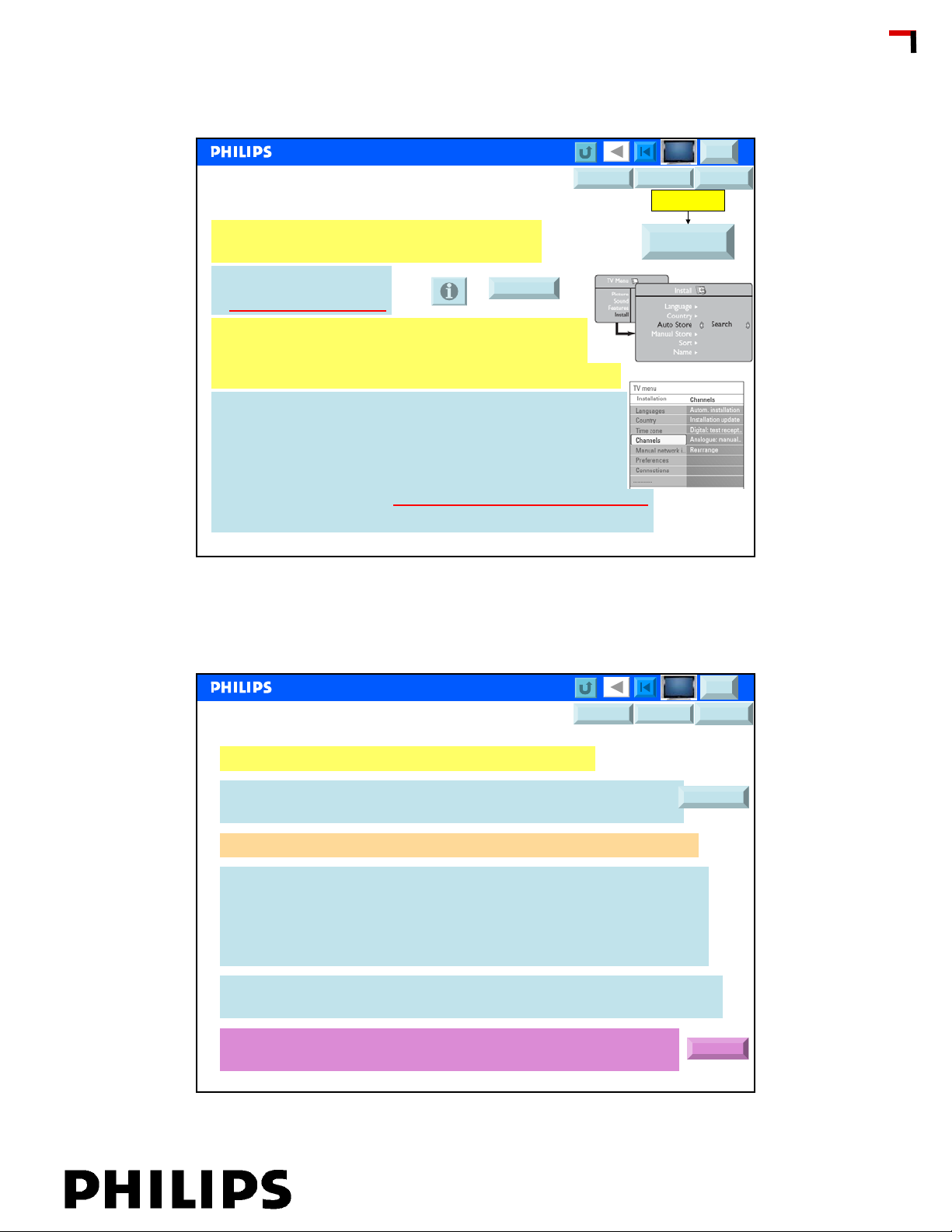
Picture fault but Menu (OSD) is OK
MFD?
UFD?
DFU FTL2.x DFU FJ3.x DFU LC04.x
OSD is OK
CSM
<< FEF
<< FEF
CCC Update
If OSD is OK, first conclusion =
Ctrl part is working and Display is operational
¾Reinstall programs
Try CSM
¾Check settings in CSM
If OSD, Audio & TXT is OK, conclusion =
1. Ctrl part is working and Display is operational
2. Reception part (front end) is working
¾Go to CSM
¾Check software version, is new software available?
¾Explore CSM, different approach for MUFD & UFD
¾Picture settings in UI menu
¾Check in CSM, Frequency, DNR, Noise Figure……
Select other input source as AV, Scart….DVI, YUV, HDMI
Philips CE / Euroservice, Valere De Seranno, November 23, 2006
Audio is OK but Picture fault & No Menu or TXT
DFU FTL2.x DFU FJ3.x DFU LC04.x
Go to Install and
Reinstall all presets
MFD?
CSM
UFD?
5
If Audio is ok but no Menu & no TXT, Display problem?
Front LED is on? (Blue or Green)
If front LED is on go to CSM, Test pattern and/or CSM Displayed?
For UFD, If set is equipped with Ambilights, what about Ambilights?
Ambilights are working and changing with picture content but still no
picture on the display?
Back-end seems to be OK, but no Display drive
LVDS and or Display option code
Display defective
Ambilights are not working and no picture on Display SSB Back-end
and / or Display is defective
After checking above items, and there is still no picture on the
Display conclusion probably Display defective
Philips CE / Euroservice, Valere De Seranno, November 23, 2006
Try CSM
RMA
6
Chapter: 01 page: 3
Page 4
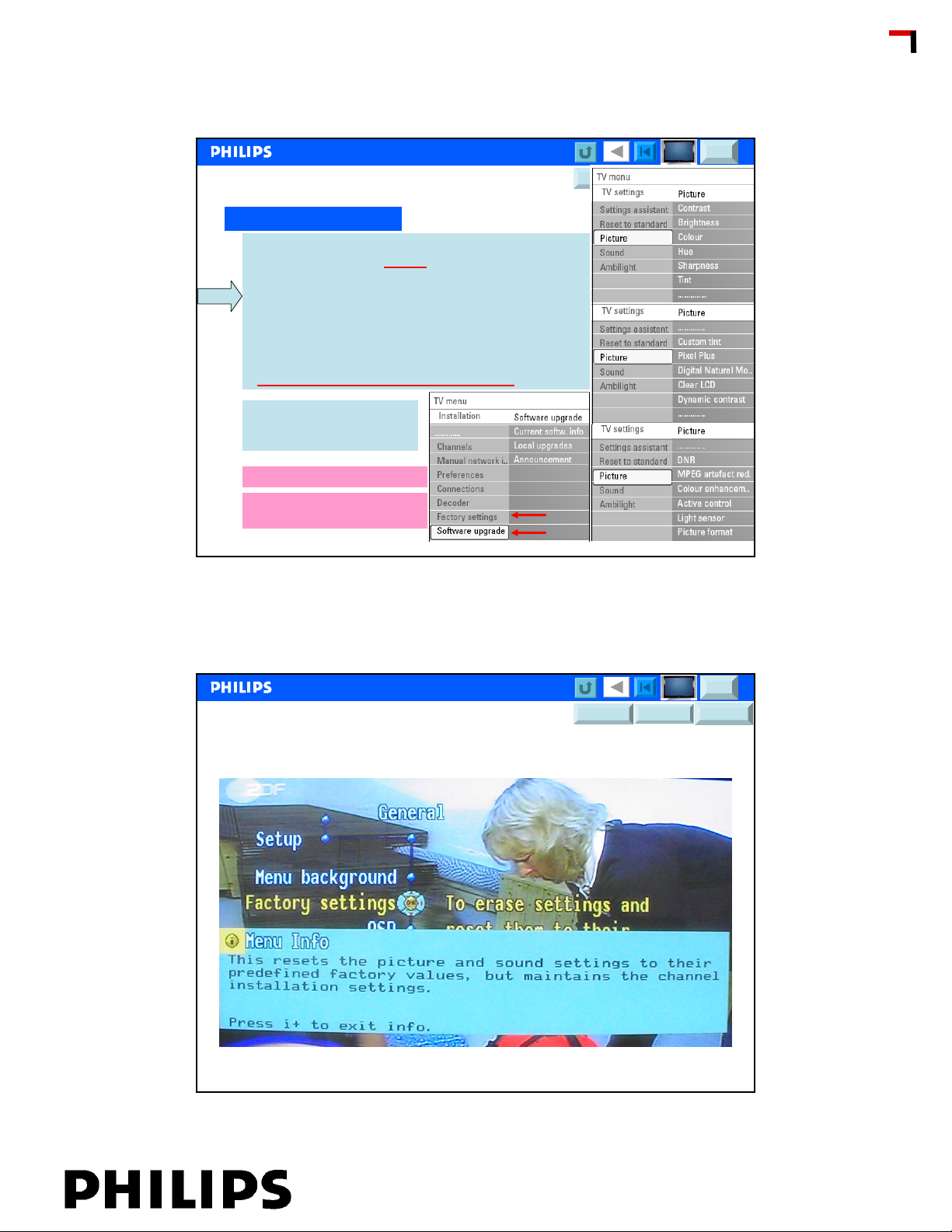
Picture Quality (1)
Check Picture settings
¾Check antenna signal level in CSM (UFD)
¾Noise figure level in CSM
¾Noise in the picture is in most cases due to a
weak antenna signal
¾Check and compare to other presets
¾If set has DW, check DW or PIP picture
¾Check DNR Settings (UFD)
¾Check other source input via scart, or HD input
¾Picture Quality improved by new Software?
Colors
Check Tint menu, Normal,
Warm, Cold
Switch back to Factory settings
New software available for
picture quality?
Philips CE / Euroservice, Valere De Seranno, November 23, 2006
MFD?
UFD?
DFU FTL2.x DFU FJ3.x DFU LC04.x
CSM
<< FEF
<< FEF
7
CCC Update
Switch back to Factory Settings (2)
Philips CE / Euroservice, Valere De Seranno, November 23, 2006
MFD?
UFD?
DFU FTL2.x DFU FJ3.x DFU LC04.x
CSM
8
Chapter: 01 page: 4
Page 5
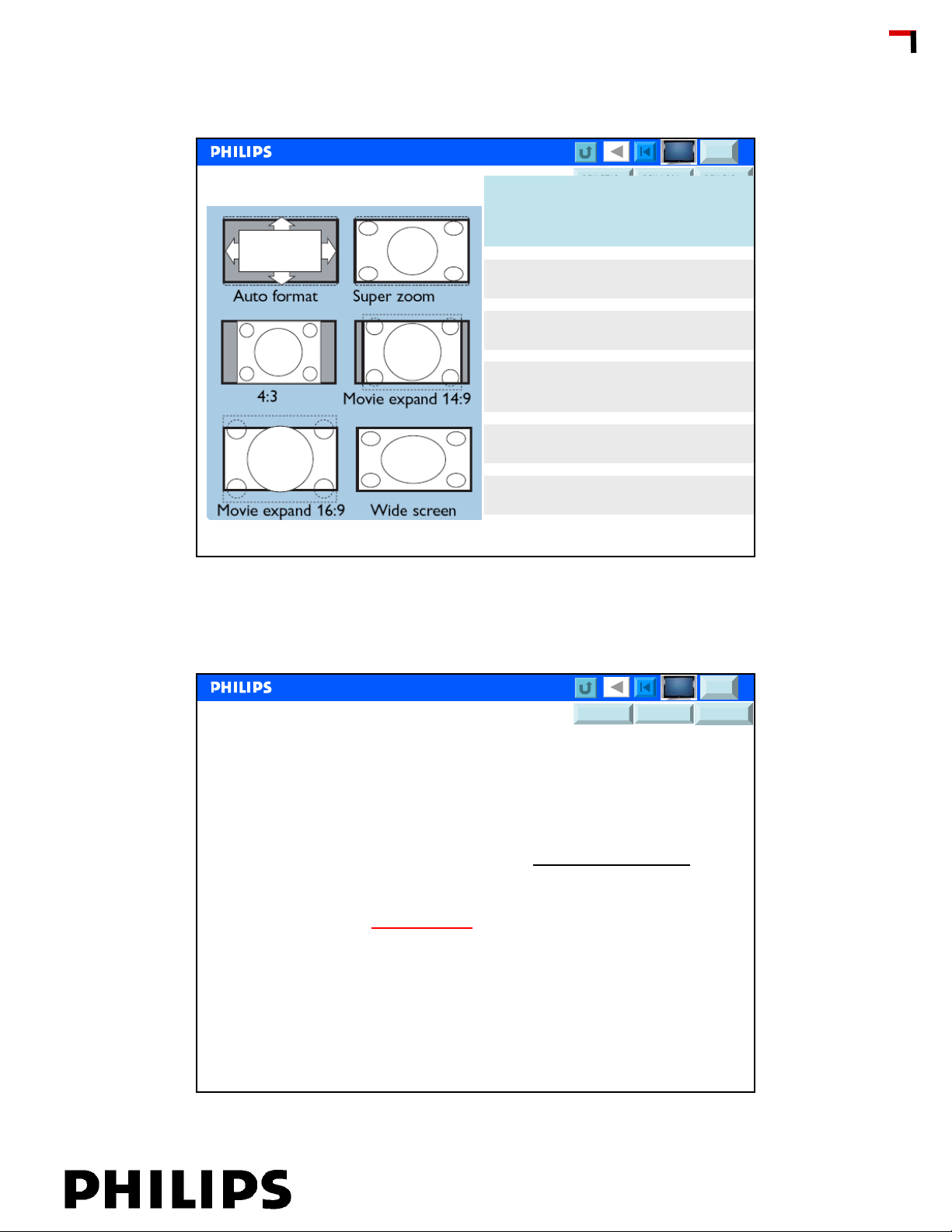
Picture Format
!!
!
MFD?
CSM
UFD?
Press the key (or Í Æ) to select the different modes.
This TV set is also equipped with automatic turning
which will select the correct-screen format, provided
the specific signals are transmitted with the
programmers.
4:3
The picture is reproduced in 4:3 format and a black band is
displayed on either side of the picture.
Movie expand 14:9
The picture is enlarged to 14:9 format, a thin black band
remains on both sides of the picture.
Movie expand 16:9
The picture is enlarged to 16:9 format. This mode is
recommended when displaying pictures which have black
bands at the top and bottom (letterbox format).
Subtitle Zoom
This mode is used to display 4:3 pictures using the full sur face
of the screen leaving the sub-titles visible.
Superzoom
This mode is used to display 4:3 pictures using the full sur face
of the screen by enlarging the sides of the picture.
DFU FTL2.x DFU FJ3.x DFU LC04.x
<< FEF
<< FEF
CCC Update
Philips CE / Euroservice, Valere De Seranno, November 23, 2006
DFU FTL2.x DFU FJ3.x DFU LC04.x
Frozen Picture and sound interruptions
Digital reception DVB-T, DVB-S, DVB-C
Check antenna and antenna installation
DVB-T check if the fault exist on one or more multiplexes?
EMC, motor cycle ignition……
DVB-T Reception, check in DCSM
By external source as DVD, DVD-R or Hard Disc recorder
, software and DVB-T signal quality
MFD?
UFD?
9
CSM
Probably DVD or hard disc recorder /player has a problem
Or Disc is damaged
Philips CE / Euroservice, Valere De Seranno, November 23, 2006
10
Chapter: 01 page: 5
Page 6
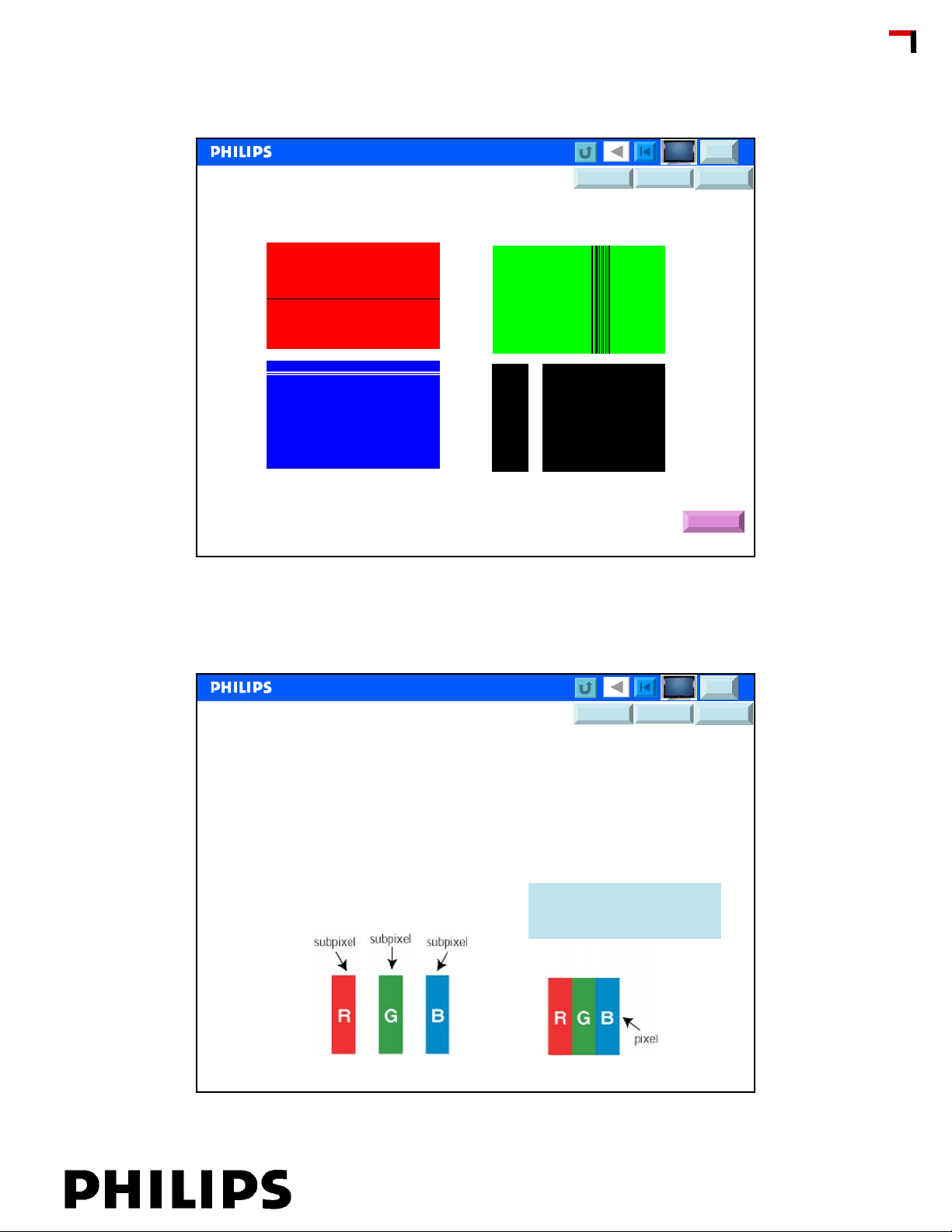
Horizontal or Vertical Lines over the Display
DFU FTL2.x DFU FJ3.x DFU LC04.x
MFD?
UFD?
CSM
<< FEF
<< FEF
CCC Update
Horizontal or Vertical lines over the display, probably display defective,
set should be send to the workshop.
Philips CE / Euroservice, Valere De Seranno, November 23, 2006
Display faults (1)
Refer to:
•Pixel Spec
•Burn in, how to avoid burn in
•Other Display behavior; Sticking Image…….
• Pixel = picture element
RMA
MFD?
UFD?
DFU FTL2.x DFU FJ3.x DFU LC04.x
– 3 Sub pixels is 1 pixel
–White = R+G+B
11
CSM
Philips CE / Euroservice, Valere De Seranno, November 23, 2006
12
Chapter: 01 page: 6
Page 7
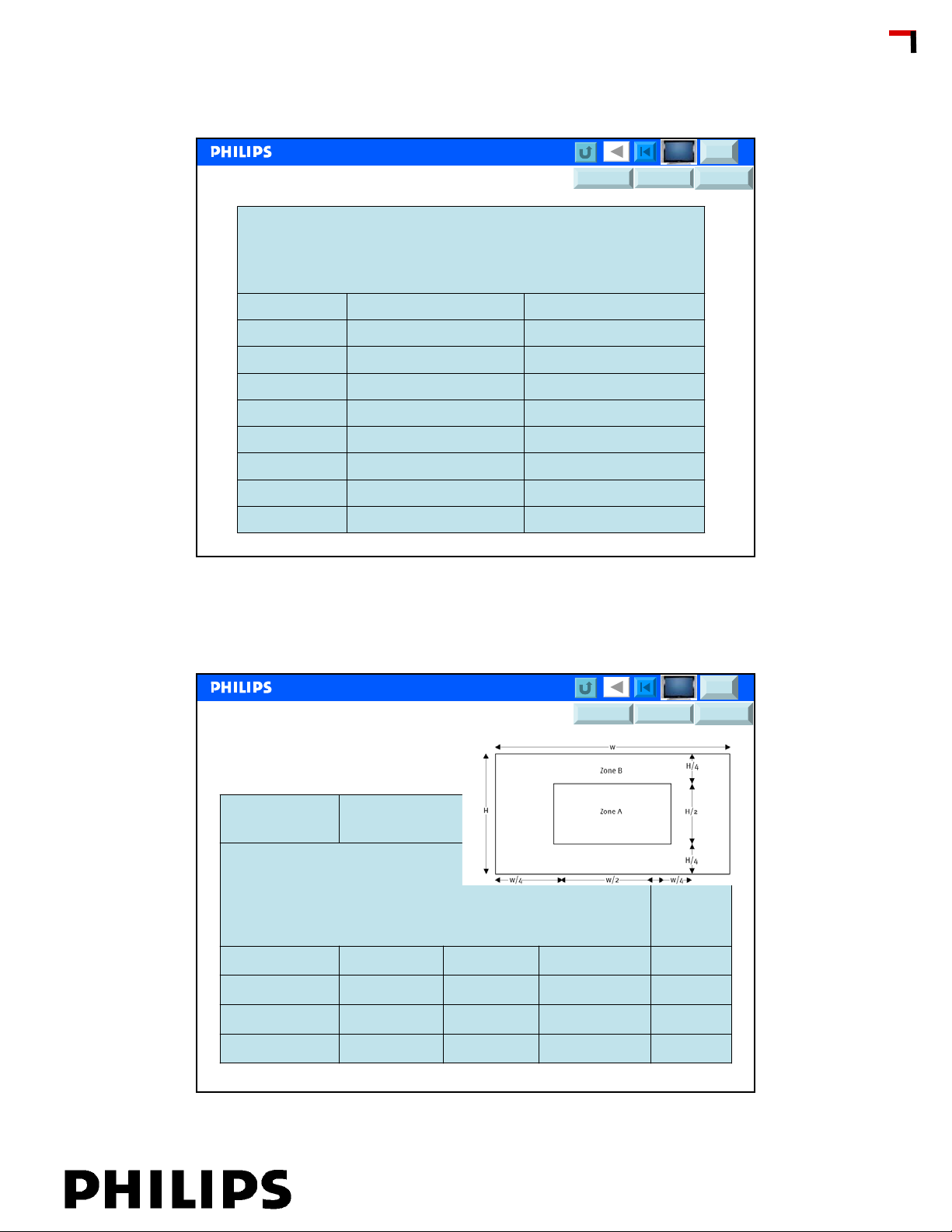
Defect pixel specification LCD (2)
LCD screens
Max. dark dots allowedMax. Bright dots allowedScreen Size
MFD?
UFD?
DFU FTL2.x DFU FJ3.x DFU LC04.x
2015"
2017"
2020"
3023"
3026"
3030"
3032"
CSM
<< FEF
<< FEF
CCC Update
Philips CE / Euroservice, Valere De Seranno, November 23, 2006
DFU FTL2.x DFU FJ3.x DFU LC04.x
Defect pixel specification Plasma (3)
PLASMA screens
Screen Size
Max. Bright dots allowed
in ZONE A
Max. Bright dots
allowed in ZONE B
Max. dark dots allowed
ZONE A
6037"
6042"
MFD?
UFD?
Max. dark dots
allowed ZONE
B
13
CSM
Philips CE / Euroservice, Valere De Seranno, November 23, 2006
841032"
841037"
841042"
841050"
14
Chapter: 01 page: 7
Page 8
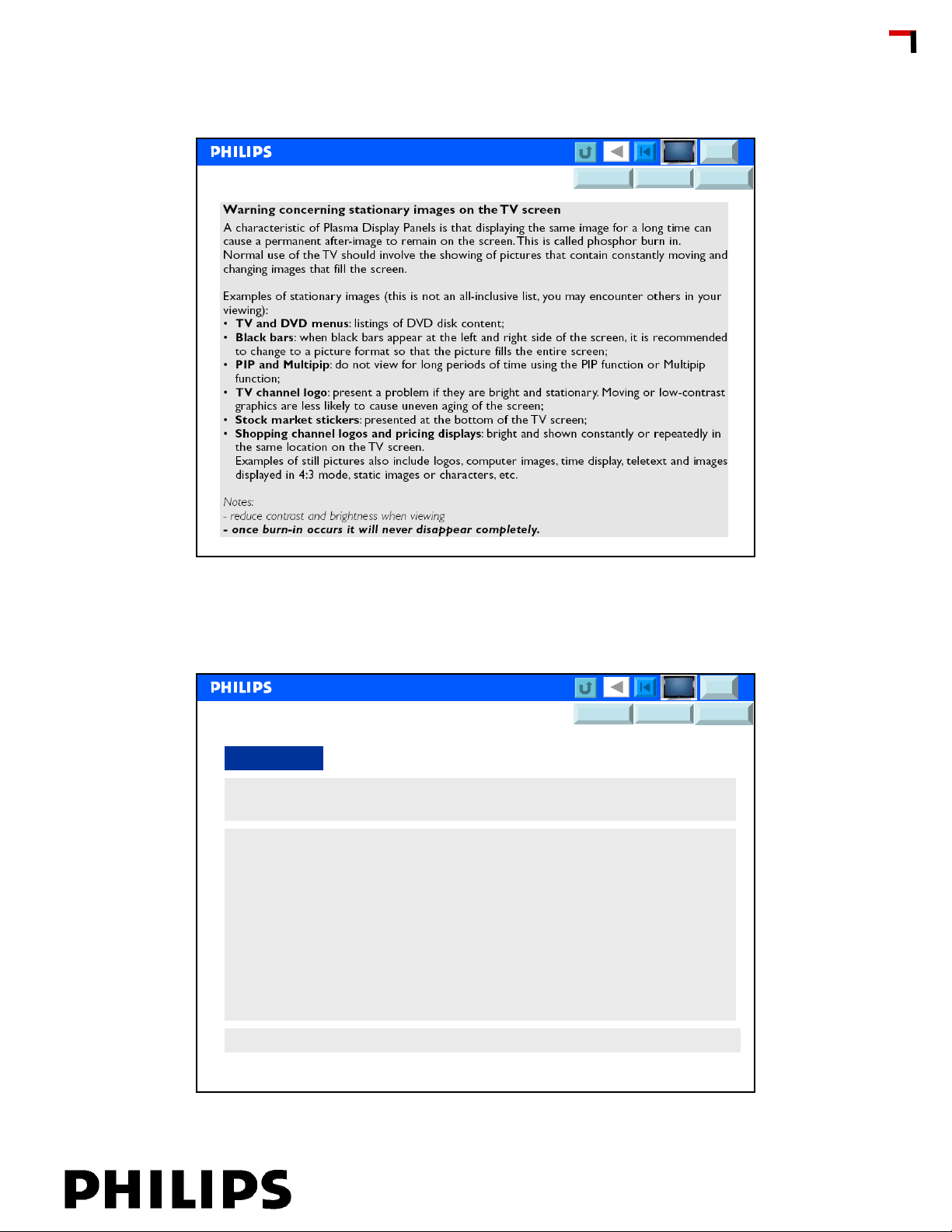
Burn-in (PDP) (4)
MFD?
UFD?
DFU FTL2.x DFU FJ3.x DFU LC04.x
CSM
<< FEF
<< FEF
CCC Update
Philips CE / Euroservice, Valere De Seranno, November 23, 2006
MFD?
UFD?
DFU FTL2.x DFU FJ3.x DFU LC04.x
Blue Mute
Picture Mute
Check if Menu (OSD) is OK
Set if switched in TV mode or Ext mode? Scart, PC mode?
If set has digital and analog reception try to switch from digital to analog
and / or analog to digital.
•If analog is working and digital not, check antenna and if digital
reception is possible in the area
•If Digital is working, but no analog, reception problem or internal
problem as tuner….
If Analog and Digital is not OK
•Try external input source via scart, as VCR, DVD…
•Try external input via VGA, HDMI, YUV or DVI
15
CSM
Go to CSM, check source, Tuner? Frequency? Noise l evel figure, System
Philips CE / Euroservice, Valere De Seranno, November 23, 2006
Chapter: 01 page: 8
16
Page 9
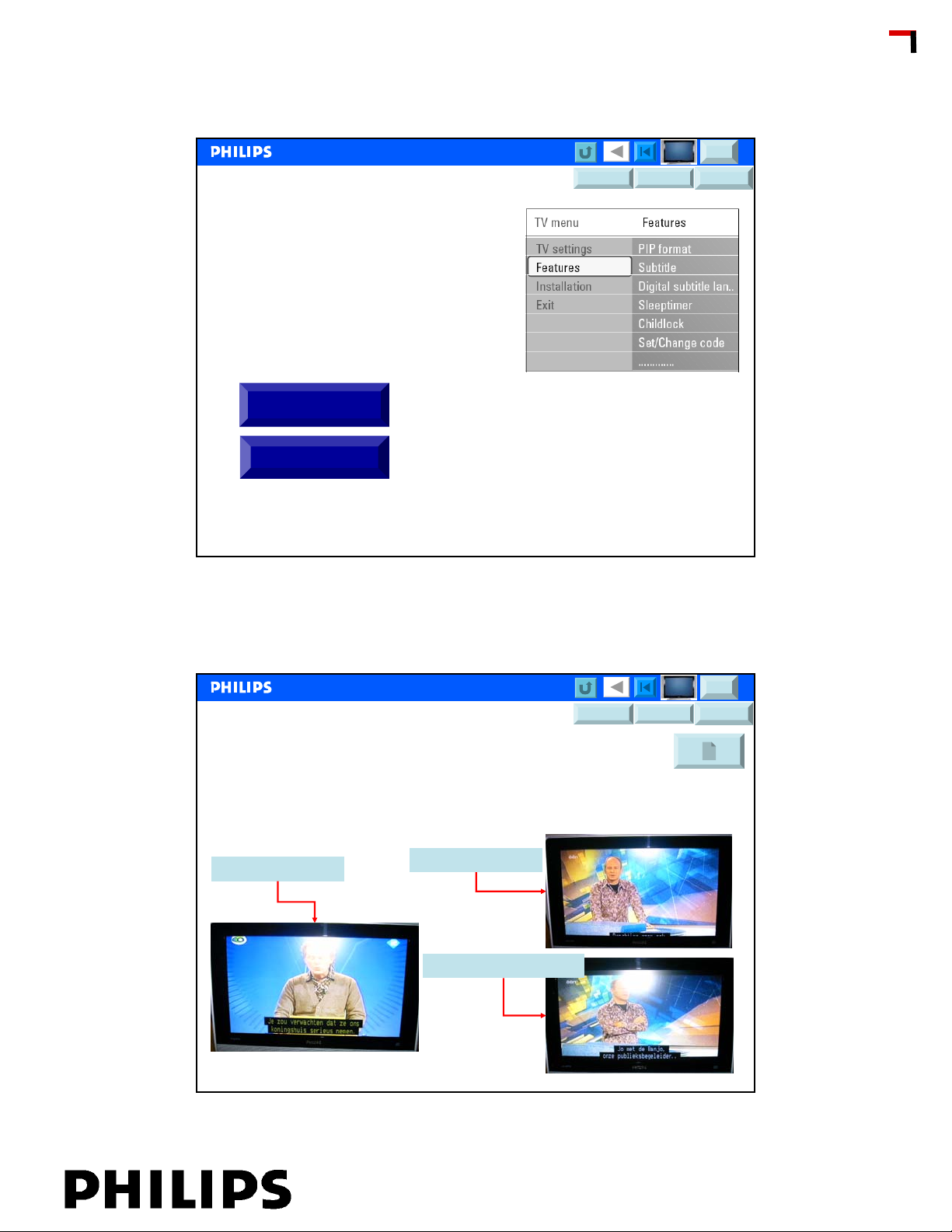
Other
Some programs are blocked or not
accessible
To check if preset is locked, go to CSM
Unlock preset, universal code = 8888
Favorite presets
Features settings
MFD?
UFD?
DFU FTL2.x DFU FJ3.x DFU LC04.x
CSM
<< FEF
<< FEF
CCC Update
Philips CE / Euroservice, Valere De Seranno, November 23, 2006
DFU FTL2.x DFU FJ3.x DFU LC04.x
TXT functions miss-operating
Wrong characters in TXT
Can be due to wrong language select in TXT mode. On the RC the
l/ll key language select button, when the set is in TXT mode it is
possible to select another character set in the TXT decoder.
Subtitling via TXT
16:9 transmission
Put set in super zoom
MFD?
UFD?
More about
17
CSM
TXT
Philips CE / Euroservice, Valere De Seranno, November 23, 2006
18
Chapter: 01 page: 9
Page 10
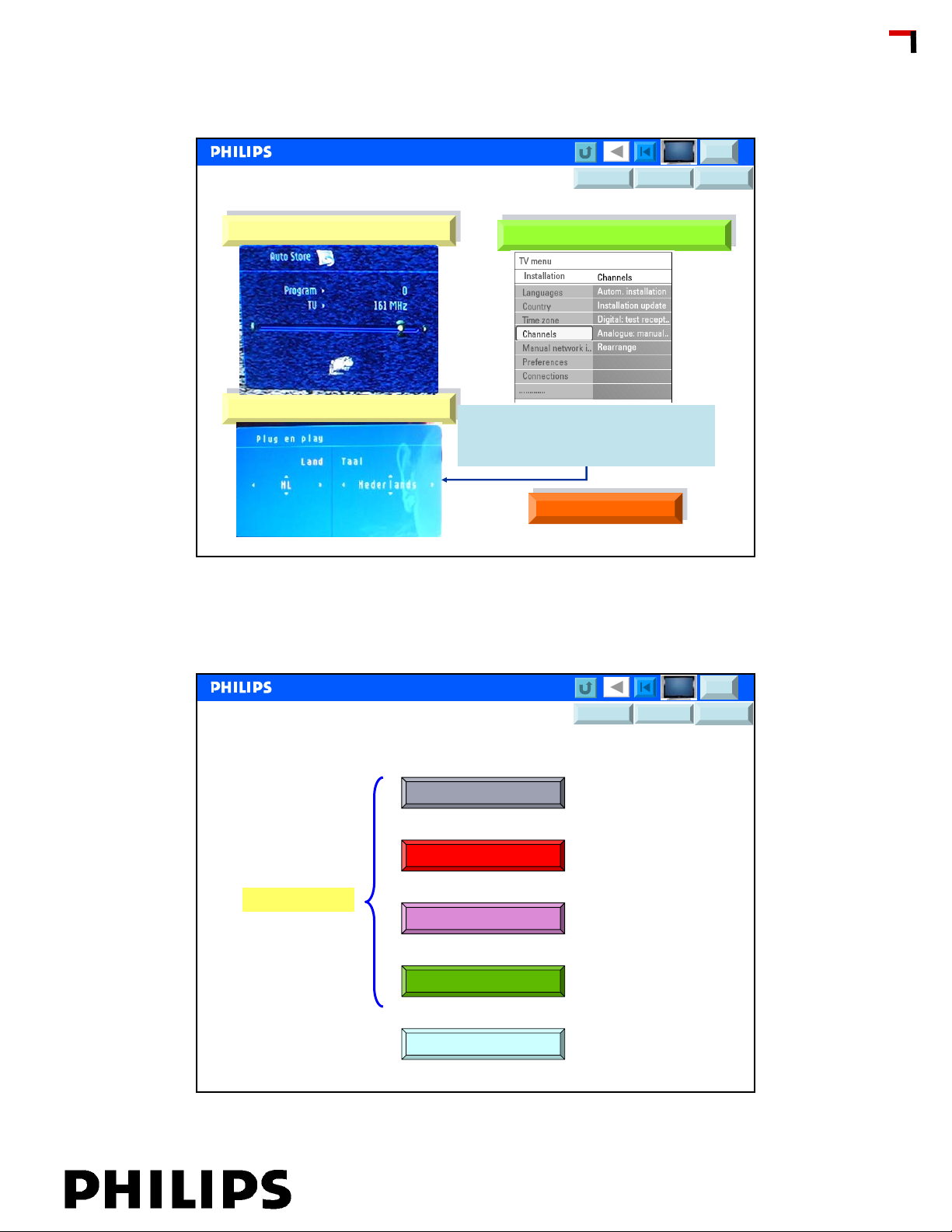
Channel installation and Reinstall
MFD?
UFD?
DFU FTL2.x DFU FJ3.x DFU LC04.x
CSM
<< FEF
<< FEF
CCC Update
Channel Installation MFD
Channel Installation MFD
Reset to Virgin mode
Reset to Virgin mode
Philips CE / Euroservice, Valere De Seranno, November 23, 2006
Channel Installation UFD
Channel Installation UFD
MFD FTV sets it is possible to reset
to plug and Play install menu.
Press 5sec. “Menu” key
Frequency table
Frequency table
19
Operation part
Led on set is ?
Led is Off
Led is RED
Led is blinking
Led is Green or Blue
RC not operating
Philips CE / Euroservice, Valere De Seranno, November 23, 2006
MFD?
UFD?
DFU FTL2.x DFU FJ3.x DFU LC04.x
CSM
20
Chapter: 01 page: 10
Page 11
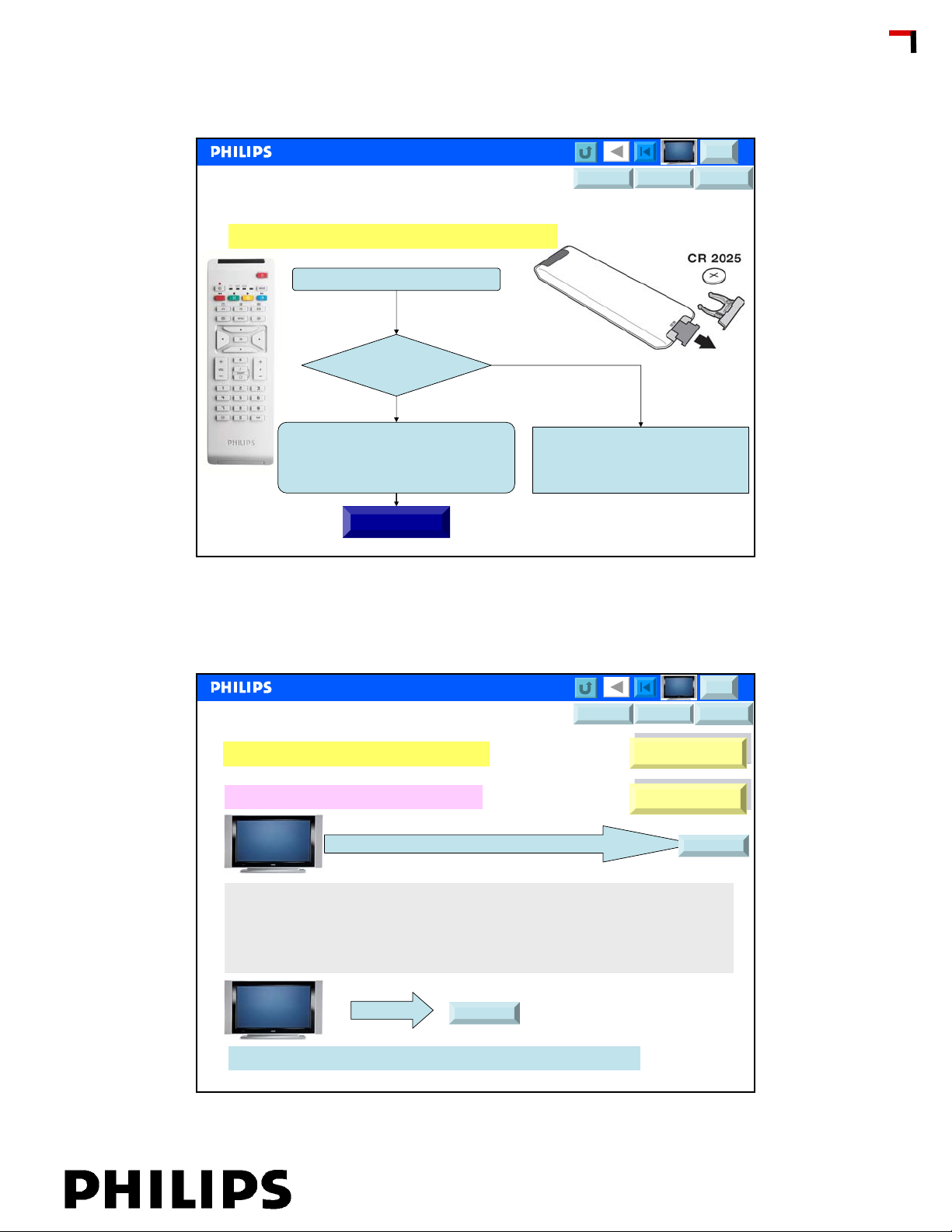
Led on set is RED
First conclusion, Stby power supply is working
Switch on via RC or local Keyboard
Led is reacting on
RC command?
MFD?
UFD?
DFU FTL2.x DFU FJ3.x DFU LC04.x
CSM
<< FEF
<< FEF
CCC Update
If set is switching on via normal RC but
not via local Keyboard;
•Set is locked……DFU how to unlock?
•Go to menu and check parental control
Features settings
Philips CE / Euroservice, Valere De Seranno, November 23, 2006
If set is not reacting (or switching on)
via RC;
•Check RC batteries
•Check if RC is still in TV mode
Led on set is on (Bleu or green)
Control part seems to be operational!
If audio or picture problem go to Audio Picture problem
RC is working? Try local Keyboard?
UFD?
Connect USB memory to USB connector, and go to CSM
MFD?
UFD?
DFU FTL2.x DFU FJ3.x DFU LC04.x
Picture faults?
Picture faults?
Audio faults?
Audio faults?
21
CSM
Try CSM
Only for UFD:
By connecting a USB memory to the USB on the set and entering the CSM, a
download of CSM items (contents) will be done to the USB.
Is only valid for Jag 3th generation (BJ3.0 and FJ3.0)
Example of SCM log file, click on this link
MFD?
Go to CSM
Try CSM
Check settings in CSM, Brightness, Contrast, Colour
Philips CE / Euroservice, Valere De Seranno, November 23, 2006
Chapter: 01 page: 11
22
Page 12
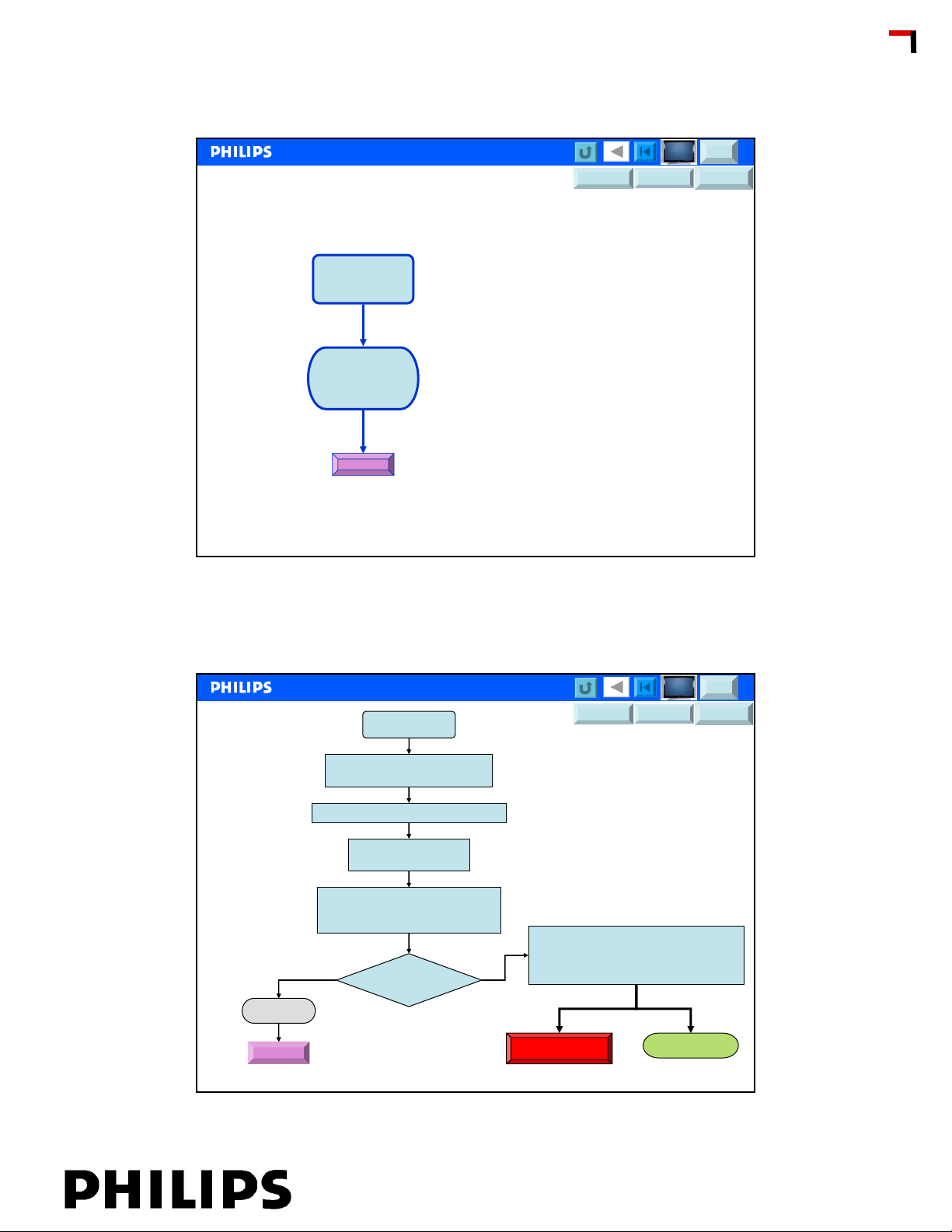
Led on set is blinking
LED on Set
is blinking
Protection
RMA
MFD?
UFD?
DFU FTL2.x DFU FJ3.x DFU LC04.x
CSM
<< FEF
<< FEF
CCC Update
LED is Off
No reaction
Philips CE / Euroservice, Valere De Seranno, November 23, 2006
Front LED is Off
FTV is connected to mains?
Power on the mains plug is OK?
Check if Vacation switch is closed
Disconnect mains plug
Reconnect mains plug
After reconnecting mains plug.
Red or Green led is on a short time.
Set returns to standby or switch-off
Reaction on
Front LED?
MFD?
CSM
UFD?
DFU FTL2.x DFU FJ3.x DFU LC04.x
Probably set is in low power standby
(Off mode via vacation switch) or if
Set is starting up and returns to stan db y
Switch from standby to on via RC
23
RMA
Led is RED
Philips CE / Euroservice, Valere De Seranno, November 23, 2006
Set is operating
24
Chapter: 01 page: 12
Page 13
MFD?
CSM
UFD?
DFU FTL2.x DFU FJ3.x DFU LC04.x
RC Not operating
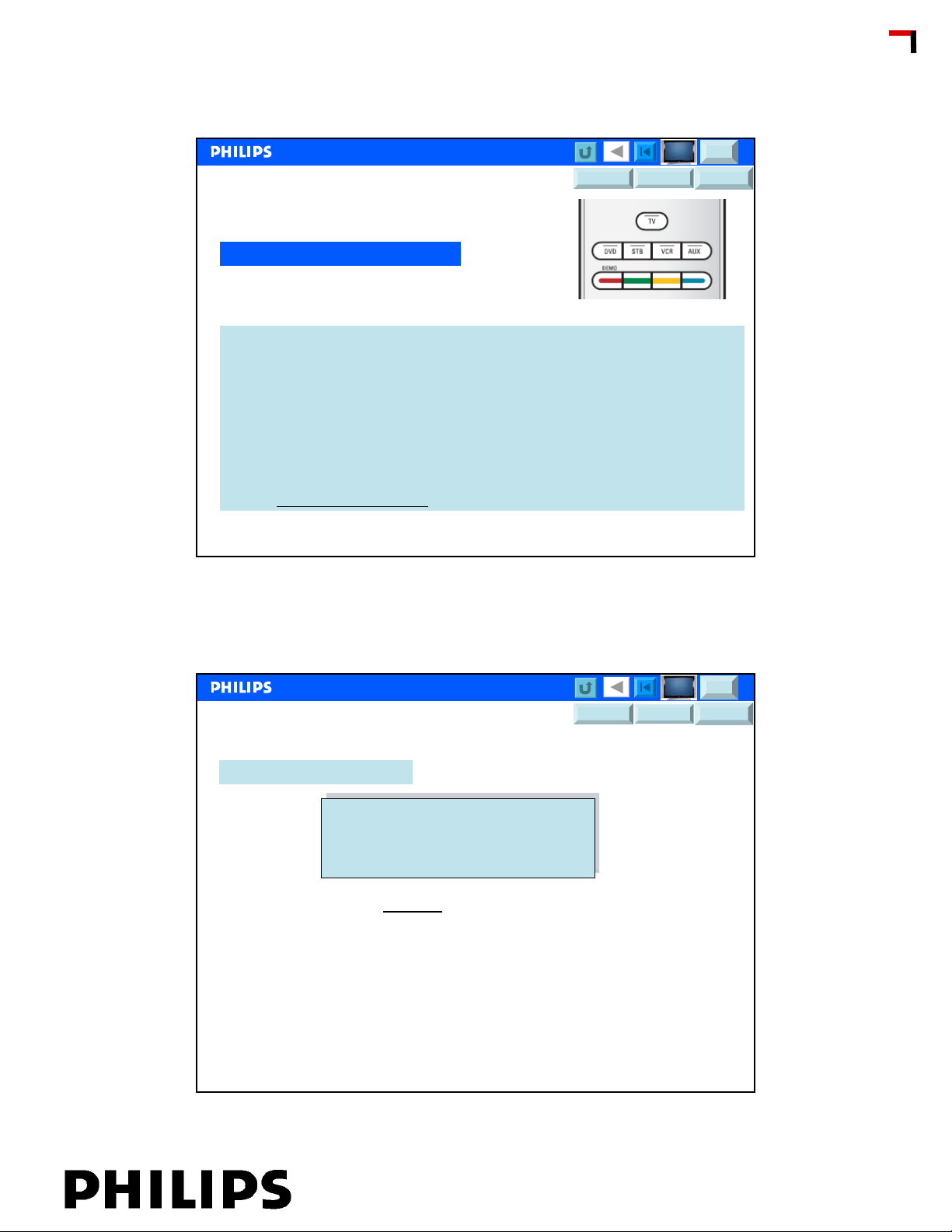
Check if RC is in still in TV mode!
¾Verify if the remote is set correctly for the equipment your are using.
¾Verify if the batteries are not dead. Replace the batteries.
¾You can still use the keys at the left side of the TV.
¾Select TV mode on your remote control.
¾When pressing a key and some key-leds are blinking with a higher
speed and lower intensity than in a normal working condition, and your TV
does not react on the key press, remove the batteries out of the remote
control (press buttons on RC)
and put them the batteries back again.
<< FEF
<< FEF
CCC Update
Philips CE / Euroservice, Valere De Seranno, November 23, 2006
MFD?
UFD?
DFU FTL2.x DFU FJ3.x DFU LC04.x
Access to CSM
Key in with remote Control
123654
123654
To access CSM key in very fast above code, via normal remote control
If set is still operating and activating CSM, the set identification can be read directly from
the screen.
CSM Menu structure and Items is different between UFD and MFD
Use CSM to identify FTV software version.
25
CSM
Philips CE / Euroservice, Valere De Seranno, November 23, 2006
26
Chapter: 01 page: 13
Page 14
UFD CSM
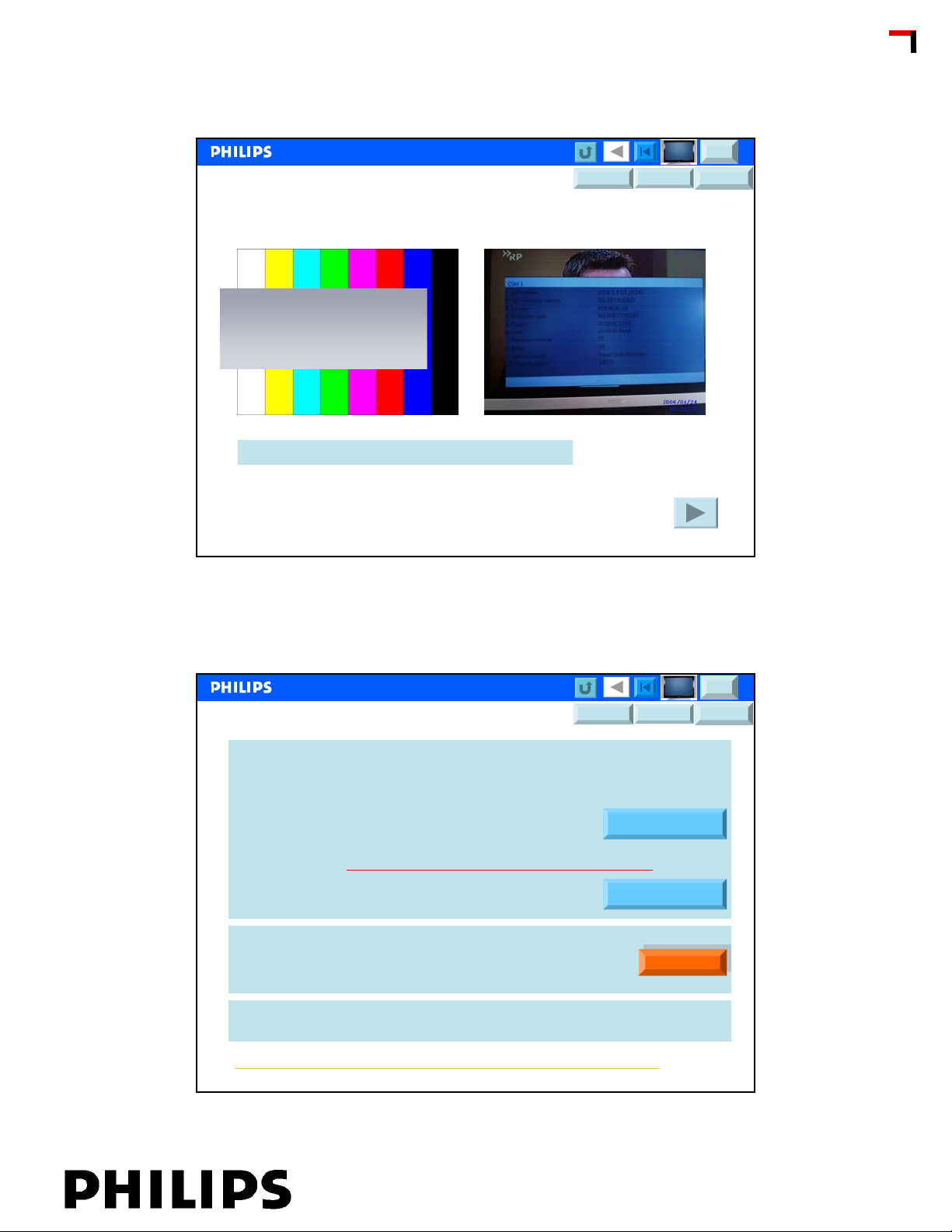
When entering the CSM this
test pattern will be displayed
a few seconds followed by
the CSM1 screen
Color test pattern is displayed or directly CSM1
MFD?
UFD?
DFU FTL2.x DFU FJ3.x DFU LC04.x
CSM
<< FEF
<< FEF
CCC Update
Philips CE / Euroservice, Valere De Seranno, November 23, 2006
MFD?
UFD?
DFU FTL2.x DFU FJ3.x DFU LC04.x
Set is now in CSM
Get data from CSM and complete defect description form
Set type number
Set Serial number
(Error) codes
Software version,
Check latest software and solved problems via software
DNR & Noise Figure
HDCP Keys validity
Check latest software version in our data base www.philips.com/support
Know problems and SC solved via Software, see FAQ P4C
(Error) Codes in buffer, more details in error code table (SM)
Error codes table
Software overview
FAQ
27
CSM
FAQ
If set is equipped with an USB connector, instruct customer how to update
software (when possible)
http://www.support.philips.com/support/html/index_global.html
Philips CE / Euroservice, Valere De Seranno, November 23, 2006
Chapter: 01 page: 14
28
Page 15
UFD CSM FJ3.0 & BJ3.0
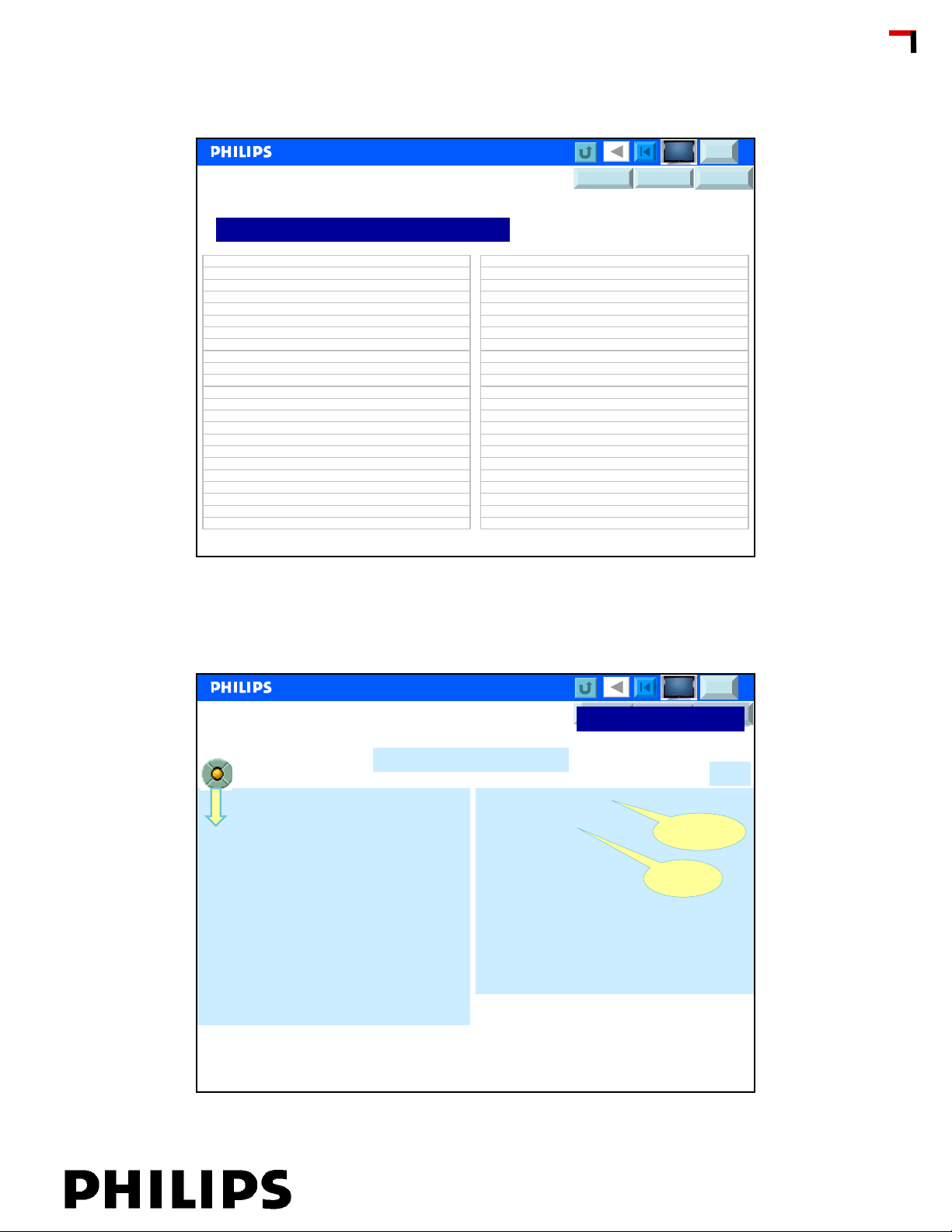
Jaguar Customer service mode contents
MFD?
UFD?
DFU FTL2.x DFU FJ3.x DFU LC04.x
CSM
<< FEF
<< FEF
CCC Update
1.3. Set type : 42PF9631D/10
1.4. Production code : AG1A0611101597
1.5. Code 1 : 00 00 00 00 00
1.6. Code 2 : 00 00 00 00 00
1.7. Opti ons 1 : 02112 00268 01114 00096
1.8. Opti ons 2 : 00785 00256 21031 00000
1.13. 12NC SSB : 32845482000161
2.1. Digital Natu r al Motion : Maximum
2.2. Pixel Plus : On
2.4. DNR : Maximum
2.5. Noise figure : 35
3.1. Headphone volume : 30
3.2. Dolby : Off
3.3. Surround mode : Virtual Dolby Surround
3.4. Centre input : Off
3.5. Audio system : Mono
3.6. AVL : Off
3.7. Delta volume : 0
4.1. Preset lock : Unlocked
4.2. Child lock : Custom lock
4.3. Lock after : Off
4.4. Parental rating lock : None
4.5. Parental rating status :
Philips CE / Euroservice, Valere De Seranno, November 23, 2006
Customer Service Menu 1
4.6. TV ratings lock : None
4.7. Movie ratings lock : No
4.8. V-Chip TV status : None
4.9. V-Chip movie status : None
4.10. R e gion rating sta tus (RRT) : 0
5.1. On timer : Off
5.2. Location : Home
6.1. HDMI key validity : Valid
6.2. IEEE key validi ty : Inval id
6.3. POD key validity : Invalid
7.1. Tuner frequency : 288.00
7.2. TV system : BG
7.3. Source : Tun er,Video
7.4. Tuned bit : Yes
7.6. Digital signal modulation :
8.1. 12NC one zip SW : 3104 337 0186
8.2 Initial main SW : 1
8.3 Current main SW : BX31E_0.0.31.14
8.5 Flash utils SW :
8.6 Standby SW : STDBY_3.0.1.14
8.7 MOP SW :
8.8 Pacific 3 Flash SW : P3FW0_1.6.0.0
8.11 NVM version : NVM _0.1.4.0
MFD?
UFD?
DFU FTL2.x DFU FJ3.x DFU LC04.x
UFD FTL2.x & FTP2.X
UFD FTL2.x & FTP2.X
29
CSM
01 SW Version
02 Feature Box
03 Set Type
04 Code 1
05 Code 2
06 Volume
07 Brightness
08 Contrast
09 Colour
10 Hue
Customer Service Menu 1
TX24EU_1.7_00711
310431707610
32pf9966/10
003 035 000 000 000
000 000 000 000 000
45
37
99
67
1
Philips CE / Euroservice, Valere De Seranno, November 23, 2006
CSM
OTC
Software
FBX
Software
30
Chapter: 01 page: 15
Page 16
Customer Service Menu 2
MFD?
CSM
UFD?
DFU FTL2.x DFU FJ3.x DFU LC04.x
UFD FTL2.x & FTP2.X
UFD FTL2.x & FTP2.X
<< FEF
<< FEF
CCC Update
11 Sharpness
12 Headphone Volume
13 Dolby
14 Surround Mode
15 Tuner Frequency
16
17
18 Digital Option
19 Centre trim
20 TV System
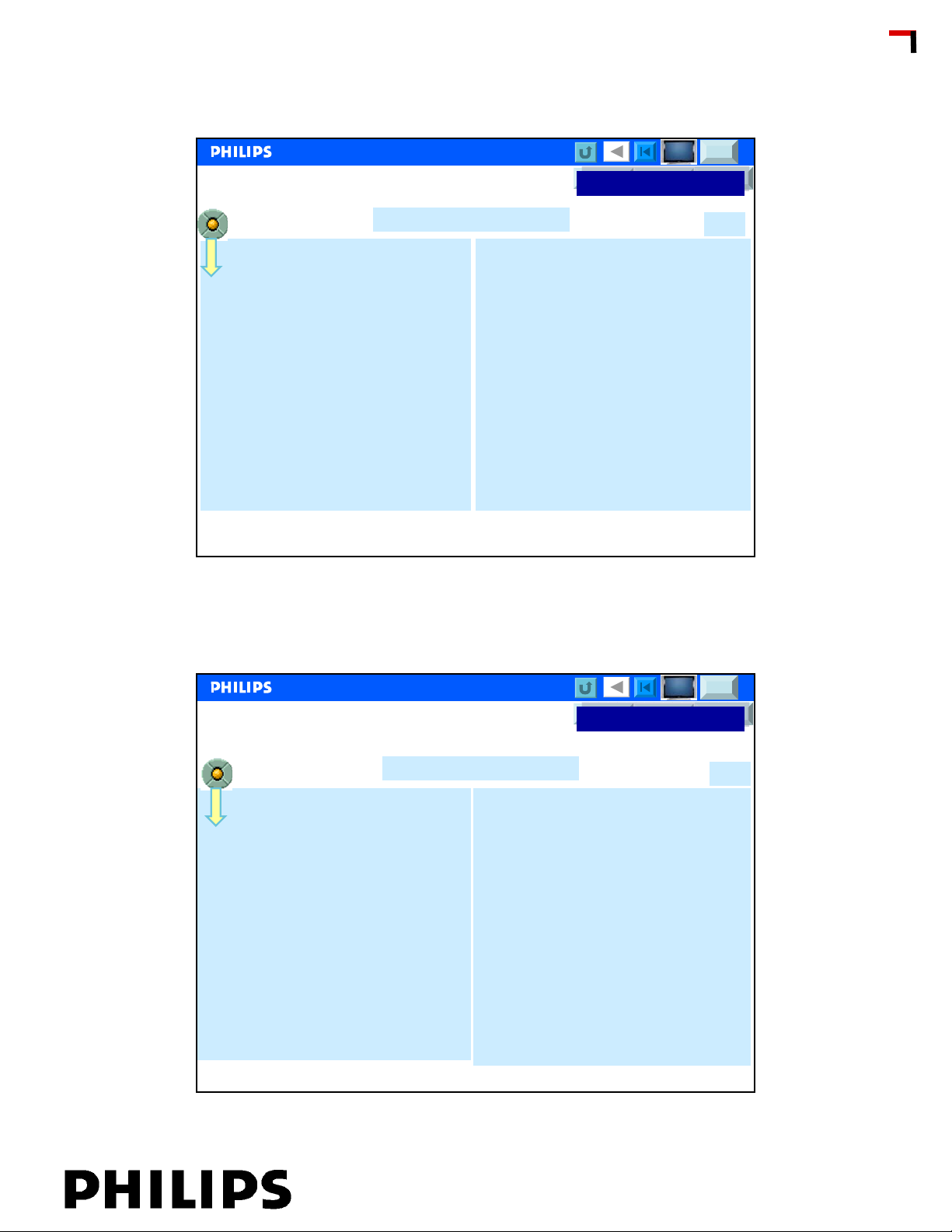
Customer Service Menu 2
4
50
off
off / Dolby Virtual / Incredible Surround
471,25
Pixel Plus / Digital Scan
0
BG /LL/L
Philips CE / Euroservice, Valere De Seranno, November 23, 2006
CSM
31
Customer Service Menu 3
Customer Service Menu 3
21 Balance
22 Centre Mode
23 DNR
24 Noise Figure
25 Source
26 Audio System
27 tuned bit
28 Surround Speakers
29 On Timer
30 Preset Lock
Philips CE / Euroservice, Valere De Seranno, November 23, 2006
DFU FTL2.x DFU FJ3.x DFU LC04.x
UFD FTL2.x & FTP2.X
UFD FTL2.x & FTP2.X
0
On/Off
Medium
34
Tuner, Video NICAM
Analog Stereo
Yes
Off
Off
Unlocked
MFD?
UFD?
CSM
CSM
32
Chapter: 01 page: 16
Page 17
Customer service Menu 4
MFD?
CSM
UFD?
DFU FTL2.x DFU FJ3.x DFU LC04.x
UFD FTL2.x & FTP2.X
UFD FTL2.x & FTP2.X
<< FEF
<< FEF
CCC Update
31 Child lock
32 Age Lock
33 Lock After
34 Category Lock
35 Program Category
36
37
38 TV ratings lock
39 Movie ratings lock
40 V-chip TV status
Customer service Menu 4
unlock
------
------
------
------
------
------
------
Philips CE / Euroservice, Valere De Seranno, November 23, 2006
CSM
Not
applicable
in
European
Sets
33
Customer Service Menu 5
Customer Service Menu 5
41 V-chip movie status
42 Options 1
43 Options 2
44 AVL
45 Delta volume
46
47
48 Front Spkr Dist.
49 Surr. Spkr Dist.
50
Philips CE / Euroservice, Valere De Seranno, November 23, 2006
62708 40992 49472 00000
05142 03073 00064 00065
Off
0
MFD?
CSM
UFD?
DFU FTL2.x DFU FJ3.x DFU LC04.x
UFD FTL2.x & FTP2.X
UFD FTL2.x & FTP2.X
CSM
34
Chapter: 01 page: 17
Page 18
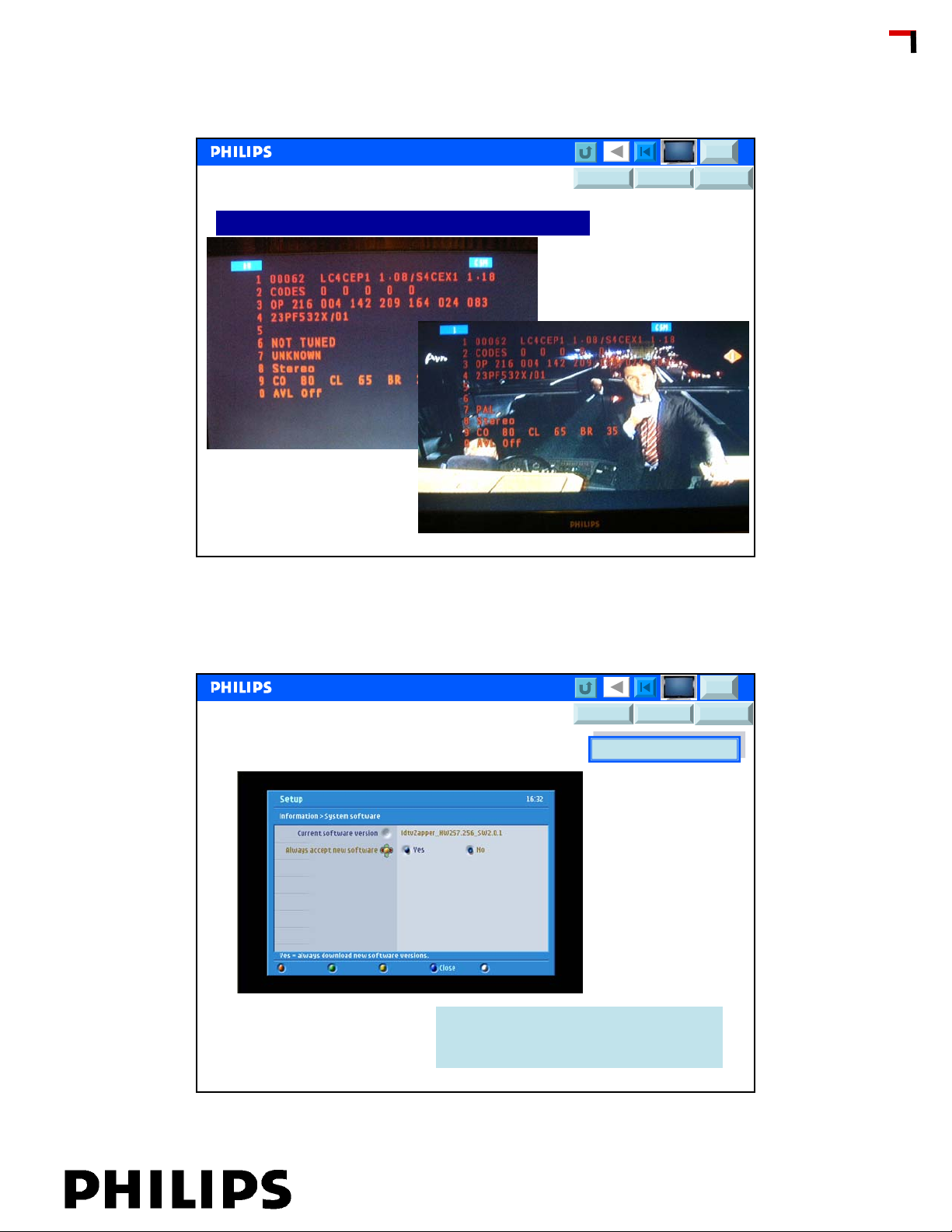
MFD CSM
Example of mainstream picture CSM LC04.x chassis
MFD?
UFD?
DFU FTL2.x DFU FJ3.x DFU LC04.x
CSM
<< FEF
<< FEF
CCC Update
Philips CE / Euroservice, Valere De Seranno, November 23, 2006
DFU FTL2.x DFU FJ3.x DFU LC04.x
DVB-T IBO Box software identification
MFD & UFD with IBO Box
MFD?
CSM
UFD?
MFD & UFD with IBO Box
35
There are different ways for software upgrading:
OAD ….Over Air Download
PCMCIA, via memory card
Compair
Philips CE / Euroservice, Valere De Seranno, November 23, 2006
36
Chapter: 01 page: 18
Page 19
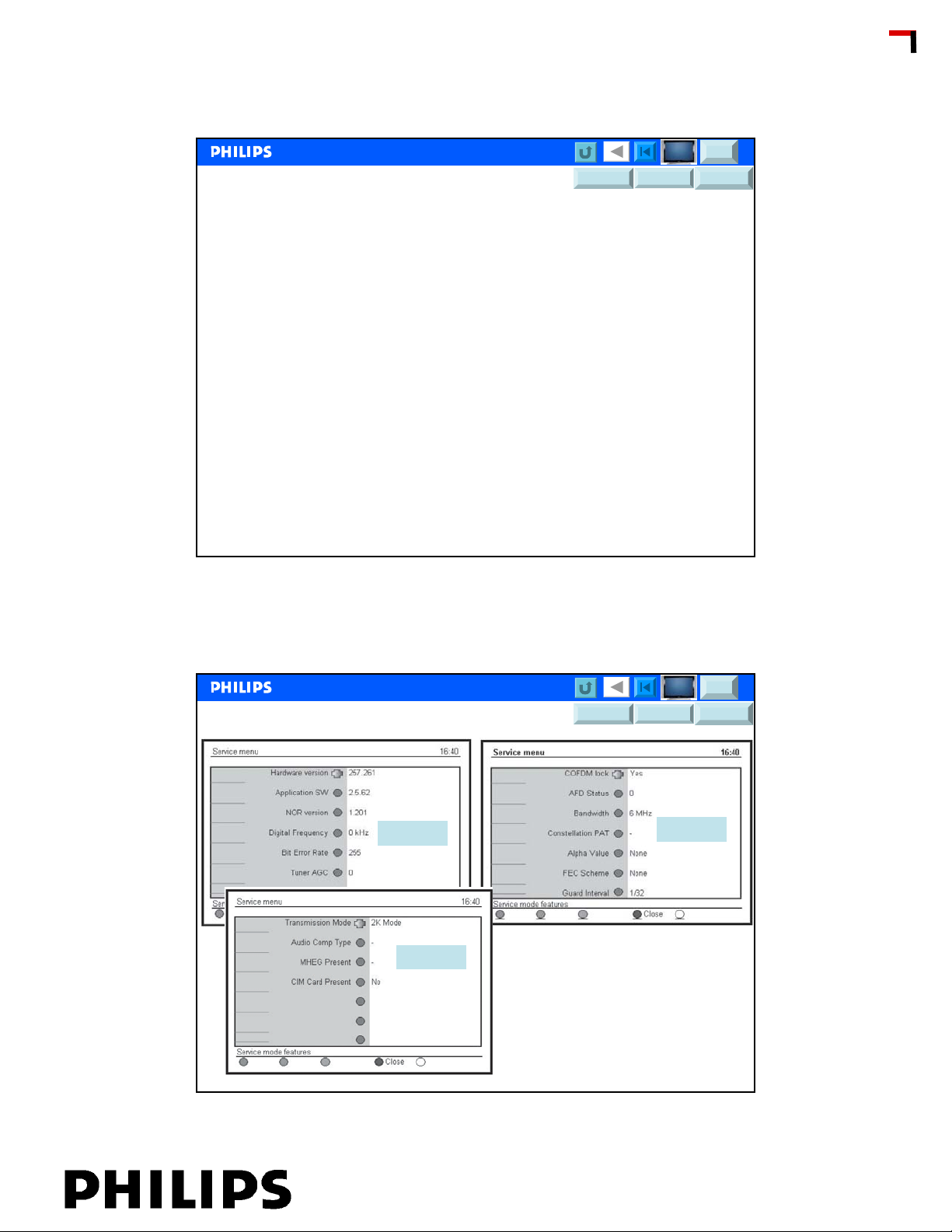
Digital Customer Service Mode
DFU FTL2.x DFU FJ3.x DFU LC04.x
How to enter the DCSM?
1. Press the “Digital” menu button on the Remote Control to activate the digital user
menu (“Setup”).
2. Activate the “Information” sub menu (select “Information” via the “DOWN” and “UP”
cursor buttons and then activate the menu by pressing cursor “RIGHT”).
3. In the “Information”sub menu, press the following buttons on the RC to activate the
DCSM: ”GREEN - RED - YELLOW - 9759”. Now, the “Service menu” will appear.
How to exit?
Press the BLUE button on the remote control to exit DCSM.
The DCSM is a read only mode, therefore, modifications in this mode are not
possible.
MFD?
UFD?
CSM
<< FEF
<< FEF
CCC Update
DCSM Items
Philips CE / Euroservice, Valere De Seranno, November 23, 2006
DCSM 1
DCSM 3
MFD?
UFD?
DFU FTL2.x DFU FJ3.x DFU LC04.x
DCSM 2
37
CSM
Philips CE / Euroservice, Valere De Seranno, November 23, 2006
38
Chapter: 01 page: 19
Page 20
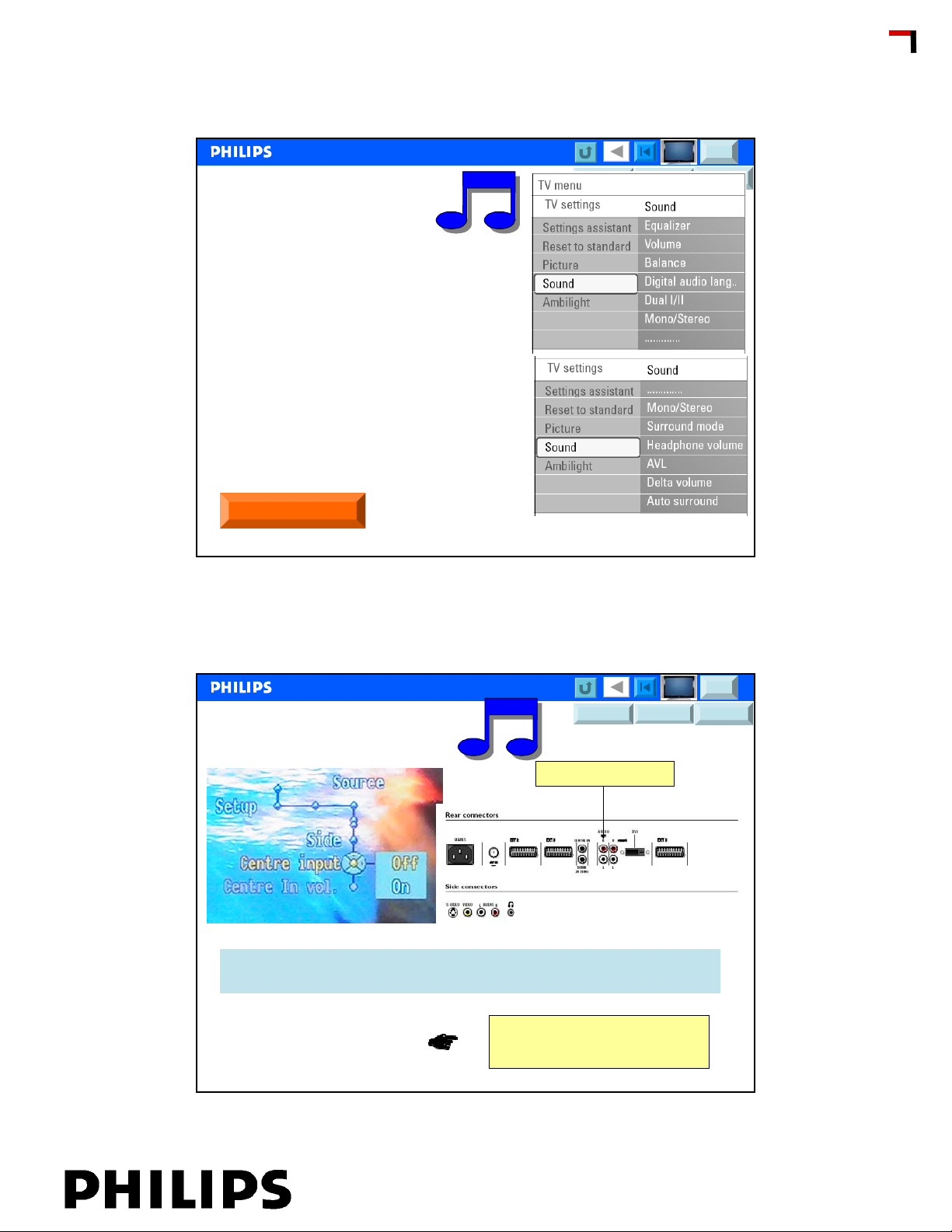
Audio Faults (1)
No Audio at all
Check Volume bar, and mute
In AV Mode check if center input is selected
No Audio on DVI
When using DVI input audio needs a separate
input, and select right input in installation menu
No Audio on DVB-T
Check Audio settings & selection, Stereo, AC3
Noise coming from the set
MFD?
UFD?
DFU FTL2.x DFU FJ3.x DFU LC04.x
CSM
<< FEF
<< FEF
CCC Update
Audio settings
Philips CE / Euroservice, Valere De Seranno, November 23, 2006
MFD?
UFD?
DFU FTL2.x DFU FJ3.x DFU LC04.x
No Sound? (2)
Centre sound in
• centre input is used if customers use home cinema sets.
• If centre input is not used there will be no sound when this option is on
39
CSM
No sound?
Check centre input in menu
Philips CE / Euroservice, Valere De Seranno, November 23, 2006
40
Chapter: 01 page: 20
Page 21
MFD?
UFD?
DFU FTL2.x DFU FJ3.x DFU LC04.x
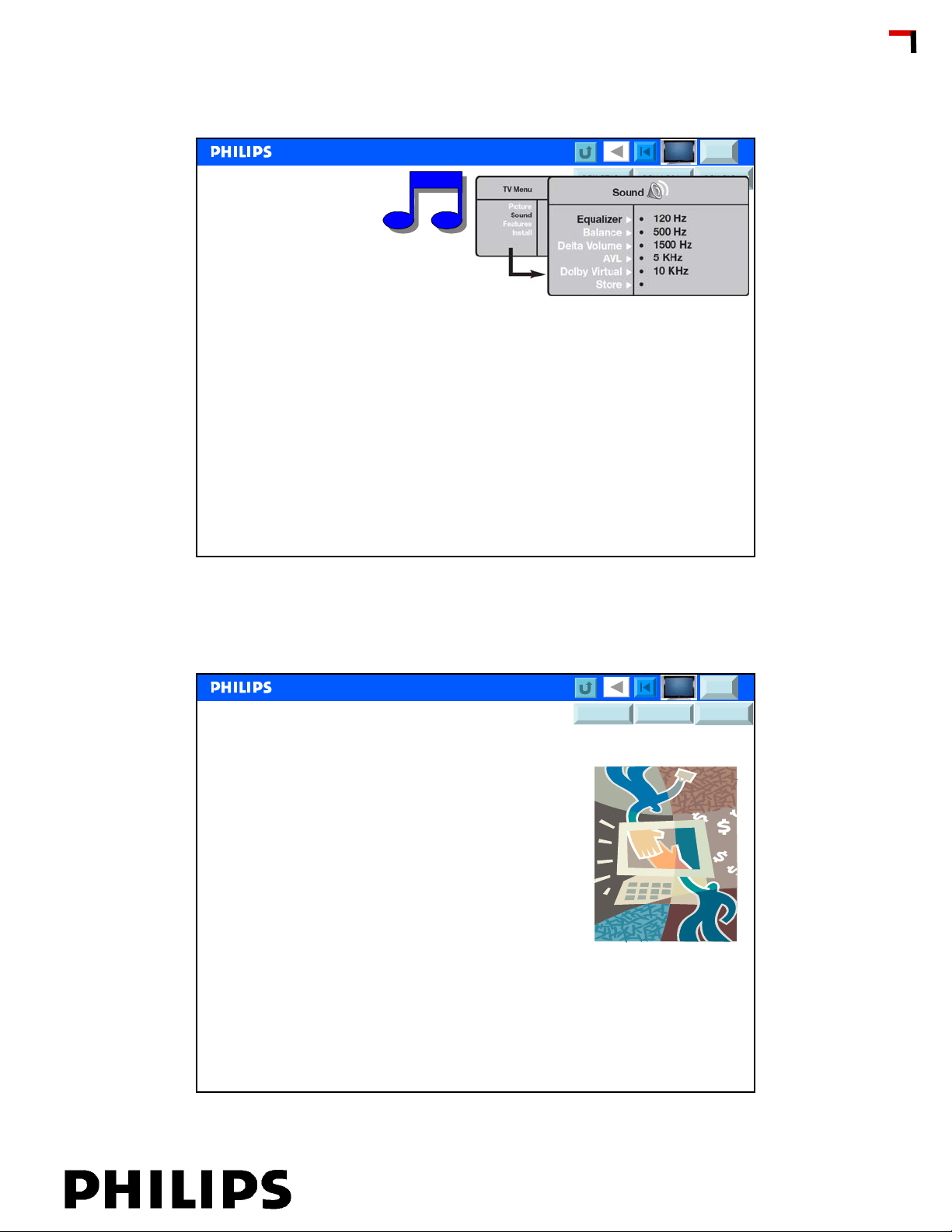
Audio Faults (3)
No sound on certain channels
• Wrong TV system
• Check whether the correct TV system is selected
No sound • Zero volume level • Try increasing volume.
• Sound muted • Check that the mute ( ) mode is not on. If mute
mode is on, press the key to deactivate mute mode.
• Aim remote control directly at sensor on front of TV.
• Headphone is connected • Disconnect headphone connection.
Sound interference • Electrical appliances • Try switching off any electrical
appliances, for interference example, hairdryer, vacuum cleaner that are in use.
CSM
<< FEF
<< FEF
CCC Update
Philips CE / Euroservice, Valere De Seranno, November 23, 2006
Noise coming from the set (4)
Mute Audio: Noise still present?
Yes,
What happens when….
•Switching ambilights off?
•Reducing Contrast and brightness?
•Mechanical noise from cabinet?
Mute Audio: Noise still present?
No
•Noise is coming from Audio part.
•Noise present on presets and AV connections?
MFD?
UFD?
DFU FTL2.x DFU FJ3.x DFU LC04.x
41
CSM
Philips CE / Euroservice, Valere De Seranno, November 23, 2006
42
Chapter: 01 page: 21
Page 22
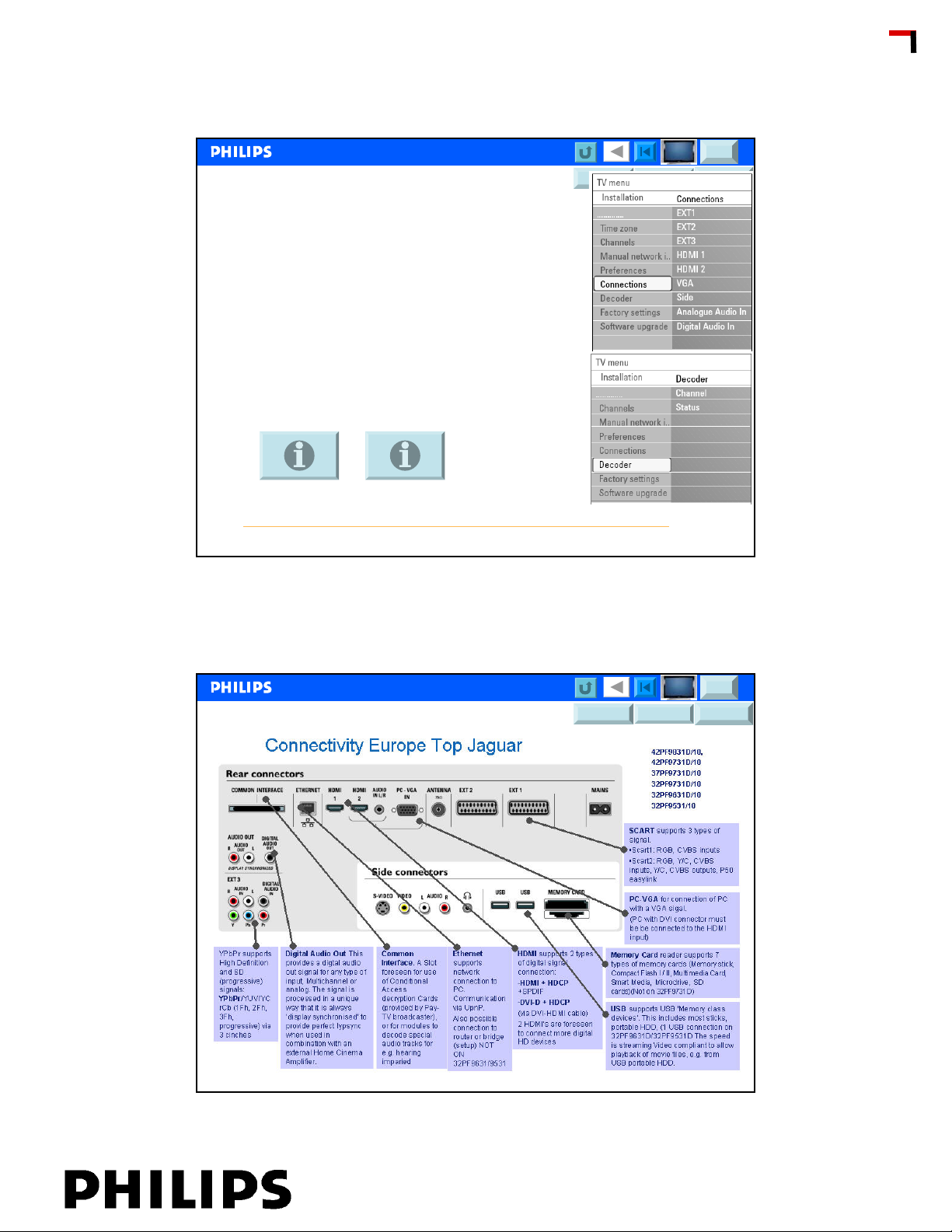
Connectivity (1)
If HDMI connection is not working check validity of
HDCP Keys
When connecting 2FH, Progressive or non
interlaced signal, use YUV, DVI or HDMI inputs.
Use separate audio input connection, when using
DVI or YUV input, and select in UI the right Audio
input
MFD?
UFD?
DFU FTL2.x DFU FJ3.x DFU LC04.x
CSM
<< FEF
<< FEF
CCC Update
Connectivity
FAQ
Connectivity
Overview of connectivity FAQ,
http://www.support.philips.com/support/html/index_global.html
Philips CE / Euroservice, Valere De Seranno, November 23, 2006
DFU FTL2.x DFU FJ3.x DFU LC04.x
Connectivity UFD (Jaguar) (2)
MFD?
UFD?
43
CSM
Philips CE / Euroservice, Valere De Seranno, November 23, 2006
44
Chapter: 01 page: 22
Page 23
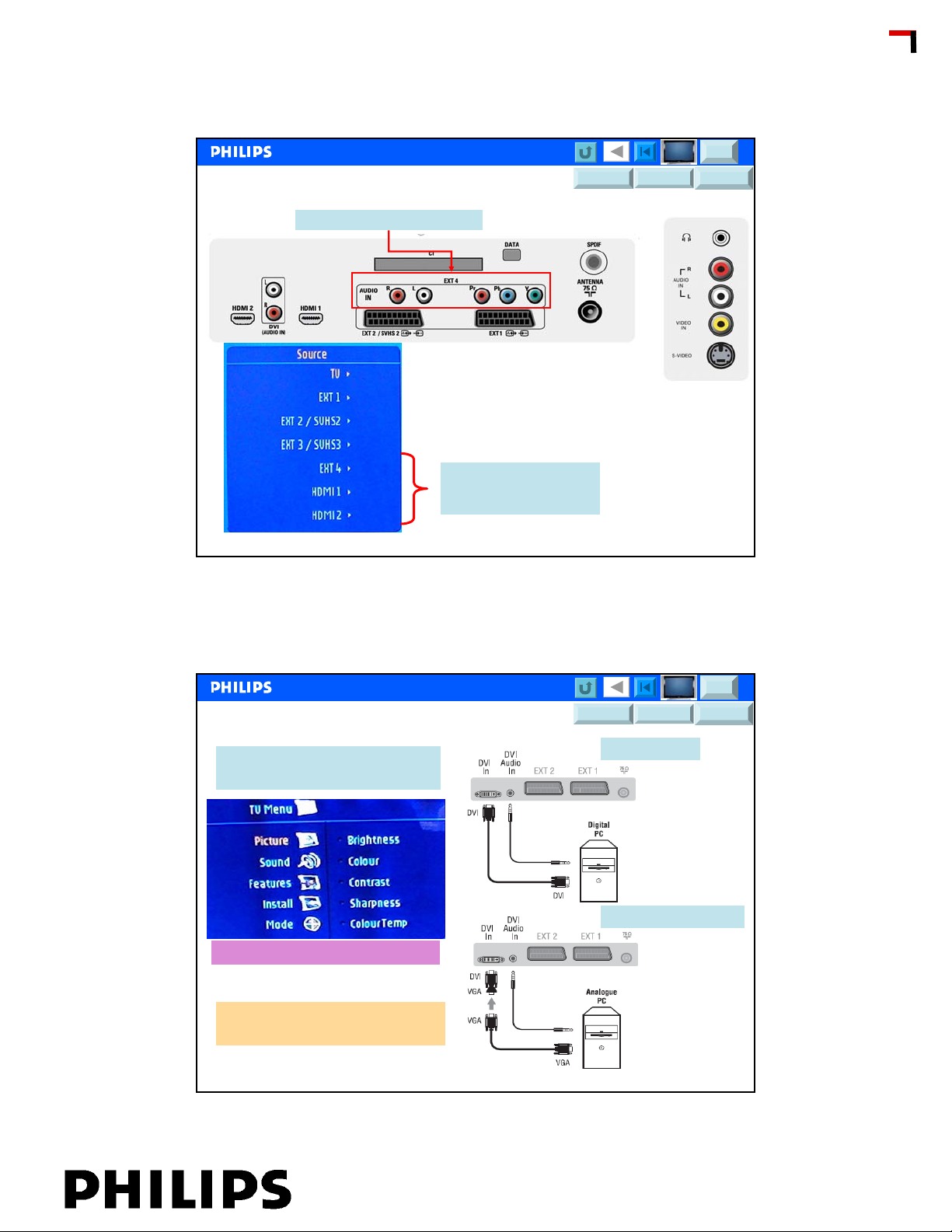
Connectivity MFD (LC04.x) (3)
Component input = Ext 4 YPbPr
EXT 4 = YPbPr input
MFD?
UFD?
DFU FTL2.x DFU FJ3.x DFU LC04.x
CSM
<< FEF
<< FEF
CCC Update
2 HDMI inputs
Philips CE / Euroservice, Valere De Seranno, November 23, 2006
DFU FTL2.x DFU FJ3.x DFU LC04.x
Connectivity mainstream PC mode (4)
Via menu - Go to MODE, then
PC input can be selected
Audio can be separate selected
MFD?
CSM
UFD?
Digital via DVI
Analogue via adaptor
45
To get FTV out of PC-mode;
Press 1 or switch TV to standby
Philips CE / Euroservice, Valere De Seranno, November 23, 2006
46
Chapter: 01 page: 23
Page 24
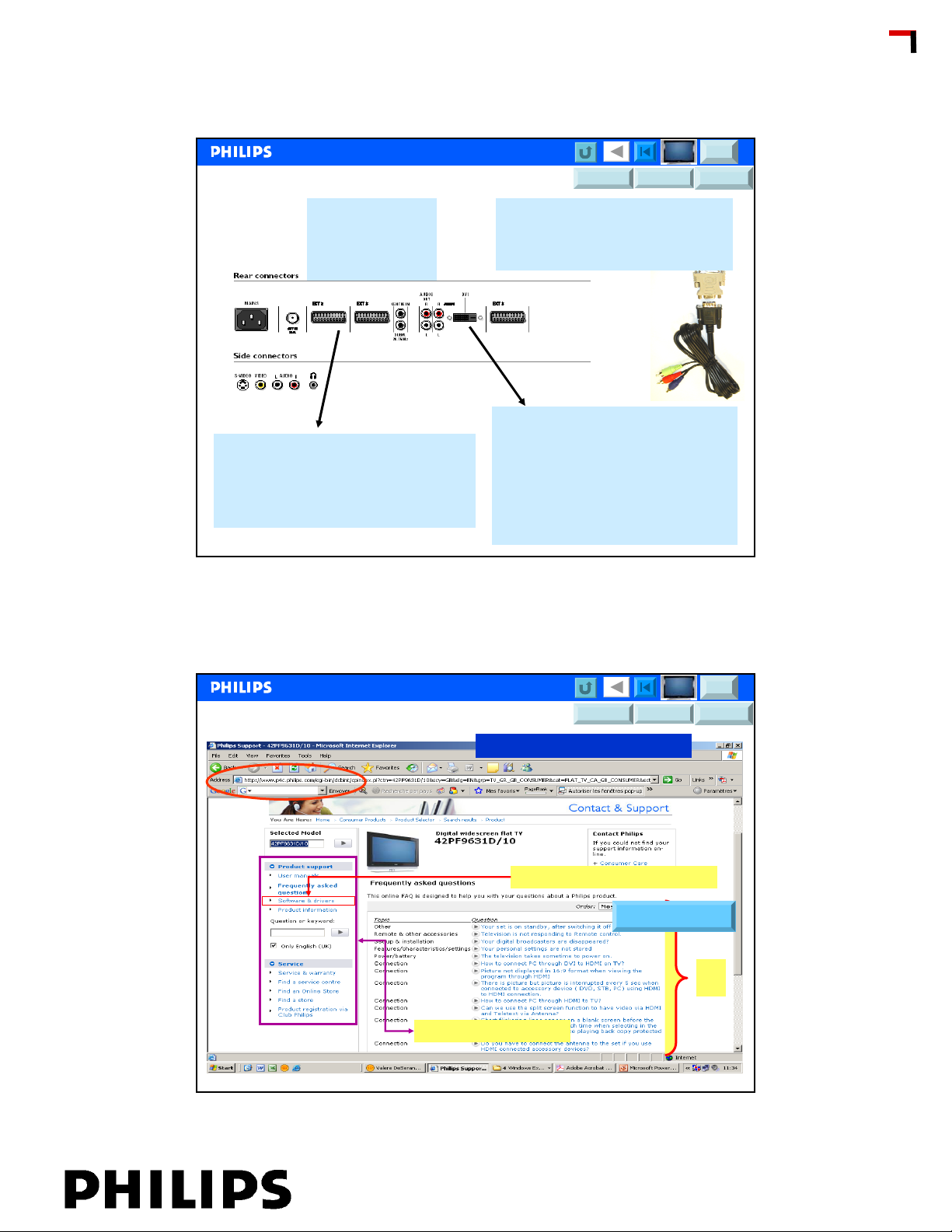
Connectivity Europe FTP2.X & FTL2.X (2004 range) (5)
DFU FTL2.x DFU FJ3.x DFU LC04.x
MFD?
UFD?
CSM
<< FEF
<< FEF
CCC Update
Types:
32PF9966/10
42PF9966/10
50PF9966/10
SCART supports 3 types of si gnal.
•Scart1: RGB, Y/C, CVBS inputs
•Scart2: RGB, Y/C, CVBS inputs, Y/C, CVBS
outputs, P50 easylink
•Scart3: CVBS input
Philips CE / Euroservice, Valere De Seranno, November 23, 2006
Bypacked:
2422 033 00016 DVI-VGA adaptor
2422 076 00659 cable
DVI-I supports 4 types of signal .
Digital signal connection (HD/SD):
-HDMI + HDCP (via converter /cable)
-DVI-D + HDCP (via DVI cable)
Analog signal connection (HD/SD):
-VGA (via DVI/DB-15 converter block, supplied)
-YPbPr/YUV/YCrCb (1Fh, 2Fh, 3Fh,
progressive) via DVI/DB15 block + DB-15 to 3
cinch (supplied)
47
Software Updates
Philips CE / Euroservice, Valere De Seranno, November 23, 2006
Philips global support website
Latest software file (for UFD)
Logged in as consumer
MFD?
UFD?
DFU FTL2.x DFU FJ3.x DFU LC04.x
Software overview
CSM
FAQ
48
Chapter: 01 page: 24
Page 25
MFD?
UFD?
DFU FTL2.x DFU FJ3.x DFU LC04.x
Main Software Upgrade in 3 Steps
1. Identify Current Software
2. Download New Software and prepare a portable memory Device
3. Software Upgrade Procedure
• Automatic
• Manual
For the procedure you will require:
- A personal computer with web browsing capability.
- An archive utility that supports the ZIP-format
(e.g. WinZip for Windows or StuffIt for Mac OS).
- A preferably empty USB memory stick.
Note: Only FAT/DOS-formatted portable memory is
supported.
How to Upgrade Software?
Philips CE / Euroservice, Valere De Seranno, November 23, 2006
CSM
<< FEF
<< FEF
49
CCC Update
MFD?
UFD?
Preparing a Portable Memory For Software Upgrade
Verifying the version of the TV software
Before starting the software upgrade procedure, it is advised to
check what the current TV software is.
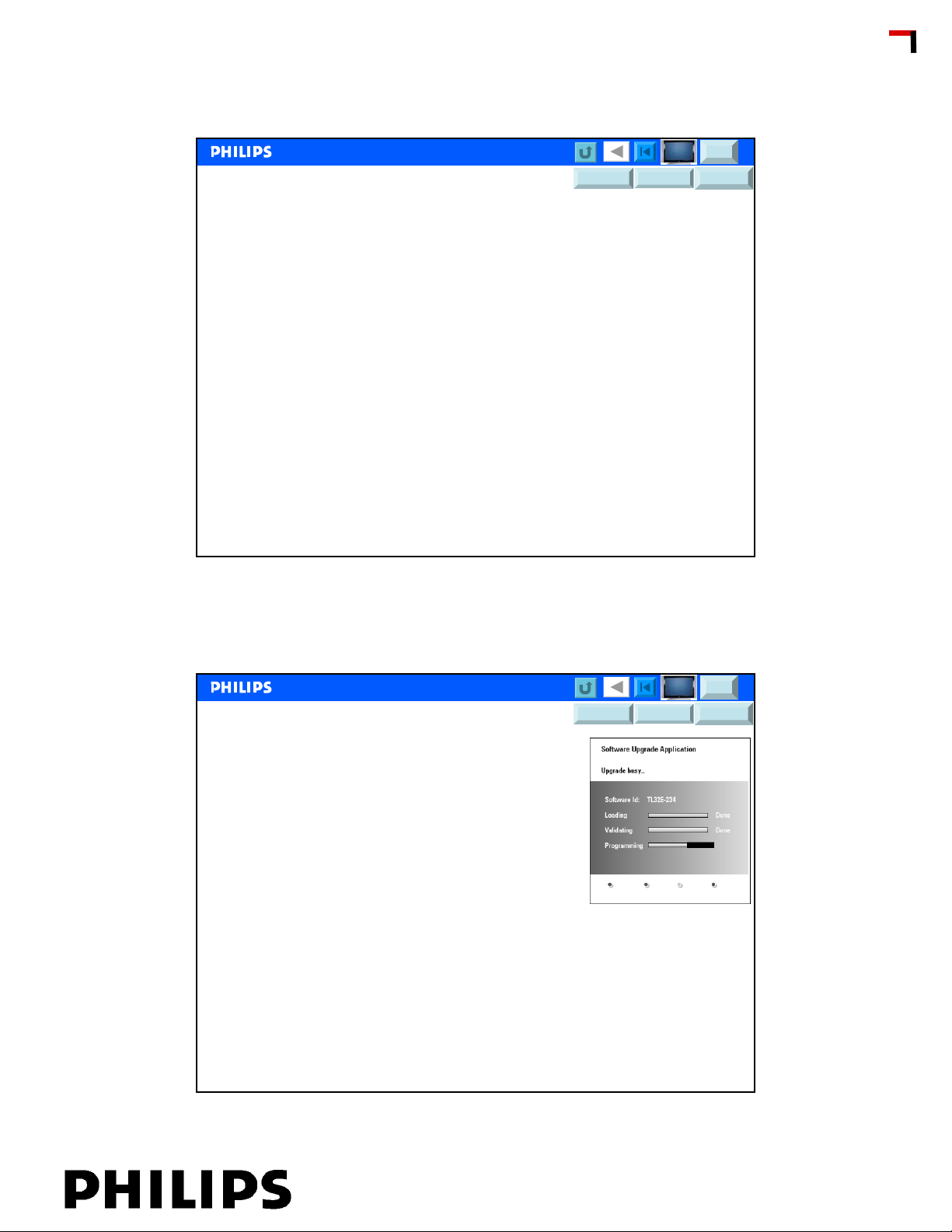
[1] Select Software Upgrade in the Installation menu.
[2] Press the cursor right.
The Software Upgrade menu moves to the left panel.
[3] Select Current Software Info to observe the version and the
description of the current software.
New software can be can be downloaded from the atyourservice website or the philips
customer support website
DFU FTL2.x DFU FJ3.x DFU LC04.x
www.atyourservice.ce.philips.com www.philips.com
[1] Go to www.philips.com/support using the web browser on your PC
[2] Follow the procedure to find the information and the software related to your TV.
[3] Select the latest software upgrade file and download it to your PC.
[4] Decompress the ZIP-file and copy the file "autorun.upg" to the root directory of the USB
portable memory.
Philips CE / Euroservice, Valere De Seranno, November 23, 2006
CSM
50
Chapter: 01 page: 25
Page 26
MFD?
CSM
UFD?
DFU FTL2.x DFU FJ3.x DFU LC04.x
Automatic Software Upgrade Procedure
[1] Power off your TV and remove all memory devices.
[2] Insert the USB portable memory that contains the downloaded software upgrade.
[3] Switch on your TV with the power switch at the right side of the TV.
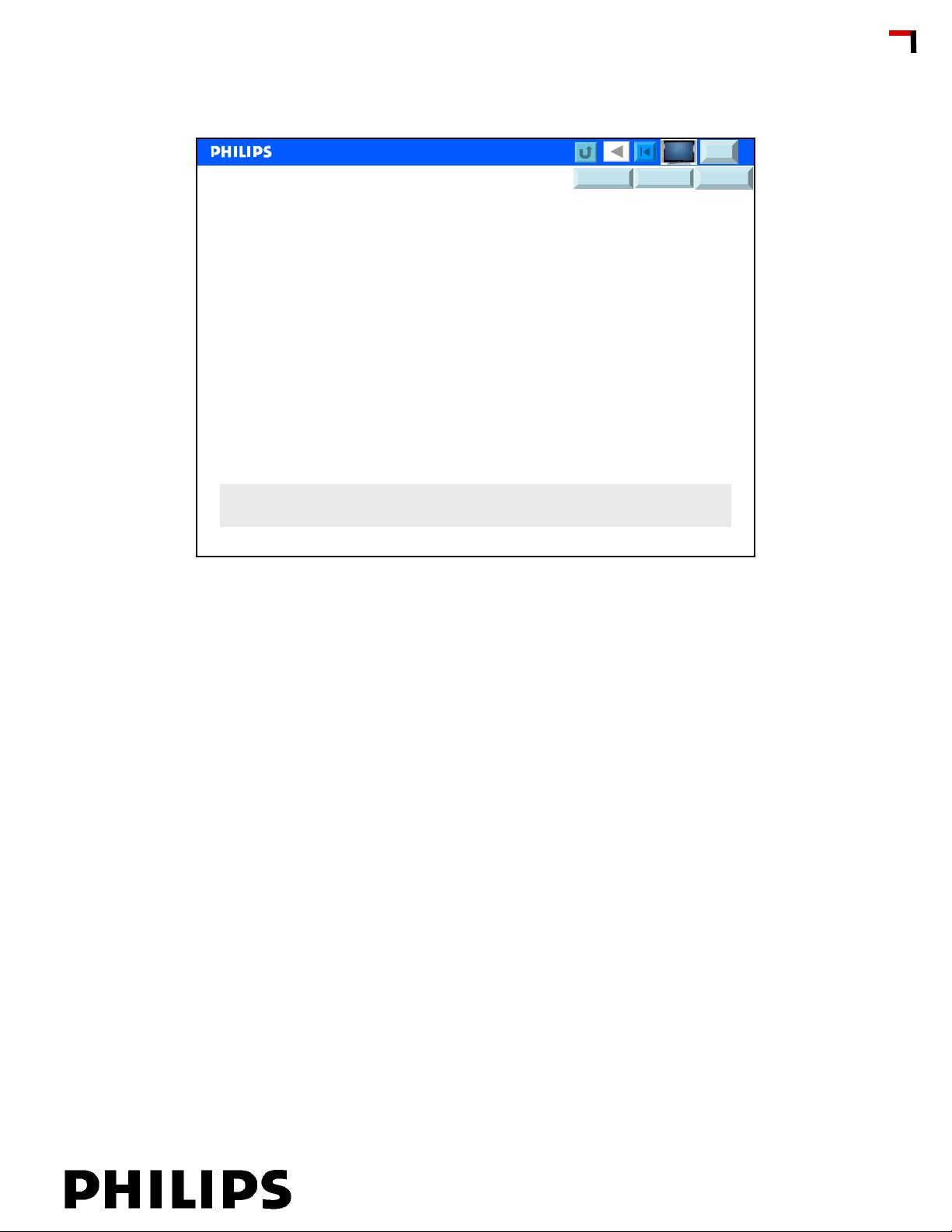
[4] At start-up the TV will scan the USB portable memory until it finds the update content. The
TV will automatically go to the upgrade mode. After a few seconds it will display the status of
the upgrade procedure.
Warning:
- You are not allowed to remove the USB portable memory during the software upgrade
procedure!
- In case of a power drop during the upgrade procedure, don’t remove the USB portable
memory from the TV. The TV will continue the upgrade as soon as the power comes back.
- If you try to upgrade to a software version lower than the current version, a confirmation
will be asked.
Downgrading to older software should only be done in case of real necessity.
- If an error occurs during the upgrade you should retry the procedure or contact your
dealer.
[5] When the software upgrade was successful, remove the USB portable memory and restart
your TV with the power switch at the right side of the TV.
Your TV will start up with the new software.
Note: Once the upgrade is finished use your PC to remove the TV software from your USB
portable memory.
Philips CE / Euroservice, Valere De Seranno, November 23, 2006
<< FEF
<< FEF
51
CCC Update
Manual Software Upgrade Procedure
DFU FTL2.x DFU FJ3.x DFU LC04.x
For a manual software upgrade copy the "autorun.upg" file in a directory
called "Upgrades" located in the root of the USB portable memory.
[1] Insert the portable memory that contains the downloaded software
upgrade.
[2] Select Software Upgrade in the Installation menu.
Go to Local upgrades/applications.
The TV will list all compatible images available on the USB portable
memory and display the data for each selected upgrade image.
[3] Select the correct upgrade image and press the red color button to
start the upgrade.
Your TV will restart and will automatically go to the upgrade mode.
After a few seconds it will display the status of the upgrade procedure.
Warning:
- If you try to upgrade to a software version equal or lower than the
current version, a confirmation will be asked. Downgrading to older
software should only be done in case of real necessity.
[4] When the software upgrade was successful, remove the USB portable
memory and restart your TV with the power switch at the right side of the
TV.
Your TV will start up with the new software.
Philips CE / Euroservice, Valere De Seranno, November 23, 2006
MFD?
UFD?
CSM
52
Chapter: 01 page: 26
Page 27
RMA (minimum data requirement)
• Customer data
• Set identification (Type number)
• Set serial number (optional)
• Detailed symptom description and condition
– Picture fault
– Audio fault
– Not operating
– Led is blinking, protection
• Add copy of the purchase to repair center
MFD?
UFD?
DFU FTL2.x DFU FJ3.x DFU LC04.x
CSM
<< FEF
<< FEF
CCC Update
On sets produced in 2006, there is a second identification sticker on th e
bottom of the set
Philips CE / Euroservice, Valere De Seranno, November 23, 2006
53
Chapter: 01 page: 27
 Loading...