

Page 1
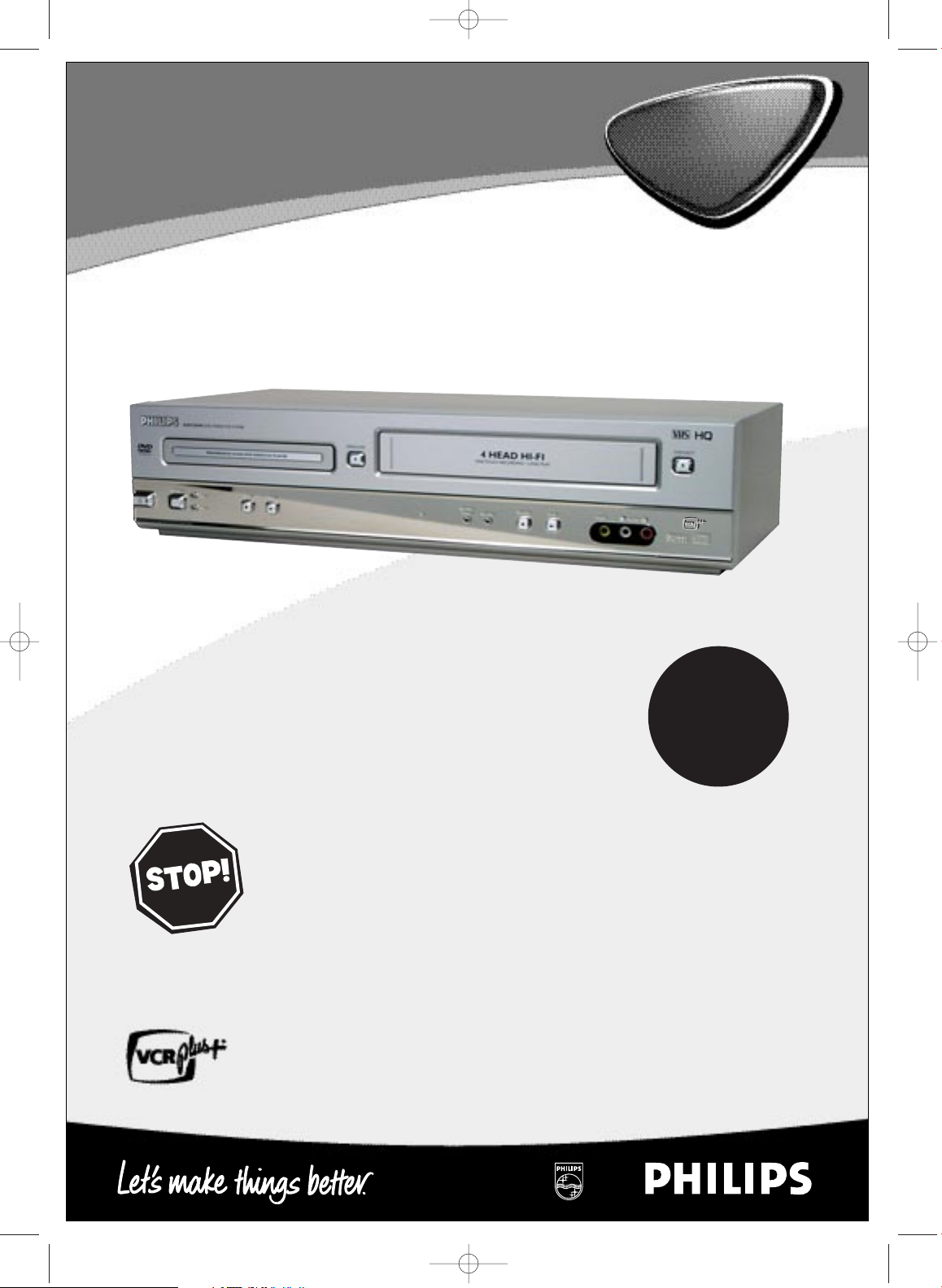
DVD750VR
STA
ND
B
AY
-ON
ST
A
NDB
AY
-ON
H9421CD/DVD750(EN).pgs1-51.QX3 03.4.11 11:29 AM Page 1
Digital Video Disc Player &
Video Cassette Recorder
Owner’s Manual
Important!
Return your
Warranty
Registration Card
within 10 days.
See why inside.
NEED HELP?CALL US!
PHILIPS REPRESENTATIVES ARE READY TO HELP YOU WITH ANY QUESTIONS ABOUT
YOUR NEW PRODUCT
.WECAN GUIDE YOU THROUGH CONNECTIONS,FIRST-TIME
SETUP, AND ANY OF THE FEATURES.WEWANT YOU TO START ENJOYING YOUR
NEW PRODUCT RIGHT AWAY
.
CALL US BEFORE YOU CONSIDER
RETURNING THE PRODUCT
.
1-800-531-0039
OR VISIT US ON THE WEB AT WWW.PHILIPS.COM
Page 2
CAUTION
RISK OF ELECTRIC SHOCK
DO NOT OPEN
CAUTION: TO REDUCE THE RISK OF ELECTRIC SHOCK, DO NOT
REMOVE COVER (OR BACK). NO USER-SERVICEABLE PARTS
INSIDE. REFER SERVICING TO QUALIFIED SERVICE PERSONNEL.
H9421CD/DVD750(EN).pgs1-51.QX3 03.4.11 11:29 AM Page 2
Return your Warranty Registration card today to
ensure you receive all the
benefits
you’re entitled to.
Once your PHILIPS purchase is registered, you’re eligible to receive all the privileges of owning a
PHILIPS product. So complete and return the Warranty Registration Card enclosed with your purchase at once. And take advantage of these important benefits.
Warranty
Verification
Registering your product within
10days confirms your right to
maximum protection under the
terms and conditions of your
PHILIPS warranty.
Owner
Confirmation
Your completed Warranty
Registration Card serves as
verification of ownership in the
event of product theft or loss.
Model
Registration
Returning your Warranty
Registration Card right away
guarantees you’ll receive all
the information and special
offers which you qualify for as
the owner of your model.
Know these
safetysymbols
Congratulations on your purchase,
and welcome to the “family!”
Dear PHILIPS product owner:
Thank you for your confidence in PHILIPS.You’ve selected one of
the best-built, best-backed products available today.And we’ll do
everything in our power to keep you happy with your purchase
for many years to come.
As a member of the PHILIPS “family,” you’re entitled to
protection by one of the most comprehensive warranties and
outstanding service networks in the industry.
What’s more, your purchase guarantees you’ll receive all the
information and special offers for which you qualify, plus easy
access to accessories from our convenient home shopping
network.
And most importantly you can count on our uncompromising
commitment to your total satisfaction.
All of this is our way of saying welcome-and thanks for investing
in a PHILIPS product.
P.S. Remember, to get the most from your
PHILIPS product, you must return your Warranty
Registration Card within 10 days.So please mail it to
us right now!
This “bolt of lightning” indi-
cates uninsulated material
within your unit may cause an
electrical shock. For the safety
of everyone in your household,
please do not remove product
covering.
The “exclamation point”
calls attention to features
for which you should read the
enclosed literature closely to
prevent operating and maintenance problems.
WARNING: TO PREVENT
FIRE OR SHOCK HAZARD,
DO NOT EXPOSE THIS
EQUIPMENT TO RAIN OR
MOISTURE.
CAUTION: To prevent electric shock, match wide blade of
plug to wide slot, fully insert.
ATTENTION:Pour éviter les
choc électriques, introduire la
lame la plus large de la fiche
dans la borne correspondante
de la prise et pousser jusqu’au
fond.
For Customer Use
Enter below the Serial No.
which is located on the rear of
the cabinet. Retain this information for future reference.
Model No.________________
Serial No. ________________
Visit our World Wide Web Site at http://www.philips.com
Page 3

H9421CD/DVD750(EN).pgs1-51.QX3 03.4.11 11:29 AM Page 3
Safety and General Information
Safety Precautions
Warning: To prevent fire or shock hazard, do not expose this equipment to rain or
moisture.
Federal Communications Commission (FCC) Warning: Any unauthorized changes or
modifications to this equipment void the user’s authority to operate it.
Department of Health and Human Services (DHHS) Certification: Complies with
2
1 Center for Radiation (CFR) chapter 1 subchapter J applicable at time of manufacture.
Laser Safety: This unit employs a laser.Only a qualified service person should remove
the cover or attempt to service this device, due to possible eye injury.
CAUTION: USE OF CONTROLS OR ADJUSTMENTS OR PERFORMANCE OF PROCEDURES OTHER THAN THOSE SPECIFIED HEREIN MAY RESULT IN HAZARDOUS RADIATION EXPOSURE.
CAUTION:VISIBLE AND INVISIBLE LASER RADIATION WHEN OPEN AND INTERLOCK
DEFEATED.DO NOT STARE INTO BEAM.THE BEAM IS LOCATED INSIDE, NEAR THE
DECK MECHANISM.
Special Information for Canadian Users: This Class B digital apparatus
complies with Canadian ICES-003. Cet appareil numérique de la classe B est conforme à la
norme NMB-003 du Canada.
Radio/TV Interference: This equipment has been tested and found to comply
with the limits for a Class B digital device, pursuant to Part
are designed to provide reasonable protection against harmful interference in a residential
installation.This equipment generates, uses, and can radiate radio frequency energy and, if not
installed and used in accordance with the instructions, may cause harmful interference to
radio communications. However, there is no guarantee that interference will not occur in a
particular installation. If this equipment does cause harmful interference to radio or television reception, which can be determined by turning the equipment off and on, the user is
encouraged to try to correct the interference by one or more of the following measures:
1) Reorient or relocate the receiving antenna.
2) Increase the separation between the equipment and the receiver.
3) Connect the equipment into an outlet on a circuit different from that to which the
receiver is connected.
4) Consult the dealer or an experienced radio/TV technician for help.
15 of the FCC Rules.These limits
3
Copyright Protection: Unauthorized copying, broadcasting, public performance, and
lending of Discs are prohibited.This product incorporates copyright protection technology
that is protected by method claims of certain U.S.patents and other intellectual property
rights owned by Macrovision Corporation and other rights owners. Use of this copyright
protection technology must be authorized by Macrovision Corporation and is intended for
home and other limited viewing uses only unless otherwise authorized by Macrovision
Corporation. Reverse engineering or disassembly is prohibited.
Note to the Cable TV System Installer: This reminder is provided to call
the Cable TV system installer’s attention to Article 820-40 of the National Electrical Code,
which provides guidelines for proper grounding – in particular, specifying that the cable
ground shall be connected to the grounding system of the building,as close to the point of
cable entry as possible.
Declaration of Conformity
Model Number: DVD750VR
Trade Name: Philips
Responsible Party: Philips Consumer Electronics
Manufactured under license from Dolby Laboratories."Dolby" and the double-D symbol are trademarks of
Dolby Laboratories.
Copyright 2003 Philips.All rights reserved.
VCR Plus+
system is manufactured under license from Gemstar Development Corporation.
®
and PlusCode®are registered trademarks of Gemstar Development Corporation.The VCR Plus+
P. O . B o x
Knoxville,TN 379
(865) 52
14810
1-4316
14-1810
Page 4

H9421CD/DVD750(EN).pgs1-51.QX3 03.4.11 11:29 AM Page 4
4
Table of Contents
General Information
Safety and General Information . . . . . . . . . . . . . . . . .3
Table of Contents . . . . . . . . . . . . . . . . . . . . . . . . . . .4
Introduction . . . . . . . . . . . . . . . . . . . . . . . . . . . . . . . .5
Playable Discs and Video Cassettes . . . . . . . . . . . . . .6
Initial DVD/VCR Setup
Hookups . . . . . . . . . . . . . . . . . . . . . . . . . . . . . . .7-15
Remote Control Setup . . . . . . . . . . . . . . . . . . . . . .16
First-time DVD/VCR Setup . . . . . . . . . . . . . . . . . . .17
Basic Playback
Video Cassette Playback . . . . . . . . . . . . . . . . . . . . .18
Disc Playback . . . . . . . . . . . . . . . . . . . . . . . . . . . . . .
19
Basic DVD/VCR Controls
Display Panel (DVD) . . . . . . . . . . . . . . . . . . . . . . . .20
Display Panel (VCR) . . . . . . . . . . . . . . . . . . . . . . . .2
Front Panel . . . . . . . . . . . . . . . . . . . . . . . . . . . . . . .22
Rear Panel . . . . . . . . . . . . . . . . . . . . . . . . . . . . . . . .23
Remote Control . . . . . . . . . . . . . . . . . . . . . . . .24-25
Additional VCR Setup
Channel Setup . . . . . . . . . . . . . . . . . . . . . . . . . .26-27
Clock (VCR) . . . . . . . . . . . . . . . . . . . . . . . . . . .28-29
Language (VCR) . . . . . . . . . . . . . . . . . . . . . . . . . . . .30
VCR Status Displays . . . . . . . . . . . . . . . . . . . . . . . .31
Additional VCR Features
Multi-Channel Television Sound . . . . . . . . . . . . .49-50
Hi-Fi Stereo . . . . . . . . . . . . . . . . . . . . . . . . . . . . . . .51
Disc Playback Features
DVD Disc Menus . . . . . . . . . . . . . . . . . . . . . . . . . .52
Fast Forward/Reverse Search . . . . . . . . . . . . . . . . .53
Title/Chapter Playback,Specific Time Playback . . . .54
Track Playback . . . . . . . . . . . . . . . . . . . . . . . . . . . . .55
Paused and Step-by-Step Playback,Resume . . . . . . .56
Repeat,A-B Repeat . . . . . . . . . . . . . . . . . . . . . . . . .57
Markers . . . . . . . . . . . . . . . . . . . . . . . . . . . . . . . . .58
Subtitles, Camera Angles . . . . . . . . . . . . . . . . . . . . .59
Parental Controls Password . . . . . . . . . . . . . . . . . .60
Parental Levels . . . . . . . . . . . . . . . . . . . . . . . . . . . . .61
Audio Language, Stereo Sound Mode . . . . . . . . . . .62
DVD Slow Motion, Zoom . . . . . . . . . . . . . . . . . . . .63
Programmed Playback . . . . . . . . . . . . . . . . . . . . . . .64
Random Playback . . . . . . . . . . . . . . . . . . . . . . . . . . .65
1
MP3/JPEG Playback . . . . . . . . . . . . . . . . . . . . . . . . .66
MP3/JPEG Displays . . . . . . . . . . . . . . . . . . . . . . . . .67
DVD Player Setup Options
Display . . . . . . . . . . . . . . . . . . . . . . . . . . . . . . . .68-69
Language . . . . . . . . . . . . . . . . . . . . . . . . . . . . . . .70-71
Audio . . . . . . . . . . . . . . . . . . . . . . . . . . . . . . . . . . . .72
On-Screen Displays . . . . . . . . . . . . . . . . . . . . . . . . .73
Black Level,Virtual Surround . . . . . . . . . . . . . . . . . .74
VCR Recording Options
Videotape Recording . . . . . . . . . . . . . . . . . . . . . . . .32
Recording One Channel/Watching Another . . . . . .33
One-Touch Recording . . . . . . . . . . . . . . . . . . . . . . .34
Rerecording (Tape Duplication) . . . . . . . . . . . . . . . .35
Timer Recording . . . . . . . . . . . . . . . . . . . . . . . .36-38
DVD to Videotape Duplication . . . . . . . . . . . . . . . .39
Video Cassette Playing Options
Setting Up the VCR Plus+ Programming System
Timer Recording with the VCR Plus+
Programming System . . . . . . . . . . . . . . . . . . . . .42-43
Repeat Play . . . . . . . . . . . . . . . . . . . . . . . . . . . . . . .44
Ta pe Counter . . . . . . . . . . . . . . . . . . . . . . . . . . . . .45
Time Search, Index Search . . . . . . . . . . . . . . . . . . . .46
Special Effects Playback . . . . . . . . . . . . . . . . . . . . . .47
Automatic Operation Features . . . . . . . . . . . . . . . .48
. . . .40-41
Information You May Need
Care and Maintenance . . . . . . . . . . . . . . . . . . . . . . .75
Glossary . . . . . . . . . . . . . . . . . . . . . . . . . . . . . . . . .76
Specifications . . . . . . . . . . . . . . . . . . . . . . . . . . . . . .77
Helpful Hints . . . . . . . . . . . . . . . . . . . . . . . . . . .78-81
Limited Warranty . . . . . . . . . . . . . . . . . . . . . . . .82-83
Information Index . . . . . . . . . . . . . . . . . . . . . . . . . .84
Page 5

H9421CD/DVD750(EN).pgs1-51.QX3 03.4.11 11:29 AM Page 5
Introduction
Welcome!
This DVD/VCR combines a Digital Video Disc (DVD) Player and a Hi-Fi Video Cassette
Recorder (VCR) into one unit, letting you play DVDs,Audio Compact Discs (Audio
CDs), and Video Cassettes on one piece of equipment.
Read this owner’s manual carefully to learn how to use the features listed below.
VCR Features
• Automatic Head Cleaner
• Channel Setup
• English, French,and Spanish menus and dis-
plays
• Multi-Channel TV Sound
• 19 Micron head
• Recording: One-Touch and Timer
Disc Features
• Audio Language choices*
• Bit Rate display
• Camera Angle *
• Dolby Digital Sound*
•DVD to Videotape Duplication
• Dynamic Range Control
• Fast/Paused/Slow/Step-by-Step Playback
• Markers
• Parental Controls*
• Repeat Play
• Searching:Time, Index, Forward, and
Reverse
• Slow Motion
• Still Picture
•Tape Counter
• The VCR Plus+ Programming System
•Tracking Adjustment
•Program Playback
•
Progressive Scan
• Random Playback
• Repeat, Repeat A-B
• Screen Saver
• Search (Title/Chapter,Time,Track)
• Subtitles*
• Virtual Surround
• Zoom
* If available on the DVD
5
Package Contents
The following items are provided with your new DVD/VCR.
• Remote Control and two AA batteries
• One black RF coaxial cable, 75 ohm
• One set of Audio (red and white tips) and Video (yellow tips) cables
• This Owner’s Manual and Quick-Use-Guide
DVD Disc Menus...
Some explanations in this manual describe DVD Disc menus. DVD manufacturers set
the menus, which vary among DVDs. Not all DVDs have menus. If the DVD has a
menu, access it by pressing DVD, then DISC/VCR/MENU on the remote control.
Details are on page 52.
DVD Player Setup Menu...
Some instructions explain how to use the DVD Player’s Setup menu to set up features
of the DVD Player or a DVD.Access the DVD Player menu by pressing
SYSTEM/MENU on the remote control when playback is stopped. Even if a feature is
set in the DVD Player’s menu, it may not be available if the current DVD does not
include that feature.
Available Disc Features...
All features described in this manual are not available on every Disc. If
the feature is not available on the Disc, you cannot use the DVD/VCR
to make it available.An “X” will appear in the top right corner of the
TV screen if you try to access a feature that is not currently available.
Page 6

Recordable
ReWritable
H9421CD/DVD750(EN).pgs1-51.QX3 03.4.11 11:29 AM Page 6
6
Playable Discs and Video Cassettes
Playable Discs
The DVD Player will play Digital Video Discs (DVDs);Audio Compact Discs (CDs); finalized Digital Video Discs Rewritable (DVD+RW);and finalized Compact Discs Rewritable
(CD-RW) and Compact Discs Recordable (CD-R).
To play a DVD, make sure it meets the requirements for Region Codes and Color
Systems as described below. Discs that have the following logos will play on the DVD
Player. Other Disc types are not guaranteed to play in the DVD/VCR.
DVD Audio CD CD-RW/CD-R DVD+RW
Region Codes
This DVD/VCR has a Region One (1) DVD Player. DVDs must be labeled for ALL
regions or for Region 1 in order to play on the DVD Player.You cannot play DVDs
that are labeled for other regions. Look for the symbols below on your DVDs. If these
region symbols do not appear on your DVD, you cannot play the DVD in this DVD
Player.
The number inside the globe refers to a region of the world. Region 1 represents the
United States, Canada, upper regions of North America, Bermuda, the U.S.Virgin
Islands, and small regions near Australia.
A DVD labelled for a specific region can only play on DVD Players with the same
region code.
Color Systems
DVDs are recorded in different color systems throughout the world.The most common color systems are NTSC (which is used primarily in the United States and North
America), PAL, and SECAM.
This DVD Player uses NTSC, so DVDs you play must be recorded in the NTSC system.You cannot play DVDs recorded in other formats.The color system of the DVD
may be listed on the DVD or on the Disc case.
Playable Video Cassettes
The VCR of this DVD/VCR has a High Quality (HQ) system and is compatible with
existing Video Home System (VHS) equipment. Use only video cassettes that have the
mark.The use of other tapes may result in poor picture quality and excessive
deposits on the video heads, which may not be covered by the warranty if damage
occurs.
The VCR also has a 19 micron head, which provides a better picture when you view
tapes recorded in slow speed (SLP).
Page 7

H9421CD/DVD750(EN).pgs1-51.QX3 03.4.11 11:29 AM Page 7
Hookups
Determining the best possible connection...
Your hookup will be determined primarily by your existing equipment, especially your TV. However, the following
guidelines describe which options have the best picture (video) and sound (audio) quality.You will not use all the
jacks on the DVD/VCR.
If your TV only has an RF-style jack, usually labelled Antenna In, RF In, or 75 ohm, use the ANTOUT jack of the DVD/VCR to connect to the TV.This hookup provides both audio and video in a
single cable. Set your TV to channel 3 or 4 - the output channel of the DVD/VCR.This connection
allows you to use both the DVD and VCR features.
★★★★ If your television has Component Video In jacks (which could be labelled Y Cr Cb,Y Pr Pb, or
YUV and may be green, blue, and red), use the Component Video jacks (Y Pb/Cb Pr/Cr) for the
best picture quality. Set the INTERLACE/PROGRESSIVE SCAN SELECTOR to INTERLACE. If you
use only this video connection, only the DVD picture will be available. To see DVD features on
the TV, set the TV to its Component Video In channel.
If your TV has Progressive Scanning (480p), connect the TV to the Component Video Out jacks of
the DVD/VCR. Set the INTERLACE/PROGRESSIVE SCAN SELECTOR on the DVD/VCR to PROGRESSIVE. Set your TV to Progressive Scan.
image resolution than traditional (480i) TV signals.When PROGRESSIVE is selected, no video
will be sent from the VIDEO OUT or S-VIDEO OUT jacks.
★★★ If your TV has an S-Video In jack (which also may be labelled Y/C or S-VHS), use the S-Video jack
★★ If your TV has a single yellow Video In jack (which also may be labelled CVBS, Composite, or
★★★★ If you have a Stereo with a Coaxial Digital Audio In jack, this provides the clearest sound for the
★★★ If digital audio connections are not possible, connect the DVD/VCR’s red and white DVD/VCR
for excellent picture quality. If you use only this video connection, only the DVD picture will be
available.To see DVD features on the TV, set the TV to its S-Video In channel.
13.
baseband), use the yellow Video jack for good picture quality.This connection provides a picture
for both the DVD Player and the VCR.To see DVD or VCR features on the TV,set the TV to its
Video In channel.
DVD Player. Connect the DVD/VCR’s COAXIAL DIGITAL AUDIO OUT jack to your Stereo for
the best sound quality. If you use only this audio connection, only Disc sound (no VCR) will be
available.
AUDIO OUT jacks to the Audio In jacks of your Stereo or TV.This connection provides sound
for both the DVD Player and the VCR.
Details are on page 15.
Details are on page 11.
Details are on page eight.
Details are on page 12.
Progressive Scan provides less flickering and higher
Details are on page
Details are on pages 11-14.
7
Before you begin...
● Refer to the manuals of your TV, Cable Box, Stereo, or other devices as necessary. Note the style of jacks and
connectors on the other equipment. Determine how to choose different Audio and Video In channels on your
other equipment so you can see and hear the DVD/VCR material playing on the TV, Stereo, etc.
● Disconnect all equipment from the power outlets. Connect the equipment to the power outlets only after
you have finished hooking up everything. Never make or change connections with equipment connected to
the power outlet.
Remember...
● Set the TV to the correct Video In channel. Such channels may be called AUX or AUXILIARY IN,
AUDIO/VIDEO or A/V IN, EXT
your TV owner’s manual for details. If you do not see the DVD or VCR playback on the TV, go to the lowest
TV channel (0
your TV has only a single Antenna In jack and you are using the RF coaxial cable (as described on page eight),
set the TV to channel 3 or 4.
To help you find the right Audio/Video In channel, turn on the DVD/VCR. Press DVD to put the DVD/VCR in
DVD mode.With no Disc in the Player, a large DVD Video logo will appear on the TV screen when you get
the TV on the correct Audio/Video In channel or channel 3 or 4.
● Set the Stereo to the correct channel or “source” mode.
● Depending on your connection, you may need to purchase additional cables or adaptors. If your TV or moni-
tor has BNC-type connectors, you will need an adaptor.
● If you switch between PROGRESSIVE and INTERLACE when the power is on, the DVD/VCR will turn off.
When you turn on the DVD Player again, the last selected scanning system will be active.
● To use the VCR features, you must include a connection with the supplied yellow video cable
and red/white audio cables or with the supplied RF coaxial cable.
Once you determine the best option, find your choice on pages 8-15. Follow the steps for the
hookup you choose.Then, go to page
1 or 02) and change channels downward until you see the DVD or VCR picture on the TV. Or, if
1 or External In, etc.These channels often are located near channel 00. See
17 to complete the first-time setup.
Page 8

75Ω
ANT /
CABLE
COAXIAL
S-VIDEO
OUT
DIGITAL
AUDIO OUT
AUDIO
OUT
COMPONENT
VIDEO OUT
L
Y
R
CB
CR
DVD
OFF
PROGRESSIVE
ON
AUDIO OUT
VIDEO OUT
AUDIO IN
VIDEO IN
LRL
R
DVD/VCR VCR
ANT-IN
ANT-OUT
75
ANT /
CABLE
AUDIO OUT
VIDEO OUT
AUDIO IN
VIDEO IN
L
R
L
R
DVD/VCR VCR
ANT-IN
ANT-OUT
H9421CD/DVD750(EN).pgs1-51.QX3 03.4.11 11:29 AM Page 8
8
Hookups (cont’d)
DVD/VCR to TV only
Simplest connection using only the supplied black RF coaxial cable
This connection will let you use the features of both the VCR and the DVD Player.
Antenna or
Cable TV
1
signal
Black RF
coaxial cable
2
(supplied)
Disconnect the antenna or Cable TV signal from your TV and connect it to the ANT-IN (Antenna In) jack of your DVD/VCR.
1
Connect the supplied black RF coaxial cable to the ANT-OUT
(Antenna Out) jack on the back of the DVD/VCR and to the
2
ANTENNA IN JACK on the TV. The ANTENNA IN jack on the TV may be
labelled TV IN, RF IN, 75Ω (ohm), or ANT-IN. See your TV owner’s manual for
assistance.
Plug in the power cords of the TV and the DVD/VCR.
3
Set your TV to channel 3 or 4. The DVD/VCR’s output channel is 3 when
you purchase it. So, set your TV to channel 3 when the DVD/VCR is new.
4
If you cannot use channel 3 at your TV, you can change the DVD/VCR’s output
channel to channel 4.To do so,press the VCR button to put the DVD/VCR in
VCR mode.The green VCR light will be on the front of the DVD/VCR. Insert a
videotape and press PLAY B to start playback. During playback, press
and hold the (VCR) PLAY B button on the front of the DVD/VCR
for three to five seconds.
channel switches between 3 and 4. Change your TV to channel 3 or 4 accordingly. (You cannot change the DVD/VCR’s output channel while adjusting tracking manually. Press STOP C to stop play and cancel manual tracking, then press
PLAY
B to resume play and change the output channel.)
There is not a channel 3/4 switch on the DVD/VCR (as customary with most
VCRs).
You are ready to turn on the DVD/VCR. Go to page 17 before turning on the DVD/VCR.
5
Each time you do this, the DVD/VCR’s output
Antenna In Jack
(on back of TV)
example only
Page 9

OUT
IN
COAXIAL
S-VIDEO
OUT
DIGITAL
AUDIO OUT
AUDIO
OUT
COMPONENT
VIDEO OUT
L
Y
R
CB
CR
DVD
AUDIO OUT
VIDEO OUT
AUDIO IN
VIDEO IN
LRL
R
DVD/VCR VCR
ANT-IN
ANT-OUT
75
ANT /
CABLE
H9421CD/DVD750(EN).pgs1-51.QX3 03.4.11 11:29 AM Page 9
Hookups (cont’d)
DVD/VCR to Cable Bo
Using only basic RF coaxial cables
This connection will let you use the features of both the VCR and the DVD Player.
Cable Box/Satellite Receiver
1
Cable
Signal
RF coaxial cable
Connections
Connect a Cable TV or Satellite signal to the IN
jack on the Cable Box/Satellite Receiver.
1
Use an RF coaxial cable (as the one supplied) to
connect the OUT jack on the Cable Box/Satellite
2
Receiver to the ANT-IN (Antenna In) jack on the
DVD/VCR.
Use a second RF coaxial cable to connect the ANTOUT (Antenna Out) jack on the DVD/VCR to the
3
TV’s Antenna In jack.
Remember...
There are two ways to connect your Cable Box/Satellite Receiver
to the DVD/VCR.With the connection on this page:
● Select TV channels at the Cable Box/Satellite Receiver, not the
DVD/VCR.To record or view TV channels, follow these steps:
1) Press VCR to put the DVD/VCR in VCR mode.The green
VCR light will appear on the front of the DVD/VCR.
2) Press SKIP3/CHo or SKIP /CHp to set the DVD/VCR
to the Cable Box/Satellite Receiver output channel (03 or 04).
3) Set the TV to the DVD/VCR’s output channel (03 or 04).The
DVD/VCR’s output channel is channel 3 when the DVD/VCR is
new.To change it from 3 to 4, press and hold the (VCR) PLAY
B button on the DVD/VCR for 3-5 seconds during tape playback. For more details, see step 4 on page 8.
4) Select the channel you want to view/record at the Cable
Box/Satellite Receiver.
●
You may not view a channel other than the one you are recording.
●
You can only program a timer recording for one channel at a time.
Set your Cable Box/Satellite Receiver to the channel you want to
record.When you enter the channel you want to record in a
timer recording, select channel 03 or 04 (the Cable Box/Satellite
Receiver output channel). (This is step 7 on page 38.) Leave the
Cable Box/Satellite Receiver on for a timer recording.
● If you use the VCR Plus+ Programming system, set the
Cable/TV channel to 03 or 04 (Cable Box/DBS output channel)
for every VCR Plus+ channel in the VCR Plus+ Cross Reference
Map.You must set the Cable Box/DBS to the channel you want
to record; leave the Cable Box/DBS on for the timer recording.
Details are on page 40.
x or Satellite Receiver and TV
DVD/VCR
2
RF coaxial cable
• If your Cable Box or Satellite
Receiver has Audio and Video Out
jacks, use audio and video cables
to connect them to the VCR
AUDIO IN and VIDEO IN jacks on
the rear of the DVD/VCR.You will
not need the RF coaxial cable connection between the Cable
Box/Satellite Receiver and the
DVD/VCR as described at step 2.
TV’s ANTENNA
3
Helpful Hint
IN Jack
9
Page 10

COAXIAL
S-VIDEO
OUT
DIGITAL
AUDIO OUT
AUDIO
OUT
COMPONENT
VIDEO OUT
L
Y
R
CB
CR
DVD
AUDIO OUT
VIDEO OUT
AUDIO IN
VIDEO IN
LRL
R
DVD/VCR VCR
ANT-IN
ANT-OUT
IN
OUT
75
ANT /
CABLE
H9421CD/DVD750(EN).pgs1-51.QX3 03.4.11 11:29 AM Page 10
10
Hookups (cont’d)
DVD/VCR to Cable Bo
x or Satellite Receiver and TV
Using only basic RF coaxial cables
This connection will let you use the features of both the VCR and the DVD Player.
DVD/VCR
Cable
1
Signal
2
Cable Box/Satellite Receiver
RF coaxial cable
RF coaxial cable
TV’s ANTENNA
3
IN Jack
Connections
Connect a Cable TV or Satellite signal to the
DVD/VCR’s ANT-IN (Antenna In) jack.
1
Use an RF coaxial cable (as the one supplied) to connect the ANT-OUT (Antenna Out) jack on the
2
DVD/VCR to the IN jack on the Cable Box/Satellite
Receiver.
Use a second RF coaxial cable to connect the OUT
jack on the Cable Box/Satellite Receiver to the
3
ANTENNA IN jack on the TV.
Remember...
There are two ways to connect your Cable Box/Satellite Receiver to
the DVD/VCR.With the connection on this page:
● Yo u may watch one channel while recording another. Follow these
steps:
1) Put the Cable Box/Satellite Receiver on the same channel as
the DVD/VCR’s output channel (03 or 04).The DVD/VCR’s output
channel is channel 3 when the DVD/VCR is new.To alternate it
between 3 and 4, press and hold the (VCR) PLAY B button on the
front of the DVD/VCR for 3-5 seconds during tape playback.
details, see step 4 on page eight.
Set the TV to the Cable
Box/Satellite Receiver output channel (03 or 04).
2) Press VCR to put the DVD/VCR in VCR mode.The green VCR
light will appear on the front of the DVD/VCR.
3) Press VCR/TV on the remote to choose VCR position.
4) Press SKIP
3/CHo or SKIP /CHp to select the channel you
want to record at the DVD/VCR. Press RECORD or RECORD to
start the recording.
5) Press VCR/TV on the remote once to put the DVD/VCR in TV
position.
6) Select the channel you want to watch at the Cable
Box/Satellite Receiver.
● When you play a tape or Disc, make sure the Cable Box/Satellite
Receiver is set to the DVD/VCR’s output channel (03 or 04).
Set the TV to the Cable Box/Satellite Receiver output channel (03
or 04).
For
Helpful Hints
• When you play a tape, make sure
the Cable Box/Satellite Receiver is
set to the same channel as the RF
output channel of the DVD/VCR
(03 or 04). Set the TV to the
Cable Box/Satellite Receiver output
channel (03 or 04).
• If your Cable Box or Satellite
Receiver has Audio and Video Out
jacks, use audio and video cables
to connect them to the VCR
AUDIO IN and VIDEO IN jacks on
the rear of the DVD/VCR.You will
not need the RF coaxial cable connection between the Cable
Box/Satellite Receiver and the
DVD/VCR as described at step 2.
Page 11

COAXIAL
S-VIDEO
OUT
DIGITAL
AUDIO OUT
AUDIO
OUT
COMPONENT
VIDEO OUT
L
Y
R
P
b/
C
b
Pr/
C
r
DVD
I
PROGRESSIVE
AUDIO OUT
VIDEO OUT
AUDIO IN
VIDEO IN
LRL
R
DVD/VCR VCR
ANT-IN
ANT-OUT
P
H9421CD/DVD750(EN).pgs1-51.QX3 03.4.11 11:29 AM Page 11
Hookups (cont’d)
DVD/VCR to a TV that has
Using the supplied red, white, and yellow cables
This connection will let you use the features of both the VCR and the DVD Player.
Antenna or Cable TV
Signal to ANT-IN Jack
Audio and Video In jacks
1
Audio and
Video IN Jacks
on TV
Audio Cables
2
Video Cable
3
Connect the antenna or Cable TV signal to the ANT-IN (Antenna In)
jack of your DVD/VCR.
1
Connect the red and white audio cables (supplied) to the red and
white DVD/VCR AUDIO OUT jacks on the DVD/VCR and to the red
2
and white AUDIO IN jacks on the TV.
colors. If the TV has a single AUDIO IN jack, use the white audio cable to
connect the DVD/VCR’s white DVD/VCR AUDIO OUT (left) jack to the TV’s
AUDIO IN jack.You will not use the red cable. Or, purchase a “splitter” audio
cable to go from the left/right AUDIO OUT jacks of the DVD/VCR to the TV’s
single AUDIO IN jack.
Match the cable colors to the jack
11
Connect the yellow video cable (supplied) to the DVD/VCR VIDEO
OUT jack on the DVD/VCR and to the VIDEO IN jack on the TV.
3
The VIDEO IN jack on the TV is usually yellow and may be labelled CVBS,
Composite, or Baseband video.
Connect the power cords of the TV and the DVD/VCR to a power
outlet.Turn on the TV and set it to the correct Audio/Video In chan-
4
nel.
Go to your lowest TV channel (01 or 02), then change channels down-
ward until you see VCR or DVD playback on the TV screen.
To help you find the right Audio/Video In channel, turn on the DVD/VCR. Press
DVD to put the DVD/VCR in DVD mode.With no Disc in the Player, a large DVD
Video logo will appear on the TV screen when you get the TV on the correct
Audio/Video In channel.
Yo u are ready to turn on the DVD/VCR. Go to page 17 to complete
the first-time setup.
5
Page 12

AUDIO IN
Y
Cb/Pb
Cr/Pr
COMPONENT
VIDEO IN
L
R
COAXIAL
S-VIDEO
OUT
DIGITAL
AUDIO OUT
AUDIO
OUT
COMPONENT
VIDEO OUT
L
Y
R
P
b/
Cb
Pr/
Cr
DVD
I
PROGRESSIVE
AUDIO OUT
VIDEO OUT
AUDIO IN
VIDEO IN
LRL
R
DVD/VCR VCR
ANT-IN
ANT-OUT
P
H9421CD/DVD750(EN).pgs1-51.QX3 03.4.11 11:29 AM Page 12
12
Hookups (cont’d)
1
Antenna or
Cable TV
Signal
1
2
3
4
5
6
DVD/VCR to a TV that has Component
2
3
Video In jacks
Connect the antenna or Cable TV signal to the ANT-IN (Antenna In)
jack of your DVD/VCR.
Connect the supplied red and white audio cables to the red and
white DVD/VCR AUDIO OUT jacks on the DVD/VCR and to the red
and white AUDIO IN jacks on the TV. Match the cable colors to the jack
colors.
Connect component video cable (not supplied) to the COMPONENT VIDEO OUT jacks on the DVD/VCR and to the COMPONENT VIDEO IN jacks on the TV.
The Component Video In jacks on the
TV are usually red, blue, and green.
The Component Video connection only supplies video (picture) for the DVD Player of
the DVD/VCR.Therefore, in order to use the VCR features or view TV channels at the
DVD/VCR, you still need to either connect the RF coaxial cable between the ANT-OUT
jack of the DVD/VCR and the TV’s Antenna In jack, or connect the yellow video cable.
To connect the supplied RF coaxial cable, see step 2 on page eight.To connect the
supplied yellow video cable, see step 3 on page 11.
If your TV is compatible with progressive scanning (480p), connect the TV to the
Component Video Output jacks of the DVD player, and make sure INTERLACE/PROGRESSIVE SCAN SELECTOR is set to PROGRESSIVE (P).
Connect the power cords of the DVD/VCR and TV to a power outlet.
Turn on the TV and set it to the Component Video In channel for
DVD Player features.
If you are using the RF coaxial cable for VCR playback, choose channel 3 or 4
at the TV. If you are using the yellow video cable for VCR playback, choose the
Video In channel at your TV.
Go to your lowest TV channel and change channels down until you see VCR or
DVD playback on the TV screen, or try channel 3 or 4 at the TV.
To help you find the right Audio/Video In channel, turn on the DVD/VCR. Press
DVD to put the DVD/VCR in DVD mode.With no Disc in the Player, a large DVD
Video logo will appear on the TV screen when you get the TV on the correct
Component Video In channel.
You are ready to turn on the DVD/VCR. Go to page 17 before turning on the DVD/VCR.
After you complete the VCR setup as described on page 17, set
DOLBY DIGITAL to OFF in the DVD Player’s Setup menu. Details are
on page 72. If you play a DVD when the settings are wrong, the sound will be
distorted or you may damage the TV speakers.
Page 13

COAXIAL
S-VIDEO
OUT
DIGITAL
AUDIO OUT
AUDIO
OUT
COMPONENT
VIDEO OUT
L
Y
R
P
b/
Cb
Pr/
Cr
DVD
I
PROGRESSIVE
AUDIO OUT
VIDEO OUT
AUDIO IN
VIDEO IN
LRL
R
DVD/VCR VCR
ANT-IN
ANT-OUT
P
AUDIO IN
LEFT
RIGHT
S-VIDEO IN
H9421CD/DVD750(EN).pgs1-51.QX3 03.4.11 11:29 AM Page 13
DVD/VCR to a TV that has an S-Video In jack
1
Antenna/Cable
TV Signal
2
Connect the antenna or Cable TV signal to the ANT-IN (Antenna In)
jack of your DVD/VCR.
1
Connect the supplied red and white audio cables to the red and
white DVD/VCR AUDIO OUT jacks on the DVD/VCR and to the red
2
and white AUDIO IN jacks on the TV. Match the cable colors to the jack
colors.
Hookups (cont’d)
13
3
3
4
5
6
Connect an S-Video cable (not supplied) to the S-VIDEO OUT jack
on the DVD/VCR and to the S-VIDEO IN jack on the TV.
The S-Video connection only supplies video (picture) for the DVD Player of the
DVD/VCR.Therefore, in order to use the VCR features or view TV channels at the
DVD/VCR, you still need to either connect the RF coaxial cable between the ANT-OUT
jack of the DVD/VCR and the TV’s Antenna In jack, or connect the yellow video cable.
To connect the supplied RF coaxial cable, see step 2 on page eight.To connect the
supplied yellow video cable, see step 3 on page
11.
Connect the power cords of the DVD/VCR and TV to a power outlet.
Turn on the TV and set it to the S-Video In channel for DVD Player
features.
If you are using the RF coaxial cable for VCR playback, choose channel 3 or 4
at the TV. If you are using the yellow video cable for VCR playback, choose the
Video In channel at your TV.To find the correct Video In channel, go to your
lowest TV channel and change channels downward until you see VCR or DVD
playback on the TV screen, or try channel 3 or 4 at the TV.
To help you find the right S-Video In channel, turn on the DVD/VCR. Press DVD to
put the DVD/VCR in DVD mode.With no Disc in the Player, a large DVD Video
logo will appear on the TV screen when you get the TV on the S-Video In channel.
Yo u are ready to turn on the DVD/VCR. Go to page 17 before turning on the DVD/VCR.
After you complete the VCR setup as described on page 17, set
DOLBY DIGITAL to OFF in the DVD Player’s Setup menu.
on page 72. If you play a DVD when the settings are wrong, the sound will be
distorted or you may damage the TV speakers.
Details are
Page 14

COAXIAL
S-VIDEO
OUT
DIGITAL
AUDIO OUT
AUDIO
OUT
COMPONENT
VIDEO OUT
L
Y
R
P
b/
Cb
Pr/
Cr
DVD
I
PROGRESSIVE
AUDIO OUT
VIDEO OUT
AUDIO IN
VIDEO IN
LRL
R
DVD/VCR VCR
ANT-IN
ANT-OUT
P
VIDEO IN
AUDIO (LEFT) IN
AUDIO (RIGHT) IN
H9421CD/DVD750(EN).pgs1-51.QX3 03.4.11 11:29 AM Page 14
14
Hookups (cont’d)
DVD/VCR to a TV and a Ster
Antenna/Cable
1
TV Signal
2
3
Connect the antenna or Cable TV signal to the ANT-IN (Antenna In)
jack of your DVD/VCR.
1
Connect the supplied red and white audio cables to the red and
white DVD/VCR AUDIO OUT jacks on the DVD/VCR and to the red
2
and white AUDIO IN jacks on the Stereo. Match the cable colors to the
jack colors.
eo
Connect the supplied yellow video cable to the DVD/VCR VIDEO
OUT jack on the DVD/VCR and to the VIDEO IN jack on the TV.
3
To use Component Video cable or S-Video cable instead for the DVD Player,
see pages
12-13.You will still need the yellow video cable or RF coaxial cable
for VCR features.
Connect the power cords of the DVD/VCR,TV, and Stereo to a
power outlet.Turn on the TV and set it to the Video In channel.
4
simply go to your TV’s lowest channel (02 or 03) and continue changing channels downward at the TV until you see VCR or DVD playback on the TV
screen.
To help you find the right Video In channel at the TV, turn on the DVD/VCR. Press
DVD to put the DVD/VCR in DVD mode.With no Disc in the Player, a large DVD
Video logo will appear on the TV screen when you get the TV on the correct
Video In channel.
You are ready to turn on the DVD/VCR. Go to page 17 before turning on the DVD/VCR.
5
After you complete the VCR setup as described on page 17, set
DOLBY DIGITAL to OFF in the DVD Player’s Setup menu.
6
on page 72. If you play a DVD when the settings are wrong, the sound will be
distorted or you may damage the speakers.
Or,
Details are
Page 15

AUDIO OUT
VIDEO OUT
AUDIO IN
VIDEO IN
LRL
R
DVD/VCR VCR
ANT-IN
ANT-OUT
VIDEO IN
COAXIAL
DIGITAL
AUDIO IN
COAXIAL
S-VIDEO
OUT
DIGITAL
AUDIO OUT
AUDIO
OUT
COMPONENT
VIDEO OUT
L
Y
R
P
b/
Cb
Pr/
Cr
DVD
I
PROGRESSIVE
P
H9421CD/DVD750(EN).pgs1-51.QX3 03.4.11 11:29 AM Page 15
DVD/VCR to a TV and to a Ster
eo that is Dolby Digital-compatible
Using Digital Audio connections
1
Antenna/Cable TV Signal
3
Back of TV
(example only)
Connect the antenna or Cable TV signal to the ANT-IN (Antenna In) jack
of your DVD/VCR.
1
Connect a coaxial digital audio cable (not supplied) to the DVD/VCR’s
COAXIAL DIGITAL AUDIO OUT jack and to the COAXIAL DIGITAL
2
AUDIO IN jack on the Stereo.
This digital audio connection only provides sound for the DVD Player of the DVD/VCR.So, in
order to use the VCR features or view TV channels at the DVD/VCR, you still need to either
connect the RF coaxial cable between the ANT-OUT jack of the DVD/VCR and the TV’s
Antenna In jack, or connect the supplied red/white audio cables.To connect the supplied RF
coaxial cable, see step 2 on page eight.To connect the red/white audio cables, see step 2 on
11.
page
2
Hookups (cont’d)
Stereo
15
Connect the supplied yellow video cable to the yellow DVD/VCR VIDEO
OUT jack on the DVD/VCR and to the VIDEO IN jack on the TV.
3
component video cable or S-Video cable instead for the DVD Player,see pages
13.You will still need the yellow video cable or RF coaxial cable for VCR features.
Plug in the power cords of the Stereo,TV, and DVD/VCR.Turn on the
Stereo and select its Auxiliary IN channel.Turn on the TV and set it to
4
the correct Video In channel.
Go to your TV’s lowest channel (01 or 02) and
change channels downward until you see DVD or VCR material on the TV screen.
To help you find the right Video In channel on the TV, turn on the DVD/VCR. Press
DVD to put the DVD/VCR in DVD mode.With no Disc in the Player, a large DVD
Video logo will appear on the TV screen when you get the TV on the correct Video
In channel.
You are ready to turn on the DVD/VCR. Go to page 17 before turning on
the DVD/VCR.
5
Remember...
Some DVDs are recorded in 5.1 channel Dolby Digital Surround. Select 5.1 channel Dolby
Digital Surround Sound in the DVD Disc menu. If Dolby Digital Surround is not recorded
on the Disc, you will not have surround sound available.
If you connect the DVD/VCR to a Dolby Digital Stereo, set DOLBY DIGITAL to ON in the
DVD Player’s Setup menu.
Details are on page 72. If the DVD/VCR is not connected to a
Dolby Digital-compatible Stereo, set DOLBY DIGITAL to OFF. Incorrect settings may cause
noise distortion and damage the speakers.
To use
12-
Page 16

H9421CD/DVD750(EN).pgs1-51.QX3 03.4.11 11:29 AM Page 16
16
Remote Control Setup
Putting Batteries in the Remote Control
Remove the battery compartment lid on the bottom
of the remote control by pressing the tab, then lifting the
1
lid.
Place two AA batteries inside the battery compartment with their +and –ends aligned as indicated.
2
Replace the battery compartment lid.
3
1
Using the Remote Control
● Point the remote control at the DVD/VCR’s remote sensor
(marked IR, see page 22) when using the remote to operate the
DVD/VCR. Do not point the remote at the TV.
● Do not put objects between the remote and the DVD/VCR.
Recycling Guidelines/Battery Safety
● Your new product and its packaging contain materials that can
be recycled and reused. Specialized companies can recycle your
product to increase the amount that needs to be properly disposed.Your product uses batteries that should not be thrown
away when depleted but should be disposed of as small chemical
waste. Please find out about the local regulations on disposal of
your old product, batteries, and packaging whenever you replace
existing equipment.
● Battery Usage CAUTION - To prevent battery leakage that may
result in bodily injury, property damage, or damage to the unit:
Install ALL batteries correctly, with the + and - markings on the
battery aligned as indicated on the unit;
Do not mix batteries, for example, old with new or carbon with
alkaline; and
Remove batteries when the unit will not be used for a long
time.
2
3
Page 17

STANDBY-ON
PLAY
VCR/TV
VCRDVD
OK
MENU MENU
SYSTEM
RETURN TITLE
A-B
CLEAR/RESET SLOW
SUBTITLE ZOOM
ANGLE
REPEAT REPEAT
AUDIO
SEARCH MODE
DISPLAY
SKIP / CH
DISC/VCR
PAUSESTOP
VCR Plus+ RECORDTIMER SET
SPEED
1 2 3
7
6
5
4
8
9
0
+10
H9421CD/DVD750(EN).pgs1-51.QX3 03.4.11 11:29 AM Page 17
First-time DVD/VCR Setup
Before turning on your DVD/VCR, make sure batteries are in the
remote control and the DVD/VCR and TV are connected correctly.
You cannot program channels if you are using a Cable Box or a
Satellite Receiver.
These menus may not appear if you have already turned
on the DVD/VCR.
Turn on the TV.Set it to channel 3 or 4 or its
AUDIO/VIDEO IN channel, depending on how you con-
1
nected the DVD/VCR to a TV.
Press VCR, then press STANDBY-ON. The green VCR
light will appear on the front of the DVD/VCR.The display
2
shown below will appear.
These menus may not appear if you have already turned on
the DVD/VCR.You may have turned on the DVD/VCR
before to find the Audio/Video In channel of the TV, for
example. If so, follow the steps on page 26 to set up channels and page 30 to select a language for the VCR menus.
17
Turn on the TV.
1
2
3-4
3
4
Press o or p to select English, French, or Spanish as
the language for VCR on-screen displays and menus. Then,
press B.
AUTO SET UP
Press B to begin channel programming. AUTO
SETUP will flash on the TV screen during the channel
search.The DVD/VCR will memorize all available channels.
When channel programming is complete, the lowest available channel will appear on the TV.
These channels will be available when you want to watch
TV while in VCR mode.To put the DVD/VCR in VCR
mode, press VCR so the green VCR light appears. Use the
SKIP3/CHo and SKIP /CHp buttons to select memorized channels.To select non-memorized channels, use the
Number buttons.
Helpful Hints
• To skip this feature and play a tape
immediately, insert a tape with its
record tab removed.
• To skip step 3, press
DISC/VCR/MENU.VCR menus and
displays will be in English.
• If you try to program channels
when there is no antenna or Cable
TV signal connected to the ANT-IN
jack of the DVD/VCR, programming
will stop.AUTO SET UP will stop
flashing. Connect an antenna or
Cable TV signal to the DVD/VCR’s
B
ANT-IN jack and press
• Repeat this process if the power
fails.
•To stop the Channel Setup while
AUTO SET UP is flashing, press
DISC/VCR/MENU.
again.
Page 18
STANDBY-ON
PLAY
VCR/TV
VCRDVD
OK
MENU MENU
SYSTEM
RETURN TITLE
A-B
CLEAR/RESET SLOW
SUBTITLE ZOOM
ANGLE
REPEAT REPEAT
AUDIO
SEARCH MODE
DISPLAY
SKIP / CH
DISC/VCR
PAUSESTOP
VCR Plus+ RECORDTIMER SET
SPEED
1 2 3
7
6
5
4
8
9
0
+10
H9421CD/DVD750(EN).pgs1-51.QX3 03.4.11 11:29 AM Page 18
18
Video Cassette Playback
Read and follow the steps below to play a tape.
Turn on the TV. Set it to channel 3 or 4 or its
AUDIO/VIDEO IN channel. This depends on how you
1
connected the DVD/VCR to a TV.
Details are on pages 7-15.
With the DVD/VCR power off, insert a tape in the
cassette compartment of the DVD/VCR.The VCR
2
light will appear on the front of the DVD/VCR. If the tape’s
record tab has been removed, play will start automatically.
If the DVD/VCR power is already on, press VCR to put the
DVD/VCR in VCR mode if necessary.The green VCR light
will appear on the front of the DVD/VCR.
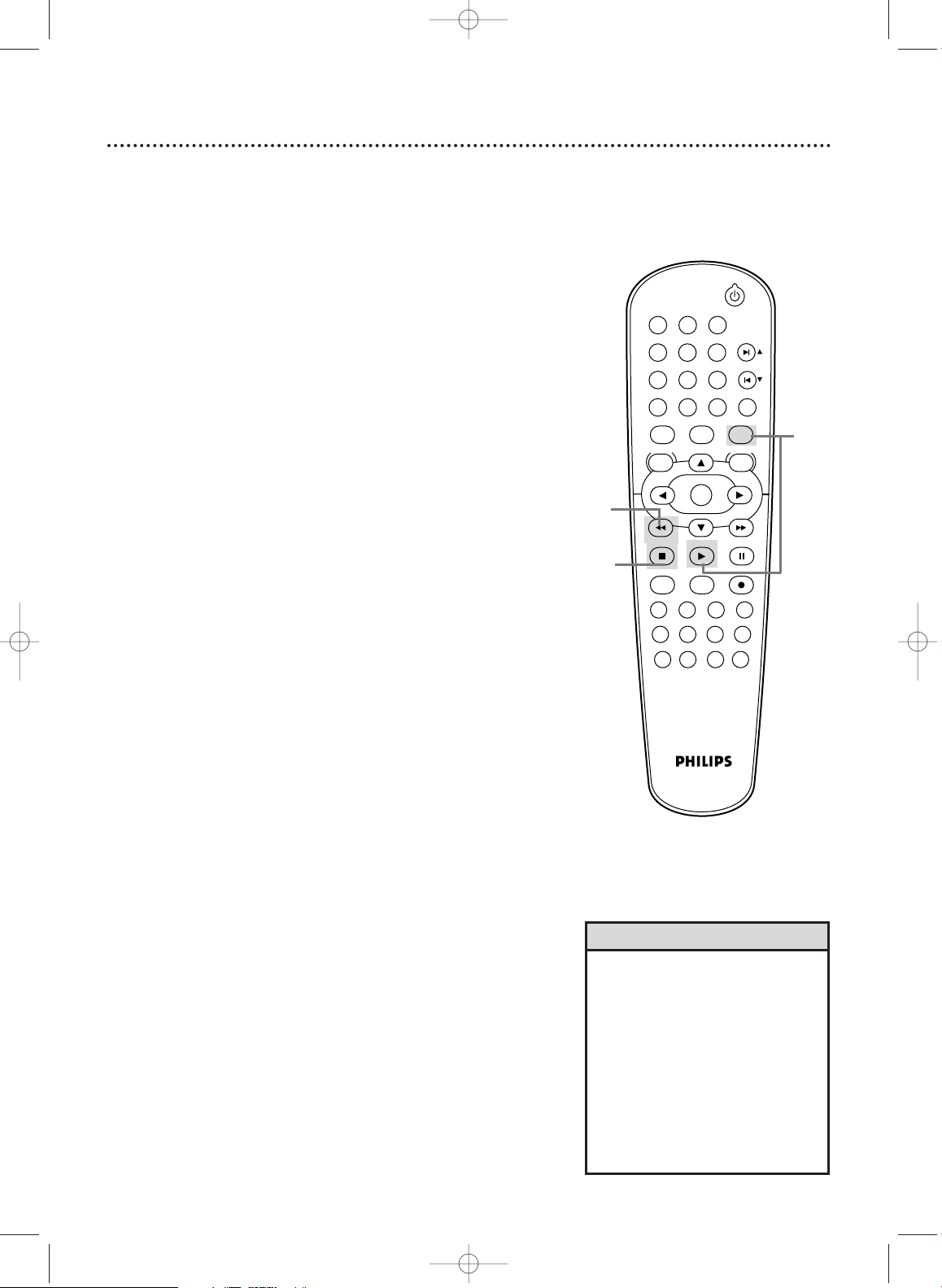
If playback does not start automatically, press VCR,
then press PLAY B.
3
Press STOP C to stop playback.
4
Press h to rewind the tape.
5
After the tape stops, press STOP/EJECT A on the
front of the DVD/VCR to remove the tape.
6
5
4
Turn on the TV.
1
Insert a tape in the
DVD/VCR.
2
3
Press STOP/EJECT A on the
DVD/VCR.
6
Helpful Hints
• Other tape playback features are
on pages 44-51.
• If AUTO REPEAT is ON, playback will
begin when you insert a tape, even
when the record tab is intact. Details
are on page 44.
• You must connect the DVD/VCR to
a TV using the RF coaxial cable or
the audio/video cables in order to
use the VCR features.These hookups
are explained on pages eight and
11.
Page 19
STANDBY-ON
PLAY
VCR/TV
VCRDVD
OK
MENU MENU
SYSTEM
RETURN TITLE
A-B
CLEAR/RESET SLOW
SUBTITLE ZOOM
ANGLE
REPEAT REPEAT
AUDIO
SEARCH MODE
DISPLAY
SKIP / CH
DISC/VCR
PAUSESTOP
VCR Plus+ RECORDTIMER SET
H9421CD/DVD750(EN).pgs1-51.QX3 03.4.11 11:29 AM Page 19
Before you begin, turn on the TV, Stereo, and other equipment
connected to the DVD/VCR. Make sure the TV and the Stereo (if
applicable) are set to the correct channel.
Details are on pages 7-15.
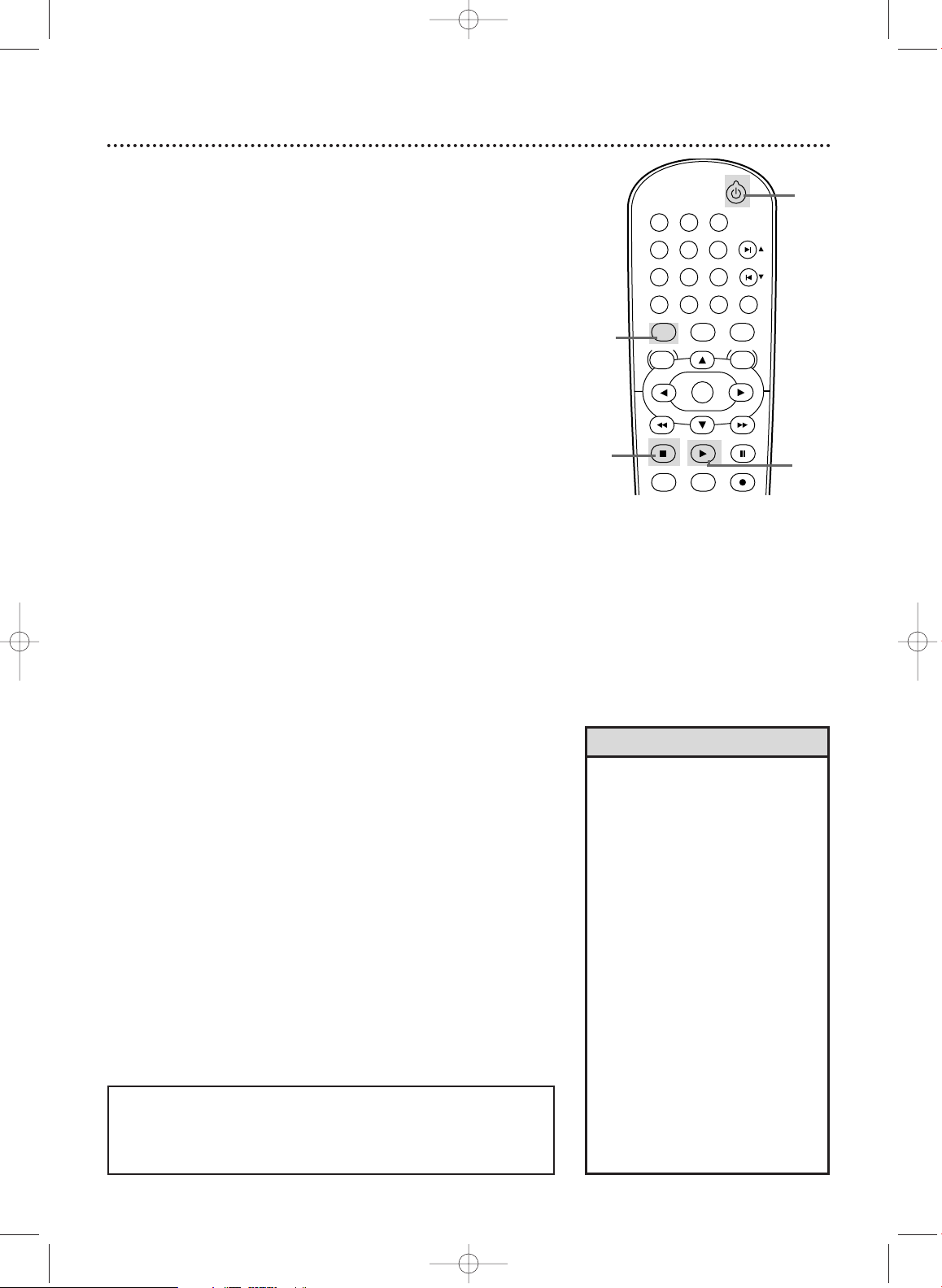
Press STANDBY-ON to turn on the DVD/VCR.
1
Press DVD so the red DVD light appears on the
front of the DVD/VCR.
2
Press OPEN/CLOSE A (to the right of the disc tray on
the front of the DVD/VCR) to open the Disc tray.
3
Place a Disc into the tray. If the DVD is recorded on
only one side, place the Disc in the tray with the label fac-
4
ing up and the shiny side facing down. Some DVDs are
recorded on both sides. Make sure the label of the side you
want to play is facing up.
Press PLAY B. The tray will close and play will begin at
the first Chapter or Track. If a DVD menu appears instead,
5
see page 52. With some Audio CDs,playback will not begin
unless you press PLAY B.
Or, press OPEN/CLOSE A or press the tray toward the
DVD/VCR to close the tray.
With MP3 and JPEG files, playback will begin from the
beginning of the disc.
Disc Playback
2
6
Press OPEN/CLOSE A
on the DVD/VCR.
3
Insert a Disc.
4
19
1
5
Press STOP C to stop playback.
6
Remember, this DVD/VCR
will play only certain Discs.
See page six for details.
Helpful Hints
• An “X” may appear at the top right
corner of the TV screen when you
try a feature. Either the feature is
not available on the Disc, or the
DVD/VCR cannot access the feature
at this time.This does not indicate a
problem with the DVD/VCR.
• If a Disc is dirty or scratched, the
picture may appear distorted or
playback may stop. Remove the Disc
and turn off the DVD/VCR.
Disconnect the power cord, then
reconnect it. Clean the Disc, then
turn on the DVD/VCR again and
reinsert the Disc for playback.
• When the DVD or CD light appears
on the display panel, the Disc is
loaded and ready for playback.
• When you press OPEN/CLOSE
PLAY (DVD) on the front of the
DVD/VCR when the power is off,the
DVD/VCR will turn on in DVD mode.
Otherwise, the DVD/VCR will turn on
in the mode in which it was turned
off.
A
or
Page 20

Appears after the disc tray closes if the tray is empty, if
there is an error reading the disc, or if an unacceptable
disc is installed.
Tr ay is opening or is open.
Tr ay is closing.
Disc is loading.
H9421CD/DVD750(EN).pgs1-51.QX3 03.4.11 11:29 AM Page 20
20
Display Panel (DVD)
DVD Light (red)
This light appears when the DVD/VCR is in
DVD mode.You can only watch DVDs when
the red DVD light is on.To make the red DVD
light come on, press SOURCE on the front of
the DVD/VCR or DVD on the remote.
REPEAT:Appears
during Repeat
Playback of a Disc,
along with A-B,
TITLE, CHP., or
TRK., depending on
the type of Repeat
Playback you have
selected. Details are
on page 57.
A-B:Appears during AB Repeat Playback.
Details are on page 57.
Display
Messages about current Disc
operations appear here.
See Display Messages below.
DVD:Lights when a
DVD is in the tray and
ready for playback.
CD: Lights when a
CD is in the tray and
ready for playback.
B:Appears during
Disc playback.
Display Messages
F:Appears
when play is
paused.
Displays the elapsed playing time of the
current Title or Track. Briefly displays
Title, Chapter, or Track numbers.
Page 21

DVD750VR
DVD VIDEO/VCR COMBI
PROGRESSIVE SCAN DVD VIDEO/CD PLAYER
STANDBY-ON
SOURCE
DVD
VCR
STOP PLAY
OPEN/CLOSE
ONE TOUCH RECORDING • LONG PLAY
4 HEAD HI-FI
RECORD
TIMER
RECORD
RECORD PLAY
VIDEO
AUDIO
IR
RECORD
TIMER
RECORD
RECORD PLAY
VIDEO
AUDIO
H9421CD/DVD750(EN).pgs1-51.QX3 03.4.11 11:29 AM Page 21
Counter/Clock/Channel
If there is a tape in the VCR, the tape
counter will appear.The remaining time will
appear during a One-Touch Recording.
If there is not a tape in the VCR, the current
time will appear when the clock is set.An A
or P will appear beside the time to indicate
AM or PM.The DVD/VCR must be in VCR
mode.The channel number will appear here
briefly when you change TV channels.
Disc tray
Insert a
Disc here.
VCR light (green)
This light appears
when the DVD/VCR is
in VCR mode.You can
only watch videotapes
or access VCR features
and TV channels when
the green VCR light is
on.
To make the green
VCR light come on,
press VCR on the
remote control or
SOURCE on the front
of the DVD/VCR.
Display Panel (VCR)
Cassette Compartment
Insert a video cassette here.
21
RECORD Light
This red light appears during
VCR recording. It flashes
when recording is paused.
RECORD TIMER Light
This red light glows when the
DVD/VCR is set for a timer recording
or during a One-Touch Recording.
It flashes if a timer recording is set
but no tape is in the DVD/VCR.
It flashes when all timer recordings or
One-Touch Recordings are finished.
Page 22

DVD750VR
DVD VIDEO/VCR COMBI
PROGRESSIVE SCAN DVD VIDEO/CD PLAYER
STANDBY-ON
SOURCE
DVD
VCR
STOP PLAY
OPEN/CLOSE
ONE TOUCH RECORDING • LONG PLAY
4 HEAD HI-FI
RECORD
TIMER
RECORD
RECORD PLAY
VIDEO
AUDIO
IR
H9421CD/DVD750(EN).pgs1-51.QX3 03.4.11 11:29 AM Page 22
22
Front Panel
OPEN/CLOSE A Button (DVD)
Press to open or close the Disc tray.
STANDBY-ON Button
Press to turn the power on
or off.
SOURCE Button
Press to select DVD mode or VCR
mode.The red DVD light appears in
DVD mode.The green VCR light
appears in the VCR mode.
RECORD I button (VCR)
Press once to start a recording.
Press repeatedly to start a OneTouch Recording.
Details are on page 34.
STOP/EJECT A
Button (VCR)
Press once to stop
tape playback.When
playback is stopped,
press to eject the
tape.
STOP C Button (DVD)
Press to stop Disc playback.
Details are on page 19.
PLAY B Button (DVD)
Press to start Disc playback.
Details are on page 19.
IR (Infrared) Remote Sensor
Receives a signal from your remote
control so you can work your
DVD/VCR from a distance. Point the
remote control toward the
DVD/VCR’s IR sensor, not your TV.
PLAY B Button (VCR)
Press to play a video cassette. Press to release Slow,
Search, or Still mode and
return to playback.
Details
are on page 47.
AUDIO and VIDEO In Jacks
Connect audio and video cables
coming from the audio and video
out jacks of a camcorder, another
VCR, another DVD Player, or
audio system here.This will be
useful if you want to copy a
videotape or watch material that
is playing on other equipment.
Details are on page 35.
Page 23

COAXIAL
S-VIDEO
OUT
DIGITAL
AUDIO OUT
AUDIO
OUT
COMPONENT
VIDEO OUT
L
Y
R
P
b/
Cb
Pr/
Cr
DVD
I
PROGRESSIVE
AUDIO OUT
VIDEO OUT
AUDIO IN
VIDEO IN
LRL
R
DVD/VCR VCR
ANT-IN
ANT-OUT
P
H9421CD/DVD750(EN).pgs1-51.QX3 03.4.11 11:29 AM Page 23
ANT-IN (Antenna In) jack
Connect your antenna or Cable TV
signal here.
Details are on pages 8-15.
VCR AUDIO IN jacks
Left (white) and Right (red)
Connect audio cables coming from the audio
out jacks of a camcorder, another VCR,
another DVD Player, or an audio source
here. Details are on page 35. This will be useful if you want to copy a videotape or watch
material that is playing on other equipment.
INTERLACE/PROGRESSIVE SCAN
SELECTOR
Switch to select interlace or progressive scanning.
Details are on page 12.
Rear Panel
DVD AUDIO OUT jacks
Left (white) and Right (red)
Connect the supplied audio cables here and to
the Audio In jacks of a television or audio
equipment. However, these jacks only supply
audio for the DVD Player. Use these if you
want a secondary connection between the
DVD Player and another TV, etc.
AC Power Cord
Connect to a standard
AC outlet to supply
power to the DVD/VCR.
23
DVD S-VIDEO OUT Jack
Connect an S-Video cable (not supplied)
here and to the S-Video In jack of a television.This supplies the picture only for
the DVD Player. Details are on page 13.
VCR VIDEO IN Jack (yellow)
Connect a video cable coming from
the video out jack of a camcorder,
another VCR, or another DVD
Player here.
DVD/VCR VIDEO OUT Jack (yellow)
Connect the yellow video cable (supplied)
here and to the TV’s Video In jack.This
supplies the picture for both the VCR and
the DVD Player. Details are on page 11.
ANT-OUT (Antenna Out) Jack
Use the supplied RF coaxial cable to
connect this jack to the ANTENNA IN
jack on your TV, Cable Box, or Satellite
Receiver. Details are on pages 8-10.
DVD/VCR AUDIO OUT Jacks
Left (white) and Right (red)
Connect the supplied audio cables
(red and white) here and to the
Audio In jacks of a TV or Stereo.
Details are on pages 11-14. These
jacks provide audio for both the
DVD Player and the VCR.
Details are on page 35.
DVD COAXIAL DIGITAL
AUDIO OUT Jack (black)
Connect a coaxial digital audio cable
(not supplied) here and to the Coaxial
Digital Audio In jack of a Stereo.This
supplies audio only for the DVD
Player. Details are on page 15.
DVD COMPONENT VIDEO OUT
(Y Pb/Cb Pr/Cr) Jacks (green, blue,
red)
Connect component video cables (not
supplied) here and to the Component
Video In jacks of a television.This supplies
the picture only for the DVD Player.
Details are on page 12.
Helpful Hint
• The DVD S-VIDEO OUT,DVD
COMPONENT VIDEO OUT, DVD
AUDIO OUT and DVD COAXIAL
DIGITAL AUDIOOUT jacks are only
useful in DVD mode.To have sound
and picture in VCR mode, you must
connect either the RF coaxial cable
or the audio/video cables supplied,
using the DVD/VCR AUDIO OUT
and VIDEO OUT jacks on the left of
the rear of the DVD/VCR.Details
are on pages eight and 11.
Page 24

STANDBY-ON
PLAY
VCR/TV
VCRDVD
OK
MENU MENU
SYSTEM
RETURN TITLE
A-B
CLEAR/RESET SLOW
SUBTITLE ZOOM
ANGLE
REPEAT REPEAT
AUDIO
SEARCH MODE
DISPLAY
SKIP / CH
DISC/VCR
PAUSESTOP
VCR Plus+ RECORDTIMER SET
SPEED
1 2 3
7
6
5
4
8
9
0
+10
H9421CD/DVD750(EN).pgs1-51.QX3 03.4.11 11:29 AM Page 24
24
Remote Control
SEARCH Button
In DVD mode, press to search
for a specific
Title/Chapter/Track/Time. Details
are on pages 54-55.
In VCR mode, press for a Time
Search or an Index Search.
Details are on page 46.
REPEAT Button
Press to play a Track, Audio
CD,Title, or Chapter repeatedly. Details are on page 57.
A-B REPEAT Button
Press to set up A-B Repeat.
Details are on page 57.
RETURN Button
Press to return to the previous level of the DVD Player’s
Setup menu or to remove the
Setup menu.
TITLE Button
Press to see a DVD Title
menu. Details are on page 52.
sB KLButtons
Press to select an item in a
menu.
STOP C Button
Press to stop Disc playback,
tape playback, or recording.
PLAY B Button
Press to begin Disc or tape
playback.
VCR Plus+ Button
Press to set a timer recording with
the VCR Plus+ programming system.
Details are on pages 40-41.
STANDBY-ON Button
Press to turn the power on or
off.
DISPLAY Button
In VCR mode, press to see
status displays. Details are on
page 31. In DVD mode, press
to access Disc information.
Details are on page 73.
SKIP3/CHo and SKIP /
CHp Buttons
In DVD mode, press to skip
Chapters or Tracks. In VCR
mode, press to change TV
channels at the DVD/VCR.
SLOW Button
Press to view a videotape in
slow motion. Details are on
page 47.
CLEAR/RESET Button
Press to remove VCR menus.
Press to reset the tape counter.
Details are on page 45.
Press to reset a menu item in
DVD mode.
g (Fast Forward)
Button
In DVD mode, press to fast
forward the Disc. Details are
on page 53. Press when DVD
playback is paused to start
slow motion playback. Details
are on page 63.
In VCR mode, press to fast
forward the tape. Details are
on page 47.
PAUSE k Button
Press to pause Disc playback
or to advance the picture one
frame at a time. Details are on
page 56. Press to pause or
resume VCR recording. Details
are on page 32. Press to pause
a tape. Details are on page 47.
RECORD I Button
Press to start a VCR recording. Details are on page 32.
Helpful Hints
• For DVD Player features, press DVD before pressing other buttons.To put the DVD/VCR in DVD
mode, press DVD or SOURCE so the red DVD light appears on the front of the DVD/VCR.
• For VCR features, press VCR before pressing any other buttons.To put the DVD/VCR in VCR mode,
press VCR or SOURCE so the green VCR light appears on the front of the DVD/VCR.
Page 25

STANDBY-ON
PLAY
VCR/TV
VCRDVD
OK
MENU MENU
SYSTEM
RETURN TITLE
A-B
CLEAR/RESET SLOW
SUBTITLE ZOOM
ANGLE
REPEAT REPEAT
AUDIO
SEARCH MODE
DISPLAY
SKIP / CH
DISC/VCR
PAUSESTOP
VCR Plus+ RECORDTIMER SET
SPEED
1 2 3
7
6
5
4
8
9
0
+10
H9421CD/DVD750(EN).pgs1-51.QX3 03.4.11 11:29 AM Page 25
MODE Button
Press to set a Program. Details
are on page 64. Press to start
Random playback.
Details are on page 65.
ZOOM Button
Press to enlarge the DVD, or
JPEG image. Details are on page
63.
SUBTITLE Button
Press to select a language for
DVD subtitles.
page 59.
DVD Button
Press before using the remote
control for DVD features.
Press to put the DVD/VCR in
DVD mode.
SYSTEM/MENU Button
Press to access or remove the
DVD Player’s Setup menu.
h (Rewind) Button
Press to fast reverse a DVD or
Audio CD. Details are on page
53. Press to rewind a tape.
Details are on page 47.
TIMER SET Button
Press to set a timer recording
that you have programmed.
Details are on pages 36-38.
SPEED Button
Press to select the VCR’s recording speed (SP or SLP). Details are
on pages 30, 35, and 76.
Number Buttons
In DVD mode, press to select a Track
or Chapter for playback. Use the +10
button for items 10 and above.
Details are on page 55.
In VCR mode, use to select TV channels. Enter channel numbers as a twodigit number for the quickest results
(to select channel 6, press 0,6). For
channels 100 and above, enter a
three-digit number (for channel 117,
press 1, 1,7). If you have Cable TV,
channels 1-125 are available. If you
have an antenna, channels 2-69 are
available.The +10 button has no effect
in VCR mode.
Use the Number buttons to enter the
VCR Plus+ programming number.
Details are on
Remote Control (cont’d)
AUDIO Button
Press to choose a DVD audio
language or an Audio CD
sound mode.
Details are on page 62.
ANGLE Button
Press to see a DVD picture
from a different angle. Details
are on page 59.
VCR/TV Button
Press to select VCR or TV position. In VCR position, watch a
tape or watch/record TV programs (changing channels at the
VCR).
Use TV position to watch TV
channels (changing channels at
the TV) or watch one program
while recording another.
Details are on page 33.
VCR Button
Press before using the remote
control for VCR features.
Press to put the DVD/VCR in
VCR mode.
DISC/VCR/MENU Button
Press to access or remove a
DVD Disc menu or the VCR
menu.
OK Button
Press to confirm or select
menu items.
25
Page 26

STANDBY-ON
PLAY
VCR/TV
VCRDVD
OK
MENU MENU
SYSTEM
RETURN TITLE
A-B
CLEAR/RESET SLOW
SUBTITLE ZOOM
ANGLE
REPEAT REPEAT
AUDIO
SEARCH MODE
DISPLAY
SKIP / CH
DISC/VCR
PAUSESTOP
VCR Plus+ RECORDTIMER SET
SPEED
1 2 3
7
6
5
4
8
9
0
+10
H9421CD/DVD750(EN).pgs1-51.QX3 03.4.11 11:29 AM Page 26
26
Channel Setup
Although your DVD/VCR may automatically memorize the channels you receive when you turn it on for the first time, you can set
up the channels again.
Press VCR, then press DISC/VCR/MENU.
1
- M E N U 1 -
BTIMER PROGRAMMING
AUTO REPEAT [OFF]
CHANNEL SET UP
CLOCK SET
LANGUAGE SELECT
AUDIO OUT
TV STEREO [ON]
SAP
Press o or p to select CHANNEL SET UP.Then,
press B.
2
- M E N U 1 -
TIMER PROGRAMMING
AUTO REPEAT [OFF]
BCHANNEL SET UP
CLOCK SET
LANGUAGE SELECT
AUDIO OUT
TV STEREO [ON]
SAP
4
1
2-3
3
4
Press o or p to select AUTO SET UP. Press B.
CHANNEL SET UP
BAUTO SET UP
MANUAL SET UP
AUTO SET UP will flash while the DVD/VCR sets up the
available channels.When setup is complete, the lowest
available channel will appear on the TV.
Now when you press SKIP3/CHo or SKIP / CHp,
you will scan only through available channels.You still can
select any channel using the Number buttons.
CH01
AUTO SET UP
Helpful Hints
• You cannot program channels if
you are using a Cable Box or
Satellite Receiver.
• If you have an antenna, channels
2-69 will be available. If you have
Cable TV, channels 1-125 will be
available.
•To stop Channel Setup, press
DISC/VCR/MENU while AUTO SET
UP is flashing.
Page 27

STANDBY-ON
PLAY
VCR/TV
VCRDVD
OK
MENU MENU
SYSTEM
RETURN TITLE
A-B
CLEAR/RESET SLOW
SUBTITLE ZOOM
ANGLE
REPEAT REPEAT
AUDIO
SEARCH MODE
DISPLAY
SKIP / CH
DISC/VCR
PAUSESTOP
VCR Plus+ RECORDTIMER SET
SPEED
1 2 3
7
6
5
4
8
9
0
+10
H9421CD/DVD750(EN).pgs1-51.QX3 03.4.11 11:29 AM Page 27
Channel Setup (cont’d)
Adding/Deleting Channels
You may want to add or delete TV channels if your channel lineup
changes or if you no longer watch some channels.
Press VCR, then press DISC/VCR/MENU.
1
Press o or p to select CHANNEL SET UP, then
press B.
2
Press o or p to select MANUAL SET UP, then
press B.
3
CHANNEL SET UP
AUTO SET UP
BMANUAL SET UP
Press o or p until the channel number you want to
add or delete appears on the screen.
4
MANUAL SET UP
CHANNEL 30 (CATV)
ADD
27
6
1
2-5
5
6
Press B or s so ADD or DELETE flashes on the
screen.
While your choice is flashing, press
CLEAR/RESET. The channel you added or deleted will be
the current channel.Added channels are available when you
flip through channels using the SKIP3/CHo and SKIP /
CHp buttons.You still can select deleted channels with the
Number buttons.
Page 28

STANDBY-ON
PLAY
VCR/TV
VCRDVD
OK
MENU MENU
SYSTEM
RETURN TITLE
A-B
CLEAR/RESET SLOW
SUBTITLE ZOOM
ANGLE
REPEAT REPEAT
AUDIO
SEARCH MODE
DISPLAY
SKIP / CH
DISC/VCR
PAUSESTOP
VCR Plus+ RECORDTIMER SET
SPEED
1 2 3
7
6
5
4
8
9
0
+10
H9421CD/DVD750(EN).pgs1-51.QX3 03.4.11 11:29 AM Page 28
28
Clock (VCR)
Follow these steps to set the VCR clock. Make sure:
● The DVD/VCR is on and in VCR mode. Press VCR so the
green VCR light appears on the front of the DVD/VCR.
Press VCR, then press DISC/VCR/MENU.
1
Press o or p to select CLOCK SET, then press B.
2
While the MONTH space is flashing, press o or p
until the month appears.Then, press B.
3
CLOCK SET
MONTH DAY YEAR
0 3 / – – – – – –
HOUR MINUTE AM/PM
– – : – – – –
1
2-5
4
5
While the DAY space is flashing, press o or p until
the day appears.Then, press B.
CLOCK SET
MONTH DAY YEAR
0 3 / 2 0 – – – –
HOUR MINUTE AM/PM
– – : – – – –
While the YEAR space is flashing, press o or p until
the year appears. Press B. The day of the week will
appear automatically.
CLOCK SET
MONTH DAY YEAR
0 3 / 2 0 THU 2 0 0 3
HOUR MINUTE AM/PM
– – : – – – –
Helpful Hints
• If the clock has never been set, the
CLOCK SET menu may appear
when you press DISC/VCR/MENU.
If so, follow the instructions from
step 3 above.
• Press DISPLAY until the time
appears on the TV screen.
• Power failures of more than 30
seconds can erase the clock setting.
Page 29

STANDBY-ON
PLAY
VCR/TV
VCRDVD
OK
MENU MENU
SYSTEM
RETURN TITLE
A-B
CLEAR/RESET SLOW
SUBTITLE ZOOM
ANGLE
REPEAT REPEAT
AUDIO
SEARCH MODE
DISPLAY
SKIP / CH
DISC/VCR
PAUSESTOP
VCR Plus+ RECORDTIMER SET
SPEED
1 2 3
7
6
5
4
8
9
0
+10
H9421CD/DVD750(EN).pgs1-51.QX3 03.4.11 11:29 AM Page 29
6
7
8
While the HOUR space is flashing, press o or p
until the hour appears.Then, press B.
CLOCK SET
MONTH DAY YEAR
0 3 / 2 0 THU 2 0 0 3
HOUR MINUTE AM/PM
0 5 : – – – –
While the MINUTE space is flashing, press o or p
until the minute appears.Then, press B.
CLOCK SET
MONTH DAY YEAR
0 3 / 2 0 THU 2 0 0 3
HOUR MINUTE AM/PM
0 5 : 4 0 – –
While the AM or PM space is flashing, press o or p
to point to AM or PM.
Your selection will flash on the screen in the AM/PM space.
CLOCK SET
MONTH DAY YEAR
0 3 / 2 0 THU 2 0 0 3
HOUR MINUTE AM/PM
0 5 : 4 0 P M AM
B PM
Clock (VCR) (cont’d)
9
6-9
29
9
Press CLEAR/RESET or B to start the clock.
Helpful Hint
• To reset the clock, follow steps 1-2
on page 28. Select the information
you want to change usingBor
s
.When the information is flash-
ing, use
o
or pto enter the correct information. Press
CLEAR/RESET to set the clock.
Page 30

STANDBY-ON
PLAY
VCR/TV
VCRDVD
OK
MENU MENU
SYSTEM
RETURN TITLE
A-B
CLEAR/RESET SLOW
SUBTITLE ZOOM
ANGLE
REPEAT REPEAT
AUDIO
SEARCH MODE
DISPLAY
SKIP / CH
DISC/VCR
PAUSESTOP
VCR Plus+ RECORDTIMER SET
SPEED
1 2 3
7
6
5
4
8
9
0
+10
H9421CD/DVD750(EN).pgs1-51.QX3 03.4.11 11:29 AM Page 30
30
Language (VCR)
Follow the steps below to change the language of the VCR onscreen displays and menus.
Press VCR, then press DISC/VCR/MENU.
1
- M E N U 1 -
BTIMER PROGRAMMING
AUTO REPEAT [OFF]
CHANNEL SET UP
CLOCK SET
LANGUAGE SELECT
AUDIO OUT
TV STEREO [ON]
SAP
4
1
2
3
4
Press o or p to choose LANGUAGE SELECT, then
press B.
- M E N U 1 -
TIMER PROGRAMMING
AUTO REPEAT [OFF]
CHANNEL SET UP
CLOCK SET
BLANGUAGE SELECT
AUDIO OUT
TV STEREO [ON]
SAP
Press o or p to choose ENGLISH, FRANCAIS
(French), or ESPANOL (Spanish).
LANGUAGE SELECT
BENGLISH [ON]
FRANCAIS
ESPAÑOL
Press CLEAR/RESET to remove the menu.
2,3
Helpful Hint
• If you select French or Spanish
and need English:
1) Press DISC/VCR/MENU so MENU
1 appears.
2) Press
p
to choose SELECTION
LANGUE or SELEC. IDIOMA, then
pressB.
3) Pressoor pto select ENGLISH.
4) Press CLEAR/RESET.
Page 31

STANDBY-ON
PLAY
VCR/TV
VCRDVD
OK
MENU MENU
SYSTEM
RETURN TITLE
A-B
CLEAR/RESET SLOW
SUBTITLE ZOOM
ANGLE
REPEAT REPEAT
AUDIO
SEARCH MODE
DISPLAY
SKIP / CH
DISC/VCR
PAUSESTOP
VCR Plus+ RECORDTIMER SET
SPEED
1 2 3
7
6
5
4
8
9
0
+10
H9421CD/DVD750(EN).pgs1-51.QX3 03.4.11 11:29 AM Page 31
You may access status displays by pressing DISPLAY.The displays
may include the current time, channel, and other information.
Press DISPLAY.The COUNT display will appear for five
seconds.After five seconds, only the real-time tape counter
1
will appear.This counter shows you the elapsed playing
time of the tape (from the point at which the counter was
set to zero).The counter also will appear on the display
panel on the front of the DVD/VCR.
STOP
SLP 0:
12:34 HIFI
Press DISPLAY again. The CLOCK display will appear
for five seconds.After five seconds, only the time will
2
appear (the clock must be set). (If you are watching TV, the
channel number and the availability of stereo or second
audio will also appear.) The time also will appear on the
display panel on the front of the DVD/VCR.
VCR Status Displays
1-3
31
3
STOP 5:40 PM
SLP
CH 02
STEREO
SAP
Press DISPLAY again to remove all the displays.
Helpful Hints
• If the channel you select has no
broadcast, the screen will be solid
blue.
• You cannot access a status display when viewing a still picture,
during slow motion, or during forward and reverse searching.
• Channel numbers appear on the
screen for a few seconds each
time you change channels.
Page 32

STANDBY-ON
PLAY
VCR/TV
VCRDVD
OK
MENU MENU
SYSTEM
RETURN TITLE
A-B
CLEAR/RESET SLOW
SUBTITLE ZOOM
ANGLE
REPEAT REPEAT
AUDIO
SEARCH MODE
DISPLAY
SKIP / CH
DISC/VCR
PAUSESTOP
VCR Plus+ RECORDTIMER SET
SPEED
1 2 3
7
6
5
4
8
9
0
+10
H9421CD/DVD750(EN).pgs1-51.QX3 03.4.11 11:29 AM Page 32
32
Videotape Recording
Read and follow the steps below to record a television program
onto a videotape. Before you begin, make sure the DVD/VCR is in
VCR mode. Press VCR so the green VCR light appears on the
front of the DVD/VCR.
1
2
3
4
5
6
7
Recording Prevention
Video Cassettes have record tabs to ensure that recordings are
not accidentally erased.
1
2
Turn on the TV and set it to channel 3 or 4 or the
Video In channel.
TV using the supplied audio and video cables, select your
TV’s Video In channel. Details are on page 11.
If you connected the DVD/VCR to the TV using the supplied RF coaxial cable, choose channel 3 (or 4) at the TV.
Details are on pages 8-10.
Insert a tape with its record tab intact into the cassette compartment of the DVD/VCR. If tape playback
begins, press STOP C.
Press SPEED until the desired tape speed (SP or
SLP) appears briefly on the screen. Details about tape
speed are on page 76.
Press SKIP3/CHo or SKIP / CHp or the
Number buttons to select the TV channel to
record.
Press RECORD I to start recording. The red
RECORD light will appear on the front of the DVD/VCR.
To pause the recording, press PAUSE k once. The
red RECORD light will flash. To r esume recording,
press RECORD I or press PAUSE k again.The red
RECORD light will come on again.
To stop recording, press STOP C.
To prevent recording, break off the tab with a
screwdriver.
To allow recording, cover the hole with clear tape.
If you connected the DVD/VCR to the
Remove the
tab to prevent
recording.
Cover the
hole to allow
recording.
Turn on the TV.
1
Insert a tape in the
DVD/VCR.
2
4
7
3
4
5-6
Helpful Hints
• Other recording options are on
pages 33-39.
• The VCR will record in a preset volume.
• Pause will switch to Stop after five
minutes to protect the VCR and
the tape from damage.When a
recording is paused, review the
pause time remaining with the
marks on the screen. Each
mark equals one minute remaining. During the last minute of
paused recording, the
flash.
• If any menu is on the TV screen,
the RECORD Ibutton on the
remote does not function. Press
CLEAR/RESET to remove the
menu.Then, press RECORD I.Or,
use the RECORD
front of the DVD/VCR.
■
I
button on the
■
■
mark will
6
Page 33

STANDBY-ON
PLAY
VCR/TV
VCRDVD
OK
MENU MENU
SYSTEM
RETURN TITLE
A-B
CLEAR/RESET SLOW
SUBTITLE ZOOM
ANGLE
REPEAT REPEAT
AUDIO
SEARCH MODE
DISPLAY
SKIP / CH
DISC/VCR
PAUSESTOP
VCR Plus+ RECORDTIMER SET
SPEED
1 2 3
7
6
5
4
8
9
0
+10
H9421CD/DVD750(EN).pgs1-51.QX3 03.4.11 11:29 AM Page 33
Recording One Channel/Watching Another
Press VCR, then press RECORD I to record the
current TV channel. Details are on page 32.
1
Press VCR/TV once to put the DVD/VCR in TV position.
2
Use the TV remote control to select the channel
you want to watch at the TV.
3
To r eturn to the channel being recorded, use the TV
remote control to select channel 03 or 04 at the TV.
4
Details are on page eight. Or, if you connected the
DVD/VCR to the TV using audio and video cables, select
the TV’s correct Video In channel. Details are on page 11.
Press VCR/TV on the DVD/VCR remote control to
put the DVD/VCR in VCR position.
5
recorded will appear on the TV screen.
Press STOP C to stop the recording.
The channel being
6
33
2,5
6
1
Select the channel you
want to watch at the TV.
3
Select channel 03, 04,
or Video In at the TV.
4
Helpful Hint
• If you use a Cable Box or Satellite
Receiver, you may not be able to
watch one channel while recording
another. See pages 9-10 for
details.
Page 34

STANDBY-ON
PLAY
VCR/TV
VCRDVD
OK
MENU MENU
SYSTEM
RETURN TITLE
A-B
CLEAR/RESET SLOW
SUBTITLE ZOOM
ANGLE
REPEAT REPEAT
AUDIO
SEARCH MODE
DISPLAY
SKIP / CH
DISC/VCR
PAUSESTOP
VCR Plus+ RECORDTIMER SET
SPEED
1 2 3
7
6
5
4
8
9
0
+10
H9421CD/DVD750(EN).pgs1-51.QX3 03.4.11 11:29 AM Page 34
34
One-Touch Recording
One-Touch Recording (OTR) lets you set a timed recording 30
minutes to eight hours long. Before you begin:
● Place the DVD/VCR in VCR mode. Press VCR so the green VCR
light appears on the front of the DVD/VCR.
● Select a recording speed (SP, SLP) with the SPEED button.
● Put a videotape in the cassette compartment. Make sure the
tape’s record tab is intact and the tape is long enough to record
the program(s).
Press VCR, then press SKIP3/CHo or SKIP /
CHp or the Number buttons to select the channel
1
you want to record.
Press RECORD I on the front of the DVD/VCR
until the desired recording length (30 minutes to
2
eight hours) appears on the TV screen. Recording will
begin.The RECORD light and the RECORD TIMER light
will appear on the front of the DVD/VCR.
1
Stopping an OTR
To stop an OTR before recording is finished, press STOP on the
remote control or STOP/EJECT A on the front of the DVD/VCR.
To cancel the OTR but continue recording, press RECORD on
the front of the DVD/VCR repeatedly until RECORD appears
in the upper left corner of the screen.
When an OTR finishes,the DVD/VCR will either switch to DVD
model or turn itself off. If it changes to DVD mode, press STANDBY-ON to turn it off.
After an OTR,the RECORD TIMER light flashes because the VCR
is still on standby for timer recordings. Press TIMER SET on the
remote or STOP/EJECT A on the DVD/VCR to cancel timer
standby and use the VCR normally again.
OTR (0:30)
SP
Press RECORD on the
DVD/VCR.
2
Helpful Hints
• The remaining recording time will
appear on the display panel. Press
DISPLAY to see it on the TV screen.
• To change the recording length while
an OTR is in progress, press
RECORD
DVD/VCR
• You cannot start a timed OTR with
the RECORD
remote.
• You cannot pause an OTR.
• If the preset time for a timer
recording comes up during an OTR,
the OTR has priority.The timer
recording will not take place.
• If the end of the tape is reached
during an OTR, the VCR will stop
recording, eject the tape, and
switch to DVD mode or turn off.
on the front of the
.
I
button on the
Page 35

AUDIO OUT
VIDEO OUT
AUDIO IN
VIDEO IN
LRL
R
DVD/VCR VCR
ANT-IN
ANT-OUT
H9421CD/DVD750(EN).pgs1-51.QX3 03.4.11 11:29 AM Page 35
Rerecording (Tape Duplication)
These instructions show you how to copy videotapes.The illustration uses two DVD/VCRs.Other VCRs or
Camcorders may operate differently.
1. Audio cables from AUDIO OUT jacks (red and white)
of DVD/VCR
DVD/VCR 1
Playing unit
2.Video cable from yellow VIDEO
OUT jack of DVD/VCR 1 to
VIDEO IN jack of DVD/VCR 2
1 to AUDIO IN jacks of DVD/VCR 2
DVD/VCR 2
Recording unit
DVD/VCR VCR
AUDIO OUT
AUDIO IN
ANT-IN
LRL
R
VIDEO OUT
VIDEO IN
ANT-OUT
3. RF coaxial cable from the ANT-OUT
(Antenna Out) jack of DVD/VCR 2
to the TV’s ANTENNA IN jack
35
Make the connections shown above.
1
DVD/VCR 1 will play your tape. Put a prerecorded tape
into the cassette compartment of DVD/VCR 1.
2
Press VCR to put the unit in VCR mode if necessary.
DVD/VCR 2 will record your tape. Insert a blank tape in
the cassette compartment of DVD/VCR 2. Press VCR
3
to put the unit in VCR mode if necessary.
Turn on the TV and set it to channel 03 or 04 (the
RF output channel of DVD/VCR 2).To determine the
4
DVD/VCR’s output channel, see step 4 on page eight.
Point the remote control at DVD/VCR 2. Press
Number buttons 0, 0, 1 or 0, 0, 2. (See Helpful Hints at
5
right.)
Press SPEED to select SP or SLP at DVD/VCR 2.
6
Press PLAY B (VCR) on the front of DVD/VCR 1
and RECORD I on the front of DVD/VCR 2 at the
7
same time.
To stop recording, press STOP/EJECT A on DVD/VCR 1,
then press STOP/EJECT
A on DVD/VCR 2.
Helpful Hints
• If you use the AUDIO and VIDEO
IN jacks on the back of DVD/VCR
2, press Number buttons 0, 0,
step 5. L
screen.
• If you use the AUDIO and VIDEO In
jacks on the front of DVD/VCR 2,
press Number buttons 0, 0, 2 at
step 5. L2 will appear on the TV
screen.
• Unauthorized recording of copyrighted television programs, video
tapes, or other materials may
infringe on the rights of copyright
owners and violate copyright laws.
• If a program has copyright protection, it may not record clearly.
1 will appear on the TV
1 at
Page 36

STANDBY-ON
PLAY
VCR/TV
VCRDVD
OK
MENU MENU
SYSTEM
RETURN TITLE
A-B
CLEAR/RESET SLOW
SUBTITLE ZOOM
ANGLE
REPEAT REPEAT
AUDIO
SEARCH MODE
DISPLAY
SKIP / CH
DISC/VCR
PAUSESTOP
VCR Plus+ RECORDTIMER SET
SPEED
1 2 3
7
6
5
4
8
9
0
+10
H9421CD/DVD750(EN).pgs1-51.QX3 03.4.11 11:29 AM Page 36
36
Timer Recording
Follow the steps below to program the VCR of the DVD/VCR to
record TV programs while you’re away from home. Before you
begin:
● Set up the TV channels at the DVD/VCR. Details are on page 26.
● Set the clock.Details are on pages 28-29.
● Put a tape in the cassette compartment of the DVD/VCR. Make
sure the tape’s record tab is intact and the tape is long enough
to record the program(s).
● Press VCR so the green VCR light appears on the front of the
DVD/VCR.
Press DISC/VCR/MENU so MENU 1 appears.
1
Press
o or p
pressB. Program numbers that do not have a timer recording
2
stored will flash.
TIMER PROGRAMMING
PROG.
DATE
START TIME
END TIME
CHANNEL
REC SPEED
Press o or p to select an empty program.Then,
press B.
3
PROGRAM NUMBER 1
DATE – – / – –
START TIME – – :– – – –
END TIME – – : – – – –
CHANNEL – –
REC SPEED – –
to select TIMER PROGRAMMING.Then,
12345678
1
2-4
4
Press o or p to select ONCE, DAILY, or WEEKLY.
Then, press
● ONCE - The VCR will record a TV program on any day you
choose, up to
● DAILY -
B.
12 months away.
The VCR will record a TV program at the same time
on the same channel every day, Monday through Friday.
● WEEKLY - The VCR will record a TV program at the same
time on the same channel every week, for example, every
Monday.
PROGRAM NUMBER 1
B ONCE
DAILY
WEEKLY
Helpful Hints
• You cannot access the TIMER PROGRAMMING menu at step 2 if
the clock is not set.The CLOCK
SET menu will appear. Follow the
steps on pages 28-29 to set the
clock.
• Only programs that will air MondayFriday can be recorded on a DAILY
basis. If you select DAILY at step 4,
then enter a Saturday or Sunday
DATE at step 5, the correct program
will not be recorded.The VCR will
alter the recording date and record
a different program than the one
you intended.
Page 37

STANDBY-ON
PLAY
VCR/TV
VCRDVD
OK
MENU MENU
SYSTEM
RETURN TITLE
A-B
CLEAR/RESET SLOW
SUBTITLE ZOOM
ANGLE
REPEAT REPEAT
AUDIO
SEARCH MODE
DISPLAY
SKIP / CH
DISC/VCR
PAUSESTOP
VCR Plus+ RECORDTIMER SET
SPEED
1 2 3
7
6
5
4
8
9
0
+10
H9421CD/DVD750(EN).pgs1-51.QX3 03.4.11 11:29 AM Page 37
Press o or p until the month appears.
Then, press B.
5
Next, press o or p until the day appears.Then,
press B. The day of the week will appear. You cannot
record more than one year in advance.
ONE TIME PROGRAM
PROGRAM NUMBER
DATE 0 5 / 0 4 SUN
START TIME – – : – – – –
END TIME – – : – – – –
CHANNEL – –
REC SPEED – –
1
To enter the recording’s start time, press o or p until
the hour appears. Press
6
Press o or p until the minute appears. Press B.
Finally, press
o or p to point to AM or PM. AM or
B.
PM will flash beside the start time. Press B.
ONE TIME PROGRAM
PROGRAM NUMBER
DATE 0 5 / 0 4 SUN
START TIME 0 7 : 3 0 P M
END TIME – – : – – – –
CHANNEL – –
REC SPEED – –
1
AM
BPM
Timer Recording (cont’d)
5-8
37
7
8
Instructions continue on page 38.
Repeat the procedure in step 6 to set the recording’s end time.
Press o or p until the channel number appears.
Then, press B.
● If you are using a standard antenna/Cable TV hookup
(as shown on page eight), select the channel of the TV program you want to record.
● If you are recording from other equipment, select L1
or L2.To determine L1 or L2, refer to the Helpful Hint on
page 38.
● If you are using a Cable Box/Satellite Receiver, select
the Cable Box/Satellite Receiver output channel (03 or 04).
Then, at the Cable Box/Satellite Receiver, select the channel
you want to record. Leave the Cable Box/Satellite Receiver
on for the timer recording.
Details are on page nine.
ONE TIME PROGRAM
PROGRAM NUMBER
DATE 0 5 / 0 4 SUN
START TIME 0 7 : 3 0 P M
END TIME 0 8 : 3 0 P M
CHANNEL
REC SPEED – –
1
16
Helpful Hints
• Enter the information while the
space is flashing.
• To stop a started timer recording,
press STOP/EJECT Aon the front
of the DVD/VCR. (You cannot stop
a started timer recording with the
STOPCbutton on the remote.)
• With ShowGuard, if the power fails
for more than 30 seconds, programmed timer recordings will be
restored when the clock is reset.
More Helpful Hints are on
page 80.
Page 38

STANDBY-ON
PLAY
VCR/TV
VCRDVD
OK
MENU MENU
SYSTEM
RETURN TITLE
A-B
CLEAR/RESET SLOW
SUBTITLE ZOOM
ANGLE
REPEAT REPEAT
AUDIO
SEARCH MODE
DISPLAY
SKIP / CH
DISC/VCR
PAUSESTOP
VCR Plus+ RECORDTIMER SET
SPEED
1 2 3
H9421CD/DVD750(EN).pgs1-51.QX3 03.4.11 11:29 AM Page 38
38
Timer Recording (cont’d)
Press o or p to select a recording tape speed. The
arrow will appear beside your choice. The selected speed
9
will flash beside REC SPEED. Details about tape speed are on
page 76.
ONE TIME PROGRAM
PROGRAM NUMBER
DATE 0 5 / 0 4 SUN
START TIME 0 7 : 3 0 P M
END TIME 0 8 : 3 0 P M
CHANNEL
REC SPEED S P
1 6
B SP
1
SLP
10
10
11
Cancelling Timer Recordings
1
2
3
4
5
Press CLEAR/RESET to store the timer recording.
Press TIMER SET. The DVD/VCR will turn off and the
red RECORD TIMER light will appear on the front of the
DVD/VCR. In some cases, the DVD/VCR will switch to
DVD mode instead.You may use the DVD Player during a
timer recording.
If you want to use the VCR until time for the recording,
don’t press TIMER SET until a few minutes before the
recording should start. Or,press TIMER SET only when
you know you won’t be using the VCR anymore (until
after the recording).When the RECORD TIMER light is
on, you cannot put the DVD/VCR in VCR mode by pressing VCR or SOURCE.You must first press TIMER SET to
cancel the timer recording temporarily.Then, you can use
the VCR features again.
PressVCR, then press DISC/VCR/MENU.
Press o or p to select TIMER PROGRAMMING,
then press
Press o or p to find the program you want to
cancel.
While the program number is flashing, press s to
clear all the information for that program.
PROGRAM NUMBER
DATE 05/04 SUN
START TIME 07:30 PM
END TIME 08:30 PM
CHANNEL
REC SPEED SP
Press CLEAR/RESET to remove the menu.
B.
ONE TIME PROGRAM
1
16
11
Helpful Hints
• If you are recording from other
equipment, set CHANNEL to L1
or L2. If you connected the other
equipment to the AUDIO and
VIDEO In jacks on the front of the
DVD/VCR,choose L2. If you connected the audio and video cables
to the AUDIO IN and VIDEO IN
jacks on the back of the
DVD/VCR,choose L1.
• To change incorrect information,
press
s
or Bto choose the item
you want to change. Press
p
to adjust the information.
• If a timer recording is set and the
RECORD TIMER light is on, pressing STOP/EJECTAwill turn on
the DVD/VCR and/or cancel the
timer recording.The RECORD
TIMER light will turn off. Press
STOP/EJECTAagain to remove
the tape. Remember to insert a
tape and press TIMER SET to
reset the timer recording.
• If there is no tape in the VCR
when you press TIMER SET, the
RECORD TIMER light will flash.
Insert a tape.
9
o
or
Page 39

STANDBY-ON
PLAY
VCR/TV
VCRDVD
OK
MENU MENU
SYSTEM
RETURN TITLE
A-B
CLEAR/RESET SLOW
SUBTITLE ZOOM
ANGLE
REPEAT REPEAT
AUDIO
SEARCH MODE
DISPLAY
SKIP / CH
DISC/VCR
PAUSESTOP
VCR Plus+ RECORDTIMER SET
SPEED
1 2 3
7
6
5
4
8
9
0
+10
H9421CD/DVD750(EN).pgs1-51.QX3 03.4.11 11:29 AM Page 39
DVD to Videotape Duplication
Follow the steps below to copy a DVD to a videotape. This will
be possible only if the DVD is not copy protected.
Before you begin:
● Put a videotape in the cassette compartment. Make sure the
tape’s record tab is intact and the tape is long enough to record
the DVD.
● Put the DVD you want to copy in the disc tray.
● Press VCR so the green VCR light appears on the front of the
DVD/VCR.
● Turn on the TV.
Point the remote control at the DVD/VCR. Press Number
buttons 0, 0, 3. “DISC” will appear on the TV screen.
1
DISC
Press SPEED until the desired tape speed (SP or
SLP) appears briefly on the screen. Details about tape
2
speed are on page 76.
4
6
2
1
39
5,6
5
3
4
5
6
Press RECORD Ito start recording. The red RECORD
light will appear on the front of the DVD/VCR.
Press DVD. Press
To pause the recording, press VCR, then press PAUSE
k
once. The red RECORD light will flash. To r esume
recording, press RECORD Ior press PAUSE kagain.
The red RECORD light will come on again.
To stop recording, press VCR, then press STOP C.
PLAY B
to play the disc.
3,5
Helpful Hints
• A timer recording is not possible
during DVD to videotape
duplication.
•You cannot copy a DVD to a
videotape if you are using
Progressive Scan. Details are on
page 12.
Page 40

H9421CD/DVD750(EN).pgs1-51.QX3 03.4.11 11:29 AM Page 40
40
Setting Up the VCR Plus+ Programming System
First, fill in the boxes on this page. It will only take a few minutes, and you must do it if you want the
VCR Plus+ programming system to work properly.
1
Since the channel numbers of the stations you receive may not be the same as the station numbers,
and since channel numbers differ from area to area, you must program the VCR with your local
channel information.To fill in the boxes, you will need 1) a cable channel list, if applicable (you can
request one from your cable company), and 2) a chart that lists VCR Plus+ channel numbers (Guide
channels), which you can find in your TV guide or the TV listings of your local newspaper.
NOTE:If you are using a Cable Box/DBS, the User channel must be 3 or 4 (the Cable
Box/DBS output channel) for every Guide channel.
Station
Call Letters
Channels
GUIDE CH.
USER CH.
Station
Call Letters
Channels
GUIDE CH.
USER CH.
Page 41

STANDBY-ON
PLAY
VCR/TV
VCRDVD
OK
MENU MENU
SYSTEM
RETURN TITLE
A-B
CLEAR/RESET SLOW
SUBTITLE ZOOM
ANGLE
REPEAT REPEAT
AUDIO
SEARCH MODE
DISPLAY
SKIP / CH
DISC/VCR
PAUSESTOP
VCR Plus+ RECORDTIMER SET
SPEED
1 2 3
7
6
5
4
8
9
0
+10
H9421CD/DVD750(EN).pgs1-51.QX3 03.4.11 11:30 AM Page 41
Setting Up the VCR Plus+ Programming System (cont’d)
Now, compare the channel numbers you have written in
the GUIDE CH. and USER CH. columns. For stations
2
whose Guide and User channels do not match, you must
tell the VCR the Guide and User channels by following
steps 3-7.
Press VCR, then press DISC/VCR/MENU until
MENU 2 appears.
3
- M E N U 2 -
BGUIDE CHANNEL SET
GUIDE CHANNEL MAP
Press o or p to select GUIDE CHANNEL SET, then
B.
press
4
Press the Number buttons, o, or p until the Guide
channel number you want appears.Then, press
5
GUIDE CHANNEL SET
GUIDE CH. 25
USER CH. _ _
B.
41
Examine the lists on page 40.
2
8
3
4-7
5-6
6
7
8
Press the Number buttons, o, or p until the User
channel number you want appears.
antenna, choose channels 2-69. If you have Cable TV, choose
channels 1-125.To select L1 (line input), press 0,0 on the
remote control.
●
Press s to go back one step from the current step.
Press B to memorize the Guide and User channels
you entered.
steps 5-7.
Press CLEAR/RESET to remove the menu.
To set more Guide and User channels, repeat
If you have an
Helpful Hints
• To check a User channel, press
DISC/VCR/MENU until MENU 2
appears. Press oor pto select
GUIDE CHANNEL MAP, then press
B
. If the channel is not on the
screen, press Buntil you reach the
correct page.
• To erase a User channel, press s.A
pair of numbers will flash. Press
or puntil the numbers flash. Press
s
to delete the User channel.
Press CLEAR/RESET to remove the
menu.
• To correct a Guide channel, repeat
steps 3-5 on this page.Then, press
o,p
, or the Number buttons to
enter the correct number. Press B,
then press CLEAR/RESET to remove
the menu.
o
Page 42

STANDBY-ON
PLAY
VCR/TV
VCRDVD
OK
MENU MENU
SYSTEM
RETURN TITLE
A-B
CLEAR/RESET SLOW
SUBTITLE ZOOM
ANGLE
REPEAT REPEAT
AUDIO
SEARCH MODE
DISPLAY
SKIP / CH
DISC/VCR
PAUSESTOP
VCR Plus+ RECORDTIMER SET
SPEED
1 2 3
7
6
5
4
8
9
0
+10
H9421CD/DVD750(EN).pgs1-51.QX3 03.4.11 11:30 AM Page 42
42
Timer Recording with the VCR Plus+ Programming System
Follow these steps to set a timer recording with the PlusCode
programming numbers in your TV guide. Before you begin:
● Set up the channels at the VCR (page 26-27).
● Set up the VCR Plus+ and Cable/TV channel numbers (pages
40-41).
● Set the clock (pages 28-29).
● Put a tape in the VCR.
1
2
3
4
Press VCR.
Press VCR Plus+.
VCR Plus+system
PlusCode No. : – – – – – – – –
2-3
Press Number buttons to enter the PlusCode programming number of the program you wish to
record.
Then, press VCR Plus+.
VCR Plus+system
PlusCode No. : 1 2 3 4 5 – – –
Press o or p to select a ONCE, DAILY, or WEEKLY
recording.Then, press B.
● ONCE: The VCR will record a TV program on any day
you choose, up to 12 months away.
● DAILY:The VCR will record a program every day from
Monday to Friday – starting at the same time and recording for the same length of time.
● WEEKLY: The VCR will record a program on the same
day, at the same time, and for the same length of time
every week.
VCR Plus+system
B ONCE
DAILY
WEEKLY
1
4
3
Helpful Hints
• The number you entered may flash
on the screen after step 3 if you
enter an incorrect PlusCode programming number (for example, one that
is too short).The previous screen will
appear. Enter the correct PlusCode
programming number.
• If the number you entered flashes on
the screen after step 3, the timer
recording you just programmed and
another timer recording overlap.The
current timer recording will not occur.
• You may use the VCR Plus+
Programming System to record programs on Cable TV channels up to
channel 125.
•With ShowGuard,if the power fails
for more than 30 seconds, programmed timer recordings will be
restored when the clock is reset.
Page 43

STANDBY-ON
PLAY
VCR/TV
VCRDVD
OK
MENU MENU
SYSTEM
RETURN TITLE
A-B
CLEAR/RESET SLOW
SUBTITLE ZOOM
ANGLE
REPEAT REPEAT
AUDIO
SEARCH MODE
DISPLAY
SKIP / CH
DISC/VCR
PAUSESTOP
VCR Plus+ RECORDTIMER SET
SPEED
1 2 3
7
6
5
4
8
9
0
+10
H9421CD/DVD750(EN).pgs1-51.QX3 03.4.11 11:30 AM Page 43
Timer Recording with the VCR Plus+ Programming System (cont’d)
Press o or p until your desired tape speed appears.
(Example: SP) There are cases in which the program
5
information does not match your area. If the incorrect
information appears, select the number you want to change
using s.Then, enter the correct numbers using o or p.
ONE TIME PROGRAM
PROGRAM NUMBER
DATE 05/04 SUN
START TIME 07:30 PM
END TIME 08:30 PM
CHANNEL
REC SPEED
BSP
16
SP
SLP
1
5
Press CLEAR/RESET.
6
Press TIMER SET. The DVD/VCR will turn off and the
red RECORD TIMER light will appear on the front of the
7
DVD/VCR. In some cases, the DVD/VCR will switch to
DVD mode instead.You may use the DVD Player during a
timer recording.
If you want to use the VCR until time for the recording,
don’t press TIMER SET until a few minutes before the
recording should start. Or, press TIMER SET only when you
know you won’t be using the VCR anymore (until after the
recording).When the RECORD TIMER light is on, you cannot put the DVD/VCR in VCR mode by pressing VCR or
SOURCE.You must first press TIMER SET to cancel the
timer recording temporarily.Then, you can use the VCR features again.
7
43
6
Press TIMER SET
for the recording.
Insert a tape in the VCR.
Leave the Cable Box/DBS on
(if applicable).
Page 44

STANDBY-ON
PLAY
VCR/TV
VCRDVD
OK
MENU MENU
SYSTEM
RETURN TITLE
A-B
CLEAR/RESET SLOW
SUBTITLE ZOOM
ANGLE
REPEAT REPEAT
AUDIO
SEARCH MODE
DISPLAY
SKIP / CH
DISC/VCR
PAUSESTOP
VCR Plus+ RECORDTIMER SET
SPEED
1 2 3
7
6
5
4
8
9
0
+10
H9421CD/DVD750(EN).pgs1-51.QX3 03.4.11 11:30 AM Page 44
44
Repeat Play
Follow the steps below to play a videotape repeatedly.
Press VCR, then press DISC/VCR/MENU.
1
- M E N U 1 -
BTIMER PROGRAMMING
AUTO REPEAT [OFF]
CHANNEL SET UP
CLOCK SET
LANGUAGE SELECT
AUDIO OUT
TV STEREO [ON]
SAP
Press o or p to select AUTO REPEAT.
2
- M E N U 1 -
TIMER PROGRAMMING
BAUTO REPEAT [OFF]
CHANNEL SET UP
CLOCK SET
LANGUAGE SELECT
AUDIO OUT
TV STEREO [ON]
SAP
1
2-3
3
Press B so ON appears next to AUTO REPEAT.
Ta pe playback will begin immediately.AUTO REPEAT B will
appear on the TV screen briefly.
(If you are fast forwarding or rewinding the tape, press
CLEAR/RESET to remove the menu,then press PLAY B to
begin tape playback.)
The tape will play to the end, rewind, then play again. (TV
programming will appear on the screen while the tape is
rewinding.)
- M E N U 1 -
TIMER PROGRAMMING
BAUTO REPEAT [ON]
CHANNEL SET UP
CLOCK SET
LANGUAGE SELECT
AUDIO OUT
TV STEREO [ON]
SAP
Helpful Hint
• To cancel AUTO REPEAT, follow
steps 1-2. At step 3, press Bso
OFF appears beside AUTO
REPEAT. Press CLEAR/RESET.
Page 45

STANDBY-ON
PLAY
VCR/TV
VCRDVD
OK
MENU MENU
SYSTEM
RETURN TITLE
A-B
CLEAR/RESET SLOW
SUBTITLE ZOOM
ANGLE
REPEAT REPEAT
AUDIO
SEARCH MODE
DISPLAY
SKIP / CH
DISC/VCR
PAUSESTOP
VCR Plus+ RECORDTIMER SET
SPEED
1 2 3
7
6
5
4
8
9
0
+10
H9421CD/DVD750(EN).pgs1-51.QX3 03.4.11 11:30 AM Page 45
Follow the steps below to reset the VCR’s real-time tape counter
to zero at a tape location you want to refer to later.
Press VCR, then play, fast forward, or rewind a tape
to the location that you would like to refer to later.
1
Press STOP C to stop the tape.
Press DISPLAY to see the status display.
2
3
STOP
SLP 1 : 23 : 45 HIFI
While the counter is on the screen, press
CLEAR/RESET to reset the counter to zero.
STOP
2,4
3
1
Tape Counter
45
1
4
4
SLP 0 : 00 :00 HIFI
When you later want to return to this point on the
tape, press DISPLAY so you can see the counter
(while tape play is stopped). Press
As the tape rewinds or forwards, watch the counter.When
it reaches zero,
press PLAY B to play the tape.
h or g.
Helpful Hints
• You may only set the counter to
zero at one location at a time.
Setting the counter to zero at a second location will erase the previous
zero setting.
• If you remove the tape, the counter
will reset to zero at the point at
which you last stopped playback
whenever you reinsert the tape.
Page 46

STANDBY-ON
PLAY
VCR/TV
VCRDVD
OK
MENU MENU
SYSTEM
RETURN TITLE
A-B
CLEAR/RESET SLOW
SUBTITLE ZOOM
ANGLE
REPEAT REPEAT
AUDIO
SEARCH MODE
DISPLAY
SKIP / CH
DISC/VCR
PAUSESTOP
VCR Plus+ RECORDTIMER SET
SPEED
1 2 3
7
6
5
4
8
9
0
+10
STANDBY-ON
PLAY
VCR/TV
VCRDVD
OK
MENU MENU
SYSTEM
RETURN TITLE
A-B
CLEAR/RESET SLOW
SUBTITLE ZOOM
ANGLE
REPEAT REPEAT
AUDIO
SEARCH MODE
DISPLAY
SKIP / CH
DISC/VCR
PAUSESTOP
VCR Plus+ RECORDTIMER SET
SPEED
1 2 3
7
6
5
4
8
9
0
+10
H9421CD/DVD750(EN).pgs1-51.QX3 03.4.11 11:30 AM Page 46
46
Time Search, Index Search
Time Search
Follow the steps below to search forward or backward on a tape
a specific length of time.There must be a tape in the cassette
compartment.
Press VCR, then press SEARCH until the TIME
SEARCH screen appears.
1
TIME SEARCH
- : - -
Within 30 seconds, press o or p until your desired
length of time appears. Or,press and hold o or p until
2
you reach the desired length of time.
You can set a Time Search for up to 9 hours and 59 minutes
(9:59).
1
2-3
3
Index Search
An Index Mark is made automatically at the beginning of each
recording.Essentially, an Index Mark is a “bookmark.” Find the start
of a recording by following these steps.
1
2
3
Within 30 seconds, press s (for a reverse search) or B
(for a forward search). The VCR begins rewinding or fast forwarding the tape.When the tape finishes rewinding or fast
forwarding the time you specified,playback will begin.
The time will count down beneath TIME SEARCH during the
search.
If the end of the tape is reached during the search,the search
will stop and the tape may rewind.
Details are on pages 46-48.
Press VCR,then press SEARCH until the INDEX
SEARCH screen appears.
INDEX SEARCH
_ _
Within 30 seconds, press o or p until the number of
programs you want to skip appears beneath INDEX
SEARCH. Include the current program in your number.
Within 30 seconds, press s (for a reverse search) or B
(for a forward search). When the tape finishes rewinding or
forwarding, playback will start.The program numbers will
count down beneath INDEX SEARCH during the search.
If the end of the tape is reached during the search,the search
will stop and the tape may rewind. Details are on page 48.
Recordings should be at least one minute long in SP speed,
two minutes in LP, and three minutes in SLP. Otherwise, the
Index Mark will not be available.
Details on tape recording
speeds are on page 76.
1
2-3
Helpful Hints
• Time Search and Index Search are
not available during recording.
• To remove a Search display, press
CLEAR/RESET.
• To cancel a search, press STOP C.
Page 47

STANDBY-ON
PLAY
VCR/TV
VCRDVD
OK
MENU MENU
SYSTEM
RETURN TITLE
A-B
CLEAR/RESET SLOW
SUBTITLE ZOOM
ANGLE
REPEAT REPEAT
AUDIO
SEARCH MODE
DISPLAY
SKIP / CH
DISC/VCR
PAUSESTOP
VCR Plus+ RECORDTIMER SET
SPEED
1 2 3
7
6
5
4
8
9
0
+10
H9421CD/DVD750(EN).pgs1-51.QX3 03.4.11 11:30 AM Page 47
Special Effects Playback
● Before you begin, press VCR so the green VCR light appears on
the front of the DVD/VCR.
Forward and Reverse Searching (SP/LP/SLP)
During tape playback, press and release g or h.
A fast forward or reverse picture search will begin.
1
To r eturn to playback, press PLAY B.
2
Super High Speed Searching (LP/SLP)
During tape playback, press g or h, then press
again. The search speed will increase. Repeatedly pressing
1
g or h will switch between regular and high speed
searching.
To r eturn to normal playback, press PLAY B.
2
47
Viewing a Still Picture
1
2
3
Viewing a Slow Motion Picture
1
2
During tape playback, press PAUSE k. A still picture
will appear on the screen.
To advance the still picture one frame at a time,
press PAUSE k repeatedly.
To r elease the still picture and return to playback,
press PLAY B.
During tape playback, press SLOW. The tape will play
in slow motion.
To r eturn to normal playback, press PLAY B.
Helpful Hints
• Slow and Still modes will switch to
Stop mode after five minutes to
protect the DVD/VCR and the
tape from damage.
• SP/LP/SLP means this feature will
work with tapes recorded in
Standard Play, Long Play, or Super
Long Play. LP/SLP means this feature will work with tapes recorded
in Long Play or Super Long Play.
Tape speed details are on
page 76.
Page 48

H9421CD/DVD750(EN).pgs1-51.QX3 03.4.11 11:30 AM Page 48
48
Automatic Operation Features
The following tape features are available in VCR mode. Press VCR so
the green VCR light is on,if necessary.
Automatic Playback
When you put a tape in the DVD/VCR, the power will come on. If
the tape’s record tab is missing, playback will begin.
If a timer recording is set and the RECORD TIMER light is flashing,
the power will not come on automatically when you insert a tape
with the record tab intact.
If a timer recording is set and the RECORD TIMER light is flashing,
the DVD/VCR will eject the tape if the record tab is missing.
Automatic Rewind, Eject
When a tape is played, fast forwarded, or recorded to its end, the
tape will rewind to the beginning, stop, and eject.
This feature does not operate if AUTO REPEAT is ON. Details are
on page 44.
Ta pe Eject
A tape can be ejected with the DVD/VCR power on or off (but
the DVD/VCR must be plugged in).
If a timer recording is set and the RECORD TIMER light is on,
pressing STOP/EJECT A will turn on the DVD/VCR and/or cancel
the timer recording.The RECORD TIMER light will turn off. Press
STOP/EJECT A again to remove the tape. Remember to insert a
tape and press TIMER SET to reset the timer recording.
Automatic Tracking Adjustment
The VCR adjusts tracking automatically to give you the best possible
picture quality.With some recordings, however,you may get a better
picture using manual tracking (see below).
Manual Tracking
To manually adjust the tracking during normal playback and slow
motion playback of a videotape, press SKIP3/CHo or SKIP
/CHp on the remote.
Tracking will return to Automatic Tracking when you press STOP
C or insert a tape.
Furthermore, you can press SKIP
remove vertical jitter in a Still picture.
Before
Tracking
Adjustment
3/CHo or SKIP /CHp to
After
Tracking
Adjustment
Page 49

H9421CD/DVD750(EN).pgs1-51.QX3 03.4.11 11:30 AM Page 49
Multi-Channel Television Sound
Your DVD/VCR can play tapes recorded in Hi-Fi (high fidelity) stereo, which produces a crisp, clear sound
from the left and right audio channels.Your DVD/VCR also can play tapes recorded in a second audio (usually, that means your program is recorded in a second language). Of course, your DVD/VCR will play tapes
recorded in monaural (single-source) sound as well.
Your DVD/VCR also will record a video cassette in Hi-Fi stereo or in second audio, so when you play that
tape on the DVD/VCR,it will be in stereo or second audio.
Read the directions on this page to familiarize yourself with the stereo and second audio setups.Then follow the directions on page 50 to record in stereo or second audio, or follow the directions on page 51 to
play tapes recorded in Hi-Fi stereo.
49
Understanding Displays
When you watch TV channels through the DVD/VCR, portions of the display shown below will appear
when you press DISPLAY twice.
STOP 5:40 PM
SLP
CH 02
STEREO
SAP
If SAP or STEREO appears, the program is available in second audio or stereo.
Even though a program is available in second audio or stereo,you must program the DVD/VCR to receive or record the program. Follow the directions on
page 50.
This display is not available during tape playback.
To play programs in stereo, connect the DVD/VCR to a Stereo or TV as described on pages 11 and 14.You
will use the red and white AUDIO OUT jacks on the DVD/VCR.
Page 50

STANDBY-ON
PLAY
VCR/TV
VCRDVD
OK
MENU MENU
SYSTEM
RETURN TITLE
A-B
CLEAR/RESET SLOW
SUBTITLE ZOOM
ANGLE
REPEAT REPEAT
AUDIO
SEARCH MODE
DISPLAY
SKIP / CH
DISC/VCR
PAUSESTOP
VCR Plus+ RECORDTIMER SET
SPEED
1 2 3
7
6
5
4
8
9
0
+10
H9421CD/DVD750(EN).pgs1-51.QX3 03.4.11 11:30 AM Page 50
50
Multi-Channel Television Sound (cont’d)
To set the DVD/VCR to receive programs in stereo or second
audio, follow these steps.
Press VCR, then press DISC/VCR/MENU.
1
- M E N U 1 -
BTIMER PROGRAMMING
AUTO REPEAT [OFF]
CHANNEL SET UP
CLOCK SET
LANGUAGE SELECT
AUDIO OUT
TV STEREO [ON]
SAP
1,3
Press o or p to select TV STEREO or SAP (Second
Audio Program). Press B so ON appears beside your
2
selection.
- M E N U 1 -
TIMER PROGRAMMING
AUTO REPEAT [OFF]
CHANNEL SET UP
CLOCK SET
LANGUAGE SELECT
AUDIO OUT
BTV STEREO [ON]
SAP
Press DISC/VCR/MENU to remove the menu.
3
2
Helpful Hints
• You can only receive and record in
stereo or second audio programs
that are broadcast in stereo or second audio.You can only play in
stereo or second audio tapes that
were recorded in stereo or second
audio. Please see page 49 to determine if the program is in stereo or
second audio.
• If SAP is ON but the program is not
broadcast in Second Audio, you will
hear and record the program in normal audio.
Page 51

STANDBY-ON
PLAY
VCR/TV
VCRDVD
OK
MENU MENU
SYSTEM
RETURN TITLE
A-B
CLEAR/RESET SLOW
SUBTITLE ZOOM
ANGLE
REPEAT REPEAT
AUDIO
SEARCH MODE
DISPLAY
SKIP / CH
DISC/VCR
PAUSESTOP
VCR Plus+ RECORDTIMER SET
SPEED
1 2 3
7
6
5
4
8
9
0
+10
H9421CD/DVD750(EN).pgs1-51.QX3 03.4.11 11:30 AM Page 51
Multi-Channel Television Sound system broadcasts are recorded in
Hi-Fi stereo.To play in Hi-Fi stereo the tapes recorded in Hi-Fi
stereo, follow these steps.
Press VCR, then press DISC/VCR/MENU.
1
- M E N U 1 -
BTIMER PROGRAMMING
AUTO REPEAT [OFF]
CHANNEL SET UP
CLOCK SET
LANGUAGE SELECT
AUDIO OUT
TV STEREO [ON]
SAP
2-3
Press o or p to select AUDIO OUT.
Then, press B.
2
- M E N U 1 -
TIMER PROGRAMMING
AUTO REPEAT [OFF]
CHANNEL SET UP
CLOCK SET
LANGUAGE SELECT
BAUDIO OUT
TV STEREO [ON]
SAP
Hi-Fi Stereo
1,4
51
3
4
Press o or p to select HIFI. ON will appear beside
HIFI.
AUDIO OUT
BHIFI [ON]
MONO
Press DISC/VCR/MENU to remove the menu.
Helpful Hints
• Programs are recorded in both HiFi stereo sound and in monaural
sound.
• The audio level of a tape recorded
in Hi-Fi stereo will differ from the
audio level of a tape not recorded
in Hi-Fi stereo.
• You can change to MONO if you
want monaural audio playback.
Follow steps 1-2, then press oor
p
to select MONO. Press
DISC/VCR/MENU. HIFI will disappear from the status display.
• If you play non-Hi-Fi tapes while
AUDIO OUT is set to HIFI, HIFI will
not appear on the status display.
The tape will play in monaural
sound.
Please see additional notes
on page 81.
Page 52

STANDBY-ON
PLAY
VCR/TV
VCRDVD
OK
MENU MENU
SYSTEM
RETURN TITLE
A-B
CLEAR/RESET SLOW
SUBTITLE ZOOM
ANGLE
REPEAT REPEAT
AUDIO
SEARCH MODE
DISPLAY
SKIP / CH
DISC/VCR
PAUSESTOP
STANDBY-ON
PLAY
VCR/TV
VCRDVD
OK
MENU MENU
SYSTEM
RETURN TITLE
A-B
CLEAR/RESET SLOW
SUBTITLE ZOOM
ANGLE
REPEAT REPEAT
AUDIO
SEARCH MODE
DISPLAY
SKIP / CH
DISC/VCR
PAUSESTOP
H9421CD/DVD750(EN)pgs52-84.QX3 03.4.11 11:35 AM Page 52
52 DVD Disc Menus
DVDs contain menus that describe the contents of the DVD or
allow you to customize DVD playback. For example, the menu may
offer choices for subtitle languages, special features, or scene selection.To use the DVD Disc menu and select playback features, follow these steps.
Press DVD to put the DVD/VCR in DVD mode.
1
Press DISC/VCR/MENU. The DVD’s main Disc menu
will appear.
2
Press o, p, s, or B to select an item, then press
OK. Continue this process to set up all the features you
3
want.
1
2
3
Using the Title Menu
Some DVDs have a Title Menu, which lists the Titles available on
the DVD. Use the Title Menu to start playback at a specific Title.
Press DVD.
1
Press TITLE. The Title menu will appear.
If a Title menu is not available, the “X” may appear on the
2
TV screen. Or, if the DVD only has a main Disc menu as
described above, it may appear when you press TITLE.
Press o, p, s, or B to select a Title, then press OK.
Playback will begin at the Title you selected.
3
1
3
Helpful Hints
• Menus vary among DVDs. Follow
the information accompanying the
DVD.
• Not all DVDs have Title menus.
• Some DVDs may refer to Chapters
as “scenes.” Some DVDs may refer
to the Title Menu as the “scene
index.”
• The TITLE button will not be active
with all DVDs.
2
Page 53

STANDBY-ON
PLAY
VCR/TV
VCRDVD
OK
MENU MENU
SYSTEM
RETURN TITLE
A-B
CLEAR/RESET SLOW
SUBTITLE ZOOM
ANGLE
REPEAT REPEAT
AUDIO
SEARCH MODE
DISPLAY
SKIP / CH
DISC/VCR
PAUSESTOP
VCR Plus+ RECORDTIMER SET
SPEED
1 2 3
7
6
5
4
8
9
0
+10
E
2
Example: Playing a DVD in
reverse at twice the normal
playing speed.
H9421CD/DVD750(EN)pgs52-84.QX3 03.4.11 11:35 AM Page 53
Fast Forward/Reverse Search 53
Press DVD to put the DVD/VCR in DVD mode. The red
DVD light will appear on the front of the DVD/VCR.
1
During playback, press g or h.
Use g for a forward search. Press h for a reverse
2
search.
●
During DVD playback, pressing g or h will forward
or reverse the picture at two, eight, 50, or 100 times the
normal playback speed.
An
h2,h8,h
on the TV screen to indicate reverse searching.
Or,
g2,g8,g
on the TV screen to indicate fast forward searching.
Sound will be muted during searching.
● During Audio CD playback, you may search only at 16
times the normal playback speed.An
will appear briefly on the TV screen. Sound will be intermittent during searching on an Audio CD.
● During MP3 playback, you can search at only eight times
the normal speed.An
on the TV.
50, or
h
100 will appear briefly
50, or
g
100 will appear briefly
h 16 or g 16
h 8 or g 8 will appear briefly
1
2
3
Press PLAY B to return to normal playback.
3
Page 54

12/17
4 / 4
TOTAL
1:29:00
STANDBY-ON
PLAY
VCR/TV
VCRDVD
OK
MENU MENU
SYSTEM
RETURN TITLE
A-B
CLEAR/RESET SLOW
SUBTITLE ZOOM
ANGLE
REPEAT REPEAT
AUDIO
SEARCH MODE
DISPLAY
SKIP / CH
DISC/VCR
PAUSESTOP
VCR Plus+ RECORDTIMER SET
SPEED
1 2 3
7
6
5
4
8
9
0
+10
STANDBY-ON
PLAY
VCR/TV
VCRDVD
OK
MENU MENU
SYSTEM
RETURN TITLE
A-B
CLEAR/RESET SLOW
SUBTITLE ZOOM
ANGLE
REPEAT REPEAT
AUDIO
SEARCH MODE
DISPLAY
SKIP / CH
DISC/VCR
PAUSESTOP
VCR Plus+ RECORDTIMER SET
SPEED
1 2 3
7
6
5
4
8
9
0
+10
H9421CD/DVD750(EN)pgs52-84.QX3 03.4.11 11:35 AM Page 54
54 Title/Chapter Playback, Specific Time Playback
Specific Title/Chapter Playback
With a DVD in the DVD/VCR, press DVD.
1
During DVD playback, press SEARCH until CH (for
Chapter) or TT (for Title) appears on the TV screen.The
2
number of available Titles or Chapters will appear at the
right ( /4, for example).
Enter the Title or Chapter number using the
Number buttons. The selected Title or Chapter will start
3
to play.
Specific Time Playback
Press DVD to put the DVD/VCR in DVD mode.
1
During DVD or Audio CD playback, press SEARCH
until the Time Search display appears.
2
2
1
3
2
Within 30 seconds, use the Number buttons to
enter the elapsed playing time (of the Track or
3
Title) at which you want playback to begin.
time in hours, minutes, and seconds.Within a few seconds,
playback will start at the specified time.
● Example: 1 hour, 23 minutes, and 30 seconds
● Make sure the time you enter is within the total time of
the current Title or Track. If it is not, the time space will
clear and playback will continue at its current point.The
total time available in the current Track or Title will appear
in the Time Search display.
● If you make a mistake entering the time, press
CLEAR/RESET to clear the time area. Enter the correct
information.
Press OK.
4
1 → 2 → 3 → 3 → 0
1
4
Enter the
3
Helpful Hint
• Title/Chapter playback is not available with some DVDs.
Page 55

STANDBY-ON
PLAY
VCR/TV
VCRDVD
OK
MENU MENU
SYSTEM
RETURN TITLE
A-B
CLEAR/RESET SLOW
SUBTITLE ZOOM
ANGLE
REPEAT REPEAT
AUDIO
SEARCH MODE
DISPLAY
SKIP / CH
DISC/VCR
PAUSESTOP
VCR Plus+ RECORDTIMER SET
SPEED
1 2 3
7
6
5
4
8
9
0
+10
H9421CD/DVD750(EN)pgs52-84.QX3 03.4.11 11:35 AM Page 55
There are three ways to begin playback on an Audio CD at a specific
Tr ack: Use the Number buttons, the SEARCH button,or
SKIP3/CHo and SKIP /CHp.
● Before you begin, press DVD so the red DVD light appears on the
front of the DVD/VCR.
Track Playback 55
B
A
Using the Number Buttons
Press the Number buttons to enter a Track number. Playback
will start at the selected Track.
For Tracks 10 and above, press the +10 button so the Search display
(TR _ _ ) appears on the TV. Press the Number button of the first
digit, then press the Number button of the second digit. For example,
to play Track 26, press +10, then Number 2, then Number 6.
For single-digit Tracks (1-9), press a single Number button.
If you enter a Track number that is not available on the Disc, playback will not begin (or the current Track will continue to play).
A,B
B
Using SEARCH
Press SEARCH so the Track Search display (TR) appears.
Within 30 seconds, press the Number buttons to select the
Track number. Playback will begin at the selected Track. For a sin-
gle-digit Track (1-9),enter a zero first. For example, to play Track 5,
press 0, 5. You do not have to use the +10 button in Search Mode.
C
Using SKIP3/CHo or SKIP /CHp
During playback, press SKIP3/CHo to skip the current
Track and move to the next Track. The Track number will
appear briefly on the DVD/VCR display panel.
During playback, press SKIP /CHp to return to the
beginning of the current Track or press repeatedly to go
to previous Tracks.
DVD/VCR display panel.
The Track number will appear briefly on the
C
Helpful Hint
•You cannot use SKIP3/CHo to go
from the last Track on the Disc to
the first Track.
Page 56

Press 'PLAY' to play from here.
To play the beginning,
press 'STOP' first and then 'PLAY'.
STANDBY-ON
PLAY
VCR/TV
VCRDVD
OK
MENU MENU
SYSTEM
RETURN TITLE
A-B
CLEAR/RESET SLOW
SUBTITLE ZOOM
ANGLE
REPEAT REPEAT
AUDIO
SEARCH MODE
DISPLAY
SKIP / CH
DISC/VCR
PAUSESTOP
VCR Plus+ RECORDTIMER SET
SPEED
1 2 3
7
6
5
4
8
9
0
+10
STANDBY-ON
PLAY
VCR/TV
VCRDVD
OK
MENU MENU
SYSTEM
RETURN TITLE
A-B
CLEAR/RESET SLOW
SUBTITLE ZOOM
ANGLE
REPEAT REPEAT
AUDIO
SEARCH MODE
DISPLAY
SKIP / CH
DISC/VCR
PAUSESTOP
VCR Plus+ RECORDTIMER SET
SPEED
1 2 3
7
6
5
4
8
9
0
+10
H9421CD/DVD750(EN)pgs52-84.QX3 03.4.11 11:35 AM Page 56
56 Paused and Step-by-Step Playback, Resume
Paused and Step-by-Step Playback
Press DVD.
1
During DVD or Audio CD playback, press PAUSE
k. Play will pause and the sound will be muted.
2
When playing a DVD, press PAUSE k repeatedly to
see the picture advance one frame (or step) at a
3
time. The sound will remain mute.
Pressing PAUSE k repeatedly during Audio CD, MP3, or
JPEG playback will have no effect.
Press PLAY B to resume playback.
4
1
Resume
1
2
3
Press DVD.
Press STOP C during DVD or Audio CD playback. In
a few seconds, the following Resume message will appear
on the TV screen. (The file list will appear during MP3 or
JPEG playback.)
Press PLAY B. In a few seconds, play will resume from
the point at which it stopped last.You can resume play at
the same point even if you turn off the DVD/VCR, then
turn it on again later. However, opening the disc tray will
cancel the Resume feature. Play will start at the beginning
the next time you insert the Disc.
To cancel Resume and start playing the Disc from the beginning, press STOP C a second time while playback is stopped.
The Stop symbol (
Press PLAY B to start playing the Disc from the beginning.
C) will appear briefly on the TV screen.
4
2-3
1
2
3
Page 57

STANDBY-ON
PLAY
VCR/TV
VCRDVD
OK
MENU MENU
SYSTEM
RETURN TITLE
A-B
CLEAR/RESET SLOW
SUBTITLE ZOOM
ANGLE
REPEAT REPEAT
AUDIO
SEARCH MODE
DISPLAY
SKIP / CH
DISC/VCR
PAUSESTOP
STANDBY-ON
PLAY
VCR/TV
VCRDVD
OK
MENU MENU
SYSTEM
RETURN TITLE
A-B
CLEAR/RESET SLOW
SUBTITLE ZOOM
ANGLE
REPEAT REPEAT
AUDIO
SEARCH MODE
DISPLAY
SKIP / CH
DISC/VCR
PAUSESTOP
VCR Plus+ RECORDTIMER SET
H9421CD/DVD750(EN)pgs52-84.QX3 03.4.11 11:35 AM Page 57
Repeat
Press DVD to put the DVD/VCR in DVD mode.
1
Repeat,A-B Repeat 57
During DVD or Audio CD playback, press REPEAT
until the repeat mode you want appears
2
On a DVD, select CHAPTER,TITLE, or OFF. On an Audio
CD, select TRACK,ALL (all Tracks on the Disc), or OFF.
Selecting a new Track, Chapter, or Title will cancel repeat
playback.
Example: Repeat a
DVD Chapter
Example: Repeat an
Audio CD Track
on the TV.
A-B Repeat
Follow these steps to play a section of a DVD or Audio CD
repeatedly.
Press DVD.
1
Press PLAY B to play the Disc to the point at
which you want repeated playback to begin.
2
2
1
3-5
3
4
5
Press A-B REPEAT to set the starting point (A).
A - will appear on the TV screen.
Play or fast forward the Disc to the point at which
you want repeated playback to end, then press A-B
REPEAT again. A-B will appear on the TV.The sec-
tion will begin to play repeatedly.
To cancel A-B Repeat,press A-B REPEAT. OFF will
appear on the TV screen. Regular playback will resume.
1
2
Helpful Hints
• Repeat playback and A-B Repeat
are not available with all Discs.
• The entire A-B Repeat section must
be within a single Title or Track. If
you do not enter Point B before the
end of the Track or Title is reached,
the end of the Track or Title will
become Point B automatically.
• Point B must be later on the Disc
than Point A.
Page 58

STANDBY-ON
PLAY
VCR/TV
VCRDVD
OK
MENU MENU
SYSTEM
RETURN TITLE
A-B
CLEAR/RESET SLOW
SUBTITLE ZOOM
ANGLE
REPEAT REPEAT
AUDIO
SEARCH MODE
DISPLAY
SKIP / CH
DISC/VCR
PAUSESTOP
VCR Plus+ RECORDTIMER SET
SPEED
1 2 3
7
6
5
4
8
9
0
+10
H9421CD/DVD750(EN)pgs52-84.QX3 03.4.11 11:35 AM Page 58
58 Markers
Use Markers to remember your favorite places on an Audio CD
or DVD.To set the Markers, follow these steps.
● Before you begin, place the DVD/VCR in DVD mode. Press
DVD so the red DVD light appears on the front of the
DVD/VCR.
Play the Disc to within 30 seconds prior to the point at
which you want to set the Marker. During playback,
1
press SEARCH until the Markers appear at the top of
the TV screen.
1,4
2,4
3-4
2
3
4
Within 30 seconds, press s or B to select a Marker
(1-10). Make sure _ : _ _ :_ _ appears beneath the number.
Let the Disc play to the point at which you want to
set the Marker (up to 30 seconds away).
When the Disc reaches the point you want to
remember, press OK. The Title number and elapsed
playing time (DVD) or Track number and its elapsed playing
time (Audio CD) will appear.
To r eturn to a Marker during playback, press
SEARCH until you see the Markers.
Press
s or B to choose the Marker you want, then
press OK.
Disc play will continue from the marked point.
Helpful Hints
• Opening the disc tray or turning
off the DVD/VCR will erase all the
Markers.
•To erase a single Marker, press
SEARCH until you see the
Markers. Press sor Bto select
a Marker. Press CLEAR/RESET.
Press RETURN or SEARCH to
remove the display.
•To erase all the Markers, press
SEARCH until you see the
Markers. Press Bto select AC,
then press OK. Press SEARCH or
RETURN to remove the display.
Page 59

STANDBY-ON
PLAY
VCR/TV
VCRDVD
OK
MENU MENU
SYSTEM
RETURN TITLE
A-B
CLEAR/RESET SLOW
SUBTITLE ZOOM
ANGLE
REPEAT REPEAT
AUDIO
SEARCH MODE
DISPLAY
SKIP / CH
DISC/VCR
PAUSESTOP
STANDBY-ON
VCR/TV
VCRDVD
OK
MENU MENU
SYSTEM
RETURN TITLE
A-B
CLEAR/RESET SLOW
SUBTITLE ZOOM
ANGLE
REPEAT REPEAT
AUDIO
SEARCH MODE
DISPLAY
SKIP / CH
DISC/VCR
H9421CD/DVD750(EN)pgs52-84.QX3 03.4.11 11:35 AM Page 59
Subtitles
You can select a language for DVD subtitles during playback.You
can select only languages that are available on the DVD.
Press DVD.
1
During playback, press SUBTITLE to select a subtitle language. The number of available languages appears
2
at the right of the subtitle display. In the example below, six
languages are available ( /6).After a few seconds, the subtitles will appear.
Or, press SUBTITLE to turn off subtitles.
Subtitles, Camera Angles 59
2
1
Camera Angles
Some DVDs contain scenes recorded from different angles.The
camera angle will not change if the DVD does not contain
sequences recorded from different camera angles.
Press DVD.
1
During playback, press ANGLE to select a different
angle. The number of available angles appears at the right
2
of the Angle display. In this example, eight angles are available ( /8).
2
1
Helpful Hints
• On some DVDs, you must select a
subtitle language in the Disc menu.
• If the language does not appear
after pressing SUBTITLE several
times, the Disc does not have subtitles in that language.
• Opening the disc tray will cancel
your subtitle setting.
• If the current portion of the Disc
has multiple camera angles, will
appear on the TV screen.ANGLE
ICON must be ON. Details are on
pages 68-69.
Page 60

QUICK SETUP
PLAYER MENU ENGLISH
TV ASPECT
4:3 LETTER BOX
DOLBY DIGITAL ON
OK
PARENTAL
PARENTAL LEVEL ALL
OK
CHANGE
LANGUAGE
AUDIO ORIGINAL
SUBTITLE OFF
DISC MENU ENGLISH
PLAYER MENU ENGLISH
OK
STANDBY-ON
PLAY
VCR/TV
VCRDVD
OK
MENU MENU
SYSTEM
RETURN TITLE
A-B
CLEAR/RESET SLOW
SUBTITLE ZOOM
ANGLE
REPEAT REPEAT
AUDIO
SEARCH MODE
DISPLAY
SKIP / CH
DISC/VCR
PAUSESTOP
VCR Plus+ RECORDTIMER SET
SPEED
1 2 3
7
6
5
4
8
9
0
+10
H9421CD/DVD750(EN)pgs52-84.QX3 03.4.11 11:35 AM Page 60
60 Parental Controls Password
Parental Controls prevents viewing of DVDs that exceed your rating
limits.This feature will not limit viewing if the DVD is not rated or
coded. Check your DVDs and settings before letting children access
the DVD/VCR.Follow these steps to change your password.
Press DVD to put the DVD/VCR in DVD mode.The red
DVD light will be on.Press STOP C to stop Disc playback.
1
Press SYSTEM/MENU.
2
Press B to select CUSTOM, then press OK.
3
1
2,7
3-5
4
5
6
7
Press B to select (the lock), then press OK.
The first time you set a password,this menu will appear.
Press the Number buttons to enter a four-digit pass-
The password will appear on the screen.Write it
word.
down so you don’t forget it.
Press OK.You are finished! Go to step 7.
If you have set a password before, this menu will appear.
Press the Number buttons to enter your current
four-digit password. Asterisks (*) will appear instead of
your password.This protects its identity.
Press p to select CHANGE, then press OK.
Press the Number buttons to enter a four-digit password. The password numbers will appear on the screen.
Write down the password so you will not forget it. Press
OK. The previous menu will reappear.
Press SYSTEM/MENU to remove the menu.
4,6
Helpful Hints
• The default password is 4737. If
you forget your password, press
Number buttons 4, 7, 3, 7 at step
4.You will be prompted to enter a
new four-digit password. Use the
Number buttons to enter a new
four-digit password, then press OK.
PARENTAL LEVEL will reset to ALL.
See page 61 to reset PARENTAL
LEVEL as you desire.
• A power failure will not erase your
password.
Page 61

QUICK SETUP
PLAYER MENU ENGLISH
TV ASPECT
4:3 LETTER BOX
DOLBY DIGITAL ON
OK
PARENTAL
CHANGE
OK
PARENTAL LEVEL ALL
PARENTAL
PARENTAL LEVEL
ALL
8
7 [NC-17]
6 [R]
5
4 [PG13]
3 [PG]
OK
STANDBY-ON
PLAY
VCR/TV
VCRDVD
OK
MENU MENU
SYSTEM
RETURN TITLE
A-B
CLEAR/RESET SLOW
SUBTITLE ZOOM
ANGLE
REPEAT REPEAT
AUDIO
SEARCH MODE
DISPLAY
SKIP / CH
DISC/VCR
PAUSESTOP
VCR Plus+ RECORDTIMER SET
SPEED
1 2 3
7
6
5
4
8
9
0
+10
LANGUAGE
AUDIO ORIGINAL
SUBTITLE OFF
DISC MENU ENGLISH
PLAYER MENU ENGLISH
OK
H9421CD/DVD750(EN)pgs52-84.QX3 03.4.11 11:35 AM Page 61
Follow these steps to set the rating level for your DVDs. DVDs
whose ratings exceed the level you set will not play.
Press DVD to put the DVD/VCR in DVD mode. The
red DVD light will be on. Press STOP C to stop Disc play-
1
back if necessary.
Press SYSTEM/MENU.
2
Parental Levels 61
1
Press B to select CUSTOM, then press OK.
3
Press B to select (the lock), then press OK.
4
Press the Number buttons to enter your four-digit
password.
5
Press o or p to select PARENTAL LEVEL, then
press OK.
6
2,8
5
RATING
EXPLANATIONS
• ALL - Parental
Controls is
inactive; all discs
can play.
•8 - Adult material
•7 - NC-17 - Not
appropriate for
children under 17
•6 - R - Restricted;
parental approval
required for viewers under
1
8.
3-4,
6-7
•4 - PG
•3 - PG - Parental
•1- G - General
1
3 Unsuitable for
children under 13
Guidance
suggested.
Audience;
recommended for
all ages.
7
8
Press o or p to select a level, then press OK. The
rating levels continue on two menu screens. Press
o or p
repeatedly to move to the next or previous screen to find
the rating level you want.
After making your selection, the previous menu will appear.
The level you selected will appear beside PARENTAL
LEVEL.
Press SYSTEM/MENU to remove the menu.
Helpful Hints
• When you try to play a DVD whose
rating exceeds the level you set, an
on-screen message will indicate the
DVD cannot play. Remove the DVD,
then set PARENTAL LEVEL to ALL.
Reload the DVD and begin playback. Some DVDs may let you enter
your four-digit password to begin
playback. Follow the on-screen messages as prompted.
• You cannot use the default password
(4737) to play a DVD.
Page 62

STEREO
Only the right channel is heard.
L-CH
R-CH
Only the left channel is heard.
Both right and left channels
are heard (stereo).
STANDBY-ON
PLAY
VCR/TV
VCRDVD
OK
MENU MENU
SYSTEM
RETURN TITLE
A-B
CLEAR/RESET SLOW
SUBTITLE ZOOM
ANGLE
REPEAT REPEAT
AUDIO
SEARCH MODE
DISPLAY
SKIP / CH
DISC/VCR
PAUSESTOP
1.ENG Dolby D 5.1ch 48k/3
Example: English audio
STANDBY-ON
PLAY
VCR/TV
VCRDVD
OK
MENU MENU
SYSTEM
RETURN TITLE
A-B
CLEAR/RESET SLOW
SUBTITLE ZOOM
ANGLE
REPEAT REPEAT
AUDIO
SEARCH MODE
DISPLAY
SKIP / CH
DISC/VCR
PAUSESTOP
H9421CD/DVD750(EN)pgs52-84.QX3 03.4.11 11:35 AM Page 62
62 Audio Language, Stereo Sound Mode
Audio Language
You can select a language for DVDs during playback if multiple languages are available.
Press DVD to put the DVD/VCR in DVD mode if
necessary.The red DVD light will be on.
1
During DVD playback, press AUDIO repeatedly to
choose one of the available languages. The new audio
2
will be heard.The display will disappear after about five seconds.
The Audio display may show if the DVD has Dolby Digital
or multi-channel (5.
for example).The number of available languages appears
after the “ / ” at the right of the display ( /3, for example).
1 CH) sound or its sampling rate (48 k,
2
1
Stereo Sound Mode
If you connected the DVD/VCR to a Stereo or TV using the
COAXIAL DIGITAL AUDIO OUT jack as described on page
15, you cannot adjust Stereo Sound Mode. Otherwise, adjust
Stereo Sound to determine whether you will hear the left
channel, the right channel, or both channels (stereo) during
Audio CD playback.
1
Press AUDIO during Audio CD playback to
choose STEREO,L-CH, or R-CH.
1
Helpful Hints
• If a language is not available after
pressing AUDIO several times, the
DVD does not have that language.
• Some DVDs only let you change
the language in the Disc menu.
• Audio languages may be abbreviated (such as ENG for English).
Or, three dashes (- - -) may
appear instead of an abbreviation.
•You cannot adjust the Stereo
Sound Mode when Virtual
Surround is active. Details are on
page 74.
Page 63

Example: Playing a DVD forward
at half the normal speed.
1/2
STANDBY-ON
PLAY
VCR/TV
VCRDVD
OK
MENU MENU
SYSTEM
RETURN TITLE
A-B
CLEAR/RESET SLOW
SUBTITLE ZOOM
ANGLE
REPEAT REPEAT
AUDIO
SEARCH MODE
DISPLAY
SKIP / CH
DISC/VCR
PAUSESTOP
VCR Plus+ RECORDTIMER SET
SPEED
1 2 3
STANDBY-ON
PLAY
VCR/TV
VCRDVD
OK
MENU MENU
SYSTEM
RETURN TITLE
A-B
CLEAR/RESET SLOW
SUBTITLE ZOOM
ANGLE
REPEAT REPEAT
AUDIO
SEARCH MODE
DISPLAY
SKIP / CH
DISC/VCR
PAUSESTOP
VCR Plus+ RECORDTIMER SET
SPEED
1 2 3
H9421CD/DVD750(EN)pgs52-84.QX3 03.4.11 11:35 AM Page 63
Slow Motion
Press PAUSE F during DVD playback.
1
Press D or h. Slow motion playback will begin. Press
D or h repeatedly during slow motion playback to play
2
the DVD forward or backward at
mal speed.
1/16, 1/8, or 1/2 the nor-
DVD Slow Motion, Zoom 63
2
Press PLAY B to return to normal playback.
3
Zoom
You can enlarge the DVD picture to two or four times larger than
normal.
Press ZOOM during playback or when play is
paused. The picture will appear twice as large. Press
1
ZOOM again to make the picture four times as large as
normal. Either x2 or x4 will appear beside the zoom icon
on the TV screen.
While the picture is enlarged, press o, p, s, or B
to move the zoomed image up, down, left, or right.
2
The gray box with an inner blue box that shows during
Zoomed playback is the position guide.To remove it or
show it, press OK.The position of the blue box inside the
gray box indicates the position of the zoomed image within
the overall picture.
1
3
1,3
2
3
To r eturn the picture to normal, press ZOOM.
Helpful Hints
• The sound will be mute during slow
motion playback.
• The SLOW button on the remote
does not activate slow motion of
DVDs.
• The x4 zooming is not active with
some Discs. Only x2 zooming is
available for JPEGs.
Page 64

STANDBY-ON
PLAY
VCR/TV
VCRDVD
OK
MENU MENU
SYSTEM
RETURN TITLE
A-B
CLEAR/RESET SLOW
SUBTITLE ZOOM
ANGLE
REPEAT REPEAT
AUDIO
SEARCH MODE
DISPLAY
SKIP / CH
DISC/VCR
PAUSESTOP
VCR Plus+ RECORDTIMER SET
SPEED
1 2 3
7
6
5
4
8
9
0
+10
H9421CD/DVD750(EN)pgs52-84.QX3 03.4.11 11:35 AM Page 64
64 Programmed Playback
Yo u may determine the order in which Audio CD Tracks will play.
You also can program MP3 or JPEG files to play in a special order.
To set a Program, follow these steps.
Press DVD.
1
While playback is stopped, press MODE.
The PROGRAM screen will appear.
2
Audio CD example
2
3
1
3
Press o or p to select a track you want to play,
then press OK.
3
Tr ack in the Program if you make an error.
Repeat this step until you have selected all the Tracks you
wish to play in the Program.
Press PLAY B. The Tracks will play once in the order you
set.Turning off the DVD/VCR or opening the disc tray will
4
erase the Program.
Press CLEAR/RESET to erase the last
4
Helpful Hints
•
You cannot use the Number buttons
or SEARCH to select another Track
while playing a Program.Use
SKIP3/CHo or SKIP /CHp to
select other Tracks within the
Program.
•You cannot combine random playback with programmed playback.
•You may play a Program or a
Track within a Program repeatedly.
During programmed playback,
press REPEAT so ALL (all Tracks in
the Program) or TRACK appears.
The entire Program or the current
Track will play over and over.
•You cannot alter a Program during
playback.
•You can start Program play only
while in the PROGRAM screen.
•A Program can have a maximum
of 99 Tracks.
Page 65

STANDBY-ON
PLAY
VCR/TV
VCRDVD
OK
MENU MENU
SYSTEM
RETURN TITLE
A-B
CLEAR/RESET SLOW
SUBTITLE ZOOM
ANGLE
REPEAT REPEAT
AUDIO
SEARCH MODE
DISPLAY
SKIP / CH
DISC/VCR
PAUSESTOP
VCR Plus+ RECORDTIMER SET
SPEED
1 2 3
7
6
5
4
8
9
0
+10
H9421CD/DVD750(EN)pgs52-84.QX3 03.4.11 11:35 AM Page 65
You may play the Tracks of an Audio CD in Random order instead
of the order in which they are recorded (1,2,3...).You can also use
this feature for JPEG and MP3 files.
Random Playback 65
Press DVD to put the DVD/VCR in DVD mode. The
red DVD light will appear.
1
While playback is stopped, press MODE twice so the
RANDOM screen appears.
2
Example:Audio CD
While the RANDOM screen appears, press
PLAY B. The Tracks will play in random order.After all
3
the Tracks have played once, playback will stop.
2
1
3
Page 66

3
STANDBY-ON
PLAY
VCR/TV
VCRDVD
OK
MENU MENU
SYSTEM
RETURN TITLE
A-B
CLEAR/RESET SLOW
SUBTITLE ZOOM
ANGLE
REPEAT REPEAT
AUDIO
SEARCH MODE
DISPLAY
SKIP / CH
DISC/VCR
PAUSESTOP
VCR Plus+ RECORDTIMER SET
SPEED
1 2 3
7
6
5
4
8
9
0
+10
H9421CD/DVD750(EN)pgs52-84.QX3 03.4.11 11:35 AM Page 66
66 MP3/JPEG Playback
The DVD Player will play MP3 and JPEG files that you record and
finalize on a CD-RW (Compact Disc-Rewritable) or CD-R
(Compact Disc-Recordable).
These Discs may contain pictures in a JPEG format or audio Tracks
in an MP3 format. You may copy or download MP3 music files
from certain legal Internet sites, then copy those files onto a CDR or CD-RW.
You cannot make or record such Discs using this DVD/VCR. See
your computer manual for details on recording.
Keep these characteristics in mind when making Discs you intend
to play on the DVD Player of this DVD/VCR.
● Record MP3 Tracks at a sampling frequency of 44.1 kHz or
48 kHz.Use a bit rate between 112 kbps and 320 kbps.
● When recording JPEG Files, the size of the picture should be
between 32 x 32 and 6300 x 5100 dots.
Press DVD to put the DVD/VCR in DVD mode.
1
When you put a CD-RW or CD-R with MP3 or JPEG files
in the DVD/VCR, the File List will appear on the TV screen.
2
To see the File List during playback, press SEARCH.The
current Track will be highlighted.
Press o or p to select a Folder,MP3 Track, or JPEG
File.
1
2-3
4
3
3
4
If you choose a Track or File, press PLAY B or OK.
Starting with the Track or File you selected, the Tracks/Files
will play in the order they were recorded, i.e. 1,2,3,...
If you select a Folder and press OK, the Tracks or
Files within that Folder will appear. Press K or L to
select the Track or File you want,then press
B
or OK.
● Choose FIRST PLAY to start play from the first individual
File or Track listed.
● Press TITLE to return to the first item on the first MP3
or JPEG screen.You also can press
screens.
● During JPEG playback, press MODE to choose a transi-
tion mode. For example, you can choose Cut in/Cut off or
Fade in/Fade out. Press MODE again to remove the transition modes.
To stop playback, press STOP C.
{ to return to previous
PLAY
Helpful Hints
• JPEG images and MP3 Tracks are
known as Files. Groups of Files are
called Folders.
• JPEG Files have the icon.
•A maximum of 255 Folders can
be recognized.A maximum of 256
Files can be recognized.
• MP3 Files have the icon.
• During playback, press the
Number buttons to select another
Track. Or, press SKIP3/CHo or
SKIP /CH
• If a Track is not available,“X” will
appear on the TV screen. Play may
resume at an incorrect Track or
may continue with its current
Tra ck.
• Specific Time playback is not possible with MP3 Tracks.
p to change Tracks.
Page 67

STANDBY-ON
PLAY
VCR/TV
VCRDVD
OK
MENU MENU
SYSTEM
RETURN TITLE
A-B
CLEAR/RESET SLOW
SUBTITLE ZOOM
ANGLE
REPEAT REPEAT
AUDIO
SEARCH MODE
DISPLAY
SKIP / CH
DISC/VCR
PAUSESTOP
VCR Plus+ RECORDTIMER SET
SPEED
1 2 3
7
6
5
4
8
9
0
+10
TR 2/25 0:01:15
H9421CD/DVD750(EN)pgs52-84.QX3 03.4.11 11:35 AM Page 67
You can review MP3 and JPEG Track (File) information during playback.
● Before you begin, place the DVD/VCR in DVD mode. Press
DVD so the red DVD light appears on the front of the
DVD/VCR.
Press DISPLAY during playback.
will show on the TV screen.
1
Press
DISPLAY
Tracks available, and elapsed playing time of the current
2
Track will appear.
again. The current Track number, total
The current Track name
MP3/JPEG Displays 67
1-3
3
Or, the following may appear to indicate Repeat play.
TRACK:The current Track will play repeatedly.
GROUP:Tracks in the current Folder will play repeatedly.
ALL:All Tracks will play repeatedly.
Press
DISPLAY
again to remove the display.
Page 68

DISPLAY
TV ASPECT 4:3 LETTERBOX
ANGLE ICON ON
AUTO POWER OFF ON
OK
QUICK SETUP
PLAYER MENU ENGLISH
TV ASPECT
4:3 LETTER BOX
DOLBY DIGITAL ON
OK
LANGUAGE
AUDIO ORIGINAL
SUBTITLE OFF
DISC MENU ENGLISH
PLAYER MENU ENGLISH
OK
STANDBY-ON
PLAY
VCR/TV
VCRDVD
OK
MENU MENU
SYSTEM
RETURN TITLE
A-B
CLEAR/RESET SLOW
SUBTITLE ZOOM
ANGLE
REPEAT REPEAT
AUDIO
SEARCH MODE
DISPLAY
SKIP / CH
DISC/VCR
PAUSESTOP
VCR Plus+ RECORDTIMER SET
SPEED
1 2 3
7
6
5
4
8
9
0
+10
H9421CD/DVD750(EN)pgs52-84.QX3 03.4.11 11:35 AM Page 68
68 Display
You can change the TV Aspect,Angle Icon, and Automatic Power
Off features of the DVD Player in the Display menu.
Press DVD to put the DVD/VCR in DVD mode.
1
When playback is stopped, press SYSTEM/MENU.
The QUICK SETUP screen will appear.
2
1
3
4
2
3-4
Press B to select CUSTOM at the top of the menu,
then press OK.
Press s or B to select (display), then press OK.
Page 69

DISPLAY
TV ASPECT
4:3 LETTERBOX
ANGLE ICON ON
AUTO POWER OFF
ON
OK
DISPLAY
TV ASPECT
4:3 LETTERBOX
ANGLE ICON ON
AUTO POWER OFF
ON
OK
DISPLAY
TV ASPECT
4:3
LETTER BOX
4:3
PAN & SCAN
16:9
WIDE
OK
STANDBY-ON
PLAY
VCR/TV
VCRDVD
OK
MENU MENU
SYSTEM
RETURN TITLE
A-B
CLEAR/RESET SLOW
SUBTITLE ZOOM
ANGLE
REPEAT REPEAT
AUDIO
SEARCH MODE
DISPLAY
SKIP / CH
DISC/VCR
PAUSESTOP
VCR Plus+ RECORDTIMER SET
SPEED
1 2 3
7
6
5
4
8
9
0
+10
H9421CD/DVD750(EN)pgs52-84.QX3 03.4.11 11:36 AM Page 69
Press o or p to select an item, then press OK.
● If you selected TV ASPECT, press o or p to
5
select a setting, then press OK.
Choose 4:3 LETTER BOX if you want to see the
entire, widened picture with black bars at the top and
bottom of the screen.This looks like the picture you
see when watching movies in a theater. This setting is
possible only if the DVD was recorded in the letterbox or widescreen format.
Choose 4:3 PAN & SCAN for a full height picture,
with both sides trimmed. Some companies refer to
this as reformatting the picture to fit your TV screen
and may call it the regular or normal format.
Choose
16:9 WIDE if a widescreen TV is connected
to the DVD/VCR.
● If you selected ANGLE ICON, press OK
repeatedly to turn ANGLE ICON ON or OFF.The
default setting is ON. Choose ON to see the Angle
icon when multiple camera angles are available during
DVD playback. Details are on page 59. Choose OFF to
disable the Angle icon.
● If you selected AUTO POWER OFF, press
OK repeatedly to set AUTO POWER OFF to ON or
OFF.The default setting is ON. Choose ON if you
want the DVD/VCR to switch to VCR mode automatically if there is no activity at the DVD Player for 35
minutes.
Display (cont’d) 69
6
5
TV ASPECT
ANGLE ICON
AUTO POWER OFF
Press SYSTEM/MENU to remove the menus.
6
Helpful Hints
• Selecting a different TV ASPECT
setting is only effective if it is available on the DVD. Check the DVD
Disc menu or case for details.
•You also can adjust TV ASPECT in
the QUICK SETUP menu that
appears when you first press the
SYSTEM/MENU button.With
QUICK selected, press OK. Press
p
to select TV ASPECT, then press
o
OK. Press
setting, then press OK. Press SYSTEM/MENU to remove the menu.
or pto choose a
Page 70

QUICK SETUP
PLAYER MENU ENGLISH
TV ASPECT
4:3 LETTER BOX
DOLBY DIGITAL ON
OK
LANGUAGE
AUDIO
ORIGINAL
ENGLISH
FRENCH
SPANISH
GERMAN
ITALIAN
SWEDISH
OK
LANGUAGE
SUBTITLE
OFF
ENGLISH
FRENCH
SPANISH
GERMAN
ITALIAN
SWEDISH
OK
LANGUAGE
DISC MENU
ENGLISH
FRENCH
SPANISH
GERMAN
ITALIAN
SWEDISH
DUTCH
OK
LANGUAGE
PLAYER MENU
ENGLISH
FRANCAIS
ESPANOL
OK
˜
STANDBY-ON
PLAY
VCR/TV
VCRDVD
OK
MENU MENU
SYSTEM
RETURN TITLE
A-B
CLEAR/RESET SLOW
SUBTITLE ZOOM
ANGLE
REPEAT REPEAT
AUDIO
SEARCH MODE
DISPLAY
SKIP / CH
DISC/VCR
PAUSESTOP
VCR Plus+ RECORDTIMER SET
SPEED
1 2 3
H9421CD/DVD750(EN)pgs52-84.QX3 03.4.11 11:36 AM Page 70
70 Language
You can use the LANGUAGE settings to select different languages
for the Audio or Subtitles of DVDs, as well as languages for DVD
Disc menus and the menus of the DVD Player SETUP menus.
Press DVD to put the DVD/VCR in DVD mode.
1
While playback is stopped, press SYSTEM/MENU.
The QUICK SETUP screen appears.
2
Press B to select CUSTOM at the top of the menu,
then press OK.
3
1
2
3-5
4
5
The Language menu ( ) will be selected. Press OK.
Press oo or pp to select AUDIO, SUBTITLE, DISC
MENU, or PLAYER MENU.Then, press OK. The lan-
guage options for the selected item will appear.
AUDIO:The DVD’s audio plays
in the selected language.
SUBTITLE: Subtitles appear in
the chosen language.
DISC MENU:A DVD’s Disc
menu appears in the chosen
language.
PLAYER MENU:The DVD
Player’s Setup menu can be in
English, French, or Spanish only.
Helpful Hints
• If the DVD’s default settings for
Audio and Subtitle are the same
language, the subtitles may not
show unless you turn them on.
• Use the AUDIO and SUBTITLE
buttons to select Audio and
Subtitles available on the DVD.
Details are on pages 59 and 62.
• If you set AUDIO to ORIGINAL,
the default setting of the DVD
Audio will play.
• If you set PLAYER MENU to
French or Spanish and need
English: Follow steps
4, the IDIOMA or LANGUE
menu will appear. Press OK.
Press pto select MENU DU
LECTEUR or MENU REPRODUC., then press OK. Press oto
select ENGLISH, then press OK.
The menus will change to
English. Press SYSTEM/MENU to
remove the menus.
•You can change the PLAYER
MENU language in the QUICK
SETUP menu that appears when
you first press SYSTEM/MENU.
With QUICK selected, press OK.
PLAYER MENU will be selected.
Press OK. Press oor pto
choose a language, then press
OK. Press SYSTEM/MENU to
remove the menu.
1-3.At step
Page 71

STANDBY-ON
PLAY
VCR/TV
VCRDVD
OK
MENU MENU
SYSTEM
RETURN TITLE
A-B
CLEAR/RESET SLOW
SUBTITLE ZOOM
ANGLE
REPEAT REPEAT
AUDIO
SEARCH MODE
DISPLAY
SKIP / CH
DISC/VCR
PAUSESTOP
VCR Plus+ RECORDTIMER SET
SPEED
1 2 3
7
6
5
4
8
9
0
+10
LANGUAGE
LANGUAGE CODE
Please enter a 4-digit language code.
OK
H9421CD/DVD750(EN)pgs52-84.QX3 03.4.11 11:36 AM Page 71
Press o or p to select a language, then press
OK. The language list continues on multiple screens.
6
Press o or p to move to the other screens.
●If you select OTHER for AUDIO, SUBTITLE, or
DISC MENU, press four Number buttons to enter
the code for the language you desire. Use the
Language Codes below.The language or language
code you select will appear in the Language menu
beside AUDIO,SUBTITLE, or DISC MENU.
●You can select other languages for AUDIO,
SUBTITLE, and DISC MENU only if the language is
available on the Disc. If the language you select is not
recorded on the DVD, changing these settings will
have no effect.
Press SYSTEM/MENU to remove the menu.
Language (cont’d) 71
7
6
7
Language Codes
A-B
Abkhazian 4748
Afar 4747
Afrikaans 4752
Albanian 6563
Amharic 4759
Arabic 4764
Armenian 5471
Assamese 4765
Aymara 4771
Azerbaijani 4772
Bangla 4860
Bashkir 4847
Basque 5167
Bengali 4860
Bhutani 5072
Bihari 4854
Bislama 4855
Breton 4864
Bulgarian 4853
Burmese 5971
Byelorussian 4851
Cambodian 5759
Catalan 4947
Chinese 7254
Corsican 496
Croatian 5464
Czech 4965
Danish 5047
Dutch 6058
C-E
1
English 5
160
Esperanto 5161
Estonian 5166
F-H
Faroese 5261
Fiji 5256
Finnish 5255
French 5264
Frisian 5271
Gaelic (Scots) 5350
Galician 5358
Georgian 5747
German 5051
Greek 5158
Greenlandic 5758
Guarani 5360
Gujarati 5367
Hausa 5447
Hebrew 5569
Hindi 5455
Hungarian 5467
I-K
Icelandic 5565
Indonesian 5560
Interlingua 5547
Interlingue 555
Inupiak 5557
Irish 5347
Italian 5566
Japanese 5647
Javanese 5669
Kannada 5760
Kashmiri 5765
Kazakh 5757
Kinyarwanda 6469
Kirghiz 577
Kirundi 6460
Korean 5761
Kurdish 5767
L-N
Laothian 5861
Latin 5847
Latvian 5868
Lettish 5868
Lingala 5860
Lithuanian 5866
Macedonian 5957
Malagasy 5953
Malay 5965
Malayalam 5958
Maltese 5966
Maori 5955
Marathi 5964
Moldavian 5961
Mongolian 5960
Nauru 6047
Nepali 605
1
Norwegian 6061
O-R
Occitan 6149
Oriya 6
Oromo (Afan)6159
Panjabi 6247
Pashto 6265
Persian 5247
Polish 6258
1
Portuguese 6266
Pushto 6265
Quechua 6367
Rhaeto-Romance6459
Romanian 6461
Russian 6467
Samoan 6559
Sangho 6553
Sanskrit 6547
Serbian 6564
Serbo-Croatian
Sesotho 6566
Setswana 6660
Shona 6560
Sindhi 6550
Singhalese 6555
Siswat 6565
Slovak 6557
Slovenian 6558
1
Somali 656
Spanish 5165
Sundanese 6567
164
Swahili 6569
Swedish 6568
T
Tagalog 6658
Tajik 6653
Tamil 6647
Tatar 6666
Telugu 6651
Thai 6654
Tibetan 4861
Tigrinya 6655
Tonga 6661
Tsonga 6665
S
Turkish 6664
Turkmen 6657
Tw i 6669
U-Z
Ukrainian 6757
Urdu 6764
6554
Uzbek 6772
Vietnamese 6855
Volapuk 6861
Welsh 4971
Wolof 6961
Xhosa 7054
Yiddish 5655
Yoruba 7161
Zulu 7267
1
Page 72

STANDBY-ON
PLAY
VCR/TV
VCRDVD
OK
MENU MENU
SYSTEM
RETURN TITLE
A-B
CLEAR/RESET SLOW
SUBTITLE ZOOM
ANGLE
REPEAT REPEAT
AUDIO
SEARCH MODE
DISPLAY
SKIP / CH
DISC/VCR
PAUSESTOP
VCR Plus+ RECORDTIMER SET
SPEED
1 2 3
7
6
5
4
8
9
0
+10
AUDIO
DRC
OFF
DOLBY DIGITAL
ON
DOWN SAMPLING
ON
OK
AUDIO
DRC
OFF
DOLBY DIGITAL
ON
DOWN SAMPLING
ON
OK
AUDIO
DRC
OFF
DOLBY DIGITAL
ON
DOWN SAMPLING
ON
OK
QUICK SETUP
PLAYER MENU ENGLISH
TV ASPECT
4:3 LETTER BOX
DOLBY DIGITAL ON
OK
LANGUAGE
AUDIO ORIGINAL
SUBTITLE OFF
DISC MENU ENGLISH
PLAYER MENU ENGLISH
OK
H9421CD/DVD750(EN)pgs52-84.QX3 03.4.11 11:36 AM Page 72
72 Audio
Change Audio settings based on other equipment you connected
to the DVD/VCR or according to your Disc sound features.These
settings only affect the Disc Audio playback from the DVD Player
of the DVD/VCR.
Press DVD to put the DVD/VCR in DVD mode.
1
While playback is stopped, press SYSTEM/MENU.
The QUICK SETUP screen will appear.
2
Press B to select CUSTOM at the top of the menu,
then press OK.
3
1
2,7
3-6
Press B to select AUDIO ( ) , then press OK.
4
Press oo or pp to select DRC, DOLBY DIGITAL or
DOWN SAMPLING,then follow step 6 accordingly.
5
● If you selected DRC, press OK repeatedly to turn
Dynamic Range Control (DRC) ON or OFF. Choosing ON
6
compresses the range of volume by suppressing loud sounds
and raising low sounds.
● If you selected DOLBY DIGITAL, press OK repeatedly to
select ON or OFF. Select ON if you used the COAXIAL
DIGITAL AUDIO OUT jack to connect the DVD/VCR to a
stereo that is Dolby Digital compatible.
Otherwise, choose OFF.
● If you selected DOWN SAMPLING, press OK repeatedly
to choose ON or OFF. Choose ON to set downsampling to
Details are on page 15.
48 kHz. Choose OFF to set downsampling to 96 kHz.
DRC
Press SYSTEM/MENU to remove the menu.
Dolby Digital
7
Down Sampling
Helpful Hints
• Dolby Digital sound must be
available on the DVD.
•You can adjust DOLBY DIGITAL
in the QUICK SETUP menu that
appears when you first press
SYSTEM/MENU.With QUICK
selected, press OK. Press pto
select DOLBY DIGITAL. Press OK
to choose ON or OFF. Press SYSTEM/MENU to remove the
menu.
• When you play a Disc that has
copyright protection, downsampling will be at 48 kHz, even if
you set DOWN SAMPLING to
OFF.
Page 73

BIT RATE: The amount of audio
and video data currently being read.
C
L0
Layer number, appears
only when playing a
two-layered Disc.
L0: Layer 0 is playing
L1: Layer 1 is playing
Current Repeat setting, if active
C: Chapter repeat
T: Title repeat
A B: A-B repeat
TR 4/12 0:03:21 - 0:02:15
TR (Track):
Current Track number
/ total Tracks
Elapsed playing time
of the current Track;
remaining playing time
of the current Track
ALL 4/12 0:13:45 - 0:45:40
ALL:
Current track number
/ total Tracks
Elapsed playing time
of the current Audio CD;
remaining playing time of
the current Audio CD
T
Current Repeat setting, if active
T: Track repeat
A: All Tracks repeat
A B: A-B repeat
CH 7/49 0:01:46 - 0:03:27
CH (Chapter):
Current Chapter number
/ total Chapters
Elapsed playing time
of the current Chapter;
remaining playing time
of the current Chapter
STANDBY-ON
PLAY
VCR/TV
VCRDVD
OK
MENU MENU
SYSTEM
RETURN TITLE
A-B
CLEAR/RESET SLOW
SUBTITLE ZOOM
ANGLE
REPEAT REPEAT
AUDIO
SEARCH MODE
DISPLAY
SKIP / CH
DISC/VCR
PAUSESTOP
VCR Plus+ RECORDTIMER SET
SPEED
1 2 3
7
6
5
4
8
9
0
+10
TT 1/2 0:00:00 - 1:23:45
TT (Title):
Current Title number
/ Total Titles
Elapsed playing time of the
current Title; remaining playing
time of the current Title
STANDBY-ON
PLAY
VCR/TV
VCRDVD
OK
MENU MENU
SYSTEM
RETURN TITLE
A-B
CLEAR/RESET SLOW
SUBTITLE ZOOM
ANGLE
REPEAT REPEAT
AUDIO
SEARCH MODE
DISPLAY
SKIP / CH
DISC/VCR
PAUSESTOP
VCR Plus+ RECORDTIMER SET
SPEED
1 2 3
7
6
5
4
8
9
0
+10
H9421CD/DVD750(EN)pgs52-84.QX3 03.4.11 11:36 AM Page 73
DVD Displays
Press DVD to put the DVD/VCR in DVD mode.
1
Press DISPLAY repeatedly to see the following displays during DVD playback.
2
On-Screen Displays 73
2-3
3
1
Press DISPLAY repeatedly or press RETURN to
remove the display.
3
Audio CD Displays
Press DVD to put the DVD/VCR in DVD mode.
1
Press DISPLAY repeatedly to see the following displays during Audio CD playback.
2
2-3
3
1
3
Press DISPLAY repeatedly
remove the display.
or press RETURN to
Page 74

STANDBY-ON
VCR/TV
VCRDVD
OK
MENU MENU
SYSTEM
RETURN TITLE
A-B
CLEAR/RESET SLOW
SUBTITLE ZOOM
ANGLE
REPEAT REPEAT
AUDIO
SEARCH MODE
DISPLAY
SKIP / CH
DISC/VCR
ON
OFF
STANDBY-ON
PLAY
VCR/TV
VCRDVD
OK
MENU MENU
SYSTEM
RETURN TITLE
A-B
CLEAR/RESET SLOW
SUBTITLE ZOOM
ANGLE
REPEAT REPEAT
AUDIO
SEARCH MODE
DISPLAY
SKIP / CH
DISC/VCR
PAUSESTOP
H9421CD/DVD750(EN)pgs52-84.QX3 03.4.11 11:36 AM Page 74
74 Black Level,Virtual Surround
Black Level
Adjust Black Level to brighten the DVD picture during playback.
Press DVD to put the DVD/VCR in DVD mode.
1
During DVD playback, press MODE so the Black Level
icon shows in the top left corner of the TV screen.
2
Within 10 seconds, press OK repeatedly to choose
ON or OFF. ON brightens the dark parts of the picture.
3
OFF shows the original picture as recorded.
2
1
3
Virtual Surround
You can enjoy improved stereo sound when you play DVDs,Audio
CDs, or MP3 files recorded in Dolby Digital or Pulse Code
Modulation (PCM). Check the Disc case for details on availability.
Press DVD.
1
During Disc playback, press MODE so the Virtual
Surround icon appears in the top left corner of the TV
2
screen.
While the Virtual Surround icon appears, press OK
to choose 1, 2, or OFF. The default setting is OFF.
3
The icon will disappear after about 10 seconds.
2
1
3
Helpful Hints
• Virtual Surround is available only
when the DVD/VCR is connected
to a Stereo using the red and
white DVD/VCR AUDIO OUT jacks
on the DVD/VCR.
• Virtual Surround is active only if
you set Stereo Sound Mode to
Stereo. Details are on page 62.
Page 75

H9421CD/DVD750(EN)pgs52-84.QX3 03.4.11 11:36 AM Page 75
Cleaning the DVD/VCR
• Wipe the front panel and other exterior surfaces of the DVD/VCR with a soft,
slightly damp cloth.
• Never use a solvent,thinner, benzene, or alcohol to clean the DVD/VCR. Do not
spray insecticide liquid near the DVD/VCR. Such chemicals may discolor the surface
or damage the DVD/VCR.
Cleaning a Disc
• Use a soft, dry cloth to wipe the Disc.
• Wipe the Disc in a straight line from the center to the edge. Never wipe the Disc in
a circular motion.
• Do not use detergent or abrasive cleaning agents.
• Handle the Discs so fingerprints and dust do not adhere to the Discs.
• Always store the Disc in its protective case when it is not in use.
Checking the Laser
• If the DVD/VCR does not operate as described in this manual, the DVD Player’s
laser may be dirty. Consult an Authorized Service Center for inspection and cleaning
of the laser.
Care and Maintenance 75
Caring for Video Cassettes
• Use only cassettes with the mark.
• Remove any light adhesive stick-on notes from the video cassette before putting the
cassette in the VCR. Removable labels can jam the VCR.
Caring for the VCR’s Video Heads
• Periodic maintenance is required to maintain your DVD/VCR’s excellent performance.The VCR has an Automatic Head Cleaner. However, the video heads will
require replacement eventually.Only an authorized service center should perform
this service.
Page 76

H9421CD/DVD750(EN)pgs52-84.QX3 03.4.11 11:36 AM Page 76
76 Glossary
UDIO IN/OUT Jacks:
A
audio from another source (IN) or send audio to another system (OUT).These jacks
are red (right) and white (left).
Automatic Channel Setup: process in which the VCR memorizes all available TV
channels.Then, when you press SKIP3/CHo or SKIP /CHp in VCR mode, you
only scan through channels you receive.
Bands: settings that allow you to tune channels.
• Antenna – VHF (very high frequency; channels 2-13) and UHF (ultra high frequen-
cy; channels
• Cable – standard channels 1-125 can be received without a Cable Box.
Cable Box/DBS Output Channel: 03 or 04.
COAXIAL DIGITAL AUDIO OUT jack: Sends digital audio to a Stereo, allowing
you to adjust the volume at the Stereo.This connection provides the 5.1 channel surround sound as heard in movie theaters.This jack is black.
COMPONENT VIDEO OUT (Y Pb/Cb Pr/Cr) Jacks: jacks on the back of the
DVD/VCR that send high-quality DVD video to a TV with Component Video In jacks.
This connection provides the best picture quality for the DVD Player of the
DVD/VCR.
y Digital
Dolb
movie theaters.
Dubbing: copying a video cassette using another VCR.
HQ: high quality; a feature in the VCR circuitry which provides enhanced picture
detail.
Line Input: The channel to which you set your DVD/VCR during video cassette
copying. If you connected the other video equipment to the AUDIO and VIDEO In
jacks on the front of the DVD/VCR, select L2. If you used the AUDIO and VIDEO IN
jacks on the back of the DVD/VCR, select L1. If you accidentally enter Line Input
mode, press SKIP3/CHo or SKIP /CHp or the Number buttons to select another channel.
OTR: One-Touch Recording; a timed recording on the VCR that starts immediately
and records for 30 minutes to 8 hours.
RF coaxial cab
your DVD/VCR to your TV, Cable Box, or Satellite Receiver.
S-Video: Produces a clearer DVD picture by sending separate signals for the lumi-
nance and the color. S-Video only provides a picture for the DVD Player of the
DVD/VCR.
Tape Speeds: how fast the video cassette travels during a recording or playback.The
faster the tape speed, the better the picture quality.Slower tape speeds affect picture
quality, but you can record more onto a videotape.
• SP (standard play) – fastest tape speed (recording time for a T120 tape is approxi-
mately two hours); best picture quality.
• LP (long play) – average tape speed.You cannot record in LP with this VCR. If tapes
were recorded on a different VCR in LP speed, the tape will play in LP on the
DVD/VCR.
• SLP (super long play) – slowest tape speed (recording time for a T120 tape is
approximately six hours).This speed allows the maximum recording on a single
videotape.
VIDEO IN/OUT Jacks: jacks on the front and back of the DVD/VCR that receive
video from another source (IN) or send video to other video equipment or a TV
(OUT).These jacks are yellow.
14-69).
:A surround sound system that provides 5.1 channel sound as used in
le:
jacks on the front and back of the DVD/VCR that receive
A black cable supplied with your DVD/VCR. Use it to connect
Page 77

H9421CD/DVD750(EN)pgs52-84.QX3 03.4.11 11:36 AM Page 77
VCR Video Heads
Four heads - Hi-Fi
Antenna
VHF/UHF – 75 ohm external antenna terminal
VHF Output Signal
Channel 03 or 04
75 ohms unbalanced
DVD Color System
NTSC
Frequency Response
DVD (linear sound):
20 Hz to 22 kHz (sample rate: 48 kHz)
20 Hz to 44 kHz (sample rate: 96 kHz)
Audio CD: 20 Hz to 20 kHz
Signal-to-Noise Ratio
Audio CD: 120 dB JEITIA
(Japan Electronics and Information Technology Industries Association)
Dynamic Range
DVD (linear sound): 102 dB
Audio CD: 99 dB (JEITIA)
Specifications 77
Total Distortion Factor
Audio CD: 0.003% (JEITIA)
DVD: 0.0025%
Wow and Flutter
Below the measurement limitation
1% W PEAK) (JEITIA)
(±0.00
Power Requirement
120V AC +/- 10%, 60 Hz +/- 0.5%
Power Consumption
Power on: 24 W
Power off: 7.0 W
Operating Temperature
41°F (5°C) to 104°F (40°C)
Relative Humidity
30% to 80%
Dimensions
17-1/8” (W) x 3-7/8” (H) x 8-5/8” (D)
(435mm x 99mm x 218mm)
Weight
8.1 lbs. (3.7 kg.)
NOTE: Designs and specifications are subject to change without notice.
Page 78

H9421CD/DVD750(EN)pgs52-84.QX3 03.4.11 11:36 AM Page 78
78 Helpful Hints
If you are having problems with your product, check this list of problems and possible solutions before
requesting service.You may be able to solve the problem yourself.
If you need to call a customer service representative, please know the model number and serial number of
your product before you call.This information is displayed on the back of the product. Also, please take a
moment to identify the problem you are having, and be prepared to explain this to the representative. If
you believe the representative will need to help you with operations, please stay near the product. Our
representatives will be happy to assist you.
The DVD/VCR has no power.
• Make sure the power cord is connected completely to an AC (alternating current) outlet.
•Press the STANDBY-ON button to turn on the DVD/VCR.The DVD/VCR turns on in the mode it was in
when you turned it off. If there has been a power failure, it will turn on in VCR mode. Press DVD to put
the unit in DVD mode. Press VCR to put the unit in VCR mode. Or, press OUTPUT on the front of the
DVD/VCR to switch between the two modes.
The remote control will not operate the DVD/VCR.
• Aim the remote control directly at the remote sensor (IR) on the front of the DVD/VCR, not toward the
TV. Details are on page 22.
• Remove all obstacles between the remote control and the DVD/VCR.
• Inspect and/or replace the batteries in the remote control.
•Use the remote control within 23 feet of the DVD/VCR.
• When using the DVD Player, press the DVD button, then try the other DVD feature buttons. Press DVD
so the red DVD light appears on the front of the DVD/VCR.This means the DVD/VCR is in DVD mode.
•To use the VCR, press VCR, then try the other VCR feature buttons. Press VCR so the green VCR light
appears on the front of the DVD/VCR.This means the DVD/VCR is in VCR mode.
Details are on page 16.
There is no picture in DVD mode.
• Make sure the video cable is connected correctly.You may connect either the yellow video cable (sup-
plied), an optional S-Video cable, or optional component video cables. Make sure the TV is set to the correct Video In channel (usually the AUX IN,A/V IN, Auxiliary In, EXT or External In, Component Video In,
or S-Video In channel). Check your TV owner’s manual for details. Details are on pages 11-15.
• If you only used the supplied black RF coaxial cable, details are on pages 8-10. Make sure the TV is set to
channel 3 or 4 (the output channel of the DVD/VCR). Or, if you have a Cable Box/Satellite Receiver, make
sure the TV is set to the Cable Box/Satellite Receiver output channel (usually 03 or 04).
• Insert a DVD that is playable on this DVD/VCR. Details are on page six.
• Make sure the DVD/VCR is in DVD mode. Press DVD or OUTPUT so the red DVD light appears on the
front of the DVD/VCR.
• Check if the INTERLACE/PROGRESSIVE SCAN SELECTOR is set correctly according to your TV.
Disc cannot play.
• Insert a playable Disc. Details are on page six.
• Place the Disc correctly in the Disc tray. If the Disc is one-sided, place the Disc in the tray with the label
facing up. If the Disc is two-sided, make sure the label of the side you want to play is facing up.
•Clean the Disc. Make sure the Disc is not scratched or warped.
• Cancel the Parental Controls, enter the password, or change the control level. Details are on pages 60-61.
• Make sure the Disc is labelled for use in Region 1 or ALL regions and is NTSC compatible. Details are on
page six.
Page 79

H9421CD/DVD750(EN)pgs52-84.QX3 03.4.11 11:36 AM Page 79
There is no sound.
• Connect the audio cables firmly. Make sure the cables are connected to the AUDIO IN jacks on the TV
or Stereo. Details are on pages 11-14.
• Check the audio settings of the DVD Player. Details are on page 72.
• Check the audio settings of the DVD.For example, you may have selected “soundtrack” playback or an
unavailable sound setting (such as Dolby Digital).
provided in the DVD Disc menu.
• If you used audio cables (instead of only using the supplied black RF coaxial cable) make sure the TV or
Stereo is set to the correct Audio In channel (usually the AUX IN,Auxiliary In,A/V IN,Audio In, or
External In channel). See your TV or Stereo owner’s manual for details.
The picture is distorted.
• Connect the DVD/VCR directly to the TV. Details are on pages 8-15. Do not connect the DVD/VCR to a
VCR, then connect the VCR to the TV. Copyright protection systems in the VCR could distort the picture
playing on the DVD/VCR.
• There are some cases where a Disc or videotape picture may be distorted slightly because of the quality
in which it was recorded.This is not a malfunction of the DVD/VCR.
• Make sure the Disc is compatible with the DVD Player of the DVD/VCR. Details are on page six.
Details are on pages 62 and 72. Tr y o ther sound options
Helpful Hints (cont’d) 79
You cannot change the camera angle of a DVD.
• The DVD might not contain segments recorded from different camera angles. See if multiple angles are
available by referring to the Disc case or DVD Disc menu. Details are on page 59.
You cannot change the audio or subtitle language of a DVD.
• The DVD does not contain audio or subtitles in the desired language. Not all DVDs contain audio or sub-
titles in multiple languages. See if other languages are available by referring to the Disc case or DVD Disc
menu. Details are on pages 59 and 62.
An X appears in the top right corner of the TV screen when you try a DVD feature.
• The operation is not available at the current time or the feature is not available on the Disc. Some fea-
tures are only available during playback. Others can be accessed only if play is stopped.Try stopping or
playing the Disc, then try the feature again.
The DVD/VCR switches from DVD mode to VCR mode after 35 minutes of no activity.
• When AUTO POWER OFF is set to ON, the DVD/VCR switches itself from DVD mode to VCR mode if
Disc playback stops for more than 35 minutes and you press no buttons on the remote or the
DVD/VCR. Details are on pages 68-69.
A screen saver appears on the TV screen during DVD mode.
• The DVD logo will appear on the TV screen when you stop Disc playback.You cannot remove it.
You want to use the DVD Player during a VCR timer recording or while the TIMER REC light
appears.
•Press STANDBY-ON to turn on the DVD/VCR. Press DVD to choose DVD mode, then continue with
other DVD features as described in this manual.
Page 80

H9421CD/DVD750(EN)pgs52-84.QX3 03.4.11 11:36 AM Page 80
80 Helpful Hints (cont’d)
Power Failure
• Clock setting, language selection, and channel setup may be lost if the power fails. See pages 26-30 to set
up the channels, clock, and language again.
The VCR will not record a TV program.
• Put the DVD/VCR in VCR mode. Press VCR or OUTPUT so the green VCR light appears on the front of
the DVD/VCR.
• Check the connections between the DVD/VCR,TV, antenna/Cable TV signal, and Cable Box/Satellite
Receiver (if applicable). Details are on pages 8-15.For VCR features, you must connect the DVD/VCR to a
TV with the RF coaxial cable or the yellow video cable as described on pages 8-11.
• Make sure the video cassette has a record tab. Details are on page 32.
The VCR will not perform a timer recording.
• Make sure the recording start and stop times are set correctly. Details are on pages 36-38.
• Make sure a tape is in the VCR and the tape has a record tab. Details are on page 32. If, after programming
a timer recording, you press TIMER SET without putting a tape in the DVD/VCR, the TIMER REC light will
blink.
• If the record tab on a tape is missing, the DVD/VCR will eject the tape.The TIMER REC light will blink.
• Press TIMER SET to put the DVD/VCR in standby mode for the timer recording.The TIMER REC light
should appear on the front of the DVD/VCR.
• Make sure the VCR clock is set. Details are on pages 28-29.
• The VCR may not perform or continue a timer recording if the power fails.
• If you have a Cable Box/Satellite Receiver, set timer recordings differently. Details are on page nine.
• Finish programming a timer recording at least five minutes before it is set to begin.
• 12 p.m. is noon; 12 a.m. is midnight.
There is no picture or the picture is noisy or has streaks during video cassette playback.
• Put the DVD/VCR in VCR mode. Press VCR or OUTPUT so the green VCR light appears on the front of
the DVD/VCR.
• If you used the supplied RF coaxial cable to connect the DVD/VCR to the TV, make sure the TV is on the
same channel as the DVD/VCR’s output channel (03 or 04).The DVD/VCR’s output channel is channel 3
when you receive it.To change it to channel 4, see page eight. Make sure channel 03 or 04 is properly
adjusted at the TV.
Or, if you connected the DVD/VCR to the TV using audio and video cables, select the correct Video In
channel at the TV. Details are on pages 8-13.
• Adjust the tracking. Details are on page 48.
• TVs placed too close to the DVD/VCR can cause interference during tape playback. Move the DVD/VCR
away from the TV.
The Number buttons won’t work for TV channels above 69.
• Enter channel numbers as a two-digit number. If you want to select channels 100 and above, enter chan-
nel numbers as a three-digit number. If you do not have Cable TV,only channels 2-69 are available.
TV programs cannot be watched normally.
• Check the connections between the DVD/VCR,TV, antenna/Cable TV signal, and Cable Box/Satellite
Receiver (if applicable). Details are on pages 8-15.
Poor reception
• You may need to tune your TV again. Or, reset channels at the VCR using CHANNEL SET UP.
Details are on pages 26-27.
Page 81

H9421CD/DVD750(EN)pgs52-84.QX3 03.4.11 11:36 AM Page 81
You cannot insert a video cassette.
• Insert the tape, window side up, with the record tab facing you.
• Make sure a tape isn’t already in the VCR by pressing STOP/EJECT A on the front of the DVD/VCR.
• Gently push on the center of the tape when putting it in the VCR. Never force the tape into the VCR.
• If a timer recording is set, you cannot insert a tape without a record tab.
You cannot remove the tape.
• Make sure the power plug is completely connected to a power outlet.
• If you have set a timer recording, press TIMER SET to delay the recording.The TIMER REC light will turn
off.Then, press STOP/EJECT A on the front of the DVD/VCR to eject the tape. Insert another tape and
press TIMER SET to reset the timer recording.
•
Unplug the DVD/VCR power cord for five minutes.Then, plug in the power cord again and press STANDBYON on the DVD/VCR. Press STOP/EJECT Aon the DVD/VCR three to five times. If the tape still does not
eject, you may need to have an authorized servicer remove the tape.
DVD/VCR ejects the tape when you press RECORD, RECORD, or TIMER SET.
• Make sure the tape has a record tab. Details are on page 32.
Helpful Hints (cont’d) 81
Satellite Receiver Hookups
• Watching one TV channel while recording another may not be possible if you have a Satellite Receiver. Set
your TV to channel 03 or 04, then make your channel selections at the Satellite Receiver.
• With many Satellite Receiver hookups, if you use audio and video cables to connect your DVD/VCR to
your TV, you will have to put your DVD/VCR in Line Input mode (L
Line Input mode
• If you accidentally enter Line Input mode (L1 or L2 will appear on your TV screen briefly), press
SKIP
3/CHo or SKIP /CHp or the Number buttons to select another channel.
Hi-Fi Stereo Sound
•
During playback, Hi-Fi audio may normally revert to normal audio when you adjust tracking.
• When connecting the DVD/VCR to a TV with the red and white audio cables, you will only get stereo
sound if you connect the DVD/VCR AUDIO OUT jacks on the DVD/VCR to the AUDIO IN jacks on
your TV, and if the TV is on its Audio/Video In channel. See your TV owner’s manual for details.
• When you connect the DVD/VCR AUDIO OUT jacks on the DVD/VCR to the AUDIO IN jacks on your
TV, the stereo light on the TV might not glow. If the status display indicates you are receiving stereo, you
are. Details are on page 49.
• Only tapes recorded in Hi-Fi audio will play in Hi-Fi audio.Tapes recorded in normal audio will play in
monaural (single-channel) audio.
Cleaning the Video Heads
• Your DVD/VCR automatically cleans the video heads of the VCR each time you insert a tape. However,
the heads may become dirty. If so, have an authorized servicer clean the video heads. Eventually, the heads
may need to be replaced.
The playback picture is too dim,too bright, or fluctuates in brightness.
• Some programs may be broadcast with copyright protection technology in order to protect the rights of
copyright owners.This technology is used on programs that are recorded on video cassettes or DVDs, as
well as some programs broadcast by antenna/cable/satellite television channels. Programs broadcast with
copyright protection may not record clearly. Likewise, if you play a tape that is a recording of a copyright
protected program, the picture may not be clear.Tapes of copyright protected programs may have a picture that is dark or dim, or the brightness of the picture may fluctuate.Therefore, avoid recording or playing copies of copyright protected programs.
• This DVD/VCR incorporates copyright protection technology that is protected by method claims of cer-
tain U.S. patents and other intellectual property rights owned by Macrovision Corporation and other
rights owners. Use of this copyright protection technology must be authorized by Macrovision
Corporation and is intended for home and other limited viewing uses only, unless otherwise authorized
by Macrovision Corporation. Reverse engineering or disassembly is prohibited.
1 or L2).
Page 82

H9421CD/DVD750(EN)pgs52-84.QX3 03.4.11 11:36 AM Page 82
82 Limited Warranty
Digital Video Disc Player / Video Cassette Recorder Combination
90 days Free Product Exchange / 9
WHO IS COVERED?
You must have proof of the date of purchase to exchange
your product.A sales receipt or other document showing
the date that you purchased the product is considered such
proof.
1 days–One Year Reduced-Cost Exchange
MAKE SURE YOU KEEP...
Please keep your sales receipt or other document showing
proof of date of purchase.Attach it to the owner’s manual
and keep both nearby.Also keep the original box and packing material in case you need to return your product.
WHAT IS COVERED?
Warranty coverage begins the day you buy your product. For
90 days thereafter,
for a new or renewed product through Philips.
From 91 days to one year from the date of purchase, you will
pay a preset exchange fee to obtain a new or renewed
product. Follow the exchange procedures on the next page.
This exchange opportunity ends one year after the date of
purchase.The replacement product is covered only for the
warranty period of the original product.When the warranty
on the original product expires,the warranty on all replaced
products also expires.
When it is necessary for you to ship the product to Philips for
exchange, you will pay the shipping costs for shipment to Philips.
Philips will pay the shipping costs when returning a product to
you.
WHAT IS EXCLUDED?
Your warranty does not cover:
• shipping charges to return defective product.
• labor charges for installation or setup of the product,
adjustment of customer controls on the product,and
installation or repair of antenna systems outside of the
product.
•product repair and/or part replacement because of
improper installation, abuse, neglect, misuse, accident,
unauthorized repair or other cause not within the control of Philips.
•reception problems caused by signal conditions or cable
or antenna systems outside the product.
•a product that requires modification or adaptation to
enable it to operate in any country other than the country for which it was designed, manufactured, approved
and/or authorized, or repair of products damaged by
these modifications.
• incidental or consequential damages resulting from the
product. (Some states do not allow the exclusion of incidental or consequential damages, so the above exclusion
may not apply to you.This includes, but is not limited to,
prerecorded material,whether copyrighted or not copyrighted.)
• damage caused by the use of non-VHS tapes or tapes
that have not been tested and labeled for use in two,
four, six, and eight hour VHS recorders.
•a product that is used for commercial or institutional
purposes (including but not limited to rental purposes).
WHERE IS EXCHANGE AVAILABLE?
Warranty exchange is available in all countries where the
product is officially distributed by Philips.In countries where
Philips does not distribute the product,the local Philips service organization will attempt to exchange the product,
although there may be a delay if the appropriate product is
not readily available.
you may exchange the defective product
Philips, P.O. Box 520890, Miami, FL 33152 (402) 536-4171
EL6473E004 /1-03
BEFORE EXCHANGING THE PRODUCT...
Please check your owner’s manual before exchanging the
product.Adjustments of the controls discussed there may
save you time and money.
LIMITATION OF LIABILITY AND REMEDY...
PHILIPS IS NOT LIABLE UNDER ANY CIRCUMSTANCES
FOR ANY DIRECT, INDIRECT, SPECIAL, INCIDENTAL, OR
CONSEQUENTIAL DAMAGES, HOWSOEVER
INCURRED, EVEN IF NOTIFIED OF THE POSSIBILITY OF
SUCH DAMAGES.
TO THE EXTENT PERMITTED BY LOCAL LAW,THE
REMEDIES PROVIDED IN THIS WARRANTY STATEMENT
ARE YOUR SOLE AND EXCLUSIVE REMEDY.
THIS LIMITED WARRANTY GIVES YOU SPECIFIC LEGAL
RIGHTS,AND YOU MAY ALSO HAVE OTHER RIGHTS
WHICH VARY FROM STATE/PROVINCE TO
STATE/PROVINCE.
TO EXCHANGE YOUR PRODUCT IN THE U.S.A.,
PUERTO RICO, OR U.S. VIRGIN ISLANDS...
FOLLOW THE INSTRUCTIONS STATED PREVIOUSLY IN
THE “WHAT IS COVERED” SECTION, OR REFER TO THE
EXCHANGE INSTRUCTIONS ON THE NEXT PAGE.
IN THE U.S.A., PUERTO RICO,AND U.S.VIRGIN ISLANDS,
ALL IMPLIED WARRANTIES, INCLUDING THE IMPLIED
WARRANTIES OF NON-INFRINGEMENT, MERCHANTABILITY AND FITNESS FOR A PARTICULAR PURPOSE,ARE SPECIFICALLY DISCLAIMED,AND TO THE
EXTENT INCONSISTENT WITH LAW OF THE LOCALITY OF THE USER, LIMITED IN DURATION TO THE
DURATION OF THIS EXPRESS WARRANTY.BECAUSE
SOME STATES DO NOT ALLOW LIMITATIONS ON
HOW LONG AN IMPLIED WARRANTY MAY LAST,THIS
LIMITATION MAY NOT APPLY TO YOU.
TO EXCHANGE A PRODUCT IN CANADA...
Please contact Philips at:
1-800-531-0039
In Canada, this warranty is given in lieu of all other warranties.There are no other warranties, express or implied,
including any implied warranties of merchantability or fitness
for a particular purpose.
REMEMBER...
Please record below the model and serial numbers found on
the product.Also, please fill out and mail your warranty registration card promptly. It will be easier for us to notify you
if necessary.
MODEL #_________________________________
SERIAL #__________________________________
Page 83

H9421CD/DVD750(EN)pgs52-84.QX3 03.4.11 11:36 AM Page 83
EXCHANGE INSTRUCTIONS
To e xchange your product with Philips (per the warranty conditions stated previously), remember:
• If you exchange the product within 90 days of the original purchase, there is no cost to you.
• If you exchange the product more than 90 days after but less than one year after the day of original purchase,
contact Philips at
• If you do not have your original sales receipt, or if you have any questions, call Philips at
To obtain a replacement product from Philips:
1. Contact Philips at 1-800-531-0039 to determine the cost for exchange.
2. Complete the Exchange Form below.
3. Pack the product and its accessories in the original box or a suitable alternative.You will receive replacement
accessories with your replacement product.For packing details, call Philips at
4. Put the completed Exchange Form, a copy of the original sales receipt, and the proper payment amount into
an envelope. DO NOT SEND CASH. Do not staple or clip these items together. Label the envelope “Return
Documents Enclosed.” Place this envelope in the box with the product.
5. Seal the box with packing tape and return the product via United Parcel Service (UPS), insured and freight
prepaid, to the address provided by Philips.
via UPS within 48 business hours of Philips’ receipt of the product.
1-800-531-0039 to determine the preset cost for exchange.
For details, call 1-800-531-0039. A replacement will be sent to you
Limited Warranty (cont’d) 83
1-800-531-0039.
1-800-531-0039.
When it is necessary for you to ship the product to Philips for exchange, you will pay the shipping costs for shipment to
Philips. Philips will pay the shipping costs when returning a product to you.
EXCHANGE FORM
Your Address (street address to which replacement should be delivered, no P.O. boxes allowed):
Name:
Street Address: Apt. #:
City: State/Province: Zip Code/Postal Code:
Phone (day): Phone (night):
Exchange Fee:
+ Sales Tax: = Total:
Method of Payment: (Check one. Please, no cash or CODs.)
_____ Check/Money order Check/Money order No.
Account number Expiration date
_____ American Express ___________________________ __________
_____ Visa ___________________________ __________
_____ Novus/Discover ___________________________ __________
_____ Mastercard ___________________________ __________
Signature: _____________________________________________________________
Detailed reason for return,use additional paper if necessary: _____________________________________________
_______________________________________________________________________________________________
Model Number
Serial Number
Remember, the return box should include the following:
• The product,
• Completed Exchange Form and sales receipt,
• Accessories supplied with the product, and
•Payment, if applicable.
Page 84

H9421CD/DVD750(EN)pgs52-84.QX3 03.4.11 11:36 AM Page 84
84 Information Index
ac power cord . . . . . . . . . . . . . . . . .23
angle button . . . . . . . . . . . . . . . .24, 59
angle icon . . . . . . . . . . . . . . . . . . . . .69
ant-in (antenna in) jack . . . . . .8-
ant-out (antenna out) jack . . .8-
15, 23
10, 23
arrow buttons . . . . . . . . . . . . . . . . .24
audio button . . . . . . . . . . . . . . . .25, 62
audio in/out jacks . . . . .
11-14, 22-23, 35
audio settings . . . . . . . . . . . . . . . . . .72
auto power off . . . . . . . . . . . . . . . . .69
auto repeat . . . . . . . . . . . . . . . . . . .44
automatic
tape playback . . . . . . . . . . . . . . . .48
tape rewind,eject . . . . . . . . . . . . .48
a-b repeat . . . . . . . . . . . . . . . . . . . .57
a-b repeat button . . . . . . . . . . . .24, 57
batteries . . . . . . . . . . . . . . . . . . . . . .
16
bit-rate display . . . . . . . . . . . . . . . . .73
black level . . . . . . . . . . . . . . . . . . . .74
clear/reset button . . . . . . . . . . . .25, 45
camera angle . . . . . . . . . . . . . . . . . .59
cassette compartment . . . . . . . . . . .
21
channel
adding . . . . . . . . . . . . . . . . . . . . .27
deleting . . . . . . . . . . . . . . . . . . . .27
selection . . . . . . . . . . . . . . . . . . . .24
setup . . . . . . . . . . . . . . . . .
17, 26, 27
chapters . . . . . . . . . . . . . . . . . . . . . .54
clock . . . . . . . . . . . . . . . . . . .21, 28-29
coaxial (digital audio out) jack . .
component video out jacks . . . .
15, 23
12, 23
connections . . . . . . . . . . . . . . . . .7-15
contents, table of . . . . . . . . . . . . . . . .4
controls
dvd/vcr . . . . . . . . . . . . . . . . . .
22-23
remote . . . . . . . . . . . . . . . . . .24-25
copyright protection . . . . . . . . . .35,81
counter . . . . . . . . . . . . . . . . . . . .31, 45
disc menus . . . . . . . . . . . . . . . . .52,70
disc tray . . . . . . . . . . . . . . . . . . . . . .20
disc/vcr/menu button . . . . . . . . .24, 52
display button . . . . . . . . . . . .25, 31, 73
display messages . . . . . . . . . . . . . . .20
display panel . . . . . . . . . . . . . . . .
20-21
displays . . . . . . . . . . . . . . . . . . . .67, 73
dolby digital . . . . . . . . . . . . . . . . . . .72
down sampling . . . . . . . . . . . . . . . . .72
drc (dynamic range control) . . . . . .72
duplication (dvd to videotape) . . . . .39
duplication (tape) . . . . . . . . . . . . . . .35
dvd button . . . . . . . . . . . . . . . . . . . .25
dvd light . . . . . . . . . . . . . . . . . . . . . .20
ejecting a tape . . . . . . . . . . . .22, 48,81
fast forward . . . . . . . . . . . . . . . .47, 53
ff (fast forward) button . . . . . . . . . .24
front panel . . . . . . . . . . . . . . . . . . . .22
glossary . . . . . . . . . . . . . . . . . . . . . .76
head cleaner . . . . . . . . . . . . . . . . . .81
helpful hints . . . . . . . . . . . . . . . .78-81
hi-fi stereo sound . . . . . . . . . . . . . . .51
hookups
cable box/dbs . . . . . . . . . . . . . .9-
component video . . . . . . . . . . . . .
S-video . . . . . . . . . . . . . . . . . . . . .
10
12
13
stereo . . . . . . . . . . . . . . . . . . .14-15
tv . . . . . . . . . . . . . . . . . . . . . . .8-15
index search . . . . . . . . . . . . . . . . . . .46
ir (infrared remote sensor) . . . . . . .22
jpeg . . . . . . . . . . . . . . . . . . . . . . .66, 67
language (dvd) . . . . . . . . . . . . . . .70-71
language (vcr) . . . . . . . . . . . . . . . . . .30
line input mode . . . . . . . . . . . . .35, 81
long play . . . . . . . . . . . . . . . . . . . . . .76
lp . . . . . . . . . . . . . . . . . . . . . . . . . . .76
markers . . . . . . . . . . . . . . . . . . . . . .58
menus . . . . . . . . . . . . . . . . . . . . . .5, 52
mode button . . . . . . . . . . . . .25, 64-65
mp3 display . . . . . . . . . . . . . . . . . . .67
mp3 playback . . . . . . . . . . . . . . . . . .66
number buttons . . . . . . . . . . . . . . . .24
ok button . . . . . . . . . . . . . . . . . . . . .24
on-screen status displays (vcr) . . . . .31
one-touch recording . . . . . . . . . . . .34
open/close button . . . . . . . . . . .
19, 22
output button . . . . . . . . . . . . . . . . .22
parental controls . . . . . . . . . . . . .60-61
password . . . . . . . . . . . . . . . . . . . . .60
pause button . . . . . . . . . .25, 47, 56, 63
play button . . . . . . . . . . . .
18-19, 22, 24
player menu . . . . . . . . . . . . . . . . . . .70
playing discs . . . . . . . . . . . . . . . . . . .
19
playing tapes . . . . . . . . . . . . . . . . . . .18
power
cord . . . . . . . . . . . . . . . . . . . . . . .23
light . . . . . . . . . . . . . . . . . . . . . . .
21
program . . . . . . . . . . . . . . . . . . . . . .64
quick setup . . . . . . . . . . . . . .69,70, 72
random . . . . . . . . . . . . . . . . . . . . . .65
rear panel . . . . . . . . . . . . . . . . . . . . .23
rec (record) button . . . . . . . . . .24, 32
rec (record) light . . . . . . . . . . . . . . .
21
record button . . . . . . . . . . . .22, 32, 34
recording
basic . . . . . . . . . . . . . . . . . . . . . . .32
one channel/watching another . . .33
prevention . . . . . . . . . . . . . . . . . .32
timer . . . . . . . . . . . . . . . . . . . .36-38
with the vcr plus+
programming system . . . . . . .42-43
remote control
batteries . . . . . . . . . . . . . . . . . . . .16
buttons . . . . . . . . . . . . . . . . . .24-25
sensor . . . . . . . . . . . . . . . . . . . . .22
repeat button . . . . . . . . . . . . . . .25, 57
repeat (tape) . . . . . . . . . . . . . . . . . .44
repeat (discs) . . . . . . . . . . . . . . . . . .57
rerecording . . . . . . . . . . . . . . . . . . .35
resume . . . . . . . . . . . . . . . . . . . . . . .56
return button . . . . . . . . . . . . . . . . . .24
reverse searching . . . . . . . . . . . .47,53
rew (rewind) button . . . . . . .25, 47, 53
rf coaxial cable . . . . . . . . . . . . . . .8-
safety precautions . . . . . . . . . . . . . . .3
sap (second audio program) . . . .49-50
search button . . . . . . . . .24, 46, 54-55
searching . . . . . . . . . . . . . . . . . .47, 53
sensor (remote) . . . . . . . . . . . . . . . .22
setup button . . . . . . . . . . . . . . . . . .24
skip3/cho, skip /chp buttons .
25, 55
showguard . . . . . . . . . . . . . . . . .37, 42
slow button . . . . . . . . . . . . . . . .25, 47
slow motion . . . . . . . . . . . . . . . .47, 63
slp . . . . . . . . . . . . . . . . . . . . . . . . . .76
sp . . . . . . . . . . . . . . . . . . . . . . . . . . .76
specifications . . . . . . . . . . . . . . . . . .77
speed button . . . . . . . . . . . . . . . . . .24
standard play . . . . . . . . . . . . . . . . . .76
standby-on button . . . . . . . . . . .22, 24
status display (vcr) . . . . . . . . . . . . . .31
step-by-step playback . . . . . . . . . . . .56
stereo broadcast
hookups . . . . . . . . . . . . . . . . .11, 14
receiving/recording . . . . . . . . . . .50
stereo sound . . . . . . . . . . . . . . . . . .62
stereo TV hookups . . . . . . . . . . . . .
still picture . . . . . . . . . . . . . . . . .47,56
stop button . . . . . . . . . . . . . . . . . . .25
stop/eject button . . . . . . . . . . . . . . .22
subtitle button . . . . . . . . . . . . . .25, 59
super high speed searching . . . . . . .47
super long play . . . . . . . . . . . . . . . . .76
s-video out jack . . . . . . . . . . . . .
13,23
table of contents . . . . . . . . . . . . . . . .4
tape
duplication . . . . . . . . . . . . . . . . . .35
eject . . . . . . . . . . . . . . . . .22, 48,81
speed . . . . . . . . . . . . . . . . . . . . . .76
time search . . . . . . . . . . . . . . . . . . .46
timer rec light . . . . . . . . . . . .
21, 38, 79
timer recording
cancelling . . . . . . . . . . . . . . . . . . .38
setting . . . . . . . . . . . . . . . . . . .36-38
timer set button . . . . . . . . . .24, 36-38
title button . . . . . . . . . . . . . . . . .24, 52
titles . . . . . . . . . . . . . . . . . . . . . . . . .52
tracking . . . . . . . . . . . . . . . . . . . . . .48
tracks . . . . . . . . . . . . . . . . . . . . . . . .55
tv aspect . . . . . . . . . . . . . . . . . . . . .69
tv hookups . . . . . . . . . . . . . . . . . .8-15
vcr
button . . . . . . . . . . . . . . . . . . . . .25
light . . . . . . . . . . . . . . . . . . . . . . .21
plus+ button . . . . . . . . . . . . . . . .42
plus+ programming system . . .40-41
vcr/tv button . . . . . . . . . . . . . . . . . .25
video in/out jacks . . . . .
11, 14-15, 22-23
virtual surround . . . . . . . . . . . . . . . .74
warranty . . . . . . . . . . . . . . . . . . .82-83
zoom . . . . . . . . . . . . . . . . . . . . . . . .63
zoom button . . . . . . . . . . . . . . .24, 63
This owner’s manual is made of recyclable
materials. Remember to recycle!
IB8426B002 Printed In China
0VMN03672 / H9421CD * * * *
10
11
Page 85

DVD750VR
Guide d’utilisation du lecteur
de disque vidéo numérique et
magnétoscope à vidéocassette
VOUS AVEZ BESOIN D’AIDE ?N’HÉSITEZ PAS À NOUS TÉLÉPHONER !
ENCAS DE DIFFICULTÉS, LES REPRÉSENTANTS PHILIPS SE FERONT UN PLAISIR DE
VOUS AIDER AVEC VOTRE NOUVEL APPAREIL
.NOUS POUVONS VOUS AIDER AVEC LES
CONNEXIONS
, LA PREMIÈRE INSTALLATION ET L’UTILISATION DES DIFFÉRENTES
FONCTIONS
.NOUS SOUHAITONS VOUS VOIR UTILISER VOTRE NOUVEL APPAREIL LE
PLUS TÔT POSSIBLE
.
APPELEZ-NOUS AVANT DE SONGER À RETOURNER LE PRODUIT.
1-800-531-0039
OU VISITEZ NOUS SUR LE WEB À WWW.PHILIPS.COM
ARRÊTEZ!
Important!
Envoyez-nous
votre carte
d’enregistrement de
garantie dans les 10
jours. Voyez
pourquoi à
l’intérieur.
STAN
DBY-ON
STAND
BY-O
N
750(FR).p1-51 03.4.23 8:39 PM Page 1
Page 86

Une fois votre achat PHILIPS enregistré, vous êtes en mesure de recevoir tous les privilèges associés à la propriété
d’un produit PHILIPS. Veuillez donc remplir la carte d’enregistrement de garantie accompagnant votre produit et
nous la renvoyer le plus tôt possible. Tirez profit de ces importants bénéfices !
Renvoyez votre carte d’enregistrement de garantie dès aujourd’hui
pour bénéficier de tous les services auxquels vous avez droit.
Nous vous félicitons de votre achat
et vous souhaitons la bienvenue dans
notre « famille »!
Cher propriétaire d’un produit PHILIPS :
Merci de votre confiance en PHILIPS. Vous avez choisi un produit
de fabrication et de garantie supérieures parmi les meilleurs
disponibles sur le marché. Et nous ferons tout en notre pouvoir
pour que vous soyez pleinement satisfait de votre achat pour des
années à venir. En tant que membre de la « famille » PHILIPS,
vous avez droit à une protection inégalée par l’une des garanties
les plus complètes de l’industrie ainsi qu’à des réseaux de service
sans pareil. De plus, votre achat garantit que vous recevrez
toutes les informations et offres spéciales auxquelles vous avez
droit, ainsi qu’un accès facile à toute une gamme d’accessoires
disponibles via notre réseau de téléachat. Mais ce qui est encore
plus important, vous pouvez compter sur notre engagement total
quand il s’agit de votre entière satisfaction. C’est notre façon de
vous souhaiter la bienvenue et de vous remercier de votre
investissement dans un produit PHILIPS.
P.S. N’oubliez pas que pour bénéficier pleinement de
votre produit PHILIPS, vous devez retourner votre
carte d’enregistrement de garantie dans les 10 jours
suivant votre achat. Faites-nous donc parvenir votre
carte dès maintenant !
Sachez reconnaître ces sym-
boles de
sécurité
Ce symbole « d’éclair » s’ap-
plique aux matériaux non isolés
présents dans votre appareil et
pouvant causer un choc électrique.
Pour assurer la sécurité des membres
de votre famille, veuillez ne pas
enlever le couvercle de votre produit.
Les « points d’exclamation »
ont pour but d’attirer votre
attention sur des caractéristiques à
propos desquelles vous devez lire
soigneusement la documentation
accompagnant l’appareil afin d’éviter
tout problème d’exploitation ou
d’entretien.
AVERTISSEMENT: POUR ÉVITER
LES INCENDIES OU LES CHOCS
ÉLECTRIQUES, NE PAS EXPOSER
CE MATÉRIEL À LA PLUIE OU À
L’HUMIDITÉ.
CAUTION: To prevent electric
shock, match wide blade of plug
to wide slot, fully insert.
ATTENTION: Pour éviter les
chocs électriques, introduire la
lame la plus large de la fiche
dans la borne correspondante de
la prise et pousser jusqu’au fond.
t
s
ATTENTION
RISQUE DE CHOC ELECTRIQUE
NE PAS OUVRIR
ATTENTION: POUR REDUIRE LE RESQUE DE CHOC ELECTRIQUE, NE PAS ENLEVER
LE COUVERCLE (NI LE PANNEAU ARRIERE). CET APPAREIL NE COMPORTE AUCUNE
PIECE POUVANT TRE REPAREE PAR L’UTILISATEUR. CONFIER SON ENTRETIEN A
UN TECHNICIEN QUALIFIE.
E
N
R
E
G
I
S
T
R
E
M
E
N
T
N
E
C
E
S
S
A
I
R
E
D
A
N
S
L
E
S
1
0
J
O
U
R
S
Vite!
Vérification
de la garantie
L’enregistrement de votre produit
dans les
10 jours confirme votre
droit à une protection
maximale selon les termes et
conditions stipulés dans votre
garantie PHILIPS.
Confirmation
du propriétaire
Votre carte d’enregistrement
de garantiedûment remplie sert de
vérification de propriété dans le
cas de perte ou de vol du produit.
Enregistrement
du modèle
Retournez rapidement votre carte
d’enregistrement de garantie pour
vous assurer de recevoir toutes
les informations et offres
spéciales auxquelles vous avez droit en
tant que propriétaire de votre modèle.
Visitez notre site sur le Web à http://www.philips.com
À l’usage du client
Entrez ci-dessous le numéro de
série ainsi que le numéro de
modèle qui se trouvent à l’arrière
du boîtier du dispositif.
Conservez ces informations pour
référence ultérieure.
No. de modèle: ______________
No. de série: ________________
750(FR).p1-51 03.4.23 8:39 PM Page 2
Page 87

Informations générales et de sécurité 3
Mesures de sécurité
AVERTISSEMENT: Pour éviter les incendies ou les chocs électriques, ne pas exposer ce matériel à
la pluie ou à l’humidité.
Avertissement de la FCC (Federal Communications Commission):Tout changement ou
modification non autorisée effectuée sur ce dispositif annule l’autorisation de l’utilisateur d’exploiter ce dispositif.
Certification du DHHS (Department of Health and Human Services): Conforme au
chapitre 1, sous-chapitre J du 2
1 Center for Radiation (CFR) 1 applicable au moment de la fabrica-
tion.
Sécurité du laser: Ce dispositif utilise un laser. Seul un technicien de service qualifié doit enlever
le couvercle et tenter d’effectuer des réparations, afin d’éviter tout risque de blessure aux yeux.
MISE EN GARDE: TOUTE UTILISATION OU RÉGLAGE DES COMMANDES OU TOUTE
EXÉCUTION DE PROCÉDURES AUTRES QUE CELLES SPÉCIFIÉES PAR LA
PRÉSENTE PEUT ENTRAÎNER L’EXPOSITION À DES RADIATIONS DANGEREUSES.
MISE EN GARDE: RAYONNEMENT LASER VISIBLE ET INVISIBLE LORSQUE LE DISPOSITIF EST OUVERT ET QUE LE VERROUILLAGE EST CONTOURNÉ. ÉVITER DE
REGARDER LE RAYON LASER FIXEMENT. CE RAYON LASER SE TROUVE À
L’INTÉRIEUR PRÈS DU MÉCANISME DE LA PLATINE.
Informations à l’intention des utilisateurs canadiens: cet appareil numérique de classe B est
conforme à la norme canadienne NMB-003.
Brouillage radio/télévision: Cet appareil a été testé et répond aux limites d’un appareil
numérique de classe B, en accord avec l’article
15 des règles FCC. Ces limites ont été établies
pour assurer une protection raisonnable contre toute interférence nuisible lors du fonctionnement
dans un environnement commercial. Cet appareil génère, utilise et peut émettre des fréquences
radioélectriques et, s’il n’est pas installé et utilisé selon les instructions, peut entraîner des interférences nuisibles aux communications radio. En revanche, il n’existe aucune garantie que des
interférences ne se produiront pas dans une installation particulière. Si cet appareil est la cause
d’interférences nuisibles à la réception radio ou télévision, ce qui peut être déterminé en mettant
l’appareil hors tension puis sous tension, l’utilisateur peut corriger le problème en effectuant l’une
ou l’autre des procédures suivantes:
1) Réorientation ou déplacement de l’antenne de réception.
2) Augmentation de la séparation entre le dispositif et le récepteur.
3) Connexion du dispositif dans une prise sur un circuit différent de celui auquel le récepteur est
connecté.
4) Consultation avec le revendeur ou un technicien radio/télévision qualifié pour obtenir de l’aide.
Protection de droit d’auteur: Il est formellement interdit de copier, transmettre, communiquer au public et de prêter les disques. Ce produit incorpore une technologie de protection de
droit d’auteur protégée par demandes de méthode de certains brevets d’invention américains et
autres droits de propriété intellectuelle possédés par Macrovision Corporation et autres titulaires
de droits. L’utilisation de cette technologie de protection de droit d’auteur doit être autorisée par
Macrovision Corporation et est destinée seulement à un usage domestique et autres visionnements limités à moins d’indication contraire de Macrovision Corporation. Il est interdit de
désosser ou de désassembler le système.
Remarque pour l’installateur du système de câble de télévision: Ce rappel est destiné à
attirer l’attention de l’installateur du système de câble à l’Article 820-40 du Code national de
l’électricité, fournissant des directives quant à la mise à la terre correcte – en particulier, spécifiant
que le câble de mise à la terre doit être raccordé au système de mise à la terre de l’immeuble,
aussi près que possible du point d’entrée de câble.
Déclaration de conformité
Numéro de modèle: DVD750VR
Nom de commerce: Philips
Partie responsable: Philips Consumer Electronics
P.O. Box
14810
Knoxville, TN, United States, 379
14-1810
(865) 52
1-4316
Fabriqué sous licence de Dolby Laboratories. “Dolby” et le symbole double D sont des marques de commerce
de Dolby Laboratories.
Copyright 2003 Philips. Tous droits réservés.
VCR Plus+®et PlusCode®sont des marques de déposées de Gemstar Development Corporation. Le système
VCR Plus+ est manufacturé sous une licence de Gemstar Development Corporation.
750(FR).p1-51 03.4.23 8:39 PM Page 3
Page 88

4 Table des matières
Informations générales
Informations générales et de sécurité . . . . . . . . . . .3
Table des matières . . . . . . . . . . . . . . . . . . . . . . . . . .4
Introduction . . . . . . . . . . . . . . . . . . . . . . . . . . . . . . .5
Disques et vidéocassettes lisibles . . . . . . . . . . . . . . .6
Réglage initial du lecteur DVD/magnétoscope
Connexions . . . . . . . . . . . . . . . . . . . . . . . . . . . . .7-15
Réglage de la télécommande . . . . . . . . . . . . . . . . . .
16
Réglage initial du lecteur DVD/magnétoscope . . . .17
Lecture de base
Lecture d’une vidéocassette . . . . . . . . . . . . . . . . . .18
Lecture d’un disque . . . . . . . . . . . . . . . . . . . . . . . . .19
Commandes de base du lecteur
DVD/magnétoscope
Panneau d’affichage (DVD) . . . . . . . . . . . . . . . . . . .20
Panneau d’affichage (Magnétoscope) . . . . . . . . . . . .2
1
Panneau avant . . . . . . . . . . . . . . . . . . . . . . . . . . . . .22
Panneau arrière . . . . . . . . . . . . . . . . . . . . . . . . . . . .23
Télécommande . . . . . . . . . . . . . . . . . . . . . .24-25
Réglage additionnel du magnétoscope
Réglage des canaux . . . . . . . . . . . . . . . . . . . .26-27
Horloge (Magnétoscope) . . . . . . . . . . . . . . . .28-29
Langue (Magnétoscope) . . . . . . . . . . . . . . . . . . .30
Écrans d’état du magnétoscope . . . . . . . . . . . . .31
Options d’enregistrement de
magnétoscope
Enregistrement de vidéocassettes . . . . . . . . . . . . . .32
Enregistrement d’un canal/Écoute d’un autre canal .33
Enregistrement immédiat . . . . . . . . . . . . . . . . . . . .34
Réenregistrement (copie de cassette) . . . . . . . . . . .35
Enregistrement programmé . . . . . . . . . . . . . . . .36-38
Copie d’un disque DVD vers une vidéocassette . . .39
Options de lecture de vidéocassette
Réglage du système de programmation VCR Plus+
. .40-41
Enregistrement programmé avec le système de
programmation VCR Plus+ . . . . . . . . . . . . . . . .42-43
Lecture répétitive . . . . . . . . . . . . . . . . . . . . . . . . . .44
Compteur de défilement de cassette . . . . . . . . . . .45
Recherche chronologique, Recherche indexée . . . .46
Lecture d’effets spéciaux . . . . . . . . . . . . . . . . . . . . .47
Fonctions de commande automatique . . . . . . . . . .48
Fonctions additionnelles de
magnétoscope
Son de télévision multi-audio . . . . . . . . . . . . . . .49-50
Stéréo haute fidélité . . . . . . . . . . . . . . . . . . . . . . . .51
Fonctions de lecture de disque
Menus de disque DVD . . . . . . . . . . . . . . . . . . . . . .52
Recherche rapide avant/arrière . . . . . . . . . . . . . . . .53
Lecture de titre/chapitre, Lecture à une heure
spécifique . . . . . . . . . . . . . . . . . . . . . . . . . . . . . . . .54
Lecture d’une piste . . . . . . . . . . . . . . . . . . . . . . . . .55
Lecture en pause et en pas-à-pas, Reprise de la
lecture . . . . . . . . . . . . . . . . . . . . . . . . . . . . . . . . . .56
Répétition, répétition A-B . . . . . . . . . . . . . . . . . . . .57
Marqueurs . . . . . . . . . . . . . . . . . . . . . . . . . . . . . . .58
Sous-titres, Angles de caméra . . . . . . . . . . . . . . . . .59
Mot de passe de contrôle parental . . . . . . . . . . . . .60
Niveaux de contrôle parental . . . . . . . . . . . . . . . . .61
Langue audio, Mode audio stéréo . . . . . . . . . . . . . .62
Ralenti, Zoom de lecteur DVD . . . . . . . . . . . . . . . .63
Lecture programmée . . . . . . . . . . . . . . . . . . . . . . . .64
Lecture aléatoire . . . . . . . . . . . . . . . . . . . . . . . . . . .65
Lecture MP3/JPEG . . . . . . . . . . . . . . . . . . . . . . . . . .66
Affichages MP3/JPEG . . . . . . . . . . . . . . . . . . . . . . . .67
Options de réglage du lecteur DVD
Affichage . . . . . . . . . . . . . . . . . . . . . . . . . . . . . . .68-69
Langue . . . . . . . . . . . . . . . . . . . . . . . . . . . . . . . .70-71
Audio . . . . . . . . . . . . . . . . . . . . . . . . . . . . . . . . . . . .72
Écrans d’affichage . . . . . . . . . . . . . . . . . . . . . . . . . . .73
Niveau des noirs, Virtual Surround . . . . . . . . . . . . .74
Informations utiles
Soins et nettoyage . . . . . . . . . . . . . . . . . . . . . . . . . .75
Glossaire . . . . . . . . . . . . . . . . . . . . . . . . . . . . . . . . .76
Spécifications . . . . . . . . . . . . . . . . . . . . . . . . . . . . . .77
Astuces . . . . . . . . . . . . . . . . . . . . . . . . . . . . . . . .78-81
Garantie limitée . . . . . . . . . . . . . . . . . . . . . . . . .82-83
Index . . . . . . . . . . . . . . . . . . . . . . . . . . . . . . . . . . . .84
750(FR).p1-51 03.4.23 8:39 PM Page 4
Page 89

Introduction 5
Fonctions du magnétoscope
• Nettoyeur de tête automatique
• Réglage des canaux
• Menus et affichages en anglais, français et
espagnol
• Son de télévision multi-audio
• Tête 19 Microns
• Enregistrement : Immédiat et programmé
• Lecture répétitive
• Recherche : Chronologique, Indexée, Marche
avant et Marche arrière
• Ralenti
• Image fixe
• Compteur de défilement de cassette
• Système de programmation VCR Plus+
• Réglage d’alignement
Bienvenue !
Ce lecteur DVD/magnétoscope associe un lecteur de disque vidéo numérique (DVD) à un
magnétoscope à cassettes vidéo haute fidélité (VCR), vous permettant de faire la lecture des DVD,
disques compacts audio (CD audio) et vidéocassettes sur un seul dispositif.
Il est recommandé de lire le présent manuel avec soin afin de savoir comment utiliser les
fonctions décrites ci-dessous.
Contenu de l’emballage
Les articles suivants accompagnent votre nouveau lecteur DVD/magnétoscope.
• Télécommande et deux piles de type AA
• Un câble coaxial RF noir, 75 ohms
• Un jeu de câbles audio (à bouts rouge et blanc) et vidéo (à bouts jaunes)
• Le présent guide d’utilisation et un guide d’utilisation rapide
Menus de disque DVD...
Le présent guide contient certaines explications décrivant les menus de disque DVD. Le
réglage de ces menus est effectué par le fabricant de DVD et peut varier d’un DVD à l’autre.
Les DVD ne disposent pas tous de menus. Si le DVD dispose d’un menu, accédez au menu de
disque DVD en appuyant sur DVD, puis sur le bouton DISC/VCR/MENU de la télécommande.
Des détails supplémentaires se trouvent à la page 52.
Menu de réglage du lecteur DVD...
Certaines instructions expliquent comment utiliser le menu de réglage du lecteur DVD pour
effectuer la configuration des fonctions du lecteur DVD ou d’un DVD. Accédez au menu du
lecteur DVD en appuyant sur le bouton SYSTEM/MENU de la télécommande lorsque la lecture est en arrêt. Même si une fonction est réglée au menu du lecteur DVD, il est possible
que celle-ci ne soit pas disponible si le DVD
utilisé n’offre pas cette fonction.
Fonctions de disque disponibles...
Les fonctions décrites dans le présent guide ne sont pas toutes disponibles sur
chaque disque. Si la fonction n’est pas disponible sur le disque, il est impossible
d’utiliser le DVD/magnétoscope pour la rendre accessible. Un « X » est affiché
dans le coin supérieur droit de l’écran de télévision si vous essayez d’accéder à
une fonction qui n’est pas disponible actuellement.
Fonctions du lecteur DVD
•
Choix de langues audio *
• Afficheur de débit binaire
• Angle de caméra*
• Son Dolby Digital *
• Copie d’un disque DVD vers une
vidéocassette
• Commande de gamme dynamique
• Lecture rapide/en pause/lente/pas à pas
• Marqueurs
• Commandes parentales *
• Lecture de programme
• Balayage progressif
• Lecture aléatoire
• Répétition, Répétition A-B
• Économiseur d’écran
• Recherche (Titre/Chapitre, Chronologique,
Piste)
• Sous-titres*
• Virtual Surround
• Zoom
* Si disponible sur le DVD
750(FR).p1-51 03.4.23 8:39 PM Page 5
Page 90

6 Disques et vidéocassettes lisibles
DVD CD audio CD-RW/CD-R DVD+RW
Codes de région
Le présent lecteur DVD/magnétoscope est doté d’un lecteur DVD de région Un (1). Tout DVD
doit être étiqueté pour TOUTES les régions ou pour la région
1 afin de
pouvoir être lu par le lecteur DVD . Il est impossible de faire la lecture de DVD portant l’étiquette
d’autres régions. Repérez les symboles suivants sur votre DVD. Si ces symboles de région
n’apparaissent pas sur le DVD, il est impossible de lire le DVD sur ce lecteur DVD.
Le nombre à l’intérieur du globe correspond à une région du monde. La région
1 représente les
États-Unis, le Canada, les régions supérieures de l’Amérique du Nord, les Bermudes, les Îles
Vierges américaines et certaines petites régions d’Australie. Un DVD portant l’étiquette d’un
format de région spécifique peut être lu seulement par un lecteur DVD disposant du même code
de région.
Systèmes de couleur
Les DVD sont enregistrés dans des systèmes de couleur différents à travers le monde. Les
systèmes de couleur les plus courants sont NTSC (utilisés surtout aux États-Unis et en Amérique
du Nord), PAL et SECAM. Puisque ce lecteur DVD utilise NTSC, les DVD
utilisés doivent être enregistrés dans le système NTSC. Il est impossible de faire la lecture de DVD
enregistrés dans d’autres formats. Le système de couleur du DVD apparaît quelquefois sur le DVD
ou sur son coffret.
Vidéocassettes lisibles
Le magnétoscope de ce lecteur DVD/magnétoscope est doté d’un système Haute Qualité (HQ) et
est compatible avec le matériel VHS actuel. N’utilisez que des vidéocassettes dotées de cette
marque . L’utilisation de d’autres types de cassette peut résulter en une qualité réduite de l’image et une accumulation excessive de dépôts sur les têtes vidéo qui, en cas de dommages, ne
seront pas couvertes par la garantie. Le magnétoscope dispose également d’une tête de
19 microns
offrant une meilleure image lors de la lecture de
cassettes enregistrées à vitesse lente (SLP).
Recordable
ReWritable
Disques lisibles
Le lecteur DVD fait la lecture des disques vidéo numériques (DVD), des disques compacts audio (CD),
des disques vidéo numériques réinscriptibles (DVD+RW) et des disques compacts réinscriptibles
(CD-RW) mis au point.
Pour faire la lecture d’un DVD, assurez-vous qu’il répond aux exigences des codes de région et des
systèmes de couleur tel que décrit ci-dessous. Les disques affichant les logos suivants peuvent être
lus par le lecteur DVD. Il n’est pas garanti que les autres types de disque pourront être lus par le
lecteur DVD/magnétoscope.
750(FR).p1-51 03.4.23 8:39 PM Page 6
Page 91

Connexions 7
Comment effectuer la meilleure connexion possible...
La connexion de votre système repose principalement sur votre matériel actuel, surtout le téléviseur. En revanche, les
directives suivantes décrivent les options offrant la meilleure qualité d’image (vidéo) et de son (audio) possible. Les
prises sur votre lecteur DVD/magnétoscope ne sont pas toutes utilisées.
Si votre téléviseur ne dispose que d’une prise de style RF, normalement étiquetée Antenna In (Entrée
d’antenne), RF In (Entrée RF) ou 75 ohms, utilisez la prise ANT-OUT (Sortie d’antenne) du lecteur
DVD/magnétoscope pour raccorder le téléviseur. Cette connexion fournit l’audio et la vidéo via un seul
câble. Syntonisez votre téléviseur au canal 3 ou 4 - le canal de sortie du lecteur DVD/magnétoscope.
Cette connexion vous permet d’utiliser les fonctions du DVD et du magnétoscope.
Plus de détails en page huit.
★★★★ Si votre téléviseur dispose de prises d’entrée vidéo composant (étiquetées Y Cr Cb, Y Pr Pb ou YUV et
quelquefois vert, bleu et rouge), utilisez les prises vidéo composant (Y Pb/Cb Pr/Cr) pour la meilleure qualité
d’image. Réglez le bouton de balayage I(NTERLACE)/P(ROGRESSIVE) à I (ENTRELACÉ).Si vous utilisez cette
connexion vidéo seulement, seules les fonctions DVD seront disponibles. Pour afficher les fonctions DVD à
l’écran du téléviseur, réglez le téléviseur sur son canal d’entrée vidéo composant.
Plus de détails en page 12.
Si votre téléviseur dispose d’un mode de balayage progressif (480p), raccordez le téléviseur aux prises de
sortie vidéo composant (Component Video Out) du lecteur DVD/magnétoscope. Réglez le bouton de
balayage INTERLACE/PROGRESSIVE sur le lecteur DVD/magnétoscope à P (PROGRESSIF). Réglez votre
téléviseur à un balayage progressif. Un balayage progressif fournit une résolution d’image plus élevée et
moins de papillotements que les signaux de télévision ordinaires (480i). Lorsque PROGRESSIVE est utilisé,
aucune vidéo n’est envoyée des prises VIDEO OUT ou S-VIDEO OUT.
★★★ Si votre téléviseur dispose d’une prise d’entrée S-Vidéo (étiquetée Y/C ou S-VHS), utilisez la prise S-Vidéo
pour obtenir une excellente qualité d’image. Si vous utilisez cette connexion vidéo seulement, seule l’image
DVD est disponible. Pour afficher les fonctions DVD à l’écran du téléviseur, réglez le téléviseur sur son canal
d’entrée S-Vidéo.
Plus de détails en page 13.
★★ Si votre téléviseur dispose d’une seule prise d’entrée vidéo jaune (également étiquetée CVBS, composite ou
bande de base), utilisez la prise vidéo jaune pour une bonne qualité d’image. Cette connexion fournit la
vidéo pour le lecteur DVD et le magnétoscope. Pour afficher les fonctions du DVD ou du magnétoscope à
l’écran du téléviseur, réglez le téléviseur sur son canal d’entrée vidéo.
Plus de détails en page 11.
★★★★ Si vous utilisez une chaîne stéréophonique dotée d’une prise d’entrée audio numérique coaxiale, celle-ci offre la
meilleure audio pour le lecteur DVD. Raccordez la prise COAXIAL DIGITAL AUDIO OUT du lecteur DVD/
magnétoscope sur votre chaîne stéréophonique pour la meilleure qualité audio. Si vous n’utilisez que cette connexion audio, seule l’audio du lecteur DVD sera disponible (pas celle du magnétoscope).
Plus de détails en page 15.
★★★ Si la connexion audio numérique n’est pas possible, connectez les prises AUDIO OUT rouge et blanc du
lecteur DVD/magnétoscope aux prises Audio In de votre chaîne stéréophonique ou téléviseur. Cette
connexion fournit l’audio pour le lecteur DVD ainsi que le magnétoscope.
Plus de détails aux pages 11-14.
Avant de commencer...
● Consultez les guides de votre téléviseur, boîtier du service du câble, chaîne stéréophonique ou autres dispositifs au
besoin. Prenez note du style des prises et des connecteurs de l’autre dispositif. Déterminez comment choisir
d’autres canaux d’entrée audio et vidéo sur l’autre dispositif de façon à vous permettre de voir et d’entendre le
contenu du lecteur DVD/magnétoscope sur un téléviseur, chaîne stéréophonique, etc.
● Débranchez tout autre appareil des prises d’alimentation. Rebranchez le matériel seulement lorsque la connexion
du système est entièrement terminée. Ne jamais effectuer ou changer des connexions lorsque l’appareil est
connecté à une prise d’alimentation.
Souvenez-vous...
● Syntonisez votre téléviseur au canal d’entrée vidéo approprié. Ces canaux portent également le nom de AUX ou
AUXILIARY IN, AUDIO/VIDEO ou A/V IN, EXT1 ou External In, etc. Ces canaux se trouvent souvent près du
canal 00. Consultez le guide d’utilisation de votre téléviseur pour de plus amples détails. Si les images du lecteur
DVD ou du magnétoscope n’apparaissent pas à l’écran du téléviseur, passez au canal le plus bas (0
1 ou 02) et continuez à faire défiler les canaux de télévision vers le bas jusqu’à ce que l’image du lecteur DVD ou du magnétoscope
apparaisse à l’écran du téléviseur. Ou, si votre téléviseur ne dispose que d’une seule prise d’entrée d’antenne et
que vous utilisez le câble coaxial RF (tel que décrit à la page huit), réglez le téléviseur au canal 3 ou 4.
Pour vous aider à trouver le canal d’entrée audio/vidéo approprié, mettez le lecteur DVD/magnétoscope sous
tension. Appuyez sur DVD pour mettre le lecteur DVD/magnétoscope en mode DVD. Sans aucun disque dans le
lecteur, un logo DVD Vidéo de grande taille est affiché à l’écran de télévision lorsque le téléviseur est syntonisé au
canal d’entrée audio/vidéo approprié ou au canal 3 ou 4.
● Réglez la chaîne stéréophonique au canal ou mode « source » approprié.
● Selon votre connexion, vous devrez peut-être vous procurer des câbles ou adaptateurs supplémentaires. Si votre
téléviseur ou moniteur dispose de connecteurs de type BNC, vous devrez vous procurer un adaptateur.
● Sivous passez du mode PROGRESSIF à ENTRELACÉ lorsque le dispositif est alimenté, celui-ci se met hors tension.
Lorsque vous allumez le lecteur DVD de nouveau, le dernier système de balayage sélectionné est actif.
● Pour utiliser les fonctions de magnétoscope, vous devez inclure une connexion avec le câble vidéo
jaune et les câbles audio rouge/blanc fournis ou avec le câble coaxial RF fourni.
Une fois la meilleure option déterminée, repérez votre choix aux pages 8-15. Effectuez la procédure
spécifique à la connexion choisie. Ensuite, passez à la page
17 afin de terminer la configuration initiale.
750(FR).p1-51 03.4.23 8:39 PM Page 7
Page 92

8 Connexions (suite)
75Ω
ANT /
CABLE
COAXIAL
S-VIDEO
OUT
DIGITAL
AUDIO OUT
AUDIO
OUT
COMPONENT
VIDEO OUT
L
Y
R
CB
CR
DVD
OFF
PROGRESSIVE
ON
AUDIO OUT
VIDEO OUT
AUDIO IN
VIDEO IN
LRL
R
DVD/VCR VCR
ANT-IN
ANT-OUT
75
ANT /
CABLE
AUDIO OUT
VIDEO OUT
AUDIO IN
VIDEO IN
L
R
L
R
DVD/VCR VCR
ANT-IN
ANT-OUT
Câble coaxial
RF noir
(fourni)
Signal d’an-
tenne ou
du service
du câble
1
Débranchez le signal d’antenne ou du service du câble de votre téléviseur puis
raccordez-le à la prise ANT-IN (Entrée d’antenne) de votre lecteur DVD/
magnétoscope.
2
Raccordez le câble coaxial RF noir fourni à la prise ANT-OUT (Sortie
d’antenne) à l’arrière du lecteur DVD/magnétoscope et à la prise ANTENNA
IN sur le téléviseur.
La prise ANTENNA IN du téléviseur peut porter le nom de TV IN,
RF IN, 75Ω (ohm) ou ANT-IN. Consultez le guide d’utilisation de votre téléviseur.
3
Branchez les cordons d’alimentation du téléviseur et du lecteur DVD/
magnétoscope.
4
Réglez votre téléviseur au canal 3 ou 4. Le canal de sortie du lecteur DVD/
magnétoscope est réglé à 3 à l’origine. Vous devez donc régler votre téléviseur au canal 3
lorsque le lecteur DVD/magnétoscope est neuf. Si vous ne pouvez pas utiliser le canal 3 sur
votre téléviseur, vous pouvez changer le canal de sortie du lecteur DVD/magnétoscope au
canal 4. Pour ce faire, appuyez sur le bouton VCR pour mettre le lecteur DVD/
magnétoscope en mode VCR. Le voyant vert de magnétoscope se trouve sur le devant du
lecteur DVD/magnétoscope. Insérez une vidéocassette et appuyez sur PLAY
B pour
commencer la lecture.
Lors de la lecture, appuyez et maintenez enfoncé le bouton
PLAY
B(Magnétoscope) sur le devant du lecteur DVD/magnétoscope entre
trois et cinq secondes.
Chaque fois que vous effectuez cette procédure, le canal de
sortie du lecteur DVD/magnétoscope bascule entre 3 et 4. Syntonisez votre téléviseur au
canal 3 ou 4, selon le cas. (Il est impossible de changer le canal de sortie du lecteur
DVD/magnétoscope pendant que vous effectuez un réglage manuel de l’alignement.
Appuyez sur STOP
C pour interrompre la lecture et annuler le réglage de l’alignement puis
appuyez sur PLAY
B pour reprendre la lecture et changer le canal de sortie.)
Il n’y a pas de bouton de canal 3/4 sur le lecteur DVD/Magnétoscope (comme c’est le cas
avec la majorité des magnétoscopes).
5
Vous êtes prêt à mettre votre lecteur DVD/magnétoscope sous tension. Passez
à la page
17 avant d’allumer le lecteur DVD/magnétoscope.
Prise d’entrée d’an-
tenne
(à l’arrière du
téléviseur) exemple
seulement
Lecteur DVD/magnétoscope au téléviseur seulement
La connexion la plus simple ne nécessitant que le câble coaxial RF noir fourni
Cette connexion vous permet d’utiliser les fonctions du magnétoscope et
du lecteur DVD.
1
2
750(FR).p1-51 03.4.23 8:39 PM Page 8
Page 93

Connexions (suite) 9
OUT
IN
COAXIAL
S-VIDEO
OUT
DIGITAL
AUDIO OUT
AUDIO
OUT
COMPONENT
VIDEO OUT
L
Y
R
CB
CR
DVD
AUDIO OUT
VIDEO OUT
AUDIO IN
VIDEO IN
LRL
R
DVD/VCR VCR
ANT-IN
ANT-OUT
75
ANT /
CABLE
Prise
ANTENNA IN
du téléviseur
Boîtier du service du
câble/Système RDS
Lecteur DVD/Magnétoscope
Connexions
1
Connectez un signal du service du câble/système RDS à la prise
d’entrée IN du boîtier du service du câble/système RDS.
2
Utilisez un câble RF coaxial (comme celui fourni) pour
raccorder la prise OUT (Sortie) du boîtier du service du câble/
système RDS à la prise ANT-IN sur le lecteur DVD/magnétoscope.
3
Utilisez un deuxième câble coaxial RF pour raccorder la prise
ANT-OUT sur le lecteur DVD/magnétoscope à la prise
Antenna In du téléviseur.
N’oubliez pas ...
Il y a deux façons de connecter votre boîtier du service du câble/système RDS
au lecteur DVD/magnétoscope. Avec la connexion de cette page :
● Sélectionnez les canaux de télévision depuis le boîtier du service du câble/
système RDS et non pas depuis le lecteur DVD/magnétoscope. Pour enregistrer
ou regarder des canaux de télévision, effectuez la procédure suivante :
1) Appuyez sur VCR pour mettre le lecteur DVD/magnétoscope en mode VCR.
Le voyant vert de magnétoscope apparaît sur le devant du lecteur DVD/
magnétoscope.
2) Appuyez sur le bouton SKIP
∑3/CHo ou SKIPw3/CHp pour régler le
lecteur DVD/magnétoscope au canal de sortie du boîtier du service du
câble/Système RDS (03 ou 04).
3) Réglez le téléviseur au canal de sortie du lecteur DVD/magnétoscope (03 ou
04). Le canal de sortie du lecteur DVD/magnétoscope est réglé au canal 3
lorsque le lecteur DVD/magnétoscope est neuf. Pour faire passer du canal 3 à 4,
appuyez et maintenez enfoncé le bouton PLAY
B (magnétoscope) du lecteur
DVD/magnétoscope de 3-5 secondes lors de la lecture de la cassette.
Consultez
l’étape 4 à la page 8 pour de plus amples détails.
4) Sélectionnez le canal que vous voulez regarder/enregistrer à partir du boîtier
du service du câble/système RDS.
●
Il est impossible de visionner un canal autre que celui que vous enregistrez.
●
Il n’est possible d’effectuer un enregistrement programmé que pour un canal à la fois.
Syntonisez votre boîtier du service du câble/système RDS au canal que vous désirez
enregistrer. Lorsque vous entrez le canal que vous voulez enregistrer dans un enregistrement programmé, sélectionnez le canal 03 ou 04 (le canal de sortie du boîtier du
service du câble/système RDS). (Il s’agit de l’étape 7 à la page 38.) Laissez le boîtier du
service du câble/système RDS sous tension lors d’un enregistrement programmé.
● Si vous utilisez le système de programmation VCR Plus+, réglez le canal de
télévision/service du câble à 03 ou 04 (canal de sortie du boîtier du service du
câble/système RDS) pour chaque canal VCR Plus+ de la carte de référence VCR
Plus+. Vous devez régler le boîtier du service du câble/système RDS au canal
que vous désirez enregistrer ; laissez le boîtier du service du câble/système RDS
sous tension pour un enregistrement programmé.
Plus de détails en page 40.
1
2
3
Signal
du service du
câble
Câble RF coaxial
Câble RF coaxial
Lecteur DVD/magnétoscope à un boîtier du service du câble/système RDS
(diffusion directe par satellite) et téléviseur
avec des câbles coaxiaux RF seulement Cette connexion vous permet d’
utiliser les fonctions du magnétoscope et du lecteur DVD.
• Si votre boîtier du service
du câble/système RDS est
doté de prises de sortie
audio et vidéo, utilisez des
câbles audio et vidéo pour
les raccorder aux prises
VCR AUDIO IN et VIDEO
IN à l’arrière du lecteur
DVD/magnétoscope. Vous
n’aurez pas besoin de la
connexion de câble coaxial
RF entre le boîtier du
service du câble/système
RDS et le lecteur
DVD/magnétoscope tel
que décrit à l’étape 2.
Astuce
750(FR).p1-51 03.4.23 8:39 PM Page 9
Page 94

10 Connexions (suite)
COAXIAL
S-VIDEO
OUT
DIGITAL
AUDIO OUT
AUDIO
OUT
COMPONENT
VIDEO OUT
L
Y
R
CB
CR
DVD
AUDIO OUT
VIDEO OUT
AUDIO IN
VIDEO IN
LRL
R
DVD/VCR VCR
ANT-IN
ANT-OUT
IN
OUT
75
ANT /
CABLE
Prise d’entrée d’an-
tenne du téléviseur
Boîtier du service du
câble/Système RDS
Lecteur DVD/Magnétoscope
Connexions
1
Connectez un signal du service du câble/système RDS à la prise
ANT-IN du lecteur DVD/magnétoscope.
2
Utilisez un câble coaxial RF (comme celui fourni) pour
raccorder la prise ANT-OUT du lecteur DVD/magnétoscope à
la prise IN du boîtier du service du câble/système RDS.
3
Utilisez un deuxième câble coaxial RF pour raccorder la prise
OUT du boîtier du service du câble/système RDS à la prise
ANTENNA IN sur le téléviseur.
N’oubliez pas ...
Il y a deux façons de connecter votre boîtier du service du câble/système RDS
au lecteur DVD/magnétoscope. Avec la connexion de cette page :
● Vous pouvez regarder un canal tout en en enregistrant un deuxième.
Effectuez la procédure suivante :
1) Sélectionnez le même canal pour le boîtier du service du câble/système
RDS que le canal de sortie sur le lecteur DVD/magnétoscope (03 ou 04). Le
canal de sortie du lecteur DVD/magnétoscope est syntonisé au canal 3
lorsque le lecteur DVD/magnétoscope est neuf. Pour basculer entre le canal
3 et 4, appuyez et maintenez enfoncé le bouton PLAY
B (Magnétoscope) sur
le devant du lecteur DVD/magnétoscope pendant 3-5 secondes durant la
lecture de la cassette.
Consultez l’étape 4 à la page huit pour de plus amples
détails.
Syntonisez le téléviseur au canal de sortie du boîtier du service du
câble/système RDS (03 ou 04).
2) Appuyez sur VCR pour mettre le lecteur DVD/magnétoscope au mode
Magnétoscope. Le voyant vert du magnétoscope apparaît sur le devant du
lecteur DVD/magnétoscope.
3) Appuyez sur le bouton VCR/TV de la télécommande pour sélectionner la
position VCR.
4) Appuyez sur SKIP
∑3/CHo ou SKIPw3/CHp pour sélectionner le canal
que vous voulez enregistrer sur le lecteur DVD/magnétoscope. Appuyez sur
RECORD pour faire démarrer l’enregistrement.
5) Appuyez une fois sur le bouton VCR/TV de la télécommande pour mettre
le lecteur DVD/magnétoscope en position de Télévision..
6) Sélectionnez le canal que vous voulez regarder à partir du boîtier du
service du câble/système RDS.
● Lorsque vous faites jouer une cassette ou un disque, assurez-vous que le
boîtier du service du câble/système RDS est réglé au même canal de sortie
(03 ou 04) du lecteur DVD/magnétoscope.
Syntonisez le téléviseur au canal de sortie du boîtier du service du câble/
système RDS (03 ou 04).
1
2
3
Signal du
service du
câble
Câble coaxial RF
Câble coaxial RF
Lecteur DVD/Magnétoscope au boîtier du service
du câbleSystème RDS et au téléviseur
avec des câbles coaxiaux RF seulement Cette connexion vous permet
d’utiliser les fonctions du magnétoscope et du lecteur DVD.
• Lorsque vous faites jouer
une cassette, assurez-vous
que le boîtier du service
du câble/système RDS est
réglé sur le même canal
que le canal de sortie RF
du lecteur DVD/
magnétoscope (03 ou 04).
Réglez le téléviseur au
canal de sortie du boîtier
du service du câble/
système RDS (03 ou 04).
• Si votre boîtier du service
du câble/système RDS est
doté de prises de sortie
audio et vidéo, utilisez des
câbles audio et vidéo pour
les raccorder aux prises
VCR AUDIO IN et VIDEO
IN à l’arrière du lecteur
DVD/magnétoscope. Vous
n’aurez pas besoin de la
connexion de câble coaxial
RF entre le boîtier du
service du câble/système
RDS et le lecteur
DVD/magnétoscope tel
que décrit à l’étape 2.
Astuces
750(FR).p1-51 03.4.23 8:39 PM Page 10
Page 95

Connexions (suite) 11
COAXIAL
S-VIDEO
OUT
DIGITAL
AUDIO OUT
AUDIO
OUT
COMPONENT
VIDEO OUT
L
Y
R
P
b/
C
b
Pr/
C
r
DVD
I
PROGRESSIVE
AUDIO OUT
VIDEO OUT
AUDIO IN
VIDEO IN
LRL
R
DVD/VCR VCR
ANT-IN
ANT-OUT
P
Signal d’antenne ou du
service du câble à la
prise ANT-IN
Câble vidéo
Câbles audio
Prises
d’entrée audio
et vidéo sur le
téléviseur
1
3
2
1
Connectez le signal d’antenne ou du service du câble à la prise ANT-IN de
votre lecteur DVD/magnétoscope.
2
Connectez les câbles audio rouge et blanc (fournis) aux prises rouge et blanche
DVD/VCR AUDIO OUT du lecteur DVD/magnétoscope et aux prises rouge et
blanche AUDIO IN sur le téléviseur.
Faîtes correspondre la couleur des câbles aux
couleurs des prises. Si le téléviseur dispose d’une seule prise AUDIO IN, utilisez le câble
audio blanc pour connecter la prise blanche DVD/VCR AUDIO OUT du lecteur DVD/
magnétoscope à la prise AUDIO IN du téléviseur. Le câble rouge n’est pas utilisé. Vous
pouvez également vous procurer un câble audio répartiteur pour raccorder les prises
gauche/droite AUDIO OUT du lecteur DVD/magnétoscope à la prise unique AUDIO IN du
téléviseur.
3
Connectez le câble vidéo jaune (fourni) à la prise DVD/VCR VIDEO OUT du
lecteur DVD/magnétoscope et à la prise VIDEO IN du téléviseur.
La prise VIDEO IN du téléviseur est généralement jaune et peut être étiquetée CVBS,
Composite ou Bande de base.
4
Branchez les cordons d’alimentation du téléviseur et du lecteur DVD/
magnétoscope dans une prise d’alimentation. Allumez le téléviseur et réglez-le
au canal Audio/Video In approprié.
Passez au canal de télévision le plus bas (01 ou 02),
puis changez les canaux vers le bas jusqu’à ce que la lecture en provenance du magnétoscope ou du lecteur DVD soit affichée à l’écran du téléviseur.
Pour vous aider à trouver le canal d’entrée audio/vidéo approprié, mettez le lecteur
DVD/magnétoscope sous tension. Appuyez sur DVD pour mettre le lecteur DVD/
magnétoscope en mode DVD. Sans aucun disque dans le lecteur, un logo DVD vidéo de
grande taille est affiché à l’écran de télévision lorsque le téléviseur est syntonisé au canal
d’entrée audio/vidéo approprié.
5
Vous êtes prêt à mettre lecteur DVD/magnétoscope sous tension. Passez à la
page
17 pour terminer la configuration initiale.
Lecteur DVD/Magnétoscope à un téléviseur
doté de prises d’entrée audio et vidéo
à l’aide des câbles rouge, blanc et jaune fournis Cette connexion vous permet
d’utiliser les fonctions du magnétoscope et du lecteur DVD.
750(FR).p1-51 03.4.23 8:39 PM Page 11
Page 96

12 Connexions (suite)
Lecteur DVD/Magnétoscope à un téléviseur
doté de prises d’entrée vidéo composant
AUDIO IN
Y
Cb/Pb
Cr/Pr
COMPONENT
VIDEO IN
L
R
COAXIAL
S-VIDEO
OUT
DIGITAL
AUDIO OUT
AUDIO
OUT
COMPONENT
VIDEO OUT
L
Y
R
P
b/
Cb
Pr/
Cr
DVD
I
PROGRESSIVE
AUDIO OUT
VIDEO OUT
AUDIO IN
VIDEO IN
LRL
R
DVD/VCR VCR
ANT-IN
ANT-OUT
P
1
Connectez le signal d’antenne ou du service du câble à la prise ANT-IN de
votre lecteur DVD/magnétoscope.
2
Connectez les câbles audio rouge et blanc fournis aux prises rouge et blanche
DVD/VCR AUDIO OUT du lecteur DVD/magnétoscope et aux prises rouge et
blanche AUDIO IN sur le téléviseur.
Faîtes correspondre les couleurs des câbles aux
couleurs des prises.
3
Connectez le câble vidéo composant (non fourni) aux prises COMPONENT
VIDEO OUT du lecteur DVD/magnétoscope et aux prises COMPONENT
VIDEO IN du téléviseur.
Les prises d’entrée vidéo composant du téléviseur sont
généralement rouge, bleu et verte.
La connexion vidéo composant ne fournit que la vidéo (image) pour le lecteur DVD du lecteur
DVD/magnétoscope. Afin de pouvoir utiliser les fonctions du magnétoscope ou de regarder des
canaux de télévision à partir du lecteur DVD/magnétoscope, il faudra connecter le câble coaxial RF
entre la prise ANT-OUT du lecteur DVD/magnétoscope et la prise Antenna In du téléviseur, ou
connecter le câble vidéo jaune. Pour la connexion du câble coaxial RF fourni, lire l’étape 2 à la
page huit. Pour la connexion du câble vidéo jaune (fourni), voir l’étape 3 à la page
11.
Si votre téléviseur est compatible avec la lecture progressive (480p), raccordez le téléviseur aux
prises Component Video Output du lecteur DVD et assurez-vous que le bouton de lecture
INTERLACE/PROGRESSIVE est réglé à P (PROGRESSIF).
4
Branchez les cordons d’alimentation du lecteur DVD/magnétoscope et du
téléviseur dans une prise d’alimentation. Allumez le téléviseur et réglez-le au
canal Component Video In pour les fonctionnalités du lecteur DVD .
Si vous utilisez le câble coaxial RF pour la lecture du magnétoscope, choisissez le canal 3 ou
4 à partir du téléviseur. Si vous utilisez le câble vidéo jaune pour la lecture du magnétoscope,
choisissez le canal Video In à partir du téléviseur.
Passez au canal de télévision le plus bas puis changez les canaux vers le bas jusqu’à ce que la
lecture en provenance du magnétoscope ou du lecteur DVD soit affichée à l’écran du
téléviseur ou essayez le canal 3 ou 4 à partir du téléviseur.
Pour vous aider à trouver le canal d’entrée audio/vidéo approprié, mettez le lecteur
DVD/magnétoscope sous tension. Appuyez sur DVD pour mettre le lecteur DVD/
magnétoscope en mode DVD. Sans aucun disque dans le lecteur, un logo DVD vidéo de
grande taille est affiché à l’écran de télévision lorsque le téléviseur est syntonisé au canal
d’entrée vidéo composant approprié.
5
Vous êtes prêt à allumer votre lecteur DVD/magnétoscope. Passez à la page 17
avant d’allumer le lecteur DVD/magnétoscope.
6
Après avoir effectué la configuration du magnétoscope décrite à la page 17, réglez
DOLBY DIGITAL à HF à partir du menu de configuration du lecteur DVD.
Plus de
détails en page 72.
Si vous faites jouer un DVD sans avoir réglé les paramètres correctement,
vous risquez d’endommager les haut-parleurs du téléviseur ou de déformer l’audio.
3
2
Signal
d’antenne/
du service
du câble
1
750(FR).p1-51 03.4.23 8:40 PM Page 12
Page 97

Connexions (suite) 13
Lecteur DVD/Magnétoscope à un téléviseur doté d’une prise d’entrée S-Vidéo
COAXIAL
S-VIDEO
OUT
DIGITAL
AUDIO OUT
AUDIO
OUT
COMPONENT
VIDEO OUT
L
Y
R
P
b/
Cb
Pr/
Cr
DVD
I
PROGRESSIVE
AUDIO OUT
VIDEO OUT
AUDIO IN
VIDEO IN
LRL
R
DVD/VCR VCR
ANT-IN
ANT-OUT
P
AUDIO IN
LEFT
RIGHT
S-VIDEO IN
1
Raccordez le signal d’antenne ou du service du câble à la prise ANT-IN de votre
lecteur DVD/magnétoscope.
2
Connectez les câbles audio rouge et blanc fournis aux prises rouge et blanche
DVD/VCR AUDIO OUT du lecteur DVD/magnétoscope et aux prises rouge et
blanche AUDIO IN sur le téléviseur.
Faîtes correspondre les couleurs des câbles aux
couleurs des prises.
3
Raccordez un câble S-Vidéo (non fourni) à la prise S-VIDEO OUT du lecteur
DVD/magnétoscope et à la prise S-VIDEO IN sur le téléviseur.
La connexion S-Vidéo ne fournit que la vidéo (l’image) du lecteur DVD du lecteur DVD/magnétoscope.
Afin de pouvoir utiliser les fonctions du magnétoscope ou de regarder des canaux de télévision à
partir du lecteur DVD/magnétoscope, il faudra connecter le câble coaxial RF entre la prise
ANT-OUT du lecteur DVD/magnétoscope et la prise Antenna In du téléviseur, ou connecter le câble
vidéo jaune. Pour la connexion du câble coaxial RF fourni, lire l’étape 2 à la page huit. Pour
raccorder le câble vidéo jaune fourni, voir l’étape 3 à la page
11.
4
Branchez les cordons d’alimentation du téléviseur et du lecteur DVD/magnétoscope dans une prise d’alimentation. Allumez le téléviseur et réglez-le au canal
d’entrée S-Vidéo pour les fonctions du lecteur DVD.
Si vous utilisez le câble coaxial RF pour la lecture du magnétoscope, choisissez le canal 3 ou
4 à partir du téléviseur. Si vous utilisez le câble vidéo jaune pour la lecture du magnétoscope,
choisissez le canal Video In à partir de votre téléviseur. Pour trouver le canal d’entrée vidéo
approprié, passez au canal de télévision le plus bas puis changez les canaux vers le bas jusqu’à
ce que la lecture en provenance du magnétoscope ou du lecteur DVD soit affichée à l’écran
ou essayez le canal 3 ou 4 à partir du téléviseur.
Pour vous aider à trouver le canal d’entrée S-Vidéo approprié, mettez le lecteur DVD/
magnétoscope sous tension. Appuyez sur DVD pour mettre le lecteur DVD/magnétoscope
en mode DVD. Sans aucun disque dans le lecteur, un logo DVD vidéo de grande taille est
affiché à l’écran de télévision lorsque le téléviseur est réglé au canal d’entrée S-Vidéo.
5
Vous êtes prêt à allumer votre lecteur DVD/magnétoscope. Passez à la page 17
avant de mettre votre lecteur DVD/magnétoscope sous tension.
6
Après avoir effectué la configuration du magnétoscope décrite à la page 17, réglez
DOLBY DIGITAL à HF à partir du menu de configuration du lecteur DVD.
Plus de
détails en page 72.
Si vous faites jouer un DVD sans avoir réglé les paramètres correctement,
vous risquez d’endommager les haut-parleurs du téléviseur ou de déformer l’audio.
3
2
Signal d’an-
tenne ou du
service du
câble
1
750(FR).p1-51 03.4.23 8:40 PM Page 13
Page 98

14 Connexions (suite)
Lecteur DVD/Magnétoscope à une chaîne stéréophonique et à un téléviseur
COAXIAL
S-VIDEO
OUT
DIGITAL
AUDIO OUT
AUDIO
OUT
COMPONENT
VIDEO OUT
L
Y
R
P
b/
Cb
Pr/
Cr
DVD
I
PROGRESSIVE
AUDIO OUT
VIDEO OUT
AUDIO IN
VIDEO IN
LRL
R
DVD/VCR VCR
ANT-IN
ANT-OUT
P
VIDEO IN
AUDIO (LEFT) IN
AUDIO (RIGHT) IN
1
Connectez le signal d’antenne ou du service du câble à la prise ANT-IN de
votre lecteur DVD/magnétoscope.
2
Connectez les câbles audio rouge et blanc fournis aux prises rouge et blanche
DVD/VCR AUDIO OUT du lecteur DVD/magnétoscope et aux prises rouge et
blanche AUDIO IN sur la chaîne stéréophonique.
Faîtes correspondre les couleurs
des câbles aux couleurs des prises.
3
Connectez le câble vidéo jaune (fourni) à la prise DVD/VCR VIDEO OUT sur le
lecteur DVD/magnétoscope et à la prise VIDEO IN sur le téléviseur.
Pour utiliser plutôt le câble vidéo composant ou le câble S-Vidéo pour le lecteur DVD, voir
les pages
12-13. Vous devrez quand même utiliser le câble vidéo jaune ou le câble coaxial
RF pour les fonctions du magnétoscope.
4
Branchez les cordons d’alimentation du lecteur DVD/magnétoscope, du
téléviseur et de la chaîne stéréophonique dans une prise de courant. Allumez le
téléviseur et réglez-le au canal Video In.
Ou, passez au canal de télévision le plus bas
(02 ou 03) puis continuez à changer les canaux vers le bas jusqu’à ce que la lecture en
provenance du magnétoscope ou du lecteur DVD soit affichée à l’écran du téléviseur.
Pour vous aider à trouver le canal d’entrée vidéo approprié au téléviseur, mettez le lecteur
DVD/magnétoscope sous tension. Appuyez sur DVD pour mettre le lecteur DVD/
magnétoscope en mode DVD. Sans aucun disque dans le lecteur, un logo DVD vidéo de
grande taille est affiché à l’écran de télévision lorsque le téléviseur est syntonisé au canal
d’entrée vidéo approprié.
5
Vous êtes prêt allumer votre lecteur DVD/magnétoscope. Passez à la page 17
avant d’allumer le lecteur DVD/magnétoscope.
6
Après avoir effectué la configuration du magnétoscope décrite à la page 17,
réglez DOLBY DIGITAL à HF à partir du menu de configuration du lecteur
DVD.
Plus de détails en page 72.Si vous faites jouer un DVD sans avoir réglé les paramètres
correctement, vous risquez d’endommager les haut-parleurs ou de déformer l’audio.
3
2
Signal d’antenne
ou du service
du câble
1
750(FR).p1-51 03.4.23 8:40 PM Page 14
Page 99

Connexions (suite) 15
Lecteur DVD/Magnétoscope à un téléviseur et chaîne stéréophonique com-
patible Dolby Digital à l’aide des connexions audio numériques
AUDIO OUT
VIDEO OUT
AUDIO IN
VIDEO IN
LRL
R
DVD/VCR VCR
ANT-IN
ANT-OUT
VIDEO IN
COAXIAL
DIGITAL
AUDIO IN
COAXIAL
S-VIDEO
OUT
DIGITAL
AUDIO OUT
AUDIO
OUT
COMPONENT
VIDEO OUT
L
Y
R
P
b/
Cb
Pr/
Cr
DVD
I
PROGRESSIVE
P
1
Connectez le signal d’antenne ou du service du câble à la prise ANT-IN de votre
lecteur DVD/magnétoscope.
2
Connectez un câble audio numérique coaxial (non fourni) à la prise COAXIAL
DIGITAL AUDIO OUT du lecteur DVD/magnétoscope et à la prise COAXIAL
DIGITAL AUDIO IN sur la chaîne stéréophonique.
Cette connexion audio numérique ne fournit le son que pour le lecteur DVD du lecteur DVD/
magnétoscope. Afin de pouvoir utiliser les fonctions du magnétoscope ou de regarder des canaux de
télévision à partir du lecteur DVD/magnétoscope, il faudra connecter le câble coaxial RF entre la prise
ANT-OUT du lecteur DVD/magnétoscope et la prise Antenna In du téléviseur, ou connecter les câbles
audio rouge/blanc fournis. Pour la connexion du câble coaxial RF fourni, lire l’étape 2 à la page huit.
Pour la connexion des câbles audio rouge/blanc, voir l’étape 2 à la
11.
3
Connectez le câble vidéo jaune (fourni) à la prise DVD/VCR VIDEO OUT jaune
sur le lecteur DVD/magnétoscope et à la prise VIDEO IN sur le téléviseur.
Pour
utiliser plutôt le câble vidéo composant ou le câble S-Vidéo pour le lecteur DVD, voir les
pages
12-13. Vous devrez quand même utiliser le câble vidéo jaune ou le câble coaxial RF pour
les fonctions du magnétoscope.
4
Branchez les cordons d’alimentation de la chaîne stéréophonique, du téléviseur et du
lecteur DVD/magnétoscope. Allumez la chaîne stéréophonique et sélectionnez son
canal Auxiliary IN. Allumez le téléviseur et réglez-le au canal Video In approprié.
Passez
au canal de télévision le plus bas (0
1 ou 02) puis changez les canaux vers le bas jusqu’à ce que la
lecture en provenance du magnétoscope ou du lecteur DVD soit affichée à l’écran du téléviseur.
Pour vous aider à trouver le canal d’entrée vidéo approprié sur le téléviseur, mettez le lecteur
DVD/magnétoscope sous tension. Appuyez sur DVD pour mettre le lecteur DVD/magnétoscope en
mode DVD. Sans aucun disque dans le lecteur, un logo DVD vidéo de grande taille est affiché à
l’écran de télévision lorsque le téléviseur est syntonisé au canal d’entrée vidéo composant approprié.
5
Vous êtes prêt à allumer votre lecteur DVD/magnétoscope. Passez à la page 17
avant d’allumer le lecteur DVD/magnétoscope.
N’oubliez pas ...
Certains DVD sont enregistrés sous le canal 5.1 Dolby Digital Surround. Sélectionnez le canal 5.1
Dolby Digital Surround Sound à partir du menu de disque DVD. Si Dolby Digital Surround n’est pas
enregistré sur le disque, le son d’ambiance n’est pas disponible.
Si vous connectez le lecteur DVD/magnétoscope à une chaîne stéréophonique Dolby Digital, réglez
DOLBY DIGITAL à EN FONCTION à partir du menu de configuration du lecteur DVD.
Plus de détails
en page 72.
Si le lecteur DVD/magnétoscope n’est pas raccordé à une chaîne stéréophonique compatible Dolby Digital, réglez DOLBY DOLBY DIGITAL à HORS FONCTION. Si les paramètres ne sont
pas réglés correctement, vous risquez d’endommager les haut-parleurs ou de déformer l’audio.
2
3
Arrière du téléviseur
(exemple seulement)
Chaîne stéréophonique
Signal
d’antenne ou
du service
du câble
1
750(FR).p1-51 03.4.23 8:40 PM Page 15
Page 100

16 Réglage de la télécommande
Placement des piles dans la télécommande
1
Enlevez le couvercle du logement des piles dans le bas
de la télécommande en appuyant sur la languette puis en
soulevant le couvercle.
2
Placez deux piles AA à l’intérieur du logement des
piles
en faisant correspondre les bornes +et –tel qu’indiqué.
3
Remettez le couvercle du logement des piles en place.
Utilisation de la télécommande
● Dirigez la télécommande vers le capteur infrarouge du lecteur
DVD/magnétoscope (voir la page 22) lors de l’utilisation de la
télécommande pour faire fonctionner le lecteur DVD/magnétoscope.
Ne pas diriger la télécommande vers le téléviseur.
● Ne pas placer d’objets entre la télécommande et le lecteur
DVD/magnétoscope.
Directives de recyclage/Sécurité des piles
● Votre nouveau dispositif ainsi que son emballage contiennent des
matériaux qui peuvent être recyclés et réutilisés. Des entreprises
spécialisées peuvent recycler votre produit en vue de concentrer
les matériaux réutilisables et de minimiser la quantité de matériel à
mettre au rebut. Les piles utilisées dans votre produit ne doivent
pas être simplement jetées lorsqu’elles sont épuisées mais mises au
rebut comme déchets chimiques dans un centre de recyclage.
Veuillez vous renseigner sur les règlements locaux concernant la
mise au rebut de votre produit, de ses piles et de son emballage
lorsque vous remplacez votre ancien matériel.
● MISE EN GARDE concernant les piles - Pour prévenir la fuite des
piles pouvant entraîner des blessures ou endommager la
télécommande :
Installez TOUTES les piles de façon à ce qu’elles correspondent
aux bornes + et –, tel qu’indiqué sur le dispositif. Évitez de
mélanger les piles (usagées et neuves ou carbone et alcaline, etc.).
Retirez les piles du boîtier lorsque la télécommande n’est pas utilisée
pour une période de temps prolongée.
1
2
3
750(FR).p1-51 03.4.23 8:40 PM Page 16
 Loading...