

Page 1
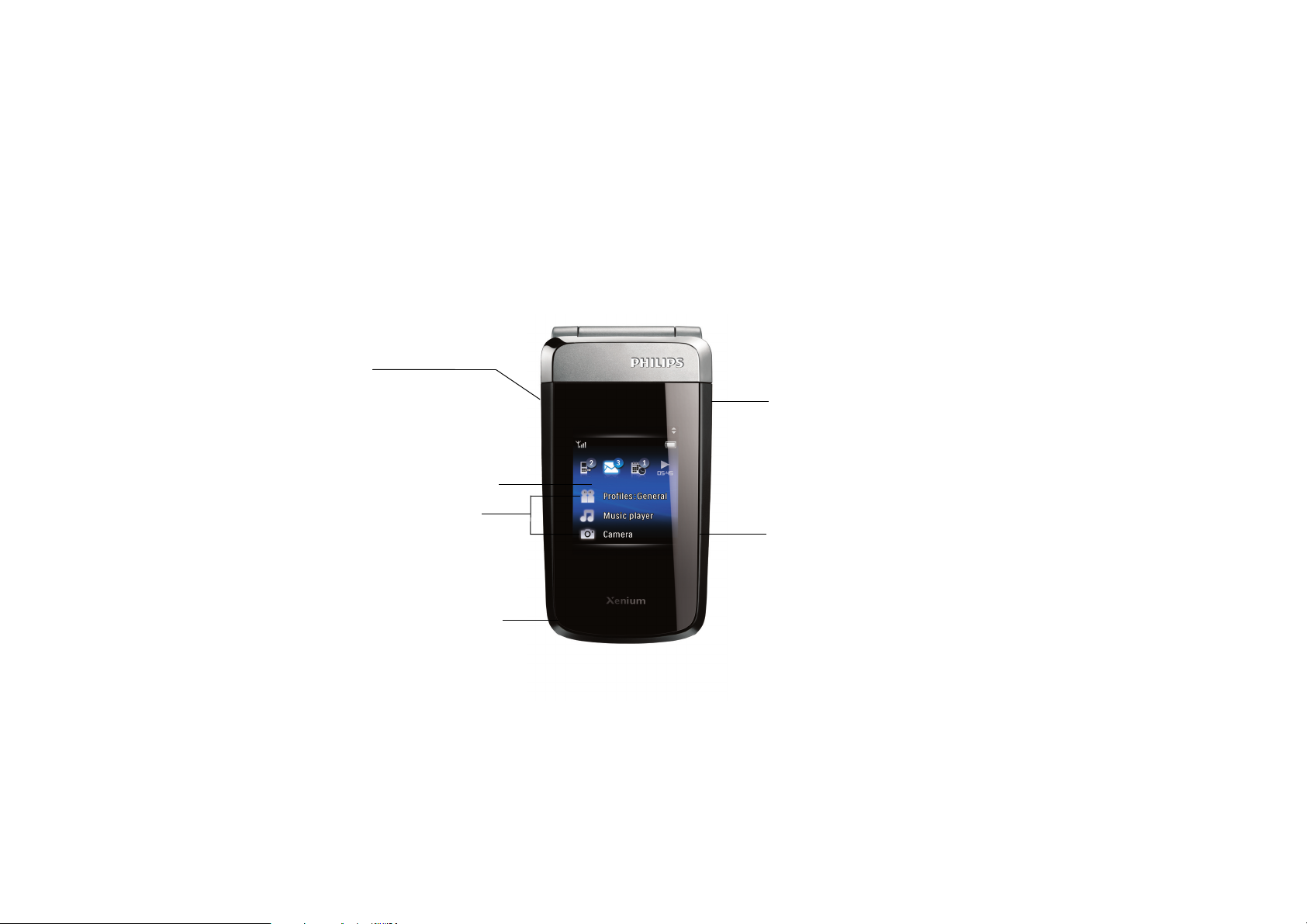
Use your Philips X700 through the external display
Home key
Press the Home key to
enter/return to the
external main menu.
Long press the Home
Key to lock or unlock
the side keys.
External main menu
Volume/
Navigation
Press the Navigation
key to navigate through
functional menus/
sub-menus.
keys
Functional menus
To replace one of the
functional menus, go to
Settings > Display >
External display.
Open the flip to return to
the external main menu.
Select key (Camera key
when you open the flip)
Press the Select key to
select.
Page 2
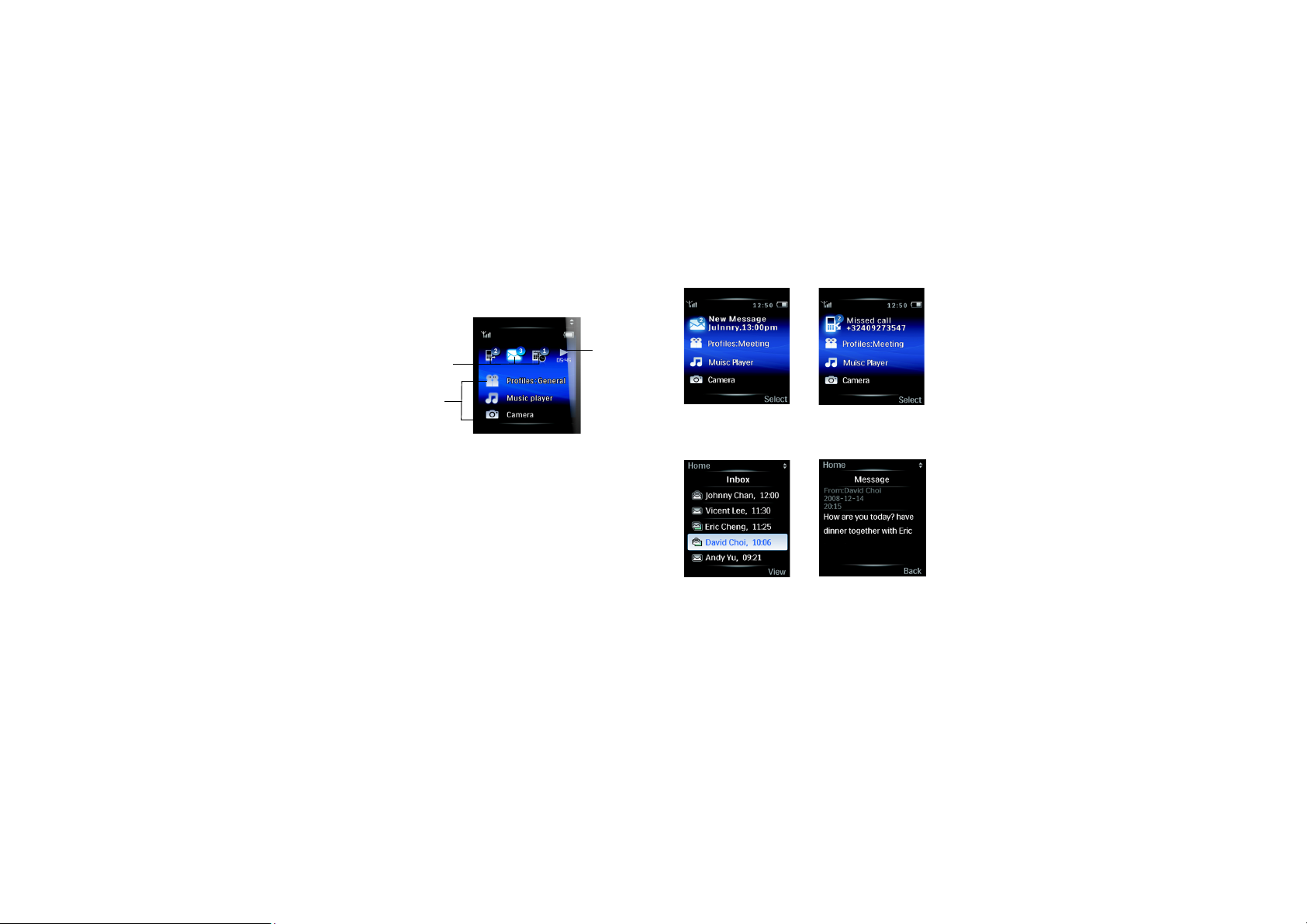
Navigate through the external main
menu
Playback
New events
Functional
menus
in the
background
Get informed of new events
New messages
Missed calls
•Press the Navigation keys to navigate through the
new events and status icon, and functional menus/
sub-menus.
Current icon or menu bar is highlighted.
• Press the Select key to go to the menu.
Check and reply to new messages
•Press the Select key to check a message. If
necessary, press the Navigation keys to select a
message. Press the Select key to confirm.
• Open the flip to reply to the message. You will see
a synchronous internal display.
Page 3
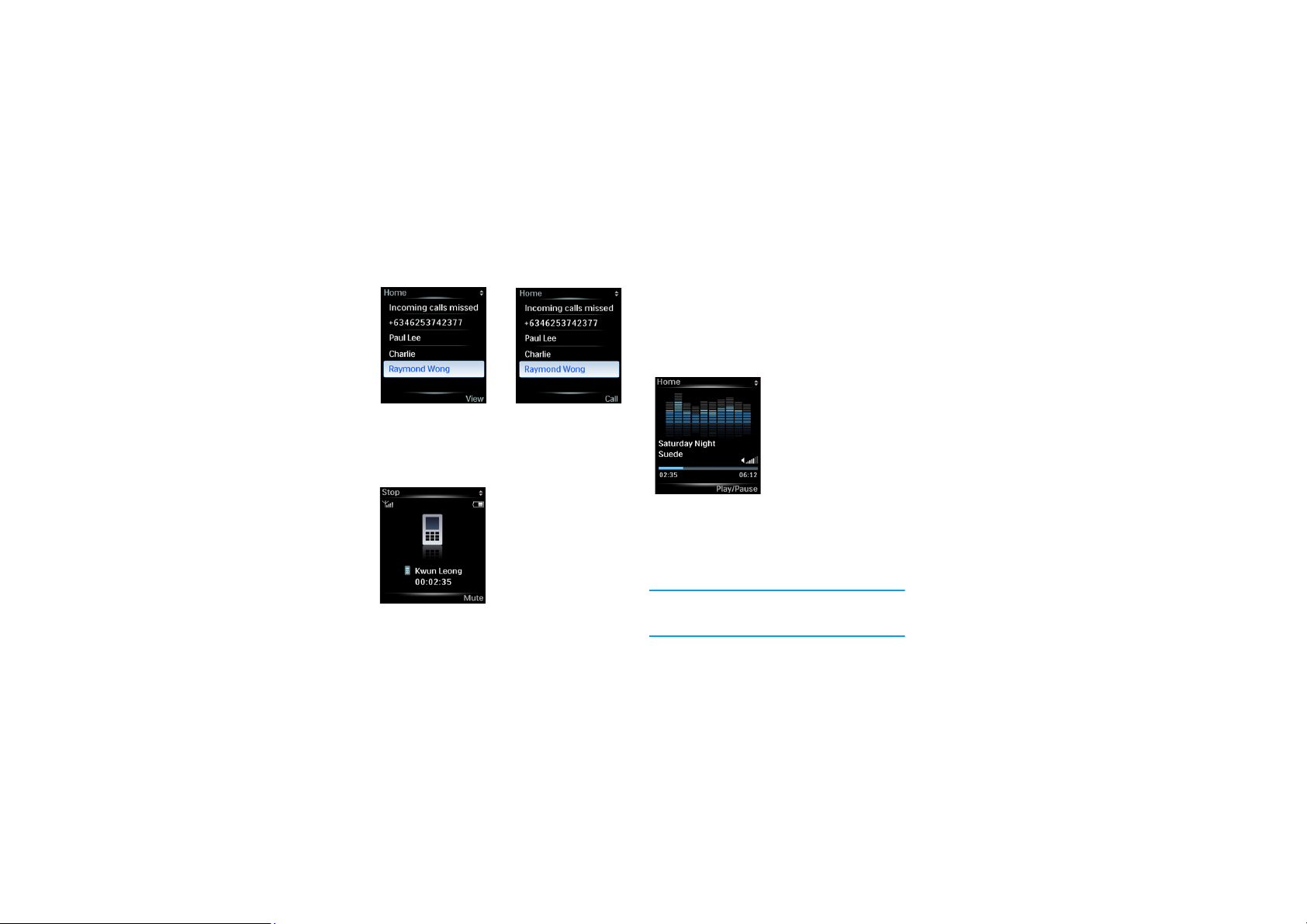
Check and reply to missed calls
Headset unplugged
•Press the Select key
to check call details.
Headset plugged
• Press the Select key to
reply to the call.
Continue an outgoing call after
closing the flip (headset plugged)
•Open the flip to make a
Headset plugged
call.
• After the call is
accepted, close the clip.
The call will continue.
Play music
1.
Press the Navigation keys to select Music
player. Press the Select key to confirm.
2.
Press the Navigation keys repeatedly to select
a song in a music folder. Press the Select key to
confirm.
On the music playback screen
Press the Home key to exit the music player.
A message screen appears. Press the Select key to
continue music playback in the background; press
the Home key to stop music playback.
For more information about the music player,
see the chapter "Media player" in the User
Manual.
Press the Volume keys to
adjust the volume.
Long press the
Navigation keys to
search for a song.
Press the Select key to
start or pause playback.
Page 4
Listen to the FM radio
Before listening to the FM radio
• To tune to a radio station, always plug the supplied
headset into your phone.
• Edit your preset channel list (see the chapter "
Media player" in the User Manual).
1.
Press the Navigation keys to select FM radio.
Press the Select key to confirm.
2.
Press the Select key repeatedly to select a
channel.
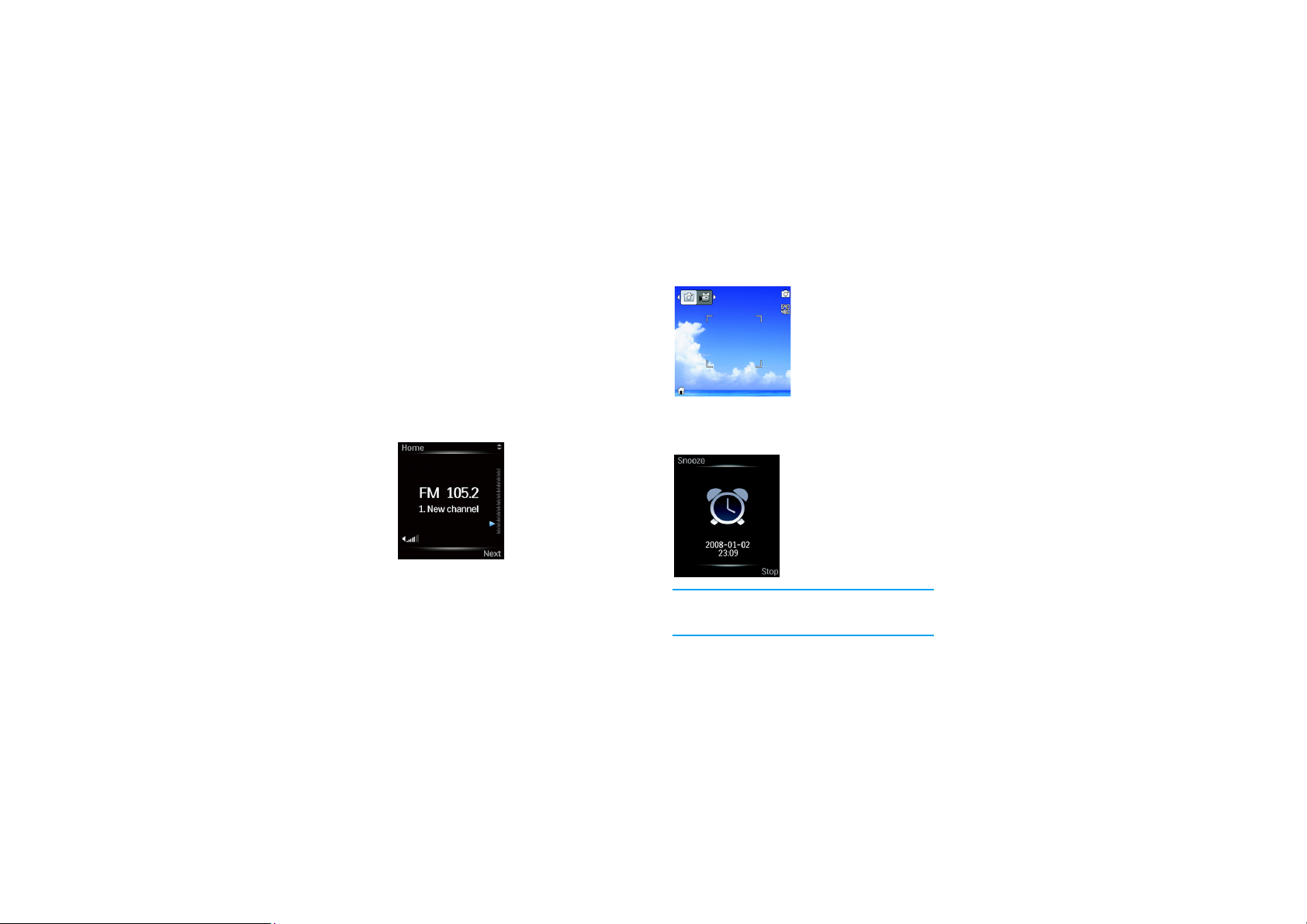
On the radio playback screen
Press the Volume keys to
adjust the volume.
Press the Select key to
select a preset station.
Press the Home key to exit the radio.
A message screen appears. Press the Select key to
continue radio playback in the background; press the
Home key to stop radio playback.
Use the camera/video
1.
Press the Navigation
keys to select Camera.
Press the Select key to
confirm.
2.
Press the Navigation
keys to switch between
Camera and Video.
3.
Press the Select key to
take photos, or start or
stop video recording.
Alarm on/off
• The alarm icon appears
on the external display
at the set time.
• Press the Home key
to select Snooze (if
you have set your
Snooze option).
• Press the Select key
to stop the alarm.
For more information about the camera, video,
and alarm, see the chapter "Camera" and
"Business" in the User Manual.
4339 006 19271
 Loading...