

Page 1

Page 2
Memory Jogger Card
Switch on/off: Long press
Enter PIN: 1. Enter PIN code on keypad
2. Press to confirm.
Make a call: 1. Enter phone number on keypad
2. Press to dial
Answer a call: Press
End a call: Press
Use Names List: 1. Press to access
2. Press to select name
3. Press to dial
Enter a Name: Select
<New>
from the Names list
Page 3
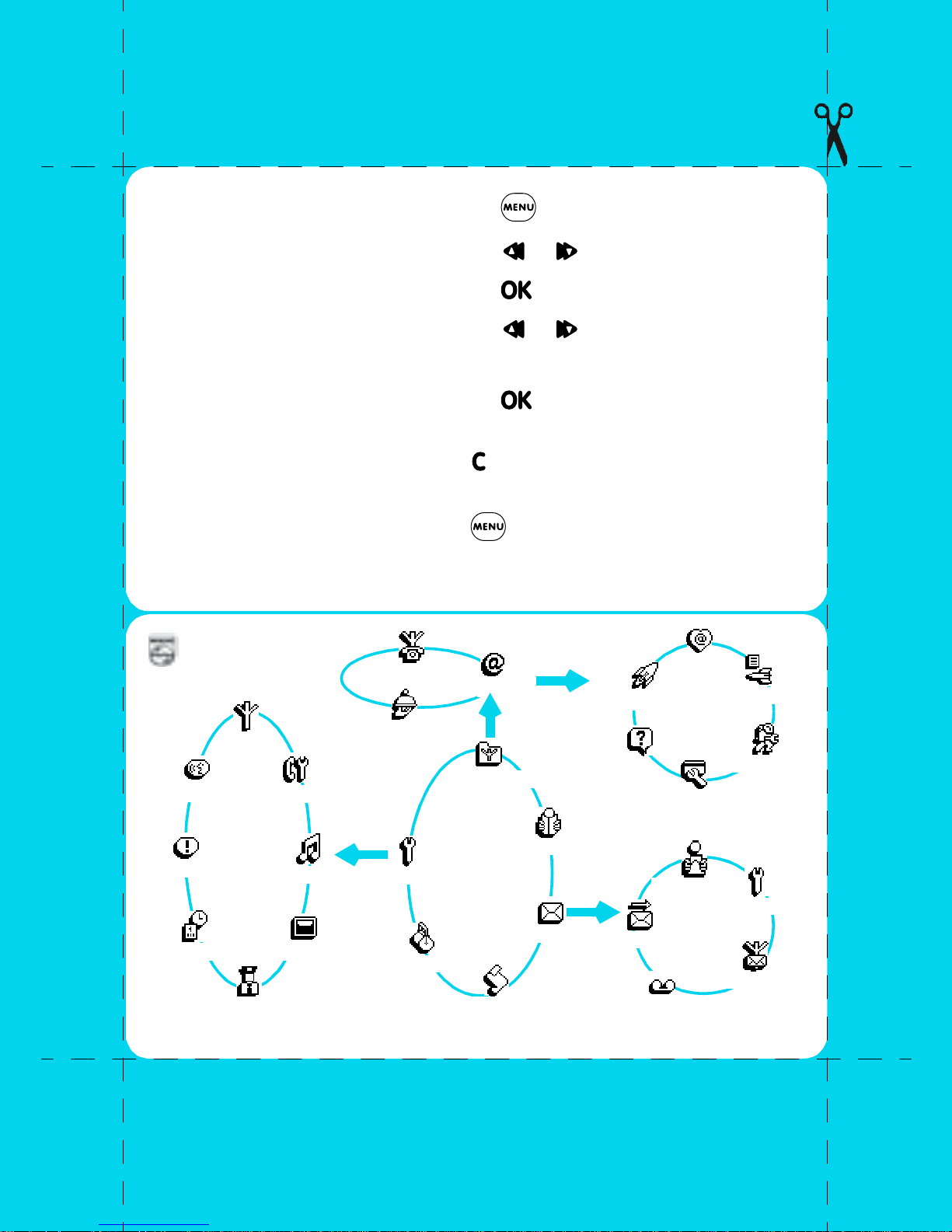
Access and tour the menu: 1. Press
2. Press to select a menu
3. Press to confirm
4. Press to select a submenu
5. Press to confirm
Return to previous menu: Press
Return to idle screen: Press
Visit our site and register on line @ http://www.pcc.philips.com
PHILIPS
Network
Voice command
Call settings
Service numbers
Services
OK
OK
WAP
Oper. services*
Favourites
Launch
Help
Access settings
Last page
Settings
Hotkeys
Time and Date
Security
* Subscription dependent.
Sounds
Display
OK
Settings
Extras
Main
Menu
Call list
Names
Messages
OK
Read SMS
SMS settings
Send SMS
Broadcast SMS
Mailboxes
Page 4

Table of contents
Introduction 3
Symbols used in this guide 3
Before your first
call 4
The SIM card 4
PIN and PUK codes 4
Insert the SIM card 5
The battery 6
Insert the battery 6
Attach the battery cover 6
Remove the battery 7
Charge the battery 7
Discover your
Phone 8
Voice Dial 17
Change or Delete 17
Messages 18
Send SMS or Reply 19
Read SMS 19
SMS Settings 20
Signature 20
SMS Centre 20
Broadcast SMS 20
Reception 20
Topics 20
District code 20
Mailboxes 20
Call List 21
Screen 9
Phone Functions 10
Switch on/off 10
Idle Screen 10
Make a call 10
Answer a call 11
End a call 12
Emergency call 12
Text Entry 12
The Carousel 15
Main Menus 15
Names 16
<New> 16
Send SMS 17
Extras 22
Call counters 22
Accumulated call timers 22
Accumulated cost 22
Last Call Information 23
-> Euro 23
<- Euro 23
Euroconverter 23
Brick game 24
Calculator 24
Alarm Clock 24
Settings 25
Sounds 25
Ringer volume 25
Ringer 26
Key tones 27
1
Page 5

New SMS tone 27
Vibra alert 27
Display 27
Favourites 38
Last Page 39
Zoom 27
Contrast 27
Security 28
Public names 28
Change codes 28
PIN protection 29
Time and date 29
Clock display 29
Set date and time 29
Hotkeys 29
Voice command 30
Network 31
Register again 31
Call settings 31
Call forward 31
Caller ID 32
Settings 39
Images 39
Status icons 39
Access settings 40
Phone Number 40
Login 40
Password 40
Gateway 41
Security 41
Home page 41
Glossary 42
Precautions 43
Environmental care 47
Network Services 33
Touchtones (DTMF) 33
Make a second call 33
Autoredial 34
Call waiting 34
Answer a second call 34
Conference call 34
Answer up to 5 calls 35
Operator services 36
WAP 36
Launch the
Browser 36
Troubleshooting 48
Index 50
Declaration of
conformity 53
Philips Authentic
Accessories 54
2
Page 6
Introduction
Thank you for purchasing your Philips Azalis 238.
This guide will help you to learn easily and quickly how to use your phone.
Symbols used in this guide
Ringer volume
Represents a key on your phone keypad.
Long press:
Activate/deactivate
Press ->
This represents a series of commands to tour the menu until you
reach the specific function being discussed. The most important
point to remember is the necessity to press key AFTER EACH
LEVEL before you can tour the next level. So, the above example is:
A function displayed on your phone screen.
Represent a function on the compass key.
Press and hold the key for 2 seconds.
Pressing the same key (called a toggle key) or using
/ will alternate between different options:
ex. Activate and Deactivate.
Settings
->
Call settings
->
Call forward
Press ->
Call forward
->
Settings
->
Call settings
3
Page 7

Read the safety instructions in the
Precautions section before use.
Before your first call
The SIM card
To use your phone, you must insert a valid SIM card for your GSM
subscription.
This card contains your telephone number. It also has memory to store the
phone numbers and messages you wish to retain. If you use this card on
another phone, you still have the same phone number, stored numbers and
messages.
PIN and PUK codes
The PIN code is a secret code in your SIM card to protect it from abusive
use. If you or anyone else enters a wrong PIN code 3 times, your SIM card is
blocked. To unblock it, you must request the PUK code from your Network
Operator.
4
Page 8
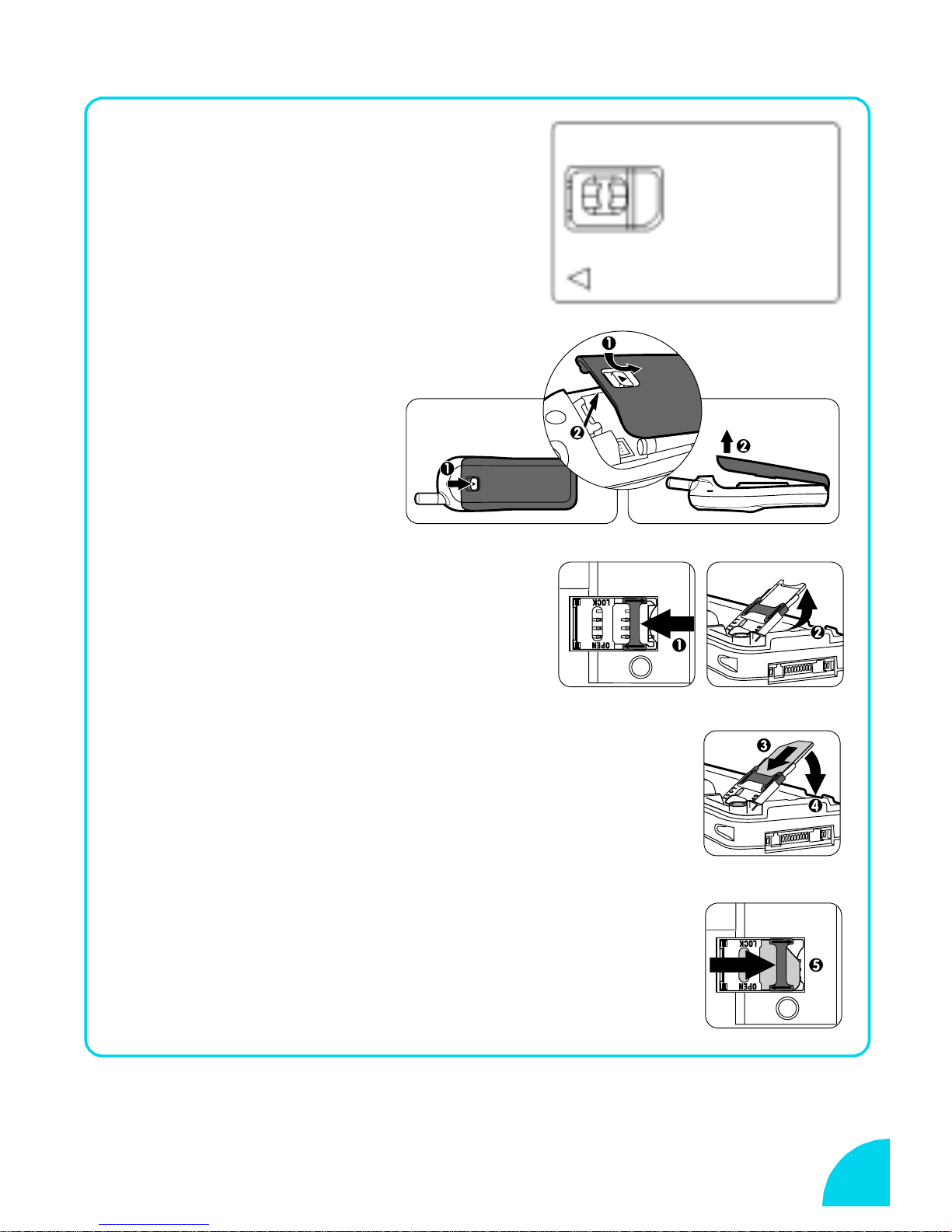
Insert the SIM card
Remove the SIM card from
1
your card.
Remove the
2
battery cover.
Push the metal retaining clip
3
to the left and lift the
cardholder.
Slide the SIM card into its slot until it stops.
4
Be careful that the clipped corner is in the identical
position as on the drawing.
Close the cardholder and push the clip to
5
the right.
5
Page 9
The battery
Your phone is powered by a rechargeable battery.
• To optimize the battery capacity, please allow the battery to fully discharge
the 3 first times before recharging.
• To maintain optimal battery capacity, do not wait until the battery indicator
reaches low. This level is reached when only one bar is displayed in the
battery indicator, see page 9.
• If you do not use the phone for several days, you should disconnect the
battery.
• For a full recharging please allow the charger to be connected for 1h40.
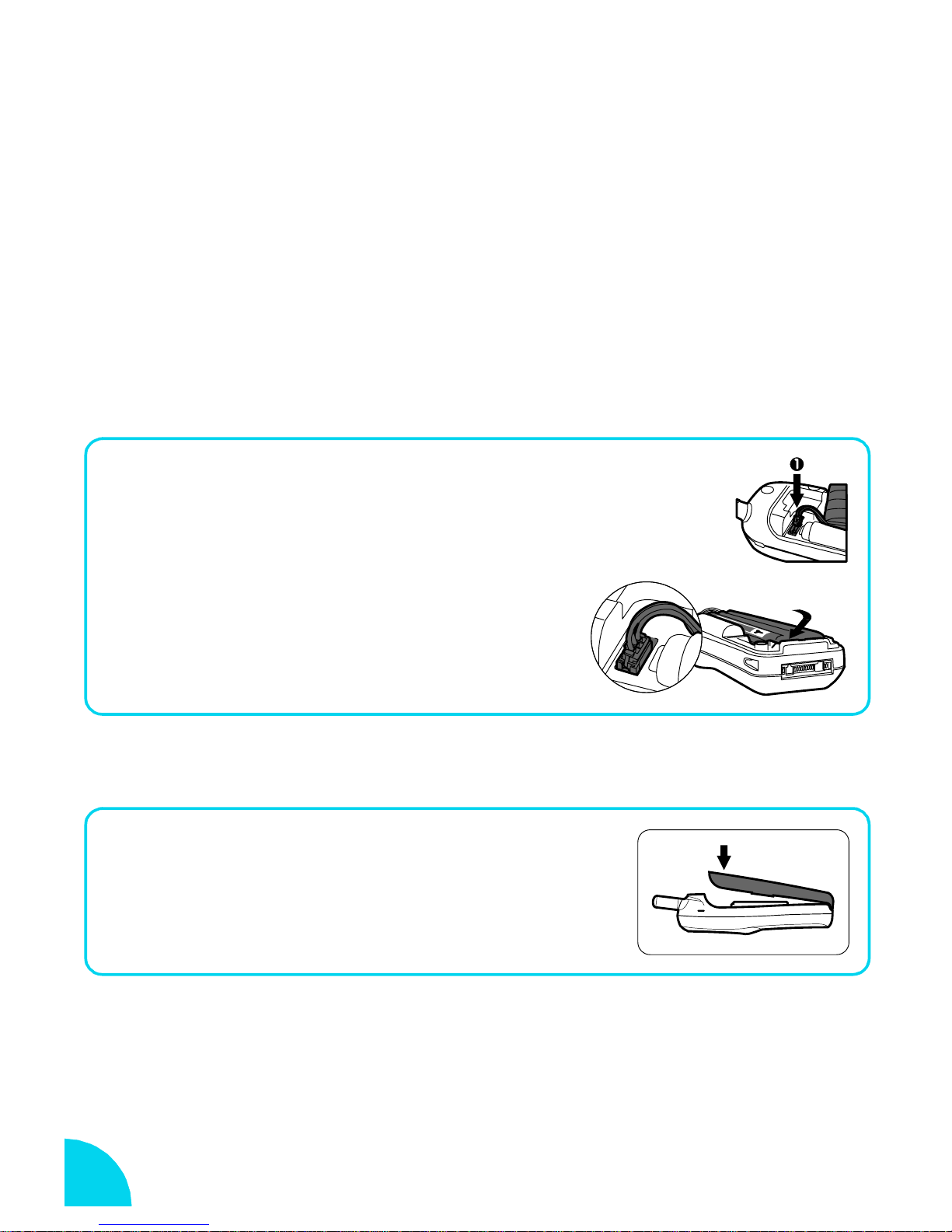
Insert the battery
1 Plug the connector into the socket. If you
cannot plug the connector, try again
reversing the plug.
Slide the battery in its housing.
2
Attach the battery cover
Hook the battery cover onto the
1
hinges on the bottom of the phone.
Press the top down until latch
2
catches.
6
Page 10
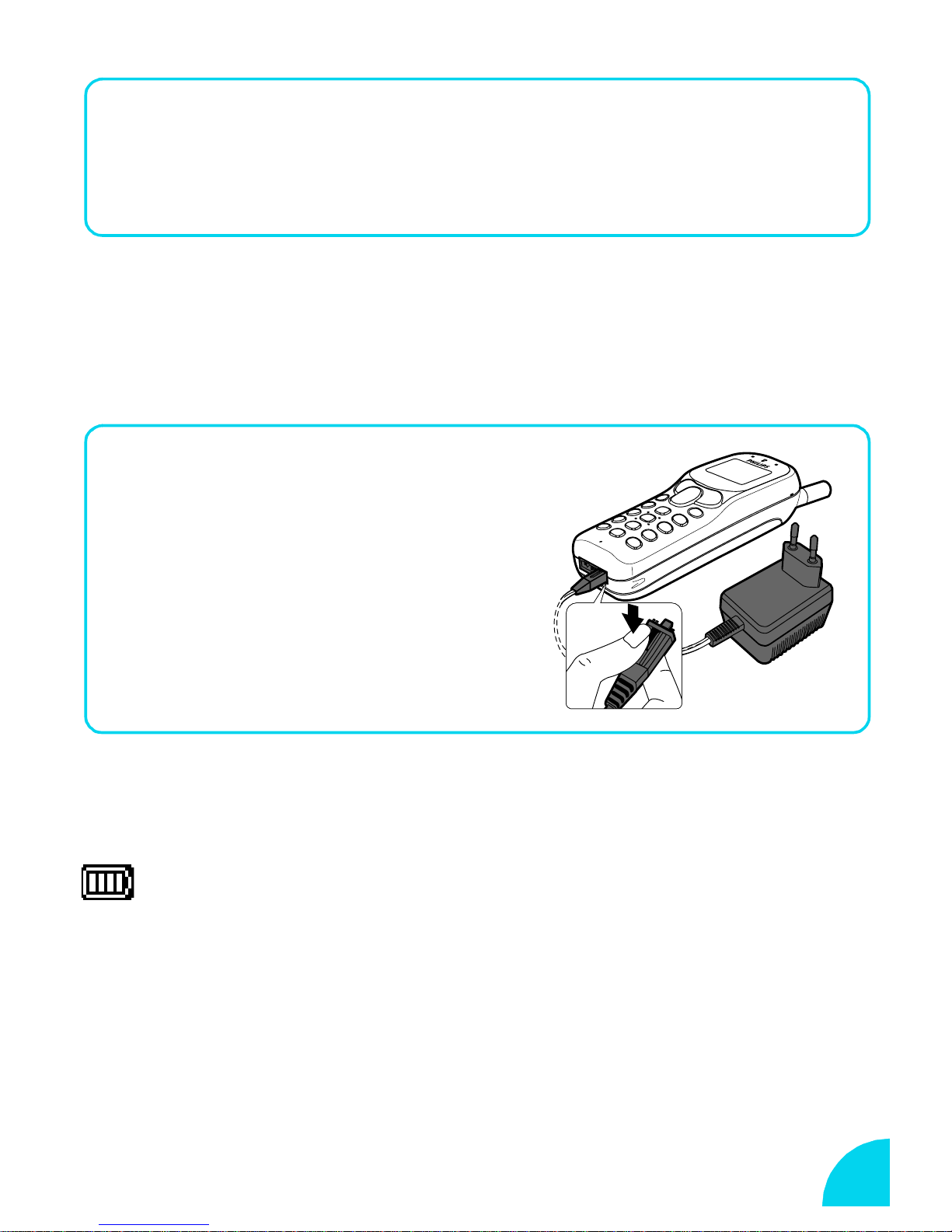
Remove the battery
Remove the battery cover.
1
Lift the bottom of the battery out of the phone and slide
2
it out.
Unplug the connector from its slot.
3
L
NOTE:
* When disconnecting the battery, the settings for date and time will be lost.
Charge the battery
With the battery inside the phone:
Plug the connector into the
1
right socket at the base of the
phone.
Plug the transformer unit into
2
an easily accessible AC
power socket.
L NOTE
The only way to turn off the charger is to unplug it, so use an easily accessible AC
power socket.
Bars moving ➨ battery is charging
Bars steady
Battery outline flashing (see Troubleshooting page 48).
battery is fully charged
➨
7
Page 11
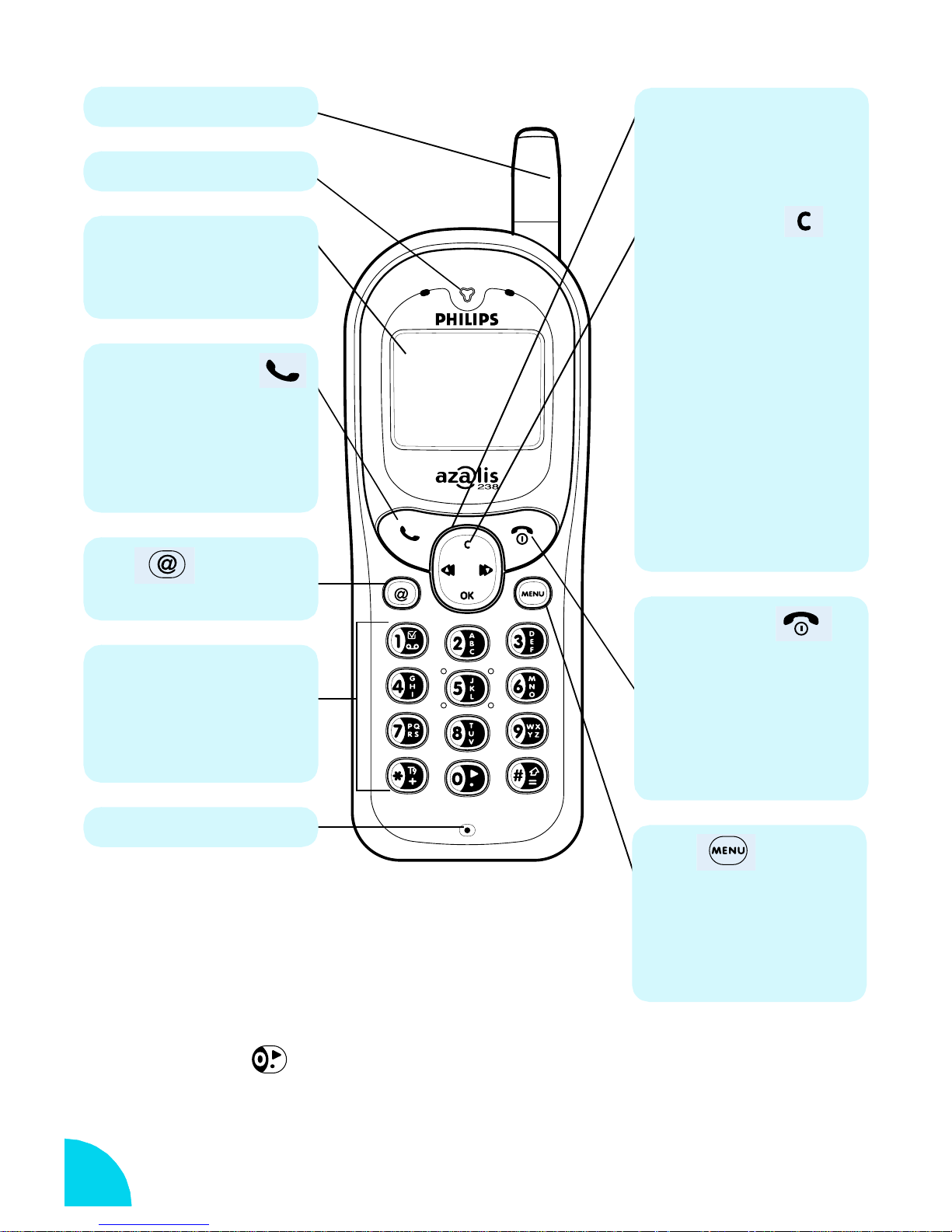
Discover your Phone
Antenna
Earpiece
Screen
Idle screen displays the time,
date and network name.
Green "Pick up" key
- Press to answer a call.
- Press to dial a number, or
name displayed on the screen.
- In WAP mode corresponds to a
softkey.
WAP
Compass key
Use this key to navigate in the
menus, the OK key is used to
validate information.
Cancel/back key
Idle mode:
- Long press to lock/unlock the
keypad.
Navigation mode:
- Press to return to previous
menu.
Edit mode:
- Press to delete a character.
- Long press to delete all
characters.
WAP mode:
- Press to go back one page.
- Long press to exit browser.
- Press to access WAP browser.
Alphanumeric keypad
- Press keys to enter numbers
and text.
- Long press on a key to activate
hotkey function.
Microphone
Language:
Red "Hang up"
and "On/Off" key
- Long press to switch your
phone on/off.
- Press to end a call.
- In WAP mode corresponds to a
softkey.
Menu
- Press to enter carousel menu.
- Press to return to idle screen.
WAP mode:
- press to open the browser
menu.
- Long press to choose a language in which the telephone functions
will be displayed.
8
Page 12

Screen
The screen displays information regarding various functions of your phone.
Network Name
Network Name
Network NameNetwork Name
12 jun 2000
12 jun 2000
12 jun 200012 jun 2000
Alarm clock
Your alarm clock is activated.
Silent
Your phone will not ring when
receiving a call.
Vibrator
Your phone will vibrate when
receiving a call.
Keypad lock
Protects the keys from being
pressed accidentally.
SMS message
You have received a n ew
message.
Network
a
Network
Network : your phone is
Network Network
connected to a network
s
Reception quality
Reception quality: the more
Reception qualityReception quality
bars are shown the better the
reception is
Call Forward Unconditional to
number
All your incoming voice calls are
being forwarded to a number
other than voice mail.
Call Forward Unconditional to
voice mailbox
All your incoming voice calls are
being forwarded to voice mail.
SMS full
Memory for messages is full. You
must delete old messages before
you can receive new ones.
Battery
One bar = low charge, 4 bars =
full charge. If battery outline is
flashing see Troubleshooting
page 48.
Home zone
A zone designated by your
network operator. Subscription
dependent.
Roaming
Displayed when your phone is
registered to a network other
than your own.
Voice Mail
You have received a new voice
mail.
9
Page 13
Phone Functions
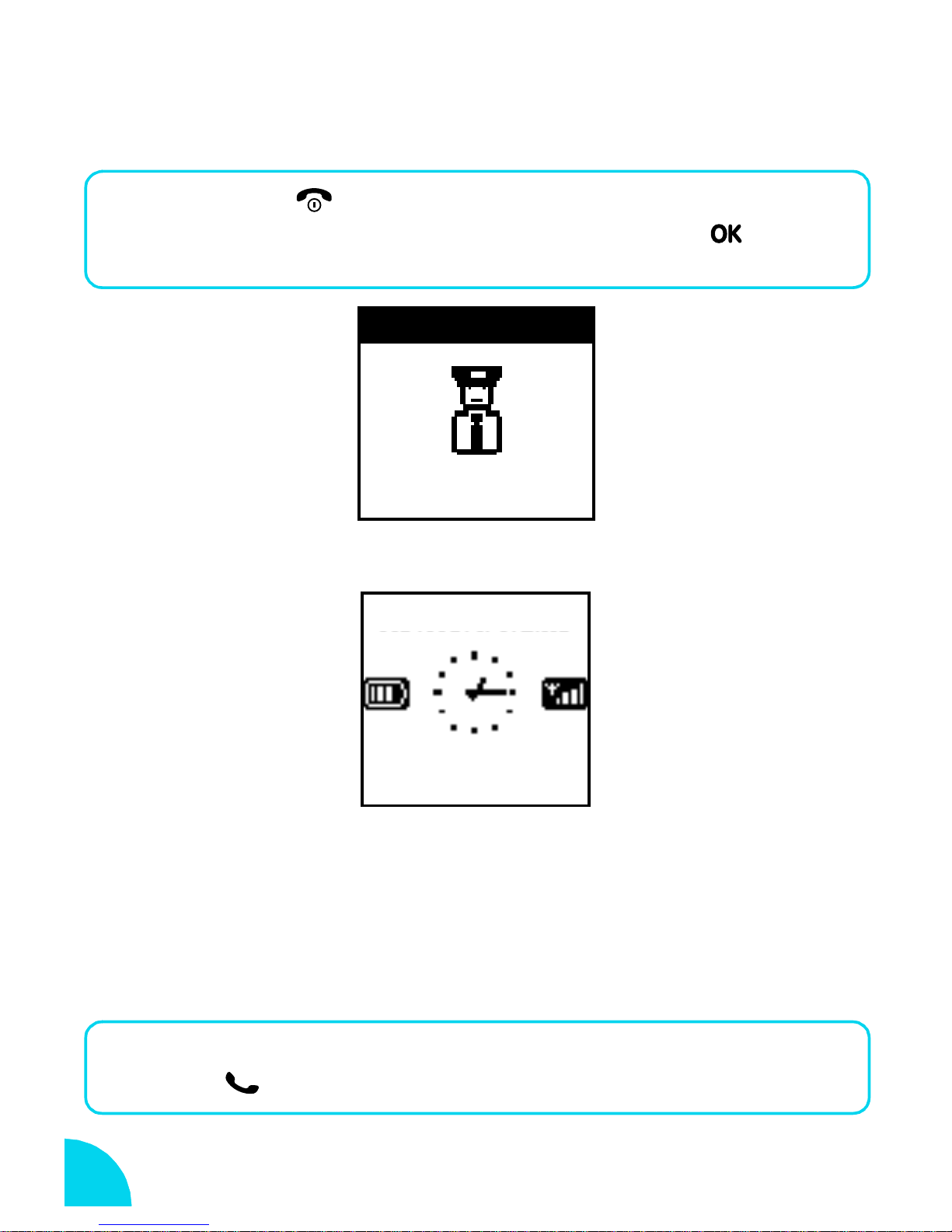
Switch on/off
Long press to switch on/off.
1
Enter your PIN code if requested then press to
2
confirm.
Idle Screen
CODE PIN
CODE PIN
CODE PINCODE PIN
Network Name
Network Name
Network NameNetwork Name
12 jun 2000
12 jun 2000
12 jun 200012 jun 2000
When the idle screen is displayed your phone is ready to use.
- If the network name is not displayed, the network is not currently
available. You may be in a bad reception area (perhaps in a tunnel or
between tall buildings). If possible, move to a different location.
Make a call
Enter the phone number using the keypad.
1
Press to dial.
2
10
Page 14
• Press to delete the previous digit.
•Press
• Long press to obtain "+" symbol on the screen for the
International prefix.
Other easy quick ways to make a call:
• Press to access
Press to dial.
• Press to access
to last received or missed calls. Press or to select a number.
Press to dial.
• Long press on a key that is set up for
• Long press to access
(see page 17).
/ to move through digits.
Names list
Call List
Voice dial
. Press
to redial last called numbers or reply
Flash dial
/ to select a name.
(see page 29).
. Pronounce the voice tag,
Answer a call
When receiving a call, your phone can ring and / or vibrate. Depending on
your subscription, the caller's number may be displayed, if the caller has
enabled this information to be transmitted. If this number is in the Names list,
the corresponding name is displayed instead of the number.
Press to answer a call.
1
Press to reject a call.
2
During a conversation, you can:
•
Lower/raise earpiece volume
•
Mute the microphone
•
Enter a number
the call.
•
Find a phone number
you want to save by using the keypad. It reappears after
by pressing and selecting
by pressing
by pressing :
/ .
Mute
.
to access
confirm.
Press to return to your call screen.
Names
list,
/ to select name and
to
11
Page 15
End a call
Press to end a call.
1
Emergency call
Depending on the network operator, the emergency number can be dialled
without the SIM card inserted. 112 is the standard emergency number for
GSM networks.*
Enter 112 using the keypad.
1
Press .
2
L NOTE:
* This number depends on the country where you make the call.
Text Entry
Your phone provides two methods for entering text:
Basic Text Entry
I
the same key several times to reach the desired character:
Example:
to enter "my hat!"
To obtain
Press
Each key allows you to obtain several characters. Quickly press
m y space h a t !
once
3 times
quickly
once twice
quickly
once once 9 times
quickly
12
Page 16
Key Characters
1 space 1 @ _ # = < > ( ) & £ $ ¥
2 A B C 2 À Ä Å Æ Ç
3 D E F 3 É E ∆ Φ
4G H I 4 Γ Ι
5J K L 5 Λ
6 M N O 6 Ñ Ò Ö
7P Q R S 7 ‚ Π Θ Σ
8 T U V 8 Ü Ù
9 W X Y Z 9 Ø Ω Ξ Ψ
0 . 0 , / : ; " ' ! ¡ ? ¿ * + - %
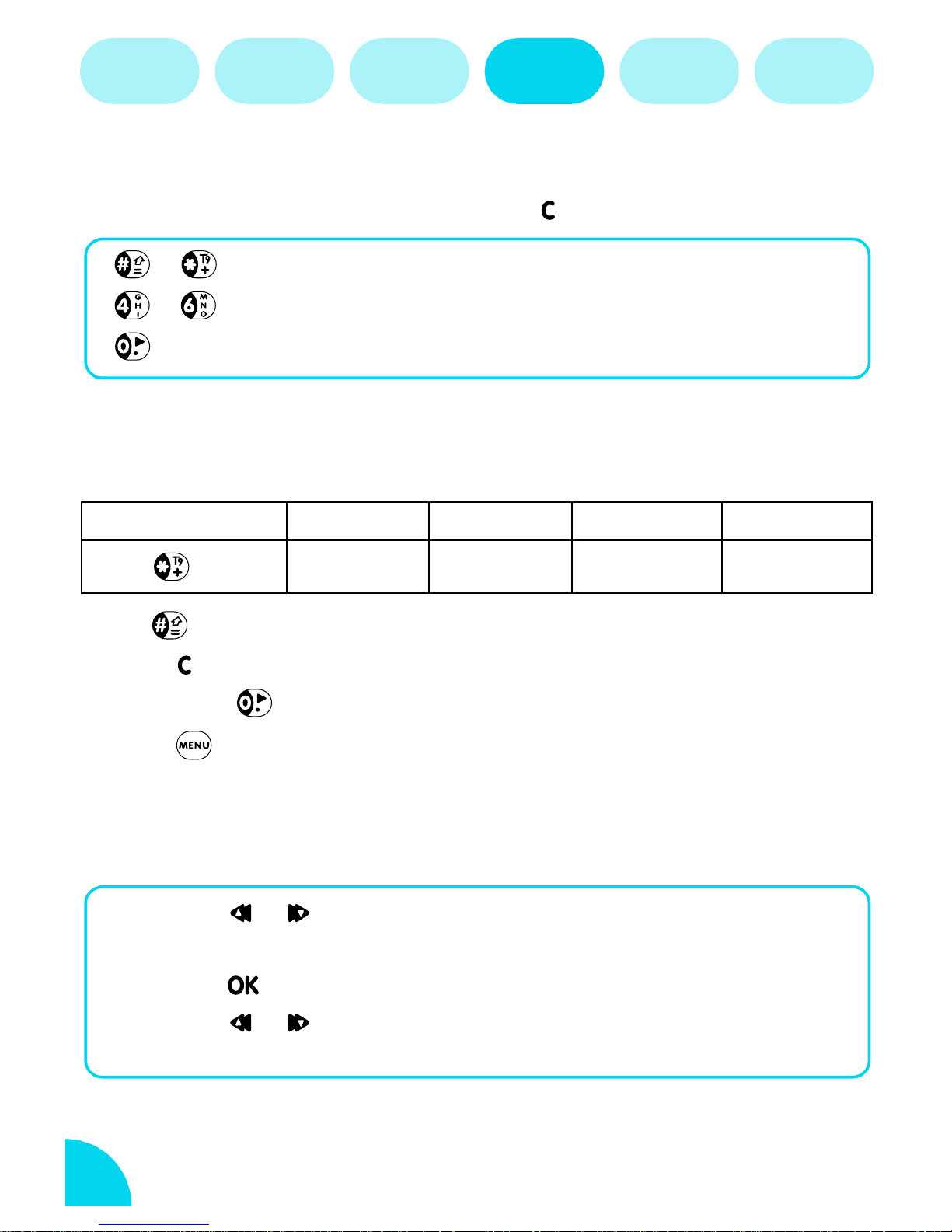
* Switch between Basic Text Entry / T9™ / digits / symbols
# Switch between Upper / Lower / Auto Case
II
T9™
uses ONE key press per letter. The word
changes after every keystroke so, don't pay
too much attention to how the word appears
on the display until you have pressed all the
appropriate keys. T9™ proposes a final series
of probable words and you confirm the one
you select.
Tegic Euro. Pat. App. 0842463
13
Page 17
Press to enter T9™ mode - unless T9™ symbol is already
1
displayed - and to switch between Basic Text Entry/T9™/digits/
symbols.
Press keys to (one press per letter indicated on the
2
key) to spell the word you want to write.
Press to scroll the words T9™ proposes and select
3
the one you want.
Press to confirm your word. T9™ inserts it in your
4
message and adds a space.
• Press to delete the previous digit.
• Press to return to idle screen.
• Press or to move cursor left or right.
Example: to enter the word "home":
Press The screen displays the first
1
word of a list:
Press to scroll and select
2
Press to confirm
3
Good
.
Good
Home
Home
T9
Home
.
T9
.
14
Page 18
The Carousel
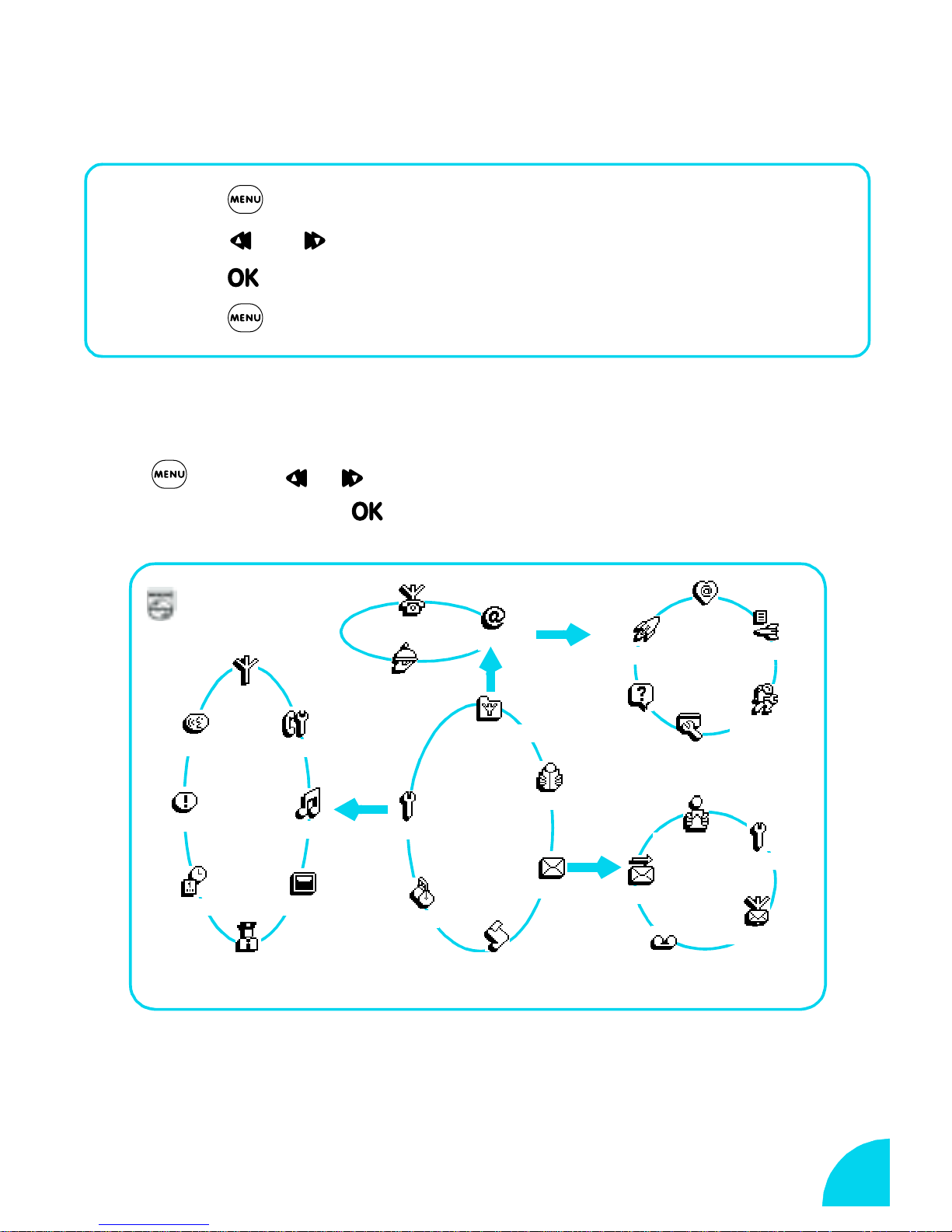
The carousel menu enables you to access the functions of your phone.
Here’s an overview :
Press to access the carousel.
1
Press / to tour the menus and menu options.
2
Press to confirm a choice of menu and option.
3
Press to return to the idle screen.
4
Main Menus
Press . Press / to select a function from the carousel displayed
on the screen then press
PHILIPS
Network
Voice command
Hotkeys
Time and Date
Call settings
Sounds
Display
Security
to confirm.
Service numbers
Services
OK
Settings
Extras
WAP
OK
Oper. services*
Main
Menu
Call list
OK
Names
Messages
OK
Launch
Help
Access settings
Send SMS
Mailboxes
Favourites
Last page
Settings
Read SMS
SMS settings
Broadcast SMS
* Subscription dependent.
15
Page 19
Names Messages Call list Extras Settings
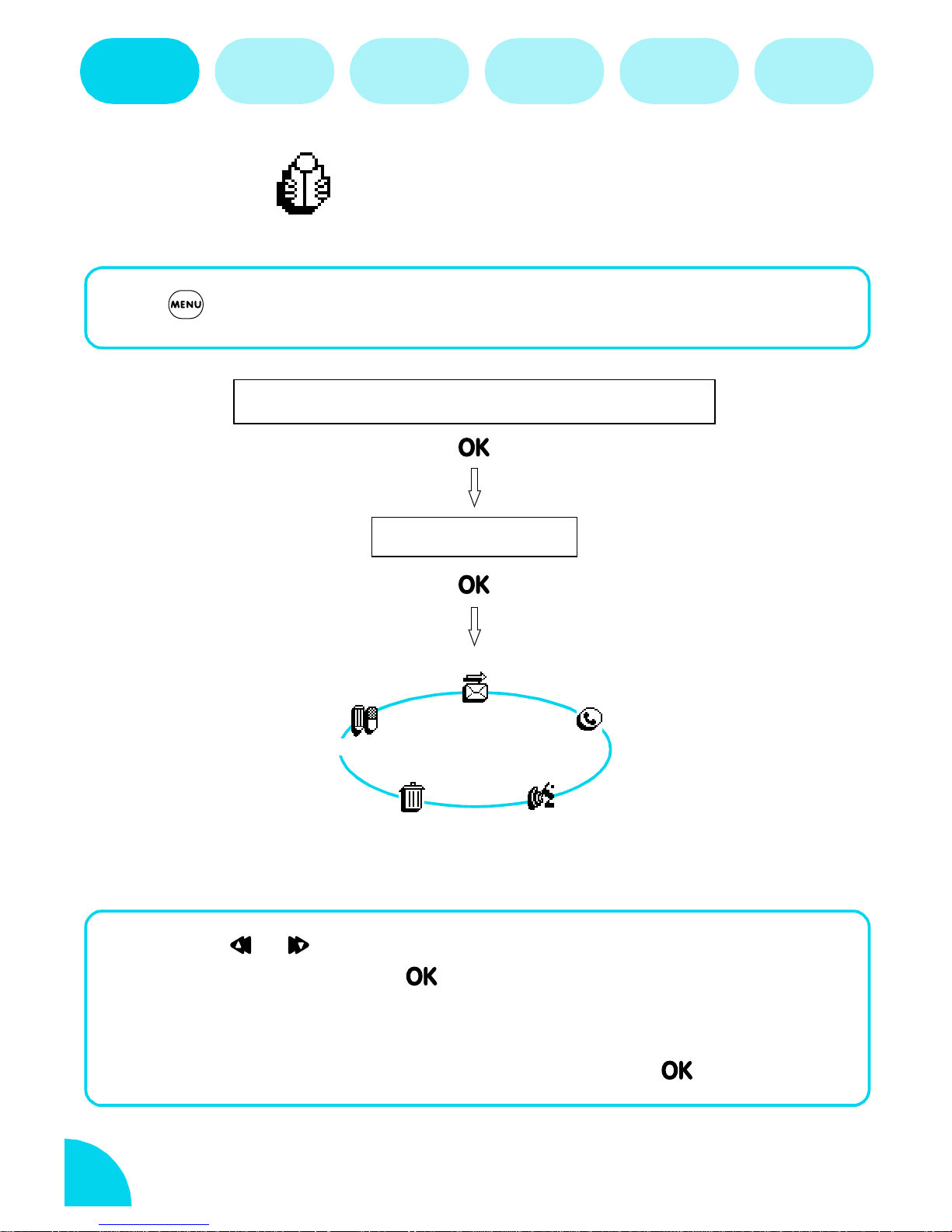
Names
This is your directory of names and numbers you wish to store.
Operator
services
Press ->
Names
Names, Own Number, Emergency, <New>
-> Select a name from the list displayed on the screen.
Telephone Number
Send SMS
Change
Call
<New>
Press / to select
1
number, then press to confirm.
Use the Basic Text Entry mode to enter the name
2
(see page 12).
Enter the telephone number, then press to confirm.
3
16
Delete
<New>
Voice Dial
to enter a new name and
Page 20
Names Messages Call list Extras Settings
Send SMS
Press / to select a name.
1
Press .
2
Operator
services
Press / to select
3
See "Send SMS or Reply" page 19.
Send SMS
.
Voice Dial
You can dial a number simply by long pressing and then pronouncing
the voice tag you associated with that number. To set up a voice tag for
someone not in the Names list, first create a
Press / to select name.
1
Press .
2
Press / to select
3
Press and the screen displays
4
Press .
5
At screen message
6
Speak now
Voice Dial
, clearly pronounce a short
<New>
entry.
.
Add voice tag?
voice tag.
Repeat this a second time following instructions on your
7
screen.
L NOTE
In a very noisy environment your phone may not recognise your tag. Please repeat
or move to another location.
Change or Delete
Press / to select name.
1
Press .
2
Press / to select
3
Change
or
Delete
.
17
Page 21
Names Messages Call list Extras Settings
Messages
Operator
services
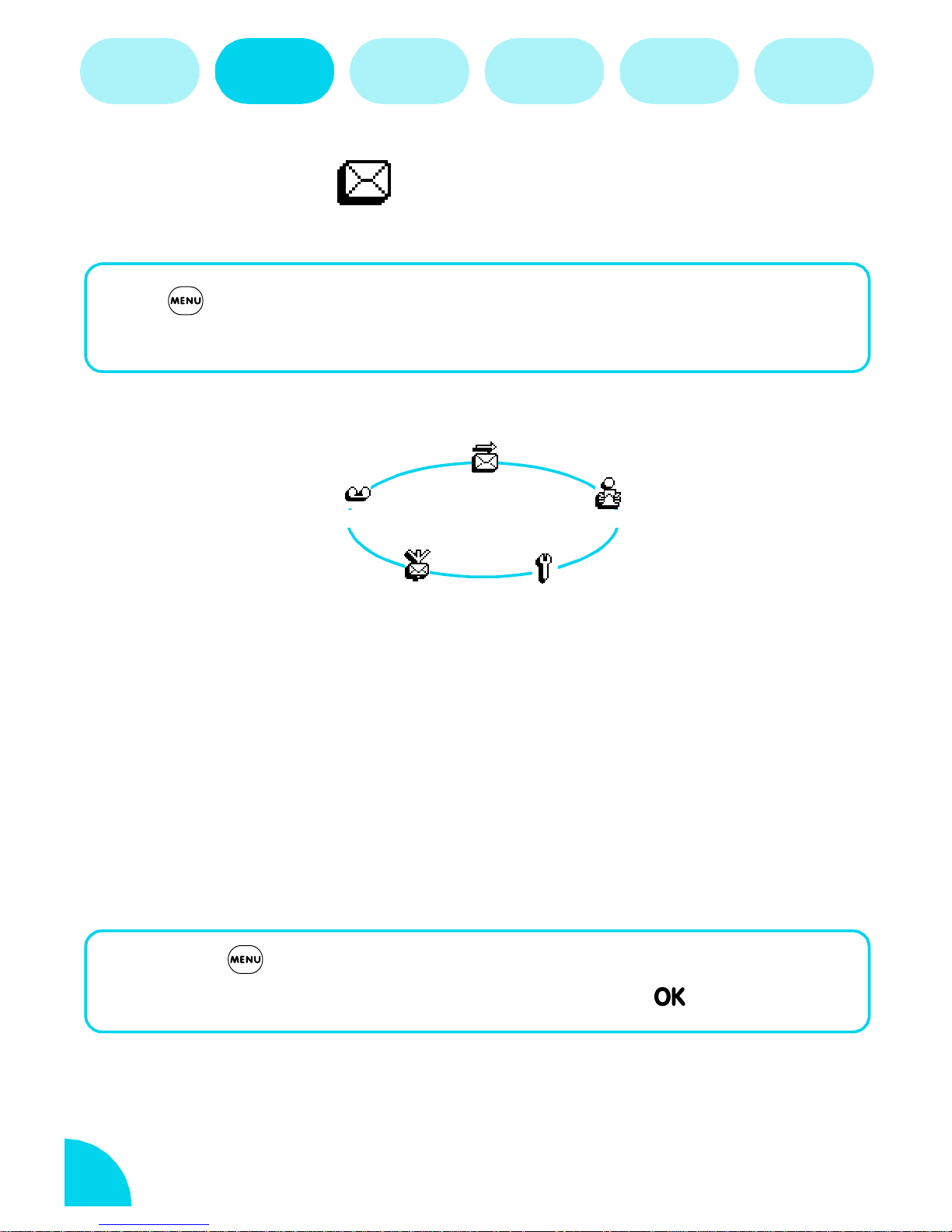
Press ->
Messages
-> Select a function from the carousel displayed on
the screen.
Send SMS
Mailboxes
Broadcast SMS
You can send text messages (SMS) to other GSM phones and receive
messages on your phone. There are standard messages and you can
compose a new one. You can attach an "emotion icon". To see the image,
the receiver needs a GSM mobile phone which supports emotion icons
SMS se ttings
Read SMS
(Philips Savvy, Ozeo or Xenium for example). Otherwise the equivalent
translation code will be displayed at the end of the receiver's message.
To send messages, you must first enter a
If this is not stored in your SIM card, ask your operator for it.
Press ->
1
Enter service centre number then press to confirm.
2
18
Messages
->
service centre
Settings
number (see page 20).
->
SMS centre
.
Page 22
Names Messages Call list Extras Settings
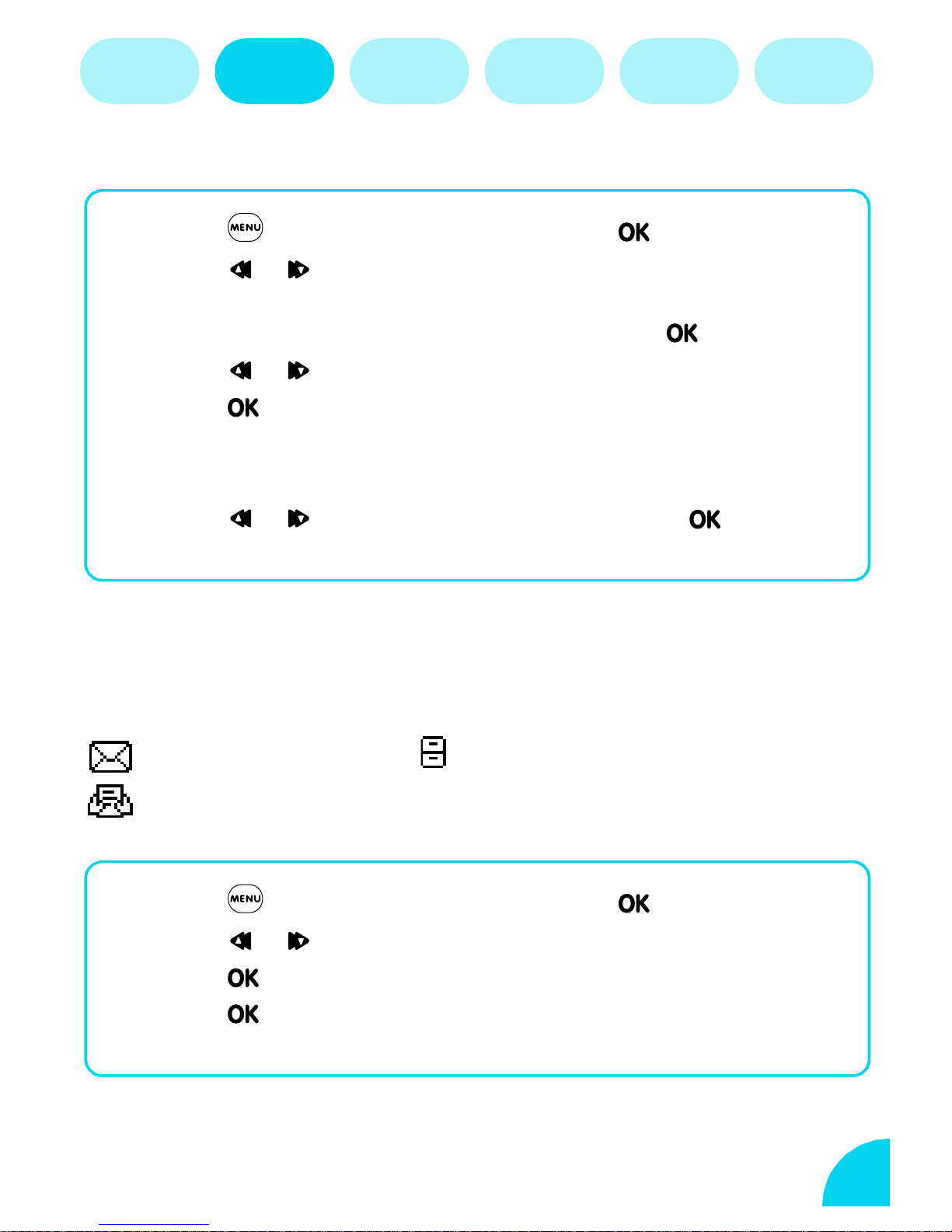
Send SMS or Reply
Operator
services
Press ->
1
Press / to select name in Names list or select
2
<New>
Enter message (see page 12) then press .
3
Press / to select
4
Press to save or send your message or to select an
5
attachment.
If you select an attachment:
Press / to select an icon then press to
confirm.
to enter a new number.
Messages
->
Save, Send now
Send SMS
.
or
Add icon
.
Read SMS
Consult the list of SMS you have saved and received. They have the
following icons:
Received unread You saved
Received read
Press ->
1
Press / to select a message.
2
Press to read this message.
3
Press to
4
message.
Messages
Reply, Forward to, Send
->
Read SMS
.
or
Delete
this
19
Page 23

Names Messages Call list Extras Settings
Operator
services
SMS Settings
Signature
Use this option to add your name or other information at the end of all the
messages you send. When
(see page 12 for entering text).
Signature
is activated you can enter your text
SMS Centre
This menu allows you to enter the number of two SMS centres.
Broadcast SMS*
You can receive short messages from your network about specific topics of
interest to you (eg. weather, news, sports).
L
NOTE:
* Subscription dependent.
Reception
Press / to activate/deactivate regular reception of the Broadcast
SMS.
Topic s
Go to
want to associate with the topic and the code provided by your network
operator.
<New>
to add a new topic you want to receive. Enter the name you
District code
Enter one topic from the topics list into this menu and broadcast messages
will be permanently displayed on the idle screen.
Mailboxes
The mailbox menu allows you to modify your voice mailbox numbers.
20
Page 24
Names Messages Call list Extras Settings
Operator
services
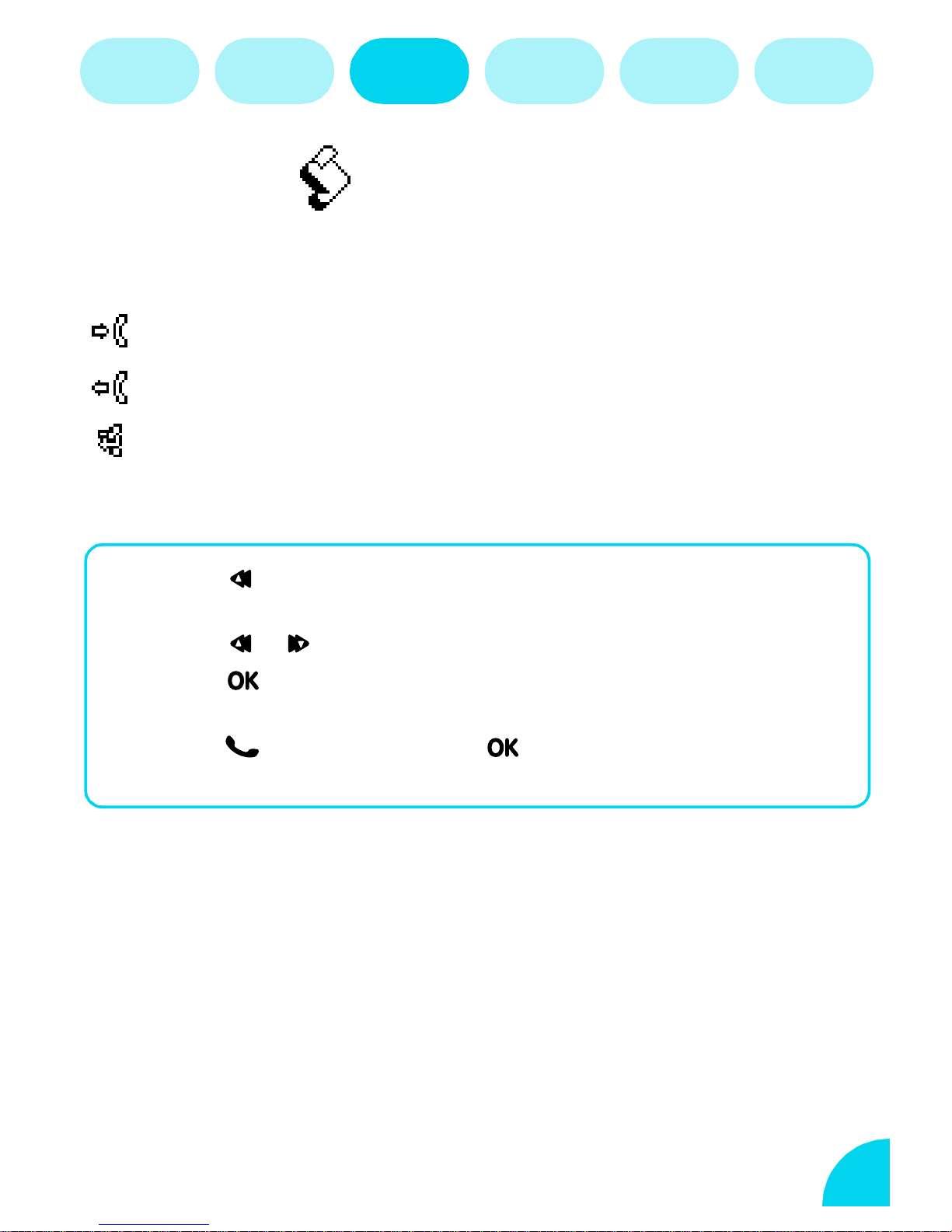
Call List
This function provides a chronological list of all calls you have received,
missed and dialled.
Received call
Dialled call
Missed call
Press to see the list of your latest outgoing and
1
incoming calls.
Press / to select a call.
2
Press to consult date, time, call status, sent or
3
received.
Press to call or, press a second time to send a
4
SMS, store the number in your phonebook or delete it.
21
Page 25
Names Messages Call list Extras Settings
Operator
services
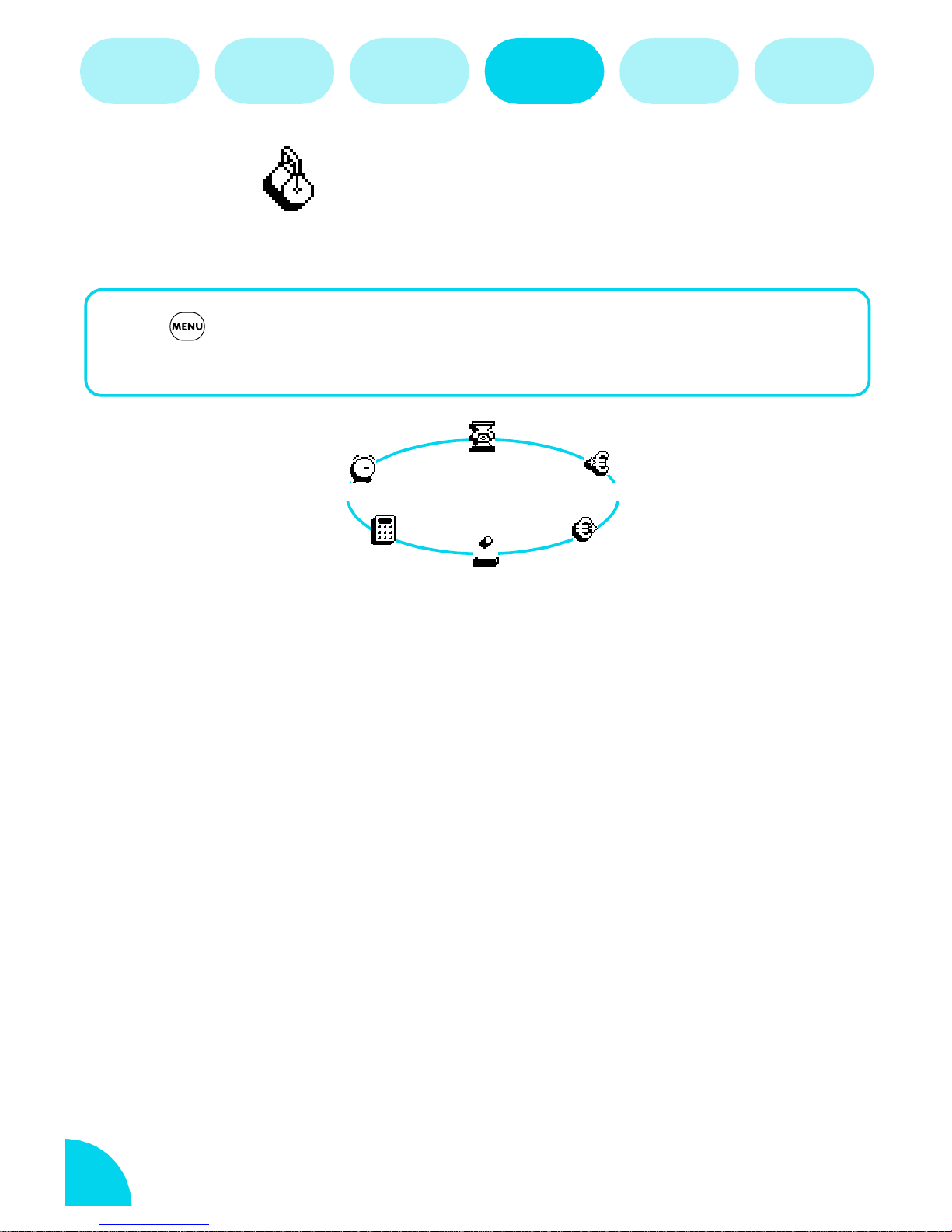
Extras
Your phone provides a number of practical extra functions for your
convenience.
Press ->
Extras
-> Select a function from the carousel displayed on
the screen.
Call counters
Alarm clock
Calculato r
Brick Game
-> Euro
<- Euro
Call counters*
Handle the cost and duration of your calls.
Accumulated call timers
Check the duration of incoming and outgoing calls and set counters to zero.
Accumulated cost*
Check the accumulated cost and set the counter to zero.
Show*
Shows how much has been spent.
Reset*
Reset the current accumulated cost to 0. Requires PIN or PIN2 code.
Cost limit*
Enter the cost limit you don't want to exceed for your calls.
Show balance*
Check the remaining credit after entering the cost limit.
22
Page 26
Names Messages Call list Extras Settings
Cancel cost limit*
Cancel the cost limit you entered. Requires PIN or PIN2 code.
Charge rate*
Set and change the cost rate per unit of time.
Enter currency (maximum 3 digits).
1
Enter cost per unit.
2
L
NOTE:
* Advice of charge is subscription dependent.
Operator
services
Last Call Information
Displays the duration and/or cost (depending on your subscription) of your
last calls.
-> Euro
Convert an amount from your currency stored on your SIM-card into Euro.
Enter the amount, then press .
Long press to insert decimal point.
<- Euro
Convert an amount from Euro into the currency stored on your SIM-card.
Enter the amount, then press .
Long press to insert decimal point.
Euroconverter
Only available in countries participating in the European Monetary Union.
23
Page 27
Names Messages Call list Extras Settings
Operator
services
Brick game
Break a complete set of bricks with a ball and racket. When finished, you
can play a new game at a new level. Press to exit. Keys used:
start a game and hit the ball left / right.
move racket left / right.
take a break for up to 2 minutes.
Calculator
Performs basic calculations. Enter numbers with the keypad. Accuracy is 2
decimal places rounded up to the higher decimal figure.
To perform: Addition Subtraction Multiplication Division
Press quickly
Press to obtain the result
• Press to delete a number
• Long press to insert decimal point
• Press to return to idle screen
1 time 2 times 3 times 4 times
Alarm Clock
Set the alarm functions and activate/deactivate the alarm. The alarm rings
even if the phone is switched off.
Press / to set On/
1
With alarm On set the time using "00:00" format.
2
Off
.
Press .
3
Press / to select frequency: once, every day or
4
every day except Saturday and Sunday.
• Press any key to stop the alarm ringing.
24
Page 28
Names Messages Call list Extras Settings
Settings
You have various options to customise your phone.
Operator
services
Press ->
Settings
on the screen.
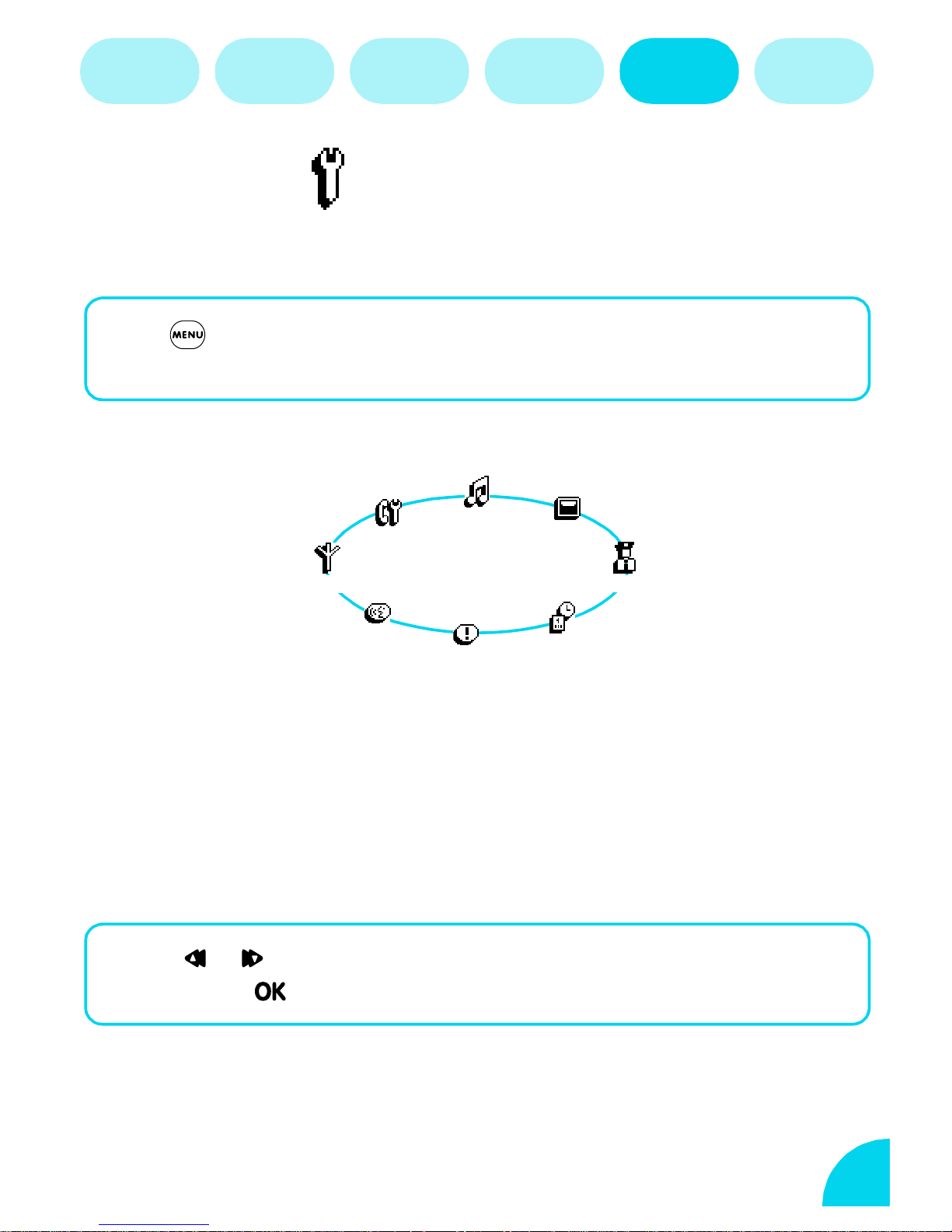
Sounds
Network
Voice command
-> Select a function from the carousel displayed
Sounds
Call settings
Hotkeys
Display
Secu rity
Time and date
You can select different ringer melodies and alert tones.
Ringer volume
Set the volume of your ringer.
Press / to select:
Increasing
Silent, Low, Medium, High,
25
Page 29
Names Messages Call list Extras Settings
Operator
services
Ringer
Select the ringer type among 20 melodies including your own composed
melody.
Press
1
Press to confirm your choice.
2
/
to select a melody.
Own Melody
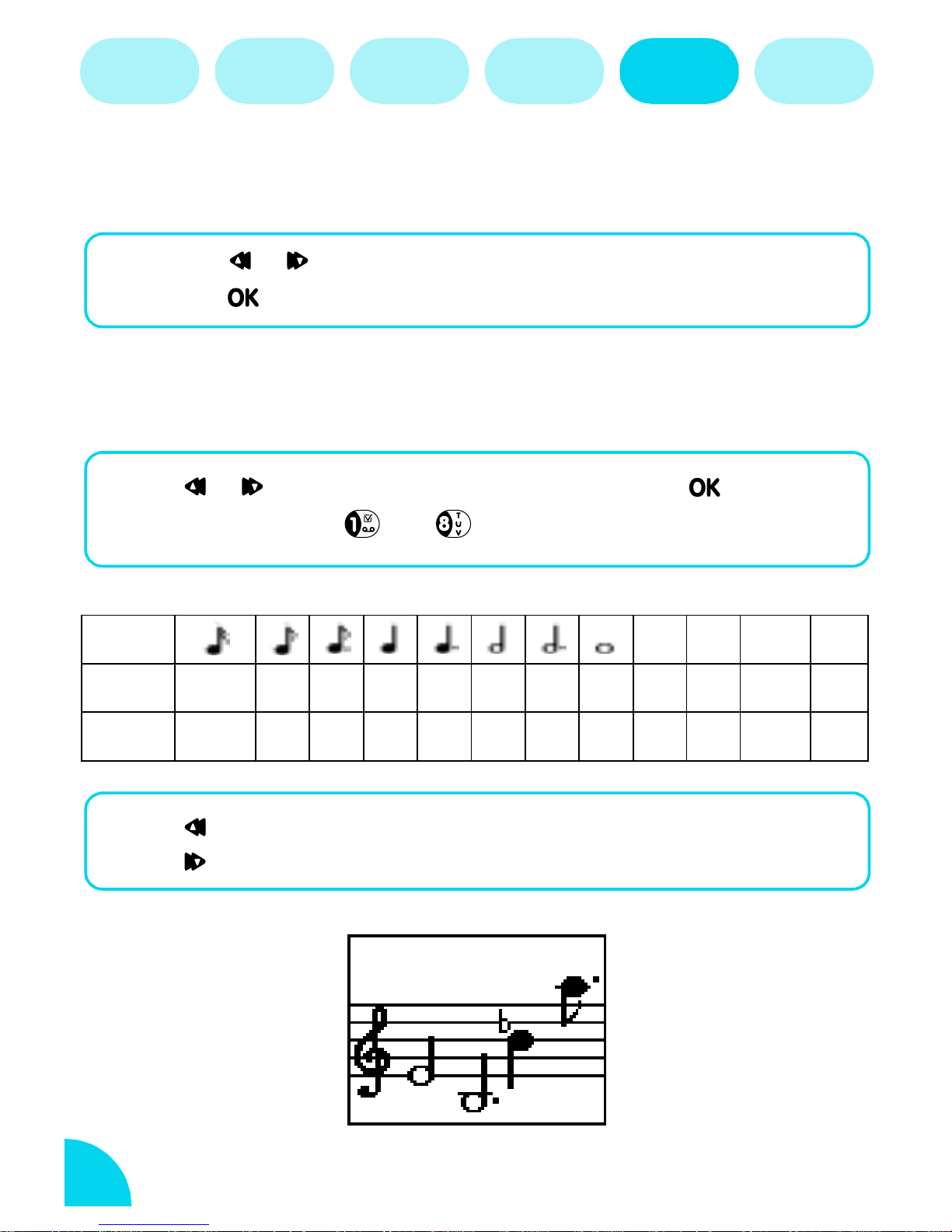
Compose your own ringer melody with up to 50 notes. Take a few notes
from your favourite sheet music or compose your own.
Press / to select
Select notes with keys to Default note is B
Notes rest rest sharp flat
Length
1/4 1/2 3/4 1 3/2 2 3 4 1/2 1
Own melody
, then press
.
Keys
Press to raise note by one semitone or more
Press to lower note by one semitone or more
Example:
1 234567890 * #
26
Page 30
Names Messages Call list Extras Settings
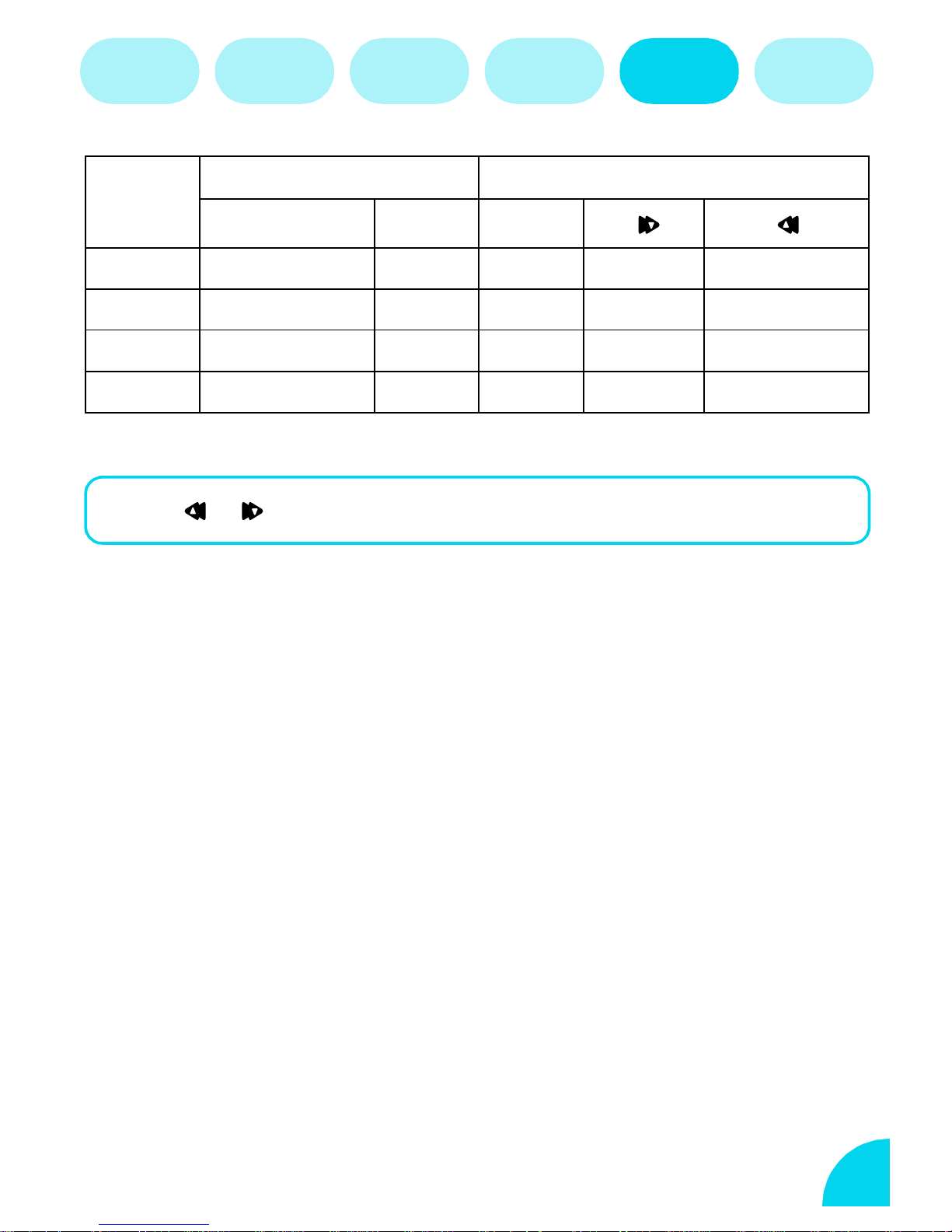
NOTES LENGTHS HEIGHTS
Operator
services
TYPE KEY VALUE
1st note Minim 6 E 4 times
nd
2
note Dotted minim 7 B 3 times
rd
note Sharp 4 B-flat 7 times and *
3
th
4
note Dotted quaver 3 B-sharp 6 times
Key tones
Press / to activate/deactivate the key tones.
Even if key tones are set Off, DTMF are "played" during calls (see page 33
network services).
New SMS tone
Activate/deactivate an alert tone each time you receive a SMS.
Vibra alert
Activate/deactivate the vibrating alert when receiving a call.
Display
Set screen options for ease of reading.
Zoom
Activate the zoom function to enlarge the text size on your phone screen.
Contrast
You can choose between 5 levels of contrast.
27
Page 31
Names Messages Call list Extras Settings
Operator
services
Security
Public names
Public names*
You can restrict calls to numbers that you have previously entered in your
Public Names list.
Press
1
phone number (PIN2 code is requested)
Press
2
delete a name or number .
/
/
to select
to select
<New>
Change
to enter a new name and
or
Delete
to modify or
L NOTE:
* Subscription dependent
Call restriction
Restricts calls to names only in the Public Names list. You must enter your
PIN2 code.
1. Press
1
2. Press to activate or deactivate.
2
/
to select
Call restriction
.
Change codes
Change your PIN or PIN2 code to protect access to your phone.
Press
1
Enter old PIN or PIN2, then press
2
Enter new PIN or PIN2, then press
3
Repeat new PIN or PIN2, then press .
4
28
/
to select
Change PIN
or
Change PIN2
Page 32
Names Messages Call list Extras Settings
Operator
services
PIN protection
When the PIN code is activated you will be asked to enter your PIN code
when switching on your phone.
Press
1
Press to activate or deactivate
2
/
to select
PIN protection
Time and date
Display the time and date on the idle screen.
Clock display
Press
1
display.
Press .
2
Set date and time
Press the respective keys to enter the date (for example:
1
/
to select the analogue or digital clock
28/04/2000) and time (for example: 08:04)
Press .
2
Hotkeys*
With a long press on certain keys you can instantly access their associated
functions or dial a number (Flash Dial). There are eight keys, to
you can program for the functions or numbers you frequently use.
Long press or to instantly access their respective
functions:
1
0
Voice Mailbox
➨
Language
➨
29
Page 33
Names Messages Call list Extras Settings
Operator
services
Program each key:
Select a key from to (1 and 0 are reserved)
1
Select a function from the options displayed on the
2
screen, then press .
L
NOTE:
*Depending on your subscription provider some Hotkeys, in addition to and
, can be predefined and locked, preventing reprogramming by the user.
Voice command*
Pronounce a word (voice tag) to obtain immediate access to a function. All
functions you can associate with a hotkey (see above) can also be associated
with a voice tag.
Program voice command:
Select
1
Select a function from the options displayed on
2
<New>
the screen, then press .
Press and at the prompt
3
tag.
How to use voice command:
Long press in idle screen, and pronounce your voice tag to
, then press .
Speak now
say your voice
instantly access the function.
30
Page 34
Names Messages Call list Extras Settings
Operator
services
Network*
When travelling abroad, your phone will register to one of the network with
the strongest reception.
Register again
If you want to select the network manually, select register again and your
phone will present a list of available networks in your area.
Press / to select a network, then press
The next time you turn your phone on after this, it will revert to automatic
network selection.
Call settings*
You can manage how you want to handle your incoming calls.
Call forward
You can redirect all your incoming calls (always, if no reply, if not reachable
or if busy) to a new location :
Press ->
1
forward
Select
2
or select
Press .
3
Select forwarding option:
4
.
Unconditional
Conditional
Settings
->
Call settings
->
Call
➨all calls are forwarded, your
phone will not ring.
➨your phone will not ring only if
there is no reply, if you are not
reachable or if you are busy.
Cancel, To voice mail, To
number
in Names List.
31
Page 35
Names Messages Call list Extras Settings
Operator
services
Deactivate call forward options and receive calls on your phone as normal:
Press ->
1
forward
Select
2
Status
Select Status to verify the status of all call forwarding.
->
Cancel
Settings
Unconditional
, then press .
->
Call settings
.
->
Call
Caller ID*
Choose whether you want to show or hide your phone identity from your
correspondent.
L NOTE:
* Subscription dependent.
32
Page 36
Network Services
Touchtones (DTMF)
Your phone keys always transmit DTMF tones (Dual Tone Multiple Frequency)
also known as "touchtones". These tones are used to operate services that you
can reach with your phone, such as a pager or an answering machine.
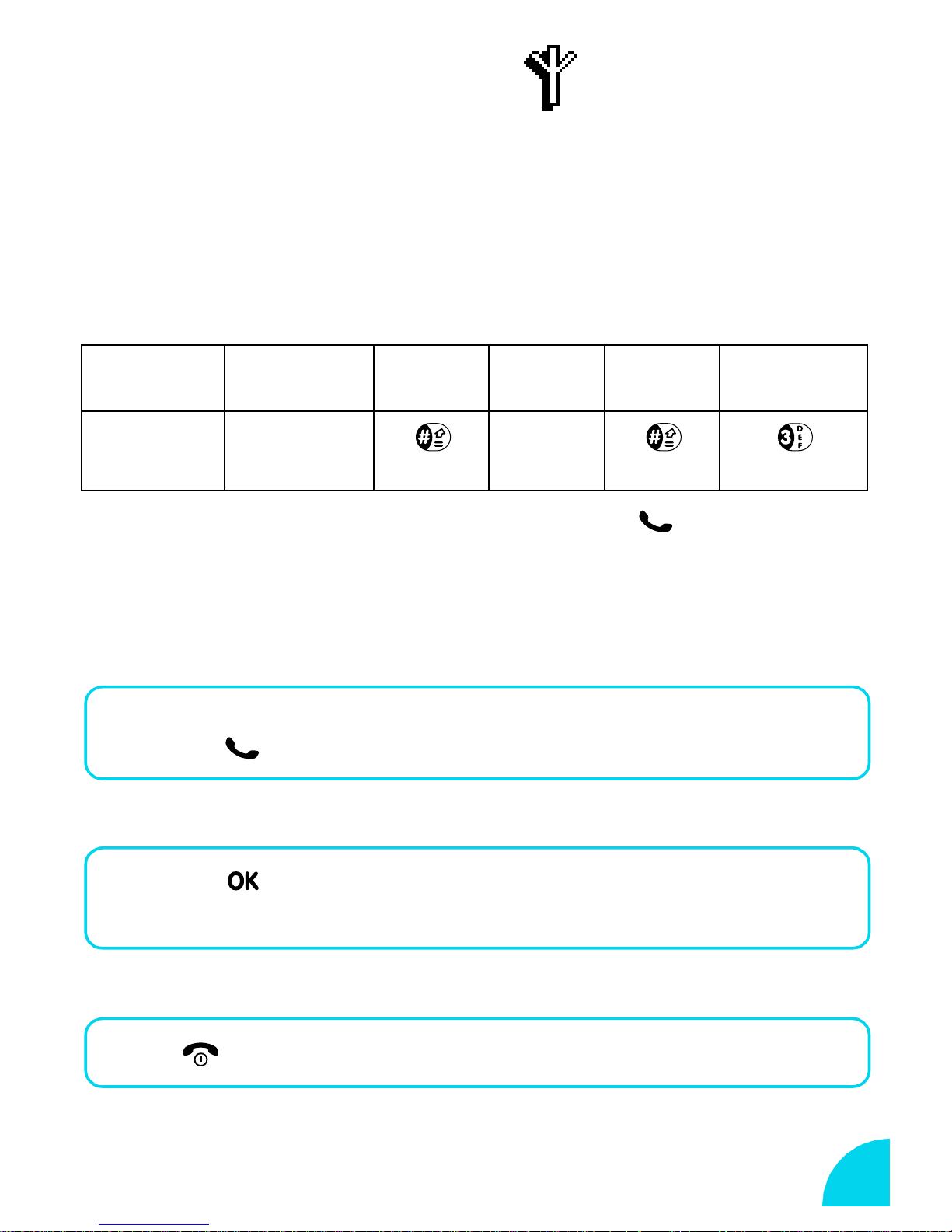
For example, to consult your home answering machine you may need to enter
the following commands:
Answering
machine:
Press these
keys:
Your screen displays: 0123456789w9876p3 Press to dial.
number "wait"
signal
0123456789 [9876]
password
(ex.)
"pause"
signal
long press
new message
code
Make a second call*
You can make a second call during an active call or during a call on hold.
You can also switch between calls.
Dial the second number during a call
1
Press .
2
To switch between calls:
Press .
1
Select
2
To end a call:
Switch calls
Press to hang up active line
.
33
Page 37
To end the call on hold:
Select
1
Press .
2
Switch calls
Autoredial*
When you dial a number and your correspondent is busy, your phone offers
the function of automatically redialling. A beep will sound for each redial
attempt and a special beep informs you when the connection has been
made.
Press to accept call
• Press any key to end autoredial. Any activity on your phone will
terminate autoredial.
Call waiting
During a call your phone will alert you of another incoming call by
displaying either the number of the caller or its name if the caller is stored in
your names list.
Answer a second call*
You can receive another call while on a first call. Your phone will emit an
alert beep during a second call and the screen displays "Call waiting".
Press to accept the second call
1
Press to reject the call.
2
Conference call*
You can have up to five members on a conference call at the same time. To
set up a conference call you can make consecutive outgoing calls or create
it from a multi-party call.
34
Page 38
Answer up to 5 calls*
You can answer up to 5 calls. When answering a call, all the others are put
on hold.
Press to accept a third, a forth or a fifth call.
To switch between calls:
Press .
1
Select
2
With two and up to 5 members on line:
Press .
1
Press / to select
2
Remove a party from the conference call:
Press .
1
Press / to select the member you wish to remove.
2
Press .
3
Switch calls
and select a call, then press .
Conference
, then press .
End a conference call:
Press to end the conference call.
L NOTE:
* Subscription dependent.
35
Page 39

Names Messages Call list Extras Settings
Operator
services
Operator services
Some services are specific to operators ; your phone readily supports them if
they are included in your subscription. For further information on availability
and rates, please contact your network operator.
Depending on your subscription your phone may allow you to access the
following menus:
Services
Service numbers
WAP
L
NOTE:
The services provided may involve making a phone call or sending a SMS (text
message) for which you may be charged.
WAP*
Your Azalis 238 phone supports services based on the Wireless Application
Protocol (WAP). The integrated internet browser will allow you to access
services supplied by your network, such as news, sports, weather, flight times,
etc.
* only available with a data / fax subscription.
Launch the Browser
The menu allows you to access the online services provided by your
Launch
operator.
36
Page 40
Names Messages Call list Extras Settings
There are three ways to access these services:
From the idle screen, press and hold key. The browser
1
will automatically connect to the operator services.
Operator
services
From the
2
Compass key.
From the idle screen, say the voice command associated
3
with the
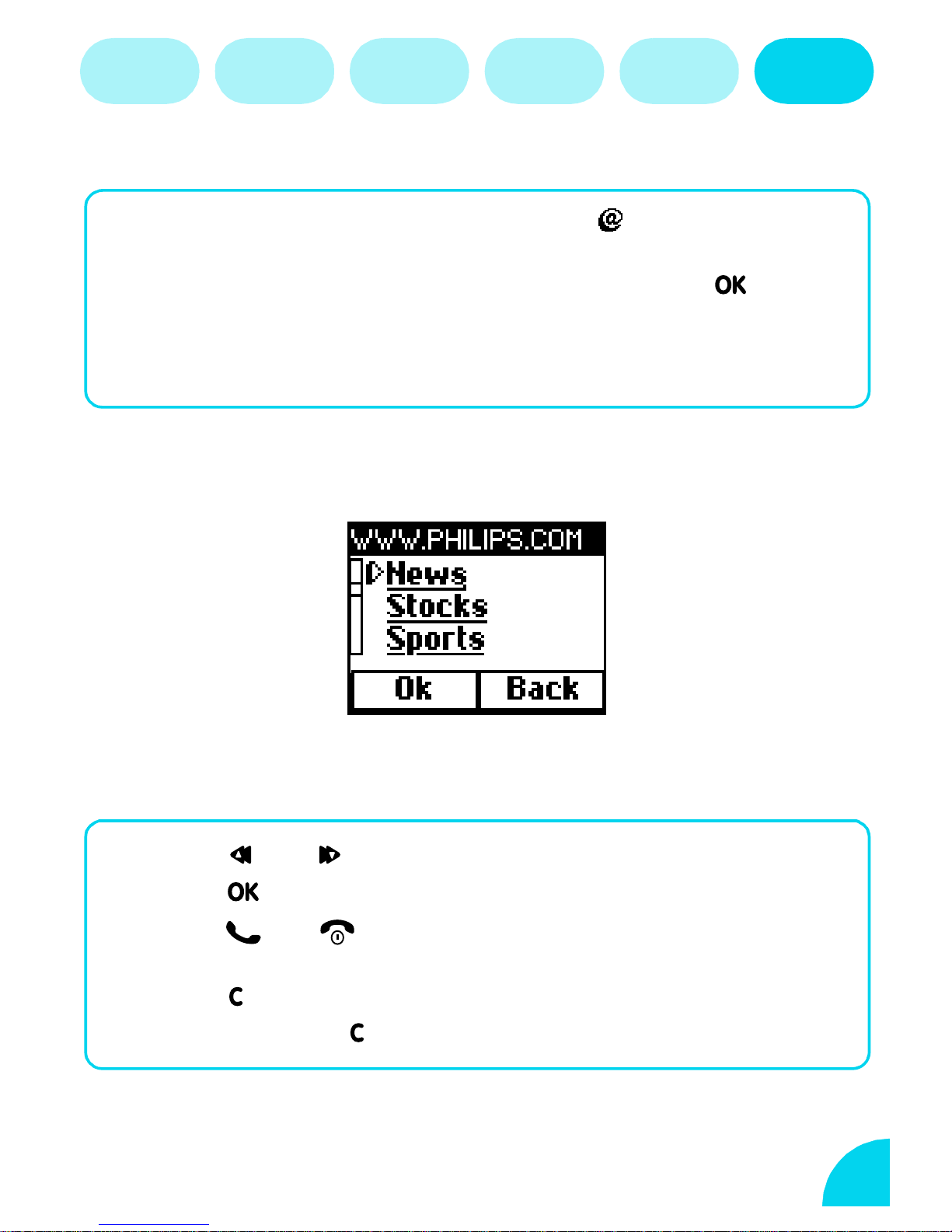
While the phone is connecting to your home page an animated screen will
be displayed. The screen below is an example of a home page.
Launch
menu select
WAP
function (see voice command, page 30).
Launch
by pressing on the
The following commands enable you to navigate through the internet pages:
Press or to navigate the online pages.
1
Press to select an highlighted item.
2
Press or to select the left or right option box
3
displayed at the bottom of the screen.
Press to return to the previous page.
4
Press and hold to end the online session.
5
37
Page 41
Names Messages Call list Extras Settings
Operator
services
During navigation, press to access a special menu with the following
options:
Reload
•
•
Mark site
: to reload the last card viewed.
: to add the previous deck to the user's bookmark list (Gateway
dependent).
•
About Phone.com
: displays UP.browser version and copyright
information.
•
Advanced
: this selection displays a menu containing advanced
commands:
-
Show URL
-
Goto URL
-
Restart UP.browser
: to display the URL of the previous card.
: to fetch the content of the URL entered.
create a new session.
•
Exit
: to finish the WAP application and return to Idle.
Favourites*
: to flush the contents of the cache memory and
The menu allows you to store direct links to your favourite WAP
Favourites
pages.
•Select .
•Select <New>.
• Enter the name you want to associate to this page and
confirm by pressing .
• Enter the URL of the page then confirm by pressing .
• Afterwards when using this menu you select a name in the
list and a carousel will appear with the following options :
Delete / Goto / Change.
Favourites
38
Page 42
Names Messages Call list Extras Settings
Last Page*
Operator
services
The menu allows you to access the last pages browsed without
reconnecting to the online services.
Last page
Settings
The menu allows you to personalise the way the pages are
displayed on your phone.
Images
The option allows you to activate or deactivate image downloading.
Some internet pages may have pictures attached, by deactivating this
Settings
Images
function you may speed up the global downloading time of the pages you
browse.
Status icons
The allows you to activate or deactivate the header display and gain
one extra line of text on your screen.
Status icons
39
Page 43
Names Messages Call list Extras Settings
Operator
services
Access settings*
Your phone has been pre-configured to directly access the services offered. It
should not be necessary for you to change any of these specific connection
settings.
Depending on your subscription, you may configure the following
connection parameters, which should be provided by your network operator:
Phone Number*
The option allows you to enter the phone number for analogue or
digital network depending on your operator. You need this number in order
to establish a connection with your Internet Service Provider (ISP).
Phone number
Select
1
Press or to select
2
Enter the number provided by your operator and confirm
3
by pressing .
Phone number
.
ISDN Nber
or
Analogic Nber
.
Login*
The option allows you to enter the login needed.
Store by pressing on the Compass Key.
Login
Password*
The option allows you to enter the password.
Store by pressing on the Compass Key.
40
Password
Page 44

Names Messages Call list Extras Settings
Gateway*
Operator
services
The menu allows you to enter IP addresses for the gateways. You
can configure each gateway (1 and 2) with a different IP address and a
respective backup address.
Store by pressing on the Compass Key.
Gateway
Security
For each Gateway the submenu
of the Gateway.
For a secure connection the Port number is 9203.
For a non secure connection the Port number is 9201.
* Subscription dependent.
Port
allows you to enter the Port number*
Home page*
The option allows you to enter the URL (Uniform Resource Locator)
of the home spage. The home page is the first page displayed when
accessing the internet services via the Launch item.
Homepage
L NOTE:
* The appearance of these items may be operator and/or subscription dependent.
41
Page 45

Glossary
GSM Network
DTMF
Home network
Home zone**
Idle screen
PIN code*
PIN2 code*
PUK/PUK2 code*
Global System for Mobile communications. The type of
network used by your phone.
Dual Tone Multi Frequency. Also known as "touchtone". The
tones are transmitted by the phone to the network and are
used to interrogate answering machines, transmit code...
The network to which you subscribe to.
A particular area of your home network.
This is the screen which is displayed after registering to your
network (see page 10).
Personal Identification Number. The secret code of the SIM
card
Secret code that allows you to access certain SIM card
dependent features.
Secret code used to unblock your SIM card if you, or
someone else, enters the wrong PIN/PIN2 code three times.
Roaming
SIM card*
SMS**
T9™ Text Input
WAP**
L
NOTE:
* Provided by your service operator.
** Subscription dependent.
Using your phone in a network other than your home
network.
Subscriber Identification Module. The card which allows you
to access the services of your network operator.
Short Message Service. This allows you to send and receive
short written messages.
Efficient method of text input that requires just one key press
per letter.
Wireless Application Protocol. Global standard that allows
you to access internet services.
42
Page 46
Precautions
Your cellular mobile phone is under your responsibility. To
avoid damage to yourself, to others or to the phone itself,
read and follow all the safety instructions and make them
known to anyone borrowing your phone. Furthermore to
prevent unauthorised use of your phone:
• Keep your phone in a safe place and keep it out of small
children's reach.
• Avoid writing down your PIN code. Try to remember it instead.
• Switch off the phone if you are going to leave it unused for a long time.
• Use the Security menu to change the PIN code after purchasing the phone
and to activate call restriction options.
The design of your phone complies with all applicable laws
and regulations. However your phone may cause
interference with other electronic devices. Consequently
you should follow all local recommendations and regulations
when using your cellular phone both at home and when
away.
• Regulations on the use of cellular phones in vehicles and
aircraft are particularly stringent.
our cellular mobile phone is a low power radio
Y
transmitter and receiver. When it is operating, it sends
and receives radio waves. The radio waves carry
your voice or data signal to a base station that is
connected to the telephone network. The network
controls the power at which the phone transmits.
Public concern has been focused for some time on
the possible health risks for users of cellular phones.
The current research on radio wave technology,
including the GSM technology, has been reviewed and safety standards
have been drawn up to ensure protection from exposure to radio wave
energy. Your cellular telephone complies with all applicable safety standards
and the Radio Equipment and Telecommunications Terminal Equipment
Directive 1999/5/EC.
43
Page 47

Inadequately protected or sensitive electronic equipment may be affected by
radio energy. This interference can lead to accidents.
Always switch off your phone:
Before boarding an aircraft and or when packing the
phone in your luggage.
In hospitals, clinics, other health care centres and anywhere
else where you may be in the close vicinity of medical
equipment.
If you are a user of a pacemaker or hearing aid, or expect to
use your cellular phone in the immediate vicinity of
someone who does, then take the following precautionary
steps:
• Consult your physician and pacemaker or hearing aid manufacturer to
learn whether your particular device is susceptible to cellular phone
interference.
• Carry and hold your cellular phone at safe distance from the implanted
pacemaker device and electrode (20 centimetres is generally accepted as
a "safe distance", however it is advisable to check with your physician and
pacemaker manufacturer).
and do not remove the battery in:
Always switch off your phone
• Areas with a potentially explosive atmosphere (e.g. petrol
stations and also areas where the air contains dust
particles, such as metal powders).
• A vehicle transporting flammable products (even if the
vehicle is parked) or a vehicle powered by liquefied
petroleum gas (LPG), check first that the vehicle complies
with the applicable safety rules.
• Areas where you are requested to turn off radio
transmitting devices, such as quarries or other areas
where blasting operations are in progress.
44
Page 48
Check with the vehicle manufacturer that electronic equipment
used in your vehicle will not be affected by radio energy.
In order to improve the performance of your phone, reduce radio energy
emission, reduce battery consumption and ensure safe operation adhere
to the following guidelines:
• For the optimal and satisfactory operation of the phone
you are recommended to use the phone in the normal
operating position (when not using in hands-free mode
or with a hands-free accessory): place the antenna up
over your shoulder while holding the earpiece to your
ear.
• For best performance, avoid touching the antenna while
a call is in progress.
• Do not expose your phone to extreme temperatures.
• Treat the phone with care. Any misuse will void the International
Guarantee.
• Do not immerse the phone in any liquid ; if your phone is damp, switch it
off, remove the battery and let them dry during 24 hrs before using them
again.
• To clean the phone, wipe it with a soft cloth.
• Placing and receiving calls consumes the same amount of battery energy.
However, the mobile consumes less energy in idle screen when kept in the
same place. When in idle screen and while you are moving, your phone
consumes energy to transmit updated location information to the network.
Setting the backlight for a shorter period of time as well as avoiding
unnecessary navigating in the menus will also help to save the battery's
energy for longer phoning and stand-by performances.
45
Page 49
Information displayed on the battery :
• Your phone is powered by a rechargeable battery.
• Use specified charger only.
• Do not incinerate.
• Do not deform or open the battery.
• Do not allow metal objects (such as keys in your pocket)
to short circuit the battery contacts.
• Avoid exposure to excessive heat (>60°C or 140°F),
moisture or caustic environments.
• You should only use Philips Authentic Accessories, as the
use of any other accessories may damage your phone
and make all guarantees for your Philips phone null and
void.
• Do not use your phone with a damaged antenna. If you
touch a damaged antenna, you may suffer a minor skin
burn. Have a damaged antenna replaced immediately by
a qualified technician. Make sure it is replaced with a
genuine Philips replacement part.
Do not use your phone while driving, as this lowers your concentration which
can be dangerous. Adhere to the following guidelines:
• You should give your full attention to driving. Pull off the
road and park before using the phone.
• Respect the local regulations in countries where you drive
and use your cellular phone.
• If you want to use your phone in a vehicle, install the
hands-free car kit which is designed for that purpose, still
ensuring you give full attention to driving.
• Ensure that your phone and car kit do not block any
airbags or other security devices fitted in your car.
• The use of an alarm system to operate a vehicle's light or horn to indicate
incoming phone calls is prohibited on public roads in some countries.
Check local regulations.
46
Page 50
Environmental care
• Please remember to observe the local regulation
regarding the disposal of your packaging material,
exhausted batteries and old phone and where possible
promote their recycling.
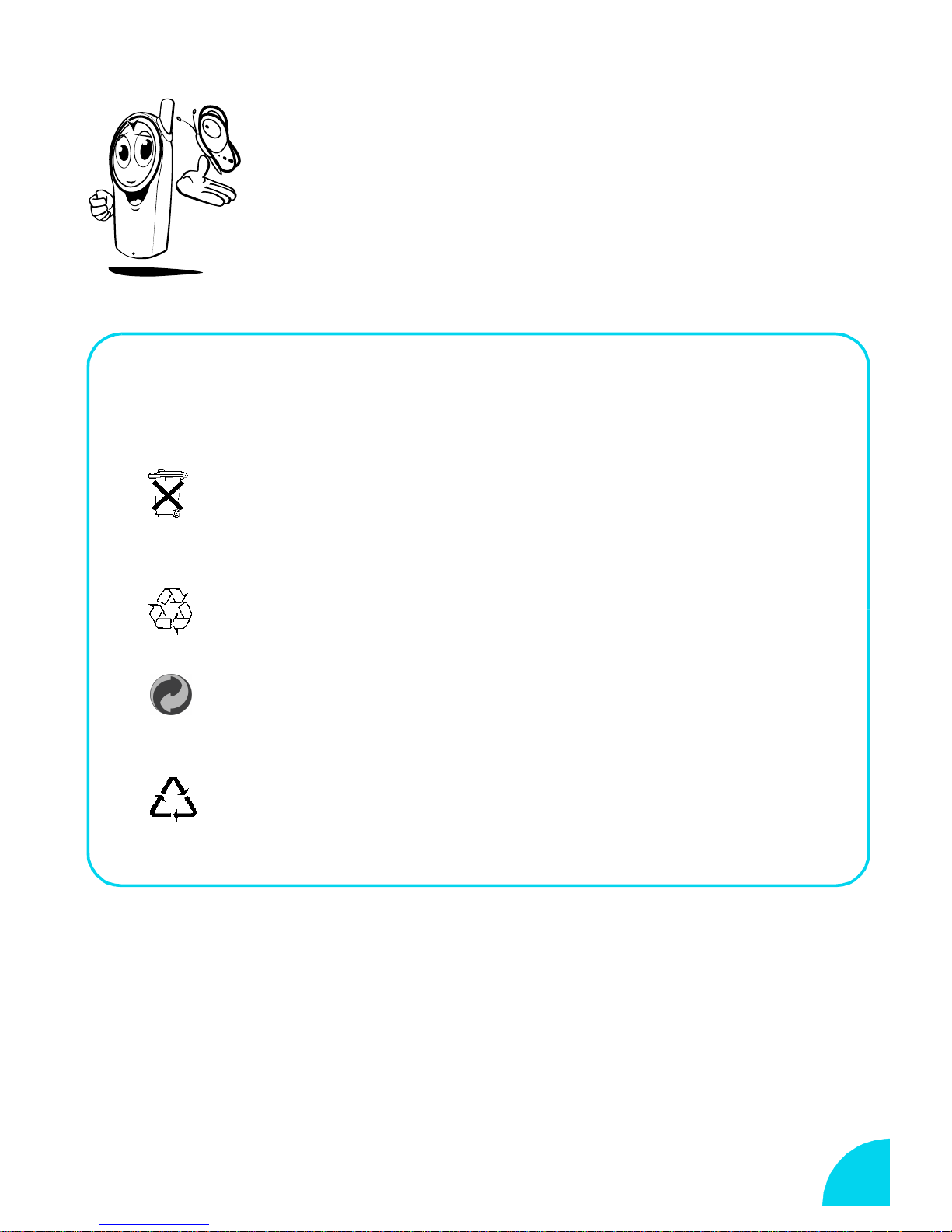
Philips has marked the battery and packaging with standard symbols
designed to promote the recycling and appropriate disposal of your
eventual waste.
Battery:
• the crossed-out dustbin signifies that the battery should not be
disposed of with general household waste.
Packaging:
• the mobius loop symbol signifies the labelled packaging
material is recyclable.
• the green point symbol signifies that a financial contribution
has been made to the associated national packaging recovery and
recycling system (e.g. EcoEmballage in France).
• The chasing arrows symbol on the plastic tray and plastic bag
indicate that the materials are recyclable and also identifies the
plastic material.
47
Page 51

Troubleshooting
PROBLEM SOLUTION
The phone does not
switch on.
The display shows
"BLOCKED" when
you switch on.
s
The a and
symbols are not
displayed.
The display doesn't
respond (or
responds slowly) to
key pushes.
Check if the battery is correctly inserted (big arrow facing
you and pointing to the top) and/or charge the phone
until the battery icon has stopped flashing.
Somebody tried to use your phone but didn’t know the PIN
code nor the unblocking code (PUK). Contact your service
provider.
The network connection is lost. Either you are in a radio
shadow (in a tunnel or between tall buildings) or you are
outside the network coverage area. Try from another
place or contact your network operator for assistance or
information about the network.
The display responds more slowly at very low
temperatures. This is normal and does not affect the
operation of the phone. Take the phone to a warmer
place and try again.
In other cases please contact your phone supplier.
When charging the
battery, the battery
icon shows no bars
and the outline is
flashing.
When attempting to
use a feature in the
menu, the mobile
displays
allowed
not
.
48
Only charge the battery in an environment where the
temperature does not go below 0°C (32°F) or above 50°C
(113°F).
In other cases please contact your phone supplier.
Many features are network dependent. They are only
available, therefore, if the network or your subscription
supports them. Please contact your subscription provider
for more information.
Page 52
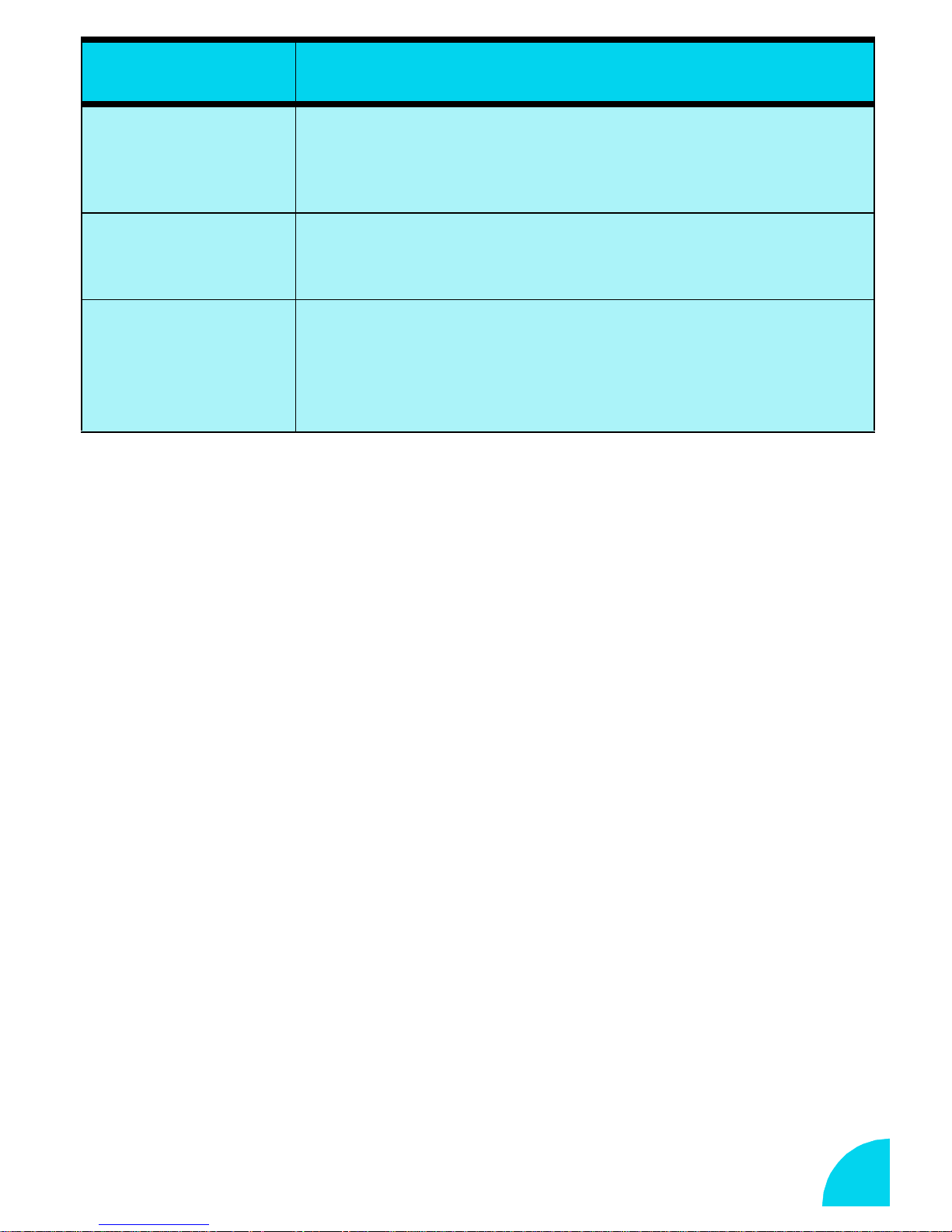
PROBLEM SOLUTION
The display shows
SIM FAILURE
.
The display shows
IMSI FAILURE
The display shows
insert your
SIM card
.
Your SIM card may be damaged. Please contact your
network operator.
This problem is related to your subscription. Please
contact your network operator.
.
Check that the SIM card has been inserted in the right
position (see page 5).
If the problem remains, your SIM card might be damaged.
Please contact your network operator.
49
Page 53

Index
A
access settings 40
accessories 54
alarm clock 9, 24
answering calls 8, 11, 34, 35
antenna 8
autoredial 34
B
battery 6, 7
brick game 24
C
C key 8
calculator 24
call counters 22
display 27
DTMF 27, 42
E
earpiece volume 11
emergency call 12
emotion icons 18
euro converter 23
extra options menu 22
F
FDN 28
flash dial 11, 29
G
game 24
call forward 31
call list 21
call restriction 28
call waiting 32, 34
caller ID 32
carousel 15
character entry 12
characters 13
clock display 29
conference call 34
contrast 27
D
date setting 29
declaration of conformity 53
H
hotkeys 29
functions 30
programming 29
I
icon 19
idle screen 10
info at call end 23
inserting SIM card 5
international dialling 11
K
key tones 27
keypad lock 9
deleting a message 19
deleting Names list entries 17
50
Page 54

L
O
language 29
launch 36
low battery alert 9, 48
lower case 13
M
mailboxes 20
main menus 15
making a call 10
making a second call 33
messages
add icon 19
cell broadcast 20
centre 18
forward 19
reading 19
replying 19
save 19
sending 19
operator services 36
own number 16
P
pause characters 33
PIN code 4
PIN code modifying 28
PIN protection 29
public names 28
PUK code 4
R
read SMS 19
reading your messages 19
redial from Call list 11
redialling last number 11
replying to a message 19
ringer 26
ringer volume 25
signature 20
standard 18
storing 18
writing 19
missed call 21
muting a call 11
N
Names list
add a voice tag 17
adding an entry 17
call list 21
sending a SMS from 17
network registration 31
network services 33
S
screen 9
security 28
service numbers 36
services 36
set date 29
set time 29
settings 39
signature 20
silent ringer 25
SIM card 4
SMS 9, 18
SOS call 12
switching on/off 10
new SMS tone 27
51
Page 55

T
T9™ text input 13
table of characters 13
text entry 12
time setting 29
troubleshooting 48
U
upper case 13
V
voice command 30
voice dialling 11
voice tag 30
volume control
earpiece 8, 11
W
wap 36
Z
zoom 27
52
Page 56

Declaration of conformity
We,
We, Philips Consumer Communications
We, We,
of
of Route d’Angers
of of
72081 Le Mans Cédex 9
FRANCE
declare under our sole responsibility that the product
TCD 238
Cellular Mobile Radio GSM 900/GSM 1800
TAC: 449686
to which this declaration relates, is in conformity with the following Common
Technical Regulations:
CTR’s 19/20 and CTR’s 31/32
We hereby declare that all essential radio test suites have been carried out and
that the above named product is in conformity to all the essential requirements of
Directive 1999/5/EC.
The conformity assessment procedure referred to in Article 10(5) and detailed in
Annex V of Directive 1999/5/EC has been followed with the involvement of the
following Notified Body:
BABT, Claremont House, 34 Molesey Road, Walton-on-Thames, KT12 4RQ, UK
Identification mark: 0168
The technical documentation relevant to the above equipment will be held at:
Philips Consumer Communications
Route d’Angers
72081 Le Mans Cédex 9
FRANCE
Le Mans, 09 August, 2000 Kéfi Ben Ali
World Approval and FQA Manager
53
Page 57

ENG
Philips Authentic Accessories
When Performance Counts ...
Philips Authentic Accessories are Designed to Maximise the Performance of Your Philips Phone."
Cigarette Lighter Adapter 12-24V
Charges the battery while you use the phone.
Plugs into virtually any vehicle power outlet.
Fast Travel Charger 90-240V
Charges your battery wherever there is an AC outlet.
Small enough to carry in a briefcase or handbag.
Charging time between 75 and 120 minutes.
Compact Car Kit
This very compact hands free solution offers incredibly high audio quality at a good
price, while also charging your mobile.
NOTE:
recommend that specialised technicians install Hands-Free Car Kits.
In certain countries, telephoning while driving is prohibited. For safe and trouble free installation, we
Hands-Free Headset
Use your phone under almost any condition with this hands-free very mobile solution.
You can talk hands-free whether you're at home, in the office or on the move.
Deluxe Hands-Free Headset
Provides the same features as the Hands-Free Headset.
Additional In line answer button offers you a simplified alternative to searching for the
phone keypad : you answer an incoming call just by pressing the button and in idle
mode a long press on it activates the voice dial.
12NC-4311 25604 561
Carry pouch with belt clip
Protects your phone from nicks and scratches.
Click-Lock belt clip makes your phone secure and easy to carry.
To maximise the performance of your phone and not void the warranty, always purchase Philips Authentic
Accessories that are specially designed for use with your phone. Philips Consumer Communications cannot be
held liable for any damage due to use with non authorised accessories. Ask for Philips Authentic Accessories
where you purchased your Philips Phone.
4311 256 04563
 Loading...