

Page 1
digital audio player
psa[64
Portable Sport Audio by Philips
P
o
r
t
a
b
l
e
S
p
o
r
t
A
u
d
i
o
b
y
P
h
i
l
i
p
s
product manual
Page 2

controls and connections, accessories ––––––––––––––––––––––––– 4
minimum computer system requirements –––––––––––––––––––––––– 6
general information ––––––––––––––––––––––––––––––––––––––––––– 7
power supply ––––––––––––––––––––––––––––––––––––––––––––––––– 8
power on/off, playback and pause 2;
power saving mode ––––––––––––––––––––––––––––––––––––––––––– 9
adjusting volume - / + and eq settings––––––––––––––––––––––––– 10
selecting a different track
fast searching 5 , 6 –––––––––––––––––––––––––––––––––––––––– 11
button lock –––––––––––––––––––––––––––––––––––––––––––––– 11
remote control, clip magnets, armband –––––––––––––––––––– 12-14
psa audio management
installing musicmatch jukebox ––––––––––––––––––––––– 14-16
installing the psa drivers –––––––––––––––––––––––––––––––– 17
connecting the psa to your computer –––––––––––––––––––– 18
creating mp3 & windows media audio files from cds ––––– 19
playlist –––––––––––––––––––––––––––––––––––––––––––––––––– 2 0
download music to the psa from your computer –––––– 21-22
updating MUSICMATCH software,
upgrading your audio player ––––––––––––––––––––––––––––– 2 3
helpful tips –––––––––––––––––––––––––––––––––––––––––––––– 24-25
technical data ––––––––––––––––––––––––––––––––––––––––––– 26-27
2 contents
Page 3

copyright information
in the U.K and certain countries, the copying of material protected by copyright
may require the permission of the copyright holders.
contents 3
this product complies with the radio interference requirements
of the European Union.
CAUTION
use this device according to the instructions that follow failure
to do so could be hazardous to your health.
users of pacemakers or other implanted devices should consult
their physician before using magnets or devices that may gen-
erate electro-magnetic interference.
environmental information
we have reduced the packaging to its minimum and made it easy to separate into
mono materials: PET, PS, PE.
your set consists of material which can be recycled if disassembled by a specialized
company. please observe the local regulations to dispose of packaging, exhausted
batteries and old equipment.
Page 4

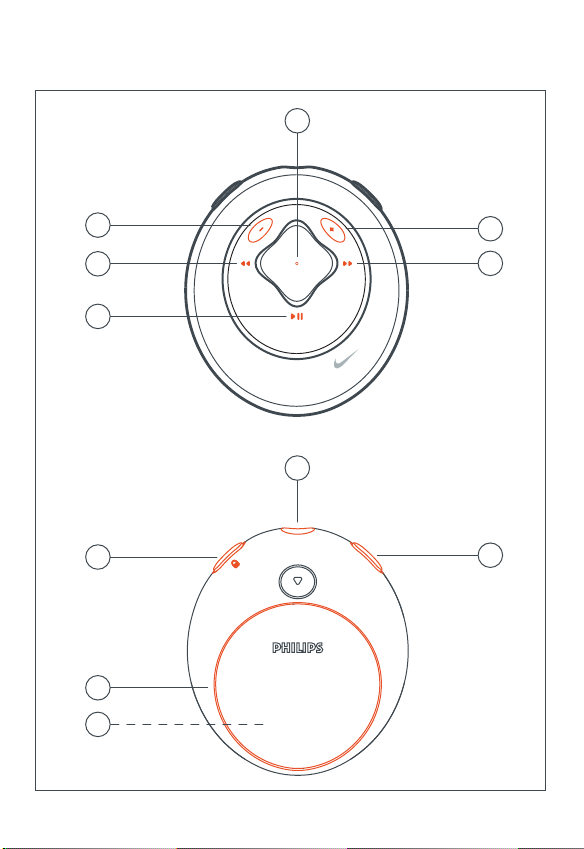
1 2;
switches the set on / off;
starts / pauses playback
2 5 / 6
skips to the beginning of a
previous/next track
3 - / +
adjusts the volume
4 indicator
lights up: red (battery low / power
down), green (power up) or orange
(button lock activated / pause mode)
5 eq
enhance your listening experience.
select from 4 equalizer settings.
6
p
3.5 mm line out to connect
7 locks buttons to prevent them
from being activated
8 battery cover latch
uses 1 x AAA alkaline or Ni-MH bat-
tery
9 usb in
(found in the battery compartment)
connect the supplied usb cable from
here to the usb port of your computer
supplied accessories
make sure these items are in the
package. if any item is missing,
please contact your dealer.
one usb cable
one psa software & user guide cd-rom
one set of headphones, HJ020
one remote control, AY3776
one set of clip magnets
one armband, AY3285
one AAA alkaline battery
4 controls and connections
the model & serial numbers are located inside the battery compartment.
Page 5
controls 5
P
o
r
t
a
b
l
e
S
p
o
r
t
A
u
d
i
o
b
y
P
h
i
l
i
p
s
eq
4
6
3
2
5
2
3
1
7
8
9
front view
rear view
Page 6

Windows system requirements
you need to have a usb port. computers that were upgraded from Win 95 to Win 98
may not have usb compatibility! check out the other requirements:
– Pentium® MMX 166MHz processor or better
– usb port with Windows 98 / Me / 2000 / XP
– 64MB ram
– 50MB ram drive space
– cd rom drive
– video display card
– sound card
– Microsoft Internet Explorer 5.0 or better, Netscape 4.0 or better, and internet
access
Mac system requirements
– G3 or better
– MacOS 8.6- 9.x
6 minimum computer system requirements
Page 7

psa[64 is a solid-state, portable, digital audio player:
– plays mp3 & windows media audio files e.g. digitized and compressed cd tracks,
tape tracks, audio books, newspapers, sound effects, etc., that are encoded into
mp3 & windows media audio format.
– software upgradeable and will support future playback formats and sofware exten-
sions that will be made available on www.nike-philips.com.
– will support for future digital rights management technology, including the Secure
Digital Music Initiative (SDMI).
take care when using headphones
hearing safety: listen at a moderate volume. using headphones at high volume can
impair your hearing.
traffic safety: do not use headphones while driving or cycling as you may cause an
accident.
general maintenance
to avoid damage or malfunction:
– do not expose to excessive heat caused by heating equipment or direct sunlight.
– do not drop the psa or allow objects to fall on the psa.
– do not allow the psa to be submersed in water. do not expose earphone socket or
battery compartment to water as water entering the set may cause major damage.
– do not use any cleaning agents containing alcohol, ammonia, benzene, or abra-
sives as these may harm the set.
– active mobile phones in the vicinity may cause interference.
general information 7
Page 8
battery
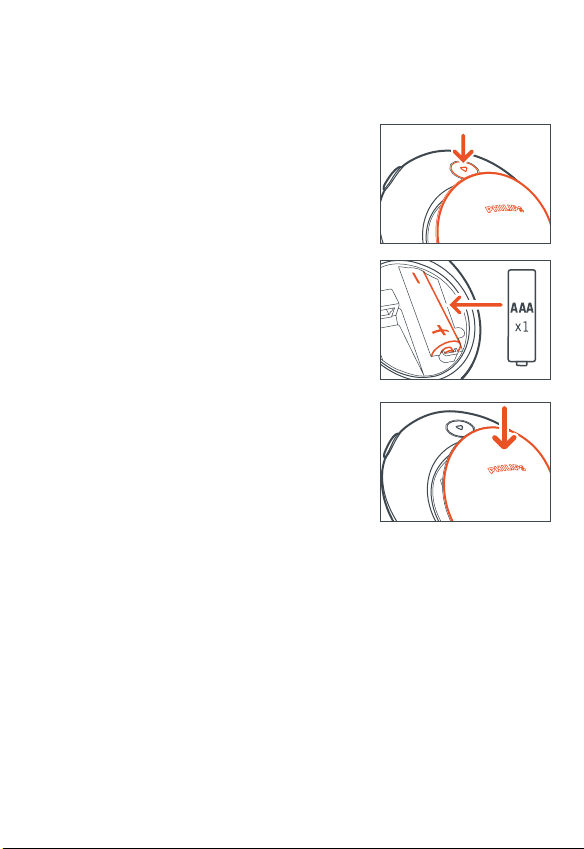
1 press 4 to open the battery cover latch and insert
one AAA /UM4 /LRO3 battery (preferably
alkaline) or Ni-MH rechargeable as indicated.
2 insert the lower edge of cover as shown to close
the battery cover latch.
beep beep! indication of empty battery
when the power level is almost empty, the psa64 will
beep at intervals and the inidicator lights up red. the psa will eventually switch
itself off. always replace the battery after the first battery
warning beep is heard.
IMPORTANT!
– remove the battery if: battery drained or the psa
will not be used for more than two weeks.
– batteries contain chemical substances, so they should
be disposed of properly.
8 power supply
Page 9
power on and playback, 2;
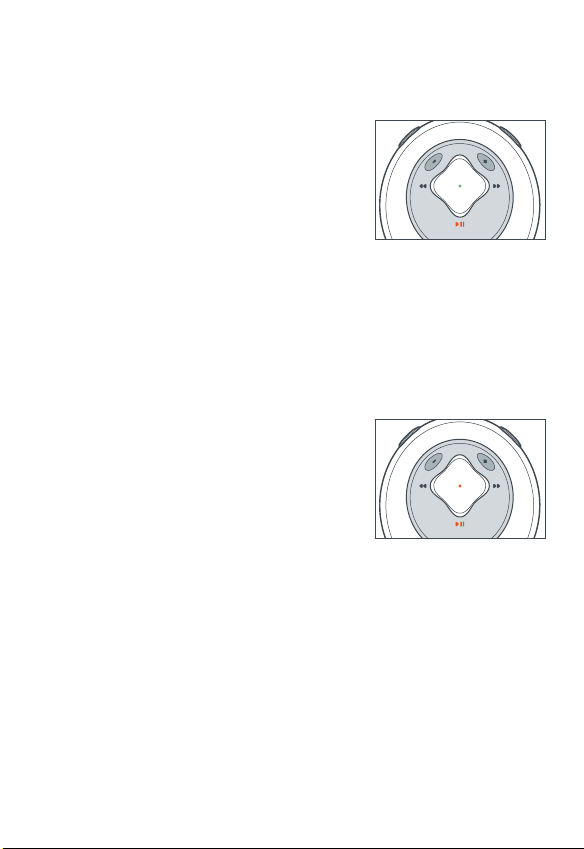
press and hold 2; for 2 seconds to turn on.
– indicator: green light flashes briefly and play-
back starts automatically.
– psa beeps: if no content has been stored in
the psa, the psa powers down.
power off, 2;
press and hold 2; for 2 seconds to turn off.
– indicator: lights up red briefly.
pause, 2;
during playback, press 2; to pause. press 2;
again to resume playback.
indicator: if psa on pause, orange light flashes.
power-saving standby mode
the psa automatically switches off when playback is paused longer than 30 seconds
and no buttons are pressed.
power on/off, playback ... 2; 9
P
o
r
t
a
b
l
e
S
p
o
r
t
A
u
d
i
o
b
y
P
h
i
l
i
p
s
A
u
t
d
r
i
o
o
p
b
S
y
e
l
P
b
a
t
r
o
P
h
i
l
i
p
s
Page 10
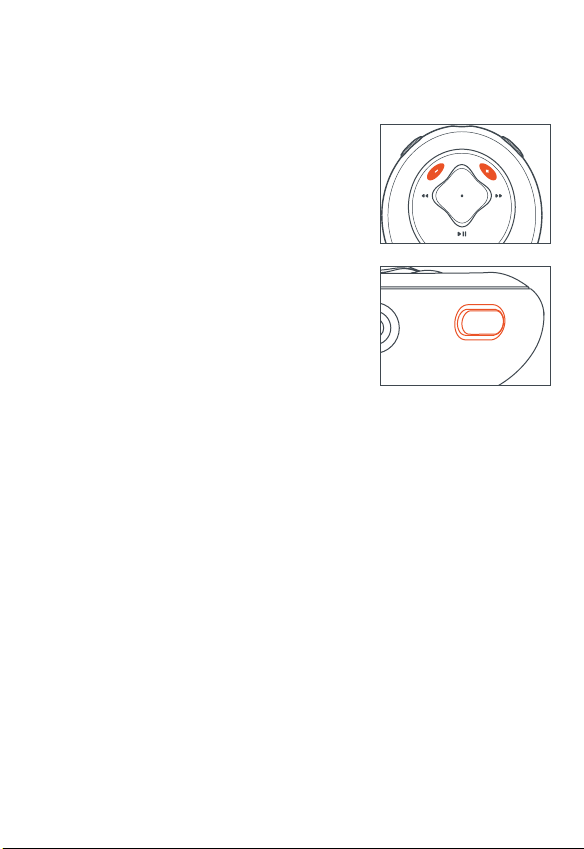
volume
press - / + to decrease / increase the volume.
eq sound options - bring out the bass or top up
on treble!
press eq again and again to select your equalizer
option.
10 adjusting volume - / + and eq settings
A
u
t
d
r
i
o
o
p
b
S
y
e
l
P
b
a
t
r
o
P
h
i
l
i
p
s
eq
Page 11
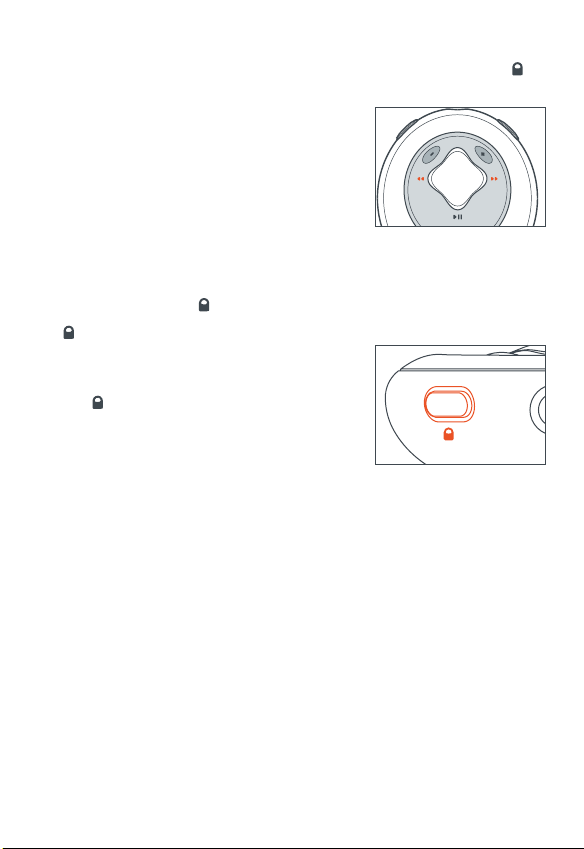
selecting a different track 5 , 6
press 5 / 6 to select the desired track.
fast searching within a track
during playback, press and hold 5 / 6 briefly.
psa plays track at high speed until the button
is released.
using the button lock
deactivates the other buttons so they are not
activated accidentally.
to activate / deactivate the button lock, press and
hold 2 seconds.
indicator: lights up orange if button lock active,
and when you attempt to press any other but-
tons.
indicator: lights up green briefly if button lock
deactivated.
5 / 6,11
A
u
t
d
r
i
o
o
p
b
S
y
e
l
P
b
a
t
r
o
P
h
i
l
i
p
s
Page 12
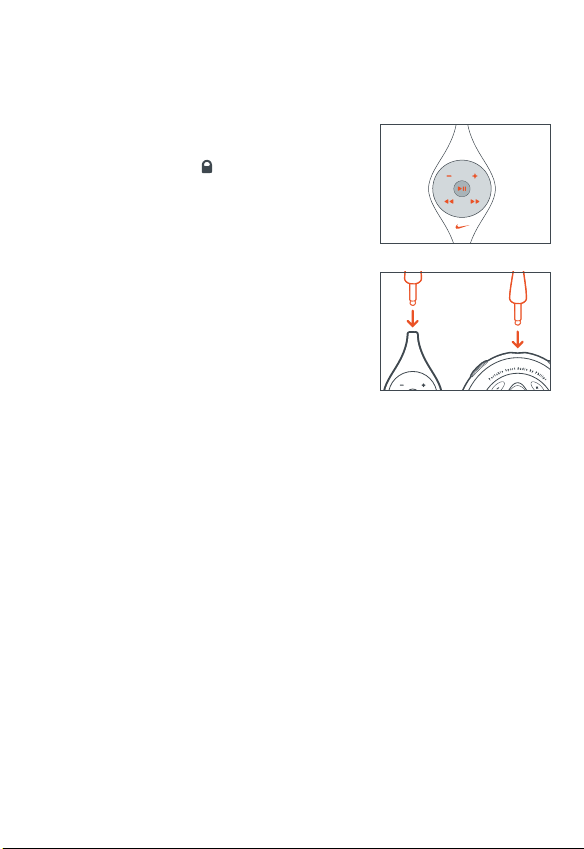
remote control
the remote has 5 buttons ( - / +, 2; ,5 / 6) that
function the same way that they do on the psa.
even if the button lock is activated the remote
control will override.
1 connect the remote control and headphones as
shown.
2 adjust the volume on both the psa and remote con-
trol.
12 accessories
Page 13
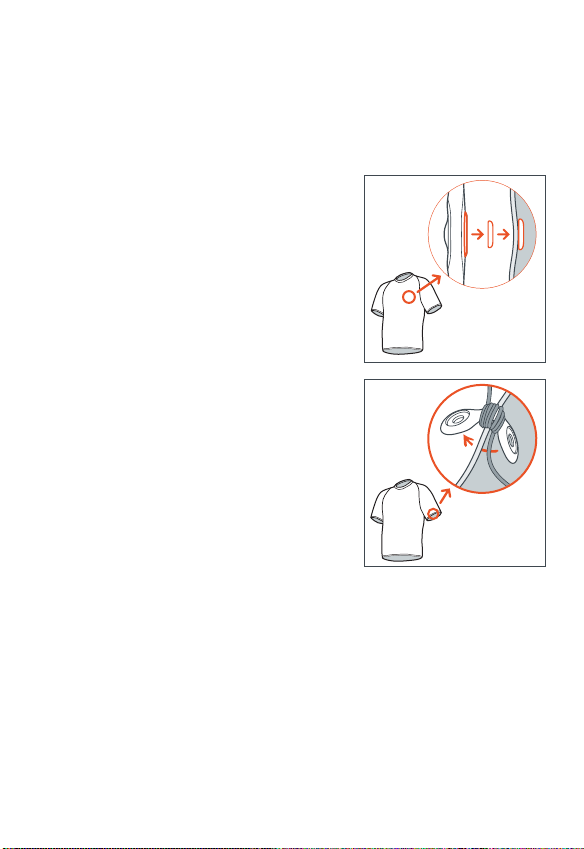
clip magnets
wear your remote control and secure your headphone
cord with these wearable magnets.
1 check the polarity of the 2 button magnets.
insert the big button magnet underneath your
garment.
2 clip the small button magnet on your outer gar-
ment. clip the remote control on top.
3 secure your headphone cord with the "butterfly"
magnet clip.
WARNING:
KEEP OUT OF REACH OF SMALL CHIL-
DREN TO AVOID CHOKING HAZARD.
KEEP THE MAGNETS AWAY FROM CREDIT
CARDS, TAPES AND ANY ITEMS WHICH
MAYBE SENSITIVE TO THE MAGNETS.
accessories 13
Page 14
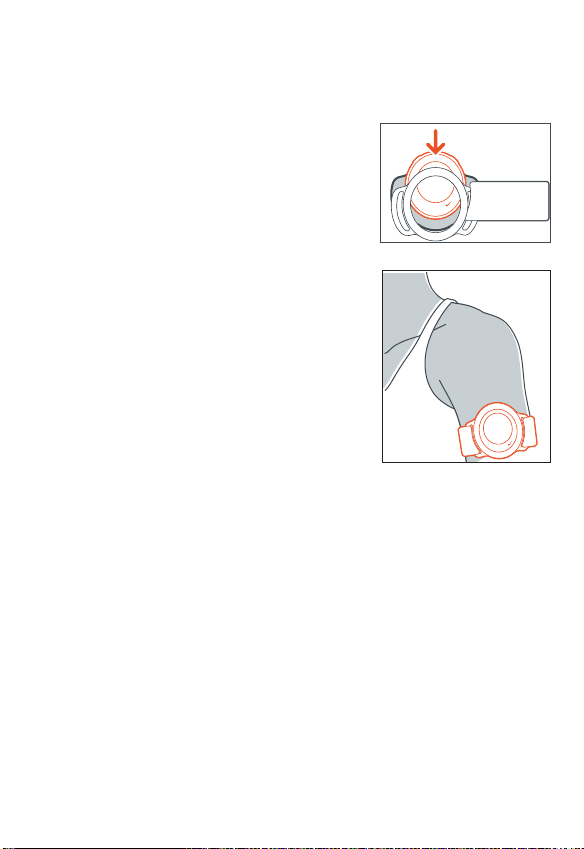
armband
wear your digital audio player during sport activity
by securing it to the supplied armband.
1 fit the psa into the rubber buckle, with the head-
phone / remote socket aligned to the socket hole.
2 position the armband around your arm. thread the
strap and fasten up for a snug fit.
installing MUSICMATCH Jukebox
install MUSICMATCH Jukebox software to manage your music collection on your
personal computer. MUSICMATCH Jukebox allows you to:
– convert cd music tracks to mp3 and windows media audio files
– create & save music playlists
– download mp3 and windows media audio files to the psa
1 insert the psa cd rom into your cd rom drive.
note: for MAC users, click the MUSICMATCH icon
➔ double click on MUSICMATCH
Installer.
14 accessories, software: MUSICMATCH Jukebox
Page 15
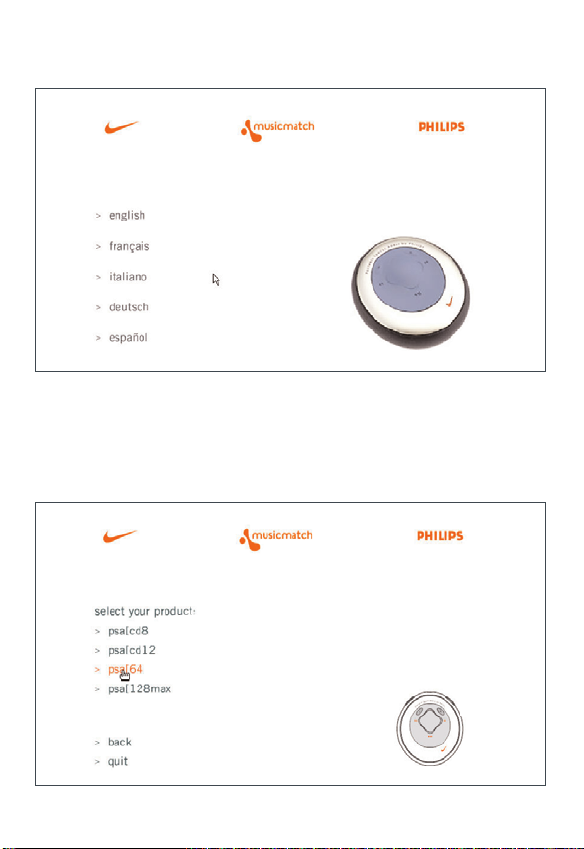
2 an introduction screen appears. select the language that suits you best (english,
français, italiano, deutsch or español).
3 select your product.
software: MUSICMATCH Jukebox 15
Page 16
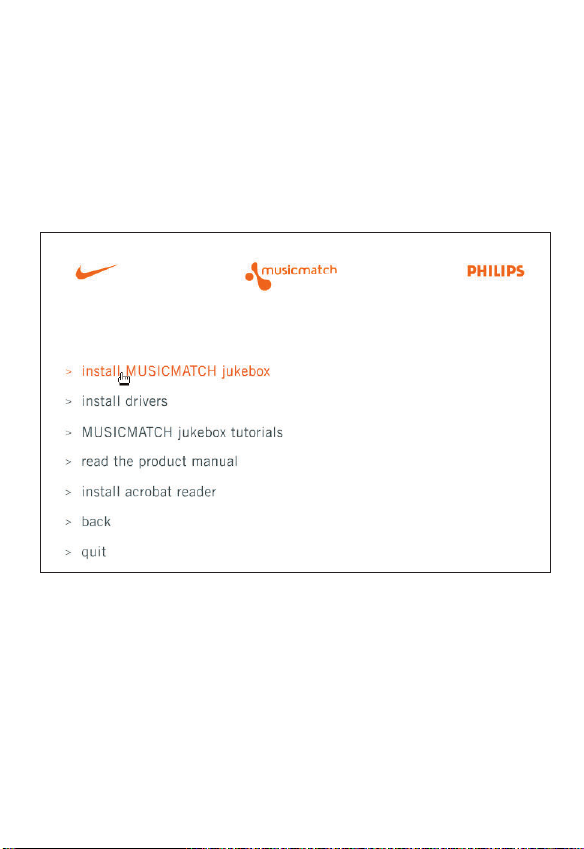
4 from the next screen, click install MUSICMATCH jukebox and follow the screen
instructions to install.
5 click Yes on the screen to restart your computer when prompted. the software is
now installed.
16 software: MUSICMATCH Jukebox and device drivers
Page 17
installing the psa drivers
you must install the device drivers for your computer to recognize the psa player.
follow these directions to install the drivers.
1 insert the psa cd rom into your cd rom drive.
note: for MAC users, click the MUSICMATCH icon
➔ double click on MUSICMATCH
Installer.
2 an introduction screen appears. select the language that suits you best (english,
français, italiano, deutsch or español).
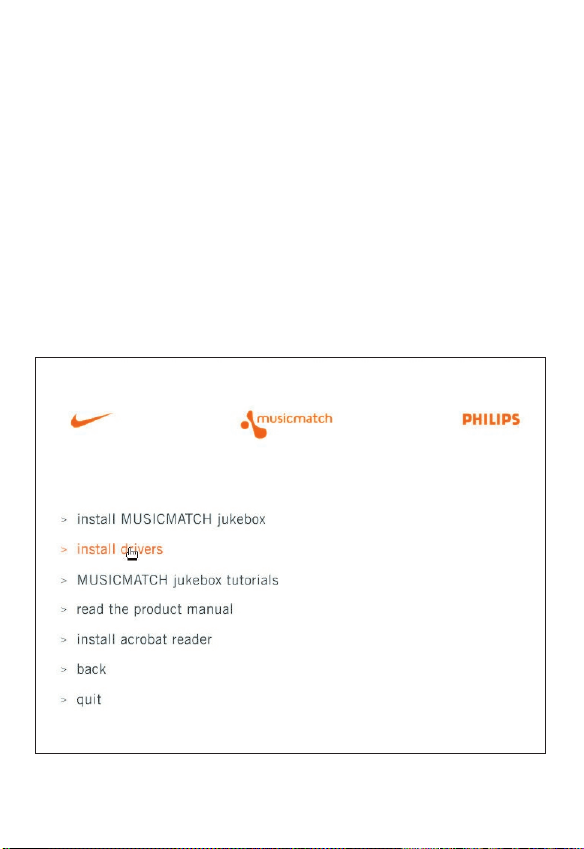
3 click install drivers ➔ Next and follow all the screen instructions to complete instal-
lation.
installing the psa drivers 17
Page 18

connecting the psa to your computer
check that the psa is loaded with a suitable battery
(preferably fresh) before you start connecting.
1 connect the supplied usb cable to your computer's
usb port.
2 press 4 to open the battery compartment. connect
the other end of the usb cable to usb in, (found
inside the battery compartment.)
3 turn on the computer.
indicator: lights up green continuously.
buttons on the psa are automatically locked
during usb connection.
4 turn on your psa.
18 connecting the psa
Page 19
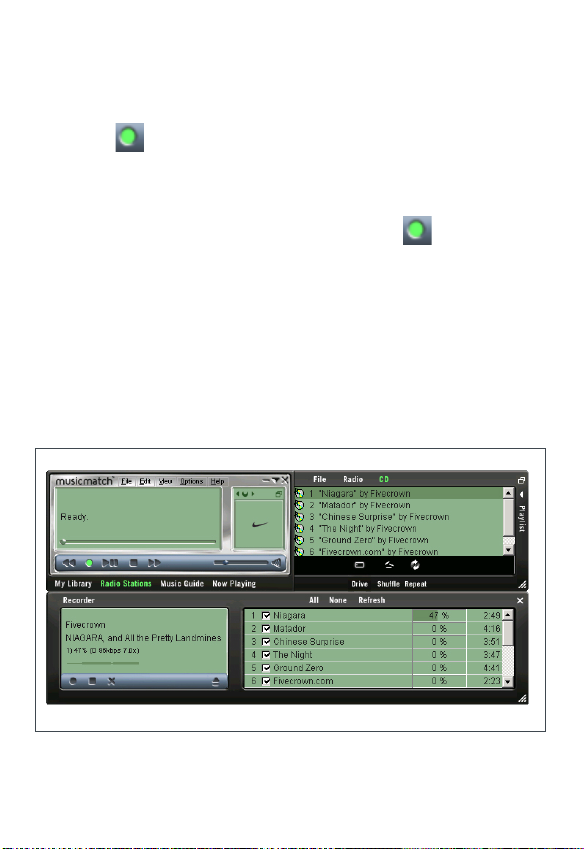
convert music cds into mp3 files
1 click the (record) button. the Recorder window will open.
2 insert a commercial music cd into your computer's cd tray. CD lookup will attempt to
add artist track and album names. if information doesn't appear, enter it manually.
3 check the boxes next to each track to record then click the (record) button on
the Recorder.
note: by default, the recorder will create mp3 files at 128 kbps, which is con-
sidered cd quality (for other options, see the Options/Settings/Recorder menus.)
recorded tracks will be automatically added to your Music Library.
encoding at 96 kbps can increase playtime with minimal loss in audio quality
creating mp3 files from cds 19
Page 20
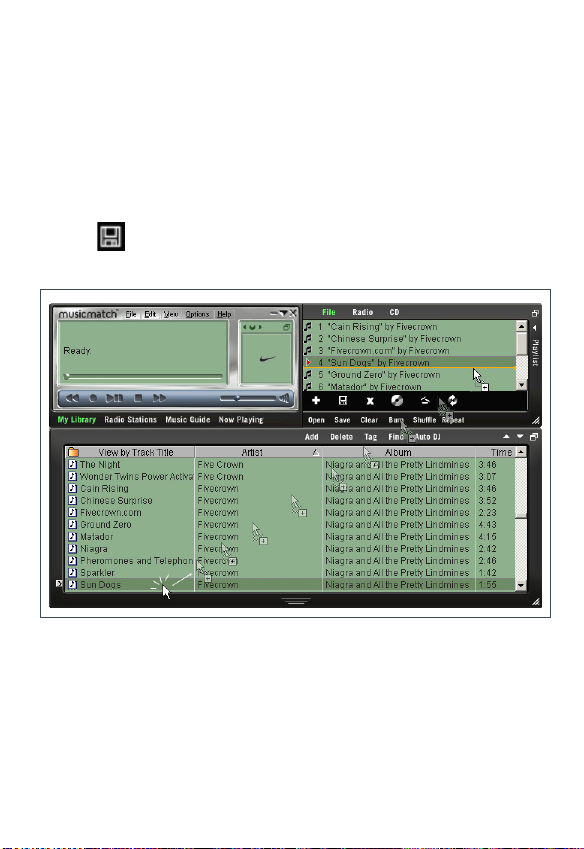
create & save music playlists
1 open the Music Library by clicking the My Library button.
2 double-click a track in the library, or drag and drop tracks from the Music Library
into the Playlist window.
3 drag and drop tracks within the Playlist to change the play order.
4 click Save to save the playlist.
20 playlist
Page 21
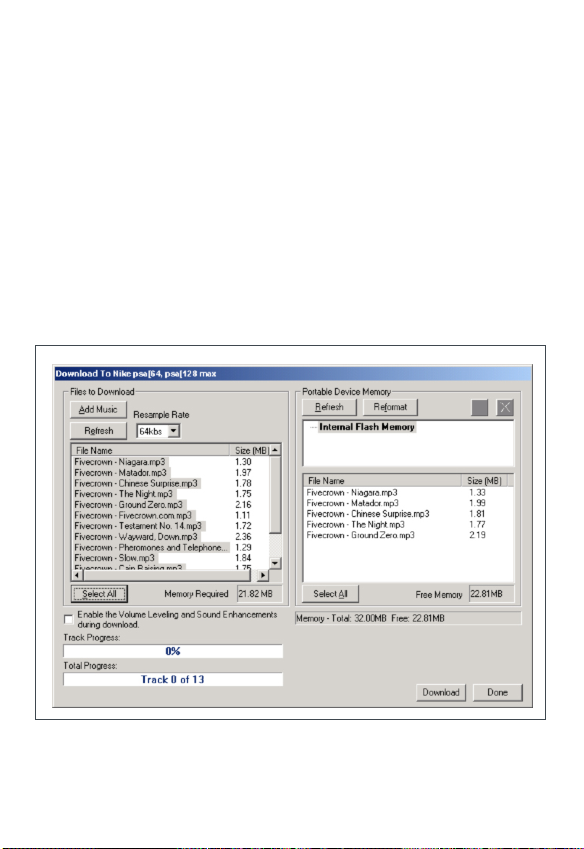
download music* to your player from your computer
1 create or open a music playlist.
2 click File ➔ Send to Device ➔ Download To Nike psa[64, psa[128 max. your songs
will automatically appear in the Files to Download window.
3 select the songs you want to transfer and then click Download.
4 after tracks have been transferred to the psa, click Done to exit. view download sta-
tus from the track progress bar.
* the current psa may not download windows media audio for mac users.
check out www.nike-philips.com for updates of mac plug-in.
downloading music 21
Page 22

tips:
– the Portable Device Memory window (right) shows the tracks currently stored on
the psa (if any). to clear tracks from psa memory, click Reformat
➔ Start ➔
Close.
– to fit more songs onto your player with existing memory, use the Resample Rate
option (upper left), which allows you to reformat the tracks downloaded to a
lesser bit rate. this lets you fit more audio onto your player by creating smaller
files during the download. this does not affect the files stored on your computer.
22 downloading music
Page 23

updating MUSICMATCH software
*
be sure you have the latest available version of MUSICMATCH Jukebox by updating
your software.
1 click Options ➔ Update Software ➔ Continue.
2 the update will add files to your computer, then automatically restart MUSICMATCH
Jukebox for you.
* requires an active internet connection.
upgrading your audio player
visit http://www.nike-philips.com for more information and firmware upgrades.
updating software, upgrading your audio player 23
Page 24

helpful tips
if a fault occurs, first check the points listed below before taking the set for repair.
if you are unable to remedy a problem by following these hints, consult your dealer
or service center.
warning : do not open the set as there is a risk of electric shock! under no
circumstances should you try to repair the set yourself, as this will invalidate the
warranty.
problem solution
no sound – battery weak / incorrectly inserted.
correctly insert fresh battery.
– psa buttons pressed too quickly.
slow down. press firmly. indicator lights up.
– headphones not properly connected.
insert headphone plug into socket completely.
no reaction to controls – activated
/ malfunction deactivate .
– electronic discharge.
remove battery and replace after several seconds.
sound skips during playback – mp3 file made at compression level exceeding
on the psa 320kbps.
– use a lower compression level to record your file
into mp3 format
– electrical interference from other appliances,
e.g. mobile phones, fluorescent, lamps,
electric pylons.
move away from source of electrical interference.
24 helpful tips
Page 25

problem solution
usb does not – you are using an unsuitable usb cable.
connect/function use the supplied usb cable only.
– cable connections incorrect / loose.
check that all connections are correct and well
inserted on the psa player and your computer.
– usb driver not installed.
check that you have installed the usb driver
plug-in provided from the psa installation cd rom.
– wrong Windows / MacOS version.
your computer must be equipped with
Windows 98 / Me / 2000 & XP or MacOS 8.6-9.x.
– usb not enabled.
check the BIOS set-up: usb has to be enabled.
unable to download – battery low and/or connection between the
files to player player and computer is loose.
check battery status and usb cable connection.
– drivers not installed.
check you have installed the drivers provided
from the psa installation cd rom.
– current psa does not download windows
media audio for mac users.
check out www.nike-philips.com for updates.
– electrostatic discharge.
remove battery and replace after several seconds.
incomplete track download – usb connection broken during downloading.
check the usb connection, delete the file on the
psa via musicmatch and download track again.
helpful tips 25
Page 26

amplifier system
audio out . . . . . . . . . . . . . . . . . . . . . . . . . . . . . . . . . . . . . . . . . . . . . 2 x 5mW
S/N ratio. . . . . . . . . . . . . . . . . . . . . . . . . . . . . . . . . . . . . . . . . . . . . . . >80dB
frequency response . . . . . . . . . . . . . . . . . . . . . . . . . . . . . . . . . . 20Hz - 20KHz
memory capacity
built-in . . . . . . . . . . . . . . . . . . . . . . . . . . . . . . . . . . . . . . . . . . . . . . . 64MB*
*full memory capacity may not be available as some memory will be reserved for the
audio player.
supported format
MP3. . . . . . . . . . . . . . . . . . . . . . . . . . . . . . . . . . . . . . . . . . . . 8kbps-320kbps
windows media audio. . . . . . . . . . . . . . . . . . . . . . . . . . . . . . . . . 5kbps-160kbps
firmware
user upgradeable** . . . . . . . . . . . . . . . . . . . . . . . . . . . . . . . . . . . . . . . . . . yes
SDMI compliance
hardware ready** . . . . . . . . . . . . . . . . . . . . . . . . . . . . . . . . . . . . . . . . . . . yes
**future audio codec (format) support, firmware upgrades and SDMI compliance will be
available at www.nike-philips.com
connections
I/O Interface . . . . . . . . . . . . . . . . . . . . . . . . . . . . . . . 5 pin mini usb connector
equalizer
equalizer . . . . . . . . . . . . . . . . . . . . . . . . . . . . . . . . . . . . . . . . . . . . . 4 presets
indicator
light . . . . . . . . . . . . . . . . . . . . . . . . . . . . . . . . . . . . . . . . . green, orange & red
26 technical data
Page 27

power supply
battery . . . . . . . . . . . . . . . . 1 x AAA / UM4 / LRO3 alkaline / Ni-MH rechargeable
battery playtime
10 hours using AAA alkaline
6 hours using Ni-MH rechargeable
general
dimensions. . . . . . . . . . . . . . . . . . . . . . . . 60 mm (w) x 68 mm (h) x 27 mm (d)
weight . . . . . . . . . . . . . . . . . . . . . . . . . . . . . . . . . . . . . . 50 g (without battery)
Windows, and Windows Media Audio are registered trademarks of
Microsoft Corporation.
Pentium ® is a registered trademark of Intel Corporation.
Acrobat reader is a registered trademark of Adobe Corporation.
PowerPC, Mac, G3 is a registered trademark of Apple computer
Corporation.
I
NTERNET EXPLORER
is a registered trademark of Microsoft Corporation.
Netscape Navigator is a registered trademark of Netscape Corporation.
all rights reserved. all trade names referenced are the service mark, trademark or regis-
tered trademarks of their respective manufacturers.
technical data 27
Page 28

type number - act200
© Koninklijke Philips Electronics N.V., 2002,
Nike, Inc. 2002. All rights are reserved.
 Loading...