

Page 1
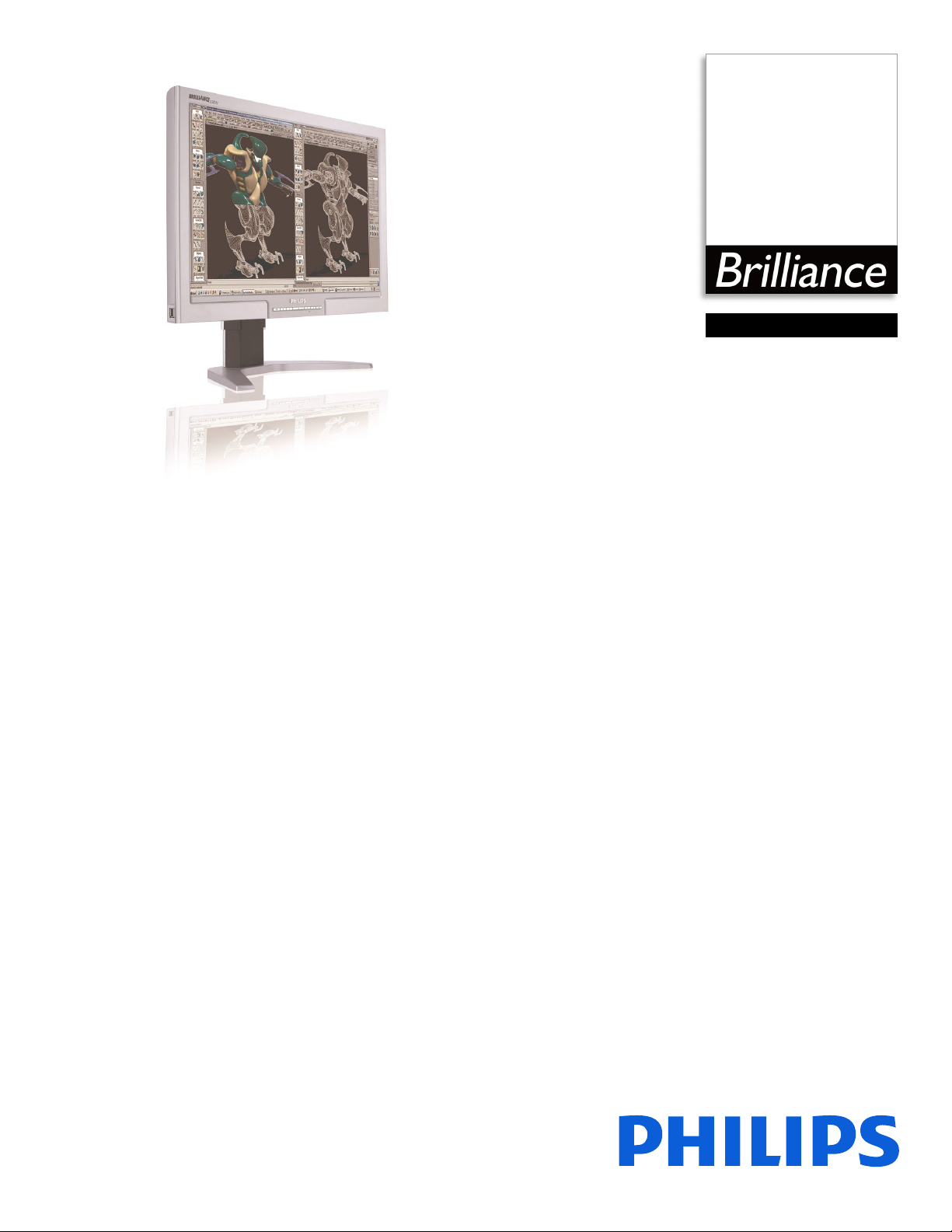
Philips Brilliance
LCD widescreen monitor
58 cm (23")
WUXGA
230WP7NS
Boost your professional
productivity
A professional LCD display designed for business: The big, widescreen Philips 230WP7 gets
the job done better with triple input options and super-wide viewing angle while an
ergonomic base and USB solution add comfort and convenience.
Designed for maximum productivity
• Big, widescreen ideal for viewing two A4 pages side-by-side
• 90 degree screen rotation and smart cable management
• Designed for 'just-right' height and angle adjustment
Best total cost of ownership solution
• Empowered for Windows Vista
• SmartManage compatibility enables LAN-based asset management
• Power consumption below the industry average
Outstanding front of screen performance
• WUXGA, wide format 1920x1200 resolution for sharper display
• Widest viewing angle up to 178 degrees
• Three signal input options for maximum display flexibility
Great convenience
• Built-in high-speed USB 2.0 solution for easy connections
• Easy to adjust display settings with Philips SmartControl
Page 2
230WP7NS/27
LCD widescreen monitor
58 cm (23") WUXGA
230WP7NS/27
Specifications
Picture/Display
• LCD panel type: 1920 x 1200 pixels, Anti-glare
polarizer, RGB vertical stripe
• Panel Size: 23" / 58.4 cm
• Effective viewing area: 19
• Pixel pitch: 0.258 x 0.258 mm
• Brightness: 300 cd/m²
• Contrast ratio (typical): 700:1
• Display colors: 16.7 M
• Viewing angle: 178º (H) / 178º (V), @ C/R > 10
• Response time (typical): 12 ms
• White Chromaticity, 6500K: x = 0.313 / y = 0.329
• White Chromaticity, 9300K: x = 0.283 / y = 0.297
• Maximum Resolution: 1920 x 1200 @ 60Hz (digital
t)
inpu
• Optimum resolution: 1920 x 1200 @ 60Hz (digital
t)
inpu
• Video Dot Rate: 205 MHz
• Horizontal Scanning Frequency: 30 - 94 kHz
• Vertical Scanning Frequency: 56 - 85 Hz
• Aspect ratio: 16:10
•sRGB
Connectivity
• Signal Input: VGA (Analog ), DVI-I, DVI-D
• USB: USB 2.0 x 4
• Sync Input: Composite Sync, Separate Sync, Sync on
en
Gre
• Video input impedance: 75 ohm
• Sync input impedance: 2.2k ohm
• Video input signal levels: 0.7 Vpp
Convenience
• User convenience: On-screen Display, SmartManage
enabled
• Monitor Controls: Auto, Brightness Control (Up/
), Left/Right, Menu (OK), Power On/Off
Down
• OSD Languages: English, French, Portuguese,
ied Chinese, Spanish
Simplif
• Other convenience: Kensingto
• Plug & Play Compatibility: DDC/CI, Windows 98/
2000/XP/Vista
ME/
.5 x 12.2 inch
n lock compatible
• Regulatory approvals: CE Mark, Energy Star, FCC-B,
U
L, CSA, SEMKO, TCO '03, TÜV/GS, TÜV Ergo
• Swivel: +/- 45°
• Tilt: -5° to 25°
• Pivot: 90° (counter-clockwise)
• VESA Mount: 100 x 100 mm
Accessories
• Included accessories: AC Power Cord, DVI-D cable,
USB cable, VGA cable
•User Manual
Dimensions
• Box dimensions (W x H x D): 655 x 547 x 305 mm
• Box dimensions in inch (W x H x D):
25.8 x 21.5 x 12 inch
• Set dimensions (W x H x D):
548 x 380.4 x 87.6 mm
• Set dimensions in inch (W x
21.6 x 15 x 3.5 inch
• Set dimensions with stand (W x H x D):
548 x 422.6 x 215.3 mm
• Set dimensions with stand in inch (W x H x D):
21.6 x 16.6 x 8.5 inch
• Height adjustment range: 130 mm
• Height adjustment range (inch): 5.1 inch
• MTBF: 50,000 hrs
• Relative humidity: 20% - 80%
• Temperature range (operation): 0°C to 35°C
• Temperature range (storage): -20°C to 60°C
• Product weight (+stand): 9.6 kg
• Product weight (+stand) (lb): 21.1 lb
• Weight incl. Packaging: 11.8 kg
• Weight incl. Packaging (lb): 26 lb
H x D):
Power
• Complies with: Energy Star
• Consumption (On mode): 75 W (Typical)
• Consumption (Off Mode): < 2 W
• Power LED indicator: Stand by/sleep - Amber,
ation - green
Oper
• Power supply: Built-in, 100-240VAC, 50/60Hz
•
Highlights
Super Ergo Base
The Super Ergo base is a monitor base that delivers
ergonomic display comfort and provides intelligent
cable management. The base's people-friendly height,
swivel, tilt and rotation angle adjustments position the
monitor for maximum comfort that can ease the
physical strains of a long workday; intelligent cable
management reduces cable clutter and keeps the
workspace neat and professional.
Windows Vista ready
Philips Vista-ready monitors are empowered for
vibrant, exciting display of this new, visually
sophisticated and demanding Windows operating
system, designed to enhance your entertainment
experience, make you more productive and help you
control your computing experience at home and in the
office, making viewing, finding and organizing
information for work or play quick, efficient and easy.
SmartManage enabled
SmartManage is a system for monitoring, managing and
checking status of display devices as well as delivering
remote support to users who experience difficulties all accomplished over a LAN.
WUXGA, wide format 1920 x 1200
Wide format of Ultra Extended Graphics Array, a
display specification that is capable of displaying 1920
x 1200 resolution, or approximately 2.3 million pixels.
Widest viewing angle (178°)
The widest viewing angle up to 178 degree provides
the clearest display from any angles.
Triple input
Triple input is a means for displaying digital and analog
signals. A triple input monitor provides one D-Sub
(VGA) and one DVI-I interface connector. The DVI-I
interface connector accepts either a digital or an
analog signal input via optional adapter for maximum
display flexibility and 'insurance' from your monitor
obsolete.
Issue date 2022-04-21
Version: 11.0.12
12 NC: 8639 000 16763
UPC: 6 09585 11121 9
© 2022 Koninklijke Philips N.V.
All Rights reserved.
Specifications are subject t
Trademarks are the property of Koninklijke Philips N.V.
or their respective owners.
www.philips.com
o change without notice.
USB connectivity solution
The universal serial bus or USB is a standard protocol
for linking PCs and peripherals. Because it delivers high
speed at a low cost, USB has become the most popular
method for connecting peripheral devices to a
computer. By placing a USB 2.0 solution in a monitor,
Philips provides a conveniently located, easy-to-use,
high-speed USB connection for reading, writing,
loading and transferring programs, data, digital media
or music files to, from or among your PC and one or
more USB devices.
SmartControl
PC software for fine tuning display performance and
settings. Philips offers users two choices for display
setting adjustment. Either navigate the multilevel On
Screen Display menu through buttons on the display
itself or use the Philips SmartControl software to
easily adjust the various display settings in a familiar
way.
 Loading...