

Page 1
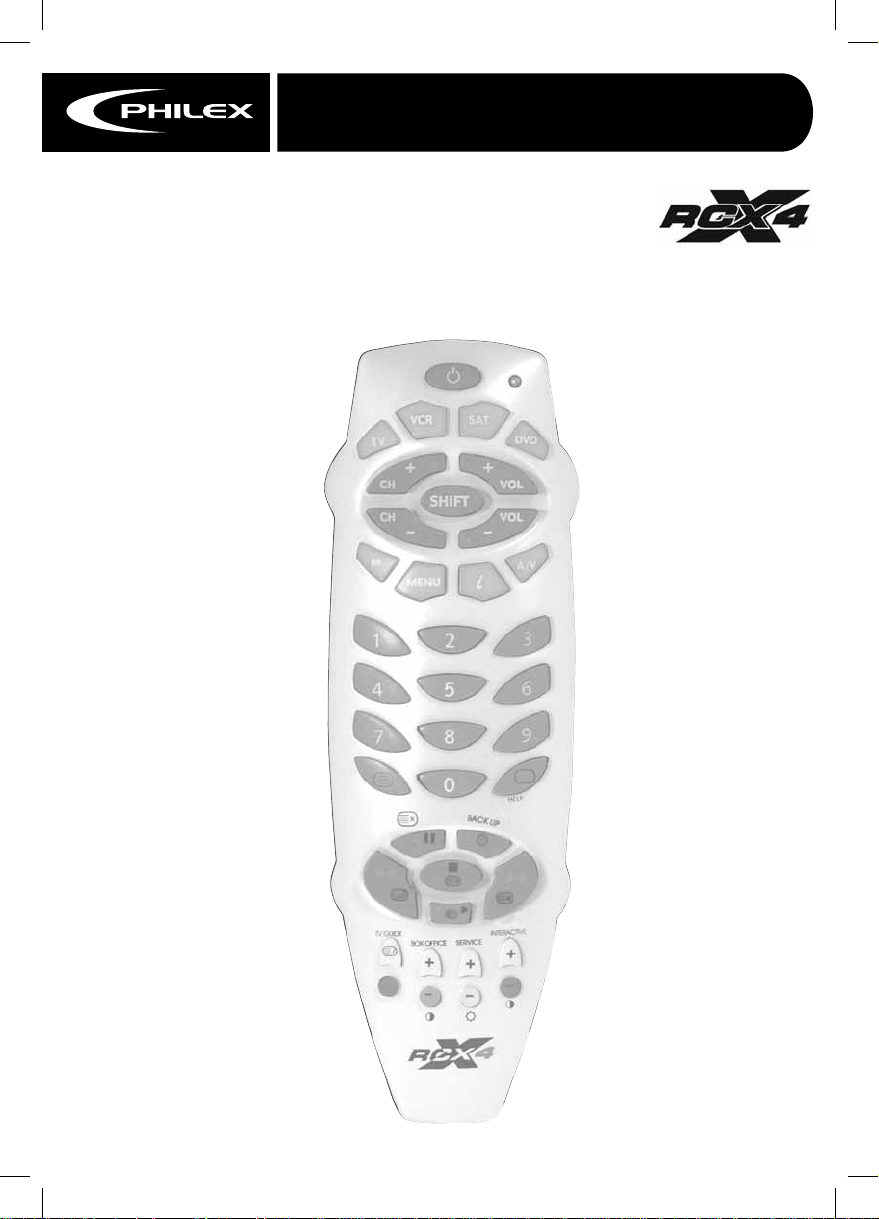
RC026
RC026SP
Set up instructions . . . . . . . . . . . . . . . . . . . . . . . . . . . . . . . pages 2-5
RCX4 PRE-PROGRAMMED
UNIVERSAL REMOTE CONTROL
USER GUIDE
Philex Customer Careline 08457 573479
A single remote to operate
Televisions
DVD Players
Video Recorders
Satellite Receivers including the latest Digital Satellite Receivers
Cable Television Boxes
Codes for Televisions . . . . . . . . . . . . . . . . . . . . . . . . . . . . . pages 6-9
Codes for Video Players . . . . . . . . . . . . . . . . . . . . . . . . . . pages 9-11
Codes for Satellite Receivers & CTV Boxes . . . . . . . . . page 11
Codes for DVD Players . . . . . . . . . . . . . . . . . . . . . . . . . . . page 12
Page 2
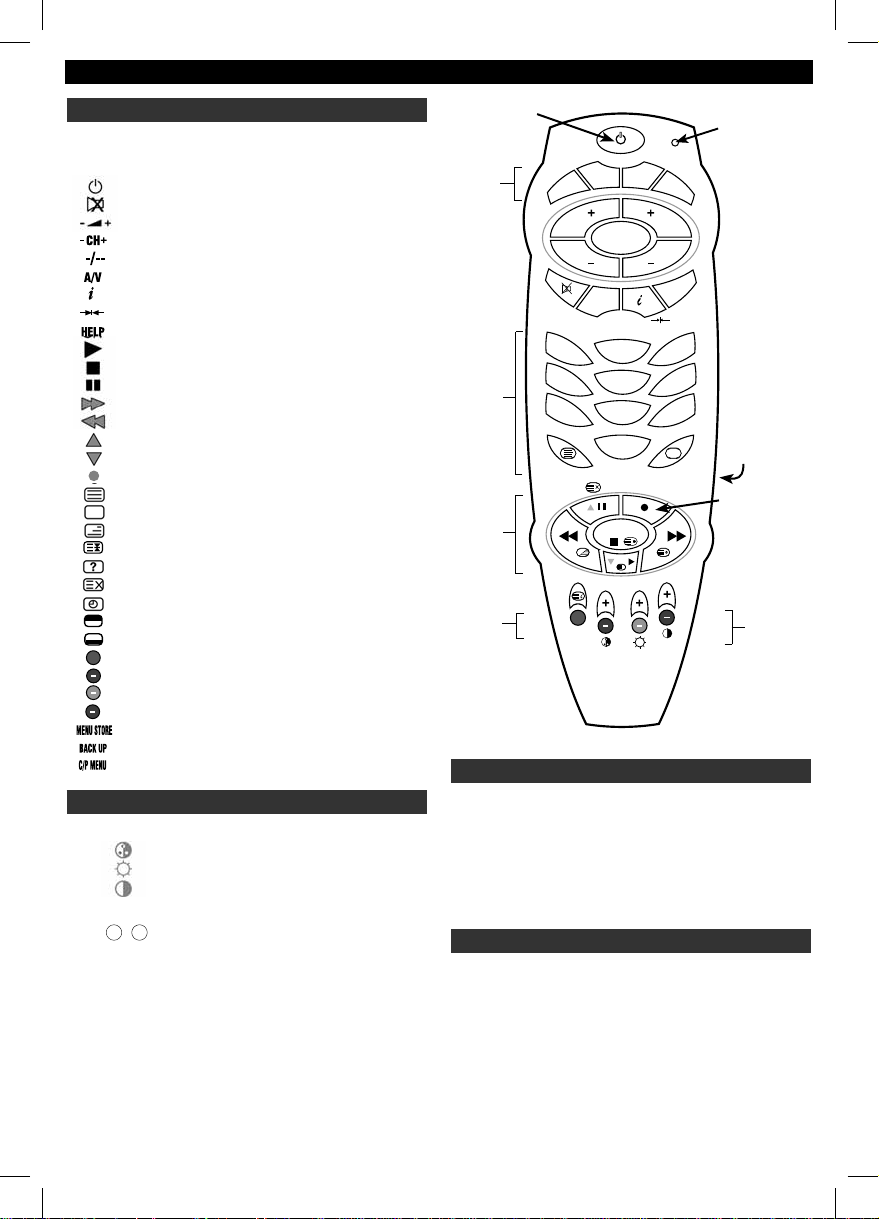
MAIN FEATURES
FUNCTION KEYS
KEY SYMBOL DESCRIPTION
POWER ON/OFF
MUTE
VOLUME +/-
CHANNEL +/-, C/P +/ CHANNEL 1/2 DIGIT MODE
A/V SOURCE 1
INFORMATION/INDEX
NORMAL
HELP
PLAY
STOP
PAUSE
FAST FORWARD (SKY™ MENU RIGHT)
REWIND (SKY™ MENU LEFT)
SKY™ MENU UP
SKY™ MENU DOWN
RECORD (red circle)
TELETEXT ON
TV ON (FROM TEXT TO TV)
MIX (TV AND TELETEXT COMBINED)
HOLD PAGE (TELETEXT)
REVEAL (TELETEXT)
UPDATE (TELETEXT)
TIMER (TELETEXT)
TOP OF PAGE (TELETEXT)
BOTTOM OF PAGE (TELETEXT)
FASTEXT RED
FASTEXT GREEN
FASTEXT YELLOW
FASTEXT BLUE
CHANNEL/PROGRAMME STORE
CHANNEL/PROGRAMME STORE
C/P (CHANNEL PROGRAMME)
SHIFT KEY FUNCTIONS
KEY STROKES FUNCTION
SHIFT +/- (COLOUR)
SHIFT +/- (BRIGHTNESS)
SHIFT +/- (CONTRAST)
SHIFT Shift 1-9 contain the following
groups of functions
91
...
10+, 20+, 30+, 40+ ...
11, 12, 13, 14, 15 ...
PLEASE NOTE: You are advised to read the following
instructions fully, before attempting to program your Universal Remote
Control. The set-up procedure will cancel itself if no keys are pressed
for more than 10 seconds in order to protect your code against accidental
re-programming, and to conserve battery power. It would therefore be helpful
to you to understand the required programming steps, before you carry out
the actual set-up procedure.
3
1
TV
CH
CH
SATVCR
SHIFT
MENU
2
DVD
VOL
VOL
A/V
123
456
5
6
8
1. DEVICE INDICATOR keys 5. Number keypad
2. STATUS INDICATOR 6. Text & VCR keypad
3. Infra-red transmitter 7.
4. Battery compartment 8. Fastext keys
789
0
HELP
B
A
C
K
U
P
SELECT/OK
?
TV GUIDE INTERACTIVE
BOX OFFICE SE RVICE
Colour, Brightness, Contrast
4
Record
7
RCx4 - UNIVERSAL REMOTE CONTROL
Congratulations! Your Universal Remote Control is a state-of-the-art device,
which replaces the main functions of several separate remote controls to operate infra-red controlled televisions (TV), videos (VCR), Freeview™ & satellite
receivers (SAT), cable TV boxes (CTV) & DVD players (DVD).
Your Universal Remote Control (URC) is pre-programmed in the factory. Simply
enter the correct device codes for your equipment and your URC is ready to
use. A DEVICE CODE LIST is included in the user’s manual.
INSTALLING BATTERIES
Your URC requires 2 fresh AAA-size (LR03) batteries (alkaline batteries
recommended) :-
1. Remove the battery cover on the back of your URC.
2. Insert the batteries ensuring that the polarity corresponds with the markings in the battery compartment.
3. Push the battery cover back in place.
2
Page 3
HOW TO SET UP YOUR RCx4
The RCx4 has 4 Device Modes (TV, VCR, SAT & DVD)
Your RCx4 can be set-up either by entering the appropriate codes from the list
of codes supplied or by using either the Auto or Manual code search facility.
Instructions for all three methods follow.
SET-UP BY AUTO CODE SEARCH
Probably the easiest way to set-up your RCx4 for most devices, especially
if there are a lot of codes listed for your particular brand, is by Auto Code
Search.
TV SETUP BY AUTO CODE SEARCH
1. Turn on your TV
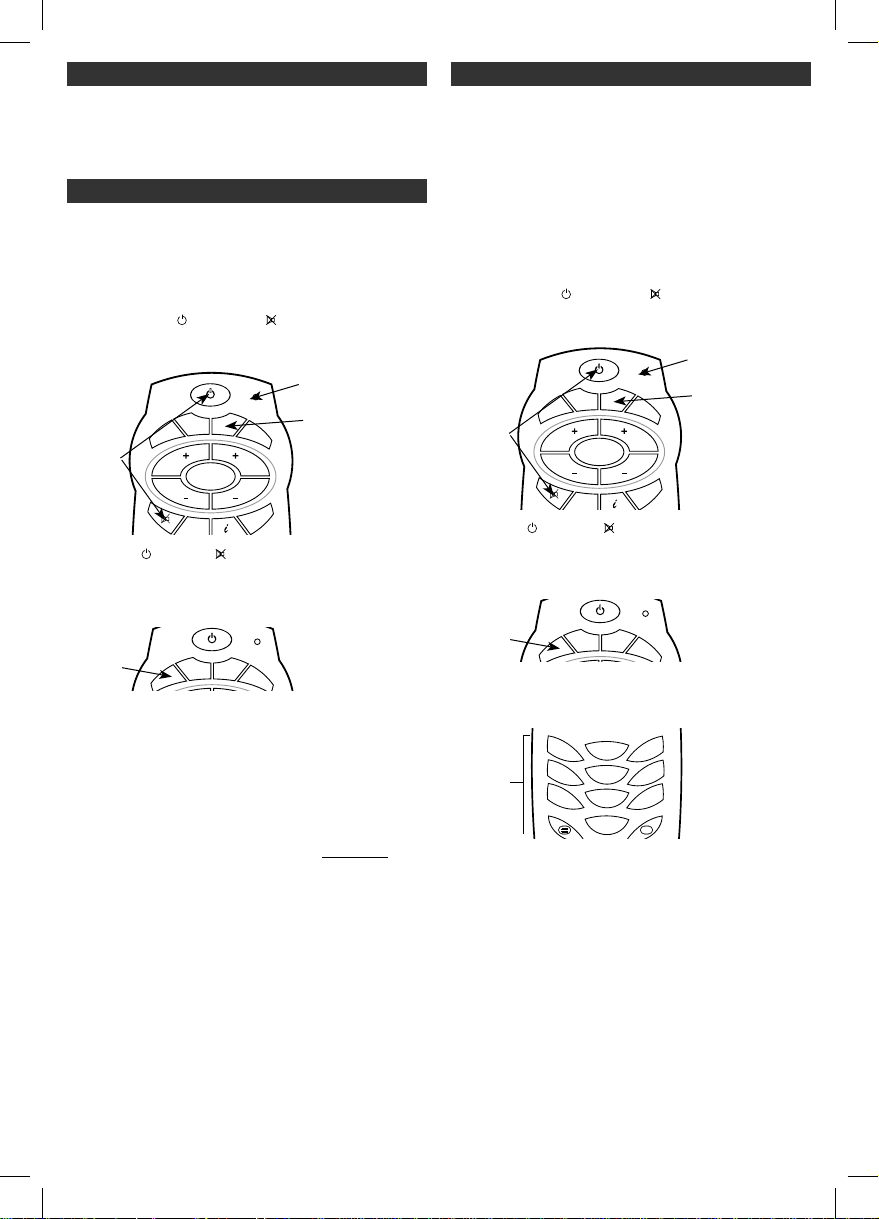
2. Hold down both POWER and MUTE keys on your RCx4
simultaneously until the STATUS INDICATOR LED lights up and stays red
(about 4 seconds).
Figure 1.
Step 2.
SATVCR
TV
CH
CH
MENU
SHIFT
DVD
VOL
VOL
A/V
STATUS
INDICATOR
DEVICE
INDICATOR
KEYS
3. Release the POWER and MUTE keys The STATUS INDICATOR should
still be lit. If not repeat step 2.
4. Press the TV DEVICE INDICATOR key once. The STATUS INDICATOR and the
DEVICE INDICATOR should now both be lit RED.
Figure 2.
Step 4.
SATVCR
TV
DVD
5. To search, aim your RCx4 at your TV.
6. Hold down the power key for about 8 seconds until the STATUS INDICATOR
lights up.
7. The STATUS INDICATOR will repeatedly flash twice then remain unlit for
1 second, flash twice and remain unlit for 1 second. The DEVICE INDICATOR
key will also flash repeatedly.
8. When a suitable code is found the TV will switch off. When the TV switches
off the TV DEVICE INDICATOR key must be pressed immediately
to store
the correct code (Please Note: if the TV DEVICE INDICATOR key is not
pressed immediately the search will continue).
9. Now press the POWER key. If the TV switches on the code has been stored
and you can check that other functions work properly.
10. To stop the Auto Code Search at any time press any key and the remote will
go to Manual Code Search.
If you are unable to find a correct code or cannot store the code fast enough
try finding the code either using Manual Code Search or by using Setup by
Entering Device Code
VCR, SAT/CTV & DVD SETUP BY AUTO CODE SEARCH
Simply turn on your VCR, SAT/CTV or DVD and repeat the above procedure to
search for the Device Codes for your VCR, SAT/CTV or DVD but instead of the
TV DEVICE INDICATOR key press either the VCR, SAT or DVD DEVICE INDICATOR
key in steps 4 & 8.
SETUP BY ENTERING DEVICE CODE
(Note: If no keys are pressed on the RCx4 for a period longer than 10 seconds
during set-up, the RCx4 will automatically exit the set-up process and revert to
the last entered code. This feature reduces accidental erasure of your codes)
SET UP FOR TV
1. Turn on your TV
2. Look up the brand name of your TV in the DEVICE CODE LIST
(See pages 7-11).
3. Look up the 3-digit Device Code next to the brand name of your
equipment. If there is more than one code listed for your brand, start with
the first code listed and follow the instructions below:
4. Hold down both
POWER and MUTE keys on your RCx4
simultaneously until the STATUS INDICATOR LED lights up and stays red
(about 4 seconds).
Figure 3.
Step 4.
SATVCR
TV
CH
CH
MENU
SHIFT
DVD
VOL
VOL
STATUS
INDICATOR
DEVICE
INDICATOR
KEYS
A/V
5. Release the POWER and MUTE keys. The STATUS INDICATOR LED
should still be lit. If not repeat step 4.
6. Press the TV DEVICE INDICATOR key once. The STATUS INDICATOR LED and
the DEVICE INDICATOR should now both be lit.
Figure 4.
Step 6.
SATVCR
TV
DVD
7. Use the number keys on your RCx4 enter the 3-digit Device Code. If you
have entered a valid code, the STATUS INDICATOR will blink once. If you
have entered a wrong code, the STATUS INDICATOR will blink twice.
Figure 5.
Step 7.
8. Try the keys on your RCx4 that correspond to similar keys
123
456
789
0
on your original
remote control, especially those you use most. (Note that the RCx4 will exit
the set-up procedure if you do not press any keys on the RCx4 for more
than 10 seconds). If your TV works on all or most of the keys on your RCx4,
you have entered a suitable Device Code. Go to step 11. (Note: Your RCx4
will only operate functions controlled by your original remote nor are the
supplied codes guaranteed to operate all these functions)
9. If the Device Code does not work properly on your TV, press the TV
INDICATOR KEY once. The STATUS INDICATOR LED will flash briefly, and
remain lit. The TV INDICATOR key should still be RED. (If either of the
indicators switch off whilst you are still programming your RCx4, you
should start again from step 3.)
10.Repeat steps 7-9 with the other codes listed for your brand of TV until your
RCx4 operates most or all of the functions that correspond with the keys on
your original remote control.
3
Page 4
SETUP BY ENTERING DEVICE CODE continued
11.Once you have found a suitable code, to store it, press the TV INDICATOR
key twice. The TV INDICATOR key will
flash twice and then go out as will the
STATUS INDICATOR.
12.If none of the TV codes listed for your brand of TV work correctly, select the
code that provides the best results. Alternatively, try the Library Search
method, which is fully explained further on in these instructions.
SET UP FOR VCR AND SAT
Repeat the same set-up method for your VCR and SAT, but remember to press
the VCR, SAT or DVD DEVICE INDICATOR key, and select the corresponding
Device Code listing.
SET-UP BY MANUAL CODE SEARCH
If you cannot identify a suitable Device Code for your equipment from the
Device Code List and have been unable to store a code when using Auto Code
Search you may try our library search method. (For many lesser known brands
codes may be present but not listed under that brand.) During the search
the selected DEVICE INDICATOR will flash at various speeds. The entire search
procedure may take several minutes to complete. The following instructions
use your television as an example for set-up using the Manual Code Search
method.
TV SETUP BY MANUAL CODE SEARCH
1. Turn on your TV
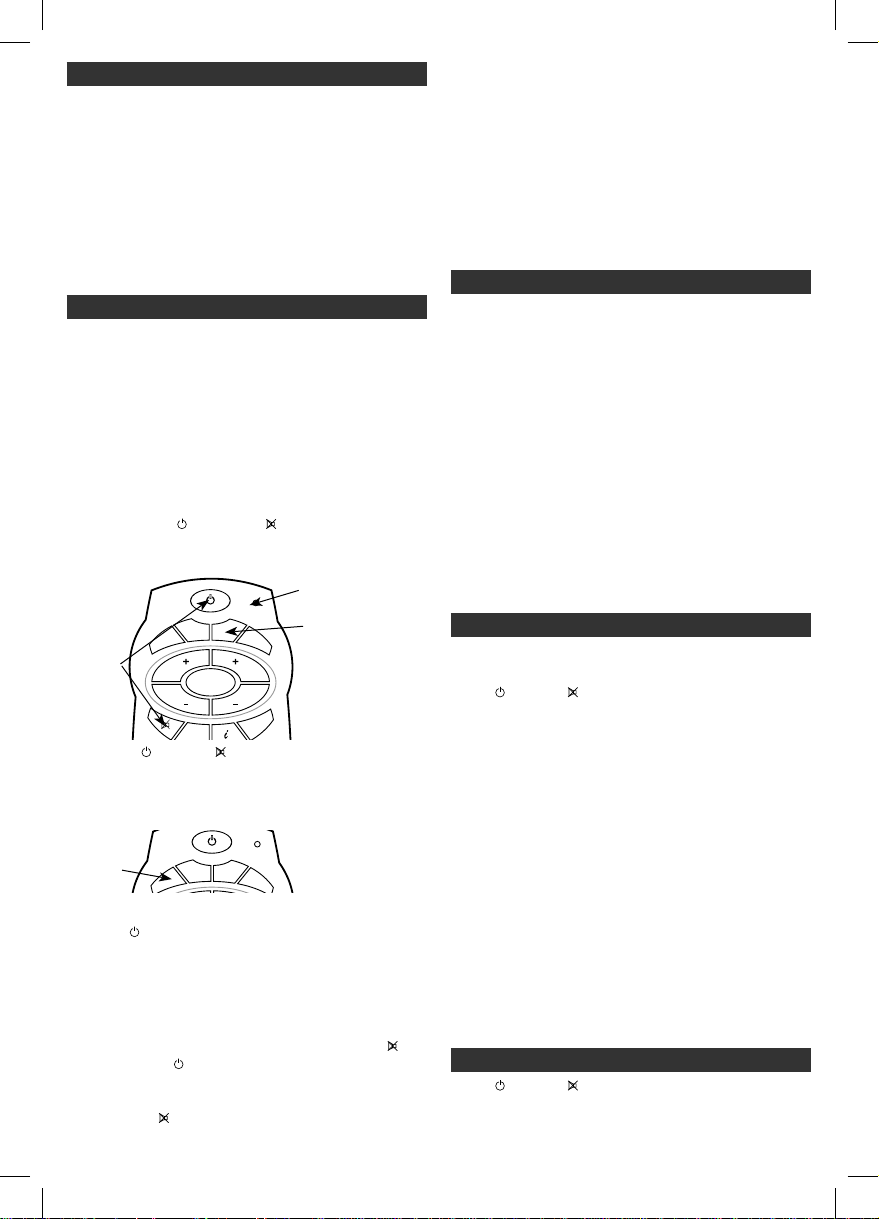
2. Hold down both POWER and MUTE keys on your RCx4
simultaneously until the STATUS INDICATOR LED lights up and stays red
(about 4 seconds).
Figure 6.
Step 2.
SATVCR
TV
CH
CH
MENU
DVD
SHIFT
STATUS
INDICATOR
DEVICE
INDICATOR
VOL
VOL
A/V
KEYS
3. Release the POWER and MUTE keys The STATUS INDICATOR should
still be lit. If not repeat step 2.
4. Press the TV DEVICE INDICATOR key once. The STATUS INDICATOR and the
DEVICE INDICATOR should now both be RED.
Figure 7.
Step 4.
SATVCR
TV
DVD
5. To search, aim your RCx4 at your TV.
6. Press the POWER key repeatedly for 2 seconds ON and 2 seconds OFF,
until your TV goes into standby mode (i.e. the TV switches OFF). Then
continue with step 7.If the TV INDICATOR key flashes twice and then goes
outbefore your TV goes into stanby mode you have reached the end of the
code library. Return to step 2 and repeat library search one more time.
7. Try the number keypad to see if your device switches ON again and the
keys work correctly. If your device does not switch ON, press the Mute
key and then the Power key to repeat the code so that the Device
comes ON.
Now try the number keypad. (NOTE: If you accidentally skipped
a code that turned your TV ON or OFF, you can return to the skipped code
by pressing the Mute key.)
8. If the code you have found does not work correctly, make sure that the TV
INDICATOR key and STATUS INDICATOR LED are still lit, before you repeat
steps 6 and 7 until you find a better code. If the indicator lights have gone
out, repeat the set-up procedure from step 2.
9. Once you are happy with the code found, press the TV INDICATOR key once
to store the code. The STATUS INDICATOR LED and DEVICE INDICATOR key
will turn off and set-up is complete.
VCR/DVD/SAT SETUP BY MANUAL CODE SEARCH
Simply repeat the above procedure to search for the Device Codes for your
VCR/SAT/DVD but instead of the TV DEVICE INDICATOR key press either the
VCR, SAT or DVD DEVICE INDICATOR key in step 4
OPERATING YOUR RCx4
Once you have set up your RCx4, it should operate similarly to your original
remote control and perform most or all of the main functions. To operate, just
aim it at your equipment, press the appropriate DEVICE INDICATOR key and
press the required function key. The DEVICE INDICATOR flashes during signal
transmission to confirm that a function key is in operation.
Please Note: The RCx4 can only duplicate functions that are on your original
remote control. Any extra keys on the RCx4 which are not on the original
will not function.
SHIFT Functions
To operate a secondary function, press SHIFT followed by the corresponding
function key. The SHIFT key remains functional for as long as any other key
is operated, or until 5 seconds have elapsed after the last key was pressed.
When the SHIFT key is operated, the STATUS INDICATOR lights up green and the
DEVICE INDICATOR key red while the SHIFT key is pressed down. The STATUS
INDICATOR then stays ON for another 5 seconds. The SHIFT key can be cancelled before the 5 seconds time-out period by pressing the SHIFT key again.
DEVICE CODE RECALL - 888
The RCx4 has a special code which can be entered to find the code that has
been set for each device. ( e.g. after Code Search set-ups )
1. Press POWER and MUTE keys together until STATUS INDICATOR RED
LED lights up.
2. Then press the required DEVICE INDICATOR key [TV, SAT, VCR or DVD],
STATUS INDICATOR LED & DEVICE INDICATOR key will light up RED.
3. Key in Device Code Recall code 888 the STATUS INDICATOR RED
LED lights up and flashes 3 times.
• To find the first digit of your code, press 1 and then count the number of
times the STATUS INDICATOR LED flashes red.
• To find the second digit of your code, press 2 and then count the
number of times the STATUS INDICATOR LED flashes red.
• To find the third digit of your code, press 3 and then count the number
of times the STATUS INDICATOR LED flashes red.
[Note: If the STATUS INDICATOR LED does not flash at all the digit is zero
(duration between flashes is 1 sec.)]
E.G. Code=106, Number 1=1 flash, Number 2=no flash, Number 3=6
flashes.
5. Press Any Device key [TV, SAT, VCR or DVD] once to exit Device Code Recall.
(Note that the RCx4 will exit the Recall procedure if no key is pressed for
30 seconds)
KEY RECONFIGURATION - 777
1. Press POWER and MUTE keys together until STATUS INDICATOR RED
LED lights up.
2. If you are reconfiguring a SHIFT Function key, you must next press the
SHIFT key and the STATUS LED will change to GREEN.
4
Page 5
3. Press the required DEVICE KEY and the DEVICE KEY will light up.
4. Enter the Key Reconfiguration activation code 777.
5. Press slowly and repeatedly the key you wish to re-program until your
device performs the required/correct function.
NB During the search, your RCx4 will transmit the code of every key command programmed into the device code you are reconfiguring to find the key
function you want. If you reach the end of the command set without finding
the required function, the STATUS LED will flash twice red and the RCx4 will
exit reconfiguration mode.
6. Press the relevant DEVICE KEY [TV, VCR, SAT, DVD] to store the corrected
code. The DEVICE INDICATOR key will flash twice.
7. Repeat 4 and 5 for any other keys you wish to modify.
8. Press the relavant Device key 2 times to exit the reconfiguration function.
Please Note:
A maximum of 4 keys can be reconfigured for each Device (TV, VCR, SAT
and DVD). After the 4 keys are reconfigured for one Device, if you try to
reconfigure a fifth key, the DEVICE INDICATOR key will blink several times
and then go out (exiting Reconfiguration Mode).
If no other key is pressed for more than 20 seconds, the RCx4 will
automatically exit Reconfiguration Mode.
During key reconfiguration, only the key you are reconfiguring and the DEVICE
INDICATOR key will function.
Not all key functions may be relavant to your device or be programmed
into the Device code selected. If there are no functions programmed for
a particular key instead of the DEVICE INDICATOR key flashing twice it
will remain lit for one second and then go out and the RCx4 will exit
reconfiguration mode.
You can clear reconfigured codes by entering a new Device code. When a new
Device code is enterd all Key functions will be reset to the default key settings
for the new code including any that may have been previously reconfigured.
RECORDING DEVICE CODES
It is recommended that you record your device codes in case they are lost from
storage when the batteries run out or are changed.
DEVICE KEY DEVICE CODE
TV
VCR
SAT/CTV
DVD
MAINTENANCE
LOW BATTERY LEVEL
If the indicator flashes twice slowly after pressing a key
function, the battery level is low & you must fit new
batteries. If the batteries are removed, your RCx4 will retain its memory for
approximately 10 minutes only.
• Do not use old and new batteries together as old batteries tend to leak.
• We do not recommend the use of rechargeable batteries.
• Please follow manufacturers instructions when disposing of used batteries
• Do not expose the RCx4 to dust, strong sunlight, humidity, high
temperature or mechanical shock.
• Do not use corrosive or abrasive cleansers on your RCx4.
• Keep the unit dust free by wiping it with a soft, dry cloth.
• Do not disassemble your RCx4, it contains no user serviceable parts.
FREQUENTLY ASKED QUESTIONS
Q. I am unable to program or operate my RCx4, but the indicator lights on my
RCx4 operate correctly.
A. Check your A/V device. If the device’s mains switchis turned off, your RCx4
can not operate your device.
A. Check if the batteries are low and replace the batteries.
A. If several Device Codes are listed under the brand name of your A/V
device, try each code one by oneuntil most or all of the keys work cor-
rectly
.
Q. The STATUS INDICATOR light does not stay ON when entering set up
mode.
A. Make sure both the POWER and MUTE buttons are pressed simultaneously
Q. My A/V equipment responds only to some commands.
A. You may have selected a code for which only some commands work
correctly. Try the other codes listed for your brand.
A. Try the Library Search if you are still unsuccessful.
Q. Some of my equipment will not work with any of the codes listed.
A. Make sure that you have selected the correct device listing
A. Try the Library Search function as some more recent codes may be
available on the RCx4 but have not been listed yet or have not been listed
under all applicable brands.
Disclaimer: Whilst we have tried to supply a comprehensive library of codes we
cannot guarantee that your RCx4 will be fully compatible with all equipment.
Some brands, models or functions may not be available in the code library due to
differences in operation to your original remote or where the code has not yet
been added to the library.
The manufacturer cannot accept any liabilities resulting from incorrect use
of this product.
SPECIFICATIONS
Operating system:- Pre-programmed infra-red remote control system.
Compatibility:- Operates most brands of infra-red remote controlled TVs, VCRs,
Satellites, Cable boxes and DVD players.
Power requirement:- 2 x AAA-size alkaline batteries.
Effective range:- 7.65M (25 feet), +/- 25 degrees.
Alkaline battery life:- Normal operation 6 months.
Dimensions:- 199 (L) x 56 (W) x 24 (H) mm.
Weight without batteries:- 105g
TECHNICAL SUPPORT
Customer Care Line - Tel: 08457 573 479 (UK only)
Technical Support Web Site: http://technical.philex.com
Technical Web Site Enquiries: [email protected]
ENVIRONMENTAL POLICY
Waste electrical and electronic products must
not be disposed of with household waste.
Please recycle where facilities exist.
Check with your Local Authority or
Retailer for recycling advice.
5
Page 6
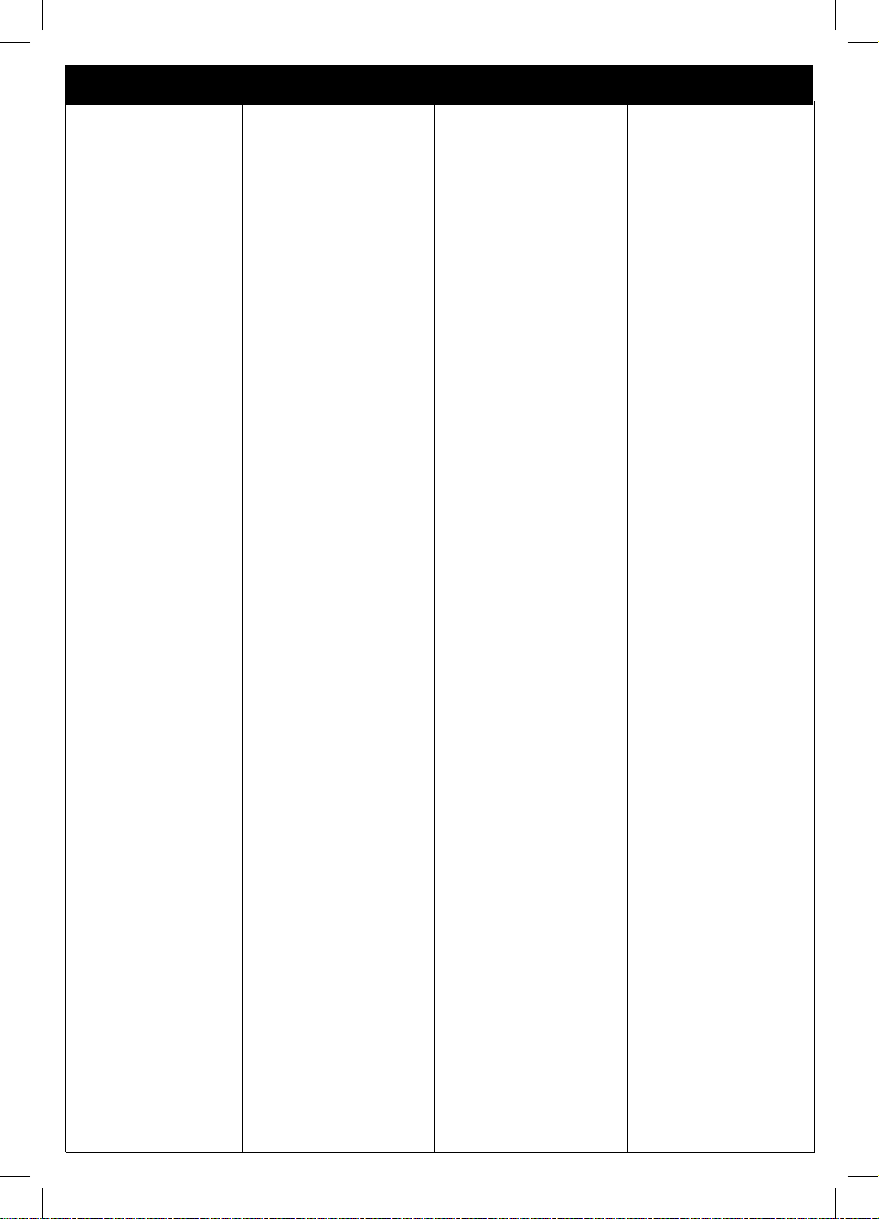
BRAND CODE BRAND CODE BRAND CODE BRAND CODE
DEVICE CODES
TV codes
ACTION 049 063 086
090 137 139
196
ACURA 017
ADMIRAL 024 033 196
083 101 102
134 146
ADVENTURA 144
ADYSON 063 196
AGAZI 134
AKAI 010 012 013
025 028 029
033 039 047
063 086 114
117 121 017
132 139 208
114 145 196
AKIBA 117
AKURA 196 117 121
134
ALBA 059 017 083
117 121 067
139 196 266
164
ALLORGAN 062
ALLSTAR 196
AMBASSADOR 145
AMERICAN HIGH 137
AMSTRAD 058 255 031
ANGA 145
ANGLO 139
ANITECH 063 196 134
139
ANSONIC 139 087
AOC 063 196
ARC EN CIEL 090 094
ARISTONA 110 159 187
196
ARTHUR MARTIN 152 126 132
135
ASA 104 101 078
102
ASBERG 176
ASORA 139
ASUKA 117 134 121
ATLANTIC 196
ATORO 139
AUDIO TECHNICA 176
AUDIOSONIC 090 117 196
134
AUDIOVOX 196
AUTOVOX 014 101 078
BAIRD 208
BANG & OLUFSEN 101
BASIC LINE 117 121 139
196
BAUR 013 014 025
029
033 034 045
244 196 139
144 147 151
153
BEC 025 049 086
196
BECRESE 025 033 045
196 047 049
057 063 144
090 104 114
BEKO 007 289 174
196 220 278
277 246
BELL&HOWELL 042 146 196
BENCHMARKBEAUMARK 063 137 139
196
BESTAR 196
BLACKSTRIPE 042 045 177
114 137
BLAUPUNKT 244
BLUE SKY 117 196
BPL 118
BRANDT ELECTRON 090 094 096
249
BRINKMANN 083
BRIONVEGA 102
BRIORRYEGA 101 196
BROKSONIC 033 063 114
144 145
BROKWOOD 033 063 114
144 145
BROTHER 134
BRUNS 029 102 101
BSR 003 062
BTC 117
BUSH 003 025 035
059 196 065
114 117 121
061 142 067
118 266 017
115 164
CAMPLE 033 063 114
144 145
CANDLE 063
CAPEHART 086 114 196
CAPSONIC 134
CARREFOUR 196
CDMARCY’S 114
CENTURION 196
CENTURY 101 102 188
CGE 188 083
CIE 058 143
CIHAN 109
CIMLINE 059 139
CIRCUIT CITY 033 063 114
144 145
CITIZEN 196 063 137
CITY 139
CLATRONIC 139 087 117
COLORTYME 137 196
COMTEL 109
CONCORDE 139
CONDOR 154 196 139
CONIC 049 063 114
196
CONTEC 107 111 114
139
CONTINENTAL EDIS. 090 094 096
CORONADO 063
COSMEL 139
CRAIG 196
CROSLEY 049 196 144
114 101 102
CROWN 033 063 017
196 146 139
087
CS ELECTRONICS 117
CURTIS MATHES 042 196 063
114 137
DAEWOO 063 160 139
143 147 196
202 274 017
115 073 082
DAINICHI 117
DANSAI 063
DAYTRON 045 063 139
DE GRAAF 021 033
DECCA 088 108 109
065 196
DESMET 196
DIXI 139 196
DORIC 103
DTS 139
DUAL 014 093 117
DUMONT 033 063 145
078 144 087
101 102 114
DUMONT-FINLUX 018
DYNATECH 033 063 114
145 144
EATON 137
ECR 114
ELBIT 109 196
ELCIT 101 087
ELECTRATUNE 063
ELECTROBAND 144
ELECTROHOME 033 042 049
063 114 144
145
ELECTRONICA 237
ELEKTA 134
ELEKTRONSKA 196
ELIN 196 104 154
ELITE 137 042 196
063 114 117
ELMAN 087
ELTA 139
EMERSON 033 063 102
114 144 145
EON 114 137
ERRES 110 196
ETRON 041 139
EURO-FEEL 134
6
EUROMAN 196 134
EUROPHON 087 196
FENNER 139
FERGUSON 071 078 085
097 285 174
269 251 215
244 249
FIDELITY 014
FINLANDIA 023
FINLUX 003 018 046
043 104 196
078 040 088
101
FIRST LINE 062 196 139
FISHER 014 042 045
188 113 114
101 111
FLINT 196
FORMENTI-PHOENIX 101 196
FORTRESS 063 101 111
114 146
FRONTECH 025 035 064
139 134
FUJITSU 033 063 086
114 145 144
FUNAI 033 062 063
114 134 144
145 066
GALAXIS 139 083
GBC 024 139
GEC 009 020 049
088
GELOSO 025 139 117
GENEXXA 117 121 196
GOLDHAND 139
GOLDSTAR 003 035 049
063 026 017
086 090 119
134 137 139
154 196
GOODMANS 067 139 143
154 196 266
115 129 017
164
GORENJE 188 122
GPM 117
GRANDIN 196 117 139
GRAETZ 023 025 027
029 135 152
158 161 197
GRANADA 033 047 086
103 110 067
070 196
GRUNDIG 033 092 078
081 195 244
261 120
HALIFAX 134
HALLMARK 033 063 104
114
144 145
HANSEATIC 014 139 025
Page 7
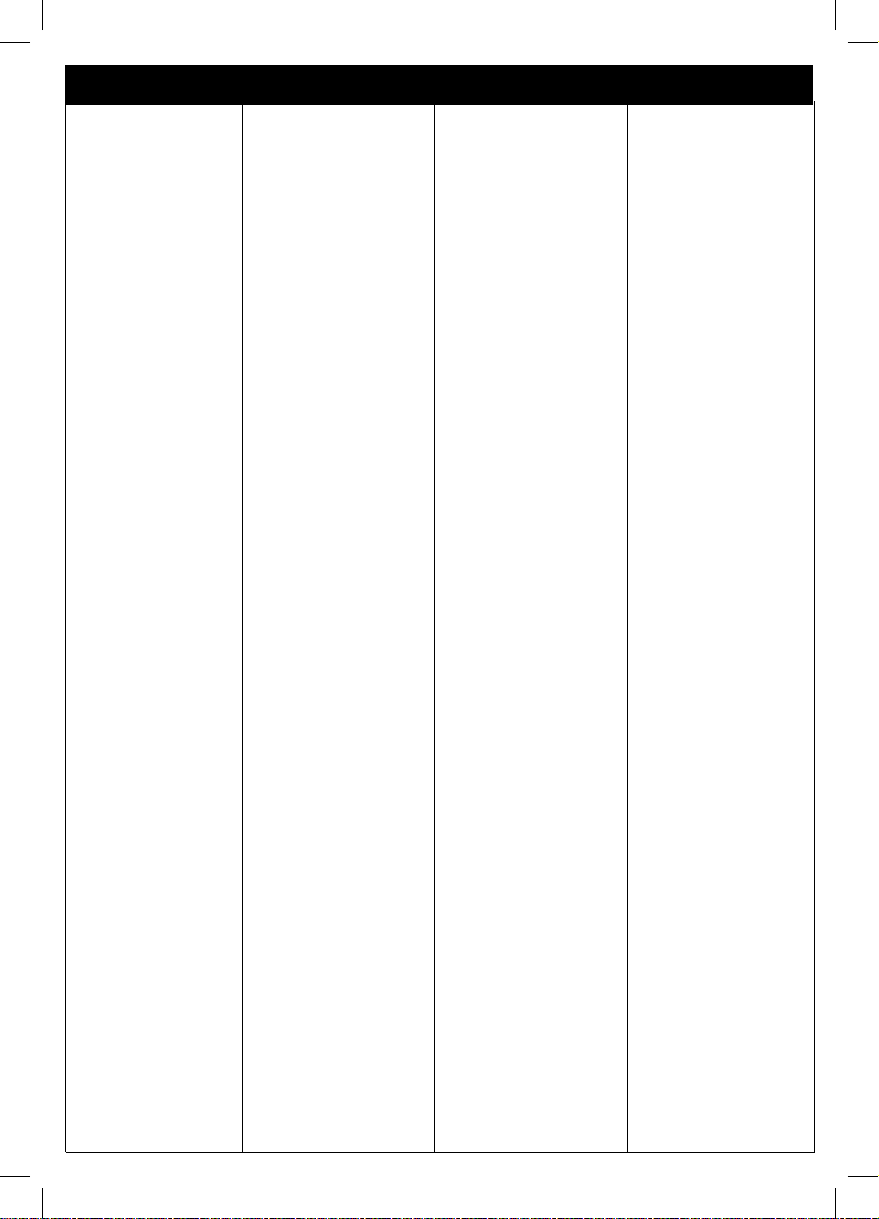
BRAND CODE BRAND CODE BRAND CODE BRAND CODE
DEVICE CODES
062 196
HANTAREX 139
HARLEY DAVIDSON 033 063 114
137 144 145
HARRAD 033 063 114
144 145
HARVARD 033 063 114
144 145
HCM 139 117 134
HEATHKIT 144 196
HEMMERMANN 014
HIFIVOX 090 094
HINARI 041 114 117
121 132 139
142 154 196
208 067 017
HISAWA 117
HIT 102
HITACHI 004 005 009
012 018 020
021 023 025
033 034 045
276 047 049
050 051 052
053 054 055
056 057 063
264 043 086
090 094 095
104 114 060
125 126 142
144 175 180
196 205 217
222 223 225
067 252 260
HORIZONT 196
HORNYPHON 196
HOSHAI 117
HUSPI ELEKTRONIK 083
HYPER 139
HYPSON 196 134
ICE 117 196 139
134
IMA 033 063 114
144 145
IMPERIAL 196 025 188
083 001
INGELEN 135 152 158
161 197
INGERSOL 139
INNO HIT 216 086 117
196 139
INTERBUY 134 139
INTERFUNK 009 015 016
025 028 029
030 033 041
068 158 090
101 102 110
151 152 153
INTERVISION 134 087 117
IRRADIO 196 139 117
IST 117 196
ISUKAI 117 139
ITS 117 139
ITT 024 025 033
045 218 017
ITT-NOKIA 135 152 158
161 171 197
208
ITV 017 077
JASON 088
JBL 196
JCB 144
JET POINT 137
JUMBOTRONIC 196
JVC 114 121 067
142 169 176
193 196
KAIDO 035
KAISUI 117 196 121
139
KAPSCH 009 015 016
025 033
KARCHER 216 196
KATHREIN 122
KENDO 025 059 087
154 196
KENWOOD 063
KLH 033 063 086
114 144 145
KLOSS 137
KOLSTER 196
KONKA 117
KORPEL 196
KORTING 101
KRIESLER 110 159 187
KTV 033 063 114
145 144
KUASHO 063 196
KUBA ELECTR. 014 033
LENCO 134 139 143
196
LENOIR 139
LEYCO 062 086 134
196
LG 003 035 049
063 124 119
086 090 026
134 137 139
154 196 077
017
LIFETEC 134 139
LINTON 063 111 114
146
LLOYD’S 033 063 114
144 145
LOEWE 101 102 153
196 089 091
LOGIK 107 108
LUMA 024 132 196
LUXOR 004 013 023
025 028 029
033 034 047
208 068 086
126 132 171
158
LXI 042 146 177
196
M. ELECTRONIC 139 196 090
104 174
MACYS 063 114
MAGNADYNE 014 102 087
101
MAGNAFON 087
MAGNASONIC 042 063 139
146 154 177
196
MAGNAVOX 049 114 196
MANDOR 134
MANESTH 134 059 196
MARK 196
MATSUI 065 014 035
058 059 085
108 067 017
066 139 031
MATSUI 142 154 196
123 081 228
231 259 261
262 001
MAVA 063
MCMICHAEL 049
MEDIATOR 196
MEGATRON 047
MEMOREX 042 134 139
145
MEMPHIS 086 139
METZ 244 102 101
MGA 145
MIDLAND 063
MINERVA 244 078
MINOKA 196
MITSUBISHI 011 091 101
102 103 074
113 114 122
072 070 142
MITSUBISHI 145 151 153
163 189 196
221 232 244
257 279 280
MITSUBISHI 281 282 092
067 131
MONITOR 137
MOTOROLA 146 196
MRELLI 101
MTC 033 063 137
MULTISTANDARD 087
MULTITECH 025 033 035
063 087 114
188 145 139
144
MURPHY 266 103
NAD 114 177
NAONIS 024
NATIONAL 155 196
7
NEC 114 137
NECKERMANN 025 033 034
196 188 101
102 154 132
144 147 151
153
NEI 117 196
NEW WORLD 117
NEWTECH 139 196
NIKKAI 196 063 086
117 134 121
NIKKO 154
NISSAN 137
NOBLIKO 078
NOGAMATIC 090 094
NOKIA 004 009 012
013 015 016
022 023 024
025 027 028
029 030 033
036 038 039
041 042 045
068 110 134
135 137 284
152 271 212
158 197 161
219
TV codes
NORDMENDE 015 090 094
095 101 174
185 215 217
249 061
NOVA 800
NOVABEAM 196
OCEANIC 016 023 025
029 033 036
042 062
ONWA 117
OPERA 196
OPTANKA 146
ORBIT 196
ORION 014 123 033
058 059 062
063 107 108
114 130 139
ORION 144 145 196
201 017 031
066
OSAKI 086 117
OSUME 086 111
OTTO VERSAND 003 014 174
025 029 033
034 035 045
059 062 244
154 196 090
114 186 139
144 146 147
151 153
OVP 196
P.T. ACTRON 109
Page 8
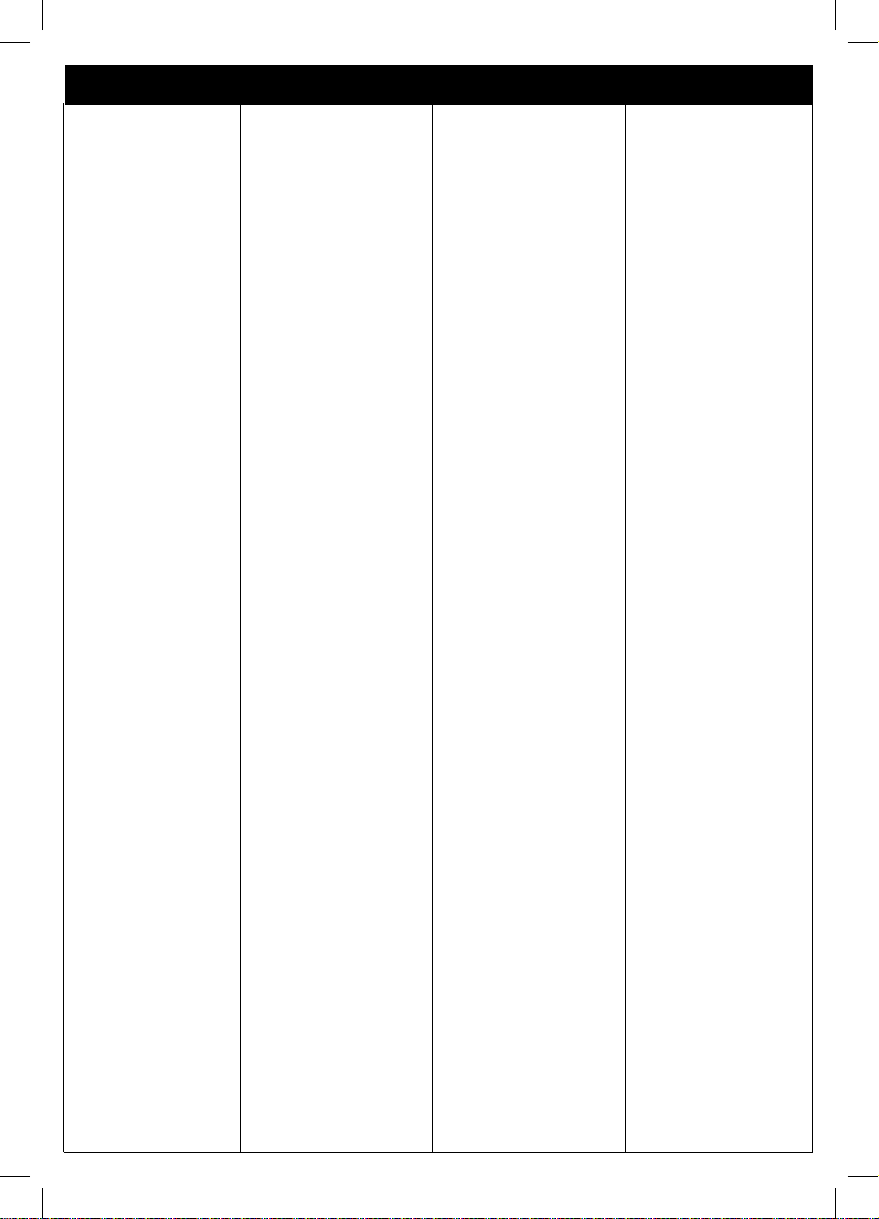
BRAND CODE BRAND CODE BRAND CODE BRAND CODE
DEVICE CODES
PACIFIC 236 237 238
266
PALLADIUM 025 196 101
151
PANAMA 139 134
PANASONIC 015 025 037
075 116 136
148 150 155
186 196 198
290 291 292
293 294 092
296 128 149
PATHE MARCONI 090 094
PAUSA 139
PCE/PEC 042 045 177
063 114 137
045
PENNEY 137 063
PERFEKT 196
PERFORMANCE 107 114 144
PHILCO 049 196 083
188 101 102
114
PHILIPS 049 115 086
095 098 101
109 110 114
144 147 151
154 159 187
196 216 079
263 077
PHOENIX 101 196
PHONOLA 101 110 159
187 196
PILOT 137
PIONEER 032 090 095
217 196
PLANTRON 134 196
POPPY 139
PORTLAND 063 144
PRANDONI-PRINCE 024 025
PRIMA 042 196 063
114 137 139
PRINZ 086
PROELCO 196
PROFEX 035 139
PROFILO 164
PROFITRONIC 154 196
PROLINE 164
PROSCAN 137
PROTECH 025 087 196
134
PROTECH 139
PROTON 063 139
PROVISION 154
PULSER 049 063 086
090 137 139
196
PYE 110 159 187
265
PYMI 139
QUELLE 003 014 025
029 030 035
045 058 059
062 063 114
244 147 196
186 078 144
139 154 153
090 152 151
107 111 113
QUESTAR 114
R.LINE 196
RADIALVA 090
RADIOLA 110 159 187
196
RADIOMARELLI 103 101
RADIOSHACK 042 063 146
RADIOTONE 134 139 154
196
RADIX 045
RANK 003 025 035
059 266 142
114 117 121
196
RCA 137
REALISTIC 042
REDIFFUSION 103
REDIFUSION 103
REVOX 196
REX 025 249 093
RFT 102 101
RICE CLUB 137
RMB 063
ROADSTAR 117 134 139
017
RUNCO 137
SABA 009 025 033
041 090 094
095 096 101
249 132 174
185 217
SAISHO 058 059 108
031 017 196
SAKIO 134
SALORA 004 208 013
022 023 025
028 029 033
034 042 152
SALORA 171 086 126
132 135
SAMBERS 087
SAMPO 063
SAMSUNG 064 106 162
086 140 134
137 154 188
195 196 206
216 017 080
SAMSUX 063
SANSUI 107 137 196
SANYO 042 113 044
045 069 046
043 086 088
107 111 067
114 197 208
142 188
SASO 090
SBR 110 196
SCHAUB LORENTZ 023 025 135
152 158 161
197
SCHNEIDER 014 041 159
154 141 093
110 117
196 134 154
212 187
SCOTT 033 063 114
144 145
SEARS 042 177
SEG 063 087 114
117 139 134
SEI-SINUDYNE 014 024 025
058 059 062
087 101 102
144 151 196
SELECO 024 067 093
113 249
SEMUA 063
SENCORA 139
SENTURA 041 117
SHARP 063 111 113
114 142 146
067 214 002
256 156 069
SHINTOM 144 154
SHORAI 062
SIAREM 087 101 102
SIEMENS 021 063 244
111 196
SIERA 110 159 187
SIERRA 196
SIGMAX 137
SIGNATURE 144
SILVER 114 117
SINGER 087 101 102
SINOTEC 154
SKANTIC 025
SKY 297
SNYDER 196
SOLAVOX 041
SONITRON 045
SONOKO 196 134 139
SONOLOR 016
SONTEC 196
SONY 112 107 113
114 017 076
144 069 067
270
SOUND&VISION 087 117
SOUNDESIGN 033 063 114
137 144 145
SPECTRA 143
SPECTRICIAN 063 196
SR2000 042 177
STANDARD 139 117
8
STERN 025
SUNKAI 059 062 117
SUNSTAR 139
SUNWOOD 196
SUPREME 144
SUPERTECH 014 139
SUTRON 139
SYLVANIA 111 196
SYMPHONIC 033 063 114
144 145
TADISTAR 154
TANDY 086 117 146
121
TASHIKO 035 049 114
142
TATUNG 048 057 086
107 109 065
283 275 196
253 273
TEC 143 139
TECHLINE 087
TECHNICS 155 196
TECHNIMAGEN 236
TECHWOOD 137 144
TECNISON 154
TEKNIKA 063 137 145
TEKON 137 139
TELEAVIA 090 094 099
TELECOM 154
TELEFUNKEN 090 145 174
217 249
TELETECH 139
TELETON 025 033
TELIVA 090
TENSAI 030 196 062
066 104 117
017 046 139
154
TENSON 139
TESLA 196
THOMAS 049 063 086
090 137 139
144 196
THOMSON 006 100 033
090 094 095
096 099 174
185 217 229
233 249 073
092
THORN 020 028 029
030
041 044 045
196 049 054
070 046 174
088 090 097
107 113 114
153 138 144
THORN-FERGUSON 071 078
TMK 137
TOKAI 086 196
TOKYO 137
Page 9
BRAND CODE BRAND CODE BRAND CODE BRAND CODE
DEVICE CODES
TOSHIBA 042 045 287
157 085 114
127 137 138
067 177 288
286
TOSONIC 137
TOTEVISION 063
TOWADA 025 087
TRILUX 196
TRISTAR 117
TRIUMPH 058
UHER 078 196 087
ULTRAVOX 086 087 101
102 132
UNIMOR 196
UNIVERSUM 018 134 244
196 104
UNIVOX 102
VECTOR/VICTOR 176
VESTEL 196 238 266
105 119
VEXA 139 196
VIDEOLOGIQUE 117
VIDEOTON 004 095 099
196
VISION 196
VOXSON 024 196 101
102
WALTHAM 004 025 099
WARDS 176 196
WATSON 244 117 139
196
WATT RADIO 014 087
WEGA 101 114
WELTBLICK 196
WHITE
WESTINGHOUSE 042
WORLDTECH 143
YOKO 035 196 117
143 134 139
YORK 045 196
YORX 117
ZANUSSI 024
ZENITH 144 196
VCR codes
ACTION 016 029 160
ADMIRAL 029 040
ADVANTZ 029
ADVENTURA 016 029 160
ADYSON 040
AGHA 160
AIWA 029 041 047
058 077 116
120 125 144
167 170 007
008 004
AKAI 003 024 029
030 032 036
037 038 047
074 094 164
107 128 144
159 007 011
014
AKIBA 040
AKURA 031 116 144
007 043
ALBA 064 031 065
077 118 129
124 125 008
060 059
ALLORGAN 160
AMSTRAD 041 004 076
078
ANITECH 040
ARC EN CIEL 047 048 094
ARISTONA 052 095 113
ASA 029 057 058
ASTRA 029 160
ASUKA 029 040 138
AUDIO DYNAMICS 144
AUDIOVOX 029
AVIS 040 160
BAIRD 047 107 144
004 007 011
BANG & OLUFSEN 142
BASIC LINE 031 040 065
077
BEAUMARK 160
BELL & HOWELL 016
BLAUPUNKT 090 095 102
111 113 138
145 146
BONDSTEC 040
BRANDT ELECTRON 047 048 094
142 143 144
BRIONVEGA 010
BROKSONIC 029
BRUNS 040
BUSH 030 031 065
077 123 124
125 008 114
059 060
CALIN 029
CAPEHART 065
CARRERA 160
CARVER 138
CGE 041 047 094
144
CIE 040
CITIZEN 029 040 160
CLASSIC 029
COLORTYME 160
COLT 040
CONTINENTAL EDIS. 040 047 048
094 142 143
144
CRAIG 029 040 045
160
CROSLEY 029 138 145
160
CROWN 040 064
DAEWOO 064 174 016
065 067 068
072 073 163
173
DANSAI 040
DAYTRON 065
DE GRAAF 020 041 052
057
DECCA 041 047 004
007
DENON 138
DIGITAL 024 029 144
DTS 160
DUAL 047 094 138
142
143 144
DUMONT 016 029 040
041
057 138
DYNATECH 040 041
ECONOMIC 148
ELECTROHOME 029 160
ELECTROPHONIC 029
ELIN 160
ELTA 040
EMERSON 013 029 034
041 077
ESC 148
ETZUKO 040
FERGUSON 002 005 047
087 089 094
178 104 133
112 126 007
141 144 152
153 171
FIDELITY 040 041
FINLANDIA 057 099
FINLUX 016 020 024
041 057 004
007 011 099
FIRST LINE 024 029 040
FISHER 016
FUNAI 029 040 041
169 181 004
GAB 040
GBC 097
GE 160
GELOSO 097
GOLDHAND 040
GOLDSTAR 016 029 058
160 004
GOODMANS 064 031 040
041 045 053
057 058 065
077 071 004
GRAETZ 016 047 048
088 094 110
144
GRANADA 016 024 057
113 129 099
GRANDIN 029 040
9
GRUNDIG 057 090 095
101 102 103
113 138 145
114
HANSEATIC 029
HARVARD 040
HCM 040
HEADQUARTER 016
HIFIVOX 047 048 094
HINARI 013 031 040
077 082 097
116 121 125
147 008 114
HITACHI 020 021 023
024 027 028
029 039 041
047 179 091
142 144 099
106 004 007
HYPSON 040
IMPERIAL 041 100 148
INGELEN 047 048 094
110
INGERSOL 082 147
INNO HIT 097 148
INTERBUY 029 040
INTERFUNK 016 138
INTERVISION 040
IRRADIO 029 040
ITT 010 016 036
047 088 107
144 007 011
130 132
ITT-NOKIA 047 048 094
110
ITV 029
JENSEN 047 144
JVC 001 009 012
047 048 050
089 094 116
119 129 142
143 144 007
132 133 139
140 108
KAISUI 040
KENDO 036
KENWOOD 016 047 050
116 144
KLH 029 040
KODAK 029
KORPEL 040
KRIESLER 052 095 113
KUBA ELECTRONIC 143 144 148
LG 016 029 058
160 004
LEYCO 040
LLOYD’S 029 040 041
160
LOEWE 029 069 138
098 105
Page 10
BRAND CODE BRAND CODE BRAND CODE BRAND CODE
DEVICE CODES
VCR codes
LOEWE OPTA 057 086 095
113
LOGIK 031 040 045
077 082 107
147 160 071
LORWD 024
LUXOR 016 036 107
110 150 151
LXI 016 024 029
058
M. ELECTRONIC 160
MAGNASONIC 017 029 040
110 160
MAGNAVOX 029 160 145
138
MAGNIN 029 160
MANESTH 040
MARANTZ 053 057 077
095 113
MARQUANT 040
MARTA 029
MATSUI 013 034 045
058 077 082
118 122 125
137 138 147
008
MEMPHIS 040
MENOREX 016 029 041
052 058 160
METZ 095 102 145
113 138
MGA 056 160
MINERVA 090 102 113
MINOLTA 020 024 027
MITSUBISHI 050 056 080
127 138 144
004 133
MTC 040 041 045
160
MTS 016 024 029
MULTITECH 041 029 031
040
MURPHY 041
NAD 160
NAONIS 047 048 094
NATIONAL 111 145
NEC 047 050 094
143 144
NECKERMANN 010 013 017
024 047 094
113 144 147
148
NESCO 040
NIKKAI 029 064
NOBLIKO 113
NOGAMATIC 047 048 094
NOKIA 010 016 017
036 047 048
088 094 107
110 130 071
115 117 142
143 144 148
149 150 151
160 007 011
180 163 164
168
NORDMENDE 001 009 012
018 022 025
047 048 094
153 101 144
143 142
OCEANIC 036 117
OKANO 040
OLYMPUS 145
OPTONICA 052 053
ORION 013 029 033
034 035 063
077 082 147
008 059
OSAKI 041 058
OTTO VERSAND 138
PACIFIC 181
PALLADIUM 029 040 144
PANASONIC 019 075 092
093 111 134
135 136 138
145 146 156
PANASONIC 157 161 098
105
PATHE MARCONI 047 048 094
142 144
PAXSONIX 160
PENNEY 024 029 138
160
PENTAX 020 024 027
PERDIO 041
PHILCO 029 138 145
160
PHILIPS 006 029 044
046 049 052
053 057 069
083 086 095
PHILIPS 113 132 145
PHILIPS 160
PHONOLA 052 057 086
095 113 138
PILOT 029
PIONEER 024 050 057
138
PIONEER 133
PORTLAND 065
PRIMA 144 160
PROFEX 040
PROFILE 160
PROLINE 041 004 114
PROSCAN 024 029 036
160
PROTECH 040
PULSAR 029 160
PULSER 016 029 160
PYE 052 057 086
095 113
QUARTER 016
QUARTZ 029 160
QUASAR 138 145
QUELLE 010 013 017
024 028 038
040 051 102
113 142 143
144 147 148
RADIALVA 029 040 138
RADIOLA 052 095 113
RADIX 029
RCA 024 029 036
160
REALISTIC 016 029 041
045 052 053
160
REX 001 047 048
094 142 144
RICOH 029
ROADSTAR 031 040 045
058 160 071
ROYAL 040
SABA 001 009 018
025 047 048
094 153 142
143 144
SAISHO 013 034 077
082 091 118
147 008
SALORA 150 016 017
036 056 129
149
SAMEX 160
SAMSUNG 045 071 160
148 100
SANKYO 040
SANSUI 047 050 144
SANWA 147
SANYO 016 017 042
077 110 131
109
SBR 057 083 086
138
SCHAUB LORENTZ 010 016 036
047 048 088
094 110 144
SCHNEIDER 024 028 029
031 040 041
052 095 100
113 138 148
064 169 008
004
SCOTT 029
SEARS 016 024 029
SEG 040 100 148
160
SEI-SINUDYNE 082 138 147
SELECO 047 048 094
142 143 144
10
SENTRA 065
SETRON 040
SHARP 016 052 053
062 079 175
015
SHINTOM 031 040
SHIVAKI 029
SHOGUN 160
SHORAI 147
SIEMENS 016 017 029
090 095 102
110 113
SIERA 052 095 113
SILVA 029
SINGER 040 160
SINUDYNE 082
SONTEC 029
SONY 051 054 055
081 085 061
070 096
SR1000 160
STERN 047 048 094
STS 020 024
SUNKAI 077
SUNWOOD 040
SYLVANIA 041 056 138
SYMPHONIC 029 040 041
056 138
TAISHO 147
TANDY 016
TASHIKO 041
TATUNG 041 047 138
144 004 007
TEAC 041 047 144
TECHLINE 040
TECHNICS 138 156
TEKNIKA 029 041
TELEAVIA 047 048 094
142 144
TELEFUNKEN 009 018 153
047 048 094
144 142 143
TELEORDER 160
TELERENT 144
TELETECH 040
TENOSAL 031
TENSAI 029 040 147
THOMAS 160
THOMSON 018 022 047
048 094 144
142 143 026
132 133 139
007
THORN 032 047 089
094 007 141
142 143 144
THORN FERGUSON 025 047 087
089 094 112
104
TIVO HDD 026
TOKAI 029 040
Page 11
BRAND CODE BRAND CODE BRAND CODE BRAND CODE
DEVICE CODES
TOSHIBA 132 029 047
048 056 084
094 138 144
160 007
TOWADA 040
TOWIKA 040
TRIX 029
UHER 024 029 047
100 142 144
148
ULTRAVOX 010
UNITECH 045 160
UNIVERSUM 029 036 138
169
UNIVERSUM 160
VICTOR 047 050 144
VIDEOSONIC 160
VIEWMARK 029
WARDS 024 040 160
WELTBLICK 029
WHITE
WESTINGHOUSE 010
XR-1000 040 160
YAMAHA 047
YAMASHI 040
YOKO 160 029 040
148
ZANUSSI 047 048 094
ZENDER 094
ZOPPAS 047 048
SAT/CTV codes
ALBA 153
AMSTRAD 021
ARCON 021 154
AXIS 021
BIRMINGHAM CABLE 035
CABLETIME 035
CARLTON 035
CRUPTOVISION 024
ECHOSTAR 020 022 025
031 065 017
082 088 108
FIDELITY 021
FILMNET CABLECRYPT
FILMNET COMCRYPT 016
FREECOM 039 153
GOLDSTAR 039
GRAETZ 110
GRUNDIG 021
HANTOR 153
HUMAX 033
INGELEN 110
ITT 085
ITT-NOKIA 025 110
JERROLD 202 203 211
210
KOSMOS 039
KYOSTAR 153
LENCO 153 039
016
LG 039
LORRAINE 039
LUXOR 110 012 013
MANHATTAN 002
MEDIASTAR 035
METRONIC 153
MOVIE TIME 018
MURATTO 039
NOKIA 008 003 012
013 001 110
NORDEMENDE 153
ORBITECH 153
PACE 034
PANASONIC 036
PHILIPS 023 038 010
004 006 007
PIONEER 021 029 011
SALORA 110 012 013
SAMSUNG 153 154
SAT 021
SATPARTNER 153 039
SCHAUB LORENTZ 110
SCIENTIFIC ATLANTA 015 201
SEG 153
SILVA 039
SKY 151
SKY PLUS 212
SONY 170
STAR TRAK 153
STRONG 039 153
TELE+1 016
TELEFUNKEN 153
TELEKA 154
THOMSON 014 019
TOSHIBA 168
TRIAD 039
VISIOPASS 028
VORTEC 153 154
WITTENBERG 021
DVD codes
3DLAB 017
AIWA 027 050
AKAI 031
ALBA 065 066 067
APEX 047 035
BUSH 065 066 067
CLASSIC 029
COBY 029
CYBERCOM 032
DAEWOO 038 040
DANSAI 065
DENON 006 016
DIK 032
DK DIGITAL 032
DMTECH 072
DRAGON 032
DUAL 032 029
ELTA 075
ENZER 044
FISHER 041
GOODMANS 065 066 067
GRUNDIG 068 055 069
070 071
HARMAN KARDON 036 060 061
HE 029
HITACHI 020 021 022
008
HOME ELECTRONICS 029
INNOVATION 032 070 071
IRRADIO 019
JVC 007 018 057
063 058
KENDO 032
KENWOOD 046 006 054
055
KLH 010
LENCO 039
LENCO 039 032
LG (GOLDSTAR) 009
LIFE 070 071
LIFETEC 032 070 071
LOEWE 068
LOEWE OPTA 055 615
LUXMAN 022
MAGNAVOX 051 052
MARANTZ 017 024
MBO 029
MEDION 032 070 071
MEDION 072
MEMOREX 032
MICROMAXX 032 070 071
MICROSTAR 032 070 071
MITSUBISHI 053
MUSTEK 029
NAD 074 043
NAKAMICHI 042
NORDMENDE 032
ONKYO 026 062 051
064
11
OTHERS 033 066
PACIFIC 032
PANASONIC 002 006 011
PHILIPS 068 055 024
012 017 051
052 056
PIONEER 004 014 020
048 053 058
054 059
PROFILO 066 067
PROLINE 066 067
RAITE 044
RCA 005
REVOX 055
REVOY 039
ROADSTAR 037
ROTEL 018
SAMSUNG 022 059 060
SCHAUB LORENZ 055
SCHNEIDER 072 073 074
SHARP 070 011
SHINCO 015
SILVASCHNEIDER 032
SINUDYNE 025
SKYMASTER 029 075
SKYWORTH 034 049
SONY 001 045
TCM 032 070 071
TEAC 020 015
TEVION 032 070 071
THETA DIGITAL 058 059
THOMSON 013 023
TOSHIBA 003 0051 052
UNK 028
VOXSON 032
WELKIN 032
WHARFEDALE 076
YAMAHA 006 030 056
057
ZENITH 009 051 061
062 052
 Loading...