

Page 1
28520
28520SP
28520R
28520HS
Setting up
AV AUTO SELECTOR
USER GUIDE
Philex Customer Careline 08457 573479
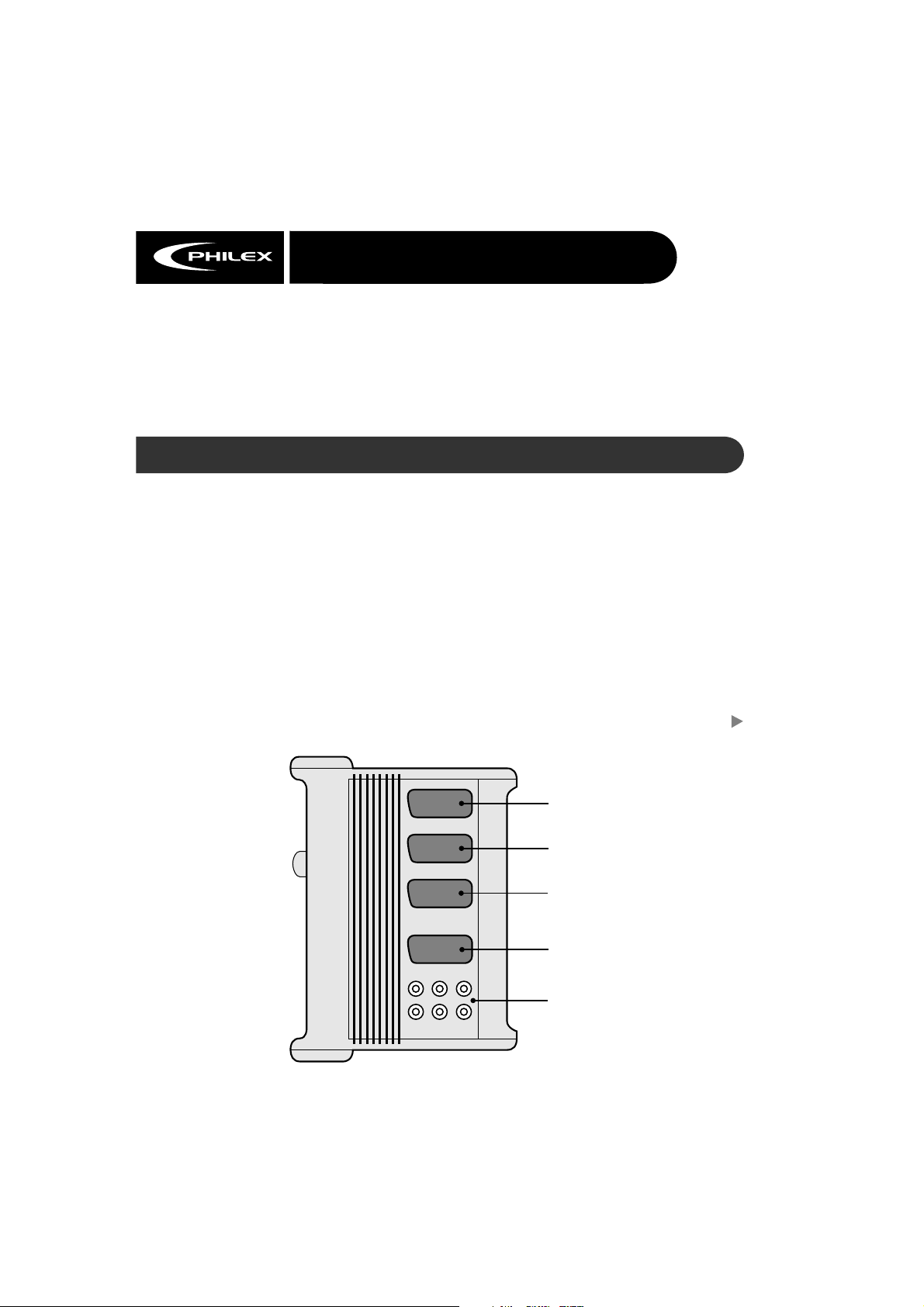
Scart Input A (VCR2 / CAMERA / DVD RECORDER)
Any AV equipment that does not use a direct Scart
to Scart connection, or Scart equipment that does
not have its’ own automatic switching voltage
should be connected to the AV Auto Selector using
Scart Input A (for example, a camcorder that uses a
3 phono to Scart connection).
Scart Inputs B and C (VCR / SAT / DVD PLAYER)
Satellite receivers, VCRs, games consoles, etc., that
use a fully wired Scart to Scart connection (with
automatic switching facility) can use either Scart
Input B or Scart Input C.
TV
Phono Output 1
Phono Output 1 (video, left and right audio)
provides the same signals as the TV/Monitor
Scart output. A second TV or another VCR can be
connected here (using a 3 Phono to 3 Phono lead,
or 3 Phono to Scart lead as appropriate). Use the
audio Phono outputs (marked white for the left
channel, red for the right channel) to connect to a
Hi-Fi or amplifi er.
Phono Output 2
Phono Output 2 (video, left and right audio)
can be connected to the output of the TV.
A
B
C
VCR2 / Camcorder, etc.
Satellite receivers /
VCR / Cable / Freeview
DVD player / DVD recorder
TV / LCD Display
Continued overleaf
2
Hi-Fi and Amplifi er
1
Page 2

Phono Output 2 continued from overleaf
Connection via a fully wired (21 pins all connected)
Scart to Scart lead will allow playback of sound and
video independent of eachother whilst copying or
watching TV programmes. For example, when in AV
mode most modern TVs will show the channel set
on the tuner (via the Scart socket). In this way you
can view a programme from the satellite receiver
whilst your VCR is recording the programme
received by the TV’s tuner.
Copying
From camcorder to VCR or DVD recorder/ Hard disc
recorder (Scart input A to Scart input B)
• To copy from a camcorder (or other equipment
connected to Scart Input A) to a VCR connected
to Scart Input B, set the camcorder to PLAY
and the VCR to RECORD. The ‘A’ indicator will
illuminate GREEN.
Mains Connection
Attach the supplied AC/DC power adaptor to the
power input on the right-hand side of the AV Auto
Selector. Plug the mains adaptor into a mains
socket. The power indicator on the front panel will
illuminate red.
Using the AV Link switch
The AV Link switch allows you to view normal
broadcast or cable TV whilst recording from a
satellite receiver or camcorder.
Press the AV Link switch. The indicator illuminates
YELLOW. A switching voltage from Scart Inputs B
or C is sent to the TV/Monitor Scart socket. This will
automatically switch the TV to AV mode.
Use your TV remote control to switch to AV mode if
this does not occur automatically, or to view normal
TV/cable programmes whilst recording.
Troubleshooting
If no signal is observed on the television screen
when a device has been connected to the AV
Auto Selector, check all Scart plug connections,
especially the monitor Scart lead.
From satellite receiver to VCR or DVD recorder/ Hard
disc recorder (Scart Input C to Scart Input B)
• To copy from a satellite receiver (or other
equipment connected to Scart Input C) to a
VCR connected to Scart Input B, switch on the
satellite receiver and switch off any equipment
connected to Scart Input A. Set the VCR to
RECORD. The ‘C’ indicator will illuminate GREEN.
If problems persist, please contact
Philex Customer Careline: 08457 573 479
(Local rate – UK only)
Technical Support: http://technical.philex.com
Waste electrical products should not
be disposed of with household waste.
Please recycle where facilities exist.
Check with your Local Authority or
retailer for recycling advice.
© Philex Electronic Ltd. 2004
 Loading...