

Page 1
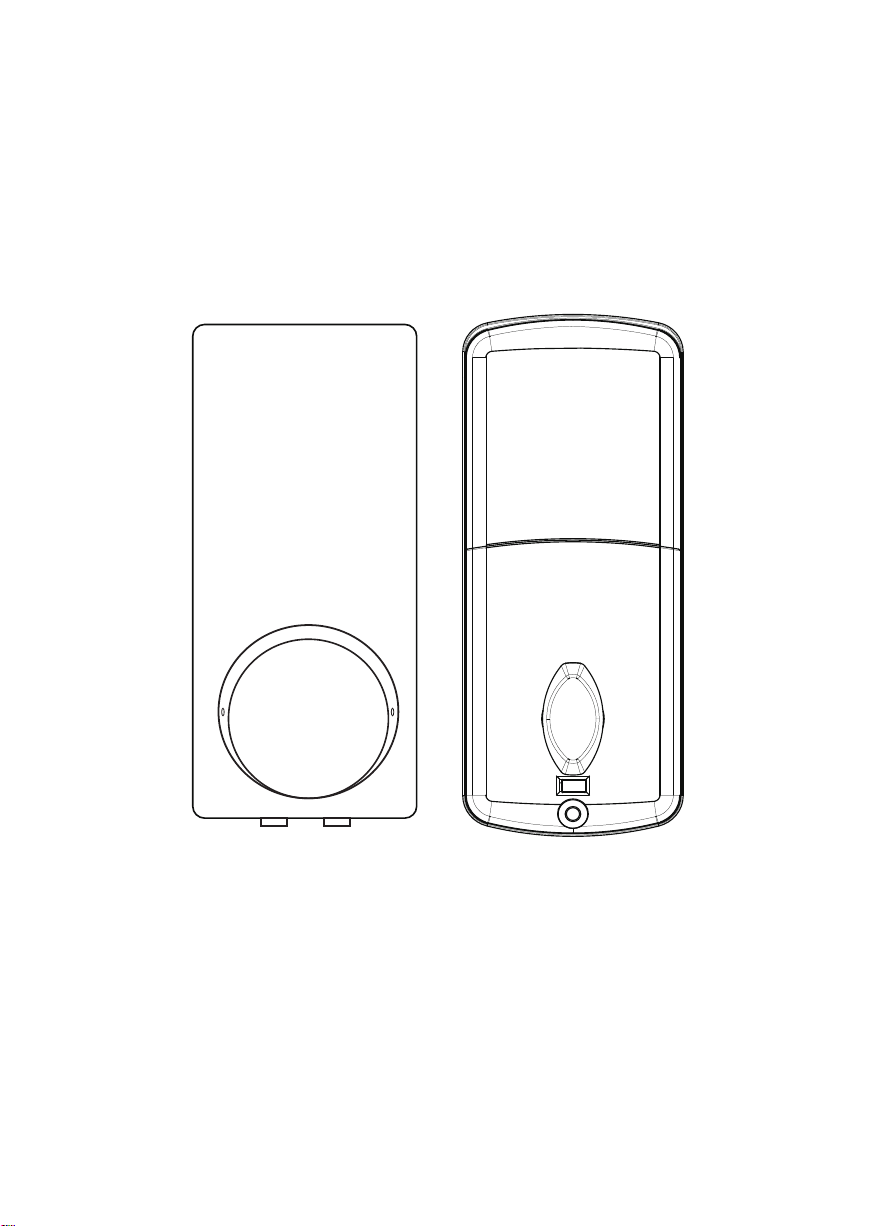
USER MANUAL
1 2
4 5
7 8
* 0
Note:
1. Before using this lock, please pair it to the mobile phone App .
2. This lock is equipped with mechanical keys for manual unlocking. Remove mechanical
keys from the package and keep them in a safe place and always have access to them.
3. To power on the lock, four alkaline AA batteries(not included) are required. Non-alkaline and rechargeable batteries ARE NOT RECOMMENDED.
4. This lock is not designed to be exposed to direct sunlight or rain. It is not waterproof IP rated.
5. The operation of setting lock has a stand-by time limit of 20 seconds; Without any
activity, lock will shut after 20 seconds.
6. Keep your fingers clean when using this lock.
3
6
9
#
Please read this manual before operating your Smart Lock,and keep it for further reference.
Page 2
Door Preparation
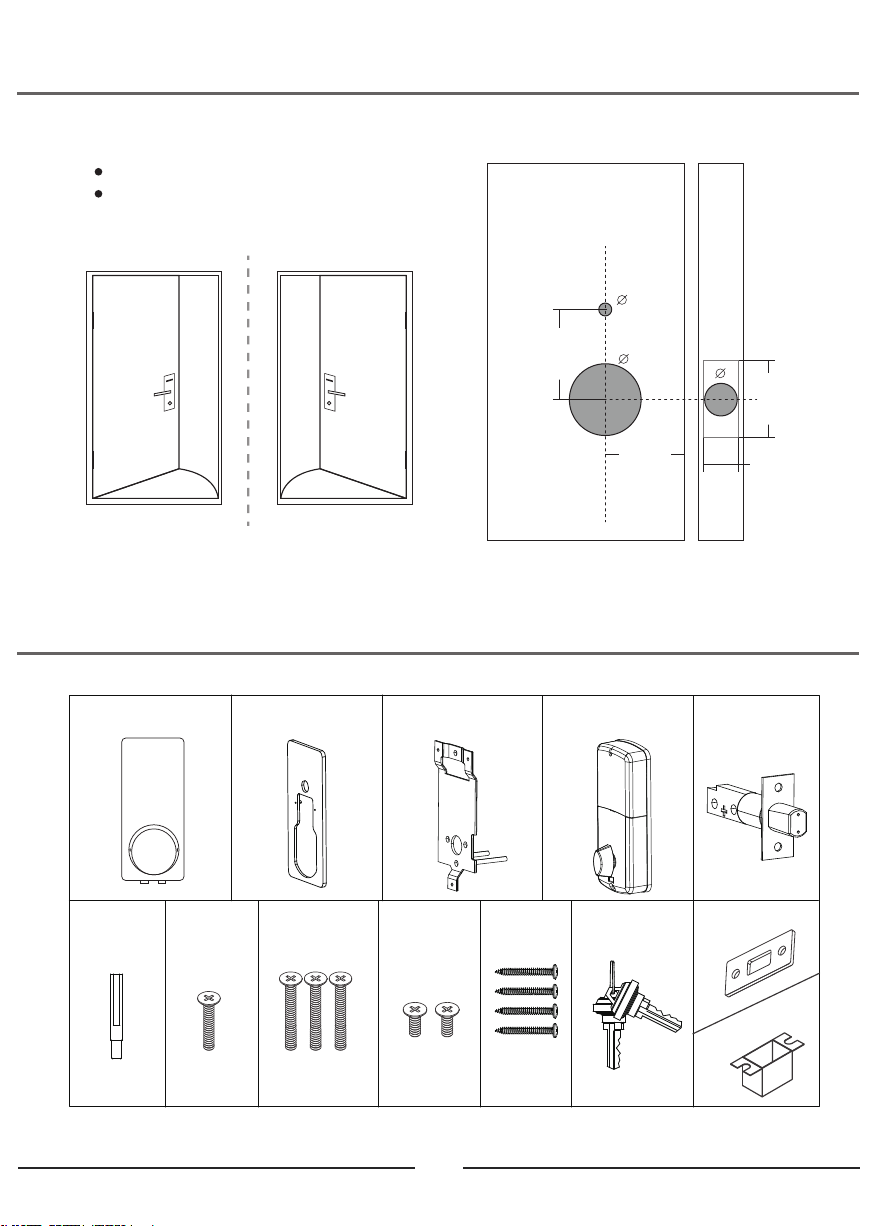
1. Check door thickness and Door Frame. Door drill hole map
Door frame≧110mm
Door thickness: 38-48mm
2. Check door open direction.
10 m m
Left open
Packing List
A
F
G H I J K
68 m m
Right open
54 m m
60 m m
B C D E
L
25 m m
58 m m
27 m m
40mm 30mm25mm 10mm 25mm
01
M
Page 3
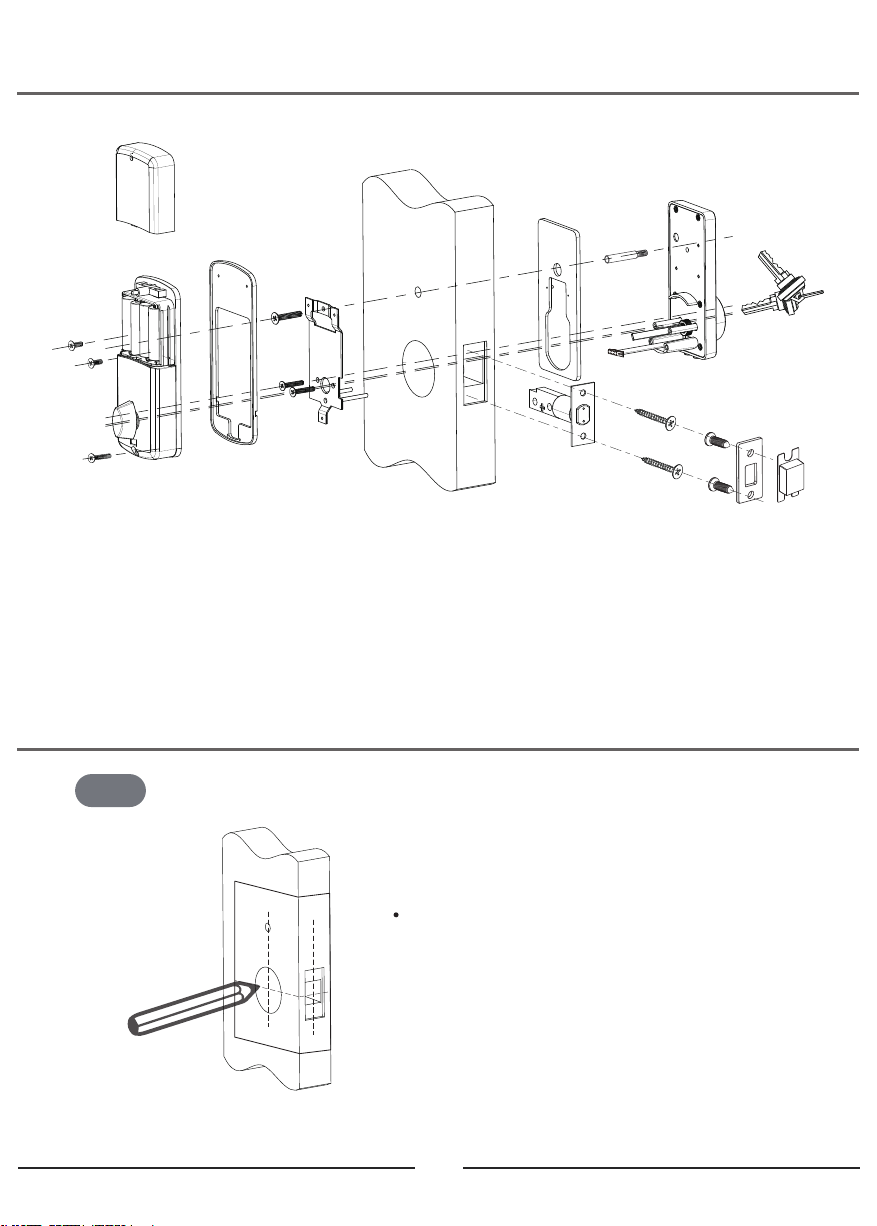
Installation Diagram
D
C
A
B
K
F
I
H
G
A) Outdoor lock body * 1
B) Silicon gasket * 1
C) Mounting plate * 1
D) Indoor lock body * 1
E) Deadbolt * 1
F) Cylindrical sleeve bolt * 1
Installation Diagram
Step 1
According to the map drilling holes on the door.
L
E
J
G) M4 x 25mm cross flat head bolt *1
H) M4 x 30mm cross flat head bolt * 3
I) M4 x 10mm cross flat head bolt * 2
J) M4 x 25mm cross flat head self-tapping screw * 4
K) Mechanical key * 2
L) Strike plate * 1
M) Latch holding plastic box * 1
M
Note:
1) Check the required backset (60mm or 70mm).
2) Align the template along the vertical center
line of the deadbolt(E) at the desired height,and
tape it to the door.
3) Mark the holes first, then start drilling.
02
Page 4
Step 2
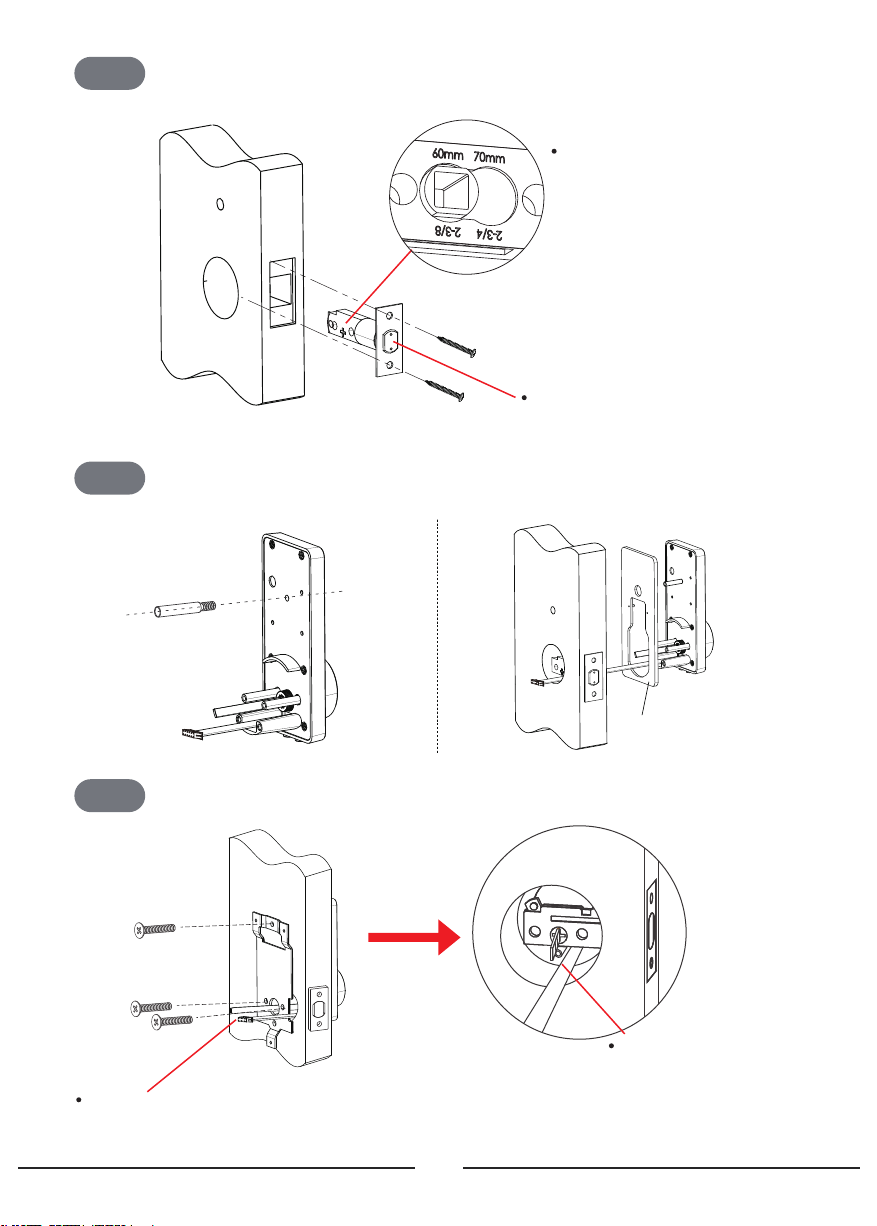
Install the deadbolt (E) with screws (J) on the door.
Note:
The deadbolt has TWO backset
options: 60mm or 70mm, please
adjust it by yourself.
Step 3
Step 4
H
E
J
Install outdoor unit(A) with cylindrical sleeve bolt(F)and gasket(B) on outdoor unit(A).
Note: DO NOT Push the latch out
before installation.
F
A
B
Install mounting plate (C) with M4 cross flat head bolt (H) on the door.
C
Note: The cable goes through the notch on the
lower right part of the mounting plate at first.
03
Note: Cable goes
underneath deadbolt.
Page 5
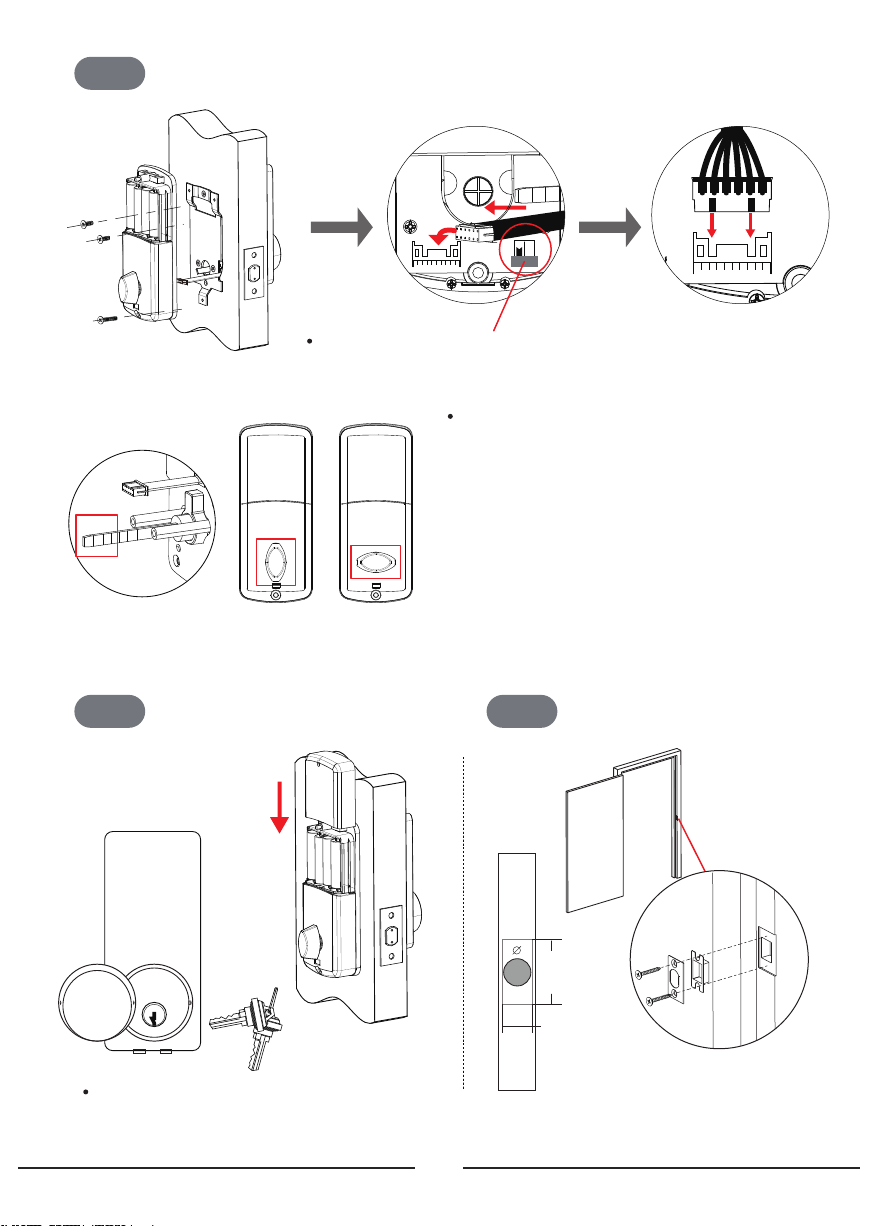
Step 5
L R
I
Install indoor unit(D) with M4 cross flat head bolts(I、G) on the door.
D
G
Step 6
If it is a left hand door, please turn the switch to L.
If it is a right hand door, please turn the switch to R.
VERTICAL HORIZONTAL
Install 4 pieces AA Alkaline batteries.
3
1 2
6
4 5
9
7 8
#
* 0
Note:(1) If it's a RIGHT opening door lock, pls put
the lock spindle VERTICALLY into the hole
connected to the knob at the indoor unit of the
lock, and the rotating part of the knob should also
be turned to VERTICAL position.
(2) If it's a LEFT opening door lock, pls put the lock
spindle VERTICALLY into the hole connected to
the knob at the indoor unit of the lock, but the
rotating part of the knob should be turned to
HORIZONTAL position.
Step 7
Mark and drill holes for strike.
M
25 m m
L
Testing the lock by rotating the knob
on unit D and using mechanical key(K).
58 m m
J
27 m m
04
Page 6
Feartures
Accessing - Three ways to access the lock: Bluetooth access, Pin code & Mechanical key.
Safety - There are multiple safety mechanisms within the lock.
a) Auto Lock: After an unlocking, S110BBL can lock automatically after a period of time (can
be 5s, 10s, 30s, 60s or custom seconds, the time can be set via the smart phone App)
b) Keypad Locked: After 6 failed pin code attempts, the keypad will shut down for 3 minutes
before being able to attempt the pin again. Mechanical key and Bluetooth Unlock can be used
to unlock in this state.
c) Privacy Lock out Mode: There is also a button under the knob of back panel, which is a
privacy lock out mode, which essentially is a ‘do not disturb’ mode, this will make the lock
no longer accept pin codes or bluetooth ekeys except for mechanical key.
①If you press the security lock button for over 2 seconds and activate the privacy lock out
mode(keypad can't input pin code any more), people won't be able to get in from outside.
②If you want to deactivate it, just turn the knob once or press the security lock button for
over 2 seconds, people from outside will be able to get in with pin code or bluetooth again.
Randomizer - Before you enter your password, you can push some random numbers to
prevent the password from being inferred based on the fingerprints on the frequently pushed
numbers and from being seen by anyone nearby.
Emergency Power Supply - Emergency power supply interface equipped on the front
bottom side of the smart lock: to unlock the door temporarily by connecting to the emergency power supply interface with a 9V backup battery.
Real Time Record - You can manage your passcodes and check unlock records in real time on
your App.
Product Profile
Specifications
Material
Door thickness
Woring Temperature
Working Power Consumtion
Power Supply
Unlocking Methods
User Capacity
Product Dimension
All specifications are subject to change without notice. All rights reserved.
Zinc Alloy
38mm-48mm
-20°C~70°C
<200mA
6V (4pcs AA Alkaline Batteries not included)
Bluetooth Access, Passcode & Mechanical Key
1 Admin Passcode
Unlimited Bluetooth eKey users
150 custom & permanent passcodes
(other types of passcodes are unlimited)
Front
Back
Model NO.
Code Length
Working Humidity
Static Power Consumption
60(W) x 137(H) x 29(D) mm
67(W) x 164(H) x 30(D) mm
05
S110BBL
6~12 digits
20%~80%RH
<30uA
Page 7
App Operation Guide
1. APP Installation and Registration
1.1. Download the "TTLock" App form Google play store or Apple store.
2.2. Install and register an account with your phone number or email.
Note: The APP only supports Android 4.3 / IOS7.0 version and above. Once you pair a
device with your phone/account, the device will not be able to link to other accounts,
unless you remove the link from the App.
2. APP Connection
2.1. Turn on the Bluetooth on your phone.
2.2. Open the APP. Then click “Add Lock” and “Lock”.
2.3. Touch the touch screen button of the smart lock to activate lock, the number keys
indicator light will be bright and Click “Next”on the APP.
2.4. Find the smart lock name which starts with “xx_xxx” and click “+”.
2.5. Rename the name of smart lock and click “OK”, then Click “Finish”.
Note:
(1) If you do not see the + sign, it means that that device has already been paired with
another phone / account and cannot be linked to your phone. You will need the previous owner to remove the device from the account or transfer control of the device to
your account. Also, remember that your phone must be connected to the internet (3G
/ 4G / Wifi) when ADD / LINK a new device.
(2) Remove a Bluetooth Admin: The reset button is on the backside of front panel,
right behind the number 4 on the touchpad. Keep pressing the reset button with a
piece of long and thin needle for over 5 seconds, your smart lock system will be
restored to factory default settings and delete all smartphones and fobs from the
memory.
3. APP Operation Instruction
3.1. Send eKey
eKey is a function for you to authorize the Admin rights to other members, who has
download the same APP in their own phones.All the people who holds can control
the smart lock.
3.2. Generate Passcode
The passcode receiver can unlock the smart by entering the passcode manually. The
passcode can be set as different type:Permanent /Timed / One-time(6 hours) /Erase
(24 hours) / Customized / Recurring . All passcodes generated can be sent to those in
need by mail and chatting tools.
06
Page 8

3.3. eKeys: A file to manage the status and history of eKeys.
3.4. Passcodes: A file to manage the status and history of Passcodes.
3.5. Records: View locking and unlocking information to check when and who used it.
3.6. Authorized Admin: Authorize the admin to the users who can operate the lock as an A
dmin user.
3.7. Setting
3.7.1.
Basics: Display the Lock Number, MAC/ID, Battery lever, Lock Name(you can
manually change name of the door), Lock Group(he administrator can add
multiple locks for grouping,which is suitable for rental housing. It is more
convenient for group management of personnel), Admin Passcode(the default
passcode is the unlock passcode of the administrator, which can be manually
changed to a custom passcode).
3.7.2.
Auto Lock: Off-by-default. Open the App-click Setting, click Auto Lock-turn on
and set time to 10S, 15S, 30S, 60S or Custom seconds you need, then click OK.
When the setup is completed, it will be automatically locked after unlocking (for
example, it will be automatically locked 10 seconds after unlocking if the time is
set as 10 seconds).
3.7.3. Lock Clock: Calibrate time of the lock.
3.7.4. Diagnosis: Analyse the problem of the lock.
3.7.5. Read Operation Records: This operation will read all records stored in the lock.
3.7.6. Firmware Upgrade: to check whether there is any update version.
3.7.7.
Unlocking Notification: On-by-default. If this function is on, the administrator's
phone will receive the unlocking information when someone who assigned
with a key unlocks the door with the APP.
3.8. System Settings
3.8.1.
Sound: On-by-default, you can manually close it to turn off App system unlock
operation sound.
Touch to Unlock: Off-by-default, this function is invalid when the “ttlock” APP is
3.8.2.
turned off or running on the background of your phone. When the APP is open
and connect within 10 meters from the lock, any family members can unlock
the door by pressing any one touch screen button for at least 2 seconds. It is
recommended to close the option if you do not need it.
3.8.3. Lock Users: You can check your lock users here.
Lock Group: the administrator can add multiple locks for grouping, which is
3.8.4.
suitable for rental housing. It is more convenient for achieving group management of personnel. It can be modified or deleted if not needed.
Transfer locks: This function is used to transfer the administrator rights. Once
3.8.5.
transferred, you will not the administrator again.
3.8.6.
Transfer gateway: This function is used to transfer the gateway. Once transferred, you will lose the right for managing the gateway.
3.8.7. Languages: App system language setting.
Screen Lock: After the function is turned on, you need to use your fingerprint or
3.8.8.
account password to open the the lock App. No need to verify again within 3
minutes.
07
Page 9

Operation Instructions for Different Functions
1. Unlock
1.1.
Unlock with APP: Turn on the app and click the lock icon in the interface to
unlock it (The phone should be within 10 meters from the door lock).
1.2.
Unlock with passcode: enter the numeric passcode and then press the # key to
confirm the unlocking (The Admin Passcode can be set in the APP setting).
Unlock by touching the keypad: Open the APP, then turn on the “Touch to Unlock
1.3.
option” in the System Settings. Touch the keypad to unlock the door (The phone is
required to be connected to WiFi or mobile data network and within 10 meters from
the door lock).
Unlock by mechanical key: use a pointed object to open the circular keyhole which is
1.4.
under the touch screen button then insert the key to unlock it.
Unlock manually: manually twist the knob on the Back panel to unlock it.
1.5.
2. Lock
2.1.
Lock with APP: Turn on the App, press and hold the lock icon for 5 seconds to lock it.
(The phone should be within 10 meters from the door lock).
2.2.
Auto Lock: When you turn on the “Auto Lock” option in the APP and set the auto lock
time, the lock will be locked automatically after you unlock the door.
Lock with the # key: press and hold the # key on the front panel keypad for 3 to 5
2.3.
seconds to lock.
Lock by mechanical key: use a pointed object to open the circular keyhole which is
2.4.
under the touch screen button then insert the key to lock it.
Lock manually: manually twist the knob on the Back panel to lock it.
2.5.
3. Modify the Administrator’s Unlocking Passcode
Open the APP - locate the lock you want to change admin passcode - click Setting - click
Basic - click Admin Passcode - enter the new passcode with 4-9 numerical digits - click OK
(The phone is required to be connected to WiFi or mobile data network and within 10
meters from the lock).
4. Remote Authorization of ekey
Turn on the APP - click Send eKey - select the ekey type as "Timed" or "Permanent" Enter the APP account of the recipient-click Send button.
(The phone is required to be connected to WiFi or mobile data network)
08
Page 10

5. Switch Administrator
5.1.
Delete the Administrator right
Open the APP- locate the lock - click Setting - click Delete - enter your account
password - click OK - Using a new phone to pair the lock again. A lock can only be
paired with one administrator phone. Please stand within 10 meters away from the
lock to open and connect the APP.
Switch through the Transfer locks function.
5.2.
Turn on the APP - click System Settings - click Transfer Locks - Select Locks - click Next
- enter the recipient's APP account and the verification code - click Next - Finish (The
phone is required to be connected to WiFi or mobile data network & within 10 meters
from the lock ).
6. Freeze / Delete / Authorize / Name / Operate Already Sent ekeys by Administrator
Turn on the APP- click eKeys - click the ekey that has been sent - click Name / valitidity /
delete the eKey info you need - clicking the menu on the upper right corner to conduct
the freeze / authorization operation. (The phone is required to be connected to WiFi or
mobile data network.)
7. Remote Authorization of Passcode
Turn on the APP - click Send passcode - select the type of the passcode (Permanent /
Timed / One-time / Custom / Recurring) - click Generate. Then it will create a passcode.
You can send the code to others by SMS, email and other chatting tools.(The phone is
required to be connected to WiFi or mobile data network.)
8. Delete Already Sent Passcode by Administrator
Turn on the APP - click Passcodes - select the passcode that has been sent - delete the
passcode (The phone is required to be connected to WiFi or mobile data network and
within 10 meters from the lock).
9. System Reset
The reset button is on the backside of front panel, right behind the number 4 on the
touchpad. Keep pressing the reset button with a piece of long and thin needle for over 5
seconds, your smart lock system will be restored to factory default settings and delete all
smartphones and fobs from the memory.
09
Page 11

FQA
Q: How can I reset my ttlock app account if I forgot my password?
A:1. Open the ttlock lock App, click Forgot password, enter the email address you
registered for your ttlock account.
2. Enter a new password, check Get code. You should receive verification code in the
email, Enter the verification code to reset your password. Use the new password to
sign in the account.
Q: Can I still use the smart lock when my phone is lost or turn off?
A:1. Yes. You can still use the traditional physical key or password to lock / unlock the
door.
2. Use a new phone to download the App, Sign in your App account with the email or
phone number and password. Enter the verification code, then you can use the new
phone to unlock the door. Don’t forget to reset the door after you unlock it.
Q: The door won’t lock automatically when I close it.
A:1. Check if Auto Lock is set. If not, press and hold the # key on the panel keypad for 3 to
5 seconds to lock the door.
2. If the door doesn’t lock automatically when Auto Lock is set, then the lock has been
installed incorrectly.
3. The Auto Lock function is not activated when the batteries are completely
discharged. Check if the batteries are discharged.
Q: Lock configuration failed.
A:1. Remove the mechanical key from the cylinder.
2. Check that the door was closed properly or if lock operation was interfered.
Q: The App is disconnected from the door unit and / or I can't find my lock on the App.
A:1. Close the App, turn off your phone's Bluetooth. Then turn Bluetooth back on, and
open the App.
2. Refresh the App.
3. The lock can only be connected to one user's App. It's possible that another user's
phone App is already connected to the lock. If don't know which user is connected to
it, you have to reset the lock.
10
Page 12

Q: The smart lock has started beeping whenever I lock or unlock the door.
A:This is an indication your battery is low; it's time to change the batteries.
Q: I'm unable to open the door from a distance of 10 meters / yards
A:1. The app works via a Bluetooth connection, which can be impacted by the environ-
ment.
2. For both security and functionality reasons, try moving as close as possible to the
lock."
3. The battery is low, use the emergency power supply for the door.
Important Safeguards
1. Read all instructions in their entirety.
2. Familiarize yourself with all warning and caution statements.
3. Remind all family members of safety precautions.
4. Always have access to your lock’s standard key.
5. If using the Lock with the # key or Auto-Lock features, make sure to have your smart-
phone, passcode or standard key with you to prevent locking yourself out.
6. Replace low batteries immediately. Preventing Inadvertent Unlocking of Your Door.
WARNING
Failure to follow these safeguards could result in your lock opening inadvertently.
1. Avoid keeping and storing phones and fobs unnecessarily close to the lock when inside
the home.
2. Restrict access to your lock’s back panel and routinely check your settings to ensure
they have not been altered without your knowledge.
3. Protect the password to your ttlock app and your account.
4. When sending an eKey, always double-check that you are sending it to the correct
recipient.
5. Protect and restrict access to your smartphone so that your app settings cannot be
altered without your knowledge.
7. When sending eKeys, be aware of the difference between an Admin user and other
users in the system. The Admin user can send, disable and delete eKeys.
8. If your smart phone is lost or stolen, reset your lock. Resetting your smart lock system
will restore your lock to factory settings and delete all smart phones and fobs.
11
 Loading...