

Page 1

Apple MFi Product Plan ID (PPID): 252080-0012
Licensed Components: Lightning Connector
Website :http://www.peunionpl.com/
PL Memory User Manual
USB Lightning Flash Drive
For iPhone, iPad, iPod and
Computers
1
Page 2

Apple MFi Product Plan ID (PPID): 252080-0012
Licensed Components: Lightning Connector
Website :http://www.peunionpl.com/
Contents
App Installation-----------------------------------------------------------4
PL Memory Overview---------------------------------------------------7
APP Main Instructional Icons-----------------------------------------9
Photos Section
Copy Photos------------------------------------------------------------10
Share Photos-----------------------------------------------------------16
Rename Photos--------------------------------------------------------17
Organize Photos-------------------------------------------------------18
Videos Section
Copy Videos-------------------------------------------------------------19
Share Videos------------------------------------------------------------24
Rename Videos--------------------------------------------------------26
Organize Videos-------------------------------------------------------27
Music Section
Copy Music--------------------------------------------------------------28
Share Music-------------------------------------------------------------33
Rename Music---------------------------------------------------------34
Organize Music--------------------------------------------------------34
Backup Section-------------------------------------------------35
File/Folder Section
Copy File/Folder--------------------------------------------------------37
2
Page 3

Apple MFi Product Plan ID (PPID): 252080-0012
Licensed Components: Lightning Connector
Website :http://www.peunionpl.com/
Rename File/Folder---------------------------------------------------39
Organize File/Folder--------------------------------------------------40
Camera Section
Take Photos & Videos------------------------------------------------41
View Photos & Videos------------------------------------------------43
Back Up Contacts Section
Back Up Contacts-----------------------------------------------------46
View Backup Contacts-----------------------------------------------47
Replace iPhone to Reduce Backup Contacts------------------49
Setting Section
Overview----------------------------------------------------------------53
Cache--------------------------------------------------------------------54
Language---------------------------------------------------------------55
Disk Folder Encryption----------------------------------------------56
Third-party Open Setting--------------------------------------------66
Format-------------------------------------------------------------------67
Backup-------------------------------------------------------------------68
About---------------------------------------------------------------------72
Q&A-----------------------------------------------------------------73
NOTE----------------------------------------------------------------78
Warranty----------------------------------------------------------80
Contact US-------------------------------------------------------80
3
Page 4
Apple MFi Product Plan ID (PPID): 252080-0012
Licensed Components: Lightning Connector
Website :http://www.peunionpl.com/
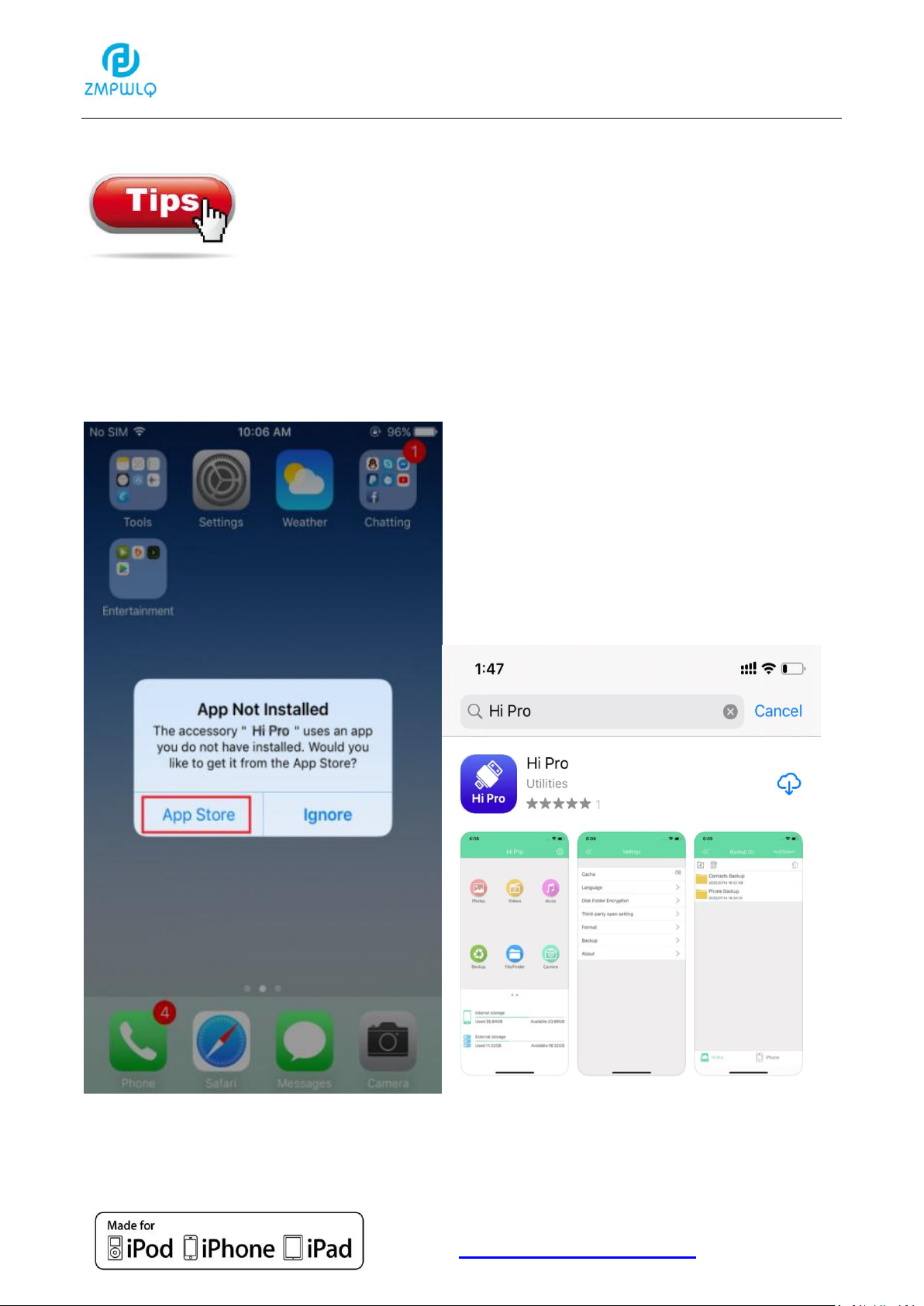
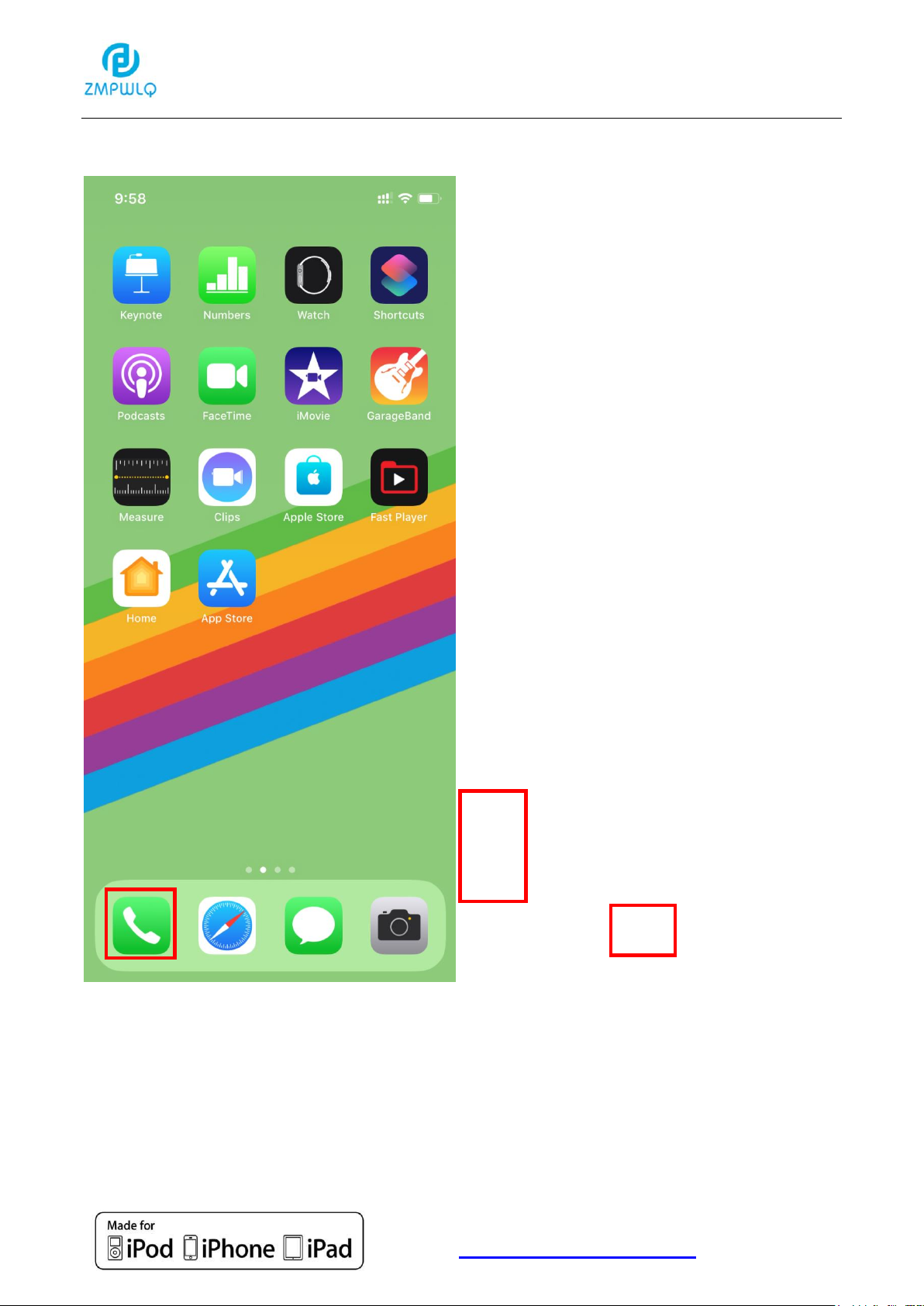
App Installation
When Plugging the PL Memory into your Apple
device for the first time, there will be installation
message pop-up. Please click "App Store" to
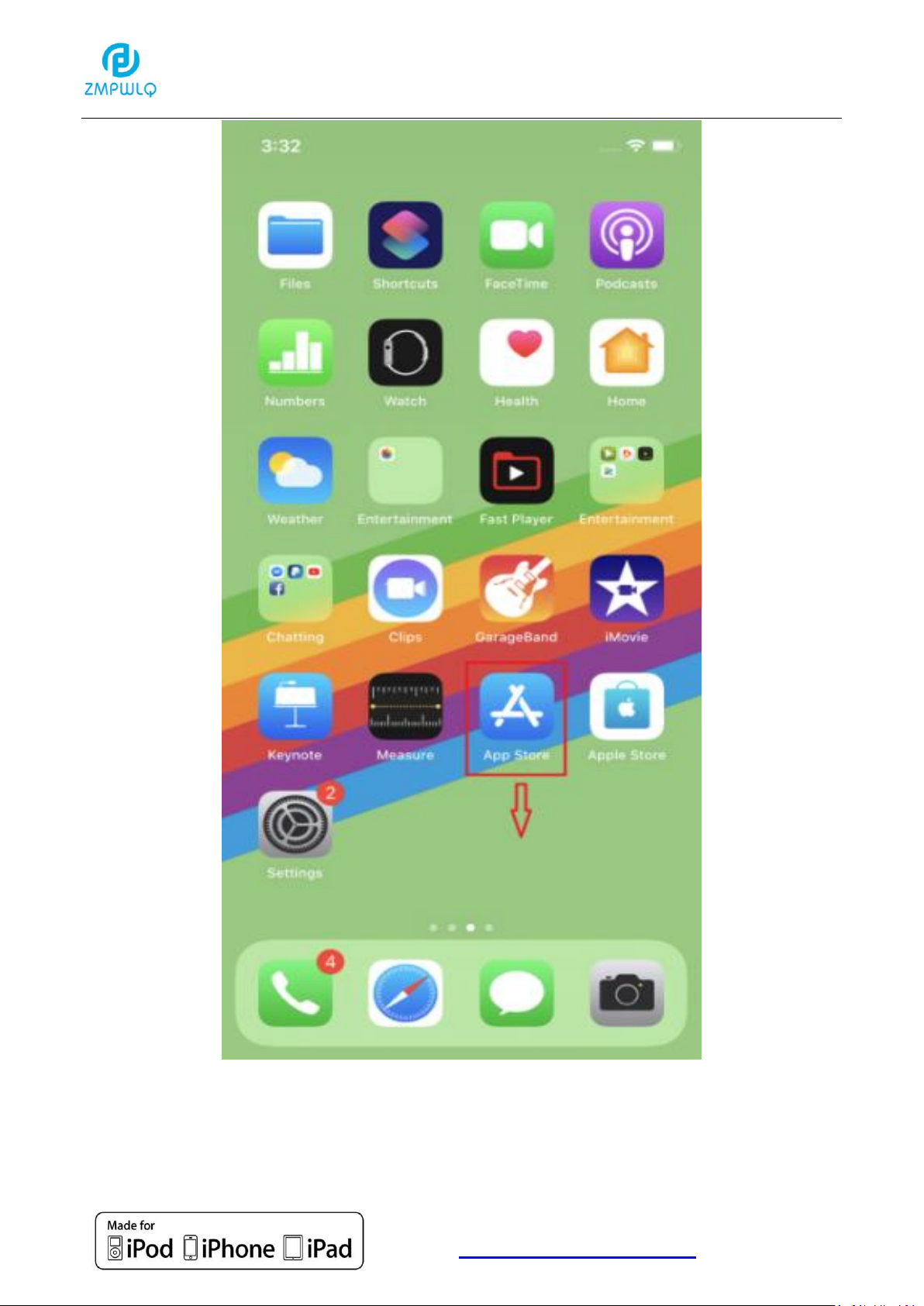
download and install. You can also download the app from the
App Store. Search for "Hi Pro".
(Please Note: search from APP store, not Apple Store)
4
Page 5
Apple MFi Product Plan ID (PPID): 252080-0012
Licensed Components: Lightning Connector
Website :http://www.peunionpl.com/
5
Page 6
Apple MFi Product Plan ID (PPID): 252080-0012
Licensed Components: Lightning Connector
Website :http://www.peunionpl.com/
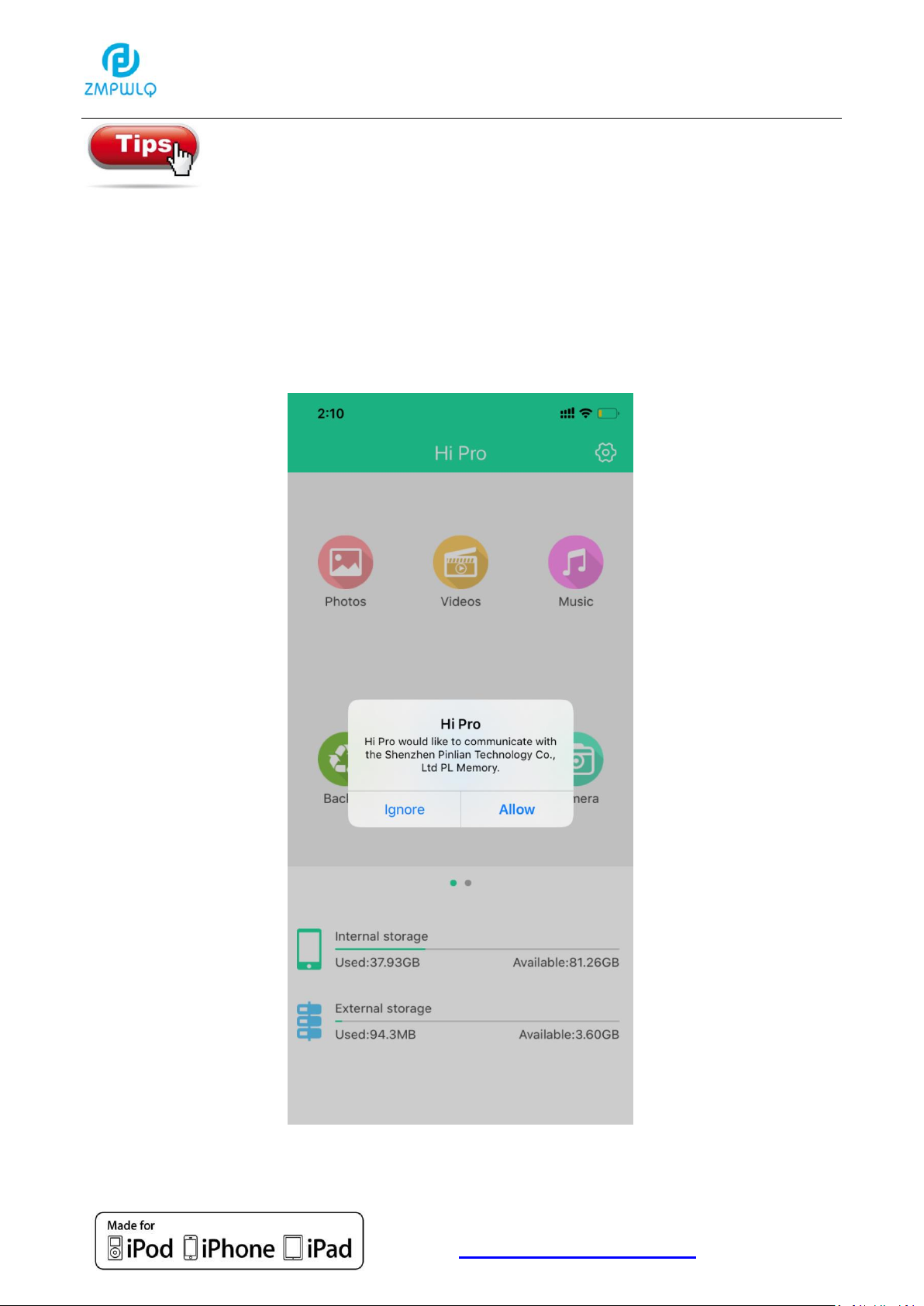
It is normal to receive the following message when the PL
Memory connected to your iPhone or iPad. PL Memory
(Manufacturer: Shenzhen Jiangda Technology Co., Ltd.) is Apple
MFi certified product and this message is required for any
external device to iPhone or iPad. Please click Allow to go ahead.
6
Page 7
Apple MFi Product Plan ID (PPID): 252080-0012
Licensed Components: Lightning Connector
Website :http://www.peunionpl.com/
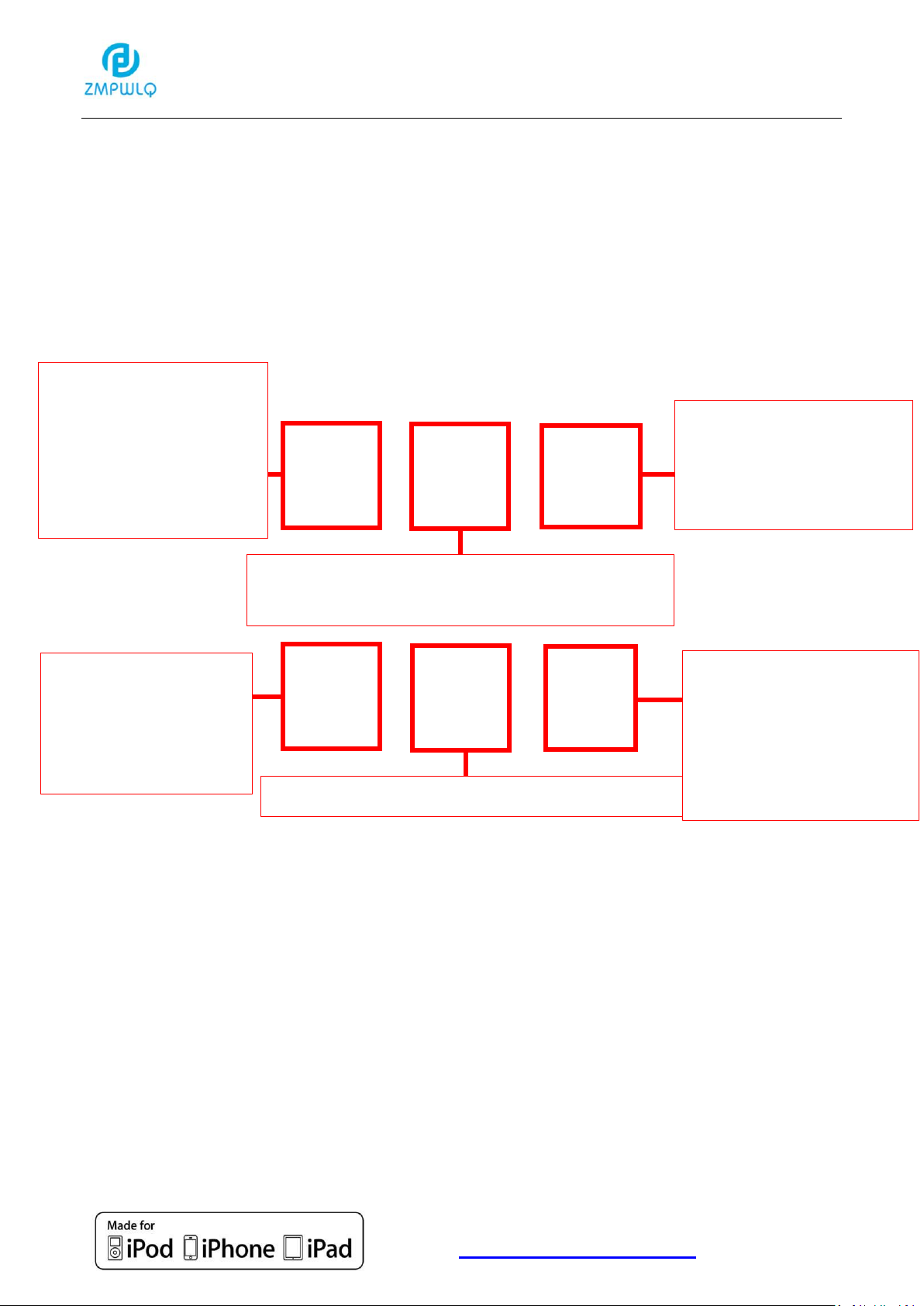
Backup photos
to the flash drive
(organize/delete/
copy/share photos)
Backup videos to the flash drive
(organize/delete/copy/share photos)
Play the music
stored in the flash
drive
One-click backup
all photos/videos
in Camera roll
Take photos/videos
and automatic
backup to the flash
drive
Folders/files management section
PL Memory Overview
7
Page 8
Apple MFi Product Plan ID (PPID): 252080-0012
Licensed Components: Lightning Connector
Website :http://www.peunionpl.com/
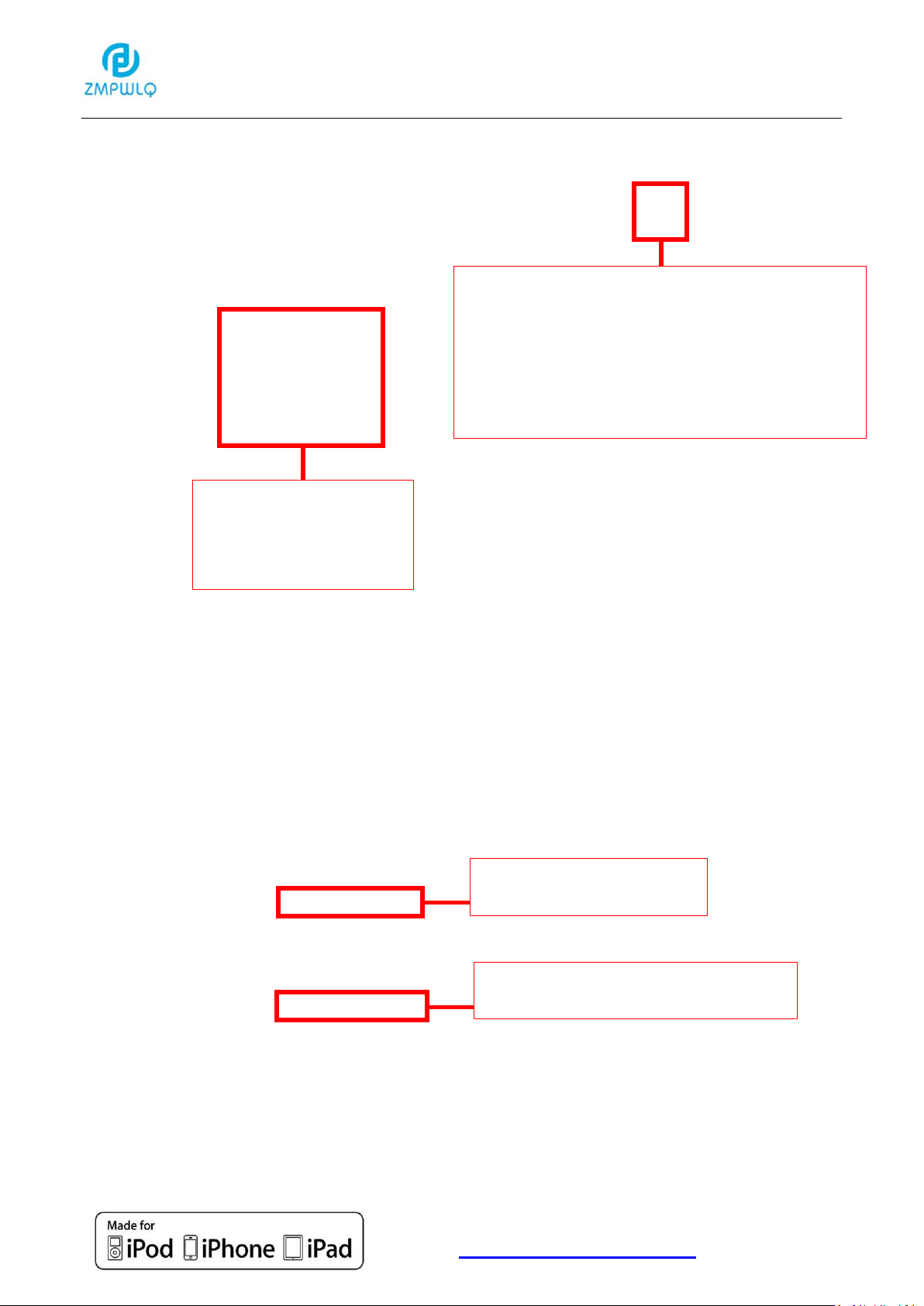
iPhone storage
PL Memory storage
One-click backup
contacts
Settings:
(Cache/ Language/ Disk Folder
Encryption/Third-party open
setting/Format/ Backup/ About)
8
Page 9
Apple MFi Product Plan ID (PPID): 252080-0012
Licensed Components: Lightning Connector
Website :http://www.peunionpl.com/
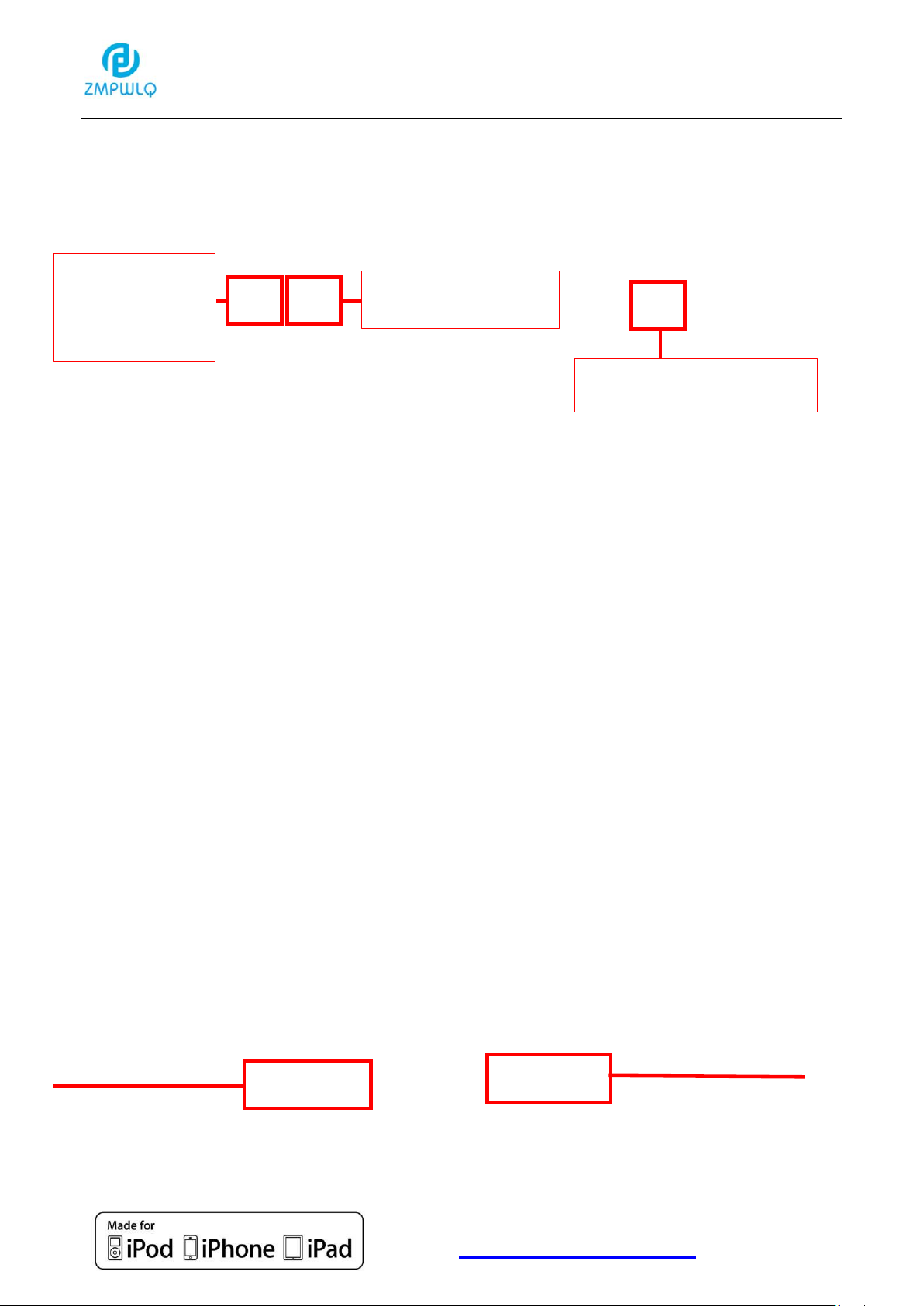
Represents
“Internal storage
of iPhone/iPad”
Represents
“External storage
of the flash drive”
Back to Homepage
Browse layout
Create new
folder
APP Main Instructional Icons:
9
Page 10
Apple MFi Product Plan ID (PPID): 252080-0012
Licensed Components: Lightning Connector
Website :http://www.peunionpl.com/
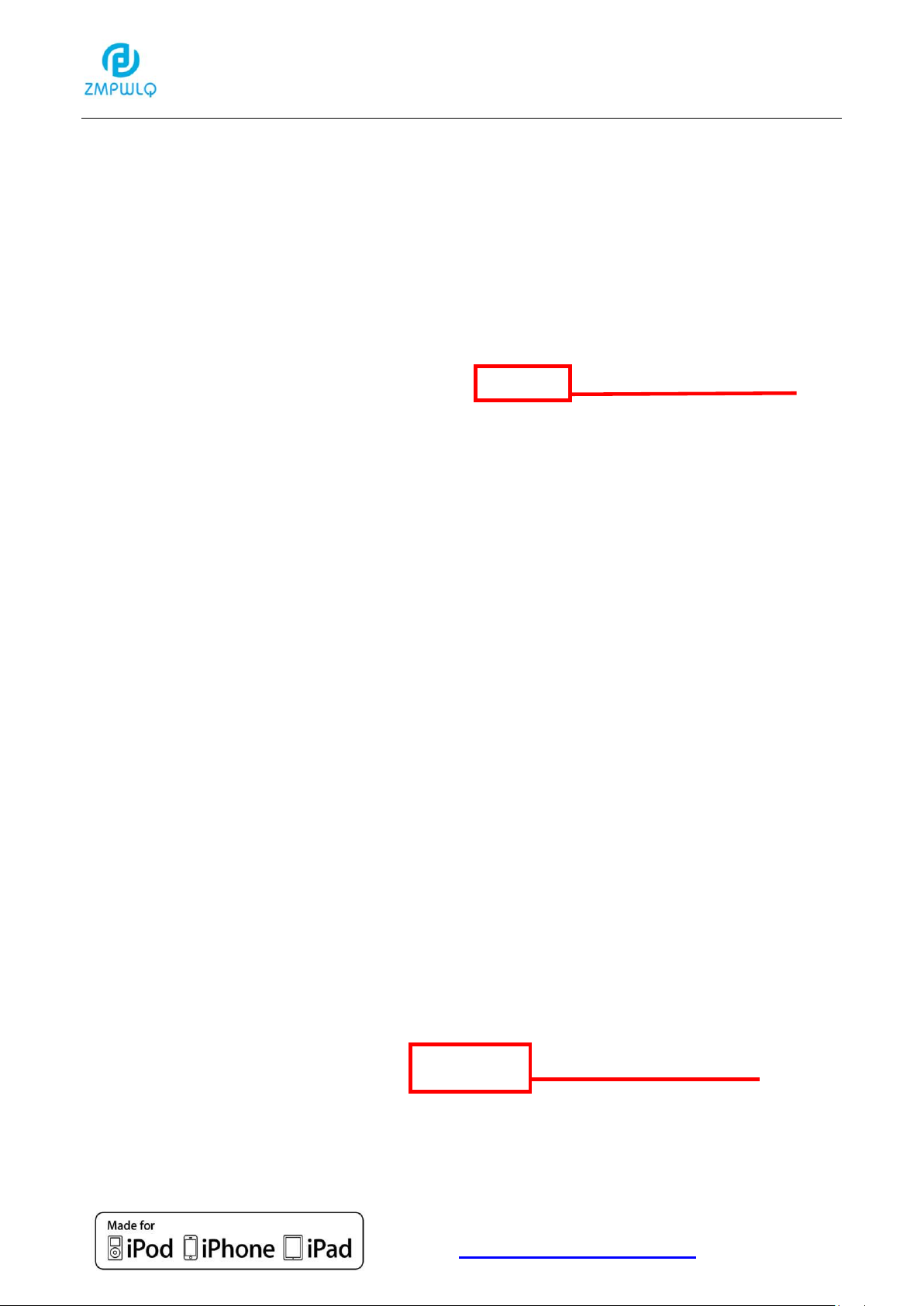
Click for selection
Select “iPhone”
Photos Section
Copy Photos
1. Click into photos section:
10
Page 11
Apple MFi Product Plan ID (PPID): 252080-0012
Licensed Components: Lightning Connector
Website :http://www.peunionpl.com/
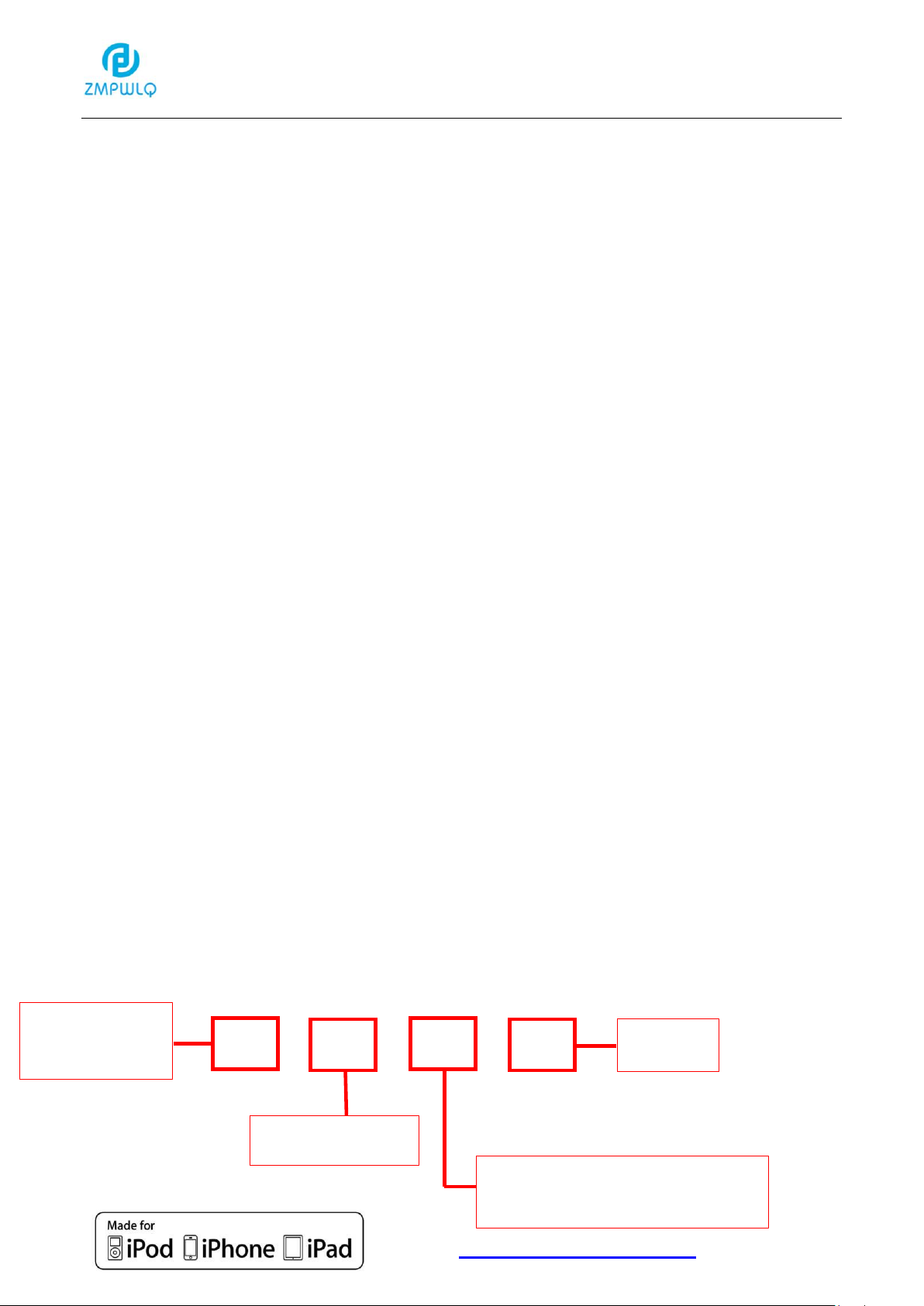
Copy to the
PL Memory
Cancel
Delete selected
Share photos to Email/Social
medias, Bluetooth
2. Select Photos: select all or select one by one
11
Page 12
Apple MFi Product Plan ID (PPID): 252080-0012
Licensed Components: Lightning Connector
Website :http://www.peunionpl.com/
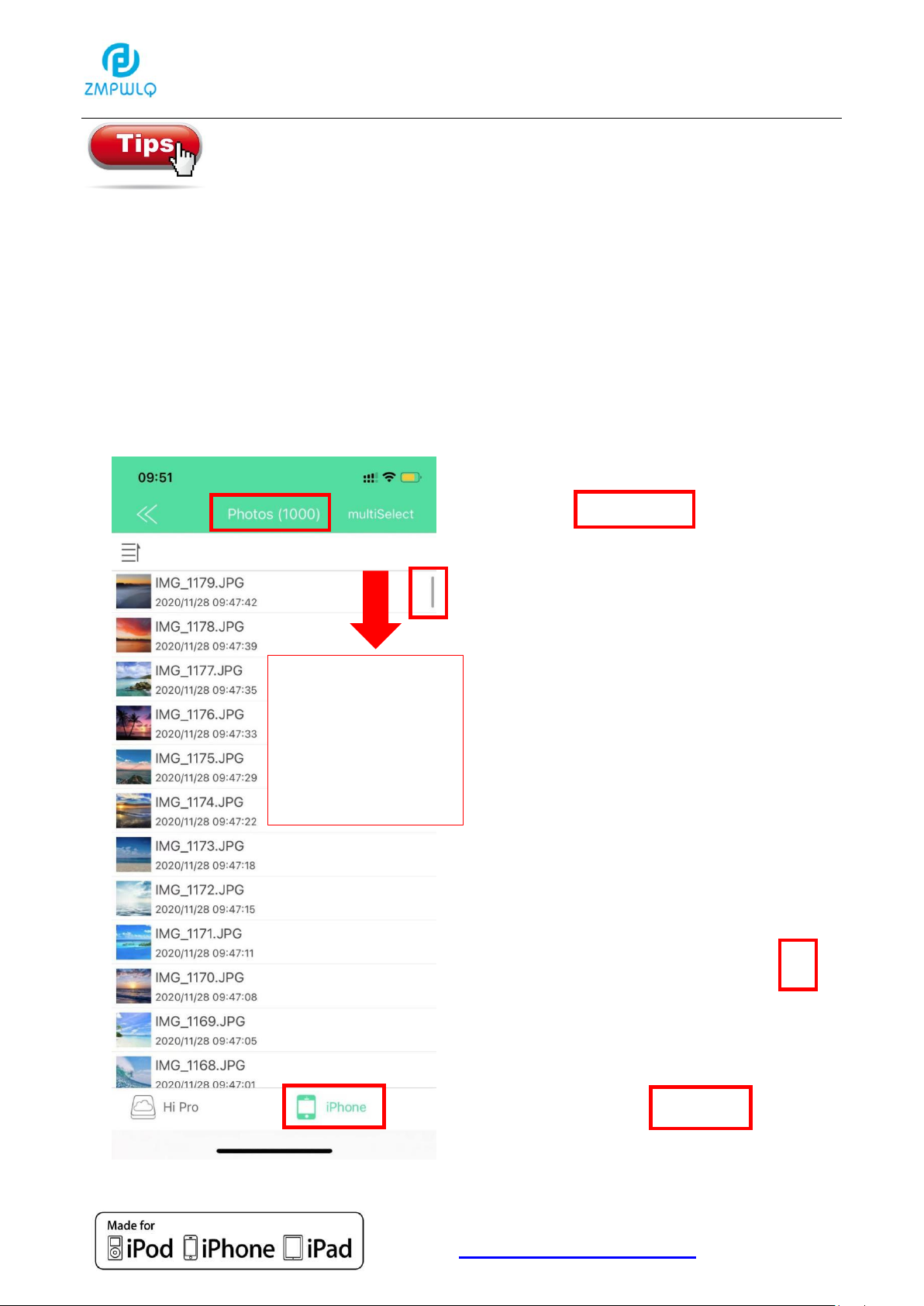
Please pull up the
page or pull down
the Drop-down box
button to refresh
the display.
The internal storage only displays 1000 photos each
time. If there are more than 1000 photos, even if you
select all, it only displays 1000 photos. In this situation, please pull
up the page or pull down the Drop-down box button to refresh the
display. Then increase by a multiple of 1000, all your photos will be
pulled to the end display. The external storage displays 499 pcs,
please pull down to refresh the display, too.
12
Page 13
Apple MFi Product Plan ID (PPID): 252080-0012
Licensed Components: Lightning Connector
Website :http://www.peunionpl.com/
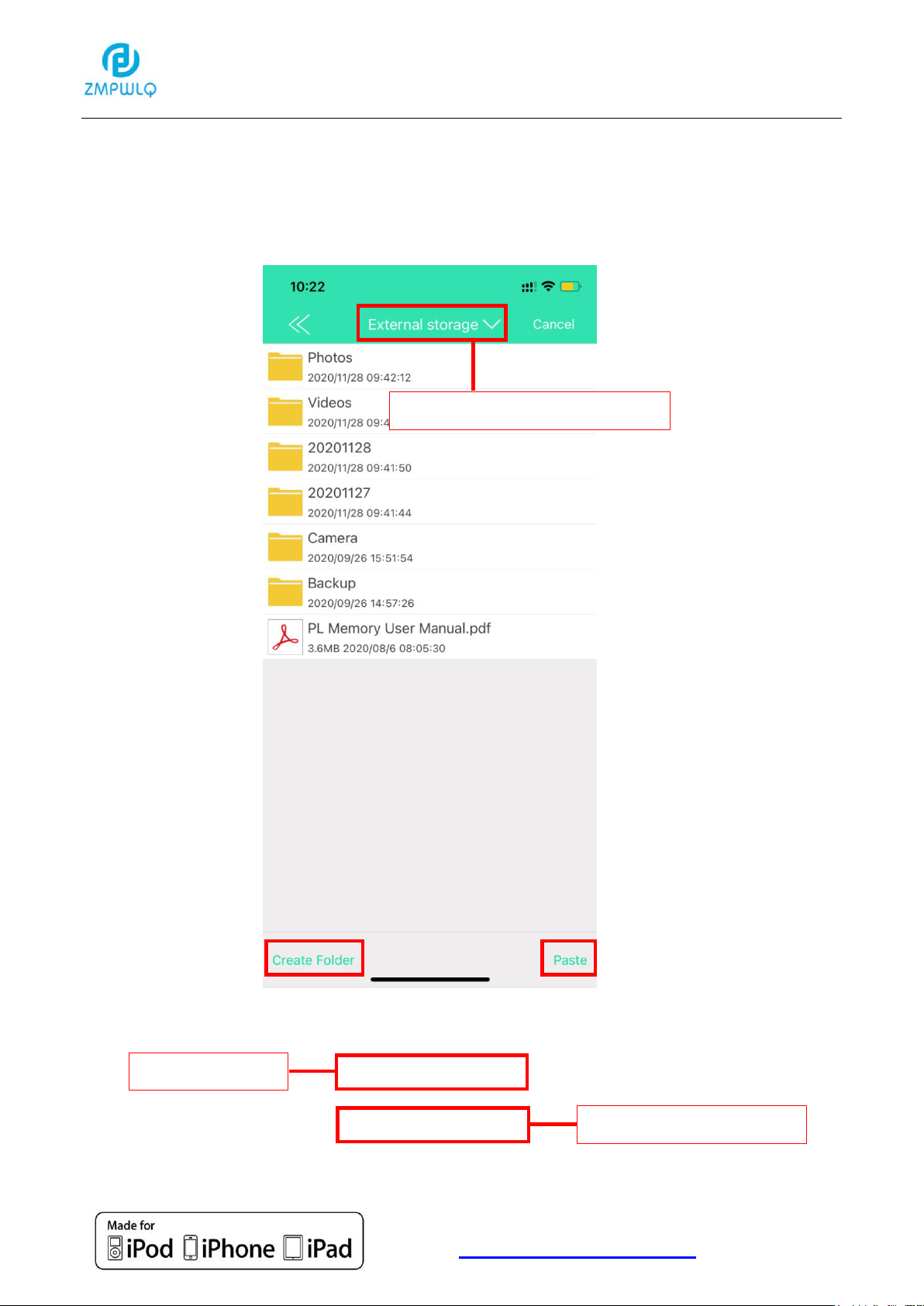
Choose “External storage”
iPhone storage
PL Memory storage
3. Copy selected photos to the PL Memory
3.1:Click “CopyTO”
13
Page 14
Apple MFi Product Plan ID (PPID): 252080-0012
Licensed Components: Lightning Connector
Website :http://www.peunionpl.com/
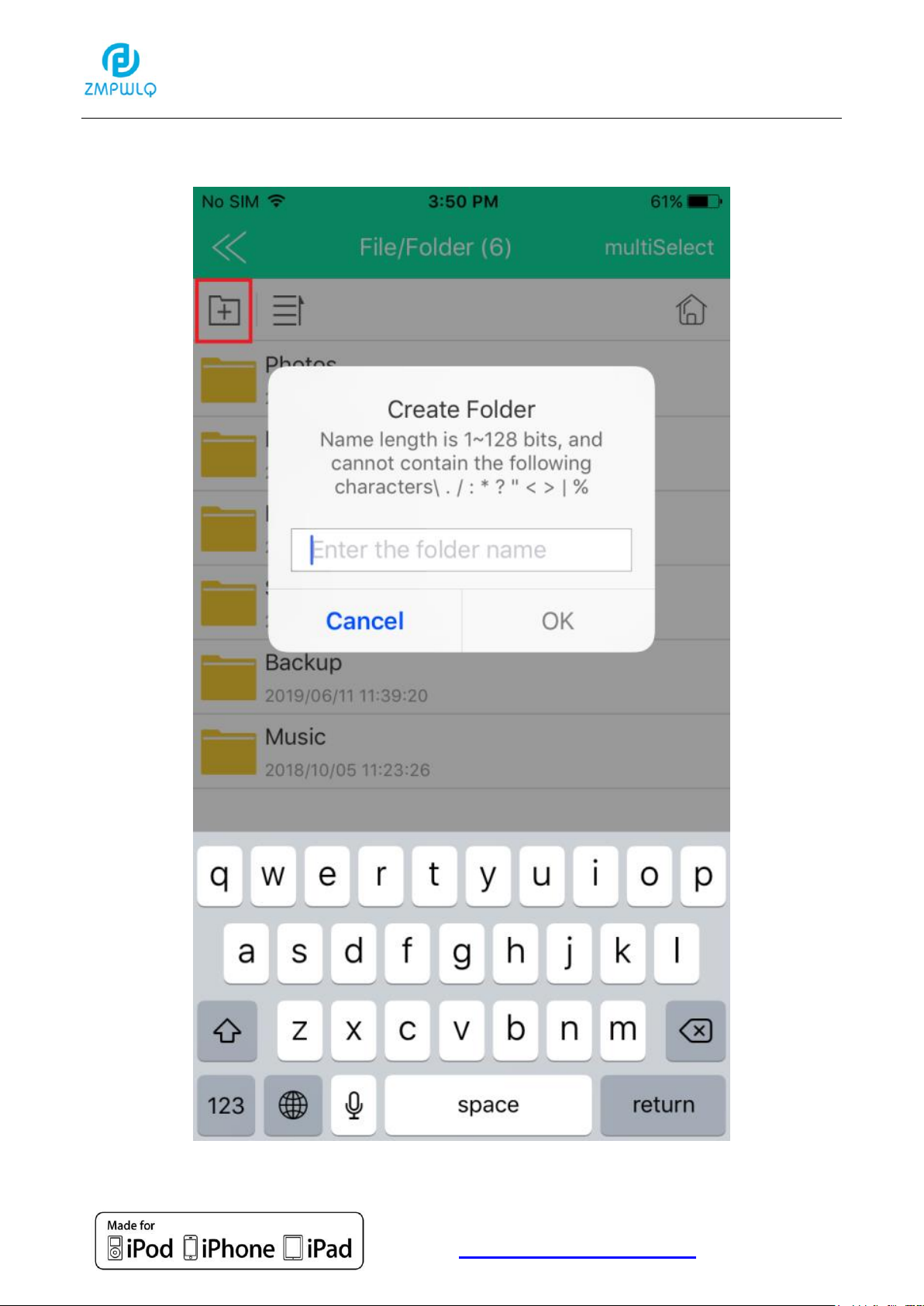
3.2:Click “Create Folder”
14
Page 15

Apple MFi Product Plan ID (PPID): 252080-0012
Licensed Components: Lightning Connector
Website :http://www.peunionpl.com/
3.3:Click “Paste”
15
Page 16
Apple MFi Product Plan ID (PPID): 252080-0012
Licensed Components: Lightning Connector
Website :http://www.peunionpl.com/
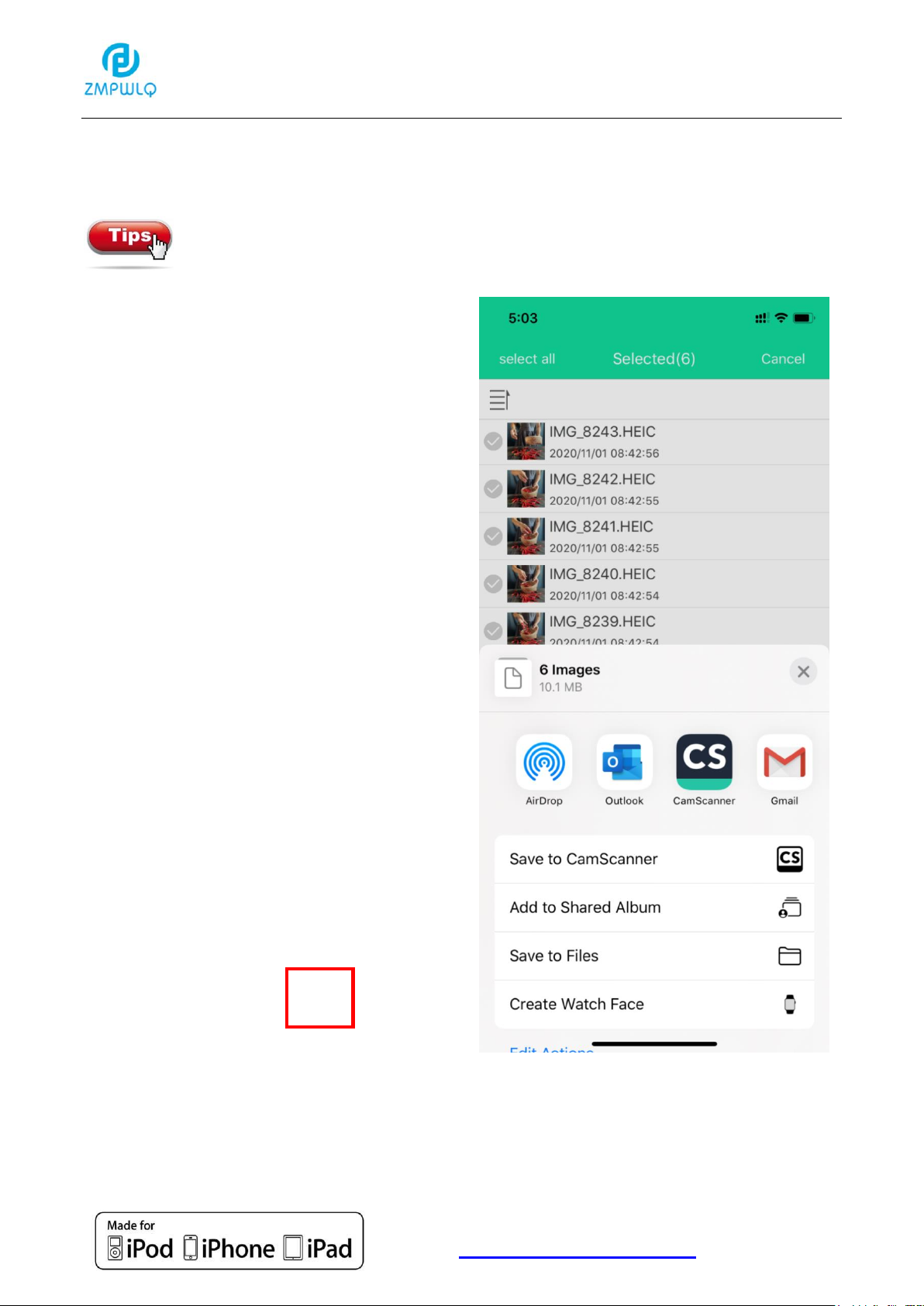
Share Photos
1. Select photos and then click icon “Share”
Max quantity for photos sharing will depend on different third-party media
photo uploaded limitation. (Facebook, Email, Instagram etc.)
16
Page 17
Apple MFi Product Plan ID (PPID): 252080-0012
Licensed Components: Lightning Connector
Website :http://www.peunionpl.com/
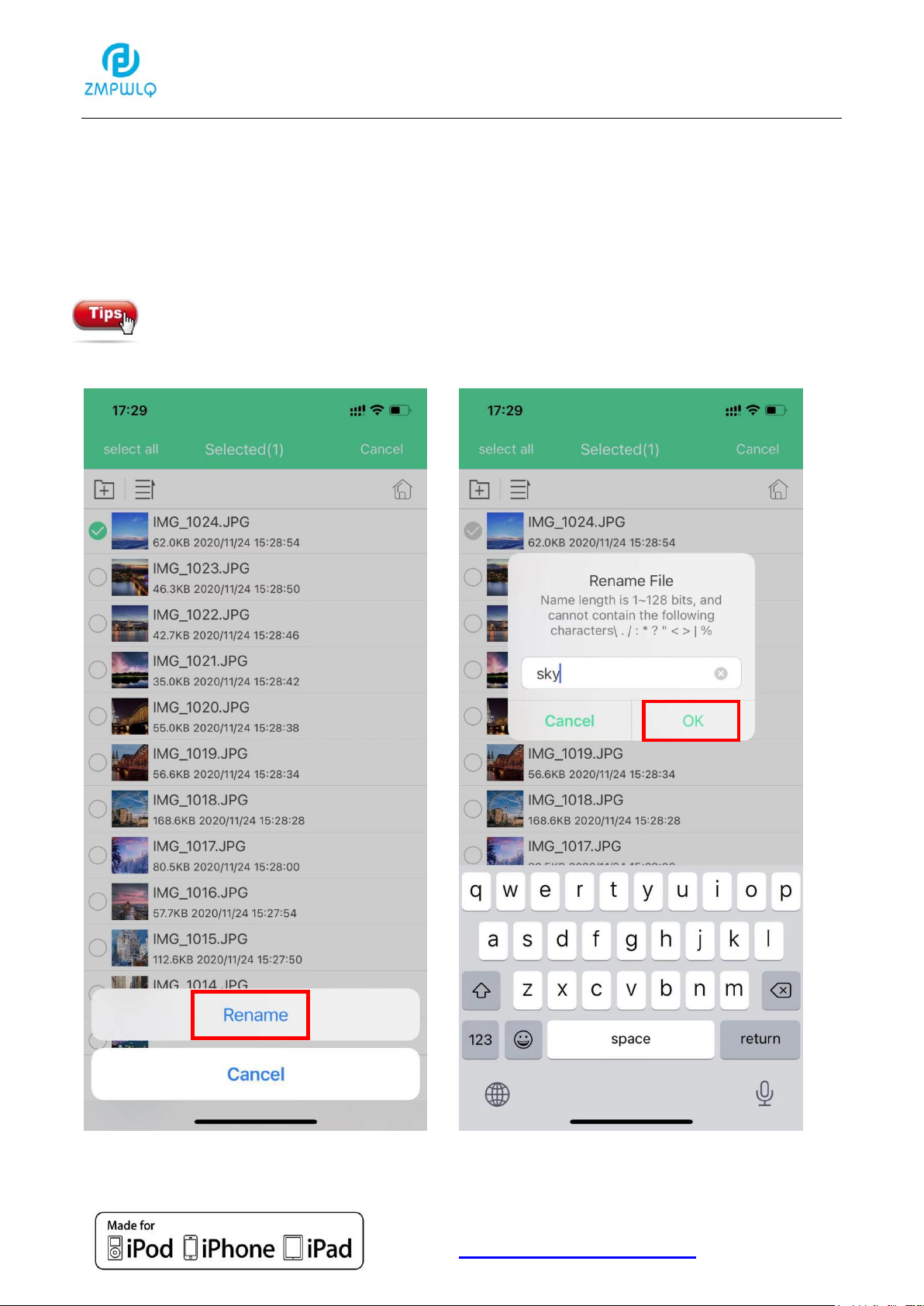
Rename Photos
1. Go to “File/Folder” section and click into the folder and
click “More”:
You can only change the names of photos and folders in PL
Memory.
17
Page 18

Apple MFi Product Plan ID (PPID): 252080-0012
Licensed Components: Lightning Connector
Website :http://www.peunionpl.com/
Organize Photos
You can go back to the folder to browse and organize the
photos. Click
Photos will keep original information (data, name) and can
be organized by time, name or type as below:
18
Page 19
Apple MFi Product Plan ID (PPID): 252080-0012
Licensed Components: Lightning Connector
Website :http://www.peunionpl.com/
Click for selection
Select “iPhone”
Browse layout
Videos Section
Copy Videos
Only videos or photos stored in the iPhone/iPad internal storage (camera
roll or album) can be transferred into the flash drives, the music or movies,
videos files are DRM (Digital Rights Management) protected. So you are
not able to download directly into the flash drives from iTunes, iCloud or Netflix.
1. Click into videos section:
19
Page 20

Apple MFi Product Plan ID (PPID): 252080-0012
Licensed Components: Lightning Connector
Website :http://www.peunionpl.com/
Copy to the
PL Memory
Cancel
Delete selected
Videos
Share Videos to Email/Social
medias, Bluetooth
2. Select Videos: select all or select one by one
20
Page 21
Apple MFi Product Plan ID (PPID): 252080-0012
Licensed Components: Lightning Connector
Website :http://www.peunionpl.com/
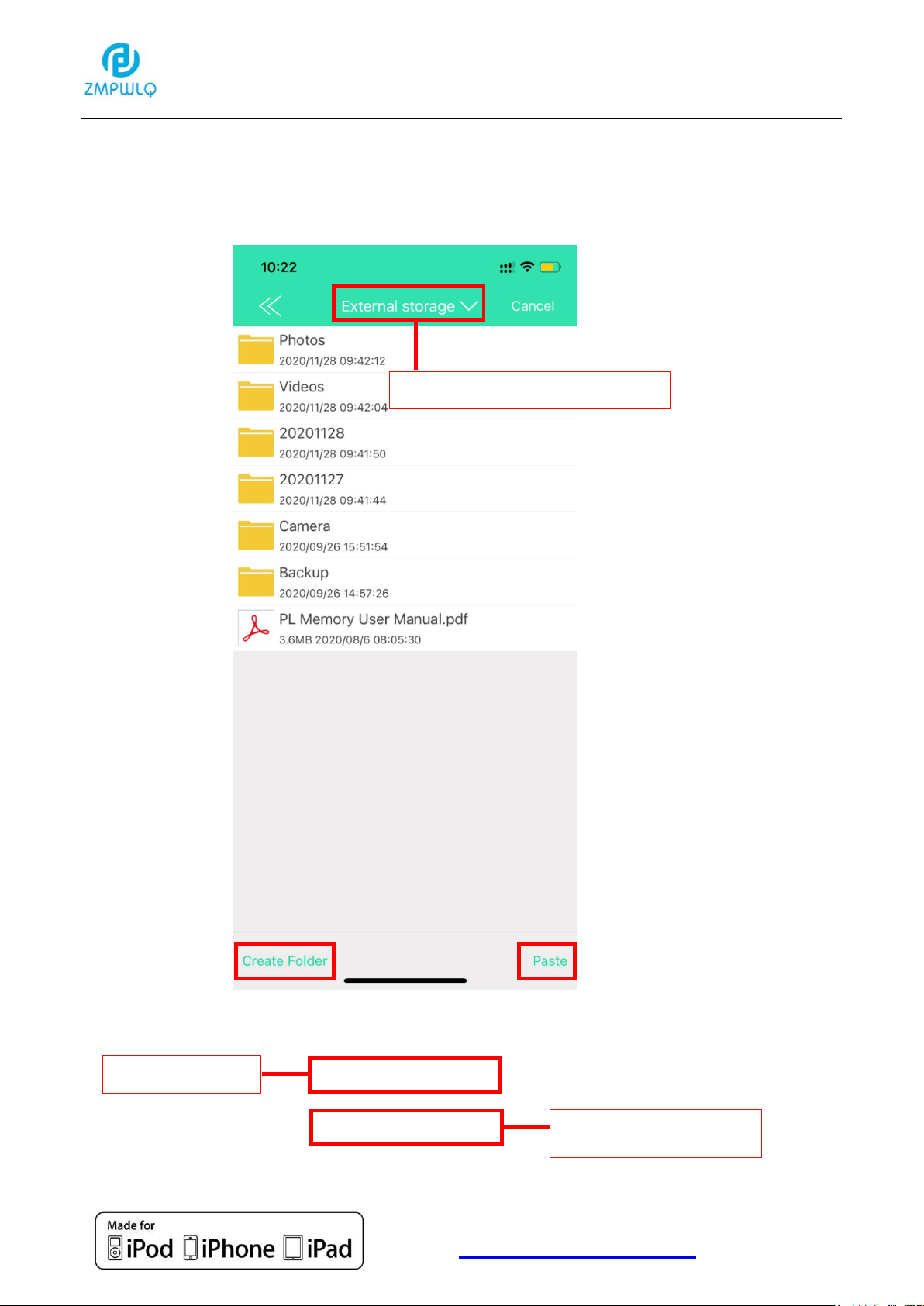
Choose “External storage”
iPhone storage
PL Memory storage
3. Copy selected videos to the PL Memory
3.1:Click “CopyTO”
21
Page 22
Apple MFi Product Plan ID (PPID): 252080-0012
Licensed Components: Lightning Connector
Website :http://www.peunionpl.com/
3.2:Click “Create Folder”
22
Page 23
Apple MFi Product Plan ID (PPID): 252080-0012
Licensed Components: Lightning Connector
Website :http://www.peunionpl.com/
3.3:Click “Paste”
23
Page 24
Apple MFi Product Plan ID (PPID): 252080-0012
Licensed Components: Lightning Connector
Website :http://www.peunionpl.com/
Share Videos
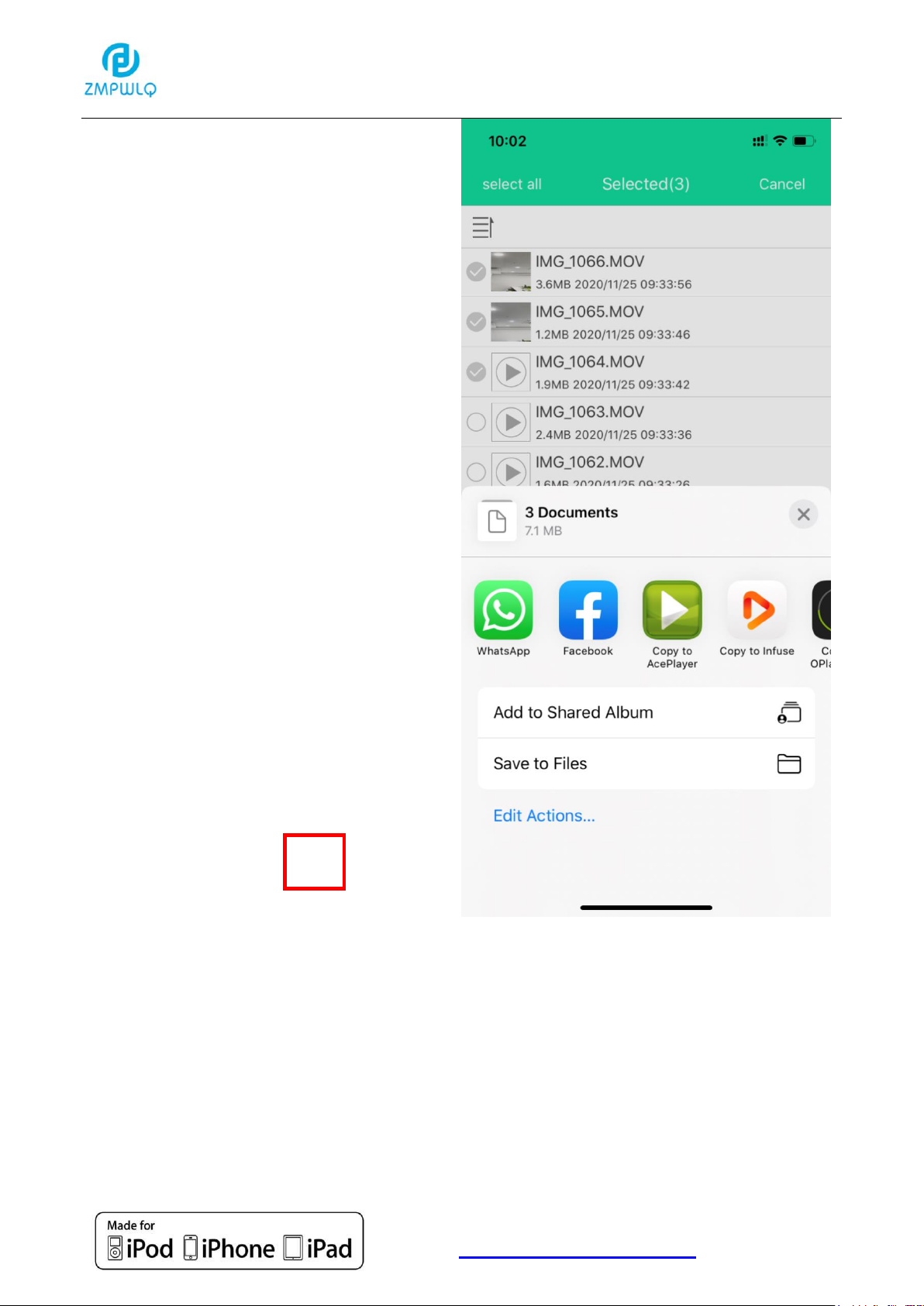
1. Select videos and then click icon “Share”
Max quantity for photos sharing will depend on different third-party media
photo uploaded limitation. (Facebook, Email, Instagram etc.)
24
Page 25
Apple MFi Product Plan ID (PPID): 252080-0012
Licensed Components: Lightning Connector
Website :http://www.peunionpl.com/
25
Page 26
Apple MFi Product Plan ID (PPID): 252080-0012
Licensed Components: Lightning Connector
Website :http://www.peunionpl.com/
Rename Videos
1. Go to “File/Folder” section and click into the folder and
click “More”:
You can only change the names of videos and folders in PL
Memory.
26
Page 27

Apple MFi Product Plan ID (PPID): 252080-0012
Licensed Components: Lightning Connector
Website :http://www.peunionpl.com/
Organize Videos
You can go back to the folder to browse and organize the
videos. Click
Photos will keep original information (data, name) and can be
organized by time, name or type as below:
27
Page 28
Apple MFi Product Plan ID (PPID): 252080-0012
Licensed Components: Lightning Connector
Website :http://www.peunionpl.com/
Click for selection
Select “iPhone”
Music Section
Copy Music
1. Click into music section:
28
Page 29
Apple MFi Product Plan ID (PPID): 252080-0012
Licensed Components: Lightning Connector
Website :http://www.peunionpl.com/
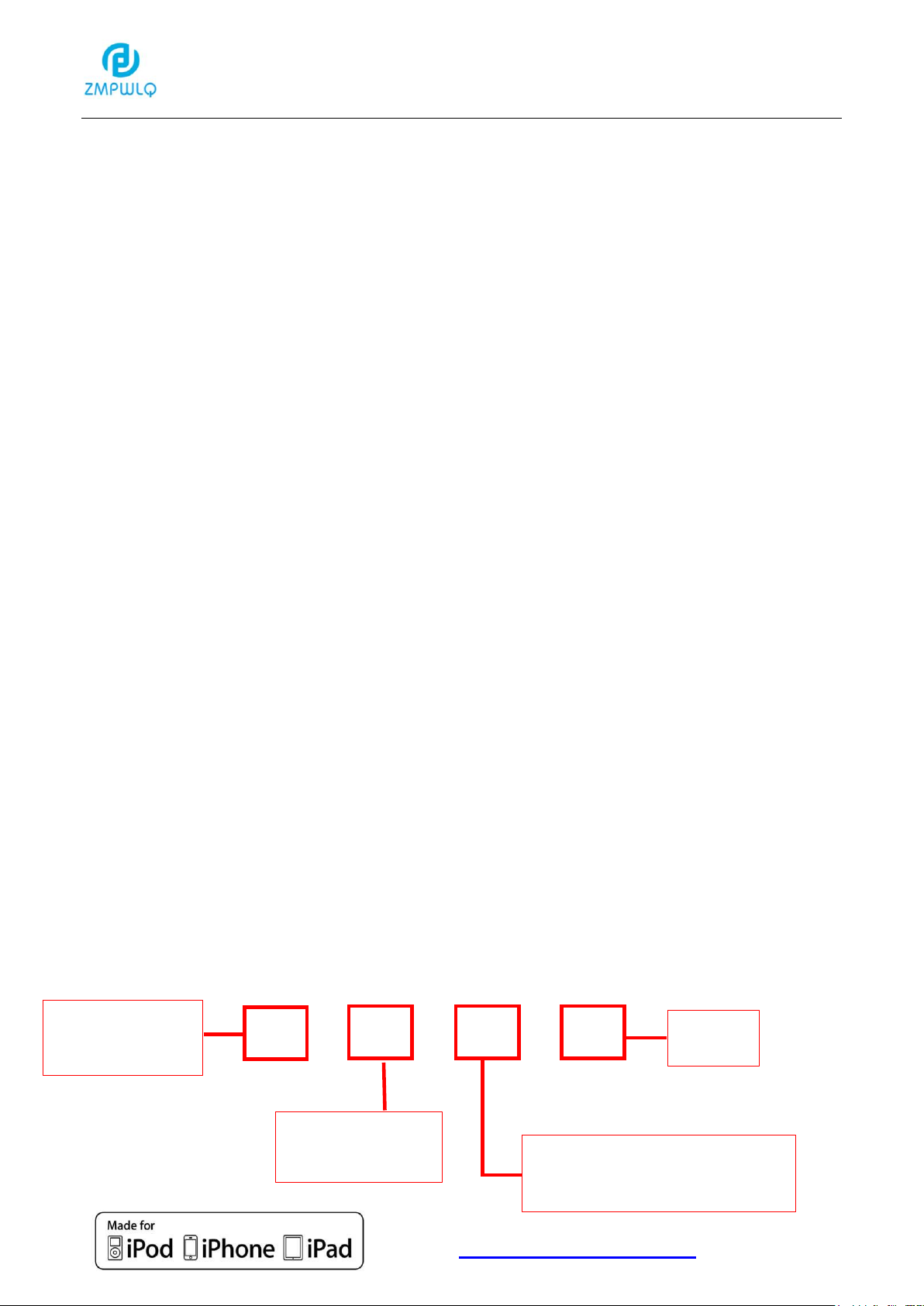
Copy to the
PL Memory
Cancel
Delete selected
music
Share music to Email/Social
Medias, Bluetooth
2. Select music: select all or select one by one
29
Page 30
Apple MFi Product Plan ID (PPID): 252080-0012
Licensed Components: Lightning Connector
Website :http://www.peunionpl.com/
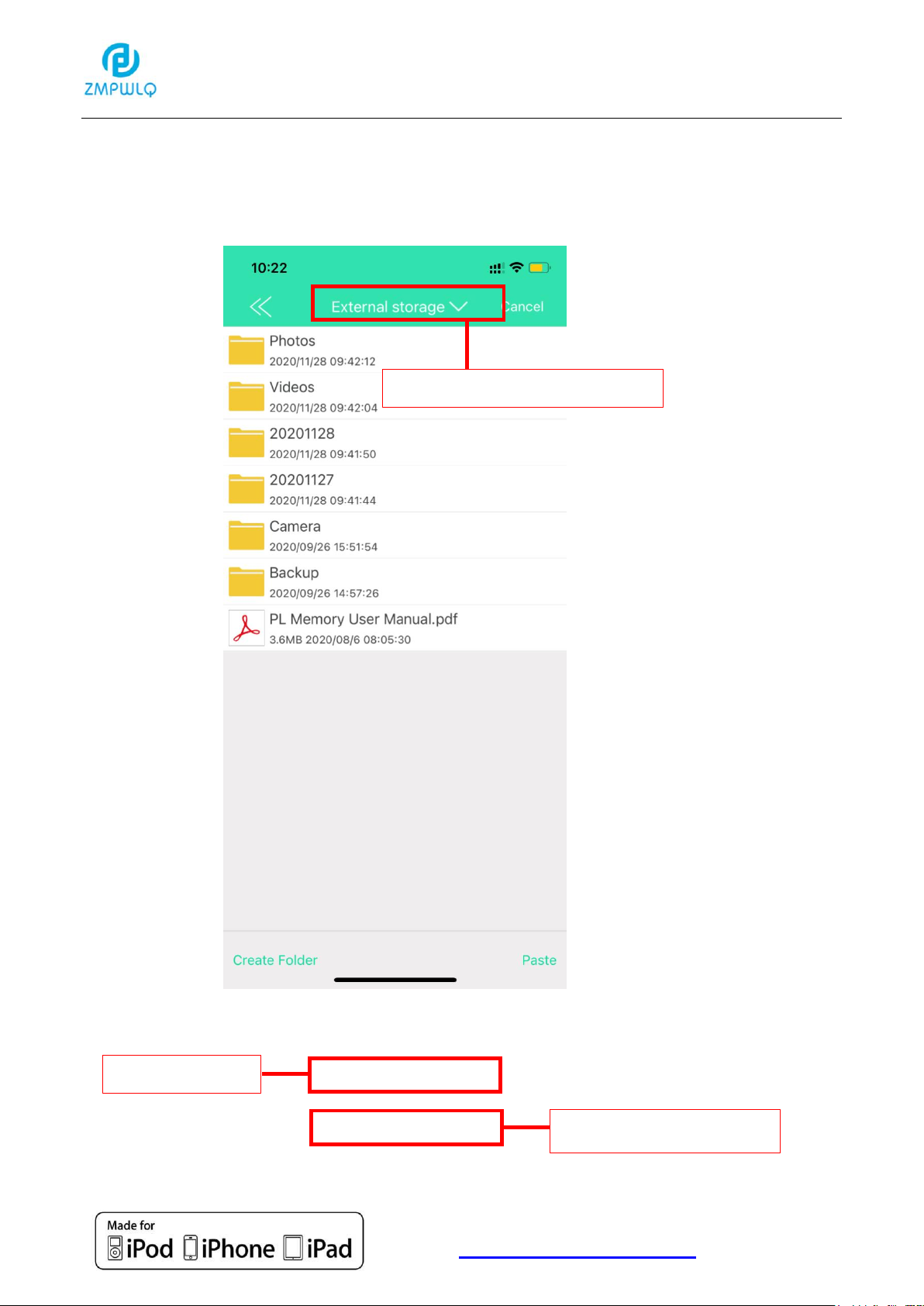
iPhone storage
PL Memory storage
Choose “External storage”
3. Copy selected music to the PL Memory
3.1:Click “CopyTO”
30
Page 31
Apple MFi Product Plan ID (PPID): 252080-0012
Licensed Components: Lightning Connector
Website :http://www.peunionpl.com/
3.2:Click “Create Folder”
31
Page 32
Apple MFi Product Plan ID (PPID): 252080-0012
Licensed Components: Lightning Connector
Website :http://www.peunionpl.com/
3.3:Click “Paste”
32
Page 33
Apple MFi Product Plan ID (PPID): 252080-0012
Licensed Components: Lightning Connector
Website :http://www.peunionpl.com/
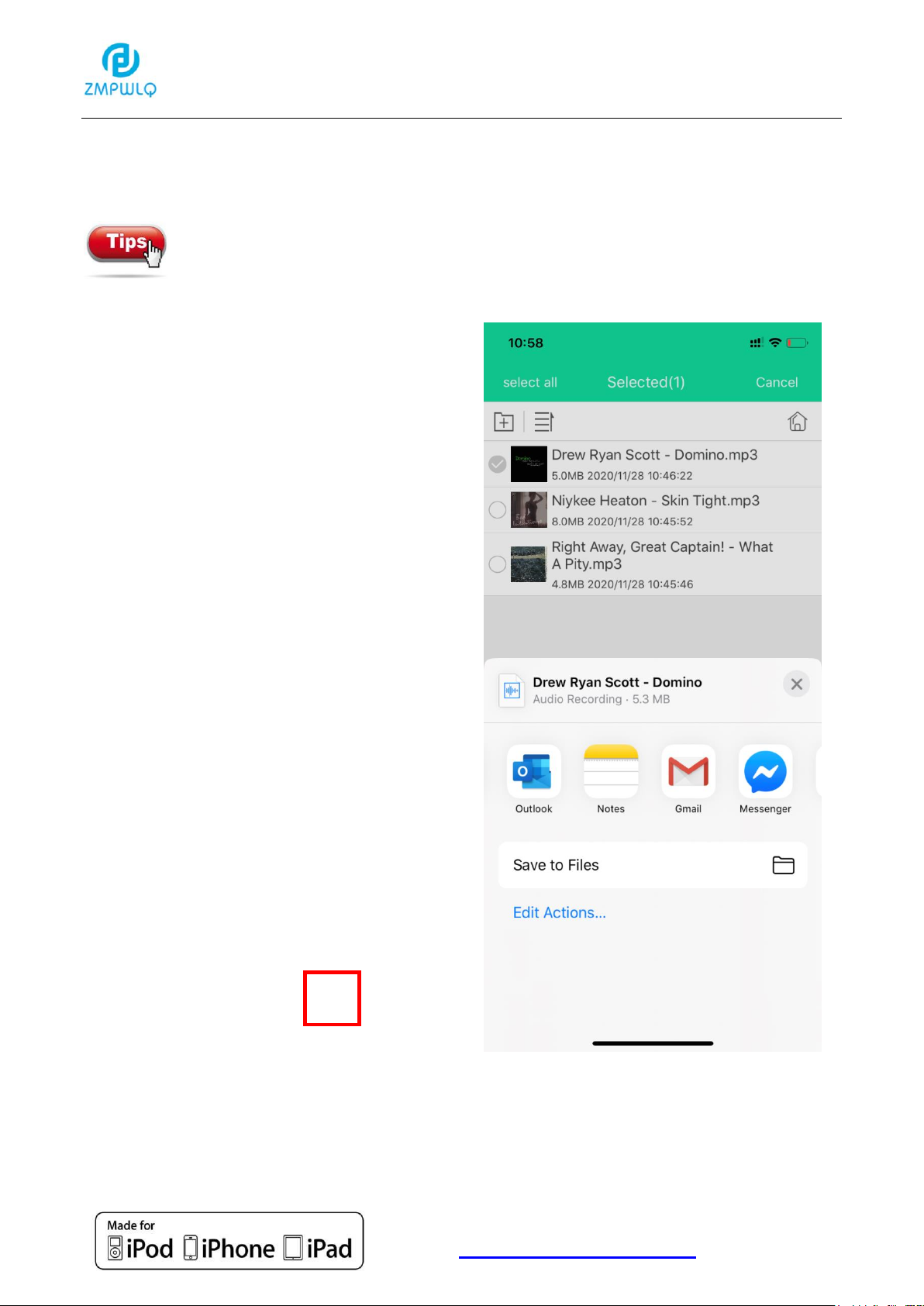
Share Music
1. Select music and then click icon “Share”
Max quantity for photos sharing will depend on different third-party media
music uploaded limitation. (Facebook, Email, Instagram etc.)
33
Page 34

Apple MFi Product Plan ID (PPID): 252080-0012
Licensed Components: Lightning Connector
Website :http://www.peunionpl.com/
Rename Music
Organize Music
The procedures for renaming and organizing
music are the same as those for photos and
videos.
You can refer to the photo Rename Steps on
page 17 and the Organize Steps on page 18.
34
Page 35

Apple MFi Product Plan ID (PPID): 252080-0012
Licensed Components: Lightning Connector
Website :http://www.peunionpl.com/
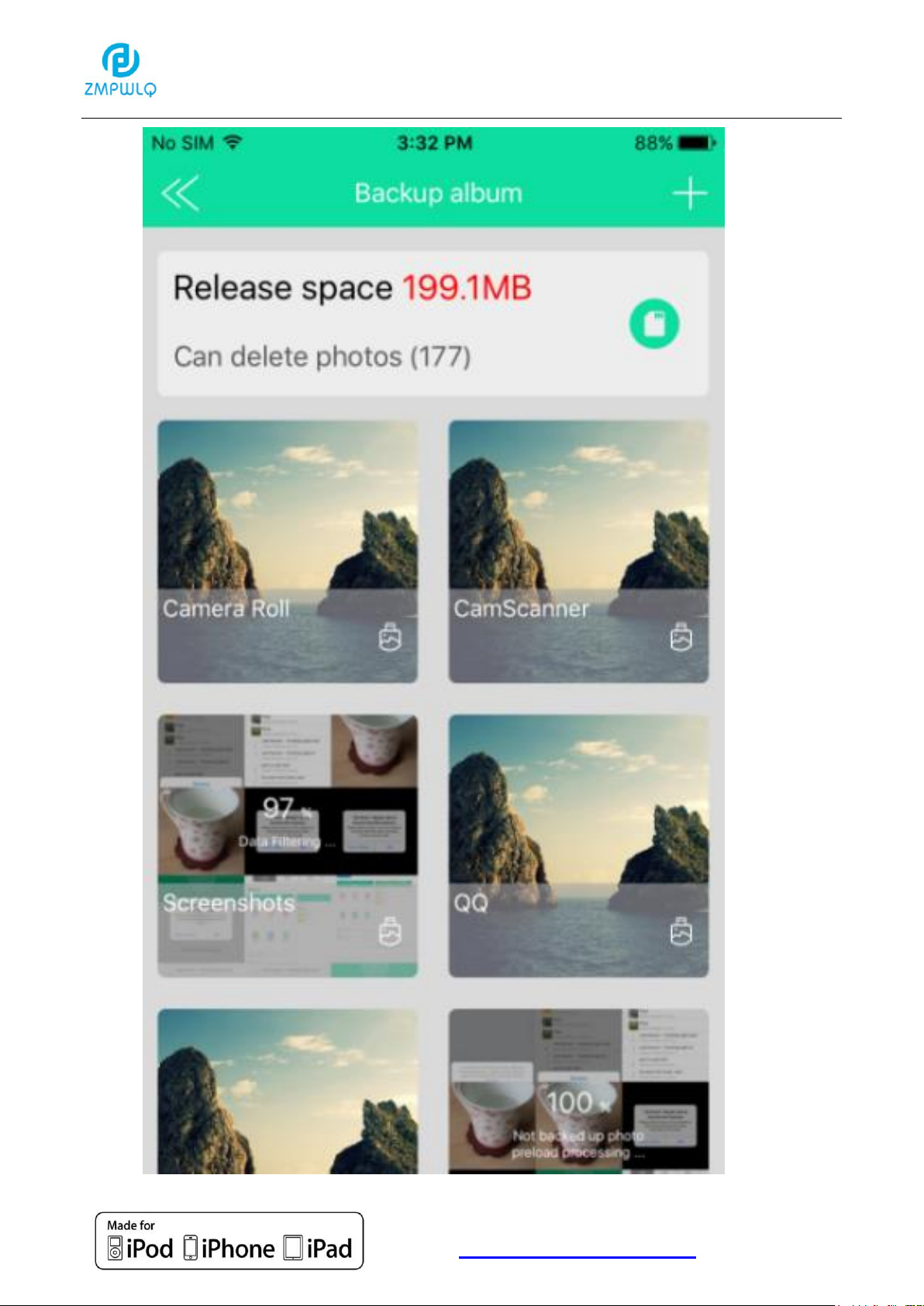
Backup Section
1. Click to enter the one-click backup function:
35
Page 36
Apple MFi Product Plan ID (PPID): 252080-0012
Licensed Components: Lightning Connector
Website :http://www.peunionpl.com/
36
Page 37
Apple MFi Product Plan ID (PPID): 252080-0012
Licensed Components: Lightning Connector
Website :http://www.peunionpl.com/
1
2
3
File/Folder Section
All folders can be managed here
Copy File/Folder
1. Click into File/Folder section:
37
Page 38
Apple MFi Product Plan ID (PPID): 252080-0012
Licensed Components: Lightning Connector
Website :http://www.peunionpl.com/
Transfer Successfully
38
Page 39
Apple MFi Product Plan ID (PPID): 252080-0012
Licensed Components: Lightning Connector
Website :http://www.peunionpl.com/
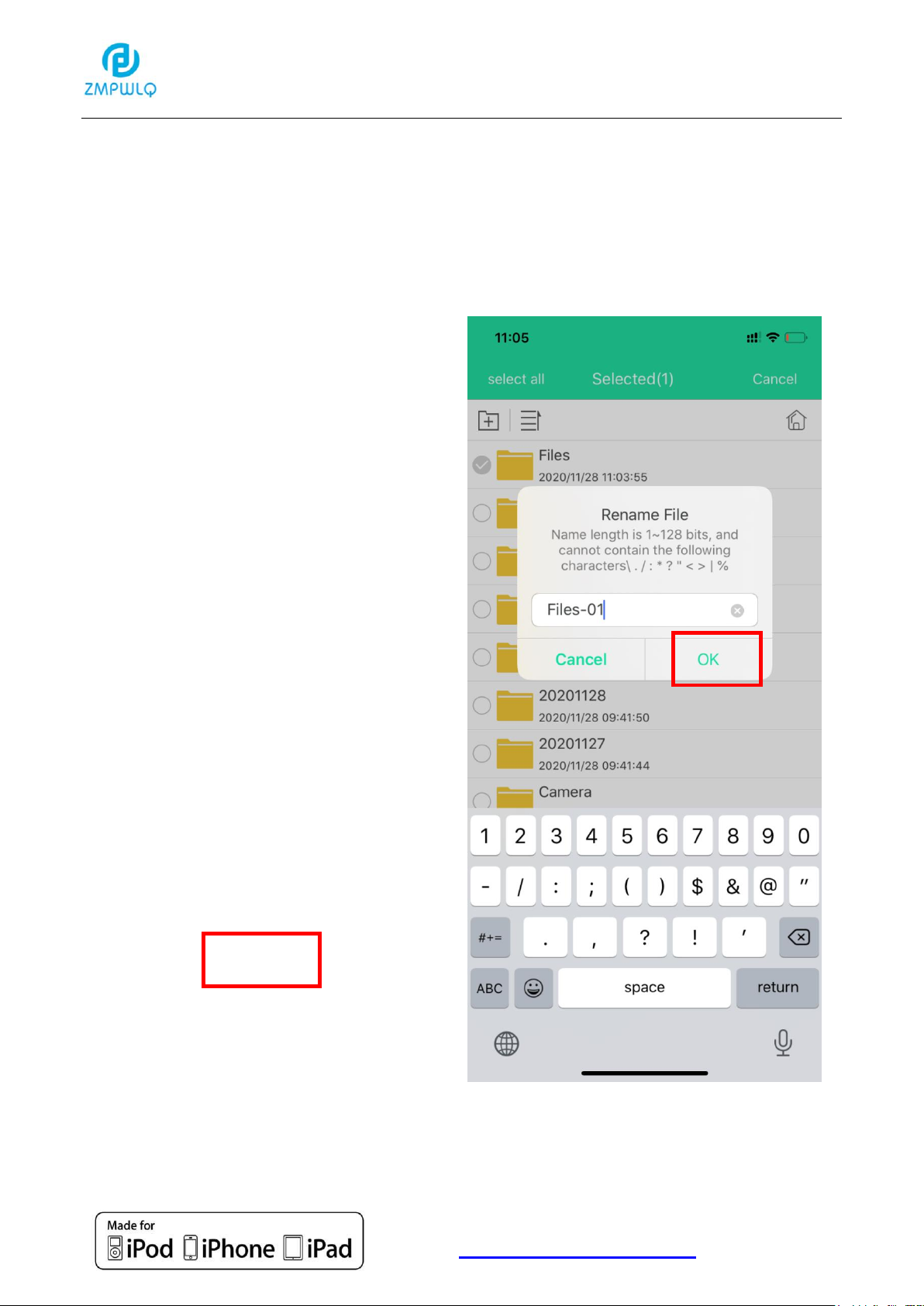
Rename File/Folder
1. Go to “File/Folder” section and click the folder and click
“More” :
39
Page 40

Apple MFi Product Plan ID (PPID): 252080-0012
Licensed Components: Lightning Connector
Website :http://www.peunionpl.com/
Organize File/Folder
You can go back to the folder to browse and organize the
file/folder. Click
40
Page 41
Apple MFi Product Plan ID (PPID): 252080-0012
Licensed Components: Lightning Connector
Website :http://www.peunionpl.com/
Camera Section
Take photos/videos and automatic backup to the flash drive.
Take Photos & Take Videos:
1. Click into photos section:
Click OK to allow access.
41
Page 42

Apple MFi Product Plan ID (PPID): 252080-0012
Licensed Components: Lightning Connector
Website :http://www.peunionpl.com/
42
Page 43
Apple MFi Product Plan ID (PPID): 252080-0012
Licensed Components: Lightning Connector
Website :http://www.peunionpl.com/
1
2
View Photos & Videos
1. Click into File/Folder section and Click “Camera”
43
Page 44
Apple MFi Product Plan ID (PPID): 252080-0012
Licensed Components: Lightning Connector
Website :http://www.peunionpl.com/
2. Click “Tom’s iPhone”. Then you can view the photos and
videos.
44
Page 45
Apple MFi Product Plan ID (PPID): 252080-0012
Licensed Components: Lightning Connector
Website :http://www.peunionpl.com/
The photos and videos will be automatically stored to the
flash drive (PL Memory). You can go to "Photos" or "Videos"
section to browse. When you manage them on your PC, please find the
folder named as "Camera".
45
Page 46
Apple MFi Product Plan ID (PPID): 252080-0012
Licensed Components: Lightning Connector
Website :http://www.peunionpl.com/
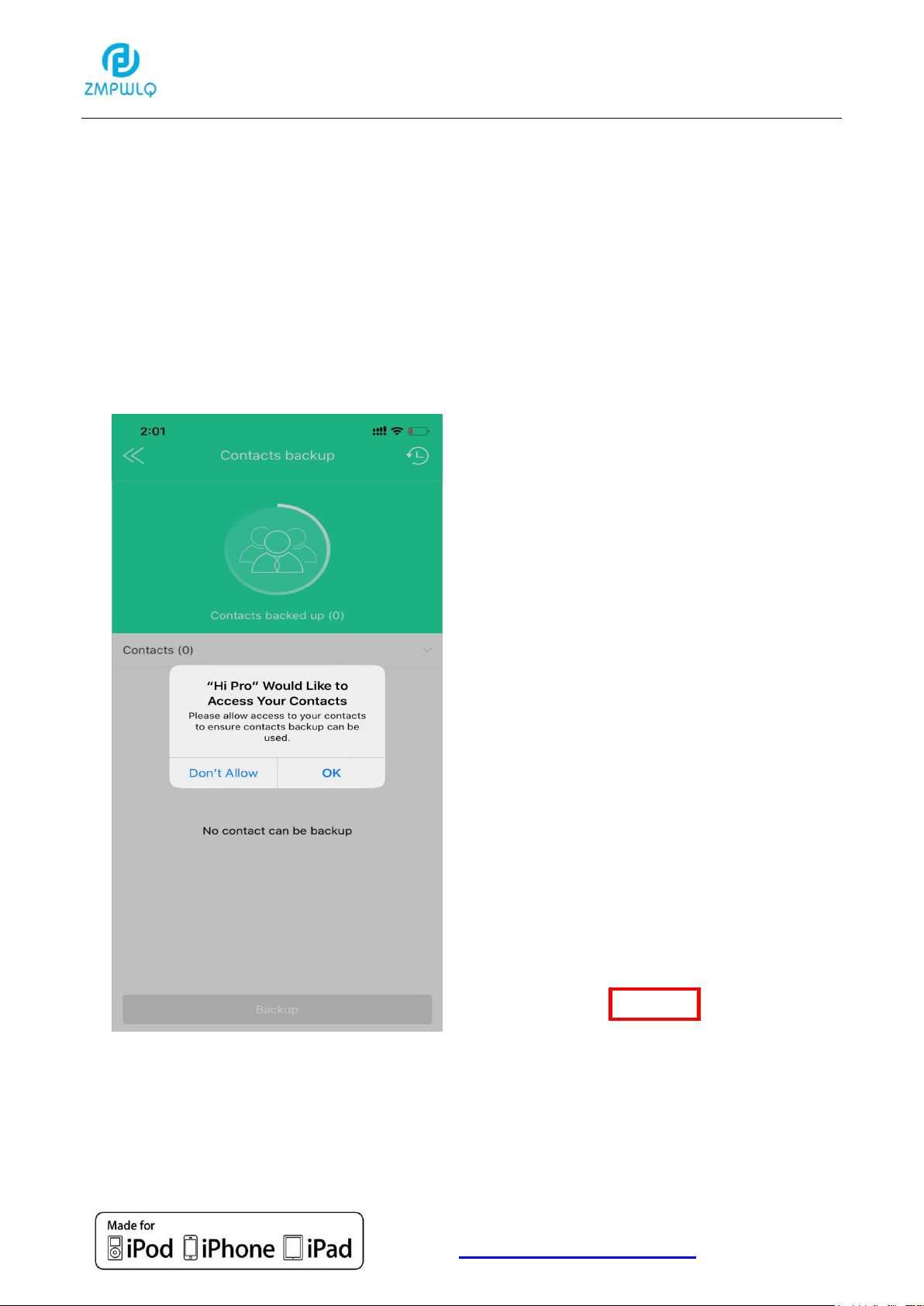
Back Up Contacts Section
Back Up Contacts
1. Click into Back Up Contacts Section
46
Page 47
Apple MFi Product Plan ID (PPID): 252080-0012
Licensed Components: Lightning Connector
Website :http://www.peunionpl.com/
1
2
View Backup Contacts
1. Click into File/Folder section and Click “Backup”
47
Page 48
Apple MFi Product Plan ID (PPID): 252080-0012
Licensed Components: Lightning Connector
Website :http://www.peunionpl.com/
48
Page 49
Apple MFi Product Plan ID (PPID): 252080-0012
Licensed Components: Lightning Connector
Website :http://www.peunionpl.com/
1
2
Replace iPhone to Reduce Backup Contacts
You can reduce the backup of contacts from iPhone A to iPhone B
1.The contact of backup phone A is complete, click the icon in the
upper right corner.
49
Page 50
Apple MFi Product Plan ID (PPID): 252080-0012
Licensed Components: Lightning Connector
Website :http://www.peunionpl.com/
3
4
5
2. Click on phone B and select the contact to be reduced.
50
Page 51
Apple MFi Product Plan ID (PPID): 252080-0012
Licensed Components: Lightning Connector
Website :http://www.peunionpl.com/
6
7
Reduction success
3. Click on the phone contact to check the reduction success.
51
Page 52
Apple MFi Product Plan ID (PPID): 252080-0012
Licensed Components: Lightning Connector
Website :http://www.peunionpl.com/
4. You can backup new phone contacts
52
Page 53

Apple MFi Product Plan ID (PPID): 252080-0012
Licensed Components: Lightning Connector
Website :http://www.peunionpl.com/
Setting Section
Overview
53
Page 54
Apple MFi Product Plan ID (PPID): 252080-0012
Licensed Components: Lightning Connector
Website :http://www.peunionpl.com/
Cache
Click “Cache” to clear the cache.
54
Page 55

Apple MFi Product Plan ID (PPID): 252080-0012
Licensed Components: Lightning Connector
Website :http://www.peunionpl.com/
Language
Select the Language you want to use, then back to the
last step. The Language would be changed
accordingly.
55
Page 56
Apple MFi Product Plan ID (PPID): 252080-0012
Licensed Components: Lightning Connector
Website :http://www.peunionpl.com/
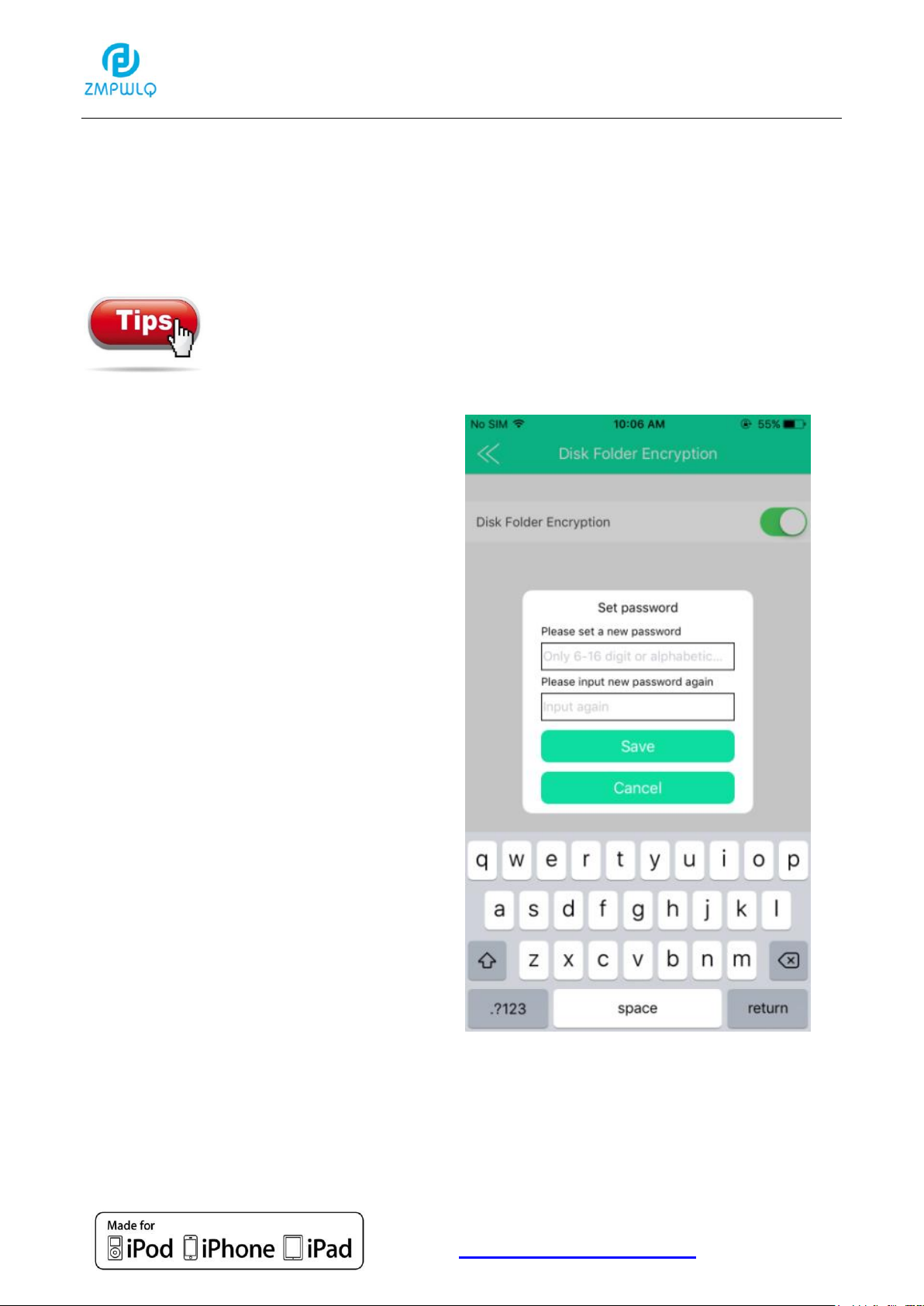
Disk Folder Encryption
1. Set Password (Turn on the Disk Folder Encryption
---> Set Password)
Please do keep the password well. If the password
is forgotten, the only solution is formatting the PL
Memory. And all your data in the drive will be lost.
56
Page 57

Apple MFi Product Plan ID (PPID): 252080-0012
Licensed Components: Lightning Connector
Website :http://www.peunionpl.com/
57
Page 58

Apple MFi Product Plan ID (PPID): 252080-0012
Licensed Components: Lightning Connector
Website :http://www.peunionpl.com/
2. Encrypt the File
Click “File/Folder”, Long press the file you want to encrypt.
Click “More” and Click “encryption”
58
Page 59
Apple MFi Product Plan ID (PPID): 252080-0012
Licensed Components: Lightning Connector
Website :http://www.peunionpl.com/
There will be a window pop-up show us Encryption Success
---> Click “OK” to end the Encryption.
59
Page 60
Apple MFi Product Plan ID (PPID): 252080-0012
Licensed Components: Lightning Connector
Website :http://www.peunionpl.com/
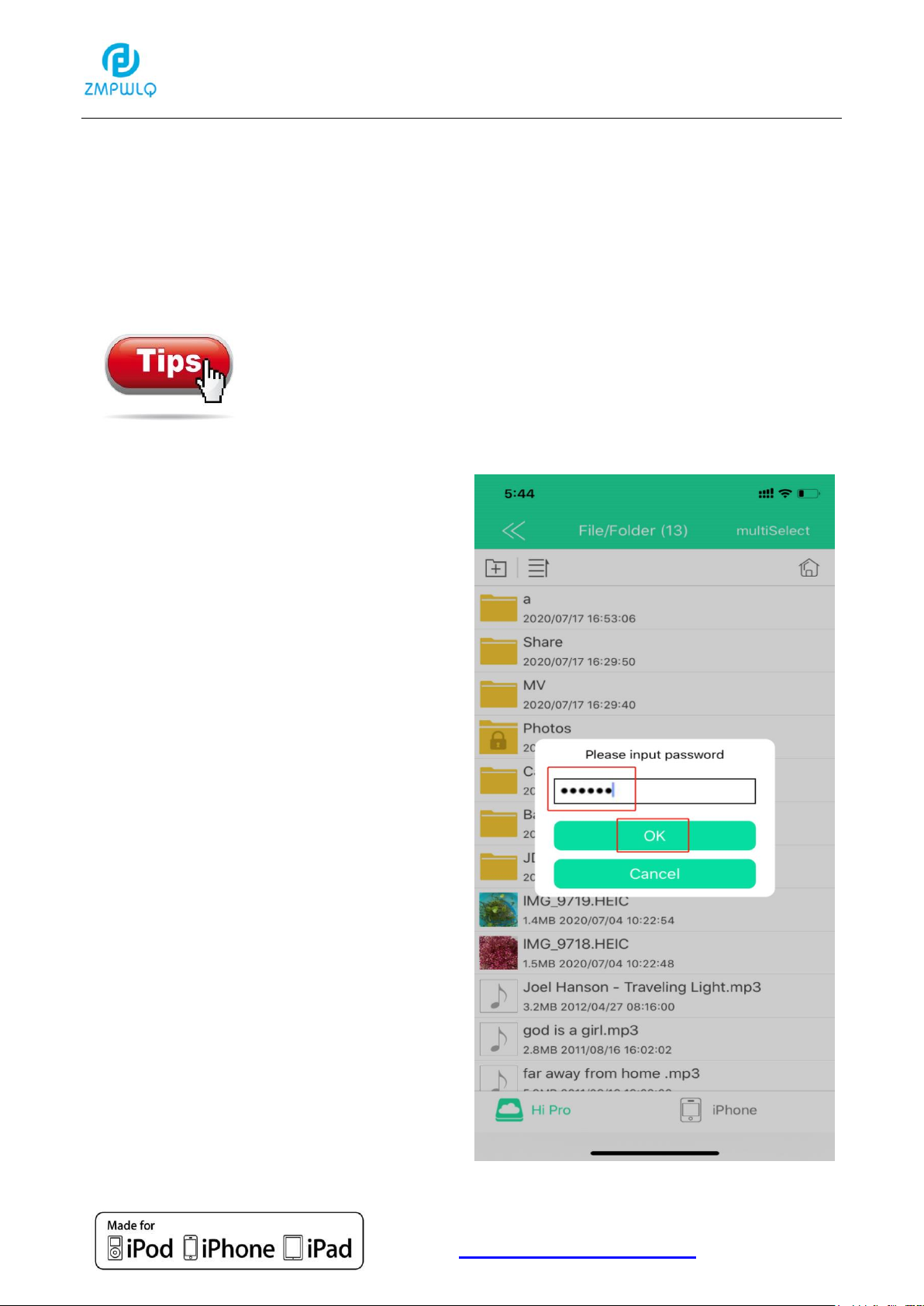
3.View the Encrypted File
From iPhone or iPad: Back to File/Folder, you can see the file
with a Lock means it was encrypted. When you open the file,
need to input the password, then the Lock is Open.
Once you entered into the Encrypted file, no
need the password except you remove the
USB Flash Drive from your iPhone/iPad, and
plug in again.
60
Page 61
Apple MFi Product Plan ID (PPID): 252080-0012
Licensed Components: Lightning Connector
Website :http://www.peunionpl.com/
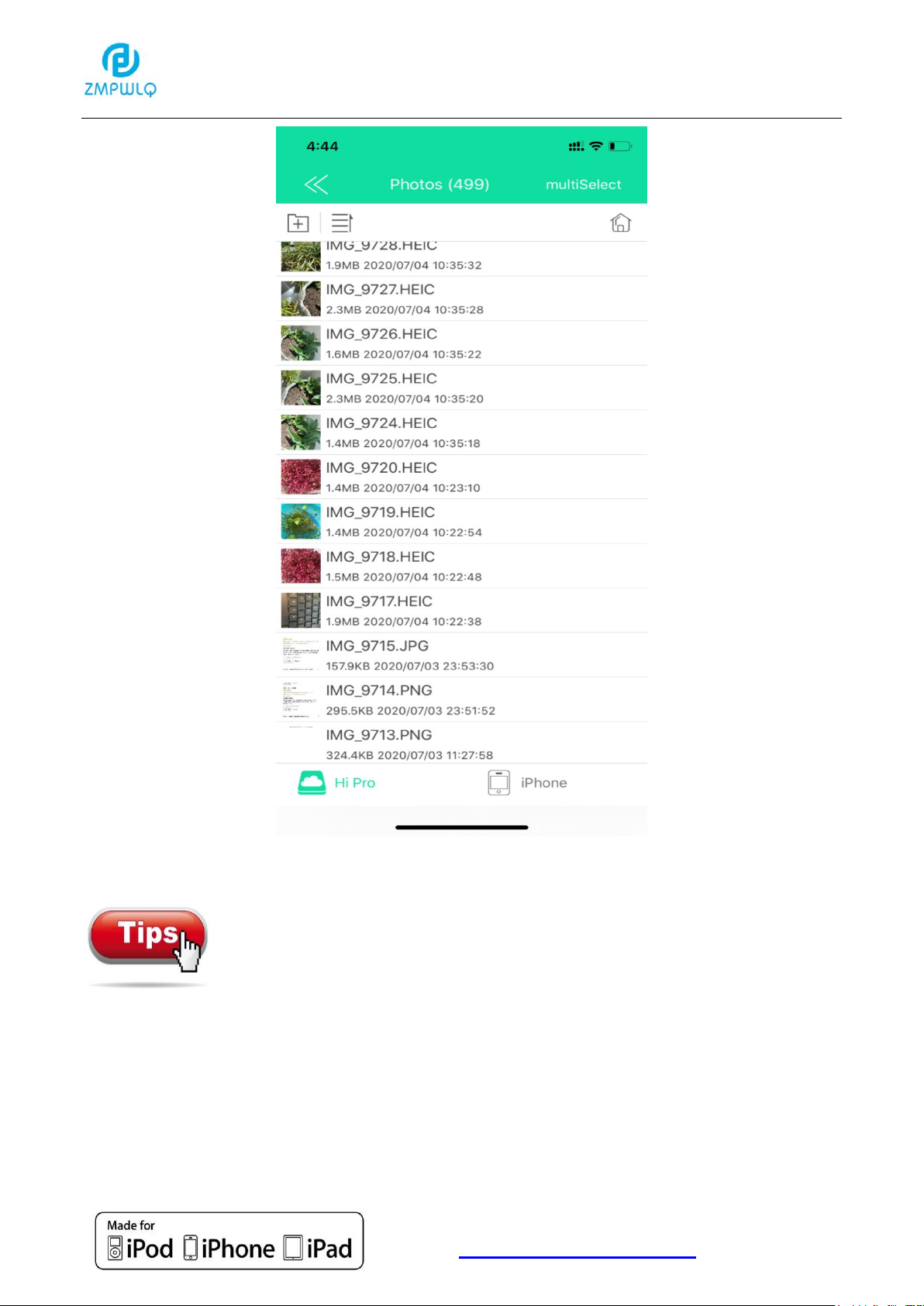
From Computer: Please note that, due to safety
consideration, the encrypted file is invisible on computer
and you cannot find it. If you want to view the file from computer, need
to decrypt it from Hi Pro App from iPhone or iPad firstly. (Please see
the following point about how to Decrypt the Encrypted File)
61
Page 62
Apple MFi Product Plan ID (PPID): 252080-0012
Licensed Components: Lightning Connector
Website :http://www.peunionpl.com/
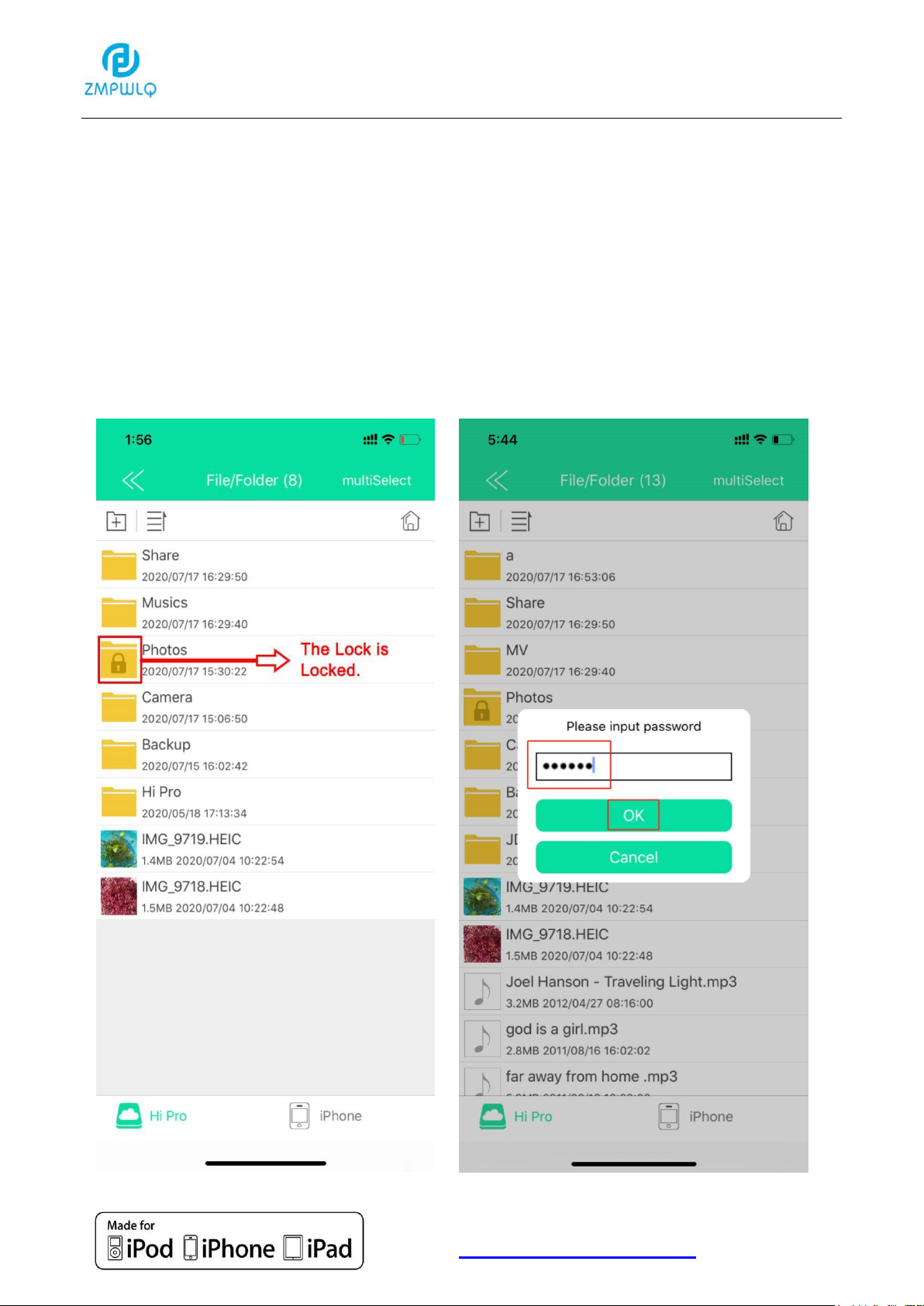
4. Decrypt the Encrypted File
4.1 Click “File/Folder” and Long press the Encrypted file,
Click “More” ---> Click “Decrypt” ---> input password --
->Click “OK” ---> there will be message pop-up to show
us Decrypt Success ---> Click “OK”
62
Page 63

Apple MFi Product Plan ID (PPID): 252080-0012
Licensed Components: Lightning Connector
Website :http://www.peunionpl.com/
If the Lock is Open: Click “File/Folder” ---> Long press the
Encrypted file ---> Click “More” ---> Click “Decrypt” --->no
need to input the password again.
63
Page 64
Apple MFi Product Plan ID (PPID): 252080-0012
Licensed Components: Lightning Connector
Website :http://www.peunionpl.com/
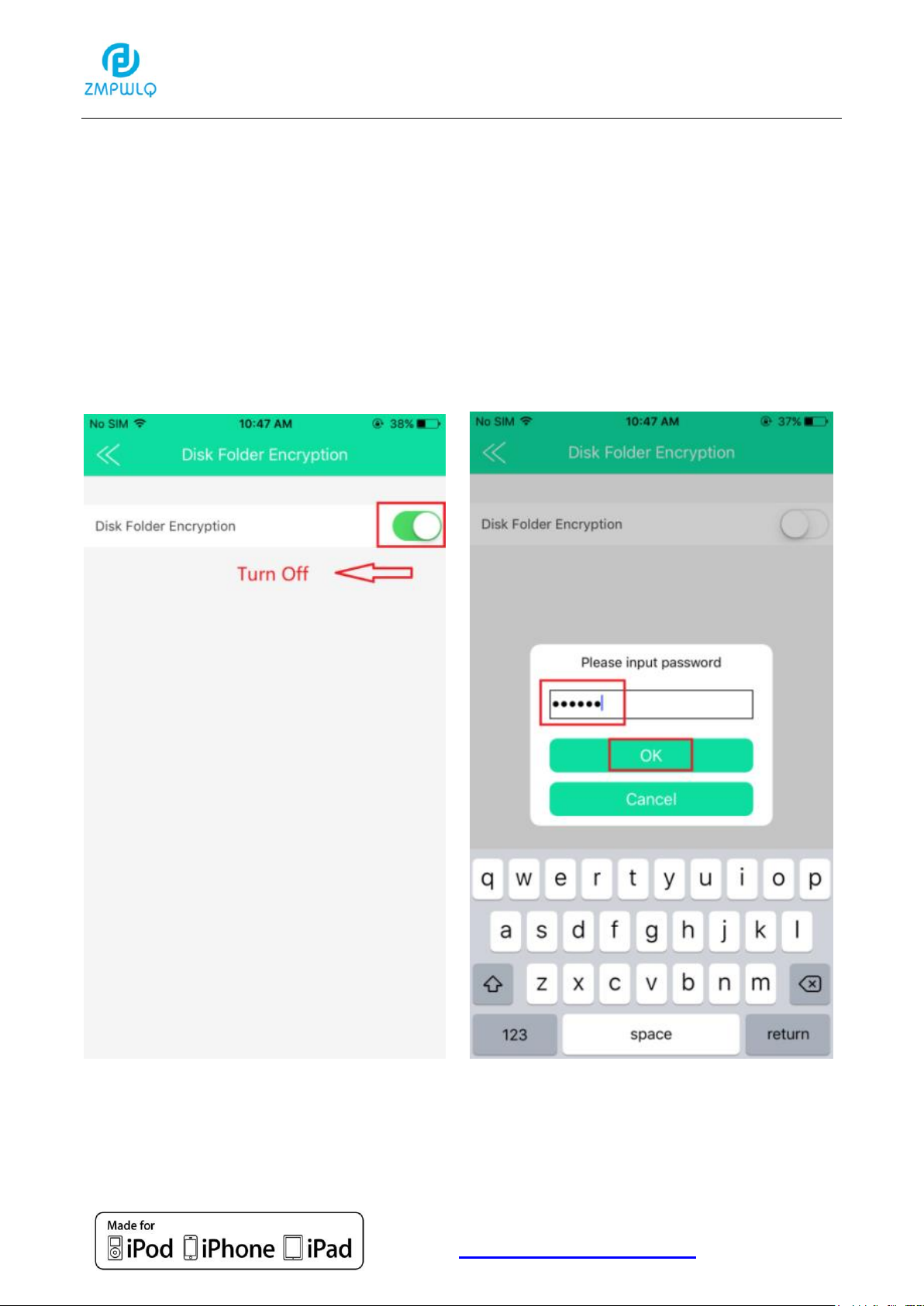
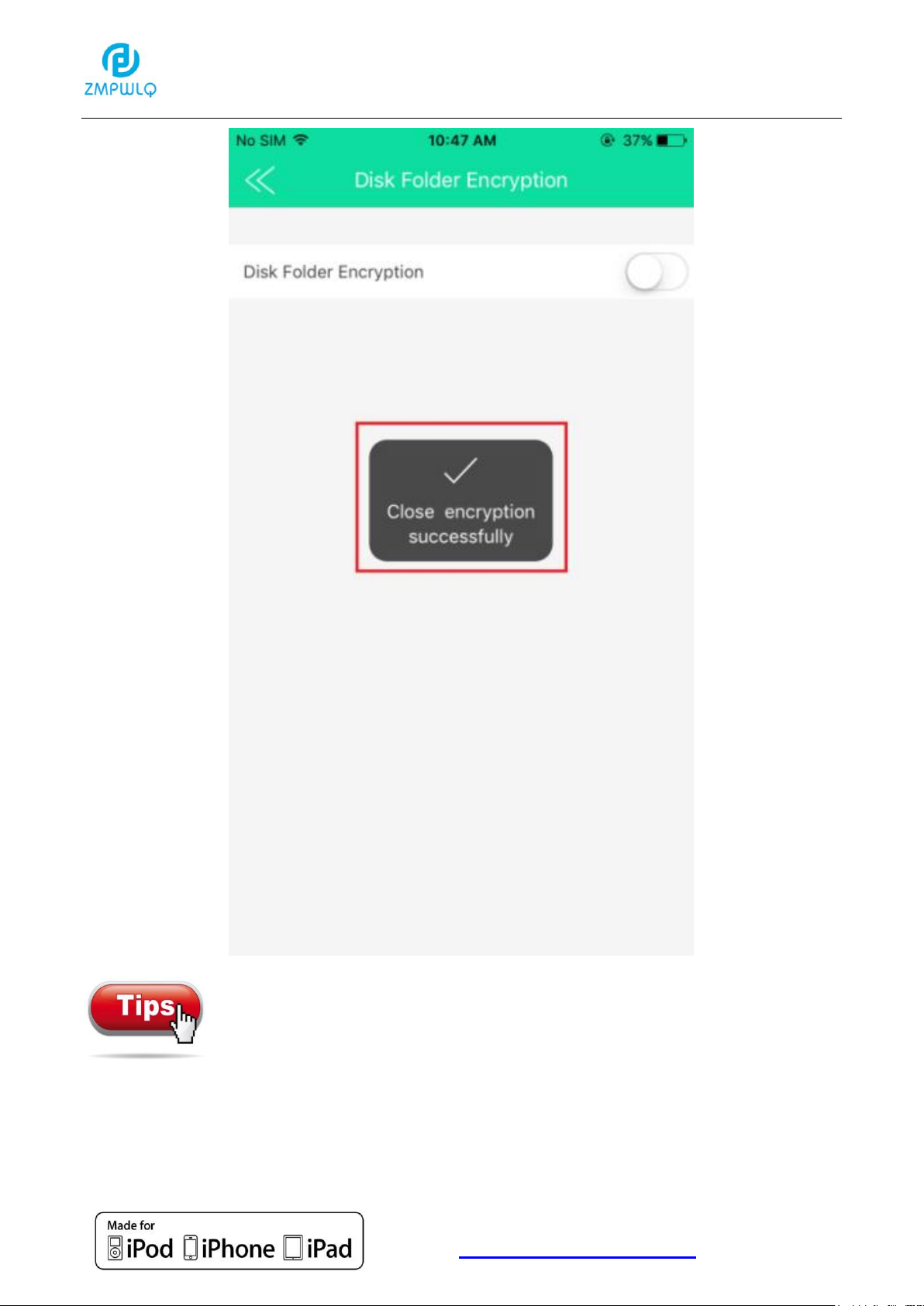
5. Close the Encryption Function
Settings ---> Disk Folder Encryption ---> Turn Off the Disk
Folder Encryption ---> Input the Password ---> Close
Encryption Successfully
64
Page 65
Apple MFi Product Plan ID (PPID): 252080-0012
Licensed Components: Lightning Connector
Website :http://www.peunionpl.com/
The Password used in this PL Memory is unified
and unique. So please remember this
Password, there is no way to reset the Encrypted File if
you forgot the password due to safety consideration.
65
Page 66

Apple MFi Product Plan ID (PPID): 252080-0012
Licensed Components: Lightning Connector
Website :http://www.peunionpl.com/
Third-party Open Setting
66
Page 67
Apple MFi Product Plan ID (PPID): 252080-0012
Licensed Components: Lightning Connector
Website :http://www.peunionpl.com/
Format
Click External Storage to format the PL Memory.
Please do not disconnect the PL Memory from the
iPhone/iPad during its formatting.
Formatted disk at iPhone only supports UP TO
128G
WARNING: Formatting will erase all data on the device.
Back up all your data before proceeding.
67
Page 68

Apple MFi Product Plan ID (PPID): 252080-0012
Licensed Components: Lightning Connector
Website :http://www.peunionpl.com/
Backup
Overview
68
Page 69
Apple MFi Product Plan ID (PPID): 252080-0012
Licensed Components: Lightning Connector
Website :http://www.peunionpl.com/
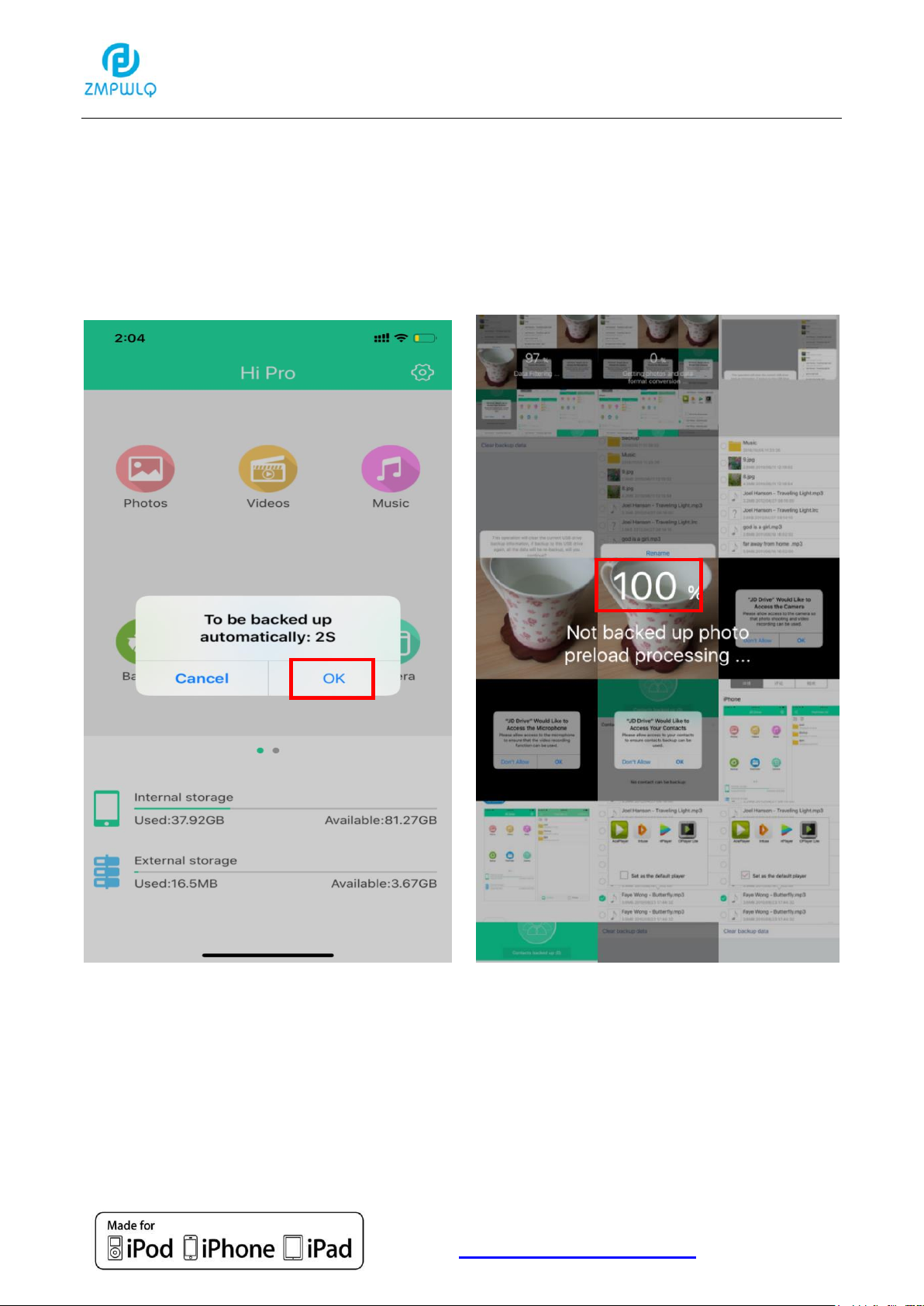
1. Auto Backup
Exit the App, pop-up Auto backup prompt when enter into the app
again, click OK to start auto backup, click Cancel to close.
69
Page 70

Apple MFi Product Plan ID (PPID): 252080-0012
Licensed Components: Lightning Connector
Website :http://www.peunionpl.com/
2. Delete the local data backup is completed
All local data will be deleted after finishing backup
when set up “Delete the local date backup is
completed”. Please be careful before choosing this
option.
70
Page 71
Apple MFi Product Plan ID (PPID): 252080-0012
Licensed Components: Lightning Connector
Website :http://www.peunionpl.com/
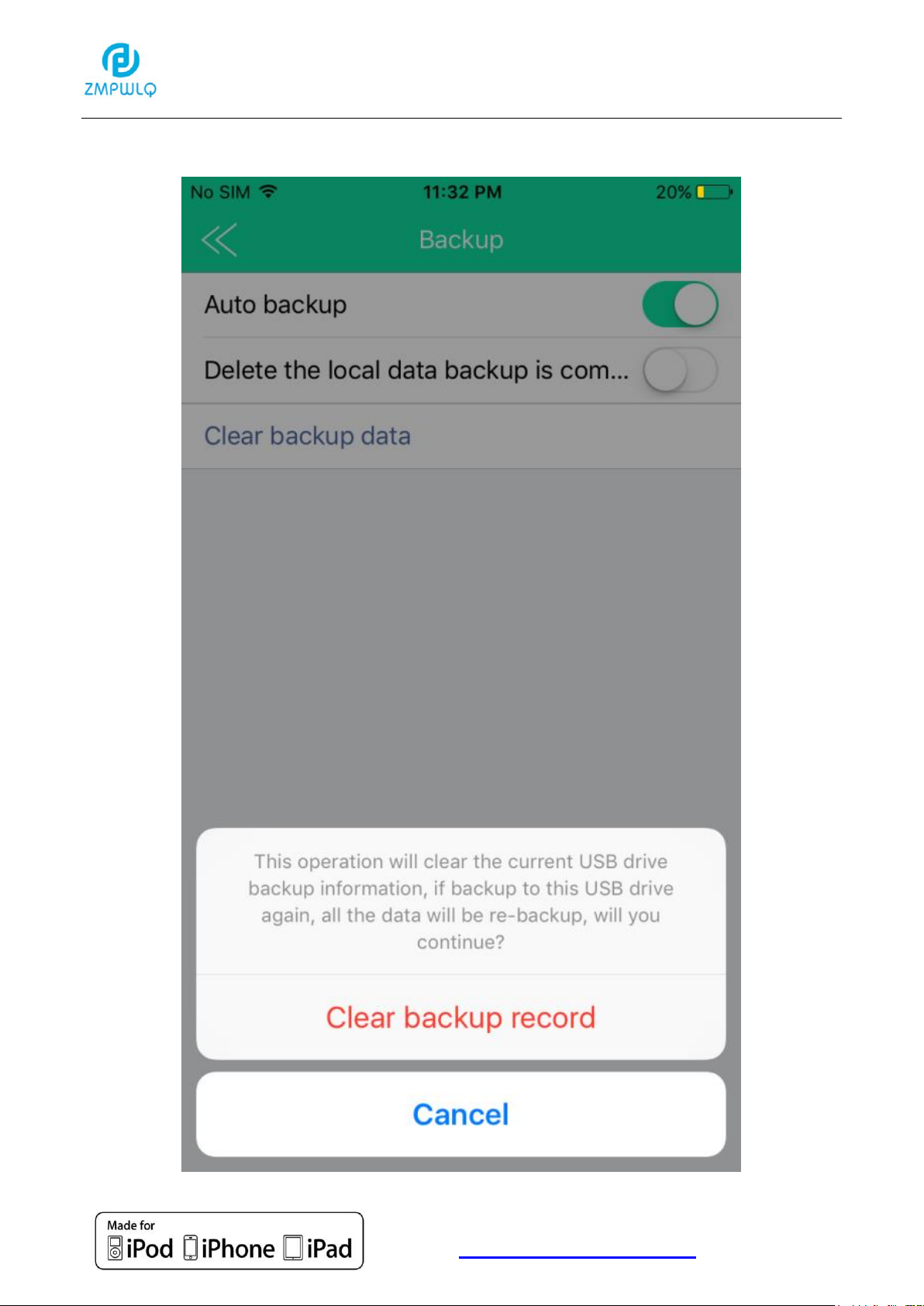
3. Clear backup data
71
Page 72

Apple MFi Product Plan ID (PPID): 252080-0012
Licensed Components: Lightning Connector
Website :http://www.peunionpl.com/
About
The APP version keeps upgrading
72
Page 73

Apple MFi Product Plan ID (PPID): 252080-0012
Licensed Components: Lightning Connector
Website :http://www.peunionpl.com/
Q & A
Q1. Do I need to take the protective case off when using it?
A: Normally, no need. The lightning connector of this unit has
extended 2 mm from the body. So it will be compatible with most of
iOS device with case. Sometimes, it’s better to take the thick phone
case off if necessary, such as Otter box case.
Q2: Does it have transfer limitation every time?
A: No, there is no transfer amounts limitation. It depends on the
capacity of your flash drive and the rest available space of apple
device. We have tested transfer 10000+ picture and video files from
iPhone to flash drive one time. It works without any problem.
Q3: Only few pictures show up on the drive as available from
my iPhone?
A: One situation is the iCloud have a new feature called "Optimize
iPhone Storage". If you selected it, full-resolution photos and videos
are automatically replaced with optimized versions. And all of your
photos have been uploaded in iCloud and none of recognizable
photo stored in your iPhone storage. So the app "Hi Pro" cannot find
all photos in your iPhone. You could try to connect our phone to PC,
make sure whether there are any photos in our iPhone or not. And
73
Page 74

Apple MFi Product Plan ID (PPID): 252080-0012
Licensed Components: Lightning Connector
Website :http://www.peunionpl.com/
we suggest that select "Download and keep originals". Because
"Optimize iPhone Storage" would waste your time to download the
full-resolution photos each time when you want to see our photo.
After changing the settings from "Optimize iPhone Storage" to
'Download & keep original photo', the photos already saved in iCloud
will stay the same. You have to log in at iCloud.com with your apple
ID to transfer the photos to our PC, further to your flash drive. But
the photos you take after the setting can be moved to the drive
directly.
Q4: Why can’t my device read the USB drive when it’s plugged
in?
A: 1) If you are using it on your iPhone/iPad, you need to install the
"Hi Pro" app on your device before using the USB drive.
2) If you are using it on your computer (Windows/Mac), it does not
need app installed. This iPhone USB flash drive works as regular
USB flash drive.
Q5: Can I use the PL Memory for installing APPs or save my
game data?
A: No, it does not support. Apple devices do not permit any external
drive to install Apps or save data.
74
Page 75

Apple MFi Product Plan ID (PPID): 252080-0012
Licensed Components: Lightning Connector
Website :http://www.peunionpl.com/
Q6: Can I use this PL Memory without Hi Pro App on my iOS 13
devices?
A: No, when this PL Memory is connected directly with iOS devices.
It need to follow Apple MFi Protocol and Apple certified APP is
necessary to visit iOS devices.The program certifications between
MFi products and normal OTG are different. Apple doesn't allow the
compatibility between them. And the function of App is stronger than
the Apple's own file transfer function, we think it is more valuable to
users.
Q7: When I insert this PL Memory into an iOS 13 device, can I
transfer files between File and this PL Memory?
A: Yes, you can transfer files between File and PL Memory. After
installing the Hi Pro App into iOS 13 devices, there is PL Memory
under File (File --- Browse --- On My iPhone), and in the Hi Pro App,
there is iPhone Photos and Documents under Internal Storage. File
and PL Memory are interlinked. Please contact
[email protected] about the detailed operation.
75
Page 76

Apple MFi Product Plan ID (PPID): 252080-0012
Licensed Components: Lightning Connector
Website :http://www.peunionpl.com/
Q8: I have thousands of photos stored in the PL Memory and in
my iPhone, but it only shows 499 pcs in the PL Memory and
1000 pcs in the iPhone from the Hi Pro App. Why doesn't the
APP show the whole result?
76
Page 77

Apple MFi Product Plan ID (PPID): 252080-0012
Licensed Components: Lightning Connector
Website :http://www.peunionpl.com/
A: In order to display better and not take up too much memory, you
can set up an internal storage one-time display 1000 pcs, external
one-time display 499 pcs, only when you slide to the lowest end, it
will be displayed again in multiples.
We suggest to use the One-Click Backup function if there are lots of
pictures need to transfer. All the photos would be shown once
Backup finished.
Q9: When you transfer photos or videos, you choose
MultiSelect ---Select all --- Copy To, but the Selected quantity is
499 for PL Memory and 1000 for iPhone, only partial photos and
videos are transferred.
A: In order to display better and not take up too much memory, you
can set up an internal storage one-time display 1000 pcs, external
one-time display 499 pcs. When you do transfer or deletion, only for
the displayed items. The photos or videos not displayed would not
be processed. We suggest to use the One-Click Backup function if
there are lots of pictures need to transfer. All the photos would be
shown once Backup finished.
Q10: When I am going to save my pictures from my iPhone 8 to
this PL Memory, I got Error message that says the file has
77
Page 78

Apple MFi Product Plan ID (PPID): 252080-0012
Licensed Components: Lightning Connector
Website :http://www.peunionpl.com/
failed. Can you tell me what I am doing wrong and how to solve
the issue?
A: iPhone 8, iPhone 8 Plus and iPhone X made in 2017 has bigger
power consumption and working current, but our MFi products have
strict requirement for operating current. It is required that once the
operating current of the 8/8plus/X model is exceeded, the software
will stop working to protect the iPhone device. In this case, please
contact us for further solution.
Note: there may be some difference among different iOS versions,
for any questions, please feel free to contact us at
NOTE
(1) You are not allowed to transfer downloaded media
files(music, movies) from third party in our iPhone/iPad to the flash
drive. As they are DRM (Digital Rights Management) protected
under iOS. However, you can download music and movies to
computer firstly, and transfer them to flash drive, then play on our
apple devices when this flash drive connected.
(2) If you find only partial pictures(not all of them) can be
transferred, that is because you used ‘iCloud’ for storing pictures,
78
Page 79

Apple MFi Product Plan ID (PPID): 252080-0012
Licensed Components: Lightning Connector
Website :http://www.peunionpl.com/
and this part of pictures cannot be recognized by Hi Pro App. In
order to successfully back up all the pictures taken by our
iPhone/iPad to flash drive. Please refer the ‘FAQ’ part at the end of
this manual.
(3) It’s normal that flash drive shows less capacity on PC and
our devices than it states. Because flash industry uses different
measuring sizes from PC industry. You can know better from
Wikipedia by search 'Gigabyte'.
(4) Please understand that this Apple MFi certified iPhone flash
drive is mainly designed for iPhone and iPad. You need to install Hi
Pro App before using it on iPhone or iPad, and you can backup by
one click or automatically. It also has sorting photos, and other
strong and convenient functions. But for computers ( no matter
Windows computer, or Apple computer, since they have USB port,
they would be supported), no need to install any app, it doesn’t have
the one click backup function. It only works as normal USB flash
drive, that means if you want to back up or transfer photos from
computer, you need to do it manually.
79
Page 80
Apple MFi Product Plan ID (PPID): 252080-0012
Licensed Components: Lightning Connector
Website :http://www.peunionpl.com/
Warranty
All of our Jiangda Products are covered by an 18 months
Limited warranty from the date of its original purchase. If any
questions, please contact our after-sales support team, who
are 24H online for you.
Contact US
For operation videos, please visit
YouTube: Customer Service ZMPWLQ
Scan to download the APP
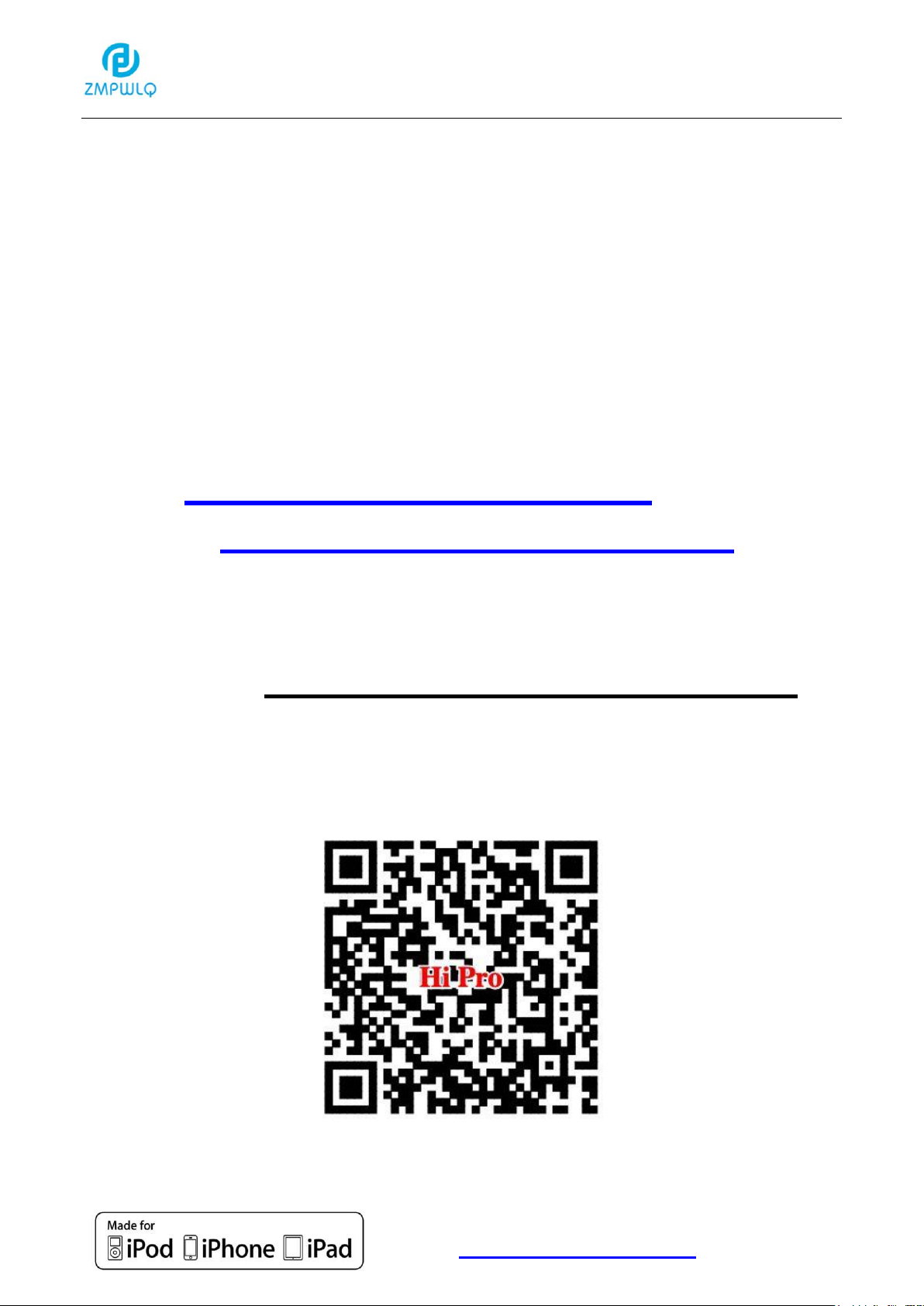
80
 Loading...