

Page 1

V1.0
INSTRUCTION
Medium capacity
automatic pet feeder
Medium capacity
automatic pet feeder
Medium capacity
automatic pet feeder
Page 2
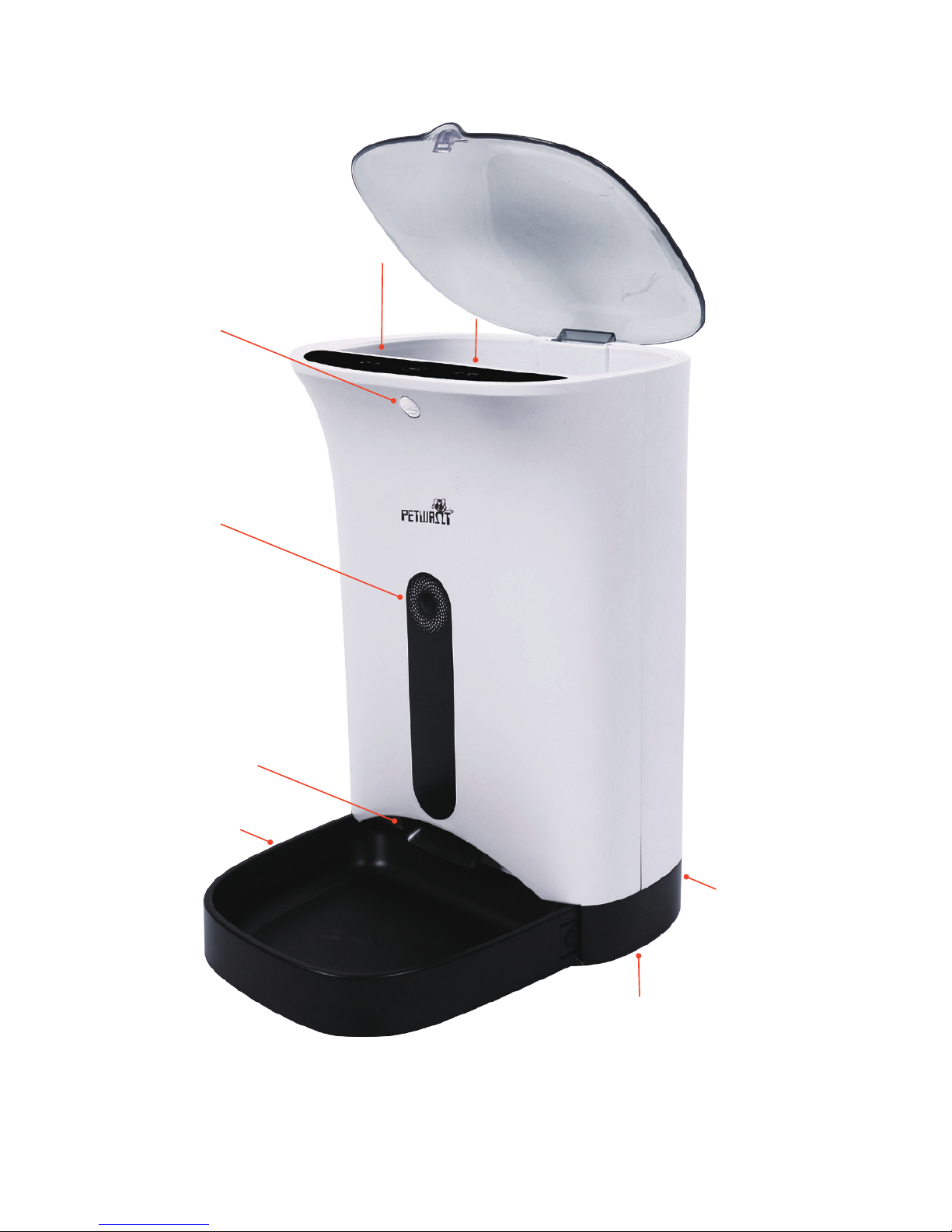
Operation Panel
SD slot
Camera
Food outlet
Power input
Power switch
Battery Compartment
Food tray
Lock
Description / Introduction (frontage)
Page 3
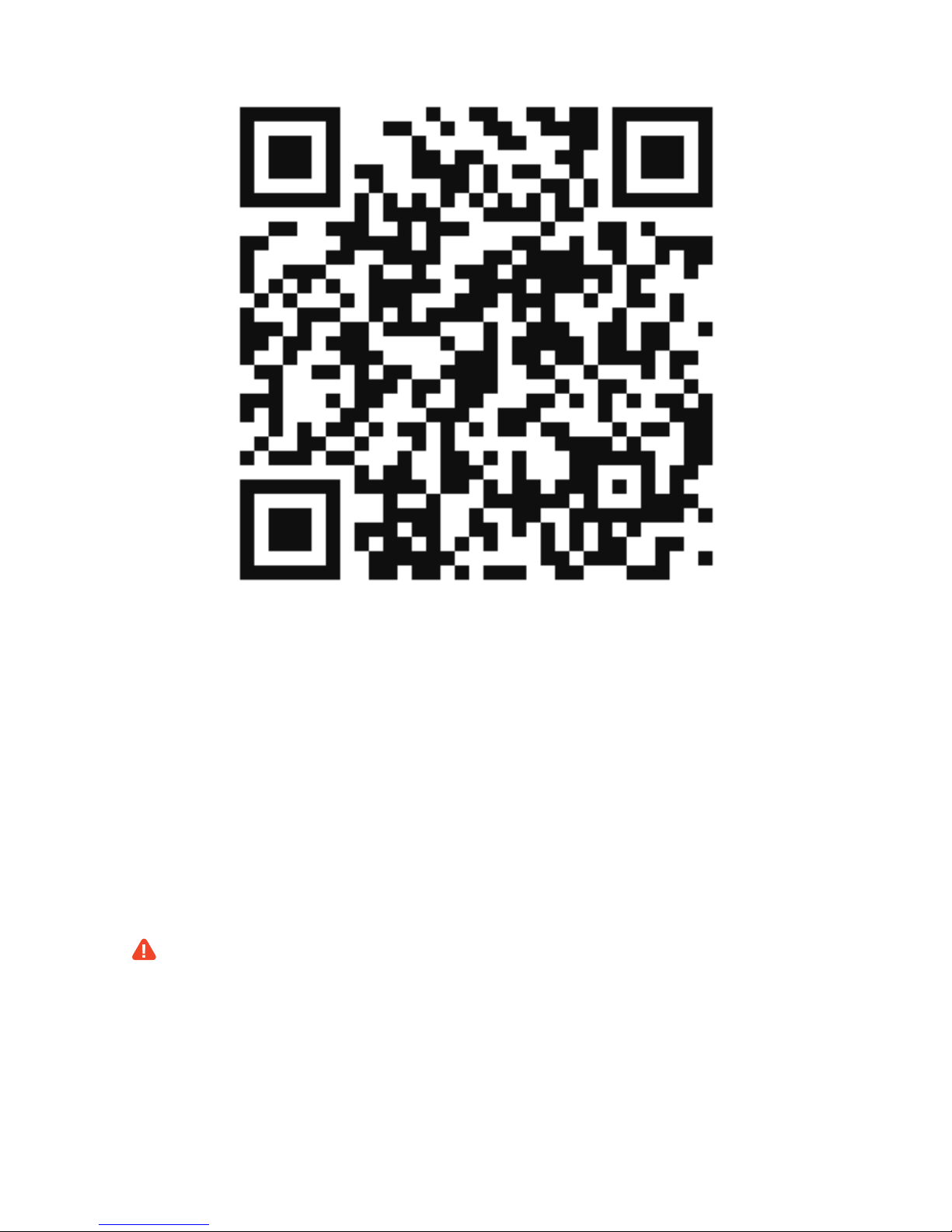
APP Installation
Attention
Method one: Scan the above QR code to enter the download
page to install APP according to the guidance.
Method two: Iphone users search“petwant”in APP Store for
APP Installation while Android users search“petwant”in
“ Google Play” for APP Installation
1. It’s recommended to use QR codes scanner or browser scanner to scan
the QR code to enter the download page for APP installation.
2. If download barrier happens when scan QR codes in Wechat, please click
the icon on the top right corner and choose “broswer”to open the
download page.
2. Please note that allow APP to get the location information and network
access to calibrate the current time when install APP.
Page 4
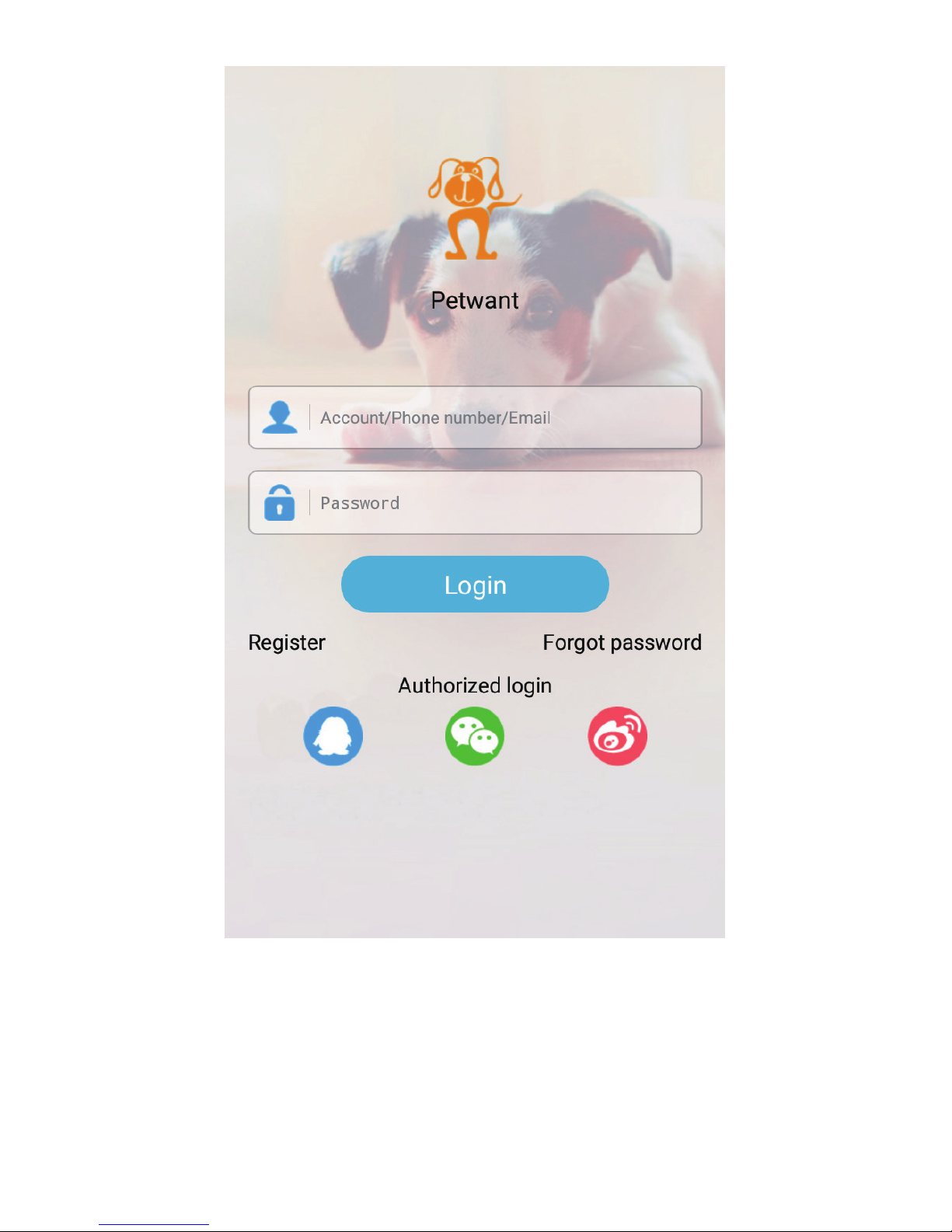
Log in
Method one: Enter the installed“Petwant”APP , and click
“register”to apply for an account.
Method two: Log in through the third party authorization.
Page 5
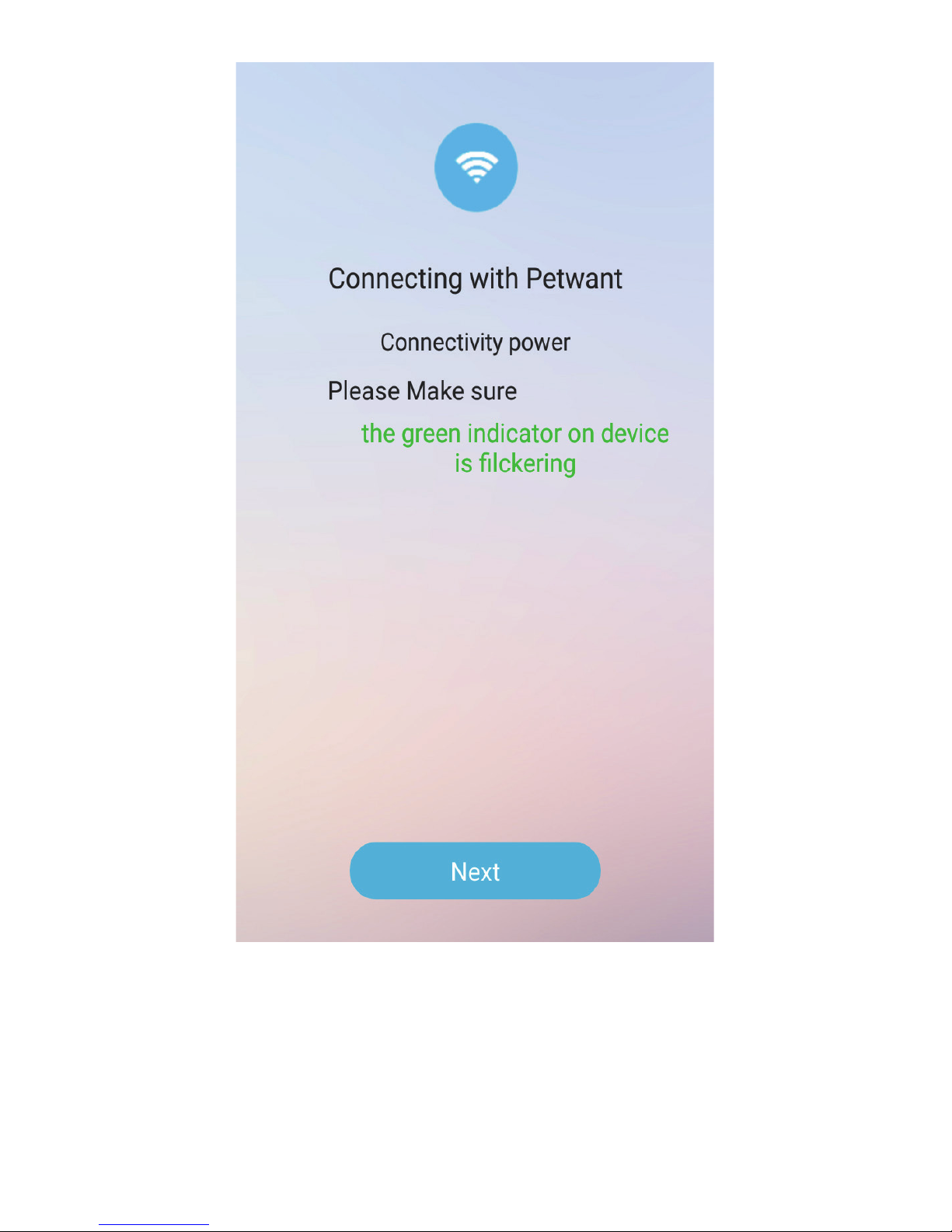
Equipment connection prepare
Plug in and turn on the switch at the bottom of the base, then long
press“SET”button on the panel after the power indicator is on,
and release it until LINK indicator starts flashing and a sound like
“ Dingdong” comes out. ( Please be sure phone have been
connected to wifi and network is good )
Page 6
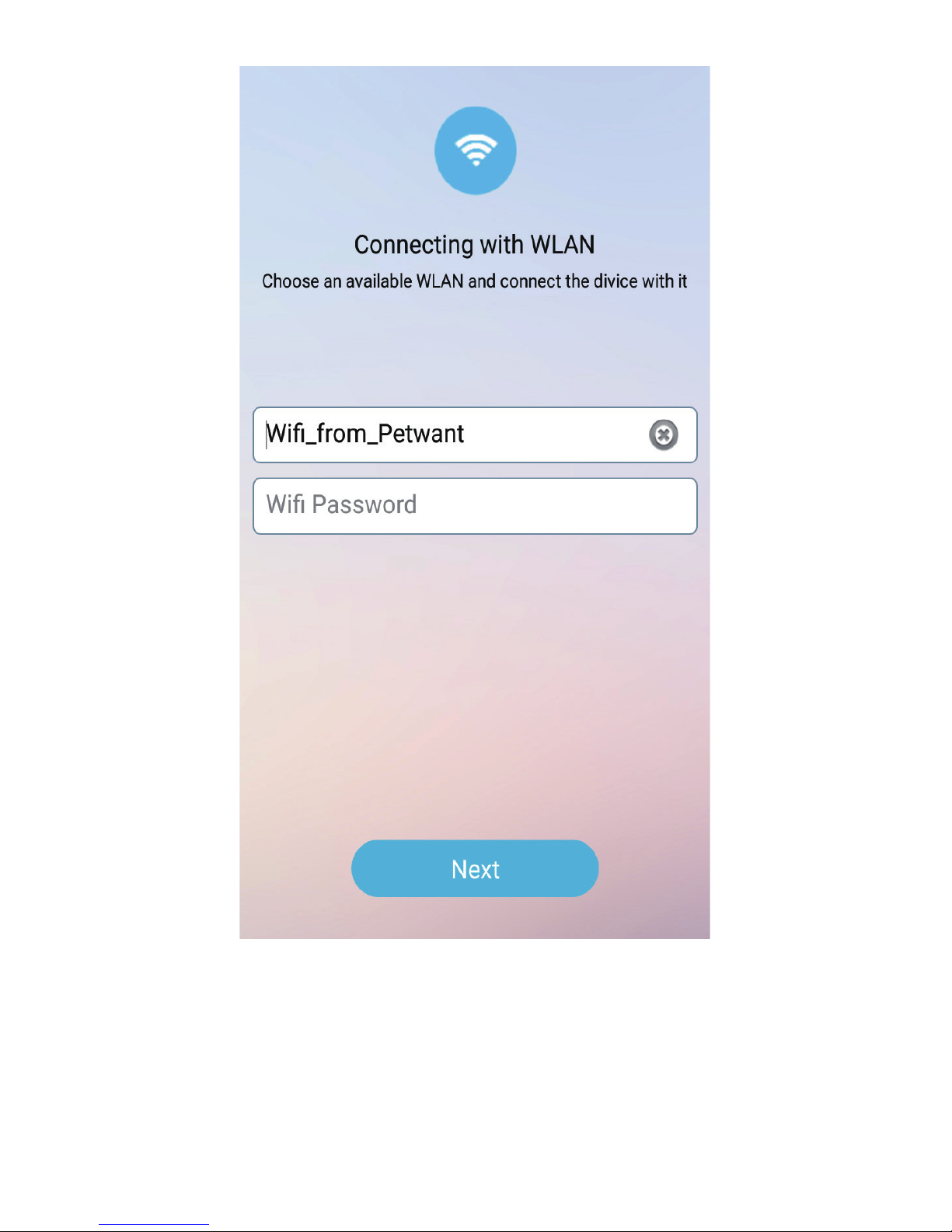
WLAN connection ( Android)
Login“petwant”
APP with applied account when mobile phone is
connected to WiFi. Then click“Next”to enter WiFi connection
interface, account will be generated automatically (when the mobile
phone is connected to WiFi, account will be generated), input WiFi
password and click“next”.
Page 7
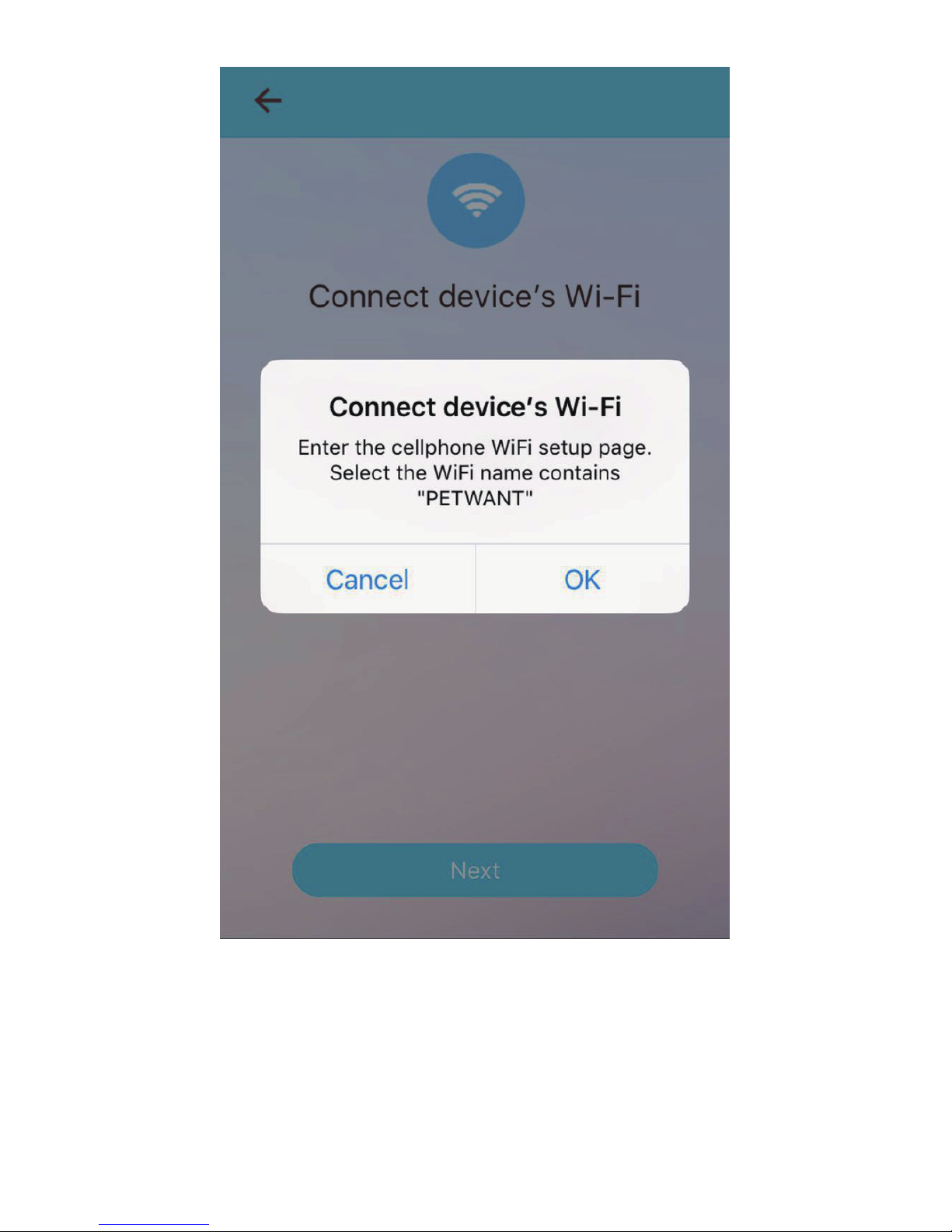
WLAN connection ( IOS)
Login “petwant”
APP with applied account when mobile phone is
connected to WiFi. Then click“Next”to enter WiFi connection
interface, account will be generated automatically (when the mobile
phone is connected to WiFi, account will be generated), input WiFi
password and click“next”to enter WIFI setup interface and select
WiFi name contains“PETWANT_XXXXXX”, return to the
APP
after connection is done then click Next.
Page 8
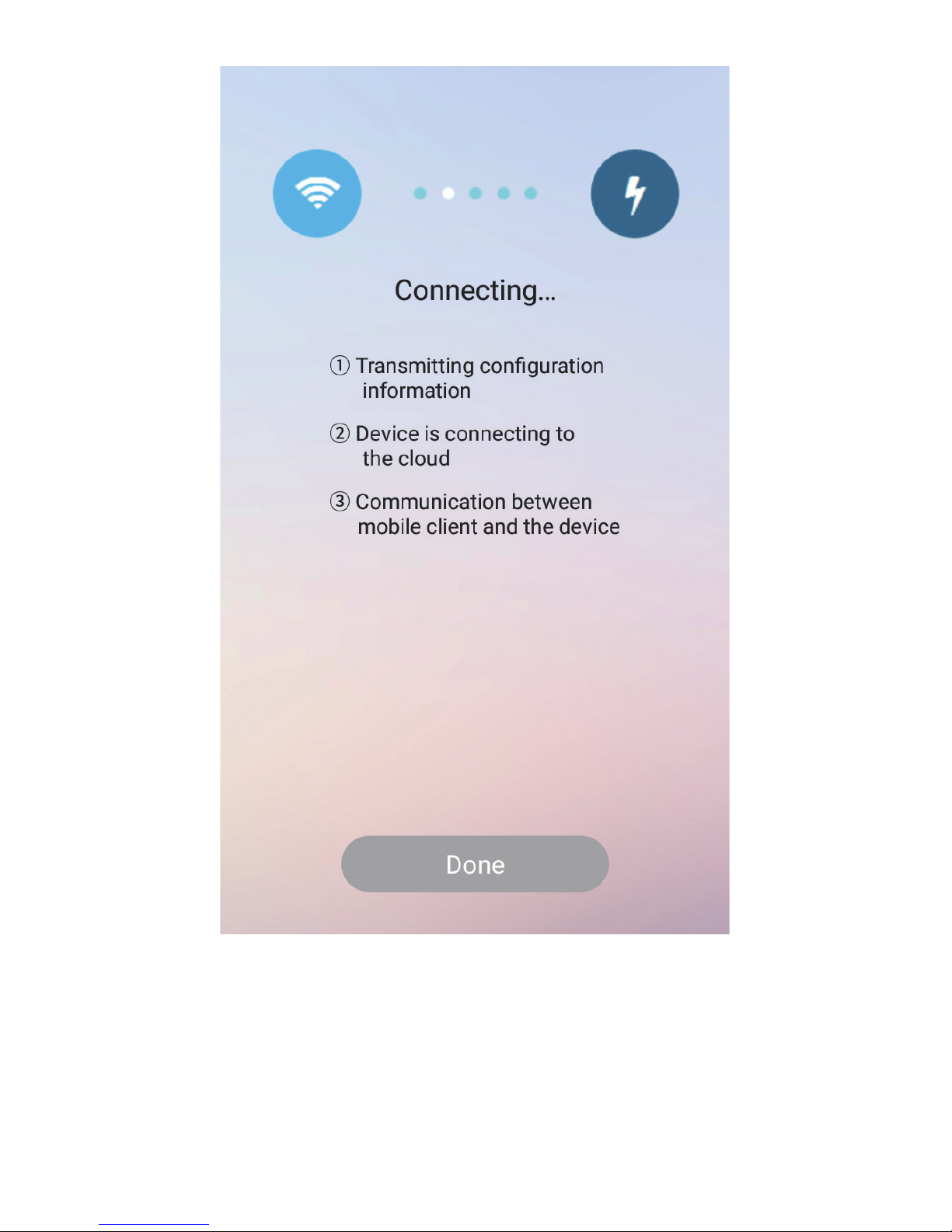
Equipment connection succeeds
The time it will take for the connection is different according to the
network environment. Click“Done”to enter APP interface after
connection succeeds.
Page 9
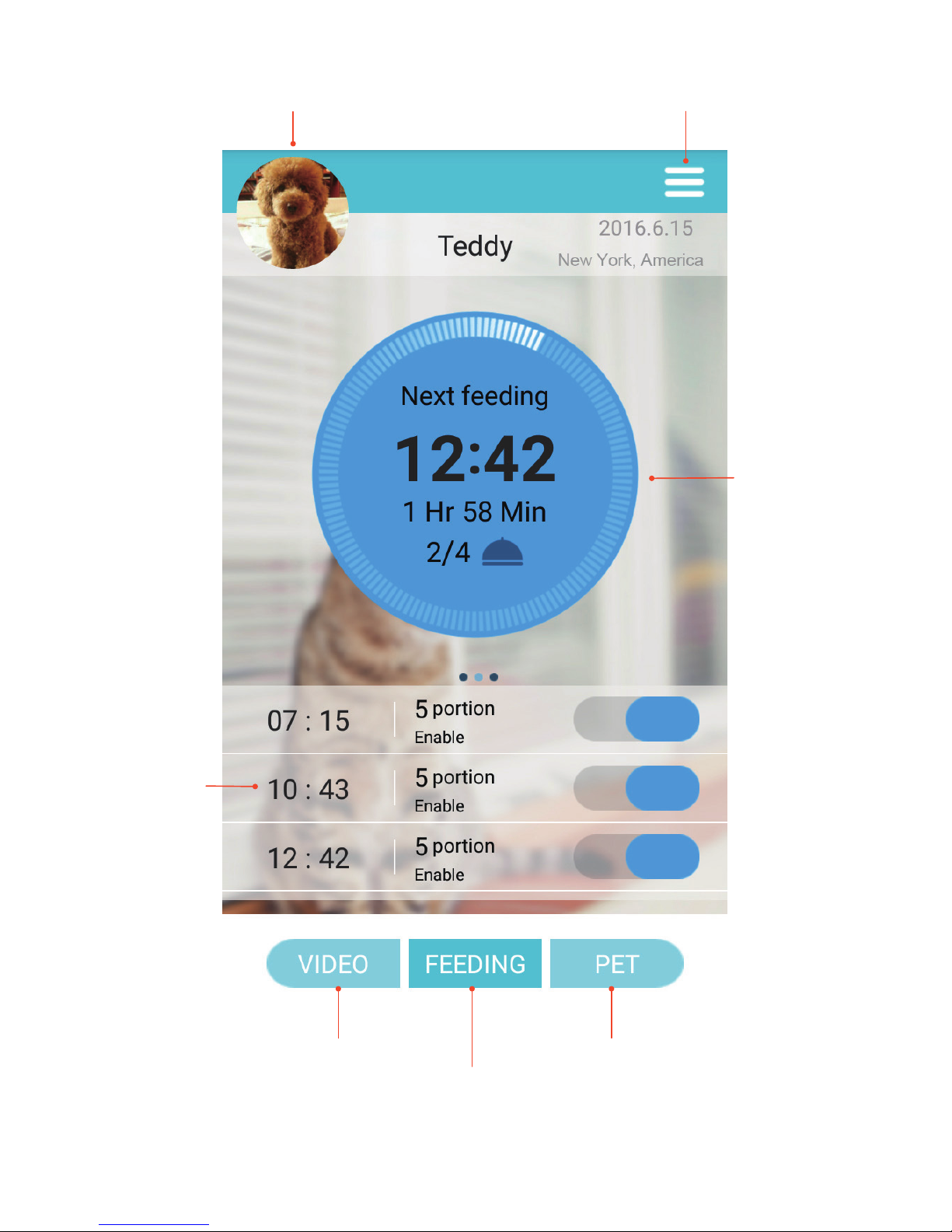
More settingsPet information
Video function
Automatic
feeding
setting
Manual
feeding
setting
Feeding setting
Pet information
Page 10
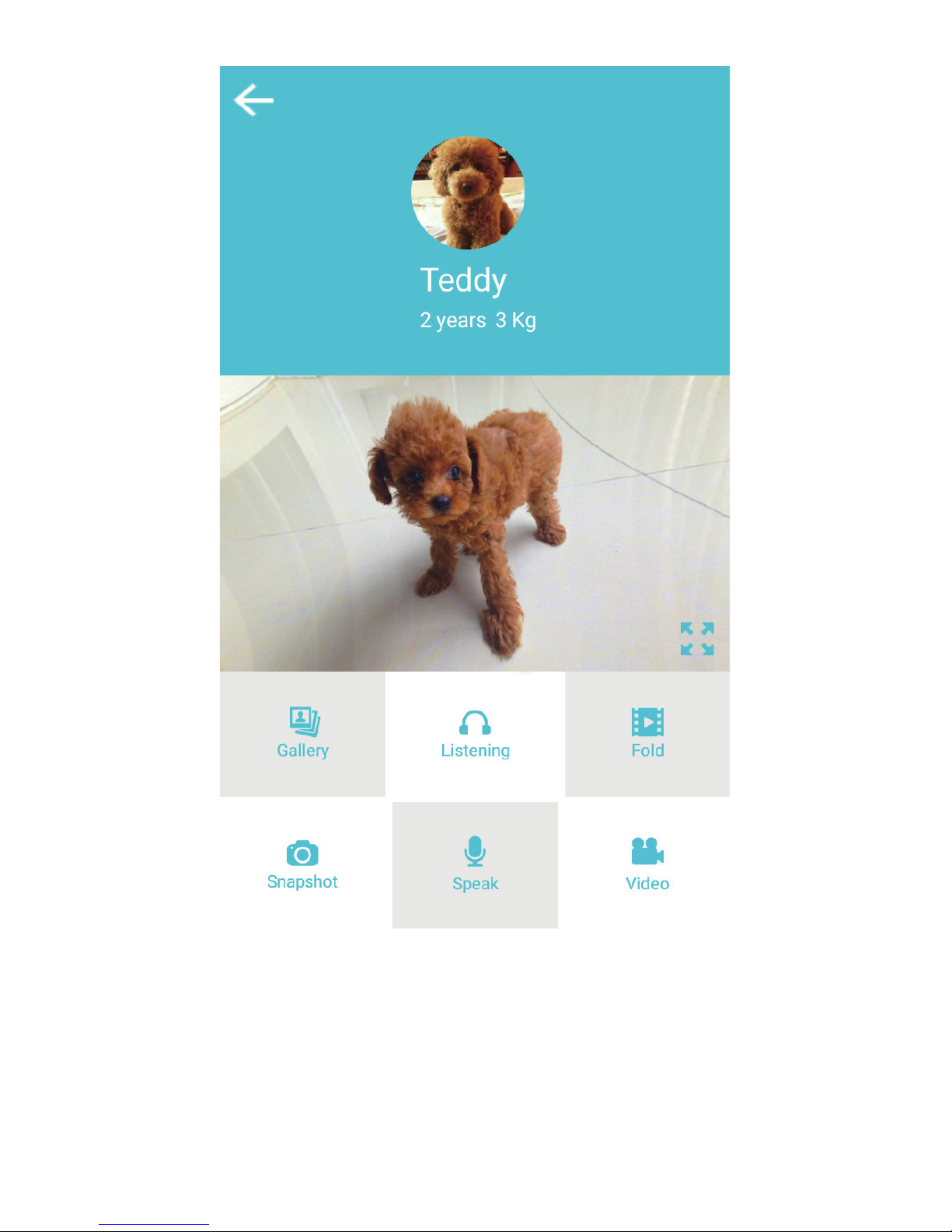
Video function
Click“Video”to enter the corresponding operation interface.
Images, monitoring, Video fold, video recording, photographing
settings can all be achieved.
Page 11
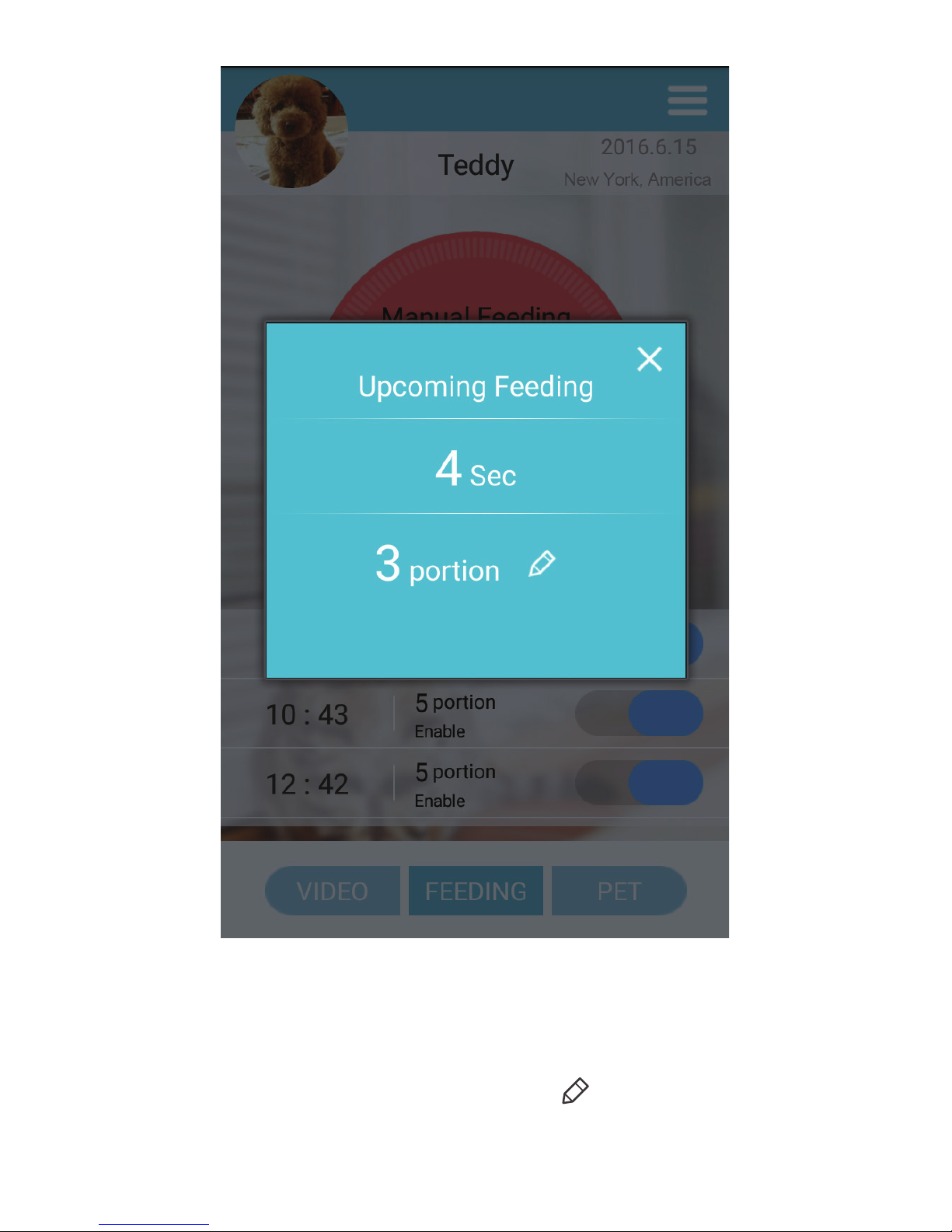
Manual feeding function
Press and hold“Manual feeding”until another feeding interface
appears to enables instant feeding. Click icon to select
portions. Or Press“SET”key once on the smart pet feeder to
feed manually.
Page 12
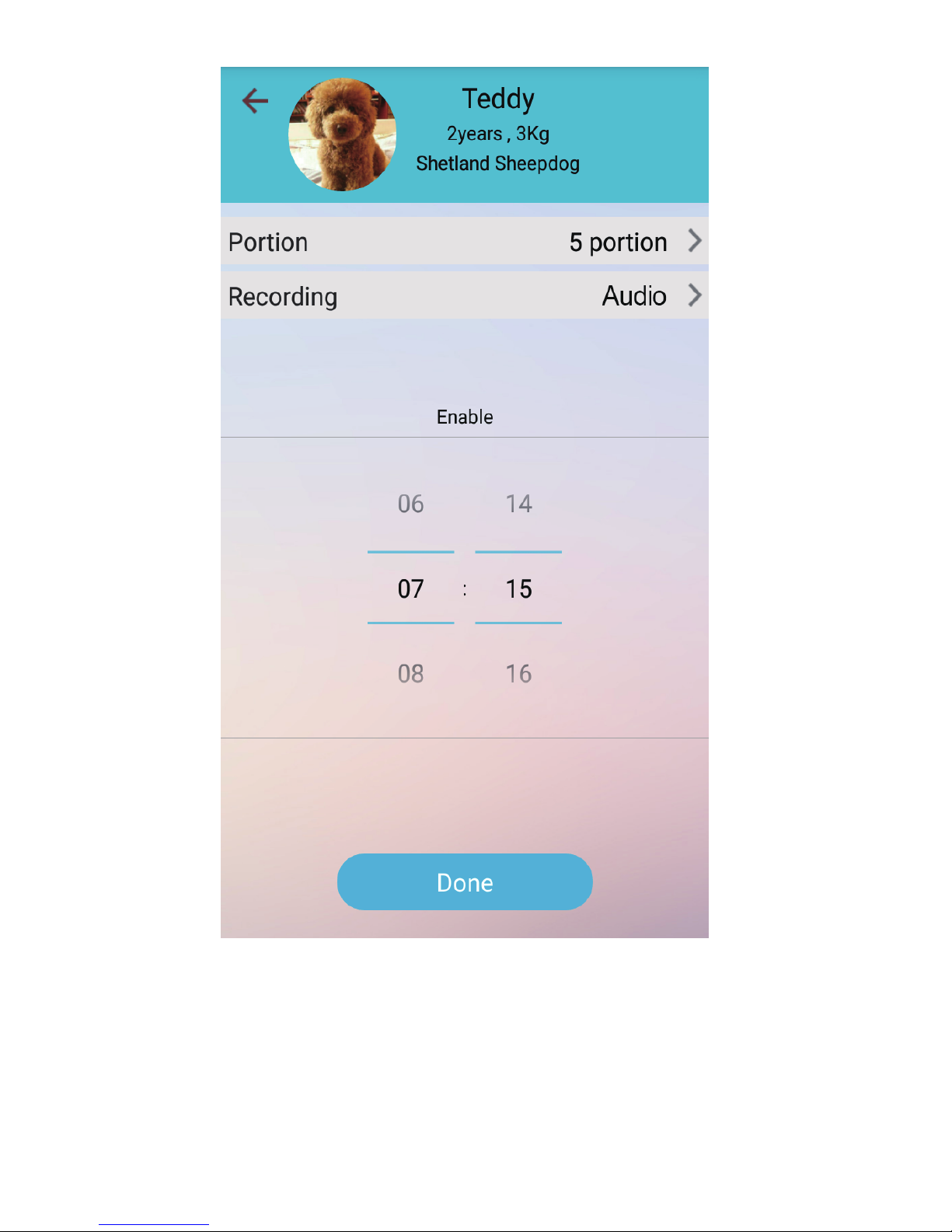
Automatic feeding setting
If the user want the feeding process accompanied with calls,
voice recording setting should be finished in advance. Click the
top right icon and enter recording setting and then record voice
according to the guidance.
Click "+" icon to add feeding meals and then set the corresponding feeding time and feeding portion. Press and hold the existing
meal setting to delete the previous setting content.
Page 13
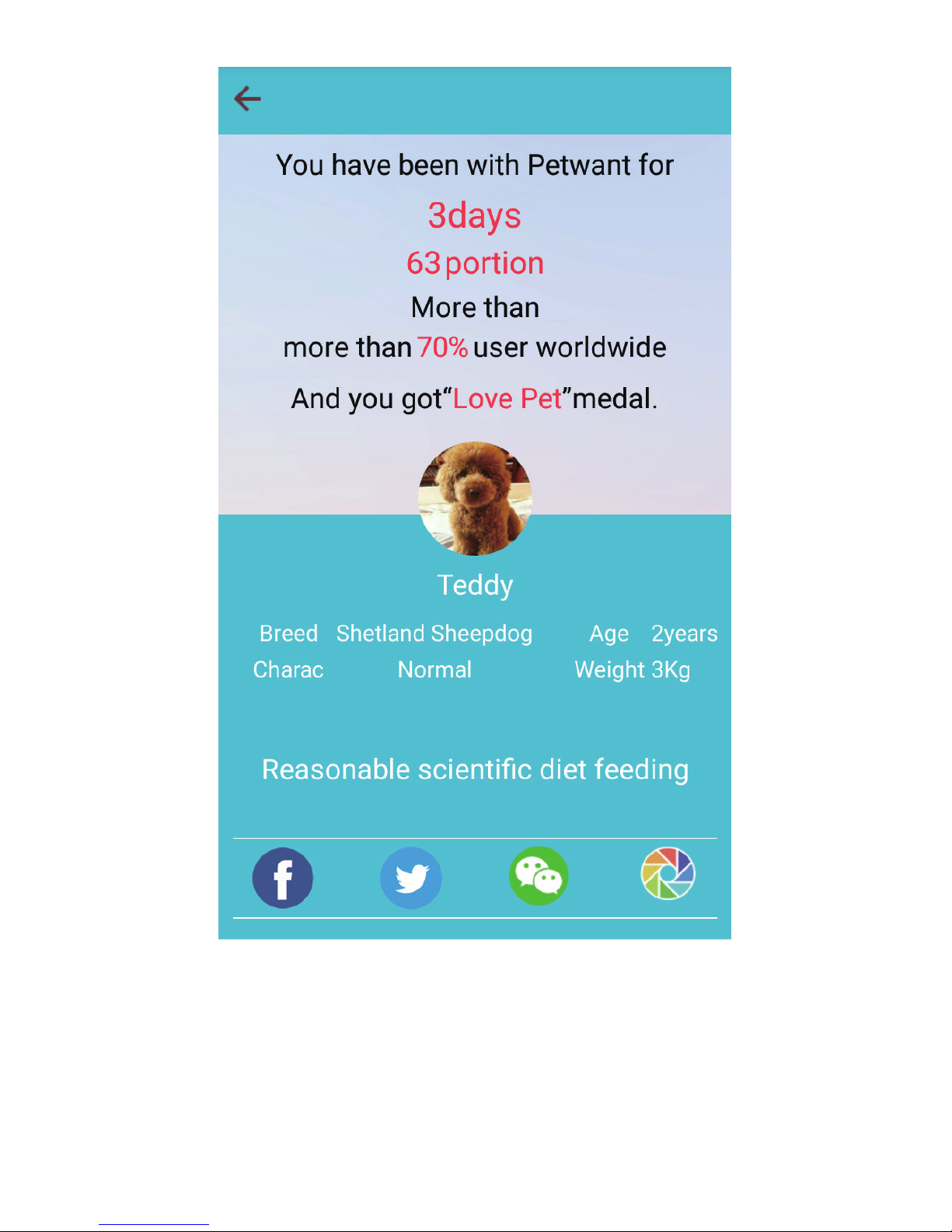
Sharing function
Click the top right menu to enter “Share” interface. The photos and
videos can be shared on Facebook, Twitter, weibo, QQ etc.
Page 14
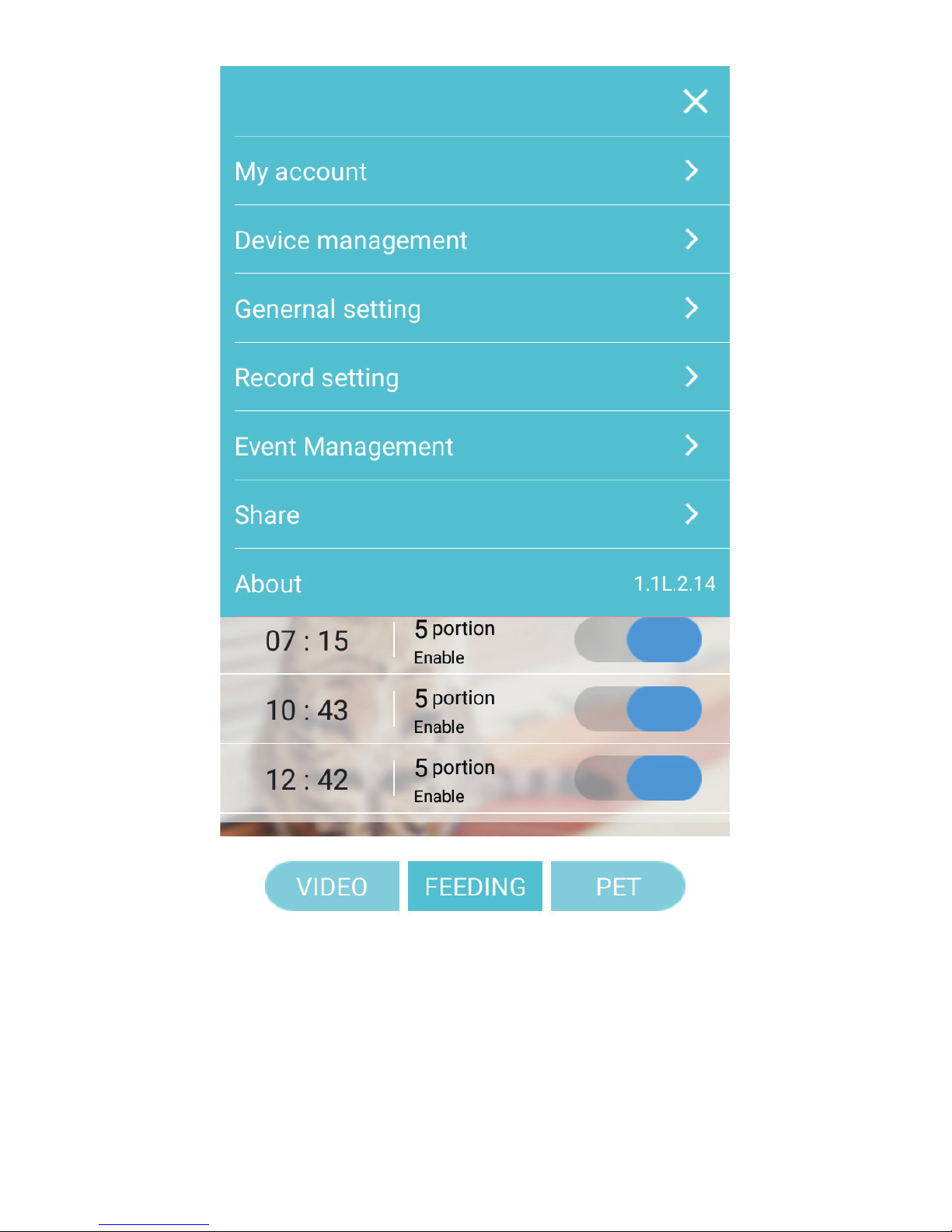
Other setting
Recording, data storage location (Phone or SD Card) selection,
device unbinding, feeding history view and APP version upgrade
can all be achieved when enter the top right menu.
Page 15

FAQ
1. What should we do when the smart phone cann, t connect to the
pet feeder?
1). Check whether the pet feeder breaks down.
Check the status of power indicator. In normal situation, the “Power”indicator is on and “Link”indicator flashes.
2). Check the WIFI signal from the pet feeder.
Search for WIFI signal from the pet feeder with our phones to confirm
whether there is a WIFI signal such as “PETWANT_XXXXXX”.
3). Unload the APP and reload it.
Please make sure to authorize the APP to get an access to the position
information and network during the APP installation.
Please operate according to the above procedures. Note: Please enter the
correct WiFi passwords. Please contact customer services when there are
still problems.
1). Check the food outlet of the pet feeder. When the food outlet is blocked,
the ALARM indicator will flash.
2). Check whether the motor is jammed by pet food.
2. Sometimes the phone with android system can connect
“ PETWANT_xxxxxx” automatically, sometimes it does not work,
how to deal with this situation?
There may be SSID around which may cause interference to the connection
to Pet Feeder WIFI. We could enter “phone setting” option to connect it
manually.
3. Why does not the timed feeding go on smoothly?
It usually needs to take about 3 minutes for the setting data on the APP to
upload to the server.
4. Why does the feeding time have to be more than 3 minutes later
than the current time then the pet feeder can work accordingly ?
Page 16

1). APP upgrade: The APP will remind users to upgrade each time the user
log in the APP. Just upgrade the APP according to the notes.
2). Firmware upgrade: More settings→Device management→Fireware Ver
→Upgrade.
To get a better user experience, please update the software and fireware in
time .( It will takes about 8 minutes to upgrade the software. Don't cut off the
power or disconnect the network during upgrade.)
The first way: Exit the APP, log in again, and wait for data update.
The second way: Switch the Feeding interface to video interface and wait
for video refresh.
5. How could we reconnect to the pet feeder fast when the App is
disconnected for poor networking.
The SD card support 32G, and the storage position (SD card or Phone) can
be set on the phone.
6. About the SD card capacity and pictures and videos storage
position.
The network have to conform to WIFI 802.11bgn protocol. No requirements
on the phone signal as long as it can connect to the network.
7. What kind of network does the pet feeder require?
8. Upgrade management.
Page 17

Warning Statement
This equipment has been tested and found to comply with the
limits for a Class B digital device, pursuant to part 15
of the FCC Rules. These limits are designed to provide
reasonable protection against harmful interference in a
residential installation. This equipment generates, uses
and can radiate radio frequency energy and, if not installed
and used in accordance with the instructions, may cause harmful
interference to radio communications. However, there is no
guarantee that interference will not occur in a particular
installation. If this equipment does cause harmful interference
to radio or television reception, which can be determined
by turning the equipment off and on, the user is encouraged
to try to correct the interference by one or more of the
following measures:
Reorient or relocate the receiving antenna.
Increase the separation between the equipment and receiver.
Connect the equipment into an outlet on a circuit different
from that to which the receiver is connected.
Consult the dealer or an experienced radio/TV technician for help.
Caution: Any changes or modi?cations to this device not
explicitly approved by manufacturer could void your authority
to operate this equipment.
This device complies with part 15 of the FCC Rules. Operation
is subject to the following two conditions: (1) This device
may not cause harmful interference, and (2) this device must
accept any interference received, including interference
that may cause undesired operation.
The device has been evaluated to meet general RF exposure
requirement. The device can be used in portable exposure
condition without restriction.
 Loading...