

Page 1
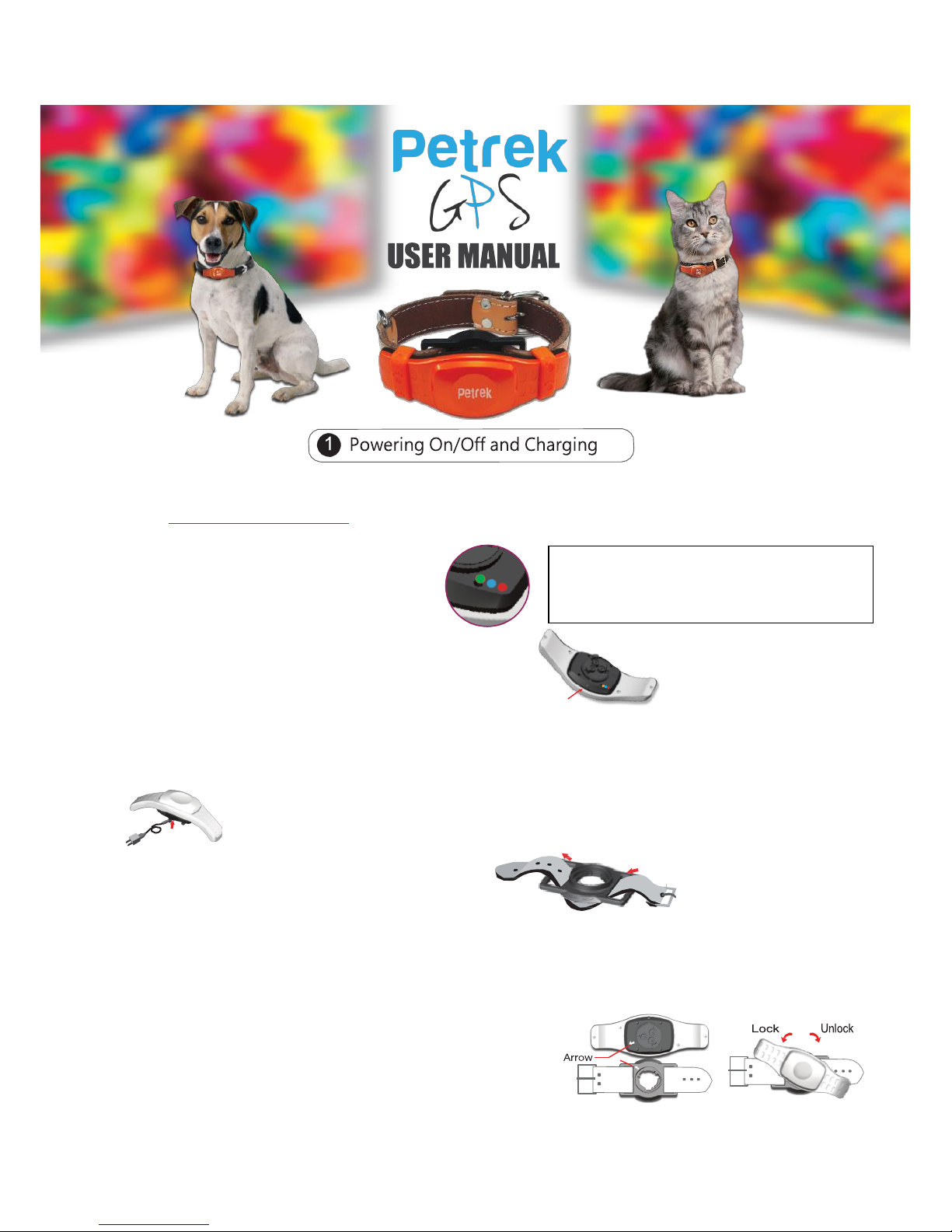
USB Adaptor
1. Please make sure that the tracker is charged for 30
minutes before setup.
Go to www.pettrackingoz.com.au for further information
2. Turning on power:
ON: Press the Power Key for 5 seconds
All LED’s will light up together
OFF: Press the Power Key for 5 seconds
LED’s will go off in a sequence
If no lights are seen during the on or off sequence,
the device might be out of power or not fully charged.
NOTE: All units supplied in Australia already come with a pre-loaded Telstra SIM card so there is no need to remove the
back cover and insert a SIM card unless you would prefer to use a SIM card from a Telco provider other than Telstra
3. Charging your Petrek GPS
When charging, the red LED will stay solid. When fully charged after 30-40 minutes the red LED
will go off. We recommend that you only use our provided USB
charging kit.
4. Pull the collar through the universal collar adaptor
5. Match the arrows on the back of the device and the collar adaptor.
Turn anti-clockwise to lock, clockwise to unlock
6. Apply the silicon bands to reduce risk of the Petrek GPS
Power Key
LED Indicator:
Red=Power Blue=GPS Green = GPRS
Page 2
this part your SIM card
has been activated
Quick
getting caught on branches, fences etc
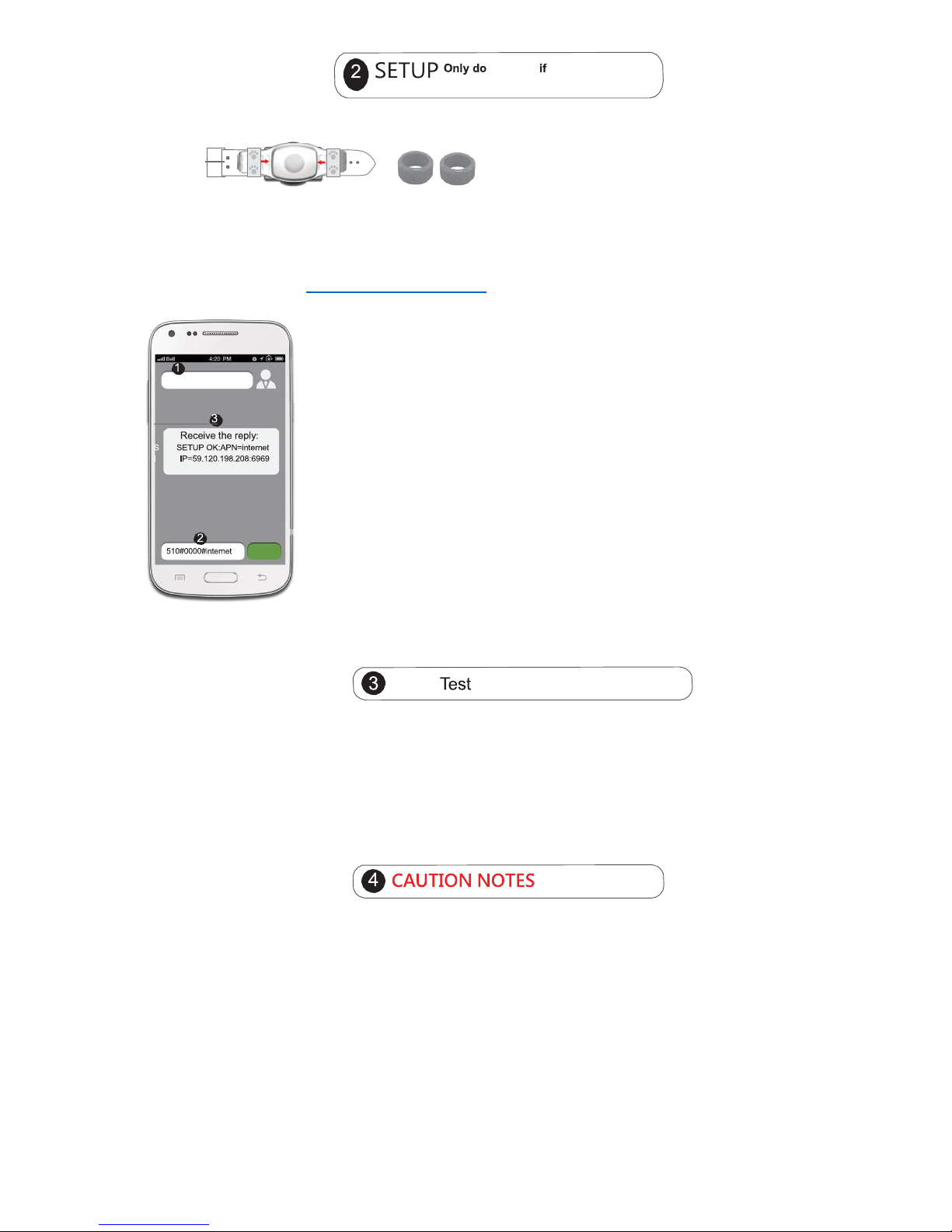
APN SetUp (Required)
The APN must be set properly to allow your Petrek GPS to send location data to your smartphone device.
Every telco provider has a different APN. All Petrek GPS trackers suppled after May 10th 2015 have been fitted
with a prepaid ALDI SIM card that works on the Telstra network. For APN settings go to the Petrek GPS Pet
Tracker Support page at www.pettrackingoz.com.au .
With your smartphone ready, follow the steps below to set your selected APN:
1.
Enter the phone number of your Petrek GPS SIM card
2.
Type: 510#0000#APN into the message box
and then press SEND e.g. for
the ALDI SIM type: 510#0000#mdata.net.au
3. You will then receive an okay: SETUP OK:APN=internet, IP=59.120.198.208:6969
If you do not receive a reply, retry a couple more times, make sure your Petrek
GPS is on. NOTE: If no movement is detected by your Petrek GPS within 3
minutes it may go into sleep mode, so give it a shake to reactivate it.
Before downloading the iPet tracker App, first take your Petrek GPS outside. Call the phone number of the SIN
card with your smartphone. Keep the Petrek outside with a clear unobstructed view to the sky. If the tracker is
on and not in sleep mode, the phone will ring 4 times and then hang up. If not, it will go to voice mail. If
successful, a Google map text will be sent to your phone.
1. Turn off before charging
2. To save power, the Petrek GPS will go into sleepmode if no movement is detected after 3 minutes. To turn
back on or reactivate, give it a shake.
3. If indoors, the Petrek may not receive any GPS signal, this will prompt your Petrek GPS to search the nearest
mobile phone tower.
4. Location is only accurate when in clear line of sight with the sky.
5. SIM card must not have a PIN code activated.
6. A SIM card with GPRS data transfer and text is required to fully utilise the Petrek GPS.
+886 963012035
Page 3
ddddddddd
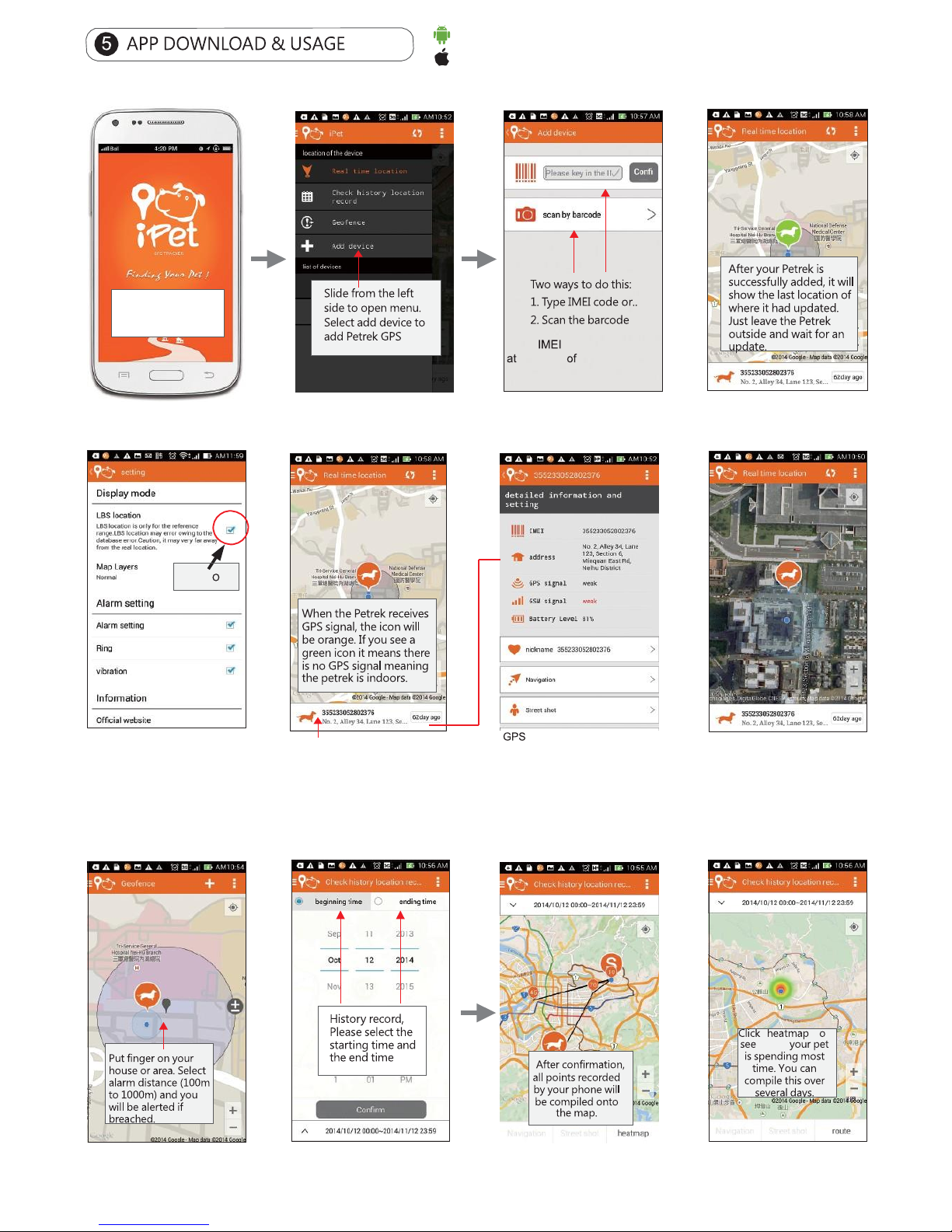
weak = indoors
For Android, please download "iPet tracker" from Google Play Store
For iOS, please download "iPet tracker" from APP Store
Open APP
Left menu
Adding device (Petrek GPS)
Real time location
Turning off LBS under settings
Real time location
Detailed info. & settings
Under Settings -> Map layers
select Hybrid for best results
Click the 3 dots (Settings) on
the top right corner to enter this
page.
Turn LBS off if you just want
GPS location
Click here to acquire detail
infomation and setting
(15-30 metre accuracy)
GPS Normal = under light shelter
(5-15 metre accuracy)
GPS Excellent = outdoors
(2-5 metre accuracy)
Geo-Fencing/Proximity
alarm (Slide from left menu)
History location record History location record
Heatmap
Note: code can be found
the back your Petrek
or the side of the product box.
LBS ff
“ ” t
where
Page 4

Additional Notes:
1. Geo-Fencing (Proximity Alarm) - If you want to be alerted as soon as possible, put your finger on the grey point and
move the circle’s line to the boundary of your front yard etc.
2. iPhones may put Apps in the background to sleep and if this is the case you will not receive location updates.
So keep iPet app running frequently for best results. You can also go to Settings and make sure iPet is selected
under “background apps”. Android phones will be fine so long as the App is running.
 Loading...