

Page 1
2
QUICK GUIDE
POWER
CHARGE
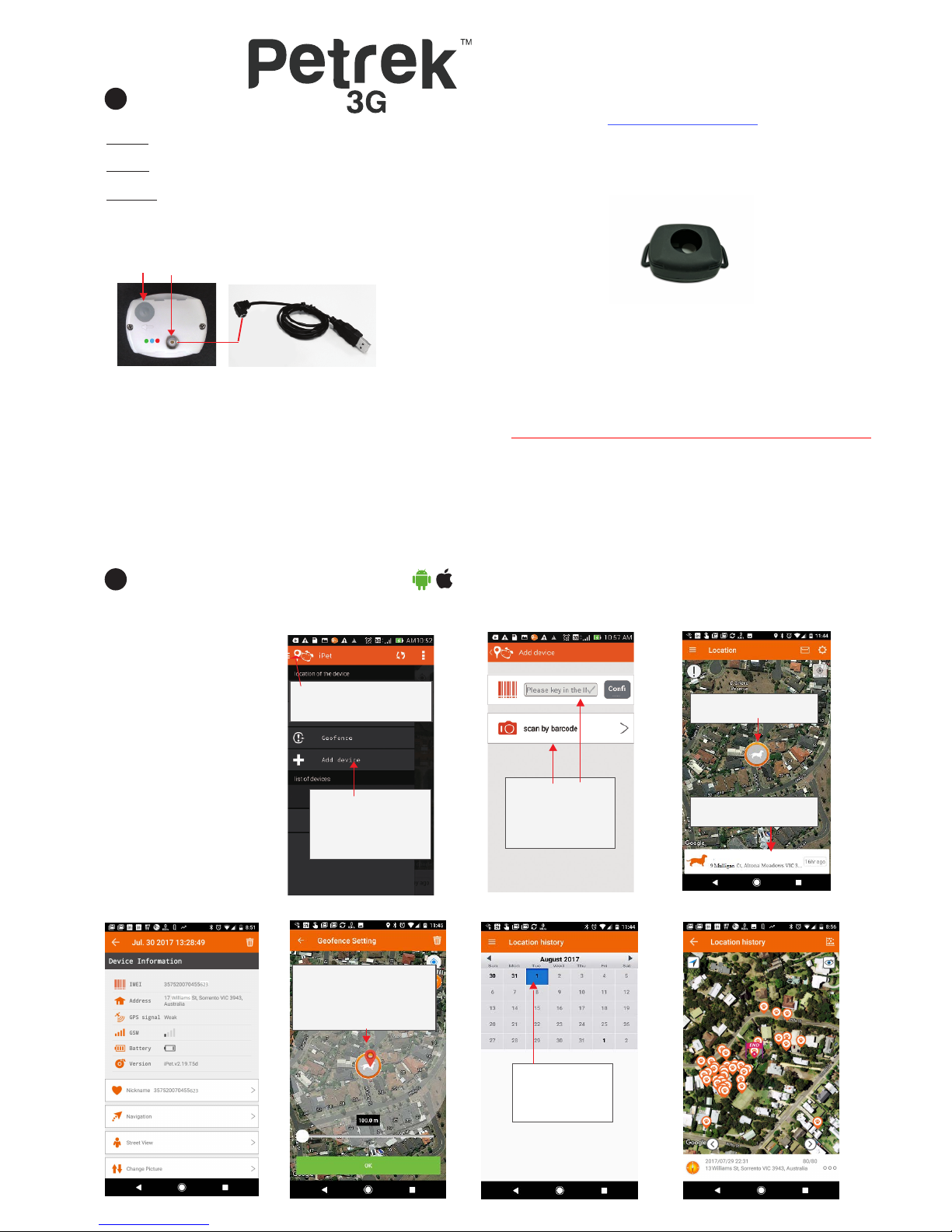
1. POWERING ON and OFF and CHARGING:
Turn on: Press and hold the power button for 3 secs 3 LEDs will
light up together.
Turn off: Press and hold power button for 3 seconds, LEDs go
off one by one.
Charging: Connect USB magnetic charging cable to charging
port. Connect to 240V USB charger. Allow up to 2 hours for
first charge and thereafter charging will take 1-2 hours. Whilst
charging the LED light will be red and once fully charged this
light will be green.
Notice: Please use original charging cable.
Use any USB chargers over 1000mA
Do not use USB chargers under 1000mA
2. IMPORTANT INFORMATION:
• If no movement is detected after 3 mins the tracker will
change to Sleep mode (GSM/GPS off)and will not operate
until movement is detected. If in Power Saving mode the
tracker will stay in sleep mode for 2 hours.
• Tracker may not work when under shelter or indoors due to
poor GPS
signal. Tracker will not work without adequate
GPS or GSM (mobile phone network) signal.
• The tracker has 3 location update setting: Power Saving
(updates every 2 hours), Normal (updates every 5-10mins)
and Urgent (updates every 30-60 secs).
Attention:
Please make sure the device is
is outside where GPS signal clear.
Also make sure you have done
the SIM activation. Allow at least
10min for the tracker to find itself on
the app on first usage. We highly
recommend you search for “iPet App
setup guide” on Youtube for our step
by step video guide.
About GPS accuracy:
Global Positioning System
is used as a navigation tool.
It is normal to have random
accuracy fluctuations due to
many technical settings.
When the device is under shelter
or in hilly terrain areas, the
accuracy can be anywhere from
2 metres to 30+ metres.
Two ways to create:
1. Insert IMEI no.
2. Scan the bar
code
Device Info. & Settings
Geofence
Tick "Enable geofence" box.
Press and hold where you
want the geofence centred.
Slide area from 100 metres
to 10 kilometres. Then press
OK.
Click on any day in
the last 2 months
to obtain location
history for that day
Obtain Location History
Location History Record
APP DOWNLOAD & USAGE
1
BASIC SET-UP
Add device #1 Add device #2
Real time location
Orange mark: GPS
For Android, please download "ipet tracker" from Google Play Store / For iOS, please download"ipet tracker" from APP Store
Select "Add device" to
add your Petrek3G
(have IMEI no. ready)
Click here on Location
page to access this screen
LED Indicators: Red: Power Blue: GPS search
Green: GSM search
4. SIM CARD SET-UP: (Australia only)
• Your Petrek 3G tracker has been pre-fitted with a SIM card from ALDI
that operates on the Telstra mobile network.
• The APN to allow your tracker to send l
ocation data to your smartphone
has also already been set up for you.
• The SIM card has $5 prepaid credit on it that will last approximately 3-4
months with average usage but the SIM card needs to be activated for
the tracker to work.
• Please follow the instructions overleaf to activate your SIM card.
• You can add credit to your SIM card at any time by simply logging on to
your new ALDI account. Even with the most frequent location updates
$20 credit should last a full year!
• If you prefer to use an alternative SIM card such as Telstra mobile,
Vodafone or Optus you can replace the pre-fitted SIM card with the SIM
card of your choice. In these cases you will have to set up a new APN
specific to the SIM card brand you are using. Go to the website
www.pettrackingoz.com.au for more detailed instructions on this.
For more detailed information, support and video instructions go to
www.pettrackingoz.com.au
3. FITTING TO COLLAR: Stretch the attachment rings at each end of the
provided silicon case and pass collar through rings. Insert the tracker fully via
the central circular hole. To remove the tracker for charging simply pull back
the edges of the central hole and "peel" the tracker out.
Click here to access
Device Info & Settings
NOTE: "Location History Heat Map" function is also available on Android phones to display how long your pet stays at each location
 Loading...