

Page 1

Introduction
This Quick Start Guide covers the key points of the
installation of the device driver software and host card for
your SPEED product. To obtain the latest driver software
please refer to the driver matrix page under technical support
in Perle web site.
Accessing the CDROM
Windows
The CDROM will be automatically mounted a short time after
placing it in the CDROM drive. View with Windows Explorer.
SCO OpenServer
1. Login to your system as super user , t hen lo ad the C DRO M
into your system CD drive.
2. At the command prompt, type mkdir /cdrom.
3. At the command prompt, type:
mount -f ISO9660 -r/dev/cd0 /cdrom
You can now browse the CDROM content using the File
Manager tool in the SCO OpenServer desktop .
SCO UnixWare
1. Login to your system as super user , t hen lo ad the C DRO M
into your system CD drive.
2. At the command prompt, type mkdir /cdrom.
3. At the command prompt, type:
mount -r -F cdfs -o nmconv=c /dev/cdrom/c1b0t0l0
/cdrom
You can now browse the CDROM content using the File
Manager tool in the SCO UnixWare desktop.
Linux
1. Login to your system as super user then load the CDROM
into your system CD drive.
2. At the command prompt, type mount /mnt/cdrom.
You can now browse the CDROM content using any one of
the file browsers available for Linux.
Installation overview
1. Install the SPEED card(s) and connect the peripherals.
2. Install the software.
3. Set-up log-ins and ports, using the SPEED configuration
utility.
Installing driver software
Windows 95 and 98
To install the SPEED device drivers and utilities for the
Windows 95 or 98 operating systems proceed as follows;
1. Turn on your PC and if required, log in.
2. Load the CDROM into your PC.
3. From the \drivers\speed\win9x directory on the CDROM,
run the setup.exe file.
4. In the Welcome window now displayed, click on the
Next > button.
5. In the Setup Complete window now displayed, click select
the Yes,Iwant to restart my computer now option, then
click on Finish button to confirm your selection.
6. Shutdown your PC then install any PCI host cards you
require into your system
7. Start Windows your PC.
Windows will then detect and install drivers and ports for your
PCI cards automatically.
Windows NT 3.51 and 4
A device driver is installed with the PortDirector software,
supplied on the CDROM. To install PortDirector:
1. Load the CDROM.
2. Access the \drivers\portdirector directory in Windows
Explorer and double-click on Setup.exe.
3. Follow the instructions on screen to install PortDirector.
Windows 2000/XP/Server 2003/Vista
To install under Window s 2000/XP/Serv er 2003/V ista proceed
as follows;
1. Install the SPEED cards you require and allow the
operating system to boot.
A pop-up message is now displayed on your computer
screen saying new hardware has been detected.
2. Load the CDROM.
3. In the popup window select the
\drivers\speed\w2k\<version> directory and click OK.
Select the appropriate installation executable for your
operating system and install the SPEED driver. You can use
the Windows Device Manager for configuration.
SCO OpenServer
To install under SCO OpenServer proceed as follows;
1. Install any SPEED PCI host cards into your system.
2. Login to your system as super user , th en lo ad the CD ROM
into your system CD drive.
3. Mount the CDROM using the instructions for SCO
OpenServer in Accessing the CDROM.
4. In the SCO OpenServer desktop, double click on the
System Administration folder.
5. In the System Administration window, double click on the
software manager icon.
6. In the Software Manager menu, click on
Software > Install New.
7. In the Begin Installation window, click on the From
localhostname button and then click on Continue.
8. In the Select Media window, select the Media Images
option then click on Continue.
9. In the Enter Image Directory window, type;
/cdrom/drivers/speed/openserver and then click on OK
10.In the Install Selection window, click on the Install button.
11.If you are installing other drivers, turn off the
Re-link Kernel option to prevent an unwanted kernel link.
A successful installation pop-up message is now appears.
12.In the pop-up window click on OK to close the window.
The software manager window is now updated to include the
SPEED driver in the list of installed software.
SCO UnixWare
To install the SPEED device drivers and utilities for the SCO
UnixWare operating system proceed as follows;
1. Install any SPEED PCI host cards into your system.
2. Login to your system as super user , then loa d the CD ROM
into your system CD drive.
3. Mount the CDROM using the instructions for SCO
UnixWare in Accessing the CDROM.
4. At the command prompt, type pkgadd -d
/cdrom/drivers/speed/unixware/speed.pkg spd and press
the Enter key.
The system now displays a series of messages ending with a
successful installation message.
Linux
To install the device drivers proceed as follows:
1. Make sure you have an up to date Linux kernel source
directory installed. See ftp://ftp.linux.org or other major
Linux web sites.
2. Copy the driver patch file onto your system i n a temp ora ry
directory. For example, /tmp.
The patch file will be named
speed.patch-<driver vers>-<kernel vers>.gz
For example, speed.patch-6-2.2.13.gz
3. At the command prompt, enter the following commands;
gunzip /tmp speed.patch-6-2.2.13.gz
cd /usr/src/linux
patch -p1 </tmp/speed.patch-6-2.2.13.gz
4. If the patch is successful, you will need to enable the driver
using the make config or makexconfigkernel utility.
The SPEED driver appears in the Character devices
section and is labelled SPEED system support. Set this to
m for modules.
5. Within either the makeconfig or the makexconfig kernel
utility, set the Supportmorethan 4 serial ports and
Support special multiportboards options to Y and
enable Support for sharing serial interrupts.
6. Now rebuild and install the kernel and modules. See your
Linux distribution documentation.
Installing the SPEED card(s)
1. Switch your system off and remove the cover.
2. Insert each card into a vacant PCI slot.
Replace the cover of your comput er and restart your machine.
The SPEED card(s) should be detected automatically.
Note
See SPEED Serial adaptors user guide, part number 5500034
for more detailed information.
Hint
After the machine restarts, if windows cannot find a file
whilst trying to install a device a pop-up window is
displayed asking you for the location of missing file. To
remedy this;
• In the popup window, select the windows system
directory for example,
c:\windows\system.
Device installation should then be able to continue.
Note
Any installed speed cards will be automatically detected and
assigned from PortDirector.
Note
When installing SPEED drivers under Linux versions 2.2.x,
you will need to apply a patch file to the kernel before enabling
the drivers (step 4. of this procedure). See the CDROM (in the
drivers/speed/linux directory) or our website
http://www.perle.com.
As of Linux version 2.4.x, you do not need to apply a patch
on this or later kernels, you can proceed straight to enabling the
driver using step 4. of this procedure.
Warning
Dangerous voltages exist inside computer systems. Before
installing host cards in your system, turn off the power supply
and disconnect the mains lead.
Caution
Full anti-static precautions should be taken when
handling host cards.
Page 2
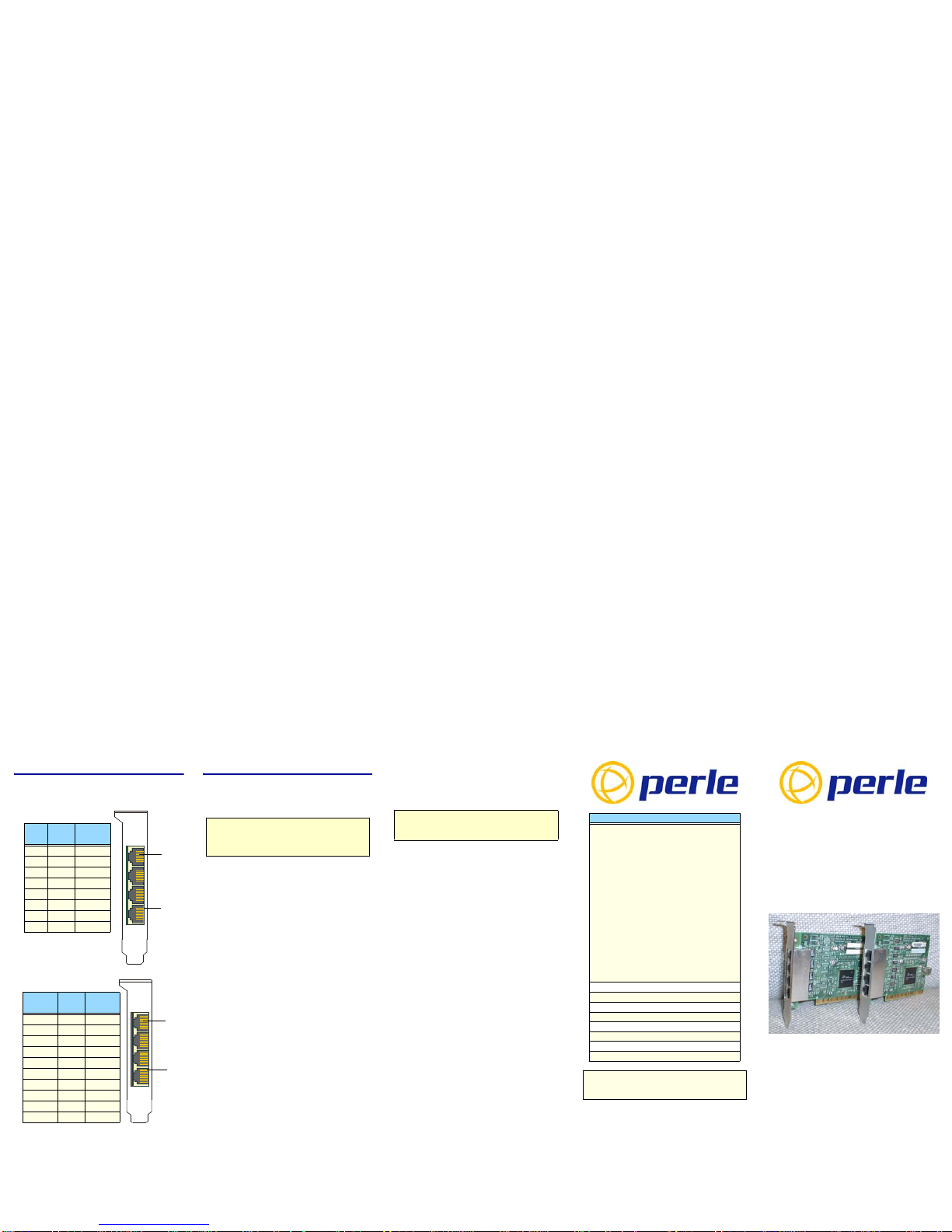
RJ45 socket pinouts
SPEED4 and SPEED4+ cards
The connector pinout for each RJ45 socket fitted to the
SPEED4 and SPEED4+ PCI host cards are as follows;
Configuring the ports
SCO OpenServer
The Port Configuration utility allows you to configure the
SPEED serial ports you have added to your system. To do this
proceed as follows
1. In the SCO OpenServer desktop, double click on the
System Administration Folder.
The System Administration window is now displayed
2. In the System Administration window, double click on the
Speed folder.
The Speed window is now displayed.
3. In the Speed window, double click on the Speed Port
Configuration icon.
The Speed Port Configuration window is now displayed.
4. In the Speed Port Configuration window, select the ports
you want you want to configure.
5. Select the getty definition and terminal type you want.
6. If required, click on the ixon button to enable flow control
for Transparent printing (to enable sending of data on
receipt of the next character, click on the ixany button).
7. Click on either the Enable or Disable buttons as required
to enable or disable login sessions on the selected ports.
8. In the Port Configuration menu, click on
Ports > Save & Exit.
The changes you have made are now implemented
SCO UnixWare
The SPEED utilities for the SCO UnixWare operating system
includes a utility called Serial Manager which allows you to
configure the extra SPEED serial ports you have added to your
system. To invoke Serial Manager;
1. At the command prompt, type scoadmin to display the
System Administration window.
2. In the System Administration tool window, click on the
Hardware folder and then select Serial Manager.
Alternatively, you can use the spxadmport command to set up
logins on ports.
Windows 95 and 98
Windows NT
PortDirector will automatically recognise the installed card
and its ports. The ports will have the default settings, although
this can be changed using PortDirector.
Windows 2000/XP/Server 2003/Vista
Use the Device Manager to change the default settings that are
applied by the operating system.
Linux
After you have installed the new kernel & hardware, and ha ve
rebooted the machine. you need to create devices for the added
ports. To do this proceed as follows;
1. At the command prompt, type
grep ttyS /var/log/messages and press the Enter key to
determine how many on board devices are present.
2. At the command prompt, type ls -l /dev/ttyS[0-9]* and
press the Enter key to display the major and minor node
numbers.
3. At the command prompt, enter the following commands
(pressing the Enter key after each one) to create the next 4
nodes.
mknod /dev/ttyS2 c 4 66
mknod /dev/ttyS3 c 4 67
mknod /dev/ttyS4 c 4 68
mknod /dev/ttyS5 c 4 69
4. If you require callout devices as well as tty devices, at the
command prompt type the following (pressing the Enter
key after each one):
mknod /dev/cua2 c 5 66
mknod /dev/cua3 c 5 67
mknod /dev/cua4 c 5 68
mknod /dev/cua5 c 5 69
SPEED
Multi-port serial adaptors
Quick Start Guide
• 4 ports per card, expandible up to 16 ports
• High performance cards
• Simple RJ45 connectors
• PCI Bus architecture
Port 1
Pin 1
SPEED4 card
RJ45
pin Signal Direction
1 DCD In
2 DTR Out
3 DSR In
4 GND
5 TXD Out
6 RXD In
7 RTS Out
8 CTS In
Port 1
Pin 1
SPEED4+ card
RJ45
pin Signal Direction
1 RI In
2 DCD In
3 DTR Out
4 DSR In
5 GND
6 TXD Out
7 RXD In
8 RTS Out
9 CTS In
10 N/C -
Note
To see if the terminal type you are using is supported for
transparent printing. refer to the SPEED Serial adaptors user
guide, part number 5500034
.
Note
SPEED ports are normally configured as part of the installation
process.
Contacting Perle Technical Support
Perle offers free technical support to Perle Authorised
Distributors and Registered Perle Resell er s .
To access technical support please visit the Perl e
website at www.perle.com/support.
Here you will find:
• latest drivers and firmware updates for download
• technical tips
• frequently asked questions
• documentation
• configuration support
• cabling information
• maintenance contract information
• and much more...
If you are unable to find the information you require,
please feel free to contact our technical support teams
by email at:
USA
Email: [email protected]
Europe
Email: [email protected]
Asia
Email: [email protected]
Internet
www.perle.com/support_services/index.shtml
SPEED Quick Start Guide
Part No: 5500035-16
Copyright © Perle Systems Limited, 2007
 Loading...