

Page 1

IRG5520 Series Routers Quick Start Guide 5500451-10 (Rev A)
Version #A11.08.2019
1
IRG5520 Series Routers
Quick Start Guide
_____________________________________
This guide covers basic installation and configuration and is
intended for first time setup or product evaluation. The
models covered by this guide are the IRG5520, IRG5520+,
IRG5521, IRG5521+ and the IRG5521+ FN.
Complete details can be found in the following guides at
www.perle.com/downloads.
• IRG5520 Series Routers Hardware Installation Guide
• IRG5000 Series Routers User’s Guide
• IRG5000 Series Routers Command Line Reference
Guide.
What’s in the box?
• IRG5520/5520+/5521/5521+/5521+ FN Router
• 4 LTE/Wireless antennas (depending on model)
• DC Power cable – pigtail (depending on model)
• 12VDC/2A power supply (depending on model)
• Enclosure mounting screws
• IRG5520 Series Router Quick Start Guide (this guide)
• Optional – GPS passive or active antenna (order-able
from Perle)
• Optional – DIN Rail mounting kit (order-able from
Perle)
Page 2
IRG5520 Series Routers Quick Start Guide 5500451-10 (Rev A)
Version #A11.08.2019
2
Getting Started
The steps for a typical installation are:
1. Inserting the SIM card/s.
2. Connecting antenna/s.
3. Connecting the Power.
4. Connecting to the Cellular Network.
5. Fast Setup Mode.
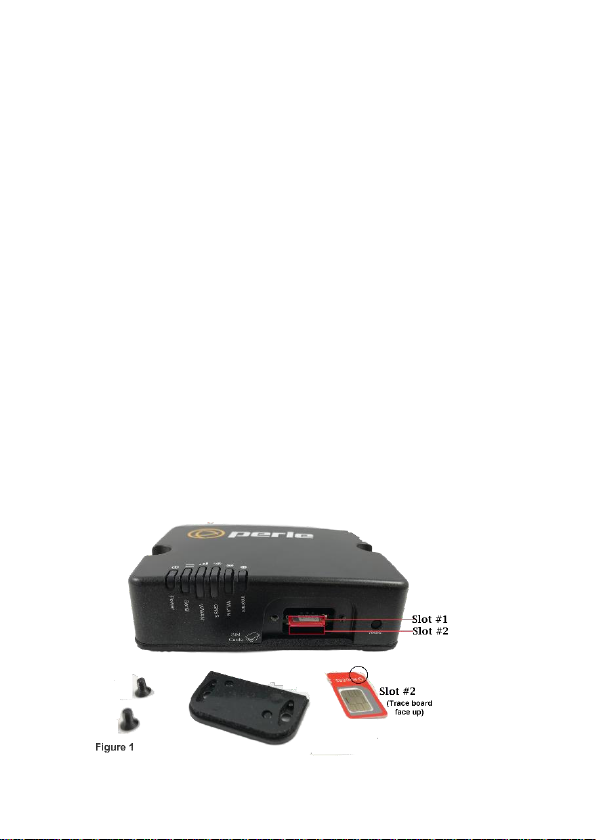
Inserting the SIM cards
Use only mini-SIM (2FF) cards.
Ensure the power is disconnected before you insert the SIM
card/s (see below).
1. Unscrew the screws and gently pry the SIM cover loose
from the opening (see below).
2. Align the SIM card so that the SIM card will slide into
the top slot (slot#1) ensuring that the SIM card
connectors will be facing the router’s printed circuit
board. Always populate slot#1 first.
3. Align the SIM cover plate and secure the plate with the
screws.
Page 3
IRG5520 Series Routers Quick Start Guide 5500451-10 (Rev A)
Version #A11.08.2019
3
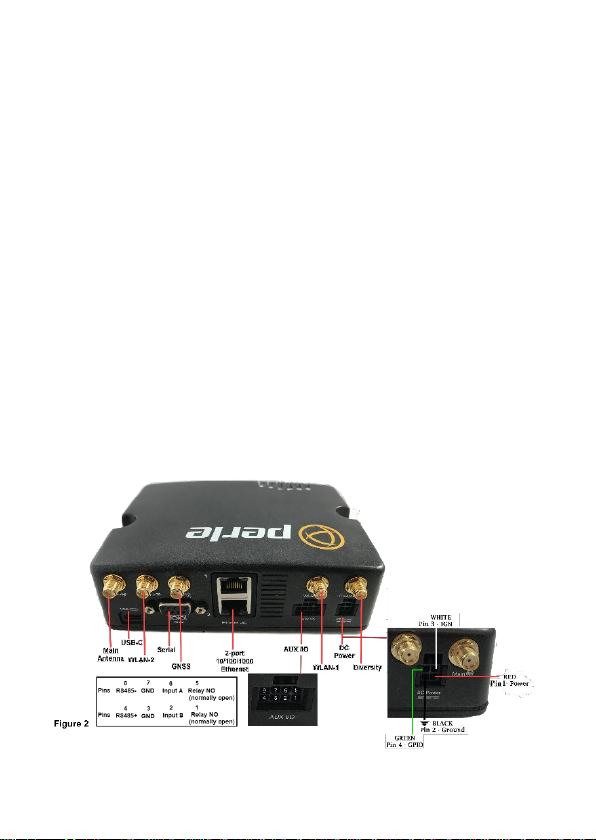
Connecting the Antennas
1. Connect your cellular antenna to connector Main.
2. Connect the diversity antenna to connector Diversity.
3. Connect a WLAN antenna to connector WLAN-1.
4. Connect a WLAN antenna to connector WLAN-2.
5. Connect your GPS antenna to connector GNSS.
See Figure 2
Connecting the Power
See Figure 2 for wiring requirements. Colors indicated are
for the Perle supplied DC power cable.
Connecting the Network
When the router is powered on, it begins the process of
activation and attempts to connect to the cellular network.
This process typically takes a few minutes. A successful
connection is indicated by a solid green Internet LED, if not,
see the IRG5520 Series Routers Hardware Installation Guide
for details.
Page 4
IRG5520 Series Routers Quick Start Guide 5500451-10 (Rev A)
Version #A11.08.2019
4
Fast Setup Mode
Fast Setup provides a simple method of doing an initial setup
from a PC. Your router is shipped in factory default mode.
1. Your PC must be set to obtain an IP address
automatically using DHCP.
2. Plug the PC into your router’s Ethernet interface or
connect to the wireless LAN (WIFI) using the
credentials printed on the label of your router.
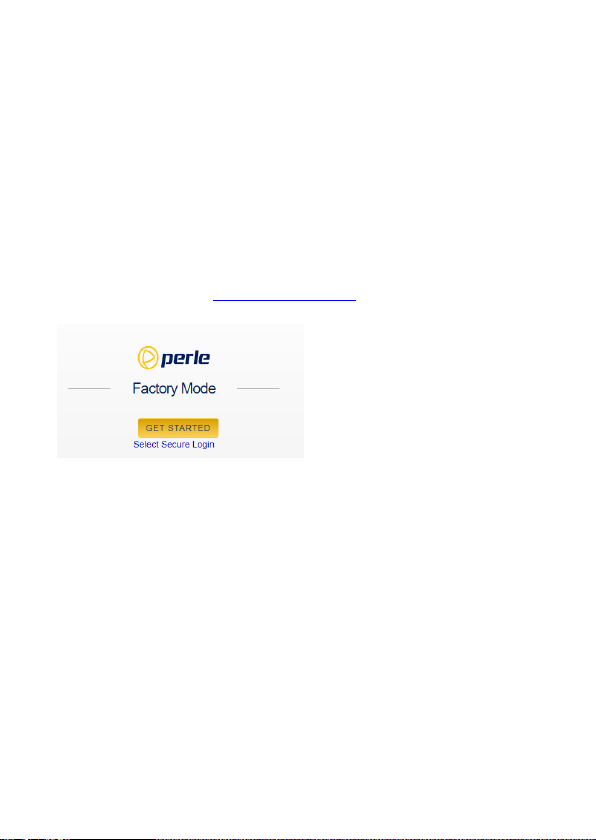
3. When the Power LED is flashing green, use a web
browser, enter http://192.168.0.1 to access your router.
On the setup screen, select, Getting Started.
4. Once connected, fill in the required fields, apply changes
to save and exit. The configuration changes will be
immediately applied to the router
5. The router’s web configuration sign on screen will be
displayed. Using the credentials, you previously defined
in Step 4, you can now access your router’s full
configuration.
For alternative methods of performing and initial setup see
the IRG5520 Series Routers Hardware Installation Guide.
© 2019 Perle Systems Limited. All rights reserved.
 Loading...