

Page 1

Introduction
This Quick Start Guide covers the key poi nts of the
installation for your I/O8+ product. It is intended for systems
administrators familiar with operating systems covered. To
obtain the latest driver software please refer to the driver
matrix page under technical support in Perle web site.
Accessing the CDROM
Windows
The CDROM will be automatically mounted a short time after
placing it in the CDROM drive. View with Windows Explorer.
SCO OpenServer
1. Login to your system as super user, then load the CDROM
into your system CD drive.
2. At the command prompt, type mkdir /cdrom.
3. At the command prompt, type:
mount -f ISO9660 -r/dev/cd0 /cdrom
You can now browse the CDROM content using the File
Manager tool in the SCO OpenServer desktop.
SCO UnixWare
1. Login to your system as super user, then load the CDROM
into your system CD drive.
2. At the command prompt, type mkdir /cdrom.
3. At the command prompt, type:
mount -r -F cdfs -o nmconv=c /dev/cdrom/c1b0t0l0
/cdrom
You can now browse the CDROM content using the File
Manager tool in the SCO UnixWare desktop.
Installation overview
1. Install the driver and utility software
2. Set the I/O address on the ISA cards then install the I/O8+
card(s) and connect the peripherals.
3. Set-up log-ins and ports
Installing driver software
SCO OpenServer5
1. Install any I/O8+ PCI host cards into your system.
2. Login to your system as super user, then load the CDROM
into your system CD drive.
3. At the command prompt, type mkdir/cdrom .
4. At the command prompt, type:
mount -f ISO9660 -r/dev/cd0 /cdrom
5. In the SCO OpenServer 5 desktop, double click on the
System Administration folder, then in the System
Administration window, double click on the software
manager icon.
6. In the Software Manager menu, click on
Software > Install New.
7. In the Begin Installation window, click on the From
localhostname button and then click on Contin ue.
8. In the Select Media window, select the Media Images
option then click on Continue.
9. In the Enter Image Directory window, type;
/cdrom/drivers/io8plus/ose5 and then click on OK
10. In the Install Selection window, click on the Install button,
then using the Host Card Configuration utility, add any
cards you want to the system.
11. If this is the only device driver you want to add at this
point then, in the Kernel re-link message window, type Y
at the command prompt and press the Enter key.
12.Press the Enter key to continue, then in the Software
Manager menu, click on Host > Exit.
SCO UnixWare
1. Install any I/O8+ PCI host cards into your system.
2. Login to your system as super user then load the CDROM
into your system CD drive.
3. At the command prompt, type mkdir /cdrom.
4. At the command prompt, type scoadmin to display the
System Administration window, then double click on the
Filesystem Manager folder.
5. In the Filesystem Manager menu, click on
Mount > Add Mount Configuration >Local.to display
the Add Local Mount Configuration window.
6. In the Add Local Mount Configuration window, set only
the options shown in the next table:
7. In the Add Local Mount Configuration window, click on
OK to accept the settings and close the window.
8. At the command prompt, type pkgadd -d
/cdrom/drivers/io8plus/unixware/io8.pkg.dd io8 and
press the Enter key.
9. At the command prompt, type shutdown -y -i6 and press
Enter to shutdown and re-boot the system.
Windows 95 and 98
1. Load the CDROM into your PC.
2. From the \drivers\io8plus\win9x directory on the
CDROM, run the setup.exe file.
3. In the Welcome window now displayed, click on the
Next > button.
4. In the Setup Complete window now displayed, click select
the Yes,I want to restart my computer now option, then
click on Finish button to confirm your selection.
Adding an ISA card to the system
If you are using ISA host cards, add the host cards to the
system using the following procedure:
1. In the Windows desktop, click on the Start button and
select Settings > Control Panel to display the Control
panel window, then double click on the Add New
Hardware icon.
2. In the Add New Hardware Wizard now displayed, click on
Next > until you reach the page asking you Do you want
Windows to search for new hardware?
3. In the prompt page, select the No, I want the hardware
from a list option and then click on Next >.
4. In the hardware selection page now displayed, select
Multi-function adapters and click on Next >.
5. In the select manufacturer and model page now displayed,
select Perle and I/O8+ ISA Adapter, then click on Next >
to display which address and IRQ settings you can use.
6. In the Add New Hardware Wizard, click on Next >, then
click on the Finish button to complete the setu p.
Windows NT
A device driver is installed with the PortDirector software,
supplied on the CDROM. To install PortDirector:
1. Load the C DROM.
2. Access the PortDirector directory, in Windows Explorer
and double-click on Setup.exe.
3. Follow the instructions on screen to install PortDirector.
To install the driver for an I/O8+ ISA host card:
1. Start PortDirector by selecting Programs>PortDirector
from the Start menu.
2. Select the I/O8+ Serial Device folder in the PortDirector
left hand view and click the Add ISA device tool bar
button to display the Add ISA device wizard.
3. Select the I/O8+ card and click Next >, then select an
available address and click Next >.Finally, select an
available interrupt level and click Fi nish.
Windows 2000
1. Turn on your PC and if required, log in.
If you have installed any new PCI host cards the Found
New Hardware wizard is displayed. If you are installing
ISA cards proceed to Adding an ISA card to the
system on page 2.
2. In the Found New Hardware wizard, click on Next >, then
in the Install Hardware Device Drivers page now
displayed, select the Search for a suitable device driver
for my device option and click on Next > ,
3. In the Locate Driver Files page now displayed, select the
Specify a location option and then click on Next >.
4. In the pop-up now displayed, select a location for the Copy
manufacturer’s files from field and click on OK.
5. In the Driver Files Search Results page now displayed,
click on Next > to use the suggested driver.
6. Click on the Finish button to close the wizard.
Note
See I/O8+ Serial adaptors user guide, part number 5500031 for
more detailed information.
Option Set to or enter....
Device File Select cdrom or string with cdrom
Mount Point /cdrom
Access Mode Select Read-only
When to Mount Enable Now
Disable At System Startup
Page 2
Adding an ISA card to the system
If you are using ISA host cards, you now need t o Add the host
cards to the system using the following procedure:
1. In the Windows desktop, click on the Start button and
select Settings > Control Panel
2. In the control panel window now displayed, double clic k
on the System icon.
3. In the Add/Remove Hardware Wizard now displayed,
select Add/Troubleshoot a device and click on Next >.
4. In the Choose a Hardware Device page now displayed,
scroll up the list of devices and click on
Add a newdevice, then click on Next >.
5. In the Find New Hardware page now displayed, select No,
I want to select the hardware from a list and click on
Next >.
6. In the Hardware Type page now displayed, select
Mutli-port serial adaptors and click on Next >.
7. If your host card type isn’t shown, in the Select a Device
Driver page click on the Have Disk button.
8. In the message window now displayed, enter or select the
driver you want and click on OK.
9. In the Select a Device Driver page, select the I/O8+ ISA
Adapter option, then click on Next >.
10. In the Start Hardware Installation page, click on Next>.
11. In the completion message page, click on Finish.
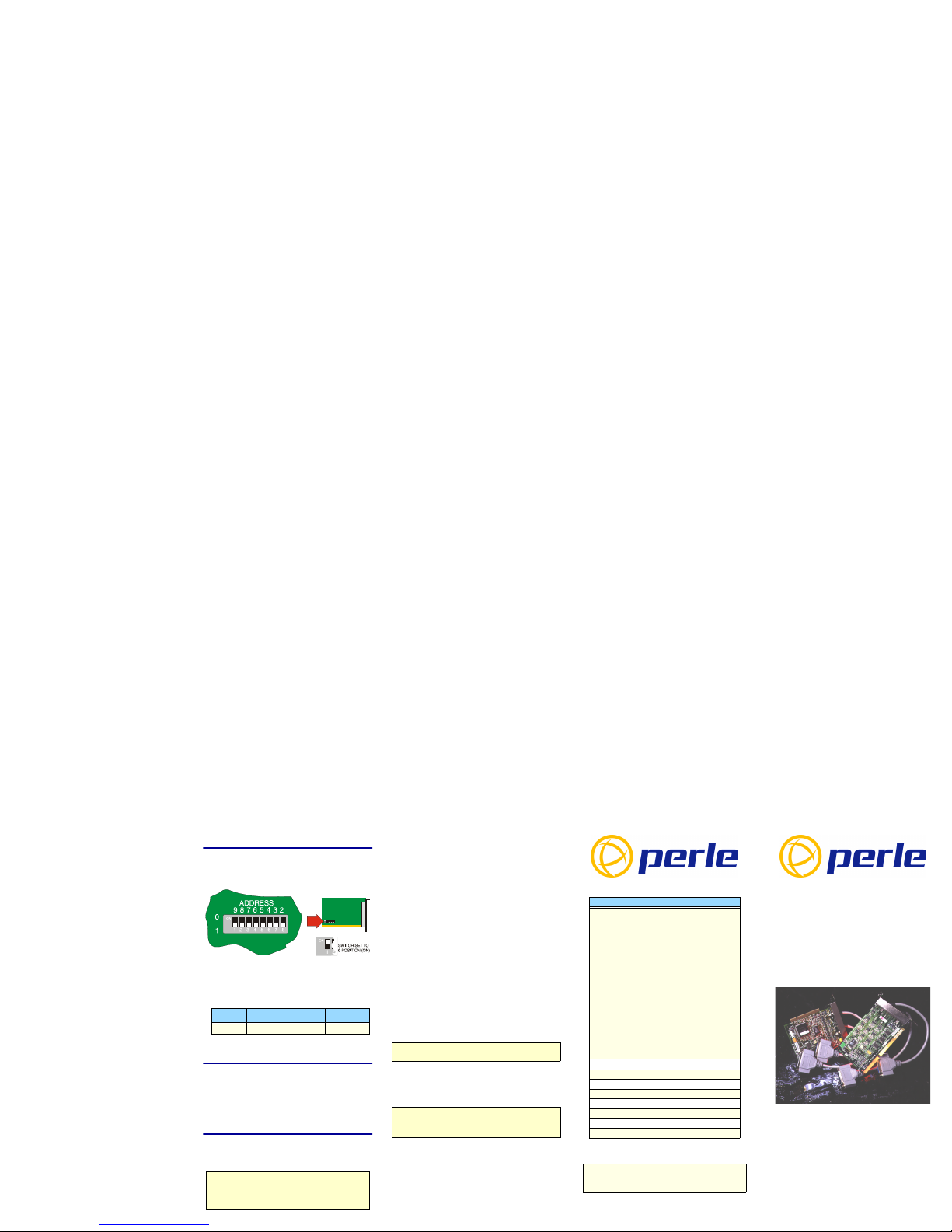
Configuring the hardware address.
Each I/O8+ ISA card has a DIL switch on it which sets the
card’s I/O address (in binary). Set the switch to the address
selected during software installation. By default, each card is
configured to use the address ‘100’.
If you have installed under SCO or WINDOWS, the
installation program will have shown you the appropriate
switch settings for the selecte d address.
Example of common addresses:
Installing the I/O8+ card(s)
1. Switch your system off and remove the cover, then insert
each card into a vacant slot.
2. Replace the cover of your computer and restart your
machine.
The I/O8+ card(s) should be detected automatically.
Configuring the ports
SCO OpenServer 5
To configure the extra I/O8+ serial ports you have added to
your system, proceed as follows
1. In the command prompt, type io8pcfg and press the Enter
key to display the Port Configuration window.
2. Select the ports you want you want to configure, getty
definition and terminal type you want.
3. If required, click on the ixon button to enable flow control
for Transparent printing (to enable sending of data on
receipt of the next character, click on the ixany button).
4. Click on a Port menu option to display the ports whose
login status you want to change, then click on either the
Enable or Disable buttons to change their status.
5. In the Port Configuration menu, click on
Ports > Save & Exit.
UnixWare
To configure the extra I/O8+ serial ports you have added to
your system invoke the Serial Manager utility as follows;
1. At the command prompt, type scoadmin to display the
System Administration window.
2. In the System Administration tool window, click on the
Hardware folder and then select Serial Manager.
Alternatively, you can use the spxadmport command to set up
logins on ports.
Windows 95 and 98
Windows NT
PortDirector will automatically recognise the installed card
and its ports. The ports will have the default settings, although
this can be changed using PortDirector.
Windows 2000
Use the Device Manager to chang e the default settings that are
applied by the operating system.
I/O8+
High speed 8 port serial adaptor
Quick start guide
• Ease of installation and confi guration
• 8 ports per card, expandible up to 32 ports
• Transparent printing over shared ports
Address Setting Address Setting
100 0 1 0 0 0 0 0 0 204 1 0 0 0 0 0 0 1
Note
To see if the terminal type you are using is supported for
transparent printing. refer to the I /O8+ Serial adaptors user
guide, part number 5500031
.
Note
I/O8+ ports are normally configured during installation.
Note
If the card is still shown as not available, select a different address
and interrupt level and then restart the system.
Contacting Perle Technical Support
Perle offers free technical support to Perle Authorised
Distributors and Registered Perle Resellers.
To access technical support please visit the Perle website
at www.perle.com/support.
Here you will find:
• latest drivers and firmware updates for download
• technical tips
• frequently asked questions
• documentation
• configuration support
• cabling information
• maintenance contract information
• and much more...
If you are unable to find the information you require, please
feel free to contact our technical support teams by email at:
USA
Email: [email protected]
Europe
Email: [email protected]
Asia
Email: [email protected]
Internet
www.perle.com/support
I/O8+ Quick Start Guide
Part No: 5500029-15
Copyright © Perle Systems Limited, 2001
 Loading...