

Page 1
Page 2
3
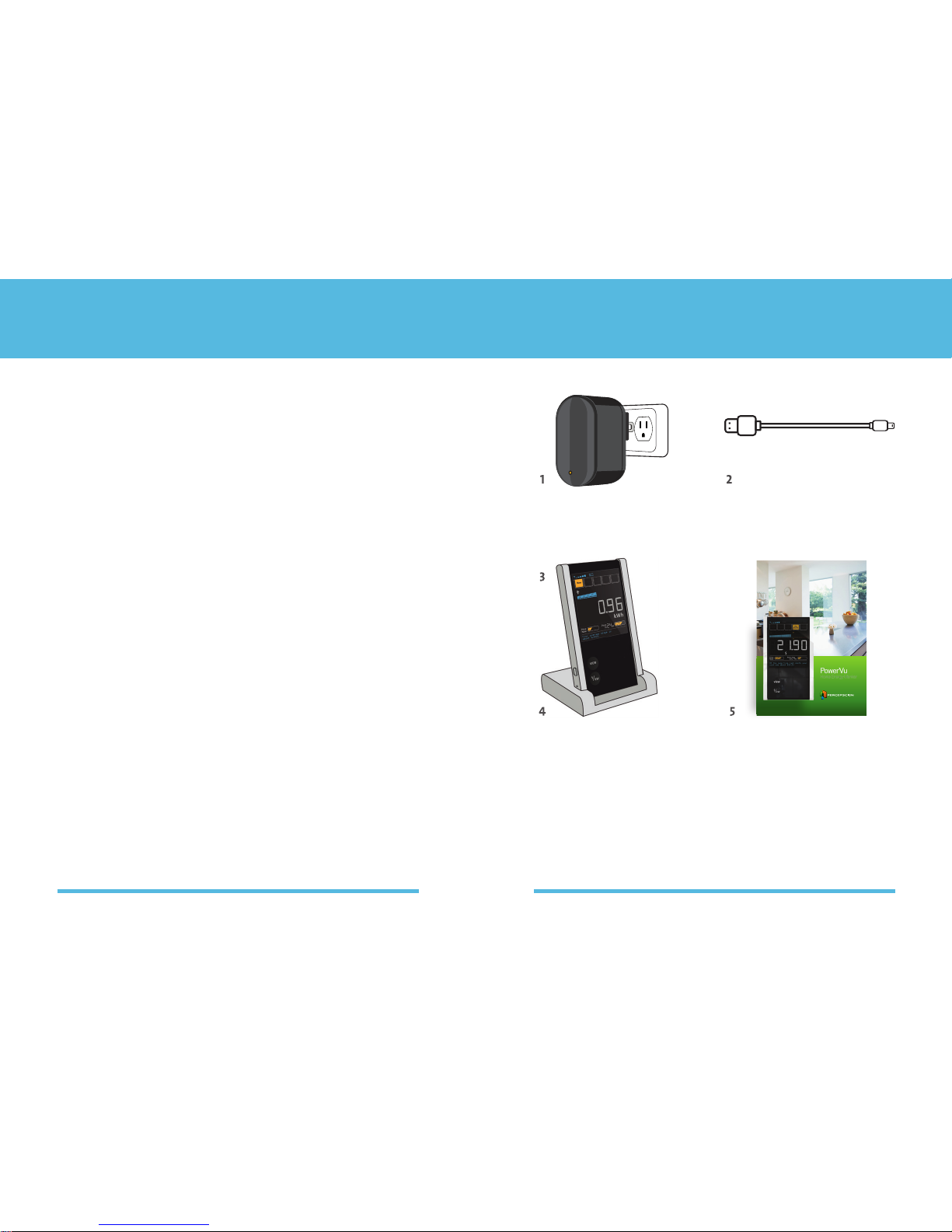
What’s in the boxImportant information
1 Power Adapter
2 USB Cable
3 Energy Monitor
4 Cradle
5 User Manual
You can contact us by emailing [email protected]
Every effort has been made to ensure the accuracy of the
information in this guide.
Copyright 2012 Percepscion Pty. Ltd.
No part of this guide may be reproduced or copied
without the written consent of Percepscion Pty. Ltd.
Your Energy Monitor is designed in Australia and made
in Malaysia. Printed in Malaysia. Patent pending.
Your Energy Monitor has a range of approximately 30 metres
from your meter in typical suburban environments.
Regulatory FCC
This product has been tested and found to comply with the limits for a Class B
digital device, pursuant to Part 15 of the FCC Rules. These limits are designed
to provide reasonable protection against harmful interference in a residential
installation. This product generates, uses and can radiate radio frequency energy
and, if not installed and used in accordance with the instructions, may cause
harmful interference to radio communications. However, there is no guarantee
that interference will not occur in a particular installation. If this product does
cause harmful interference to radio or television reception, which can be
determined by turning the product off and on, the user is encouraged to try to
correct the interference by one or more of the following measures:
• Reorientorrelocatethereceivingantenna
• Increasetheseparationbetweenthedeviceandreceiver
• Connectthedeviceintoanoutletonacircuitdifferentfrom
that to which the receiver is connected
• Consultthedealeroranexperiencedradio/TVtechnicianforhelp
Warning: Any changes or modifications not expressively approved by
Percepscion could void the user’s authority to operate this equipment
Page 3
54
Safety information
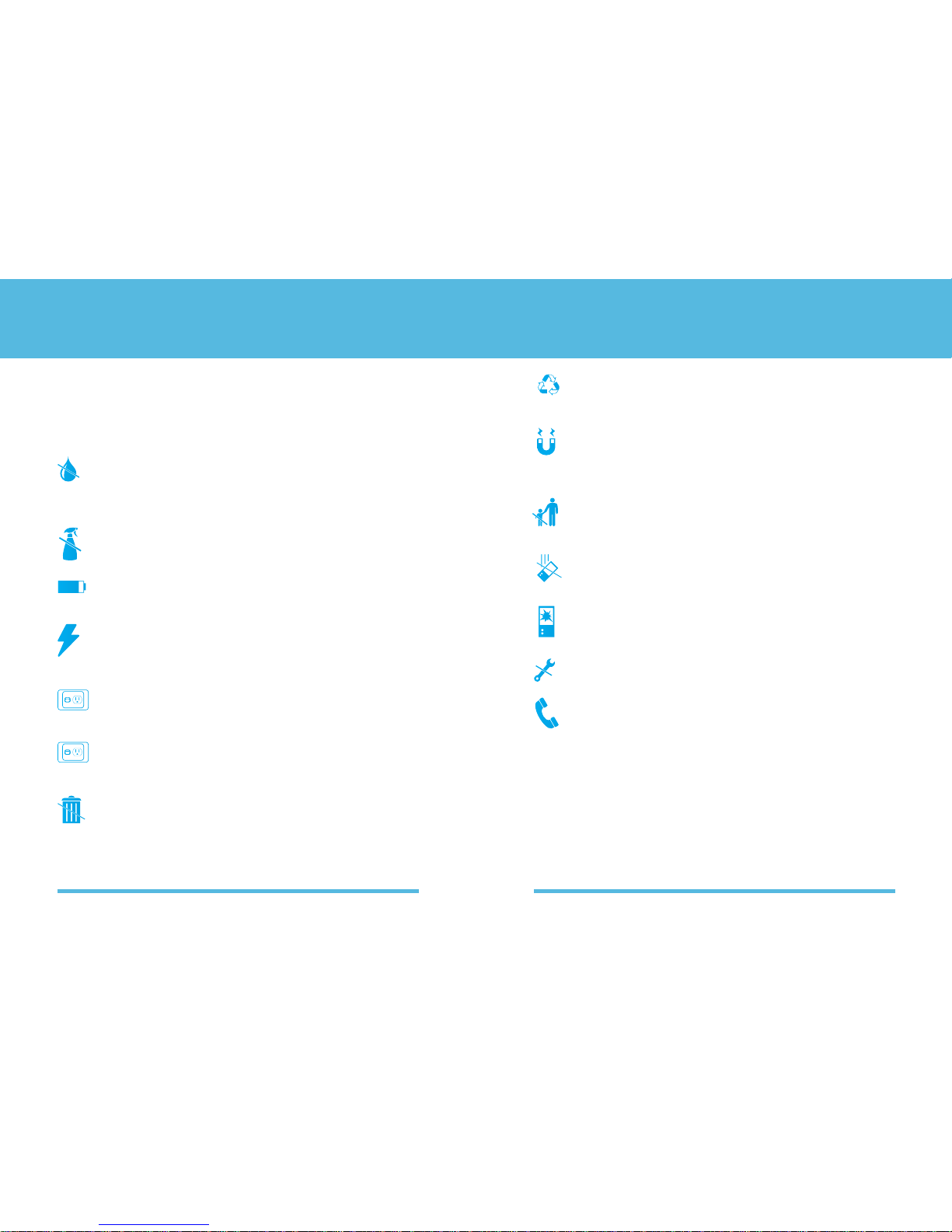
So that you can enjoy this product safely, please read and
follow these safety instructions. Failure to follow these
instructions could result in electric shock, fire or other
injury or damage.
Keep your Energy Monitor dry and away from sources
of liquids such as drinks, sinks, etc.
For indoor use only.
Use a soft, damp, lint free cloth to clean the exterior.
Avoid getting moisture into openings.
The battery is not user replaceable.
Electrical equipment may be hazardous if misused.
Always use the supplied power adapter and cable to
charge your Energy Monitor.
Do not connect or disconnect the power adapter
with wet hands.
Access to the power adapter should not
be obstructed whilst in use.
You must dispose of your Energy Monitor according
to local regulations. Your Energy Monitor contains a
battery and other electronic components that must
not be disposed of in household waste.
Safety information
To help care for the environment, at the end of the
product’s life please take it to a recycling center.
The product contains strong magnets, do not
disassemble or otherwise allow magnets to
be swallowed.
This product is not a toy. Please ensure that it
is kept out of reach of children under 3 years old.
Your Energy Monitor has been designed to
be robust, but it may be damaged if dropped.
Do not use this product if it is damaged or has
been exposed to liquids or excessive moisture.
Do not attempt to open or repair this product.
If you have any questions about the safe use
or disposal of this product then please email
[email protected] for assistance
Page 4
76
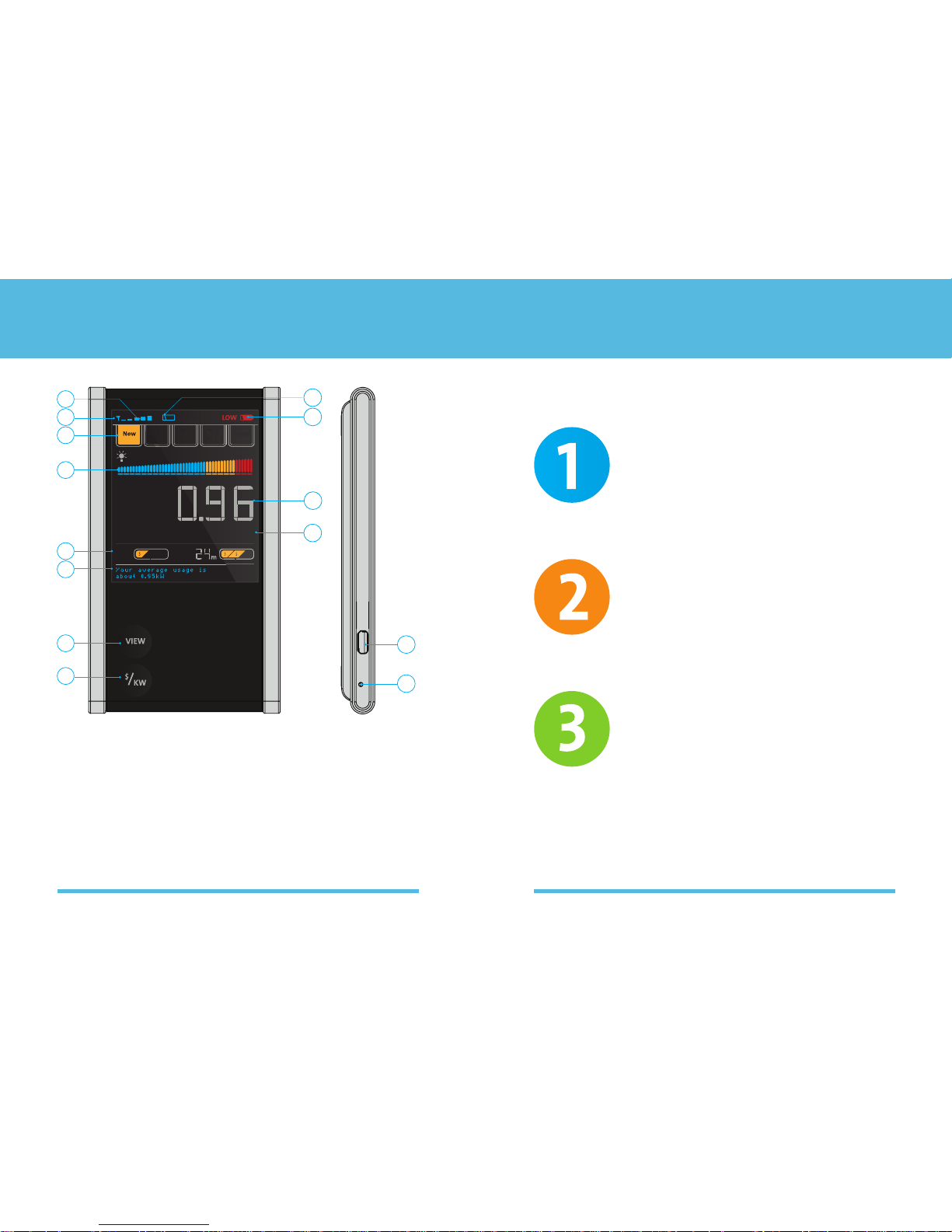
Getting to know your Energy Monitor
1 Radio signal strength indicator
2 Radio activity indicator
3 Selected view indicator
4 Usage indicator
5 Price indicator
6 Message display
7 Viewbutton
8 Units button
9 Charging/Powerindicator
10 Low battery indicator
11 Usage display
12 Units indicators
13 USB socket
14 Reset button
Plug-in your Energy Monitor
to wake it up and start charging.
Page 8
Connect your Energy Monitor
to your meter.
Page 10
Place your Energy Monitor on your
fridge and start monitoring your
energy usage. It’s that easy!
Page 12
Get started in three easy steps
VIEW
KW
$
Price
Now
Price
in
kWh
14
13
12
11
10
9
5
6
7
8
1
2
3
4
Page 5
98
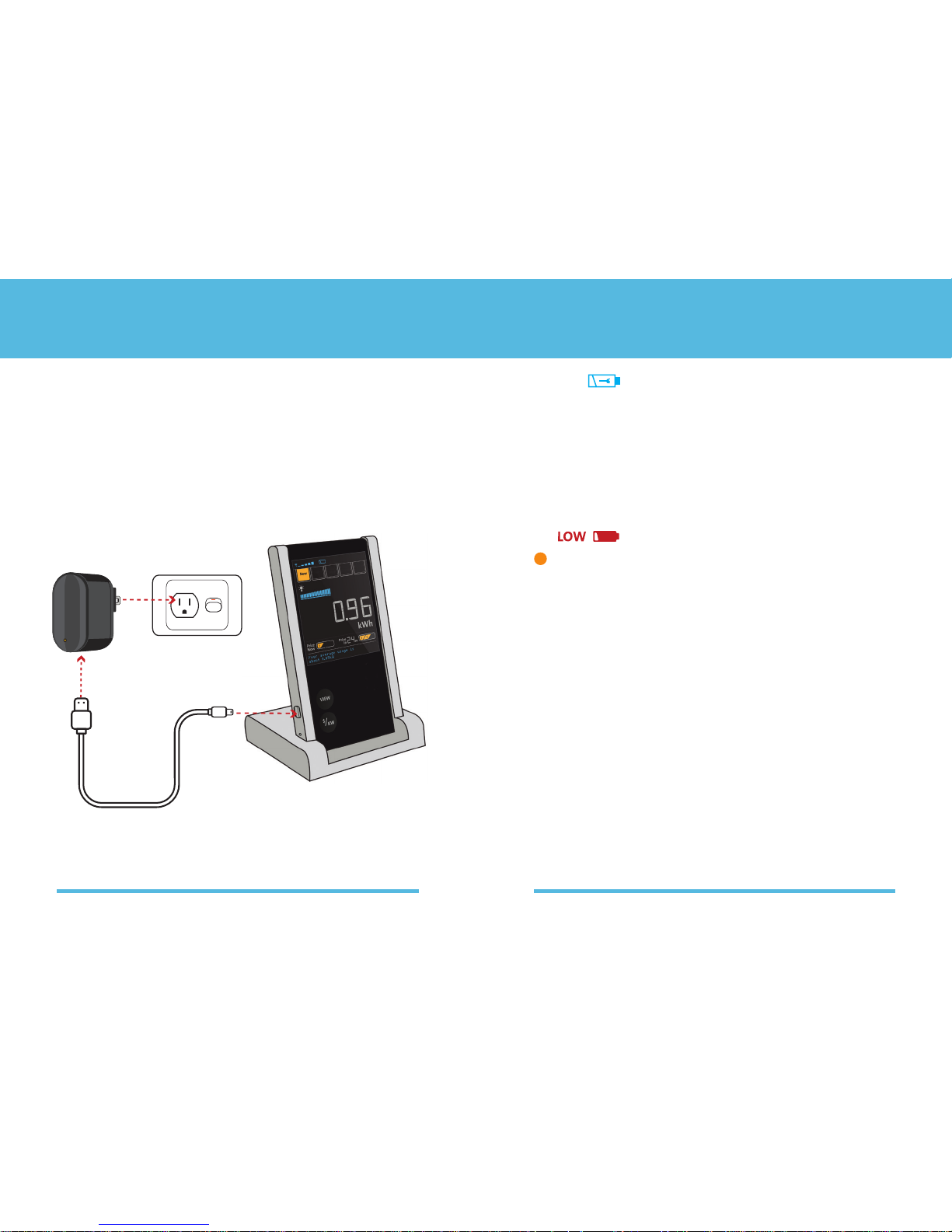
Wake up
To turn on your Energy Monitor for the first time simply plug
the supplied power adapter into a mains power socket and
connect it to your Energy Monitor.
Your Energy Monitor will wake up and begin charging.
1. Wake up and charge your Energy Monitor 1. Wake up and charge your Energy Monitor
Tip – When the low battery indicator is shown, plug your
Energy Monitor into the power adapter and place it into
the supplied cradle to hold it while it’s charging.
Charge
To ensure your Energy Monitor is fully charged you should
leave it charging for about 3 hours before you move it to your
fridge. Once it is fully charged, the Charging indicator will
stop flashing. When you disconnect from the charger and
move it to your fridge, your Energy Monitor will run for a few
months (depending on usage) before it needs to be
charged again.
Page 6
1110
Connect
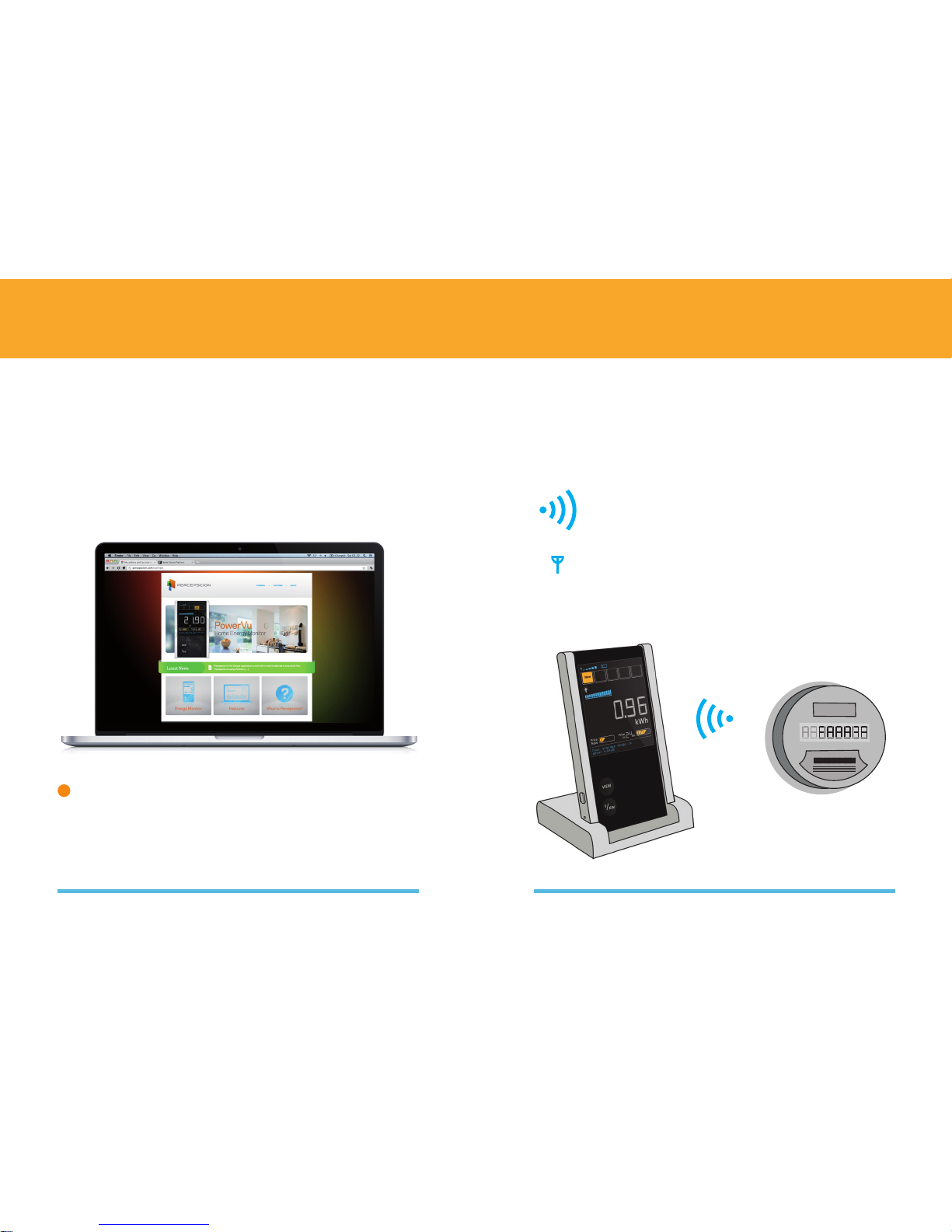
Once you turn on your Energy Monitor it will start searching
for your electricity meter. This may take a few minutes,
but once your meter is found, the Energy Monitor will
automatically connect and download information about
your power usage and electricity pricing.
Since your Energy Monitor makes a wireless
connection to your meter, make sure you are
within about 30 meters of your electricity meter.
The radio activity indicator animates each time
your Energy Monitor talks with your meter.
Authorize your Energy Monitor
To ensure your power usage information is kept private, your
Energy Monitor must be authorized to connect to the meter
on your home. Each utility has their own way of doing this,
so we have provided a tool on our website to help guide you
through the process.
Visit percepscion.com/connect and follow the instructions
to authorize your Energy Monitor.
2. Connect your Energy Monitor to your Meter2. Connect your Energy Monitor to your Meter
Tip - Your utility will ask you to provide the EUI-64 and
Installation code for your Energy Monitor.
This information is printed on your Energy Monitor’s label
and is also available to be copy and pasted from the
Energy Monitor Application (See page 18).
Page 7
1312
button to try again
VIEW
KW
$
Price
No
w
Pric
e
in
kW h
2. Connect your Energy Monitor to your meter
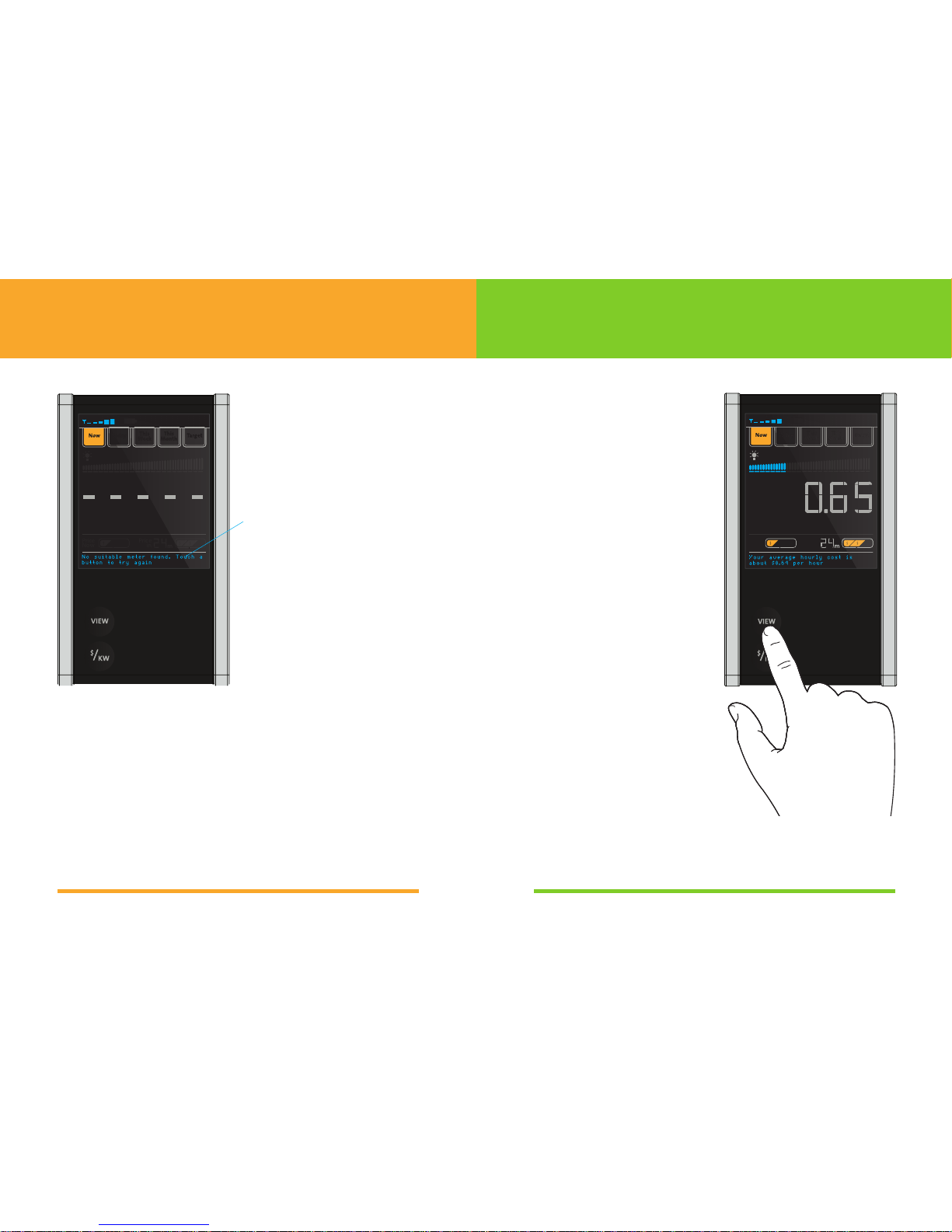
If your Energy Monitor
displays “No suitable meter
found” it is most likely out of
range of your meter.
Try moving it closer to
the meter.
No suitable meter found. Touch a
button to try again
3. View your power usage
View
Touching the view button
will cycle through the
different views, Now, Today,
This Week and This Month.
Place on your Fridge
Your Energy Monitor will
attach securely to most
fridges, however, you should
check to ensure it has
attached securely. If your
fridge does not hold your
Energy Monitor securely
then use the supplied cradle
to place it on a bench top.
Once your Energy Monitor is
fully charged and connected
to your meter, you can place
it on your fridge.
VIEW
KW
$
Price
Now
Price
in
$/hr
Page 8
1514
3. View your power usage3. View your power usage
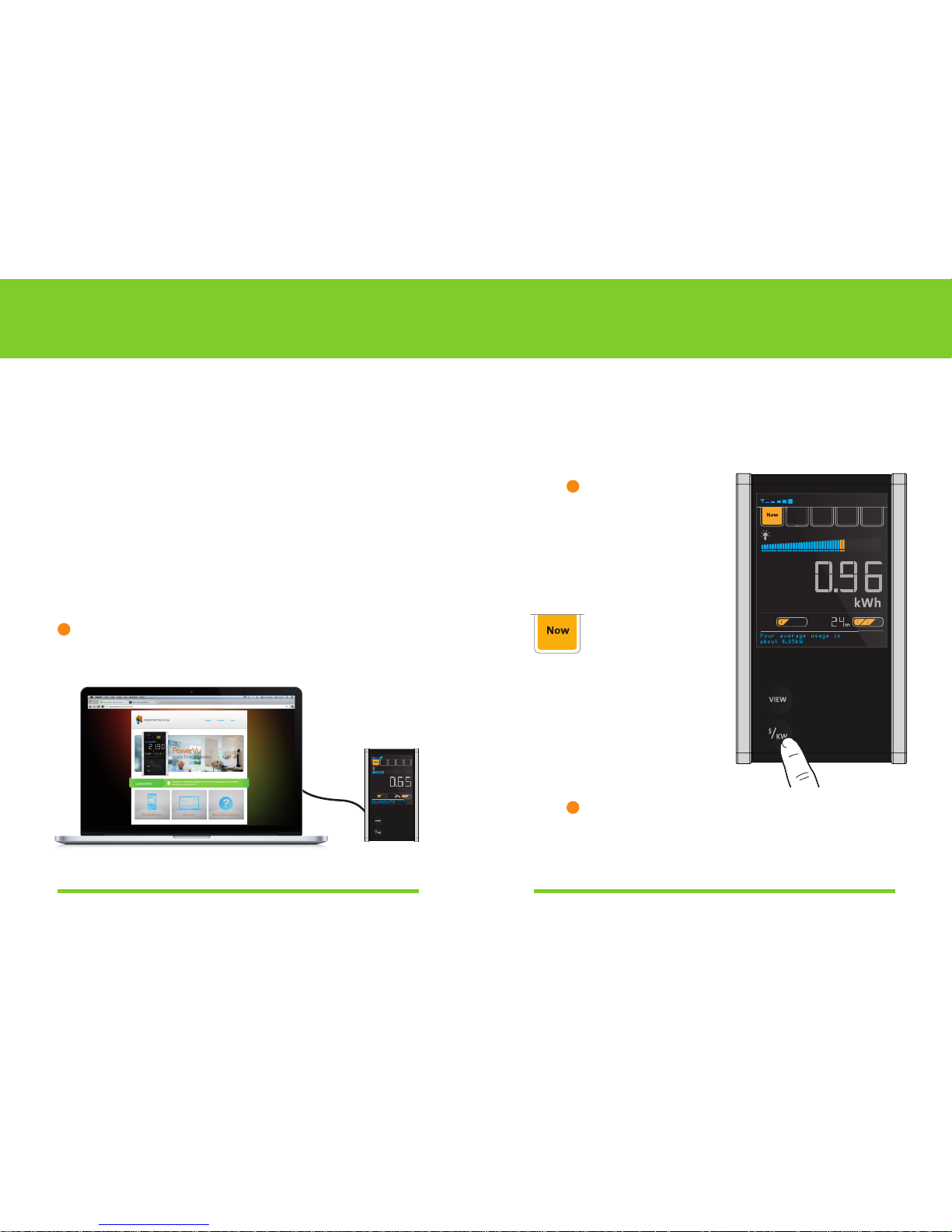
$/kW
Touchingthe$/kWunitsbuttonwillcyclebetweenusage
(kWorkWh)andcostestimate($/houror$)units.Costdisplay
is only available once you have entered your electricity pricing
to your Energy Monitor (see previous page).
Entering your electricity prices
If the meter on your home does not provide your electricity
pricing information automatically, you will need to manually
enter them.
To do this, connect your energy monitor to a PC or MAC using
the supplied USB cable. A new USB disk will appear in Windows
Explorer (PC) or Finder (MAC) called ‘Energy Monitor’.
Double click on the file called ‘HomeEnergyMonitor.html’ to
open the Energy Monitor Application.
Select the “Enter my prices” button at the top of the page and
follow the on screen instructions to enter your prices and install
them onto the Energy Monitor.
Tip - Your electricity prices are printed on your
electricity bill.
‘Now’ view
The ‘Now’ view shows
you how much power
your home is using
right now. This is
shown in kW or in
$/hrdependingon
the units you have
selected.
Tip –$/hrviewshowsanestimateofwhatyour
current usage would cost if it stayed the same as
of right now for the next hour. Most people’s actual
consumption will change frequently.
Tip – 1 kW is equal to
1000 watts. A typical
kettle uses about
2 kW. A compact
fluorescent light
bulb uses about
0.01kW
VIEW
KW
$
Price
Now
Price
in
kWh
VIEW
KW
$
Price
Now
Price
in
$/hr
Page 9
1716
3. View your power usage
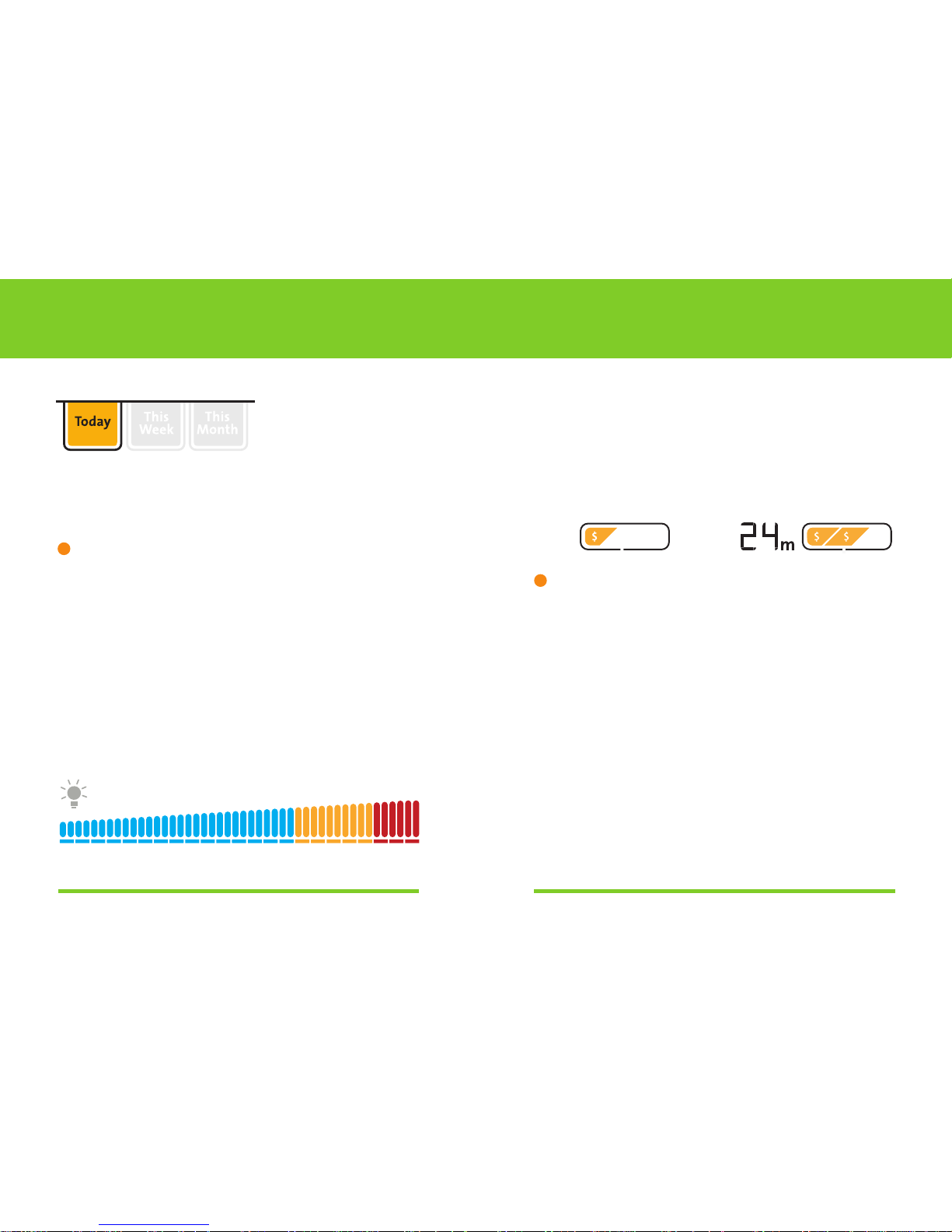
Today, This Week & This Month
These views show you how much power you have used so far
today, this week, or this month, in kWh or dollar estimates.
They are useful to help you track your usage over different
time periods to see how it has changed.
Tip – kWh is what your electricity meter measures, and
what your utility uses to calculate the consumption
charges on your electricity bill. 1 kWh of energy is equal
to 1 kW of power draw for 1 hour. A typical 2kW portable
fan heater might use 2 kWh in an hour if set on high.
Usage indicator
The usage indicator provides a quick snapshot of your
energy usage and indicates if your usage is high (yellow or
red) or low (blue). The indicator automatically adapts to suit
your household’s energy usage patterns using historical
usage information downloaded from your meter.
Prices
If your electricity plan is a time of use plan, where you are
charged different rates for peak and off-peak then your
current and next electricity prices will be shown on the price
indicators. If the price is off-peak then one $ indicator will be
shown, for shoulder $$, and for peak $$$ is shown.
3. View your power usage
Price
Now
Price
in
Tip – The estimated costs displayed by your Energy
Monitor include both your energy use charges and your
service to property charges that you have entered
(See Entering Your Electricity Prices on page 14).
Page 10
1918
3. View your power usage
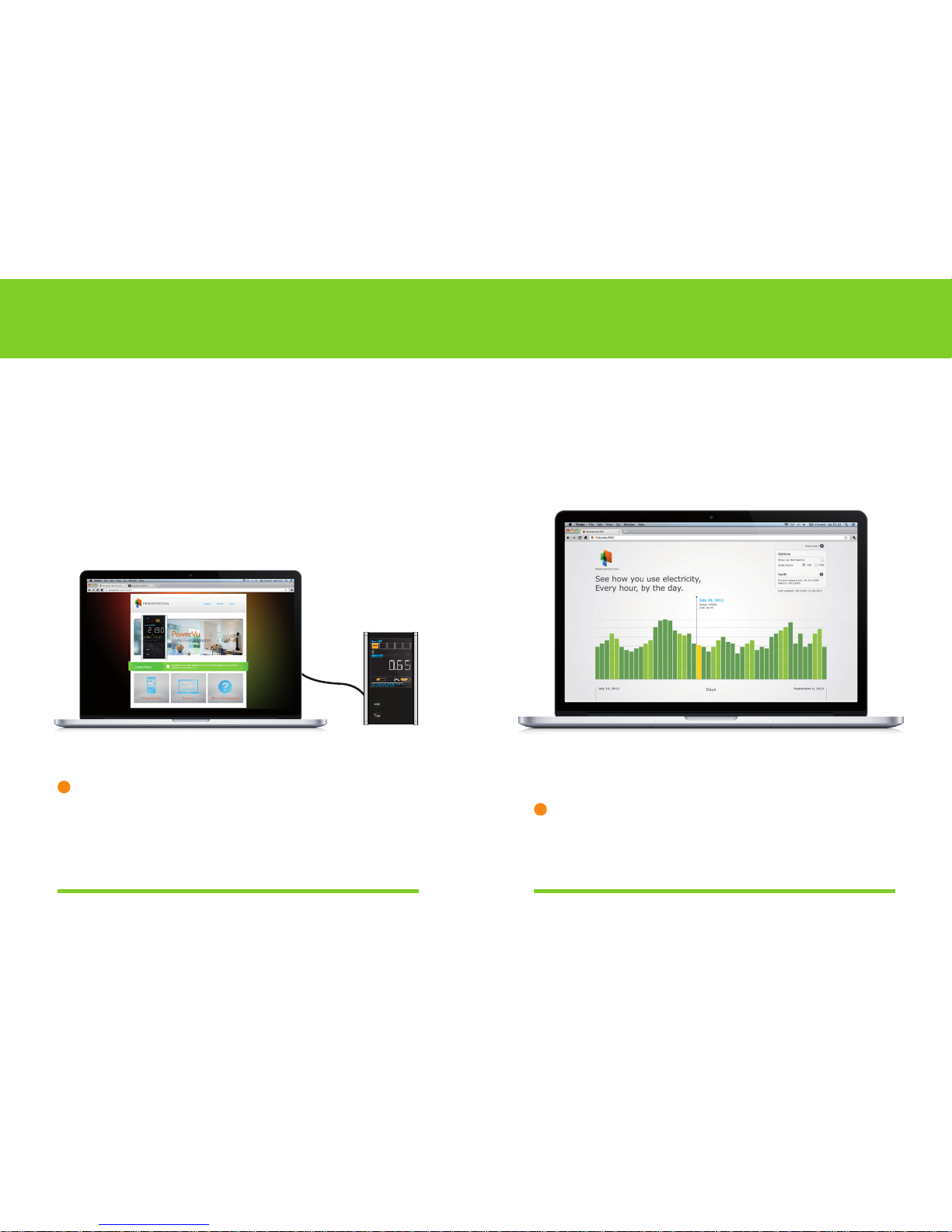
Energy Monitor application
Your Energy Monitor can provide you with detailed power
usage history by connecting it to your PC or MAC using the
supplied USB cable. A new USB disk will appear in Windows
Explorer (PC) or Finder (Mac) called ‘‘Energy Monitor’.
Double click on the file called ‘HomeEnergyMonitor.html’
to open your Energy Monitor application.
Tip – Some web browsers will ask permission
to run scripts when you open the Energy
Monitor Application. You will need to allow
these scripts to run.
VIEW
KW
$
Price
Now
Price
in
$/hr
3. View your power usage
The Energy Monitor application shows your past energy
usage for up to seven weeks. Move the mouse over the bars
in the chart to see how much energy you used that day and
how much it cost. Click on a bar and a pop up window will
show your usage for the day in hourly bars.
If you have solar electricity then your solar feed-in kWh
or $ will appear below the line in orange.
Tip – To refresh the data in the Energy Monitor
Application you need to disconnect your Energy
Monitor from your PC or Mac and re-connect it.
Page 11
2120
VIEW
KW
$
Price
Now
Price
in
$/hr
Troubleshooting your Energy Monitor
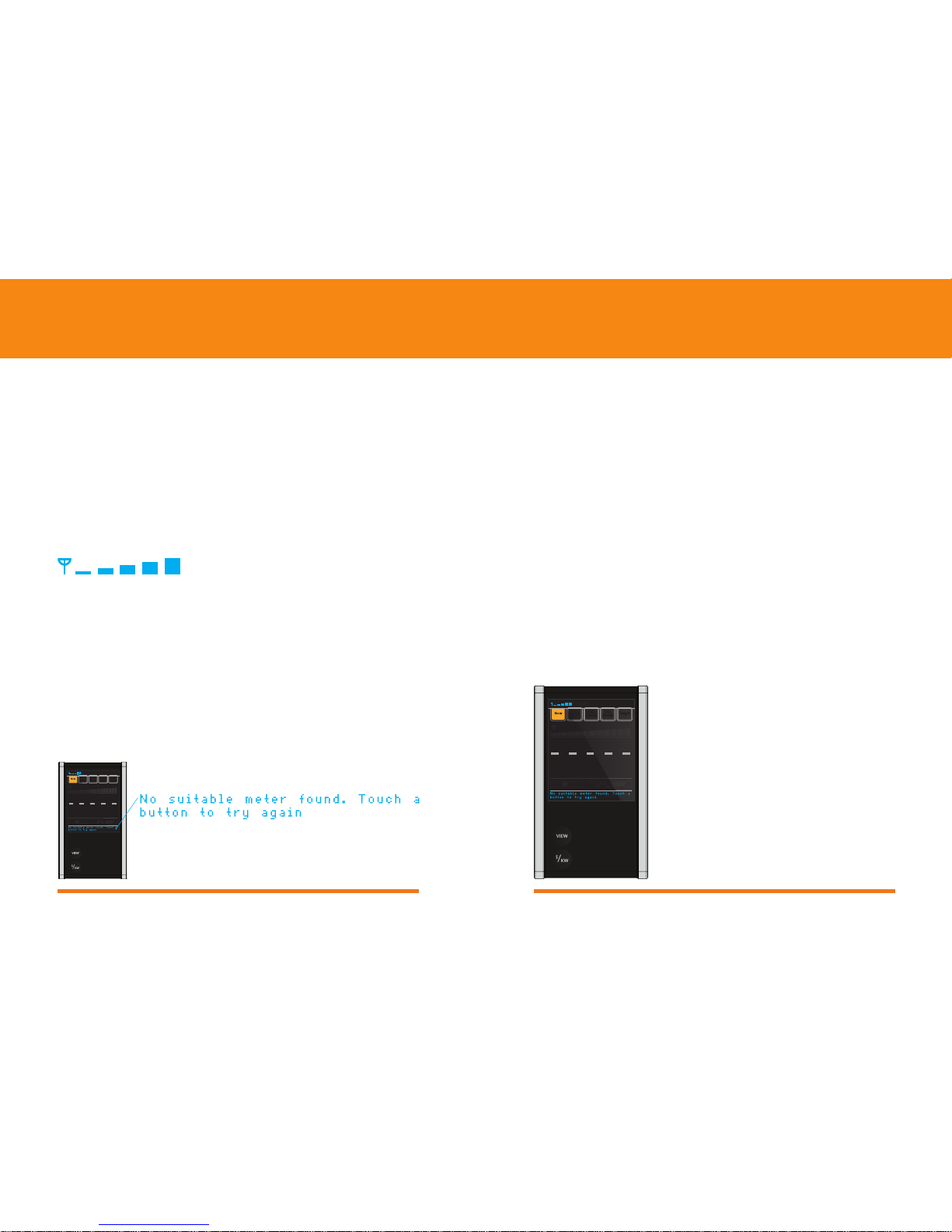
My Energy Monitor won’t connect to my smart meter.
Check the signal strength indicator. If there are no bars then
you may not be within range of your meter.
Try moving your Energy Monitor closer to your meter (within
a few meters) and touch one of the buttons. Your Energy
Monitor will then search for your meter and connect if it finds
it. If your Energy Monitor still does not connect, then your
Energy Monitor may not be authorized to connect to your
meter - you may need to repeat the instruction in the section
“Connect your energy monitor to your meter” on page 10.
My Energy Monitor doesn’t stay connected
when I have it installed on my fridge.
Your Energy Monitor should be able to connect to a meter
from up to 30 meters away; however, there are many
variables which affect this distance such as interference or
the type of construction of your home. You may need
to move your Energy Monitor closer to your meter.
Use the supplied cradle to locate your Energy Monitor in
a convenient spot closer to your meter.
Troubleshooting your Energy Monitor
My Energy Monitor doesn’t stick to my fridge.
Unfortunately some fridges are not sufficiently magnetic to
hold the Energy Monitor. If this is the case you should use
the supplied cradle instead.
Your Energy Monitor downloads your usage history from
your meter. If the meter has only recently been installed
or the meter on your home does not support data history
then there may not be enough information to provide you
with your historical usage when your Energy Monitor is first
connected to your meter.
Also, when your Energy Monitor is first connected to your
meter it can take as long as 20 minutes to download your
usage history. In either case your Energy Monitor will
automatically show your usage once it has collected enough
usage information from your meter.
My Energy Monitor shows dashes in kWh views.
VIEW
KW
$
Price
No
w
Pric
e
in
kW h
Page 12
2322
Troubleshooting your Energy Monitor
Dashes are shown in $ views.
This occurs when your Energy Monitor does not have
information about your electricity prices. If your meter
doesn’t provide your electricity price information
automatically to your Energy Monitor then you will need to
manually enter this information. Follow the instructions on
page 14 to do this.
The Usage Indicator is not shown.
When your Energy Monitor doesn’t have enough usage
history to calculate comparisons it will not show the Usage
Indicator. Your Energy Monitor will automatically enable the
Usage Indicator once it has enough usage information. This
may take a few weeks.
$/hr
VIEW
KW
$
Price
Now
Price
in
$/hr
Troubleshooting your Energy Monitor
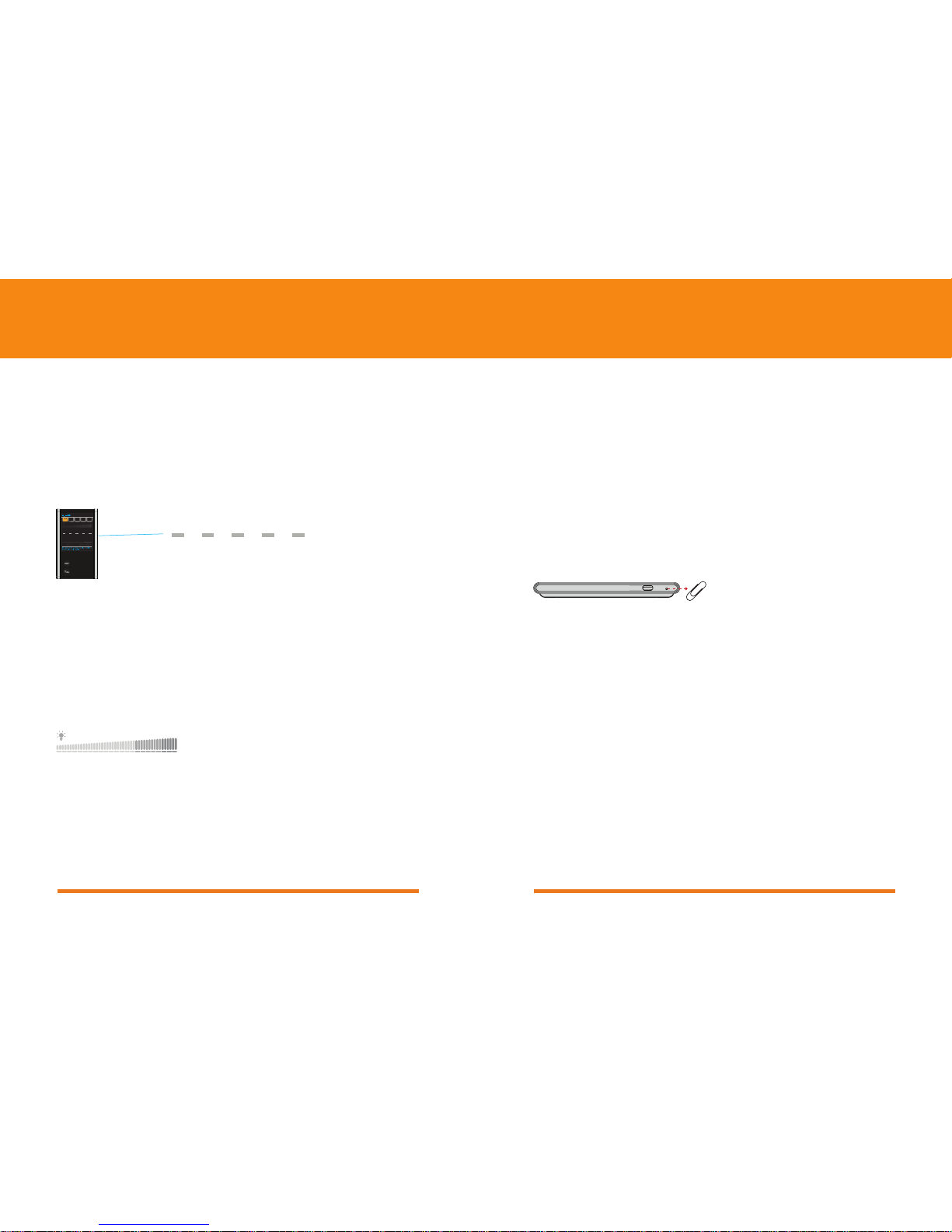
Press once
My Energy Monitor is not waking up or appears stuck.
Ensure that your Energy Monitor’s battery is charged by
plugging it into a mains socket with the power adapter. The
battery indicator will stop flashing when it is fully charged.
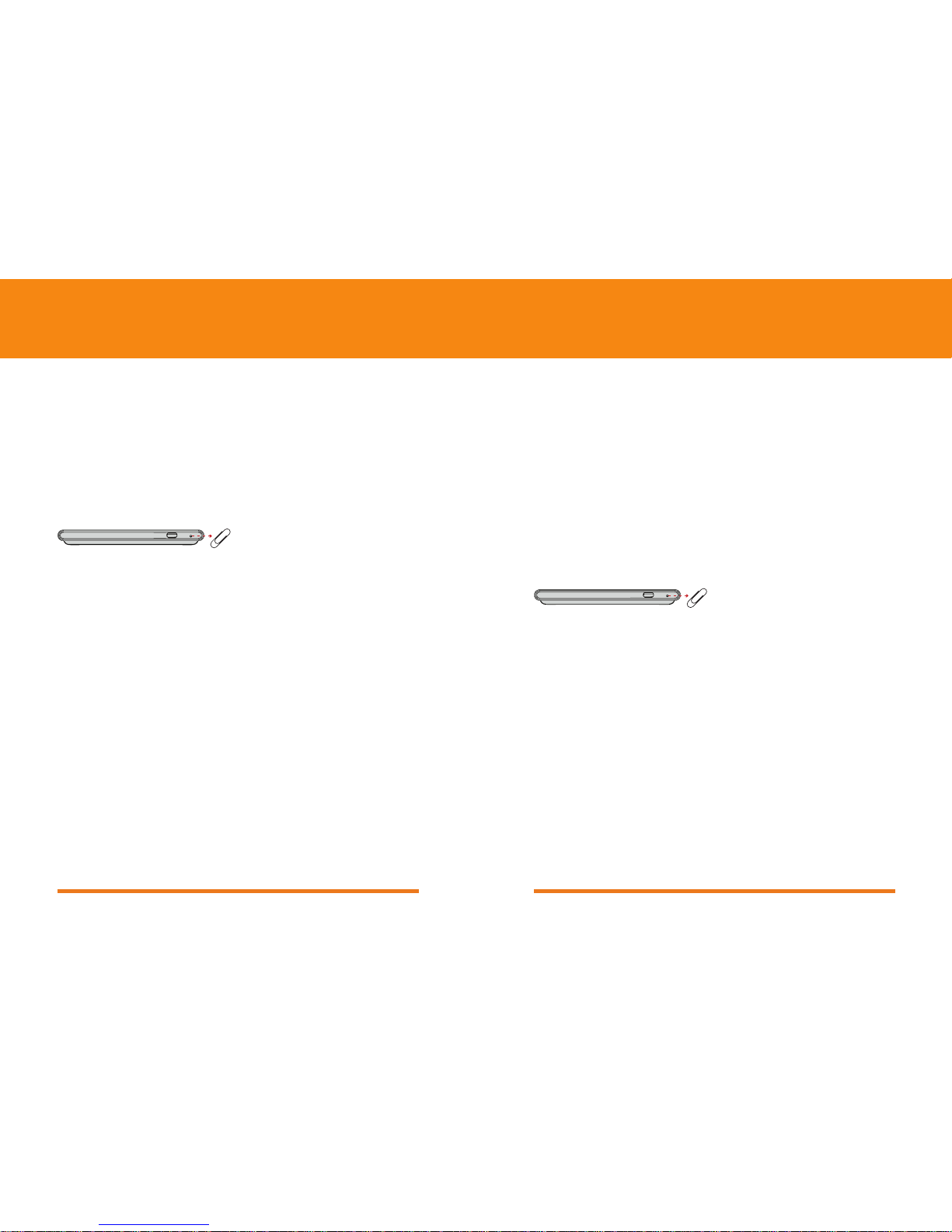
If your Energy Monitor is still “stuck” then press the reset
button for one second using a paper clip.
Warning: If you hold the reset button down for too long
(5 seconds) your energy monitor will be told to disconnect
from your meter. If this happens you will need to follow the
instructions on page 10 to reconnect your Energy Monitor
to your meter.
If this does not resolve the problem then contact
The Usage Indicator does not switch on.
Some meters only update information to the Energy Monitor
every 30 or 40 seconds; this means it may take a while after
switching an appliance on or off to see the change in usage.
Page 13
2524
Frequently asked questions
What if I move house or my meter is changed?
If you move house or if your meter is replaced, you will need
to follow the instructions on page 10 to re- connect your
Energy Monitor to your new meter.
You will also need to reset your Energy Monitor by using a
paperclip to press and hold the reset button for 5 seconds
to tell it to disconnect from your old meter and start
connecting to the new meter.
What is the Energy Monitor wireless range?
The Energy Monitor has a range of approximately 30m
from your meter in typical suburban environments. Range is
dependent on factors such as the type of construction of
your house and any interference from other devices.
The Energy Monitor shows signal strength bars (like your
mobile phone) to indicate the strength of the connection.
In a typical house it should work OK in most rooms.
What is the battery life?
The battery will last approximately 2 months from fully
charged under normal usage. When your battery becomes
flat, simply place it back into the cradle provided and
connect it to the power using the power adapter provided.
5 Seconds
Frequently asked questions
Can I replace the battery?
No, the battery is permanently installed.
What private information does my Energy
Monitor store, and how can I clear it?
Your Energy Monitor stores some information about
your energy use which may be considered private.
This includes your electricity prices (how much you pay for
electricity) and your usage history (how much electricity you
used at different times of day). It stores this information so
that it can calculate the cost of your usage (such as how
much you spent today, this week or this month).
To clear all private information from your Energy Monitor,
use a paperclip to press and hold the reset button for 15
seconds. The Energy Monitor will disconnect from your
meter, reboot and all stored information will be cleared.
You will need to follow the instructions on page 10 to
re-connect your Energy Monitor to your meter, you will
also need to re-enter your electricity prices
How is my solar export / feed in displayed?
If you have solar electricity, your Energy Monitor will show
the net result of your draw from the grid and your feed-in to
the grid in kW, kWh and $ views.
If your net is negative, the Energy Monitor will show
negative numbers.
15 Seconds
Page 14
2726
Operating Environment
Operating your Energy Monitor outside of these ranges may
impact its operation or battery life:
• Storagetemperature:0°Cto+55°C
• Operationaltemperature:0°Cto+40°C
• Storageandtransporthumidity:10%to93%
(non-condensing)
• Operationalhumidity:10%to93%(non-condensing)
Power :
• Averagepowerconsumption:lessthan0.6W
• Input:AC100-240V50/60Hz,130mA
• Output:DC5.0V±5%1A
• MEPS:MinimumEnergyEfciencyLevelV
Technical InformationTechnical Information
United States
• FCC Class B, Part 15
FCCID:2AALMPVU-G2NA
Australia
• C-Tick 30990
RadioFrequencyInterference:AS/-NZSCISPR22
2009ClassB,AS/NZS4268
Safety (Power Adaptor):
• UL 60950-1, CSA-C22.2 NO. 60950-1,
AS/NZS60960.1
Page 15
2928
Warranty & Information
Warranty
Your energy monitor comes with a limited warranty against
defects for 12 months from the date of delivery.
Percepscion Support Contact Details
For customer support
please email [email protected]
or visit percepscion.com/na-support
You can find other helpful information and frequently asked
questions relating to your Energy Monitor by visiting our
support and advice pages online at:
percepscion.com/energymonitor
North America Representative
GlobalNetworkResourcesInc.
2221 Calle de Luna
Santa Clara, CA 95054
Phone 1-408-727-1906
Percepscion Pty. Ltd. ABN 65 154 055 124
Level 10, 99 Queen St. Melbourne
VictoriaAustralia3000
Phone+61390085400
percepscion.com
[email protected]
Page 16
30
©Copyright Percepscion Pty Ltd 2012. All rights reserved. V2 R01/13
www.percepscion.com
 Loading...