

Page 1

PENTAGRAM QuadPen [P2020]
2012-04-16
EN
User manual
PL
Instrukcja obsługi
Page 2

Page 3

PL
Instrukcja obsługi
PENTAGRAM QuadPen [P2020]
PL
Najnowsze wersje instrukcji, sterowników i oprogramowania dostępne są na stronie
www.pentagram.pl .
PL
Page 4

PENTAGRAM QuadPen [P2020]
2
PL
Page 5

PENTAGRAM QuadPen [P2020]
Spis treści
WAŻNE INFORMACJE........................................................................................ 4
ŚRODKI OSTROŻNOŚCI...........................................................................................4
INFORMACJA DOT. ZUŻYTEGO SPRZĘTU ELEKTRONICZNEGO..............4
WPROWADZENIE............................................................................................... 5
ZAWARTOŚĆ PUDEŁKA...........................................................................................5
MINIMANE WYMAGANIA SYSTEMOWE.............................................................5
ELEMENTY TABLETU........................................................................................6
WYMIANA BATERII............................................................................................6
INSTALACJA TABLETU...................................................................................... 7
KORZYSTANIE Z TABLETU.............................................................................8
KONFIGURACJA TABLETU...............................................................................9
SPECYFIKACJA.................................................................................................. 11
3
PL
Page 6
PENTAGRAM QuadPen [P2020]
Ważne informacje
Środki ostrożności
• Unikaj używania oraz przechowywania urządzenia w miejscach silnie zapylonych, o
wysokiej wilgotności lub o bardzo niskiej lub wysokiej temperaturze.
• Nie używaj urządzenia, gdy masz mokre ręce, aby uniknąć zniszczenia urządzenia lub
porażenia prądem.
• Do czyszczenia urządzenia nie używaj środków chemicznych takich jak benzyna lub
detergenty - zawsze czyść urządzenie miękką, suchą ściereczką.
• Przed czyszczeniem odłącz urządzenie od komputera.
• Nie dokonuj na własną rękę żadnych zmian i napraw, ponieważ możesz stracić prawo
do gwarancji.
• Nie narażaj urządzenia na upadki i wstrząsy.
• Nie używaj tabletu ani żadnych jego akcesoriów poza zamkniętymi pomieszczeniami.
Informacja dot. zużytego sprzętu elektronicznego
Oznaczenia na urządzeniu i załączonej dokumentacji wskazują na fakt,
że urządzenie nie może zostać wyrzucone razem z nieposegregowanymi
odpadami komunalnymi po jego zużyciu. Urządzenie należy poddać
procesowi recyklingu lub innego przetworzenia w celu odzyskania
materiałów, które mogą zostać ponownie wykorzystane a także
unieszkodliwiania składników niebezpiecznych.
Użytkownicy powinni skontaktować się z organami odpowiadającymi
za recykling / odzysk, w celu ustalenia sposobu wycofania urządzenia z
użycia w sposób przyjazny dla środowiska.
4
UWAGA! Wszystkie informacje i dane techniczne mogą ulec zmianie bez wcześniejszego
powiadomienia i/lub zaznaczenia tego w niniejszej instrukcji.
Copyright ©2012PENTAGRAM
Wszelkie prawa zastrzeżone, powielanie i kopiowanie zabronione.
PL
Page 7

PENTAGRAM QuadPen [P2020]
Wprowadzenie
Dziękujemy za zakup tabletu PENTAGRAM QuadPen, urządzenia graficznego do Twojego
komputera. Teraz przy użyciu tabletu możesz zrobić dużo więcej, niż do tej pory przy użyciu
myszki. Tablet został zaprojektowany jako narzędzie dla grafików do zastosowań CAD/CAM,
jednak tablety Pentagram dzięki niewygórowanej cenie oraz dużym możliwościom nadają
się również do zastosowań domowych.
UWAGA!
Upewnij się, że tablet jest oddalony od monitora CRT (kineskopowego) i innych
źródeł silnego pola elektromagnetycznego, gdyż mogą one zakłócić pracę tabletu.
Zawartość pudełka
1. Tablet QuadPen [P 2020]
2. Piórko
3. Bateria AAA do piórka
4. Kabel USB
5. Płyta CD
6. Instrukcja obsługi
Jeżeli zawartość pudełka jest niekompletna, skontaktuj się ze sprzedawcą urządzenia.
Minimane wymagania systemowe
Niniejsze wymagania są ważne tylko w przypadku podłączania urządzenia do komputera.
• Komputer PC z wolnym portem USB
• System operacyjny: Windows XP/Vista/7 / MacOS
5
PL
Page 8
PENTAGRAM QuadPen [P2020]
Elementy tabletu
Wymiana baterii
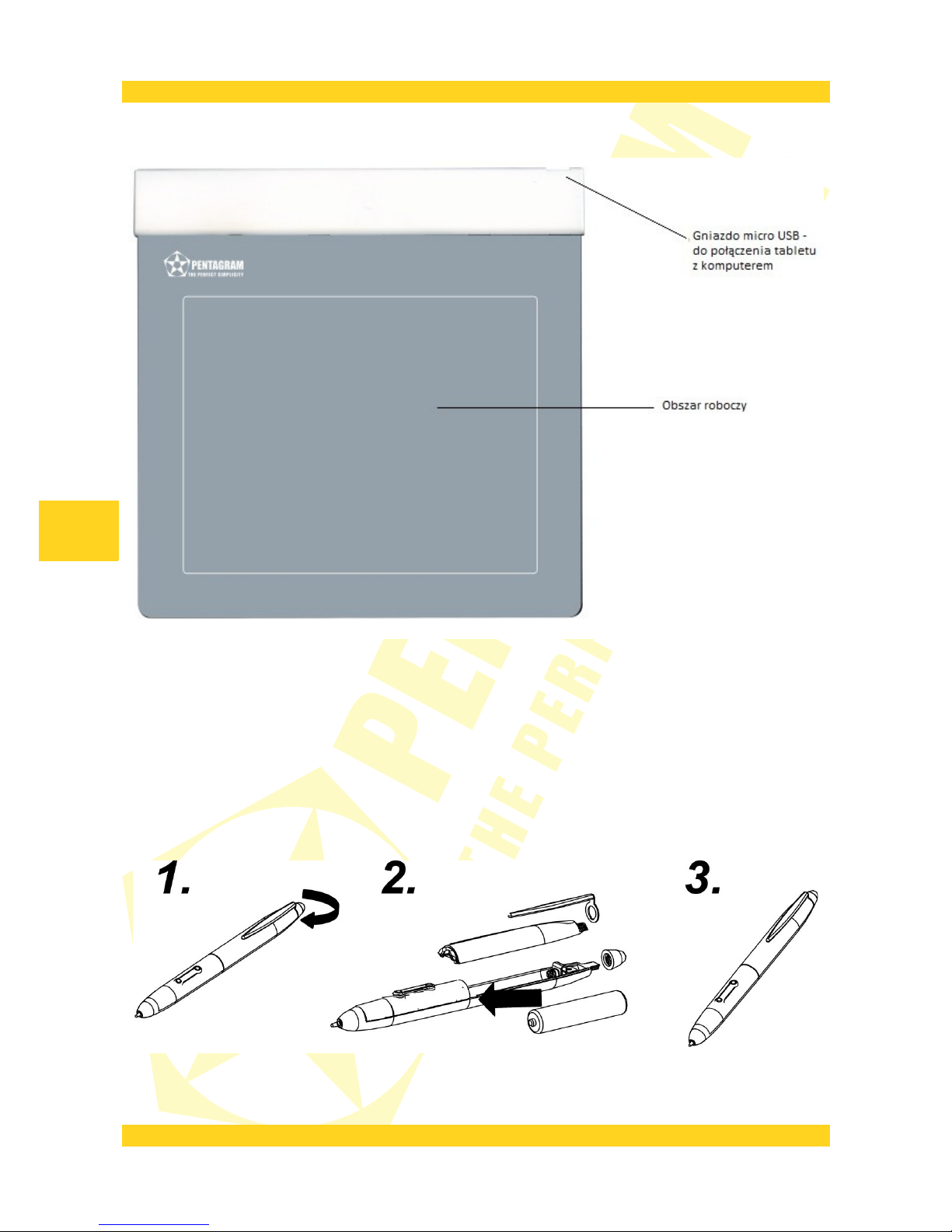
1. Otwórz pojemnik na baterię, w sposób pokazany na zdjęciu.
2. Wyjmij starą baterię i włóż na jej miejsce nową, zwracając uwagę na poprawne położenie
biegunów.
3. Złóż piórko.
6
PL
Page 9
PENTAGRAM QuadPen [P2020]
Instalacja tabletu
Aby zainstalować poprawnie tablet, wykonaj poniższe kroki. Sterowniki tabletu
przeznaczone są dla systemów Windows XP / Vista / 7.
1. Włóż dostarczoną płytę CD ze sterownikami do napędu CD-ROM w komputerze.
2. Jeśli instalator nie uruchomi się automatycznie wybierz menu Start > Uruchom, wpisz
X:\setup (gdzie X to litera napędu CD-ROM) i naciśnij klawisz Enter.
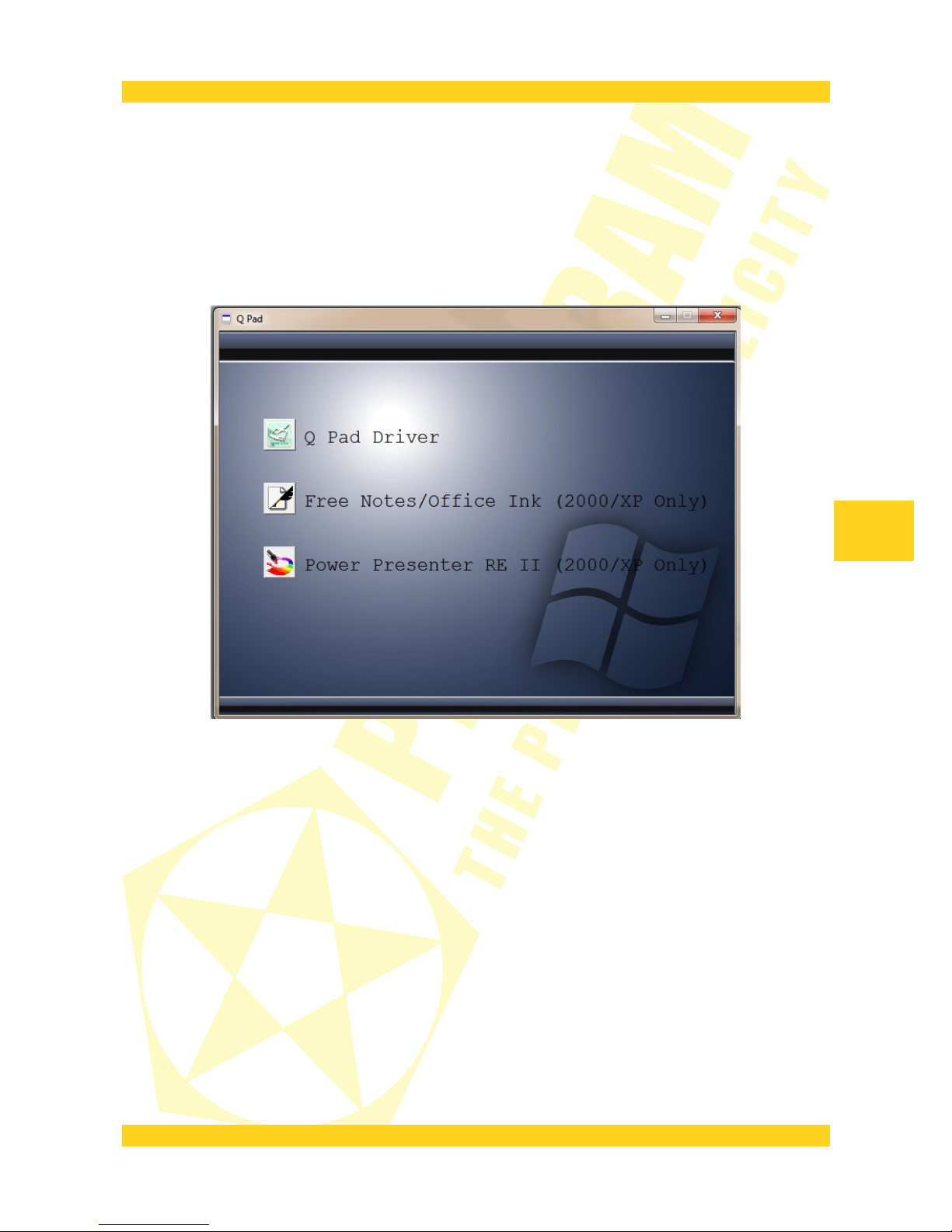
3. W oknie instalatora kliknij Q Pad Driver (Macro Key Manager), aby uruchomić instalator
sterowników i aplikacji Pen Pad.
4. Postępuj zgodnie z instrukcjami pojawiającymi się na ekranie, aby zainstalować
sterowniki i aplikację Pen Pad.
5. Po zakończonej instalacji, jeśli wyświetli się okno z prośbą o ponowne uruchomienie
komputera, zamknij wszystkie otwarte aplikację i kliknij na przycisku OK.
6. Gdy komputer uruchomi się ponownie podłącz kabel USB do tabletu i wolnego portu
USB w komputerze i poczekaj aż system dokończy instalacje tabletu.
7. Sprawdź czy wszystkie funkcje tabletu działają prawidłowo. Ruch piórka nad
powierzchnią tabletu powinien powodować ruch kursora na ekranie.
7
PL
Page 10

PENTAGRAM QuadPen [P2020]
Korzystanie z tabletu
Praca z tabletem jest bardzo intuicyjna i komfortowa, lecz wymaga przyzwyczajenia.
Kluczem do sukcesu podczas posługiwania się tabletem jest trzymanie piórka trochę
bardziej w pionie niż podczas posługiwania się długopisem, a także śledzenie ruchu kursora
na monitorze zamiast patrzenia się na piórko.
Po zbliżeniu piórka na odpowiednią odległość do powierzchni tabletu powoduje śledzenie
ruchu piórka przez tablet i przemieszczanie się kursora. Dotknięcie piórkiem powierzchni
tabletu jest traktowane jak kliknięcie lewym przyciskiem myszy. Domyślne funkcje
bocznych przycisków piórka zależne są od używanego systemu operacyjnego:
• Windows XP – Prawy przycisk myszy jest zastąpiony dolnym bocznym przyciskiem
piórka. Aby wykonać dwuklik (podwójne kliknięcie lewym przyciskiem myszy) należy albo
bardzo szybko dwa razy dotknąć piórkiem powierzchni tabletu w jednym miejscu (starając
się nie przesunąć piórka) lub nacisnąć górny boczny przycisk piórka. Funkcje bocznych
przycisków piórka mogą zostać zmienione w sterowniku tabletu.
• Windows Vista / 7 – Prawy przycisk myszy jest zastąpiony górnym bocznym
przyciskiem piórka. Można także w tym celu dotknąć i przytrzymać piórkiem w jednym
miejscu powierzchnię tabletu i poczekać na pojawienie się efektu wizualnego. Aby wykonać
dwuklik (podwójne kliknięcie lewym przyciskiem myszy) należy albo bardzo szybko dwa
razy dotknąć piórkiem powierzchni tabletu w jednym miejscu (starając się nie przesunąć
piórka).
W celu oszczędzania baterii, piórko samoczynnie przechodzi w stan uśpienia, gdy nie jest
używane przez kilka minut. Jeśli nie używasz piórka przez dłuższy czas umieść je w
dołączonej podstawce lub połóż płasko w miejscu, w którym nie będzie naciśnięta ani
końcówka ani przyciski piórka. Aby wzbudzić piórko ze stanu oszczędzania energii należy
dotknąć jego końcówką powierzchni tabletu.
8
PL
Page 11
PENTAGRAM QuadPen [P2020]
Konfiguracja tabletu
Aplikacja Pen Pad dostępna po podłączeniu tabletu do komputera w prawym dolnym rogu
ekranu, umożliwia konfigurację ustawień urządzenia oraz piórka.
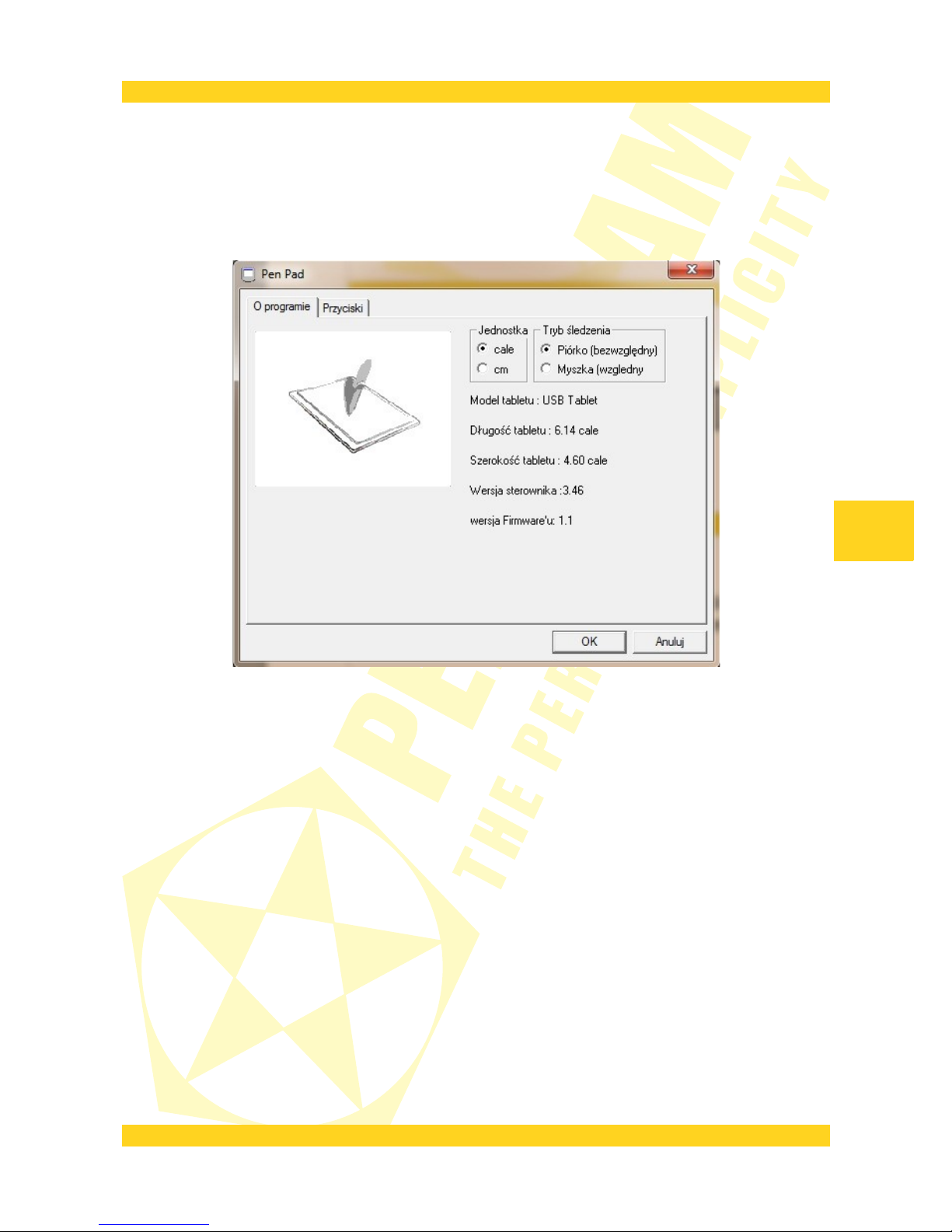
Zakładka „O programie”
Jednostka - wybierz czy wymiary tabletu mają być wyświetlane w calach czy centymetrach.
Tryb śledzenia - wybierz sposób śledzenia przez tablet ruchów piórka:
- Piórko (bezwzględny) – obszar aktywny tabletu odpowiada obszarowi ekranu.
- Myszka (względny) – piórko tabletu jest traktowane jak mysz.
Poniżej znajdują się inne informacje o tablecie: Model tabletu, Długość tabletu, Szerokość
tabletu, Wersja sterownika i Wersja Firmware'u.
9
PL
Page 12
PENTAGRAM QuadPen [P2020]
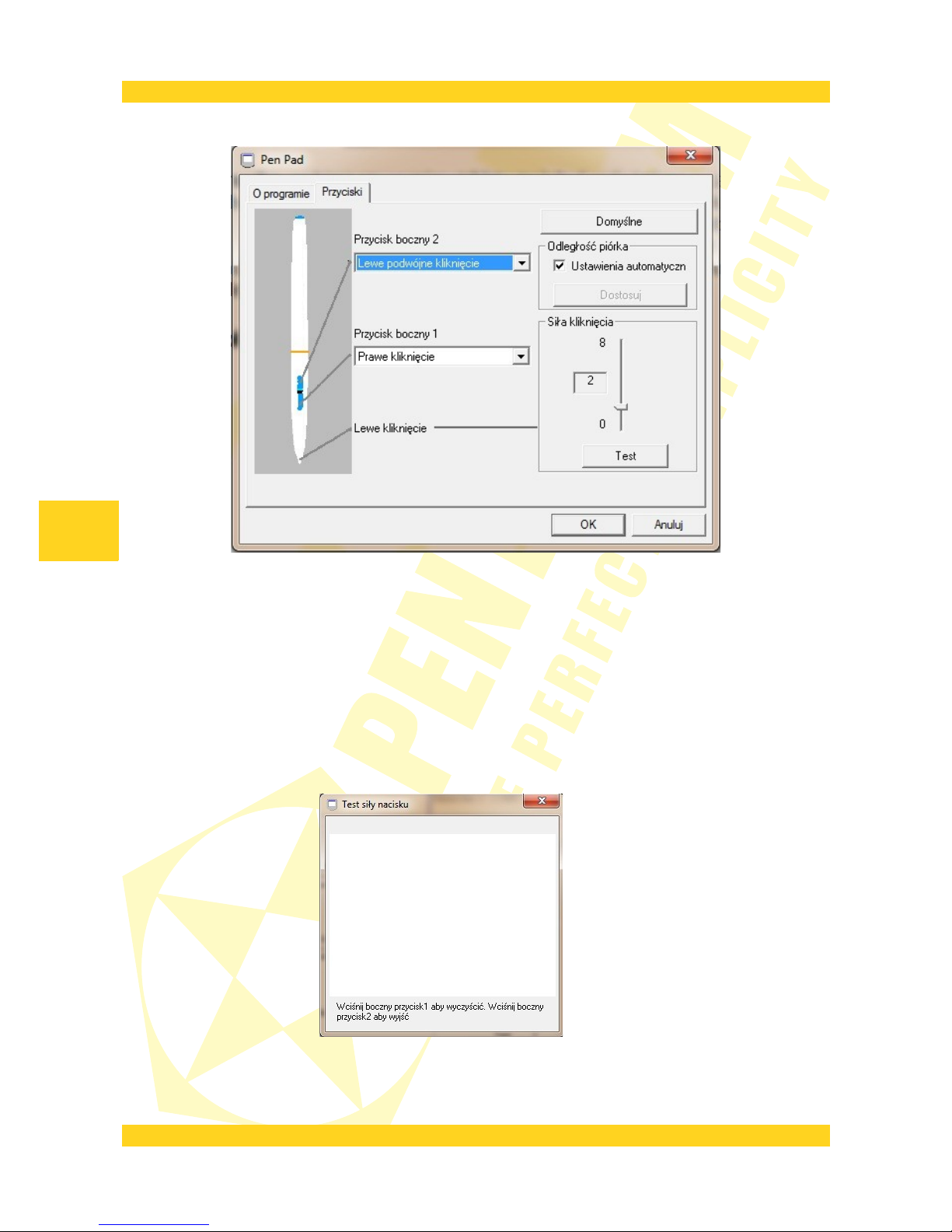
Zakładka „Przyciski”
Przycisk boczny 2 – przypisanie funkcji do górnego bocznego przycisku piórka.
Przycisk boczny 1 – przypisanie funkcji do dolnego bocznego przycisku piórka.
Domyślne – przywrócenie ustawień domyślnych.
Odległość piórka – aby użyć domyślnych ustawień tabletu, zaznacz pole Ustawienia
automatyczne. Aby dostosować wysokość, odznacz pole Ustawienia automatyczne, kliknij
przycisk Dostosuj i postępuj zgodnie z instrukcjami, które pojawią się na ekranie.
Siła kliknięcia – ustalenie czułości na nacisk.
Test – po kliknięciu tego przycisku zostanie otwarte okno, gdzie można przetestować nowe
ustawienia czułości piórka.
Aby wyczyścić obszar roboczy, naciśnij boczny przycisk 1 piórka.
Aby zamknąć okno testowe, naciśnij boczny przycisk 2 piórka.
10
PL
Page 13

PENTAGRAM QuadPen [P2020]
Specyfikacja
*
Wymiary urządzenia 190,5 x 196 x 7,8 mm
Obszar aktywny 152,4 x 114,3 mm
Waga 90g
Maks. wysokość odczytu 7 mm
Ilość poziomów nacisku 1024
Rozdzielczość 2048 lpi
Podłączenie port USB (długość kabla USB 1.5 m)
Piórko zasilane baterią AAA
* Dane techniczne mogą zostać zmienione bez uprzedniego powiadomienia.
11
PL
Page 14

EN
User manual
PENTAGRAM QuadPen [P2020]
EN
The latest versions of manual, drivers and applications are available on www.pentagram.eu .
EN
Page 15

PENTAGRAM QuadPen [P2020]
2
EN
Page 16

PENTAGRAM QuadPen [P2020]
Table of contents
IMPORTANT INFORMATION...........................................................................3
SAFETY PRECAUTIONS...........................................................................................4
INFORMATION CONCERNING WASTE ELECTRONIC EQUIPMENT..........4
INTRODUCTION.................................................................................................. 5
PACKAGE CONTENTS...............................................................................................5
SYSTEM REQUIREMENTS.......................................................................................5
TABLET ELEMENTS........................................................................................... 6
BATTERY REPLACEMENT................................................................................6
TABLET INSTALLATION...................................................................................7
USING THE TABLET..........................................................................................8
TABLET CONFIGURATION...............................................................................9
SPECIFICATION................................................................................................ 11
Important information
3
EN
Page 17
PENTAGRAM QuadPen [P2020]
Safety precautions
• Do not use or store the device in dusty places, where the humidity is high or in extreme
temperatures.
• Do not operate the device with wet hands to avoid the risk of device damage or electric
shock.
• Do not clean the device with chemicals, such as benzine or detergents – always clean
the device with a soft, dry cloth.
• Disconnect the device from the computer prior to cleaning.
• Do not modify or fix the device yourself in any way, it might void the guarantee.
• Do not drop or shake the device.
• Do not use a tablet or any of its accessories out of closed areas.
Information concerning waste electronic equipment
The markings on the device and in the attached documentation
indicate that it cannot be disposed of along with unsegregated general
black bag waste when withdrawn from use. The device must be recycled or
processed in another way to recover reusable materials and neutralize
hazardous components.
The users should contact recycling/recovery authorities to determine
how the device is to be disposed of in an environment-friendly manner.
4
EN
NOTE: All information and technical data is subject to change without previous notice
and/or indication in this manual.
Copyright ©2012 PENTAGRAM
All rights reserved; copying and reproduction is strictly forbidden.
EN
Page 18

PENTAGRAM QuadPen [P2020]
Introduction
Thank you for purchasing PENTAGRAM QuadPen tablet, a graphical device for your
computer. Using tablet, you may do much more than previously using a mouse. The tablet
has been designed as a tool for graphics professionals and CAD/CAM applications. However,
thanks to reasonable price and plenty of functions, Pentagram tablets ale also appropriate
for home use.
NOTE! Make sure the tablet is far from a CRT (cathode ray tube) monitor and other sources
of strong electromagnetic field as they may interfere with the tablet operation.
Package Contents
1. Tablet Pentagram QuadPen [P2020]
2. Pen
3. Pen AAA battery
4. USB cable
5. CDs with drivers and software
6. User manual
If any of the above items are missing, please contact your reseller.
System Requirements
These requirements are only valid when connecting to a computer.
• PC with USB port
• Operating system: Windows XP/Vista/7 / MacOS
5
EN
Page 19
PENTAGRAM QuadPen [P2020]
Tablet elements
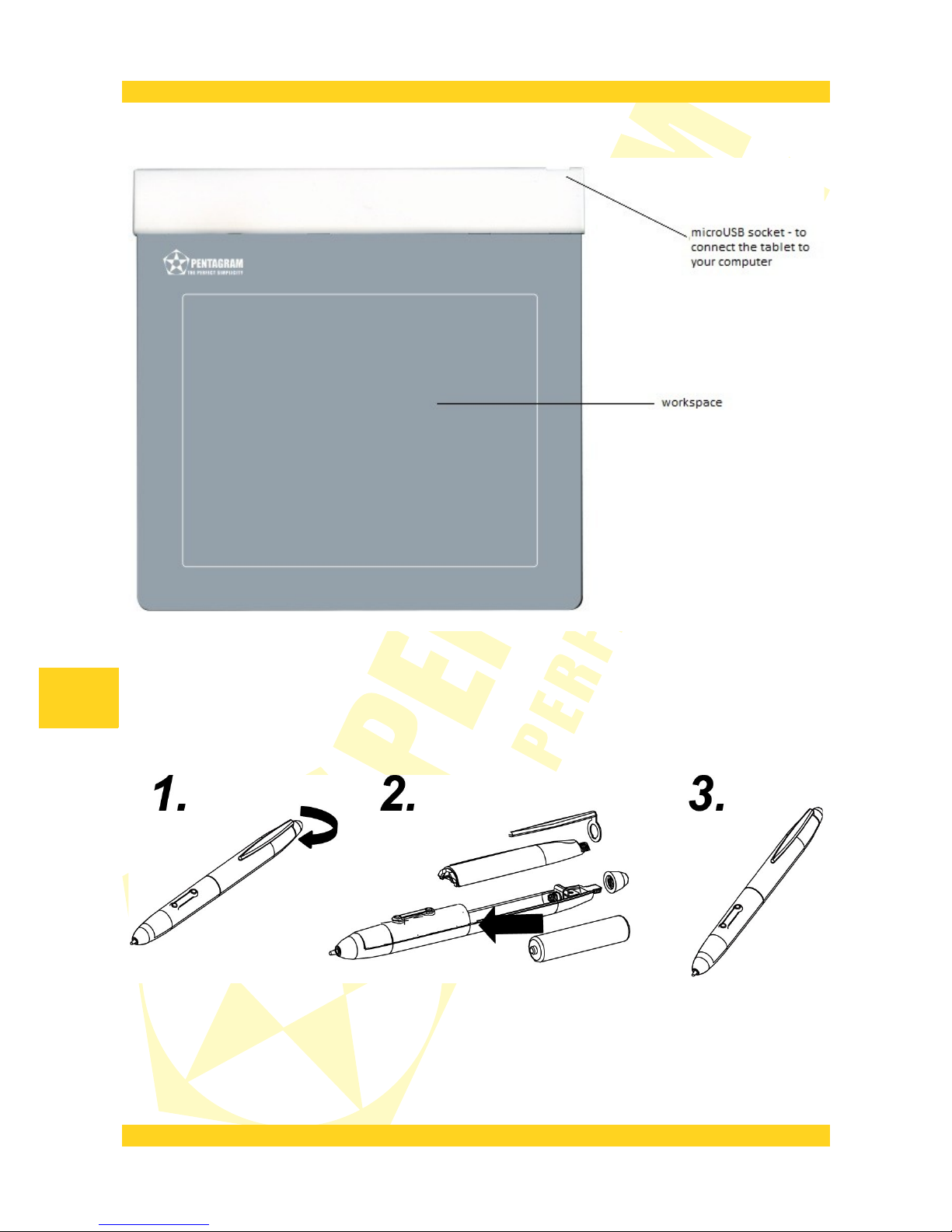
Battery replacement
1. Open the battery compartment as shown in the picture.
2. Remove the old battery and insert the new one, observing polarity.
3. Assemble the pen.
6
EN
Page 20
PENTAGRAM QuadPen [P2020]
Tablet installation
Follow the steps below to install the tablet properly. The tablet drivers are designed for
Windows XP / Vista / 7 systems.
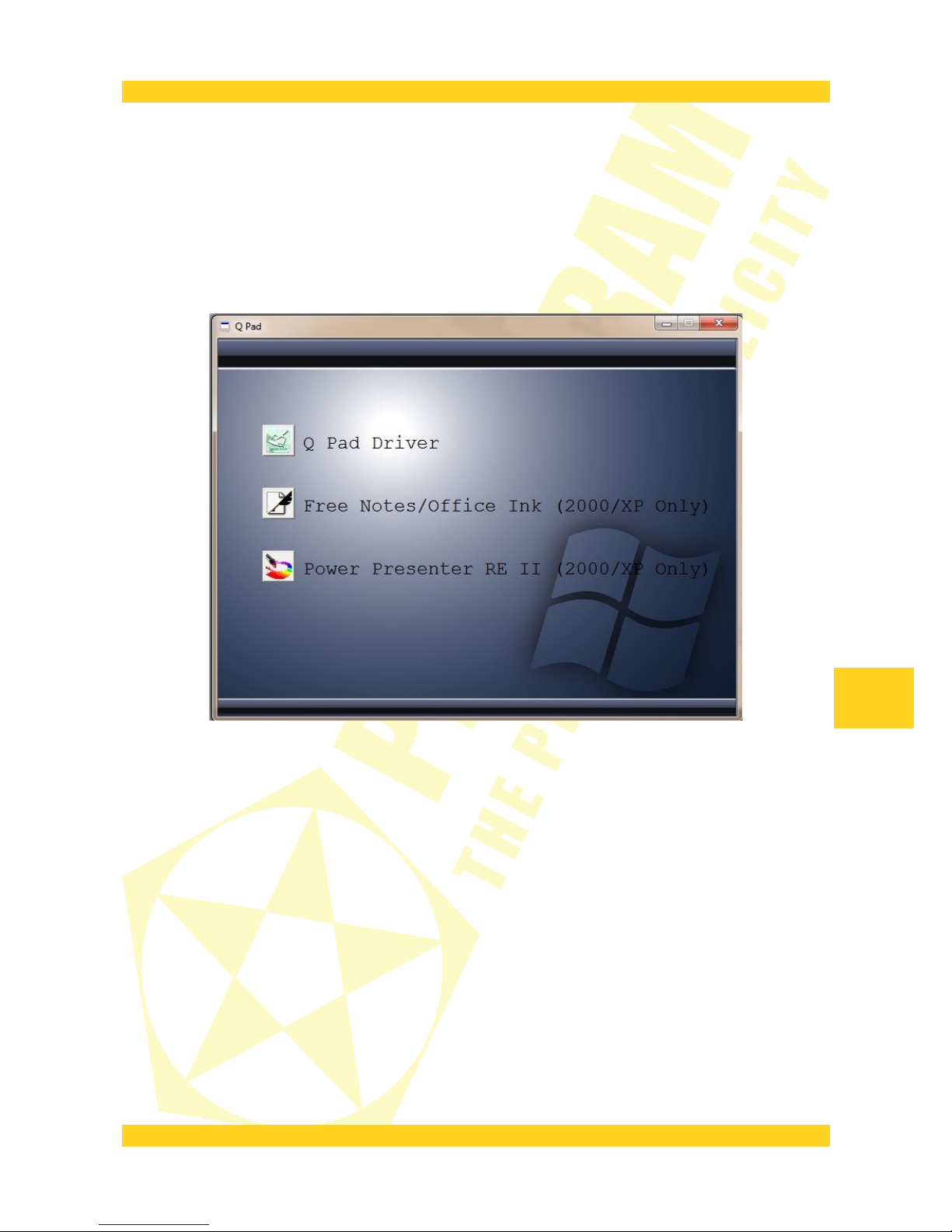
1. Insert the supplied CD with drivers into the CD-ROM drive in the computer.
2. If the installer does not launch automatically, click the Start > Run menu, enter
X:\setup (where X is the CD-ROM drive letter) and press Enter.
3. In the installer window, click the Q Pad Driver, to start the drivers and Pen Pad
application installer.
4. Follow the instructions displayed on the screen to install the drivers and the Pen Pad
application.
5. When the installation finishes, a prompt will display, asking the user to restart the
computer. Close all open applications and click the OK button.
6. When the computer has restarted, connect the USB cable to the tablet, and an
available USB port on your computer and wait until the system finish the installation of the
tablet.
7. Check whether all tablet functions work properly. A pen movement over the tablet
surface should cause the cursor movement on the screen.
7
EN
Page 21

PENTAGRAM QuadPen [P2020]
Using the tablet
Work with the tablet is very intuitive and comfortable, but the user needs to get used to it.
The key to the success in working with the tablet is holding the pen more vertically than
when using a ball point pen, and also tracking the cursor movement on the screen rather
than looking at the pen.
After the pen is put close enough to the tablet surface, it makes the tablet trace the pen
movement, and the cursor moves accordingly. Touching the tablet surface with the pen is
equivalent to a click with the left mouse button. The default functions of the pen side
buttons depend on the operating system:
• Windows XP – The right mouse button is replaced with the lower side button of the
pen. To perform a double click (double clicking with the left mouse button), either tap the
pen against the tablet surface twice in one place very quickly (trying not to displace the
pen), or press the upper side button of the pen. The pen side buttons’ functions may be
changed in the tablet driver.
• Windows Vista / 7 – The right mouse button is replaced with the upper side button of
the pen. You can also hold the pen touched in one place of the tablet surface and wait for
the visual effect. To perform a double click (double clicking with the left mouse button), tap
the pen against the tablet surface twice in one place very quickly (trying not to displace
the pen).
To save battery, the pen automatically switches into sleep mode when it is not used for
several minutes. If you do not use the pen for a longer time, put it in the supplied holder or
lay flat in a place where neither the tip nor the side buttons can be pressed. To wake the
pen up from the sleep mode, tap its tip against the tablet surface.
8
EN
Page 22
PENTAGRAM QuadPen [P2020]
Tablet configuration
Pen Pad application is available after the tablet is connected to the computer in the lower
right corner of the screen, allows you to configure device settings and a pen.
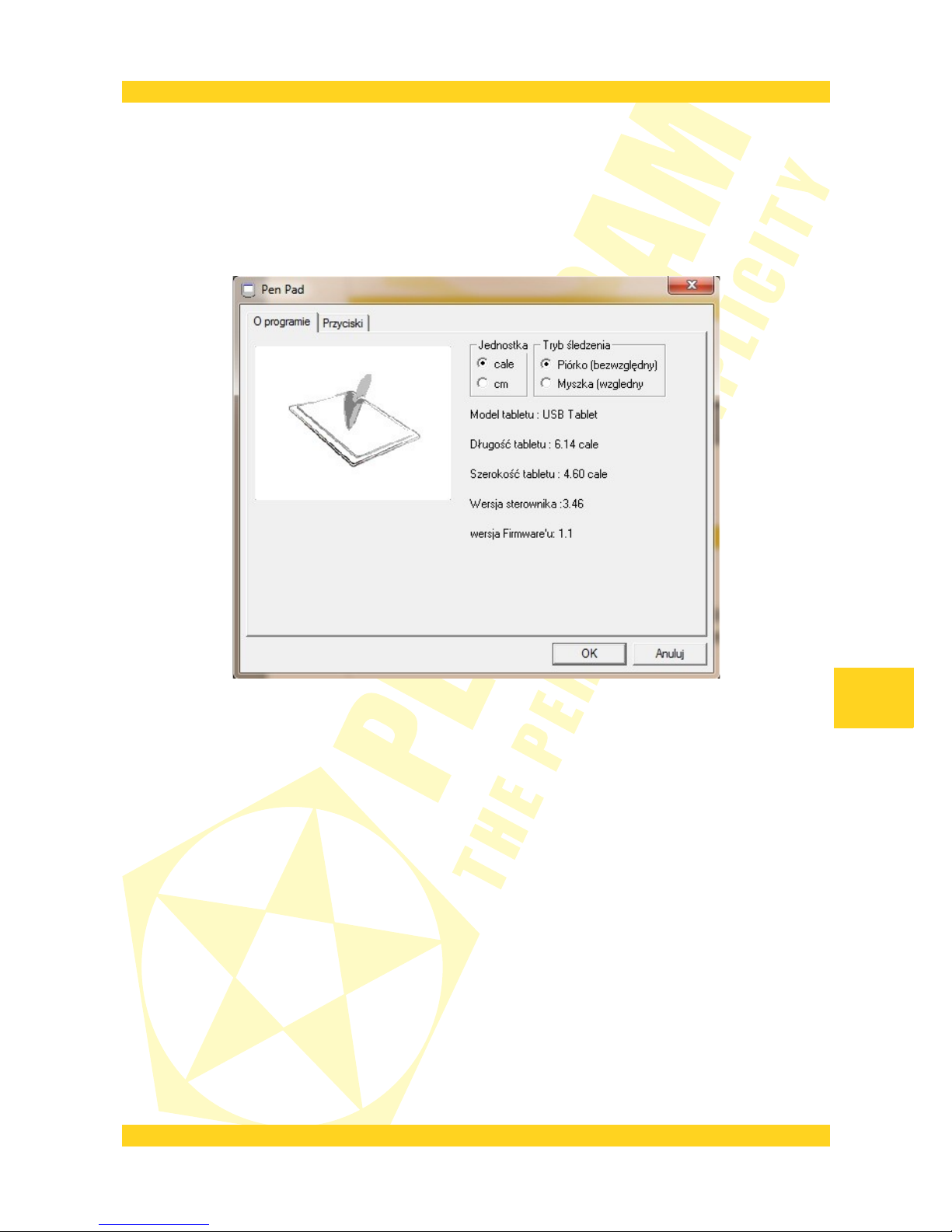
Tab “O programie”
Jednostka (Unit) – select if the tablet dimensions are to be displayed in inches (inch) or
centimeters (cm)
Tryb śledzenia (Tracking Mode) – select the tracking mode of the pen movements by the
tablet:
• Piórko (bezwzględny) ((Pen (Absolute)) – the tablet active area corresponds to the
screen area.
• Myszka (względny) (Mouse (Relative)) – the tablet pen is treated as the mouse.
Below there is more information about the tablet: Model tabletu (Tablet Model), Długość
tabletu (Tablet Length), Szerokość tabletu (Tablet Width), Wersja sterownika (Driver Version)
and Wersja Firmware'u (Firmware Version).
9
EN
Page 23
PENTAGRAM QuadPen [P2020]
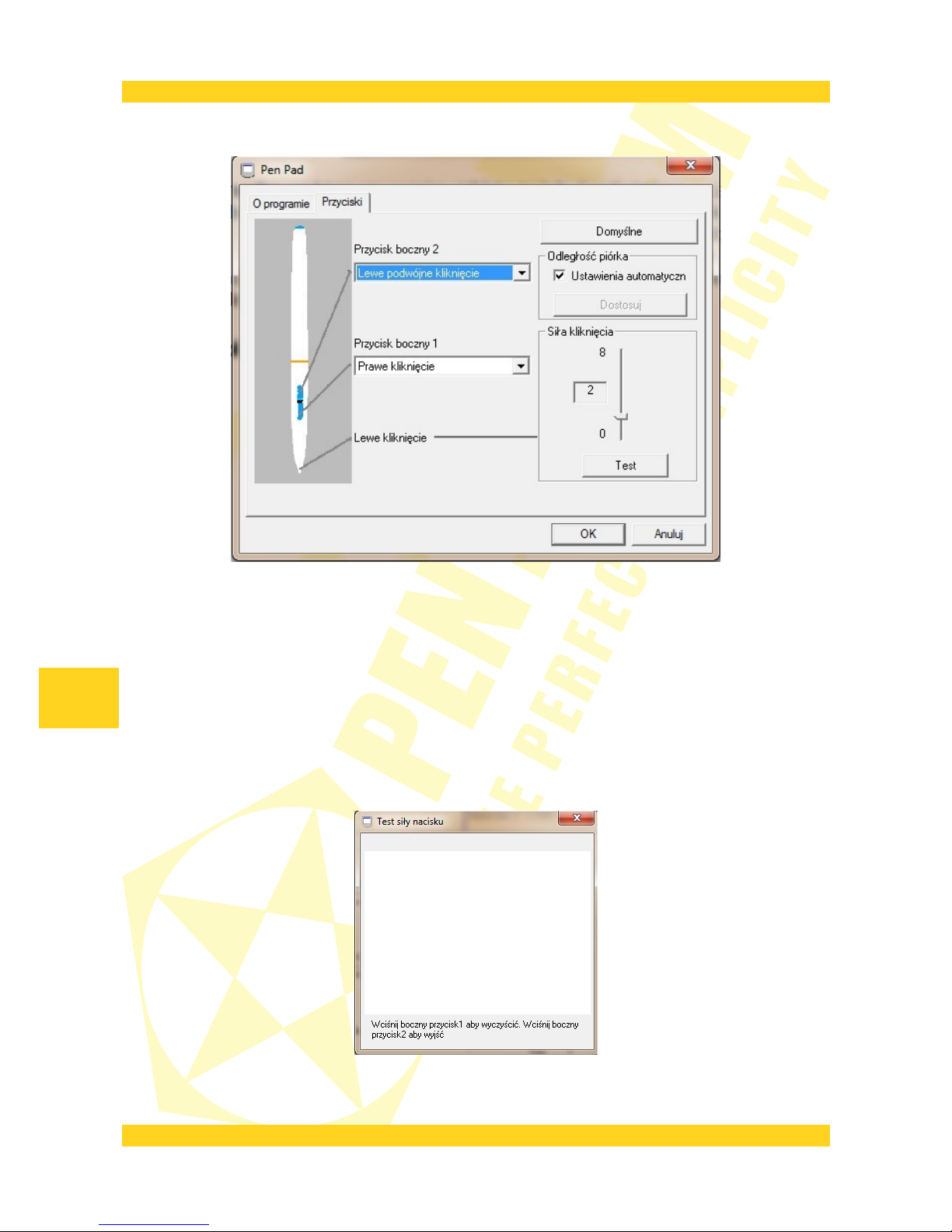
Tab “Przyciski”
Przycisk boczny 2 (Side Button 2) – assigning a function to the upper side button of the pen.
Przycisk boczny 1 (Side Button 1) – assigning a function to the lower side button of the pen.
Domyślne (Default) – restoring the default settings.
Odległość Piórka (Pen Offset Value) – to use the default tablet values, tick the Ustawienia
automatyczne (Auto Setting) field. To adjust the height, untick the Ustawienia
automatyczne (Auto Setting) field, click the Adjust button and follow the instructions on
the screen.
Siła nacisku (Click pressure) – setting the pressure sensitivity.
Test – After clicking this button, a window will open, in which you may test the new pen
sensitivity settings.
To clear the work area, press the side button 1 of the pen.
To close the test window, press the side button 2 of the pen.
10
EN
Page 24

PENTAGRAM QuadPen [P2020]
Specification
*
Dimensions 190,5 x 196 x 7,8 mm
The active area 152,4 x 114,3 mm
Weight 90g
Maximum reading height 7 mm
Pressure levels 1024
Resolution 2048 lpi
Connection USB port (USB cable length 1.5 m)
Pen AAA battery powered
* Specifications are subject to change without prior notice.
11
EN
Page 25
12
DEKLARACJA ZGODNOŚCI
Importer: PENTAGRAM Europe Sp. z o.o.
Adres: ul. Grocholicka 2A, 05-090 Raszyn
jako upoważniony przedstawiciel producenta deklaruje, że poniższy produkt:
Nazwa produktu: PENTAGRAM QuadPen
Model: P 2020
został wyprodukowany przy zastosowaniu następujących norm zharmonizowanych:
EN 55022: 2006
EN 61000-3-2: 2006
EN 61000-3-3: 2008
EN 55024: 1998+A1: 2001+A2: 2003
IEC 61000-4-2: 2008
IEC 61000-4-3:2008
IEC 61000-4-4: 2004
IEC 61000-4-5: 2005
IEC 61000-4-6: 2008
IEC 61000-4-8: 2009
IEC 61000-4-11: 2004
AS/NZS CISPR 22: 2006
Niniejszy produkt spełnia zasadnicze wymagania zawarte w:
- rozporządzeniu Ministra Transportu i Budownictwa z dnia 27 grudnia 2005 r. w sprawie dokonywania oceny
zgodności aparatury z zasadniczymi wymaganiami dotyczącymi kompatybilności elektromagnetycznej oraz
sposobu jej oznakowania (Dz.U. Nr 265 poz. 2227), wdrażającym postanowienia dyrektywy Rady
89/336/EWG, dotyczącej kompatybilności elektromagnetycznej;
i w następstwie nosi oznakowanie CE.
Miejsce i data: Warszawa, 12.01.2012
Imię i nazwisko osoby upoważnionej: Adam Budrewicz
Stanowisko: Product Manager
13
 Loading...