

Page 1

Page 2

Page 3
2
Page 4

Ⅰ. Precautions before Use
This production is suitable for use in non-tropic areas below 2,000 meters, and the mark in
1.
the nameplate indicates the product is suitable for use in non-tropic areas.
2. Prevent the Tablet PC from falling to the ground or being strongly impacted otherwise.
3. Do not use it in the long term in any environment where the air is too cold, too hot (<35℃), too
humid or with too much dust. Do not expose the Tablet PC to sunlight.
4. Avoid using it in the strong magnetic and strong static environment as much as possible.
5. Once any water or other liquid splashes onto the Tablet PC, close it immediately and do not use
it until it dries out.
6. Do not clean the Tablet PC with any detergent containing chemical element or other liquid to
avoid causing damage due to corrosion and becoming damp. If cleaning is really necessary, clean
it with dry soft cloth tissue paper.
7. Our company shall not bear any and all responsibilities for loss or deletion of material inside the
machine caused due to abnormal software and hardware operation, maintenance or any other
accident.
8. Please back up your important material at any time to avoid loss.
9. Please do not disassemble the Tablet PC by yourself; otherwise you will lose the right to
warranty.
10. This product supports the overwhelming majority of mainstream brands of 3G DONGLE
network cards. The cases for 3G Dongle may be different. It is suggested that you test it to make
sure it is OK before buying it.
11. Quick Use Guide and the relevant software shall be updated at any time. If anything is found
to be inconsistent with the Quick Use Guide, the material object shall prevail.
12. Replacement with incorrect type batteries may cause explosion. Make sure to use original
batteries.
3
Page 5
4
Page 6
5
Page 7
6
Page 8

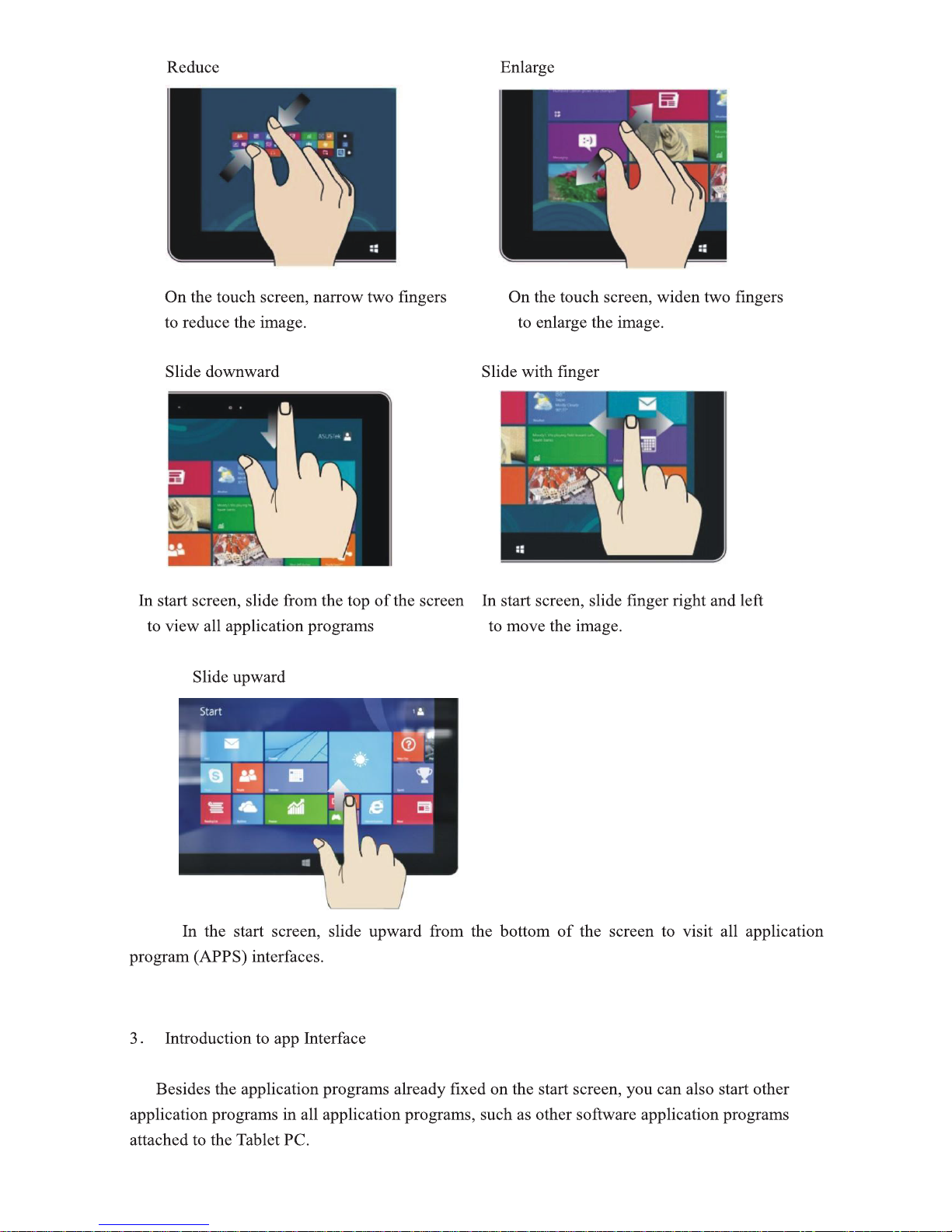
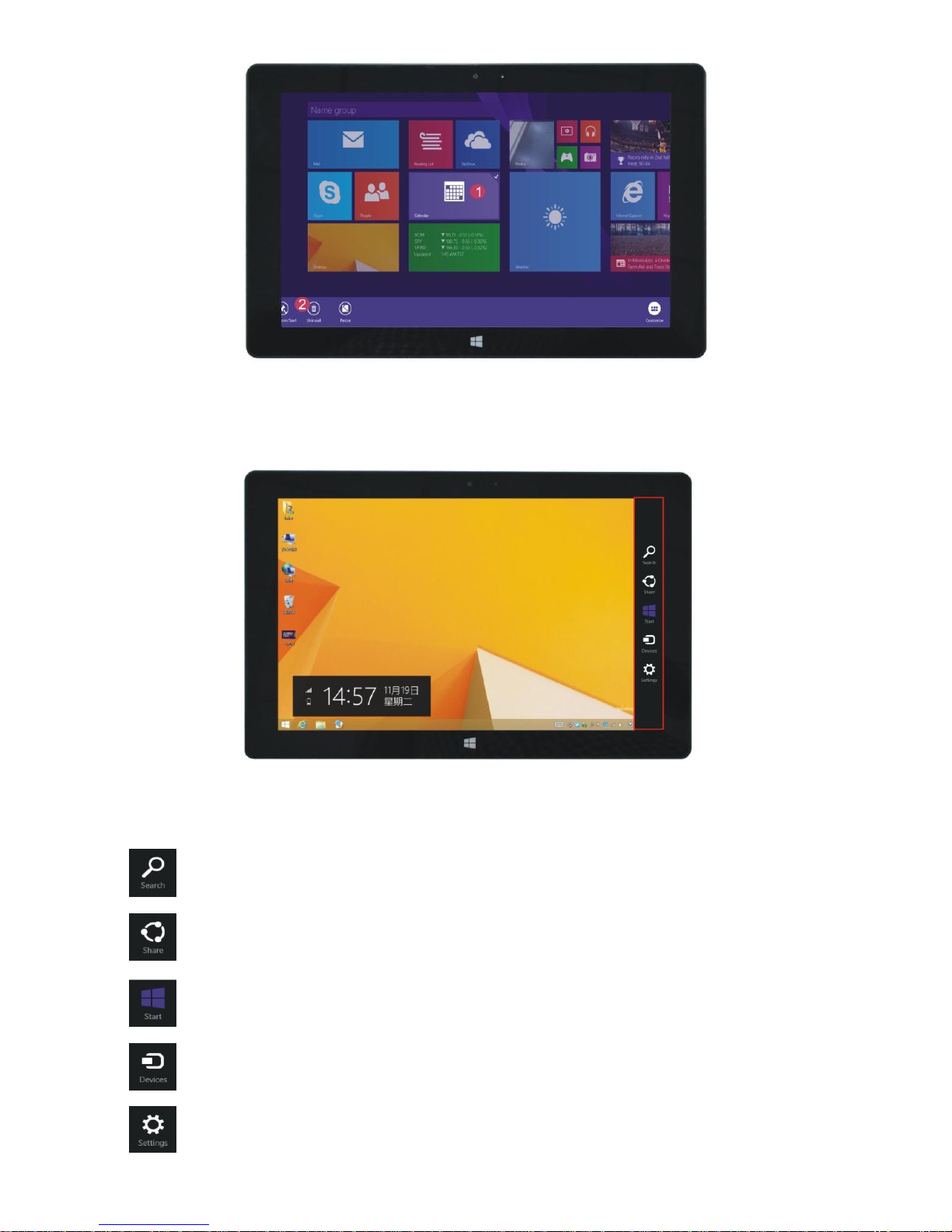
If you want to fix more application programs on the start interface, see the operation in the figure
below, (1) lightly touch, press and hold the application program magnet for about one second and
then let go, and select (2) to fix to the start screen.
Conversely, if you want to cancel or delete a certain application in the start screen, (1) lightly
touch, press and hold the application program magnet for about one second and then let it go and
run, and select (2) attribute column to cancel the programs such as fixation and deletion and then it
can be completed.
7
Page 9
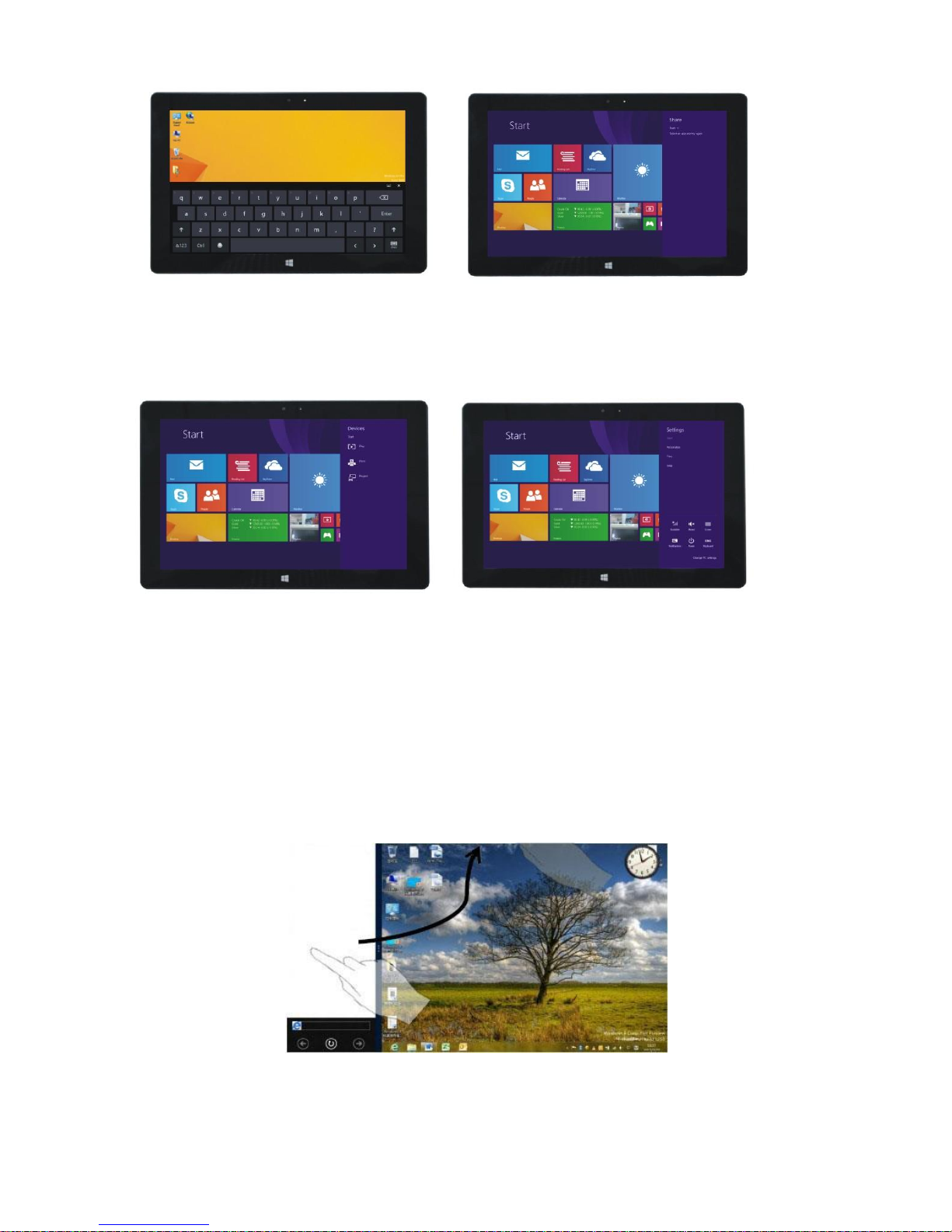
4. Charm menu column
Slide it to the left from the right side of the screen to start Charm menu column, including:
Start, Device, Setup, Share, and Search Program.
Slide it to the left from the right side of the screen to start Charm menu column, including:
Start, Device, Setup, Share, and Search Program.
Can let you search the files and application programs in the Tablet PC.
Can let you share the program through social exchange website or e-mail.
Can return to the start screen. From the start screen, you can also use this function to
return the application program that is opened in the latest.
Can let you read, write and share files, connect external screen or printer with the device
connected to the Tablet PC.
Can let you set up the Table PC.
8
Page 10
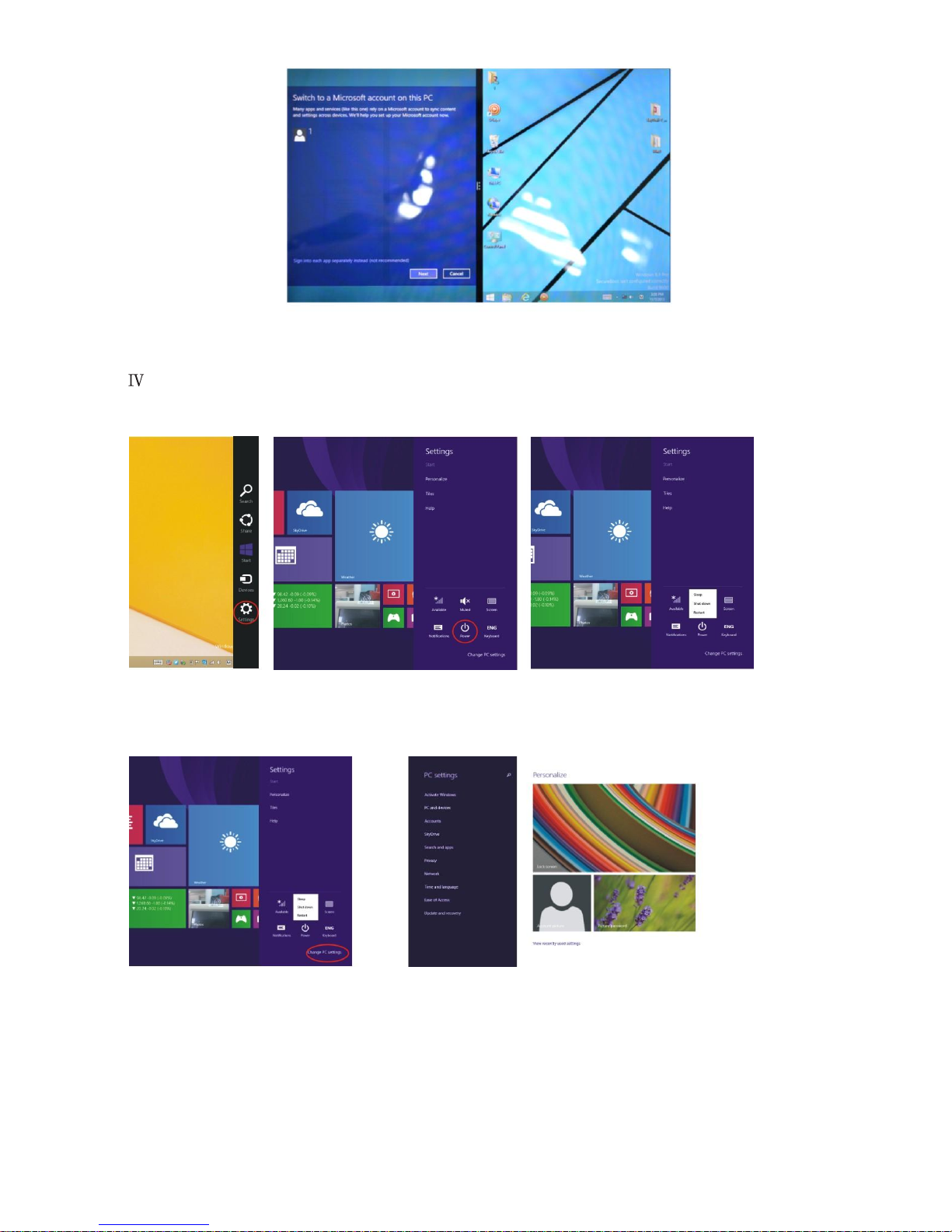
Search menu Share menu
Device Menu Set up Menu
5. Dual-Screen Application
On my computer in (Figure 1), slide it inward from the left side of the screen, drag it and hold. Let
go when seeing double interfaces appear.
In (Figure 2), press the partition button on the middle partition line and drag right and left to
partition the display proportion of the double screens.
(Figure 1)
9
Page 11
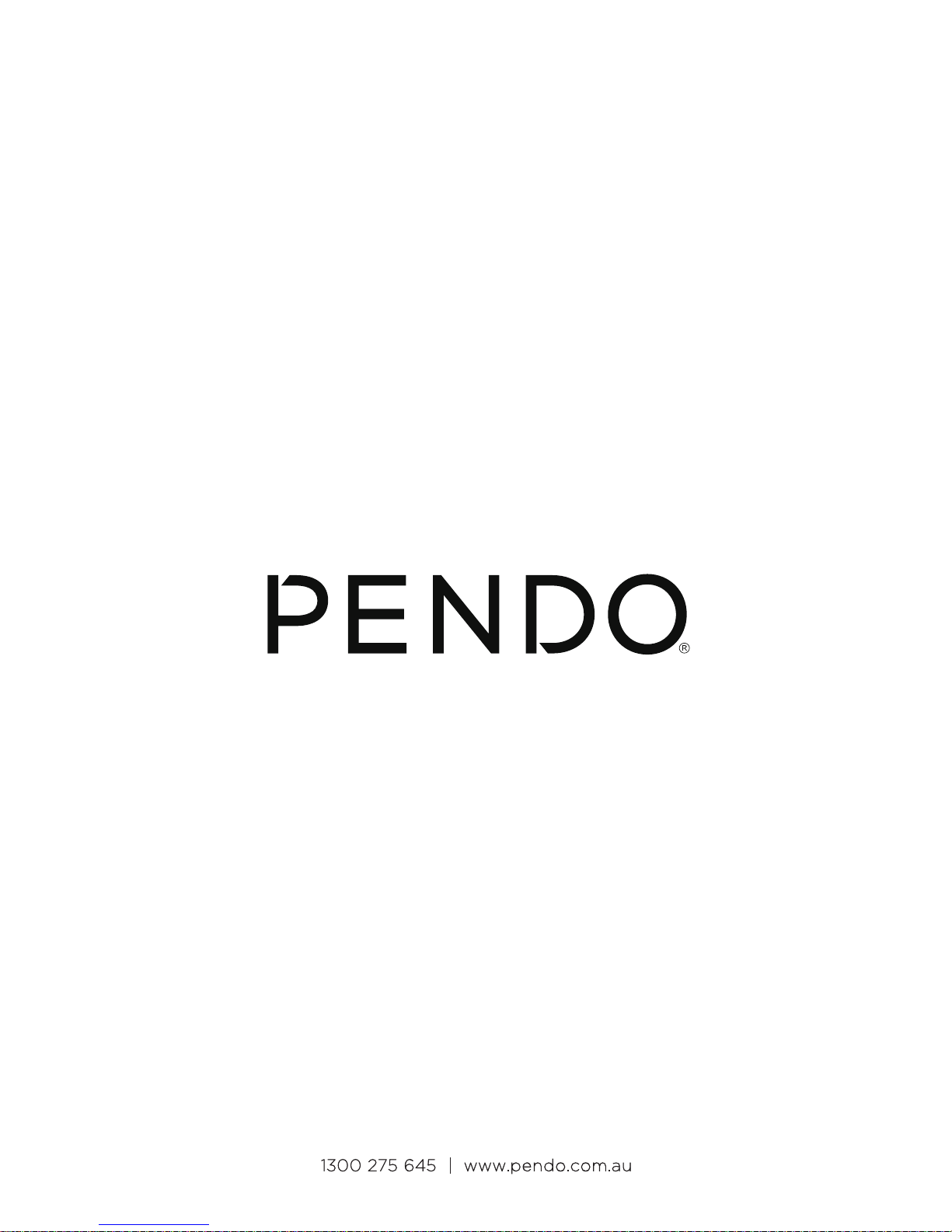
(Figure 2)
. Basic Operations
1. Dormancy, restart and power off
2. Security Management
User and password setup
Method for quick setup:
Click the “Setup” button in “Charm” setup, and select “Change computer setup”. Select “User” on
the left and click “Create local account” in “Your account” on the right side. After inputting the
password of Complete Windows Live Id Account, input username, password, confirm password
and password prompt.
10
Page 12
Pendo Industries Pty Ltd | PO Box 827, Mount Waverley VIC 3149
 Loading...