

Page 1
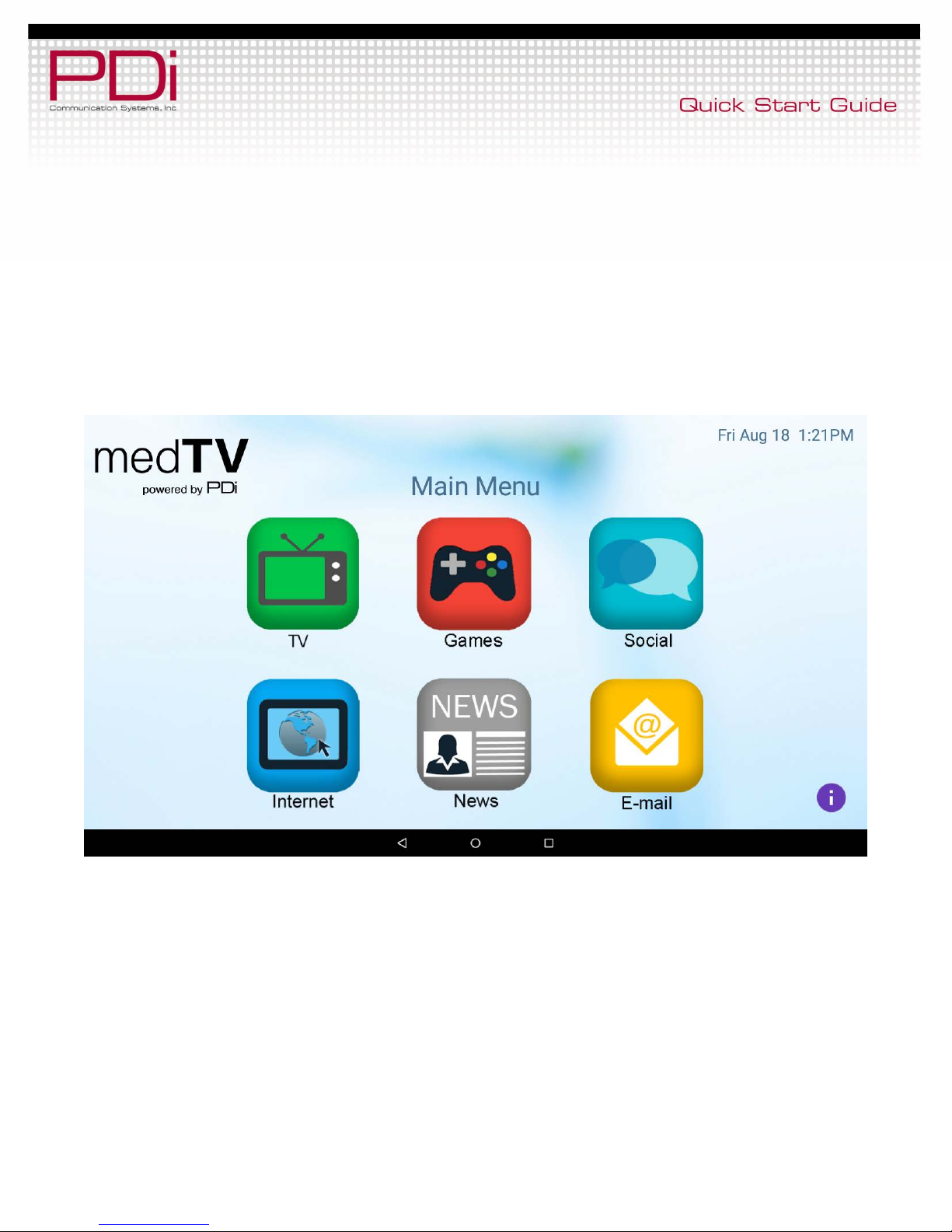
medTAB™
14” or 19” Arm-Mounted, Healthcare-grade
LCD HDTV with Android
Page 2
™
MODEL:
Document Number:
Page 2 of 13
Your Source for Healthcare and
Wellness Infotainment
medTAB™
LCD HDTV with Android Quick Start Guide
PD196-383R1
Overhead Falling Hazard
WARNING: To prevent injury, this apparatus must be
securely attached to the floor/wall in accordance with
the installation instructions.
TV can pose a striking hazard when mounted at an
elevated position. Use only PDi mounting brackets,
support arms, and appropriate hardware to assure TV
will not fall from the mounted posit ion
Rain and Moisture
WARNING: To avoid the hazards of fire or electrical
shock, DO NOT expose this television to rain or
moisture.
Oxygen Environment
WARNING: Do not use in any oxygen tent or oxygen
chamber. Such use may cause a fire hazard.
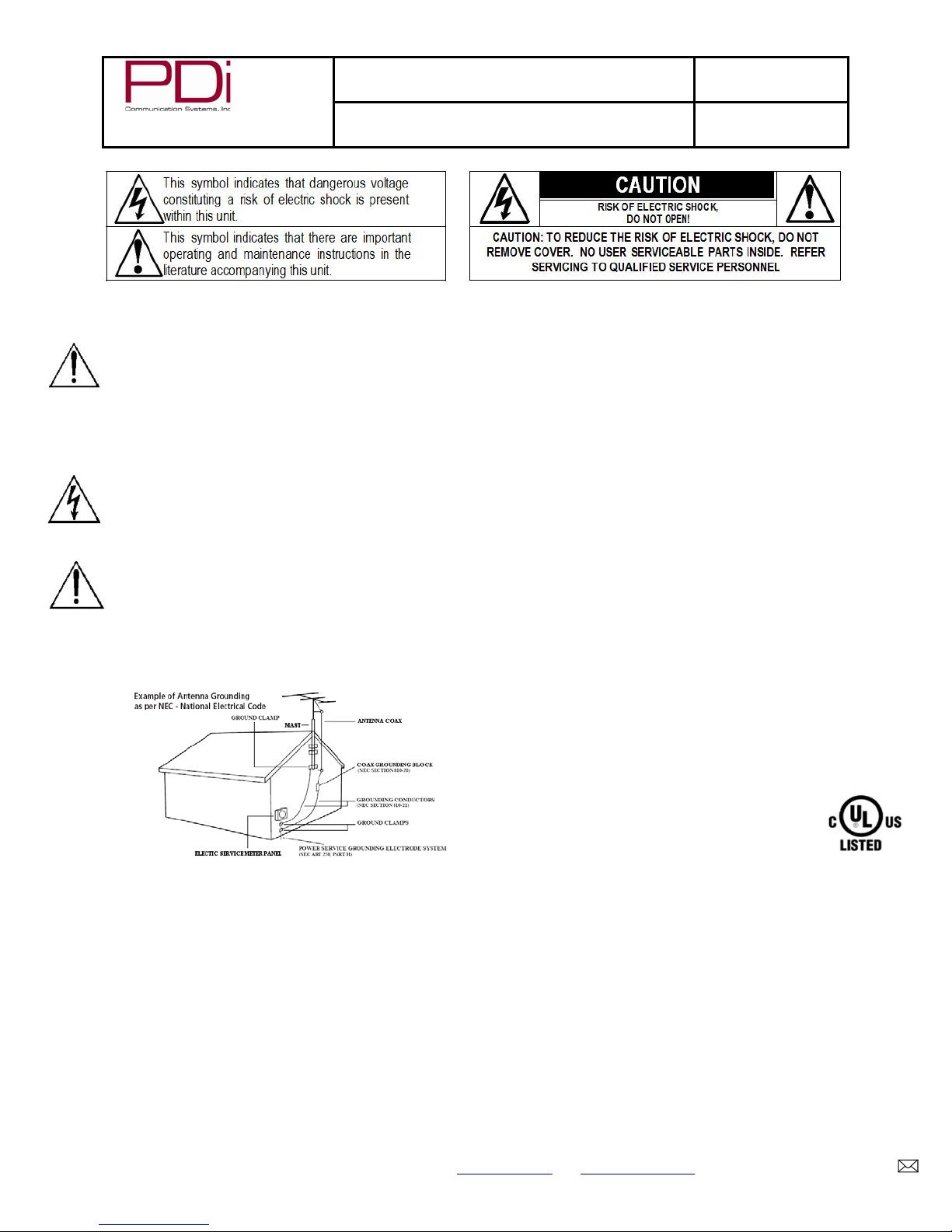
Note to Cable TV Installer
This reminder is provided to call the cable TV systems installer’s
attention to Article 820-40 of the National Electrical Code. The code
provides guidelines for proper grounding and, in particular, specifies
that the
cable
ground
shall be
connected
to the
grounding
system of
the
building,
as close to
the point of
the cable entry as practical. Canadian installations shall be properly
grounded in accordance with the Canadian Electrical Code, Part 1.
FCC
This equipment has been tested and found to comply with the limits
for a Class A digital device, pursuant to part 15 of the FCC Rules.
These limits are designed to provide reasonable protection against
harmful interference when the equipment is
operated in a commercial environment. This equipment generates,
uses, and can radiate radio frequency energy and, if not installed
and used in accordance with the instruction manual, may cause
harmful interference to radio communications. Operation of this
equipment in a residential area is likely to cause harmful
interference in which case the user will be required to correct the
interference at his own expense.
PDi Communication Systems, Inc. 40 Greenwood Lane Springboro, Ohio 45066 USA www.pdiarm.com and www.mymedTV.com PH 1-800-628-9870 FX 937-743-5664
Maintenance and Servicing
The TV does not require periodic maintenance other than cleaning.
Never remove the back cover of the TV; this can expose you to high
voltage and other hazards. If the TV does not operate properly,
unplug it and call an authorized service center or PDi.
Cleaning and Disinfection
Clean the exterior of this television by removing dust with a lint-free
cloth. CAUTION: To avoid damage to the surface of the television,
do not use abrasive or chemical cleaning agents. Spot test a new
disinfectant by test cleaning a non-obvious small spot on the TV’s
back cabinet, keypad, and LCD panel. Allow the disinfectant to
soak per its instructions and then wipe clean. Do not use the
disinfectant if the TV’s surfaces show any sign of discoloration or
softening.
Product Modification
Do not attempt to modify this product in any way without written
authorization. Unauthorized modification could void the user’s
authority to operate this product.
Copyright, Trademarks
© 2017 PDi Communication Systems, Inc. All rights reserved.
medTAB® is a registered trademark of PDi Communication
Systems, Inc. Product logos, brands and other trademarks displayed
within PDi’s products are the property of their respective trademark
holders, who are not affiliated with, endorsing, or sponsoring PDi
Communication Systems, Inc. or our products.
Underwriters Laboratories
The model medTAB® Hospital Grade LCD HDTV is
a specialized TV and should be installed to National
Electrical Code specifications.
This device is safety tested and listed by the Underwriters
Laboratories as a product suitable for use in health-care facilities in
both the United States and Canada.
Disclaimer
The author and publisher have used their best efforts in preparing
this manual. PDi Communication Systems, Inc. makes no
representation or warranties with respect to the accuracy or
completeness of the contents of this manual and specifically
disclaims any implied warranties or merchantability or fitness for
any particular purpose and shall in n o event be liable for a ny loss
of profit or any other damages. The information contained herein
is believed accurate, but is not warranted, and is subject to change
without notice or obligation.
Page 3
™
MODEL:
Document Number:
Page 3 of 13
medTAB™
PD196-383R1
Your Source for Healthcare and
Wellness Infotainment
LCD HDTV with Android Quick Start Guide
IMPORTANT SAFETY INSTRUCTIO NS
CAUTION: THIS INSTALLATION SHOULD BE MADE BY A
QUALIFIED SERVICE PERSON AND SHOULD CONFORM TO
ALL LOCAL CODES. READ AND FOLLOW THE SAFETY
INSTRUCTIONS BEFORE ATTEMPTING THIS INSTALLATION.
1. Read Instructions – All the safety and operating instructions
should be read before the product is operated.
2. Keep these Instructions – The safety and operating
instructions should be retained for future reference.
3. Heed all Warnings – All warnings on the product and in the
operating instruct ions should be adhered to.
4. Follow all Instructions – All warnings on the product and in
the operating instructions should be followed.
5. Water and Moisture – Do not expose this product to rain or
moisture. Do not use this product near water – for example,
near a bath tub, wash bowl, kitchen sink, or laundry tub; in a
wet basem ent; or near a swimming pool; and the like.
6. Cleaning – Unplug this product from the wall outlet before
cleaning. Do not use liquid cleaners or aerosol cleaners.
Clean only with a dry cloth.
7. Ventilation – Slots and openings in the cabinet are provided
for ventilation to ensure reliable operation of the product and
to protect it from overheating. These openings must not be
blocked or covered. The openings should never be blocked
by placing the product on a bed, sofa, rug, or other similar
surface. This product should not be placed in a built-in
installation such as a bookcase or rack unless proper
ventilation is provided or the manufacturer’s instructions
have been adhered to.
8. Heat – The product should be situated away from heat
sources such as radiators, heat registers, stoves, or other
product s (including amplifiers) t hat produce he at.
9. Power-Cord Protection – Protect the power cord from being
walked on or pinched, particularly at plugs, convenience
receptacles, and the point where they exit from the product.
10. Attachments – Only use attachments/accessories specified
by the manufacturer.
11. Use only with cart, stand, tripod, bracket,
or table specified by the manufacturer, or
sold with the apparatus. When a cart is
used, use caution when moving the
cart/apparatus combination to avoid injury
from tip-over.
12. Lightning – For added protection for this product during a
lightning storm, or when it is left unattended and unused for
long periods of time, unplug it from the wall outlet and
disconnect the antenna or cable system. This will prevent
damage to the product due to lightning and power-line
surges.
13. Servicing –Refer all servicing to qualified service personnel.
Servicing is required when the apparatus has been damaged
in any way, such as power cord or plug is damaged, liquid
has been spilled or objects have fallen into the apparatus,
the apparatus has been exposed to rain or moisture, does
not operate normally, or has been dropped.
14. Oxygen Environment – Do not use in an oxygen tent or
oxygen chamber. Such use may cause a fire hazard.
15. To prevent injury, this apparatus must be securely attached
to the wall in accordance with the installation instructions.
TV’s can pose a striking hazard when mounted at an
elevat ed level.
16. Power Sources – This product should be operated only from
the type of power source indicated on the marking label. If
you are not sure of the type of power supply to your home,
consult your product dealer or local power company. For
products intended to operate from battery power, or other
PDi Communication Systems, Inc. 40 Greenwood Lane Springboro, Ohio 45066 USA www.pdiarm.com and www.mymedTV.com PH 1-800-628-9870 FX 937-743-5664
sources, refer to the o perating inst ructions.
CONSIGNES DE SÉCURITÉ IMPORTANTES
CETTE INSTALLATION DOIT ÊTRE EFFECTUÉE PAR UN
TECHNICIEN QUALIFIÉ ET DOIT ÊTRE CONFO RME À TOUS
LES CODES LOCAUX. LIRE ET SUIVRE LES CONSIGNES DE
SÉCURITÉ AVANT DE PROCÉDER À L’INSTALLATION.
1. Lire ces instructions.
2. Conserver ces instructions.
3. Respecter tous les avertissements.
4. Suivre t outes les instructions.
5. Ne pas utiliser cet appareil près de l'eau - par exemple près d'une
baignoire, d'un lavabo, dans un sous-sol humide, ou près d'une
piscine ou similaire.
6. Nettoyer avec un chiffon sec. Ne pas utiliser de nettoyants
liquides ou en aérosol.
7. Ne pas obstruer les ouvertures de ventilation. Installer
conformément aux instructions du fabricant. Les ouvertures ne
doivent jamais être obstruées en plaçant le produit sur un lit, un
canapé, un tapis ou tout e autre surface similaire.
8. NE PAS installer près de sources de chaleur telles que radiateurs,
registres de chaleur, poêles ou tout autre appareil (y compris les
amplificateurs) qui produit de la chaleur.
9. NE PAS neutraliser le dispositif de sécurité de la fiche polarisée
ou de terre. Ce produit est équipé d'une prise de terre à trois fils,
une fiche ayant une troisième broche (mise à la terre). Cette fiche
ne peut s'insérer que dans une prise de courant avec mise à la
terre. Il s'agit d'une caractéristique de sécurité. Si vous êtes
incapable d’insérer la fiche dans la prise, contacter votre
électricien pour remplacer votre prise obsolète.
10. Protéger le cordon d'alimentation pour qu’il ne soit pas piétiné ni
pincé, en particulier au niveau des fiches, des prises de courant et
au point de sortie de l’appareil.
11. Accessoires - Utiliser uniquement les attaches/accessoires
recommandés par le fabricant.
12. Utiliser uniquement avec un chariot, stand, trépied, support ou
table recommandé par le fabricant ou vendu avec l'appareil.
Lorsqu’un chariot est utilisé, faire attention lors du déplacement
de l'ensemble chariot/appareil afin d’éviter des blessures en cas
de basculement.
13. Débrancher cet appareil en cas d'orages ou lorsqu'il reste inutilisé
pendant de longues périodes.
14. Confier toute réparation à un personnel de service qualifié. Des
réparations sont nécessaires si l'appareil est endommagé d'une
façon quelconque, par exemple : cordon ou prise d'alimentation
endommagé, liquide renversé ou des objets sont tombés dans
l'appareil, l'appareil a été exposé à la pluie ou à l'humidité, ne
fonctionne pas norma lement ou s'il est tombé.
15. Sourc es d'alim entati on - Ce produit doit être utilisé uniquement à
partir du type de source d'alimentation indiqué sur l'étiquette. Si
vous n'êtes pas sûr sur le type d'alimentation de votre domicile,
consultez le détaillant de votre produit ou la compagnie
d'électricité locale. Pour les produits proposés de fonctionner par
piles, ou autres sources d’alimentation, reportez-vous aux
consign es d’utilisation.
16. Environnement d’oxygène - Ne pas utiliser sous une tente à
oxygène ou chambre à oxygène. Une telle utilisation peut causer
un risque d'incendie.
Page 4
Wellness Infotainment™
MODEL:
Document Number:
Page 4 of 13
Your Source for Healthcare and
medTAB™
LCD HDTV with Android Quick Start Guide
PD196-383R1
ANDROID PROGRAMMING
The device should automatically boot into the Android source. If it does not, use the programming remote
to change the source to Android.
*The first time you use the Android portion of the
medTAB® Television, you will enter the WELCOME screen.
1. On remote press TV/AV button or on the TV press Source icon until you reach Android-Module.
2. This will be a New User Screen where you will be asked to enter a pin number.
3. Entering the PIN will take you to the desktop.
Note: If your power On So urce is set to Andr oid – Module, a short touch of the po wer button p uts the a ndroi d to
sleep (or wakes it up if it was sleeping).
A long touch of the power button reboots the android.
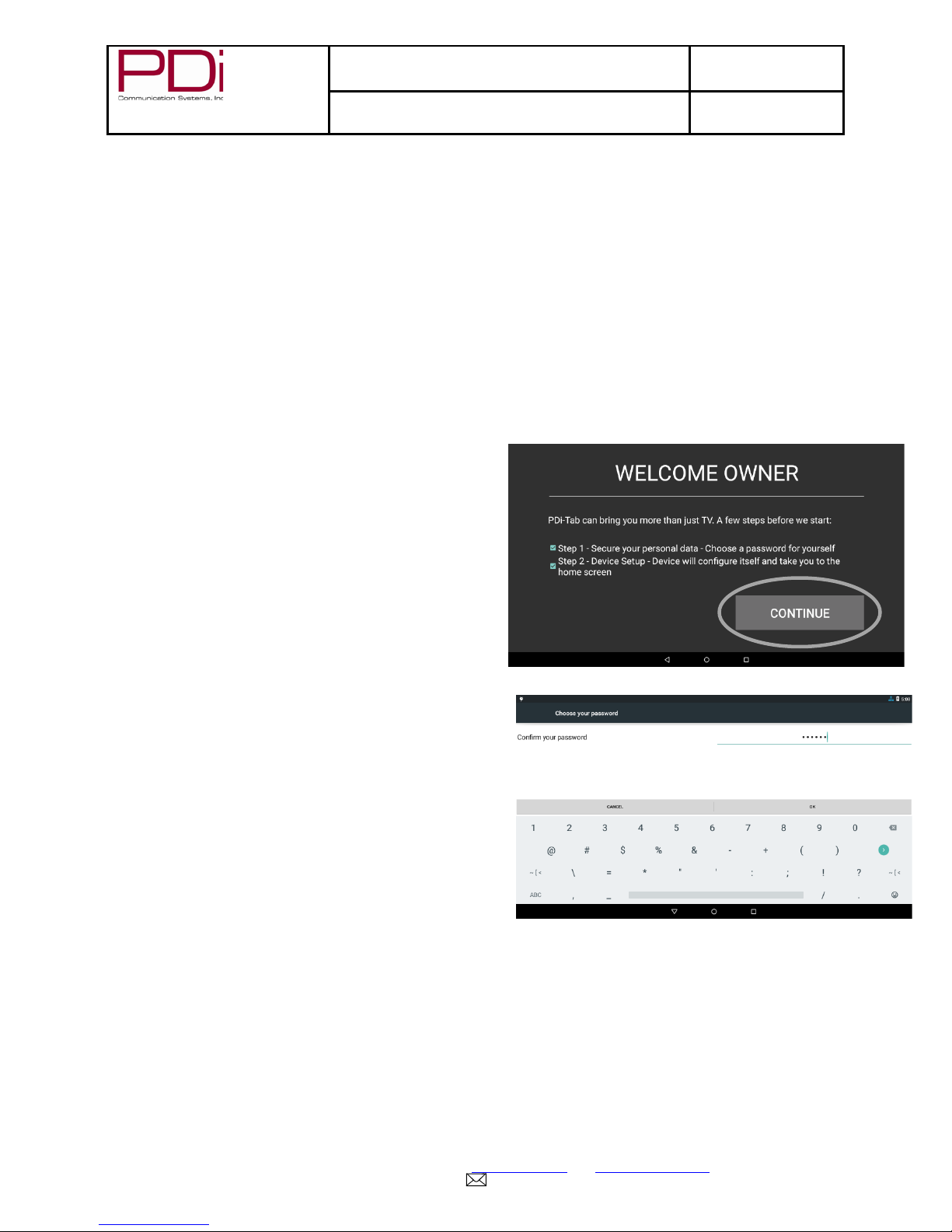
CREATING THE OWNER PROFILE
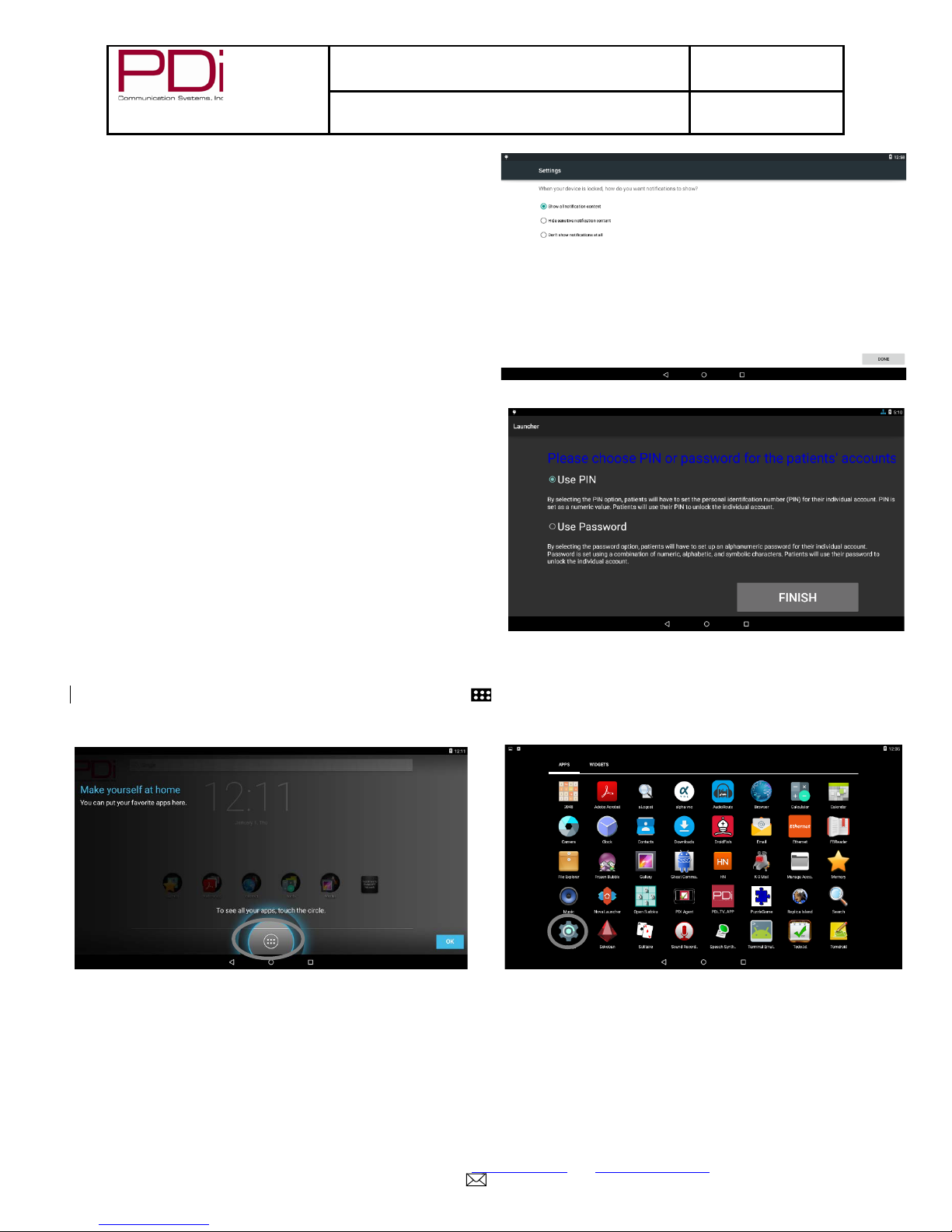
When the device is powered on, the first thing required is to
create a profile for the owner of the device. This profile is
required to configure all of the settings on the device such
as network, app permissions and updating the device.
1. Select Continue on the first screen to move to the
screen where you choose the owner profile
password. This should be a strong enough
password that patients cannot guess it. The person
who will be responsible for managing the network
on the device and updating it should know the
password.
PDi Communication Systems, Inc. 40 Greenwood Lane Springboro, Ohio 45066 USA www.pdiarm.com and www.mymedTV.com PH 1-800-628-9870 FX 937-743-5664
Page 5
Wellness Infotainment™
MODEL:
Document Number:
Page 5 of 13
Your Source for Healthcare and
medTAB™
LCD HDTV with Android Quick Start Guide
PD196-383R1
2. On the next screen you can specify whether you
want to patients to be required to use a pin or
password for login.
a. The pin is a number that is 4 to 16 digits
b. The password is alphanumeric with a
minimum of 6 characters.
SETTINGS – WIRELESS AND NETWORKS
After confirming your security code, you can enter the Settings screen where you can adjust network, sound, and
account settings, among many others.
1. From the home screen, touch the All Apps icon at the bottom of the screen.
2. In the all apps screen, select Settings.
PDi Communication Systems, Inc. 40 Greenwood Lane Springboro, Ohio 45066 USA www.pdiarm.com and www.mymedTV.com PH 1-800-628-9870 FX 937-743-5664
Page 6
Wellness Infotainment™
MODEL:
Document Number:
Page 6 of 13
Your Source for Healthcare and
LCD HDTV with Android Quick Start Guide
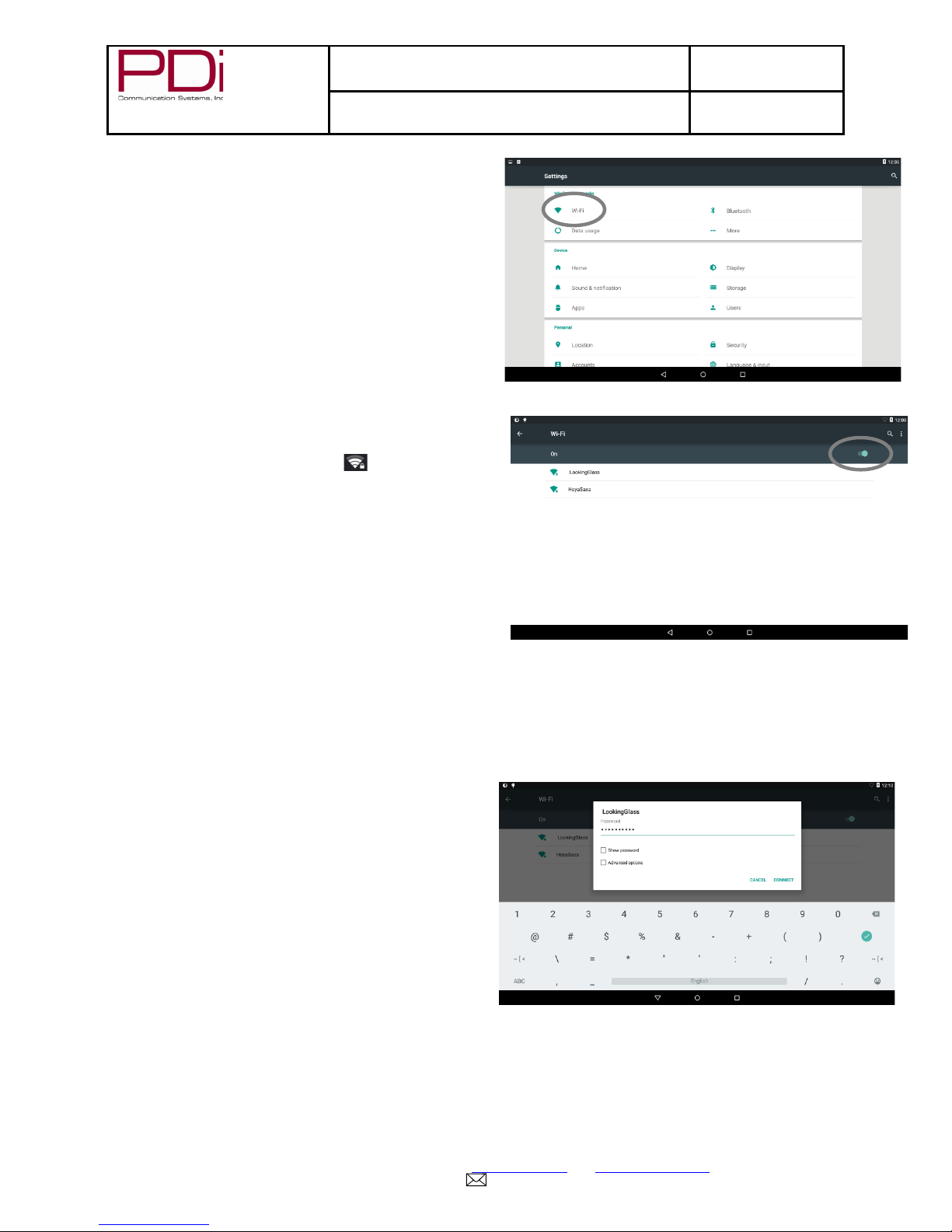
Connect To Wi-Fi Networks
1. Select the Wi-Fi option.
2. Slide the Wi-Fi toggle to the on position (to the
right).
medTAB™
PD196-383R1
3. If the tablet finds a network that you connected to
previously, it connects to it.
4. Touch a network name to see more details or
connect to it, and type a security code if
necessary.
PDi Communication Systems, Inc. 40 Greenwood Lane Springboro, Ohio 45066 USA www.pdiarm.com and www.mymedTV.com PH 1-800-628-9870 FX 937-743-5664
Page 7
Wellness Infotainment™
MODEL:
Document Number:
Page 7 of 13
Your Source for Healthcare and
medTAB™
LCD HDTV with Android Quick Start Guide
PD196-383R1
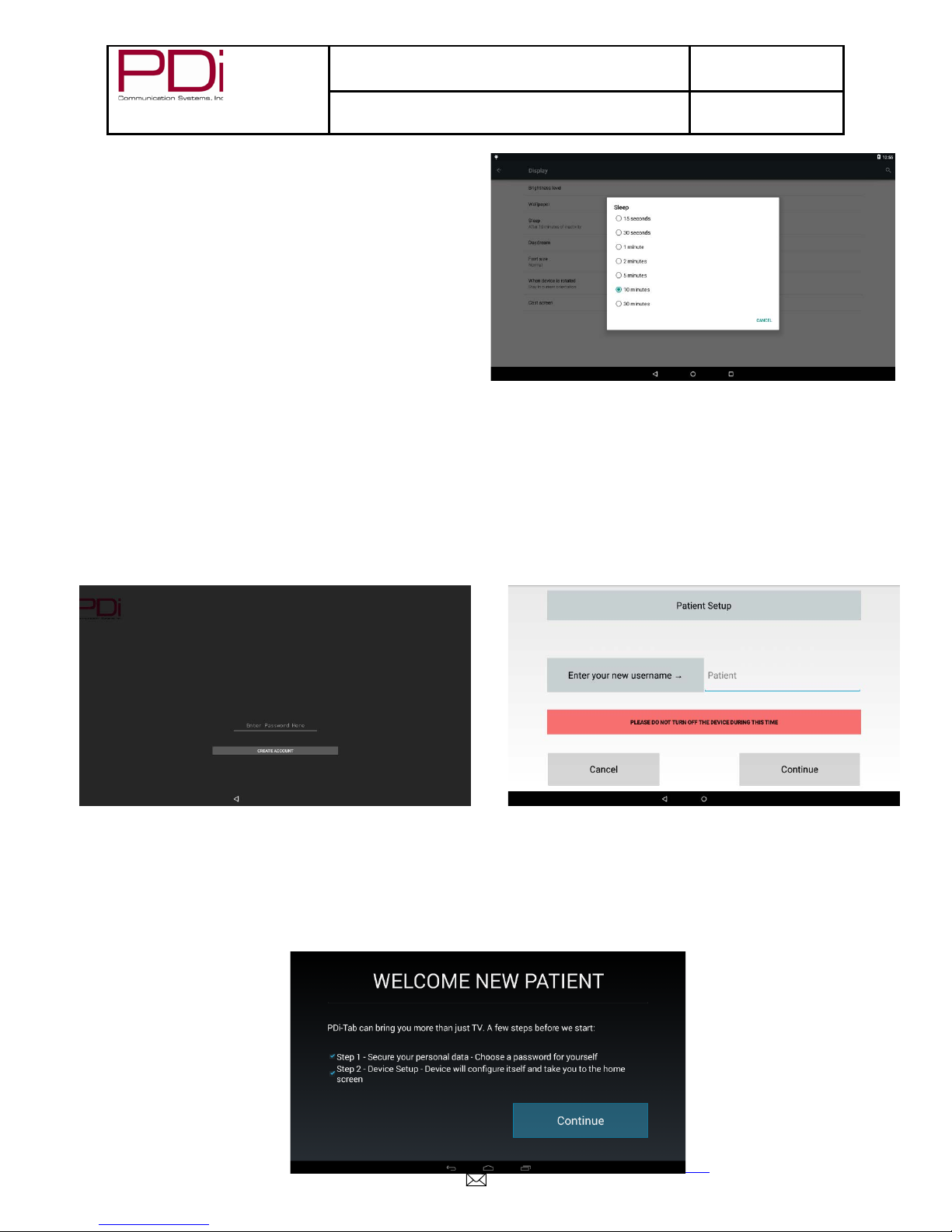
5. Change Display Sleep to 30 minutes.
6. Change Date & Time to your correct time zone.
Signing On As a New User (Patient Account Creation)
(*Administrative information like Wi-Fi and clone file configuration is retained)
In the init ial setup, the patient needs to touch the Create Account button.
Enter the new user name (you may use the default name Patient) and touch Done. Touch Continue (new user)
and wait for the WELCOME Screen.
After touching Continue on the WELCOME screen you need to enter either a pin or a password as required by the
owner of the device. The pin is a num ber that is at le ast 4 digits long. T he password is r equired to ha ve at least
one letter and one number and must be at least 6 characters long.
Confirm your code and touch Next when done.
PDi Communication Systems, Inc. 40 Greenwood Lane Springboro, Ohio 45066 USA www.pdiarm.com and www.mymedTV.com PH 1-800-628-9870 FX 937-743-5664
Page 8
Wellness Infotainment™
MODEL:
Document Number:
Page 8 of 13
Your Source for Healthcare and
medTAB™
LCD HDTV with Android Quick Start Guide
PD196-383R1
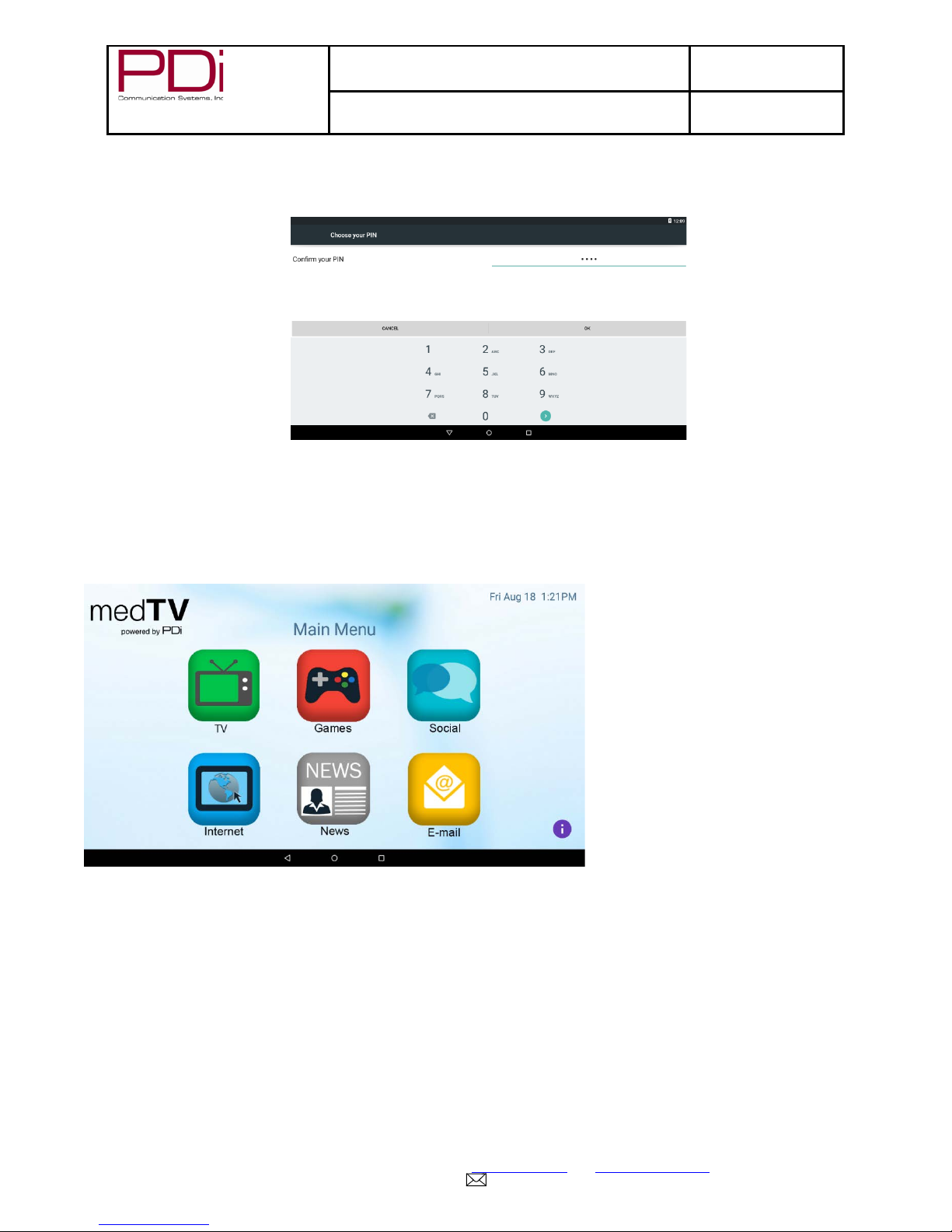
Home Screen
After confirming your password or pin the device will take you to the user home screen.
For more information about navigation please refer to the User Manual section “New User.”
Micro USB Cable
medTAB® devices have a micro USB cable that is mounted inside the nose cover extending from the neck of the
unit. This cable allows service personnel to provide offline updates to the Android firmware. In addition, this
cable and the USB port it is attached to, support the USB On-The-Go (OTG) standard, which allows the
connection of external devices such as flash drives and keyboards. The devices that attach to this cable along
with any other external cabling must also support the USB OTG standard along with being supported by the
Android firmware. For instance, if a flash drive is attached, (ex: Sandisk BN140600028 supporting FAT32, NTFS,
or EXT file systems) any pictures on the device will appear in the Gallery.
PDi Communication Systems, Inc. 40 Greenwood Lane Springboro, Ohio 45066 USA www.pdiarm.com and www.mymedTV.com PH 1-800-628-9870 FX 937-743-5664
Page 9
Wellness Infotainment™
MODEL:
Document Number:
Page 9 of 13
Your Source for Healthcare and
medTAB™
LCD HDTV with Android Quick Start Guide
PD196-383R1
Note: Microsoft’s exFAT file systems found on flash drives greater than 32 GB by default and Mac OS file
systems are not supported by the
medTAB® devices.
TELEVISION PROGRAMMING
Note: A programming remote control is not required to perform all setup operations for the television. The
programming remote ( Part Number PD108-420) is NOT packaged with the TV a nd must be ordered separatel y.
The following instructions assume you have a programming remote, have correctly mounted the TV, and
connected a coax cable that provides both power and RF signal.
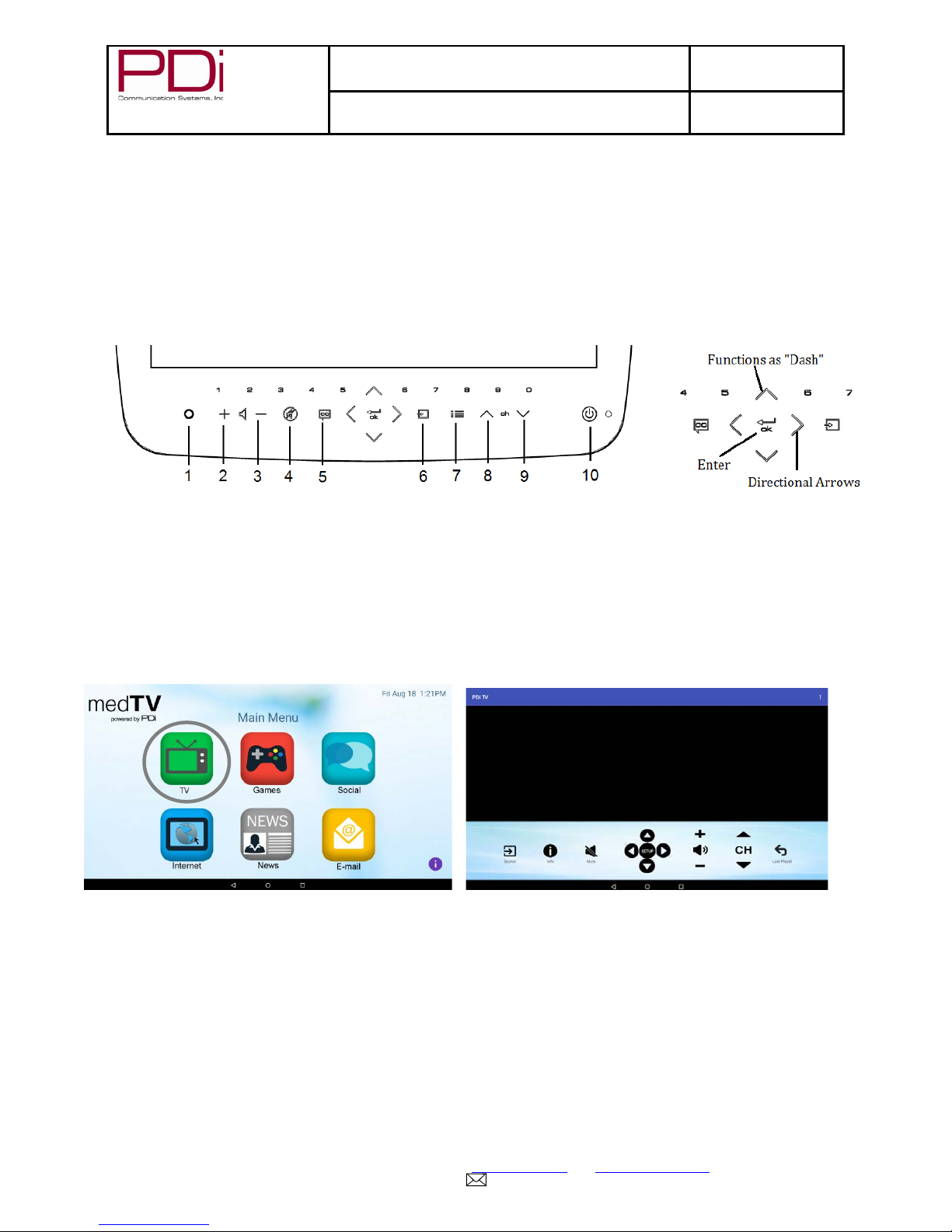
TELEVISION KEYPAD
1. Headphone Plug 6. Source
2. Volume up 7. Guide
3. Volume down 8. Channel Up
4. Mute 9. Channel Down
5. Closed Captioned 10. Power Button
PDi TV Application
To make any changes to the configuration to the television, you must first open the TV app found on the home
screen of the Android Launcher.
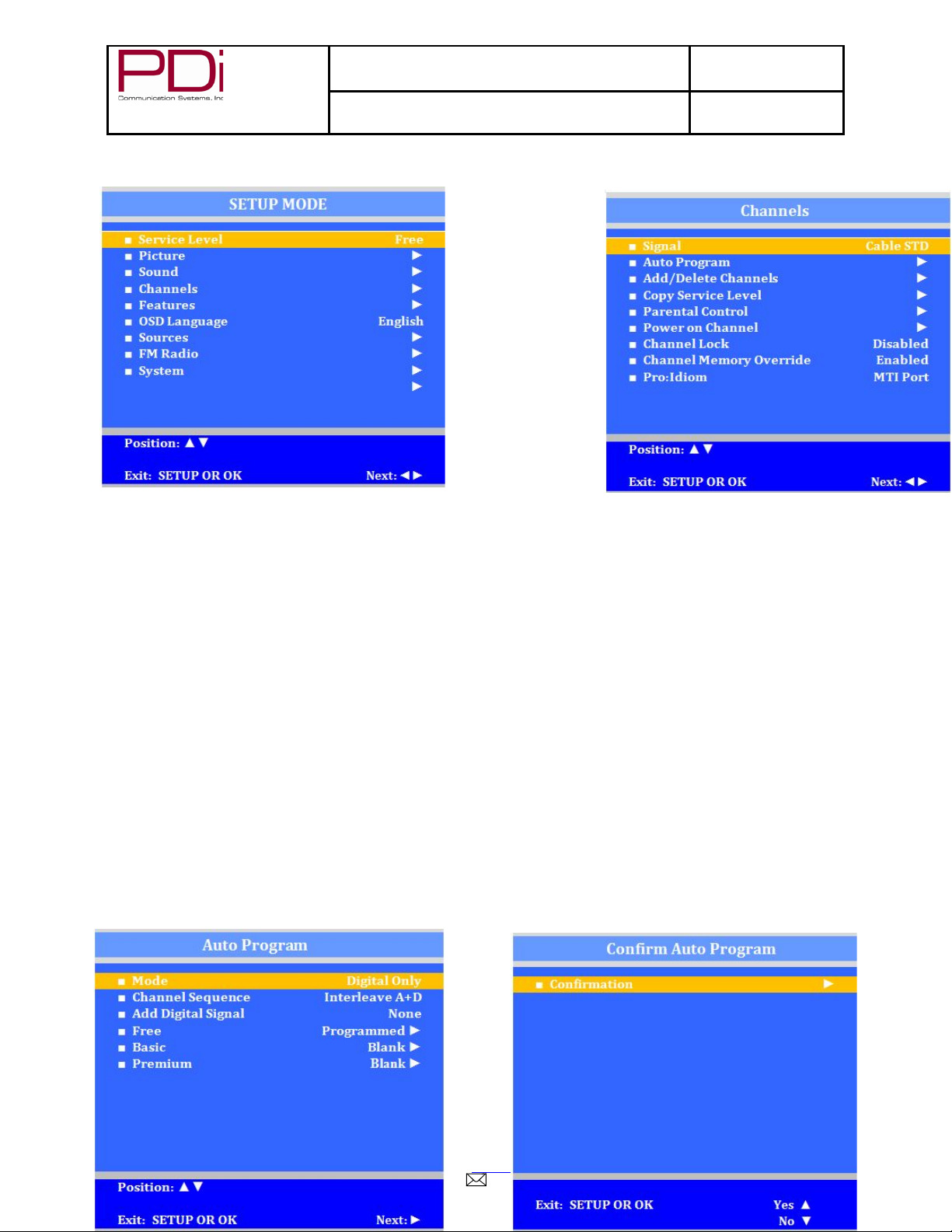
Channel Setup
This TV offers a Dis able and three dif ferent programm able service levels : Free, Basic , and Premium . Only one
Service Level is usable at a time.
Four different tuning types are available depend ing upon the healthcare fac ilities’ signal style. Selec tion of the
correct signal type is requ ired for the T V to recogni ze all possib le channels and before an y channel progr amm ing
can begin.
1. Press the SETUP button to display the SETUP MODE menu.
2. Press the VOL► to select desired service level. (Free, Basic, Premium)
3. Press the CH▲ /CH▼ to highlight CHANNEL menu
4. Press the VOL► to select Air, Cable STD, Cable IRC or Cable HRC.
PDi Communication Systems, Inc. 40 Greenwood Lane Springboro, Ohio 45066 USA www.pdiarm.com and www.mymedTV.com PH 1-800-628-9870 FX 937-743-5664
Page 10
Wellness Infotainment™
MODEL:
Document Number:
Page 10 of 13
Your Source for Healthcare and
medTAB™
LCD HDTV with Android Quick Start Guide
PD196-383R1
NOTE: Most hospitals use the Cable STD signal style.
Auto Program
The TV automaticall y scans eac h availab le cha nnel f or activit y. Channe ls that d is play acti vity are m emor ized into
the selected Service Level.
1. From the Channels menu, select Auto Program
2. In the Auto Program menu, press the VOL► button to select Mode.
3. Press VOL► to set the scope of channel scanning.
Analog Only: TV searches for analog channels only.
Digital Only: TV searches for digital channels only.
Analog and Digital: TV searches for both analog and digital channels.
4. Press the CH▼ button to select the Channel Sequence menu item.
5. Press ◄VOL► to set the Channel Sequence in which the channels are displayed after searching.
Interleave A+D: In the order of channel number regardless of the system.
All A then D: Digital channels are displayed after all analog channels.
6. Press the CH▲ CH ▼ button to select the Service Level you wish to program. The menu displays the
current programm ing status of each level as either Programmed or Blank . Press the VOL► to choose
the service level.
Note: A Programmed service level can also be reprogrammed if desired.
7. A confirmation menu will appear before proceeding. Press Yes▲ to select YES and start auto
programming. The TV will now search all available channels with an on-screen progress percentage
displayed. Once complete, press the SETUP button to return to normal TV viewing.
Note: Any tuning mode that includes D igital channels will require se veral minutes to complete the au to
programming.
PDi Communication Systems, Inc. 40 Greenwood Lane Springboro, Ohio 45066 USA www.pdiarm.com and www.mymedTV.com PH 1-800-628-9870 FX 937-743-5664
Page 11
Wellness Infotainment™
MODEL:
Document Number:
Page 11 of 13
Your Source for Healthcare and
medTAB™
LCD HDTV with Android Quick Start Guide
PD196-383R1
SOUND PROGRAMMING
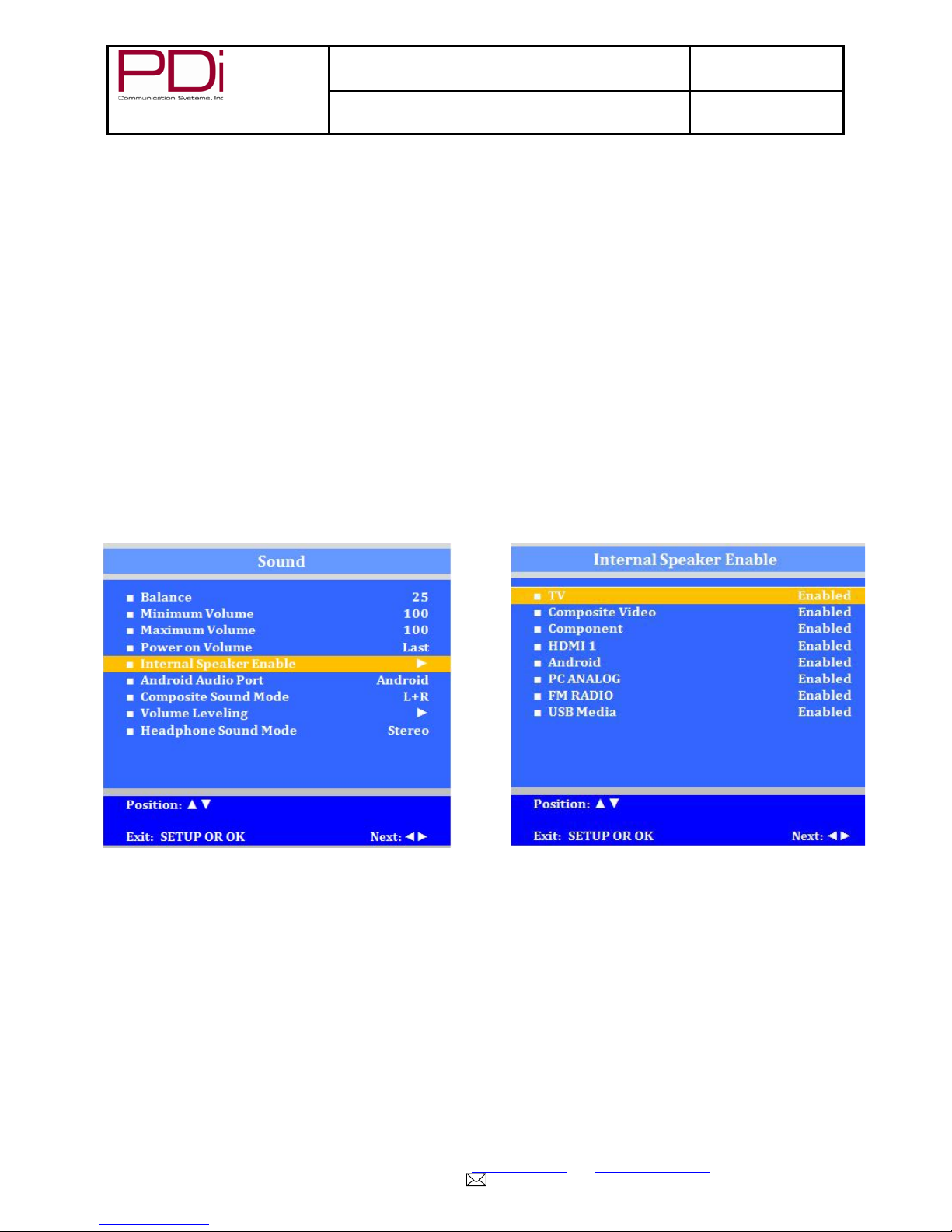
The TV’s internal speakers can be disabled requiring the use of a headphone for private listening. This option is
commonly used in dialysis clinics and multiple occupancy rooms.
Internal Speaker Enable
The speakers inside the TV’s cabinet can be Enabled (turned ON) or Disabled (turned OFF).
1. In the Sound menu, press CH▲/CH▼ button to select the Internal Speaker Enable menu item.
2. Press VOL◄/ VOL ►to activate the menu item.
3. Press the CH▲ /CH▼ button to select the desired Service Level(s) or Sources.
4. Press VOL◄/ VOL► to alternately select Disabled or Enabled to turn OFF or ON the TV’s internal
speakers.
5. Press the SETUP button to return to the preceding menu.
CLONING
Cloning allows quick programming of a TV from a USB memory stick (Thumb Drive). Clo ne operation involves
first downloading setu p inform ation from a programm ed host TV to a T humb Drive and the n uploading the setup
information to another TV. Cloning can also be used to re-program a programmed TV.
Note: Cloning for the TV portion will be from the USB port in the back of the TV.
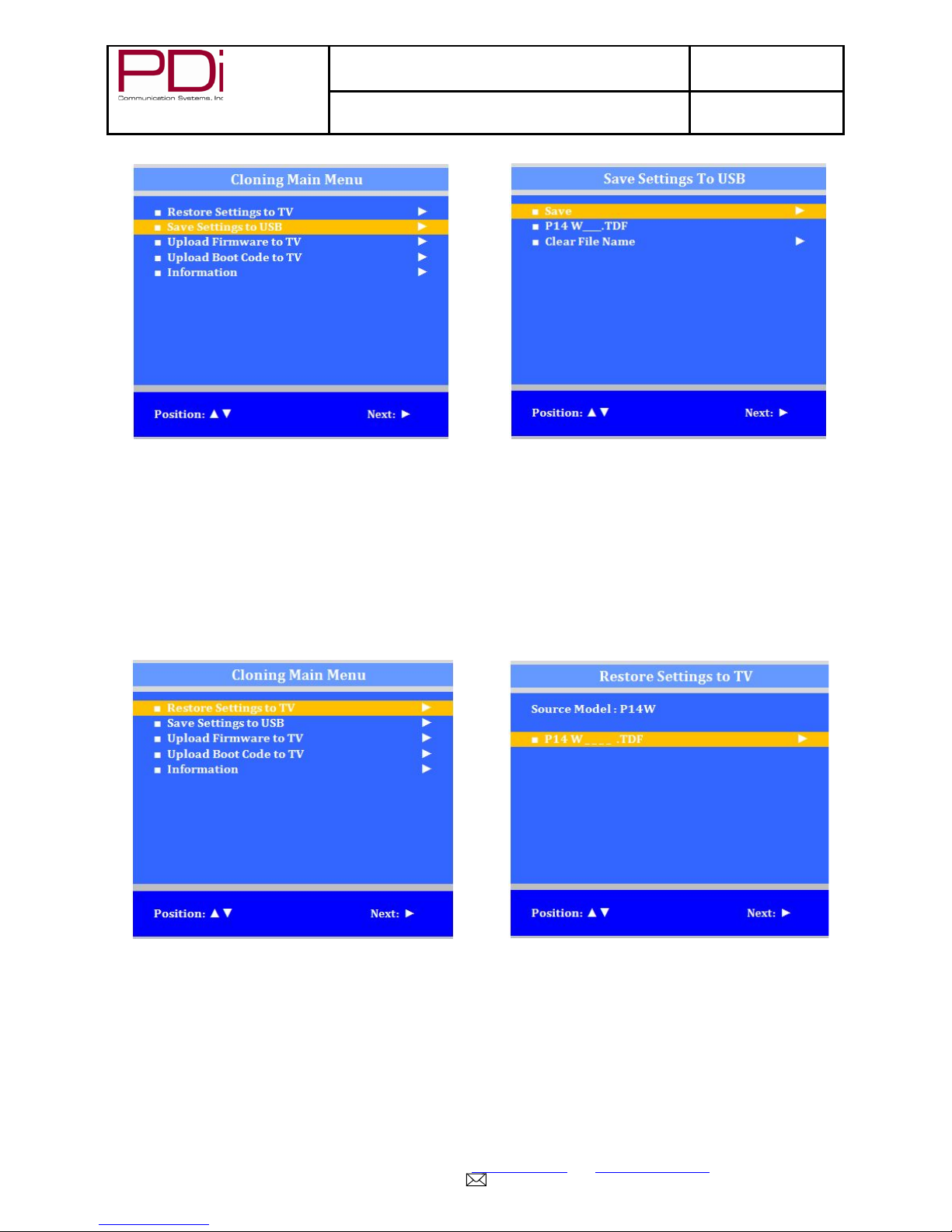
Save Settings to USB
1. Turn on the TV
2. Insert a blank USB thumb drive into the cloning port. A Cloning Main Menu will appear on the TV screen.
3. Press CH▲ or CH ▼ to highlight Save Setti ngs to USB.
4. Press VOL► to display the Save Settings to USB menu.
PDi Communication Systems, Inc. 40 Greenwood Lane Springboro, Ohio 45066 USA www.pdiarm.com and www.mymedTV.com PH 1-800-628-9870 FX 937-743-5664
Page 12
Wellness Infotainment™
MODEL:
Document Number:
Page 12 of 13
Your Source for Healthcare and
medTAB™
LCD HDTV with Android Quick Start Guide
PD196-383R1
Restore Settings to TV
1. Press CH▲ or CH▼ to highlight Restore Settings to TV.
2. Press VOL► to display a list of previously stored TV setups on the USB thumb drive.
3. Press CH▲ or CH▼ to highlight desired setup file.
4. Press VOL► to select it.
5. A confirmation screen will appear Press CH▲ to restore the selected setup file or press VOL◄ to return
to the previous menu without restoring. A progress screen will appear as the settings are restored.
6. The TV will return to the Cloning Main Menu after restoring is complete
7. Remove the USB thumb drive.
Additional Information
Additional information is available in the user manual. You can access this information online at
https://www.pdiarm.com/resources/document-library.
Limited Warranty
PDi Communication Systems Inc., (“PDi”) warrants, to the original purchaser only, that the product will be free from defects in
materials and workmanship, under normal use, for 2 years from the date of original purchase. This warranty does not cover
any other equipment that may have been included with PDi’s shipment of this product.
After receipt of written notice of a defect or malfunction occurring during the warranty period, PDi will repair or replace goods
returned to its Springboro, Ohio location, at its discretion, the whole or any component part of any product manufactured by
PDi Communication Systems, Inc. 40 Greenwood Lane Springboro, Ohio 45066 USA www.pdiarm.com and www.mymedTV.com PH 1-800-628-9870 FX 937-743-5664
Page 13
Wellness Infotainment™
MODEL:
Document Number:
Page 13 of 13
Your Source for Healthcare and
medTAB™
LCD HDTV with Android Quick Start Guide
PD196-383R1
PDi and found by PDi to be defective. If the decision is made to replace the product, PDi will exchange the model for the same
model or a model similar in form and function.
As a condition to obtaining warranty service, written notification of the defective product must be received by PDi within ten
(10) days of noticing the defect. Repair of said product requires it to be shipped to the PDi factory in Springboro, Ohio. All
shipments shall be F.O.B. Springboro, Ohio, and all shipping and freight charges to PDi’s factory shall be paid by the
customer.
For information regarding authorized servicing and all other information pertaining to this warranty, please contact PDi
COMMUNICATION SYSTEMS at 40 Greenwood Lane, Springboro, Ohio 45066 or phone 800-628-9870 and ask for Service.
This warranty gives specific legal rights and you may also have other rights which vary from state to state.
Exclusions from Warranty
• Products damaged by any catastrophe, accident, or from neglect, misuse, fault, improper assembly, improper
maintenance, inadequate return packaging, or negligence by the customer or any third party. They will be treated as
out of warranty for external cause to the Products, such as, but not limited to, failure of or faulty electric power, air
conditioning, operator error, failure or malfunction of any data communications system. Such conditions will be
determined by PDi at its sole unfettered discretion.
• Service and repair of accessories, apparatus, attachments or any other devices which are not PDi products or
options.
• Defacing of product, revision control and PDi labeling (label alterations, serial number missing, serial number no
longer discernible and serial number invalid). All serial numbers are recorded and tracked for warranty purposes.
• Unauthorized changes, modifications or alterations in or to the Products not installed by PDi .
• Damage to or loss of any programs, data, or removable storage media.
• Damage incurred during installation, relocation or removal of the Products or any accessories, apparatus,
attachments or other devices.
• Normal wear.
• The furnishin g of acce ssor ies or suppli es.
• Damage by shipping carrier.
• Incompatibility issues.
• Damages of any kind including, but not limited to, direct or indirect damages, lost profits, lost saving, or other special
incidental, exemplary or consequential damages whether for breach of contract, tort or otherwise, or whether arising
out of the use of or inability to use the product, even if PDi or any distributor, dealer, or authorized service provider
has been advised of the possibility of such damages, or any claim by any other party
• Damage caused by any software or application not installed at the factory.
PDi’s liability under this warranty is limited to repair or replacement of defective products and parts as provided above. PDi
shall not be liable for incidental or consequential damages.*
The warranty contained herein is in lieu of all other expressed or implied warranties, including any implied warranty of
merchantability or fitness for any particular purpose. PDi neither assumes nor authorizes any person to assume, on its behalf,
any other obligation or liability.
*Some states do not allow the exclusion or limitation of incidental or consequential damages or a disclaimer of warranties
implied by law, so the above limitation or exclusion may not apply.
The information and technical data in this manual is believed accurate, but is not warranted and is subject to change without
notice or obligation. PDi reserves the right to change this policy without advance notice.
PDi Communication Systems, Inc. 40 Greenwood Lane Springboro, Ohio 45066 USA www.pdiarm.com and www.mymedTV.com PH 1-800-628-9870 FX 937-743-5664
 Loading...