

Page 1
Page 2

ADMITTO Reader Manual
2 G3800-703.00
Revision 04/2014
Order number: G3800-703.00
PCS Systemtechnik GmbH
Pfaelzer-Wald-Str. 36,
D-81539 Munich, Germany, Phone +49- 89-68004-0
Home page: http://www.pcs.com
PCS Service Centre
Phone: +49- 89- 68004-666
Fax: +49- 89- 68004-562
Email: [email protected]
PCS, INTUS, INTUS LBus and „PCS. The terminal people“ are trademarks or registered
trademarks of PCS Systemtechnik GmbH. All other product and service names are
trademarks of the respective company and organisation.
Copying of this document in whole or in parts is forbidden without the express authority of
PCS Systemtechnik GmbH. The information in this manual is subject to changes so that we
can maintain the state of the art at all times.
Copyright 2014 by PCS Systemtechnik GmbH
Page 3

ADMITTO Reader Manual
© PCS Systemtechnik GmbH 3
Safety notes / Installation notes
• All voltages introduced into the device must conform to SELV
requirements and come from a limited power source (EN 60950-1,
Section 2.5).
• Only trained technical personnel are authorized to install the ADMITTO
reader. Inappropriate repair may damage the device.
• Do not install an ADMITTO reader at a distance of less than 10cm from
neighbouring readers. Not till then a secure operation is ensured.
• The ADMITTO reader is a solid device equipped with metal base plate.
Therefore mounting directly on or in metal is allowed
Introduction
The ADMITTO reader is designated connecting to a PC or device with
windows operating system.
The ADMITTO reader can be equipped with one of the following reading
technologies:
• Legic advant
• Mifare DESFire EV1
• Hitag (125 kHz)
The following ADMITTO reader are available:
• ADMITTO desktop reader with USB interface
• ADMITTO mounting reader with USB interface
• ADMITTO desktop reader with RS232 interface
• ADMITTO mounting reader with RS232 interface
The ADMITTO reader is supplied in the ordered mode:
• USB-CDC, the ADMITTO reader is assigned to a virtual COM Port.
You can import the readings into a program or edit with INTUS
Serial2Key.
• USB-HID, readings are captured instead of a keyboard entry.
Page 4
ADMITTO Reader Manual
4 G3800-703.00
System requirements
• PC with USB Port 5V DC ±5%, max. 400mA or
• Device with RS2323 interface
• Operating system: WINDOWS XP; WINDOWS 7; WINDOWS 8
Page 5

ADMITTO Reader Manual
© PCS Systemtechnik GmbH 5
Table of contents
1
ADMITTO reader design ................................................................................ 6
1.1 Dimensions (in mm) .................................................................................... 6
1.2 System requirements ................................................................................... 6
2 Installing the AMITTO reader ......................................................................... 7
2.1 CDC mode: Installing the driver ................................................................. 7
2.2 HID mode: Installing the driver ................................................................ 10
3 Cabling .......................................................................................................... 11
3.1 Power supply ............................................................................................. 11
3.2 Pin allocation RS232 female connector .................................................... 12
4 Mounting the ADMITTO Mounting reader ................................................... 13
4.1 True of scale drawing for thread bolt / cable cut out ................................. 13
4.2 Procedure .................................................................................................. 15
5 INTUS Serial2Key ........................................................................................ 16
5.1 Operating INTUS Serial2Key ................................................................... 16
5.2 Initial screen .............................................................................................. 17
5.3 Settings ...................................................................................................... 17
5.4 Test ............................................................................................................ 19
5.5 Check the configured string ...................................................................... 19
5.6 Problem solution ....................................................................................... 19
6 Readers specifications ................................................................................... 21
7 Care and cleaning instructions ....................................................................... 22
8 Technical data ................................................................................................ 23
Page 6
ADMITTO Reader Manual
6 G3800-703.00
1 ADMITTO reader design
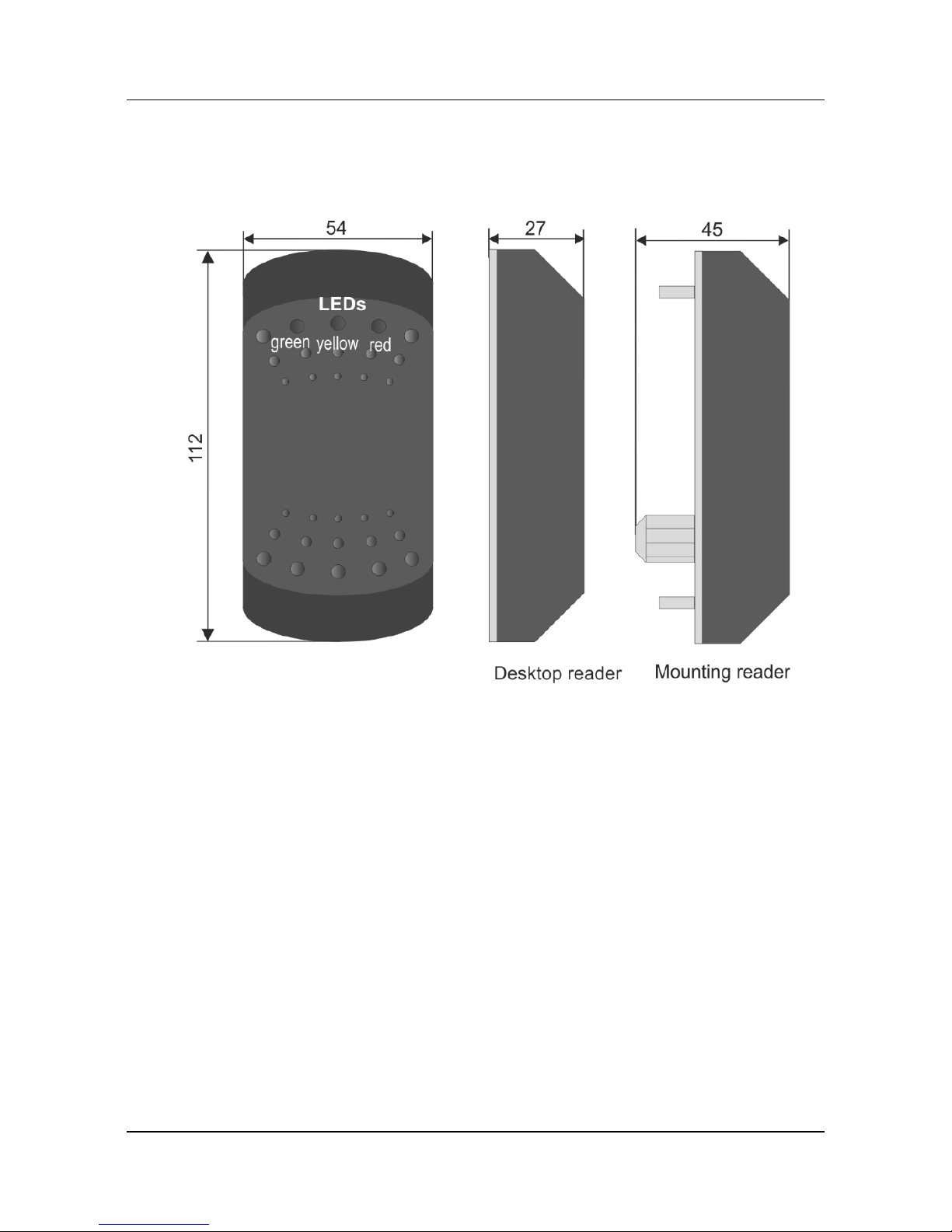
1.1 Dimensions (in mm)
1.2 System requirements
• PC with USB Port 5V DC ±5%, max. 400mA or
• Device with RS2323 interface
• Operating system: WINDOWS XP; WINDOWS 7; WINDOWS 8
Page 7

ADMITTO Reader Manual
© PCS Systemtechnik GmbH 7
2 Installing the AMITTO reader
Installing an ADMITTO reader you should know its mode. The mode is set
ex-factory according to your order.
• CDC mode, the ADMITTO reader is assigned to a virtual COM
interface. You can import the readings into a program or edit with
INTUS Serial2Key.
• HID mode, readings are captured instead of a keyboard entry.
2.1 CDC mode: Installing the driver
Operating systems WINDOWS 7 & 8 – installing the driver
Perform the terminal dialog as follows:
1. To open the ”Device Manager” - Control panel>Device Manager
Page 8

ADMITTO Reader Manual
8 G3800-703.00
Page 9
ADMITTO Reader Manual
© PCS Systemtechnik GmbH 9
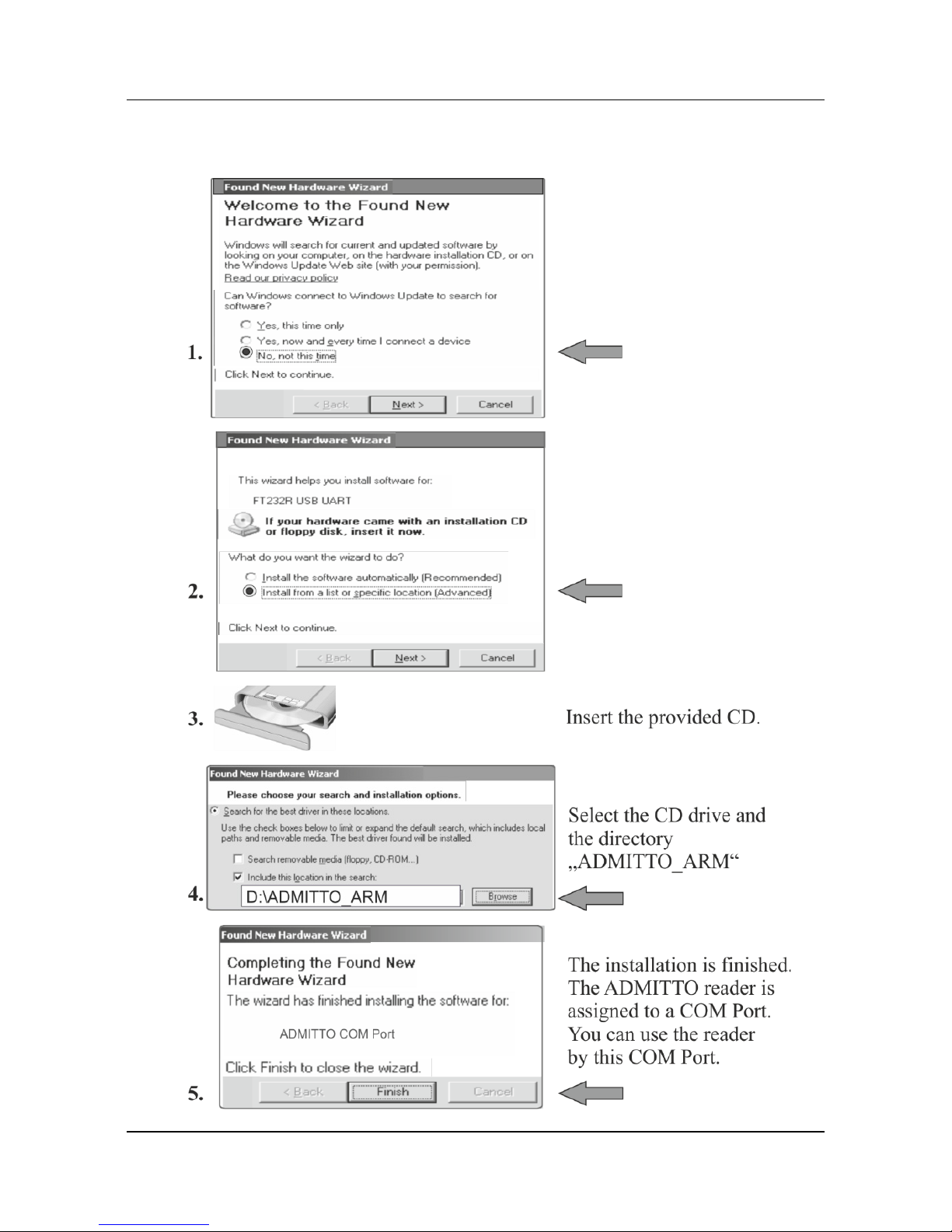
Operating systems Windows XP – installing the driver
Perform the terminal dialog as follows:
Page 10

ADMITTO Reader Manual
10 G3800-703.00
2.2 HID mode: Installing the driver
The software driver for the ADMITTO reader is automatically installed.
As soon as the installation is finished you can operate the ADMITTO reader
with HID mode.
Page 11

ADMITTO Reader Manual
© PCS Systemtechnik GmbH 11
3 Cabling
USB connecting cable
Type
Cable length
USB
Desktop reader 2m Typ A
Mounting reader
15cm Typ A
RS232 connecting cable
Type
Cable length
Female connector
Desktop reader 2m
9 pol. Sub D
Mounting reader 15cm / 2m (option)
3.1 Power supply
ADMITTO reader - USB connection cable
The ADMITTO reader is energized via USB (5VDC ±5%).
ADMITTO Desktop reader - RS232 connection cable
Connecting the reader to the mains an optional power supply unit
(5VDC -10/+20%) is used.
The power supply unit (order number S3851-701) is connected to the
RS232 connection cable.
Page 12
ADMITTO Reader Manual
12 G3800-703.00
ADMITTO Mounting reader - RS232 connection cable
As standard the mounting reader is energized via RS232 interface (5VDC 10/+20%).
As an option you can use a RS232 connection cable (2m) with external
power supply unit (order number S3851-701 + S3851-702).
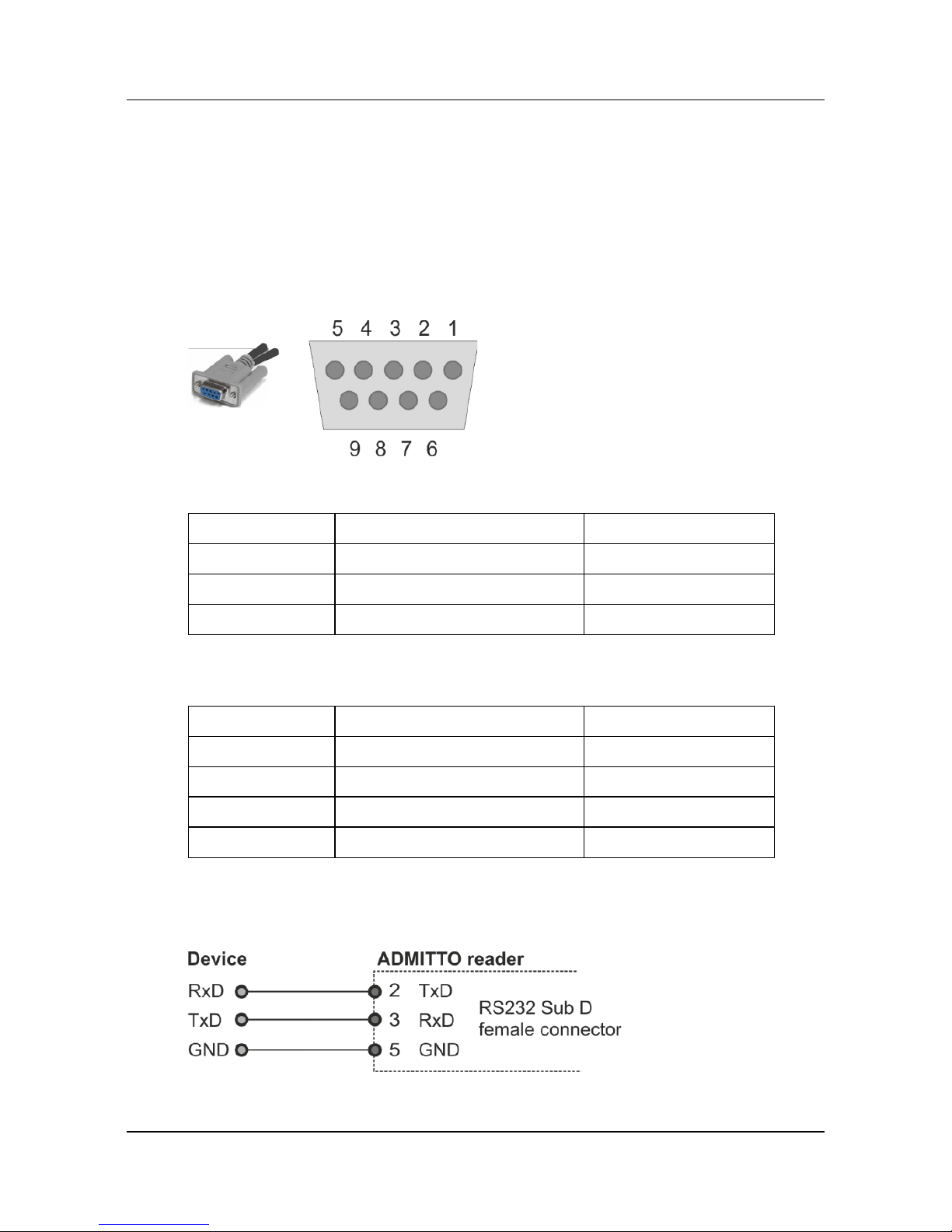
3.2 Pin allocation RS232 female connector
Desktop reader + Mounting reader (external power supply unit)
Pin
Signal
Direction
2
TxD
OUT
3
RxD
IN
5
GND
IN
Mounting reader standard type (cable length 15cm)
Pin
Signal
Direction
2
TxD
OUT 3 RxD
IN 5 GND
IN
4
+Ub (5VDC -10/+20%)
IN
Device connection
Page 13

ADMITTO Reader Manual
© PCS Systemtechnik GmbH 13
4 Mounting the ADMITTO Mounting reader
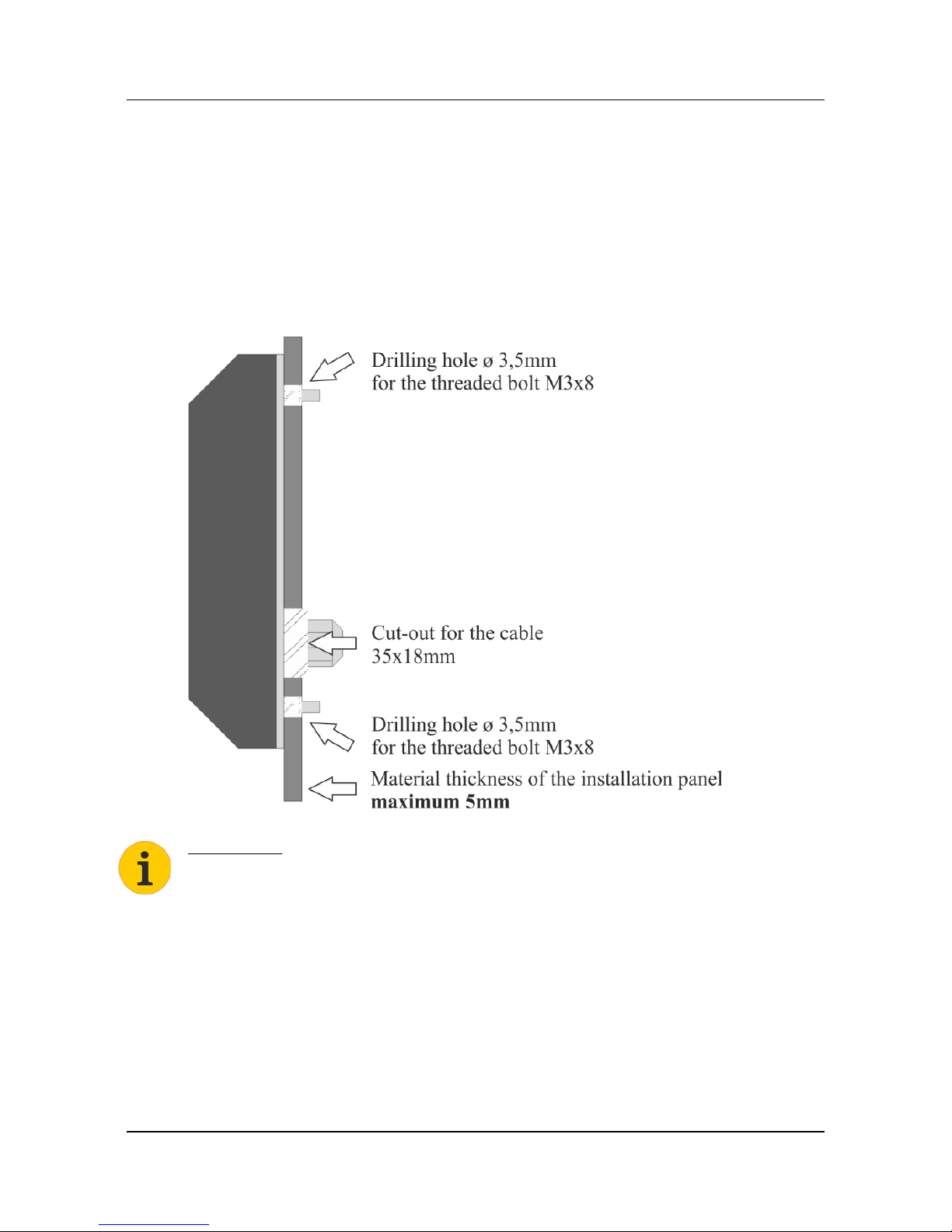
4.1 True of scale drawing for thread bolt / cable cut out
Page 14

ADMITTO Reader Manual
14 G3800-703.00
Notes
Page 15
ADMITTO Reader Manual
© PCS Systemtechnik GmbH 15
4.2 Procedure
1. Cut the cable cut-out and the drilling holes in the installation panel,
according to the drawing on page
2. Insert the ADMITTO reader and screw it with M3 screw-nuts and
washers.
Please note:
Before mounting the ADMITTO reader you have to install the driver to
identify the reader by COM Port, please see chapter 2.1.
Page 16

ADMITTO Reader Manual
16 G3800-703.00
5 INTUS Serial2Key
Please note: INTUS Serial2Key is valid only for ADMITTO reader with
CDC Mode (COM Port).
INTUS Serial2Key accepts card data from the reader and forwards them as
a keyboard input. You can edit the card data before transmission.
5.1 Operating INTUS Serial2Key
Please note:
Before operating INTUS Serial2Key you have to install the driver for the
ADMITTO reader, Serial2Key is working with its COM Port data.
1.
2.
Find out the COM Port of the ADMITTO reader:
To open the ”Device Manager” - Control panel>Device Manager
3.
A user locks in, INTUS Serial2Key is started (auto boot).
INTUS Serial2Key can be found on the lower task bar to the right of the
screen and push button “All Programs>INTUS Serial2Key”.
4.
Page 17
ADMITTO Reader Manual
© PCS Systemtechnik GmbH 17
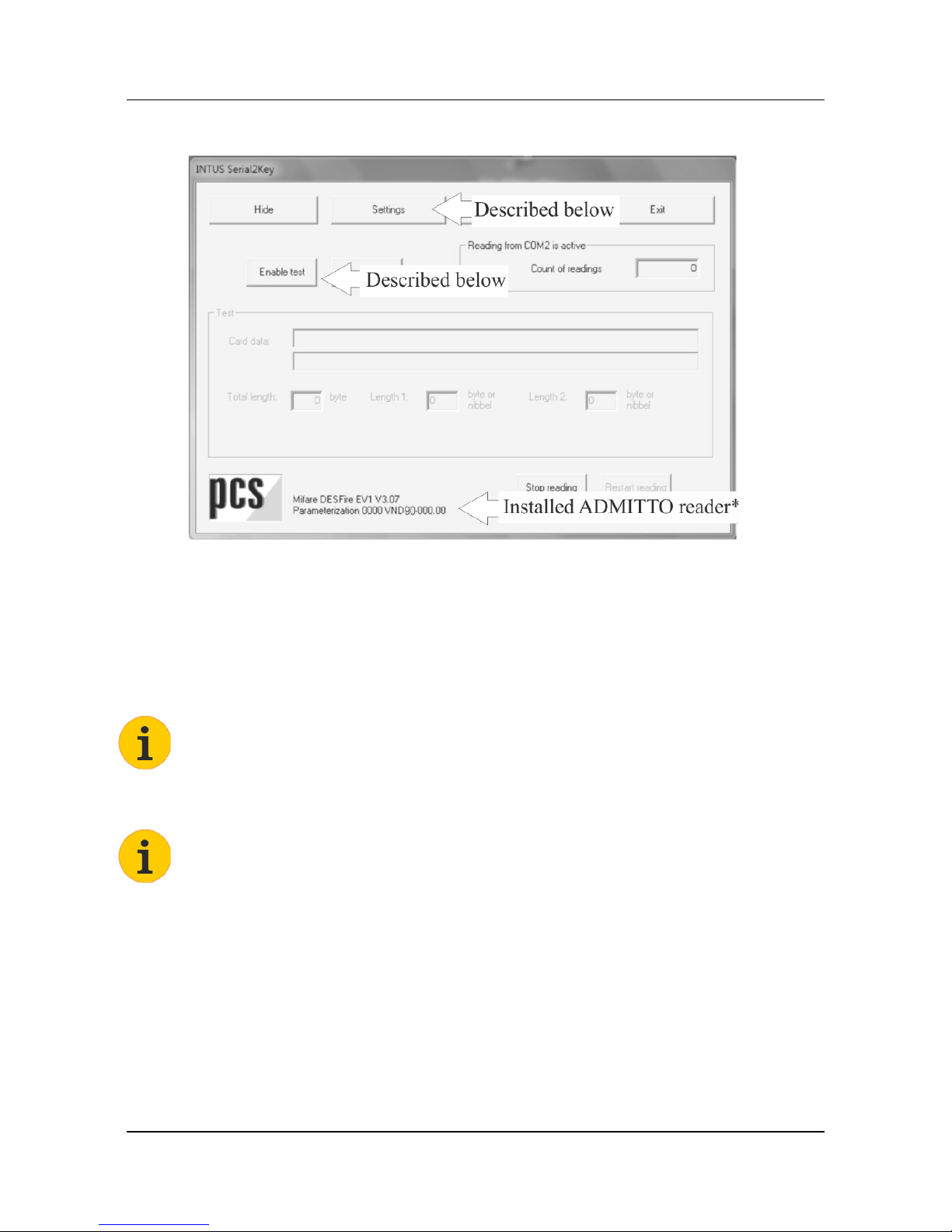
5.2 Initial screen
*
A reader with L2Bus Firmware (VNH90-.. or VNA90-.. or VND90-..)
is displayed only. If a reader with alcon Firmware (VN..91-..) is connected,
it is a blank panel.
5.3 Settings
To change the „settings“, you have run INTUS Serial2Key as an
administrator, press right mouse button and select “Run as administrator”.
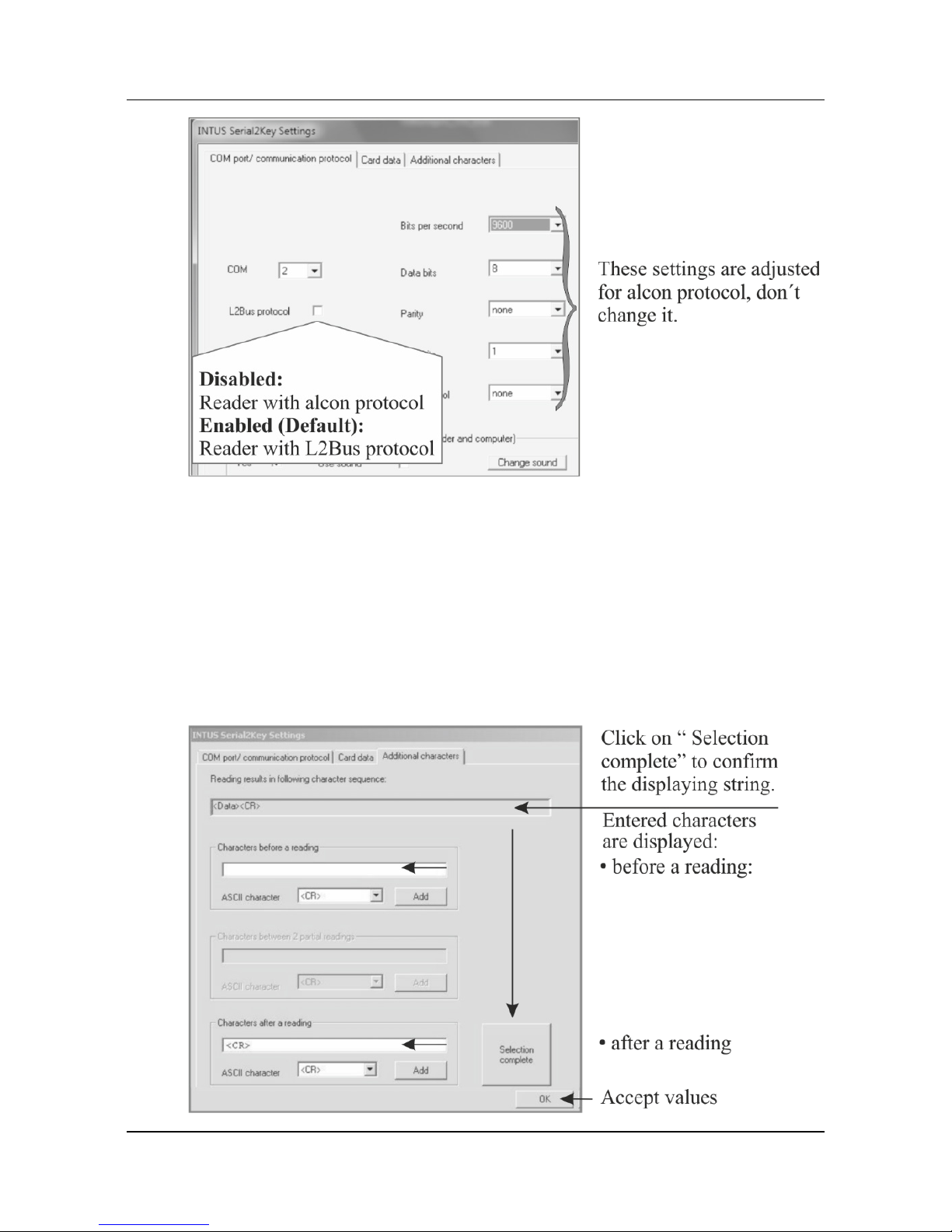
COM / Communication protocol
The COM Port of the ADMITTO reader is displayed. Please check it and
change it if necessary.
L2Bus protocol
Please note the following settings:
• Enabled, coding VNA*90 (L2Bus)
• Disabled, coding VNA*91 (alcon)
* A= Legic Advant; D = Mifare Desfire; H= Hitag (125 kHz)
You will find the reader coding on the back side of the ADMITTO reader.
Page 18
ADMITTO Reader Manual
18 G3800-703.00
Card data
The ADMITTO reader is parameterised ex works.
This parameterization defines, the card data are being read. This card data
can be edited by INTUS Serial2Key. If necessary you have to adjust the
preset length of 14 characters at the reading of card data.
Additional characters
Selecting characters, which are transmitted before and after a reading.
Page 19
ADMITTO Reader Manual
© PCS Systemtechnik GmbH 19
5.4 Test
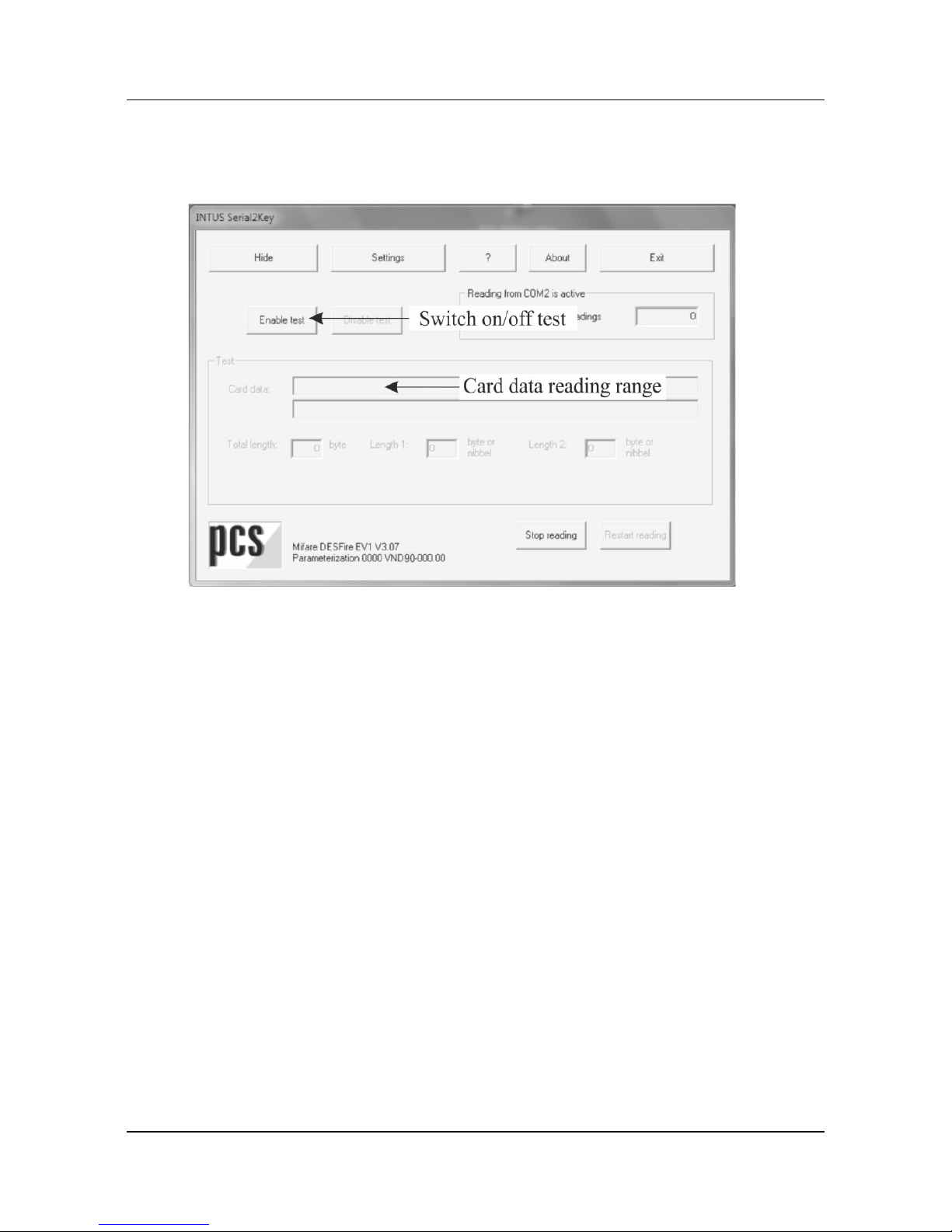
Click on the “Enable test” button to view the card data.
5.5 Check the configured string
Launch an editor or the application interfacing with the reader, check
keyboard inputs.
5.6 Problem solution
If you can`t read in card data with INTUS Serial2Key, please proceed as
follows:
1. Exit INTUS Serial2Key.
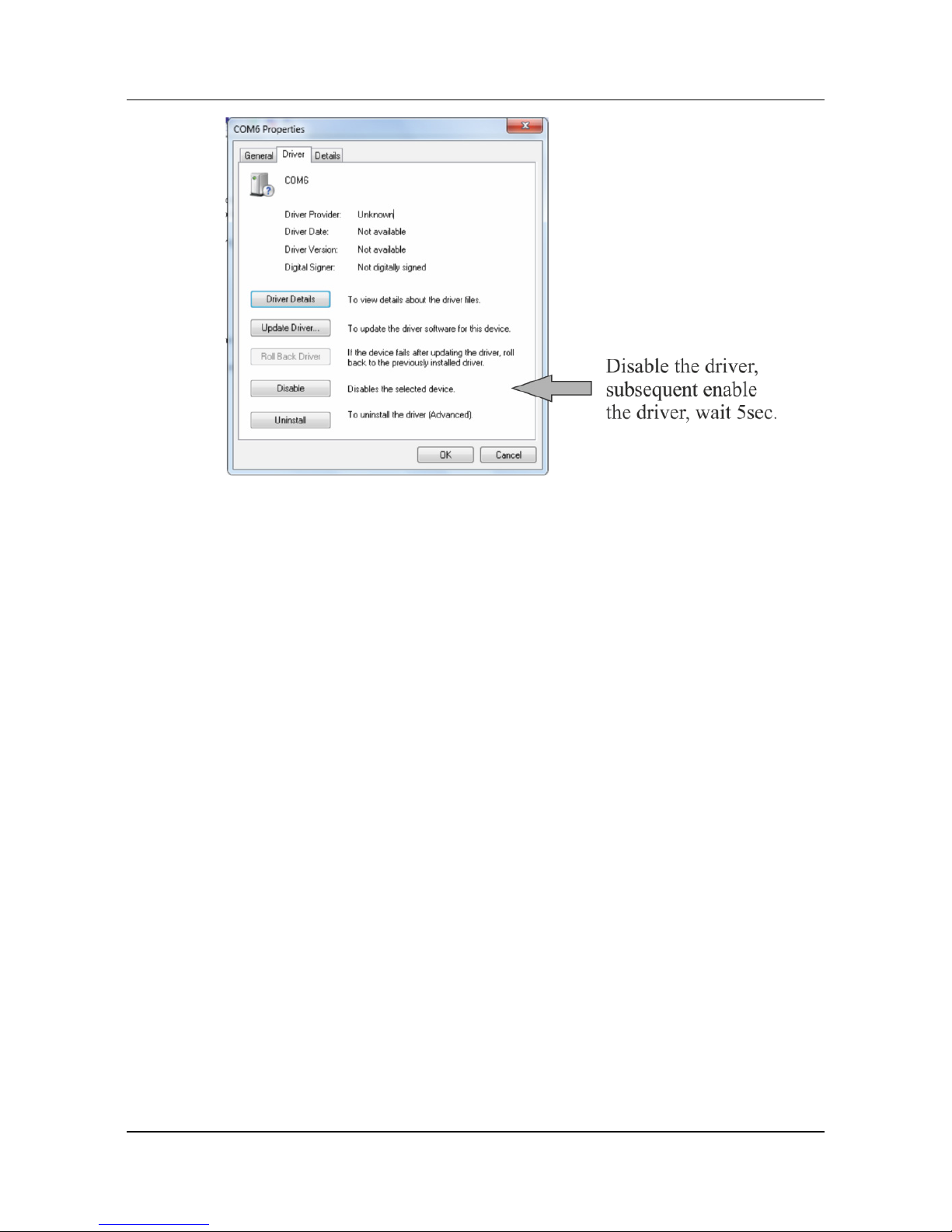
2. Disconnect the ADMITTO reader, reconnect it and wait 5 sec.
If it is not possible to disconnect and reconnect the reader,
Please proceed as follows:
Control panel>Device Manager >Ports (COM&LPT) > Select
ADMITTO –ARM-CDC, press right mouse button and select
“Properties“ > Select tab page “Driver”
Page 20
ADMITTO Reader Manual
20 G3800-703.00
3. Restart INTUS Serial2Key: all programs>INTUS Serial2Key
Page 21

ADMITTO Reader Manual
© PCS Systemtechnik GmbH 21
6 Readers specifications
The ADMITTO reader can be equipped with a variety of readers.
Hitag®
Card specification DIN 9785 / ISO 3554 / ISO 2894
Other media may be used.
Reading method Hitag 1 & 2 and Miro mode; contactless;
working frequency 125 kHz.
Reading distance typically up to 6 cm when a credit-card sized
medium is positioned in parallel to the antenna.
The reading distance diminishes, when smaller
media are used or when the environment is less
than optimal (metal parts, electric lines etc.).
Number characters depending on card and reader configuration
Legic® advant
Card specification DIN 9785 / ISO 3554 / ISO 2894
other media are possible.
Reading method Legic® advant reads Legic® prime as well;
contactless; ISO 14443, ISO15693; working
frequency 13.56 MHz.
Reading distance typically up to 4 cm when a credit-card sized
medium is positioned in parallel to the antenna.
The reading distance diminishes when smaller
media (tags) are used, when the environment is
less than optimal (metal parts, electric lines
etc.).
Number characters depending on card and reader configuration
Mifare
Desfire EV1
Card specification DIN 9785 / ISO 3554 / ISO 2894
other media are possible.
Reading method Mifare Desfire EV1 reads Mifare Classic as
well; contactless; ISO 14443; working
frequency 13.56 MHz.
Reading distance typically up to 4 cm when a credit-card sized
medium is positioned in parallel to the antenna.
The reading distance diminishes when smaller
media (tags) are used, when the environment is
less than optimal (metal parts, electric lines
etc.).
Number characters depending on card and reader configuration
Page 22

ADMITTO Reader Manual
22 G3800-703.00
Please note:
Using a parameter card a new configuration can be transmitted to the
internal reader. For more information please contact the PCS Service.
Notes to the reading qualities
• Using tags the reading distance is significantly less.
• The reading distance diminishes when smaller media (tags) are used,
when the environment is less than optimal (metal parts, electric lines
etc.).
7 Care and cleaning instructions
The use of hard or sharp objects (screw driver or keys) can cause scratches
and damage the ADMITTO reader.
The ADMITTO reader should be kept clear of dirt and dust, to avoid
functioning impairment.
Wipe the reader with a soft lint-free cloth, or one that has been lightly
dampened with water.
The use of caustic liquids such as benzene, thinners, alcohol, solvents or
any kind of abrasive cleaners will lead to surface deterioration and damage.
Page 23

ADMITTO Reader Manual
© PCS Systemtechnik GmbH 23
8 Technical data
Voltage supply
USB 5V DC ±5%; max. 400mA
RS232 5V DC -10/+20%; max. 400mA
Temperature range / Atmospheric humidity
-25° C to +60° C / 20% to 90 %, non-condensing
Protect the ADMITTO reader against direct sunlight to prevent
overheating of the reader. Overheating may damage the ADMITTO
reader.
Degree of protection
Desktop reader IP40
Mounting reader IP54
Fire protection
There is no need for special fire protection measures exceeding property
insurers' guidelines.
All voltages introduced into the device must conform to SELV requirements
and come from a limited power source (EN 60950-1, Section 2.5).
Electromagnetic compatibility
Immunity EN 301489-1: 2011-09
Emissions DIN EN 300330-1: 2010-02
The ADMITTO reader with a PCS power supply unit conforms to the
EN 60950-1 requirements and EMC standards specified above.
Dimensions
Desktop reader 112 x 54 x 27 (length x width x high)
Mounting reader 112 x 54 x 45 (length x width x high)
Meaning of the LEDs
Red and green LED can be controlled by the software program.
If you use alcon firmware the yellow LED displays the state:
• Yellow LED on - ADMITTO reader is operable
• Yellow LED off - no voltage applied
Page 24
 Loading...