

Page 1
© PCE Instruments
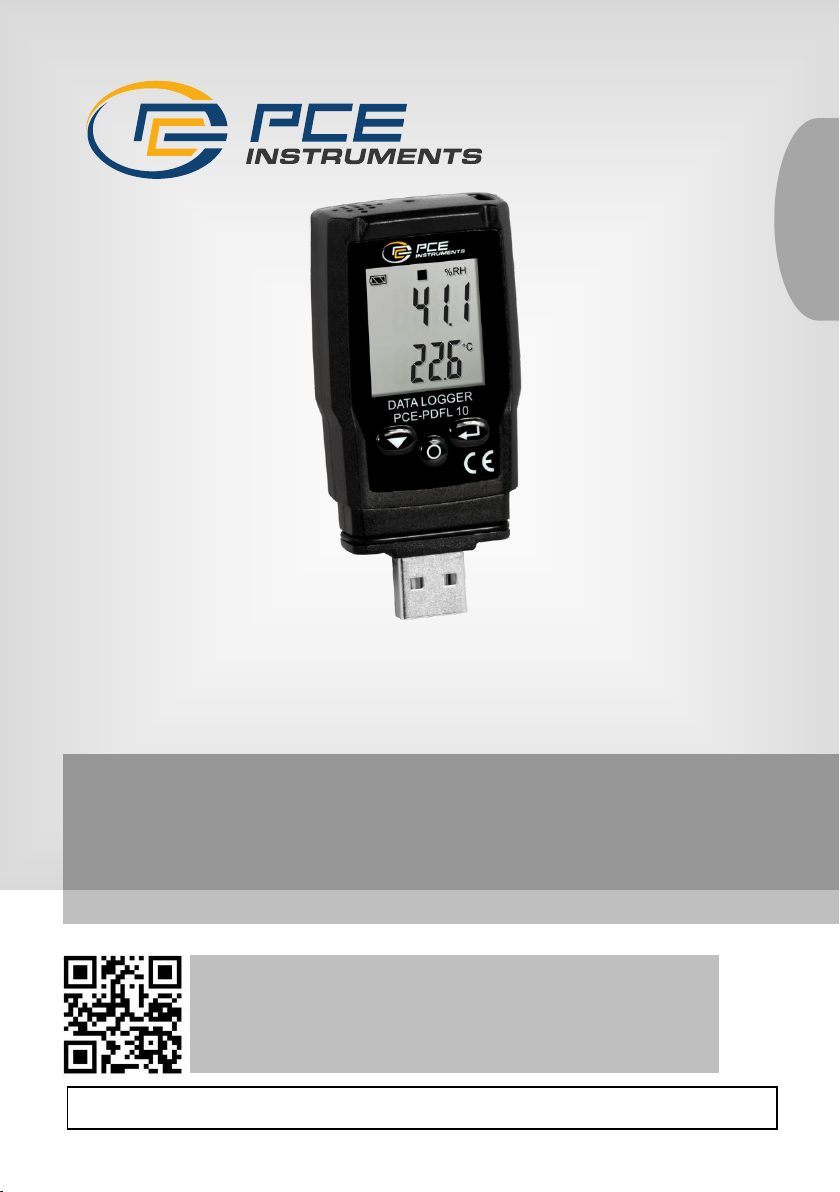
PCE-PDFL 10 Climate Meter
User Manual
User manuals in various languages (français,
italiano, español, português, nederlands, türk, polski,
русский, 中文) can be found by using our
product search on: www.pce-instruments.com
Last change: 7 May 2024
v1.0
English
Page 2

© PCE Instruments
Contents
1 Safety notes ........................................................................................... 1
2 Specifications ........................................................................................ 2
3 Delivery scope ....................................................................................... 2
4 Device description ................................................................................ 3
4.1 Display description ........................................................................................................... 4
4.2 Making the data logger settings ........................................................................................ 6
4.3 PDF report settings .......................................................................................................... 8
4.4 Live data settings ............................................................................................................10
4.5 Diagram of the software ..................................................................................................11
5 Start and end manual recording ........................................................ 12
6 Display remaining recording time ..................................................... 12
7 Lowest and highest measured value ................................................ 13
8 Data output via CSV and PDF ............................................................ 13
9 LED status display .............................................................................. 13
10 Perform firmware upgrade ................................................................. 14
11 Reset firmware .................................................................................... 14
12 Delete data memory ............................................................................ 14
13 Opening the battery compartment .................................................... 15
14 Contact ................................................................................................. 16
15 Disposal ............................................................................................... 16
Page 3

© PCE Instruments
1
1 Safety notes
Please read this manual carefully and completely before you use the device for the first time. The
device may only be used by qualified personnel and repaired by PCE Instruments personnel.
Damage or injuries caused by non-observance of the manual are excluded from our liability and
not covered by our warranty.
• The device must only be used as described in this instruction manual. If used otherwise,
this can cause dangerous situations for the user and damage to the meter.
• The instrument may only be used if the environmental conditions (temperature, relative
humidity, …) are within the ranges stated in the technical specifications. Do not expose
the device to extreme temperatures, direct sunlight, extreme humidity or moisture.
• Do not expose the device to shocks or strong vibrations.
• The case should only be opened by qualified PCE Instruments personnel.
• Never use the instrument when your hands are wet.
• You must not make any technical changes to the device.
• The appliance should only be cleaned with a damp cloth. Use only pH-neutral cleaner,
no abrasives or solvents.
• The device must only be used with accessories from PCE Instruments or equivalent.
• Before each use, inspect the case for visible damage. If any damage is visible, do not
use the device.
• Do not use the instrument in explosive atmospheres.
• The measurement range as stated in the specifications must not be exceeded under
any circumstances.
• Non-observance of the safety notes can cause damage to the device and injuries to
the user.
We do not assume liability for printing errors or any other mistakes in this manual.
We expressly point to our general guarantee terms which can be found in our general terms of
business.
Page 4
© PCE Instruments
2
2 Specifications
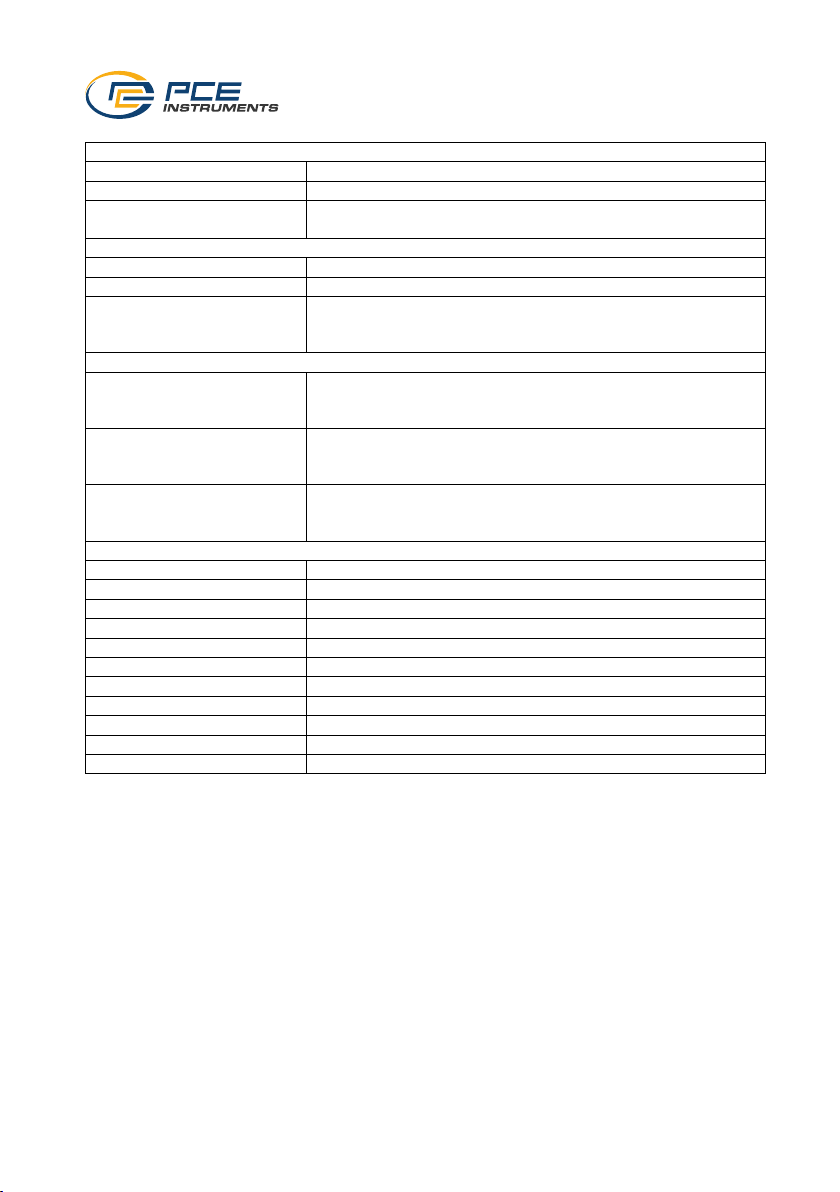
Temperature
Measurement range
-30 ... 60 °C / -22 ... 140 °F
Resolution
0.1 °C / °F
Accuracy
±1.0 °C / 1.8 °F at -30 ... 0 °C / -22 ... 32 °F
±0.5 °C / 0.9 °F at 0 ... 60 °C / 32 ... 140 °F
Relative humidity
Measurement range
0 ... 100 % RH
Resolution
0.1 % RH
Accuracy
±5.0 % RH at 0 ... 20 % RH and 80 ... 100 % RH
±3.5 % RH at 20 ... 40 % RH. and 60 ... 80 % RH
±3.0 % RH at 40 ... 60 % RH
Absolute air pressure
Measurement range
700 ... 1100 hpa
525.0 ... 825.0 mmHg
20.67 ... 32.48 inHg
Resolution
1 hpa
0.1 mmHg
0.01 inHg
Accuracy
±3 hpa
±2.5 mmHg
±0.1 inHg
Further specifications
Memory capacity
13340 measuring points
Data export
.pdf, .csv
Storage rate
1 minute ... 24 hours
Interface
USB-A
Power supply (USB-A)
5 V DC, 0.1 A
Power supply (battery)
3 V button battery (CR2450)
Battery life
approx. 3 years
Display
1/4" LC display
Ambient conditions
-30 ... 60 °C / -22 ... 140 °F, <95 % RH, non-condensing
Dimensions
75 x 35 x 15 mm / 3 x 1.4 x 0.6 in
Weight
33 g / <1 lb
3 Delivery scope
1 x PCE-PDFL 10 climate meter
1 x 3 V button battery (CR2450)
1 x software CD
1 x user manual
Page 5
© PCE Instruments
3
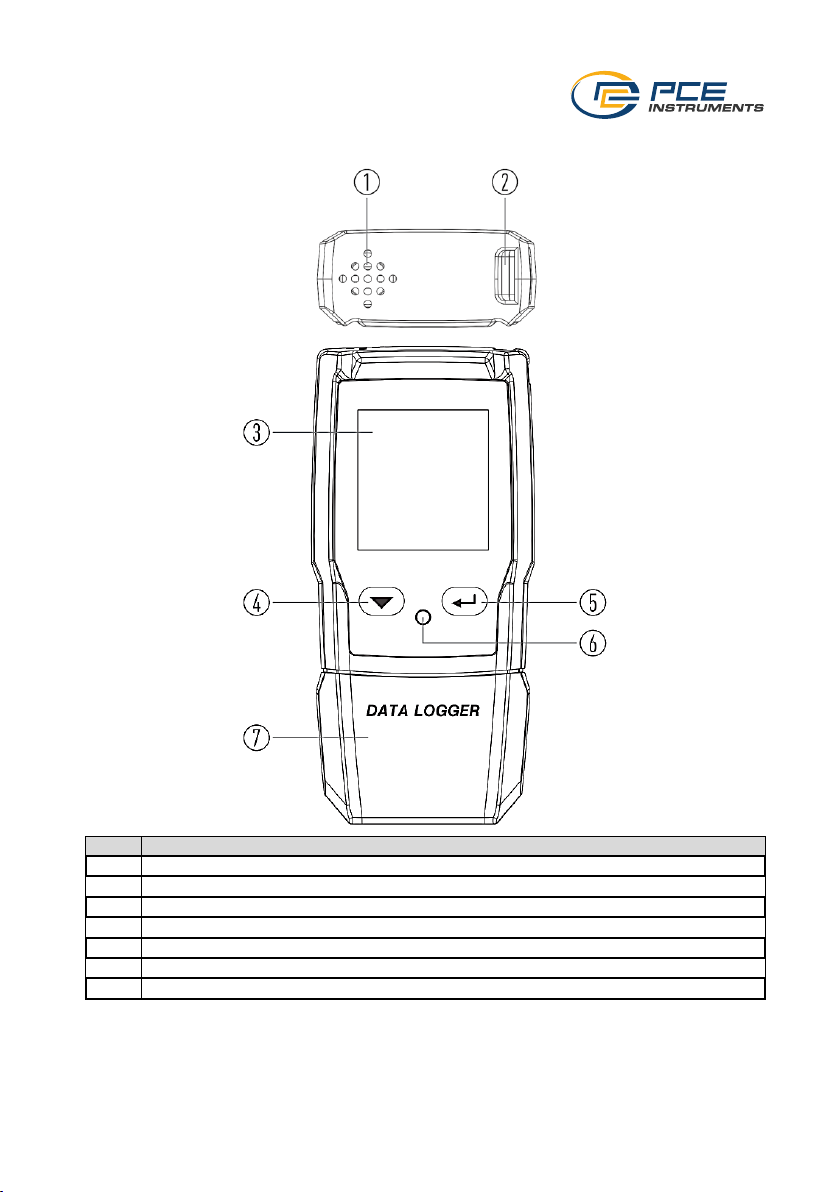
4 Device description
No.
Description
1
Sensors
2
Loop connection
3
Display
4
Arrow down key
5
Enter key
6
Unlock key for battery replacement
7
Interface protection cap
Page 6

© PCE Instruments
4
4.1 Display description
No.
Description
1
Alarm indicator
2
Battery status display
3
Recording status display
4
Unit for relative humidity
5
Measured value
6
Units for absolute air pressure
7
Units for temperature measurement
8
Measured value
9
Function indicator
4.1.1 Alarm indicator
Display
Meaning
Measured values are within the set limit values. Green LED glows.
Measured values are outside the set limit values. Red LED glows.
4.1.2 Battery status display
Display
Meaning
Battery is fully charged
Battery is OK
Battery is low
Battery is flat and must be replaced immediately
Page 7
© PCE Instruments
5
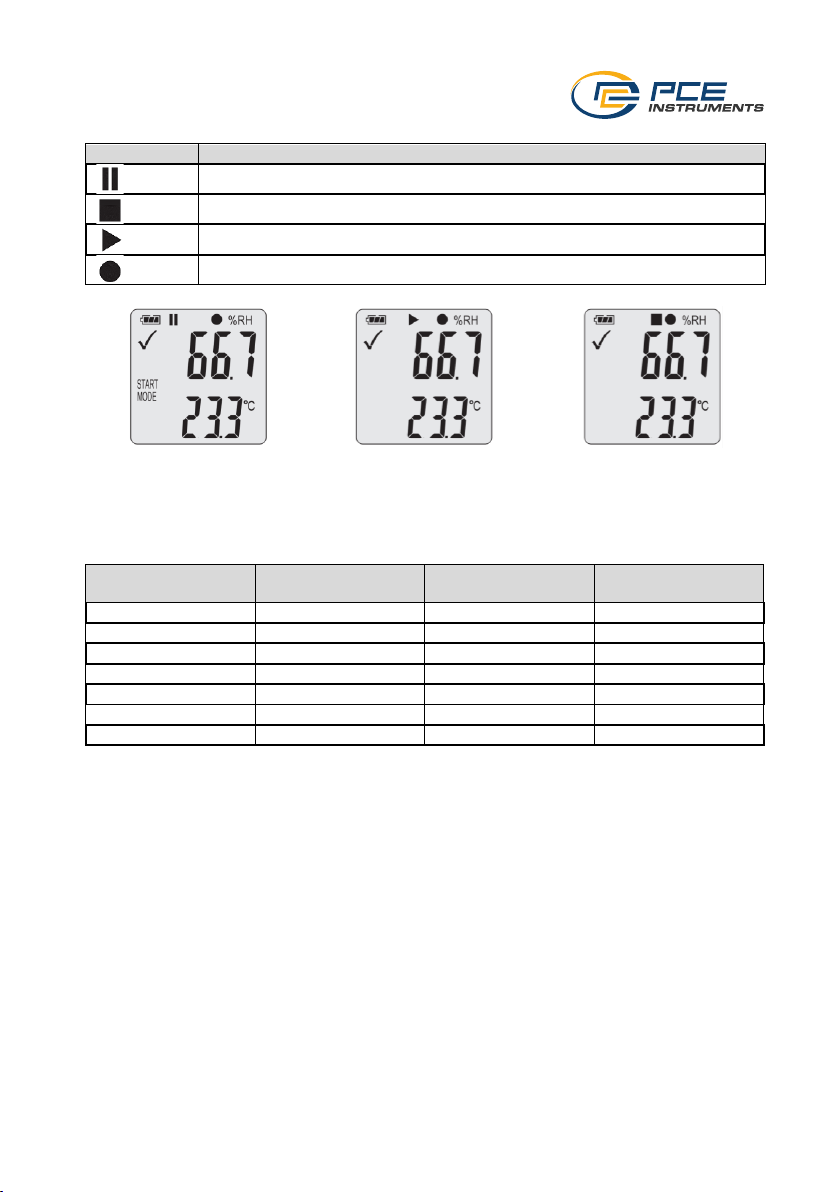
4.1.3 Recording indicators
Display
Meaning
Meter is waiting for input to perform data recording
Data storage stopped
Data recording started
Settings have been made
Condition 1
Condition 2
Condition 3
The device is in manual
mode and is waiting for the
start impulse
Data recording started
Data recording stopped
Storage rate in
minutes
Possible recording
time in days
Storage rate in
minutes
Possible recording
time in days
1
9.3 8 74.1 2 18.5
10
92.6 3 27.8
12
111.2
4
37.1
15
139.0
5
46.3
20
185.3
6
55.6
25
231.6
7
64.8
30
277.9
Page 8
© PCE Instruments
6
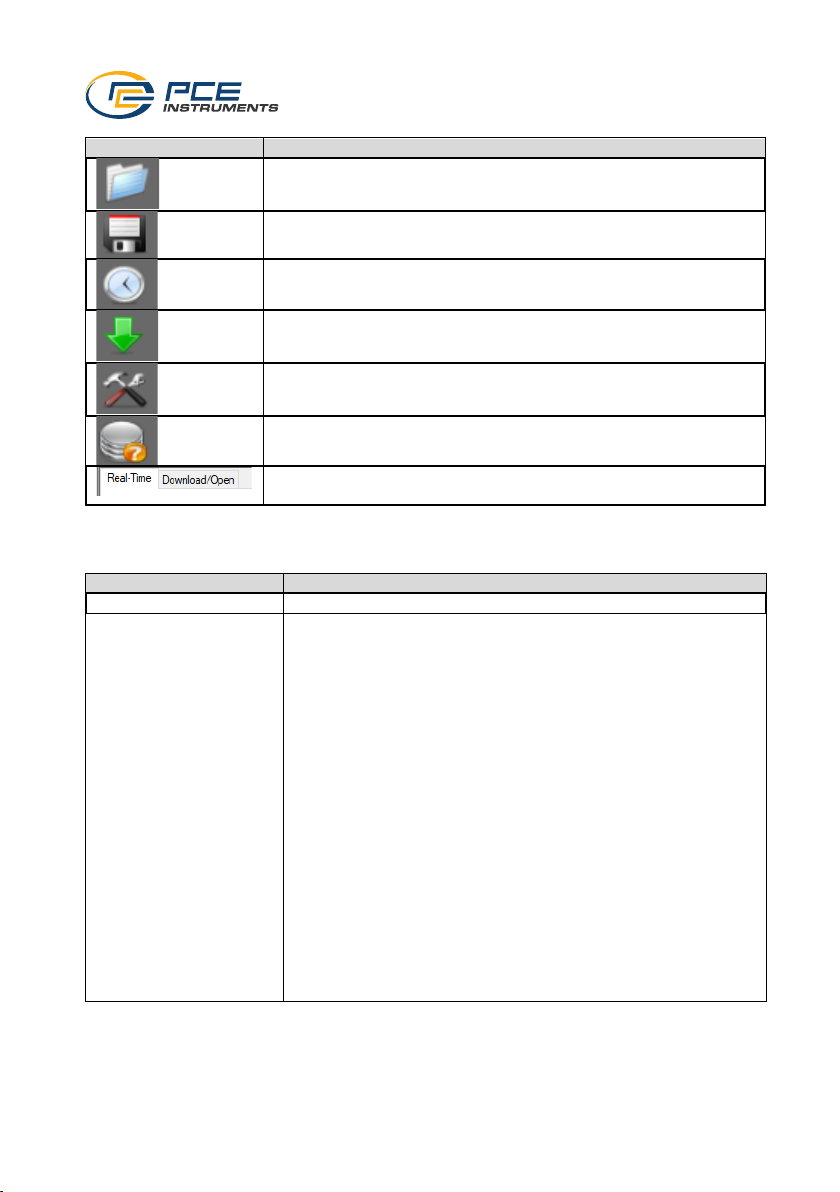
To make settings, first install the software. Then connect the meter to the computer.
Symbol
Description
Open measurement sequences saved via the software
Save measurement sequences recorded via the software
Read out sensors live
Download data saved on the meter
Settings for the meter and the software
Open software manual
Switch view between live data transfer and downloaded
measurement data
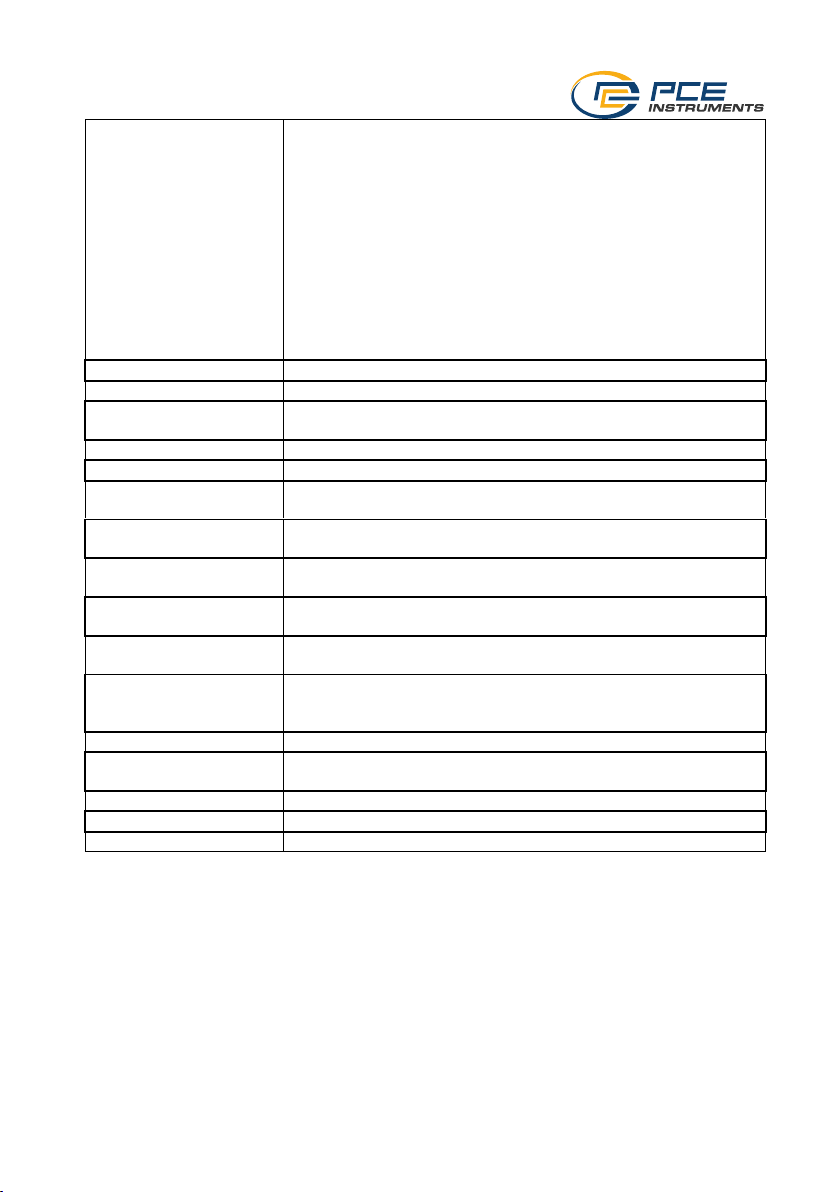
4.2 Making the data logger settings
Go to the settings. In the "LoggerSetting" tab, you can make settings for the meter.
Setting
Description
LoggerID
A 4-digit ID number for the recording can be stored here.
Start Mode
This is where you set when the measuring device is to start
recording data.
Immediately until memory full:
Recording is started and stopped as soon as the memory is full.
Start upon keypress:
Recording is started as soon as the measurement is started
manually.
See also: 5 Start and end manual recording
Start upon start time
Recording is started as soon as the set time is reached.
Start/Stop time
Recording starts as soon as the set start time is reached and ends
as soon as the set stop time is reached.
Circular logging
Recording starts immediately and does not end. The oldest data
point is overwritten as soon as the memory is full.
Page 9
© PCE Instruments
7
Stop Mode
This is where you set when the measuring device should stop
recording data. This setting depends on the start mode.
None
Data recording is never stopped.
Stop button
Data recording is stopped as soon as it is ended manually.
See also: 5 Start and end manual recording
After PDF create
Measurement is stopped as soon as the measurement data is
exported as a PDF.
Start Time
The time when the recording is to start is set here.
Stop Time
The time when the recording is to stop is set here.
Record Time
This shows you how long the device can record data until the
memory is full.
Sample rate
You can set the storage interval here.
Start Delay (min)
A switch-on delay in minutes for data recording can be set here.
LED Flash Interval
Use this function to set the intervals at which the LED is to light up
to signal operation.
Maximum record
The number of measuring points that are recorded is displayed
here.
Temperature Alarm
Activate the limit value alarm function for the temperature by
ticking the box.
Humidity alarm
Activate the limit value alarm function for humidity by ticking the
box.
Enable LED alarm
If this function is activated, the alarm LED will light up as soon as
a limit value is exceeded.
Temperature / Humidity
High Alarm
Low alarm
Set the alarm limit values for the temperature and humidity.
For "High Alarm", set the desired upper limit value.
For "Low Alarm", set the desired lower limit value.
Temperature Unit
Set the temperature unit here.
Logger name
(maximum 32):
The logger can be named here. A maximum of 32 characters can
be used.
Default
Use this button to reset all settings.
Setup
This button is used to apply all settings made.
Cancel
Use this button to cancel the settings.
Page 10
© PCE Instruments
8
4.3 PDF report settings
Setting
Description
Language
The language of the PDF can be set here.
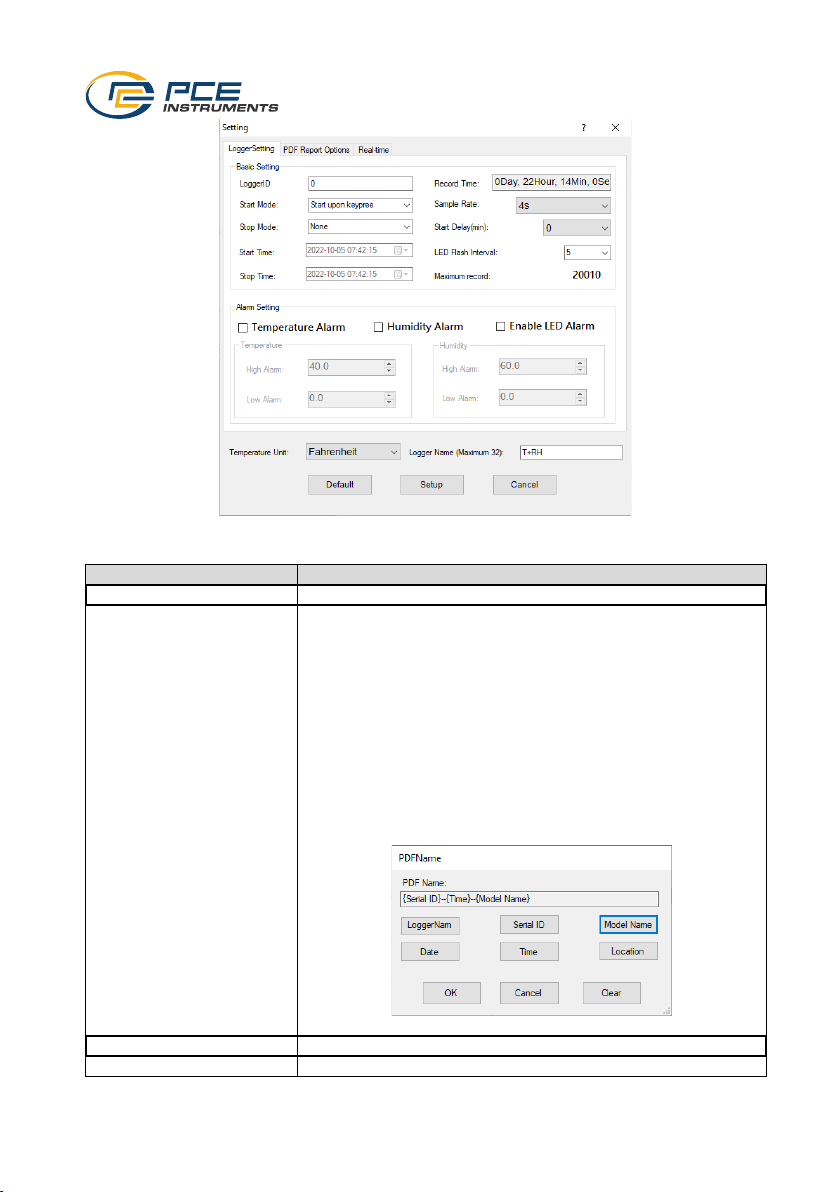
PDF File Name
Here you can set how the PDF file name should be composed.
To do this, click on "InsertName". Another window opens. The
structure of the file name can be determined here.
PDF Name: The structure of the file name is displayed here.
LoggerNam: Name of the data logger
Serial ID: Serial number
Model Name: Logger ID
Date: Date
Time: Time
Location: Name of the set location
OK: Settings are applied
Cancel: Window is closed and the settings are not applied
Clear: "PDF Name" field is reset
Date Format
Date format
Time Format
Time format
Page 11

© PCE Instruments
9
Location (Maximum 32
characters)
The location where the recording is made can be entered here.
A maximum of 32 characters can be used.
Report Title (Maximum 40
characters)
The PDF can be given a title here. A maximum of 40 characters
can be used.
User Text (Maximum 70
characters)
Additional text can be added here. A maximum of 70 characters
can be used.
Temperature Unit
Set the temperature unit here.
Logger name (maximum
32):
The logger can be named here. A maximum of 32 characters
can be used.
Default
Use this button to reset all settings.
Setup
This button is used to apply all settings made.
Cancel
Use this button to cancel the settings.
Page 12
© PCE Instruments
10
4.4 Live data settings
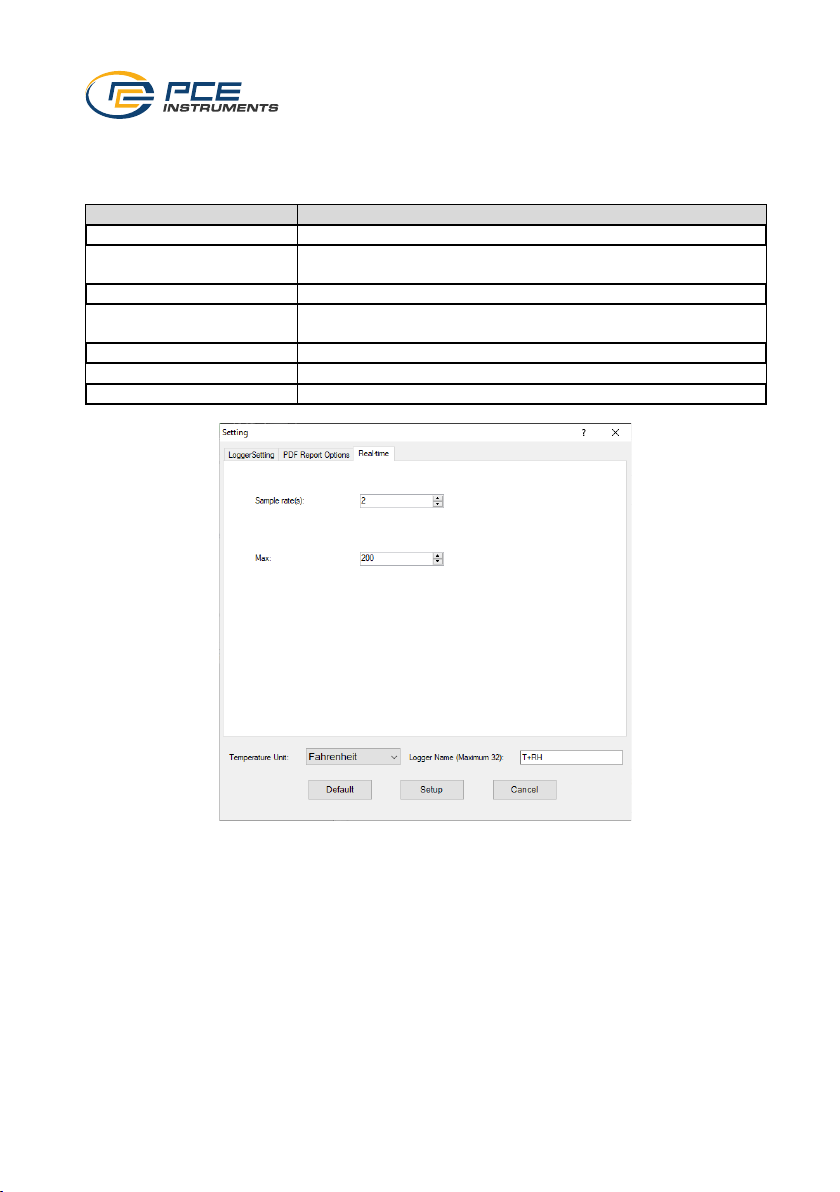
To make settings for the live data transfer, go to the "REAL Time" tab in the settings.
Function
Description
Sample rate (s)
This is where you set the transmission rate.
Max
Here you can enter the maximum number of values to be
transferred.
Temperature Unit
Set the temperature unit here.
Logger name
(Maximum 32)
The logger can be named here. A maximum of 32 characters
can be used.
Default
Use this button to reset all settings.
Setup
This button is used to apply all settings made.
Cancel
Use this button to cancel the settings.
Page 13
© PCE Instruments
11
4.5 Diagram of the software
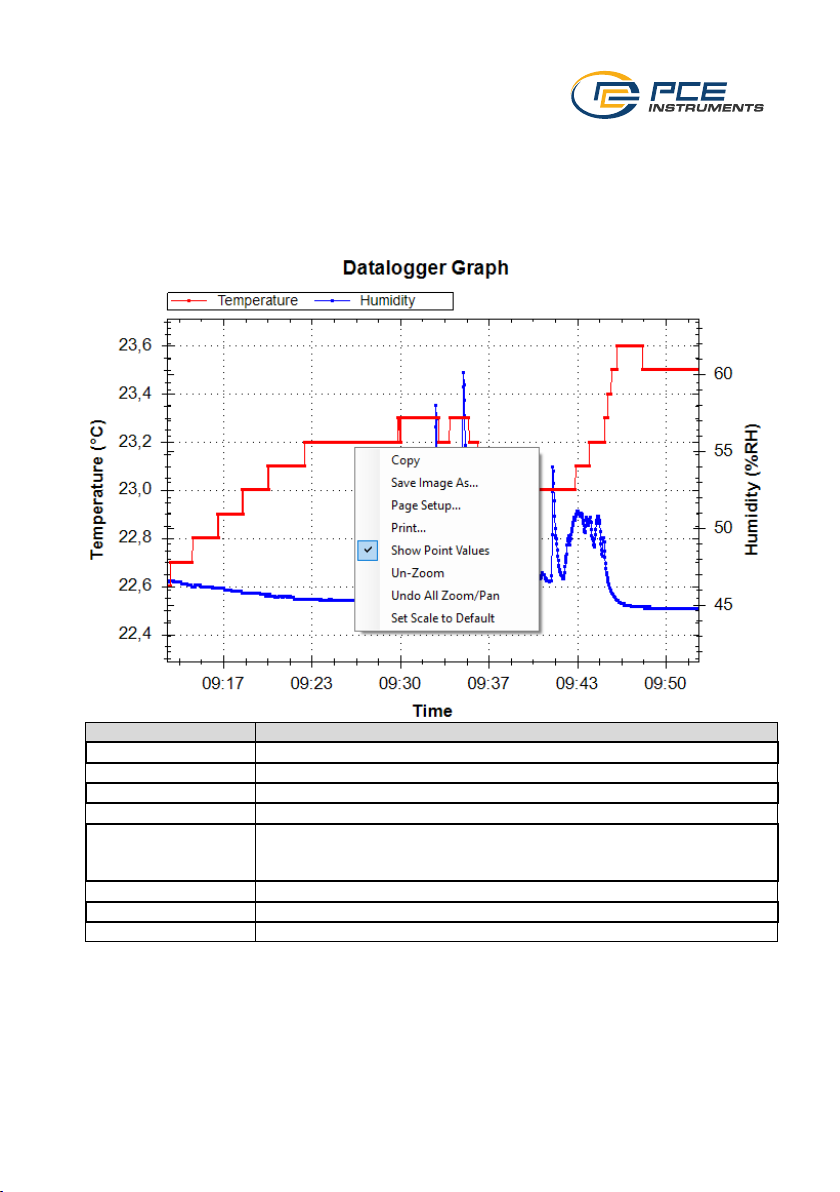
You can move the diagram with the mouse. To zoom into the diagram, hold down the "Ctrl" key.
You can now zoom into the diagram using the scroll wheel on your mouse. If you click on the
diagram with the right mouse button, you will see further properties.
When using "Graph with markers", points can be displayed on the graph at the individual
measuring points.
Function
Description
Copy
Graph is copied to the cache
Save Image As...
Graph can be saved in any format
Page Setup...
You can make default settings for printing here
Print...
You can print the graph directly here
Show Point Values
If the "Graph with markers" function is active, the measured values can
be displayed via "Show Point Values" as soon as the mouse pointer is
on this point.
Un-Zoom
The zoom goes back one step
Undo All Zoom/Pan
The entire zoom is reset
Set Scale to Default
Scaling is reset
Page 14
© PCE Instruments
12
5 Start and end manual recording
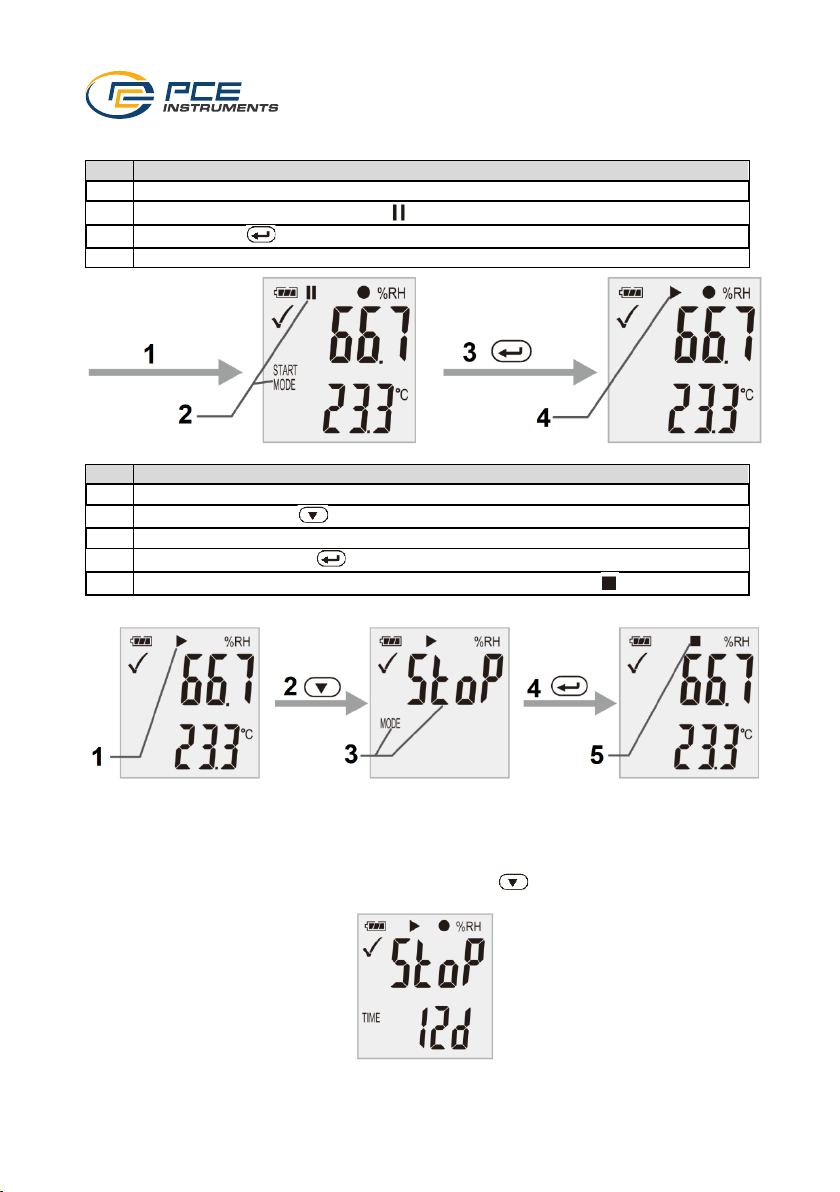
To use manual mode, proceed as follows:
No.
Description
1
First set up the meter using the software.
2
After the upload, "Start Mode" and appear on the display.
3
Now press the key for two seconds to start recording.
4
This indicates that recording has started.
To cancel the measurement, proceed as follows:
No.
Description
1
Here you will see that recording has started.
2
Now briefly press the key once.
3
MODE" and "STOP" now appear on the display.
4
Now press and hold the key.
5
Normal measurement has been resumed and the display shows .
Important: The meter must be reconfigured after recording has ended. It is therefore not possible
to resume recording.
6 Display remaining recording time
To view the remaining recording time, briefly press the key once during recording. The
remaining time is displayed under "TIME".
Important: This display does not take the battery into account.
Page 15
© PCE Instruments
13
7 Lowest and highest measured value
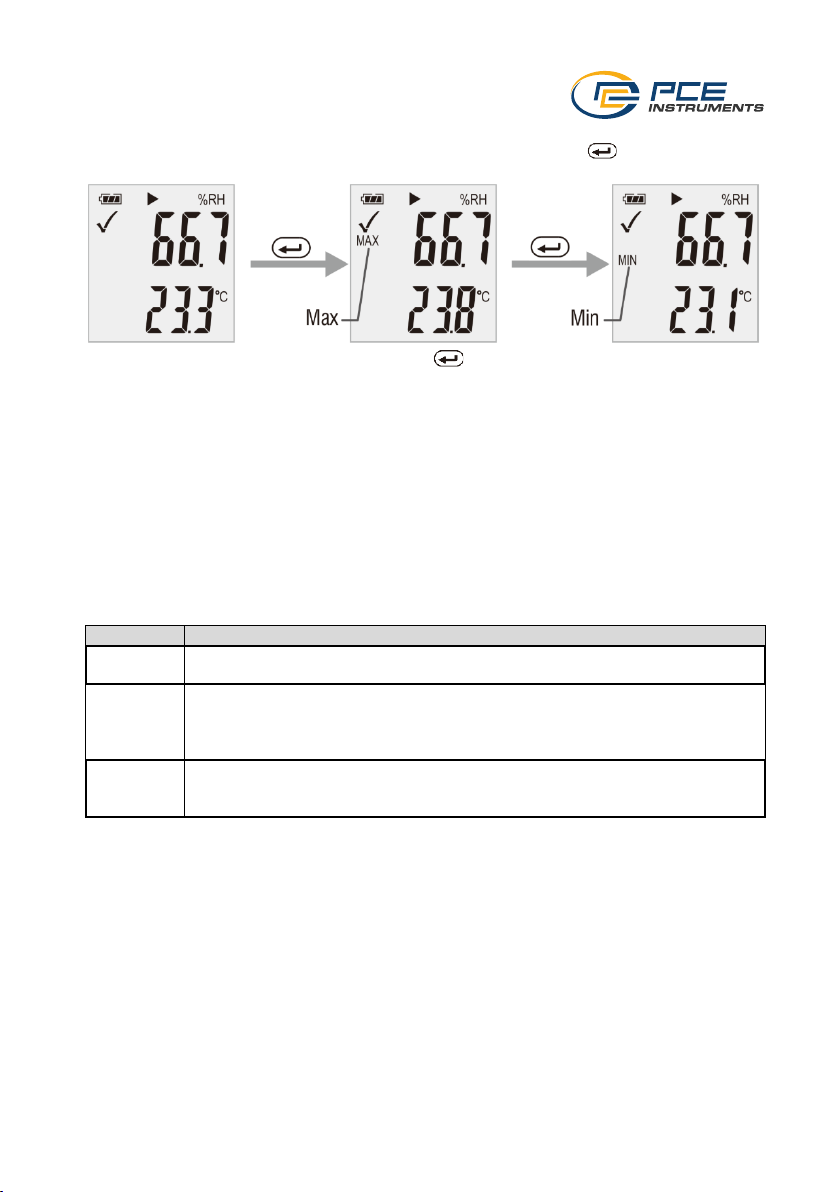
To display the lowest and highest measured values, briefly press the key once during the
measurement.
To display the measured values again, press the key again or wait 1 minute.
8 Data output via CSV and PDF
To receive the recorded data directly as a CSV or PDF, simply connect the device to the computer.
A mass data memory will then be displayed on the computer. From there, you will receive the
PDF and CSV file directly.
Important: The files are only generated when the device is connected. Depending on the data
volume, it may take approx. 2 minutes until the mass data memory with the PDF file is displayed.
The name stored in the software is displayed under "Logger Name:". The configured alarm limit
values are also saved in the PDF.
9 LED status display
LED
Action
Flashes in
green
Data recording
Flashes in
red
- Measured value outside the limit values during data recording
- Manual mode started. Meter is waiting to be started by the user
- Memory is full
- Data recording was cancelled by pressing a key
Double
flashing in
green
- Settings have been successfully applied
- Firmware was successfully adopted
Page 16
© PCE Instruments
14
10 Perform firmware upgrade
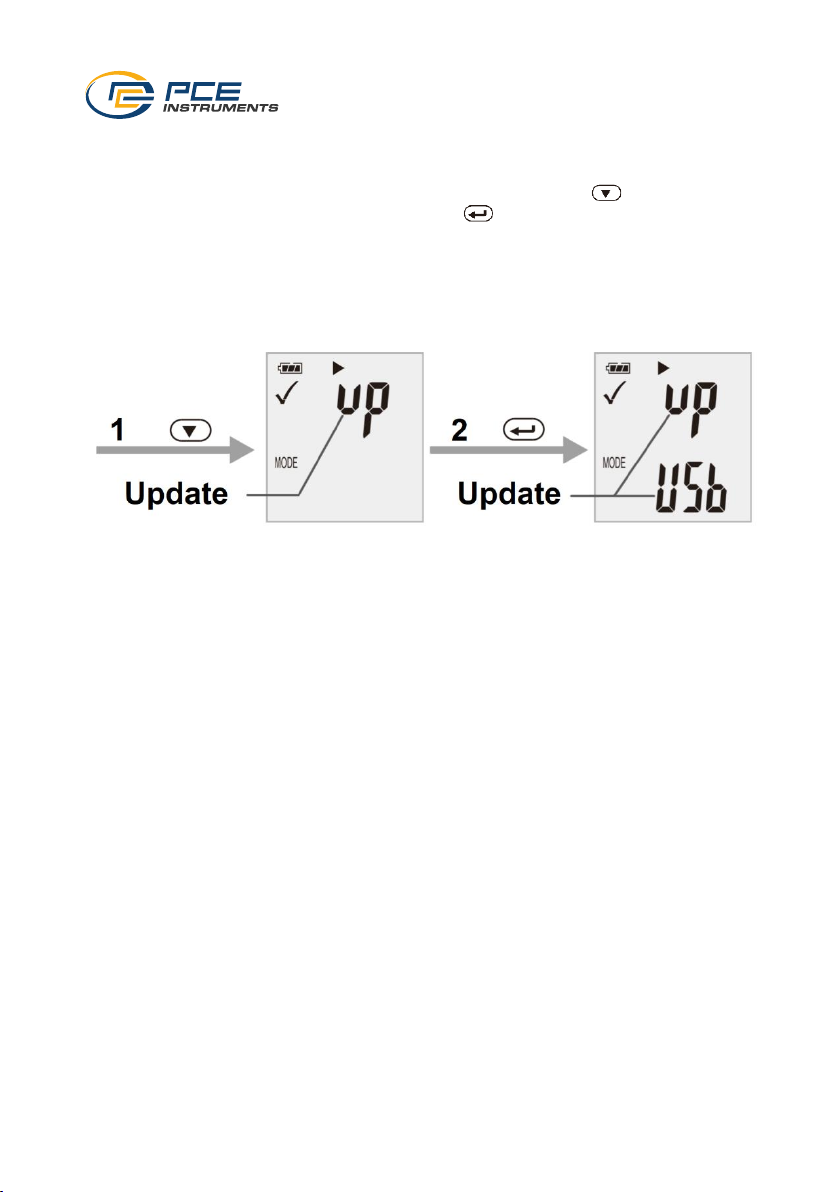
To perform a firmware upgrade, first insert the battery. Now press the key repeatedly until
"up" appears on the display. Now press and hold the key for approx. 5 seconds until "USB"
also appears on the display. Now connect the measuring device to the computer. A drive (mass
data memory) will now appear on the computer. Save the new firmware there. The update will
start automatically. After the transfer and installation, you can disconnect the meter from the
computer. A red LED glows during the update. This process takes approx. 2 minutes. After the
update, the measurement will resume normally.
11 Reset firmware
To reset the firmware, press and hold the down arrow key and connect the device to a PC. The
reset takes approx. 2 minutes. The meter is then recognised as a mass data memory.
12 Delete data memory
To delete all measurement data, press and hold all keys and connect the device to the PC.
Note: If the meter generally does not respond, the measured values must be deleted or the
firmware must be reinstalled.
Page 17
© PCE Instruments
15
13 Opening the battery compartment
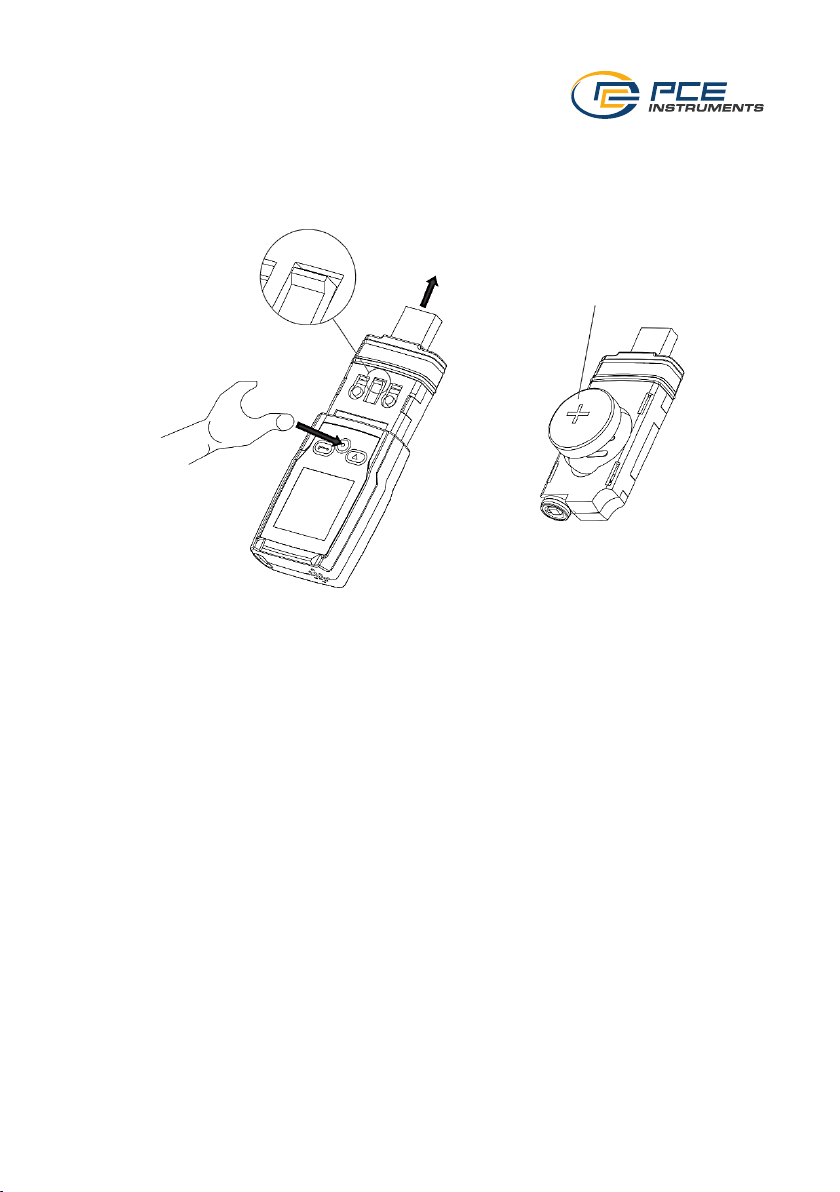
To open the battery compartment, press down the latch and pull off the housing. A CR2450 button
battery can then be inserted on the back of the electronics. Ensure that the polarity of the battery
is correct when inserting it. Once the battery has been inserted, place the electronics back in the
housing. Make sure that you insert the electronics the right way round.
Note on the battery:
The CR2450 button battery works best at room temperature. The battery life is reduced at very
low temperatures. To increase the battery life, the highest possible storage rate should be
selected during a measurement and the display should be switched off.
Page 18
© PCE Instruments
16
14 Contact
If you have any questions, suggestions or technical problems, please do not hesitate to contact
us. You will find the relevant contact information at the end of this user manual.
15 Disposal
For the disposal of batteries in the EU, the 2006/66/EC directive of the European Parliament
applies. Due to the contained pollutants, batteries must not be disposed of as household waste.
They must be given to collection points designed for that purpose.
In order to comply with the EU directive 2012/19/EU we take our devices back. We either re-use
them or give them to a recycling company which disposes of the devices in line with law.
For countries outside the EU, batteries and devices should be disposed of in accordance with
your local waste regulations.
If you have any questions, please contact PCE Instruments.
Page 19

© PCE Instruments
17
PCE Instruments contact information
Germany France Spain
PCE Deutschland GmbH PCE Instruments France EURL PCE Ibérica S.L.
Im Langel 26 23, rue de Strasbourg Calle Mula, 8
D-59872 Meschede 67250 Soultz-Sous-Forets 02500 Tobarra (Albacete)
Deutschland France España
Tel.: +49 (0) 2903 976 99 0 Téléphone: +33 (0) 972 3537 17 Tel. : +34 967 543 548
Fax: +49 (0) 2903 976 99 29 Numéro de fax: +33 (0) 972 3537 18 Fax: +34 967 543 542
[email protected] [email protected] [email protected]
www.pce-instruments.com/deutsch www.pce-instruments.com/french www.pce-instruments.com/espanol
United Kingdom Italy Turkey
PCE Instruments UK Ltd PCE Italia s.r.l. PCE Teknik Cihazları Ltd.Şti.
Trafford House Via Pesciatina 878 / B-Interno 6 Halkalı Merkez Mah.
Chester Rd, Old Trafford 55010 Loc. Gragnano Pehlivan Sok. No.6/C
Manchester M32 0RS Capannori (Lucca) 34303 Küçükçekmece - İstanbul
United Kingdom Italia Türkiye
Tel: +44 (0) 161 464902 0 Telefono: +39 0583 975 114 Tel: 0212 471 11 47
Fax: +44 (0) 161 464902 9 Fax: +39 0583 974 824 Faks: 0212 705 53 93
[email protected] [email protected] [email protected]
www.pce-instruments.com/english www.pce-instruments.com/italiano www.pce-instruments.com/turkish
The Netherlands United States of America Denmark
PCE Brookhuis B.V. PCE Americas Inc. PCE Instruments Denmark ApS
Institutenweg 15 1201 Jupiter Park Drive, Suite 8 Birk Centerpark 40
7521 PH Enschede Jupiter / Palm Beach 7400 Herning
Nederland 33458 FL Denmark
Telefoon: +31 (0)53 737 01 92 USA Tel.: +45 70 30 53 08
[email protected] Tel: +1 (561) 320-9162 [email protected]
www.pce-instruments.com/dutch Fax: +1 (561) 320-9176 www.pce-instruments.com/dansk
[email protected]
www.pce-instruments.com/us
 Loading...