

Page 1
© PCE Instruments
PC Software PCE-AQD 50
Bedienungsanleitung
User Manual
User manuals in various languages (français,
italiano, español, português, nederlands, türk, polski,
русский, 中文) can be found by using our
product search on: www.pce-instruments.com
Letzte Änderung / last change: 27 April 2021
v1.1
Deutsch
English
Page 2

© PCE Instruments
Deutsch
Inhaltsverzeichnis
1 Sicherheitsinformationen ..................................................................... 1
2 Systemvoraussetzungen ...................................................................... 1
3 Installation ............................................................................................. 1
4 Beschreibung der Oberfläche .............................................................. 2
5 Bedeutung der einzelnen Symbole der Symbolleiste ....................... 3
6 Bedienung .............................................................................................. 4
6.1 Die erste Benutzung der Software .................................................................................... 4
6.2 Liste der Messreihen ........................................................................................................ 4
6.3 Numerische Anzeige ........................................................................................................ 5
6.4 Statistische Daten ............................................................................................................ 6
6.5 Grafische Darstellung ....................................................................................................... 6
6.6 Export von Messreihen ..................................................................................................... 8
6.7 Laden und Speichern von Messreihen ............................................................................. 8
6.8 Akkulaufzeit berechnen .................................................................................................... 8
Page 3

© PCE Instruments
English
Contents
1 Safety notes ........................................................................................... 9
2 System requirements ........................................................................... 9
3 Installation ............................................................................................. 9
4 Description of the user interface ....................................................... 10
5 Meaning of the individual icons on the toolbar ............................... 11
6 Operation ............................................................................................. 12
6.1 The first use of the software ............................................................................................12
6.2 List of measurement series .............................................................................................12
6.3 Numerical display ............................................................................................................13
6.4 Statistical data .................................................................................................................14
6.5 Graphical representation .................................................................................................14
6.6 Export series of measurements .......................................................................................16
6.7 Loading and saving series of measurements ...................................................................16
6.8 Calculate bettery life ........................................................................................................16
Page 4

© PCE Instruments
1
Deutsch
1 Sicherheitsinformationen
Machen Sie sich mit der Bedienung des Messgerätes vertraut, bevor Sie es in Verbindung mit
der Software verwenden. Nutzen Sie dazu die Bedienungsanleitung, welche Ihrem PCE-Gerät
beiliegt. Sämtliche Sicherheitshinweise aus der Bedienungsanleitung des Messgerätes gelten
auch bei seiner Verwendung mit der PC-Software.
Die Benutzung des Gerätes und der Software darf nur durch sorgfältig geschultes Personal
erfolgen. Schäden, die durch Nichtbeachtung der Hinweise in den jeweiligen
Bedienungsanleitungen entstehen, entbehren jeder Haftung.
Für Druckfehler und inhaltliche Irrtümer in dieser Anleitung übernehmen wir keine Haftung.
Wir weisen ausdrücklich auf unsere allgemeinen Gewährleistungsbedingungen hin, die Sie in
unseren Allgemeinen Geschäftsbedingungen finden.
Bei Fragen kontaktieren Sie bitte die PCE Deutschland GmbH. Die Kontaktdaten finden Sie am
Ende dieser Anleitung.
2 Systemvoraussetzungen
• Betriebssystem ab Windows 7
• USB-Port (2.0 oder höher).
• Ein installiertes .NET-Framework 4.5
• Eine Mindestauflösung von 120x800 Pixel
• Optional: ein Drucker
• Prozessor mit 1 GHz
• 4 GB RAM Arbeitsspeicher empfohlen
3 Installation
Bitte führen Sie die "Setup PCE-AQD 50.exe" aus und folgen Sie den Anweisungen des Setups.
Page 5
© PCE Instruments
2
Deutsch
4 Beschreibung der Oberfläche
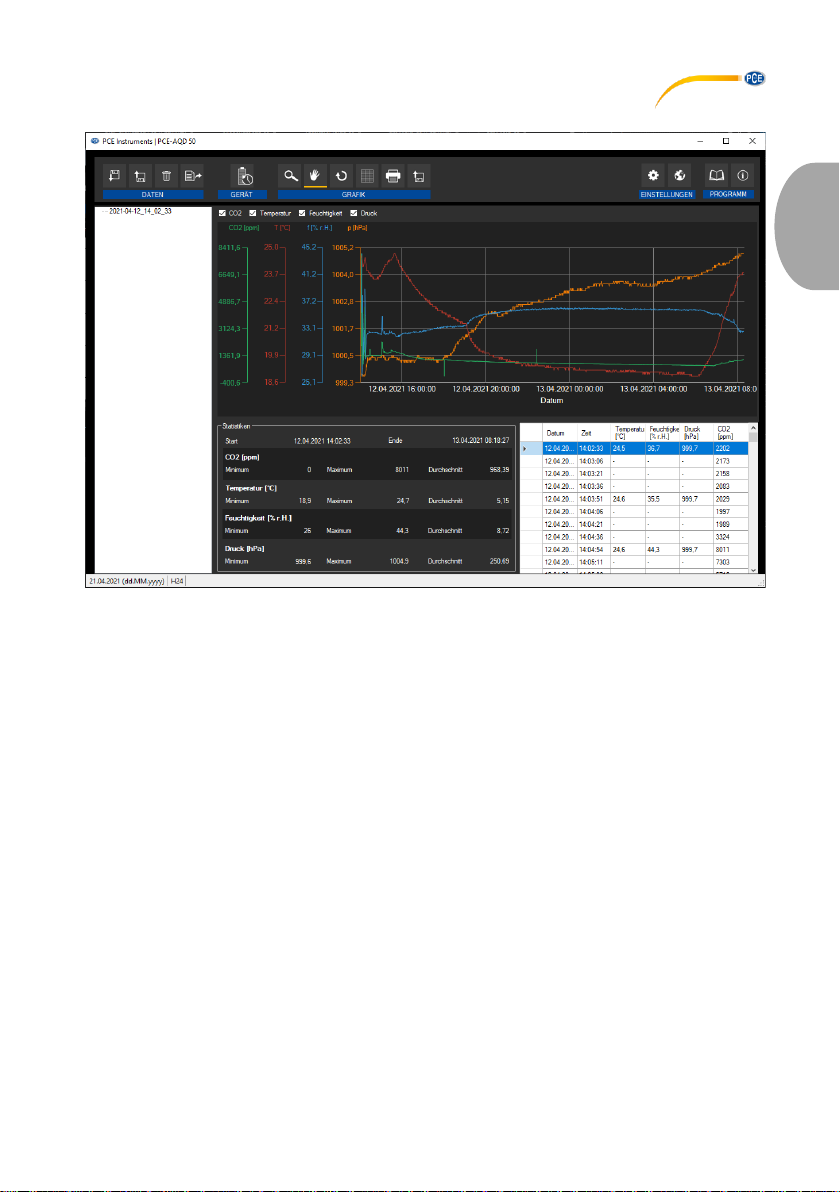
Das Hauptfenster setzt sich aus mehreren Bereichen zusammen:
Unterhalb der Titelleiste befindet sich eine Symbolleiste, deren Symbole funktional gruppiert sind.
Unter dieser Symbolleiste befindet sich im linken Teil des Fensters eine Auflistung von
Messreihen.
Während der obere Teil die Messwerte grafisch darstellt, bietet der untere Teil sowohl eine
Übersicht von statistischen Daten als auch eine tabellarische Auflistung der Messwerte.
Am unteren Rand des Hauptfensters befindet sich eine Statusleiste („status bar") mit wichtigen
statischen Einstellungen des Programms, die über einen Einstellungs-Dialog festgelegt werden
können (Datums- und Zeitformat).
Bei einem verfügbaren Update wird dort ein weiterer Punkt „Software-Update“ eingeblendet.
Page 6
© PCE Instruments
3
Deutsch
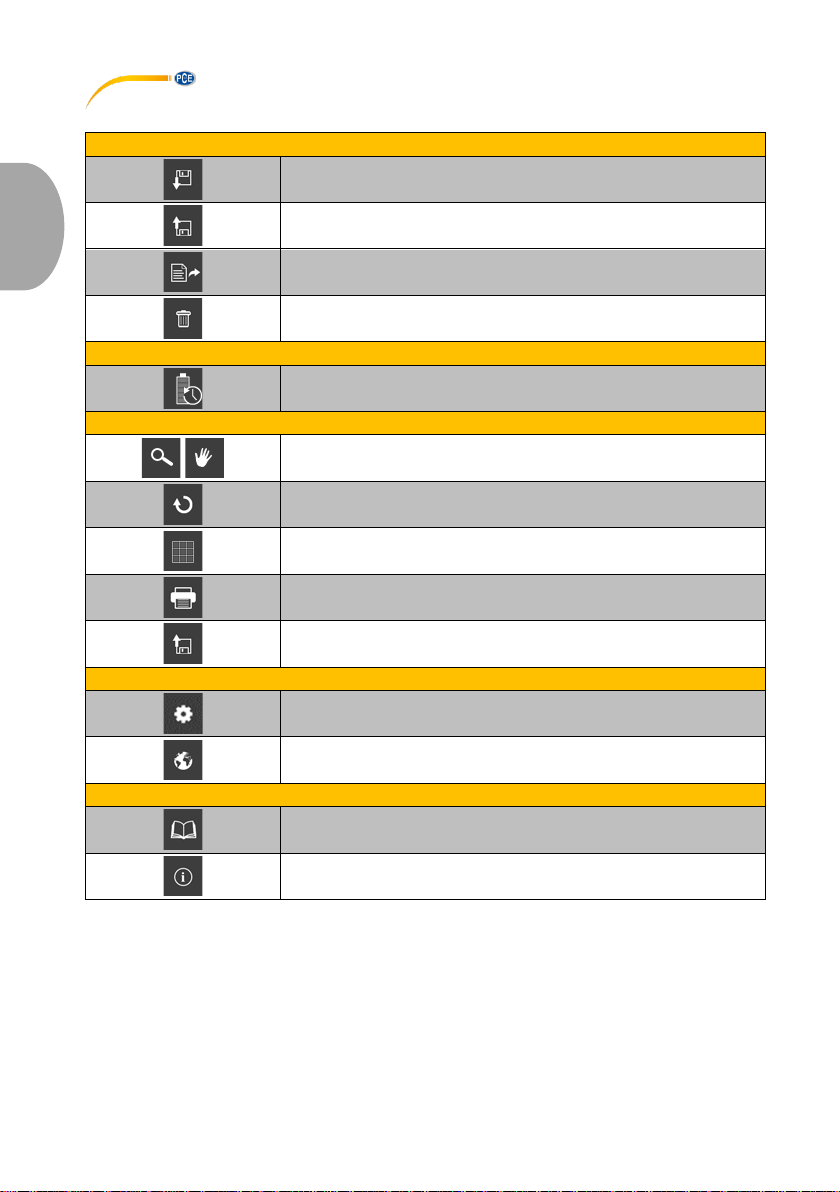
5 Bedeutung der einzelnen Symbole der Symbolleiste
Gruppe "Daten"
Laden von Messwerten aus einer Datei
Speichern der Messwerte in eine Datei
Messwerte exportieren (CSV-Format)
Löschen der gelisteten Messwerte
Gruppe “Gerät“
Maximale Laufzeit des PCE-AQD 50 berechnen
Gruppe “Grafik“
Vergrößerung eines Grafikbereichs ("Zoomen") bzw. Bewegen
der vergrößerten Grafik
Wiederherstellung der originalen Grafik
Hintergrund und Darstellung der Grafik ändern
Drucken der aktuell sichtbaren Grafik
Speichern der aktuell sichtbaren Grafik
Gruppe "Einstellungen"
Den Einstellungs-Dialog aufrufen
Auswahl einer vom Programm unterstützten Sprache
Gruppe "Programm"
Software-Anleitung öffnen
Einen Informations-Dialog anzeigen
Page 7
© PCE Instruments
4
Deutsch
6 Bedienung
6.1 Die erste Benutzung der Software
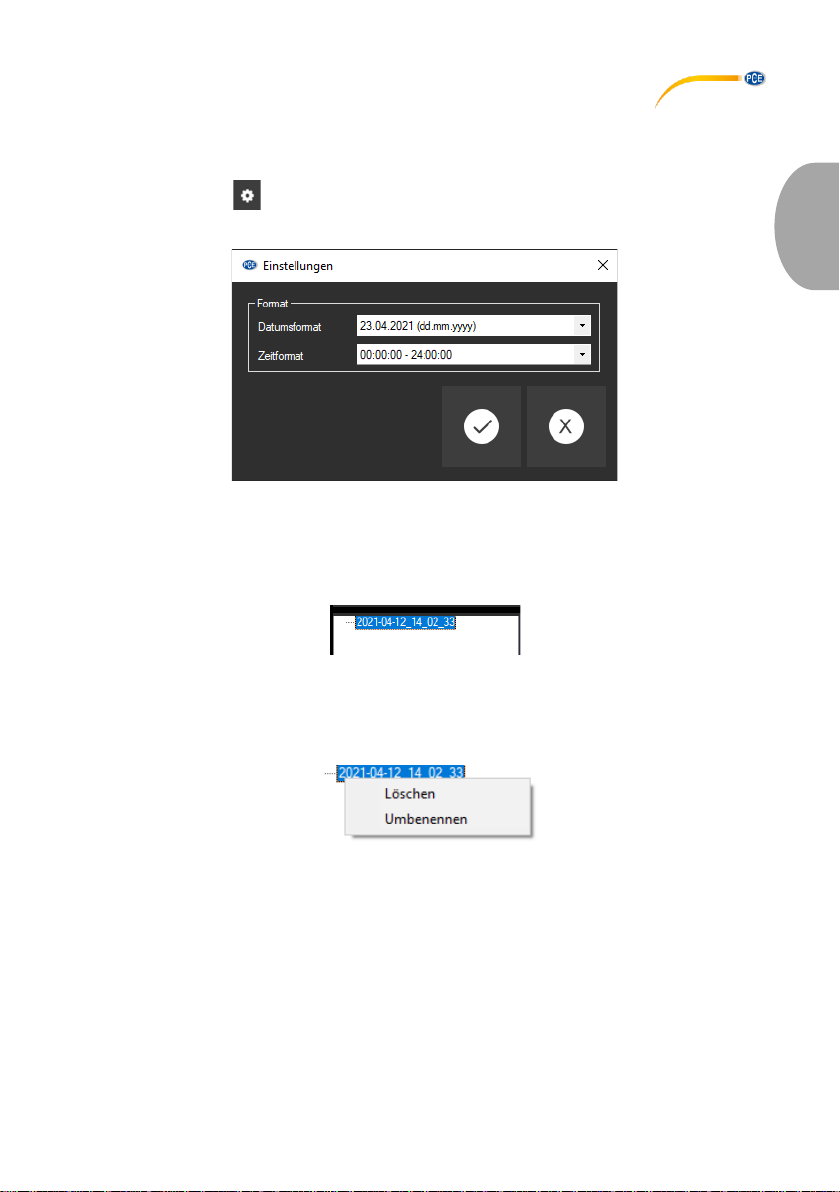
Über das Symbol öffnet sich der “Einstellungs-Dialog“. Hier können Einstellungen
vorgenommen werden, welche die Formatierung des Datums und der Zeit betreffen.
6.2 Liste der Messreihen
Im linken Bereich des Hauptfensters werden alle Messreihen aufgelistet, die sich zurzeit im
Speicher des PCs befinden. Jede Messreihe wird in der Liste mit einem Namen angezeigt.
Je nach Auswahl einer dieser Messreihen werden die Grafik, die Tabelle und auch die
statistischen Daten aktualisiert.
Ein Klick mit der rechten Maustaste gestattet es, die Messreihe umzubenennen oder zu löschen.
Page 8
© PCE Instruments
5
Deutsch
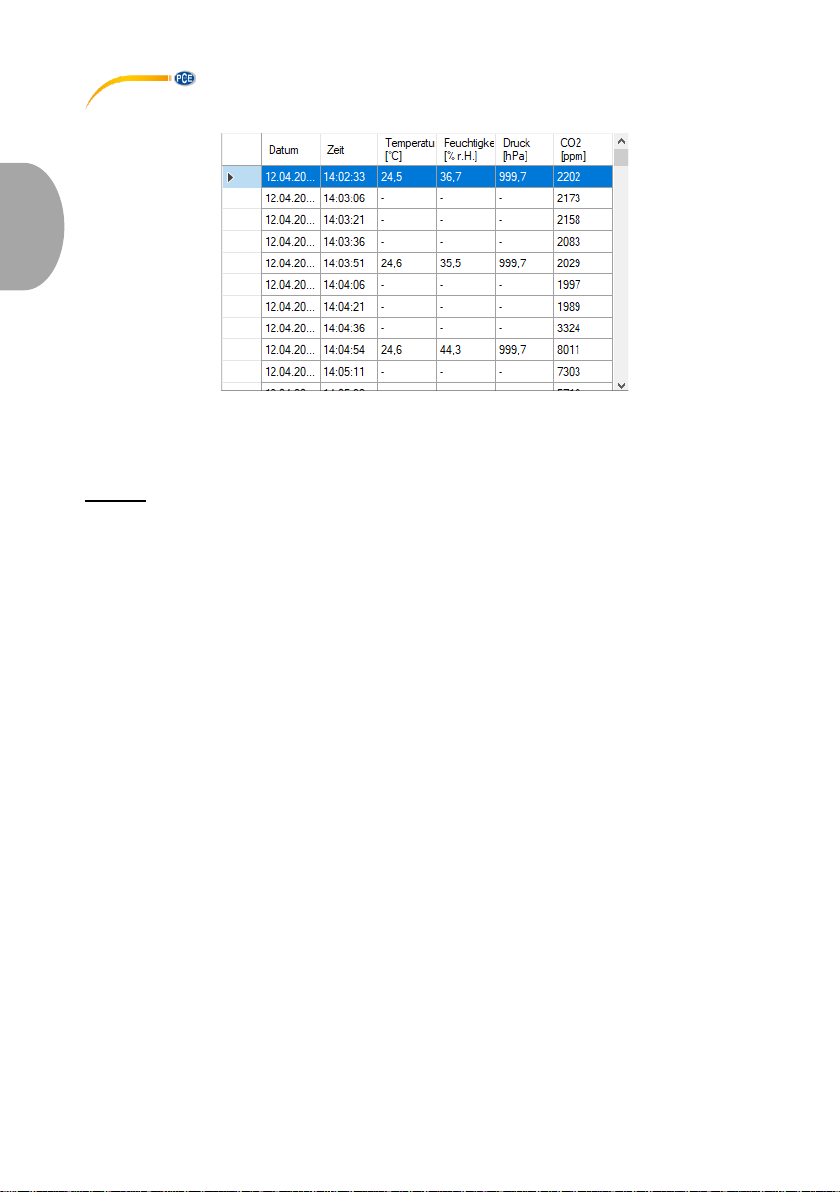
6.3 Numerische Anzeige
Im unteren Bereich des Hauptfensters werden alle Messwerte tabellarisch dargestellt.
Die Tabelle kann spaltenweise sortiert werden, indem auf die jeweilige Spaltenüberschrift
geklickt wird.
Hinweis:
Diese Daten stammen direkt aus dem PCE-AQD 50; die Uhrzeit kann also von der PC-Zeit
abweichen.
Page 9
© PCE Instruments
6
Deutsch
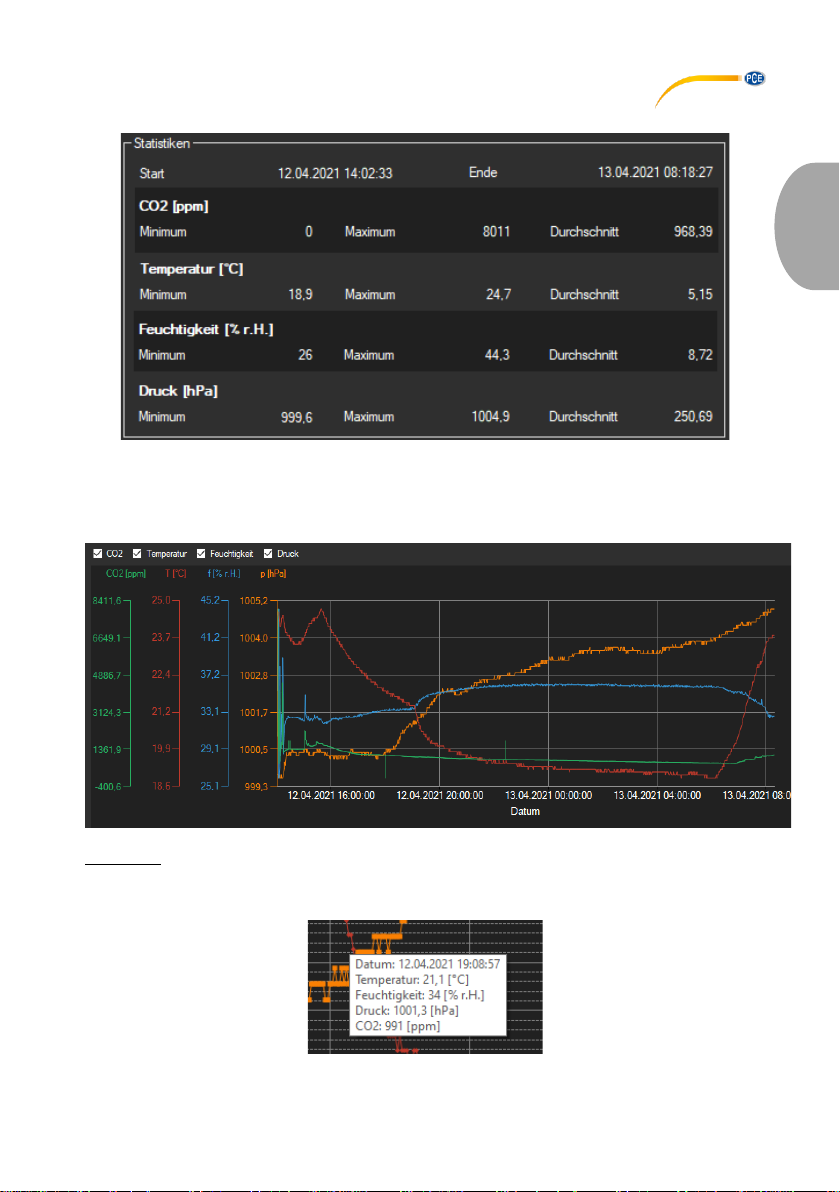
6.4 Statistische Daten
Die Statistik beinhaltet die minimalen, die maximalen und die Durchschnittswerte der jeweiligen
gemessenen Größen.
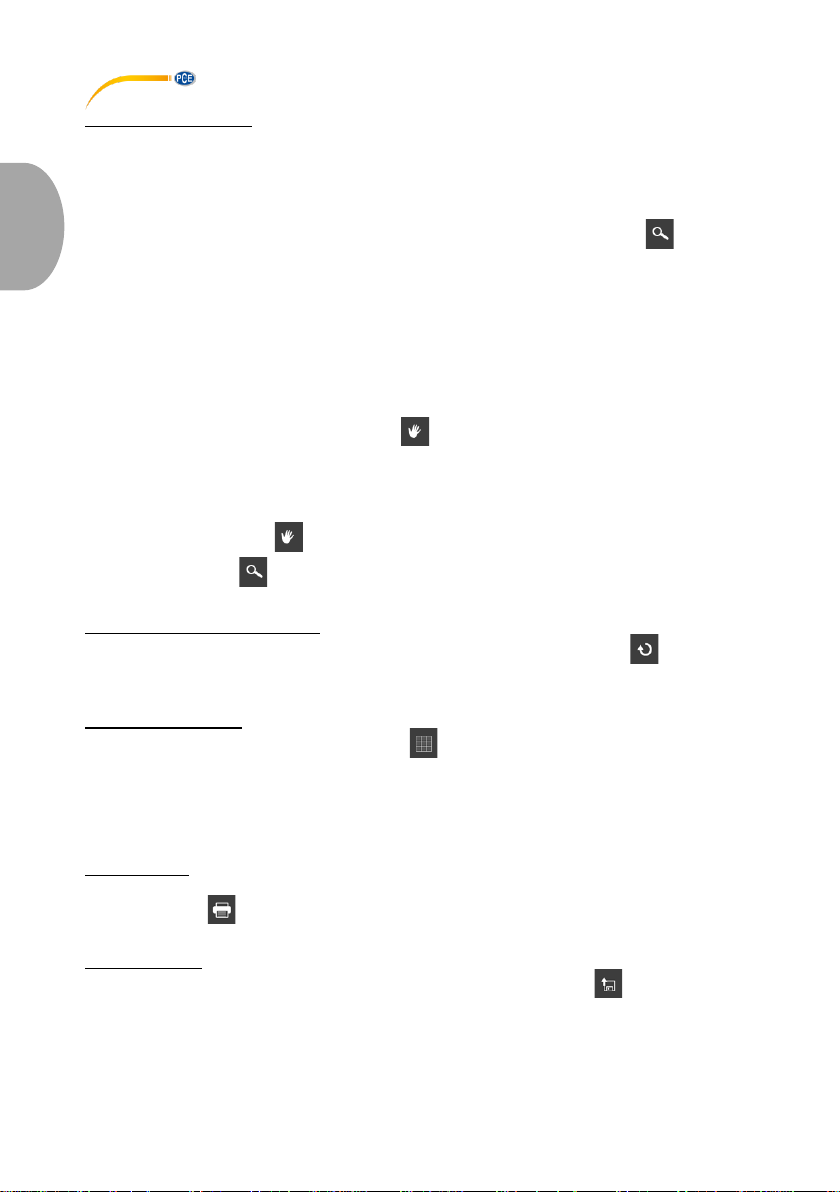
6.5 Grafische Darstellung
Infofenster
Das Führen des Mauszeigers über einen Punkt, den Kurvenverlauf oder eine Säule sorgt nach
kurzer Zeit für das Anzeigen eines kleinen Informationsfensters mit den Daten des aktuellen
Messwerts.
Page 10
© PCE Instruments
7
Deutsch
Vergrößerung/ Zoomen
Die dargestellte Grafik kann auch in einem frei wählbaren Teilbereich vergrößert dargestellt
werden.
Hierzu muss das entsprechende Symbol in der Symbolleiste ("Vergrößerung eines
Grafikbereichs ("Zoomen") bzw. Bewegen der vergrößerten Grafik") eine Lupe darstellen.
Dann kann bei gedrückt gehaltener Maustaste ein Rechteck über einen Bereich der Grafik
gezogen werden. Sobald die Maustaste losgelassen wird, erscheint der ausgewählte Bereich
als neue Grafik. Alternativ kann jederzeit per Mausrad in die Grafik herein und heraus gezoomt
werden.
Sobald mindestens einmal eine Vergrößerung vorgenommen wird, kann per Klick auf das
Symbol ("Vergrößerung eines Grafikbereichs ("Zoomen") bzw. Bewegen der vergrößerten
Grafik") mit der Lupe aus dem Vergrößerungs-Modus in den Verschiebe-Modus umgeschaltet
werden.
Dieser Modus wird durch das Hand-Symbol dargestellt.
Wird nun die Maus über den Grafikbereich gebracht und dann die linke Maustaste gedrückt, so
kann der abgebildete Teilausschnitt mit gehaltener Maustaste verschoben werden.
Ein erneuter Klick auf das Symbol wechselt wieder in den Vergrößerungs-Modus,
erkennbar durch das Symbol.
Komplettansicht wiederherstellen
Die originale Grafik kann jederzeit wieder hergestellt werden, indem auf das Symbol neben
der Lupe bzw. Hand geklickt wird.
Hintergrund aktivieren
Über das rechts daneben befindliche Symbol kann der Hintergrund der Grafik und auch die
Darstellung geändert werden. Ein Klick auf das Symbol wirkt hierbei wie ein Umschalter:
Ein einfacher Klick stellt den Hintergrund feiner aufgeteilt und die Grafik selbst mit zusätzlich
dargestellten Punkten dar. Ein weiterer Klick auf das Symbol wechselt wieder zur
Standardansicht.
Grafik drucken
Die aktuell angezeigte Grafik kann auch ausgedruckt werden.
Ein Klick auf das Symbol öffnet den bekannten Drucken-Dialog.
Grafik speichern
Um die aktuell angezeigte Grafik zu speichern, genügt ein Klick auf das Symbol. Mögliche
Grafikformate sind BMP, JPEG, PNG, GIF, TIFF und WMF.
Page 11
© PCE Instruments
8
Deutsch
6.6 Export von Messreihen
Über das Symbol in der Symbolleiste kann der komplette Inhalt einer einzelnen Messreihe
im CSV-Format exportiert werden.
6.7 Laden und Speichern von Messreihen
Zum Speichern einer Messreihe muss diese zunächst in der Übersicht der momentan in der
Software befindlichen Messreihen (links im Bild) ausgewählt werden.
Dann reicht ein Klick auf das Symbol . Sie können nun einen Dateinamen und einen AblageOrdner für diese Messreihe wählen und sie dort speichern.
Zum Laden einer Messreihe kann zum einen auf die Schaltfläche geklickt werden, um dann
den Ablage-Ordner und den Dateinamen auszuwählen.
Alternativ ziehen Sie die Datei per “drag & drop“ vom Windows-Explorer auf die Liste der
Messreihen in der Software.
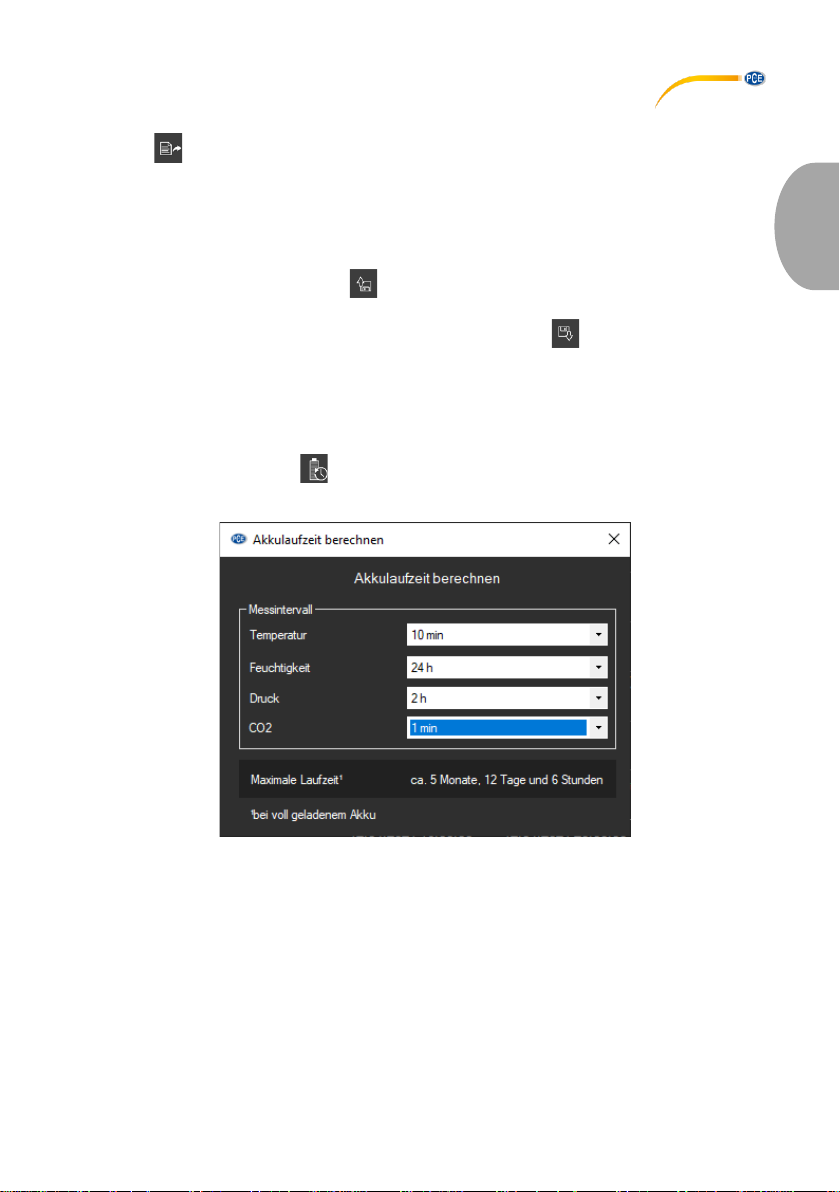
6.8 Akkulaufzeit berechnen
Durch einen Klick auf das Symbol öffnet sich nachfolgendes Fenster, welches zur
Berechnung der maximalen Laufzeit dient.
Hier können verschiedene Messintervalle für die zu messenden Größen ausgewählt werden,
anschließend wird die maximale Laufzeit bei voll geladenem Akku berechnet.
Page 12

© PCE Instruments
9
English
1 Safety notes
Acquaint yourself with the operation of the measuring device before using it in combination with
the PC software. For this purpose, use the instruction manual which comes with your PCE
product. All safety notes from the device’s manual have to be observed as well when the device
is used with this software.
The device and the software may only be used by qualified personnel. Damage or injuries caused
by non-observance of the manuals are excluded from our liability and not covered by our warranty.
We do not assume liability for printing errors or any other mistakes in this manual.
We expressly point to our general warranty terms which can be found in our general terms of
business.
If you have any questions, please contact PCE Instruments. The contact details can be found at
the end of this manual.
2 System requirements
• Operating system Windows 7 or higher
• USB port (2.0 or higher)
• An installed .NET framework 4.0
• A minimum resolution of 120x800 pixels
• Optional: a printer
• Processor with 1 GHz
• 4 GB RAM recommended
3 Installation
Please run the "Setup PCE-AQD 50.exe" and follow the instructions of the setup.
Page 13
© PCE Instruments
10
English
4 Description of the user interface
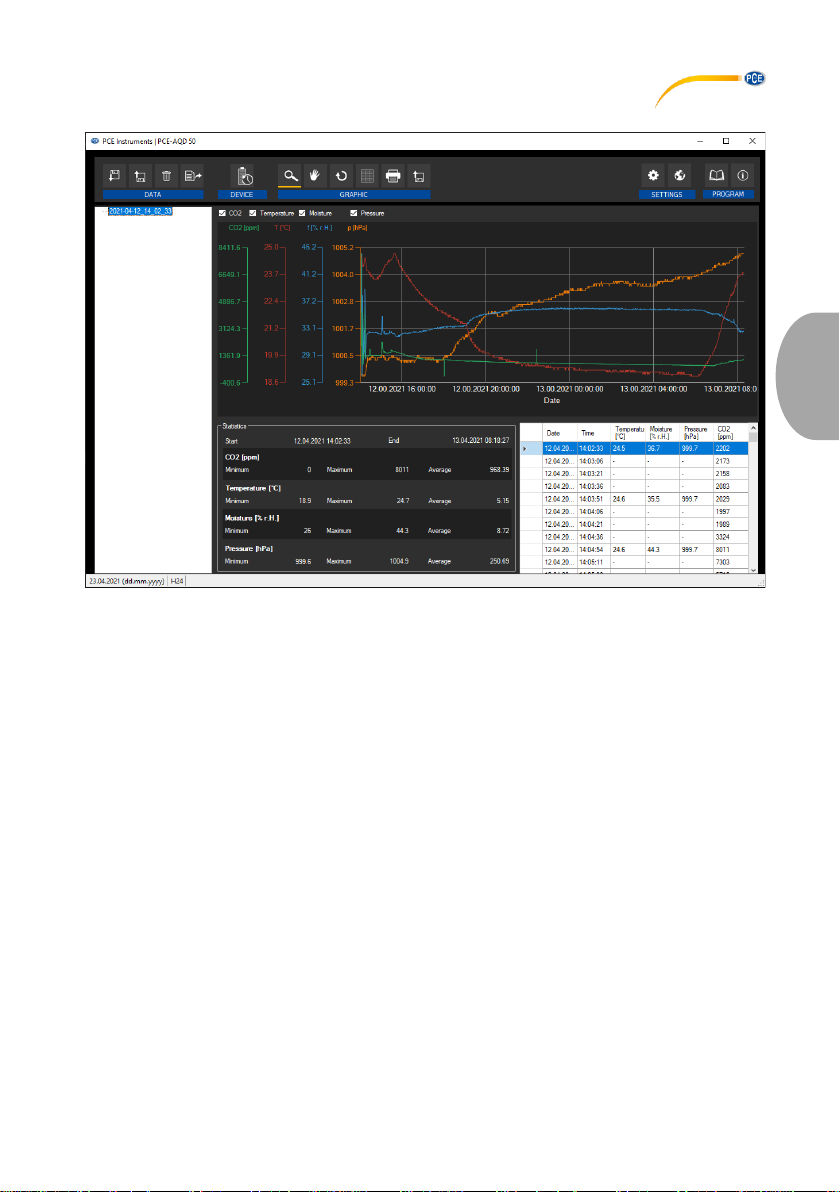
The main window consists of several areas:
Below the title bar, there is a toolbar the icons of which are functionally grouped.
Below this toolbar, there is a list of measurement series in the left part of the window.
In the upper part, the readings are shown in a graph whereas the lower part contains an overview
of statistical data as well as a tabular list of readings.
At the bottom of the main window, there is a status bar that contains some important static settings
of the programme which can be made via a settings dialogue (date and time format).
When an update is available, another item called “Software update“ is displayed there.
Page 14
© PCE Instruments
11
English
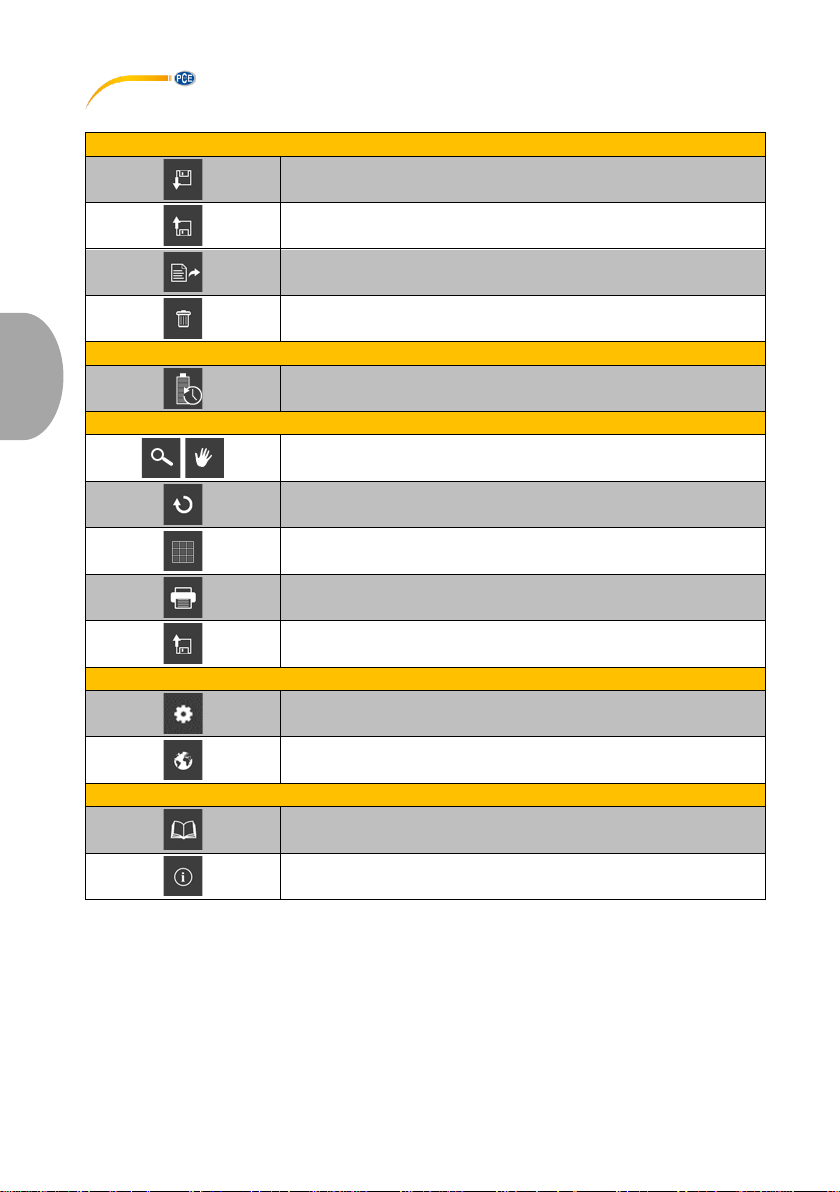
5 Meaning of the individual icons on the toolbar
Group "Data"
Load readings from a file
Save readings to a file
Export readings (CSV format)
Delete the listed readings
Group “Device“
Calculate maximum battery life of the PCE-AQD 50
Group “Graph“
Enlarge the graph area ("zooming") or move the enlarged graph
Restore the orginal graph
Change the background and representation of the graph
Print the currently visible graph
Save the currently visible graph
Group "Settings"
Open settings dialogue
Select one of the languages supported by the programme
Group "Programme"
Open software manual
Display an information dialogue
Page 15
© PCE Instruments
12
English
6 Operation
6.1 The first use of the software
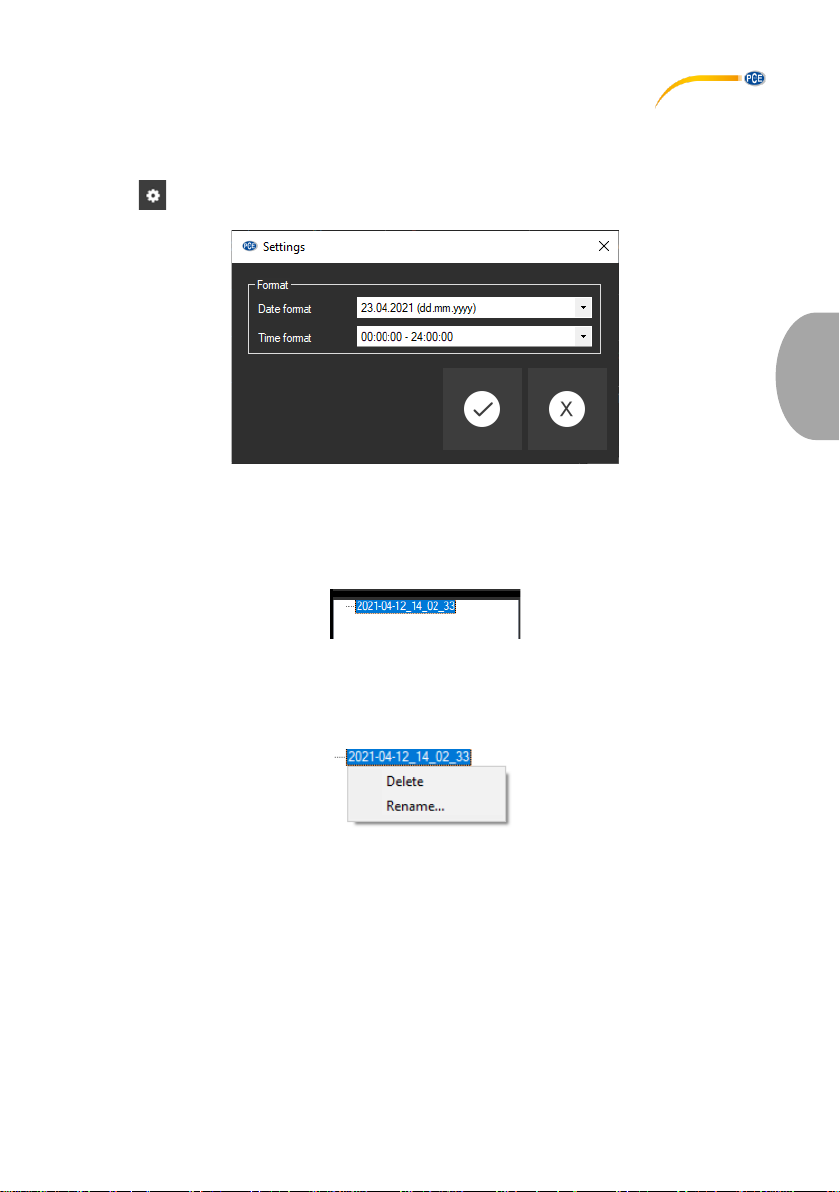
Via the icon, you can open the settings dialogue. Here, you can set the date and time format.
6.2 List of measurement series
In the left part of the main window, all series of measurements currently saved to the PC memory
are listed. Each series of measurements is shown in the list with a name.
Depending on the selected series of measurements, the graph, the chart and the statistical data
are updated.
Right-click on a series of measurements to rename or delete it.
Page 16
© PCE Instruments
13
English
6.3 Numerical display
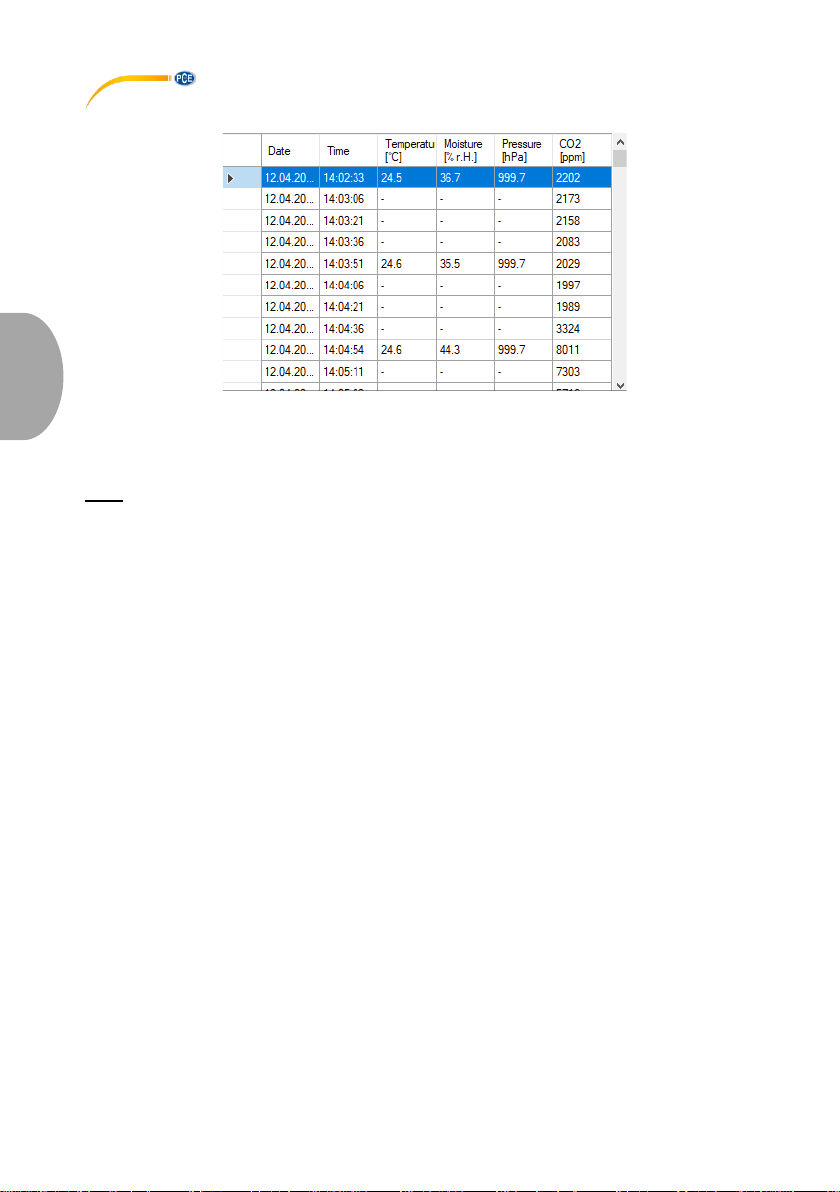
In the lower area of the main window, all measured values are displayed in tabular form.
The chart can be sorted by column by clicking on the header of a column.
Note:
These data come directly from the PCE-AQD 50. This means that the time may deviate from the
PC time.
Page 17
© PCE Instruments
14
English
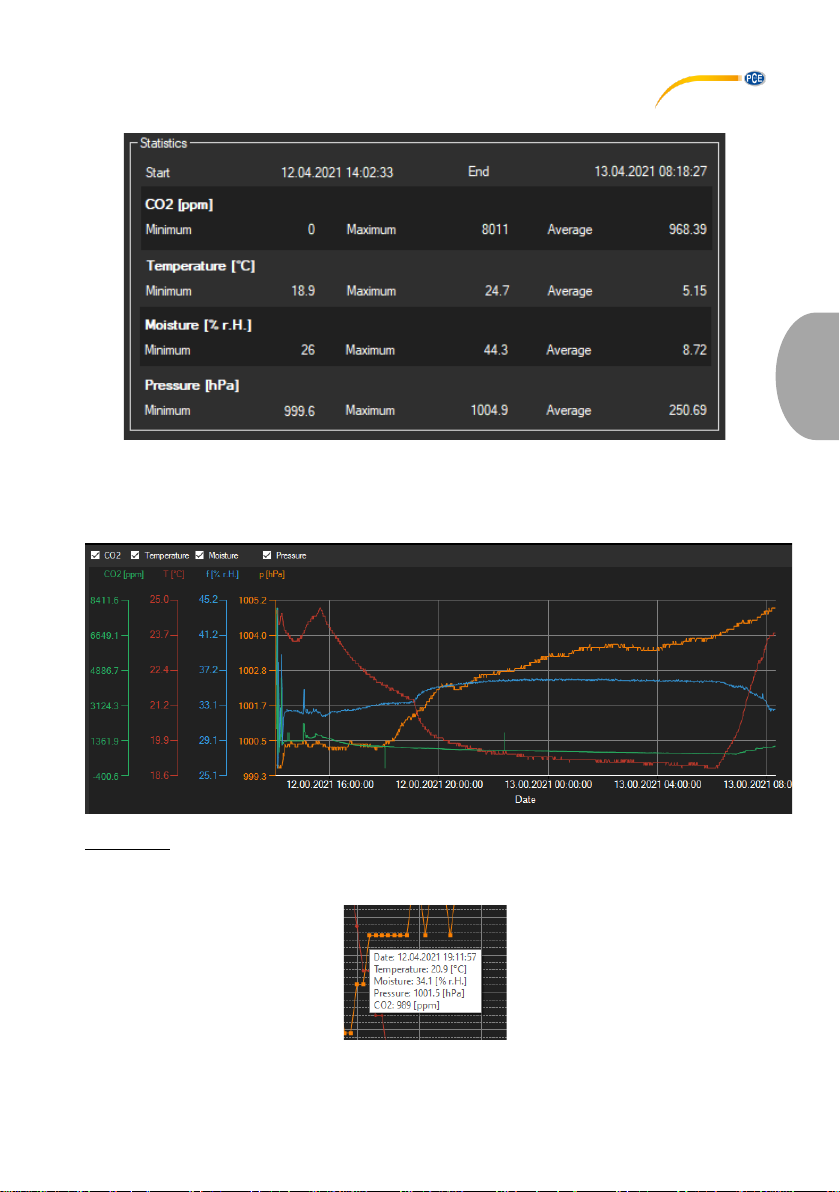
6.4 Statistical data
The statistics show the minimum, the maximum and the average values of the respective
measured variables.
6.5 Graphical representation
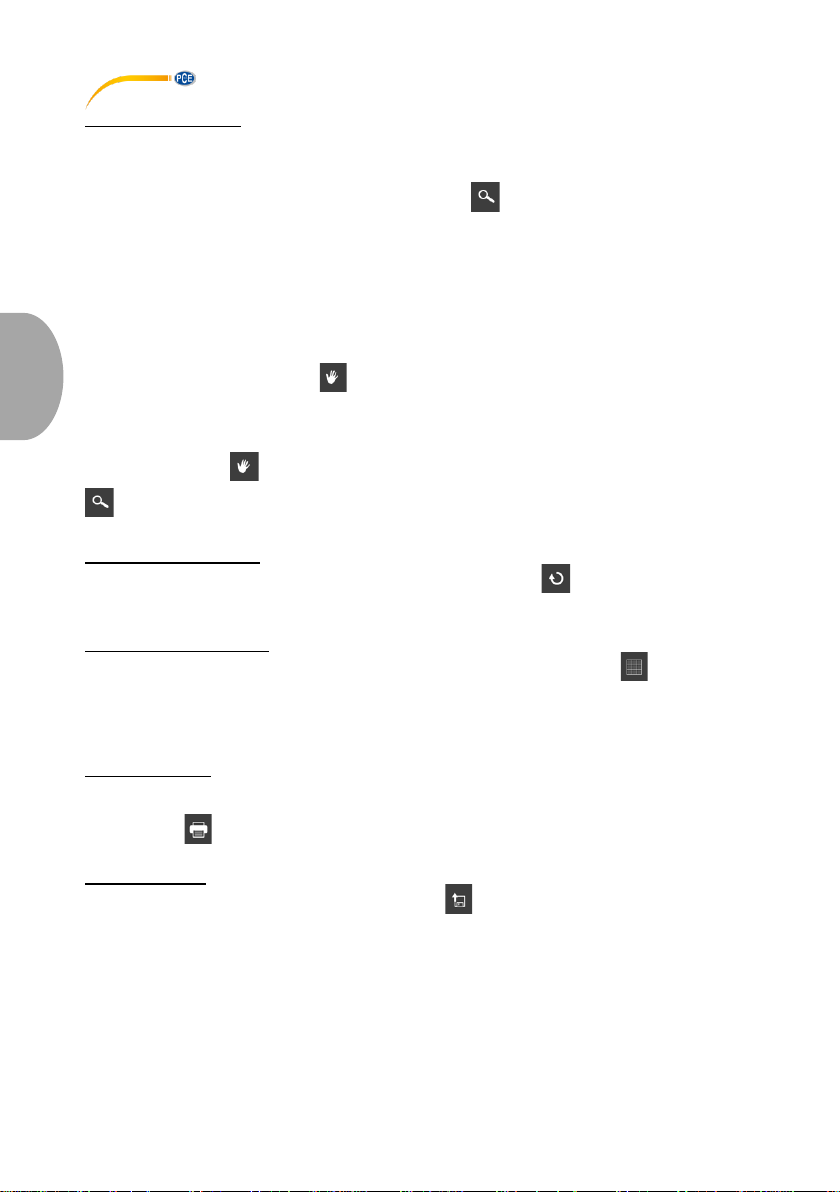
Info window
Moving the mouse cursor over a dot, the curve or a bar makes a small information window with
the data of the current reading pop up after a short time.
Page 18
© PCE Instruments
15
English
Enlargement/zooming
A freely selectable part of the displayed graph can be enlarged.
For this purpose, the corresponding icon in the toolbar (“Enlarge the graph area ("zooming") or
move the enlarged graph) must be a magnifying glass .
Then, a rectangle can be drawn over a part of the graph by holding the mouse button down.
When the mouse button is released, the selected area appears as a new graph. Alternatively,
you can zoom into and out of the graph by turning the mouse wheel.
As soon as at least one enlargement has been made, it is possible to switch from enlargement
mode to shift mode by clicking on the icon (“Enlarge the graph area ("zooming") or move the
enlarged graph) with the magnifying glass.
Shift mode is represented by the icon.
If the mouse is now placed over the graph area and then the left mouse button is pressed, the
displayed section can be moved by holding the mouse button down.
Another click on the icon changes back to enlargement mode, which is recognizable by the
icon.
Restoring complete view
The original graph can be restored at any time by clicking on the icon next to the magnifying
glass or hand.
Activating the background
The background of the graph and its representation can be changed via the icon to the right.
A click on the icon works like a switch:
A single click makes the division of the background finer and adds some more dots to the graph.
A further click on the icon changes back to standard view.
Printing the graph
The currently displayed graph can also be printed.
A click on the icon opens the "Print" dialogue.
Saving the graph
To save the currently displayed graph, click on the icon. The following formats are possible
for the graph: BMP, JPEG, PNG, GIF, TIFF and WMF.
Page 19
© PCE Instruments
16
English
6.6 Export series of measurements
Via the icon in the toolbar, the complete content of an individual series of measurements
can be exported in CSV format.
6.7 Loading and saving series of measurements
To save a series of measurements, it must first be highlighted in the overview of measurement
series which are currently in the software (on the left).
By clicking on the button, you can now specify a file name and a target folder for this series
of measurements and save it to this folder.
To load a series of measurements, you can click on the button and then select the target
folder and a file name or you can “drag & drop” the file from the Windows Explorer to the list of
measurement series in the software.
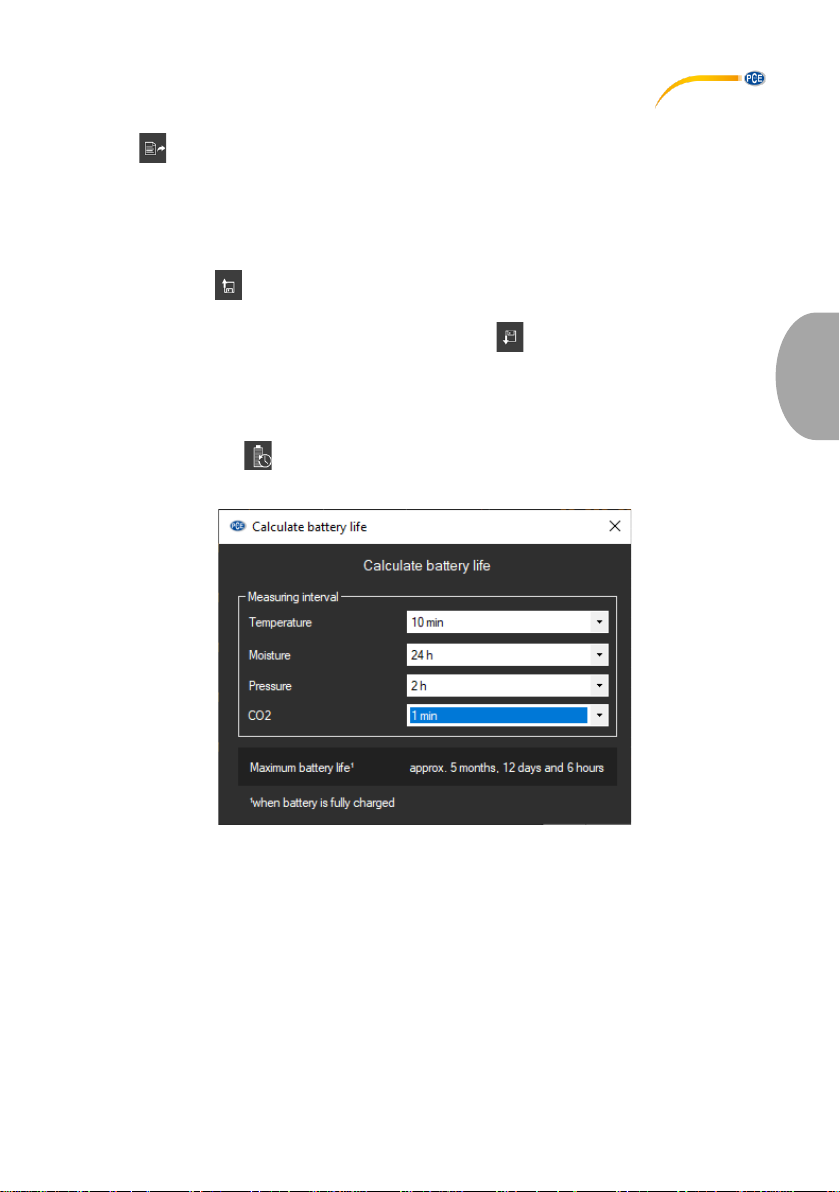
6.8 Calculate bettery life
When you click on the icon, the following window for calculating the maximum battery life will
open.
Here, you can select different measuring intervals for the parameters to be measured. The
maximum battery life at full charge is then calculated.
Page 20

© PCE Instruments
17
English
PCE Instruments contact information
Germany France Spain
PCE Deutschland GmbH PCE Instruments France EURL PCE Ibérica S.L.
Im Langel 4 23, rue de Strasbourg Calle Mayor, 53
D-59872 Meschede 67250 Soultz-Sous-Forets 02500 Tobarra (Albacete)
Deutschland France España
Tel.: +49 (0) 2903 976 99 0 Téléphone: +33 (0) 972 3537 17 Tel. : +34 967 543 548
Fax: +49 (0) 2903 976 99 29 Numéro de fax: +33 (0) 972 3537 18 Fax: +34 967 543 542
[email protected] [email protected] [email protected]
www.pce-instruments.com/deutsch www.pce-instruments.com/french www.pce-instruments.com/espanol
United Kingdom Italy Turkey
PCE Instruments UK Ltd PCE Italia s.r.l. PCE Teknik Cihazları Ltd.Şti.
Unit 11 Southpoint Business Park Via Pesciatina 878 / B-Interno 6 Halkalı Merkez Mah.
Ensign Way, Southampton 55010 Loc. Gragnano Pehlivan Sok. No.6/C
Hampshire Capannori (Lucca) 34303 Küçükçekmece - İstanbul
United Kingdom, SO31 4RF Italia Türkiye
Tel: +44 (0) 2380 98703 0 Telefono: +39 0583 975 114 Tel: 0212 471 11 47
Fax: +44 (0) 2380 98703 9 Fax: +39 0583 974 824 Faks: 0212 705 53 93
[email protected] [email protected] [email protected]
www.pce-instruments.com/english www.pce-instruments.com/italiano www.pce-instruments.com/turkish
The Netherlands Hong Kong United States of America
PCE Brookhuis B.V. PCE Instruments HK Ltd. PCE Americas Inc.
Institutenweg 15 Unit J, 21/F., COS Centre 1201 Jupiter Park Drive, Suite 8
7521 PH Enschede 56 Tsun Yip Street Jupiter / Palm Beach
Nederland Kwun Tong 33458 FL
Telefoon: +31 (0)53 737 01 92 Kowloon, Hong Kong USA
[email protected] Tel: +852-301-84912 Tel: +1 (561) 320-9162
www.pce-instruments.com/dutch [email protected] Fax: +1 (561) 320-9176
www.pce-instruments.cn [email protected]
Page 21

© PCE Instruments
Page 22

© PCE Instruments
User manuals in various languages (français, italiano, español,
português, nederlands, türk, polski, русский, 中文) can be found by
using our product search on: www.pce-instruments.com
Specifications are subject to change without notice.
 Loading...