

Page 1
USER GUIDE
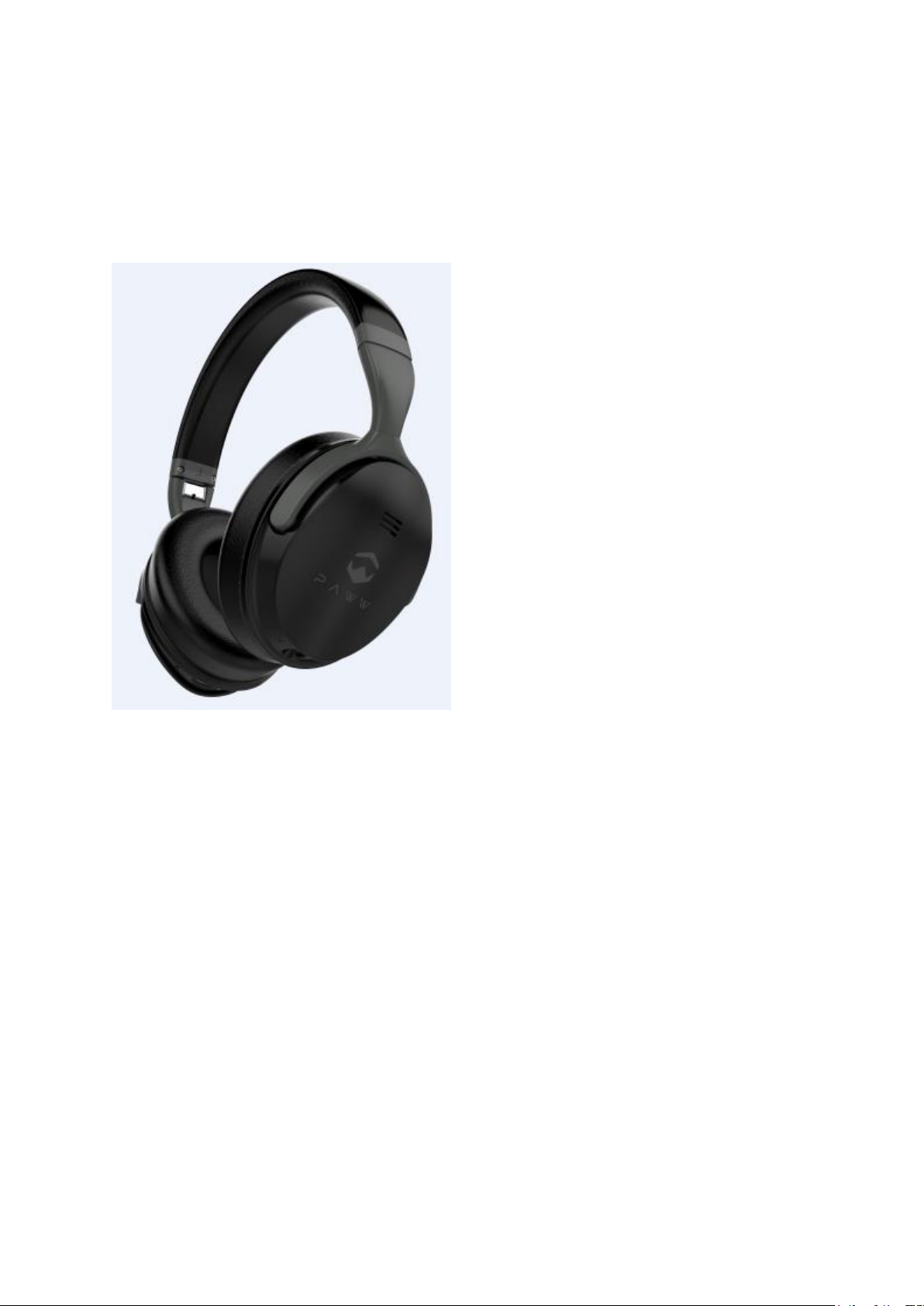
Model No.: WAVESOUND 2.1
DESC.: Bluetooth Headphone
Thank you for purchasing this Bluetooh headphone.
Please read this instruction and warnings carefully before use to ensure safe and satisfactory enjoyment of this
product.
Important safety information
Adjust the headphone sound to the proper volume. Loud sound may damage your hearing.
Don’t turn the volume so high that you can’t hear what’s around you.
Use cautiously or temporarily discontinue use in potential hazardous situations.
Do not use the headphone while ridding a bicycle, motor bike, or driving a car. The use of headphone may cause a traffic
hazard and is illegal in many areas.
Not exposure or toss headphone into a fire. It will probably caused an accident
Don't disassemble headphone if you are not an expert.
Place out of reach of small children to prevent accidental ingestion of small parts.
WARNING
Page 2
This headphone is not waterproof. To prevent a fire or shock hazard, do not place any container filled with liquid near it
(such as a vase or flower pot) or expose it to dripping, splashing, rain or moisture.
To prevent a fire hazard, do not place any naked flame sources (such as lighted candle) on the headphone.
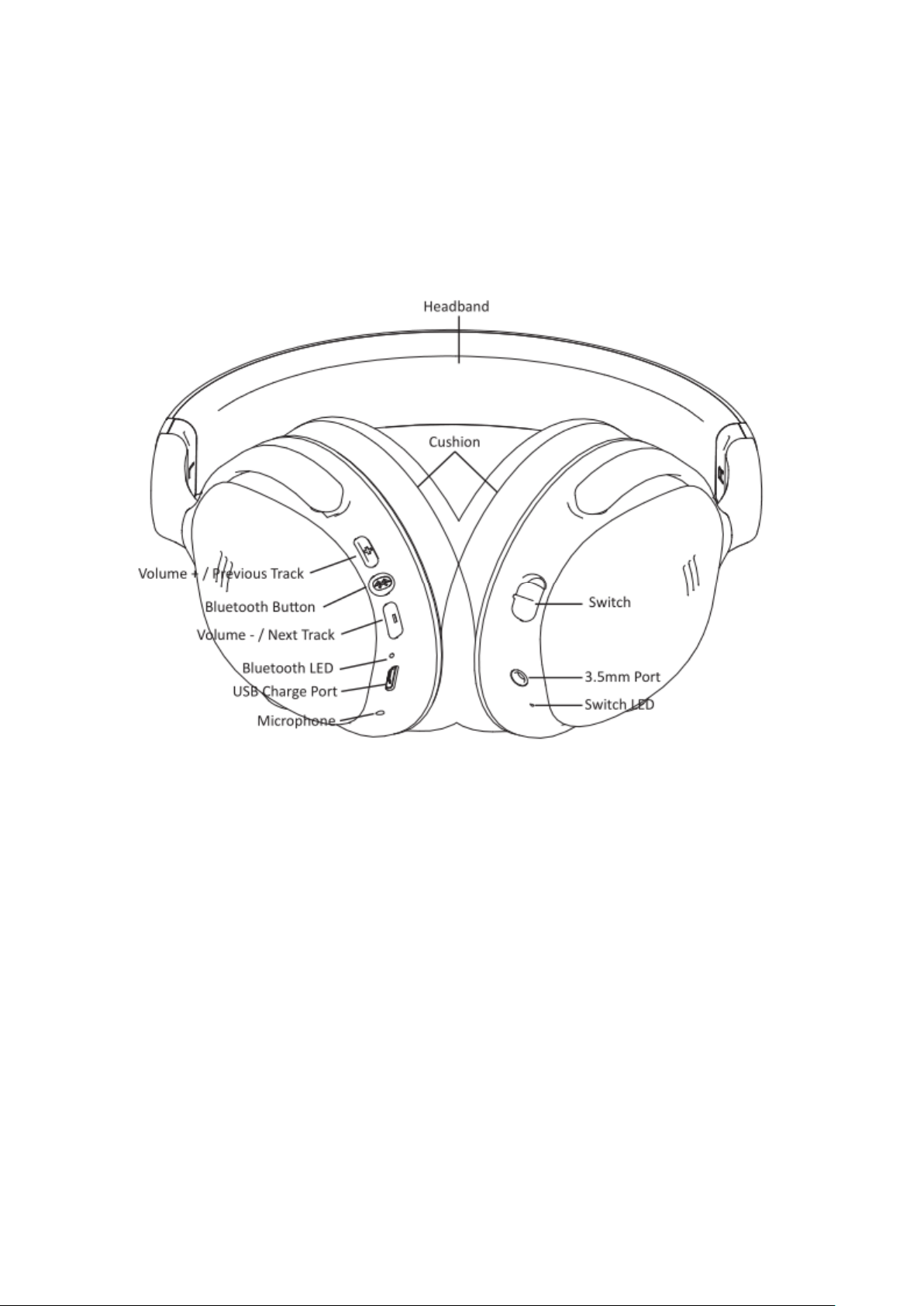
Description of the appliance
Specifications
Bluetooth Solution: CSR64215
Bluetooth version: V4.2
Support agreement: A2DP, AVRCP, HFP, HSP
Operating distance: 10M
Battery: 300mAh
Charging time: about 3 hours
Charging current: 200mA
Music playing time: up to 16 hours
Driver Unit: Ø40mm
Impedance: 32Ω
Sensitivity: 103dB/1mW(S.P.L at 1KHz)
Frequency Range: 20Hz-20KHz
Page 3

Battery charging
The headphone’s battery must be recharged before use.
Headphone’s battery must be charged with the micro-USB cable included in package as accessory.
Connect the micro-USB in the cable to the appropriate charging port of the headphone, and the USB plug on the other
end to a USB port on a computer or wall charger.
When recharging begins, the LED indicator on the headphone will light red.
Full recharging requires about three hours; when recharging is completed, the Red LED indicator will turn Blue.
When the battery is approaching depletion, a beep sound will be heard in the headphone at one-minute intervals.
Note
Battery recharging time and using time may vary depend on ambient temperature and frequency of use.
Do not place metal objects near the headphone’s charging port, since dangerous electrical shorts or abnormal heating
may occur.
Please don’t attempt to change the rechargeable lithium battery that should last the lifetime of the headphone.
Please don’t dispose used batteries/electronics with ordinary solid waste, since they contain toxic substances.
Please turn off your headphone after your usage to get a longer battery life.
Pair headphone with Bluetooth devices
1. Turn on switch and you hear Power on,the switch led is green and the blue LED indicator flashing three times, you
hear a voice says “pairing”.it enters the pairing mode (the LED indicator’s flashing blue and red),
2. Turn on the bluetooth device you wish to pair with, please keep it within one meter range of headphone. Search for
the pairing name “WAVESOUND 2.1” in your device pairing list.
3. Select/click pairing name “WAVESOUND 2.1” till you hear voice “collected”
Paired headphone will flash blue LED at the intervals of three seconds.
4. When in the paring mode, if pairing is not completed within 90s, the headphone will enter standby mode, and you
have to restart for pairing.
Notes:
1. When the headphone has already paired with a device, it will automatically connect when both device and
headphone power on and stay within 1m next time using.
2. If you want to pair with another device, you have to disconnect the bluetooth connection from the first device.
And the headphone will search for another device and later paired.
Constructions about how to connect two devices at the same time:
1,It has to be in one-to-one pairing mode when first time connect the two devices, connect the headphone with the first BT
device successfully. Then disconnect the headphone with it. Keep the headphone open, it goes into the paring mode, Open
the second BT device, connect it with the headphone. And now you can connect the first BT devices with the headphone at
the same time.
Page 4
Functions
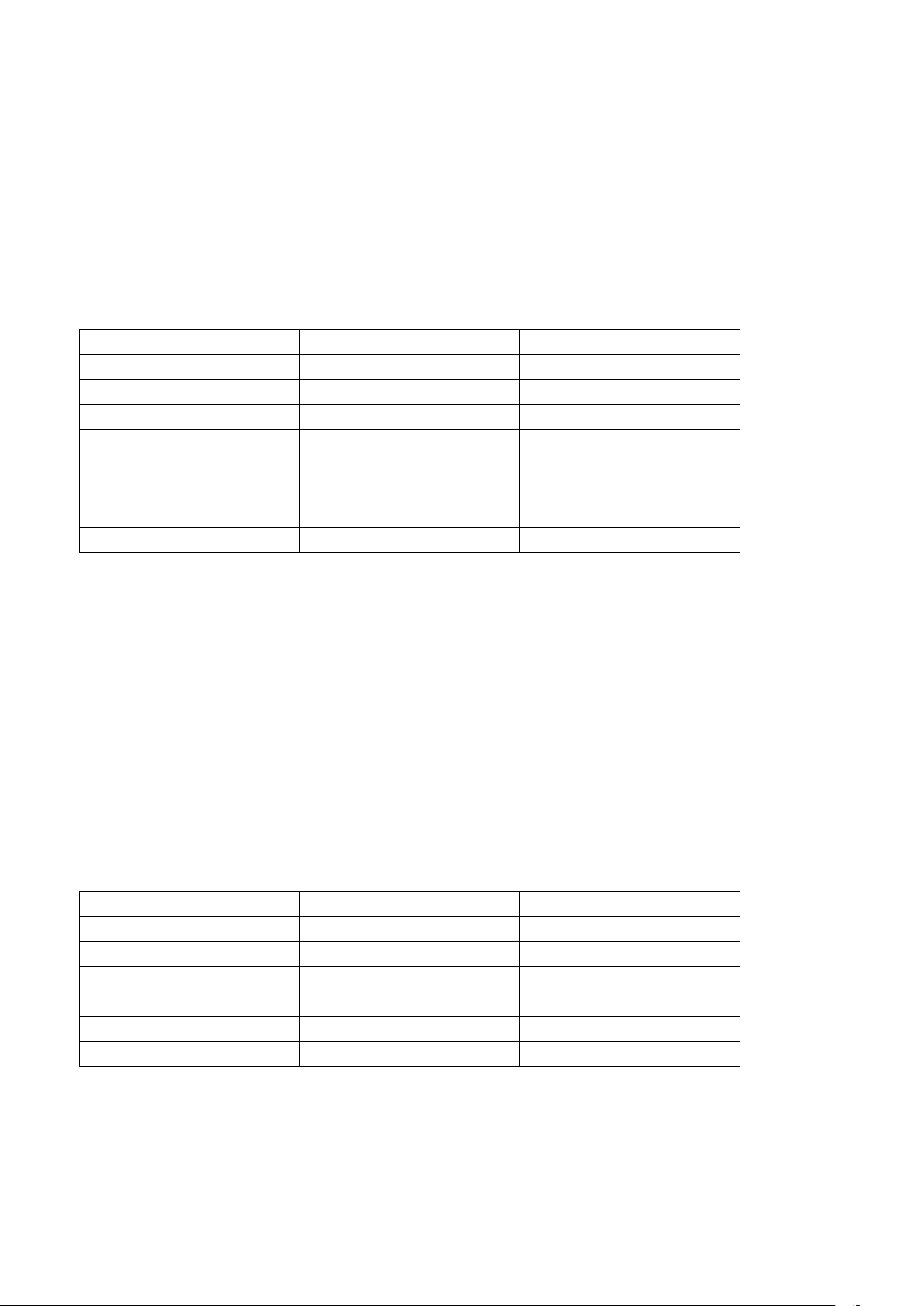
Status of headset
Operation
Volume up
Conversation mode
Short press “+” button
Volume down
Conversation mode
Short press “ - “ button
Answering calling
Ringing
Short press bluetooth button
Reject calling
Ringing
Press and hold bluetooth button
for one second, and release
until you hear indication
sound
Functions
Status of headphone
Operation
Play
pausing
Short press Bluetooth button
Pause
Playing Music
Short press Bluetooth button
Previous Track
Playing
Long press Volume + button
Next Track
Playing
Long press Volume - button
Volume +
Playing
Short press Volume + button
Volume -
Playing
Short press Volume - button
2, If you want to hear the music in one BT device, you have to pause the music in the other BT device while it is playing, the
bluetooth maintain connections. There will be some delay when switching the music from one BT device from the other one.
3, All of these steps finished now, not deleting the BT devices. When using the headphone second time, open the two BT
devices and headphone, the headphone will automatically connect one of the BT devices, the other one has to be connected
with the headphone by hand.
Making calls with the headphone
Notes:
Not all the mobile phones support all the functions listed above. Please refer to the
instruction of your mobile phone. Some functions and indication tones may vary with mobile phones
Playing Music
To use the wireless headphone to listen to music from a bluetooth device, you must firstly perform pairing with the
bluetooth device which use the A2DP audio profile.
Controls when listening to music
When sound volume is set to maximum or minimum levels a beep sound will be produced from the headphone.
Double-click the bluetooth key to enter the apple siri mode.
Disconnecting from the bluetooth device
Page 5

Turn off the switch to turn off the power.
Problem
Remedy
Power won’t turn on
Recharge the wireless headphones
The batteries will not charge
Confirm that computer is ON.
Confirm that computer is not in power-saving mode.
Confirm that accessory micro-USB cable is securely connected to
both the wireless headphone and computer.
Can’t perform pairing
Place the wireless headphones and bluetooth device closely
together when performing pairing
Can’t perform bluetooth connection
Confirm that power is turned on for both wireless headphones and
bluetooth device.
Confirm that bluetooth function is turned ON in the device you are
connecting to
No sound when playing music
Confirm that power is turned on for both wireless headphones and
bluetooth device.
Confirm that connection with bluetooth device is set for profile
A2DP.
Confirm that the connected music playback device is set for PLAY.
Confirm that sound volume controls on both wireless headphones
and music playback device are set to appropriate levels.
Sound is distorted when playing music
Check that no other devices utilizing the 2.4GHz wavelength are
nearby, and that no obstructions black the signal path.
Can’t use the hands-free operation
Confirm that wireless headphones and bluetooth device are
connected using the profile HFP or HSP. If connection that to the
bluetooth device is in profile A2DP, it may be necessary to change
connection profiles(depending on the specifications of the bluetooth
device).
Communication distance is short, sound is garbled.
Check that no other devices utilizing the 2.4GHz
wavelength(including microwave ovens, wireless radios, etc.) are
nearby. and that no obstructions block the signal path.
Troubleshooting
Page 6

FCC Warning:
This equipment has been tested and found to comply with the limits for a Class B digital
device, pursuant to part 15 of the FCC Rules. These limits are designed to provide
reasonable protection against harmful interference in a residential installation. This
equipment generates, uses and can radiate radio frequency energy and, if not installed and
used in accordance with the instructions, may cause harmful interference to radio
communications. However, there is no guarantee that interference will not occur in a
particular installation. If this equipment does cause harmful interference to radio or
television reception, which can be determined by turning the equipment off and on, the user
is encouraged to try to correct the interference by one or more of the following measures:
• Reorient or relocate the receiving antenna.
• Increase the separation between the equipment and receiver.
• Connect the equipment into an outlet on a circuit different from that to which the receiver
is connected.
• Consult the dealer or an experienced radio/TV technician for help.
Caution: Any changes or modifications to this device not explicitly approved by
manufacturer could void your authority to operate this equipment.
This device complies with part 15 of the FCC Rules. Operation is subject to the following
two conditions: (1) This device may not cause harmful interference, and (2) this device
must accept any interference received, including interference that may cause undesired
operation.
The device has been evaluated to meet general RF exposure requirement. The device can
be used in portable exposure condition without restriction.
 Loading...