

Page 1

Wireless
Slim Keyboard
& Mouse
Desktop Set
30
USER GUIDE
Visit our Website at www.targus.com/emea
Features and specifications subject to change without notice.
© 2006 Targus Group International, Inc. and Targus Group (UK) Ltd.
AKM04EU / 410-0629-003A
Page 2

TARGUS WIRELESS SLIM
KEYBOARD & MOUSE
DESKTOP SET
Introduction
Congratulations in purchasing the Targus wireless slim
keyboard & mouse desktop set. This combo set offers the
latest technology for users to remotely control their computer
and to enhance their flexibility by providing 13 hot keys on the
keyboard. In addition, the wireless optical mouse is rechargeable via USB cable so that it save operating cost, eliminating
the cost of replacing with new batteries. The mouse is
operable while being charged so it never goes out of power.
Contents
• Wireless 27 Mhz slim keyboard
• Wireless 27 Mhz rechargeable mouse
• USB desktop receiver with attached USB charge cable
• Software Driver (for 98 / ME / 2000)
• 2 x AA Batteries (for keyboard)
• 2 x AAA Rechargeable Batteries (for mouse)
• User Guide
System Requirements
Hardware
• PC with an Intel® Pentium® processor or equivalent
• USB 1.1 or 2.0 port
Operating System
• Windows® 2000 / XP
2
Page 3

Targus wireless slim keyboard & mouse desktop set
Installing the Batteries
Rechargeable Mouse
1.
Remove the battery cover at the bottom of the mouse by
pressing the tab and lifting the cover open.
Removing the battery cover
2.
Insert the supplied rechargeable batteries, making sure
that the positive (+) and negative (-) ends of each battery
match the polarity indicators inside the battery housing.
NOTE: This device uses rechargeable batteries. Please
make sure that they are fully charged before initial use.
3.
Replace the battery cover back into position until it “clicks”
firmly into place.
3
Page 4

Targus wireless slim keyboard & mouse desktop set
Slim Keyboard
1
Remove the battery cover located on the bottom of the key
board by sliding the cover to the left.
2 Insert the supplied batteries , making sure that the
positive (+) and negative (-) ends of each battery match
the polarity indicators inside the battery housing.
Battery
Slide open
Cover
Removing the battery cover
Installing the Driver
The driver supports Windows 98 / ME / 2000. If your OS is Windows XP
the media hot keys are valid without installing the driver. When you
change the interface port, please reinstall the driver.
Insert the driver CD-ROM to your computer. The PC system may
1.
automatically install the driver through selecting the PC auto-install
function.
2.
If the PC system does not set the auto-install function, please
double click the file “Setup.exe” and follow the setup instructions to
complete the driver installation.
3.
Restart the computer.
Note: When uninstalling the driver, please make sure that you
disable the driver program in the taskbar.
4
Page 5

Targus wireless slim keyboard & mouse desktop set
Connecting the Receiver
Plug the USB receiver into an available USB port on your
computer.
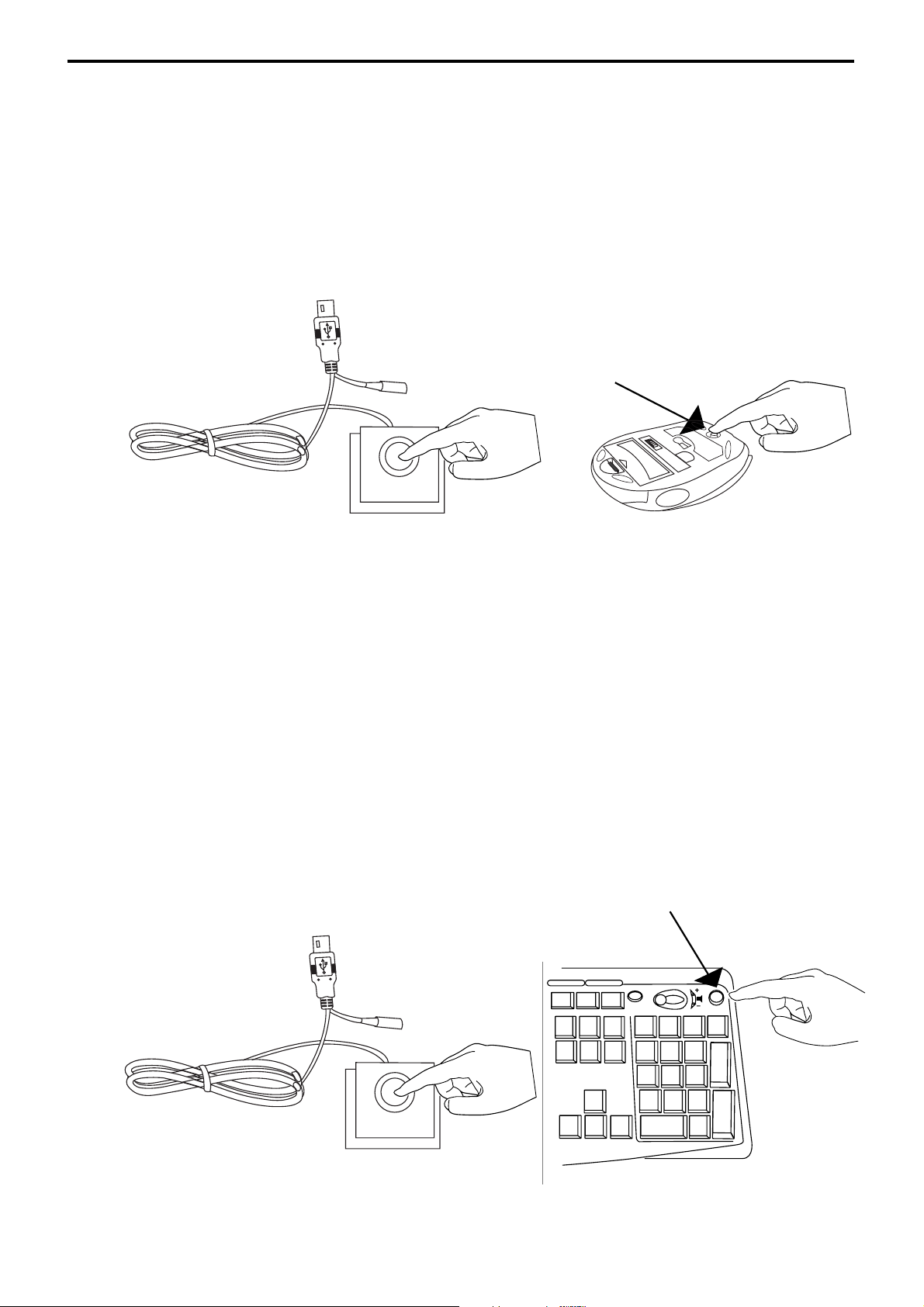
You are now ready to set the identification code to establish
a communication link with the receiver.
Establishing a Communication Link
The keyboard and mouse combo is a plug-n-play device. It should be
operating once the USB devices are connected and recognized by the
computer.
If the device is not working or you have recently replaced the batteries,
please can try to reset the ID code between the receiver and the
device. To do this, do the following:
NOTE: Make sure that your computer is turned on and
has detected the USB receiver before you set the ID
code.
5
Page 6
Targus wireless slim keyboard & mouse desktop set
Mouse
1 Press and release the connection button on the receiver.
2 Switch the power “on” and press the connection button on
the bottom of the mouse.
Connection
button
Try moving the mouse around. When the mouse cursor
moves, it is set up with an ID and locked with the receiver.
You are now ready to use the mouse.
Keyboard
1 Press and release the connection button on the
receiver.
2 Press the connection button on the upper right corner of
the keyboard.
Connection
button
Try pressing the keys on the keyboard to test the connection.
6
Page 7
Targus wireless slim keyboard & mouse desktop set
Charging the Batteries
(for optical mouse)
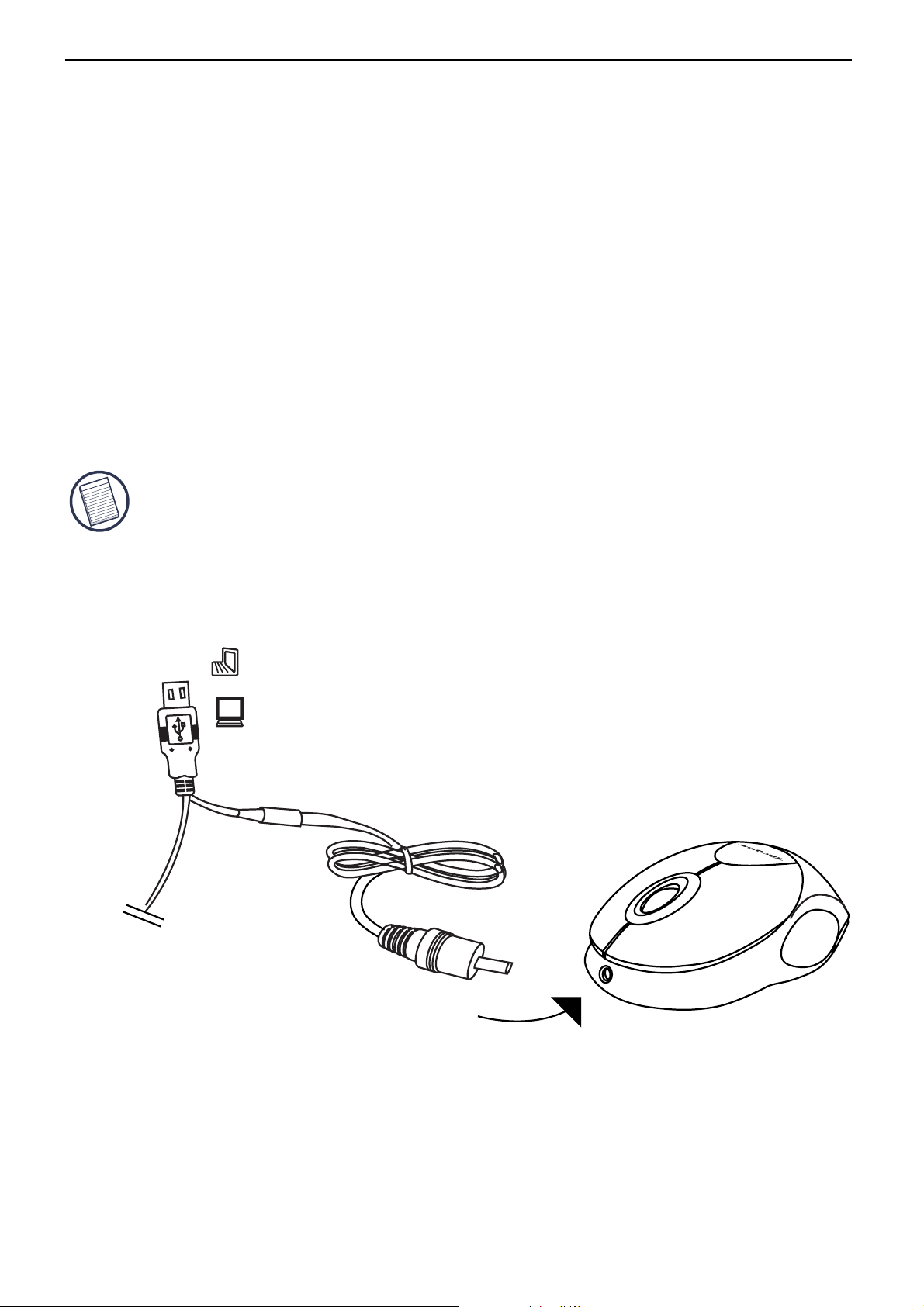
For best results, you should charge the mouse at least 8
hours before using it. You can do this via the supplied
USB charge cable. To do this:
1 Connect the cable’s USB connector into an available
USB port on your computer
2 Connect the other end to the mouse.
NOTE: T
YOUR COMPUTER MUST BE ON AND AWAKE.FOR BEST RESULTS, TURN OFF
YOUR COMPUTER
MOUSE
O CONTINUOUSLY CHARGE THE MOUSE VIA THE USB CHARGE CABLE,
’S POWER MANAGEMENT FEATURE WHILE CHARGING THE
.
Notebook
Desktop
USB RECHARGING
CABLE
7
Page 8
Targus wireless slim keyboard & mouse desktop set
Operating Notes for Wireless Mice with
Recharging Feature via USB Cable
1. Charge the mouse for at least 8 hours before using it. And please
make sure only rechargeable batteries (the ones that come with your
product) are used.
2. Your computer needs to stay powered on for the mouse to charge.
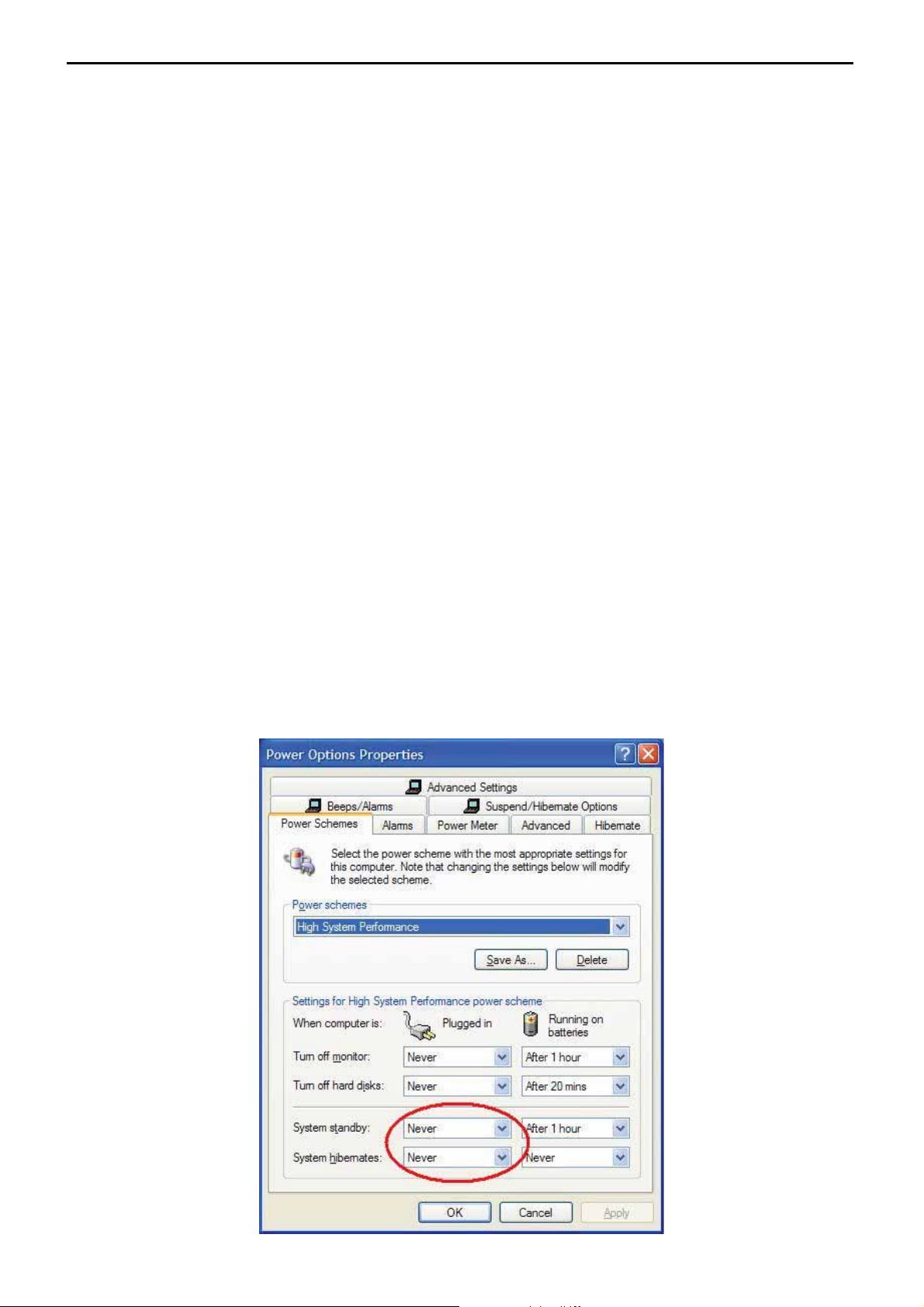
Follow these steps to prevent your computer from going in to
Standby or Hibernate:
a) Click “Start”
b) Click “Control Panel”
c) Click “Performance and Maintenance” (Skip in Classic View)
d) Click “Power Options”
e) Make sure “System Standby:” and “System Hibernates:” under “Plugged
in” are set to “Never”
3. If you use your notebook computer’s LCD monitor, please do not
close the lid. (Please ignore this step if you use an external monitor
with your notebook lid closed.)
4. If your mouse does not respond after a period of inactivity, please
wake it up by pressing one of the buttons on the mouse or moving
the mouse around.
8
Page 9
Targus wireless slim keyboard & mouse desktop set
Using the Slim Keyboard
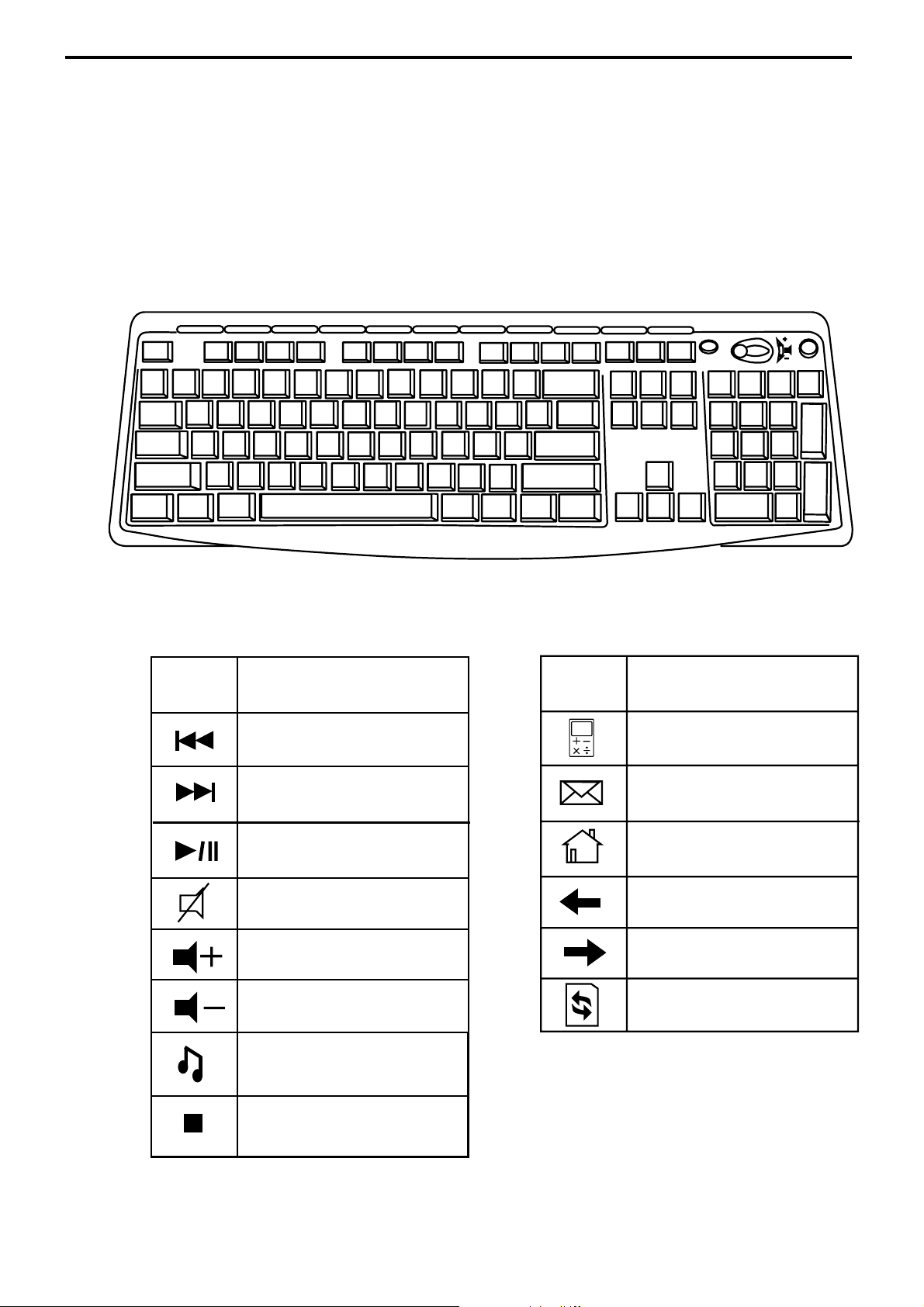
This slim keyboard performs a number of functions. It can
work as a standard keyboard, and a multimedia/internet
control panel.
Using the multimedia/internet controls
Media / Internet keys
Key
Function
Previous Track
Next Track
Play / Pause
Mute
Volume Up
Volume Down
Default Media
Player
Key
Function
Turn on Calculator
Default E-mail
Program
Default
Internet browser
Internet page
forward
Internet page
backward
Refresh page
Stop
9
Page 10

Targus wireless slim keyboard & mouse desktop set
Media Players Compatibility
The keyboard is compatible to the following Media Players:
iTunes
V.6.0.1.3
Musicmatch
V.10
Quintessential
Player
V.4.51
Real Player
V.10.5
Windows
Media Player
V.10
NOTE: DEPENDING ON THE MEDIA PLAYERS’ SOFTWARE CAPABILITIES, THE
KEYBOARD FUNCTIONS CAN VARY.
INSTRUCTIONS TO SET / CHANGE YOUR DEFAULT MEDIA PLAYER
• GO AND CLICK ON START BUTTON
• GO TO CONTROL PANEL, AND CHOOSE ADD/ REMOVE PROGRAM
• CLICK SET PROGRAM ACCESS AND DEFAULTS ON THE LEFT SIDE MENU. TO
PERSONALIZE, CHOOSE CUSTOM IN THE MAIN SCREEN
• CHOOSE YOUR DEFAULT PROGRAM FOR MEDIA PLAYER
• IF YOUR PREFERRED MEDIA PLAYER PROGRAM IS NOT ON THE LIST, CLICK HELP
FOR ASSISTANCE
10
Page 11

Targus wireless slim keyboard & mouse desktop set
Troubleshooting
What do I do if the mouse/keyboard does not work?
• Make sure that the polarity of the batteries is correct.
The positive (+) and negative (-) ends of each battery
must match the positive (+) and negative (-)
connections in the battery housing.
• Check that the receiver’s USB connector is firmly
attached to the USB port on your computer.
• Verify that the device drivers are installed.
• Make sure you have established a communication link.
See “Establishing a Communications Link”.
When I use the mouse/keypad, other wireless
devices work more slowly or fail temporarily –
what should I do?
• The mouse and keyboard may cause interference with any
cordless, radio-based device such as a telephone,
baby monitor, or toy. To reduce interference, move the
mouse/keyboard’s receiver and the base unit of the
affected device as far away from each other as
possible.
What do I do if the response time of the mouse\
keyboard is slow or it intermittently stops
working?
Try one or more of the following:
• Increase the distance between the receiver and the
rest of your computer equipment.
11
Page 12

Targus wireless slim keyboard & mouse desktop set
• Increase the distance between the receiver and the
base units of other wireless devices.
• Turn off any wireless devices and their base units that
are near the mouse/keyboard’s receiver.
• If you are using the mouse/keyboard on a metal surface,
move it and the receiver to a non-metal surface. Metals,
such as iron, aluminum or copper, shield the radio
frequency transmission and may slow down the
mouse/keyboard’s response time or cause the
mouse/keyboard to fail temporarily.
• Replace the batteries.
12
Page 13

Targus wireless slim keyboard & mouse desktop set
Technical Support
For technical questions, please visit:
Internet http://www.targus.com/support.asp
English http://www.targus.com/uk/support.asp
French http://www.targus.com/fr/support.asp
German http://www.targus.com/de/support.asp
Spanish http://www.targus.com/sp/support.asp
Italian http://www.targus.com/it/support.asp
Our knowledgeable staff is also available to answer your
questions through one of the following telephone
numbers.
Austria 01 795 676 42
Belgium 02-717-2451
Denmark 45 35-25-87 51
Finland 922948016
France 01-6453-9151
Germany 0211-6579-1151
Italy 02-4827-1151
Netherlands 02 0504 0671
Norway 022577729
Portugal +351 21 415 4123
Spain 91 745 6221
Sweden 08-751-4058
Switzerland 01-212-0007
United Kingdom 020-7744-0330
Eastern Europe & others +31 0 20 5040671
13
Page 14

Targus wireless slim keyboard & mouse desktop set
Product Registration
Targus recommends that you register your Targus accessory
shortly after purchasing it. To register your Targus accessory, go
to: http://www.targus.com/registration.asp
You will need to provide your full name, email address, phone
number, and company information (if applicable).
Warranty
Targus warrants this product to be free from defects in materials
and workmanship for two years. If your Targus accessory is found
to be defective within that time, we will promptly repair or replace
it. This warranty does not cover accidental damage, wear and
tear, or consequential or incidental loss. Under no conditions is
Targus liable for loss of, or damage to a computer; nor loss of, or
damage to, programs, records, or data; nor any consequential or
incidental damages, even if Targus has been informed of their
possibility. This warranty does not affect your statutory rights.
Regulatory Compliance
This device complies with Part 15 of the FCC Rules. Operation is
subject to the following two conditions: (1) This device may not
cause harmful interference, and (2) This device must accept any
interference received, including interference that may cause
undesired operation.
FCC Statement
Tested to Comply
This equipment has been tested and found to comply with the
limits of a Class B digital device, pursuant to Part 15 of the FCC
Rules. These limits are designed to provide reasonable protection
against harmful interference in a residential installation. This
equipment generates, uses, and can radiate radio frequency
energy and if not installed and used in accordance with the
instructions, may cause harmful interference to radio
communications. However, there is no guarantee that
interference will not occur in a particular installation.
If this equipment does cause harmful interference to radio or
television reception, which can be determined by turning the
14
Page 15

Targus wireless slim keyboard & mouse desktop set
equipment off and on, the user is encouraged to try to correct the
interference by one or more of the following measures:
• Reorient or relocate the receiving antenna;
• Increase the separation between the equipment and receiver;
• Connect the equipment into an outlet on a circuit different from
that to which the receiver is connected;
• Consult the dealer or an experienced radio/TV technician for
help.
This transmitter must not be co-located or operating in conjunction with any
other antenna or transmitter.Any changes or modifications not expressly approved
by the manufacturer could void the user's authority to operate this equipment.
Declaration of Conformity
Hereby, Targus, declares that this device is in compliance with the
essential requirements and other relevant provisions of Directive
1999/5/EC.
Targus Recycling Directive
At the end of this product’s useful life please dispose at an
appropriate recycling collection point provided in your country.
Targus recycling policy is available for viewing at:
www.targus.com/recycling
Features and specifications subject to change without notice. All trademarks and
registered trademarks are the property of their respective owners.
15
 Loading...