

Page 1

Reference Guide
®
5
4
Power: Rechargeable Battery
OR
USB Cable
Connection:
3
2
6
7
1
013-14986B
Wireless Current Sensor
PS-3212
WARNING: DO NOT CONNECT THE WIRELESS CURRENT SENSOR DIRECTLY ACROSS A
BATTERY OR OTHER VOLTAGE SOURCE. MAKE SURE THAT THERE IS A RESISTOR OR SOME
KIND OF “LOAD” IN SERIES WITH THE SENSOR. SEE PAGE 3.
Device ID Number 5 Micro USB Port
1
Bluetooth Status LED 6 Red Test Lead Jack
2
Battery Status LED 7 Micro USB Cable
3
ON Button
4
Hardware
Included Equipment Part Number
Wireless Current Sensor PS-3212
Micro USB Cable (1 meter)
Introduction
The Wireless Current Sensor is a combination wireless
and USB sensor that connects to a computer or tablet
device through , and can also connect to a
computer with a USB cable (included). The sensor
measures current in two ranges: between -1 ampere (A)
and +1 A, and between - 0.1 A and + 0.1 A. The PASCO
Data Collection Software will display and analyze the
measurements from the sensor. NOTE: The software
also supports “remote data logging” for long term experiments.
The sensor is designed to optimize the battery usage
time. Since each sensor has a unique Device ID
number, more than one can be connected to a computer
or tablet at the same time.
Page 2

®
Wireless Current Sensor PS- 3212
Data Collection Software
PASCO Capstone SPARKvue
• Mac OS X • Mac OS X
• Windows • Windows
•iOS
•Android
• Chromebook
See the PASCO Web page at
www.pasco.com/software
for help in selecting the right PASCO software and to
check the latest versions.
for the latest information.
Platform Bluetooth SMART Compatibility
iOS iPad 3 and later
iPhone 4S and later
iPod touch 5 and later
SPARK Element All models
Android Android 4.3 and later
Chromebook Chrome OS (requires PS-3500 Adapter*)
Mac OS X Models introduced July 2011 or later*
Windows Windows 7 and later (requires PS-3500 Adapter*)
See Appendix A for more information about the PS-3500 Adapter and
Mac OS X models.
Initial Step: Charge the Battery
Software Help
See the SPARKvue Help or PASCO Capstone Help for
information about collecting, displaying, and analyzing
data.
• In SPARKvue, select the HELP button in any screen
including the Home Screen.
• In PASCO Capstone, select PASCO Capstone Help
from the Help menu, or press F1.
Compatibility
Check the PASCO Web page at
www.pasco.com/compatibility
• Connect the Cable: Use the Micro USB Cable to
connect the micro USB port on the back end of the
Wireless Current Sensor to a USB port or USB
charger such as the PASCO PS-3501 USB
Charging Station. See the diagram.
• Charging begins automatically. The charger circuit
inside the sensor turns itself off when the unit is fully
charged.
• The battery status LED will shine yellow as the
battery is charging, and will shine green when the
battery is charged.
• The battery is partially charged at the factory. Initial
charging time may be three hours or longer
depending on the power source.
ON/OFF Information
To turn the sensor off, press and hold the ON button on
the back end of the sensor for a moment until the status
LEDs stop blinking. The Wireless Current Sensor puts
itself to sleep after several minutes of inactivity if not
connected and about one hour of inactivity if connected.
2
013-14986B
Page 3
®
Set Up the Hardware PS - 3212
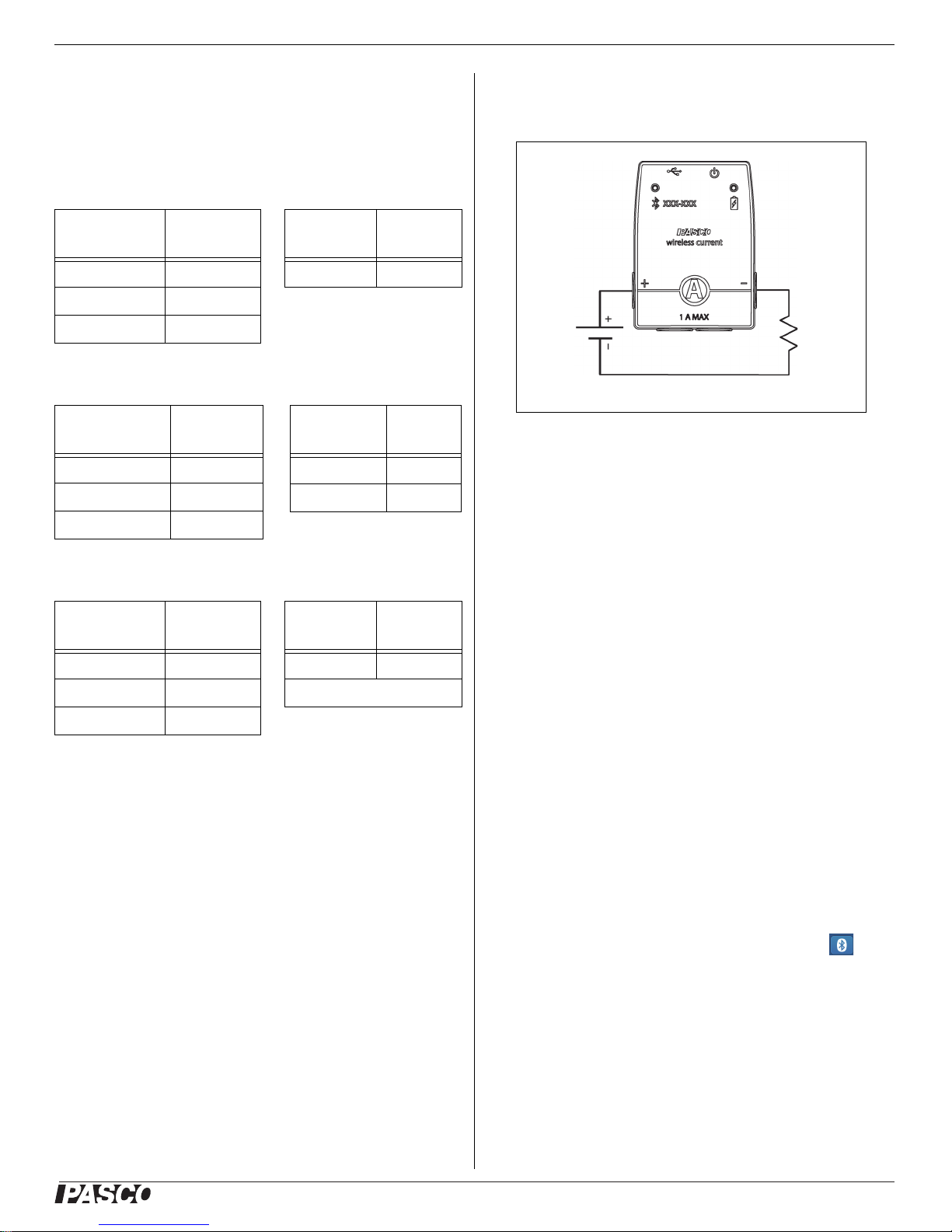
Resistor Symbol
Battery Symbol
LED Information
The Bluetooth and the Battery Status LEDs operate as
follows depending on the type of connection:
For a wireless Bluetooth connection:
Bluetooth
LED
Red blink Ready to pair Red blink Low power
Green blink Connected
Yellow blink Logging*
For a micro USB cable connection to a USB
Bluetooth LED Status Battery
OFF -- Yellow ON Charging
OFF -- Green ON Charged
Yellow blink Logging*
Status Battery
LED
LED
Status
port
:
Status
nected in “series” in a circuit. The sensor is a part of the
circuit.
For example, in the diagram, the Wireless Current Sensor is connected in series with a resistor (“load”) that is
in series with a battery (”source”). The Wireless Current
Sensor measures the current “through” the circuit.
Protection
For a micro USB cable connection to a USB
:
Bluetooth
LED
Red blink Ready to pair Yellow ON Charging
Green blink Connected Green ON Charged
Yellow blink Logging*
Status Battery
LED
charger
Status
*Logging: PASCO wireless sensors can either stream
live data to a compatible device for “real-time” viewing or
log data (save it to the sensor’s memory). After logging,
the data can be uploaded to the computing device for
display and analysis at a later time. Logging capability
supports long-term or remote data collection while not
connected to a device.
Check the PASCO Web page at:
www.pasco.com/software
for the latest software version.
The Wireless Current Sensor has built-in protection
against damaging over-current. If the current exceeds
±2 amps, the sensor will make a sonic alarm and the
status LEDs will both shine red.
If this happens, take the steps necessary to reduce or
stop the current through the sensor. For example, disconnect the power source. Analyze the circuit to determine why the over-current happened, and don’t
reconnect the power source until the problem is fixed.
Set Up the Software
SPARKvue
Connecting the Wireless Sensor to a Tablet or a
Computer via Bluetooth
• For SPARKvue, select the Bluetooth icon ( ) to
open the Wireless Devices list. In the Wireless
Devices list, the sensors are ordered by proximity to
the device.
Set Up the Hardware
Connecting the Sensor for Measurement
Current is measured through an electric circuit. For that
reason, the Wireless Current Sensor is always con-
013-14986B
• Select the correct address that matches the
XXX-XXX number found on the sensor.
• Select Done. A list of measurements appears under
the sensor in the Home Screen.
3
Page 4

®
Wireless Current Sensor PS- 3212
Connecting the Wireless Sensor to a Computer with the
Micro USB Cable
• Connect the micro end of the included Micro USB
Cable into the micro USB port on the end of the
sensor.
• Connect the other end of the Micro USB Cable to a
USB port on the computer, or into a powered USB
hub connected to the computer.
Collect Data
• In the SPARKvue Home Screen, select a
measurement from the list under the sensor’s name.
A graph of the measurement versus time opens.
• In SPARKvue, select the Start button to begin
collecting data.
PASCO Capstone
Connecting the Wireless Sensor to a Tablet or a
Computer via Bluetooth
• For PASCO Capstone, select Hardware Setup in the
Tools palette. The sensors in the list are ordered by
proximity to the wireless device.
• Select the sensor with the address that matches the
XXX-XXX Device ID number on the sensor.
Connecting the Wireless Sensor to a Computer with the
Micro USB Cable
• Connect the micro end of the included Micro USB
Cable into the micro USB port on the end of the
sensor.
• Connect the other end of the Micro USB Cable to a
USB port on the computer, or into a powered USB
hub connected to the computer.
Collect Data
• In PASCO Capstone, select a display in the main
window or from the Display palette. In the display,
use the <Select Measurement> menu to pick a
measurement to be shown.
• Select Record to begin collecting data.
status LEDs blink in sequence, and then release the
button. Start the sensor in the usual way.
• If the sensor stops communicating with the
computer software or tablet application, try
restarting the software or application.
• If the problem remains, press and hold the ON
button for 10 seconds and then release. Start the
sensor in the usual way.
• Turn Bluetooth off and then turn it back on. Retry.
About the Battery
The Wireless Current Sensor’s battery is partially
charged at the factory. If the battery status LED blinks
red, use the micro USB cable to connect the sensor to a
USB port or a USB charger.
Battery Usage
Battery life is very important to making the sensor simple
and always ready to use, so all of the PASCO wireless
products are designed for long battery life. For example,
the sensor turns itself off after a few minutes of inactivity
to conserve battery life.
The battery life between charges for the sensor varies
depending on the sampling rate. The battery life ranges
between eleven hours for high sample rates to more
than 70 hours for low sample rates.
In typical classroom/lab use, this would translate to a
battery life between charges ranging from one to four
weeks or more, because full-day continuous sampling
would be unusual. Even in the most extreme case with a
high sample rate, the Current Sensor battery would
support a full day of use before needing to recharge.
Maximizing Battery Life
One of the factors that affects battery life is the storage
temperature. Therefore, avoid storing the sensor in very
cold or very hot environments.
Suggested Experiments
Practically any experiment that uses a Current
measurement can be done with the PS-3212 Wireless
Current Sensor. See the PASCO Web site at
Troubleshooting the Wireless Current Sensor
• If the Wireless Current Sensor loses Bluetooth
connection and will not reconnect, try cycling the ON
button. Press and briefly hold the button until the
4
www.pasco.com/products/lab-manuals
and also select “Training & Resources” at the top of the
page for more information about experiments.
Or, enter “Current” into the Search window at
013-14986B
Page 5
®
Technical Support PS - 3212
12
www.pasco.com
Specifications
Item
Ranges
Input Resistance
Battery
Connectivity
Max Wireless Range
Max Sample Rate
Accessories
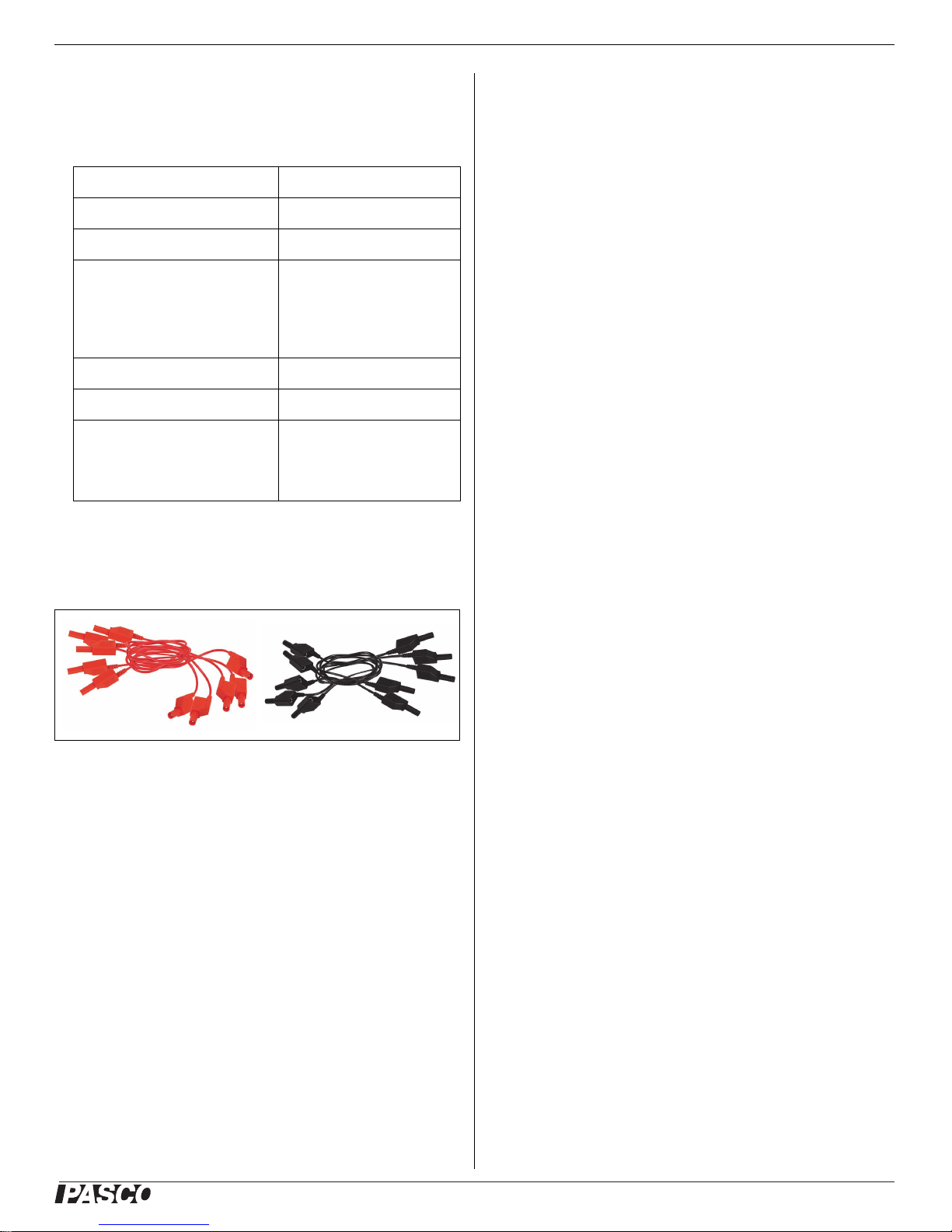
The sensor is designed to use a variety of patch cords.
Value
± 0.1 A and ± 1.0 A
0.1 ohm
Rechargeable
Lithium-Polymer.
Expected life of 3 to 4
months on a single charge
with normal use.
Bluetooth SMART or USB
30 m (unobstructed)
1000 samples/second via
Bluetooth.
100,000 samples/second
via USB in burst mod.e
Technical Support
For assistance with any PASCO product, contact
PASCO at:
Address: PASCO scientific
10101 Foothills Blvd.
Roseville, CA 95747-7100
Phone: +1 916 462 8384 (worldwide)
8700-772-8700 (U.S.)
Web:
Email: [email protected]
The Reference Guide will be updated periodically. For
the latest revision of this Reference Guide, visit the
PASCO Web site at
www.pasco.com/manuals
and enter the product number, PS-3212, in the text
window.
Replacement Parts
For information about possible replacement parts,
contact Technical Support:
www.pasco.com/support
1. Shrouded Red Patch Cords
2. Shrouded Black Patch Cords
• EM-9740 Shrouded Red Patch Cords
• EM-9471 Shrouded Black Patch Cords
• PS-3501 10 Port USB Charging Station
• SE-6484 Ergopedia Electric Circuits and Electronics
Teacher Resources
• EM-8622 Basic Electricity Lab
• USB Cable, Micro-to-USB
Limited Warranty
For a description of the product warranty, see the PASCO catalog. For
more information visit www.pasco.com/legal
Copyright
This PASCO scientific
reserved. Permission is granted to non-profit educational institutions for
reproduction of any part of this manual, providing the reproductions are
used only in their laboratories and classrooms, and are not sold for profit.
Reproduction under any other circumstances, without the written consent
of PASCO scientific, is prohibited. Version 23-07-2016.
Trademarks
PASCO, PASCO scientific, PASCO Capstone, PASPORT, and
SPARKvue are trademarks or registered trademarks of PASCO scientific,
in the United States and/or in other countries. All other brands, products,
or service names are or may be trademarks or service marks of, and are
used to identify, products or services of their respective owners. For more
information visit www.pasco.com/legal.
FCC Statement
This Class A digital device complies with part 15 of the FCC Rules.
Operation is subject to the following two conditions: (1) This device may
not cause harmful interference, and (2) this device must accept any
interference received, including interference that may cause undesired
operation.
Reference Guide
is copyrighted with all rights
CE Statement
This device has been tested and found to comply with the essential
requirements and other relevant provisions of the applicable EU
Directives.
013-14986B
5
Page 6
®
Wireless Current Sensor PS- 3212
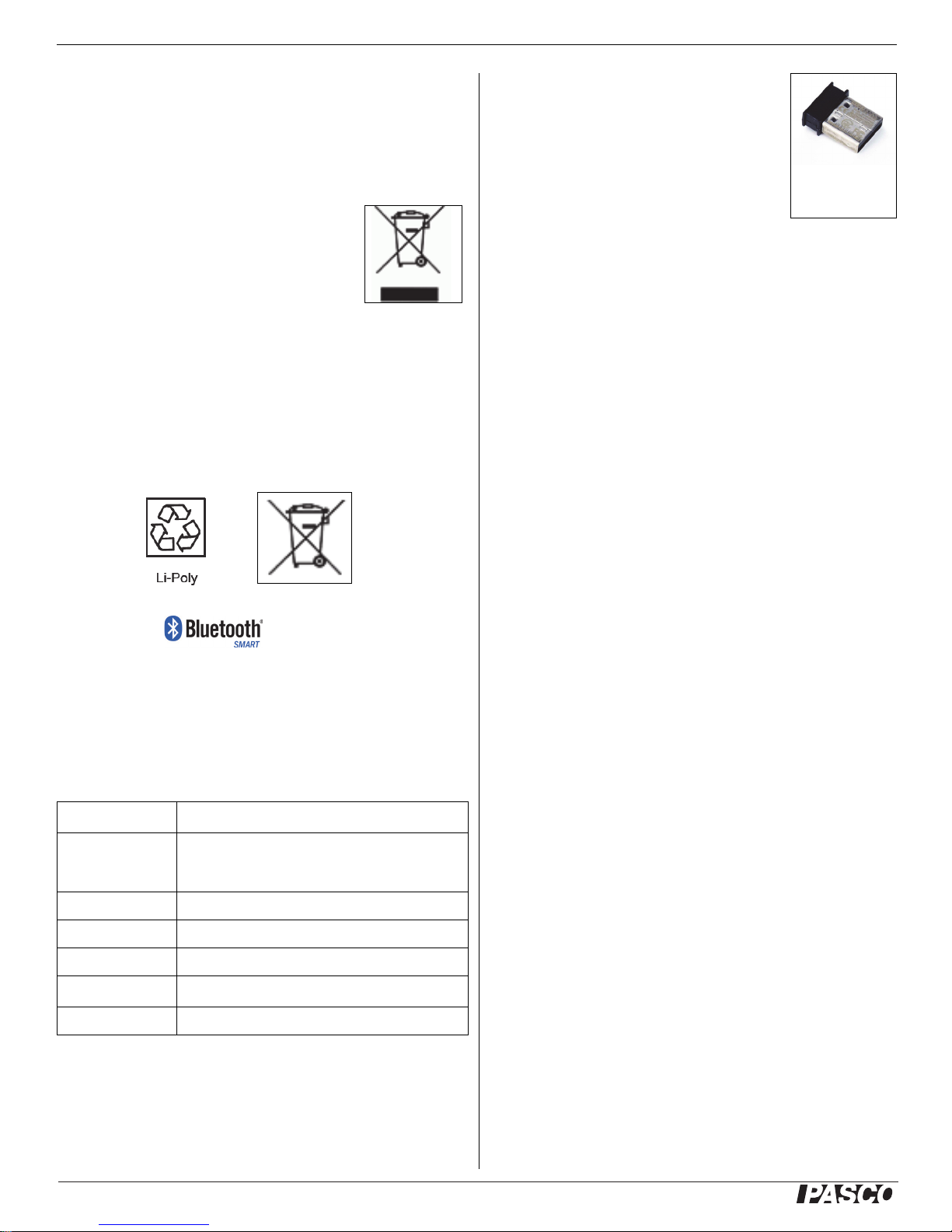
PS-3500 USB
Bluetooth 4.0
Adapter
Product End of Life Disposal Instructions:
This electronic product is subject to disposal and recycling regulations that
vary by country and region. It is your responsibility to recycle your
electronic equipment per your local environmental laws and regulations to
ensure that it will be recycled in a manner that protects human health and
the environment. To find out where you can drop off your waste equipment
for recycling, please contact your local waste recycle/disposal service, or
the place where you purchased the product.
The European Union WEEE (Waste Electronic and
Electrical Equipment) symbol (to the right) and on the
product or its packaging indicates that this product
must not be disposed of in a standard waste
container.
Battery Disposal Instructions:
Batteries contain chemicals that, if released, may affect the environment
and human health. Batteries should be collected separately for recycling,
and recycled at a local hazardous material disposal location adhering to
your country and local government regulations. To find out where you can
drop off your waste battery for recycling, please contact your local waste
disposal service, or the product representative.
The Lithium Polymer (Li-Poly) rechargeable battery used in this product is
marked with the International symbols to indicate the need for the
separate collection and recycling of batteries
.
*The PS-3500 USB Bluetooth 4.0
Adapter, when connected to a USB
port, allows up to three Bluetooth
SMART devices, such as this PASCO
wireless device, to connect to Windows
computers, Chromebooks, and older
Macintosh computers.
Note: The PS-3500 USB Bluetooth 4,0
Adapter is the only adapter we can currently
recommend. Many other Bluetooth 4.0 adapters are
available but this adapter has a specific design that
enables in-app pairing of Bluetooth SMART sensors.
1
To check the Mac computer’s Bluetooth compatibility,
do the following:
• Click the
•Select
• Click the
• Click the
(Apple) Menu.
About This Mac
More Info
System Report
... button.
... button.
Appendix A: Compatibility
Check the PASCO Web page at
www.pasco.com/compatibility
for the latest information on Bluetooth SMART
compatibility.
Platform Bluetooth SMART Compatibility
iOS iPad 3 and later
SPARK Element All models
Android Android 4.3 and later
Chromebook Chrome OS (requires PS-3500 Adapter*)
Mac OS X
Windows Windows 7 and later (requires PS-3500 Adapter*)
1
iPhone 4S and later
iPod touch 5 and later
Models introduced July 2011 or later
•Select
underneath
Bluetooth
Hardware
from the sidebar on the left,
.
• Scan down the list of information until you find “LMP
Version”.
• If your Mac is equipped with Bluetooth SMART, the
LMP Version will show 0x6. (Anything lower than
0x6 means an older version of Bluetooth. Your
device will need the PS-3500 USB Bluetooth 4.0
Adapter.)
1
The Mac Mini and MacBook Air were updated with
Bluetooth SMART support in 2011. The MacBook Pro
was updated in 2012. The Mac Pro that debuted in
December 2013 has Bluetooth SMART support.
Exception: Before you upgrade to El Capitan (Mac OS X
10.11.x), if you have a Macintosh with LMP version “0x4”
that requires the PS-3500 USB Bluetooth 4.0 Adapter,
please contact PASCO Technical Support for further
instructions.
What is Bluetooth SMART
®
?
Bluetooth SMART (also known as Bluetooth Low Energy
or Version 4.0 of the Bluetooth specification) is the latest
protocol of the proprietary open wireless technology
standard created by telecoms vendor Ericsson in 1994.
It is the power- and application-friendly version of
Bluetooth that was built for the Internet of Things (IoT).
6
013-14986B
 Loading...