

Page 1

O W N E R ' S M A N U A L
AVC-250 0 Aud io Video Control ler
Page 2

Table of Contents
Important Safety Instructions ----------------------------------------------------------------4
Introduction---------------------------------------------------------------------------------------9
About this Manual ------------------------------------------------------------------------------9
Unpacking and Inspection--------------------------------------------------------------------9
Placement of Your AVC-2500---------------------------------------------------------------- 9
Optional Rack Mounting Kit------------------------------------------------------------------9
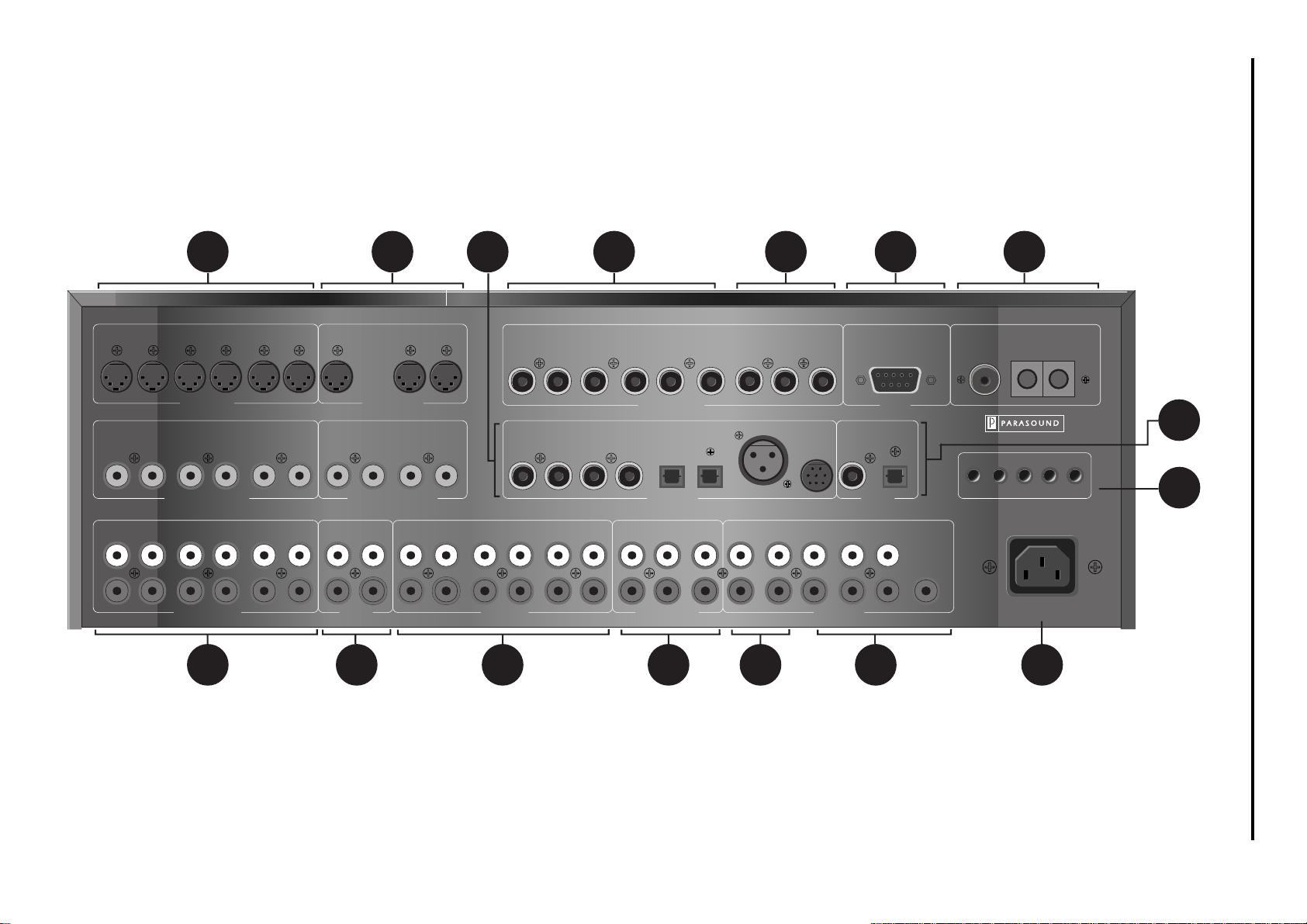
Rear Panel Drawing---------------------------------------------------------------------------- 10
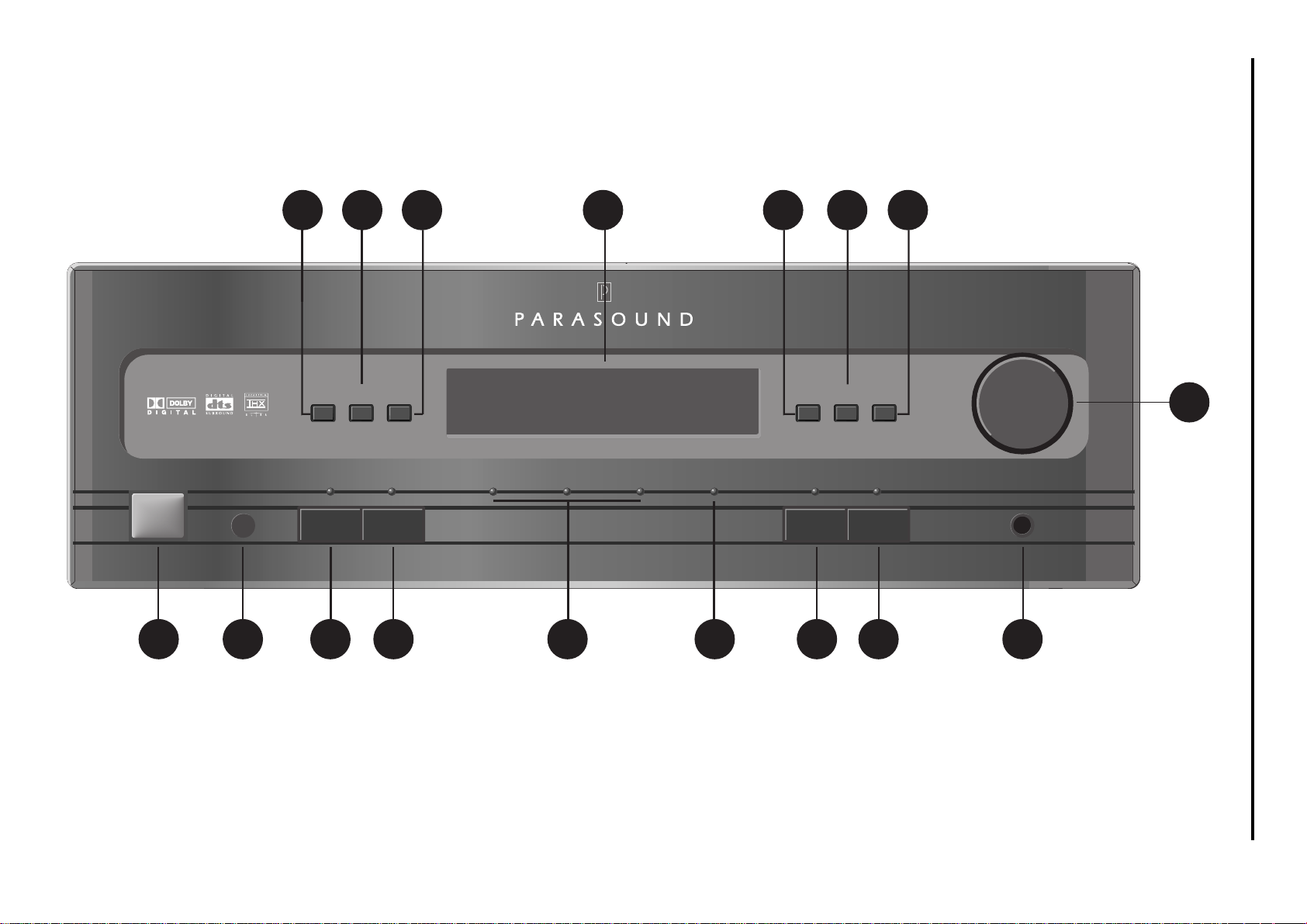
Front Panel Drawing ---------------------------------------------------------------------------12
Remote Control Drawing ---------------------------------------------------------------------14
Rear Panel Connections---------------------------------------------------------------------- 16
Making Connections to Your AVC-2500--------------------------------------------------- 17
AVC-2500 Front Panel Controls and Auto Cal Mic Connection---------------------22
AVC 2500 Remote Control Buttons--------------------------------------------------------25
AVC-2500 Front Panel and Video on-screen Displays--------------------------------27
Autoformat Surround Processing Modes (ASP) ----------------------------------------29
Autoformat Surround Processing (ASP) Decoding Chart ----------------------------32
Placement of Your Home Theater Speakers---------------------------------------------33
AVC-2500 Default Settings-------------------------------------------------------------------37
Setting up your AVC 2500--------------------------------------------------------------------38
Programming the Learning Remote Control---------------------------------------------47
Remote Control Shift + Commands--------------------------------------------------------49
Operating Your A VC-2500 --------------------------------------------------------------------50
Using the Tuner ---------------------------------------------------------------------------------51
Operating the Remote Zone -----------------------------------------------------------------52
Temporary Level Adjustment Using the Trim Function --------------------------------53
Activating the Sleep Timer -------------------------------------------------------------------54
Maintaining Your A VC-2500 ------------------------------------------------------------------54
In Case of Trouble ------------------------------------------------------------------------------54
Button Assignment Worksheets for the Learning Remote Control-----------------56
AVC-2500 Installation Worksheet ----------------------------------------------------------59
AVC-2500 Specifications ---------------------------------------------------------------------61
Record the following information for future reference:
Serial #_______________________ Date of Purchase__________________
Parasound Dealer__________________________________________________
Parasound Dealer's Phone Number____________________________________
2
Page 3
AVC-2500 Audio Video Controller Features
• Full 24 bit Processing Using Three Motorola 56009 DSPs
• DTS, Dolby Digital, and Dolby Pro Logic Decoding
• THX Ultra Processing of DTS, Dolby Digital, and Dolby Pro Logic
• Reference Quality FM/AM Stereo Tuner with 20 Presets
• Automatic Calibration System of Level and Delay for All Channels
• Calibration Mic Included
• Automatic Audio/Video Input Selection
• Automatic A/D Overload Attenuation to Prevent Distortion
• Digital Inputs and Surround Modes are Assignable to Sources
• Two Component Video Inputs
• Six Audio/Video Inputs with Composite and S-Video Connectors
• Input Connection for Optional External RF Demodulator
• Discrete Line Output Stages
• State of the Art Military Spec. Four Layer Circuit Boards
• Ramp Up of Volume After Tur n On / Ramp Down for Sleep Mode
• Advanced On-screen and Front Panel Displays
• User Selectable Name for Each Source & Digital Input
• Illuminated, Eight Source Learning Remote Control
• Dual Zone Audio and Video Controller With Separate 12 Volt DC Triggers
• RS-232 Control Port for Computer Controlled Integration Systems
Licensing Acknowledgements
Manufactured under license from Dolby Laboratories Licensing
Corporation. “Dolby”, “Pro Logic”, and the double-D symbol are
trademarks of Dolby Laboratories Licensing Corporation. Copyright
1992 Dolby Laboratories, Inc. All Rights Reserved
` Manufactured under license from Digital Theater Systems,
Inc. US Pat. No. 5,451,942 and other worldwide patents issued
and pending. “DTS”, “DTS Digital Surround”, are trademarks of
Digital Theater Systems, Inc. Copyright 1996 Digital Theater
Systems, Inc. All Rights Reserved.
Manufactured under license from Lucasfilm Ltd. Lucasfilm and THX
are registered Trademarks of Lucasfilm Ltd.
3
Page 4
Important Safety Instructions
Save these instructions for future use
This triangle alerts you to the dangerous voltages inside that may be a shock hazard.
This triangle alerts you to important operating and maintenance instructions in this manual.
ü Follow all instructions and warnings marked on the unit.
ü Always use with the correct line voltage. Refer to the manufacturer’s operating instructions for power
requirements. Be advised that different operating voltages may require the use of a dif ferent line cord and/
or attachment plug.
ü Do not install the unit in an unventilated rack, or directly above heat producing equipment such as power
amplifiers. Observe the maximum ambient operating temperature listed in the product specification.
ü Slots and opening on the case are provided for ventilation; to ensure reliable operation and prev ent it from
overheating, these openings must not be blocked or covered. Never push objects of any kind through the
ventilation slots. Never spill a liquid of any kind on the unit.
ü Never attach audio power amplifier outputs directly to any of the unit’s connectors.
ü To prevent shock or fire hazard, do not expose the unit to rain or moisture, or operate it where it will be
exposed to water.
ü Do not attempt to operate the unit if it has been dropped, damaged, exposed to liquids, or if it exhibits a
distinct change in performance indicating the need for service.
ü This unit should only be opened by qualified service personnel. Removing covers will expose you to
hazardous voltages.
ü Adhere to all warnings on the unit and in the operating instructions.
ü Take precautions not to defeat the grounding or polarization of the units power cord.
ü Do not overload wall outlet, extension cords or inte gral con venience receptacles, as this can result in a risk
of fire or electrical shock.
ü Route power supply cords so that they are not likely to be walked on or pinched by items placed on or
against them, paying particular attention to cords at plugs, convenience receptacles, and the point at which
they exit from the unit.
ü The unit should be cleaned only as recommended.
Communications Notice
This equipment generates and uses radio frequency energy and if not installed and used properly, that is, in
strict accordance with the manufacturer’ s instructions, may cause interference to radio and television reception.
It has been type tested and found to comply with the limits for a Class B computing device in accordance with
the specifications in Subpart J of Part 15 of FCC Rules, which are designated to provide reasonable protection
against such interference in a residential installation. Howev er , there is no guarantee that interference will not
occur in a particular installation. It this equipment does cause interference to radio or television reception,
which can be determined by turning the equipment OFF and ON, the user is encouraged to try to correct the
interference by one or more of the following measures:
ü Reorient the television receiving antenna
ü Relocate the AVC-2500 away from the television
ü Plug the AVC-2500 into a different A C outlet so that the AVC-2500 and television are on dif ferent branch
circuits.
If necessary, the user should consult the dealer or an experienced radio/television technician for additional
suggestions. The user may find the following booklet prepared by the Federal Communications Commission
helpful: “How to identify and Resolve Radio/TV Interference Problems.” This booklet is available from the
U.S. Government printing office, Washington, DC 20402, Stock No.004-000-00345-4.
Le présent appareil numénque n’ émet pan de bruits radioélectriques dépassant len limites applicables aux
appareils numériques de la class B prescrites dans le Réglement sur le brouillage radloélectrique édicté par le
ministère des Communications du Canada.
4
Page 5
Español
Instrucciones Importantes de Seguridad
Guarde esta instrucciones para uso posterior. Utilice siempre el voltaje correcto. Dirijase a las instrucciones de
operación del fabricante para obtener las especificaciones de potencia. Esté al tanto de que voltajes de operación
distintos requleren el uso de cables y/o enchufes distintos.
No instale esta unidad en un estante sin ventilación, ni tampoco directamente encima de equipos que generen calor
tales como amplificadores de potencia. Fijese en las temperaturas ambientales máximas de operacidn que se
mencionan en las especificaciones del producto.
Las aperturas y ranuras del chasis sirven para proveer a v entilacion necesaria para operar Ia unidad con se guridad
y para prevenir sobrecalentamiento, y por lo tanto no pueden ser obstruidas o cubiertas. No introduzca objetos de
ningún tipo a través de las ranuras de ventilacón. y nunca deje caer ningún liquido sobre la unidad.
Nunca conecte ningún tipo de salida de amplificadores de sonido directamente a los conectores de la unidad.
Para prevenir descar gas eléctricas o incendios, mantenga la unidad alejada de la lluvia, humedad o cualquier lugar
en el que pueda entrar en contacto con agua.
No trate de hacer funcionar la unidad si se ha caído, esta dañada, ha entrado en contacto con liquidos, o si nota
cualquier cambio brusco en su funcionamiento que indique la necesidad de hacerle un servicio de mantenimiento.
Esta unidad deberá ser abierta por personal calificado. Si usted quita las coberturas se expondrá a voltajes peligrosos.
Este triángulo que aparece en su componente le advierte soDre aexistenc;a dentro del
chasis de voltajes peligrosos sin aislantes …voltajes que son lo suficientemente grandes
como para causar electrocución.
Este triángulo que aparece en su componente lo alerta sobre las instrucciones de operación y
mantenimiento importantes que estan en los materiales de lectura que se incluyen.
Français
Instructions de Sûretè Importantes
Gardez ces instructions pour réference future.
Observez toutes les instructions et tous les avertisserments marqués sur l’appareil.
Branchez uniquements sur un réseau de tension indiquée. Consultez le manuel d’instruction du fabriquant pour les
spécifications de courant. N’oubliez pas que différentes tensions peuvent nécessiter l’utilisation de cables et/ou de
fiches de connexion différents.
N’installez pas l’appareil en un compartiment non-aéré ou directement audessus d’équipements générateurs de
chaleur, tels qu’amplificateurs de courants, etc. Ne dépassez pas Ia température ambiante maximale de
fonctionnement indiquée dans les spécifications du produit.
Des fentes et ouvertures sont prévues dans le boîtier pour l’aération; Pour assurer le bon fonctionnement et pour
prévenir l’échauffement, ces ouvertures ne doiv ent pas être couv ertes ou bloquées. N’insérez pas d’objets dans les
fentes d’aération. Empêchez tout liquide de se répandre sur l’appareil.
Ne connectez jamais d’amplificateurs audio directement aux connecteurs de l’appareil.
Pour empêcher les chocs électriques et le danger d’incendie, évitez d’exposer l’appareil à Ia plule ou à l’humidité,
et ne le mettez pas en marche en un endroit où iI serait exposé aux éclaboussures d’eau.
N’essayez pas de faire fonctionner l’appareil s’il est tombé à terre, a été endommangé, exposé à un liquide, ou si
vous observez des différences nettes dans son fonctionnement, indiquant Ia nécessité de réparations.
Cet appareil ne dolt être ouvert que par un personnel de service qualifié. En enlevant les couvercles vous vous
exposez à des tensions électriques dangereuses.
Ce triangle. sur votre appareil vous avertit de a présence de tension dangereuse, non-isolée à
l’inténeur du boîtier.. une tension suffisante pour représenter un danger d’électrocution.
Ce triangle sur sur votre appareil vous invite de suivre d’importantes instructions d’utiiisation et
d’entretien dans Ia documentation Iivrée avec le produit.
5
Page 6
Deutsch
Wichtige Sicherheitsanweisungen
Heben Sie sich diese Sicherheitsanweisungen auch für später auf.
Befolgen Sie alle auf der Vorrichtung stehenden Anweisungen und Warnungen. Immer nur mit der richtigen
Spannung verwenden! Die Gebrauchsanweisungen des Herstellers informieren Sie über die elektrischen
Anforderungen Vergessen Sie nicht daß bei verschiedenen Betriebsspannungen ggf. auch verschiedene
Leitungskabel und/oder Verbindungsstecker zu verwenden sind.
Stellen Sie die Vorrichtung nicht in ein unbelüftetes Gestell oder unmittelbar uber wärmeerzeugende Geräte
wie z.B. Tonverstärker. Halten Sie die In den Produktspezifikationen angegebene maximale
Umgebungstemperatur bei Betrieb ein.
Schlitze und Öffnungen im Gehause dienen der Belüfung; um verläßlichen Betrieb sicherzusteilen und
Überheizen zu vermeiden dürfen diese Öffnungen nich verstopft oder abgedeckt werden. Stecken Sie nie
irgend einen Gegenstand durch die Belüftungsschlitze. Vergießen Sle keine Flüssigkeiten auf den Apparat.
Schließen Sie nie Tonverstärker unmittelbar an einen Anschluß des Apparates an.
Um elektrischen Schlag oder Feuer zu vermeiden, setzen Sie den Apparat weder Regen noch Feuchtigkeit aus
und betreiben Sie ihn nicht dort wo Wasser eindringen könnte.
V ersuchen Sie nicht den Apparat zu betreiben f alls er fallen gelassen,beschädigt, oder Flüssigkeiten ausgesetzt
wurde, oder falls sich seine
Arbeitsweise derartändert daß daraus ein Bedarf nach Raparatur zu schließen ist.
Dieser Apparat sollte nur von qualifizierten Fachleuten geöffnet werden. Das Abnehmen von Abdeckungen
setzt Sie gefährlichen Spannungen aus.
Dieses Dreieck auf Ihrem Apparat warnt Sie v or nicht-isolierter, gefahrlicher Spann ung im Gehäuse
stark genug um eine Benührungsgefahr darzusteilen.
Dieses Dreieck auf Ihrem Apparat bedeutet daß wichtige Betriebsund Wartungsanweisungen in der
mitgelieferten Dokumentation zu finden sind.
Italiano
Importanti norme di sicurezza
Conservare le presenti norme per l’utilizzo futuro.
Osservare tutte le istruzioni e le avvertenze apposte sull’unità.
Utilizzare esclusivamente con Ia tensione di rete correrta. Consuitare le istruzioni operati ve fornite dal fabbricante
per i dati riguardanti Ia tensione e l’assorbimento di corrente. Potrebbe essere necessario l’uso di cavi di rete
e/o di spine diverse a seconda della tensione utilizzata.
Non installare l’unita in uno scaffale privo di ventilazione oppure direttamente sopra una fonte di calore,
come, ad esempio, un amplificatore. Non superare Ia temperatura ambientale massima di funzionamento
riportata nei dati tecnici del prodotto.
Le fessure e le altre aperture nella scatola servono alla ventilazione. Per un funzionamento affidabile, e per
evitare un eventuale surriscaldamento. queste aperture non vanno ostruite o coperte in nessun modo. Evitare
in tutti i casi di inserire oggetti di qualsiasi genere attraverso le fessure di ventilazione. Non versare mai del
liquido di nessun tipo sull’unltà.
Evitare sempre di collegare le uscite dell’amplificatore audio direrttamente ai connettori dell’unità.
Per prevenire iI pericolo di folgorazione e di incendio non esporre l’unità alla pioggia o ad un’umidità eccessiv a;
evitare di adoperare l’unità dove potrebbe entrare in contatto con acqua.
Evitare di adoperare l’unità se Ia stessa è stata urtata violentemente, se ha subito un danno, se è stata esposta
ad un liquido o in caso di un evidente cambiamento delle prestazioni che indichi Ia necessità di un intervento
di assistenza tecnica.
Ogni intervento sulI’unità va eseguito esclusivamente da personale qualificato. La rimozione della copertura
comporta l’esposizione al pericolo di folgorazione
II presente triangolo impresso sul componente avverte della presenza di tensioni pericolose
non isolate all’interno della copertura... tali tensioni rappresentano un pericolo di folgorazione
II presente triangolo impresso sul componente avverte l’utente della presenza nella allegata di
importanti istruzioni relative al funzionamento ed alla manutenzione.
6
Page 7
Dansk
Vigtig information om sikkerhed
Gem denne Vejledning til senere brug.
Folg alle anvisninger og advarsler pá apparatet.
Apparatet skal altid tilsluttes den korrekte spænding. Der henvises til brugsan visningen, der indeholder specifikationer
for strømforsyning. Der gøres opmærksom pá, at ved varierende driftsspændinger kan det blive nødvendigt at
bruge andre lednings- og/eller stiktyper.
Apparatet má ikke monteres i et kabinet uden ventilation eller lige over andet udstyr der udvikler varme, f.eks.
forstærkere. Den maksimale omgivelsestemperatur ved drift, der stár opført i specifikationerne, skal overholdes.
Der er ventilationsábninger i kabinettet. For at sikre apparatets drift og hindre overophedning má disse ábninger
ikke blokeres eller tiIdækkes. Stik aldrig noget ind igennem ventilationsábningerne, og pas pá aldrig at spilde
nogen form for væske pá apparatet.
Udgangsstik fra audioforstærkere má aldrig sættes direkte i apparatet.
Apparatet má ikke udsættes for regn eller fugt og má ikke bruges i nærheden af vand for at undgá risiko for
elektrisk stød og brand.
Apparatet má aldrig bruges, hvis det er blevet stødt, beskadiget eller vádt, eller hvis ændringer i ydelsen tyder pá,
at det trænger til eftersyn.
Dette apparat má kun ábnes af fagfolk. Hvis dækslet tages af, udsættes man for livsfarlig højspænding.
Denne mærkat pá komponenten advarer om uisoleret, fartig spænding i aparatet... høj nok til at giv e
elektrisk stod.
Denne mærkat pá komponenten advarer om vigtig drifts- og vedligeholdsinforna tion I den tuhorende
titteratur.
Svenska
Viktiga säkerhetsföreskrifter
Spara dessa föreskrifter för framtida bruk.
Följ alla anvisningar och Varningar som anges pá enheten.
Använd alltid rätt nätspänning. Se tiliverkarens bruksanvisningar för information om effektkrav. Märkväl, art
andra matningsspänningar eventuellt kräver att en annan typs nätsladd och/eiler kontakt används.
Installera inte enheten i ett oventilerat stati v , eller direkt ovanför utrustning ar som avger värme, t ex ef fekfförstärkare.
Se till att omgivningens temperatur vid drift Inte överskrider det angivna värdet i produktspecifikationen.
Behallaren ar försedd med hál och bppningar för ventilering. För att garantera tillförlitlig funktion och förhindra
överhettning får dessa öppningar inte blockeras ellertackas. Inga förernal får skuffas in genom ventilationshalen.
Inga vatskor får spilfas pa enheten.
Anslut aidrig audioeffekfförstarkarutgangar direkt till nagon av enhetens kontakter.
För art undvika elstot eller brandfara får enheten inte utsattas för regn eller fukt, eller användas pá ställen dar den
blir vät.
Använd inte enheten om den har fallit i golvet, skadats, blivit vät. eller om dess prestanda förändrats märkbart.
vilket kräver service.
Enheten får öppnas endast av behörig servicepersonal. Farliga spänningar blir tiligangliga när locken tas bort.
Denna triangel, som visas pá din komponent. varnar dig am en aisolerad fartig spänning inne i
enheten. Den na spänning ar eventuetit sá hög att fara för eistöt föreligger.
Denna triangel, som visas pá din komponent, anger att viktiga bruksanvisningar och
serviceanvisningar ingár I dokumentationen frága.
7
Page 8
Norsk
Viktig Informasjon om sikkerhet
Ta vare pá denne veiledningen for senere bruk.
Folg alle anvisningene og advarslene som er angitt pá apparatet. Apparatet skal alltid anvendes med korrekt
spenning. Produktbeskrivelsen inneholder spesif ikasjoner for stromkrav . Vær oppmerksom pá at det v ed ulike
driftsspenninger kan være nodvendig a bruke en annen ledning- og/ eller stopseltype.
Apparatet skal ikke monteres i skap uten ventilasjon, eller direkte over varmeproduserende utstyr, som for
eksempel kraftforsterkere. Den maksimale romtemperaturen som står oppgitt i produktbeskrivelsen, skal
overholdes.
Apparatet er utstyrt med ventilasjonsápninger . For at apparatet skal være pálitelig I bruk og ikke ov eropphetes.
má disse ápningene ikke blokkeres eller tildekkes. Stikk aldri noe inn I ventilasjonsápningene, og pass pá at
det aldri søles noen form for væske apparatet.
Utgangsplugger fra audioforsterkere skal aldri koples direkte til apparatet.
Unnga brannfare og elektrisk stat ved å sørge for at apparatet ikke utsettes for regn eller fuktighet og ikke
anvendes i nærheten av vann. Apparatet skal ikke brukes hvis det har bliff utsatt for støt, er skadet eller bIitt
vått, eller hvis endringer i ytelsen tyder pá at det trenger service. Dette apparatet skal kun åpnes av fagfolk.
Hvis dekselet fjernes, utsettes man for livsfarlig høyspenning.
Komponenten er merket med denne trekanten, som er en adv arsei om at det finnes uisolert, farlig
spenning inne i kabinettet… hoy nok til á utgjore en fare for elektrisk støt.
Komponenten er merket med denne trekanten, som betyr at den tilhørende litter aturen inneholder
viktige opplysninger om drift og vedlikehold.
Suomi
Tärkeitä turvallisuusohjeita
Säilytä nämä ohjeet tulevaa käyttöä varten.
Seuraa kaikkia yksikköön merkittyjä ohjeita ja varoituksia.
Käytä aina oikeaa verkkojännitettä. Tehovaatimukset selviävät valmistajan käyttöohjeista. Huomaa, että en
käyttöjännitteet saattavat vaatia toisenialsen verkkojohdon ja/tai -pistokkeen käytön.
Älä asenna yksikköä telineeseen jossa ei ole tuuletusta. tai välittömästi lämpöä tuottavien laitteiden, esim,
tehovahvistimien, yläpuolelle. Ympäristön lämpötila käytössä ei saa yiittää tuotespesifikaation
maksimilämpötilaa.
Kotelo on varustettu tuufetusreiillä ja -aukoilla. Luotettavan toiminnan vaimistamiseksi ja ylilämpenemisen
valttämiseksi näitä aukkoja ei saa sulkea tai peittää. Mitään esineitä el saa työntää tuuletusaukk oihin. Mitään
nesteitä ei saa kaataa yksikköön.
Älä kytke audiotehovahvistimen lähtöjä suoraan mihinkään yksikön liittimeen.
Sähköiskun ja palovaaran välttämiseksi yksikkö ei saa olla sateessa tai k osteassa, eikä sitä saa käyttää märässä
ympäristössä.
Älä käytä yksikköä jos se on pudonnut, vaurioitunut, kostunut, tai jos sen suorituskyky on huomattavasti
muuttunut, mikä vaatii huoltoa.
Yksikön saa avata v ain laitteeseen perehtynyt huoitohenkilö. Kansien poisto altistaa sinut vaarallisille jännitteille.
Tämä kolmio, joka esiintyy komponentissasi. varoittaa sinua eristämattömän v aaraliisen jännitteen
esiintymisestä yksikön sisällä. Tämä jännite saattaa olla riittävän korkea aiheuttamaan
sähköiskuvaaran.
Tämä kolmio, joka esiintyy komponentissasi, kertoo sinulle, että tässä tuotedokumentoinnissa
esiintyy tärkeitä käyttö- ja ylläpitoohjeita.
8
Page 9

Introduction
Congratulations on your purchase of this precision component and thank you for selecting
Parasound. Your new AVC-2500 Audio V ideo Controller is designed to be the heart of the finest
imaginable home theater system and to provide you with years of listening and viewing
enjoyment. Intuitive front panel and remote control operation makes your AVC-2500 one of the
easiest to use high performance audio/video products ever developed.
Autoformat Surround Processing (ASP) modes include Dolby Digital, DTS, Stereo, a dualstereo “party” mode, an enhanced music mode and mono. You can easily set up the AVC-2500
to detect the type of signal present at each input and automatically decode it based on how the
source software was originally encoded. Your AVC-2500 also has discrete 5.1 channel analog
inputs to accommodate the latest processing technology and the possibility of future formats.
The AVC-2500 has unique features you have never seen before on any audio equipment.
Therefore, we strongly advise you take the time to read these instructions thoroughly; you will
need them to fully understand and appreciate its extensiv e and unprecedented capabilities.
About this Manual
The names of connectors and controls are italicized to help you find what you are looking for
within a particular section. On-screen and front panel display indications are in small caps and
the variable settings or adjustments shown in the displays are bracketed. The drawings on the
following pages are intended as a quick reference guide to explain controls and connectors.
Unpacking and Inspection
Carefully unpack your AVC-2500 Audio Video Controller and locate the enclosed accessories:
• Universal remote control with 4 AAA batteries
• Detachable AC cord
• Omnidirectional calibration microphone with cord and AA battery
• FM Folded Dipole 300 Ω Antenna
• FM 300 ohm to 75 Ω "balun" matching transformer
• Threaded DIN to F type 75 Ω coax FM antenna adapter
• AM loop antenna
• (2) 3.5 mm mini plugs for 12V triggers
Be sure to carefully inspect the AVC-2500 for any signs of shipping damage. If you believe you
notice any , contact your Parasound Dealer immediately. Be sure to sa ve both cartons and the packing
inserts for future transport and always pack the carton into a larger protective outer carton before
shipment.
Placement of Your AVC-2500
Install your AVC-2500 near your source equipment so you can use the shortest possible
interconnect cables. Keep your AVC-2500 out of direct sunlight because it could interfere with
the remote control sensor. Y ou should also k eep the unit away from heat sources such as hot air
ducts, radiators and moisture sources such as open windows.
Optional Rack Mounting Kit
If you want to rack mount your AVC-2500, you will need to obtain the optional RMK-3 rack
mount kit. When you install the RMK-3 onto the AVC-2500 and remove its four feet, it will
occupy three rack spaces (5 1/4 inches high) in a standard 19” wide equipment rack. Refer to
the RMK-3 instructions for installation procedures. Make certain to use the eight insulated
shoulder washers included with the RMK-3 to prev ent metal-to-metal contact between its brackets
and your equipment rack.
9
Page 10
10
16 15 1314 12 11 10
L
R
Video 1
Video 1
Video 1
Video 4
Video 4
Video 5
Video 5
Video 5
Video 3
Video 2
S Video Inputs
Video 3
Video 2
Composite Video Inputs
Video 2
Video 3 Video 4
Audio/Video Inputs Audio Inputs Main Outputs5.1 Analog Inputs
Video 6
Video 6
Record
S Video Outputs
Zone 2
Video 6
Video 6 Coax 1 Coax 2 Coax 3 Coax 4
Video 6 Video 6
Video
Record
Composite Video Outputs
Zone
Record
Outputs
Monitor
OSD
Monitor
With OSD
Audio 1
Monitor
No OSD
Monitor
No OSD
Audio 2
YCb
Audio 3 Audio 4
Input 1
Audio 5
Cr
Audio 6
123 4 756
Input 2
YCb
Component Video
Optical 1 Optical 2
Digital Inputs
Front
Surround
Center
Sub
Cr
Monitor
YCb
AES/EBU
Record Front Surround
Record
Cr
Parasound
External RF
Demodulator
Coax
External Control
RS 232
Digital Record
Optical
Outputs
Subs
Center
Antenna
75Ω AM Ground
AVC-2500
MainAudio
Parasound Products, Inc.
San Francisco, CA USA
Made in Finland
2
1
AC 120V 60Hz 60 W
Zone
9
IRIR DC TriggersTrigger
8
Page 11

Rear Panel Connections
1. A udio/Video 1-6 Analog Inputs
All six audio/video analog inputs are compatible with typical analog line level
sources. Connect the left and right analog audio output of your audio/video
source components to these inputs.
2. Video 6 Record
Use the Video 6 input and output for the
VCR you intend to use for recording.
Connect the left and right V ideo 6 Recor d
output jacks to the Record/Input jacks of
your VCR. Next, connect the Video 6
Record output to the video input of your
VCR.
Zone Outputs
The Zone audio and video output connec-
tions provide independent remote zone
operation. Connect the left and right Zone
audio output to your remote zone amplifier and connect the video output to your
remote zone monitor.
3. A udio-Onl y 1-6 Analog Inputs
All six analog audio-only inputs are compatible with typical analog line level
sources. Connect the left and right analog audio output of your audio source
components to any of these six audio-only
inputs.
11
4. 5.1 Analog Inputs
The 5.1 Analog Input connections accept
six channels of processed analog output
of a DVD player or processor with discrete outputs. Connect the six discrete
outputs of your source component to the
corresponding 5.1 Analog inputs of the
AVC-2500.
5. Record Outputs
Connect the left and right Record output
jacks of the AVC-2500 to the Record/Input jack of your analog recording component.
6. Main Outputs
The AVC-2500 provides a stereo output
pair for the Left and Right front and Surround speakers, two monaural outputs for
the Subwoofer, and a single monaural output for the center speaker. Connect these
outputs to the inputs of your power amplifiers.
7. A C Line Cord Receptacle
The rear panel mounted IEC standard A C
receptacle accepts the supplied AC cord.
Plug the female end into the rear mounted
AC receptacle and connect the male end
to an uninterrupted AC power line.
8. Control Connections
Infrared Inputs
The Main and Zone external infrared inputs provide infrared remote control operation in the main and remote zones.
Connect the output of a compatible infrared repeater system to these inputs.
DC T riggers
These DC Trigger outputs provide +12
V olt DC trigger to acti vate equipment such
as power amplifiers or relays. Connect
these outputs to the DC input of the component you want to activate.
Audio T rigger
This connector provides an audio trigger
to activate equipment such as po wer amplifiers or relays. Connect this output to
the audio sensing input of the component
you want to activate.
9. Digital Outputs
Connect the 75 Ω Coaxial or Optical digital record outputs to the digital input of
your digital recording component.
10. Antenna Input Connections
Connect your antennas to these inputs.
Antennas are provided, but you can use
other antennas for improved reception.
11. RS-232 Contr ol Port
The RS-232 External control port pro-
vides a control and feedback interface for
software based control systems.
12. Component Video Outputs
Component Video outputs have three
separate connections. Y is for luminance
and Cb and Cr are for the color difference signals. Connect the three component Monitor output connectors of your
AVC-2500 to the input connector of your
monitor or projector.
13. Component Video Inputs
Each of the two component video inputs
have three separate connections. Connect
the component video outputs of your
DVD player , VCR, etc. to the Component
V ideo inputs of the AVC-2500.
14. Digital Inputs
Your AVC-2500 has seven digital inputs:
four 75 Ω digital coaxial inputs, two fiber-optic Toslink inputs, one balanced
AES/EBU, and a connector for an optional RF demodulator. Connect the digital outputs of your source equipment to
these inputs.
15. Video Monitor Outputs
Both composite and S-video have output
connections with and without on-screen
display. Connect the Composite and SVideo Monitor output connectors to the
input connector of your monitor or projector.
16. Composite and S-Video Inputs
Each of the six Audio/Video Inputs has
both composite and S-video connectors
with separate video circuits and amplifiers. The AVC-2500 can only convert
video signals from S-video to composite
video, but not vice versa. For example,
when you connect a video signal to one
of the six RCA composite RCA input
jacks, the video signal will only be available through the RCA composite Moni-
tor and Record output jacks.
Page 12
12
17
16
THXZone Memory FM/AMMute Tuning
VIDEO 1 CINEMA
1112131415
COAXIAL 1 -15dB
On-Off
DigitalSurround
DTS
AVC-2500 Audio Video Controller
Dolby Digital Overload
Pro Logic
Preset Source
1234 5 6 78
10
Cal Mic
9
Page 13

Front Panel Controls
1. P o wer Switc h
Press the On-Off button to turn the AVC2500 on and off. When you first turn on
the AVC-2500, the on-screen and front
panel displays show the last selected
source input, digital input, surround
mode, and master volume level. If the
tuner is active, the frequency and preset
number are displayed.
2. Infrared Receiver
Infrared signals from the remote control
are received through the IR recei ving eye.
3. Surround Selector
The Surround button on the front panel
of the AVC-2500 temporarily converts the
Rotary Knob into the surround mode selector so you can choose between any of
the five Automatic Surround Processing
(ASP) modes.
4. Digital Selector
The Digital button on the front panel of
the AVC-2500 tempor arily converts the
Rotary Knob into the digital input selector.
5. Surround Mode Indicators
These blue indicators let you know the
type of bitstream the AVC-2500 has detected and how the signal is being processed.
DTS indicator
This indicator illuminates when the AVC2500 has detected a DTS bitstream.
13
Dolby Digital
The blue Dolby Digital indicator illuminates when the AVC-2500 has automatically detected a Dolby Digital bitstream.
Pro Logic Indicator
This indicator illuminates when the AVC2500 has automatically detected an analog, PCM, or 2/0 Dolby digital signal.
6. Analog Overload Indicator
This red indicator will illuminate when
any of the internal analog to digital converters are overloaded. This only occurs
when an analog source is selected.
7. Preset Selector
The Preset button on the front panel of
the AVC-2500 tempor arily converts the
Rotary Knob into the tuner preset selector so you can choose between any of the
twenty preset radio stations.
8. Source Selector
The Source button on the front panel of
the AVC-2500 tempor arily converts the
Rotary Knob into an input source selector so you can choose between any of the
six audio/video inputs or six audio-only
inputs.
9. Autocal Micr ophone Input
This front panel microphone connector
accepts the A CM-2500 calibration microphone for automatic calibration of individual channel levels and delays. Connect
the provided ACM-2500 Automatic Calibration Microphone to this input during
the setup process.
1 0. Volum e Con trol/Ro tary Knob
Normally , this is the master v olume control. You can adjust the master volume up
and down in 1 dB steps by turning this
control. This control also serves as the
Rotary Knob for Surround Modes, Digital Inputs, Tuner Presets, and Input
Sources. When you press any of these se-
lector buttons, its corresponding blue
LED will light and the rotary selector lets
you choose between the surround modes,
digital inputs, tuner Presets, or input
sources.
11. Tuning Button
Pressing the Tuning button activates the
tuner section of the AVC-2500 in the automatic tuning mode. Pressing this button a second time changes the tuning
mode from automatic to manual.
12. FM/AM Button
Press the FM/AM button to toggle between AM and FM frequency bands while
the tuner is active.
13. Mute Button
Press the Mute button to interrupt the au-
dio signal from the output of the AVC-
2500. Pressing the Mute button again or
adjusting the volume will take the unit out
of mute.
14. Fr ont P anel Displa y
The fluorescent front panel display provides operational status of both zones of
your AVC-2500 including selected Input
Source, Autoformat Surround Processing
mode, Digital Input, and Volume level.
15. Memory
The Memory button allows you to assign
digital inputs, Autofor mat Surround Processing (ASP) modes, and THX processing to individual sources. This b utton also
lets you store the twenty available radio
station presets into memory.
16. THX
Press the THX button to apply THX processing to any of the cinema surround
modes including Dolby Digital, Dolby
Pro Logic, DTS, stereo, and mono. When
this button is pressed, THX appear s in the
front panel and on-screen display
17. Zone
Press the Zone button to control the remote zone from the front panel. When
Zone is selected, the On-Off switch, Ro-
tary Knob and Surround, Digital, Pr eset,
and Source buttons operate in the same
way as in the main zone. While you are
controlling the remote zone “ZONE” appears in the front panel display . Fiv e seconds after making your adjustments to the
remote Zone, the AVC-2500 reverts back
to Main Zone operation.
Page 14
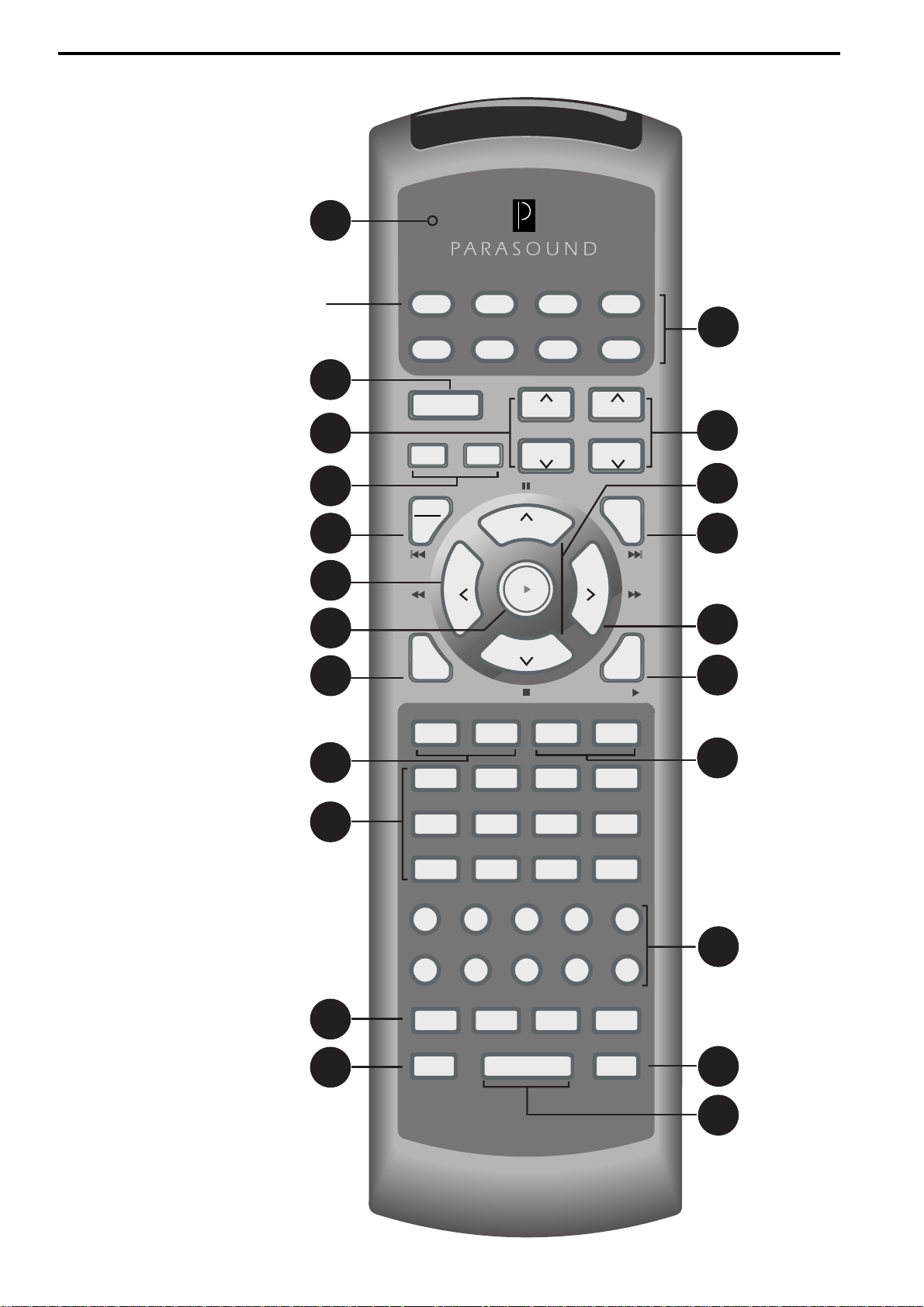
21
Press the AVC button to
control the AVC-2500
1
2
AVC DVD CD AUX
SAT
On-Off
THX Dyn
TV
VCR CBL
Digital Surround
Digital
Surround
22
3
4
5
8
9
11
13
15
Setup
Trim
Auto
Audio
T uning
FM/AM A. Cal SleepDim
Aud 1 Aud 4 Vid 1 Vid 4
Aud 2 Aud 5 Vid 2 Vid 5
Aud 3 Aud 6 Vid 3
1 2345
Volume
Mem
Enter
Volume
Auto
Video
TuneTune
Mute
Status
Disc
Vid 6
6
7
10
12
14
14
17
18
678910
MAC 1 MAC 2 MAC 3 MAC 4
LightShift Zone
16
19
20
Page 15

The Learning Remote Control
1. On-Off Button
This button turns the AVC-2500 On and Off.
11. Tuning Button
Pressing the Tuning b utton activates the AVC-2500 tuner. It
also changes the tuning mode from manual to automatic. In
the manual mode, frequencies are changed at 50 kHz steps
f f
with the Tune
or previous broacast frequency is selected.
e e
f and
e buttons. In the auto mode, the next
f f
e e
2. Digital Selection Buttons
g g
The Digital
through all six digital inputs and the analog input.
3. Surr ound Selection Buttons
The Surround
all five Autoformating Surround Processing (ASP) modes:
Cinema, Stereo, Music, Party, and Mono.
4. THX/Dynamic Range Control Buttons
THX Button
Press the THX button to add THX processing to ASP modes
including Dolby Digital, Dolby Pro Logic, DTS, and Mono.
Dynamic Range Control Button
The Dyn button engages Dynamic Range Compression that
may be encoded into a digital bitstream. This feature is often
called the nighttime listening mode.
5. Setup/Trim Button
Press this button to enter the setup operation of the AVC-
2500. This button is also used to temporarily trim channel
levels while watching a film or listening to a recording.
6. Volume Buttons
The Volume
and down in 1 dB steps. These b uttons are also used for setup
and trim operation.
7. Mute Button
Press the Mute button to interrupt the audio signal from reaching the output of the AVC-2500. The Mute button does not
affect the record output jacks
h h
g and
h buttons allow you to scroll up or down
g g
h h
g g
h h
g and
h b uttons allo w you to scroll through
g g
h h
g g
h h
g and
h buttons adjust the master volume up
g g
h h
12. Status Button
The Status activates the on-screen display to pro vide operational status of the AVC-2500. Press this button again to turn
off the status display.
13. FM/AM/ A. Cal Buttons
FM/AM Button
The FM/AM button toggles between AM and FM frequency
bands.
Auto Calibration Button (A.Cal)
This button engages the Automatic Calibration feature of
the AVC-2500 when the ACM-2500 microphone is connected.
14. Dimmer/Sleep Buttons
Dimmer Button
This button dims the front panel display and indicators by
50%.
Sleep Timer Button
The Sleep button sets the AVC 2500 to automatically turn
off. Each press of the sleep button increases the sleep timer
by 15 minutes for a maximum of 90 minutes.
15. Source Buttons
These buttons provide direct access to all twelve inputs of
the A VC-2500. The Source buttons are labeled Audio (Aud)
1-6 and Video (Vid) 1-6.
16. Numerical Preset Buttons 1-10
Pressing any of these activates the tuner (if not already on)
and selects the radio station programmed to that number.
8. Tune
When the tuner is activated, pressing this button normally
advances to the next preset. If you change the tuning mode,
the Tune
When you hold this button down for three seconds, the AVC2500 scans for any active digital or analog audio signal and
automatically switches to that input source.
9. Memory Enter Button
The Mem/Enter button is used to store Digital Inputs, THX,
and Dynamic Range Control into Input Sources. This button
is also used during the setup process.
10. Tune
When the tuner is activated, pressing this button normally
advances to the next preset. If you change the tuning mode,
the Tune
When you hold this button down for three seconds, the AVC2500 scans for any active video signal and automatically
switches to that input source.
f f
f /A uto Audio Button
f f
f f
f button selects a lower radio frequency.
f f
e e
e /A uto Video Button
e e
e e
e button selects a higher broadcast frequency.
e e
17. Macro Buttons
These 4 macro buttons allow you to pro gram a series of commands for one touch operation of multiple remote commands.
18. Shift Button
The Shift button accesses se veral “secondary” codes such as
separate on and off commands.
19. Zone Button
Press the Zone button before a command to issue a Zone
command. For example, Pressing Zone + On-Off turns the
remote Zone On or Off.
20. Light Button
The Light button illuminates the remote control.
21. Programming Status LED
This three-color LED flashes when programming infrared
codes into the learning remote control.
22. Device Buttons
The device buttons allow you to choose different "pages" to
control up to eight components including the AVC-2500.
Note: Press the AVC button to control the AVC-2500.
15
Page 16
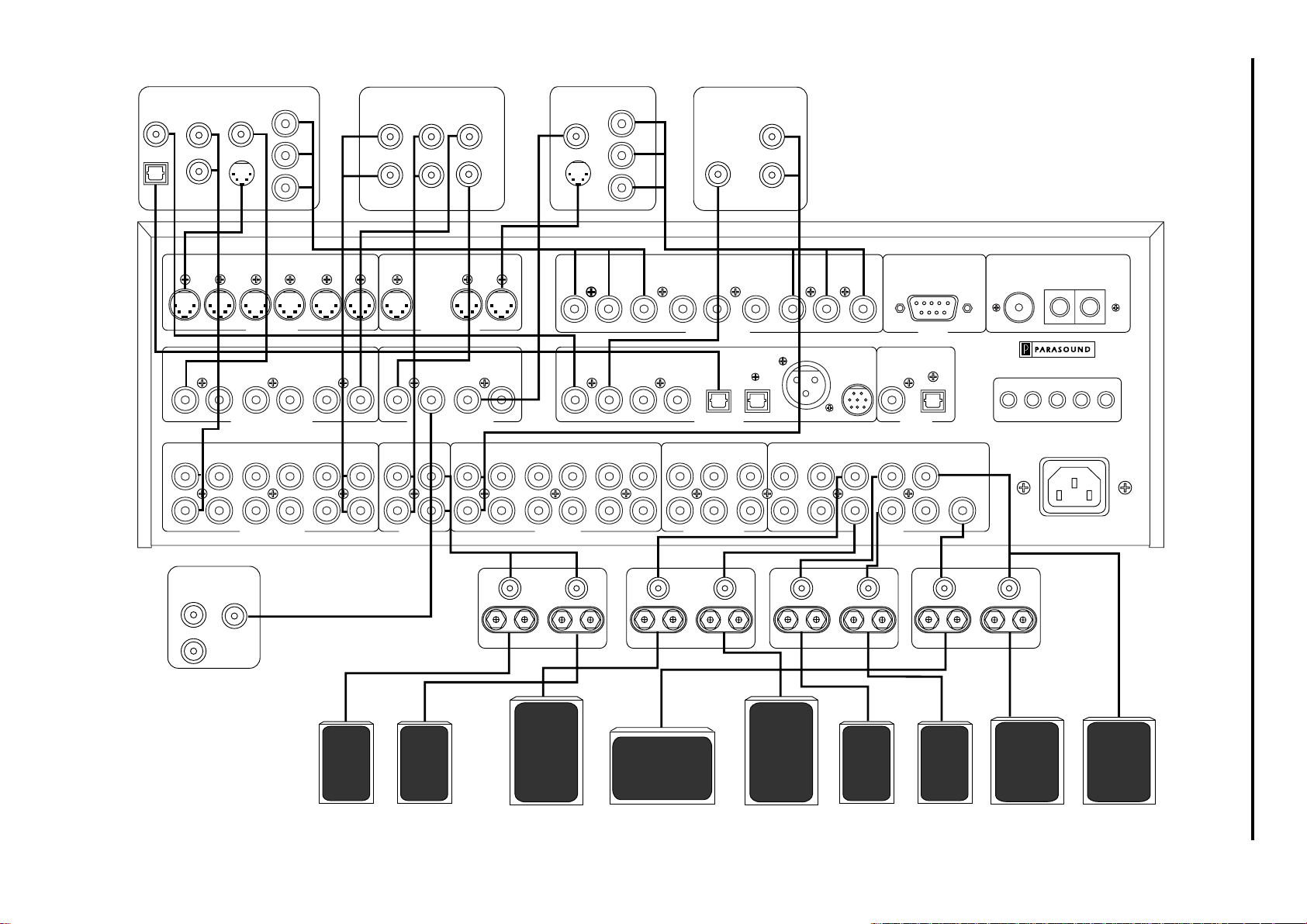
16
Coaxial
Toslink
DVD Player
Audio OutDigital Out
L
R
Composite
Video Out
S-Video Out
Component
Video Out
Y
Cb
Cr
Video Cassette Recorder
Audio Video
Audio
L
Out
R
Play/Out
Rec/In
In
TV Monitor
Composite
Video In
S-Video In
Component
Video In
Y
Cb
Cr
CD Player/Transport
Audio
Coaxial Digital
L
Output
R
Output
Video 2
Video 1
Video 2
Video 1
Composite Video Inputs
Video 1
Video 2
L
R
Composite
Audio Out
Video In
L
R
Zone TV Monitor
Video 4
Video 4
Video 5
Video 5
Video 5
Video 3
S Video Inputs
Video 3
Video 3 Video 4
Audio/Video Inputs Audio Inputs
Video 6
Video 6
Record
Video 6
Video 6 Coax 1 Coax 2 Coax 3 Coax 4
Record
Video 6 Video 6
Record
Outputs
Monitor
OSD
S Video Outputs
Monitor
Zone 2
With OSD
Video
Composite Video Outputs
Audio 1
Zone
Monitor
No OSD
Monitor
No OSD
Audio 2
Audio 3 Audio 4
L R L R LS RS Center Sub
Zone Amplifier Amplifier Amplifier Amplifier
Input 1
YCb
Audio 5
Cr
Audio 6
Input 2
YCb
Component Video
Optical 1 Optical 2
Digital Inputs
Front
Surround
Center
Sub
Cr
Monitor
YCb
AES/EBU
Record Front Surround
Record
Cr
Parasound
External RF
Demodulator
Main Outputs5.1 Analog Inputs
Coax
External Control
RS 232
Digital Record
Optical
Outputs
Subs
Center
Antenna
75 Ohm AM Ground
AVC-2500
MainAudio
Parasound Products, Inc.
San Francisco, CA USA
Made in Finland
2
1
AC 120V 60Hz 60 W
Zone
IRIR DC TriggersTrigger
Powered
Subwoofer
Connection
Left Speaker Center Speaker Right Speaker Left Surround Right SurroundZone Left Zone Right Subwoofer
Parasound AVC-2500 Input and Output Connections
Powered Subwoofer
Page 17

Making Connections to Y our AVC-2500
Precautions
Before making any connections to your AVC-2500, be sure to turn off the power to your
amplifiers. When connecting cables to the AVC-2500, make sure there is no strain or tension
on any connections that could cause them to pull loose later.
Rear Panel Connections
There are ninety-three connectors and terminals on the rear panel! To make installation and
the instructions easier to follow, discussion about connections are organized in a clockwise
direction from the left side to the right side of the rear panel and also by functional groups
for analog audio, video, digital audio, antenna, special control interface, and AC cord.
References to specific connectors on the AVC-2500 are usually italicized.
Analog Audio/Video 1-6 Input Connections
All six Audio/Video analog inputs are compatible with typical line level sources such as
DVD players, videocassette recorders, satellite receivers, tabletop cable converter boxes,
etc. Each of the six Audio/Video inputs also switches an accompan ying NTSC/P AL composite
video or S-video input. You can also assign either of the two Component Video inputs and
any of the eight Digital audio inputs to accompany these six Audio/Video inputs. You may
also connect the left and right analog audio outputs of your audio/video source components
to these input.
Video 6 Input and Record (Record and Playback) Connections
Use the Video 6 inputs and outputs for the VCR you intend to use to record the picture and
sound. The signal present at the Video 6 Record output sends analog audio from whichever
of the other five Audio/Video or six Audio-only inputs you select.
1. Connect the left and right audio output connectors from the VCR you’ll use for recording
to the Video 6 Input connectors of the AVC-2500.
2. Connect the left and right Video 6 Record Output connectors of the AVC-2500 to the left
and right audio input connectors of the VCR.
3. Connect the composite video output connector of your VCR to the Video 6 input of the
AVC-2500 and connect the Video 6 Composite Record Output connectors of the AVC-
2500 composite video input connectors of the VCR.
Zone Audio and Video Output Connections
The AVC-2500 has stereo audio and NTSC/Pal composite video output connections for
independent remote zone operation. This feature allows you to route any of the sources
connected to the AVC-2500 to both the main zone (Main) and a separate remote zone (Zone).
You can view or listen to different or same sources in the main and remote zones
simultaneously. Connect the left and right Zone Audio Outputs to your remote zone power
amplifier and connect the Zone Composite V ideo output to your remote zone video monitor .
Note: The remote zone cannot access digital signals. Therefore, you must connect the analog
outputs of your components to the analog inputs inputs in order to access them from the
remote zone.
Analog Audio 1-6 Input Connections
The six audio-only analog inputs are compatible with typical analog line level sources such
as CD players, MiniDisc players, cassette decks, etc. Connect the left and right analog audio
outputs of your audio/video source components to these inputs. You can also “assign” any
of the eight Digital audio inputs to accompany any of the six Audio analog inputs.
17
Page 18

5.1 Analog Inputs
The 5.1 Analog Input jacks are designed to accept up to six channels of processed analog
output from a DVD player or other component with discr ete outputs. Connect the six discrete
outputs of your source component to the corresponding 5.1 Analog Input jacks of the AVC-
2500. Note: You will need an optional module to control volume from the 5.1 analog inputs.
Othewise, you should use the volume control on your DVD player if so equipped.
Audio Only Record Output Connections
The audio signal from the source you selected for the main zone is routed to both pairs of
Record Output connectors. Connect the left and right play/output of your tape deck to the
left and right of any of the AVC-2500’ s Audio 1-Audio 6 input connectors. Next, connect the
left and right audio record/input connectors of your tape deck to either pair of Left and Right
channel Record Output connectors of your AVC-2500.
Front Left and Right Channel Outputs
Connect the Left and Right Front channel outputs of your AVC-2500 to either the inputs of
a two channel amplifier or to two channels of a multi-channel amplif ier that are then connected
to your main front left and right (L, R) speakers.
Center Channel Output
Connect the Center channel output of your AVC-2500 to the input of a mono amplifier or to
the channel of the multi-channel amplifier that is connected to your center (C) speaker.
Left and Right Surround Channel Outputs
Connect the Left and Right Surr ound output jacks of your AVC-2500 to the inputs of the two
channel amplifier or to two channels of a multi-channel amplif ier that are connected to your
left and right surround (LS, RS) speakers.
Subwoofer Output Connections
T wo Subwoofer output jacks are pro vided for your conv enience if you have two subwoofer s.
For passiv e subwoofers without built-in amplifiers, connect the Left and/or Right Sub outputs
of your AVC-2500 to the input(s) of the amplifier channel(s) that are connected to your
passive subwoofer(s). For powered subwoofers with built-in amplifiers, connect the Left
and Right Sub outputs of your AVC-2500 to the left and right line inputs of your subwoofer .
If your subwoofer has only one input jack, you can use either the Left or Right outputs of the
AVC-2500 since both send the same monaural information. W e recommend that you switch
off the crossover on your subw oofer amp and use the 24 dB per octav e lo w pass filter of the
AVC-2500. If your sub doesn’t have a bypass switch for its crossover , adjust it to the highest
frequency setting.
AC Line Cord Connection
The rear panel mounted IEC standard A C receptacle accepts the A C cord supplied with your
AVC-2500. We recommend the use of an AC line filter to protect the AVC-2500 against
potentially damaging line surges and voltage fluctuations. Plug the female end of the AC
cord firmly into the rear mounted AC receptacle and make sure that it is properly seated,
then connect the male end to an uninterrupted AC power line.
18
Main External Remote Control
The Main External IR allows for remote control operation via a wired infrared repeater
system or system controller when infrared commands cannot directly reach the front panel
infrared receiver. The input connector accepts a standard 1/8-inch (3.5 mm) two conductor
mini plug. The tip is positiv e and the sleeve is negative. Your Authorized Parasound Dealer
or Custom Installer can recommend a compatible infrared repeater system for the AVC-
2500. Connect the output of an infrared repeater system to the Main IR input.
Page 19
Zone External Remote Control
The Zone External IR allows for control of the AVC-2500 from a remote zone. The input
connector accepts a standard 1/8-inch (3.5 mm) two conductor mini plug. (The tip is positiv e
and the sleeve is negative). Your Authorized Parasound Dealer or Custom Installer can
recommend a compatible infrared repeater system for the AVC-2500. Connect the output of
an infrared repeater system to the Zone IR input.
Main DC Trigger (Labeled DC Trigger 1 on some units)
This jack provides a +12 Volt DC trigger voltage to activ ate equipment that can be triggered
with DC voltage such as power amplif iers, relays, motorized projection screen, fans, lights,
or other components. Connect the Main (or 1) DC Trigger output of the AVC-2500 to the
DC input of the component you want to activate. The DC trigger delivers up to 350 mA of
current. The Main (or 1) DC Trigger accepts a standard 1/8 inch (3.5 mm) two conductor
mini plug. The tip is positive and the sleeve is negative. You can program the AVC-2500 to
activate the Main DC Trigger in response to turning on the AVC-2500 or to a button stroke
on its remote control. Refer to the Setup section for details on programming the Main (or 1)
DC T rig g e r.
Zone DC Trigger (Labeled DC Trigger 2 on some units)
This jack provides a +12 Volt DC trigger voltage to activ ate equipment that can be triggered
with DC voltage such as power amplif iers, relays, motorized projection screen, fans, lights,
or other components. Connect the Zone (or 2) DC Trigger output of the AVC-2500 to the
DC input of the component you want to activate. The DC trigger delivers up to 350 mA of
current. The Zone (or 2) DC Trigger accepts a standard 1/8 inch (3.5 mm) two conductor
mini plug. The tip is positive and the sleeve is negative. You can program the AVC-2500 to
activate the Zone DC Trigg e r in response to turning on the AVC-2500 from a remote zone,
or to a button stroke on its remote control. Refer to the Setup section for details on
programming the Zone (or 2) DC Trigger.
Important Note
The two DC T rigger jacks and the two External Remote jacks are the same size, despite their
different functions. The DC T rigg er jacks have small rubber plugs inserted into them to help
you avoid accidentally damaging your infrared repeater system by plugging it into a live
12V DC jack. Don’t remove a rubber plug until you are ready to plug in a DC trigger
connection.
Audio T rigger
This connector provides a fixed level L + R monaural audio signal to activate equipment
such as power amplifiers, audio sensing power strips, or other components that can be
triggered with an audio signal. The Audio T rigger accepts a standard 1/8-inch (3.5 mm) two
conductor mini plug. The tip carries the signal and the sleev e is ground. Connect the Audio
Trigger output of the AVC-2500 to the audio sensing input of the component you want to
activate.
Digital Recording Output Connections
To record through either of these digital output connectors, select the digital source you
want to record on the front panel or remote control. The AVC-2500 simultaneously routes
the digital bitstream to both the Coax and Optical T oslink output connectors. Connect either
the Optical or the 75 Ω Coax Digital Record Output connectors of the AVC-2500 to the
digital record input of your digital recorder . You may also wish to refer to the owner’ s manual
of your digital recorder.
19
Page 20

Antenna Connections
You will not be able to receive any radio stations unless you connect FM and AM antennas
to the AVC-2500. The following are options to connect FM and AM antennas:
FM Dipole Antenna
A standard FM “folded dipole” 300 Ω
wire antenna is included with your AVC-2500. This
dipole antenna is adequate for most urban and suburban locations. Connect the spade lugs
of the dipole antenna to the two screw terminals on the included small “balun” matching
transformer . Press the balun ov er the female 75
Ω
connector of the rear panel of your AVC-
2500. Next, spread out the antenna and hang it on the wall or the back of the equipment
cabinet. Experiment with the direction and placement of the dipole antenna to obtain the
best reception.
ΩΩ
75
Ω
Coaxial Antenna
ΩΩ
The AVC-2500 has a standard DIN-type 75 Ω connector with a push-on coaxial FM antenna
plug. An adapter is included to accommodate the threaded F-type connectors that are used
in North America.
Outdoor Roof Antenna
For best reception and maximum noise rejection, we recommend the use of a high-quality
outdoor FM antenna. The additional stations you can receiv e and the superior sound quality
will make the extra effort worthwhile. Connect the outdoor antenna with a 75 Ω coaxial
cable directly to the 75 Ω FM Antenna Input of the AVC-2500. If you use 300 Ω twin lead,
connect the two bare wire leads to the included “balun” adapter and press it onto the female
75 Ω coaxial FM antenna input connector.
Cable TV and Community Antenna
In many situations, you may be able to use the FM antenna output of a cable TV or a
community antenna jack. These connect in the same way as an outdoor antenna.
AM Antenna
A molded plastic loop antenna is supplied with your AVC-2500. Connect the two wires of
the AM loop antenna to the posts labeled AM and GND. Position the loop antenna for best
AM reception. If you are trying to pick up very distant stations, you may connect a single
long wire to the AM terminal and a good earth ground to the GND terminal.
RS 232 Control
The RS-232 External Contr ol port is the interface for connecting one of the many software
based system controllers such as AMX, Phast, or Creston. This 9-pin serial port provides
two-way communication for control and status feedback from the AVC-2500. Contact your
Parasound Dealer or Custom Installer for more information re garding interfacing an external
control system to your AVC-2500.
Component Video Connections
Each Component V ideo Input and the Component V ideo Output includes three separate jacks.
Separating the video signal components of luminance (Y) and the color difference (Cb and
Cr) delivers the v ery highest quality video reproduction. Not every source or monitor labels
its component video Y, Cb, Cr. Equivalent labeling for component video connections may
be Y, B-Y R-Y or Y, PB, PR. Refer to the owner’s manual of your video component for
details.
20
Page 21

Outputs
Connect the Component Video Monitor Output connectors of your AVC-2500 to the
corresponding input connectors of your video line processor or directly to your monitor or
projector. Y ou can select whether the on-screen display will appear at the Component V ideo
Output connectors during the setup process. Refer to the setup section for more details
about assigning the on-screen display to the component video output.
Inputs
Connect the component video outputs of your DVD player to the corresponding Component
V ideo Input connectors of the AVC-2500. Once you have connected the component video
sources to the inputs of the AVC-2500, you will need to assign the component video sources
to any of the six Audio/Video Inputs. Refer to the setup instructions for component video
assignment procedures.
Digital Audio Input Connections
Your AVC-2500 has eight digital input connections: four Coax RCA jacks, two Optical
Toslinks, one AES/EBU XLR connector, and an Ext RF 8 pin connector for an optional
Parasound RFD-1 demodulator. You may use the digital output of a source component in
conjunction with its own analog output or that of another source component. Once you hav e
connected the digital output of your source component to one of the Digital Inputs of the
AVC-2500, you can assign that Digital input to be selected simultaneously with any of the
six Audio/Video or six Audio-only sources. Refer to the setup instructions for Digital Input
assignment procedures. Use only cables intended for digital signal transmission.
Coaxial Digital Inputs
The four Coax Inputs on the AVC-2500 accept a standard S/PDIF digital bitstream from any
CD player, DVD player, DSS receiver, or other digital component equipped with a 75 Ω
coaxial output. Connect the coaxial output of your digital source to any of the Coax Inputs
using an interconnect cable designed for this application.
Fiber-Optic T oslink Input Connections
Each of the two fiber-optic T oslink inputs on the AVC-2500 accept a standard S/PDIF digital
bitstream from any CD player , DVD player, laserdisc player, DSS receiver, or other digital
component equipped with a T oslink optical output. Connect the optical output of your digital
source to either of the Optical Inputs using a Toslink fiber optic cable.
AES/EBU 110
Ω Ω
Ω
Balanced Input Connection
Ω Ω
The AES/EBU (Audio Engineering Society/European Broadcast Union) 110 Ω balanced
connection is the standard for professional digital audio equipment and high-end consumer
digital equipment because of its inherent noise rejection capability. Connect the AES/EBU
output of your CD transport, or other digital source to the Digital AES/EBU input.
External RF Demodulator
To decode Dolby Digital encoded laser discs, you will need to purchase and connect the
optional Parasound RFD-1 RF demodulator between the External RF Demodulator input
and the RF or A C-3 RF output jack of your laser disc player . Use a 75 Ω cable with an RCA
plug on each end to connect your RFD-1 to your laser disc player.
21
Page 22

Composite and S-Video Monitor Output Connections
If your video monitor or projector is equipped with separate input connections and switching
for NTSC/PAL composite video, S-video, and component video, you can connect all three
video formats to the AVC-2500’s corresponding Composite Video, S-Video or Component
Video Output connectors. Note that the AVC-2500 can convert S-video input signals to
composite video output signals, but it does not convert from composite video to S-video,
nor to or from component video.
Both composite video and S-video have a choice of output connectors that include or e xclude
the on-screen display (OSD) information. This feature gives you the option of sending the
output with on-screen display capability to a separate monitor or to the picture-in-picture
input of your monitor instead of having the on-screen display superimposed over the picture
in your main monitor or projector screen.
S-Video and Composite Video Input Connections
Each of the six Audio/Video inputs has both composite and S-video connectors with se parate
video circuits and amplifiers. The AVC-2500 can only convert video signals from S-video to
composite video, but not vice versa. F or example, when you connect a video signal to one of
the six composite RCA input jacks, the video signal will only be available thr ough the RCA
composite Monitor and Record output jacks.
AVC-2500 Front Panel Controls and Auto Cal Mic Connection
We designed the AVC-2500 user interface to be simple and intuitive, so we avoided
unnecessary front panel controls and indicators that tend to make operation confusing. During
setup, you will have the opportunity to program many typical functions and operations into
memory for easy subsequent control of your AVC-2500.
On-Off Button
Press the On-Off button to turn the unit on and off. When you turn on the AVC-2500, the onscreen display and front panel displays show you the status of the settings that were made
before the unit was last turned off. The items displayed are the Input Source, Digital Input,
Surround Mode, and Volume Lev el. If the tuner was selected, the frequency and preset number are displayed. The on-screen display will turn off about four seconds after the AVC2500 is turned on.
Infrared Receiver
Infrared signals from the remote control are received through the infrared receiving eye.
Volume Control - Rotary Knob
The large round Rotary Knob normally controls volume for all channels. You can adjust
volume up and down in 1 dB steps by turning this knob. It also serves as the rotary selector
for Surround Modes, Digital Inputs, T uner Presets, and Input Sources. When you press an y
of the 4 buttons marked Surround, Digital, Preset, or Source, its corresponding blue LED
will light for about 5 seconds, during which time the Rotary Knob is available for making
that selection. Five seconds after making your selection, the rotary knob resumes master
volume control. If you want the knob to rev ert to volume control without waiting fiv e seconds,
simply press the same selector button again.
22
Source Button
Pressing the Source button once temporarily converts the Rotary Knob from controlling
volume to become the Input Source Selector. Its blue LED will stay lit for five seconds
during which time you can choose any of the six Audio/Video or six Audio-only sources.
The rotary knob is availa ble for this function only while this LED is on. If you want the knob
to revert to volume control without waiting five seconds, press the Source button again.
Page 23

Preset Button
Pressing the Preset button once automatically selects the tuner, even if a different source
was already selected. It temporarily con verts the knob from controlling volume to become
the Pr eset Selector for the stations that were stored into the 20 possible memory presets. Its
blue LED will stay lit for five seconds during which time the rotary knob is available for
selecting presets. If you want the knob to revert to volume control without waiting five
seconds, press the Preset button again.
Digital Button
Pressing the Digital button once temporarily con v erts the knob from controlling v olume to
become the Digital Input Selector. Its blue LED will stay lit for five seconds during which
time you can choose any of the eight digital inputs, the 5.1 channel analog input, or return to
analog. If you want the knob to revert to volume contr ol without waiting fi ve seconds, press
the Digital button again.
Surround Button
Pressing the Surround button once temporarily converts the knob from controlling v olume
to become the Surround Mode Selector. Its blue LED will stay lit for five seconds during
which time you can choose any of the five ASP modes. If you want the knob to revert to
volume control without waiting five seconds, press the Surround button again.
Surround Mode Indicators
These indicators let you know the type of digital bitstream the AVC-2500 has detected and
how it is being decoded.
DTS indicator
The blue DTS indicator illuminates when the AVC-2500 has detected a DTS bitstream,
regardless of which ASP mode you have selected.
Dolby Digital
The blue Dolby Digital indicator illuminates when the AVC-2500 has automatically detected
a Dolby Digital bitstream, regardless of which ASP mode you have selected.
Pro Logic Indicator
The blue Pro Logic indicator illuminates when the AVC-2500 has automatically detected an
analog, PCM, or 2/0 Dolby Digital signal. Howev er , Pro Logic processing is only a v ailable
in the Cinema ASP mode.
Overload Indicator
The red Overload indicator will illuminate when any of the internal analog-to-digital
converters are being overloaded. This only occurs when an unusually high output analog
source is selected. The AVC-2500 monitors the extent and duration of the signal overload to
determine the optimum signal level applied to the A/D converters. If this indicator f lashes,
the AVC-2500 will attenuate the signal just until the internal analog-to-digital converters
are no longer overdriv en and the overload indicator stops flashing. This new le vel will remain
while the source is playing so there are not audible volume fluctuations. You can also manually
adjust the input level to the analog to digital converters in the setup menu.
23
Page 24

Automatic Calibration Microphone Input Connection
The front panel Cal Mic jack is for the ACM-2500 Automatic Calibration Microphone that
is used for automatic calibration of individual channel le vels and delay times. Plug the ACM2500 into this jack during the Setup process. Refer to the Setup section of this manual for
details regarding automatic calibration of your home theater system. Use of any other
microphone will not produce correct automatic calibration results.
T uning Button
Pressing the Tuning button activates the tuner section of the AVC-2500 in its automatic
tuning mode. This button also temporarily reassigns the v olume control knob to become the
radio tuning knob. Pressing the Tuning button a second time changes automatic tuning to
manual. During automatic tuning, the knob selects the previous or next broadcast frequency
where a signal is being transmitted. During manual tuning, the knob tunes up or down in 50
kHz increments.
FM/AM Button
The FM/AM b utton selects FM and AM broadcast bands while the tuner is acti ve. Unlike the
T uning or Preset b uttons, the FM/AM b utton does not acti v ate the tuner if another Source is
playing.
Mute Button
Press the Mute button once to interrupt your listening and press it again to resume listening.
When mute is engaged, MUTE is displayed on the front panel and on-screen. Mute does not
affect the record output jacks. If you adjust the volume knob, it will automatically turn Mute
off. This prevents you from accidentally increasing volume while Mute is on and getting a
surprise blast of sound when Mute is turned off.
Memory Button
The Memory button allo ws you to assign any combination of a Dig ital input, an ASP mode,
and THX processing to any individual Input Source so they will all be selected together
whenever that Source is selected. The Memory button also stores up to twenty radio station
presets. Refer to the operation section for details on storing radio stations into preset memory.
Zone Button
Press the Zone button to control the remote zone from the front panel. When Zone is selected,
you have about five seconds to press your first button for control in the Zone. The On-Off
switch, Volume Control, and Selector buttons operate normally, except that they are
temporarily controlling the outputs only at the Zone Audio and Zone V ideo output jacks and
the Zone (or 2) DC trigger jack. While you are controlling the remote zone, ZONE appears in
the front panel display. Five seconds after making your adjustments to the remote zone, the
AVC-2500 will revert to its main zone operation. If you press the Zone button a second time
within fiv e seconds, control reverts to main zone operation.
Front Panel Display
24
The fluorescent front panel display provides operational status of both the main and remote
zones of your AVC-2500, these include selected Input Source, ASP mode, Digital Input, and
Volume level.
Page 25

AVC 2500 Remote Control Buttons
On-Off
This button operates the same as the On-Off b utton on the front panel. There are also separate
on and off control codes for ease of use while setting up macros or programming external
system controllers. Press the On-Off to turn the unit on or off. Press Shift + THX for an
on-only command. Press Shift + On-Off for an off-only command.
Digital
The Digital
of the eight digital inputs, the 5.1 channel analog input, or analog.
g g
g and
g g
h h
h buttons allow you to cyc le up or down in either direction to select an y
h h
Surround
The Surround
Autoformating Surround Processing modes including Cinema, Stereo, Music, Party, and
Mono.
g g
g and
g g
h h
h buttons allow you to cycle in either direction to select the five
h h
THX
Press the THX button to engage THX Ultra processing for any of the Cinema Surround
modes, including Dolby Digital, Dolby Pro Logic, DTS, and mono.
Dynamic Range Control
The Dyn button engages a fixed degree of Dynamic Range Control that is available if the
DVD you’re playing includes it in its digital bitstream. This feature adds dynamic range
compression to allow soundtracks with a high dynamic range to maintain clear audibility
even at low levels. Dynamic Range Control is often called the nighttime listening mode.
Setup/Trim
Press and hold this button to initiate the setup operation of the AVC-2500. Press and release
this button to temporarily trim individual channel levels to suit your taste while watching a
film or listening to a recording.
Mute
Press the Mute button to interrupt the audio signal from reaching the Main analog output
jacks of the AVC-2500. The Mute button does not af fect the Recor d Output jacks or the Zone
Output jacks (unless Zone is presently under control).
Volume
The Volume
same
buttons are also used for making adjustments during Setup and Trim operations.
Tune
When the tuner is activated, pressing this b utton normally selects the previous station preset.
If you pressed the Tuning button once before pressing the Tune
you press the Tune
the Tuning button twice before pressing the T une
button it will tune down 50 kHz.
g g
g and
g g
f f
f
/ Auto Audio
f f
h h
h buttons adjust the master volume up and down in 1 dB steps. These
h h
f f
f button, then each time
f f
f f
f button it will select the previous broadcast frequency. If you pressed
f f
f f
f button, each time you press the T une
f f
ff
f
ff
25
Page 26

Auto A udio
When you press and hold this button down for three seconds, the AVC-2500 scans for a
source that is playing. It will search for any active digital or analog audio signal and
automatically switch to that source with the accompanying digital or analog audio input,
video, and ASP mode you had assigned to tha t Input Source. This advanced feature provides
virtual one-touch operation for audio playback.
Tune
When the tuner is activated, pressing the Tune
preset. If you had pressed the Tuning button once before pressing the Tune
time you press the Tune > button it will select the next broadcast frequency. If you pressed
the Tuning button twice before pressing the Tune
button it will tune up 50 kHz.
e e
e
/ Auto Video
e e
e e
e button normally selects the next station
e e
e e
e button, each
e e
e e
e button, each time you press the Tune
e e
ee
e
ee
Auto Video
When you press and hold this button down for three seconds, the AVC-2500 automatically
scans for any video source that is on. It will search for any acti ve video signal and automatically
switch to that source with the accompanying digital or analog input, and ASP mode you had
assigned to that Input Source. This advanced feature provides virtual one-touch operation
for movie viewing.
Memory / Enter
The Mem/Enter
Modes, THX, and Dynamic Range Control settings with Sources. This button is also used
during the setup process.
ee
e
ee
e e
e button is used to match together and memorize Digital Inputs, Surround
e e
Tuning
Pressing the Tuning button activates the AVC-2500 tuner. It also changes the tuning mode
from automatic to manual. In the auto mode, the Tune
or next broadcast frequency; in the manual mode, the T une
in - 50 kHz or + 50 kHz steps.
f f
f and
f f
e e
e buttons select the previous
e e
f f
f and
f f
e e
e b uttons select frequencies
e e
Status
The Status button acti vates the on-screen display to show the operational status of the
AVC-2500. Press this button again to turn off the status display.
FM/AM
The FM/AM button selects FM and AM frequency bands while the tuner is active. Unlike
the Tuning or Preset buttons, the FM/AM button does not activate the tuner.
A. Cal
Pressing the A. Cal button engages the Automatic Calibration feature of the AVC-2500 in
the setup menu when the ACM-2500 microphone is connected.
Dimmer
The Dim button dims the front panel display and indicators brightness by 50%.
26
Page 27

Sleep Timer
The Sleep button sets the AVC-2500 to automatically turn itself off. Each press of the Sleep
button adds 15 minutes to the sleep timer , up to a maximum of 90 minutes. During the last
two minutes of the sleep timer, the v olume lev el gradually drops before the AVC-2500 turns
off. You can adjust the speed at which the volume ramps down in the setup menu.
Source
The source buttons provide direct access to each of the twelve inputs of the AVC-2500. The
source buttons are labeled Aud (Audio) 1-6 and Vid (Video) 1-6.
Numerical Presets 1-10
Pressing any of these numerical preset buttons acti vates the tuner even if it was not already
on, and selects the radio station you had preset to that number. To access preset numbers
above 10, press and hold the numerical button do wn for two seconds to add 10 to the number .
For example, to access preset 15, press and hold down numerical button number 5 for two
seconds and preset 15 will be selected.
Macros
The four macro buttons allow you to program a series of commands for one touch operation
of multiple remote commands.
Shift
This button accesses sev eral “secondary” codes, such as separate on and off commands that
are used for advanced programming, but not in daily operation.
Light
The Light button illuminates all the remote control buttons for approximately 5 seconds.
The illumination makes it easier to see the buttons in a darkened room.
Zone
Press the Zone button to control the remote zone from the main zone. There is no need to
press the Zone button first when controlling the remote zone via an infrared repeater connected to the Zone 2 External IR input. When Zone is selected, the On-Off switch, Th e
Volume
zone. Whenever you are controlling the remote zone, ZONE appears in the AVC-2500 front
panel display. Five seconds after making your adjustments to the remote Zone, the AVC2500 remote control reverts to Main Zone operation.
The fluorescent front panel display provides complete operational status of both zones of
your AVC-2500, including selected Input Source, Autoformat Surround Processing (ASP)
mode, Digital Input, and Volume lev el. In the Tuner mode, the front panel display indicates
the selected Frequency and Preset number in place of the Input Source and Digital Input.
g g
g and
g g
h h
h buttons and the Selector buttons operate in the same way as in the main
h h
AVC-2500 Front Panel and Video on-screen Displays
The on-screen display also provides complete operational status of both zones of your AVC2500 including selected Input Source, ASP mode, Digital Input, and Volume level. In the
Tuner mode, the on-screen panel displa y indicates the selected Frequency and Preset number
in place of the Input Source and Digital Input type of video.
27
Page 28
SOURCE
INPUT
MODE THX CINEMA
DOLBY DIGITAL 3/2.1
VIDEO 1
COAXIAL 1
S-VIDEO NTSC
SOURCE
INPUT
COMPOSITE NTSC
MODE STEREO
VIDEO 1
FM 105.5 MHz
ANALOG
SOURCE
INPUT
S-VIDEO NTSC
MODE
DOLBY DIGITAL 3/2.1
Dynamic range on
THX CINEMA
VIDEO 1
COAXIAL 1
VIDEO 1
COAXIAL 1
On-screen and front panel
displays indicating selected
source, digital input, video input,
mode, and decoding method.
SOURCE
INPUT
MODE
DOLBY DIGITAL 3/2.1
VIDEO 1 memorized
VIDEO 1 MEMORIZED
Storing a digital input, ASP
mode, THX, for an input source
into memory.
THX CINEMA
15 dB
VIDEO 1
COAXIAL 1
S-VIDEO NTSC
THX CINEMA
TUNER P5
105.50 MHz FM
On-screen and front panel
status indication with tuner
active.
ZONE SOURCE
INPUT
MODE STEREO
VIDEO 1 STEREO
ANALOG ZONE
On-screen and front panel
display indicating remote zone
operation.
STEREO
15 dB
VIDEO 1
ANALOG
COMPOSITE
ANALOG
15 dB
VIDEO 1 THX CINEMA
15 dBCOAXIAL 1 030
On-screen and front panel
status indication showing THX,
dyn range and sleep timer
active.
SOURCE SETUP
Label: VIDEO 1
ENTER to customize label
to select /adjust
SOURCE SETUP
Label: VIDEO 1
On-screen and front panel
displays indicating source setup
menu.
BASS MGMT SETUP
Main: Small/THX
to select /adjust
BASS MGMT SETUP
Main: Small/THX
On-screen and front panel
displays indicating source setup
menu.
Examples of AVC-2500 On-screen and Front Panel Displays
28
SPEAKER LEVEL SETUP
Left: 0 dB
ENTER to engage noise
A.CAL to auto-calibrate A.CAL to auto-calibrate
to select /adjust
SPEAKER LEVEL SETUP
Left: 0 dB
On-screen and front panel
displays indicating speaker level
setup menu.
SPEAKER DELAY SETUP
Left: 10.0ft
to select /adjust
SPEAKER DELAY SETUP
Left: 10.0ft
On-screen and front panel
displays indicating source setup
menu.
Page 29

Autoformat Surround Processing Modes (ASP)
Your AVC-2500 automatically detects the type of digital signal present at the chosen digital
input and will decode it based upon the Autoformat Surround Processing (ASP) mode you
have selected for that input. This adv anced feature takes the guesswork out of selecting the
correct surround mode every time you play a dif ferent source. Source components transmit
their signals in two channel Analog, Pulse Code Modulation (PCM), Dolby Digital, or DTS.
Cinema Mode
Dolby Digital
Dolby Digital deliv ers six totally separate (discrete) channels of sound. Like Dolby Surround
Pro Logic, it includes Left, Center and Right channels across the front of the room. Dolby
Surround Pro Logic provides a single limited-bandwidth (100 Hz to 7,000 Hz) surround
channel that is typically played back in the home through two-channels of amplification and
two surround speakers. In comparison, Dolby Digital provides separate (discrete) center,
left surround and right surround channels, for more precise localization of sounds and a
more convincing, r ealistic ambience. The sixth channel, the Low Frequency Ef fects Channel
(LFE), contains additional bass information to maximize the impact of scenes with special
effects such as explosions, crashes, etc. The LFE channel frequenc y response is 3 Hz to 120
Hz. All six channels in a Dolby Digital system are digital, and the AVC-2500 can transfer
them without loss from the producer’s mixing console to your home system.
While in the Cinema ASP mode, the AVC-2500 automatically decodes Dolby Digital encoded
source material. If the material was encoded in Dolby Digital 5.1, the AVC-2500 plays back
all six channels independently. If the material was encoded in Dolby Digital 3/2 or 2/0, the
AVC-2500 automatically switches to Dolby Surround Pro Logic.
DTS
Like Dolby Digital, DTS Digital Surround is an encode/decode system that delivers six
channels (5.1) of high-quality audio. The Digital Theater Surround (DTS) surround format
lets you enjoy up to 6 discrete channels of digital surround sound from most laser disc
players but only D VD players that are equipped with DTS output capability . Six independent
channels of DTS material are played back when the Cinema ASP mode is selected and a
DTS signal is present.
Choosing the Cinema ASP mode for DTS music playback is not recommended because it
may accentuate the bass in DTS music discs.
Tw o-channel PCM
PCM encoded material is found on compact discs and laser discs digital outputs. In the
Cinema Autoformat Surround mode, the AVC-2500 automatically decodes two-channel PCM
material into Dolby Pro Logic Surround .
Analog Audio
Two-channel analog material is typically found on VCR tapes and the analog outputs of
DVD players and cassette decks. In the Cinema Autoformat Surround mode, the AVC-2500
automatically decodes two-channel analog audio into Dolby Pro Logic Surround.
29
Page 30

THX Cinema
By pressing the THX button on the remote control or on the front panel, you can activate the
advanced Home THX Ultra enhancements listed below. The AVC-2500 is among the very
few AV Controllers designed and qualified for THX Ultra Certification. Films that have
been encoded in Dolby Digital, DTS, Dolby Pro Logic, Stereo or even Mono can all benef it
from activating THX Ultra technologies. THX should be selected when watching movies
that were mixed primarily for playback in large mo vie theater environments in which speakers
are always mounted behind the screen. THX engineers dev eloped patented technologies to
accurately translate the sound from the movie theater environment into the home, correcting
for significant tonal and spatial discrepancies between these en vironments. When the THX
mode is selected on the AVC-2500, the decoded signal is modified with the follo wing THX
Ultra features:
THX Re-Equalization
The tonal balance of a film soundtrack may be excessively bright and harsh when played
back over audio equipment in the home because f ilm soundtracks were designed to be played
back in large movie theaters using very different professional equipment. Re-Equalization
restores the correct tonal balance of a film soundtrack in a small home environment.
THX Timbre Matching
The human ear changes our perception of a sound depending on the direction from which
the sound is coming. Large movie theaters must use arrays of speakers to pro vide surround
information for everyone in the audience. In a home theater, you need only two surround
speakers located at the sides of your head. The Timbre Matching feature f ilters the information
going to the surround speakers so that they more closely match the tonal characteristics of
the sound coming from the front speakers. This ensures seamless panning between the front
and surround speakers and an uninterrupted sense of spaciousness.
THX Adaptive Decorrelation
In a movie theater , there is always a large distance from your seat to the speak ers. In a home
theater there are usually only two surround speakers that are usually located close to your
listening position. Adaptive Decorrelation slightly changes one surround channel’ s time and
phase relationship with respect to the other surround channel. This has the effect of expanding
the apparent size of your room and broadens your listening position to simulate the same
spacious surround experience as in a movie theater, but with only two surround speakers.
THX Bass Limiter
This THX feature prevents distortion and possible damage to the woofers in your speakers
or subwoofer. Details about the Bass Limiter are in the Setup section.
Music Mode
Dolby Digital
While in the Music ASP mode, the AVC-2500 automatically decodes Dolby Digital encoded
source material. If the material was encoded in Dolby Digital 5.1, the AVC-2500 plays back
all six channels independently. If the material was encoded in Dolby Digital 3/1 or 2/0, the
AVC-2500 downmixes the signal to Pro Logic Surround.
DTS
In the Music ASP mode , the AVC-2500 automatically decodes DTS encoded source material.
Since DTS is always encoded in 5.1, the AVC-2500 will play back all six channels while in
the Music mode. Choose this mode for DTS music discs. Choosing the Music mode for
DTS movies is not recommended because bass response may be attenuated.
30
Page 31

Tw o-channel PCM
PCM encoded material is found on compact discs and laserdiscs. In the Music ASP mode,
the AVC-2500 plays back audio in the left, center, and right channels. Proprietary ambiance
effects are routed to the surround channels. The subwoofer is active in this mode.
Analog Audio
Two-channel analog material is typically found on VCR tapes and the analog outputs of
DVD players and cassette decks. In the Music ASP mode, the AVC-2500 plays back twochannel audio in the left, center, and right channels. Proprietary ambiance ef fects are routed
to the surround channels. The subwoofer is active in this mode.
Party Mode
Dolby Digital
While in the Party ASP mode, the AVC-2500 automatically decodes Dolby Digital encoded
source material. Even if the material was encoded in Dolby Digital 5.1, the AVC-2500 plays
back downmixed two-channel in the front left and right and rear surround channels in a
“dual-stereo” configuration. The subwoofer is active in this mode. This mode is a great
choice for a party because guests standing near the surround speakers will hear downmixed
stereo rather than ambient surround effects. The center speaker is defeated in this mode.
DTS
In the Party ASP mode, the AVC-2500 automatically decodes DTS encoded source material.
DTS is always encoded in 5.1, but the AVC-2500 plays back downmixed tw o-channel in the
front left, right and rear surround channels in a “dual-stereo” configuration. The subwoofer
is active in this mode.
Tw o-channel PCM
PCM encoded material is found on compact discs and laser discs. In the Party ASP mode,
the AVC-2500 plays back downmixed two-channel audio in the front left, right and rear
surround channels in a “dual-stereo” configuration. The subwoofer is active in this mode.
Analog Audio
Two-channel analog material is typically found on VCR tapes and the analog outputs of
DVD players and cassette decks. In the Party ASP mode, the AVC-2500 plays back twochannel audio in the front left, right and rear surround channels in a “dual-stereo”
configuration. The subwoofer is acti ve in this mode.
Mono Mode
Dolby Digital
While in the Mono ASP mode, the AVC-2500 automatically downmixes the signal from
Dolby Digital, DTS, PCM or Analog monaurally to the center channel. All other channels
are inoperative in the Mono ASP mode.
Stereo Mode
Dolby Digital
While in the Stereo ASP mode, the AVC-2500 automatically decodes Dolby Digital encoded
source material. Even if the material was encoded in Dolby Digital 5.1, the AVC-2500
downmixes all information from all the channels to play two-channel audio in the left and
right channels. The subwoofer is active in this mode.
31
Page 32

DTS
In the Stereo ASP mode, the AVC-2500 automatically decodes DTS encoded source material.
The AVC-2500 plays back do wnmixed two-channel audio in the left and right channels. The
subwoofer is active in this mode
T wo-channel PCM
PCM encoded material is found on compact discs and laser discs. In the Stereo ASP mode,
the AVC-2500 automatically decodes two-channel PCM material to two-channel stereo.
The subwoofer is active in this mode.
Analog Audio
Two-channel analog material is typically found on VCR tapes and the analog outputs of
DVD players and cassette decks. In the Stereo ASP mode, the AVC-2500 plays back twochannel stereo. The subwoofer is active in this mode.
Following is a char t of the ASP modes and ho w the AVC-2500 decodes the incoming signal.
Autoformat Surround Processing (ASP) Decoding Chart
Mode Encoding Method Decoding Result Active Channels
Cinema 5.1 Ch Dolby Digital 5.1 Ch Dolby Digital L, C, R, LS, RS, Sub
2 Ch Dolby Digital Pro Logic Surround L, C , R, LS, RS, Sub
5.1 Ch DTS 5.1 Ch DTS L, C, R, LS, RS , Sub
PCM Pro Logic Surround L, C, R, LS, RS, Sub
Analog Pro Logic Surround L, C , R, LS, RS, Sub
Music 5.1 Ch Dolby Digital Dolby Digital downmix with rear Ch ambiance L, R, C , LS, RS , Sub
2 Ch Dolby Digital Dolby Digital stereo with rear Ch ambiance L, R, C, LS, RS , Sub
DTS 5.1 Ch DTS L, R, C, LS, RS , Sub
PCM 2 Ch Music with Ambiance L, R, C, LS, RS , Sub
Analog 2 Ch Music with Ambiance L, R, C, LS, RS, Sub
Party 5.1 Ch Dolby Digital Dolb y Digital do wnmix in front/rear L, R, LS, RS, Sub
2 Ch Dolby Digital Dolby Digital stereo in front/rear L, R, LS, RS, Sub
DTS DTS stereo downmix in F and R L, R, LS, RS, Sub
PCM Party Mode (front-rear dual Stereo) L, R, LS, RS , Sub
Analog Party Mode (front-rear dual Stereo) L, R, LS, RS, Sub
Mono 5.1 Dolby Digital Mono downmix to center Ch Center Only
2 Ch Dolby Digital Mono downmix to center Ch Center Only
DTS DTS Mono downmix to center Ch Center Only
PCM Mono downmix to center Ch Center Only
Analog Mono downmix to center Ch Center Only
Stereo 5.1 Ch Dolby Digital 5.1 Dolb y Digital L, R, Sub
2 Ch Dolby Digital Dolby Digital Stereo L, R, Sub
DTS DTS Music L, R, Sub
PCM 2 Ch Stereo L, R, Sub
Analog 2 Ch Stereo L, R, Sub
32
Page 33

Placement of Your Home Theater Speakers
Speaker Placement
Proper speaker placement is essential for optimum performance of your home theater system. The following are basic guidelines for speaker placement based upon idealized conditions. You may need to make placement compromises to allow for room shape, furniture
placement, windows, doorways, and other considerations. The AVC-2500 permits electronic
compensation when asymmetrical speaker placement is required.
Front Speakers
Try to locate your front left and right speakers an equal distance to the right and left of your
monitor or projection screen. Ideally, your listening position should be at one point of an
equilateral triangle with the left and right speakers at the other two points. To achieve what
is commonly called the “sweet spot, ” your left and right speakers might sound better facing
forward or slightly toed-in, depending on their dispersion characteristics, room reflections,
and the number of people in the room.
Center Speaker
The center speaker’s main function is to r eproduce most of the cinema dialog and blend the
sonic image from your speakers with the visual image on the screen. It is best to place your
center speaker directly above or below the monitor, as close to the same height as the left
and right speakers as possible. Be sure your center speaker is shielded to prev ent discoloration
of the picture tube. If you have a projection screen that is perforated to allow sound to pass
through, you should locate the center speaker behind the screen at the same vertical plane as
the left and right speakers. The distance from your preferred listening position to the center
channel speaker should be the same as the distance from your listening position to the left
and right speakers. You can accomplish this by measuring the distance to a left or r ight
speaker and locating the center speaker as far behind the plane of the left and right speakers
as required to be the same distance. If you can’t move your center channel behind the plane
of the left and right speakers, you can compensate for its shorter distance electronically
during setup. The purpose of physical placement or electronic adjustment assures the sound
from all three front speakers will arrive at your listening position at precisely the same time .
Conventional Surround Speakers
Surround speaker placement is a little more flexible than the front speakers are. Although
5.1 channel processing offers discrete surround channel information, movie soundtracks
use the surround channels more for creating an ambient effect than for defining precise
sonic images. To avoid drawing your attention from the action on the screen and enhance
the blend of sound and picture, you should not be able to localize the sound coming from
your surround speakers except momentarily during certain special effects. Therefore, you
should try to avoid pointing the surround speakers directly toward your listening position
and place them behind you and above your ear level when you are seated. You should be
prepared to experiment with surround speaker placement for optimum results.
Dipole Surround Speakers
If you are using front and rear firing dipole surround speakers, locate them above and to the
sides of your listening area. This deliberately places you in the “null” of the dipole speakers
to minimize localization of the surround speakers. Refer to the owner’s manual of your
speakers for further information in locating dipole speakers.
33
Page 34

Subwoofer
Because of their long wavelengths, low bass frequencies are critically dependent on room
placement to avoid bass-robbing standing waves or null points. Sometimes moving a
subwoofer a few inches makes the difference between thin, weak bass and room shaking,
foundation-rattling bass. One of the most reliable methods to correctly position your
subwoofer is to first hook it up and place it next to your favorite listening position.
While it is playing music or a movie with strong bass in it, slowly walk around the various
room locations where the sub could be located. You should be able to find a place where you
hear balanced bass without excessive boominess. Once you have found this optimum location, simply move the subwoofer there. If you change your listening position, you should
repeat this procedure. If you are unable to place the sub where it sounds best, you might
improve its sound by turning the sub’s cabinet to one side or the other. The AVC-2500 has
two subwoofer outputs, in case you prefer two smaller subs in place of one large sub, or if
you have an insatiable (b ut certainly understandable) desire for intense bass. Ho we v er note
that positioning two subs for ideal response is more challenging than positioning one, because they will interact with each other as well as with your room.
34
Page 35

SUBWOOFER
MONITOR
Right
Surround
RIGHT
EquidistantEquidistant
CENTER
LEFT
Surround
Left
Typical home theater setup using conventional surround speakers
Note that all three front speakers are the same distance to the listening area
Right
Surround
Null
Null
SUBWOOFER
MONITOR
RIGHT
EquidistantEquidistant
CENTER
LEFT
Surround
Left
Typical home theater setup using THX dipole surround speakers.
Note that all three front speakers are the same distance to the listening area.
35
Page 36

Parasound AVC-2500 Setup Menu Flowchart
SETUP MENUS
SOURCE SETUP
BASS MGMT SETUP
SPEAKER LEVEL SETUP
SPEAKER DELAY SETUP
SOURCE SETUP
Label Input: [select name]
Comp Video: [Input 1 or 2]
BASS MGMT SETUP
MAIN: [Small/THX or Large]
CENTER: [Small, Large, None]
SURROUND: [Small, Large , None]
SUBWOOFER: [Yes/No]
SPEAKER LEVEL SETUP
AUTOCAL or MANUAL
LEFT: [0 dB]
CENTER: [0 dB]
LEFT SURROUND: [0 dB]
RIGHT SURROUND: [0 dB]
SUBWOOFER: [0 dB]
LFE: [0 dB]
SPEAKER DELAY SETUP
AUTOCAL or MANUAL
LEFT: [0 ft]
CENTER: [0 ft]
LEFT SURROUND: [0 ft]
RIGHT SURROUND: [0 ft]
SUBWOOFER: [0 ft]
LFE: [0 ft]
SETUP COMPLETE
SETUP COMPLETE
SETUP MENUS
SOURCE SETUP
BASS MGMT SETUP
SPEAKER LEVEL SETUP
SPEAKER DELAY SETUP
OSD SETUP
DC TRIGGER SETUP
SYSTEM SETUP
SOURCE SETUP
Label Input: [select name]
Comp Video: [Input 1 or 2]
Trigger Source: [Yes/No]
Level: [0 dB]
Analog input: (0dB)
BASS MGMT SETUP
MAIN: [Small/THX or Large]
CENTER: [Small, Large, None]
SURROUND: [Small, Large , None]
SUBWOOFER: [Yes/No]
BASS LIMITER: [-55 dB]
SPEAKER LEVEL SETUP
AUTOCAL or MANUAL
LEFT: [0 dB]
CENTER: [0 dB]
LEFT SURROUND: [0 dB]
RIGHT SURROUND: [0 dB]
SUBWOOFER: [0 dB]
LFE: [0 dB]
SPEAKER DELAY SETUP
AUTOCAL or MANUAL
LEFT: [0 ft]
CENTER: [0 ft]
LEFT SURROUND: [0 ft]
RIGHT SURROUND: [0 ft]
SUBWOOFER: [0 ft]
LFE: [0 ft]
OSD SETUP
Composite: [Yes/No]
S-Video: [Yes/No]
Component: [Yes/No]
Default system: [NTSC or PAL]
DC TRIGGER SETUP
Tr 1 Source: [Trigger event]
Polarity: [Norm/Inv]
Delay time: [2 mS]
Tr 1 Source: [Trigger event]
Polarity: [Norm/Inv]
Delay time: [2 mS]
SYSTEM SETUP
Sleep Ramping: [F ast/Slow]
T uner region: [US/Can or Europe]
Reset Defaults: (Yes/No)
SETUP COMPLETE
SETUP COMPLETE
Basic Setup Menu
36
Full Setup Menu
Page 37

AVC-2500 Default Settings
INPUT DEF AUL TS Default Settings Basic or Complete
Video 1 Coaxial 1 Digital Input; Cinema Mode Not Applicable
Video 2 Optical 1 Digital Input; Cinema Mode Not Applicable
Video 3 Analog Input; Cinema Mode Not Applicable
Video 4 Analog Input; Cinema Mode Not Applicable
Video 5 Analog Input; Cinema Mode Not Applicable
Video 6 Analog Input; Cinema Mode Not Applicable
Audio 1 Coaxial 1; Stereo Mode Not Applicable
Audio 2 Optical 1; Stereo Mode Not Applicable
Audio 3 Analog; Stereo Mode Not Applicable
Audio 4 Analog; Stereo Mode Not Applicable
Audio 5 Analog; Stereo Mode Not Applicable
Audio 6 Analog; Stereo Mode Not Applicable
SOURCE SETUP
Label Video 1-6, Audio 1-6 Basic
Component Video Video 1 and 2 Y es , Video 3-6 No Basic
T rigger sourc e All inputs No Complete
Level All Inputs 0 dB Complete
A-D Level All Inputs 0 dB Complete
BASS MGMT SETUP
Main Small/THX Basic
Center Small/THX Basic
Surround Small/THX Basic
Subwoofer Yes Basic
Bass Limiter 0 db Complete
SPEAKER LEVEL SETUP
Main 0 dB Basic
Center 0 dB Basic
Right Surround 0 dB Basic
Left Surround 0 dB Basic
Subwoofer 0 dB Basic
SPEAKER DELAY SETUP
Main No Delay Basic
Center No Dela y Basic
Right Surround 5 mS Delay f or Dolb y Digital, 15 mS for Pro Logic Basic
Left Surround 5 mS Delay f or Dolb y Digital, 15 mS for Pro Logic Basic
Subwoofer No Delay Basic
OSD SETUP
Component On Complete
Composite On Complete
S-Video On Complete
Default System NTSC for 120 V; PAL for 230 V Complete
DC Trig ger 1 and 2
T rig ger #1 (Main) Main Pow er, Norm, 2 mS Complete
T rig ger #2 (Zone) Zone Po wer, Norm, 2 mS Complete
SYSTEM SETUP
Sleep Ramping Fast Complete
Tuner Region US/Can for 120 V; Europe f or 230V Complete
Factory Reset Toggle Command Complete
37
Page 38

Setting up your AVC 2500
The AVC-2500 will work without any initial setup, so you may enjoy it right out of the box.
Howev er , there are eight le vels of setup procedures that you can perform one at a time or all
at once to assure easy operation and future enjoyment. Your remote control is required for
all setup procedures. We have pre-programmed several of the default settings to make the
AVC-2500 as ready to “plug and play” as possible. The chart on the previous indicates all of
the settings that are pre-programmed as “defaults,” as well as for the setup options of the
AVC-2500.
Basic and Complete Setup Menus
T o make the setup process easier , we have segreg ated the setup menus into basic and complete
categories. The basic setup menu is actually an abbreviated version of the complete setup
menu. In most cases, the basic setup menu is more than adequate for most day-to-day
operation. The complete menu provides access to more advanced setup operations such as
DC trigger assignment, turning the on-screen display on or off, and resetting f actory defaults.
The basic setup menu is accessed by pressing and holding Setup/Trim, and the complete
setup menu is accessed by pressing Shift then Setup/Tr im. Once you have opened the complete
menu, all levels of setup are accessible until you press Shift then Setup/T rim again or restor e
the system defaults.
For easy identification, advanced setup options are gray highlighted in the
following setup pr ocedures.
Programming Individual Input Sources
Digital Input and ASP Mode Programming
The first level of the setup process is to program each of the AVC-2500’s twelve input
Sources to match its audio with one of the analog input pairs or one of the eight Digital
Inputs. You can also program any of the fi v e ASP modes to be matched to an y of the twelv e
input Sources. For example, you may want to match Video 1 Source with audio from Digital
Coaxial Input 1 from your DVD player, and process it in the Cinema ASP mode.
Programming a Digital Input and ASP Mode to Source Inputs
1. Select the source you want to program.
2. Select the digital input you want to assign to that input source on the front panel with the
g g
Digital button and Rotary Knob or the Digital
3. Select the ASP mode you want to assign to that input source on the front panel with the
Surround button and Rotary Knob or the Surround
4. Press Mem/Enter on the remote control or press Memory on the front panel
5. [INPUT NAME] MEMORIZED will be appear in the front panel and on-screen displays for
three seconds indicating that the desired Digital Input and ASP mode have been assigned
to that source.
6. Repeat the process for as many of the twelve inputs as your source components require
you to use.
h h
g or
h buttons on the remote control.
g g
h h
g g
h h
g or
h buttons on the remote control.
g g
h h
Setup Menu Level One - Input Source Setup
38
The next steps in the setup process are to:
1. Rename the AVC-2500’s twelv e Source Inputs (if desired).
2. Assign Component Video to the Source (if desired).
3. Have the Source engage the rear panel DC trigger (if desired).
4. Adjust the v olume level of that Source to match the lev els of the other sources (if desired).
5. Set the input level to the analog to digital converters (if necessary).
Page 39

Renaming Inputs
You can rename each of AVC-2500’s twelve Source inputs (Audio/Video 1-6, Audio 1-6)
from a built-in library of popular source component names or you can create your own
names. For example, you can program your Audio/Video 1 Source to read DVD PLAYER,
your Audio/Video 2 Source to read VCR 1, and your Audio 2 Source to read CASSETTE
on the front panel and on-screen displays.
DECK
To Rename Inputs from the Built-in Library:
1. Select the source you want to program.
2. Press and hold the Setup/Trim button on the remote control until SOURCE SETUP appears
on the front panel or on-screen display .
f f
3. Press the Tune
in the displays.
4. Use the Volume
5. Stop on the name you want the input to be called.
6. Press the Tune
hold the Setup/Trim button for three seconds to return to normal operation.
e e
f or
e buttons until LABEL and the [CURRENT SOURCE NAME] appears
f f
e e
g g
h h
g or
h buttons to scroll through the names in the menu.
g g
h h
f f
f b utton to advance to the next SOURCE SETUP procedure, or press and
f f
To Create a New Name or Radio Station Call-Letters
1. Select the source you want to program or tune to a radio station to program call letters.
2. Press and hold the Setup/Trim button on the remote control until SOURCE SETUP appears
on the front panel or on-screen display .
3. Press the Tune < and > buttons until LABEL and the [CURRENT SOURCE NAME] OR PRESET
[NUMBER] appears in the displays.
4. Press Mem/Enter. A cursor will appear under the first letter of the current name.
g g
5. Use either the Volume
6. Stop on the letter or number that you want for the first character.
7. Press the Tune
8. Repeat steps 2 through 7 until you have created the new name of up to eight characters.
9. Press Mem/Enter to store the new name.
10. Press the Tune
hold the Setup/Trim button for three seconds to return to normal operation.
f f
f and
f f
e e
e b utton to advance to the next SOURCE SETUP procedure, or press and
e e
h h
g or
h buttons to scroll through the alphanumeric menu.
g g
h h
e e
e buttons to move to the next or previous character.
e e
When you create new names, you are only adding to the library of the input you were
programming. Over-written names are not erased and will remain in the original library.
Assigning Component Video Switching to Source Inputs
While in Source Setup you can assign any of the six Audio/Video source inputs to receive
its video signal from either of the two Component V ideo inputs. The AVC-2500 then switches
the assigned Component Video in addition to composite and S-video. Since you can assign
component video to any of the six Audio/Video inputs, this effectively expands the video
switching capability from six to eight.
To Program a Component Video Input to the Source Input:
1. Select the source you want to program.
2. Press and hold the Setup/Trim button on the remote control until SOURCE SETUP appears
on the front panel or on-screen display .
f f
3. Press the Tune
4. Use either the Volume
5. Press the Tune
hold the Setup/Trim button for three seconds to return to normal operation.
e e
f or
e buttons until COMP VIDEO: YES OR NO appears in the displays.
f f
e e
g g
h h
g or
h buttons to choose between INPUT 1, INPUT 2, OR NONE.
g g
h h
e e
e b utton to advance to the next SOURCE SETUP procedure, or press and
e e
39
Page 40

Assigning the Input Source to Activate the External DC Trigger
You can program the input source to acti vate the external Main and/or Zone 12 V DC
trigger located on the rear panel, whenever the source is selected. When programmed
together with DC TRIGGER SETUP, you can activate the e xternal DC trigger whenever you
select a particular source. This feature provides automation options such as turning on
projectors, lowering projection screens, etc.
T o assign an Input Sour ce to Activ ate the External DC Trig ger when selected:
1. Select the source you want to program.
2. Press and hold the Setup/Trim button on the remote control until SOURCE SETUP
appears on the front panel or on-screen display.
f f
3. Press the Tune
4. Use either the Volume
5. Press the Tune
and hold the Setup/Trim button for three seconds to return to normal operation.
e e
f or
e buttons until TRIGGER SOURCE appears in the displays.
f f
e e
g g
h h
g or
h buttons to register your yes and no responses.
g g
h h
e e
e button to advance to the next SOURCE SETUP procedure, or press
e e
Setting the Input Source Level
Input level adjustment sets the signal level relative to all the other input sources. This
adjustment allows you to match the levels between all twelve inputs so they all have the
same apparent loudness. You can adjust the analog input level from –16 dB to + 16 dB.
To Set the Input Source Level:
1. Select the source you want to program.
2. Press and hold the Setup/Trim button on the remote control until SOURCE SETUP appears
on the front panel or on-screen display.
f f
3. Press the Tune
4. Use the Volume
dB. The input level defaults to 0 dB. In most cases, the default level of 0 dB is an
optimum setting. You should only need to change this level if the source component has
an unusually high or low output.
5. Press the Tune > button to advance to the next SOURCE SETUP procedure, or press and
hold the Setup/Trim button for three seconds to return to normal operation.
ee
f or
e buttons until LEVEL appears in the displays.
f f
ee
g g
g and
g g
h h
h buttons to adjust the Input Source level from –16 dB to + 16
h h
Analog Input Level Adjustment Procedures
Analog Input Level Adjustment sets the incoming signal level to prevent distortion caused
by overloading the input of the internal analog-to-digital converters. You can adjust the
analog input level from –16 dB to + 16 dB. Even if you do not manually adjust the analog
input level, the AVC-2500 will automatically attenuate input lev els to prevent o verload when
necessary .
To Manually Set the Input Source Level:
1. Play material through the input source. Select something with loud transient peaks.
2. Press and hold the Setup/Trim button on the remote control until SOURCE SETUP appears
on the front panel or on-screen display.
f f
3. Press the Tune
4. Press Mem/Enter to engage the graphic level meters.
5. Use the V olume
The input level defaults at 0 dB. In most cases, the default level of 0 dB is an optimum
setting. You should only need to change this level if the source component has an unusually
high output and the overload LED flashes.
6. Press the Tune > button to advance to the next SOURCE SETUP procedure, or press and
hold the Setup/Trim button for three seconds to return to normal operation.
ee
f or
e buttons until ANALOG INPUT appears in the displays.
f f
ee
g g
hh
g or
h buttons to adjust the Input Source level from –16 dB to + 16 dB.
g g
hh
40
Page 41

To Automatically Set the Analog Input Level:
1. Play material through the input source. Select source material with loud transient peaks.
2. Press and hold the Setup/Trim button on the remote control until SOURCE SETUP appears
on the front panel or on-screen display .
3. Press the Tune < or > buttons until ANALOG INPUT appears in the displays.
4. Press the A.Cal button on the remote until graphic level meters appear in the displays.
You do not need the calibration mic for this procedure.
5. The AVC-2500 will automatically adjust the analog input level to an optimum setting in
about 30 seconds.
6. Press the Tune > button to advance to the next SOURCE SETUP procedure, or press and
hold the Setup/Trim button for three seconds to return to normal operation.
Setup Menu Level Two - Bass Management
Bass management is designed to assure overall balanced bass response by accommodating
many different types of speaker systems that may or may not be able to reproduce frequencies
below 80 Hz. The Bass Management setup menu lets you configure all of your speakers to
accept low frequencies below 80 Hz, or to f ilter out these frequencies and route them to your
front speakers, or send them only to your subwoofer channels. THX certified speaker systems
should always be set to "SMALL/THX for the left, right, center, and surround outputs.
Additionally, there should always be a subwoofer in a THX speaker system
To Setup Bass Management for Your Front Left and Right Speakers:
1. Press and hold the Setup/Trim button on the remote control until SOURCE SETUP appears
on the front panel or on-screen display .
2. Press Setup/Trim again until BASS MGMT SETUP appears in the displays. If you are
continuing from the previous setup menu, you only need to press Setup/Trim again.
MAIN: and LARGE appear in the displays.
3. Refer to the owner’s manual of your front left and right speakers to determine whether
they are designed to reproduce frequencies below 80 Hz.
4. If the Main (Left and Right) speakers are designed to handle frequencies below 80 Hz,
g g
press the Volume
h h
g or
h buttons to select LARGE . The front left and right speakers will
g g
h h
operate full range (20 Hz to 20 kHz).
5. If they were not designed for low frequencies, select SMALL/THX. The front left and right
speakers will have low frequencies rolled off 12 dB per octave starting at 80 Hz.
6. Press the Tune
e e
e button to advance to center channel bass management options, or
e e
press and hold the Setup/Trim button for three seconds to exit BASS MGMT SETUP and
return to normal operation.
To Setup Bass Management for Your Center Speaker:
1. If you are not alr eady in the Bass Management setup menu, follow steps 1 and 2 from
f f
above and use the Tune
2. Press the Volume
g g
g or
g g
e e
f or
e buttons until CENTER and LARGE appear in the displays.
f f
e e
h h
h buttons to select either SMALL/THX, LARGE, or NONE.
h h
3. Refer to the owner’s manual of your center speaker to determine whether it is designed
to reproduce frequencies below 80 Hz.
4. If the center speaker is designed to safely reproduce frequencies below 80 Hz, select
LARGE. The center speaker will operate full range (20 Hz to 20 kHz).
5. If it is not designed for low frequencies, select SMALL/THX. The center speaker will have
low frequencies rolled off 12 dB per octave starting at 80 Hz. This low frequency
information is then re-routed to the subwoofer channel.
6. If you do not have a center channel speaker, select NONE and the AVC-2500 will create
a phantom center image using the front left and right speakers.
7. Press the Tune
e e
e button to advance to surround channel bass management options, or
e e
press and hold the Setup/Trim button for three seconds to exit BASS MGMT SETUP and
return to normal operation.
41
Page 42
To Setup Bass Management for your Surround Speakers:
1. If you are not already in the Bass Management setup menu, follow steps 1 and 2 from
f f
above and use the T une
2. Press the Volume
3. Refer to the owner’s manual of your surround speakers to determine whether they are
designed to reproduce frequencies below 80 Hz.
4. If the surround speakers are designed to safely reproduce frequencies belo w 80 Hz, press
the Volume
(20 Hz to 20 kHz).
5. If they are not designed for low frequencies, select SMALL/THX. The surround speakers will
have low frequencies rolled off 12 dB per octave starting at 80 Hz. This low frequency
information is then rerouted to the subwoofer channel.
6. If you do not hav e surround speakers, select NONE and the AVC-2500 will blend the surround
channel information into the front speakers.
7. Press the Tune
hold the Setup/T rim button for three seconds to return to e xit BASS MGMT SETUP and return
to normal operation.
g g
g or
g g
g g
h h
g or
h buttons to select LARGE. The surround speakers will operate full range
g g
h h
e e
e b utton to adv ance to Subwoofer Bass Management options, or press and
e e
e e
f or
e buttons until SURROUND and LARGE appear in the displays.
f f
e e
h h
h buttons to select either SMALL/THX, LARGE, or NONE.
h h
To Setup Bass Management for Your Subwoofer:
1. If you are not already in the Bass Management setup menu, follow steps 1 and 2 from
above .
f f
2. Press the Tune
g g
Volume
3. Select YES if you are using a subwoofer. Low frequency effects (LFE) are then routed to
the subwoofer . If you ha ve selected SMALL/THX or NONE for the Main, Center , or Surround
speakers, frequencies below 80 Hz are also routed to the subwoofer channel.
4. Press the Volume
frequency effects (LFE) are then evenly distributed to the Main, Center, and Surround
speakers as specified.
5. Press the Tune
Trim button for three seconds to exit BASS MGMT SETUP and return to normal operation.
6. For proper operation defeat the low pass crosso ver in your powered sub and use the crosso ver
built into the AVC-2500. If your subwoofer has no switc h to bypass or defeat its built in
crossover, set it to its highest crossover frequency.
h h
g or
h buttons to select either YES or NO.
g g
h h
e e
f or
e buttons until SUBWOOFER and YES appear in the displays. Press the
f f
e e
g g
h h
g or
h buttons to select NO if you are not using a subwoofer. Low
g g
h h
e e
e button to advance to bass limiter settings, or press and hold the Setup/
e e
42
Setting the Bass Limiter:
With the e xtra low frequency content mix ed into film soundtracks, especially in the LFE channel,
it is sometimes preferable to limit overall bass energy to prevent overloading your speakers
and/or subwoofer. The Bass Limiter is designed to protect woofers from over excursion,
distortion, or damage. When in doubt, lea ve the Bass Limiter at its default 0 dB setting and use
sensible master volume lev els.
Use caution when setting the Bass Limiter since high volume levels are required
during this adjustment.
1. If you are not already in the Bass Management setup menu, follow steps 1 and 2 above.
f f
2. Press the Tune
3. Press the Mem/Enter button to engage the noise generator. The Bass Limiter is then set to
its -55 dB maximum le vel. At the same time, the master v olume is turned up to the maximum.
4. Press the Volume
the any of the woofers in the system start to “overload”. When this happens, you may hear
some mechanical clattering sound or other evidence of distress. Sometimes the noises you
hear are not produced by the subwoofer, but are objects that are vibrating or rattling.
5. Quickly reduce the Bass Limiter level until you can no longer hear the distortion, clattering,
or other unmusical sounds from any of the woofers in the system.
6. The Bass Limiter is now set to its optimum level. Typical Bass Limiter settings should
generally be around -20 dB.
7. Press the Setup/Trim button to advance to SPEAKER LEVEL SETUP, or press and hold the
Setup/Trim button for three seconds to exit BASS MGMT SETUP and return to normal operation.
e e
f or
e buttons until BASS LIMITER and 0 dB appear in the displays.
f f
e e
g g
h h
g or
h buttons to slowly raise the Bass Limiter level from -55 dB until
g g
h h
Page 43

Setup Menu Level Three - Calibrating Channel Levels
The AVC-2500 is equipped with advanced circuitr y that automatically calibrates your home
theater system’s individual channel levels. The easiest method to calibrate channel output
levels and delay times in your home theater system is with Automatic Calibration. Before
you start this procedure, make sure the battery is installed correctly in the ACM-2500
Automatic Calibration Microphone and it is switched on, with the switch closest to the
white dot on its housing.
Treat the ACM-2500 Autocalibration Microphone with care and al wa ys insure that its battery
is fresh. If you accidentall y drop the microphone or use it with a weak battery , you ma y end up
with incorrect speaker levels and delay times. If you store it for extended periods, remove the
battery to prevent damage.
To Automatically Calibrate Channel Levels:
1. Connect the ACM-2500 Auto Calibration Microphone to the Cal Mic jack on the front
panel.
2. Locate the calibration mic upright at ear level at your listening position.
3. Press and hold the Setup/Trim button on the remote control until SOURCE SETUP appears
on the front panel or on-screen display. Press Setup/Trim button until SPEAKER LEVEL
appears in the displays.
SETUP
4. Press the A. Cal button on the remote control for two seconds.
5. The on scr een display background will turn red as AUTO CALIBRATION appear s in both
displays.
6. The AVC-2500 will automatically engage the built in noise sequencer and adjust all the
individual channel lev els. It is important to k eep the calibration mic upright at ear le vel
and hold it steady without moving during this procedure.
7. When Automatic Calibration is completed, AUTO -CALIBRATION COMPLETE appears in
the displays.
8. Press Setup/Trim to advance to SPEAKER DELA Y SETUP, or press and hold the Setup/T rim
button for three seconds to exit SPEAKER LEVEL SETUP and return to normal operation.
Manually Calibrating Channel Levels
Manual calibration requires independent adjustment of the output level for each of the six
channels of your AVC-2500 so that all channels have the same relati ve signal strength from
your listening position. The AVC-2500 lets you program its internal noise generator to advance
from channel to channel automatically or manually . You also have the option of using either
the internal noise generator or an external reference noise recording from an external source
such as a DVD player or laser disc player.
If you wish, you can calibrate your system with the aid of a sound pressure level (SPL)
meter such as the Realistic Sound Level Meter (Radio Shack catalog # 33-2050). When you
use an SPL meter for calibration, you should hold it upright directly in front of your head
and make adjustments while you are seated in your listening position. If an SPL meter is
unavailable, you can still adjust levels by ear with adequate results.
To Manually Calibrate Channel Levels with the Internal Noise Generator:
1. Press and hold the Setup/Trim button on the remote control until SOURCE SETUP appears
on the front panel or on-screen display .
2. Press Setup/Trim until SPEAKER LEVEL SETUP appears in the displays.
3. Press the Mem/Enter button on the remote control once until the noise generator engages.
4. After three seconds the noise generator automatically will advance to the next channel
in the order of L, C, R, LS, RS, and Sub.
g g
5. Press Volume
h h
g or
h buttons to adjust individual channels to 75 dB on an SPL meter.
g g
h h
(Make sure the meter is set to C weighting and slow response time.) The noise generator
will not advance to the next channel until you are finished setting the channel level.
f f
6. Press the T une
e e
f or
e buttons if you want to select a certain channel for level readjustment
f f
e e
or if you prefer to manually control the noise sequencing.
43
Page 44

7. Repeat level adjustments for all channels.
8. Press the Mem/Enter button to turn off the noise generator.
9. Press the Setup/Trim button to adv ance to SPEAKER DELAY SETUP, or press and hold the
Setup/T rim b utton for three seconds to e xit SPEAKER DELAY SETUP and return to normal
operation.
To Manually Calibrate Channel Levels with an External Noise Source:
1. Select the input source where the component with external test recording is connected.
2. Press and hold the Setup/Trim button on the remote control until SOURCE SETUP appears
on the front panel or on-screen display.
3. Press Setup/Trim again until SPEAKER LEVEL SETUP appears in the displays.
4. Play the external noise recording. The external noise generator will advance depending
on how it was recorded.
g g
5. Press Volume
6. Press Tune
7. Repeat steps 5 and 6 for all channels.
8. Press the Setup/Trim button to adv ance to SPEAKER DELAY SETUP, or press and hold the
Setup/T rim button to exit SPEAKER DELAY SETUP and return to normal operation.
f f
f or
f f
h h
g or
h buttons to adjust that channel to the desired level.
g g
h h
e e
e buttons to set levels for the next or pre vious channel
e e
Setup Menu Level Four - Calibrating Channel Delay Times
The AVC-2500 is equipped with adv anced circuitry that automatically calibrates your home
theater speaker delay times. The easiest method to calibrate the delay times in your home
theater system is with Automatic Calibration.
44
Note: Because subwoofers employ different cross-o ver designs, and are especially dependent
on room acoustics, automatic calibration of subwoofer delay times may not work on all
subwoofers. For reliable results, you should confirm subwoofer delay times manually.
To Automatically Calibrate Channel Delay Times:
1. Connect the A CM-2500 Calibration Microphone to the Cal Mic jack on the front panel.
2. Locate the calibration microphone upright at ear level at your listening position.
3. Press and hold the Setup/Trim button on the remote control until SOURCE SETUP appears
on the front panel or on-screen display.
4. Press Setup/Trim until SPEAKER DELAY SETUP appears in the displays.
5. Press the A. Cal button on the remote control for two seconds.
6. The on screen display background turns red as AUTO CALIBRATION appears in both displays.
7. The AVC-2500 will again engage its internal noise sequencer and adjust all the individual
channel delays, except the sub channel, whose delay must be calibrated manually . K eep
the calibration microphone upright at ear level and hold it steady during this procedure.
This operation requires several minutes, so please be patient.
8. When calibration is complete, AUTO CALIBRATION COMPLETE appears in the displays.
9. Press Setup/Trim to advance to OSD SETUP, or press and hold the Setup/Trim button for
three seconds to exit SPEAKER DELAY SETUP and return to normal operation.
To Manually Calibrate Channel Delay Times:
1. Measure the distance in feet from your listening position to each of your five home
theater speakers. If you have two subs, use the distance that is the average of both of
them to your listening location.
2. Press and hold the Setup/Trim button on the remote control until SOURCE SETUP appears
on the front panel or on-screen display.
3. Press the Setup/Trim button until SPEAKER DELAY SETUP , LEFT and 0 FT appear in the
displays.
g g
4. Press the Volume
in step 1.
5. Press Tune
6. Repeat steps 4 and 5 for all channels.
7. Press the Setup/Trim button to advance to OSD SETUP, or press and hold the Setup/Trim
button for three seconds to exit SPEAKER LEVEL SETUP and return to normal operation.
f f
f or
f f
hh
g or
h buttons to se t the distance fo r the left ch anne l that you measured
g g
hh
ee
e buttons to advance to the next or previous c hannel.
ee
Page 45

Setup Menu Level Five - On-Screen Display Setup Procedures
This setup feature gives you the option of having an on-screen information display for an y
of the video outputs. You can turn on or off the on-screen display at the Composite V ideo, S-
V ideo, or Component V ideo outputs. You can also program the display default system to be
for the NTSC or P AL video format. PAL is the video format in most European countries and
NTSC is the predominant video format in other regions.
To Assign the On-screen Display for Composite Video, S-Video, and
Component Video Outputs:
1. Press and hold the Setup/Trim button on the remote control until SOURCE SETUP appears
on the front panel or on-screen display .
2. Press the Setup/Trim button until OSD SETUP and COMPOSITE OSD and YES: appears in
the displays.
g g
3. Press the Volume
you do not want the on-screen display through the composite video outputs.
4. Press the Tune
5. Press the Tune
6. Press the Tune
7. Press the Volume
format, the on-screen display will become unstable and roll vertically up the screen.
8. Press the Setup/Trim button to advance to DC TRIGGER SETUP, or press and hold the
Setup/Trim button for three seconds to exit OSD SETUP and return to normal operation.
f f
f or
f f
f f
f or
f f
f f
f or
f f
hh
g or
h buttons to select YES if you want on-screen display, or NO if
g g
hh
ee
e buttons to select S-VIDEO. Repeat step 3
ee
ee
e buttons to select COMPONENT VIDEO. Repeat step 3
ee
ee
e buttons to select DEFAULT SYSTEM.
ee
g g
hh
g or
h buttons to select NTSC or PAL. If you select the incorrect
g g
hh
Setup Menu Level Six - DC Trigger Assignment Procedures
You can program the external Main (or 1) and/or the Zone (or 2) +12 V DC T riggers on the
rear panel to activate when any of several “events” occur during operation. The variety of
triggering events of fer virtually unlimited automation options. If you select Polarity Invert,
it does not mean that the +/- are reversed at its jack. Instead, Polarity Invert means that the
activation r ule is reversed. This means that trigger output is normally acti ve and it only turns
off when the event is selected. For example, you could set the DC trigger to turn on the
lights in your home theater whenever you turn the AVC-2500 off by changing the polarity
for the POWER event from NORM to INV. Y ou can also set the delay time of either trigger from
no delay (0 s) to a maximum delay of ninety seconds (90 s).
To Program DC Trigger Outputs in Response to a Preset Event
1. Press and hold the Setup/Trim button on the remote control until SOURCE SETUP appears
on the front panel or on-screen display .
2. Press the Setup/Trim button until DC TRIGGER, MAIN SOURCE and POWER: appear in the
displays.
g g
3. Press the V olume
choices below.
4. Press the Tune
5. Press the Volume
6. Press the Tune
7. Press the Volume
8. Press the Setup/Trim button to advance to SYSTEM SETUP, or press and hold the Setup/
Trim button for three seconds to return to normal operation.
f f
f or
f f
ee
e button to select MAIN DELAY: 2 S.
ee
hh
g or
h buttons to select the event to acti vate the DC trigger . See e v ent
g g
hh
ee
e buttons until MAIN POLARITY: NORM appears in the displays.
ee
g g
hh
g or
h buttons to select NORM OR INV POLARITY.
g g
hh
g g
hh
g or
h buttons to set the trigger delay time up to 90 seconds.
g g
hh
45
Page 46

The following describes the list of event labels in the DC TRIGGER setup menu and which
event activates the Main (1) or Zone (2) T riggers.
Event Label Event Executed to Activate Trigger
Power DC Trigger is activated by turning on the system from that zone.
Manual DC Trigger is manually activated by pressing the Shift + Volume
g g
h h
g or
h buttons.
g g
h h
Dimmer DC Trigger is on as long as the front panel dimmer is off.
Status DC Trigger is on w hen the status display is acti v ated or setup menus
are on.
Source: DC Trigger is acti vated when TRIGGER SOURCE = YES has been set in
the SOURCE SETUP menu, (see above) and the source has been selected.
Component video: DC Trigger activates when a Source with an assigned Component
Video is selected.
Digital input: DC Trigger activates when there is no signal present at any of the
Digital inputs.
Triggering Examples
Power: Turning on a power amplifier when the AVC-2500 is powered on.
Manual: Manually activating a component or accessory.
Dimmer: Dimming room lights at the same time the front panel dimmer is
activa ted.
Status: Turning on an “operator light” near the equipment when the Status
display is activated.
Source: Controlling various Source-dependent devices, lights, curtains,
screens, etc.
Component video: Controlling various Component Video output-dependent devices,
screens, projectors, etc.
Digital input: Controlling various digital components, for example to turn lights on
when a DVD stops playing.
Setup Menu Level Seven – System Setup Procedures
These procedures are for setting miscellaneous system settings including setting the sleep
timer’ s attenuation rate, and restoring all factory default settings.
1. Press and hold the Setup/Trim button on the remote control until SOURCE SETUP appears
on the front panel or on-screen display.
2. Press Setup/Tr i m until SYSTEM SETUP and SLEEP RAMPING: F AST appear in the displays.
g g
3. Press the Volume
hh
g or
h buttons to select SLOW if you want the audio to fade slowly
g g
hh
during the last three minutes of the sleep timer.
f f
4. Press the Tune
ee
f or
e buttons until and TUNER REGION: US/CANADA or EUROPE appears
f f
ee
in the displays.
g g
5. Press the Volume
6. Press the Tune
f f
f or
f f
h h
g or
h buttons to select US/CANADA or EUROPE.
g g
h h
ee
e buttons until and FACTORY RESET appears in the displays.
ee
7. Press the Mem/Enter button to restore factory default settings.
Warning! Pressing the
settings.
Mem/Enter
button immediately erases all of y our previously programmed
8. The AVC-2500 turns off after resetting factory defaults.
9. Press the Setup/Trim button to return to normal operation.
46
Page 47

Programming the Learning Remote Control
The Parasound universal remote control can control up to eight different Audio/Video
components. It is preprogrammed to operate the Parasound AVC-2500 Audio V ideo Controller
and Parasound CD players. Y ou can also program codes from an additional six components
under the DVD, AUX, Satellite, TV, VCR, and Cable b uttons. Red LEDs located under the
under each of the device buttons and a tri-color status indica tor in the top left hand corner of
the remote control provide visual feedback while programming the remote control.
The preprogrammed codes for the Parasound AVC-2500 Audio/Video Controller are
accessible by pressing the AVC button. Pressing the CD button accesses the codes for
Parasound CD players. You can program o ver the resident P arasound codes if you wish, but
they can be easily restored.
You can program infrared commands from another component’s original remote control
into any button under any device’s own “page” of the Parasound universal remote control.
Only the Light button cannot be programmed.
Battery life for the universal remote is approximately six months with average use. If
components become unresponsive to commands from the remote, it usually means that the
four “AAA” batteries need replacing. Leaving in weak or dead batteries could result in
losing stored codes. Be sure to reinstall the new batteries within three minutes of removing
the old ones.
Programming Codes into the Universal Remote Control
1. Place the universal remote and the donor remote face-to-face approximately three inches
apart.
2. Select the page you want to program by pressing the corresponding device button such
as DVD or VCR.
3. Press and hold down the Device button and the Mem/Enter button simultaneously, until
the amber Status LED and the red LED behind the device button both illuminate.
4. Press the button you want to store a code into until the amber LED flashes.
5. The red LED under the Device button turns off to indicate that the button is ready for
programming.
6. Press and hold down the button on the donor remote to send to the universal remote.
7. The universal remote acknowledges it is ready to store the code into memory by turning
green. Release the button on the donor remote and the amber LED will flash amber.
8. Press the same button on the donor remote. The learning remote confirms it has stored
the code by flashing the green status LED green for two seconds and returning to solid
amber. Note: Codes MUST be confirmed to be stored into memory.
9. Repeat Steps 1 through 8 for the remaining buttons to be programmed.
10. Once you have completed “teaching” ne w commands to buttons in the selected Device
mode, you must save the programmed information. Press and hold the device b utton and
Mem/Enter button simultaneously again. The amber status LED flashes twice and turns
off to indicate the commands were stored into memory.
11. Repeat steps 1-10 to program remote control codes into other pages into the universal
remote control.
Erasing a Single Command within a Page
1. Press and hold the device button and Mem/Enter buttons sim ultaneously until the amber
status LED and the device button turns on and remains lit.
2. Press the button that is to be erased on the universal remote control until the amber
status LED flashes continuously.
3. Press the Light button. The status LED will flash green then turn to steady amber.
4. Repeat steps 2 and 3 for any other buttons to be erased in the selected device mode.
5. To exit, press and hold the device button and the Mem/Enter buttons simultaneously,
again. The amber status LED flashes twice and turns off and returns to normal.
47
Page 48

To Erase All the Programmed Commands within a Page
1. Press and hold the device button and Mem/Enter buttons simultaneously until the amber
status LED and the device button turns on and remains lit.
2. Press and hold the Light button for five seconds. The status LED will flash red five
times, flash green twice and return to steady amber.
3. To exit, press and hold the device button and the Mem/Enter buttons simultaneously,
again. The amber status LED flashes twice and turns off and returns to normal.
To Erase All the Learned Commands in all Pages
Caution:
restores default codes.
This procedure permanently erased all commands pr ogrammed into the remote and
1. Press and hold the TV Device button and the Light button simultaneously for 10 seconds.
The red Status LED will flash continuously . The status LED wills then flash green then,
amber, then turn off to indicate that all of the learned commands on the remote control
have been er ased.
Programming Macros into the Learning Remote Control
Each of the fiv e macro buttons (On-Off, MAC 1, MAC 2, MAC 3, and MAC 4) can transmit
up to 10 commands with one press of a button. Macro buttons can be used to facilitate one
touch operation of your home theater system. For example, you can program the MAC 1
button to turn on the AVC-2500 and all of your other source components then issue a play
code for your DVD player.
The fiv e macro buttons operate independently in two groups of device b uttons on the remote
control. The first group consists of the upper row of device buttons (AVC, CD, DVD, AUX)
The second group consists of the lower row of device buttons (SAT, TV, VCR, CBL).
Program the Macro buttons for the upper group with the AV C device button. Once
programmed, you can activate an y of these macro buttons while in any of the upper row of
device pages (AVC, DVD, CD, A U X). Howe ver, you cannot activate macros programmed in
the upper row while any of the lower pages are activated.
48
Program the Macro buttons for the lower group with the SAT device b utton. Once programmed,
you can activate any of these macro buttons while in any of the lower row of device pages
(SAT, TV, VCR, CBL). However, you cannot activate macros programmed in the lower row
while any of the upper pages are activ a ted.
Programming Macro Buttons
1. Press and hold the upper or lower row device button (AVC or SAT) and the THX button
simultaneously until the red status LED and the device button both remain lit.
2. Press the macro button you wish to program.
(On-Off, MA C 1, MAC 2, MA C 3, or MAC 4)
3. Select and press up to 10 buttons for commands you want to store in the macro. Pressing
a device button to change device modes is counted as one command.
g g
4. Press the Digital
h h
g or
h buttons to save the selection. The red status LED and the
g g
h h
device Button will blink twice to confirm the programming and then turn off.
5. To add a Power (On/Off) command to the macro during programming you must press
the THX b utton in the desired Device mode first.
g g
6. Since the Digital
h h
g or
h buttons are used in the programming sequence, these buttons
g g
h h
cannot be used in a macro.
Erasing Macros
1. Press and hold the AVC or SAT device button and THX buttons simultaneously until the
red status LED and the device button turn on and remain lit.
2. Press the macro button to be erased on the universal remote control.
4. Press the Digital s or t buttons. The red status and device LEDs will flash twice and
turn off.
Page 49

Remote Control Shift + Commands
There are several “secondary” codes on the learning remote control used for advanced
programming and automation that provide optional methods of controlling the AVC-2500.
For example, there are separate on and of f commands, direct acces to ASP modes and digital
inputs. Below is a chart of all of the secondary Shift + commands:
Shift + Command Resulting Action
On-Off Main And Zone Off
THX On
Dyn Off
Digital
Digital
Surround
Surround
Setup/Trim Basic/Complete Menu Setup Toggle
Mute Main Speakers Small/Large Toggle
T uning Reset T rim
V olume
V olume
Tune
Mem/Enter S-Video OSD Toggle
Tune
FM/AM No Code
Sleep No Code
Dim No Code
A. Cal No Code
Aud 1 Analog Input
Aud 2 External 5.1-Ch Input
Aud 3 Coaxial 1 Input
Aud 4 Coaxial 2 Input
Aud 5 Coaxial 3 Input
Aud 6 Coaxial 4 Input
Vid 1 Optical 1 Input
Vid 2 Optical 2 Input
Vid 3 AES/EBU Input
Vid 4 RF-Demodulator Input
Vid 5 No Code
Vid 6 No Code
Preset 1 V olume -10
Preset 2 V olume -20
Preset 3 V olume -30
Preset 4 V olume -40
Preset 5 V olume -50
Preset 6 Mode Mono
Preset 7 Mode Stereo
Preset 8 Mode Cinema
Preset 9 Mode Music
Preset 10 Mode Party
Shift Cancel Shift
Zone No Code
gg
g No Code
gg
hh
h No Code
hh
gg
g No Code
gg
hh
h No Code
hh
gg
g T rigger 1 Manual Toggle
gg
hh
h T rigger 2 Manual Toggle
hh
ff
f Composite OSD Toggle
ff
ee
e Component OSD Toggle
ee
49
Page 50

Operating Y our AVC-2500
Congratulations, now that you have completed the setup procedures, you are ready to sit
back and really enjoy your AVC-2500. The following are typical operating instructions for
viewing a film, listening to music, using the tuner, and operating the remote zone.
Viewing a Film
Manually
1. Turn the power on to your AVC-2500, source equipment, and power amplifiers. If you
have incorporated DC triggering, the AVC-2500 may turn on the other equipment for
you.
2. Using the direct access Source buttons on the remote or the Source button and Rotary
Knob on the front panel, select the video source input that you want to view.
3. If you have preprogrammed the digital input and processing mode into the input source,
the AVC-2500 will automatically recall these assigned settings for you. Otherwise, you
will need to manually select them. (See the setup section above for details on programming
individual input sources, digital input, and ASP mode programming.)
4. Load a DVD, laser disc, or videotape into your video component, and start the film.
5. Adjust the Volume control to a level that suits your taste, and enjoy the film.
Automatically
1. Turn the power on to your AVC-2500, source equipment, and power amplifiers. If you
have incorporated DC triggering, the AVC-2500 may turn on the other equipment for
you.
2. Load a DVD, laser disc, or videotape, and start the film.
3. Press the Auto Video b utton on the remote control. The AVC-2500 automatically detects
the input source where the video is playing and stops at that input. If there are two video
sources playing simultaneously, the AVC-2500 selects the sources in numerical order
(Video 1, Video 2, etc.). Should it select the incorrect input, simply press Auto Video
again. If you have preprogrammed the digital input and processing mode into the input
source, the A VC-2500 will automatically recall these assigned settings for you. Otherwise,
you will need to manually select them. (See the setup section above for details on
programming individual input sources and digital input and ASP mode programming.)
4. Adjust the Volume control to a level that suit your tastes and enjoy the film.
Listening to a Recording
Manually
1. Turn the power on to your AVC-2500, source equipment, and power amplifiers. If you
have incorporated DC triggering, the AVC-2500 may turn on the other equipment for
you.
2. Using the direct access Source buttons on the remote or the Source button and Rotary
Knob on the front panel, select the input source that you want to hear.
3. If you have preprogrammed the digital input and processing mode into the input source,
the AVC-2500 will automatically recall these assigned settings for you. Otherwise, you
will need to manually select them. (See the setup section above for details on programming
individual input Sources and Digital input and ASP mode programming.)
4. Load a CD or other media into your audio component, and press Play.
5. Adjust the Volume control to a level that suits your taste and enjoy the music.
50
Page 51

Automatically
1. Turn the power on to your AVC-2500, source equipment, and power amplifiers. If you
have incorporated DC triggering, the AVC-2500 may turn on the other equipment for
you.
2. Load a CD or other media, and press Play.
3. Press the Auto Audio button on the remote control. The AVC-2500 automatically detects
the input source where the digital or analog audio is playing and stops at that input. If
there are two audio sources playing simultaneously , the AVC-2500 selects the sources in
numerical order (Audio 1, Audio 2, etc.). Should it select the incorrect input, simply
press Auto Audio again. If you have preprogrammed the digital input and processing
mode into the input source, the AVC-2500 will automatically recall these assigned settings
for you. Otherwise, you will need to manually select them. (See the setup section above
for details on programming individual input sources and digital input and ASP mode
programming.)
4. Adjust the Volume control to a level that suits your taste and enjoy the music.
Viewing Video with a Different Audio Source
The AVC-2500 allows you to vie w the video output of one source component while listening
to the audio output of another source component. This feature makes it possible to view and
listen to simulcast sporting events, or listening to background music while watching home
movies.
To view video with a different audio source:
1. Select the Video input source on the AVC-2500 that has the video source you want to
view using either the front panel or the remote control. This will switch to the preassigned
digital or analog audio with the video source.
2. Select the Audio input source separately using the front panel or the remote control. The
AVC-2500 will continue to display the video source that was already playing and the
newly selected audio source. Be aware that when you choose a different video source,
the video signal also changes.
Using the Tuner
Front Panel Operation
Selecting Preset Radio Stations from the Front P anel
1. Activate the tuner by pressing the Preset button on the front panel. The Rotary Knob
then becomes the preset selector. PRESET [NUMBER OR NAME], [FREQUENCY], and [FM
or AM] appears in the displays.
2. While the blue LED is lit, search through any of the 20 available preset stations by
turning the Rotary Knob to select the desired preset number.
Automatic Tuning from the Fr ont Panel
1. Activate the tuner in the automatic tuning mode by pressing the Tuning button on the
front panel. The Rotary Knob then becomes the tuning knob. PRESET [NUMBER ],
[
FREQUENCY] AUTO, and [FM OR AM] appear in the displays.
2. Select the FM or AM band.
3. Search through the next or previous broadcast frequency by turning the Rotary Knob.
51
Page 52

Manual Tuning from the Front Panel
1. Activate the tuner in the manual tuning mode by pressing the Tuning b utton on the front
panel twice. The Rotary Knob then becomes the tuning knob. PRESET [NUMBER OR
], [FREQUENCY] MAN, and [FM or AM] appear in the displays.
NAME
2. Select the FM or AM band.
3. Tune up or down incrementally by turning the Rotary Knob. Manual tuning may be
actually improve reception by letting you deliberately “de-tune” a weak station that is
subject to interference from stronger adjacent stations.
Note: You can press the Source button to cancel the tuner and return to the last selected
input source.
Remote Control Operation
Selecting Preset Radio Stations from the Remote Control
Option 1
1. Press the Tuning button on the remote control to activate the tuner in the preset select
mode. PRESET [NUMBER OR NAME], [FREQUENCY] and AUTO appears in the displays.
ff
2. Press the Tune
Option 2
e e
f or
e buttons to select the desired preset number.
ff
e e
1. Press any of the 10 numerical preset numbers to activate the tuner and select the radio
station preset to that number . PRESET [NUMBER], [FREQUENCY] and MAN appears in the
displays.
2. To access preset numbers above 10, press and hold the numerical button down for two
seconds to add 10 to the number . For example, to access pr eset 15, press and hold down
numerical button number 5 for two seconds and P15 will be selected.
Automatic Tuning from the Remote Control
1. Press and hold the Tuning button on the remote control to activate the tuner in the
automatic tuning mode. PRESET [NUMBER], [FREQUENCY], and [FM OR AM] appear in
the displays.
2. Press the FM/AM button to tune to the desired broadcast frequency .
ff
2. Press the Tune
e e
f or
e b uttons to tune to the desired broadcast frequency.
ff
e e
Manual Tuning from the Remote Control
1. Press and hold the Tuning button on the remote control to activate the tuner in the
automatic tuning mode. PRESET [NUMBER], [FREQUENCY], and [FM OR AM] appears in
the displays.
2. Press the Tuning buttons again to switch from automatic to manual tuning.
ff
3. Press the Tune
e e
f or
e buttons to tune in 50 kHz increments.
ff
e e
Note: You can press the tuning button to scroll through the tuner modes and to return to the
last selected input source.
52
Storing Radio Stations into one of the Tuner’s 20 Presets
1. T une into the FM or AM radio frequency the source you want to store into preset memory .
TUNING and P[PRESET NUMBER] appear in the displays. If the preset station already has
a station stored into it, the displays will indicate PRESET [PRESET NUMBER].
2. Press and hold the Memory button on the front panel or the Mem/Enter button on the
remote to store the preset station. PRESET [PRESET NUMBER] MEMORIZED appears in the
displays for two seconds to indicate that the station has been stored into preset memory .
3. Repeat the process for all twenty presets.
Page 53

Operating the Remote Zone
From the Front Panel
1. When Zone is selected, you have about five seconds to press a button to control the
Zone. If the Zone is currently off, ZONE OFF appears in the displays. Use the On-Off
button to activate the zone.
2. Press the Zone button first to control the remote zone from the main zone. ZONE appears
in the front panel and on-screen displays while you are controlling the remote zone.
3. When ZONE is selected, the On-Off switch, the Volume
buttons operate in the same way as in the main zone e xcept they are temporarily controlling
the outputs at the Zone Audio and Video output jacks.
4. Five seconds after making your adjustments to the remote zone, the AVC-2500 reverts
to main zone operation. If you press the Zone button a second time within fi v e seconds,
controls revert to main zone operation.
g g
g and
g g
hh
h buttons and the Selector
hh
From the Remote Control
1. When Zone is selected , you have about five seconds to press a button to control the
Zone.
2. Press the Zone button to control the remote zone from the remote control.
3. When ZONE is selected, the On-Off switch, the V olume
buttons operate in the same way as in the main zone e xcept they are temporarily controlling
the outputs only at the Zone Audio and Video output jacks.
4. Five seconds after making your adjustments to the remote zone, the AVC-2500 reverts
to main zone operation. If you press the Zone button a second time within fi v e seconds,
controls revert to main zone operation.
5. When controlling the remote Zone via an infrared repeater connected to the Zone 2 IR
input there is no need to press the Zone button first.
6. Press the Zone button first to control the main zone from the remote zone infrared control
input.
g g
g and
g g
hh
h buttons and the Selector
hh
“P” Power indicator
There is a P symbol in front panel display to let you know when either or both zones are
powered on. When both zones are turned off, the entire P symbol appears in the display.
When you turn on the main zone, the normal status indicators appear in the front panel
display.
If the main zone is turned off while the remote zone is active, the leg "|" of the P remains
lit as long as the AVC-2500 is in this operational state. If the remote zone is turned off while
the main zone is active, the loop " " of the P remains lit for f iv e seconds bef ore the front
panel display returns to normal. If you press the Zone b utton when the remote zone is turned
off, ZONE OFF appears in the displays.
Temporary Level Adjustment Using the Trim Function
g g
The Trim button on the remote control temporarily reassigns the Volume
adjust channel levels as you listen. You have about five seconds to make a level adjustment
g g
before the Volume
channel Trim function matches established listener priorities for making adjustments quickly:
Subwoofer, Surround (LS and RS together), Center, and LFE. The Trim function is for
making adjustments “on-the-fly”, so its on-screen display is superimposed on the picture
you are viewing instead of turning the entire screen blue or red as during Calibration. Trim
settings are temporary; pre-calibrated levels are reset when the AVC-2500 is turned off.
You will pr obably adjust the Subwoofer channel most frequently, because bass levels vary
widely between movies and music sources. You will most likely choose to adjust the Surround
channels next to affect spaciousness and depth. Since there is no reason to trim the LS and
RS channels separately, their adjustment is combined for your convenience. The Center
channel is the next priority trim adjustment for dialog. Last, you can trim the low frequency
effects (LFE) le vel if any LFE material is encoded in a 5.1 DVD.
h h
g or
h buttons return to normal operation. The order of the AVC-2500’ s
g g
h h
h h
g or
h buttons to
g g
h h
53
Page 54

To Trim Individual Channel Levels
1. Press the Setup/Trim button on the remote control until source SPEAKER LEVEL TRIM,
SUBWOOFER [PRESET CAL LEVEL] dB appears on the front panel or on-screen display.
g g
2. Press the Volume
3. Press the Tune
f f
f or
f f
h h
g or
h buttons to adjust the subwoofer to the desired level.
g g
h h
ee
e buttons to select the next or previous channel for adjustment.
ee
4. Repeat steps 2 and 3 to set levels for surround, center, and LFE channels.
5. Press the Setup/Trim button at an y time during the T rim process to exit Tr im and restore
g g
the V olume
hh
g or
h buttons to their normal function.
g g
hh
Activating the Sleep Timer
The Sleep b utton sets the AVC-2500 to automatically turn itself off. Each press of the Sleep
button adds 15 minutes to the sleep timer, up to a maximum of 90 minutes. During the last
two minutes of the sleep timer , the volume lev el gradually drops before the AVC-2500 turns
off.
To Activate the Sleep Timer
1. Press the Sleep button on the remote control until source SLEEP TIMER ON appears in the
on-screen display. A clock symbol appears in the front panel display.
2. Each press of the Sleep button adds 15 minutes to the sleep timer. When the sleep timer
is active, the front panel display automatically dims.
3. Press and hold the Sleep button to cancel the sleep timer.
Maintaining Y our AVC-2500
Your AVC-2500 requires no periodic maintenance and has no user serviceable parts inside.
T o av oid the risk of electric shock, do not remove the top cov er . Clean the chassis with a soft
cloth moistened with glass cleaner or water. Never use solvents or abrasive s
In Case of Trouble
Call your Parasound dealer or Parasound Technical Service Department. We can suggest
other diagnostic tests you can easily perform. If we determine that your amplifier should be
returned to Parasound or an Authorized Parasound Warranty Center for inspection and possible servicing, call Parasound for the location of a warranty center near you or shipping
instructions for return to Parasound.
Returning your AVC-2500 to Parasound for Service
If we determine that you should send your AVC-2500 to Parasound, you will need to obtain
a Return Authorization (RA) number. The RA number must be clearly marked on the outer
carton only. Ship the unit with adequate insurance and a copy of your purchase receipt
inside to validate your warranty. Warranty repairs will only be performed by Parasound or
authorized warranty centers on sets where your purchase receipt is from an Authorized
Parasound Dealer or Parasound Reseller. Units purchased from unauthorized dealers are
not eligible for warranty repair.
Units that arrive without an RA number , without a suitable shipping carton or with evidence
of improper internal packing materials may be refused. We do not accept collect shipments.
After repair under warranty, the unit will be returned to you via prepaid UPS within the
Continental United States. In the case of a non-warranty repair, contact us and we will
advise you of the repair charges before you ship the unit to us. The same packing and Return
Authorization number requirements apply.
54
Page 55

Important Notice Before Shipping your AVC-2500
Before you ship the unit to Parasound, you MUST repack the unit into its fitted foam insert
sandwich and its original carton. Use of any other carton and packing materials will probably result in shipping damage. Common carriers such as UPS will not pay claims for damage incurred during shipment when products are surrounded only with styrofoam “peanuts”
or placed in non-original factory cartons. Repairs for shipping damages because of mispacking are your sole responsibility. If you do not have the original packing cartons and
foam inserts, call us for new packing material that we can provide to you at a nominal
charge.
Notes:
55
Page 56
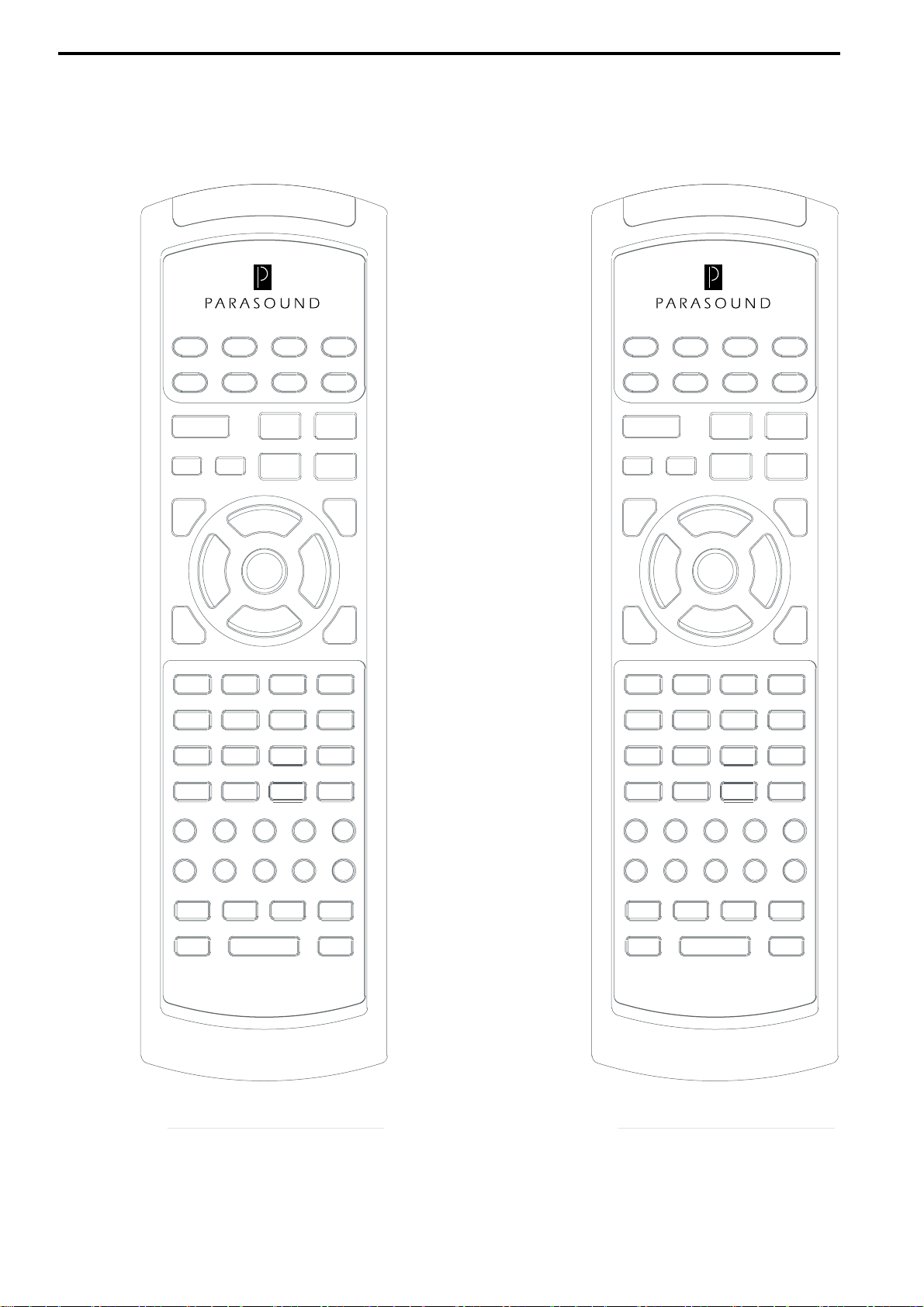
Button Assignment Worksheet for Learning Remote
Component Component
Instructions: write down stored codes into the blank buttons for each programmed component.
56
Page 57

Button Assignment Worksheet for Learning Remote
Component Component
Instructions: write down stored codes into the blank buttons for each programmed component.
57
Page 58
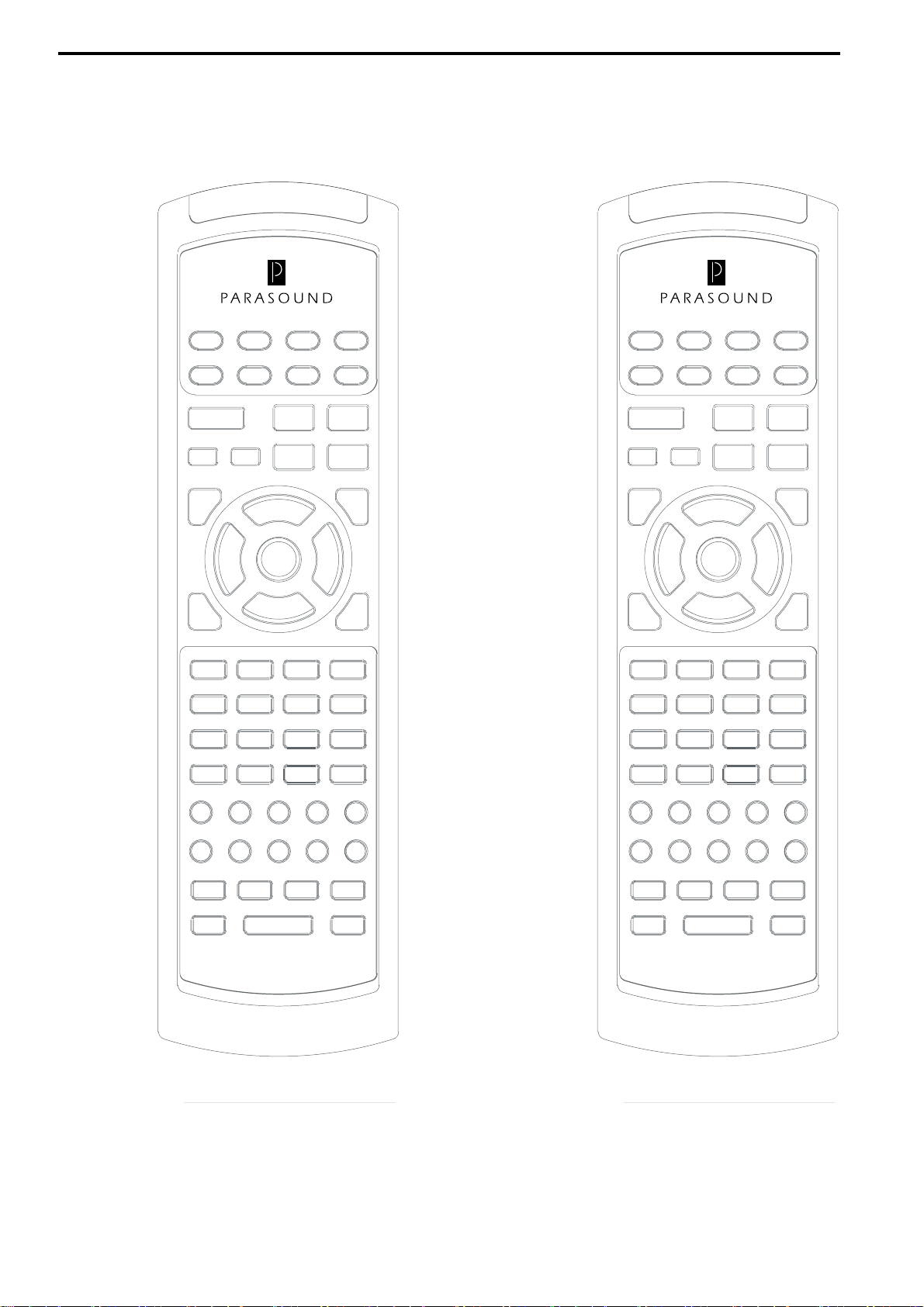
Button Assignment Worksheet for Learning Remote
Component Component
Instructions: write down stored codes into the blank buttons for each programmed component.
58
Page 59

AVC-2500 Installation Worksheet Date Installed:___________________________________
Installer:________________________________________
Phone Number___________________________________
Input Sources Digital Input ASP Mode Name Component Trigger Level A/D Le vel
Video Input
Video 1 __________ ___________ ________ 1 / 2 / None Yes / No _______ dB _______ dB
Video 2 __________ ___________ ________ 1 / 2 / None Yes / No _______ dB _______ dB
Video 3 __________ ___________ ________ 1 / 2 / None Yes / No _______ dB _______ dB
Video 4 __________ ___________ ________ 1 / 2 / None Yes / No _______ dB _______ dB
Video 5 __________ ___________ ________ 1 / 2 / None Yes / No _______ dB _______ dB
Video 6 __________ ___________ ________ 1 / 2 / None Yes / No _______ dB _______ dB
Audio 1 __________ ___________ ________ 1 / 2 / None Yes / No _______ dB _______ dB
Audio 2 __________ ___________ ________ 1 / 2 / None Yes / No _______ dB _______ dB
Audio 3 __________ ___________ ________ 1 / 2 / None Yes / No _______ dB _______ dB
Audio 4 __________ ___________ ________ 1 / 2 / None Yes / No _______ dB _______ dB
Audio 5 __________ ___________ ________ 1 / 2 / None Yes / No _______ dB _______ dB
Audio 6 __________ ___________ ________ 1 / 2 / None Yes / No _______ dB _______ dB
59
BASS MGMT SETUP SPEAKER LEVEL SETUP SPEAKER DELAY SETUP
Main _______ dB Left _______ dB Main _______ ft
Center _______ dB Center _______ dB Center _______ ft
Surround _______ dB Center _______ dB LS _______ ft
Subwoofer _______ dB LS _______ dB RS _______ ft
Bass Limiter _______ dB RS _______ dB Subwoofer _______ ft
Subwoofer _______ dB
OSD SETUP DC T rigger 1 and 2 Trigger Event SYSTEM SETUP
Component Yes / No Trigger #1 (Main) _____________ Sleep Ramping Fast / Slow
Composite Yes / No Trigger #2 (Zone) _____________ T uner Region US/Can / Europe
S-Video Y es / No
Default System NTSC / PAL
Page 60

60
AVC-2500 Installation Worksheet Date Installed:___________________________________
Installer:________________________________________
Phone Number___________________________________
Input Sources Digital Input ASP Mode Name Component Trigger Level A/D Le vel
Video Input
Video 1 __________ ___________ ________ 1 / 2 / None Yes / No _______ dB _______ dB
Video 2 __________ ___________ ________ 1 / 2 / None Yes / No _______ dB _______ dB
Video 3 __________ ___________ ________ 1 / 2 / None Yes / No _______ dB _______ dB
Video 4 __________ ___________ ________ 1 / 2 / None Yes / No _______ dB _______ dB
Video 5 __________ ___________ ________ 1 / 2 / None Yes / No _______ dB _______ dB
Video 6 __________ ___________ ________ 1 / 2 / None Yes / No _______ dB _______ dB
Audio 1 __________ ___________ ________ 1 / 2 / None Yes / No _______ dB _______ dB
Audio 2 __________ ___________ ________ 1 / 2 / None Yes / No _______ dB _______ dB
Audio 3 __________ ___________ ________ 1 / 2 / None Yes / No _______ dB _______ dB
Audio 4 __________ ___________ ________ 1 / 2 / None Yes / No _______ dB _______ dB
Audio 5 __________ ___________ ________ 1 / 2 / None Yes / No _______ dB _______ dB
Audio 6 __________ ___________ ________ 1 / 2 / None Yes / No _______ dB _______ dB
BASS MGMT SETUP SPEAKER LEVEL SETUP SPEAKER DELAY SETUP
Main _______ dB Left _______ dB Main _______ ft
Center _______ dB Center _______ dB Center _______ ft
Surround _______ dB Center _______ dB LS _______ ft
Subwoofer _______ dB LS _______ dB RS _______ ft
Bass Limiter _______ dB RS _______ dB Subwoofer _______ ft
Subwoofer _______ dB
OSD SETUP DC T rigger 1 and 2 Trigger Event SYSTEM SETUP
Component Yes / No Trigger #1 (Main) _____________ Sleep Ramping Fast / Slow
Composite Yes / No Trigger #2 (Zone) _____________ T uner Region US/Can / Europe
S-Video Y es / No
Default System NTSC / PAL
Page 61

AVC-2500 Specifications
Frequency Response
Front 10 Hz-24 kHz
Rear 10 Hz-24 kHz
Center (Small or THX) 80 Hz-24 kHz
Center (Large ) 10 Hz-24 kHz
Subwoofer 10 Hz-80 Hz
Harmonic Distortion
Front < 0.006 %
Center < 0.006 %
Rear < 0.005 %
Subwoofer < 0.006 %
Input Impedance
All Inputs 10 kΩ
IM Distortion
(1 kHz 1V Output)
All Channels < 0.06 %
Signal/Noise Ratio
(Flat/A-Weighted)
Front 94 dB / 97 dB
Center 94 dB / 97 dB
Rear 78 dB / 85 dB
Subwoofer 88 dB / 96 dB
Video Section
(Output 1 V / 75 Ω Load)
Sensitivity 1 V
Frequency Response 0.3 MHz -10 MHz
Overload 2.5 V P-P
Dimensions
17" wide x 5 1/4" high x 13" deep 5 7/8" high with feet
Weight
16 lb
Power Requirements
110 V - 120 V 60 Hz AC, 60 W
220 V - 240 V 50 Hz AC, 60 W
+ /-
0.5 dB
+ /-
1 dB
61
Page 62

A VC-2500 T uner Specifications
Tuning Range
FM: 87.5 MHz to 108 MHz
AM: 520 kHz to 1610 kHz
FM Sensitivity
Mono IHF 11 dBf
Stereo IHF 37 for 50 dB of quieting
AM Sensitivity
IHF 10 uV/m
Signal to Noise Ratio
>74 dB Stereo 65 dBf IHF Weighted
FM Stereo Separation
50 dB @ 1 kHz
40 dB @ 10 kHz
FM Selectivity
80 dB
AM Selectivity
30 dB
FM Frequency Response
30 Hz to 15 kHz +/- 1 dB
AM Frequency Response
20 Hz to 4.5 kHz +/- 2 dB
Total Harmonic Distortion
FM Mono < 0.08 %
FM Stereo < 0.2 %
Total Harmonic Distortion
AM < 0.5 %
Capture Ratio
< 1.5 dB
62
AM Suppression
60 dB
Page 63

Parasound Products, Inc. 950 Battery Street, San Francisco, CA 94111
415-397-7100 / FAX 415-397-0144 www.parasound.com
© 1999 Parasound Products, Inc. Rev 0.91
63
 Loading...