

Page 1
User Guide
PapooTouch
Version 1.1
Page 2

Page 3

PapooTouch
Introduction...................................................................................
Safety information.........................................................................
Packaging content........................................................................
PapooTouch at a glance................................................................
Concept.........................................................................................
Using.............................................................................................
Getting Started.....................................................................
First time using PapooTouch...........................................
Battery.............................................................................
Charge the battery...........................................................
Switching on/off PapooTouch.........................................
Standby...........................................................................
Display..................................................................................
Main menu.......................................................................
Browsing...............................................................................
Basics..............................................................................
Enter an app....................................................................
Access the options panel................................................
Volume control.................................................................
PapooTouch Apps.........................................................................
Written communication with keyboards............................
Qwerty mode...................................................................
Phonepad mode..............................................................
ABC mode.......................................................................
Emotions icons................................................................
Symbol communication with The Grid Player...................
How to use pre-made grids?...........................................
How does it work?...........................................................
How to transfert grids created to PapooTouch?.............
History/Favorites..................................................................
History..............................................................................
Favorites..........................................................................
Music player.........................................................................
4
4
5
6
7
8
8
8
8
8
9
9
10
10
11
11
11
12
12
13
13
14
15
16
16
17
17
18
19
21
21
22
23
Video player...........................................................................
Pictures..................................................................................
Games....................................................................................
Calendar.................................................................................
Settings..................................................................................
System..............................................................................
Voice selection..................................................................
Date and time...................................................................
Audio.................................................................................
Display..............................................................................
Settings.............................................................................
Dictionary..........................................................................
History...............................................................................
Language selection...........................................................
Low battery warning.........................................................
Keyboards.........................................................................
Pictures.............................................................................
Video.................................................................................
PapooTouch Soft...........................................................................
First step................................................................................
Second step...........................................................................
Information............................................................................
Multimedia.............................................................................
Music................................................................................
Video.................................................................................
Picture...............................................................................
Update....................................................................................
Technical questions.......................................................................
Technical features..........................................................................
Technical Safety.............................................................................
Safety instructions.........................................................................
Specifications................................................................................
Declaration of conformity...............................................................
26
27
28
29
33
33
36
37
37
38
39
40
41
43
43
44
45
45
46
46
46
48
49
49
51
52
54
62
68
69
70
70
72
Page 4
PapooTouch
Introduction
PapooTouch is a medical device made of state-of-the-art technology.
This AAC device has been designed to offer people who suffer from speech troubles a way to express themselves.
Safety Information
Please read carefully the instructions given.
Only entrust the repairing of PapooTouch to technicians qualified to fix it. (Contact your reseller who will hand it to a PapooTouch
technician).
Don’t try to dismantle or to modify PapooTouch.
Never use solvents such as diluents, alcohol or gasoline to clean up your device. Clean PapooTouch with a piece of rag soaked with
soapy water.
Avoid stocking the device in places where the temperature is high or in wet places.
Preserve your device from dirt, mud, sand, dust, water, pollutant gases or salt because these elements are likely to damage it.
Do not throw out PapooTouch into the rubbish bin. Send it back to your provider for it to be recycled.
Page 5
PapooTouch
Packaging Content
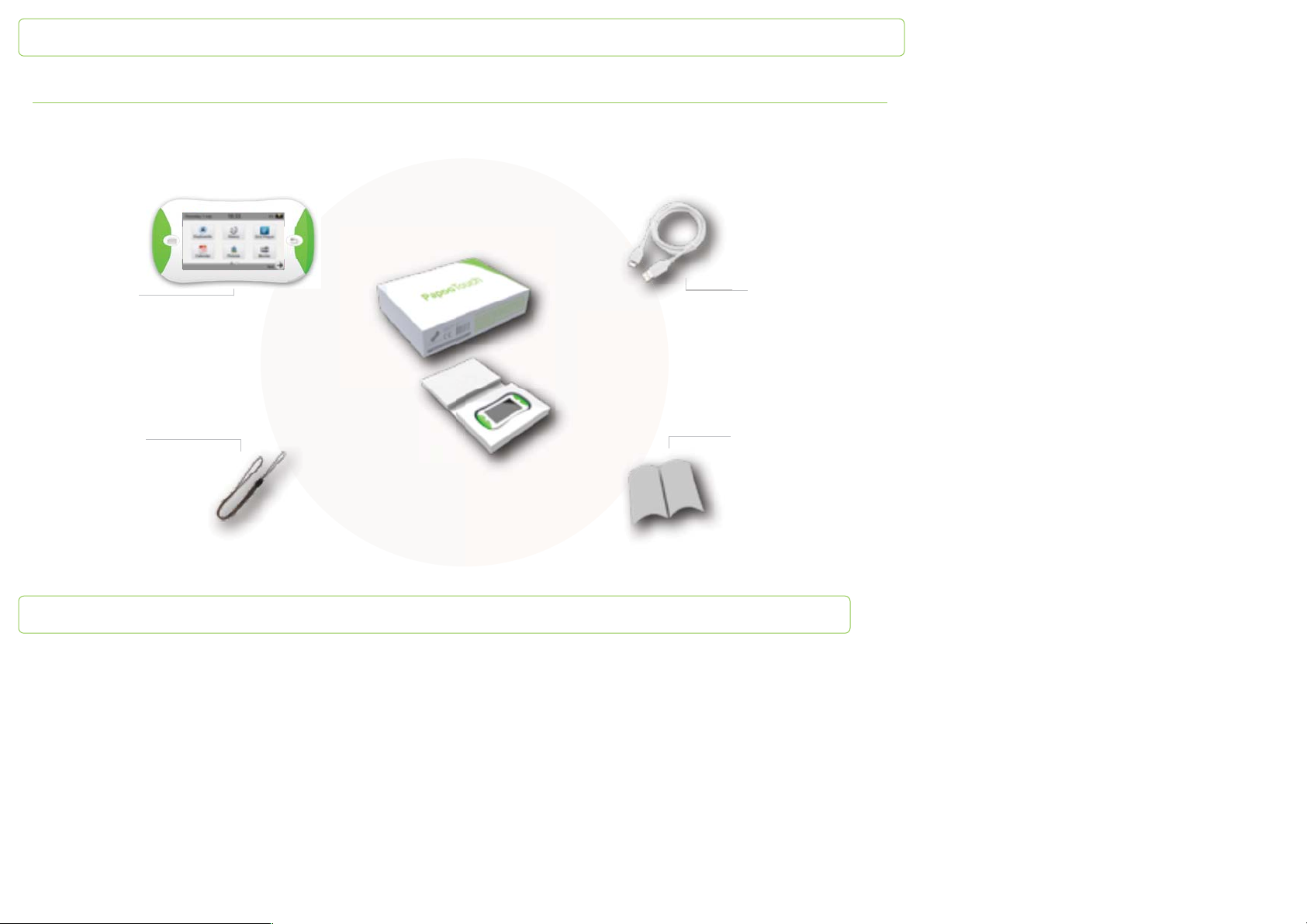
Take PapooTouch out of its package and make sure none of the following elements is missing.
PapooTouch
A neck cord
USB cable
Safety guide
Page 6
PapooTouch
PapooTouch at a glance
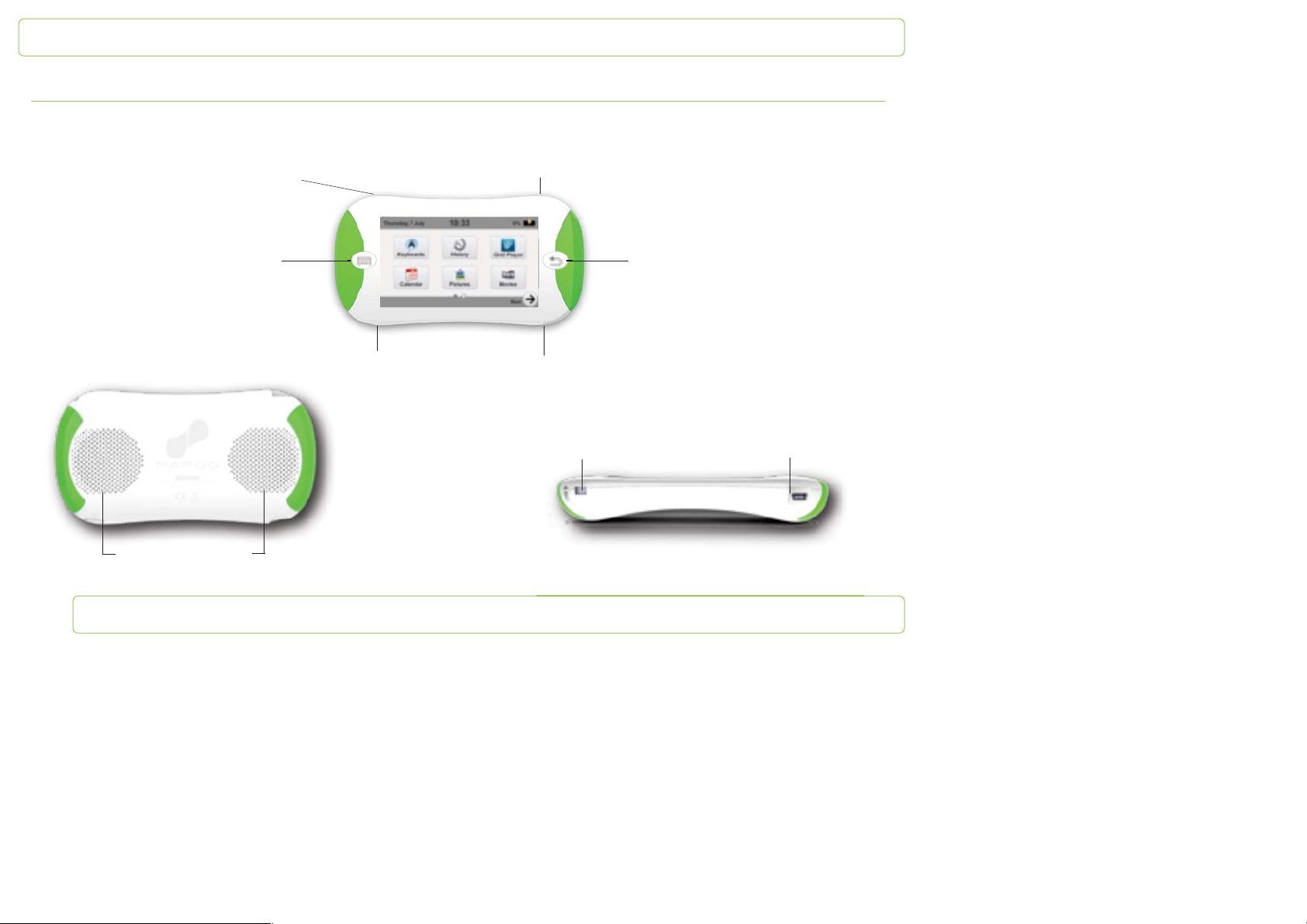
Mini USB: Charging, PC connection
and headphone
Left button
Jack 3,5 mm:
stereo headphones
Speakers
On/Off
Right button
Neck cord strap
On/Off Mini USB
Page 7
PapooTouch
Concept
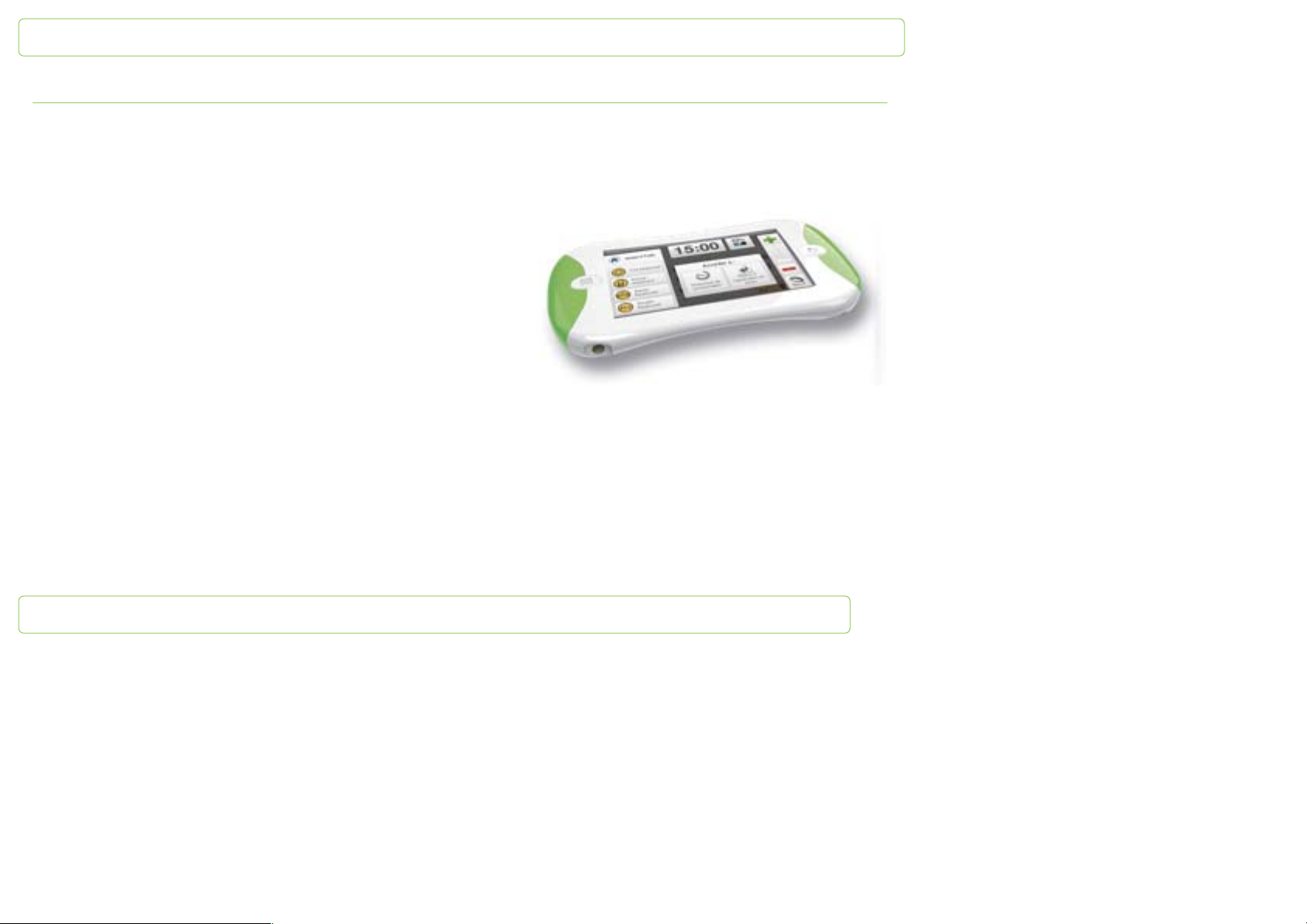
PapooTouch is a touchscreen device. Except the left and right front
buttons, you access any features and commands simply by touching the
screen.
It benefits from a text-to-speech system. When you’re creating a
message it is vocalized and displayed thanks to the speakers.
PapooTouch offers 2 ways to communicate: keyboards (Qwerty, ABC,
phone keyboards and emotions icons) and pictograms.
It is also a multimedia player. Not only you’re able to express yourself, but
you can also listen to the music, watch videos, pictures and play video
games.
Page 8
PapooTouch
Using PapooTouch
Getting Started
First time using PapooTouch
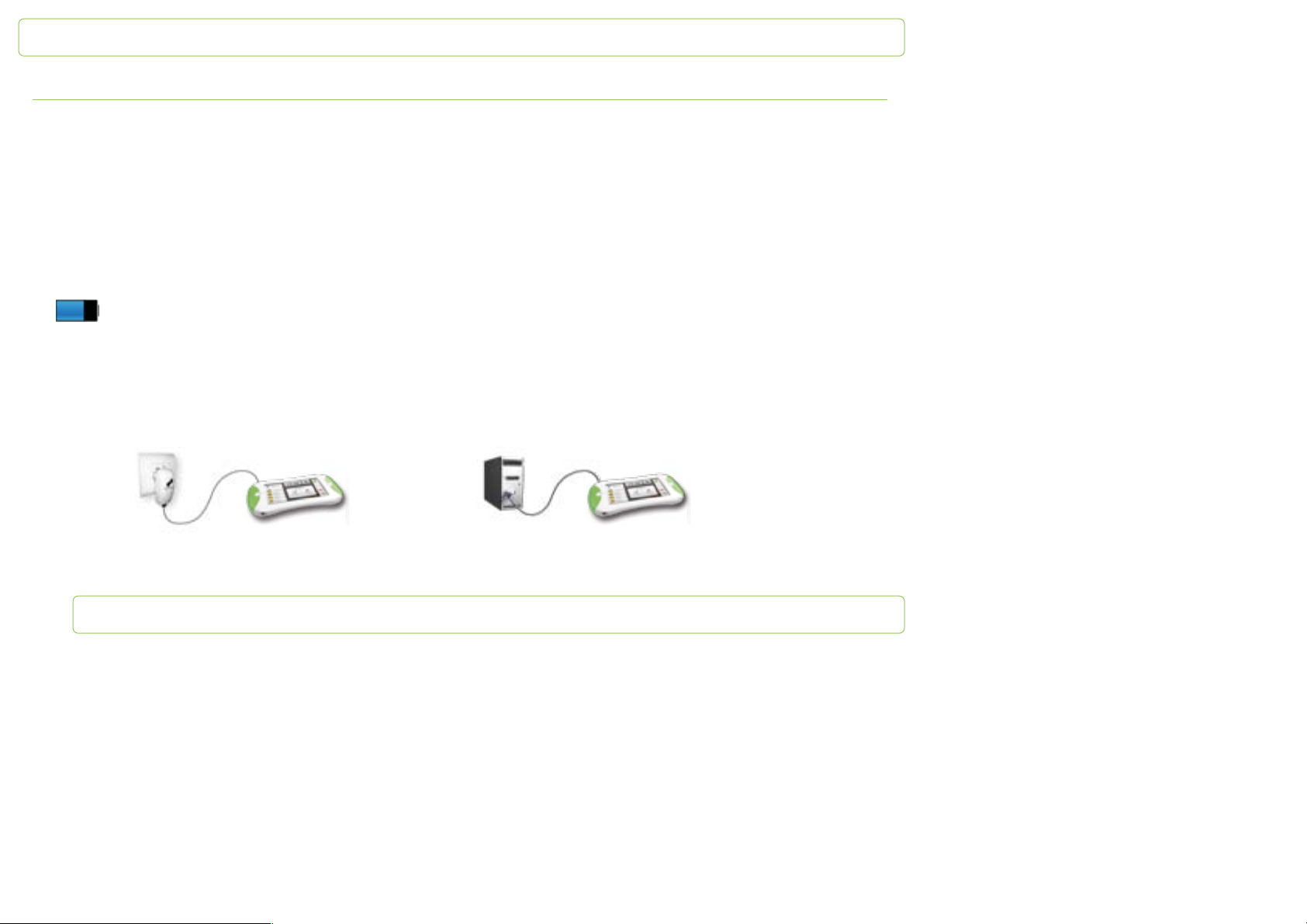
Before using PapooTouch, you must charge it during 5 hours continuously. To learn how to charge PapooTouch, refer to the “Charge the
battery” part page 8 of this user guide.
The battery
PapooTouch benefits from an internal rechargeable battery. You must charge it before using it.
The icon on the upper right corner of the options panel (see p.12) shows the charging status of the battery when you are
charging PapooTouch
Charge the battery
1 - connect the USB cable to PapooTouch, then:
- either plug it directly in the USB port of your computer
- or plug it in the adapter that you plug in a power outlet afterwards (available separately)
2 - it takes 5 hours to charge completely PapooTouch
3 - unplug the charger when it is done
Page 9
PapooTouch
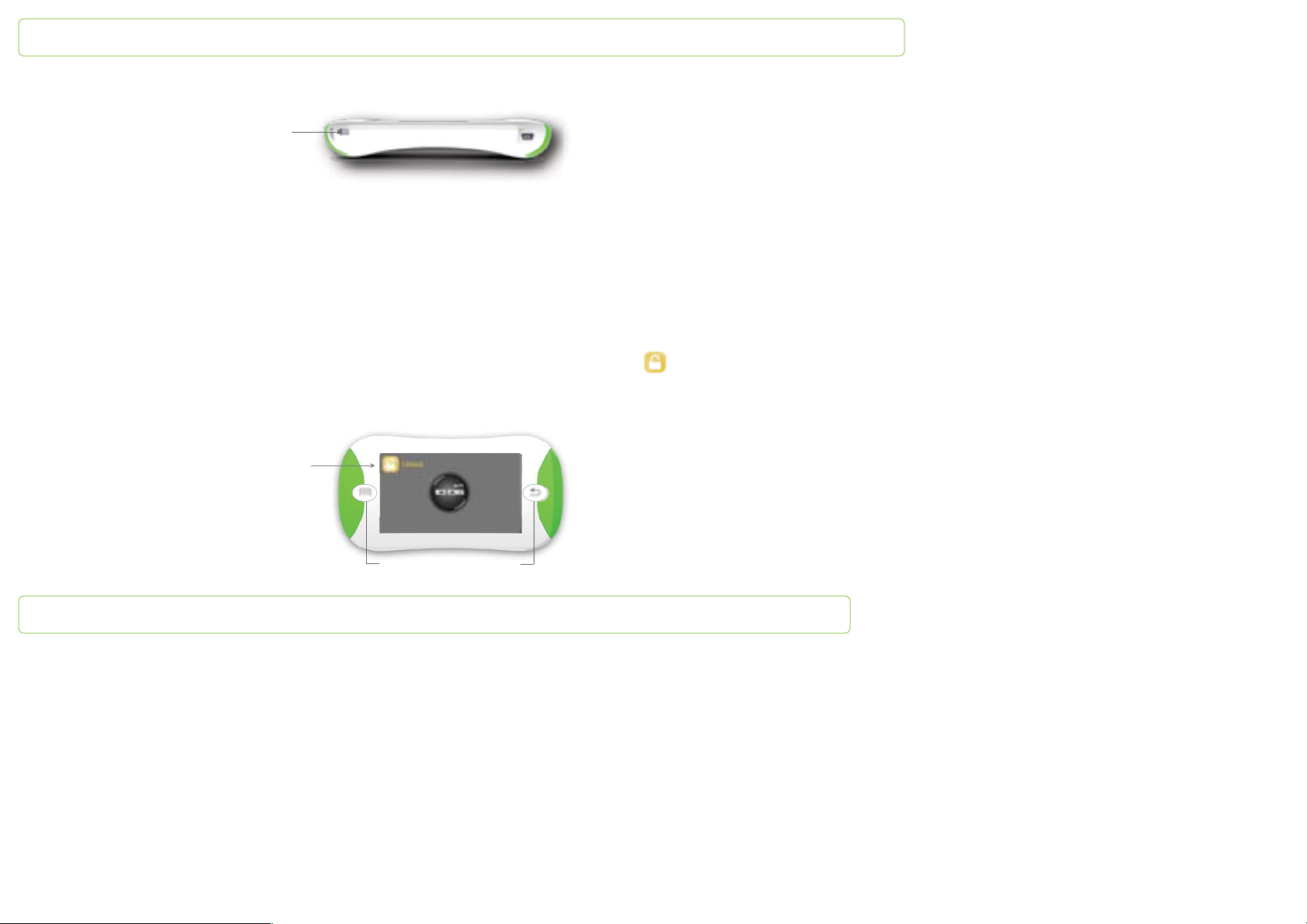
Switch on/off PapooTouch
On/Off
Press 2 seconds the on/off button of the product
Standby
Automatic Standby
If you don’t switch off PapooTouch, the screen and the system put automatically on standby according to the standby time set in the
settings (see page 35). The screen will switch off by itself.
Manual Standby
You can also decide to put PapooTouch in a standby mode, if you want to save the battery for instance. To do so, press the on/off
button. To exit the standby mode, press one of the two front buttons or touch the screen, then tap . You will come back to the
application you left.
Unlock
Front buttons
Page 10
PapooTouch
Display
Main menu
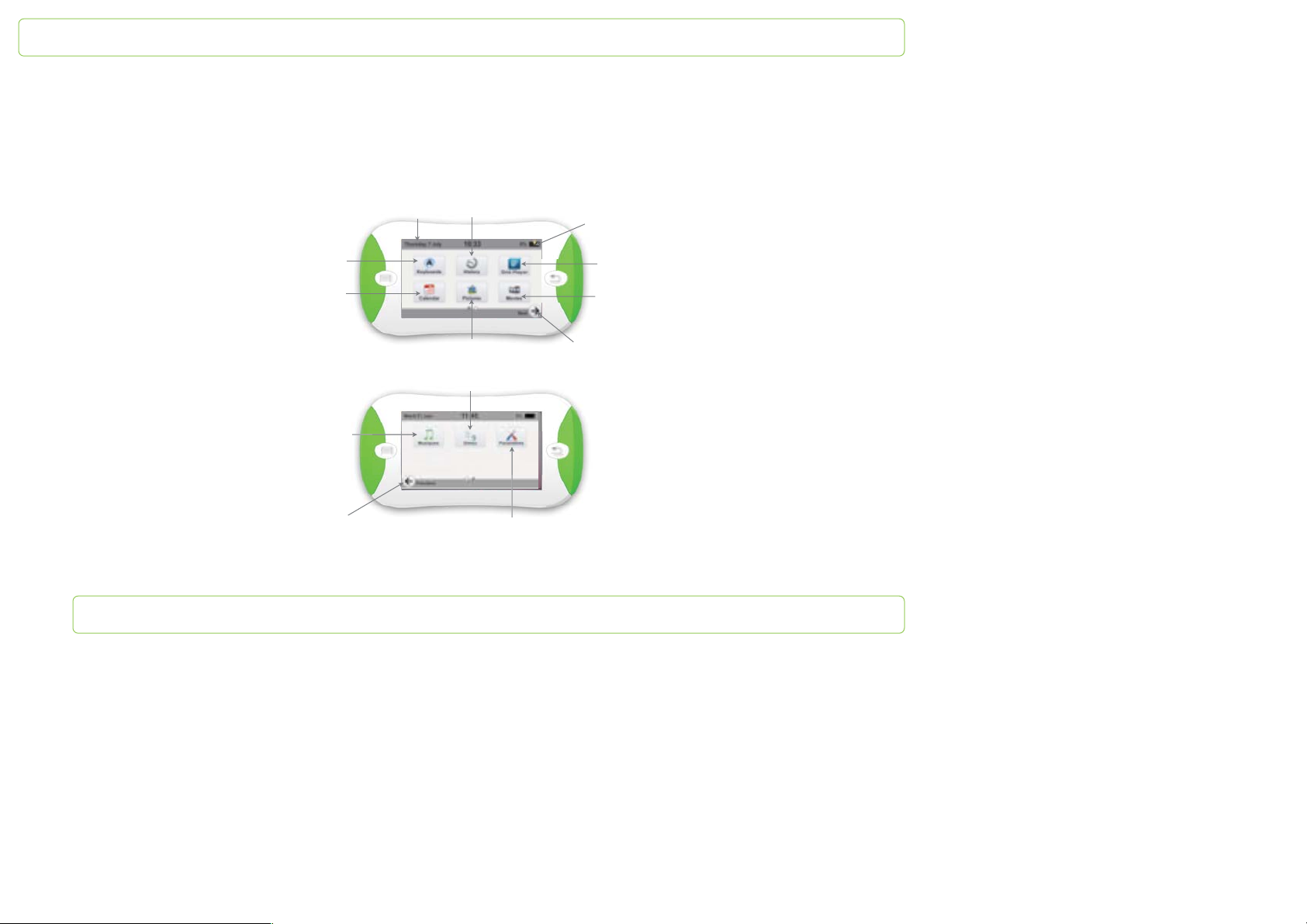
When you switch PapooTouch on you access the main menu. The date appears on the top left, the time in the center and the battery
level on the right. Tap the date to get it. It goes the same way for the time and the battery level.
Keyboards
Calendar
Second desktop
Music player
Back to first desktop
To access a feature touch the corresponding icon.
DateFirst desktop
History
Battery level
The Grid Player
Video player
Access to the second desktop
Games
Settings
Page 11
PapooTouch
Browsing
Basics
PapooTouch benefits from a touchscreen. All the control are available on the screen. Left and right buttons are not tactile.
Left and right buttons
Each front button has a specific function:
- the left button opens the options panel (p.12)
- the right button always enables you to come back to the desktop
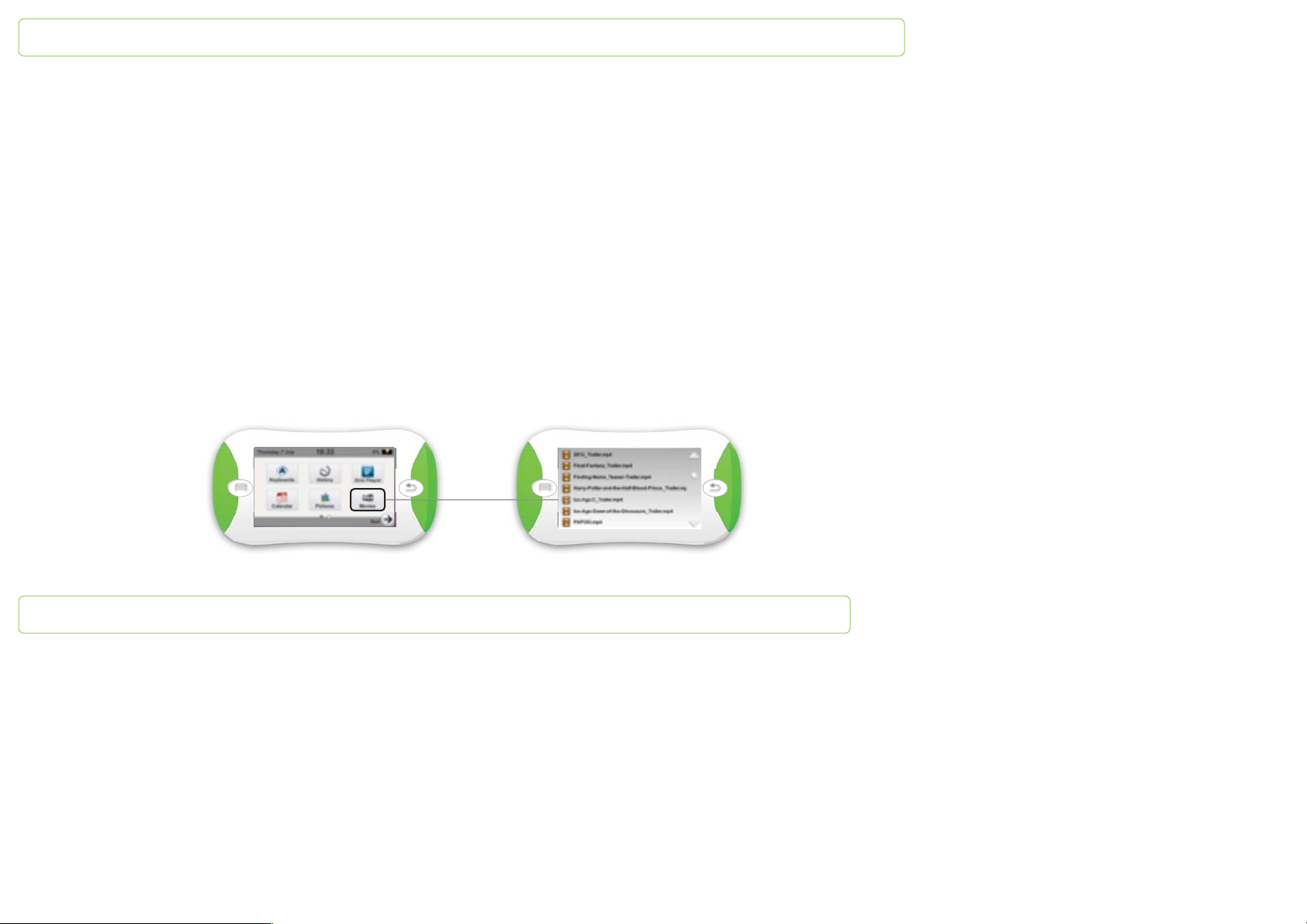
Enter an app
To launch an app, tap the related icon.
Page 12
PapooTouch
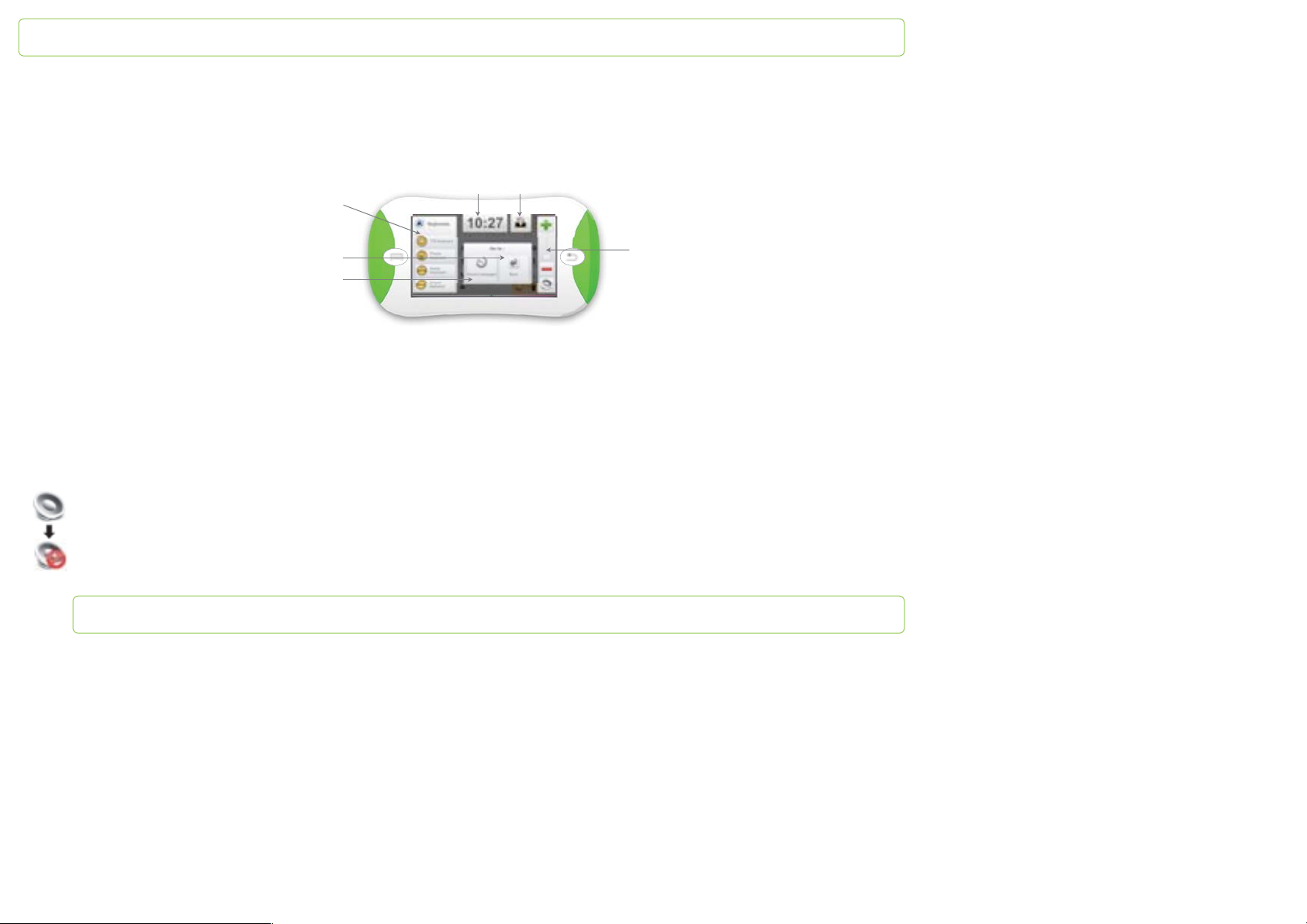
Access the options panel
Every app benefit from several options. To access them press the left button (when app is running). The following windows opens:
Time
App options
Back to the desktop
Access to the history
Battery level
Volume controller
Volume control
To access to the volume controller press the left button of the PapooTouch. When the options panel is open volume icon is on the right of
the screen. You are able to set it up by two ways:
- tap the green icon to increase the volume and tap the red icon to decrease volume
- slide the grey scrolling button up or down
To cut down the volume activate the mute mode
1 - tap once the speaker icon
2 - tap again the icon and the volume will come back
to its previous level
Page 13
PapooTouch
PapooTouch Apps
Written communication with keyboards
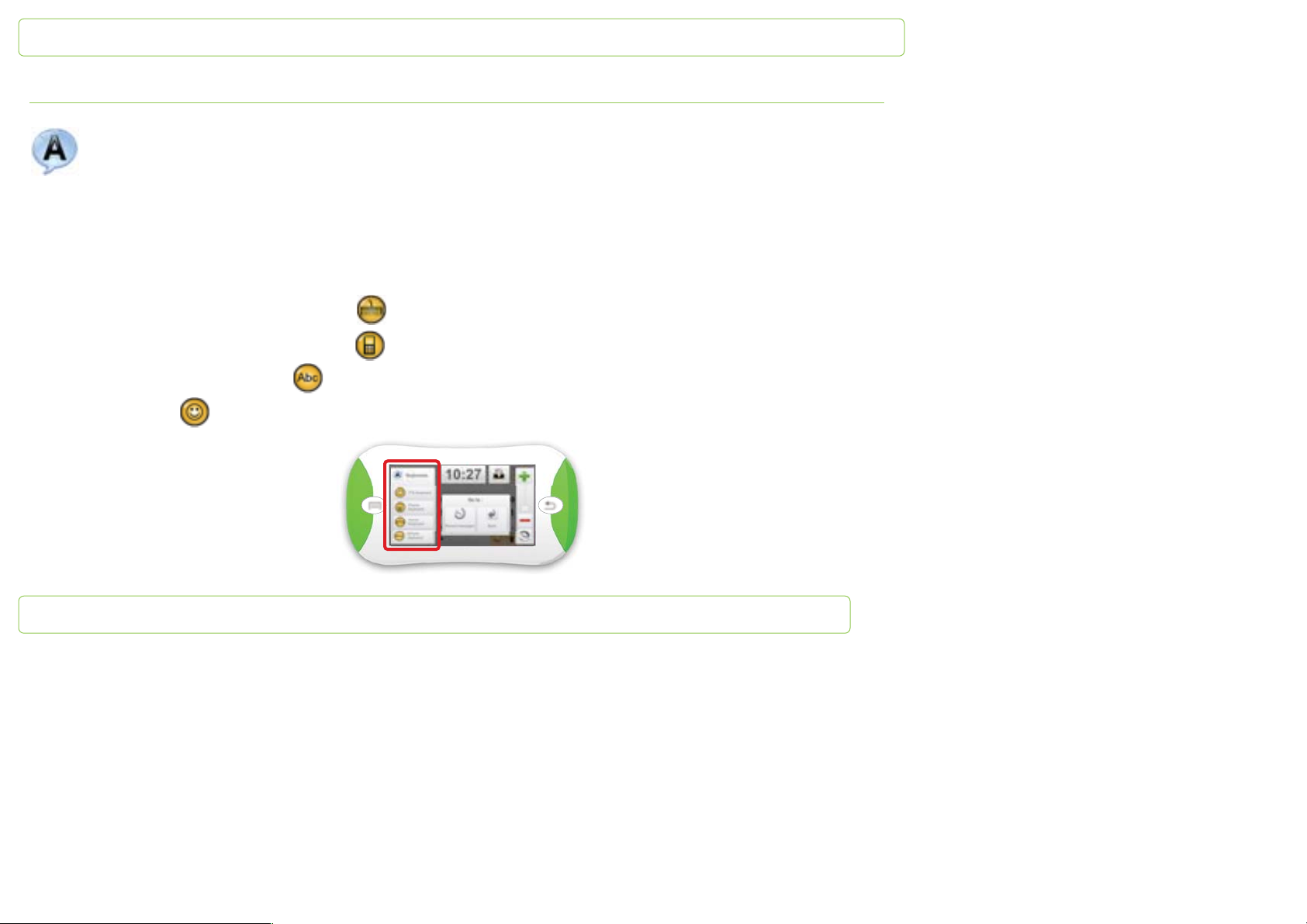
When you tap the app icon of written communication, you are automatically directed to the last keyboard used.
Change the keyboard type:
1 - press the right button once to display the shortcuts screen
2 - you have the choice between:
- a basic computer keyboard: keyboard mode
- a mobile phone keyboard: phone pad mode
- an alphabet keyboard: ABC mode
- emotions icons
Page 14
PapooTouch
Qwerty mode
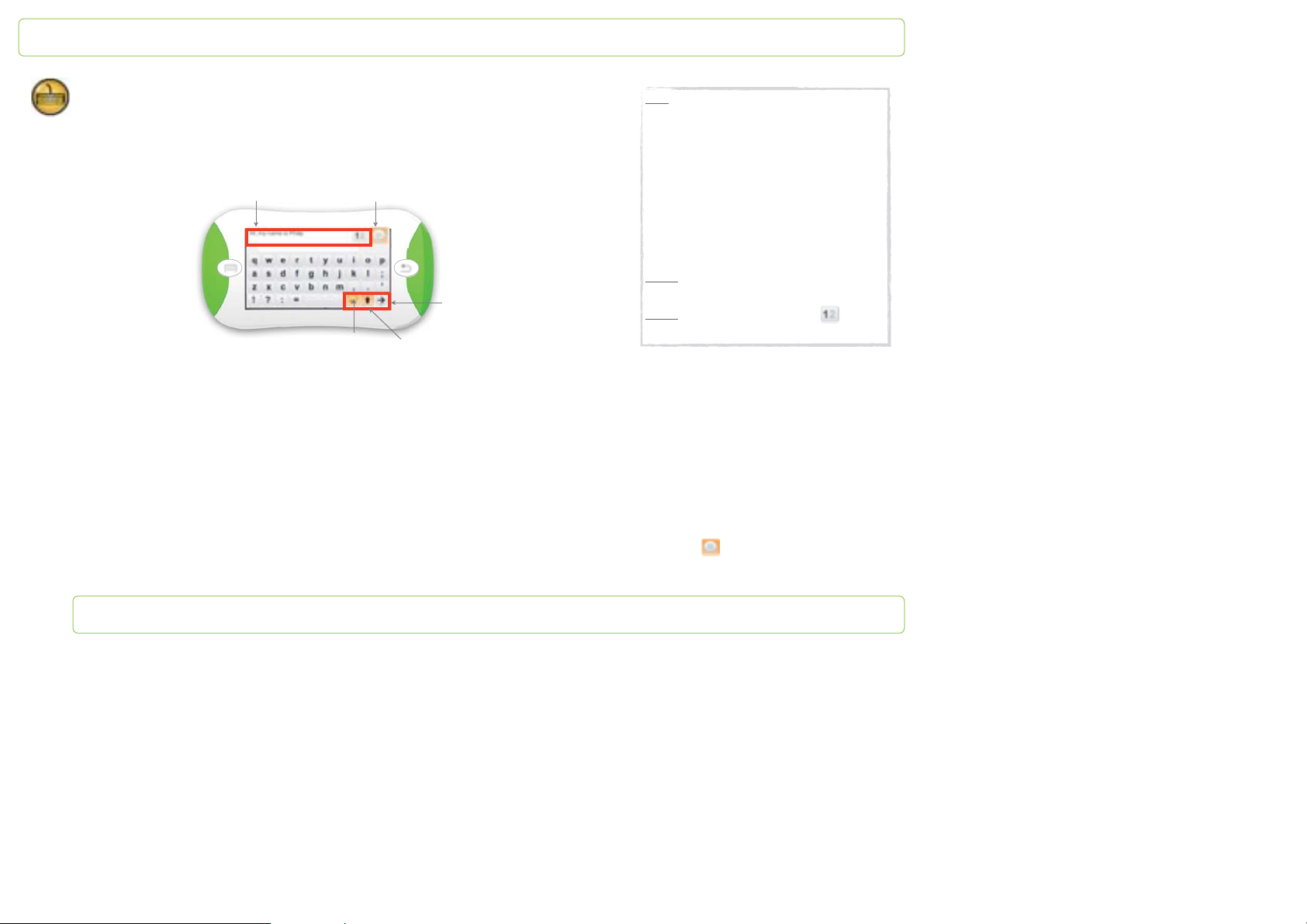
In this mode the screen is divided as follow:
Text box
Vocalize what has been written
Access next page
Eraser
Uppercase
Note: Word prediction feature.
It is based on the letters you’re writing and offers
a list of the words you are most likely to use. If
you type in the letters r, a and t for instance,
PapooTouch will offer the choice between the
words rat, rate, rather etc., according to the
words the most used. The word prediction starts
from 3 letters written. The words the most used
appear first in the word prediction list. To add a
word from the prediction box to the text box,
simply tap it.
Note 2: when you tap into the text box it appears
fullscreen.
: you can use 2 text box. Tap to switch
Note 3
from one to another.
Tap the letters of the keyboard to enter text. Let’s take the example of the sentence Hi, my name is Philip.:
1 - tap the first letter H; it appears in capital letter in the text box
2 - tap the other letter of the word Hi: i
3 - to add the comma, tap the comma key
4 - tap the letters m and y to create the word my
5 - when the whole sentence «Hi, my name is Philip» is now written in the text box, tap the vocalization key
Page 15
PapooTouch
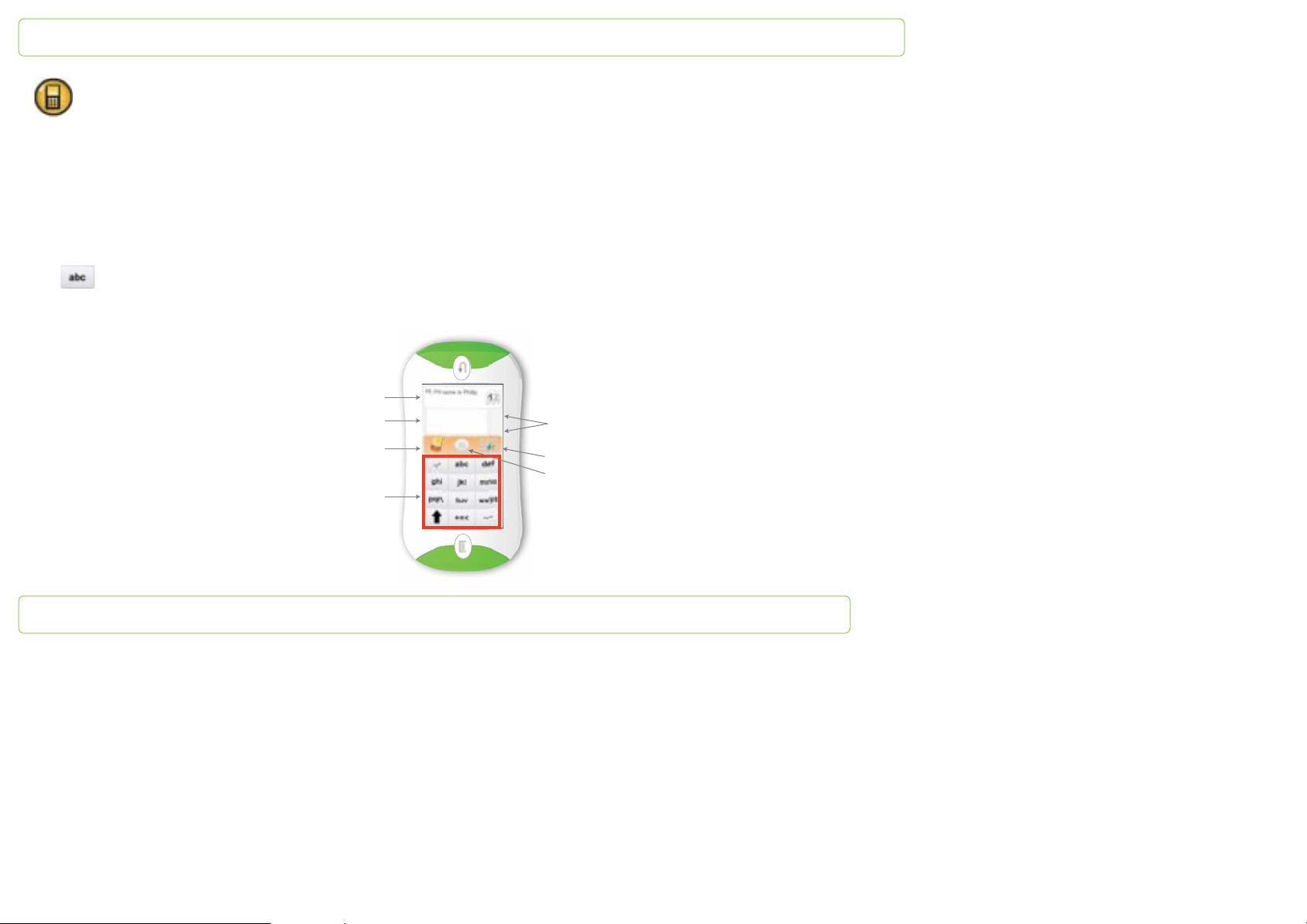
Phonepad mode
When you use this mode, you use PapooTouch vertically, like a mobile. The screen remains the same than when you use the other
keyboards. The text box and the prediction box are still on the top of the screen.
Keyboarding mode
To type in a letter, you act the same way as you would do with a mobile: you have to tap the key has many times as the letter rank. It
means that, if the letter you want to use is on the second position on the key, you have to tap it twice. For instance, with the first
key , you have to:
- tap once the key to type in the letter a
- tap twice the key to type in the letter b
- tap three times the key to type in the letter c
Text box
Word prediction box
Eraser
Keyboard
Scroll up and down word prediction
Change menu
Vocalization
Page 16
PapooTouch
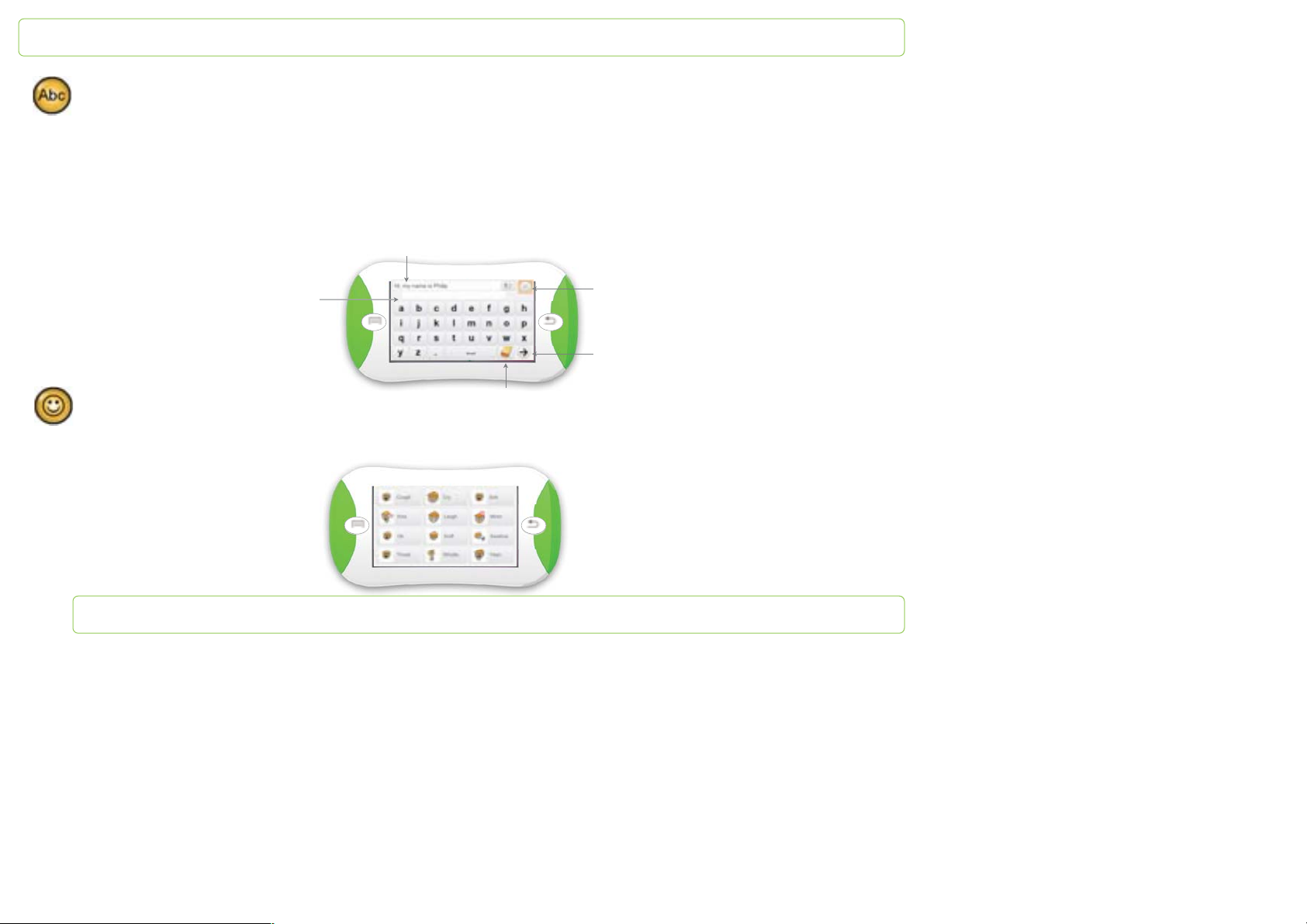
ABC mode
The ABC mode offers a simplified keyboard. This keyboard is the same than the Qwerty one, the difference being that the letters are in
an alphabetic order.
The white arrow enables you to access the rest of the characters available on the second page:
- punctuation and specials characters: ! ‘ - @ à ç é è ù
- figures: 1, 2, 3, 4, 5, 6, 7, 8 and 9
Text box
Word prediction box
Eraser
Emotions Icons
When you tape a smiley, the sound associate to the action written is vocalized
Vocalization
Access next page
Page 17
PapooTouch
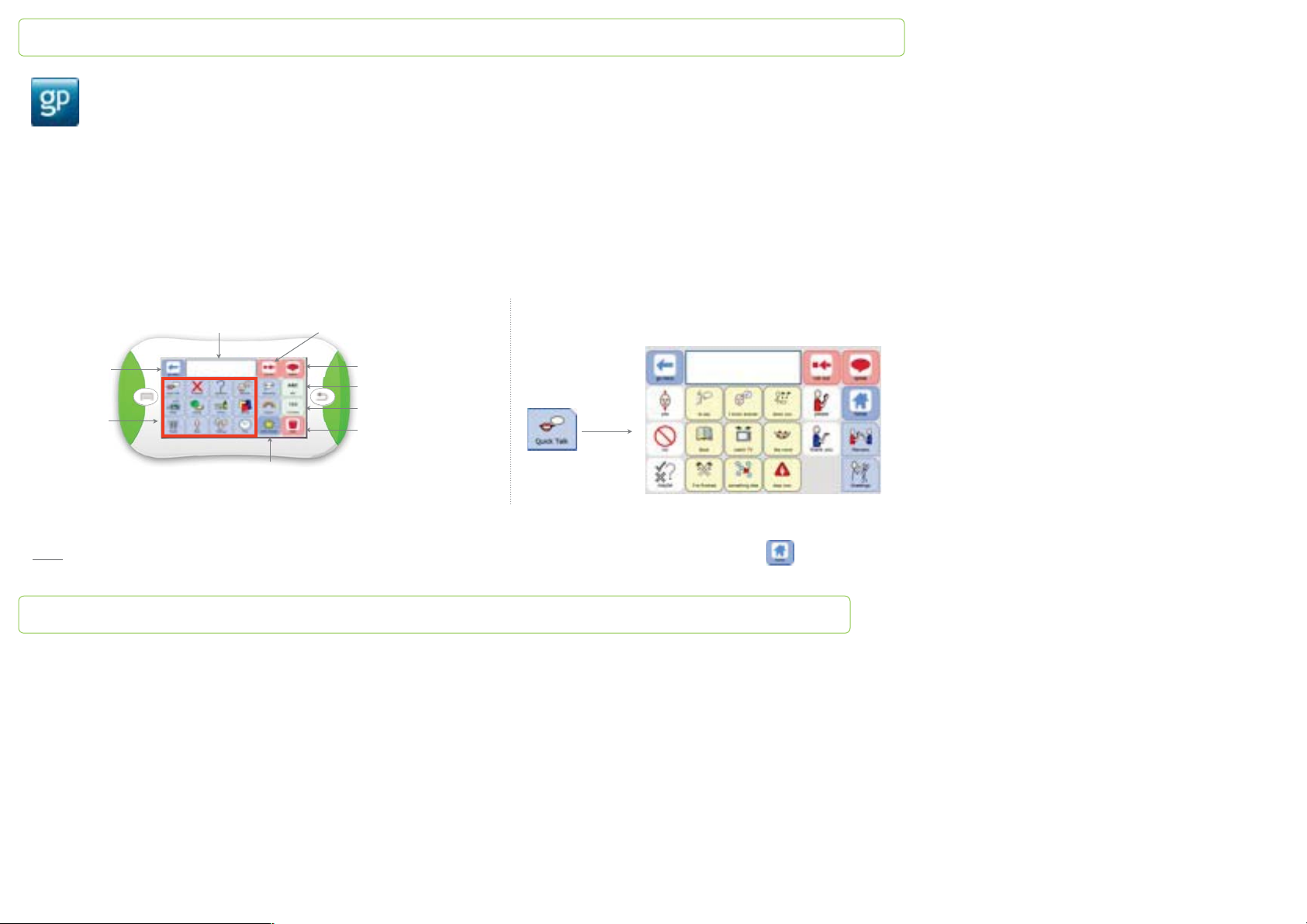
Symbol application with The Grid Player
The Grid 2 is the ground breaking communication and computer access software from Sensory Software International. It is world-
renowned as easy-to-use and customizable. PapooTouch benefits from The Grid 2 Player that allows you to use grids you’ve created on
your computer.
How to use pre-made grids?
Even if The Grid 2 is entirely customizable, PapooTouch benefits from basic grids to help you start.
st
grid
1
Text box
Erase text word by word
Every blue file leads you to another grid with other
messages.
Go back to
previous grid
Thematic
categorries
Acess other categories
Vocalize written words
QWERTY keyboard
Keypad
Erase the whole text
Note: white icons are used for common words, yellow icons for sentences and blue icons to access other grids. Tap to go back to
the main grid.
Page 18
PapooTouch
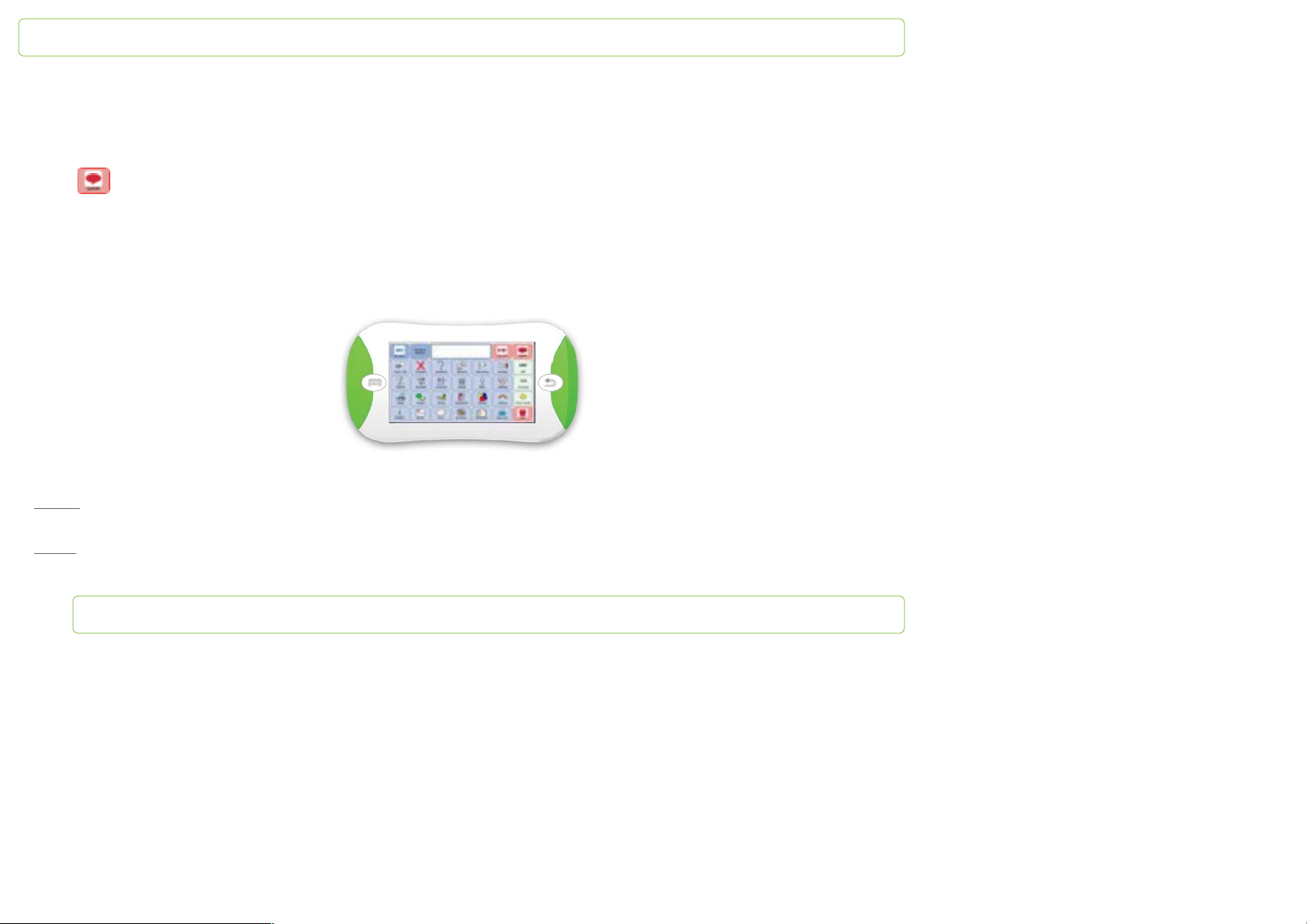
How does it work?
1 - tap a file to access icons
2 - tap an icon: related text appears in the text box
nd
grid
3 - tap to vocalize text
2
This grid is based on the first one but is made of more categories.
In addition to categories, common idioms used to begin a sentence are added: « I want », « I’d like »…
Note 1: all the settings used to create these grids (icons, color, shape and content of the files…) can be customized on the computer
thanks to The Grid 2 software.
: to learn how to create your own grids, please refer to the user guide supplied with The Grid 2 software.
Note 2
Page 19
PapooTouch
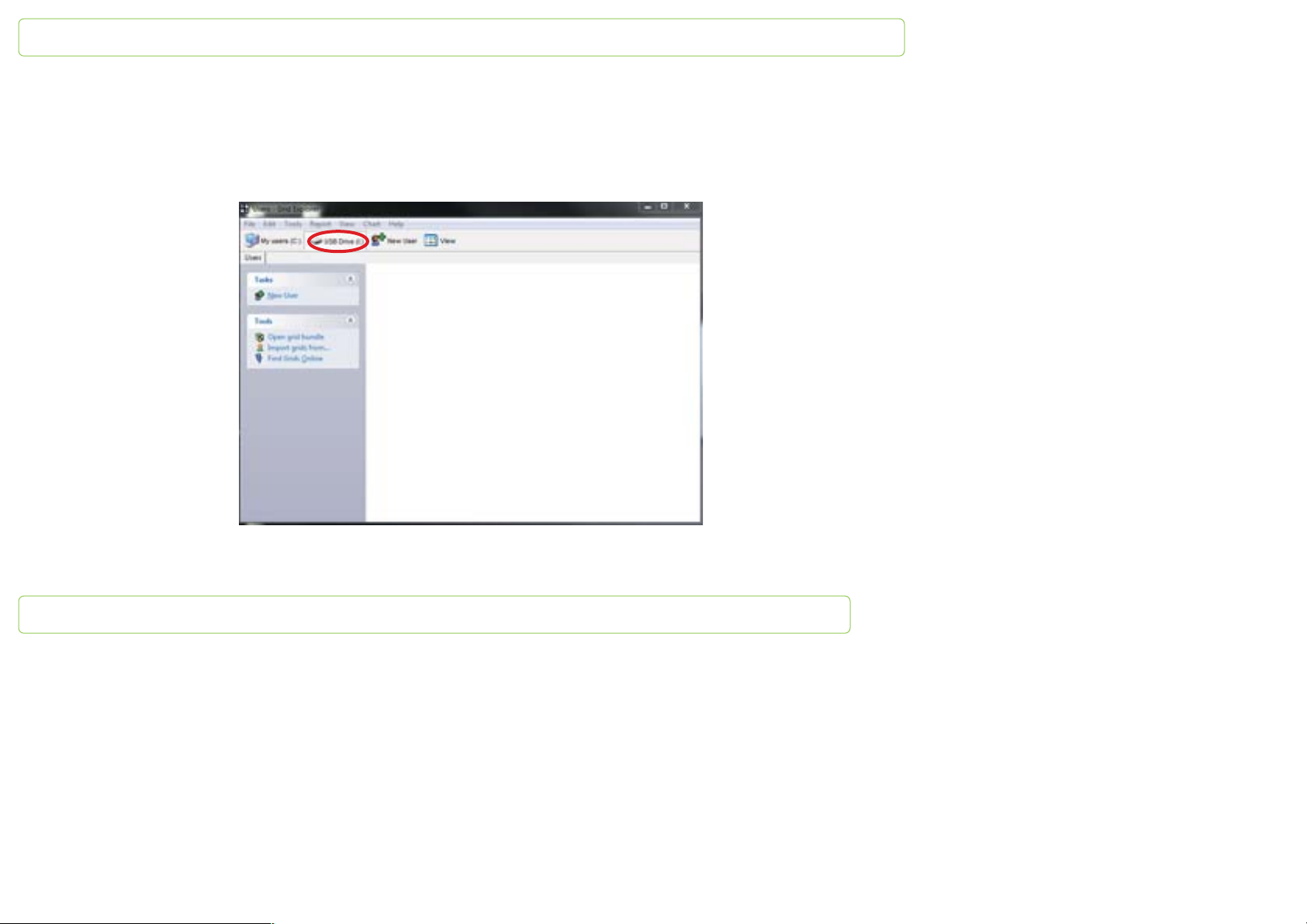
How to transfer grids created with The Grid 2 to PapooTouch?
1 – launch The Grid 2 software that you have installed on your computer
2 – connect PapooTouch to the PC thanks to the USB cable. A new The Grid 2 window opens (users explorer) and displays PapooTouch
content dedicated to The Grid 2 Player
Page 20
PapooTouch
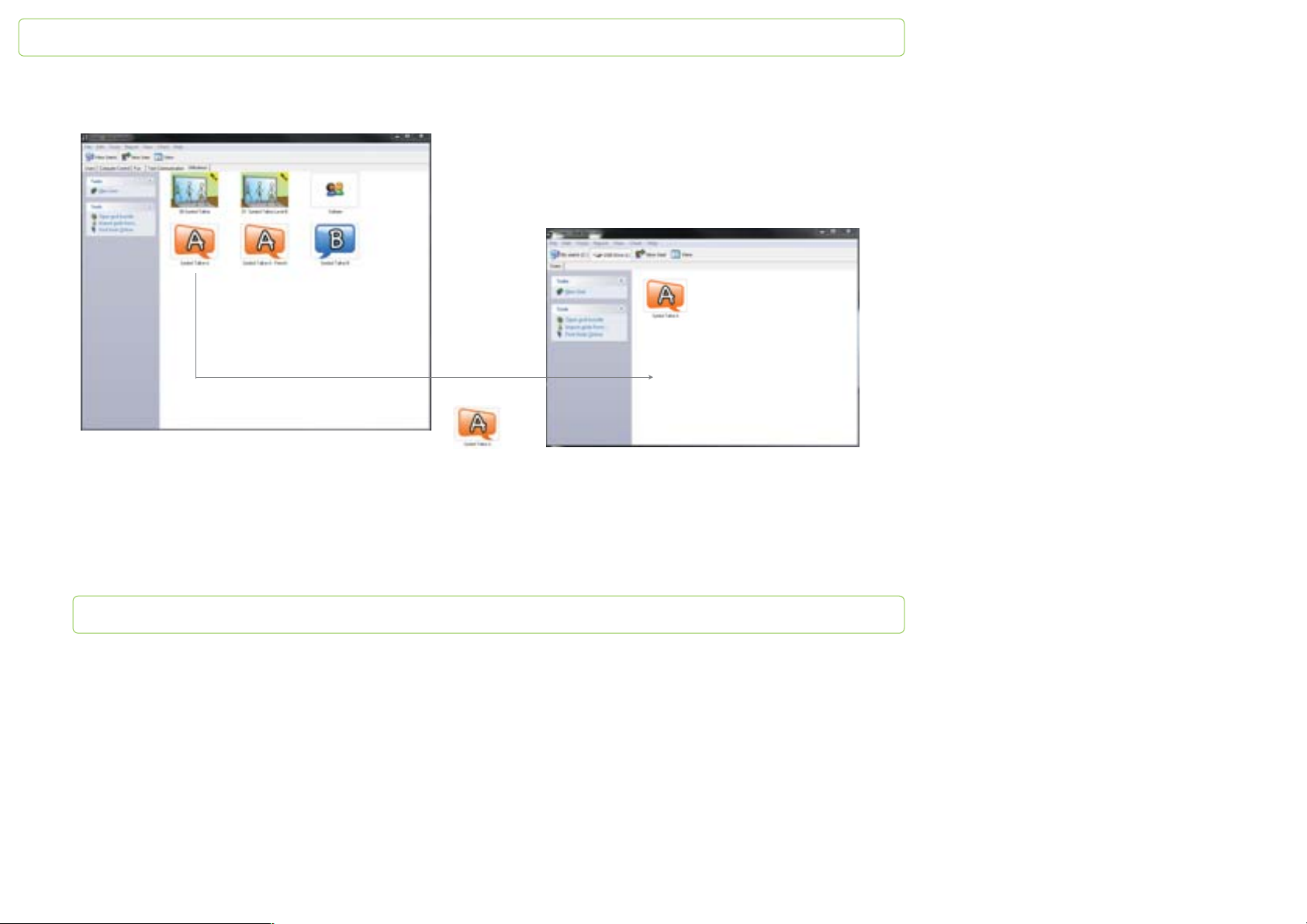
3 – to add some content to PapooTouch, drag the « users » from the main The Grid 2 window, to the window that shows the current
content of PapooTouch
1 - Click
3 - Drop
2 - Drag
4 – once the « users » have been transferred into PapooTouch, double-click on them to open them on the computer. Then, you can
display grids full screen and edit them. Once modifications have been saved, unplug PapooTouch, launch The Grid 2 application on the
device and you will notice that users have been modified
Page 21
PapooTouch
History / Favorites
When you press the left button, you access the History app. It gathers:
- all messages previously vocalized
- 5 favorites categories
History
The messages of the History are classified in categories symbolized by colored stars. All messages vocalized thanks to the keyboards
are gathered in the order they have been created.
To display a new color, tap the star. A scrolling menu gathering every colored stars appears. Tap the one you want to display.
The History displays messages 5 by 5. Each message appears in the following order:
- the message itself in the center
- a colored (or colorless) star
- a white cross on a red background to erase the message. When you tap this cross, a confirmation message appears: “Delete?
Yes No”. Tap “Yes” if you want to delete the message. Tap “No” if you don’t want to delete the message.
Page 22

PapooTouch
You can file these messages by color. The new messages are automatically filed in the first colorless star.
To change the color in which a message is filed:
- tap the star
- select the new color in which you want to file this message
There is a “Delete” key on the lower-right corner of the screen. It enables you to delete all messages of the History. When you tap this
key, all messages are selected, they appear with a red background. A confirmation message appears: “Delete? Yes No”. Tap “Yes” if you
want to delete all messages; Tap “No” if you don’t want to delete all messages. You can also delete messages one by one.
Favorites
There are 5 possible filling. Each one is represented by a colored star: yellow, green, red, purple and blue.
You can customize these categories, meaning you can choose the messages you want to file in each of them:
- select the message you want in the History
- a pallet appears with 5 colored stars
- tap the star in which you want to file your message
- the message is now in the chosen category/star
Page 23
PapooTouch
Music Player
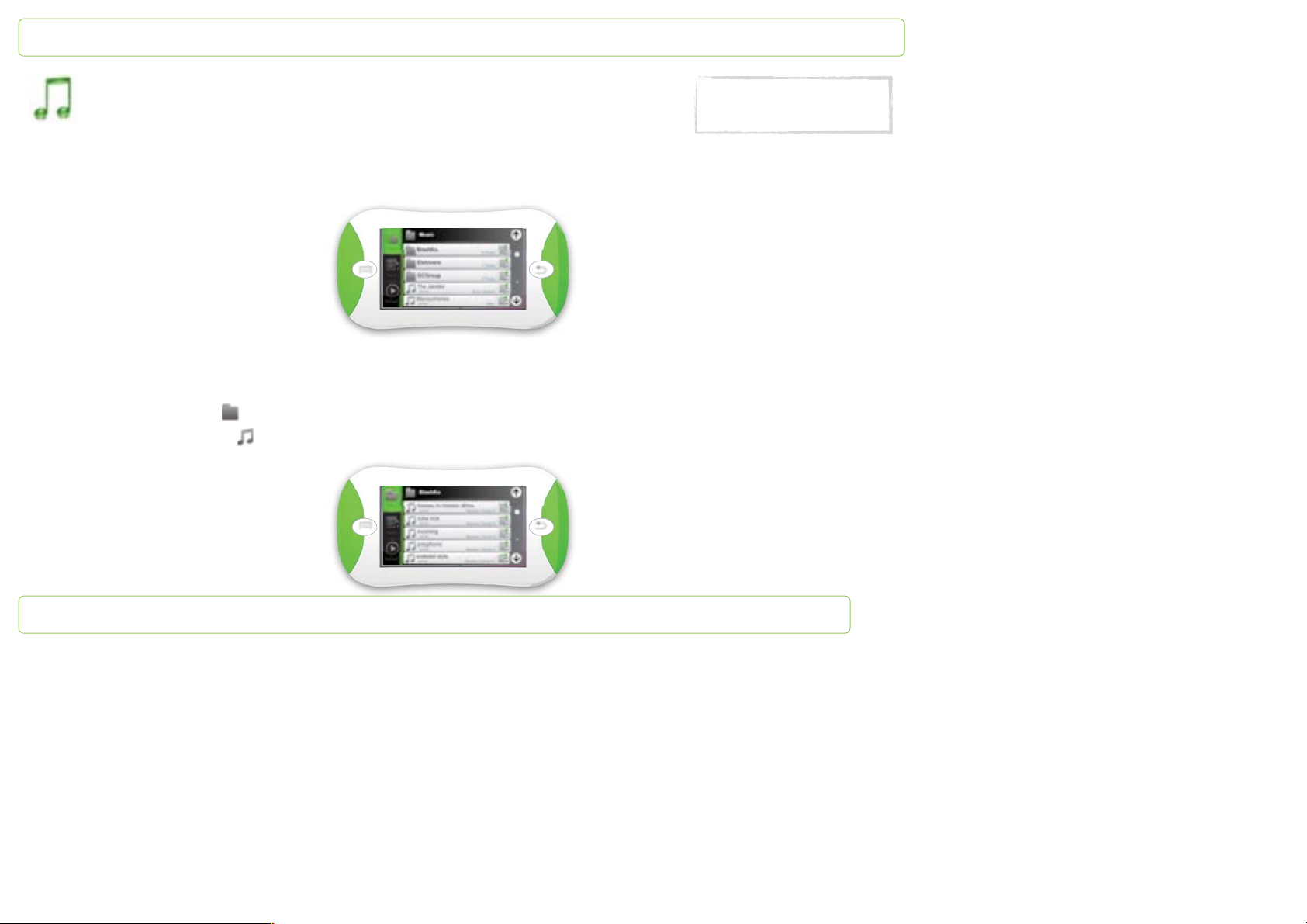
The music player is divided into 3 tabs:
1 – all musics: this tab gathers all the songs that have been transferred to PapooTouch. They are organized by folders or by songs (for
those that are not filed).
Tap a folder to access its songs. Tab a song to play it. Use the up and down arrows to scroll folders and songs.
To go back to the playlist, tap the arrow on the right-top side of the screen.
Each folder is represented by . It shows its title and the number of songs it gathers.
Each song is represented by the . It shows its title, the singer name, the album title and the song length.
Accepted formats: MP3, WAV,
AAC, WMA, RealAudio,
QuickTime, VIVO audio.
Page 24
PapooTouch
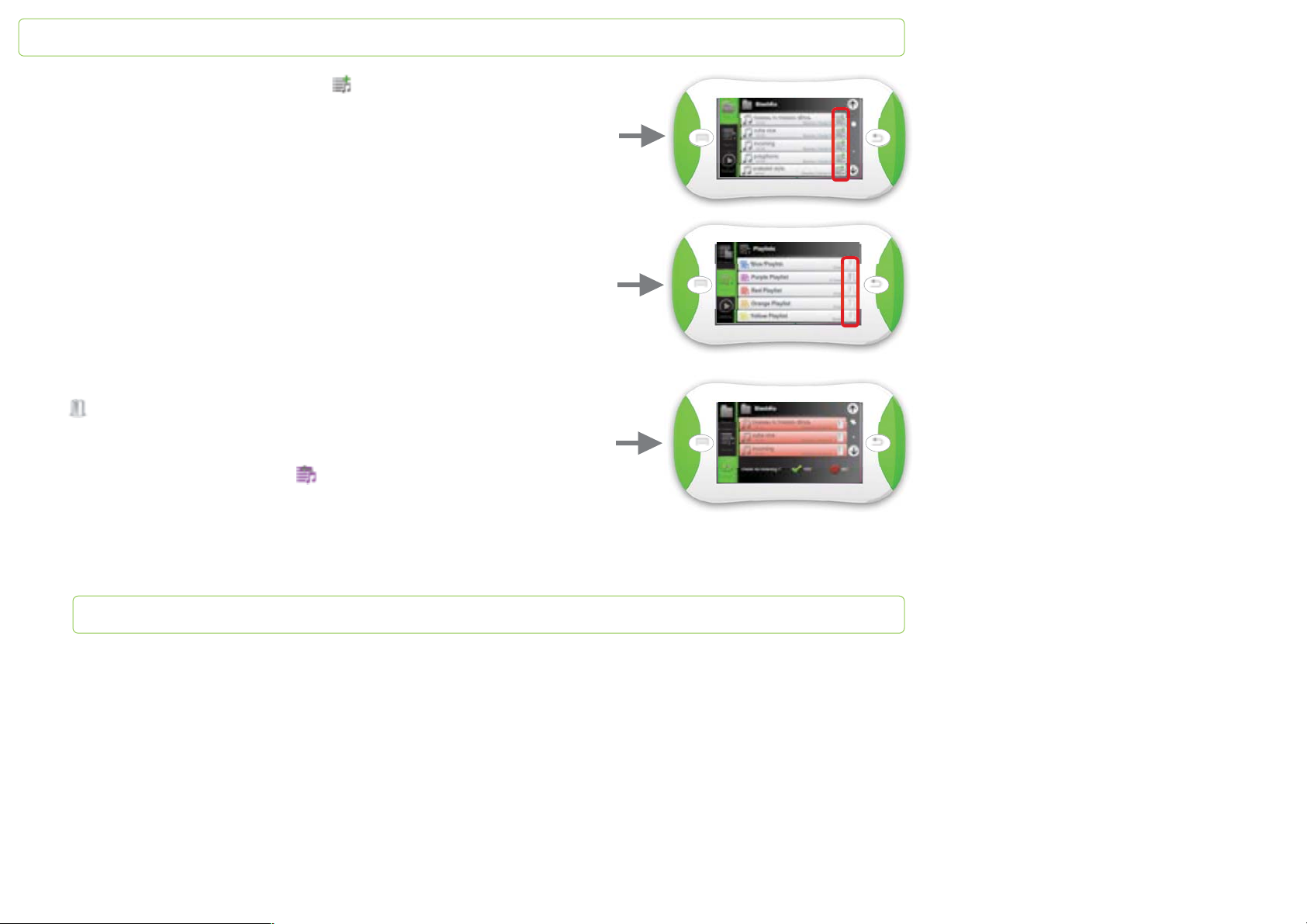
At the bottom of each file and songs, there is a . It enables you to organize files and
songs into playlists. When you tap the icon, 5 playlists – that are represented by colored
icons – appear. To put the whole file or the song into the playlist, tap the icon of your
choice.
2 – playlists: this tab enables you to access the playlists.
Each one is represented by a colored icon. Tap one to access the songs you filed in it. It
shows the number of songs it gathers.
The enables you to delete all the songs filed in the playlist. Tap it if you want to
empty the playlist. The following message pops up:
Tap “Yes” if you want to delete the playlist content. Tap “No” if you want to keep its
contents. To go back to the playlists, tap .
Page 25
PapooTouch
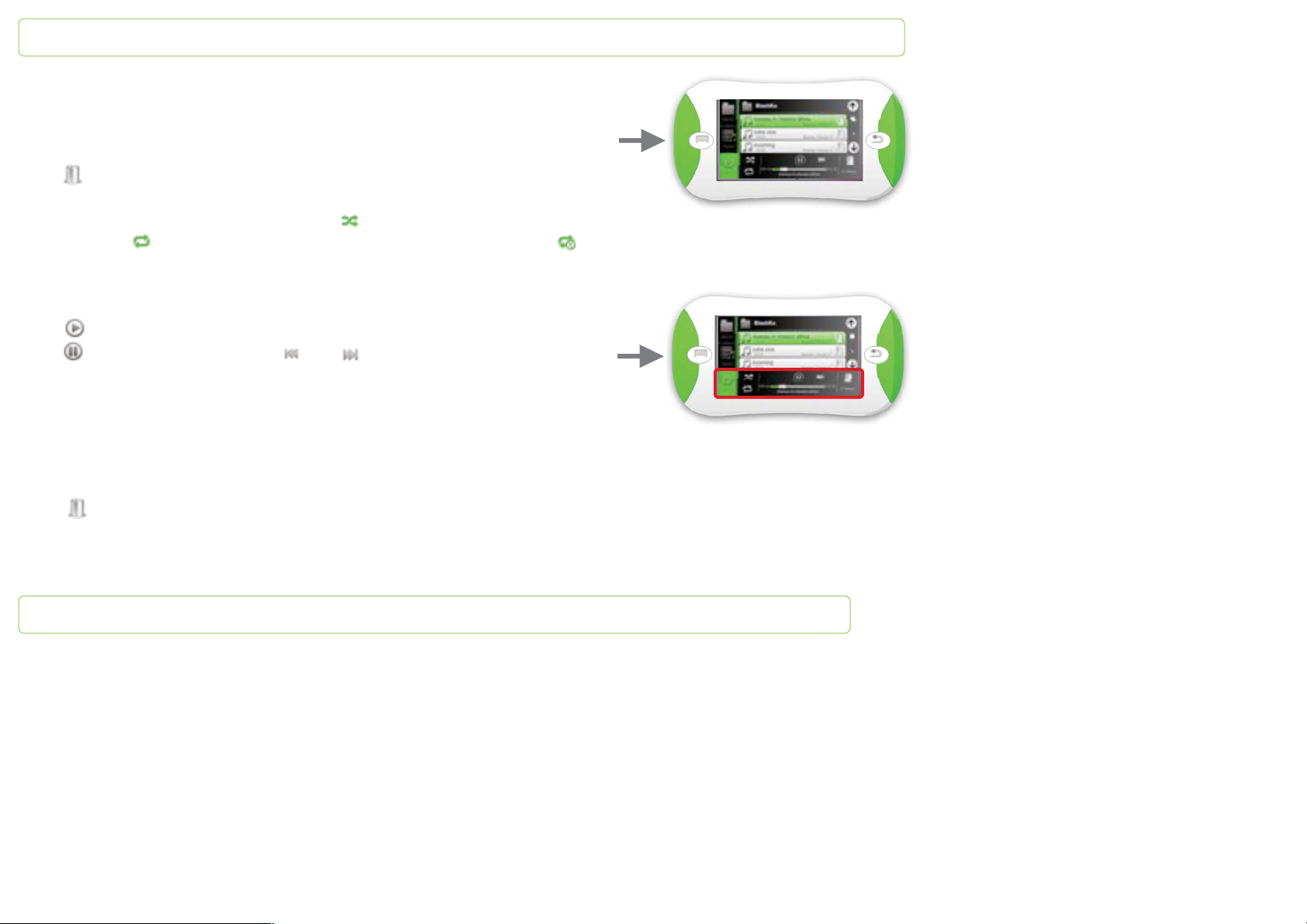
3 – listening: this tab enables you to access options while songs are playing
Songs you are listening to are listed. They show their title, the singer name, the album
title and the song length. Use the up and down arrows to scroll songs.
The enables you to delete the song you are listening to. Tap “Yes” it if you want to
delete the song. Tap “No” if you want to keep it.
The player is on the low part of the screen. The enables you to listen to the songs
randomly. The enables you to repeat the playlist over and over again and the
will repeat the song currently played. When you tap the icons, they turn to green: they
are activated.
The enables you to listen to a song. When the song is being played, the icon turns
into . Tap it to pause the song. The and respectively allows you to listen
to the previous song and to switch to the next one.
The scrubber bar lets you know at which point of the song you are. The figure before it
shows the playing time passed since the beginning of the song. The figure after it shows
the remaining time before the end.
The on the right enables you to delete all the songs of the currently listening list.
Tap “Yes” it if you want to delete the content of the playlist. Tap “No” if you want to keep
it.
Page 26
PapooTouch
Video Player
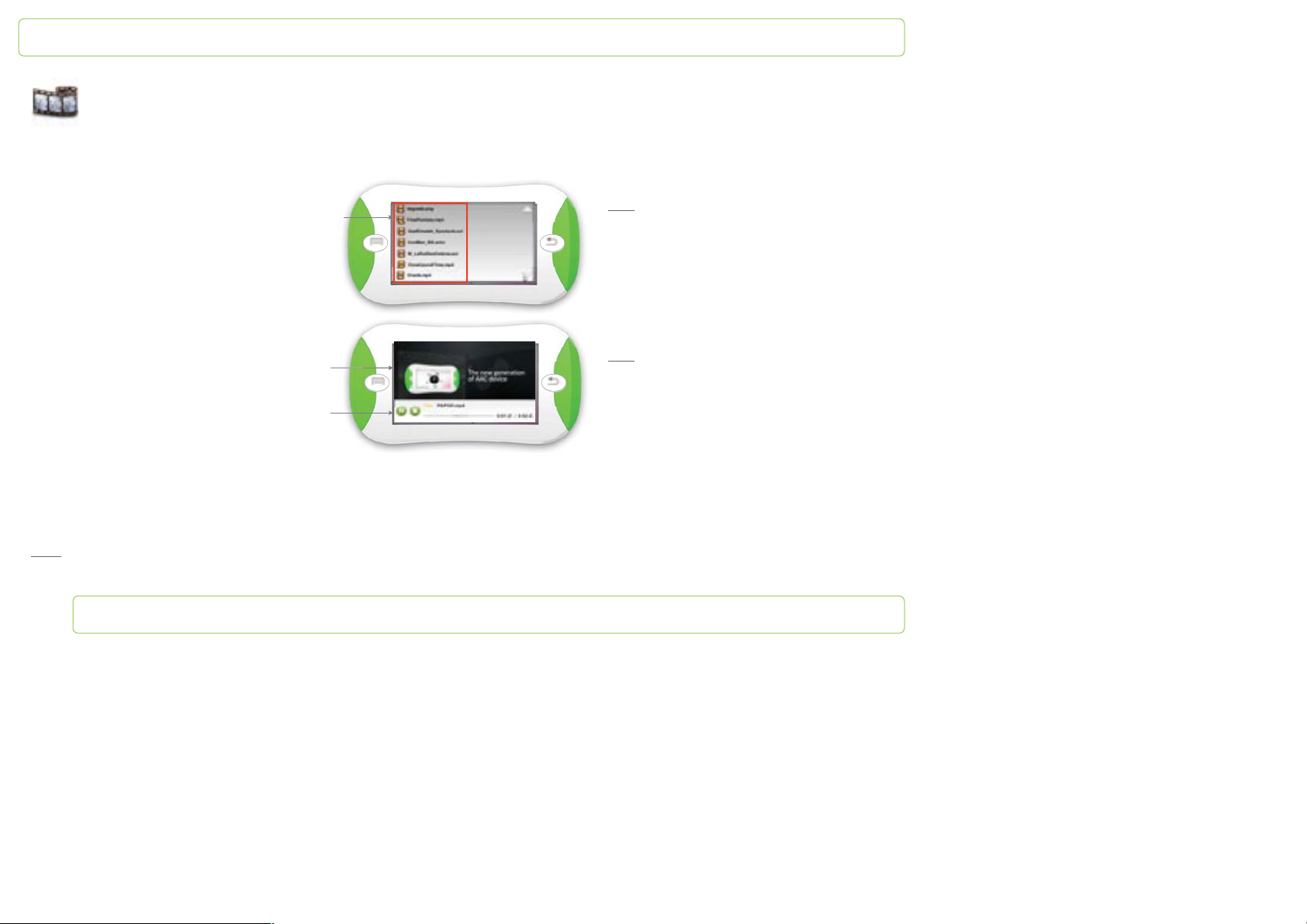
The video player interface presents the available videos as a list, like the music player. The up and down white arrows enable you to browse
videos. The volume can be changed whether the video is paused or played: press the right button.
Library
Video currently played
Playback control
Note: to launch the video tap it. Video are
playing fullscreen.
To access to the video main menu touch the
screen: a white stripe appears down the screen.
Note
: you can change volume while the movie is
playing (p.12). When the video is finished you
come back to the video main menu.
To pause the video, tap the “pause” key. To start it again tap the “play” key and to stop it, tap the “stop” key.
You can stop watching a video and come back later where you left off. See the Settings page 45 of this user guide to know how to do it.
: if you need to talk while a video is playing, pause it, press the left button to access the keyboard and type your message. Once you are
Note
done, press the left button to go back to the video and resume it. You can do the same while you are listening to music.
Page 27
PapooTouch
Pictures
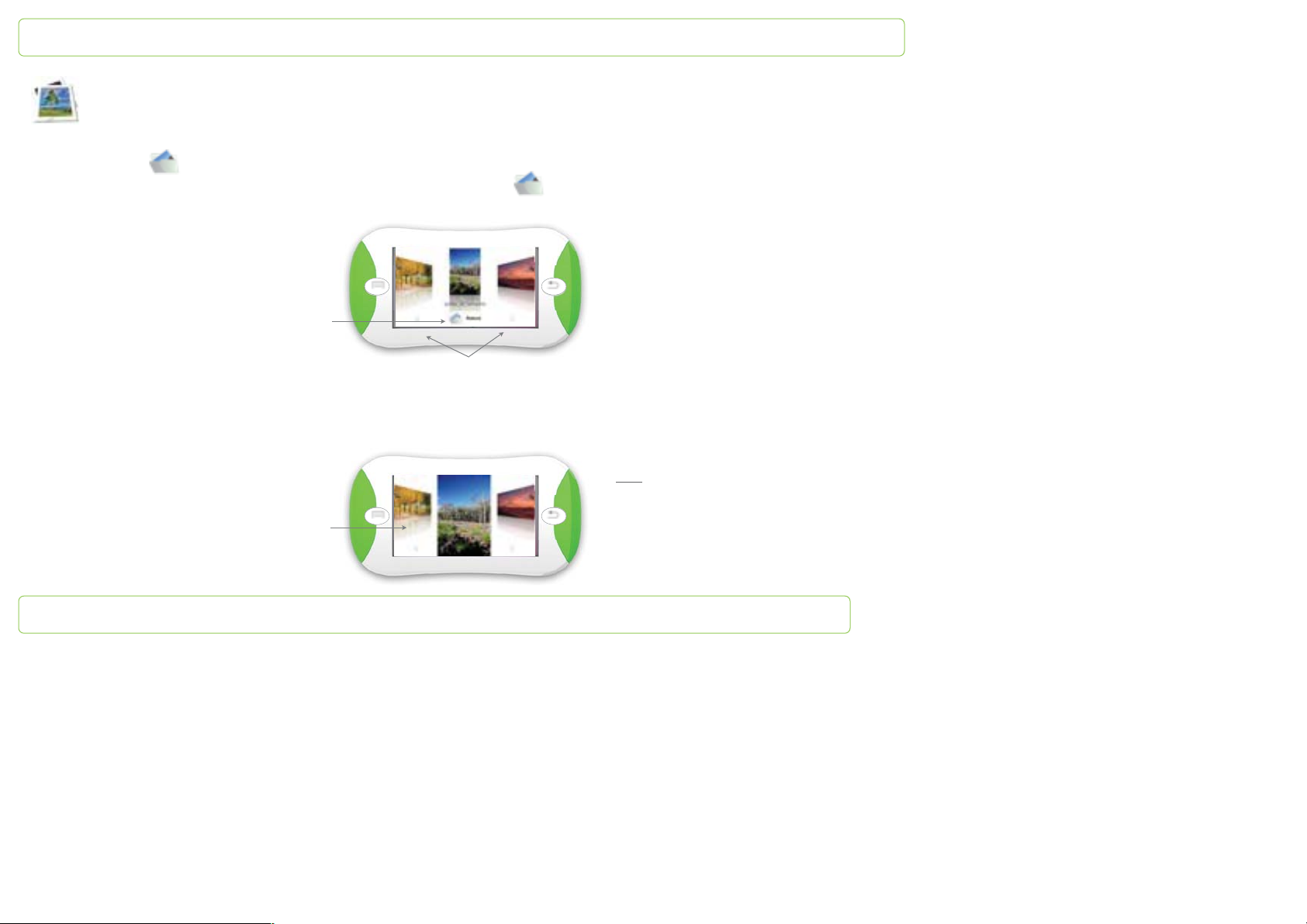
The images are stored in folders. On the lower part of the screen, at the center, an icon representing a folder shows you in which folder
you are browsing .
To browse folders, use the left and right white arrows or touch the folder icon . A scrolling list gathering all the folders appears. Tap
the name of the file to enter it.
Folder
Browsing arrows
Once you’ve selected a folder, browsing images and pictures is simple and intuitive: slide your finger on the screen from left to right to
scroll images. You can also tap twice on the images to scroll them.
Note: when you tap an image, you can:
- enlarge it
- make the text-to-speech say its title
Enlarged image
See section Settings => Pictures p.45 of the user
guide to know how to activate these options.
Page 28
PapooTouch
Games
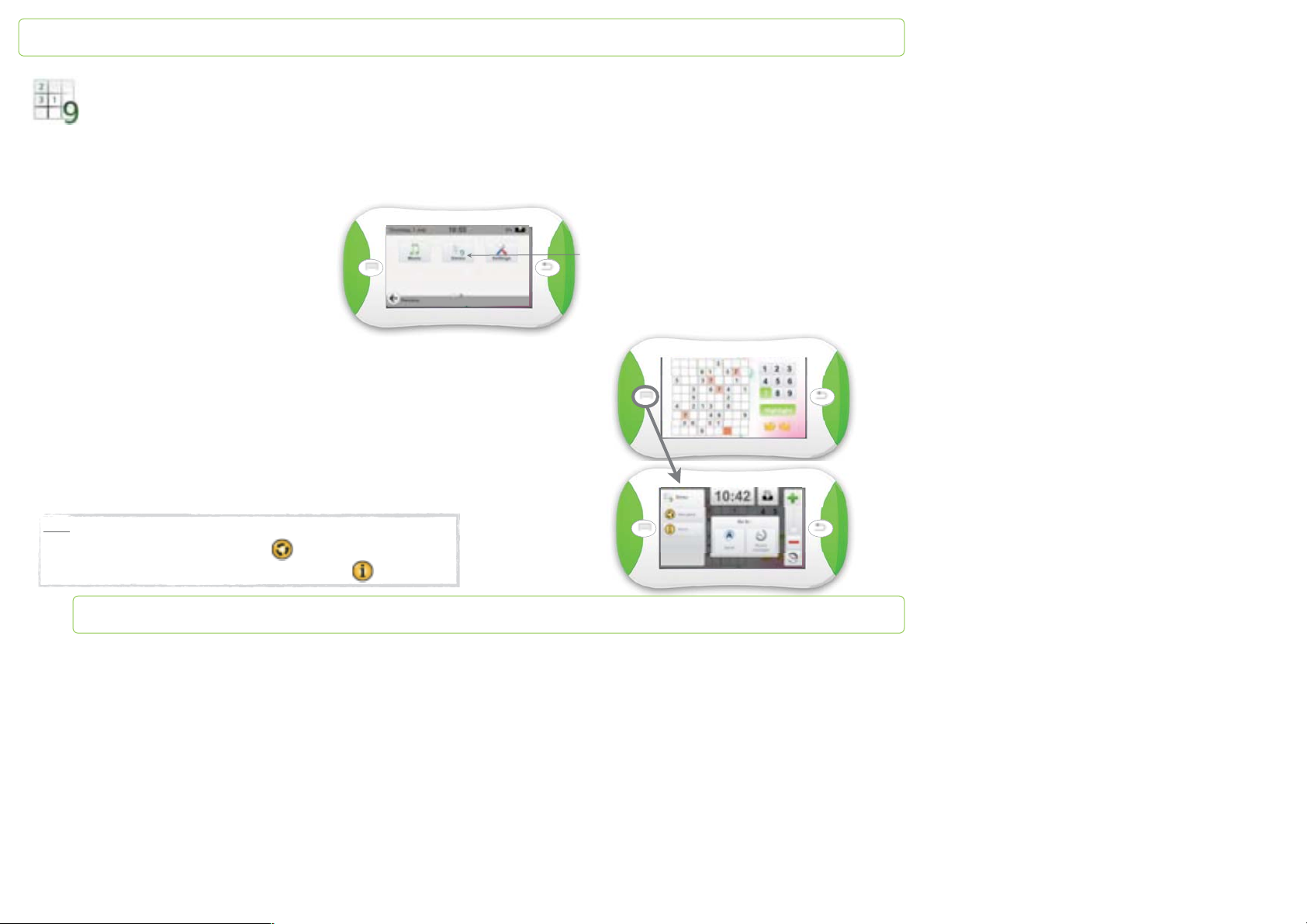
When you launch the app, any available game is represented by a specific icon.
PapooTouch is delivered with one game: the Simsu.
The home page appears as follow:
- the grids on the left
- the keypad upper right
- the «test» key
- yellow arrows to undo or redo the action
Simsu icon
Note: press the right button to:
- start over another game: tap the icon
- get information about the game: tap information icon
Page 29
PapooTouch
Calendar
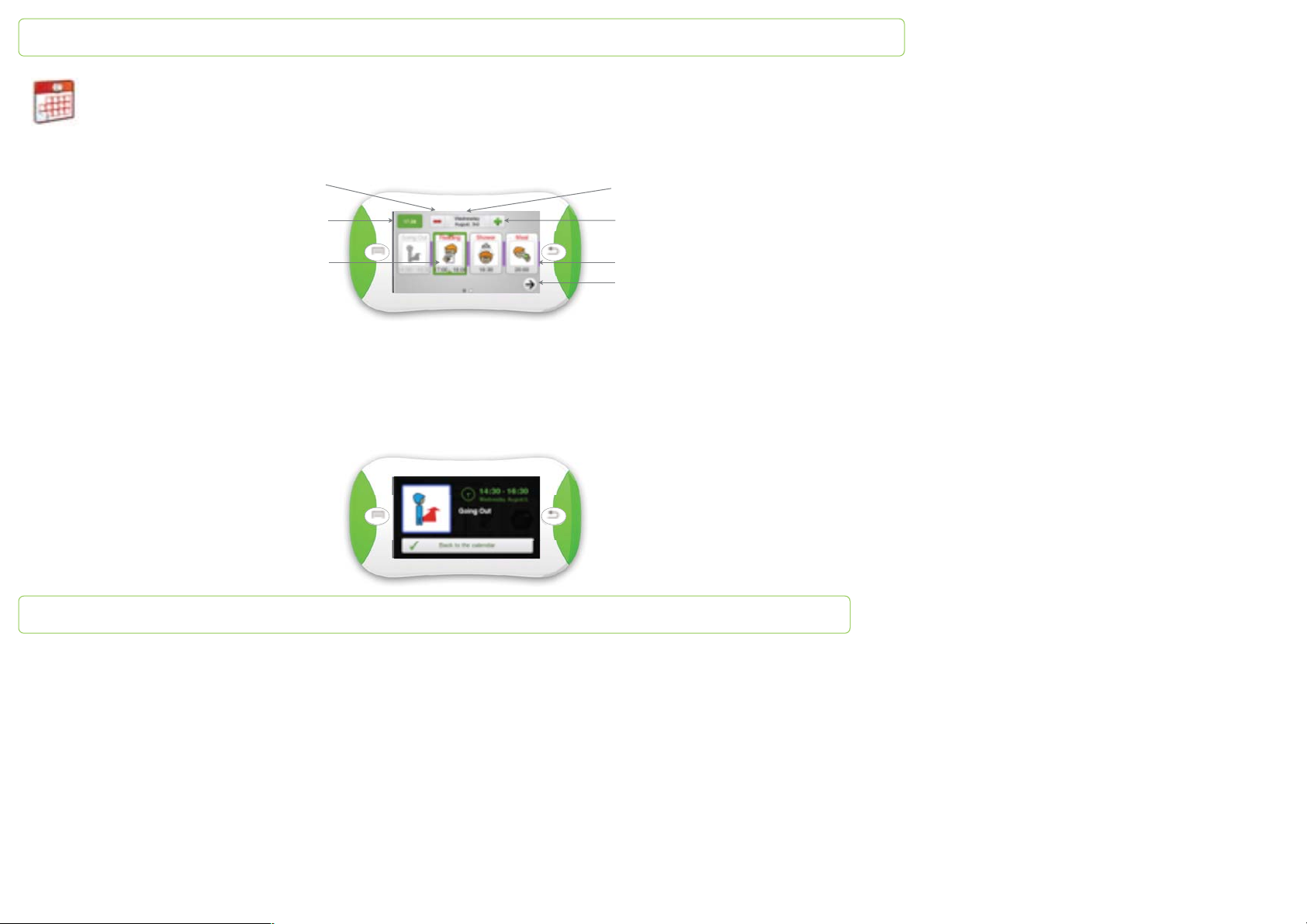
PapooTouch benefits from a Calendar application. It enables you to create events. When you tap the Calendar icon, the following interface
appears:
Access previous days
Date
Time
Ongoing event
There is a colored line on the background. Each day of the week benefits from a specific color.
When you tap the time, you come back to the ongoing day.
When an event is over, it turns grey.
When you tap an event, it is displayed full screen and shows details of the event:
Ongoing event Ongoing event Date
Access next days
Events list
Access next days events
Page 30
PapooTouch
Options
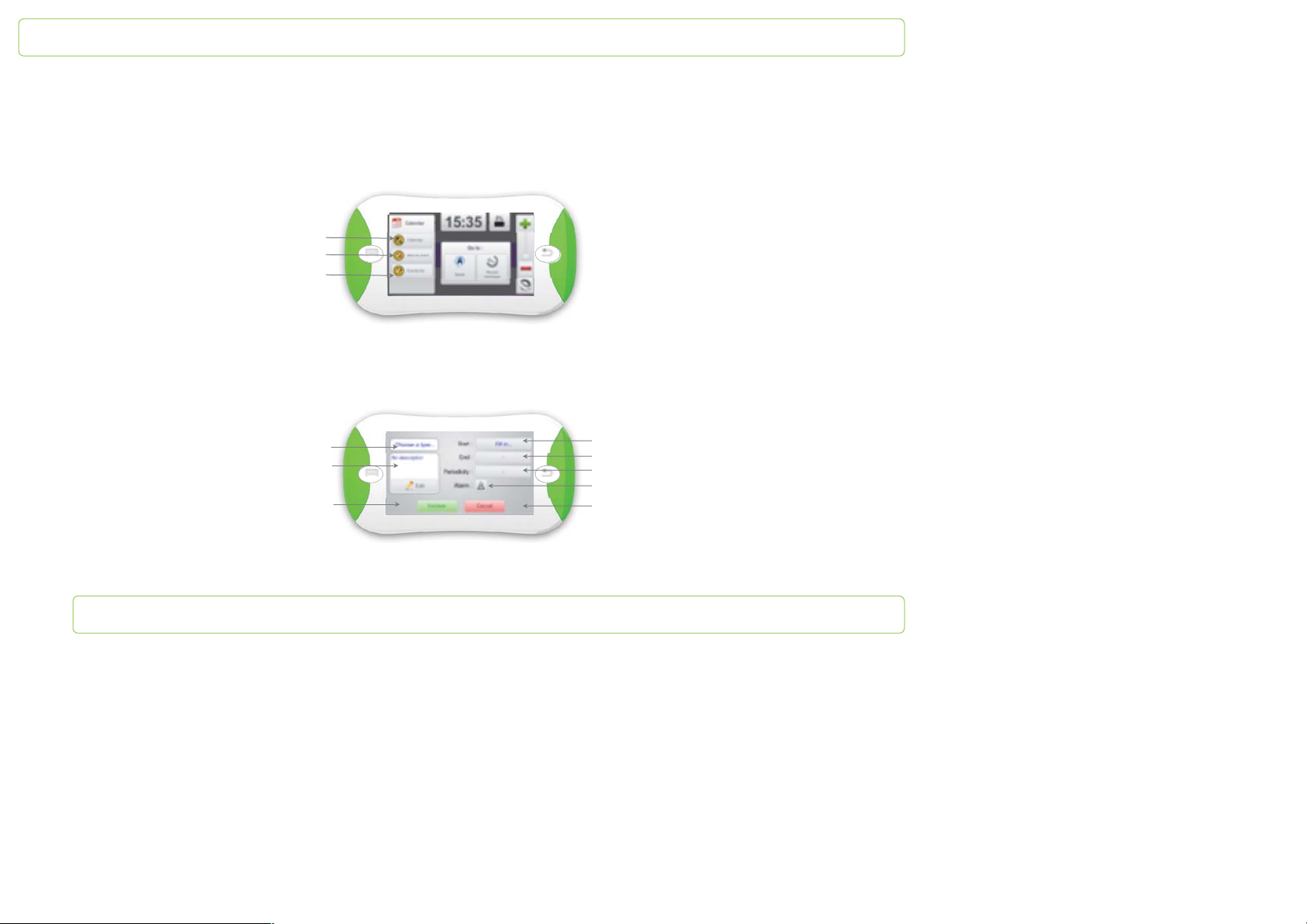
Press the left button to access the calendar option. It enables you to:
- access the calendar
- add new events
- access the event listing
Access Calendar
Add an event
Access the event s listing
Add a new event
When you tap the “add an event” icon, you access the following interface:
Choose the event type
Add a description
Validate event creation
Set starting time
Set ending time
Set the event periodicity
Set an alarm
Cancel event creation
The “periodicity” key enables you to choose how often the event has to be repeated. You can choose between several options.
Page 31
PapooTouch
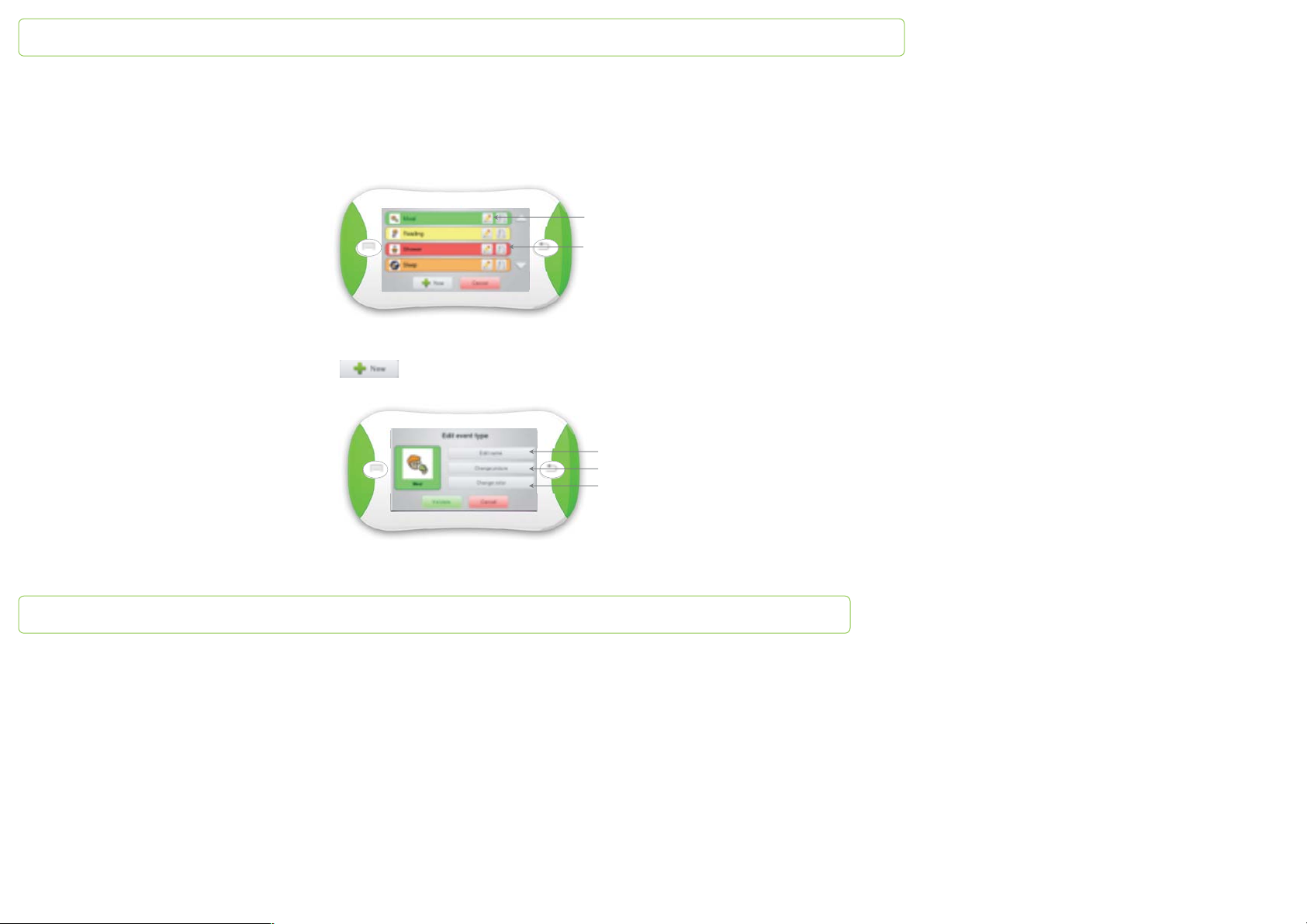
When you want to choose the type of the event, you access the following interface and you have the choice between several types of
events.
To select the type of your choice, simply tap the corresponding icon. Touch the down arrow to browse for more types.
Edit the event type
Delete the event type
You can also create a new type of event. Tap the key and you will access the following screen:
Choose the new name
Choose the related picture
Choose the related color
Page 32
PapooTouch
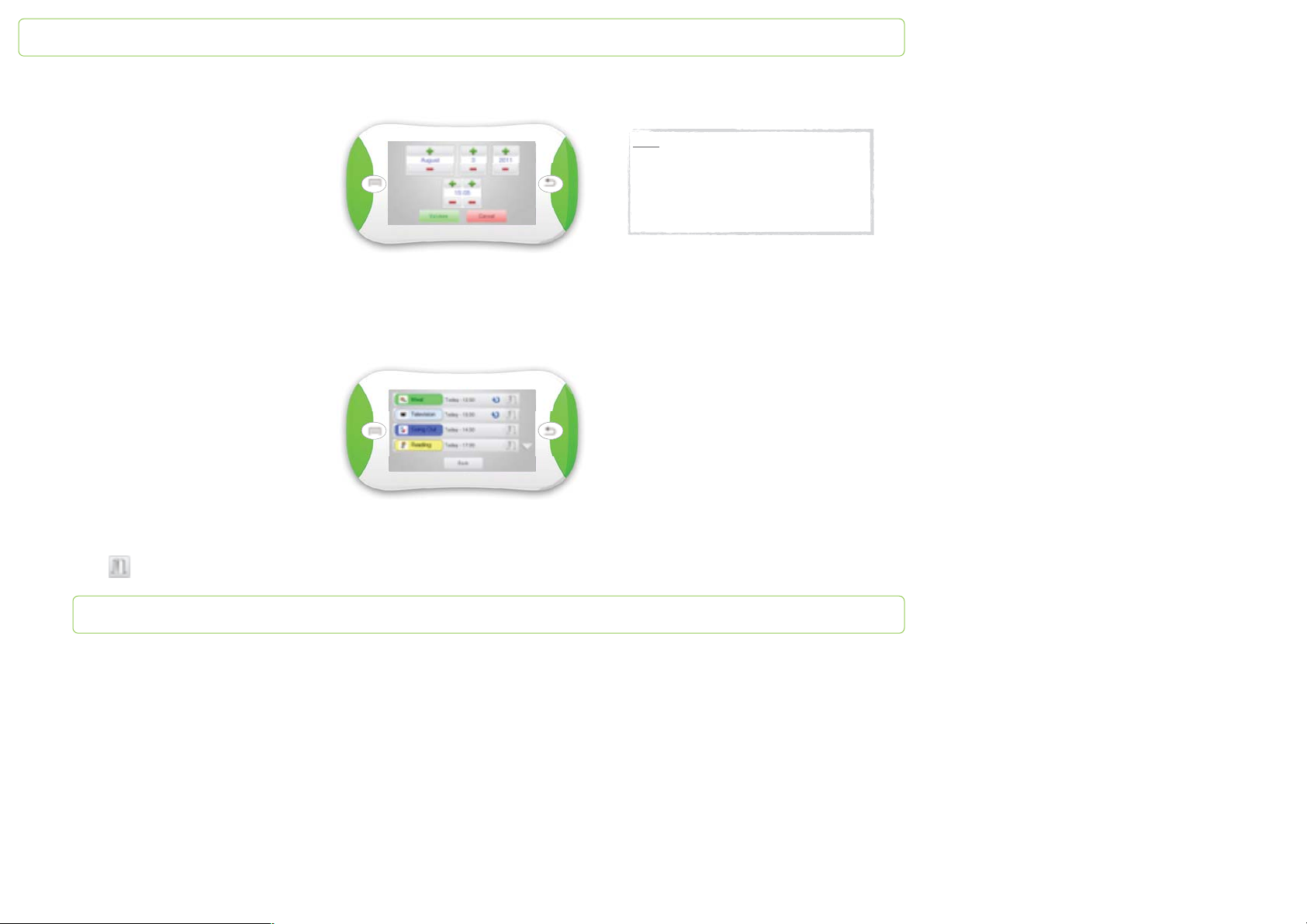
When you set the time and the date of the event, the following interface appears:
Edit an event
When you tap “event listing”, you access the following screen:
Note:
Use the plus and minus to select, the
month, the day, the year, the hour and the
minute of the event.
When you’re done, tap “Validate” and you
automatically come back to the previous
You access all data related to the event: type, starting and ending time, periodicity, if an alarm has been set or not.
Tap an event and you will be able to edit it.
Tap the bin to delete the event. It will no longer appear in the Calendar.
Page 33
PapooTouch
Settings
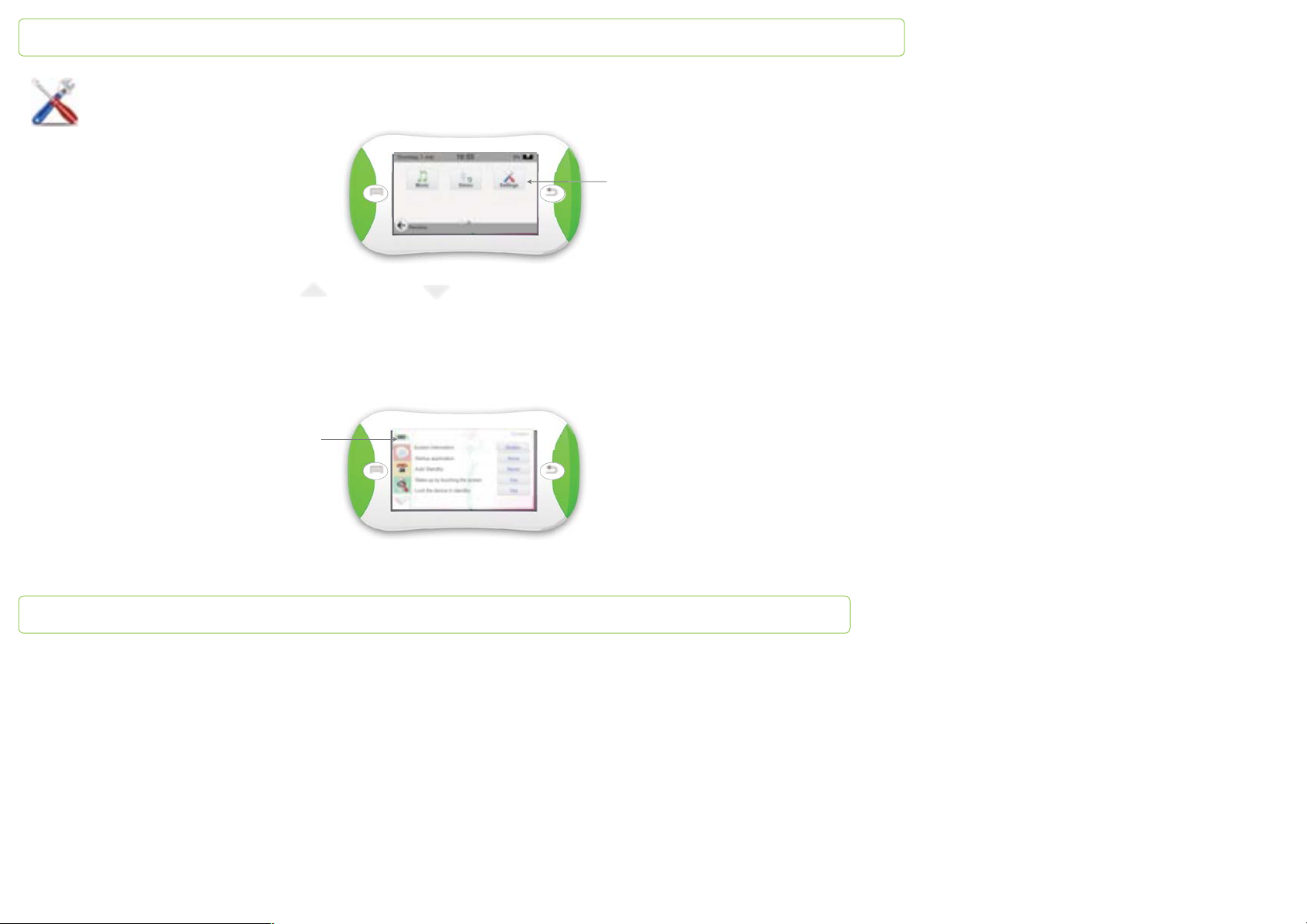
To browse the scrolling menu, use the up and down arrows.
System
It enables you to change the system parameters.
To change the
system
parameters and
access the
interface, tap this
icon
To set up
PapooTouch
settings, tap this
icon
Page 34
PapooTouch
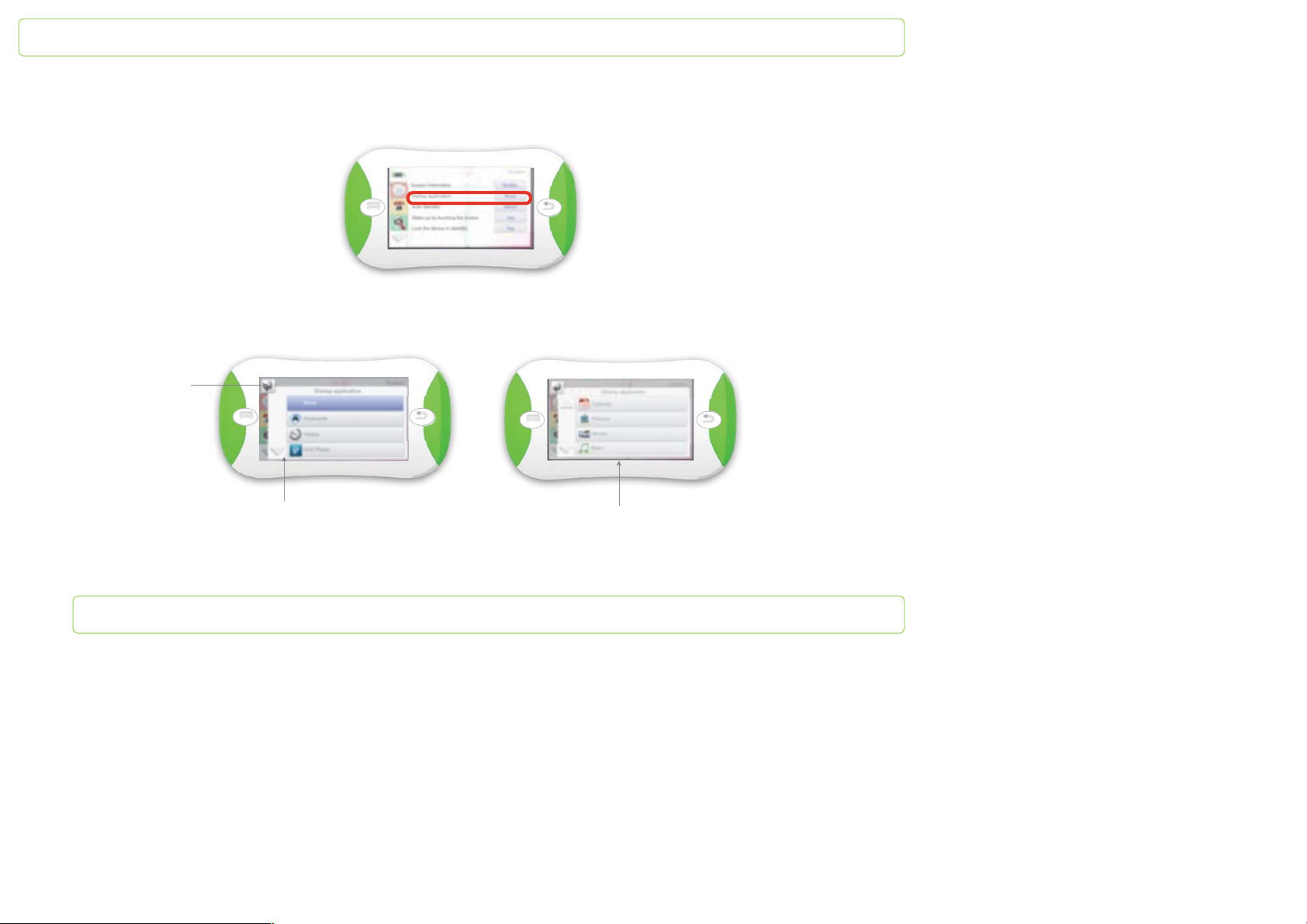
Set an application when PapooTouch starts up
Then select the app you want to begin with when you switch on PapooTouch:
Tap the upper-
left arrow to
come back to
the previous
screen
Tap the down arrow to
see the rest of the
srcolling menu
Tap the application you
want to select
Page 35
PapooTouch
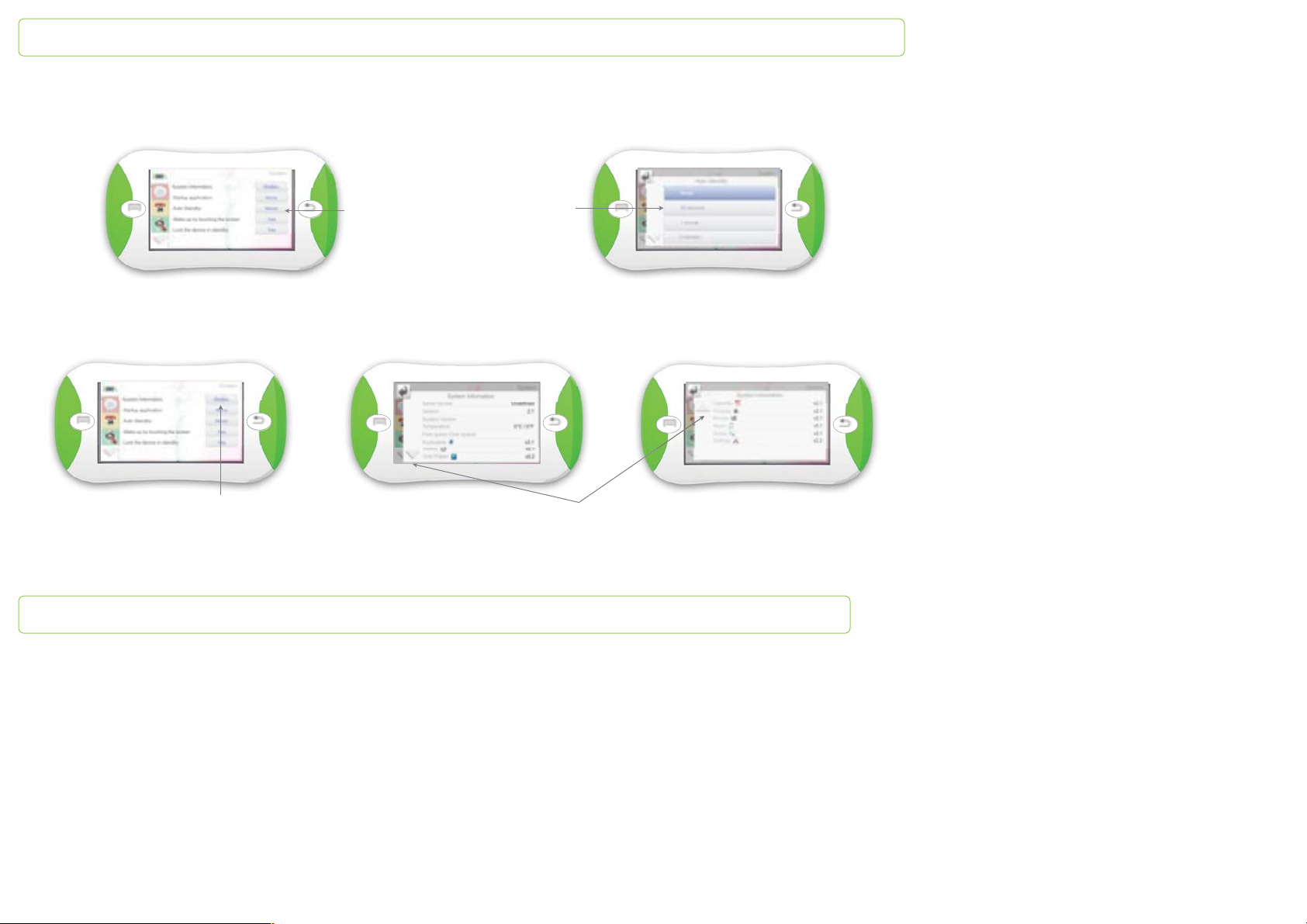
Set the standby mode
Tap this key
Read the system information about PapooTouch
Tap this key
Select the time
Information is displayed on the screen.
Use the arrows to access the rest of
the scrolling menu or to come back to
the previous options
Page 36
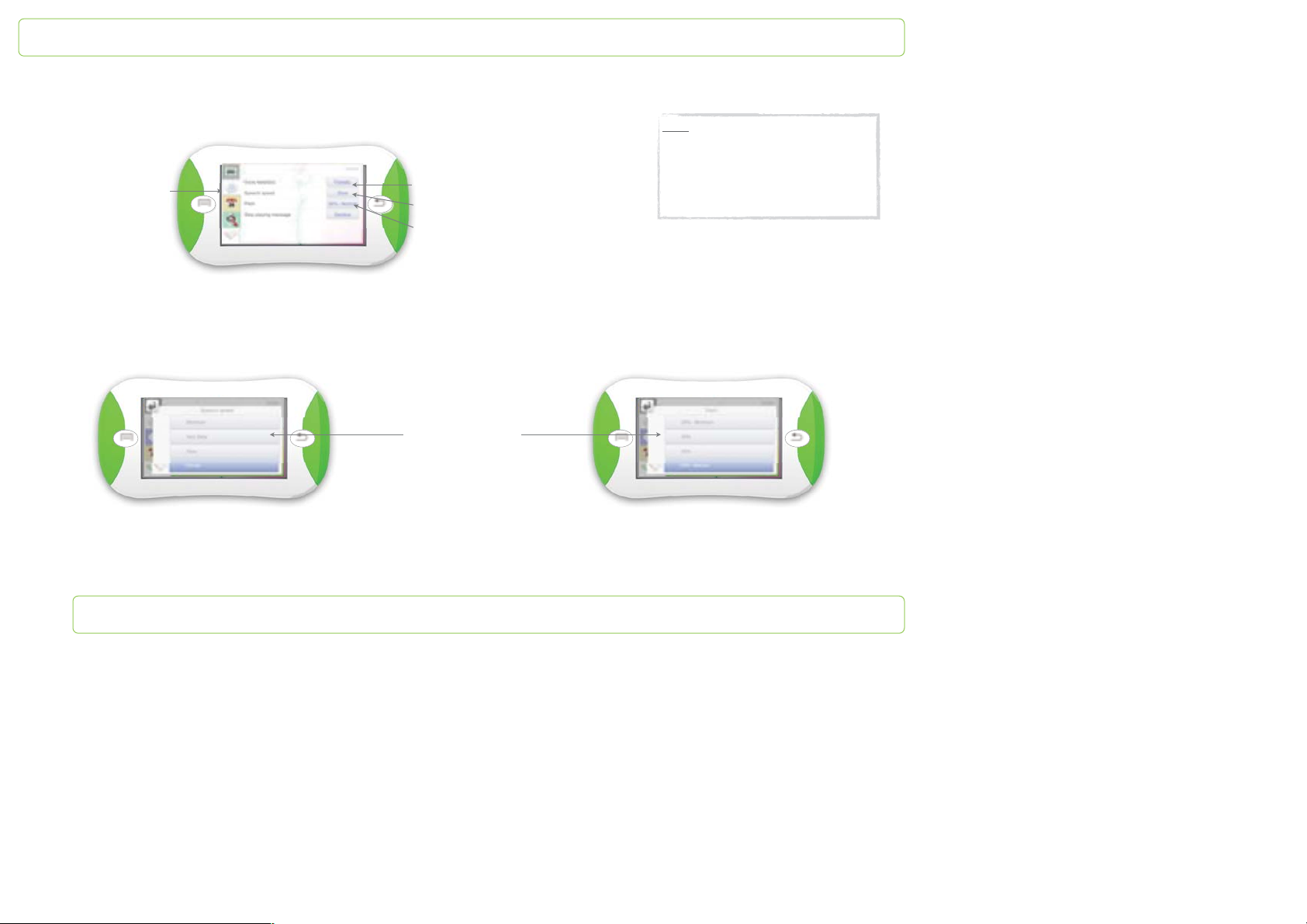
PapooTouch
Voice selection
To change or enter into
the voice menu tap
this key
The male voice is now activated. Tap
this key to get the female voice
Choose the speech speed
Choose the pitch option
Note:
Stop playing message: you can tap
the screen at any time when a
message is vocalized to stop it.
Select “accept” to activate this option
and “decline” to inactivate it.
Speech speed
Pitch mode
Tap to select the
speed/speech you
want
Page 37
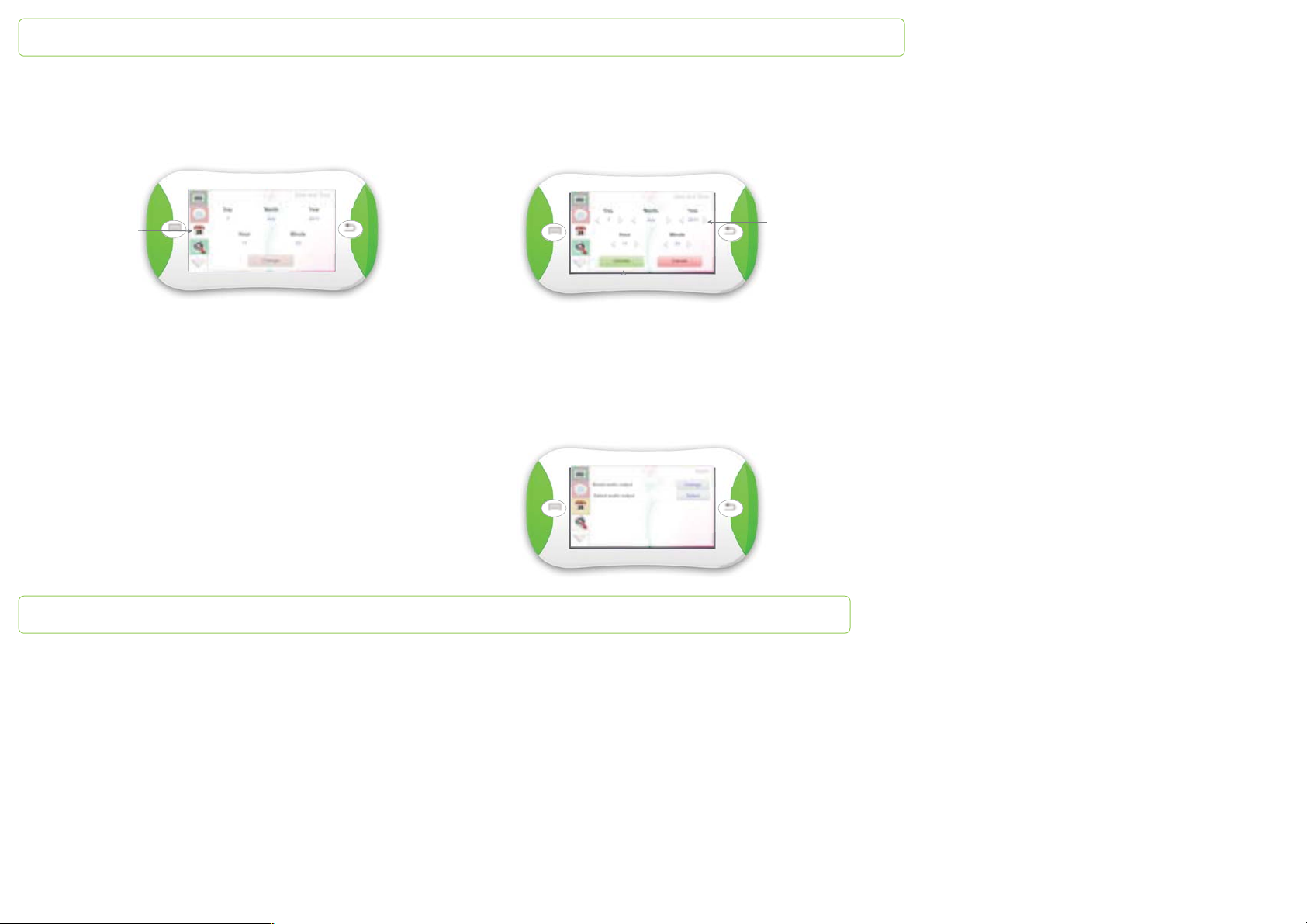
PapooTouch
Date and time
It enables you to change the date and the time.
1 - Tap this
key to change
the date and
the time of
PapooTouch
Audio
You can adjust:
- audio boost
- audio output
To do so tap the option of your choice and validate on the next interface.
2 - Scroll the day, the
month, the year, the
time and the minutes
thanks to the white
arrows
3 - Tap this key to confirm
your choice
Page 38
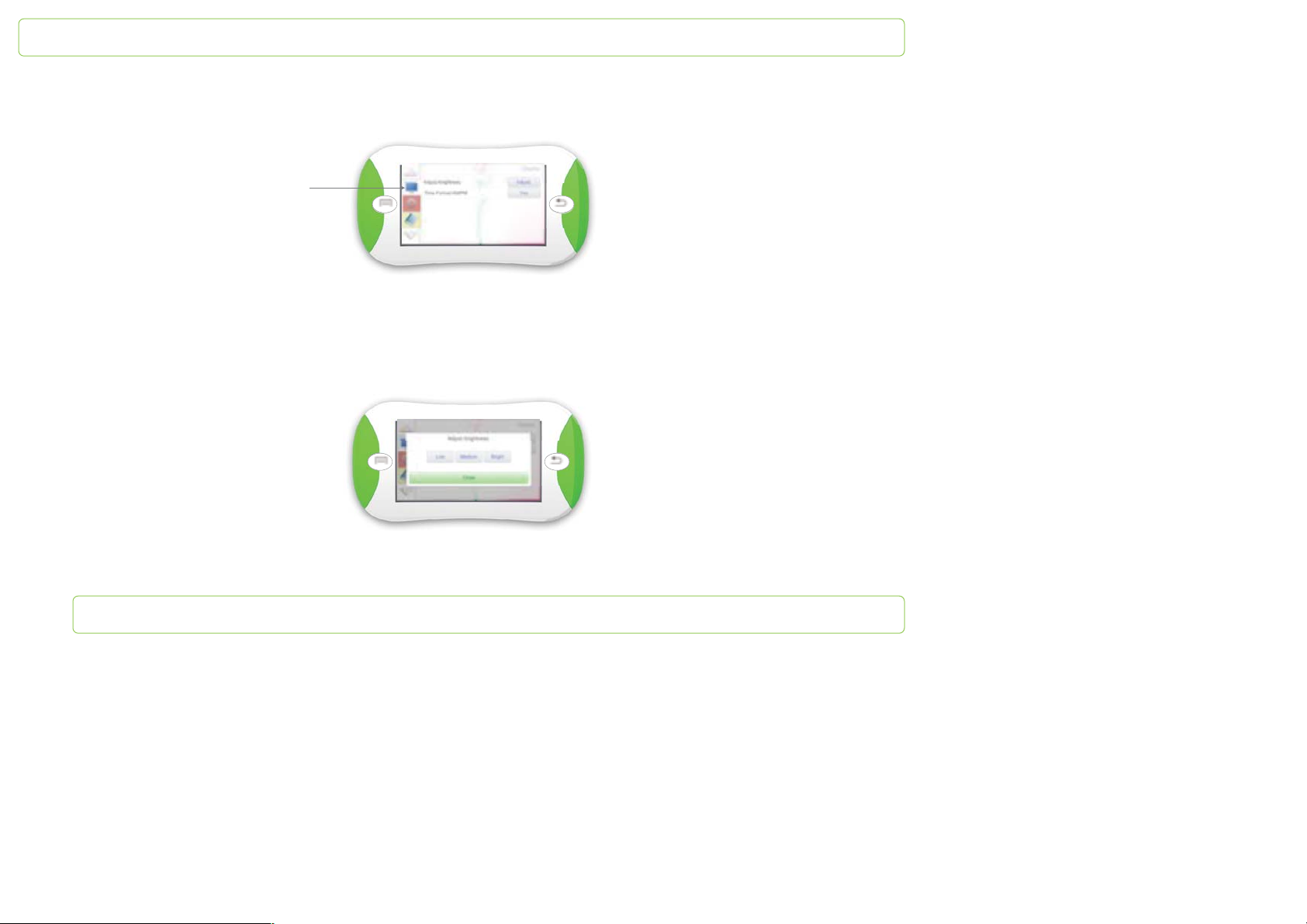
PapooTouch
Display
It enables you to display or not the app name and the date on the main menu.
Tap this key to define the
display parameters
Brightness
You can adjust the screen brightness. To do so tap the brightness key and on the next interface choose between low medium and bright.
Page 39
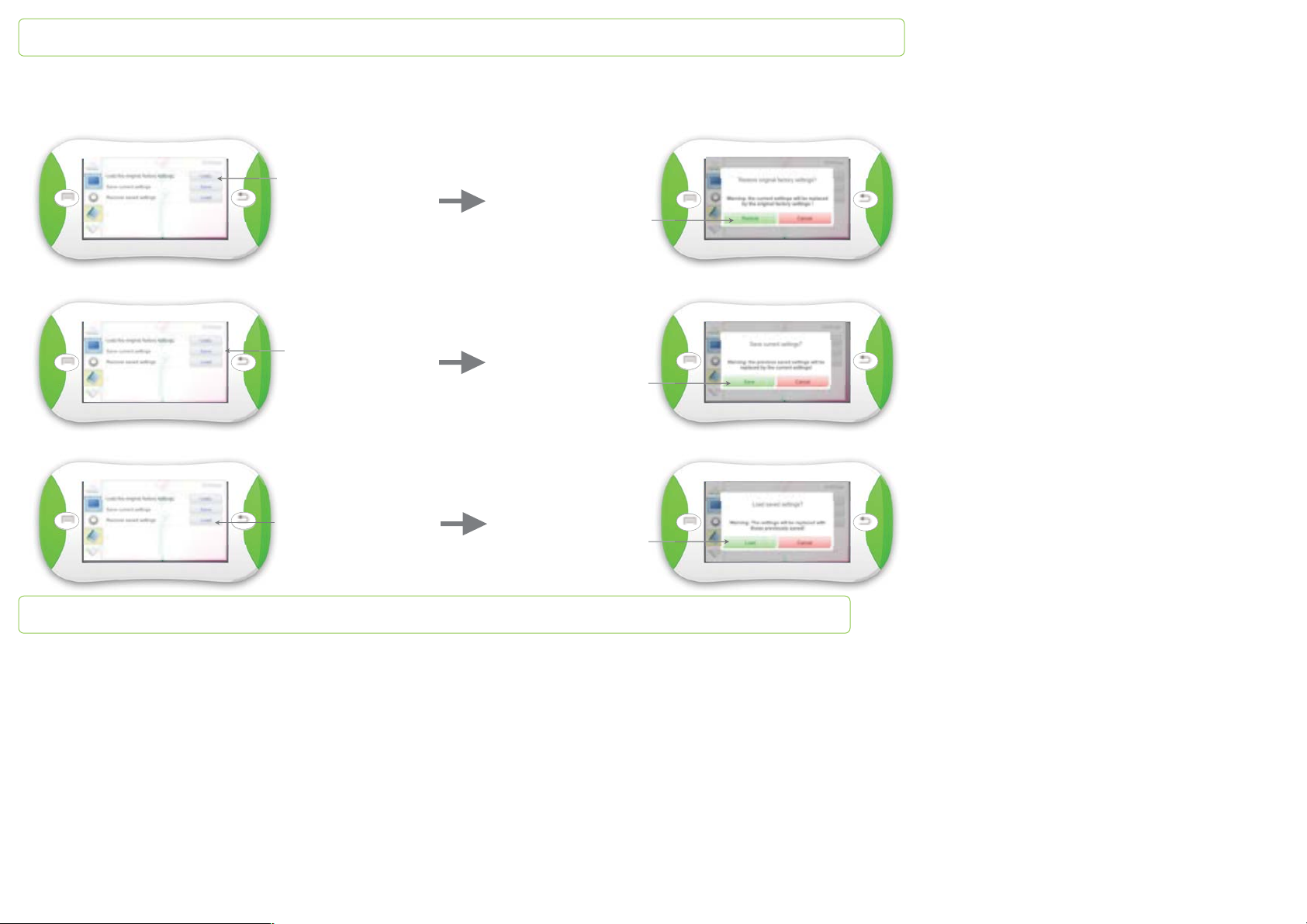
PapooTouch
Settings
Restore the original parameters
Save the original parameters
Load the saved parameters
Tap this key
Tap this key if you
want to restore
Tap this key
Tap this key if you
want to save
Tap this key
Tap this key if you
want to load
Page 40
PapooTouch
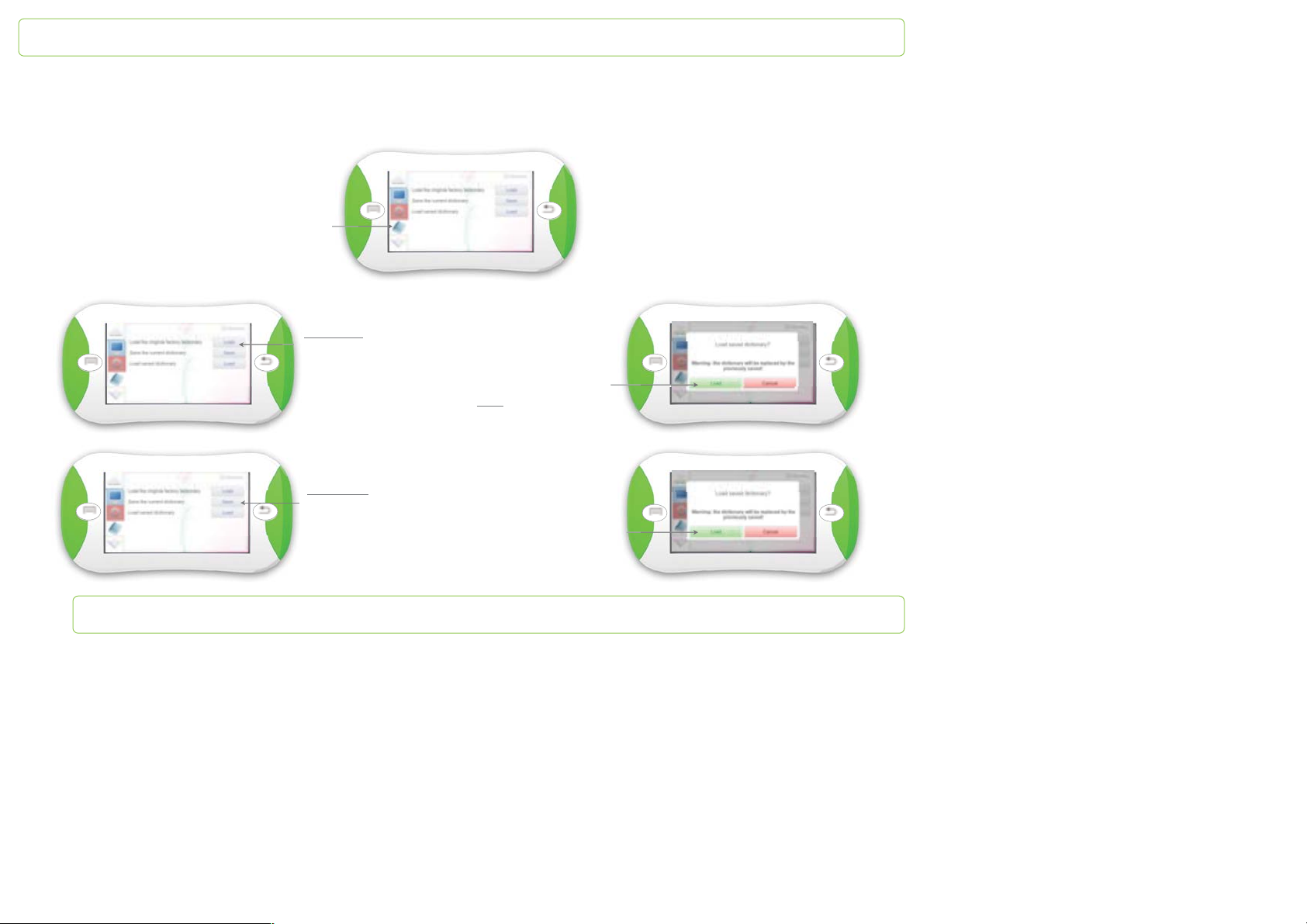
Dictionary
This interface enables you to manage the dictionary options.
To access the settings
tap this key
1st option: tap this
key if you want to
restore the original
dictionary
2nd option: tap this
key if you want to
save the current
dictionary
PapooTouch asks you if
you really want to restore
the original dictionary. If
yes, tap this key.
Note
: Any customized
words that have been
added to the dictionary
will be deleted.
PapooTouch asks you if
you want to save the
current dictionary. If yes,
tap this key
Page 41
PapooTouch
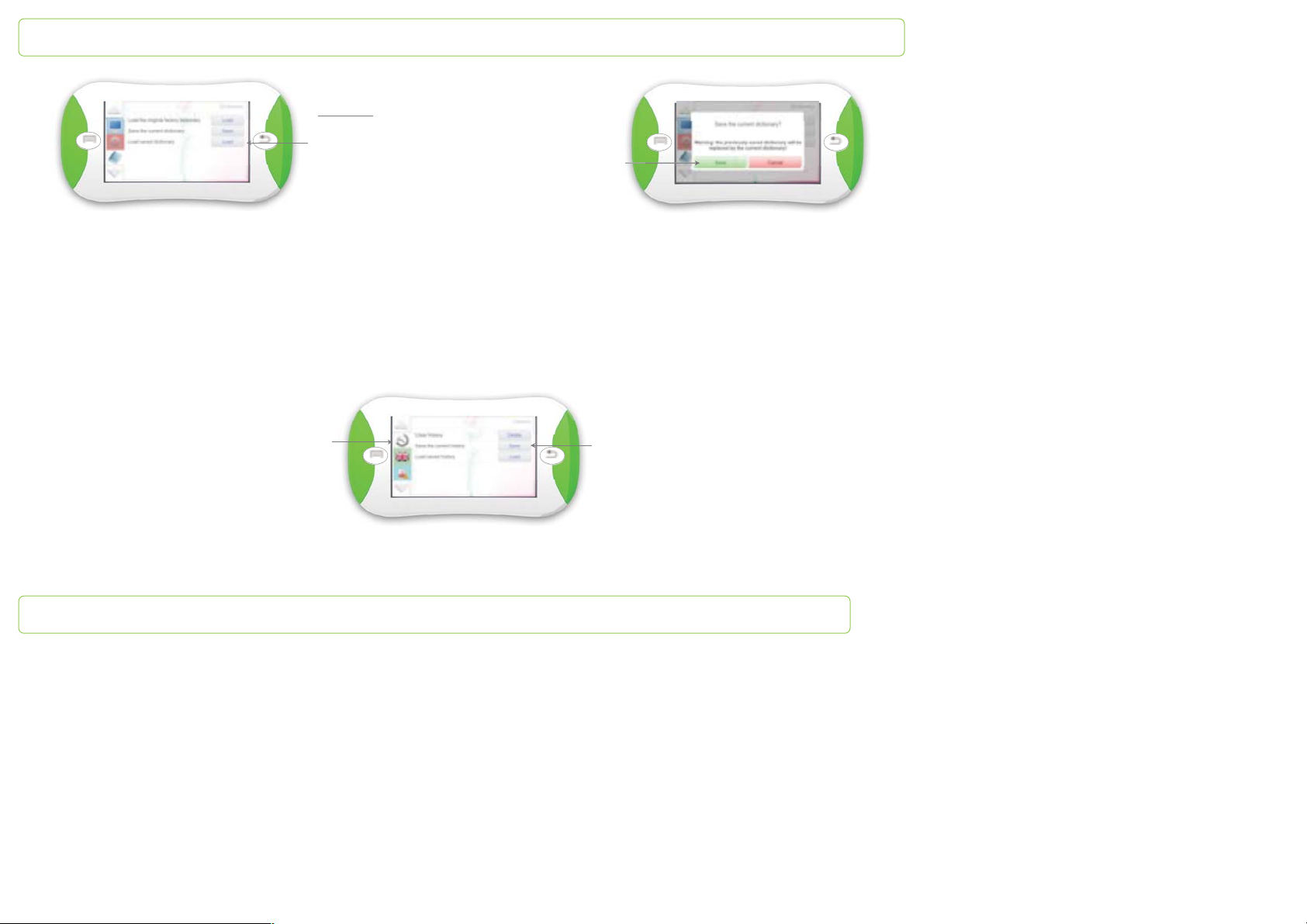
rd
3
option: tap the
key if you want to get
back the saved
dictionary from
PapooTouch
History
This interface enables you to manage the history options.
PapooTouch asks you if
you really want to get back
the saved dictionary. If yes,
tap this key.
To access the settings
tap this key
Select the key of
your choice
Page 42
PapooTouch
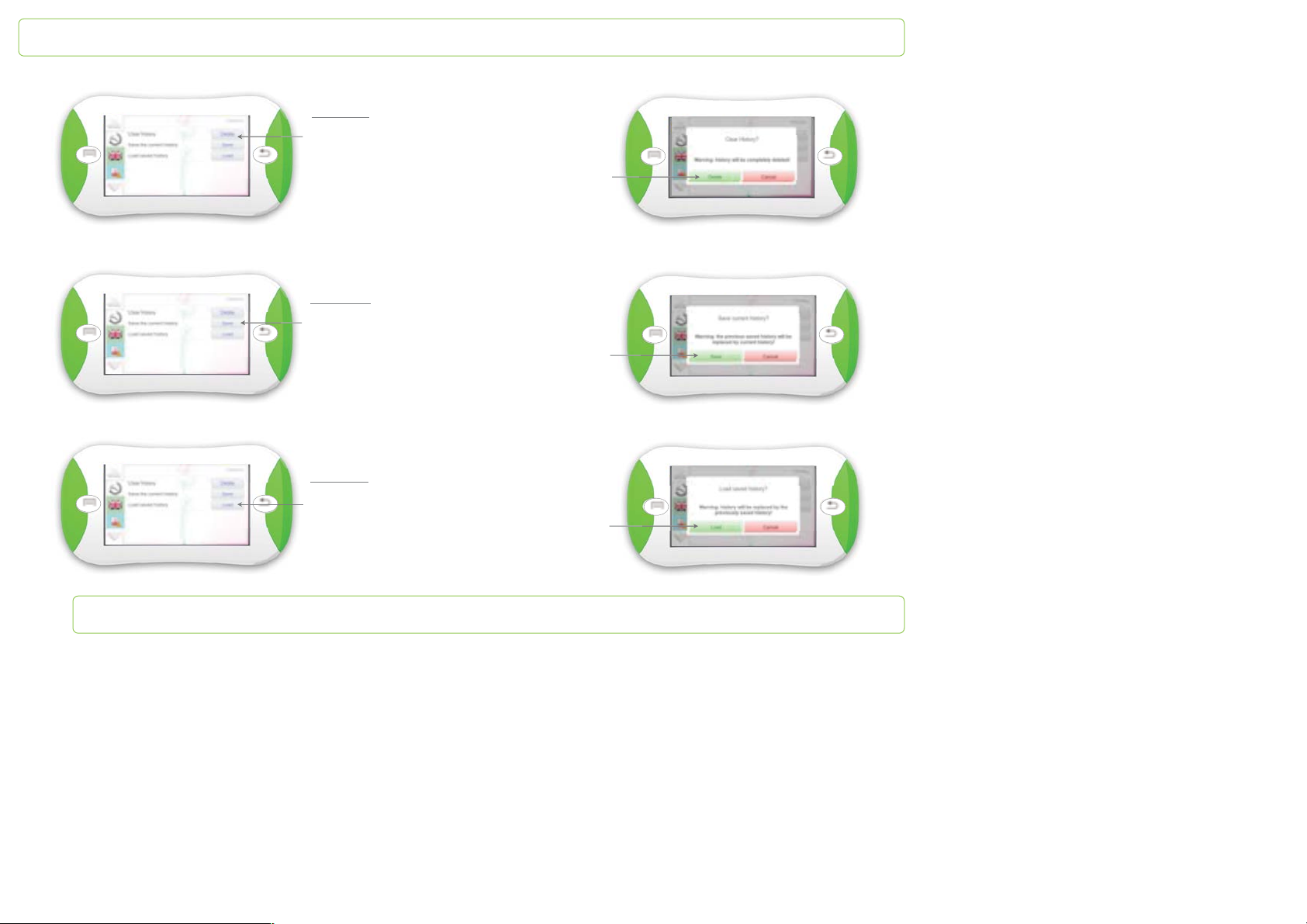
st
option: tap the
1
key if you want to
delete the messages
of the History
nd
2
option: tap the key
if you want to save the
current History in
PapooTouch
rd
3
option: tap the key if
you want to get back
the saved History from
PapooTouch
PapooTouch asks you if
you really want to delete
the messages of the
History. If yes, tap this key
PapooTouch asks you if
you really want to save
the current History. If
yes, tap this key.
PapooTouch asks you if
you really want to get
back the saved History. If
yes, tap this key.
Page 43
PapooTouch
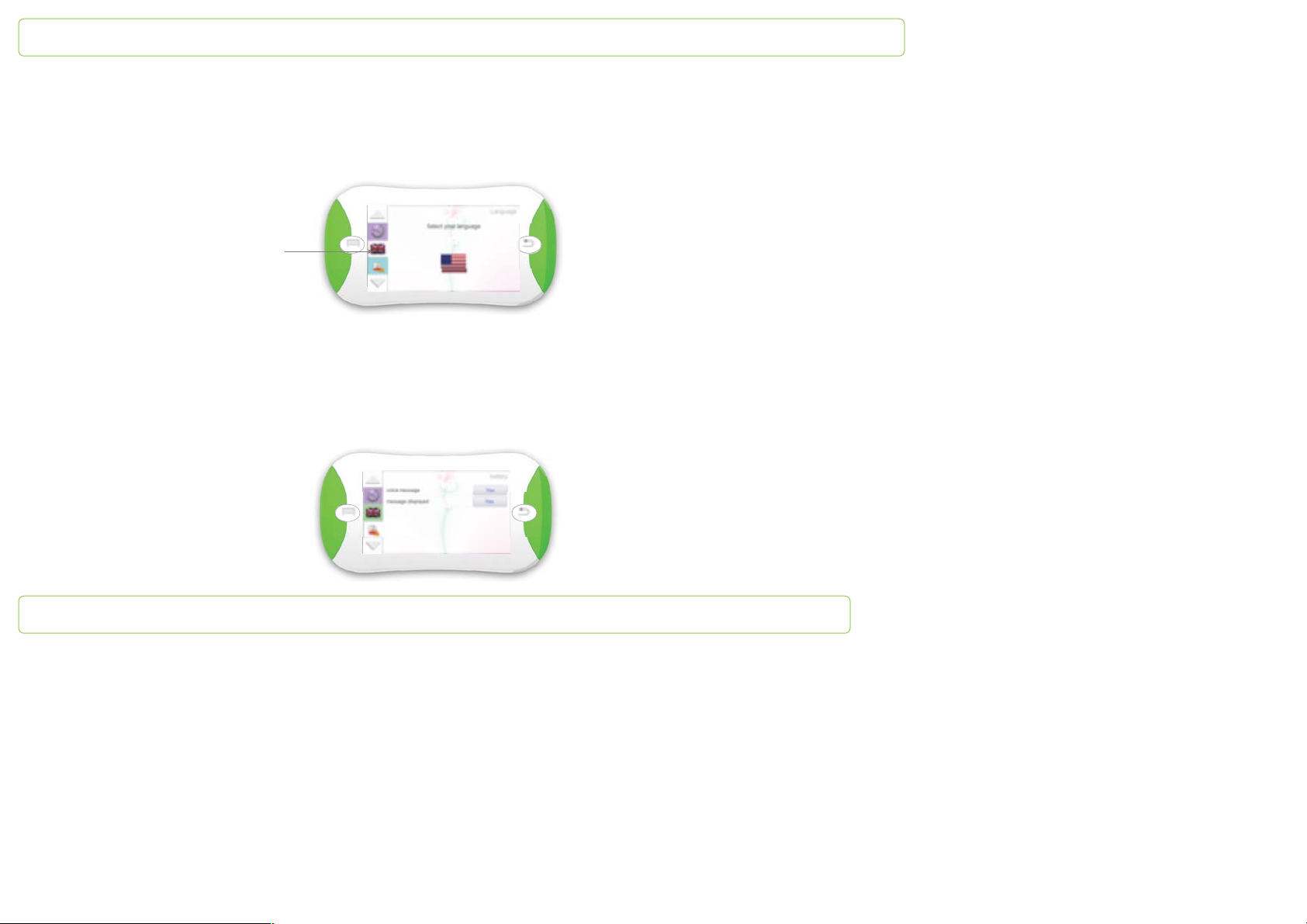
Language selection
PapooTouch can be set in several languages. To switch between them, tap the correct flag and it will take a couple of seconds for
PapooTouch to be reset.
Tap the flag to select the
language
Low battery warning
When PapooTouch is running out of battery, you can choose which kind of message you want to be warned with:
- vocal message
- pop up message
Page 44
PapooTouch
Keyboards
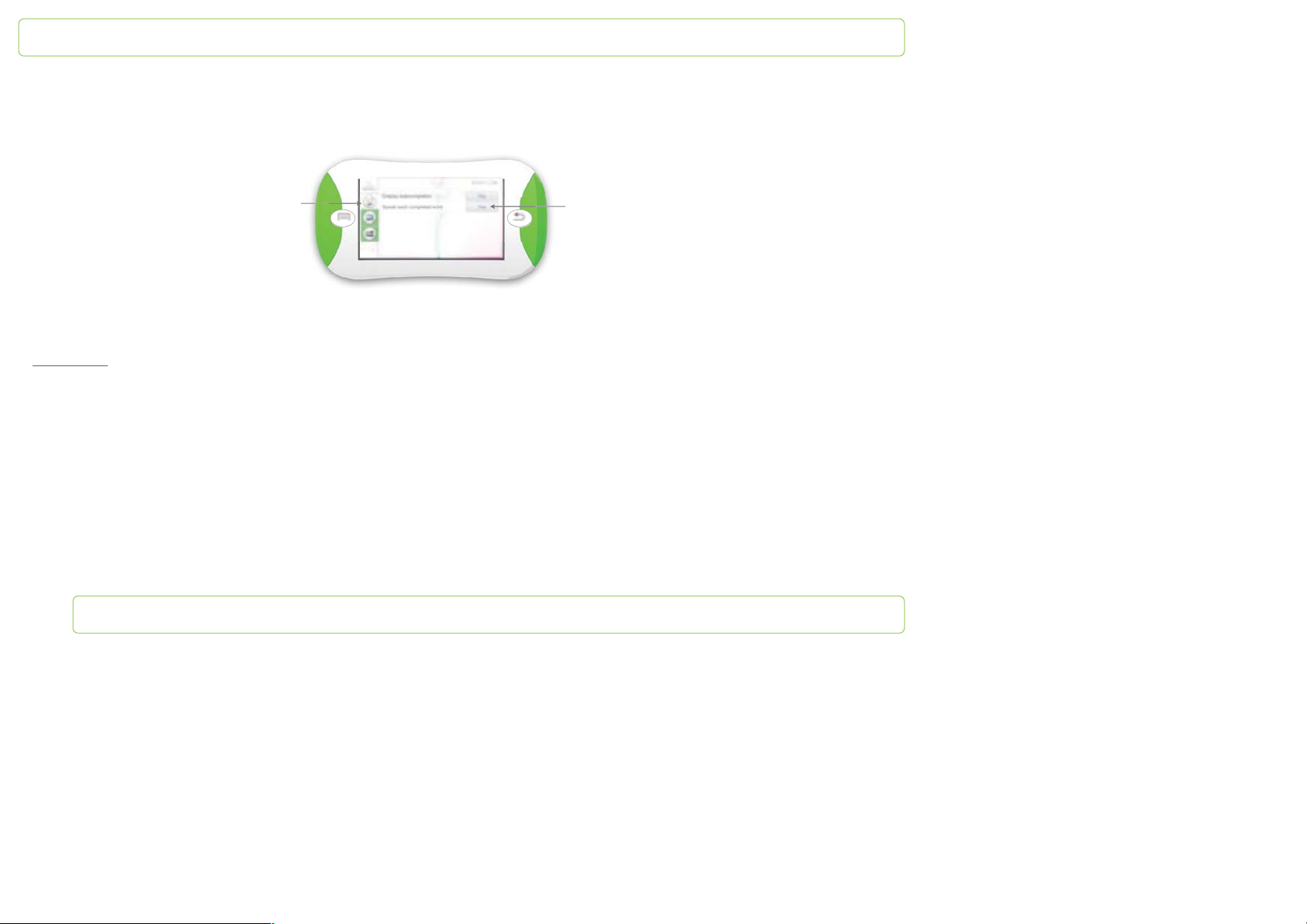
To access the settings
tap this key
2 scenarios:
You want to activate the word prediction
There’s a YES in front of the word prediction key: the word prediction is activated
You want to inactivate the word prediction
There’s a YES in front of the word prediction key. Tap it and it turns into a NO: the word prediction is now inactivated
Thanks to this option:
- No = the sentence is said when you are done typing it
- Yes = each word is said just after you typed it
Page 45
PapooTouch
Pictures
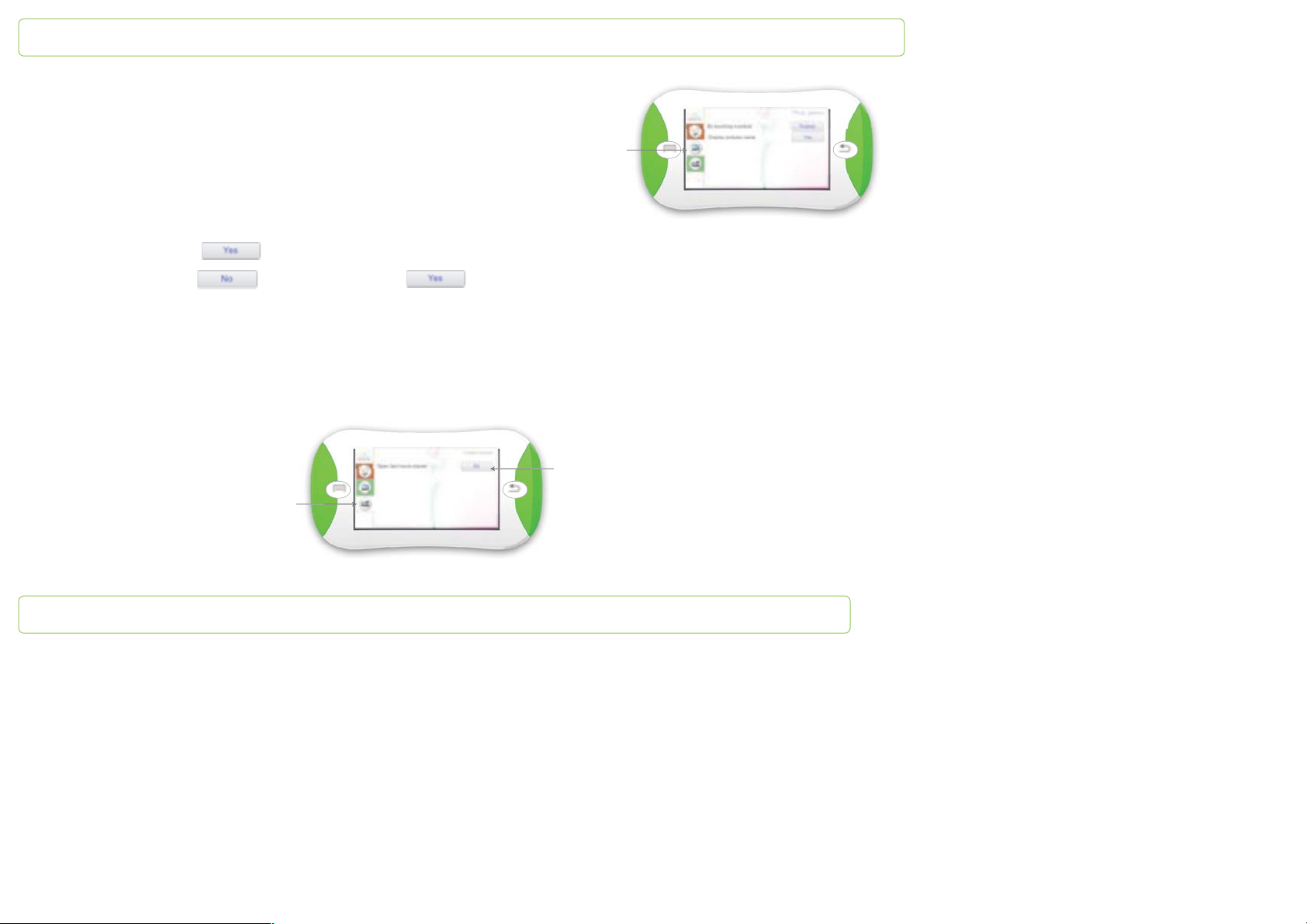
When you touch the picture you can:
- either enunciate its title: tap the key to select «enunciate»
- or enlarge it: tap the key to select «enlarge»
Display the title of the pictures
To access tap this key
- your screen shows , the name of the pictures will be displayed
- your screen shows , tap it and it turns into
Proceed the same way if you don’t want the name of the pictures to be displayed.
Video
To access the settings
tap this key
The video player tab enables you to set up the video
options. You can choose to begin with the last video
played.
- No = when you access the video player, video list
appears, you choose a new video
- Yes = when you access the video player, you are coming
back to the last video you saw
Page 46
PapooTouch
PapooTouch Soft
First step
Plug PapooTouch in your computer thanks to the USB cable delivered with it.
Second step
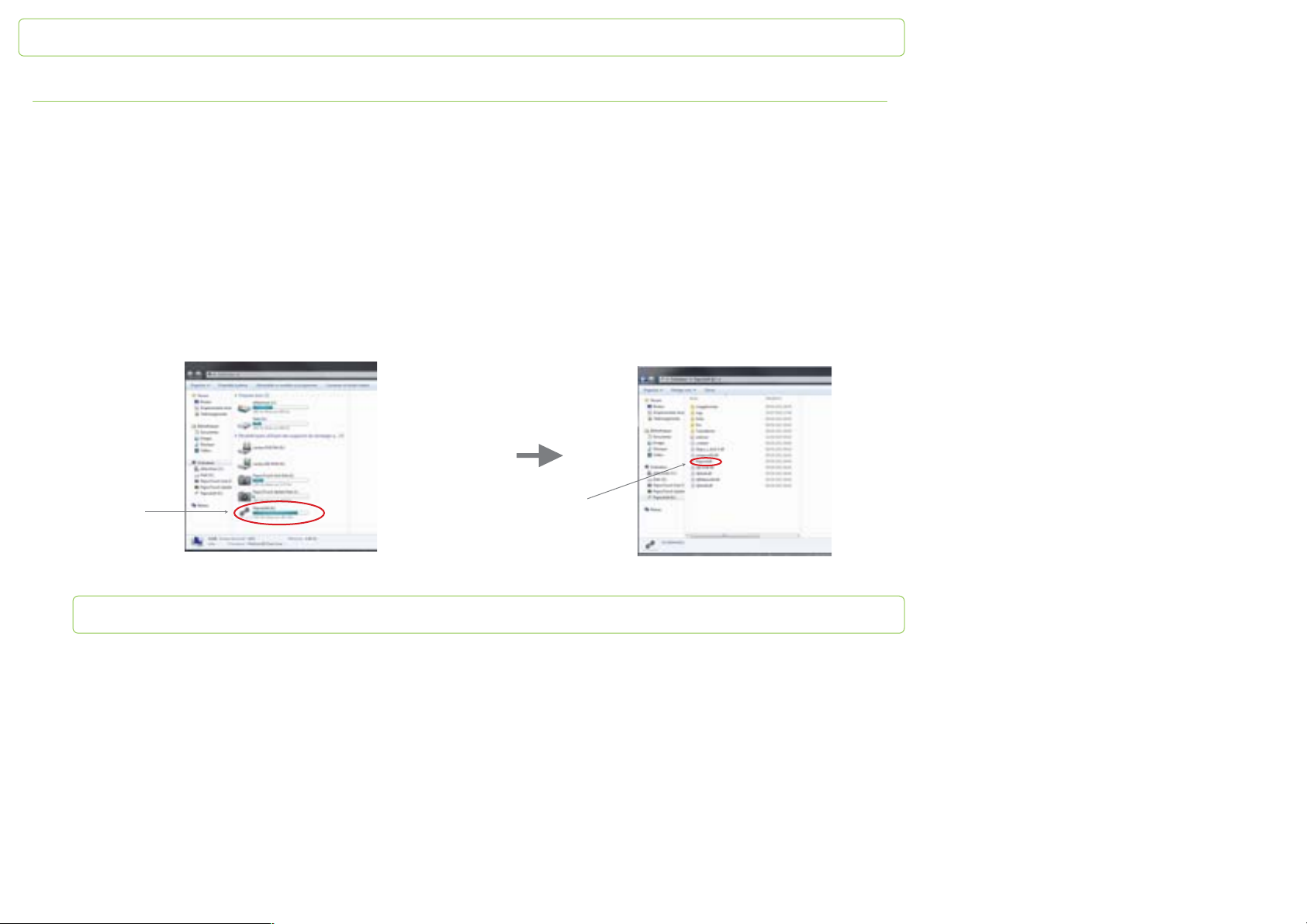
The software can be launched in several ways:
- the software will launch automatically if the option is activated on your computer
- the software doesn’t launch by itself and you’ll have to open it manually (Note: the demonstration is made from a Windows 7
computer but is done the same way on a Windows XP or Vista computer)
Click on the Windows “Start” tab at the bottom of the screen. Then click on the “Computer” tab. The following window opens:
The following window
opens:
Double click on
PapooTouch soft
Click on the icon
Page 47
PapooTouch
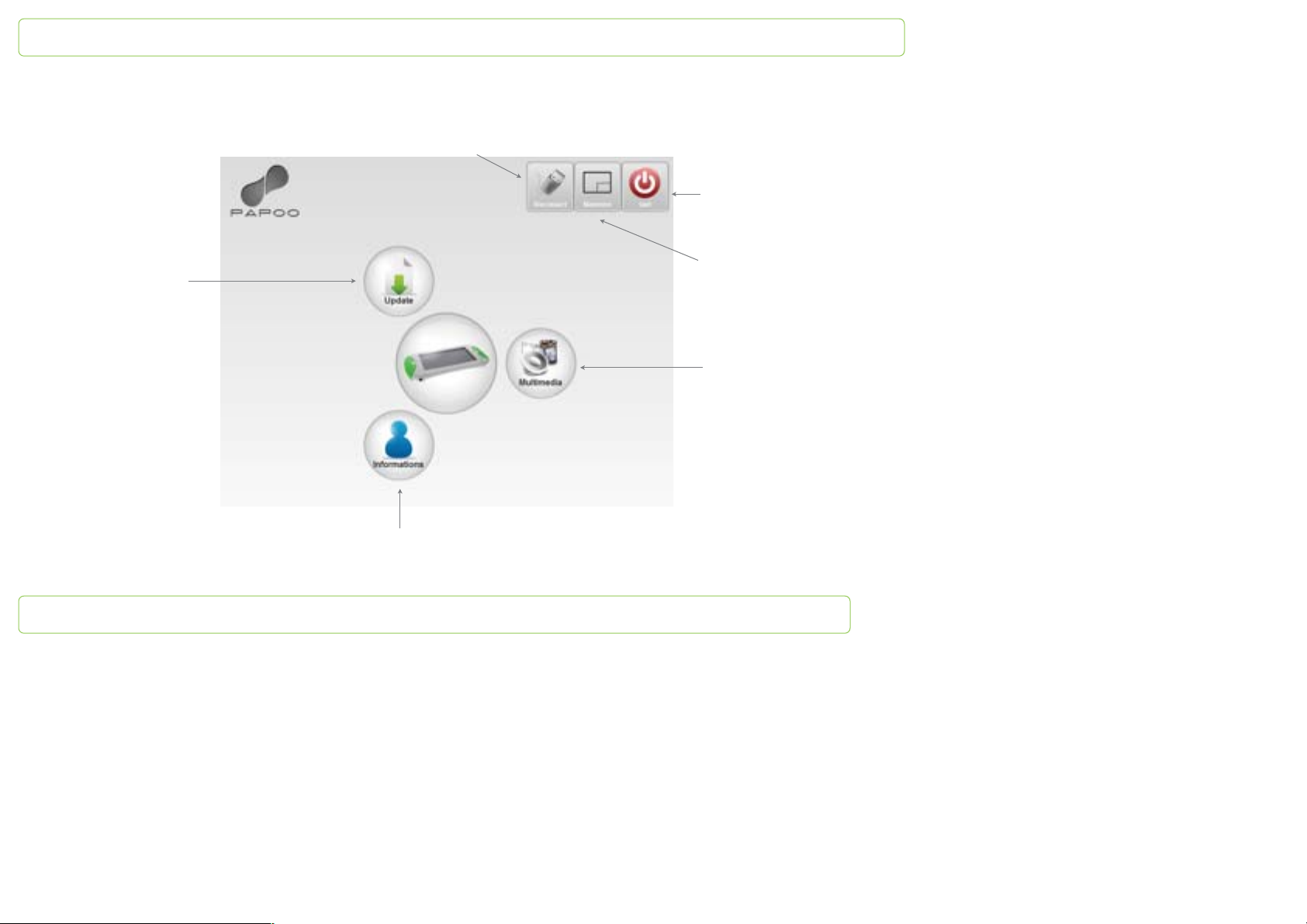
Once the software is launched, the main menu appears:
Before you unplug the
device,click on this key
To exit the
software, click
on this key
Click on this key to
access
PapooTouch's
updates
To enlarge the
window, click on
this key
Click on this key
to transfer the
multimedia files
into PapooTouch
Click on this key to get
information about PapooTouch
Page 48
PapooTouch
nfofofor
r
Information
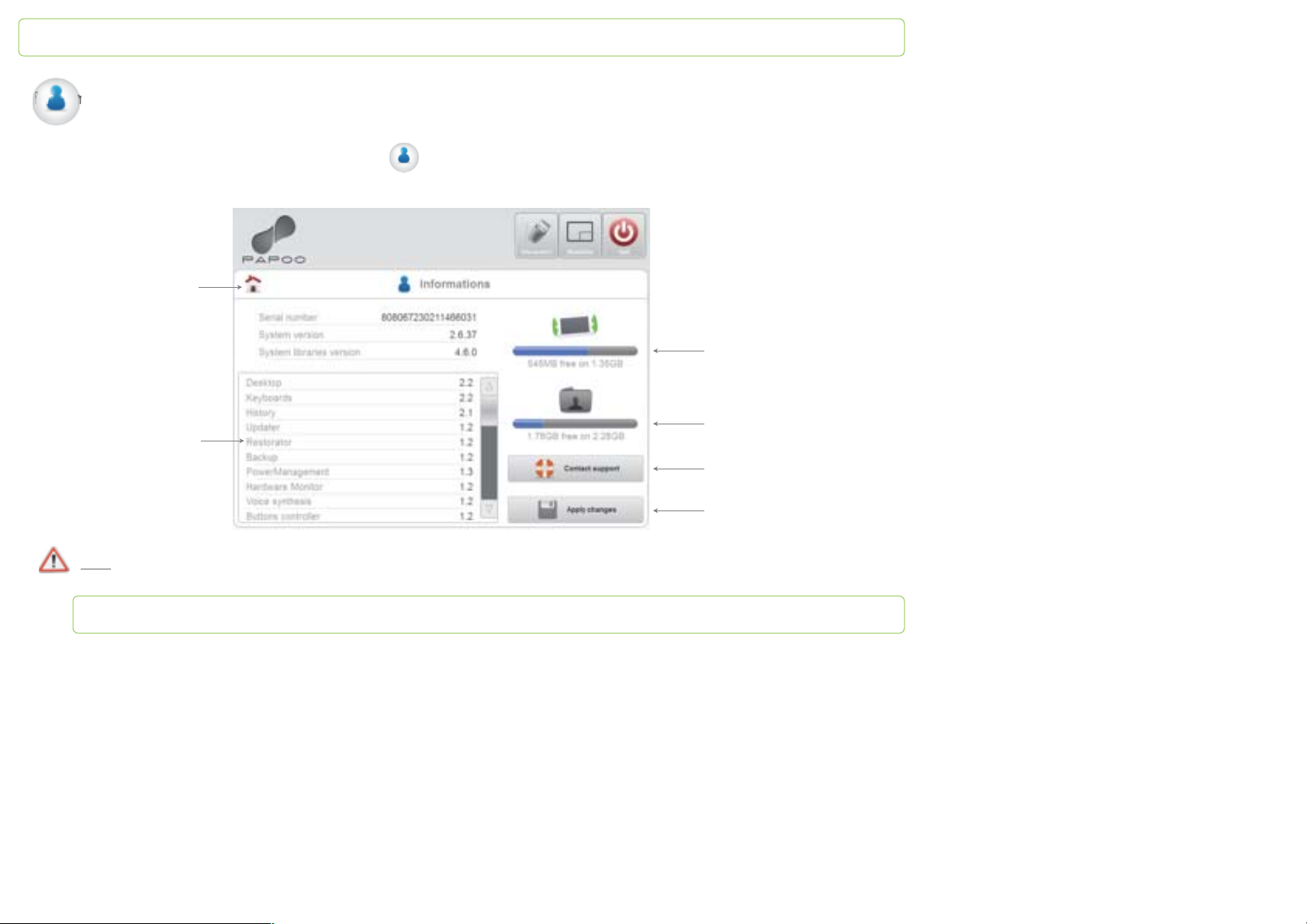
To get information about PapooTouch, click on the icon in the main menu.
The following window opens:
Enables you to
come back to the
main menu
Name of the apps
Shows the free space
on PapooTouch
Shows the memory
Contact PapooTouch's support
Click on it to save your
changes
Note: the color of the bar located under PapooTouch’s icons shows the memory status of the device.
Page 49
PapooTouch
Multimedia
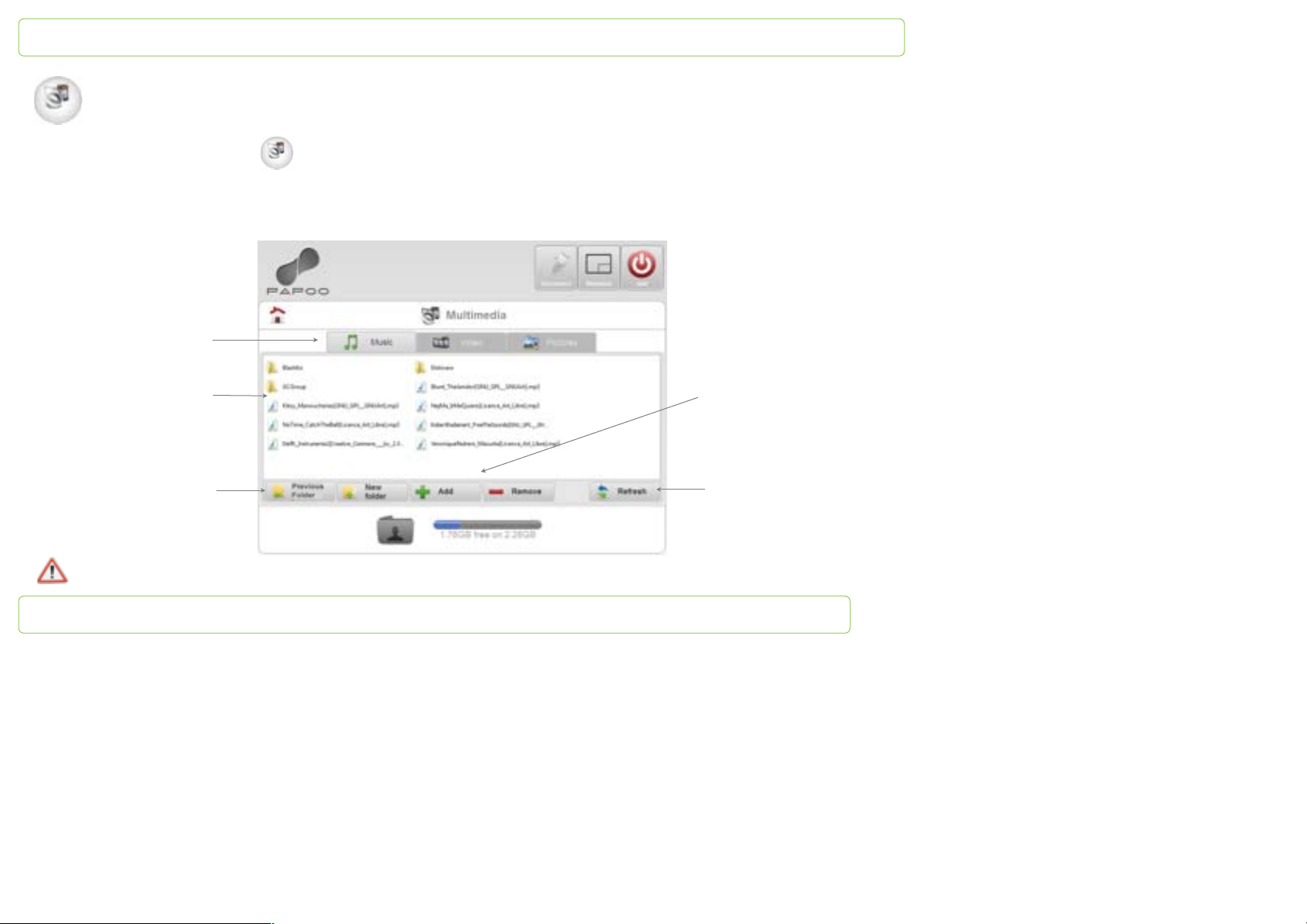
To transfer multimedia files, click on in the main menu.
Music
Once you’ve clicked on Multimedia, the following interface appears. You'll notice that you are automatically directed to the Music tab.
Music tab
List of songs and folders
already transfered
Enables you to go back
to the previous folder
You can select several songs, videos or pictures at the same time by pushing the Ctrl key.
Enables you to add or
remove songs
Click on Refresh when
you’re done adding or
removing songs so that the
information on screen is the
same than the data into
PapooTouch
Page 50
PapooTouch
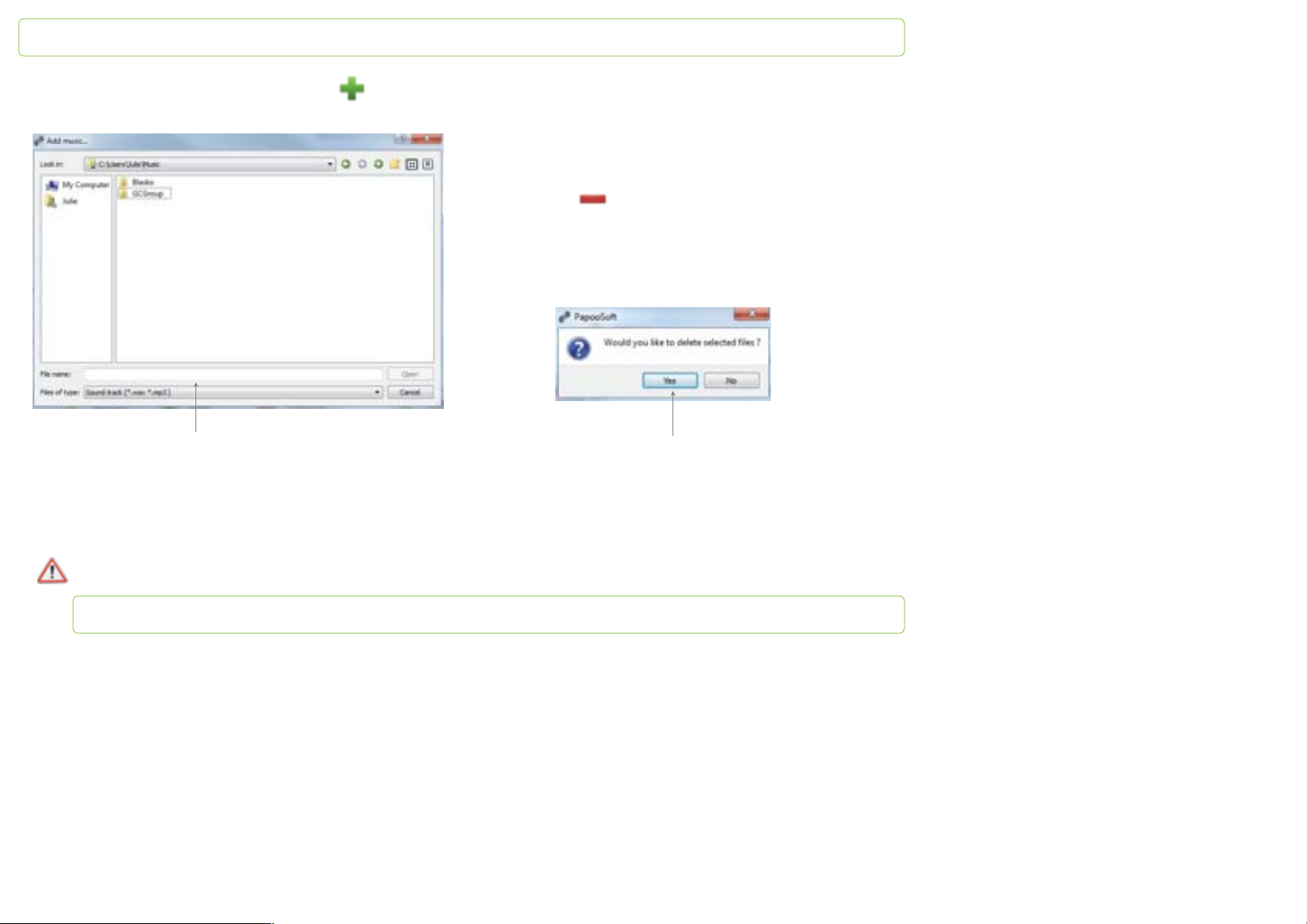
To add one or several songs click on this key
The following window opens:
To remove one or several songs from PapooTouch
Select the songs to be removed.
Click on
The following window appears ; the software asks if you
want to delete the selected files:
Browse for the song (where you filed
it), select it then click on « Open » on
the lower right part of the window.
Repeat this action as many time as needed.
Click on yes if you do
Page 51
PapooTouch
Video
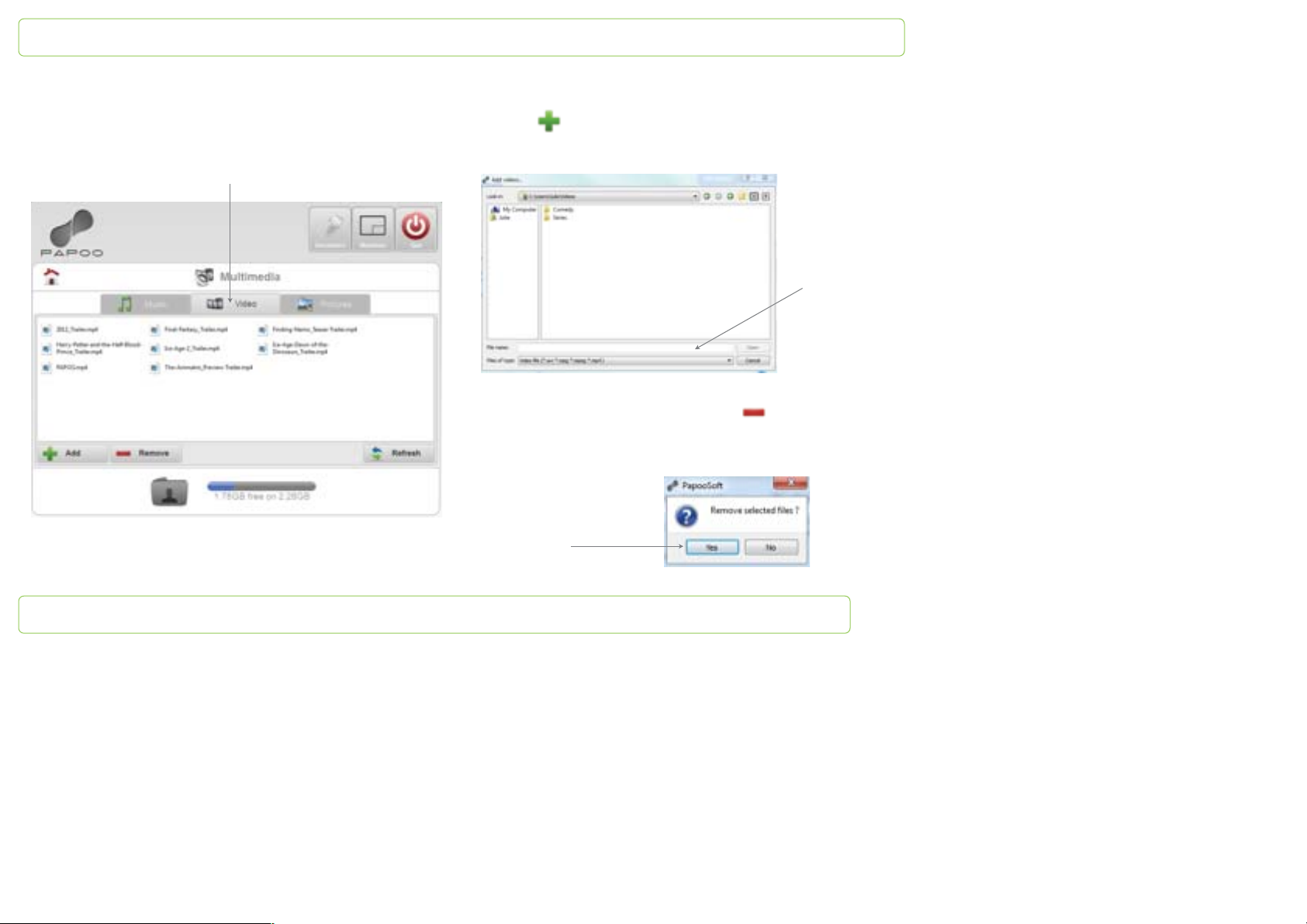
Click on the video tab:
To add one or several video
Click on
The following window opens:
Video tab
Browse for the
video (where
you filed it),
select it then
click on
« Open » on
the lower right
part of the
window.
To remove one or several songs from PapooTouch
Select the songs to be removed. Click on
The following window appears ; the software asks if you want to
delete the selected files:
Click on yes
if you do
Page 52
PapooTouch
Picture
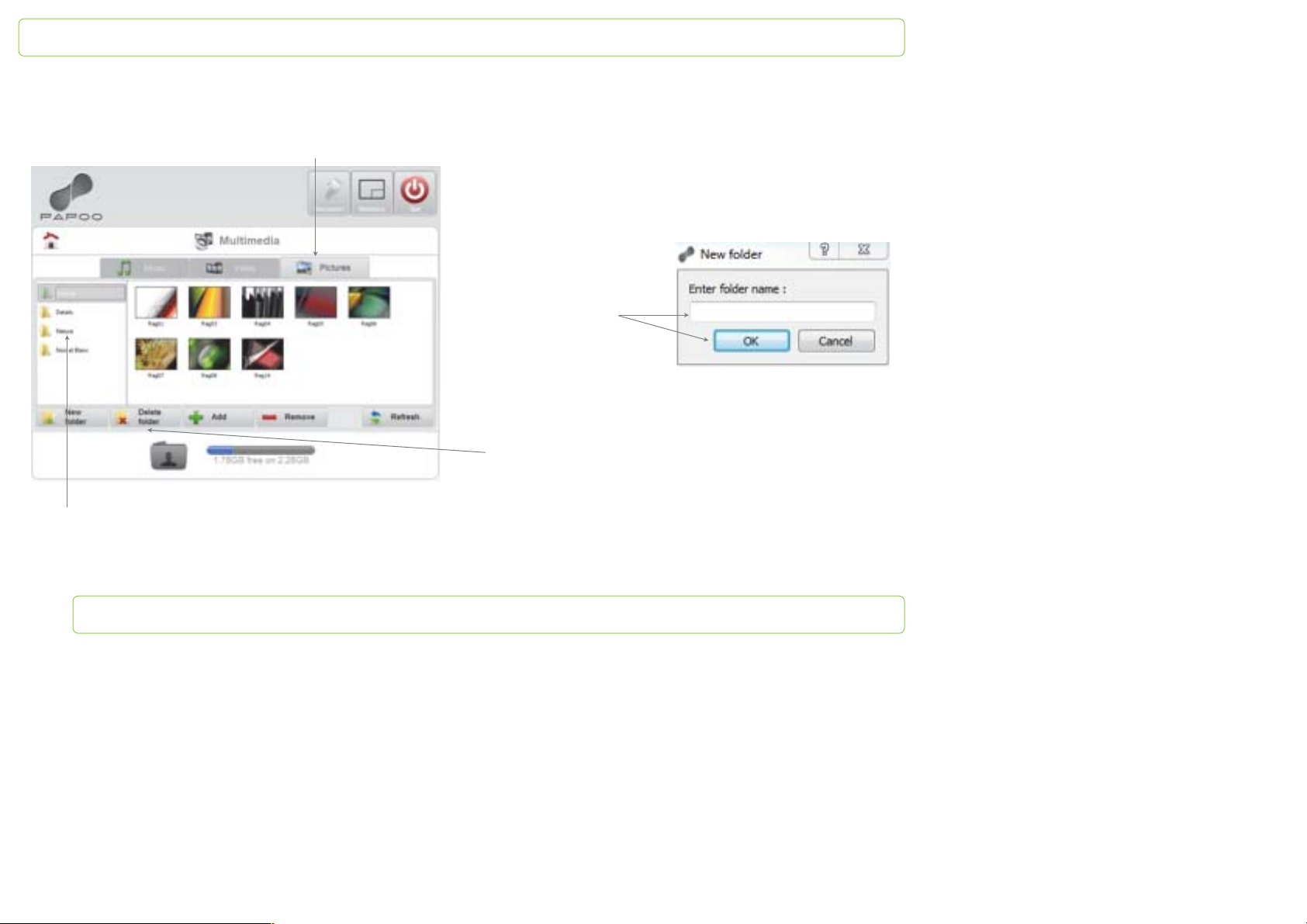
Click on the picture tab:
Picture tab
To create a new folder, click on "New folder" on the lower
left part of the screen.
The following window opens:
Type the name of the
folder and click on OK
Once the folder is created, it appears in the left column.
To delete a folder, select it and click on "Delete Folder".
Pictures are organized in folders
that you can create according to
your needs. The folders you’ve
created appear here
Page 53
PapooTouch
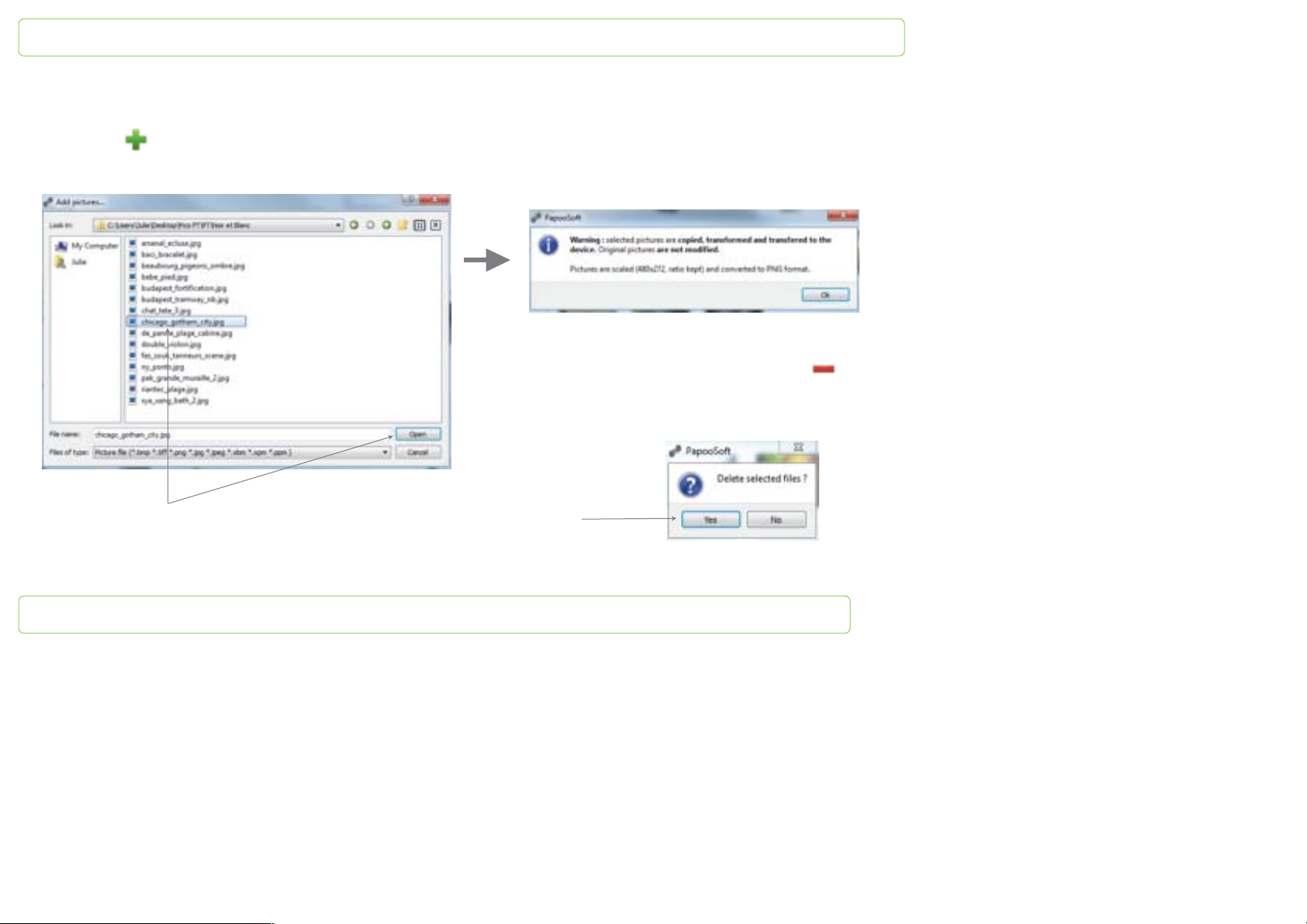
To add pictures
Select the folder in which you want to add the pictures.
Then, click on
The following window opens:
Browse for the picture (where
you filed it), select it then click
on « Open » on the lower right
part of the window.
The software warns you the picture will be resized.
Click on OK
To remove one or several pictures from PapooTouch:
Select the pictures to be deleted and click on
The following window opens:
Click on yes
if you do
Page 54
PapooTouch
Updates
Updates are often offered and enable you to:
- get the latest version of the software
- download new apps
The update proceeds in 2 times:
- first you tranfer updates into PapooTouch thanks to your computer and the software
- then, the transfered updates are automatically installed by PapooTouch once the transfer is over and once PapooTouch has
been disconnected from the computer.
Installing updates on the software
To install updates on your computer thanks to the software, click first on on the main menu.
Page 55
PapooTouch
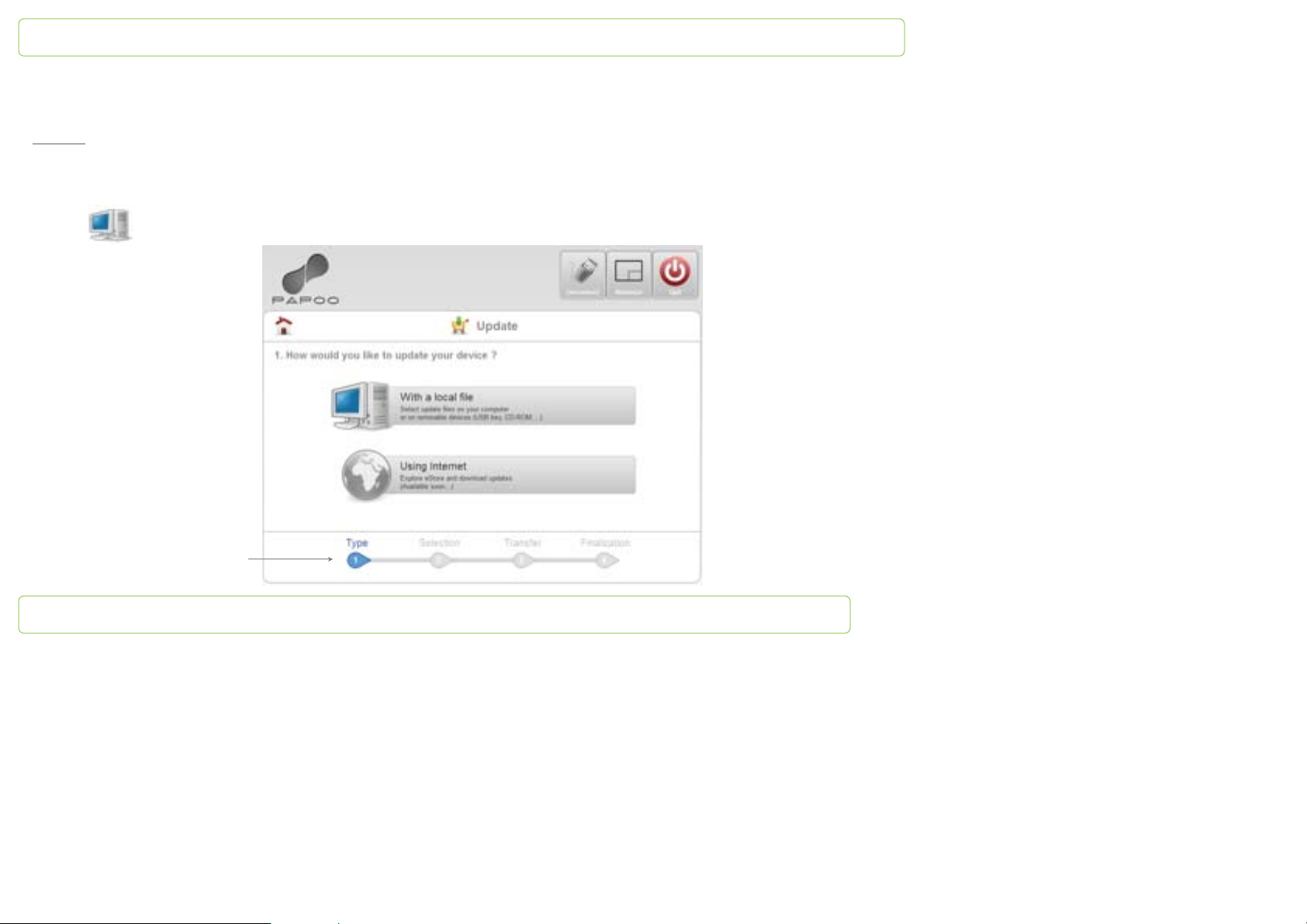
The following interface appears. You are going to follow the next steps:
1st step
For the moment, updates are only available from a local file. You can download them or you’re supplied with a CD or a USB flash
drive.
Click on and go to step 2.
Shows the ongoing update step "type"
– choose the type of source you want to use for the updates: a local file or Internet
Page 56
PapooTouch
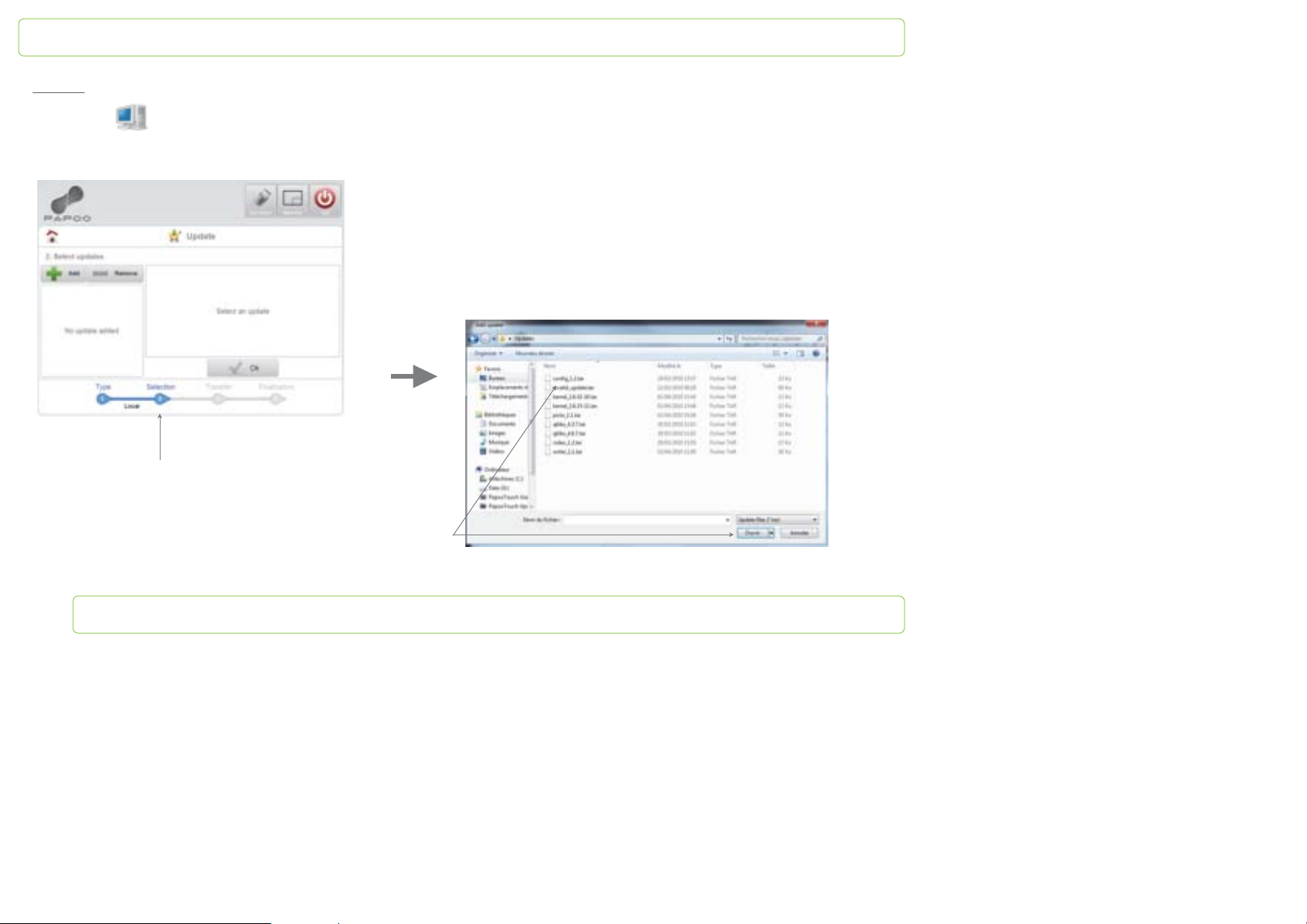
2nd step – select the updates you want to install into PapooTouch
Click on the icon to add an update. A window opens and enables you to browse for updates to be installed on your
computer. You’ve been supplied with this update by CD or USB flash drive.
The following window opens. You may not be directed to the update
folders you’ve created. In this case, browse for it from the scrolling
menu “Look in”.
Once you’ve found the correct file, click on the update you want to
apply. Here we take the example of config_1.2. Click on “Open”.
Shows the ongoing
update step "selection"
Click on the update to be
installed and click on open
Page 57
PapooTouch
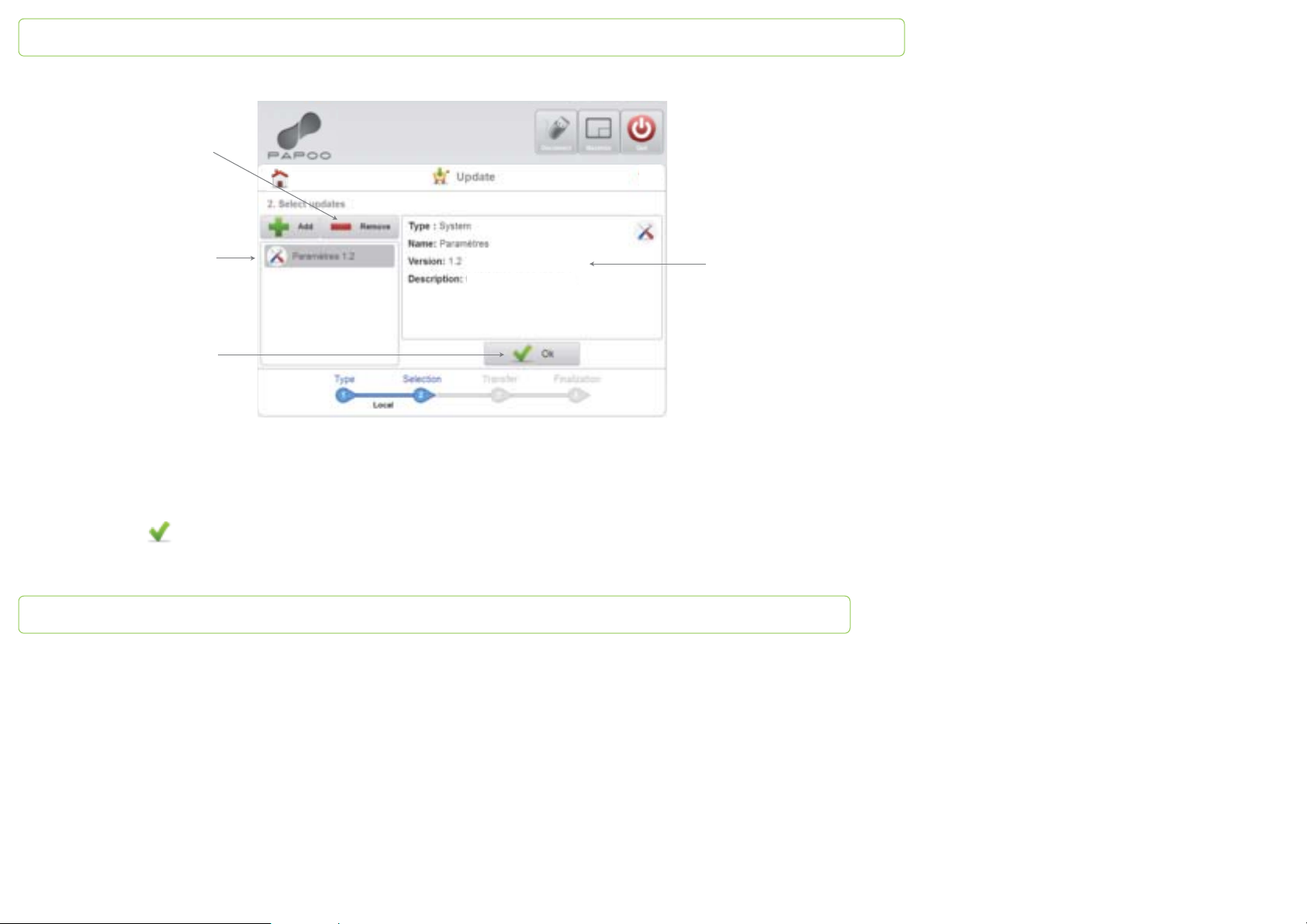
The following interface appears:
Click on "Remove" to
remove an update
Click on the update
(here Parameters 1.2) to
get information about it.
Once you've selected the
updates, click on OK
Set up the device
The information
appears here
This interface enables you to:
- get information on the apps you’re about to transfer by clicking on its name
- remove the selected app if you made a mistake and you don’t want to transfer this update anymore
Start transferring:
- click on the icon to do so. You can update several apps at the same time. In this case, use the add key as many times as
needed.
- once you’ve clicked on the OK key, you go to step 3
Page 58
PapooTouch
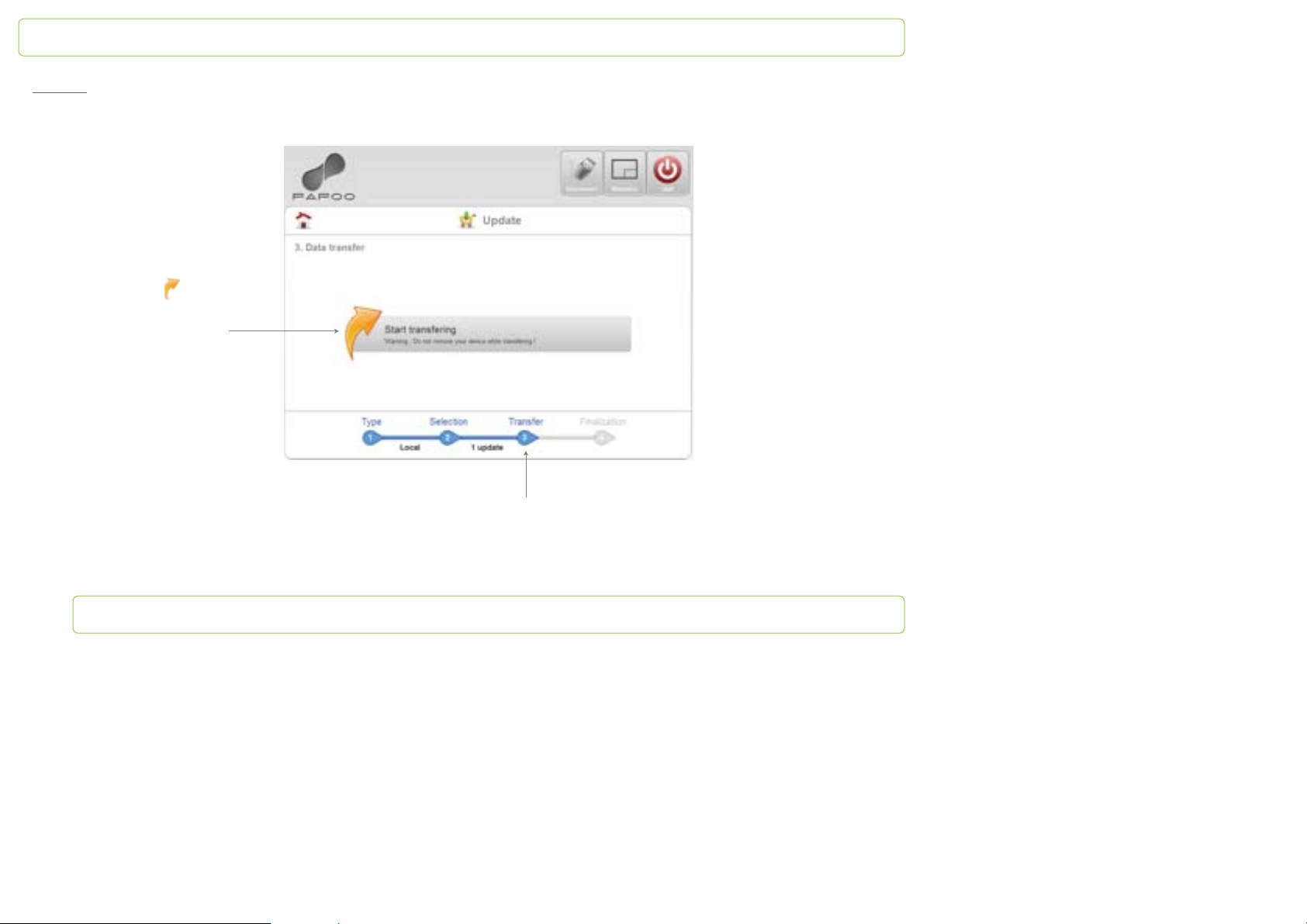
3rd step – transfer the data into PapooTouch
Click on to start
Do not unplug the
transferring data
device while
transferring!
Once you're done transferring data, you go to step 4
Shows the ongoing
update step "Transfer"
Page 59
PapooTouch
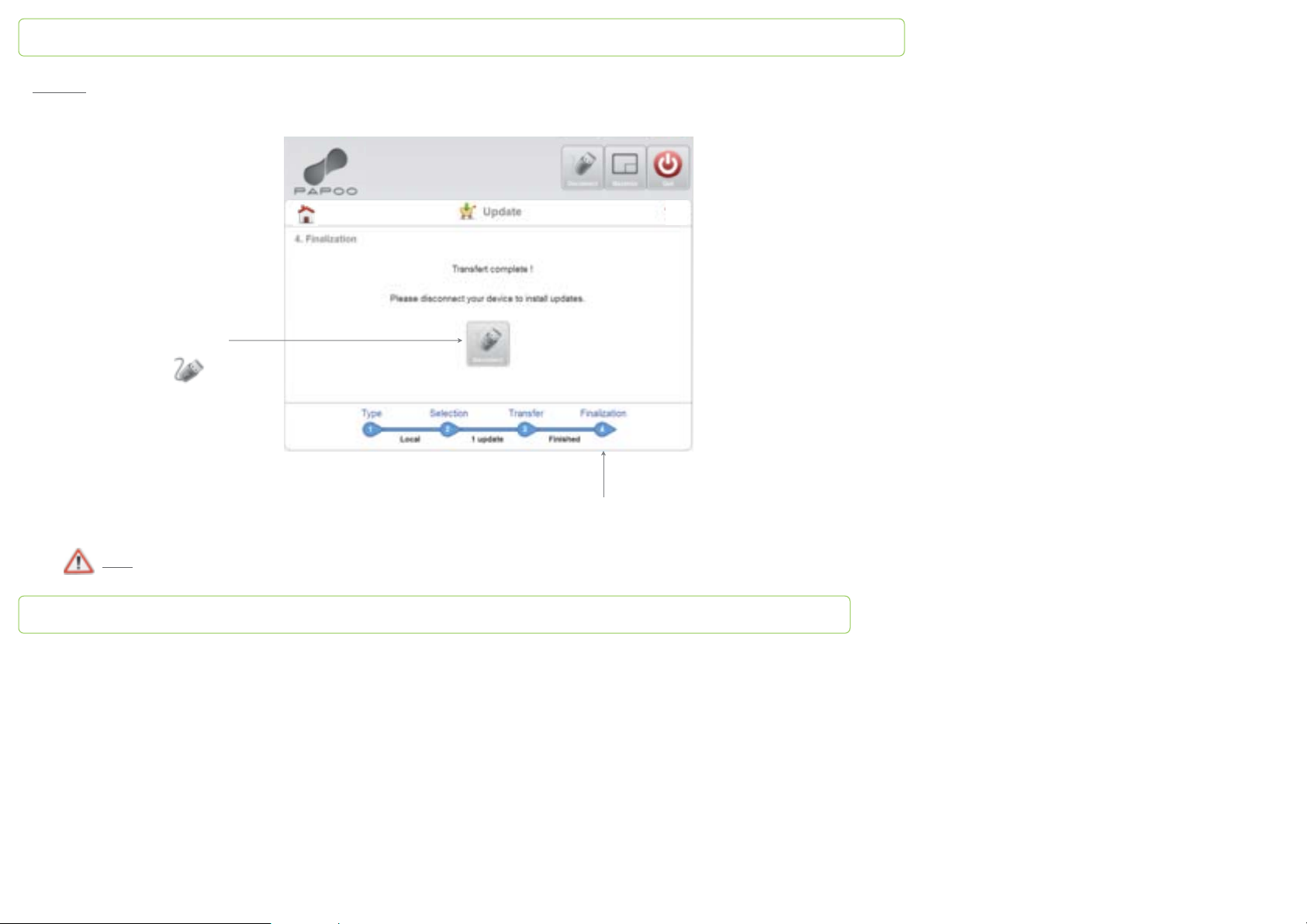
4th step - complete transferring data into PapooTouch
Transfer is over,
you can unplug the
device. Click on
Note: the updates keep on being installed on PapooTouch
Shows that updates
have been completed
Page 60
PapooTouch
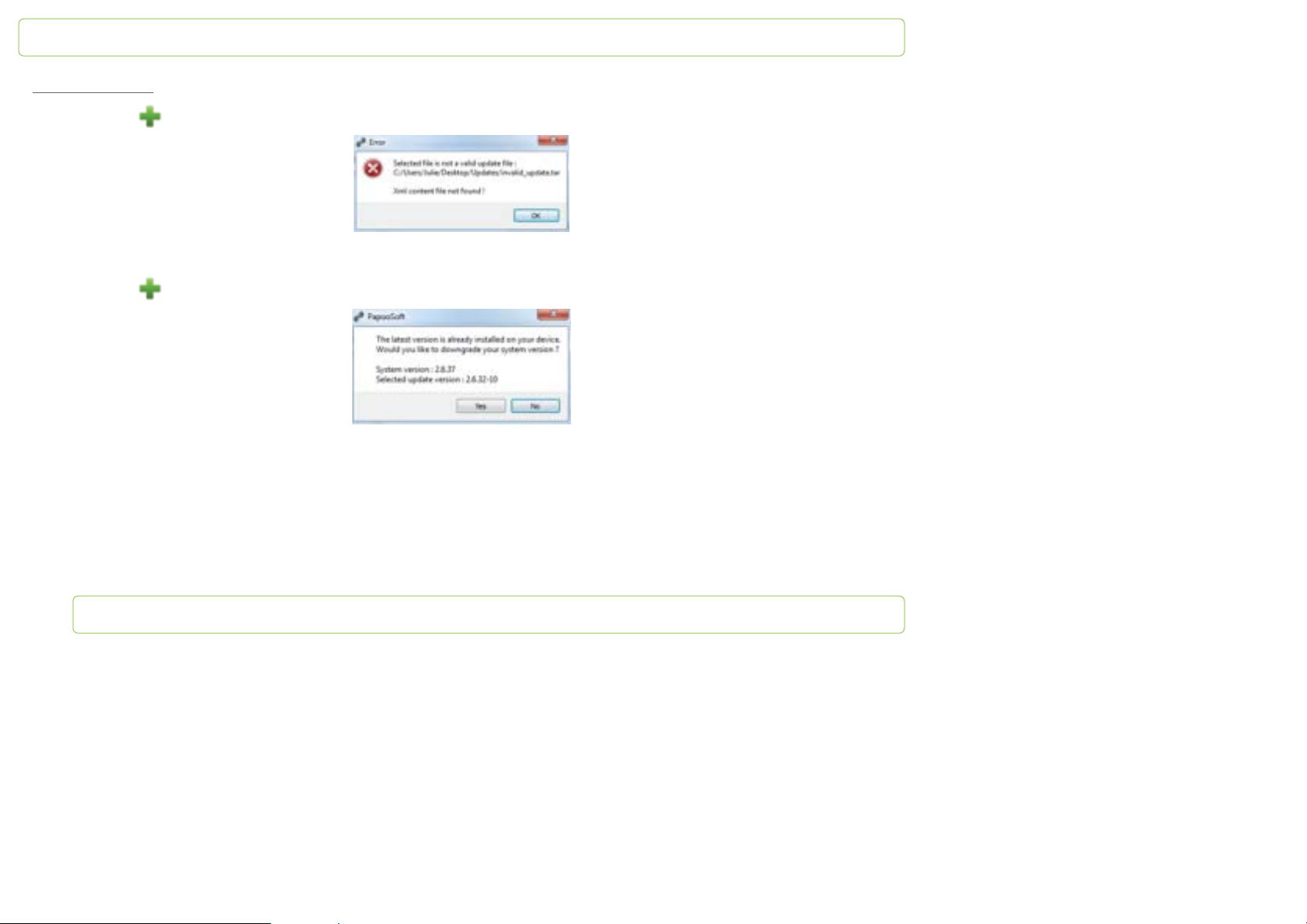
Exceptional cases
1 – you click on to browse for updates to install. You click on one update and you get the following message:
It means this update is an invalid update file. Choose another one.
2 – you click on to browse for updates to install. You click on one update and you get the following message:
The version you want to install is older than the one already installed on PapooTouch. You have 2 choices:
- you don’t want to install an older version. Click on No and select another update
- you want to install this older version, click on Yes. The update has been added to the updates list. It will downgrade
PapooTouch to an older version.
Then, the software will keep on transferring and completing the updates.
Page 61
PapooTouch
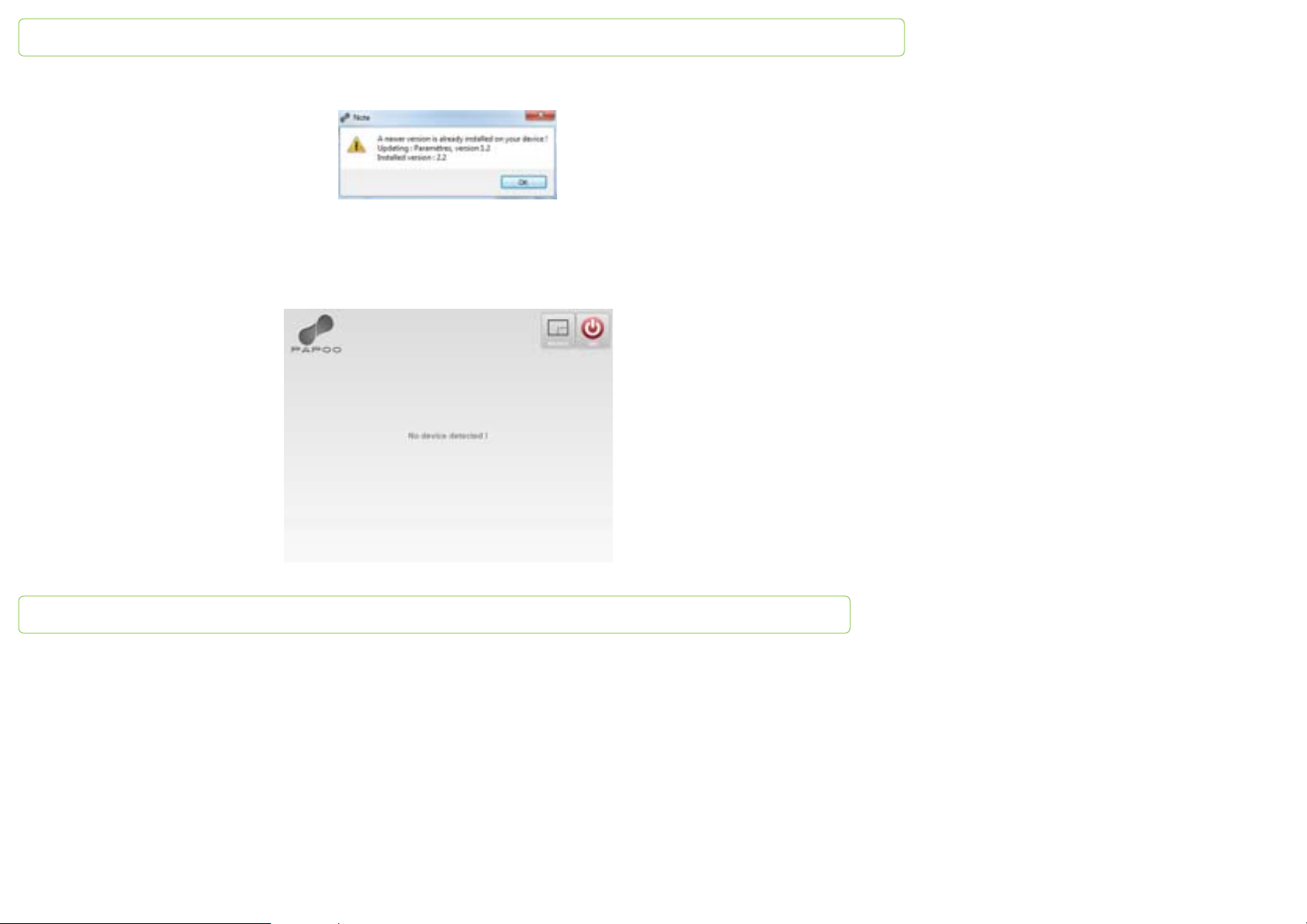
3 – PapooTouch warns you that a newer version is already installed. The following window opens. Click on OK:
4 – PapooTouch is not detected by the software. Be sure it is plugged in your computer. Unplug then plug it again. Try to plug it to
another USB port if the problem remains the same.
Page 62
PapooTouch
Technical questions related to PapooTouch use
I can’t switch my PapooTouch on
Solution:
1 - press 2 seconds the on/off button of PapooTouch
2 - if you still can’t switch it on, the battery may be discharged. You need to recharge your device.
To recharge your device refer to page 8 of this user guide.
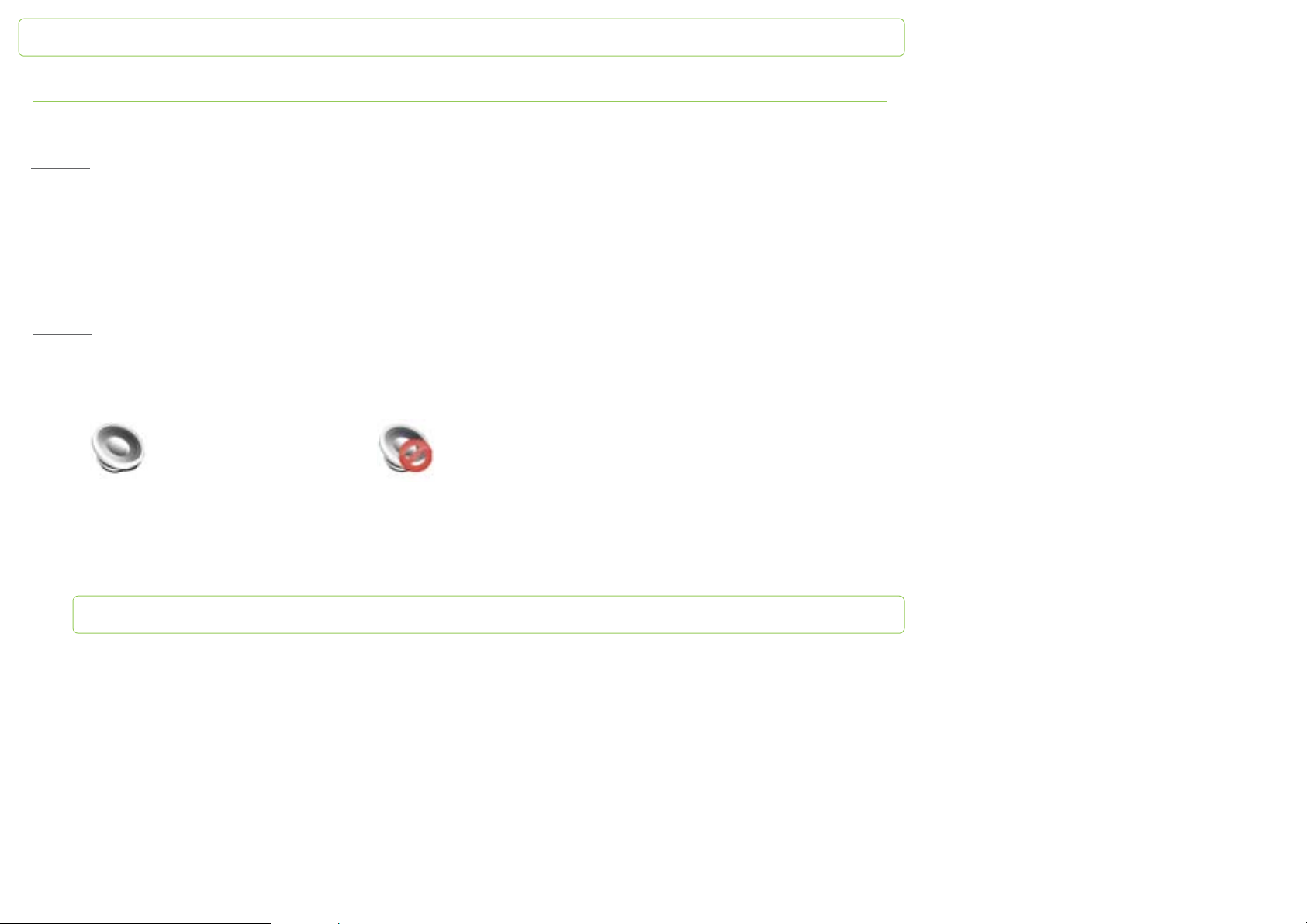
The PapooTouch doesn’t produce any sound
Solution:
Check that:
1 - the volume icon is actived, meaning the mute isn’t on.
Normal mode Mute mode
To learn how to access the volume control, please refer to the part “volume control” page 12 of this user guide.
Page 63
PapooTouch
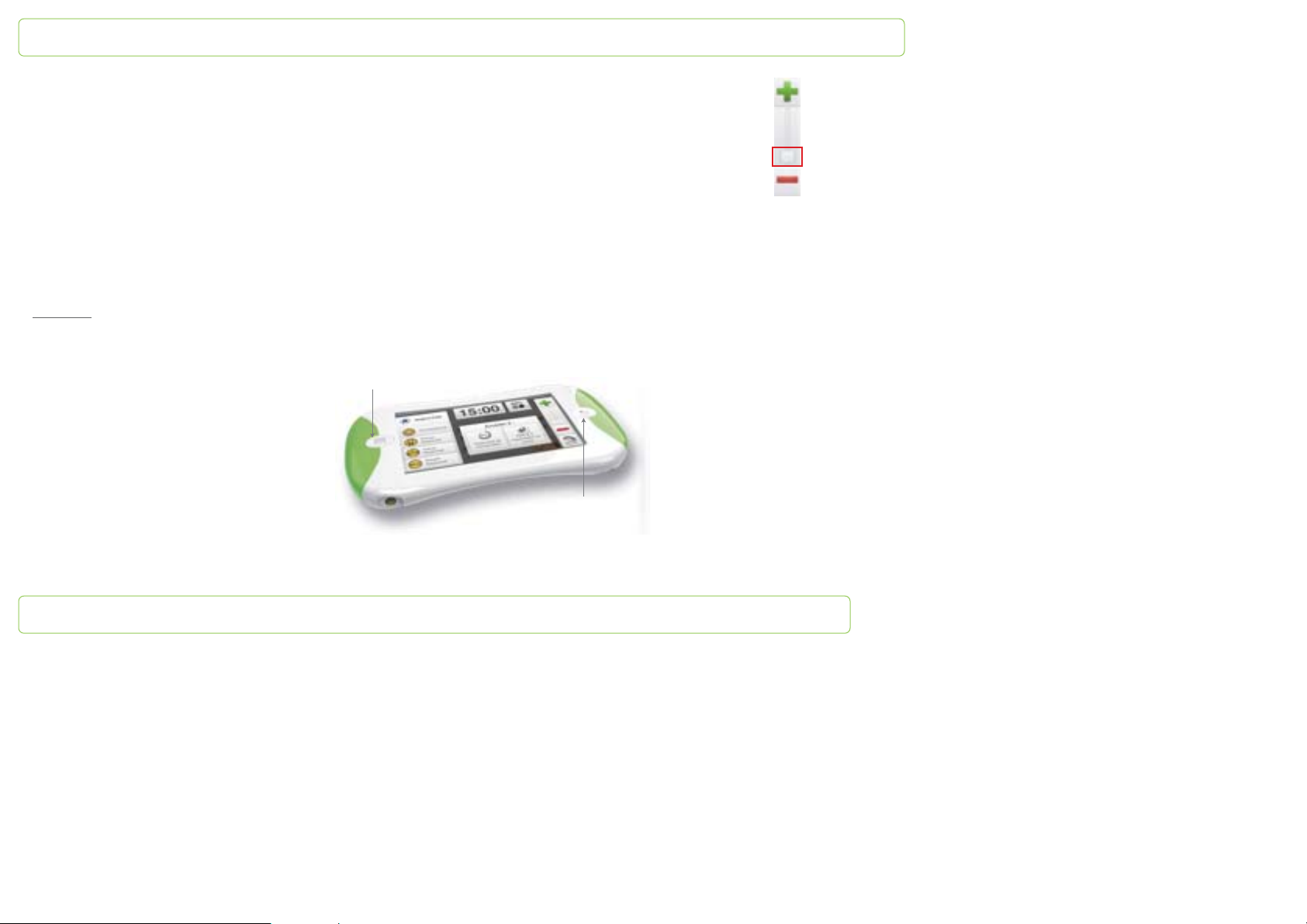
2 - the volume isn’t at the minimum, meaning that the grey square isn’t on the bottom of the volume controller
To learn how to increase PapooTouch volume, please refer to the part “volume control” page 12 of the user guide.
3 - in the audio settings, the ouput isn’t set on “Earphones” but on “Speakers”
The screen of PapooTouch is all black
Solution:
1 - PapooTouch may be in a standby mode: press one of the front buttons or touch the screen to wake it up.
Left button
2 - PapooTouch may be switched off: press the on/off to switch it on.
Right button
Page 64
PapooTouch
3 - PapooTouch may be running out of battery if the previous solutions don’t work. Try to charge it.
To learn how to charge PapooTouch, please refer to the part “Charge the battery” page 8 of the user guide.
When I switch on PapooTouch, the screen remains black
Solution:
Be sure that PapooTouch is charged enough to be switched on.
If the problem remains, please contact directly the reseller.
When I touch the screen, messages aren’t vocalized
Solution:
Check that:
1 - volume hasn’t been decreased to minimum (refer to p.12).
2 - PapooTouch isn’t in a mute mode:
Mute mode
If the problem remains, please contact directly your reseller.
Page 65
PapooTouch
When I switch PapooTouch on it remains frozen on the black screen with the logo. What can I do?
Solution:
Contact your reseller.
How do I come back to the previous screen?
Solution:
To come back to the previous screen, press the right button.
How do I access the history menu?
Solution:
To learn how to access the History, please refer to the part “History/Favorites” page 21 of the user guide.
How do I access the apps options?
Solution:
To learn how to access the apps options, please refer to the part “Access the options panel” page 12 of the user guide.
I don’t succeed in filling the messages into the Favorites categories. How can I do?
Solution:
To learn how to file the messages into the Favorites categories, please refer to the part “Favorites” page 22 of the user
guide.
Page 66

PapooTouch
How do I delete the message from the History?
Solution:
Please refer to the part “History/Favorites” page 22 of the user guide.
Can I change the color of the stars in the Favorites?
Solution:
No, the color of the stars can’t be changed.
However, you can choose which messages you want to file into these categories.
To learn how to file the messages into the Favorites, please refer to the part “History/Favorites” page 22 of the user guide.
Can I add or change pictograms?
Solution:
Yes, you can. When you create grids thanks to The Grid 2 on your computer, you can:
- use icons from the databases offered with The Grid 2 (PCS, Bliss...)
- choose your own pictures tu use as pictograms
When I tap the vocalization key, nothing happens, my message isn’t vocalized.
Solution:
1 – be sure that the text box isn’t empty.
2 – if you’re using the words prediction feature, be sure you taped the word you choose on the scrolling list.
Page 67
PapooTouch
I typed too much on the eraser key and the whole message has been erased. Can I find it somewhere?
Solution:
1 – if the message has been vocalized, you’ll find it in the History.
2 – if you only typed the text without vocalizing it, you must retype it.
How can I transfer videos, pictures and songs into PapooTouch?
Solution:
To learn how to transfer songs, videos and pictures into PapooTouch, please refer to page 49 of this user guide.
I want to use one of my own pictures as wallpaper. Is it possible?
Solution:
No, the wallpaper can’t be customized.
Can I watch a movie or listen to the music, then pause it to communicate with someone?
Solution:
Yes, you can.
To learn how to do so, please refer to the “Videos” part page 26 of this user guide.
Page 68
PapooTouch
Technical features
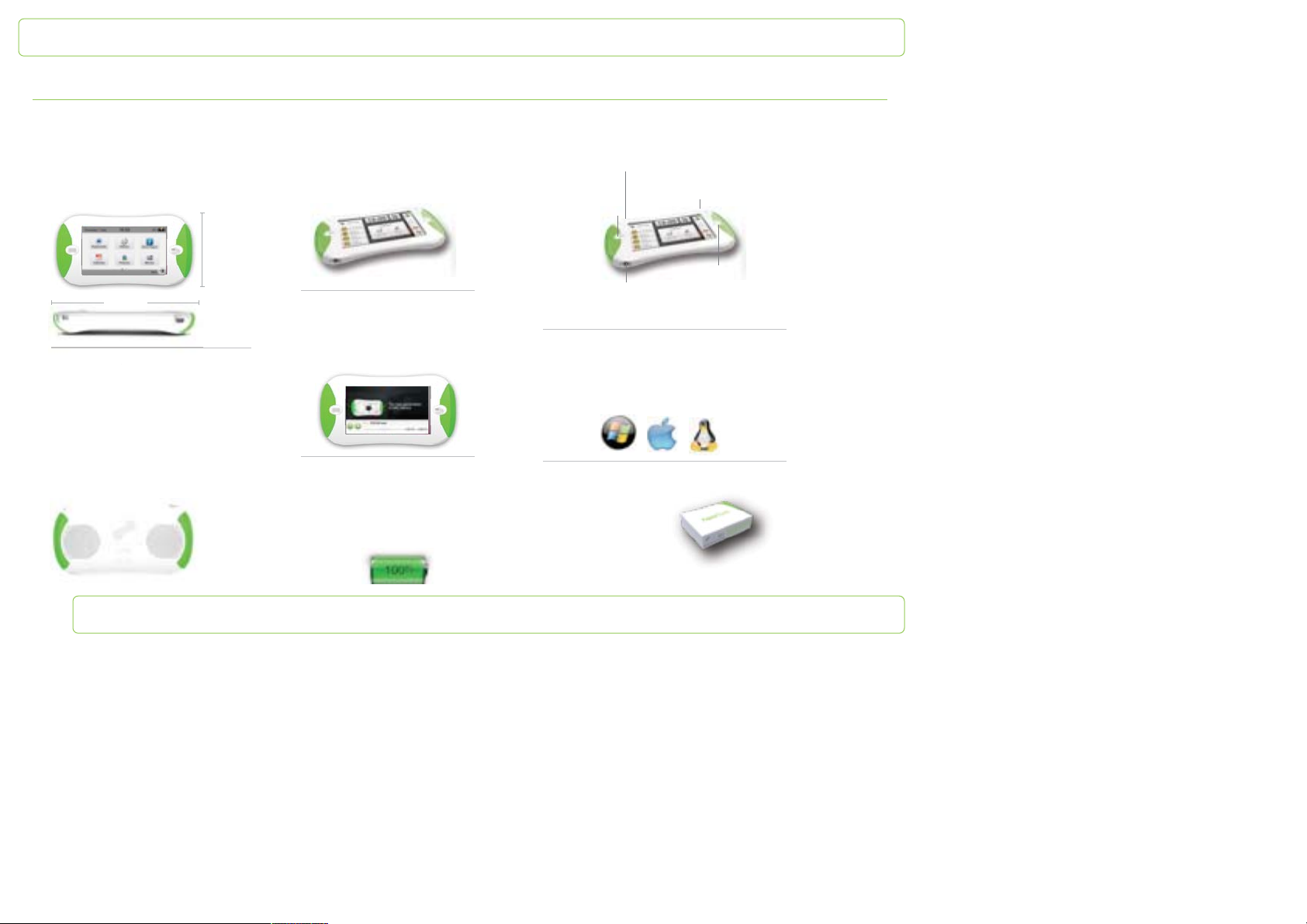
Dimensions and weight
Height : 155 mm
Width : 81,5 mm
Depth : 26,8 mm
Weight : 140 g
155 mm
Accoustics
i
Built-in speakers
Outreach 25 mm
Sound directed to the speaker
High quality text to speech
Man or woman voice
Perfectly intelligible
Respects the intonation
81,5 mm
Ergonomic
Usable with 1 or 2 hands
Comfortable and intuitive use
Lightweight
Easy handling
Display
Panoramic Touch screen 4.3’’
Resolution 480x272 pixels
16 million colors
Power
Built-in rechargeable lithium-ion battery
Charge through the mini USB port
Up to 3 hours of speech time
Standby autonomy: up to 48 hours
Connectors and buttons
Mini USB : Charging, PC connection
On/Off
Left button
Right button
Jack 3,5 mm :
stereo headphones
Computer Configuration
PC with Windows, Mac or Linux
PC equiped with a 2.0 USB port
No installation required
Package Content
PapooTouch
Neckcord
Safety guide
USB cable
Page 69

PapooTouch
Technical Safety
The PapooTouch hardware and software is in accordance with the Medical Devices Directive, 93/42/EEC.
The PapooTouch hardware and software has been designed to comply with the relevant sections of EN 12182:1999, Technical aids for
disabled persons – General requirements and test methods.
The PapooTouch hardware and software is in accordance with the following standards:
EN 12182:1999, Technical aids for disabled persons – General requirements and test methods
- IEC/EN 60601-1:1990/A1:1993/A2:1995/A3:1996, Electrical Safety
- IEC/EN 60601-1-2:2007, Electromagnetic Compatibility
- EN 55022:2007 /A1:2008, EMC Emission
- EN 55024:1999 /A1:3003 /A2:2003, EMC Immunity, product standard
• IEC/EN 61000-4-2 ESD
• IEC/EN 61000-4-3 RF Field
• IEC/EN 61000-4-8 Power Frequency magnetic field
- FCC part 15, Class B
- EN ISO 14971:2009/A1:2003, Risk Analysis
For the system to meet the electrical safety requirements of EN 60601-1, an EN 60601-1 compatible power supply must be used to
supply power to recharge the battery of the device.
Contact you reseller to order an EN 60601-1 compatible power supply for your device.
Page 70

PapooTouch
Safety Instructions
Risk of hearing loss: when the device is playing a sound and the speakers volume is set to its maximum, do not bring the device close to
one's ear.
Data loss may occur in the following cases:
- unplugging the USB data cable from the device or the computer, while the device is connected to a computer and data transfer is
running;
- electronic memory failure. We do not provide guarantee on data integrity stored on the user memory;
- no more battery;
- electronical failure;
Loss or deterioration of function may occur in the following cases:
- no more battery;
- electronical failure;
Liquids can cause damages on the device:
- do not spill liquid on any parts of the device (for example, coffee or soft drinks). If a device is exposed to water or other liquids,
corrosion—an irreversible deterioration or degradation of materials—may result. This may cause the device to malfunction.
Cleaning up: the device can be cleaned up by using a dry, or slightly wet, tissue.
Specifications
Product's environmental requirements:
- operating: temperature +5°C to +40°C and relative humidity 5-85%
- storage: temperature -5°C to +45°C and relative humidity 5-95%
- transportation: temperature -40°C to +70°C and 95% humidity (up to 30 degrees) as well as free fall from 1.2 meter height (in
shipping box).
Input power supplied through USB cable: continuous input current must be limited to 1A Maximum at 5V.
Page 71

Page 72
PapooTouch
Declaration of Conformity
This equipment has been tested and found to comply with the limits for a Class B digital device, pursuant to part 15 of the FCC Rules
and Medical Devices Directive 93/42/EEC, and with the relevant sections of EN 12182:1999.
PapooTouch is for use in office and home environments, and can be used outside.
PapooTouch device is CE-marked, indicating conformity with the essential health and safety requirements set out in European
Directives.
 Loading...