

Page 1
GoWatch 770 GPS Sportwatch
Page 2
This product is ANT+™ certified.
Visit www.thisisant.com/directory
for a list of compatible products and apps.
Page 3
4 繁體中文
22 简体中文
40 ENGLISH
Page 4
40
1
3
2
4
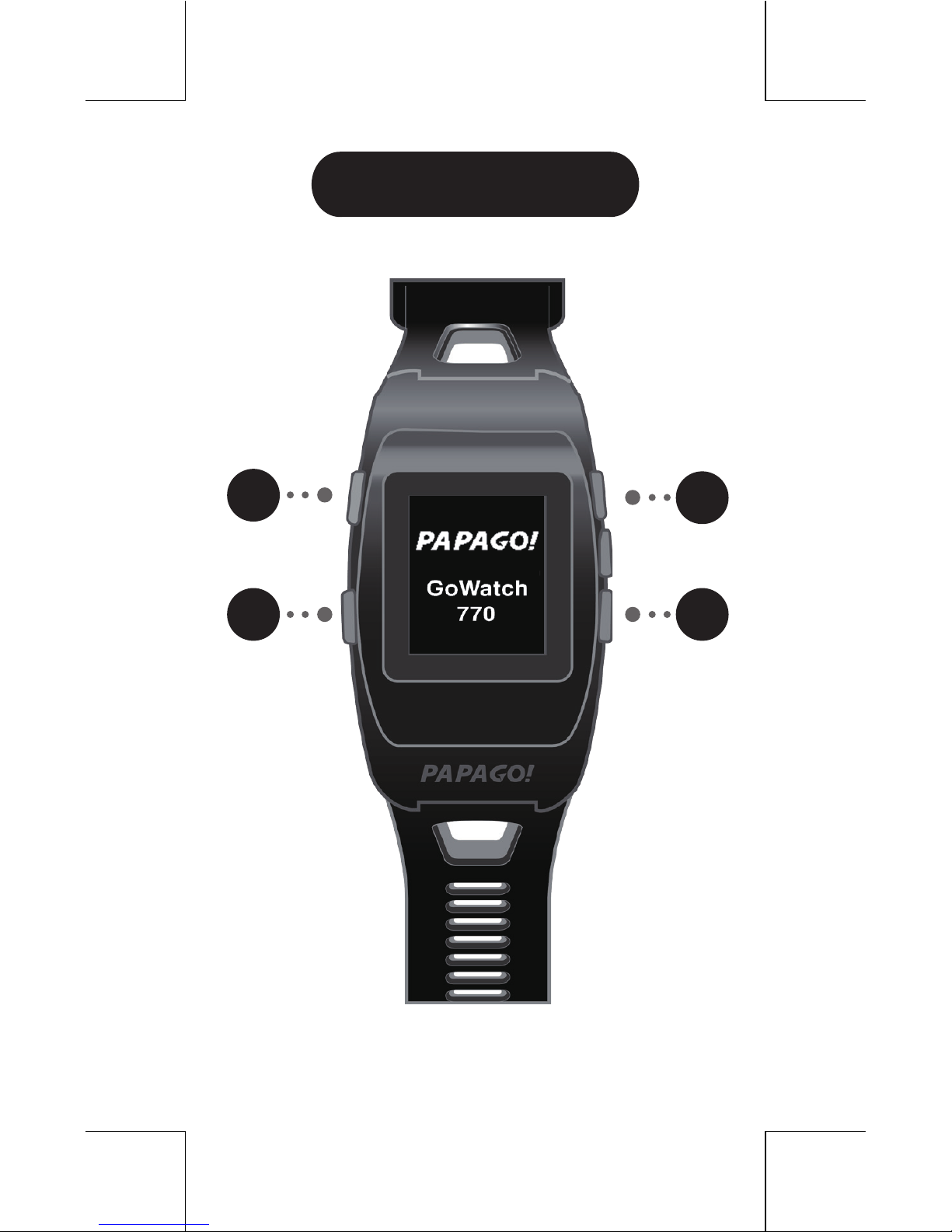
Buttons
Page 5
41
Mode/Power
Up/Down
- Press to switch modes:
watch mode/ activity mode / setting
mode.
- Press and hold the button to turn the
device on/off.
- As you are running, toggle through
different pages of activity information.
- In setting mode, review different options.
2
3
OK/Start/Pause
- As you are running, press to start/pause
your activity.
- In setting mode, press to select an option.
4
- Press to mark laps as you are running.
While paused, press to save your activity.
- In setting mode, press to go back one
page or cancel an option.
Lap/Back
1
Page 6
Welcome to Your
GoWatch 770 Sport Watch!
To get started, please go through the
following steps:
1. To facilitate GPS, make sure you are
outside.
2. Set up user profile.
3. Choose measurement units.
4. Select your time zone.
5. Read user manual.
42
Launch GoWatch 770
Page 7
43
Charge Battery
- Charge the battery 2 hours before first
usage.
- Please send the device back to factory if
the battery is broken.
- OEM battery is strongly recommended.
Please do not use replacement battery.
Please deal with scrap battery according
to local laws.
Connect and Upload
1. Please download
GoWatch 770 Sport
Watch software from
run.goyourlife.com to your computer.
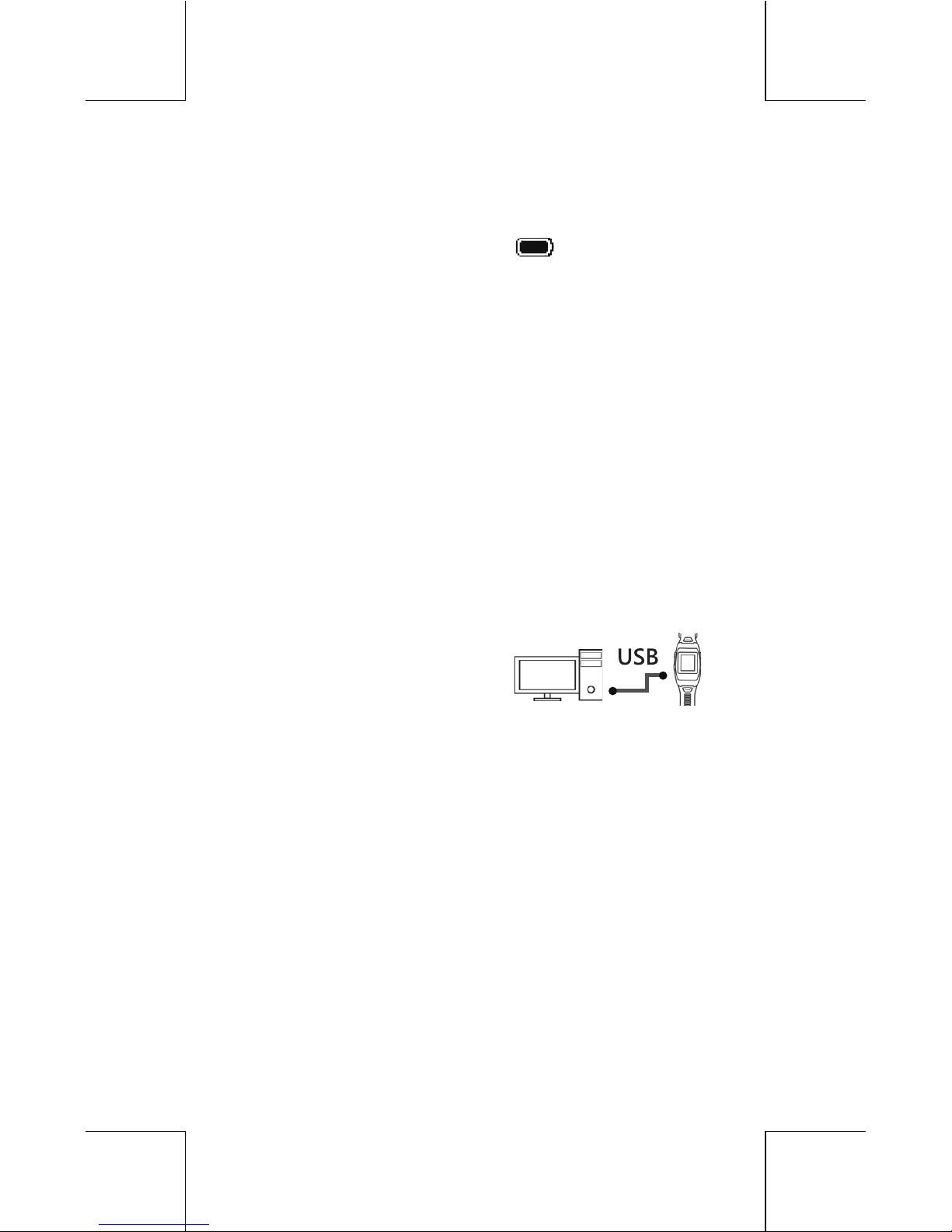
2. Plug your watch into USB holder, and
connect USB holder with your computer.
- Press power/mode/down buttons
together to reset the device. However,
unsaved activity may be lost. Please
don't do it unless necessary.
Reset
Page 8
44
Watch Mode
Page 9

45
Set Time Zone / Daylight
Saving Time
- Go to [Setting] -> [Time Setting], select
your time zone and daylight saving time.
Set Clock
- If you don't use the device for a long
time, please adjust the clock by:
1. Using GPS.
2. Connecting to your computer.
- GoWatch 770 functions as a
normal watch while not recording
any activity. You can also switch to
watch mode manually by selecting
the mode. The device goes to watch
mode automatically when it is on
standby for a while.
Watch Mode
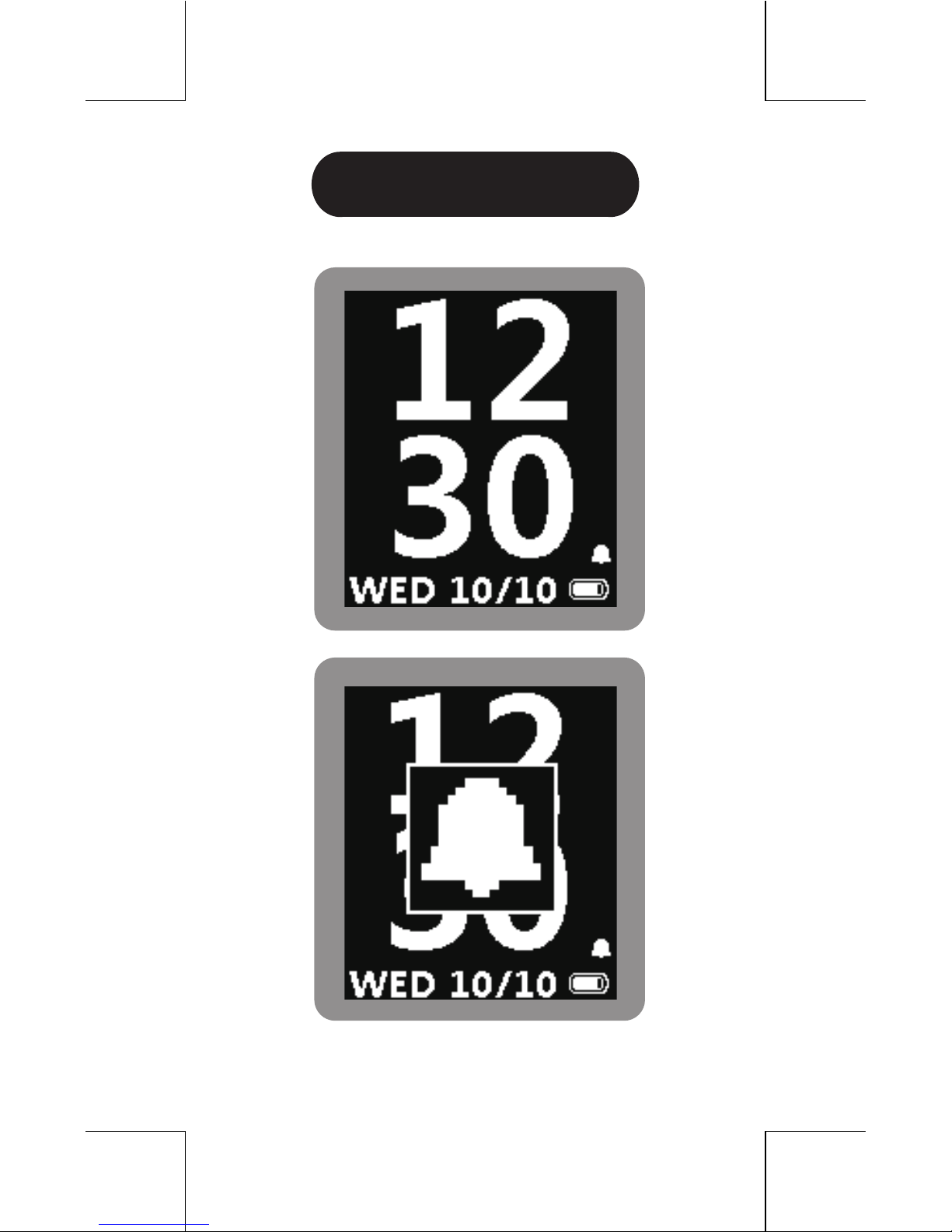
Set Alarm Clock
- Go to [Setting] -> [Alarm], set
frequency and time of your alarm clock.
Page 10
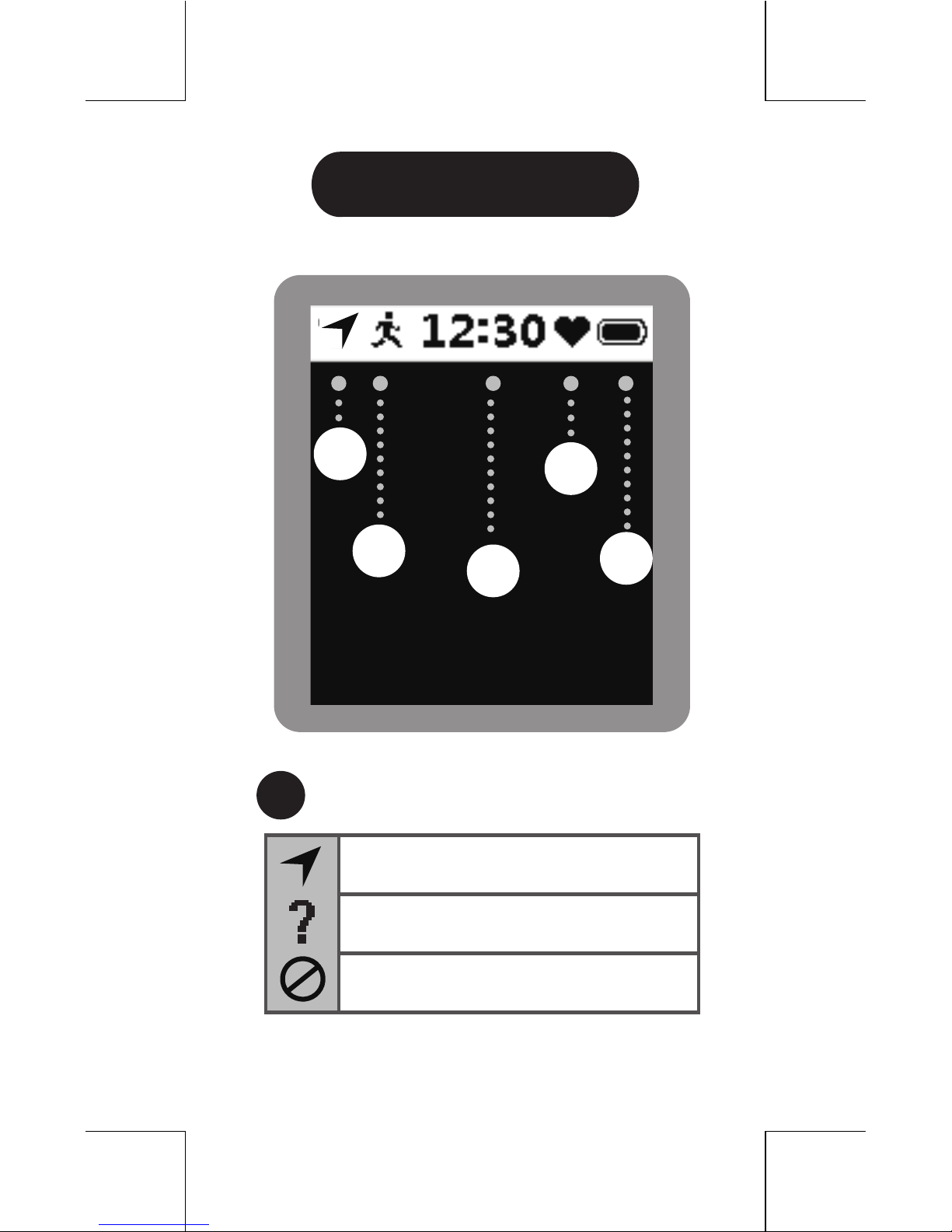
Status Bar
GPS OK
No GPS
GPS off
GPS Status
1
46
1
4
2
3
5
Page 11
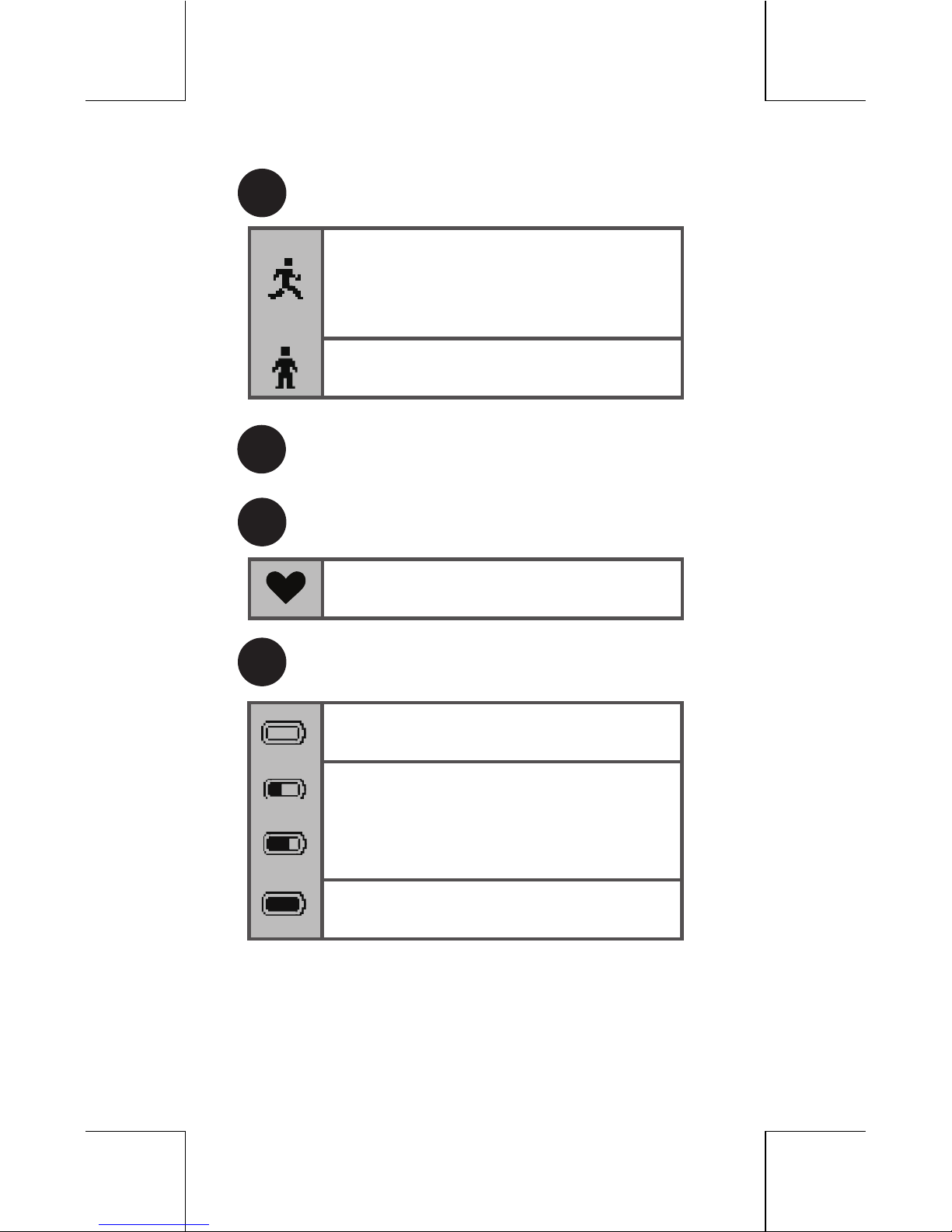
Heart rate monitor connected
Low battery
Battery Remaining
Percentage
Battery full
Heart Rate Monitor
Battery
2
4
5
47
3
Now
Recording
( Varies according to
activity type)
Paused
Activity Status
Page 12
48
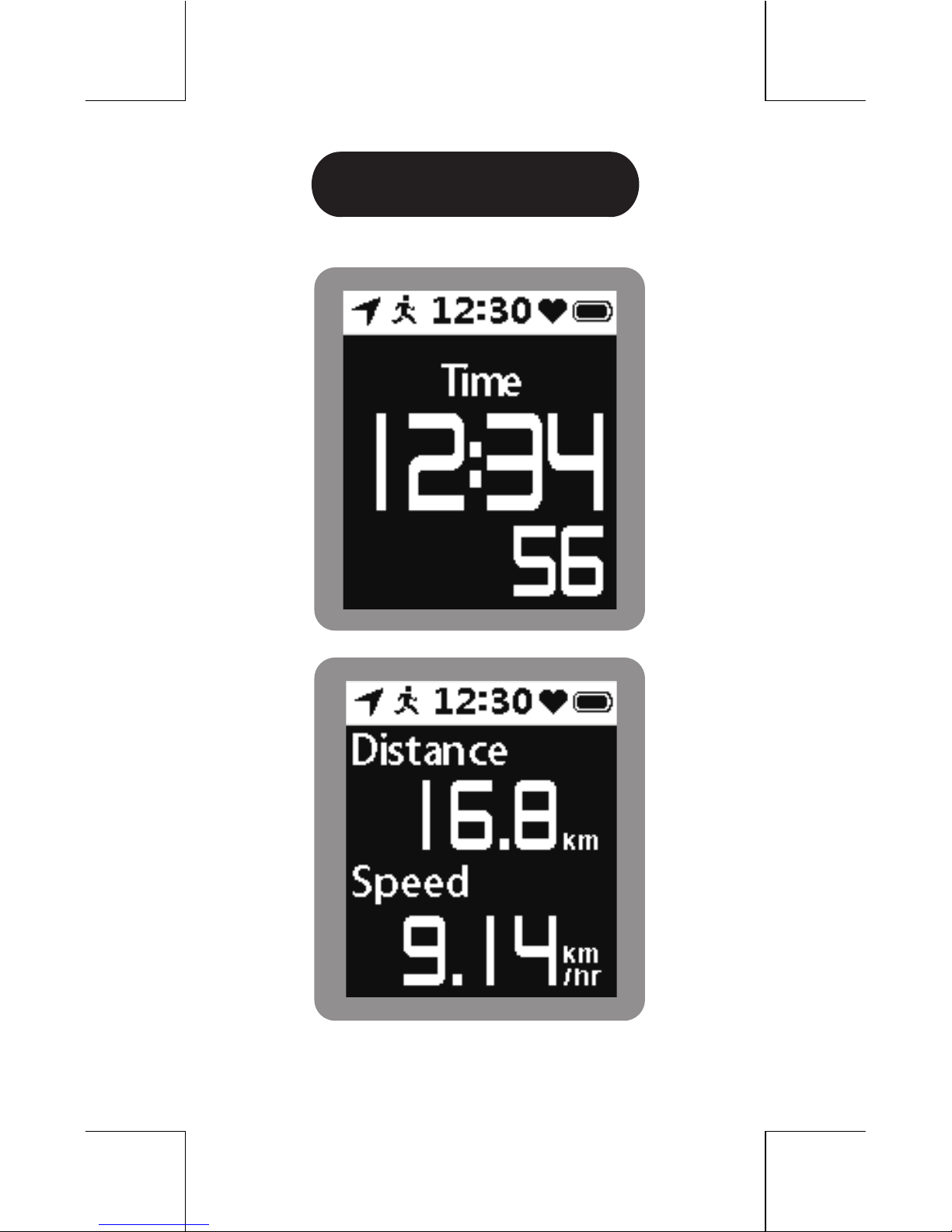
Activity Mode
Page 13

49
Page and Layout Settings
- There are 4 pages to display activity
facts. Go to [Setting] -> [Page Setting]
to set pages and layouts.
Auto Pause
- Turn on/off auto pause from
[Activity] -> [Setting] -> [Auto Pause].
[When Stopped] and [Custom Speed]
are available options. Recording will be
restarted automatically as you resume
the speed.
Indoor Activity
- If you start an activity with no
GPS, system will ask you to confirm
whether it is an indoor activity.
- Press OK to start/pause recording.
- While paused, press lap button to
save activity and reset statistics.
Start/Pause/Save Activity
Page 14
50
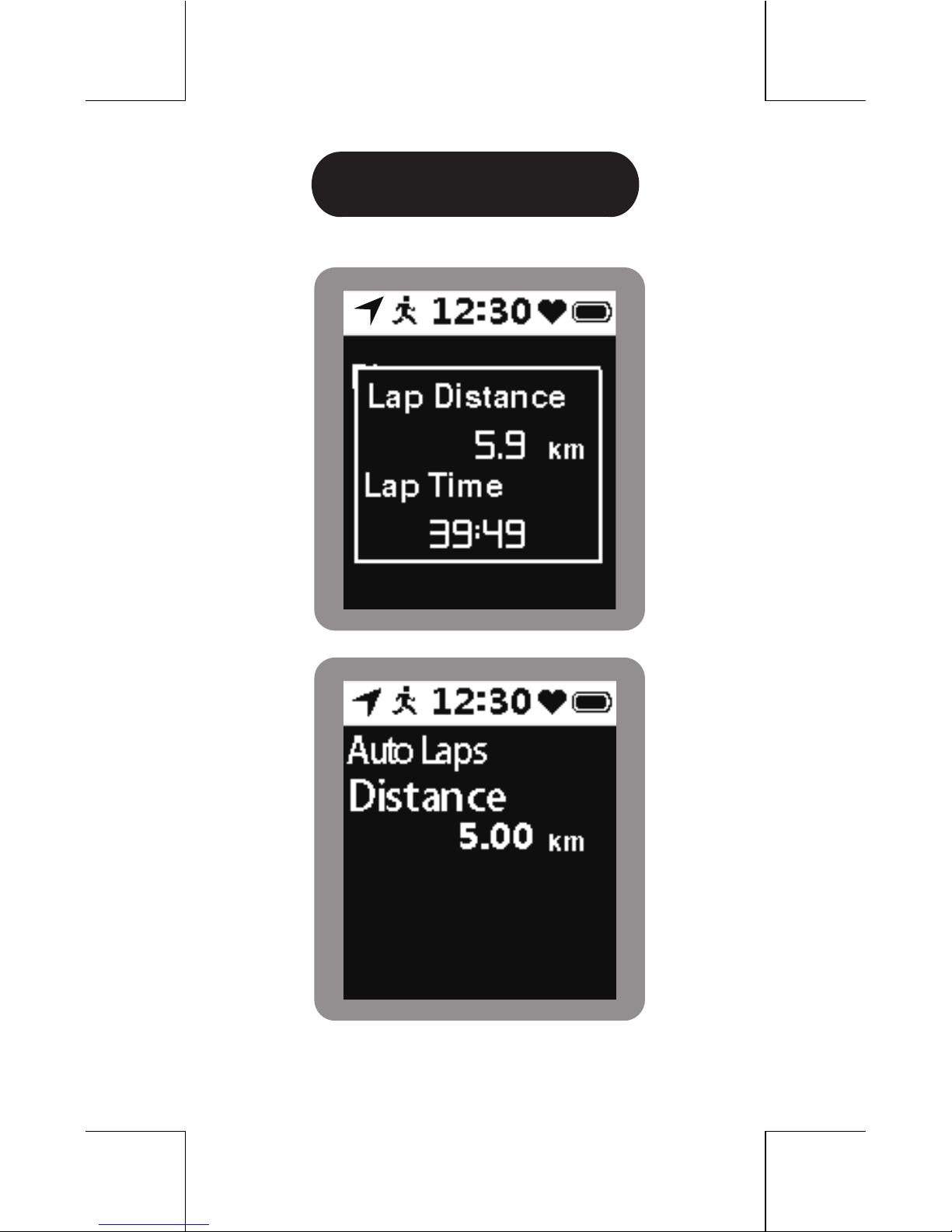
Laps
Page 15

51
Auto Laps
- GoWatch 770 can automatically mark
your laps based on time or distance
(i.e. every 10 minutes or every 5 miles).
- Change settings from [Activity] ->
[Setting] -> [Auto Lap].
Review Activities and Lap
Information
- Browse history and laps from
[Activity] -> [History].
Delete all activities and laps from
[Activity] -> [Delete All]; Or delete a
single activity when reviewing it.
Lap Information Settings
- Select what lap information to
display from [Setting] -> [Page
Setting] -> [Set Lap Page].
-While running, press lap button to
mark laps.
Laps
Page 16
52
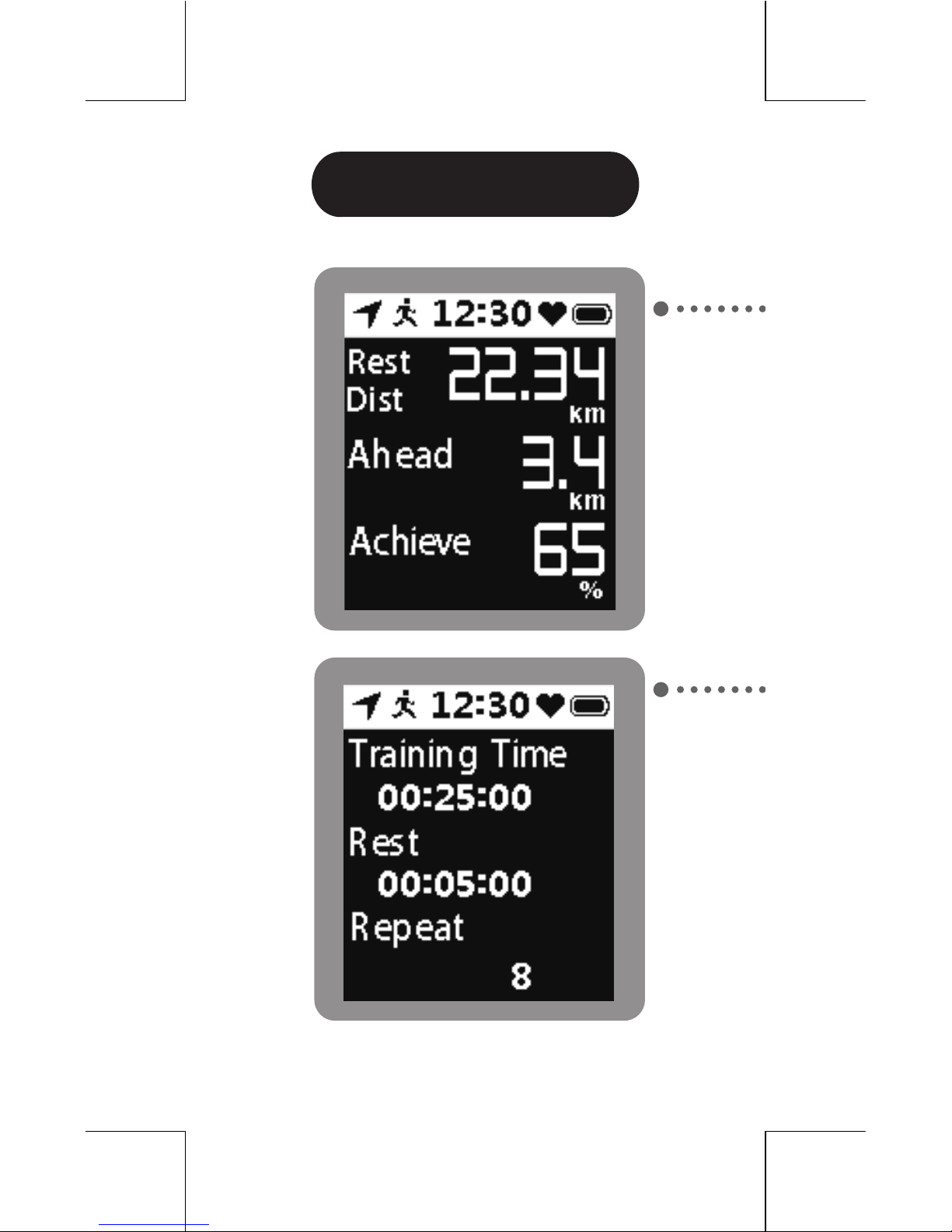
Training
Page 17
53
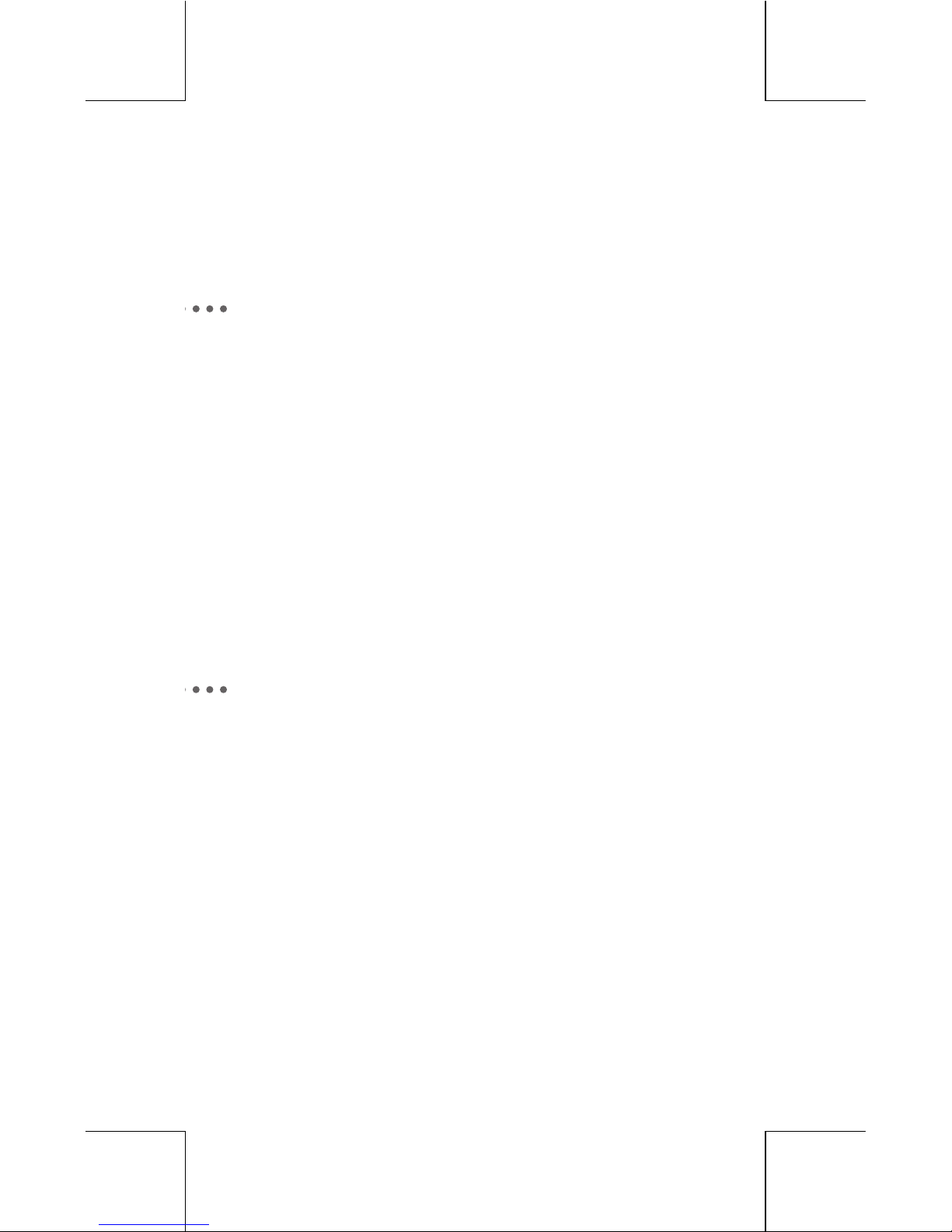
Multi Sports
- GoWatch 770 MultiSports helps you
carry out intermittent training.
- Set up MultiSports from [GYM] ->
[MultiSports].
- GoWatch 770 virtual trainer helps
you set up training goals easily. You
can browse expected training speed,
time, and actual training status
timely.
- Please set up trainer from [GYM] ->
[Trainer].
Trainer
Page 18
54
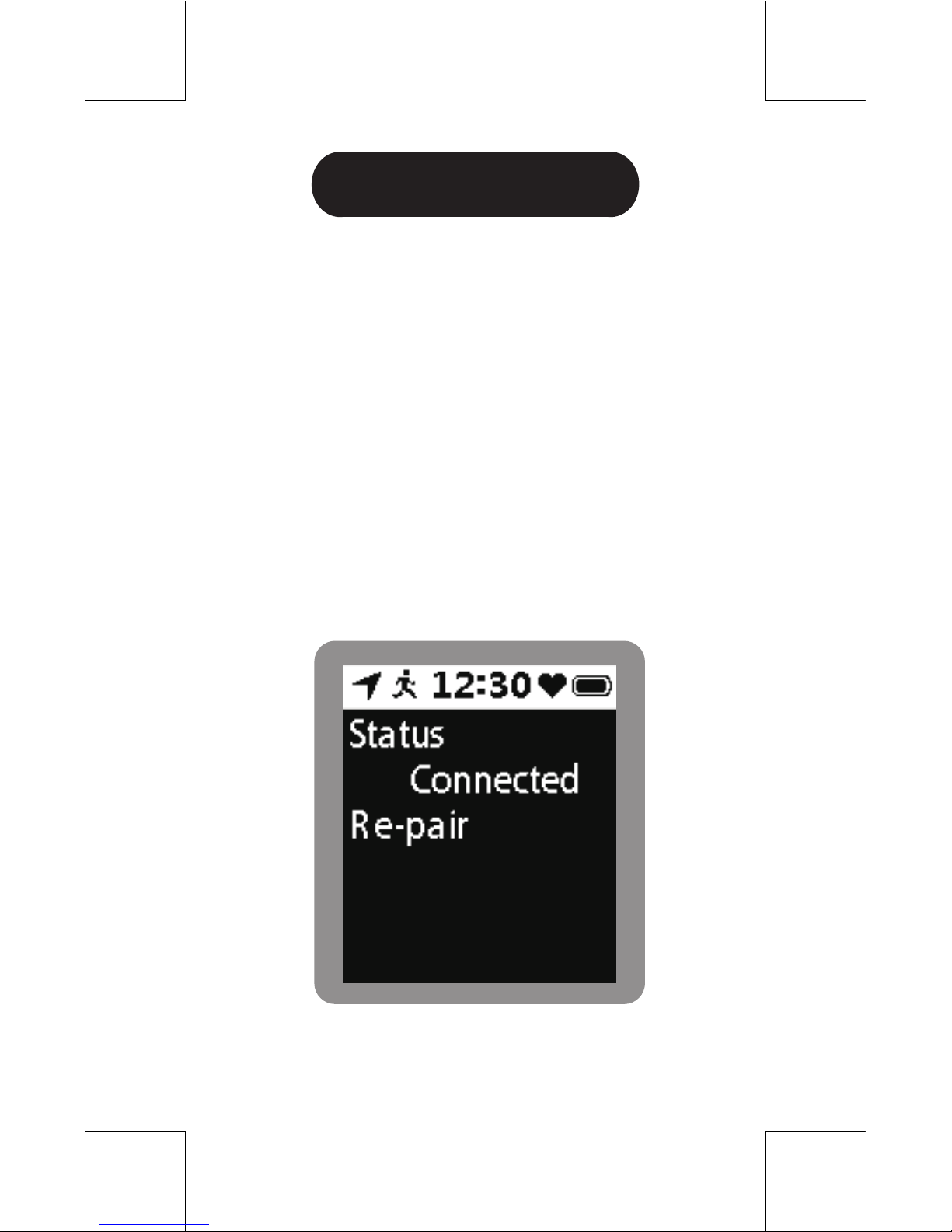
- GoWatch 770 automatically
remembers and pairs with the last
heart rate monitor you used. You can
check the paired device from [Setting]
-> [H.R.M Sensor].
- To pair with another heart rate
monitor, please press re-pair to
change device.
Connecting to
Heart Rate Monitor
Paired with
Heart Rate Monitor
Page 19
55
Sound
- Choose tones of button presses
and notifications from [Setting] ->
[Sound].
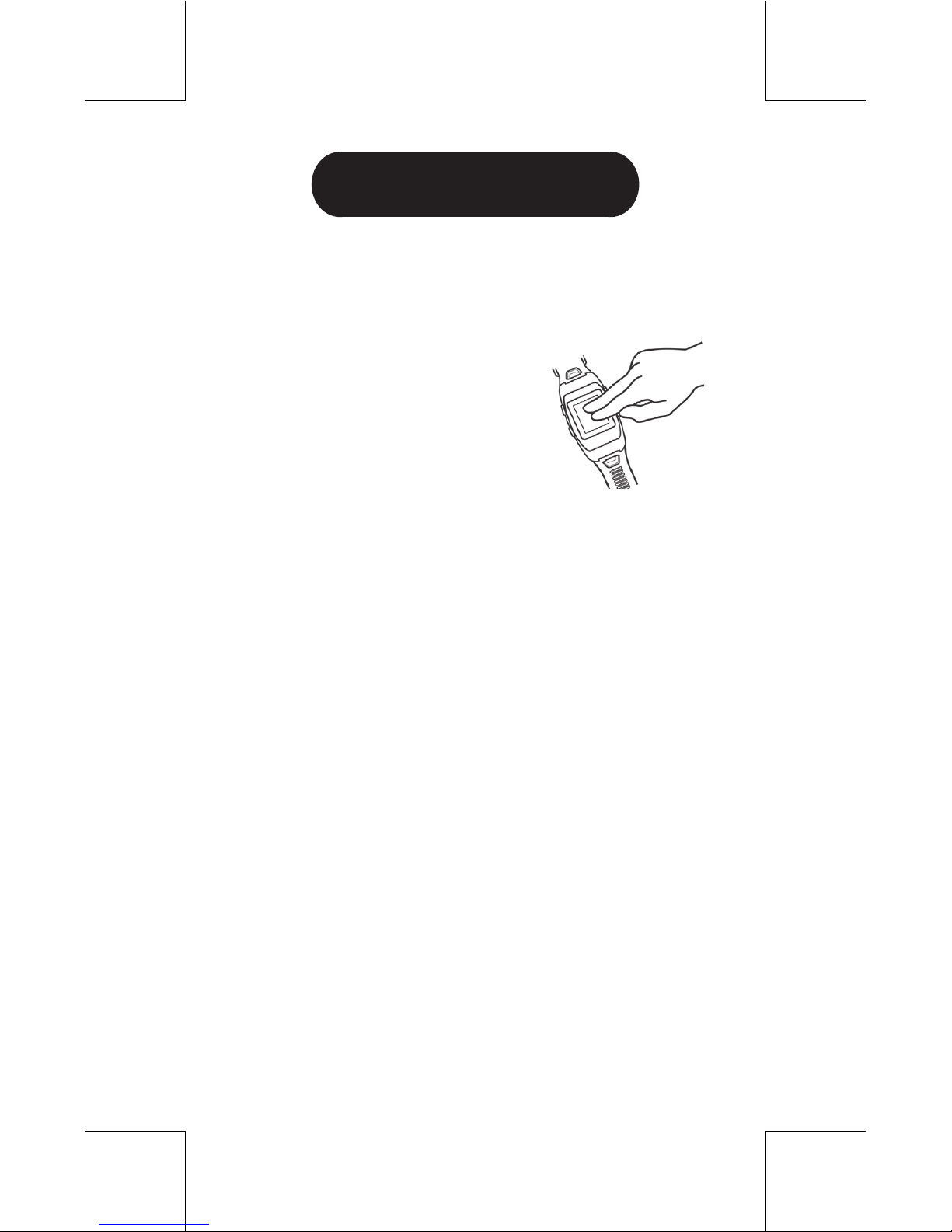
Backlight
- Set up backlight from [Setting] ->
[Display] -> [Backlight On].
- Tap the screen twice,
the backlight will be lit.
- The backlight will be
automatically off after
the device is on standby
for 5 seconds.
Turn On/Off Backlight
Other Functions
Page 20
56
Product Information
Reset to Factory Settings
- Check out serial number and firmware
version from [Setting] -> [About].
- Go to [Setting] -> [Factory Reset] to
reset all settings back to defaults. All
activity records will be cleared as well.
- Check out GPS status from [Setting]
-> [GPS Setting].
- Turn off GPS from [Setting] -> [GPS
Setting]. GPS status on status bar will
be adjusted as well.
GPS Status
Other Functions
Page 21
57
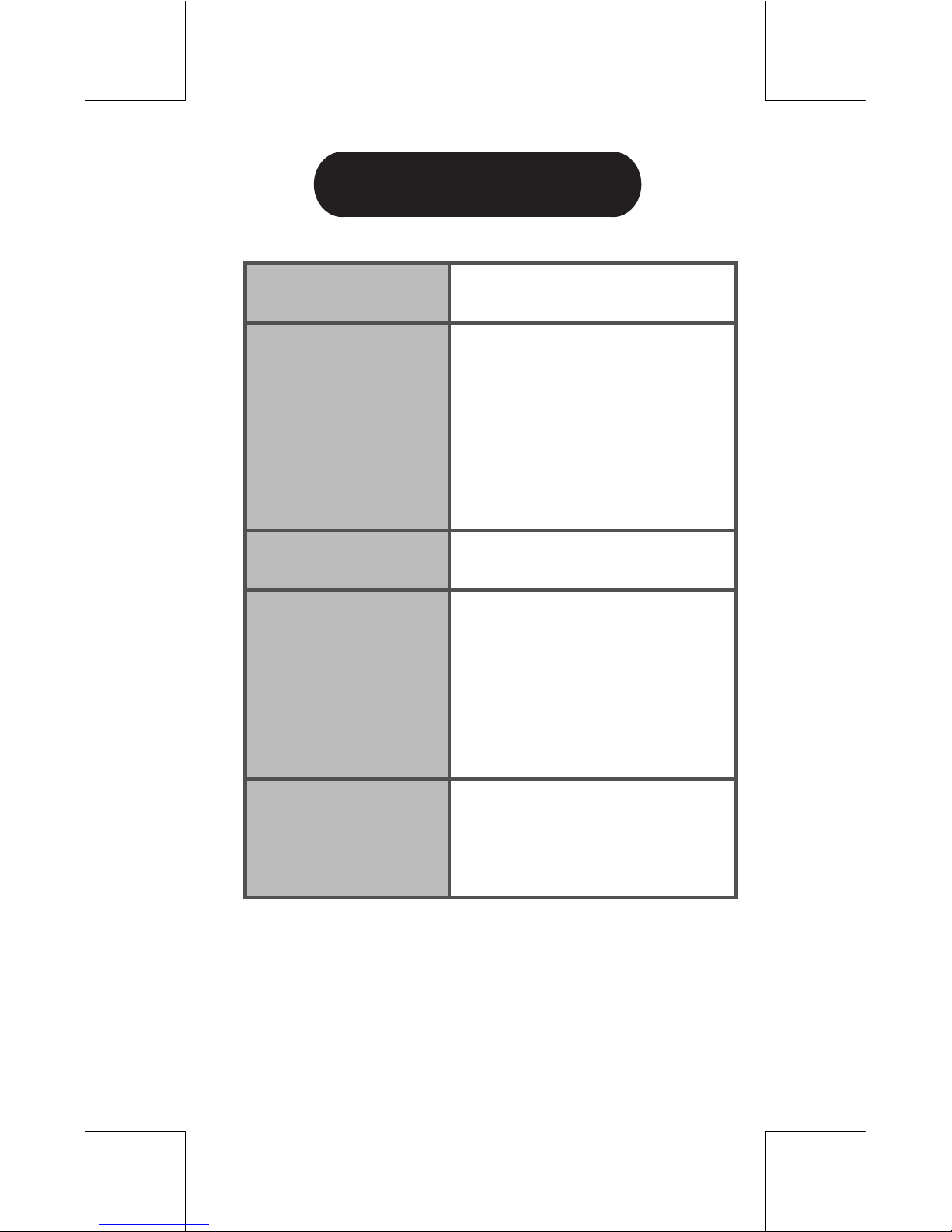
Product Specification
Weight
60g
Working
temperature
-10 ~ +60 C
Waterproof
IPX6/IPX7
Working
hours
Watch mode: 20 days
GPS on: 12 hours
Total
recording
time
18 hours
Page 22
GoWatch 770
Page 23

FCC Notices
This device complies with Part 15 of the FCC Rules. Operation is subject to the following
two conditions: (1) this device may not cause harmful interference, and (2) this device
must accept any interference received, including interference that may cause undesired
operation.
CAUTION: Change or modification not expressly approved by the party responsible
for compliance could void the user’s authority to operate this equipment.
This equipment has been tested and found to comply with the limits for a Class B
digital device, pursuant to Part 15 of the FCC Rules. These limits are designed to provide
reasonable protection against harmful interference in a residential installation. This
equipment generates, uses and can radiate radio frequency energy and, if not installed
and used in accordance with the instructions, may cause harmful interference to radio
communications. However, there is no guarantee that interference will not occur in a
particular installation. If this equipment does cause harmful interference to radio or
television reception, which can be determined by turning the equipment off and on, the
user is encouraged to try to correct the interference by one or more of the following
measures:
--Reorient or relocate the receiving antenna.
--Increase the separation between the equipment and receiver.
--Connect the equipment into an outlet on a circuit different from that to which the receiver
is connected.
--Consult the dealer or an experienced radio/TV technician for help.
CAUTION:
Any changes or modifications not expressly approved by the grantee of this device could
void the user's authority to operate the equipment.
RF exposure warning:
The equipment complies with FCC RF exposure limits set forth for an uncontrolled
environment. The equipment must not be co-located or operating in conjunction with any
other antenna or transmitter.
 Loading...