

Page 1
TX-32DTS3
TX-28DTS3
Colour Television
with
Integrated Digital Terrestrial
Decoder
and
Integrated Digital Satellite
Decoder
DSAT MODE
Operating Instructions
(U.K. Standard)
TQB8E3848-2
Page 2

Contents
▼▼▼▼ Contents
Ø Contents i
Ø Welcome to digital satellite (DSAT) TV! 1
What is Sky guide 2
Sky keeps you up to date 2
Ø Getting started 3
Turning your iDTV on and off 3
Your iDTV remote control 3
Changing channels 4
Using the Search & Scan banner 5
Changing the volume 6
Using digital text 6
Using teletext 6
Ø Using your Sky Guide 7
What is Sky Guide 7
Your Sky guide and your remote control 8
Ø TV Guide 9
Finding a programme 10
Choosing a programme to watch 11
A-Z Listings 11
Displaying more information 12
Using your personal planner 13
Using reminders 14
Programme clashes 15
Removing a programme 16
Using Auto-View to change channels automatically 16
Using series link for a series or regular programme 17
Ø Box Office 18
Ordering a Box Office programme 19
Ø Services 20
Parental control and your PIN 21
Using Parental control 21
Viewing restrictions 22
Spending limit 23
Changing your PIN 24
System setup 25
Adding channels 26
Favourite channels 28
Other channels 30
Ø Interactive 31
Ø Extra information 32
Recording a satellite programme 32
Looking after your Sky Viewing Card 32
Ø Further help 33
Ø Solving problems 34
i
ii
Page 3
Welcome to digital satellite (DSAT) TV!
▼▼▼▼ Welcome to digital satellite (DSAT) TV!
▼▼▼▼ About this booklet
This information booklet contains all you need to know about how to use your new
Integrated Digital TeleVision (iDTV).
Look out for this symbol. I t indicat e s useful and important tips.
▼▼▼▼ What is digital satellite (DSAT) TV?
Digital satellite (DSAT) TV is the latest stage in the evolution of TV, giving you not only digital
quality pictures and stereo sound, but also the opportunity to receive many more channels and
services.
▼▼▼▼ Your iDTV
Your decoder receives the digital information via the satellite, decodes it and displays it on
your iDTV. As well as watching satellite TV, you can control your viewing preferences through
the on-screen Sky Guide.
1
Page 4

Welcome to digital satellite (DSAT) TV!
▼▼▼▼ What is Sky Guide?
Sky Guide is a helpful and easy to use on–screen guide to your digital satellite (DSAT)
services. It is designed for people who want to get t he m o st out of watching television.
All Sky Guide features are contr olled using your remote control.
Sky Guide allows you to:
♦ see on–screen TV programme listings for the next seven days
♦ select the programmes you want to watch for the next seven days and set reminders for
them
♦ see TV listings while you are watching a programme
♦ set up and see your favourite channels
♦ order Box Office movies, sports and events
♦ use an ever increasing range of inter act ive services
♦ set parental control restrictions and pr ogramme purchase price limits
♦ modify your iDTV Sky settings.
Each of these features is descr ibed in det ail in this booklet, refer to the “Using your Sky Guide”
section on page 7.
▼▼▼▼ Sky keeps y ou up-to-date
As digital television develops and as more features become available, Sky may occasionally
update the Sky Guide software by loading it into your iDTV directly from the sat e llit e. These
software updates can be received if your IDTV is in use or is left in standby mode. You will find
this information on the Sk y Custom er Channel 999, and Sky Welcome 998.
2
Page 5
Getting started
▼▼▼▼ Getting started
This section gives you the information you need to st ar t watching digital satellite (DSAT) TV.
For more detailed informat ion about your iDTV, use the Contents or Index to find the relevant
section of this booklet.
Before starting, m ake sure your Sky Viewing Card is inserted the right way up in the slot
marked Sky Viewing Card on the front of your iDTV. If you do not have a Sky Viewing Card,
call your broadcaster’s helpdesk. For your broadcaster’s helpdesk num ber, select the
Telephone Numbers option from the Services screen.
So that you can watch all the channels and services you want, you must leave your
Sky Viewing Card in your Sky viewing card slot at all times.
▼▼▼▼ Turning your iDTV on and off
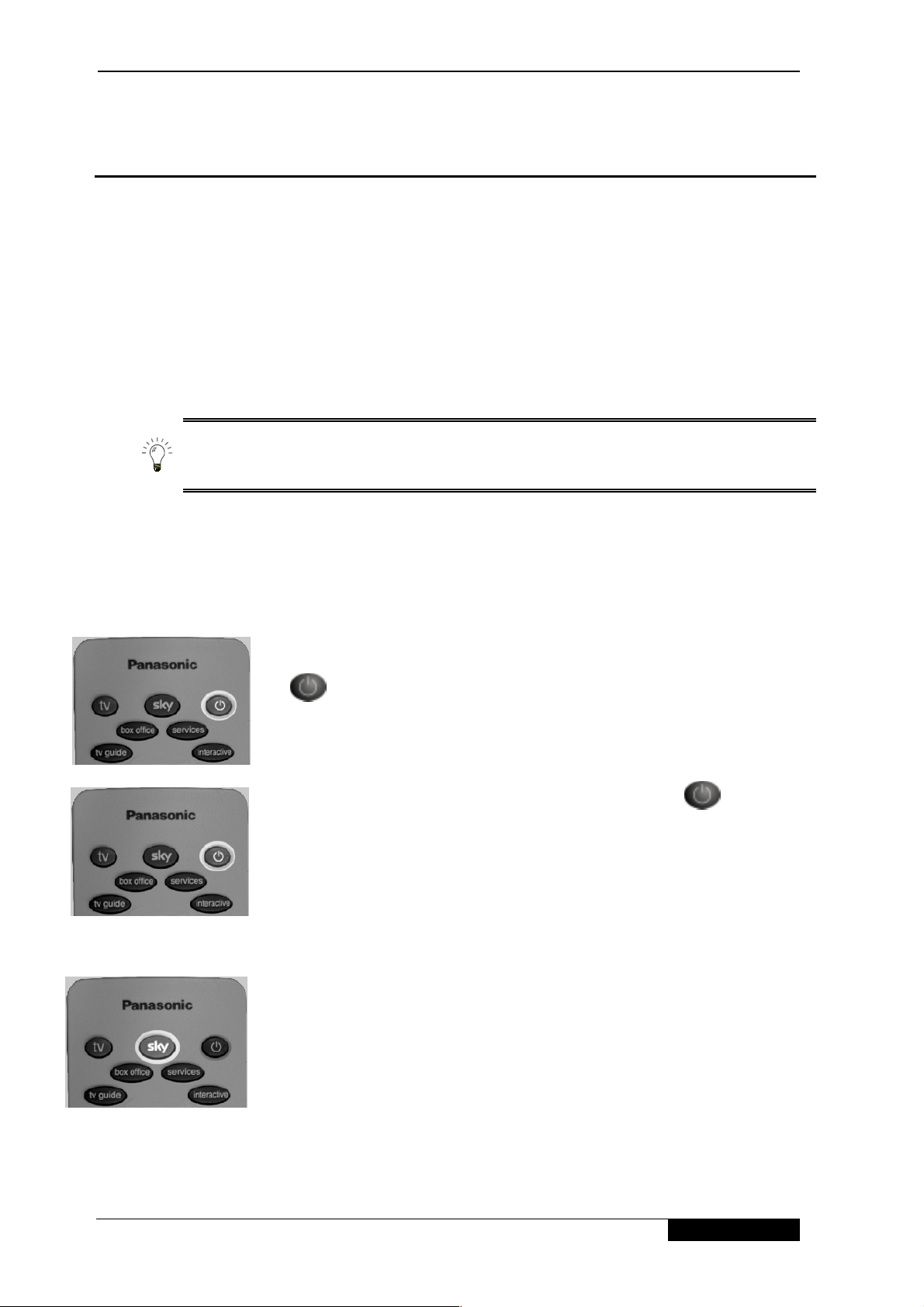
To turn your iDTV on from st andby, pr ess t he standby key
on your remote control.
The standby light shows red when your iDTV is in standby,
but still plugged into the mains.
To set your iDTV to standby, press the standby key
your remote control.
▼▼▼▼ Your remote control
on
To use your remote control to operate your DSAT system,
press Sky.
3
Page 6
▼▼▼▼ Changing channels
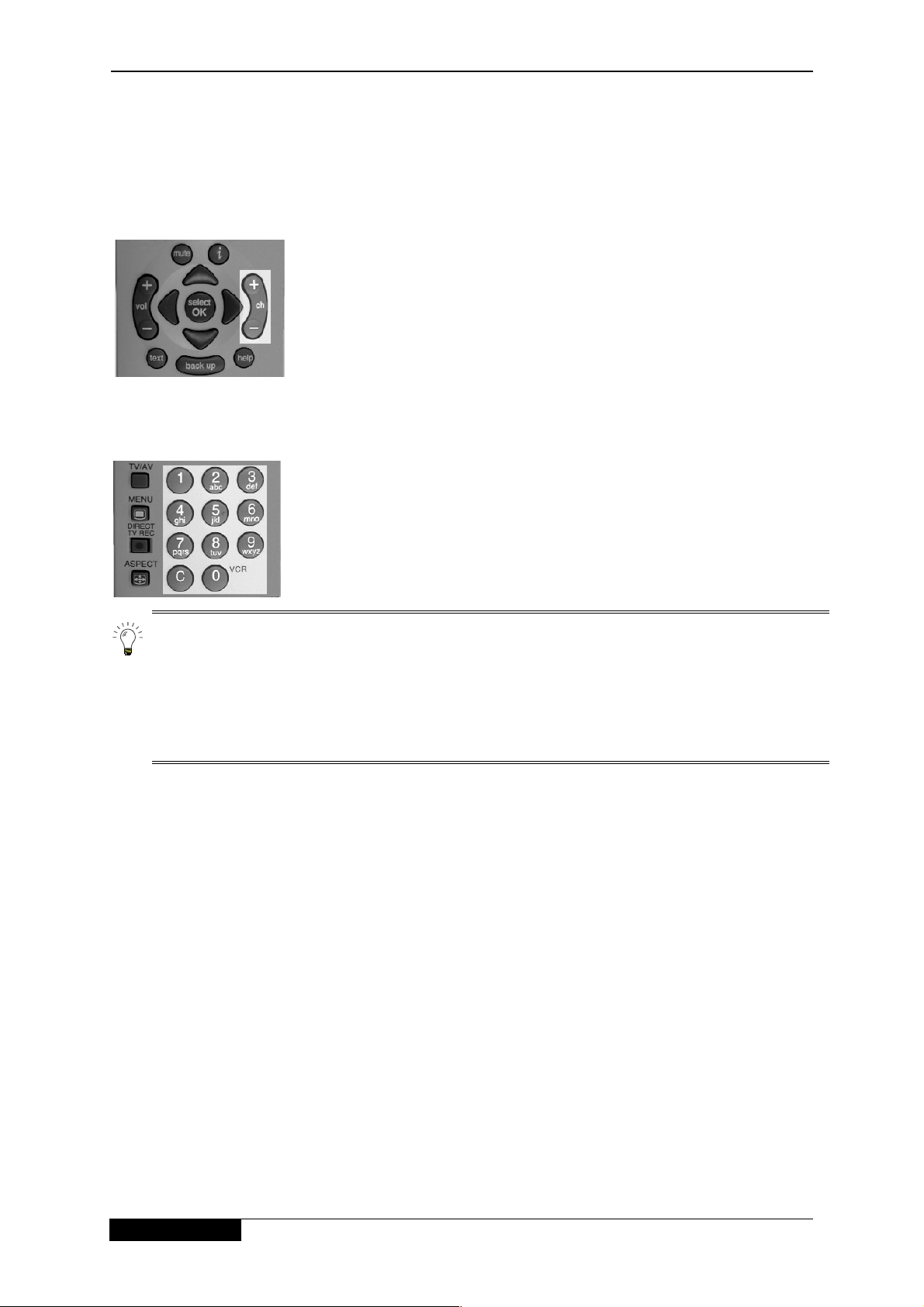
Using the ch key
Press ch + or – on your remote control to change channels
up or down, one at a time.
Using the channel number
If you know the channel number, you can use the number
keys to access the channels. Channel numbers are always
three digits, for example 106.
Getting started
Each time you change channel, the Search & Scan banner appears on–screen.
The banner will disappear automatically after a few seconds, or you can press back up
to remove it immediately.
For a description of the Search & Scan banner see pag e 5.
4
Page 7
Getting started
▼▼▼▼ Using the Search & Scan banner
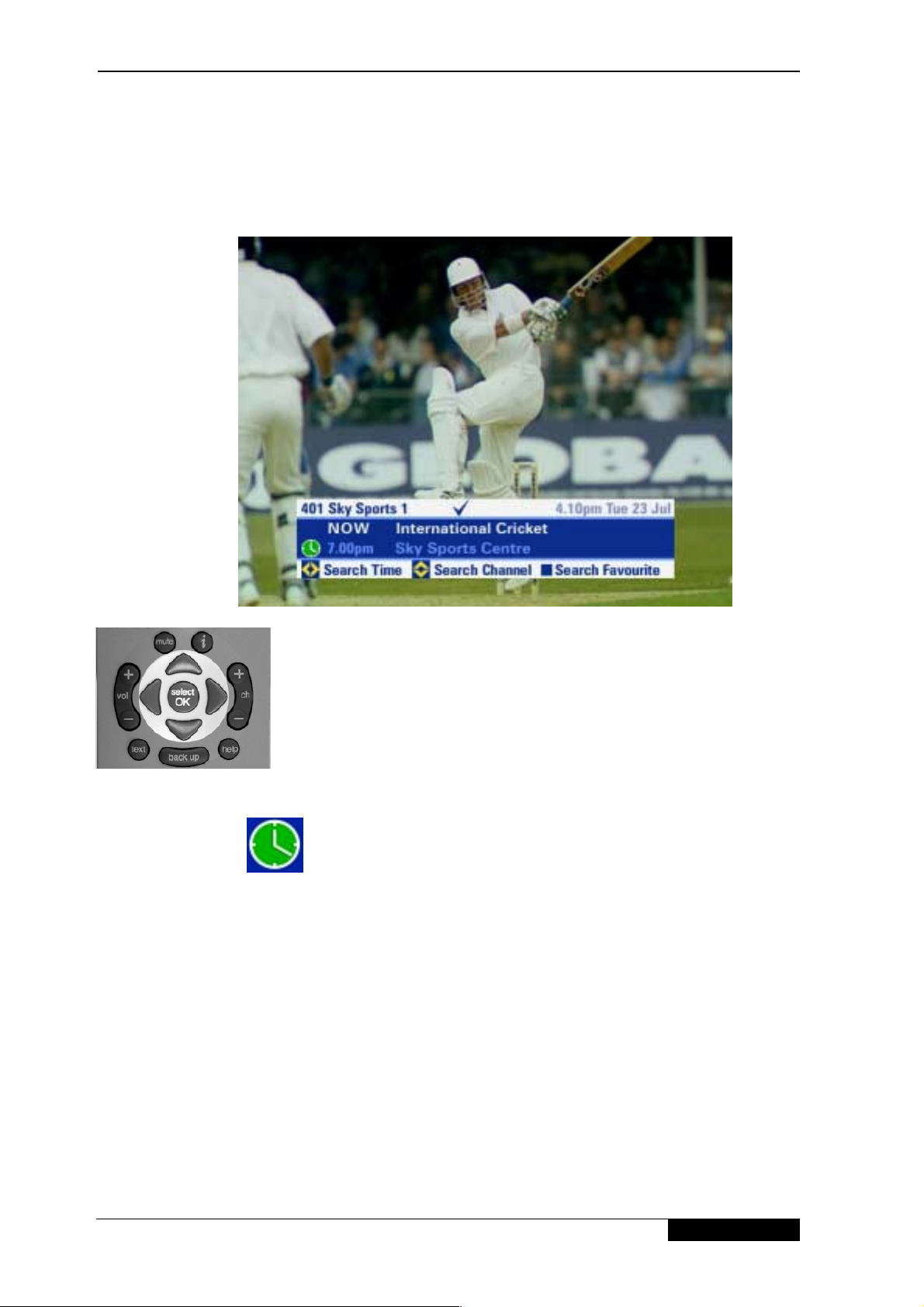
When you are watching a satellit e channel and want to find out what else is on, eit her now or
later, without interrupting t he programme you are watching, pr ess OK to display the Search &
Scan banner.
Use the left and right arr ows to see what prog r am m es ar e on
at different t imes on t he current channel.
Use the up and down arrows to see what is on other
channels.
If you see a programme you want to watch, press OK. If the
programme is on now, your iDTV tunes to it .
If the programme is on later, Sky Guide will set a
reminder. The ‘Reminder’ icon will appear to the left of
a programme name you have selected for future
viewing.
If the channel shown in the Search & Scan banner is set as one of your Favourite Channels,
this is indicated by a tick (ü).
To see what is on your Favourite Channels, press the Search Favourite (blue) key. Each time
you press the Search Favourite (blue) key, programme information for another of your
Favourite Channels is shown in the banner. If you see a programme you want to watch on one
of your Favourite Channels, press OK. If the programme is on now, your iDTV tunes to it.
For more details on Favourite Channels, ref er t o the “Favourite Channels” section on page 28.
5
Page 8
Getting started
▼▼▼▼ Changing the volume
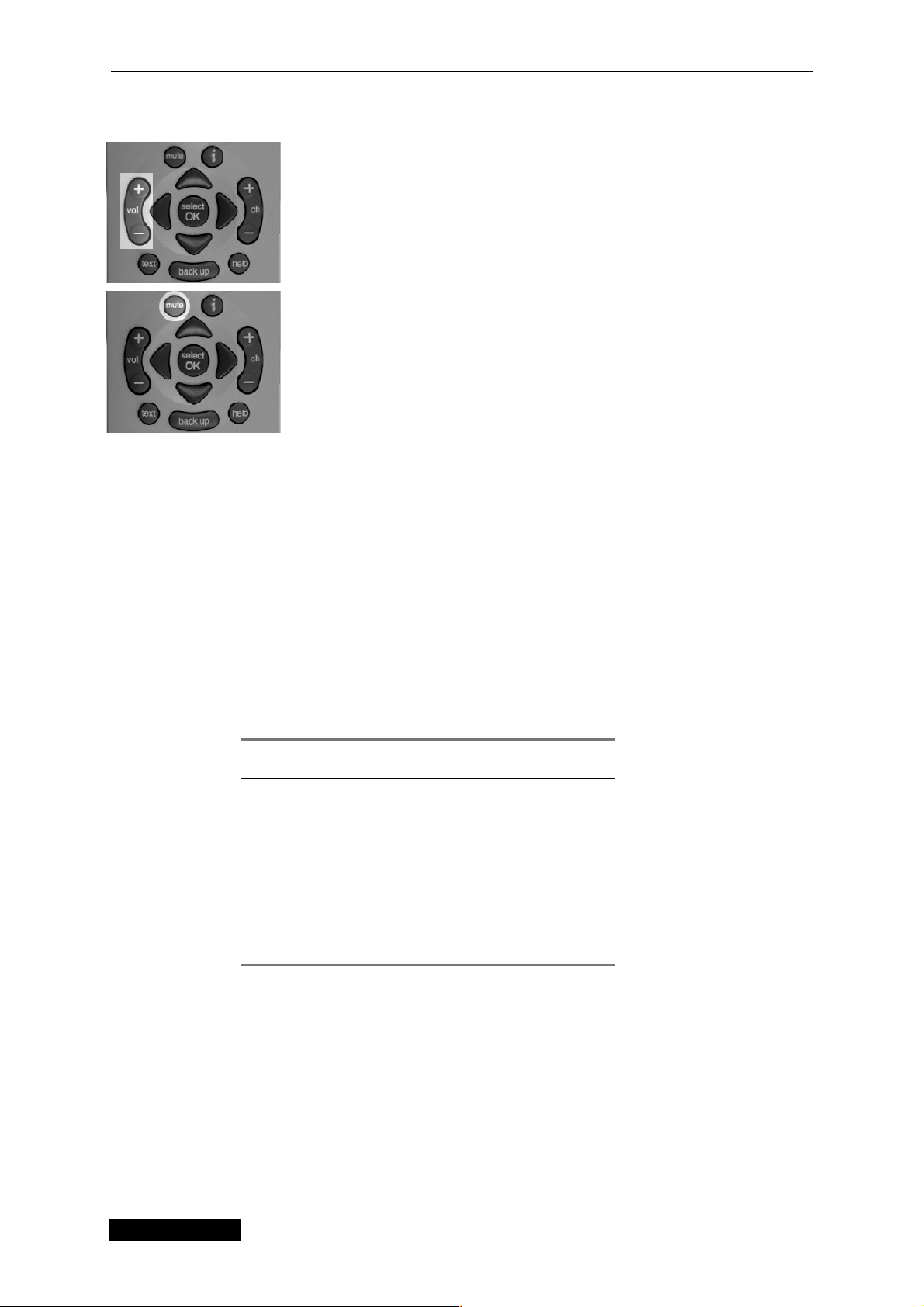
Press vol + or – on your rem ot e cont rol to increase or
decrease the volume of your iDTV.
Press mute to turn the iDTV sound of f. To turn the iDT V
sound back on, press mute again.
▼▼▼▼ Using digital text
If you are watching a channel which has a digital text screen press text to enter the digital text
service. Press Sky at any time to return to iDTV viewing.
▼▼▼▼ Using teletext
To use analogue teletext services (where available), press tv and then text on your remote
control.
Use the number keys to choose the page you requir e. The table below shows what remote
control keys to use for telet ext functions.
Key Function
text
0–9
Menu + Red
HOLD
colours
To return to satellite services, press text.
Enters or exits text mode
Text page number entry+
Text reveal
Text hold
Fastext functions
6
Page 9

Using your Sky Guide
▼▼▼▼ Using your Sky Guide
▼▼▼▼ What is Sky Guide?
Sky Guide is a helpful and easy to use on–screen guide to your dig it al sat ellite services.
All Sky Guide features can be controlled using your remote control. There ar e four major
elements, each of these has a separate key on your remote control. The four elem ent s
are:
TV Guide shows on–screen listings for channels
and programmes (Please see page 9.)
Box Office allows you to order specific movies and
events that you choose to purchase
(Please see page 18.)
Services allows you to set Parental Controls,
Subtitles and your Favourite Channels,
you can also access useful customer
information (Please see page 20.)
Interactive gives access to a range of interactive
services (Please see page 31.)
7
Page 10
▼▼▼▼ Your Sky Guide and your remote control
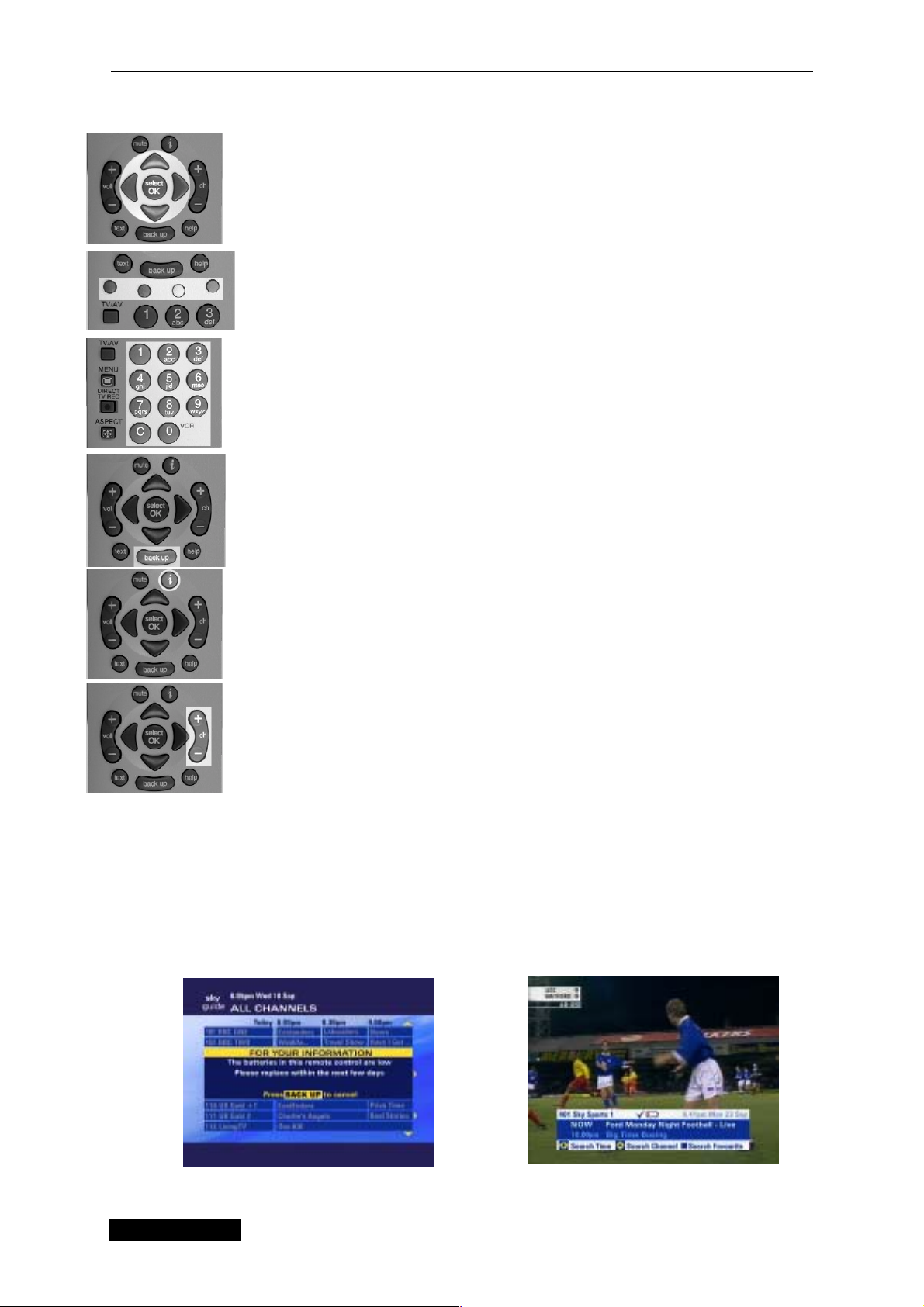
Your Sky Guide and remote control are designed to work together.
Whatever part of Sky Guide is on your screen, use the arrows to
move the highlight around, then press OK to choose t he opt ion you
want.
You can use the colour option keys on many Sky Guide screens.
The function of the colour opt ion keys is shown on the screen. Press
the key of the same colour to choose that option or function.
You can also use the number keys as shortcuts. Whenever a list of
numbered options is shown, press the appropriate number key to
choose an option quickly. The number k eys also have letters
marked on them. Press the key once to jump to the first let t er
shown. Press it again for the next lette r .
If you go to a screen you don’t want, press back up to return to the
previous Sky Guide screen.
Using your Sky Guide
To see information about the pr ogramme you are watching, press
the i key. If you are using TV Guide or Box Office, you can use this
key to see information about t he highlighted programme.
In addition to changing channels, you can also use the channel keys
to page up (+) and page down (-) thr ough full screen listings.
Press Sky to return to the channel you were watching.
▼▼▼▼ Low Battery Warning
If the batteries in your remote control are running low, you will get an on screen warning. You
should be sure to replace your batteries as soon as possible.
In Sky Guide, you will see a message instructing you to replace your batt er ies; pr ess back up
and the message will clear.
In the Search & Scan banner you will see a ‘low battery’ icon, which will only disappear once
the batteries are replaced.
8
Page 11
TV Guide
▼▼▼▼ TV Guide
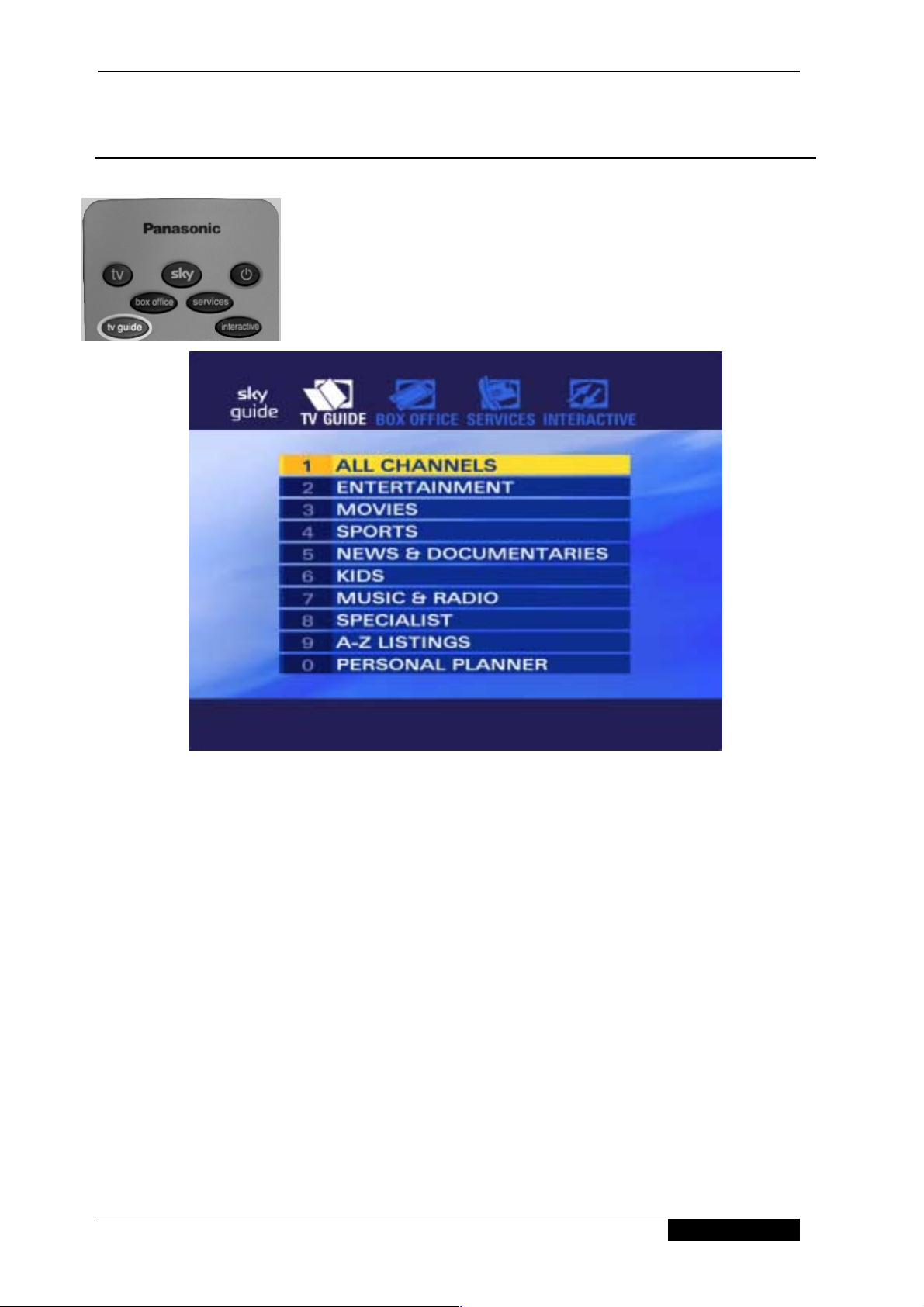
Press tv guide on your remote control to see the TV Guide
screen.
Here you can choose to see:
♦ All Channels – listing of all TV programmes scheduled for t he next seven
days, listed by channel number.
♦ Entertainment, Movies, Sports, News & Documentaries, Kids, Musi c &
Radio and Specialist – programmes scheduled for the next seven days, listed
by channel type.
♦ A-Z Listings – an alphabetical listing of all program mes showing for the next
24 hours.
♦ Personal Planner – listing of t he pr ogrammes you have selected for futur e
viewing.
9
Page 12
TV Guide
▼▼▼▼ Finding a programme
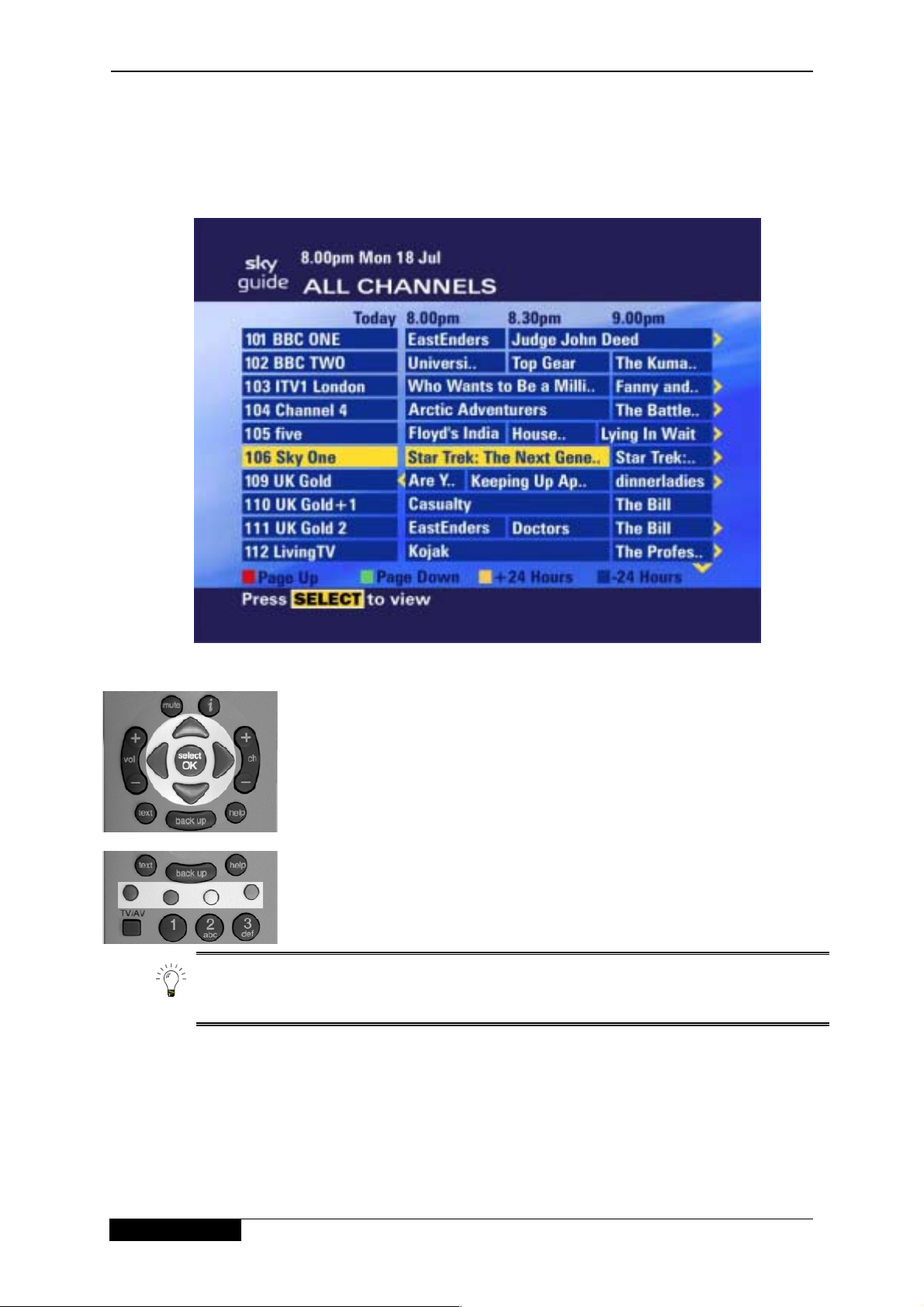
To find a programme from the full listing s, press tv guide on your remote control, highlight All
Channels, then press OK. The All Channels listings screen is shown.
Use the up and down arrows to move the highlight throug h
the channels. Use the right and left ar rows to see
programmes being shown at different times.
Times are shown at the top of the programme listing.
You can also use the Page Up (red) and Page Down (green)
keys or the channel (+) and (–) keys to see t he preceding or
next section of the channel listing.
Use the +24 Hours (yellow) key to move forwards 24 hours at
a time. To move backwards 24 hours at a time, use the –24
Hours (blue) key.
The TV Guide listing screens show the programme listings for the next seven
days.
10
Page 13
TV Guide
▼▼▼▼ Choosing a programme to watch
When you see a progr am m e you want to watch, use the ar r ows to highlight it, then press OK.
If the program me is on now, your iDTV tunes to it. If the programme is on later, Sky Guide will
set a reminder.
If you choose a programme that you need to or der t o watch, you will see the Box Office screen
showing the programme details and purchase price. For further infor m at ion about ordering
Box Office programm es, r efer to the “Box Off ice” section on page 18.
If you choose a programme that is on a channel t o which you do not current ly subscribe, you
will be given information on how to include this channel in your subscription.
▼▼▼▼ A-Z Listings
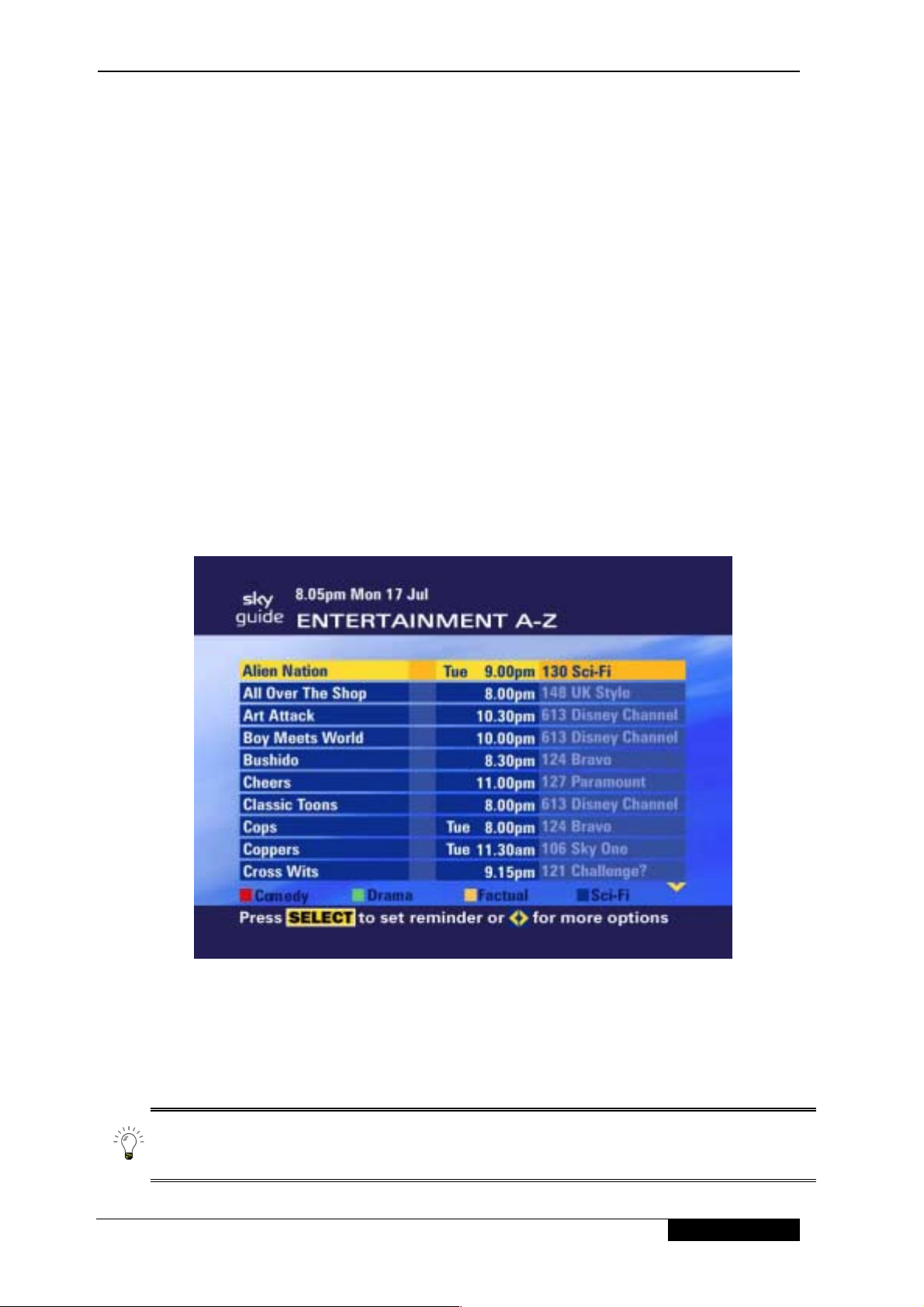
If you’re looking f o r a par ticular programme, a quick way to find it is to use the A-Z listings.
This lists all of the day’s progra m m es in alphabetical order. So you can easily find when and
where that programme is on.
To find a programme from the full listing s, press tv guide on your remote control, highlight A-Z
Listings, then press OK. Choose the type of prog r am me you are looking for, for example
entertainment, and press OK. The A-Z list ings screen for that type of pr ogramme is shown.
You can use the number keys on your remote control to jump through the list of pr ogrammes.
The number keys also have letters mark ed on t hem. Press the key once to jump to the first
letter shown. Press it again for t he next letter.
You can choose to see programmes of m or e specific types by pressing the colour option keys.
The types of programmes you can list ar e shown on the bott om of the listings screen. Use the
left and right arrows to see what other specific types are available.
To move quickly through the A-Z list ing, you can use the channel keys to page up (+)
and page down (-) through the listings.
11
Page 14

TV Guide
▼▼▼▼ Displaying more information
If you would like more inform at ion about a par ticular
programme, use the arr ows to hig hlight it, then press the i
key on your remote control. The programme information
banner appears on your screen giving you a short synopsis
of the programme.
Press back up to remove the programme information and
show the previous screen.
The information banner may also include lett er codes giving more information about the
programme. These lett e r codes have the following meanings:
Letter code: Means this:
C
DD or DS
L
N
T
W
Rating codes
U
PG
Copy-protected. If you try to record this programme it
may not play back correctly.
Dolby Digital 5.1 or Dolby Surround. If your set up has
Dolby capabilities, you will hear enhanced sound on this
programme.
Letterbox format. The programme is being shown in
letterbox format; i.e. in a wide ‘cinema-style’ picture with
black borders across the top and bottom of the picture.
Narrative. The programme is broadcast with a
descriptive audio soundtrack for partially sighted
customers.
Subtitles. Language and/or subtitles for the hard of
hearing are available for the programme.
Widescreen. The programme is being shown in
widescreen format.
Universal, suitable for all audiences, including younger
children.
Parental guidance is recommended. Some discretion
may need to be applied as to the suitability of the film for
younger or impressionable children.
12
12
15
18
Content codes
s
l
v
m
Suitable for viewers aged 12 years or over. More mature
themes or language make the film unsuitable viewing for
young children.
Suitable for viewers aged 15 years or over. May contain
stronger language, violence, or themes unsuitable for
younger viewers.
Suitable only for adult viewers aged 18 and over.
The programme contains sex or nudity.
The programme contains strong language.
The programme contains violent scenes.
The programme contains material which is intended for
a mature audience.
Page 15
TV Guide
▼▼▼▼ Using your Personal Planner
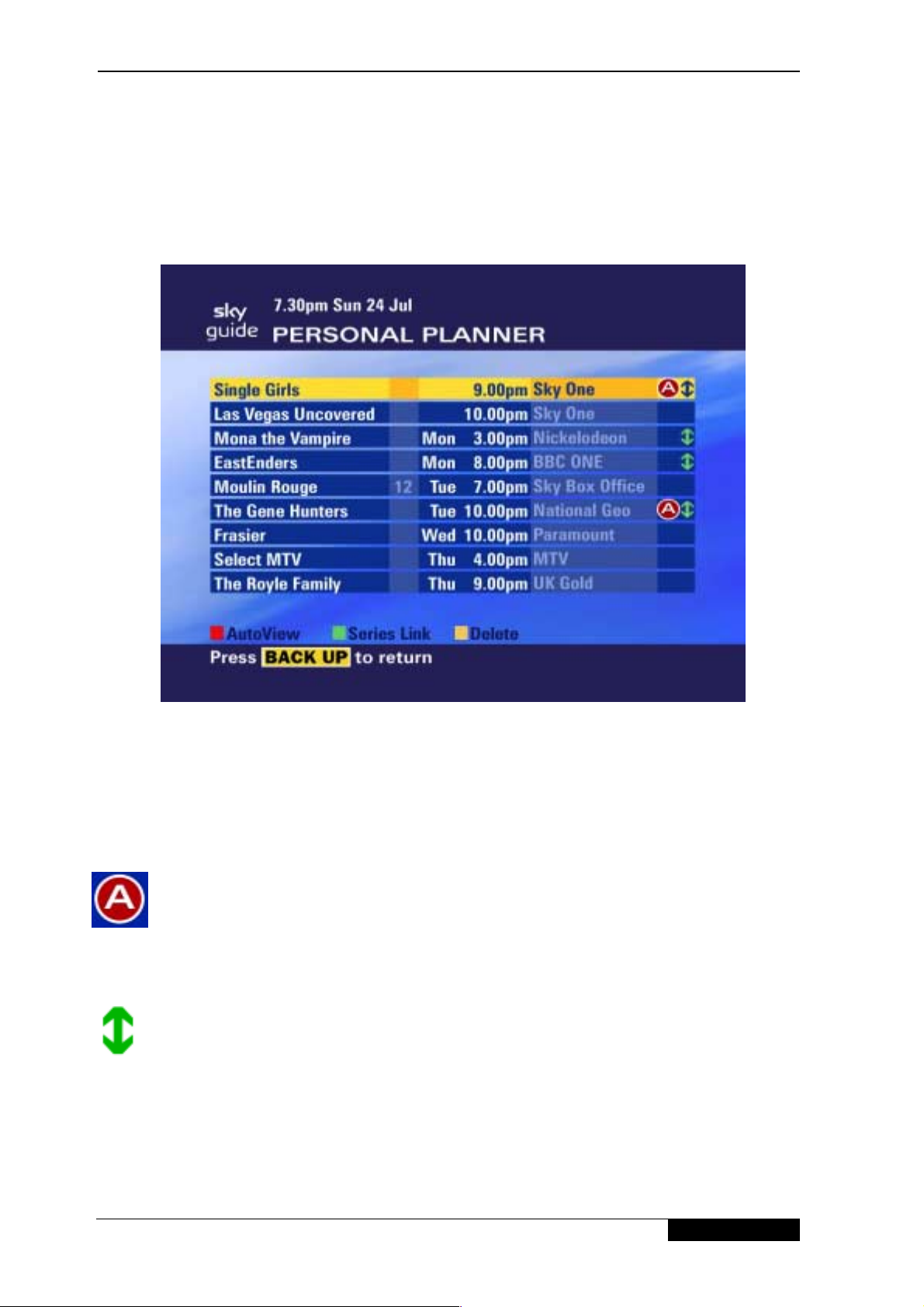
The Personal Planner lists the programmes you have selected for future viewing, and shows
you a reminder just before a selected prog r am m e starts. Whenever you select a future
programme to watch fr om the Search & Scan banner, TV Guide or Box Office, Sky Guide
automatically adds it to your Personal Planner.
To view the Personal Planner, press tv guide, highlight Per s onal Planner , then press OK
Planner information
In addition to the selected programm e nam e and its broadcast channel, the Personal Planner
screen gives status information on each programme. This inform ation includes:
• Rating code (for rated pr ogrammes)
• Date and time of transmission f or future programm es.
In the right hand column of t he scr een Per s onal Planner m ay display either of the following
indicators:
‘AutoView’ icon, indicating that the cor r esponding programme has been selected f or
AutoView.
Pressing the AutoView (red) key on a highlighted programme enables the iDTV to
automatically tune to the appropriate channel when that programme starts. For more
information on the AutoView featur e see page 16.
`Series Link’ icon, indicating that a ser ies link for the program m e has been enabled.
Pressing the Series Link (green) key enables the next programme in a series to be inserted
into the Planner. For more inf or mation on the Series Link featur e see page 17.
13
 Loading...