

Page 1
QUICK REFERENCE GUIDE
Panasonic TGP-600
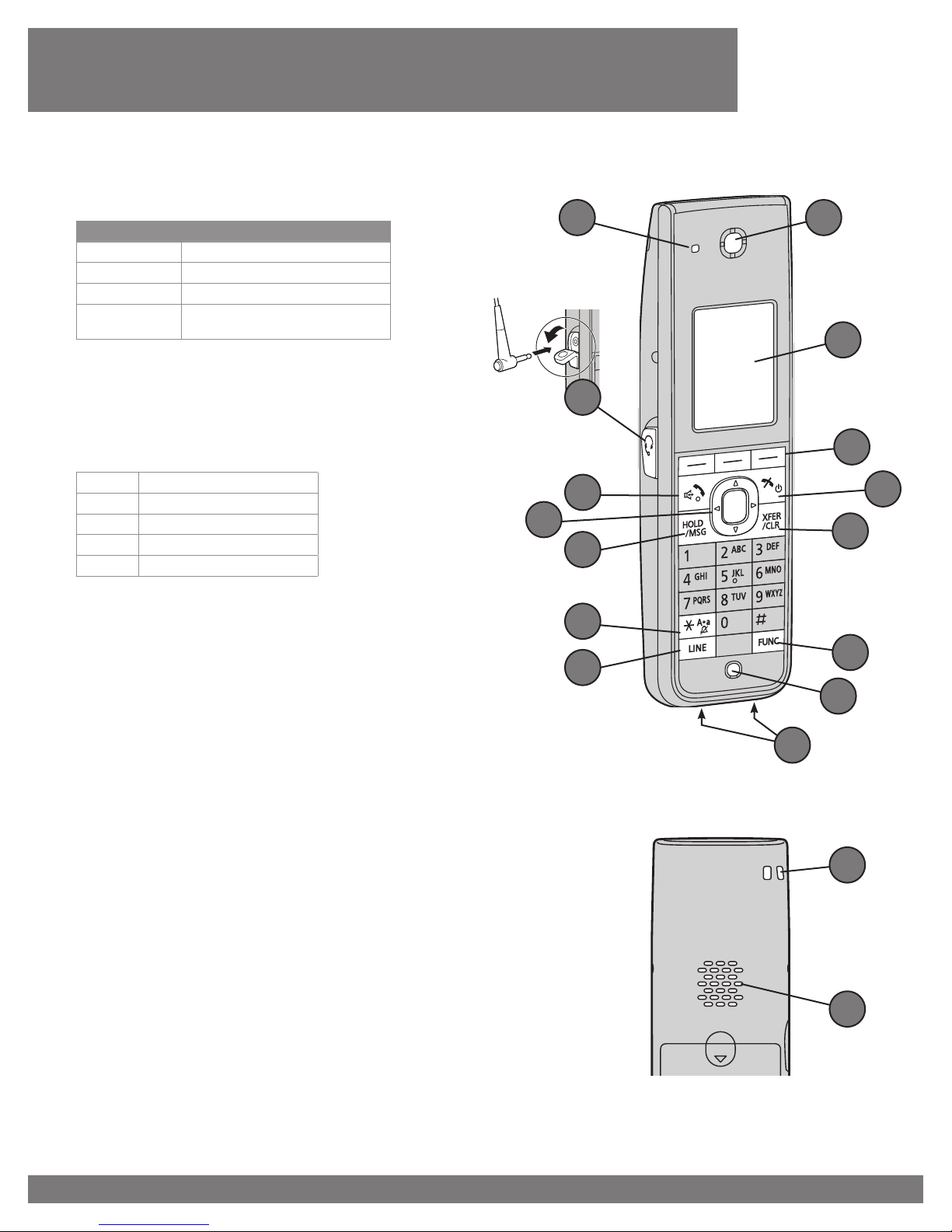
Handset Functions
Ringer/Charge/Message Indicator
1
Light Pattern Meaning
Steady On Charging
Slow Flash New missed call or voicemail
Quick Flash Receiving a call
Off
Headset Jack – headsets can be used with the unit.
2
Not all operations with the headset can be guaranteed.
Talk/Speakerphone Key – Used to make or answer
3
calls, or toggle between Receiver mode and Handsfree mode during a conversation.
Navigator Key
4
Left Display incoming call log
Up Adjust ringer volume
Right Open the phonebook
Down Display outgoing call log
Center Display menu
Hold/Msg Key – During talking, used to place a call on Hold.
5
In standby mode, used to retrieve a call on hold if there is
one, or used to access your voice mailbox if no call is on hold
Silent Mode – Used to turn Silent Mode on or off when
6
pressed for more than 2 seconds in standby mode
LINE Key – Used to conrm the line status or to seize a line
7
Receiver
8
Display
9
Soft Keys – A / B / C these keys are used to select the item
10
displayed on the bottom line of the display
Power/Cancel Key – Used to end calls, exit the phonebook or
11
Function mode. Press and hold this key to turn the handset
on or off
Xfer/Clr Key – Used to transfer a call to another party or to
12
clear digits or characters
FUNC Key – Pressing this key followed by a keypad number
13
(0- allows you to perform various common functions quickly
Microphone
14
Charge Contacts
15
Strap holes – Used to attach phone straps and similar items
16
Speaker
17
Fully charged or the handset is not
connected to the charger
Front
1 8
2
3
4
5
6
7
Back
9
10
11
12
13
14
15
16
17
Page 2
Panasonic TGP-600
Quick Reference Guide
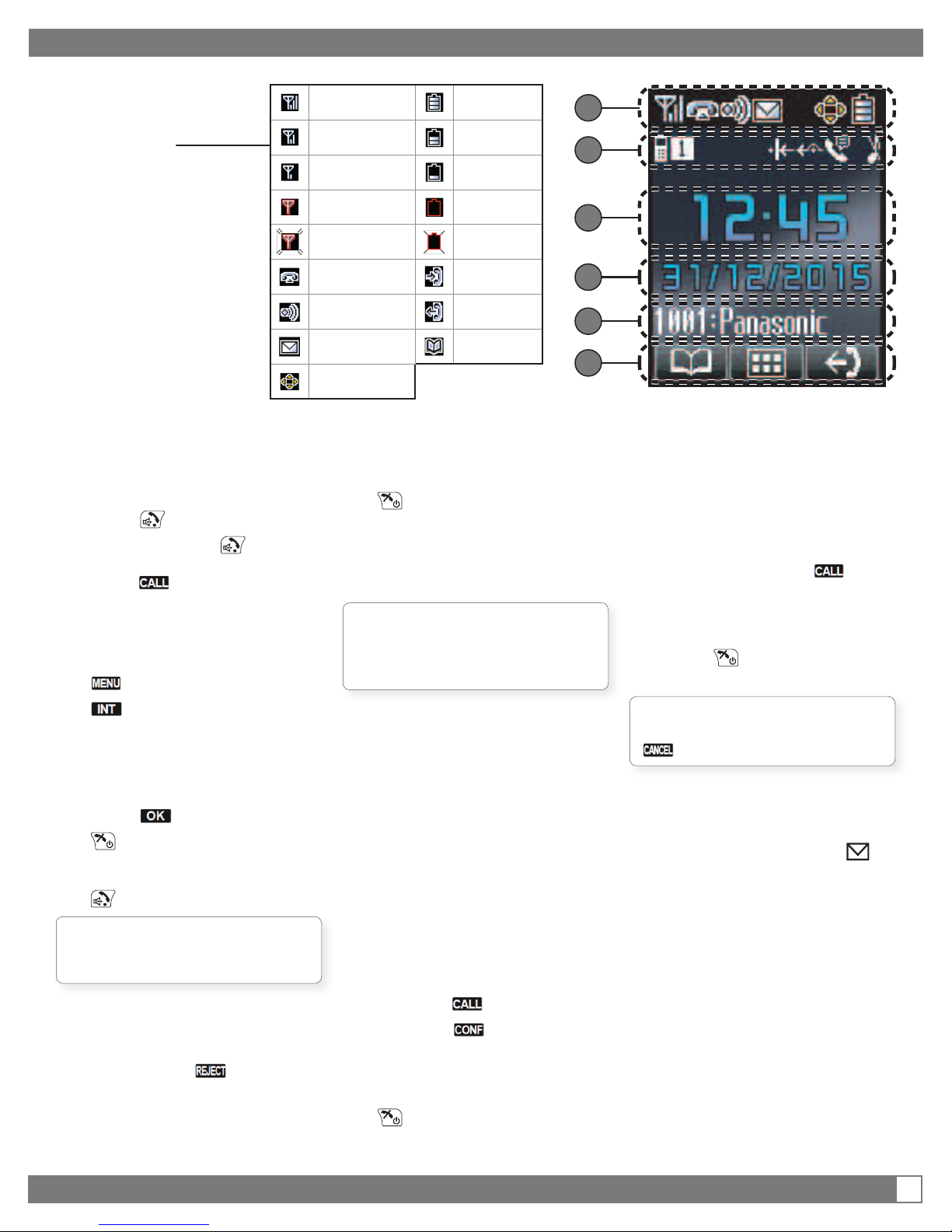
Display
Pictograph
1
Handset Status
2
Time Display
3
Date, New Message or
4
Missed Call Display
Handset / Desk phone
5
Number and Name
Soft Keys
6
Making Calls
1.
Enter a number to call,
Press
2.
Predial: Or Press
, Enter the number and
press
Making an Intercom Call
Intercom calls can be made between
compatible handsets / desk phones:
1.
2.
3.
4.
5.
Answering Calls
1.
Note: when receiving an intercom
call, the Handset name is displayed
on the LCD
REJECTING AN INCOMING CALL
1.
2.
select menu
select the Intercom
softkey
Up / down to select a
desired handset/desk
phone
Press
end the call
While an incoming call is
ringing, press
The call will be rejected
and the handset will return
to standby mode
Signal Strength Indicator
- Strong
Signal Strength Indicator
- Medium
Signal Strength Indicator
- Weak
Signal Strength Indicator
- Very weak
Signal Strength Indicator
- Out of range
Off-hook Status Incoming Call Log
Intercom Indicator Outgoing Call Log
Voice Message Phonebook
Navigator Key Guidance
Battery Indicator
- Full
Battery Indicator Medium
Battery Indicator
- Low
Battery Indicator Very Low
Battery Indicator Charge needed
Ending Calls
1.
end the call
Call Hold and resume
HOLD A CURRENT CALL
1.
Press [HOLD/MSG] key
Note: if you select a LINE key other
than the one for the current call, the
current call is automatically put on
Hold
RETRIEVE A CALL ON HOLD
1.
Press the [HOLD/MSG] key
Conference Call
During a conversation, you can
add additional people to establish a
conference call:
1.
Press the [FUNC] key and
press 5 (“Conference”)
2.
You will hear two beeps
from the handset
3.
Dial the party you want to
add to the conversation and
press the key
4.
Press the key
ENDING A CONFERENCE CALL
1.
end the call
1
2
3
4
5
6
Call Transfer
During a conversation you can
transfer a call to another destination:
1.
Press [XFER/CLR]
2.
Dial the party, press
3.
Wait until the other party
answers to announce the
transfer
4.
Press to complete the
transfer
Note: To return to the call before the
transfer destination answers, press
Listening to Voicemail
When you receive a voice message,
“Voice MSG” is displayed and
will appear
In Standby mode:
1.
Press and hold down the
[HOLD/MSG] key
2.
You will hear the Voice
Portal, enter your pass
code to proceed
2
 Loading...