

Page 1
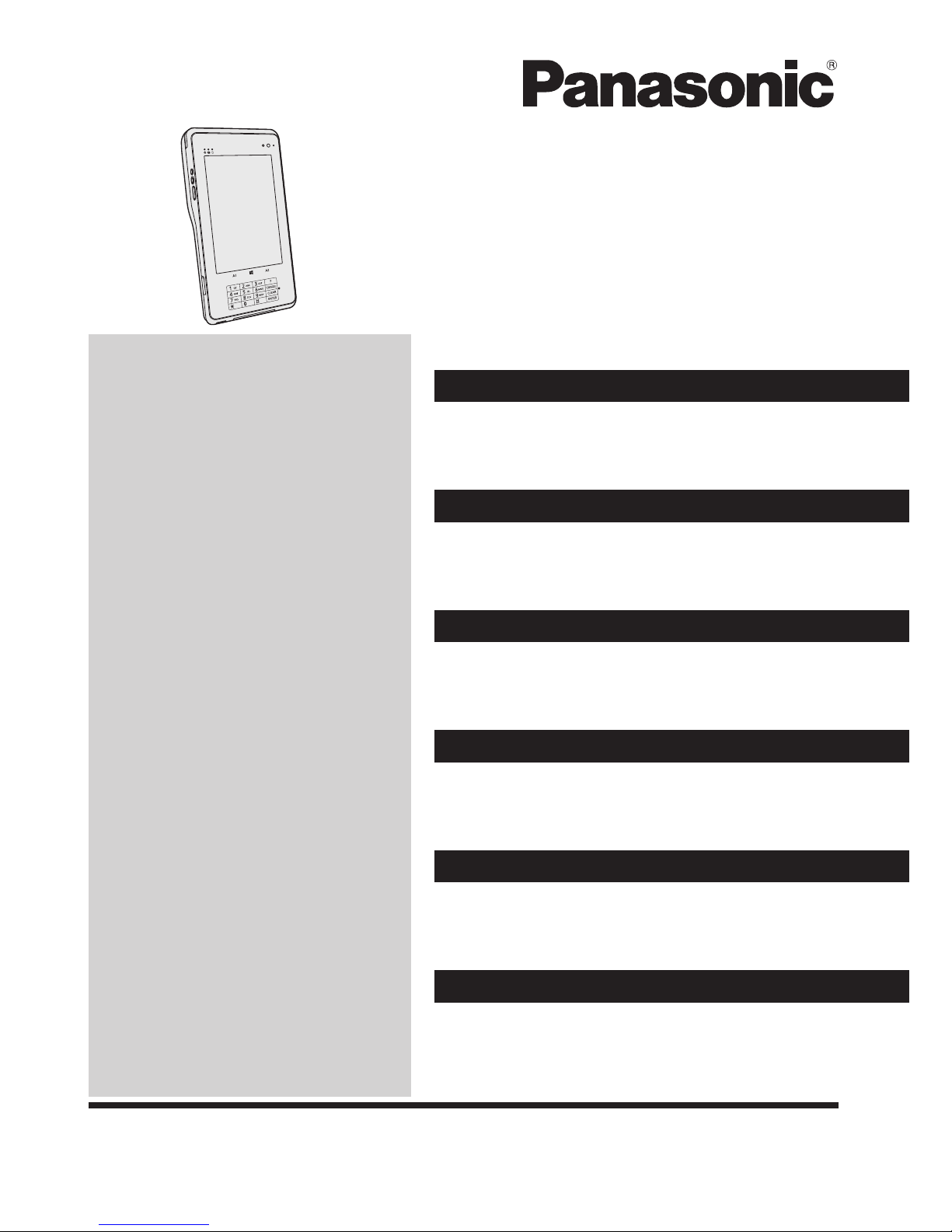
OPERATING INSTRUCTIONS
Tablet Computer
Model No.
FZ-R1
series
Please read these instructions carefully before using this product, and save this
manual for future use.
Contents
Read Me First
Safety Precautions .....................................2
Mesures de sécurité .................................10
Regulatory Information .............................18
Getting Started
Introduction ............................................... 26
Description of Parts ..................................28
First-time Operation .................................. 32
Basic Operation
Turning On / Turning Off ........................... 39
Payment Function.....................................41
Useful Information
Handling and Maintenance .......................45
Installing Software ....................................52
Troubleshooting
Troubleshooting (Basic) ............................ 58
Appendix
LIMITED USE LICENSE AGREEMENT ....65
Specications ...........................................69
LIMITED WARRANTY .............................. 75
Page 2
2
Read Me First
Safety Precautions
To reduce the risk of injury, loss of life,
electric shock, re, malfunction, and
damage to equipment or property,
always observe the following safety
precautions.
Explanation of symbol word
panels
The following symbol word panels are
used to classify and describe the level
of hazard, injury, and property damage
caused when the denotation is disregarded and improper use is performed.
DANGER
Denotes a potential hazard that will
result in serious injury or death.
WARNING
Denotes a potential hazard that could
result in serious injury or death.
CAUTION
Denotes a hazard that could result in
minor injury.
NOTICE
Denotes a hazard that could result in
property damage.
The following symbols are used to classify and describe the type of instructions to be observed.
This symbol is used to alert
users to a specic operating
procedure that must not be
performed.
This symbol is used to alert users to a specic operating procedure that must be followed in
order to operate the unit safety.
DANGER
Precautions on the Battery Pack
Electrolyte leakage, generation of
heat, ignition or rupture of the Battery Pack may result.
Do Not Throw the Battery
Pack into a Fire or Expose
It to Excessive Heat
Do Not Deform, Disassemble, or Modify the Battery
Pack
Do Not Short the Positive
(+) and Negative (-) Contacts
Ö
Do not place the battery
pack together with articles
such as necklaces or
hairpins when carrying or
storing.
Page 3
3
Read Me First
DANGER
Precautions on the Battery Pack
Do Not Apply Shocks to
the Product by Dropping It,
Applying Strong Pressure
to It, etc.
Ö
If this product is subjected
to a strong impact, damaged or deformed, stop
using it immediately.
Do Not Charge the Battery
Using Methods Other Than
Those Specified
Do Not Use the Battery
Pack with Any Other Product
y
The battery pack is rechargeable and was in-
tended for the specied
product.
Do Not Use This Product
with a Battery Pack Other
Than the One Specified
Ö
Use only the specied battery pack with your product.
When the Battery Pack Has
Deteriorated, Replace It
With a New One
Ö
Do not continue to use a
damaged battery pack.
Avoid Extreme Heat (Near
the Fire, in Direct Sunlight,
for Example)
DANGER
Precautions on the Built-in
Bridge Battery (for disposal)
<Only for model with Built-in
Bridge Battery>
When disposing the battery, generation of heat, ignition or rupture
of the Built-in Bridge Battery may
result. ( page 50)
Handling This Computer
Do Not Disassemble the
Computer Except When
Disposing
Handling the Built-in Bridge
Battery
Do Not Short the Positive
(+) and Negative (-) Con-
tacts
Do Not Throw the Battery
into a Fire or Expose It to
Excessive Heat
Do Not Apply Shocks to
the Built-in Bridge Battery
by Dropping It, Applying
Strong Pressure to It, etc.
Do Not Charge
Do Not Use
Do Not Deform, Disassem-
ble, or Modify the Battery
Pack
Avoid Extreme Heat (Near
the Fire, in Direct Sunlight,
for Example)
Page 4
4
Read Me First
Safety Precautions
WARNING
<Only for model with Built-in
Bridge Battery>
Generation of heat, ignition or rupture of the Built-in Bridge Battery
may result.
Do Not Throw This Product
Into a Fire or Expose It to
Excessive Heat
Do Not Deform, Disassemble, or Modify This product
Do Not Apply Shocks to
the Product by Dropping It,
Applying Strong Pressure
to It, etc.
Do Not Charge the Battery
Using Methods Other Than
Those Specified
Avoid Extreme Heat (Near
the Fire, In Direct Sunlight,
for Example)
When the Battery Has
Deteriorated, Contact Your
Technical Support Office to
Replace the Battery
Fire or electric shock may result.
Do Not Pull or Insert the
AC Plug If Your Hands Are
Wet
Do Not Disassemble This
Product
WARNING
Do Not Do Anything That
May Damage the AC Cord,
the AC Plug, or the AC
Adaptor
Do not damage or modify
the cord, place it near hot
tools, bend, twist, or pull
it forcefully, place heavy
objects on it, or bundle it
tightly.
Ö
Do not continue to use
a damaged AC cord, AC
plug and AC adaptor.
y
Contact your technical
support ofce for repair.
Do Not Connect the AC
Adaptor to a Power Source
Other Than a Standard
Household AC Outlet
Ö
Connecting to a DC/AC
converter (inverter) may
damage the AC adaptor. On an airplane, only
connect the AC adaptor/
charger to an AC outlet
specically approved for
such use.
Do Not Touch This Product
In a Thunderstorm If Connected with the AC Cable
or Any Other Cables
Do Not Place the Computer in a Microwave Oven
or Place It on the Electric
Cooking Appliances
Page 5
5
Read Me First
WARNING
If a Malfunction or Trouble
Occurs, Immediately Stop
Use
If the Following Malfunction Occurs, Immediately
Unplug the AC Plug and
the Battery Pack
y
This product is damaged
y
Foreign object inside this
product
y
Smoke emitted
y
Unusual smell emitted
y
Unusually hot
Ö
After the above procedure,
contact your technical sup-
port ofce for repair.
Clean Dust and Other Debris
of the AC Plug Regularly
y
If dust or other debris accumulates on the plug,
humidity, etc. may cause a
defect in the insulation.
Insert the AC Plug Completely
Ö
Do not use a damaged
plug or loose AC outlet.
Close the Connector Cover
Tightly When Using This
Product Wherever There
is a Lot of Water, Moisture,
Steam, Dust, Oily Vapors,
etc.
Ö
If foreign matter has found
its way inside, immediately turn the power off and
unplug the AC cord, and
then remove the battery
pack. Then contact your
technical support ofce.
WARNING
Burns or low-temperature burns
may result.
Do Not Use This Product
in Close Contact With Your
Body For a Long Period of
Time
Ö
Do not use this product
with its heat-emitting parts
in close contact with your
body for long periods of
time.
y
Low-temperature burns
may result.
Do Not Touch The Surface
of The AC Adaptor Contin-
uously While Using/Charg-
ing
y
Burns may result.
Detrimental health effects on your
body may result.
Do Not Turn the Volume Up
To Loud When Using Head-
phones
y
Listening at high volumes
that overstimulate the ear
for long periods of time
may result in loss of hearing.
Page 6
6
Read Me First
Safety Precautions
CAUTION
Fire or electric shock may result.
Do Not Move This Product
While the AC Plug Is Connected
Ö
If the AC cord is damaged,
unplug the AC plug immediately.
Do Not Subject the AC
Adaptor To Any Strong
Impact
Ö
Do not continue to use the
AC adaptor after a strong
impact such as being
dropped.
Ö
Contact your technical
support ofce for repair.
Do Not Leave This Product
in High Temperature Environment for a Long Period
of Time
y
Leaving this product where
it will be exposed to extremely high temperatures
such as near re or in
direct sunlight may deform
the cabinet and/or cause
trouble in the internal parts.
Hold the Plug When Unplugging the AC Plug
Use Only the Specified AC
Adaptor With This Product
Ö
Do not use an AC adaptor
other than the one supplied (supplied with the
unit or one sold separately
as an accessory).
This product may fall over or drop,
resulting in an injury.
Do Not Place This Product
on Unstable Surfaces
Avoid Stacking
Page 7
7
Read Me First
CAUTION
Detrimental health effects on your
body may result.
Take a Break Of 10-15 Minutes Every Hour
y
Using this product for long
periods of time may have
detrimental health effects
on the eyes or hands.
Burns, low-temperature burns, or
frostbite may result.
Do Not Expose the Skin To
This Product When Using
the Product In A Hot Or
Cold Environment
Ö
When it is necessary to
expose the skin to this
product such as to scan
a ngerprint, perform the
operation in the shortest
time possible.
NOTICE
l Do not place the computer near a
television or radio receiver.
l Keep the computer away from
magnets. Data stored on the ash
memory may be lost.
l This computer is not intended for
the display of images for use in
medical diagnosis.
l This computer is not intended for
a use with connection of medical
equipment for the purpose of medical diagnosis.
l Panasonic shall not be liable for
loss of data or other incidental or
consequential damages resulting
from the use of this product.
l Do not touch the terminals on the
battery pack. The battery pack may
no longer function properly if the
contacts are dirty or damaged.
l Do not expose the battery pack to
water, or allow it to become wet.
l If the battery pack will not be used
for a long period of time (a month
or more), charge or discharge (use)
the battery pack until the remaining
battery level becomes 30% to 40%
and store it in a cool, dry place.
l This computer prevents overcharg-
ing of the battery by recharging only
when the remaining power is less
than approx. 95% of capacity.
l The battery pack is not charged
when the computer is rst purchased. Be sure to charge it before
using it for the rst time. When the
AC adaptor is connected to the
computer, charging begins automatically.
Page 8

8
Read Me First
Safety Precautions
l Should the battery leak and the uid
get into your eyes, do not rub your
eyes. Immediately ush your eyes
with clear water and see a doctor
for medical treatment as soon as
possible.
NOTE
l The battery pack may become
warm during recharging or normal
use. This is completely normal.
l Recharging will not commence if
internal temperature of the battery
pack is outside of the allowable
temperature range (0 °C to 50 °C
{32 °F to 122 °F}). (
Refer-
ence Manual “Battery Power”) Once
the allowable range requirement is
satised, charging begins automatically. Note that the recharging time
varies based on the usage conditions. (Recharging takes longer
than usual when the temperature is
10 °C {50 °F} or below.)
l If the temperature is low, the operat-
ing time is shortened. Only use the
computer within the allowable temperature range.
l This computer has a high tempera-
ture mode function that prevents
the degradation of the battery in
high temperature environments.
( Reference Manual “Battery
Power”) A level corresponding to a
100% charge for high temperature
mode is approximately equivalent
to an 80% charge level for normal
temperature mode.
l The battery pack is a consum-
able item. If the amount of time
the computer can be run by using
a particular battery pack becomes
dramatically shorter and repeated
recharging does not restore its performance, the battery pack should
be replaced with a new one.
l When transporting a spare battery
inside a package, briefcase, etc., it
is recommended that it be placed in
a plastic bag so that its contacts are
protected.
l Always power off the computer
when it is not in use. Leaving the
computer on when the AC adaptor
is not connected will exhaust the
remaining battery capacity.
l <Only for model with Built-in Bridge
Battery>
To minimize deterioration of the
built-in bridge battery, connect the
computer to the AC adaptor and recharge it for approximately 2 hours
about once every year.
Page 9

9
Read Me First
THIS PRODUCT IS NOT INTENDED
FOR USE AS, OR AS PART OF, NUCLEAR EQUIPMENT/SYSTEMS, AIR
TRAFFIC CONTROL EQUIPMENT/
SYSTEMS, AIRCRAFT COCKPIT
EQUIPMENT/SYSTEMS*1, MEDICAL
DEVICES OR ACCESSORIES*2, LIFE
SUPPORT SYSTEMS OR OTHER
EQUIPMENTS/DEVICES/SYSTEMS
THAT ARE INVOLVED WITH ENSURING HUMAN LIFE OR SAFETY. PANASONIC WILL NOT BE RESPONSIBLE FOR ANY LIABILITY RESULTING
FROM THE USE OF THIS PRODUCT
ARISING OUT OF THE FOREGOING
USES.
*1
AIRCRAFT COCKPIT EQUIPMENT/
SYSTEMS include Class2 Electronic
Flight Bag (EFB) Systems and Class1
EFB Systems when used during critical
phases of ight (e.g., during take-off and
landing) and/or mounted on to the aircraft.
Class1 EFB Systems and 2 EFB Systems
are dened by FAA: AC (Advisory Circular) 120-76A or JAA: JAA TGL (Temporary
Guidance Leaets) No.36.
*2
As dened by the European Medical
Device Directive (MDD) 93/42/EEC.
Panasonic cannot guarantee any
specications, technologies, reliability,
safety (e.g. Flammability/Smoke/Toxicity/Radio Frequency Emission, etc)
requirements related to aviation stan-
dards that exceed the specications of
our COTS (Commercial-Off-The-Shelf)
products.
This computer is not intended for use
in medical equipment including lifesupport systems, air trafc control systems, or other equipment, devices or
systems that are involved with ensuring
human life or safety. Panasonic cannot
be held responsible in any way for any
damages or loss resulting from the use
of this unit in these types of equipment,
devices or systems, etc.
This computer has been designed so
as to minimize shock to the LCD and
ash memory drive, etc., but no warranty is provided against such trouble.
Therefore, as a precision instrument,
be extremely careful in the handling.
Page 10
10
Read Me First
Mesures de sécurité
Pour réduire tout risque de blessure,
de décès, d’électrocution, d’incendie
ou de dysfonctionnement, respectez
toujours les mesures de sécurité suivantes.
Explication des symboles
Les symboles suivants sont utilisés
pour classer et décrire le degré de
danger, de blessure et de dommages
matériels causés si ces symboles
sont ignorés et le produit est utilisé de
manière inappropriée.
DANGER
Indique un danger potentiel qui provoquera des blessures graves voire la mort.
AVERTISSEMENT
Indique un danger potentiel qui pourrait provoquer des blessures graves
voire la mort.
ATTENTION
Indique un danger potentiel qui
pourrait provoquer des blessures mineures.
AVIS
Indique un danger qui pourrait provoquer des dommages matériels.
Les symboles suivants sont utilisés
pour classer et décrire le type d’instructions à suivre.
Ce symbole est utilisé pour
alerter les utilisateurs qu’une
procédure d’utilisation spéci-
que ne doi pas être effectuée.
Ce symbole est utilisé pour
alerter les utilisateurs qu’une
procédure d’utilisation spécique doit être respectée defaçon à faire fonctionner l’appareil en toute sécurité.
DANGER
Précautions à prendre au
sujet de la batterie
Des fuites d’électrolytes et une
production de chaleur sont possibles, la batterie risque également
de prendre feu ou de casser.
Ne pas jeter la batterie au
feu et ne pas la soumettre
à une chaleur excessive
Ne pas insérer d’objets
pointus dans la batterie,
ne pas la démonter et n’y
apporter aucune modification
Ne pas mettre la borne
positive (+) en court-circuit
avec la borne négative (-)
Ö
Ne pas mettre la batterie
en contact avec des objets
tels que des colliers ou
des épingles pendant le
transport ou le stockage.
Page 11
11
Read Me First
DANGER
Précautions à prendre au
sujet de la batterie
Ne pas soumettre le produit aux secousses ni aux
chocs, ne pas le soumettre
à une pression excessive,
etc.
Ö
Si ce produit subit un choc
violent, est endommagé
ou déformé, cesser immédiatement l’utilisation.
Ne pas charger la batterie
en appliquant des méthodes autres que celles
indiquées
Ne pas utiliser la batterie
avec un autre produit
y
La batterie est rechargeable et a été conçue pour
un produit spécique.
Ne pas utiliser ce produit
avec une batterie autre que
celle spécifiée
Ö
N’utiliser que la batterie
spéciée avec le produit.
Si le fonctionnement de la
batterie se dégrade, remplacez- la par une neuve
Ö
Ne pas continuer d’utiliser
une batterie endommagée.
Éviter les chaleurs extrêmes (proximité d’un feu,
lumière directe du soleil,
par exemple)
DANGER
Précautions pour la batterie
relais intégrée (pour
l’élimination)
<Pour modèles avec batterie relais
intégrée uniquement>
Lors de l’élimination de la batterie, une production de chaleur est
possible, la batterie relais intégrée
risque également de prendre feu
ou de casser. ( page 50)
Manipulation de cet ordinateur
Ne pas démonter
l’ordinateur excepté lors de
la mise au rebut
Manipulation de la batterie
relais intégrée
Ne pas mettre la borne
positive (+) en court-circuit
avec la borne négative (-)
Ne pas jeter la batterie au
feu et ne pas la soumettre
à une chaleur excessive
Ne pas soumettre à des
chocs la batterie relais in-
tégrée en la faisant chuter,
en la soumettant à une
pression excessive, etc.
Ne pas charger
Ne pas utiliser
Ne pas déformer, démonter
ou modifier la batterie
Éviter les chaleurs ex-
trêmes (proximité d’un feu,
lumière directe du soleil,
par exemple)
Page 12
12
Read Me First
Mesures de sécurité
AVERTISSEMENT
<Pour modèles avec batterie relais
intégrée uniquement>
Une production de chaleur est
possible, la batterie relais intégrée
risque également de prendre feu
ou de casser.
Ne pas jeter ce produit au
feu et ni le soumettre à une
chaleur excessive
Ne pas insérer d’objets
pointus dans ce produit, ni
le démonter ou le modifier
Ne pas soumettre le produit aux secousses ni aux
chocs, ne pas le soumettre
à une pression excessive,
etc.
Ne pas charger la batterie en appliquant des méthodes autres que celles
indiquées
Éviter les chaleurs extrêmes (proximité d’un feu,
lumière directe du soleil,
par exemple)
Lorsque la batterie est
détériorée, contacter votre
service de support technique afin de la remplace
Un incendie ou un choc électrique
risque de se produire.
Ne pas insérer ni retirer la
fiche C.A. les mains mouillées
Ne pas démonter ce produit
AVERTISSEMENT
Ne rien tenter qui puisse endommager le cordon secteur, la
fiche CA ou l’adaptateur secteur
Ne pas endommager ou modifier le cordon, ni le placer à
proximité d’objets chauds, le
tordre, le plier, ou le tirer avec
force, ni placer d’objets lourds
sur ce dernier, ni le serrer de
manière excessive.
Ö
Ne pas continuer à utiliser
un cordon secteur CA, une
che CA ou un adaptateur
secteur endommagé.
y
Contacter votre assistance
technique pour réparation.
Ne pas brancher l’adaptateur secteur à une source
d’alimentation autre qu’une
prise secteur domestique
standard
Ö
L’adaptateur secteur risque
d’être endommagé s’il est connecté à un convertis-seur C.C./
C.A. (inverseur). En avion, ne
brancher l’adaptateur secteur/
chargeur que sur une prise
secteur spéciquement
adaptée à un tel usage.
Ne pas toucher ce produit en cas d’orage s’il est
branché au câble d’alimentation ou à n’importe quel
autre câble
Ne pas mettre l’ordinateur
dans un four à micro-ondes
ou sur une cuisinière électrique
Page 13
13
Read Me First
AVERTISSEMENT
Si un dysfonctionnement ou
un problème se produit, cesser
immédiatement l’utilisation
Si le dysfonctionnement
suivant se produit, débrancher immédiatement la
fiche CA et la batterie
y
Ce produit est endommagé
y
Présence de corps étrangers dans ce produit
y
Émission de fumée
y
Émission d’une odeur
inhabituelle
y
Dégagement de chaleur
inhabituelle
Ö
Après la procédure ci-dessus, contacter l’assistance
technique pour réparation.
Éliminer régulièrement la
poussière et d’autres résidus de la fiche C.A.
y
Si de la poussière ou d’autres
résidus s’accumulent sur la
che, de l’humidité etc. risquent de causer une défaillance de l’isolation.
Insérer complètement la
fiche C.A.
Ö
Ne pas utiliser de che endo-
magée ni de prise CA lâche.
Refermer soigneusement le
cache de connexion lors de
l’utilisation de ce produit en
présence d’eau, d’humidité,
de vapeur, de poussière, de
vapeurs graisseuses, etc.
Ö
Si un corps étranger a pénétré dans ce produit, mettre immédiatement celui-ci hors ten-
sion et déconnecter la che
secteur puis retirer le bloc de
batterie. Contacter ensuite
l’assistance technique.
AVERTISSEMENT
Des brûlures ou des brûlures à
basse température. risquent de se
produire.
N’utilisez pas ce produit en
contact direct avec votre
corps pendant une période
prolongée
Ö
N’utilisez pas ce produit
avec ses parties émettant
de la chaleur en contact
direct avec votre corps
pendant une période prolongée.
y
Cela peut entraîner des
brûlures à basse température.
Ne pas toucher de façon
continue la surface de
l’adaptateur secteur lors
de l’utilisation/le recharge-
ment
y
Ceci risque de causer des
brûlures.
Ceci risque d’entraîner des effets
de santé néfastes sur votre corps.
Ne pas monter le volume
trop fort lors de l’utilisation
du casque
y
L’écoute à des niveaux sonores élevés qui stimulent
l’oreille de manière excessive pendant une période
prolongée peut se traduire
par une perte d’audition.
Page 14
14
Read Me First
Mesures de sécurité
ATTENTION
Un incendie ou un choc électrique
risque de se produire.
Ne pas déplacer ce produit
tant que la fiche C.A. est
connectée
Ö
Si c’est le cas, déconnecter immédiatement la che
C.A.
Ne soumettre l’adaptateur secteur à aucun choc
violent
Ö
Ne pas continuer à utiliser
l’adaptateur secteur après
un choc violent, après une
chute par exemple.
Ö
Contacter votre assistance
technique pour réparation.
Ne pas laisser ce produit
dans un endroit à température élevée pendant une
période prolongée
y
Laisser ce produit dans un
endroit où il sera exposé
à des températures
extrêmement élevées,
comme près du feu ou à
la lumière directe du soleil,
risque de déformer le boîtier
et/ou d’endommager les
éléments internes.
Tenir fermement la fiche
C.A. lors de son retrait
N’utiliser que l’adaptateur
secteur spécifié pour ce
produit
Ö
Ne pas utiliser un adaptateur secteur autre que
celui fourni (fourni avec le
produit ou acheté séparément en tant qu’accessoire).
Ce produit risque de basculer ou
de tomber et d’entraîner des blessures.
Ne pas placer ce produit
sur des surfaces instables
Éviter tout empilage
Page 15
15
Read Me First
ATTENTION
Ceci risque d’entraîner des effets
de santé néfastes sur votre corps.
Faire une pause de 10 à 15
minutes par heure
y
Utiliser ce produit pendant
une période prolongée peut
être néfaste pour les yeux
ou les mains.
Des brûlures, des brûlures à basse
température, ou des gelures pourraient être causées.
Ne pas toucher ce produit
lors de son utilisation dans
un milieu chaud ou froid
Ö
Lorsqu’il est nécessaire
d’exposer la peau à ce
produit comme pour scanner une empreinte digitale,
veuillez effectuer l’opération le plus rapidement
possible.
AVIS
l Ne pas placer l’ordinateur près d’une
télévision ou d’un récepteur radio.
l Tenir l’ordinateur à l’écart des ai-
mants. Les données stockées sur
la mémoire ashpourraient être per-
dues.
l Cet ordinateur n’est pas prévu pour
l’afchage d’images à des ns de
diagnostic médical.
l Cet ordinateur n’est pas prévu
pour une connexion à un
équipement médical à des ns de
diagnosticmédical.
l Panasonic ne pourra être tenu res-
ponsable de perte de données ou
de tout autre dommage accessoire
ou indirect résultant de l’utilisation
de ce produit.
l Ne pas toucher les bornes de la
batterie. La batterie risque de ne
plus fonctionner correctement si les
bornes sont sales ou endommagées.
l Ne pas exposer la batterie à l’eau et
éviter qu’elle soit mouillée.
l Si vous n’utilisez pas la batterie
pendant une période prolongée
(un mois ou plus), la charger ou la
décharger (l’utiliser) jusqu’à ce que
son niveau de charge se situe entre
30 % et 40 % de sa capacité maximale, puis la ranger dans un endroit
frais et sec.
l Cet ordinateur protège la batterie
contre une éventuelle surcharge en
ne déclenchant son rechargement
que lorsque sa charge est inférieure à 95 % environ de sa capacité
maximale.
Page 16

16
Read Me First
Mesures de sécurité
l
À l’achat de l’ordinateur, la batterie
n’est pas chargée. La charger avant
d’utiliser votre ordinateur pour la
première fois. Lorsque l’adaptateur
secteur est branché sur l’ordinateur,
la charge démarre automatiquement.
l
En cas de contact du liquide de la batterie avec les yeux, ne pas les frotter.
Les rincer immédiatement avec de
l’eau et consulter un médecin.
REMARQUE
l La batterie peut chauffer pendant
la charge ou l’utilisation normale.
Il s’agit d’un phénomène tout à fait
normal.
l La charge ne peut commencer si
la température interne de la batterie excède la plage de températures acceptable (0 °C à 50 °C).
(
Reference Manual “Battery
Power”) La charge commence
automatiquement lorsque la température revient dans les limites
autorisées. Noter que le temps de
charge varie en fonc-tion des conditions d’utilisation. (Le temps de
charge est plus long que d’habitude
lorsque la température est inférieure
ou égale à 10 °C)
l Lorsque la température est basse,
l’autonomie est diminuée. N’utiliser
l’ordinateur que dans la plage de
températures autorisée.
l Cet ordinateur est doté d’une fonc-
tion haute température qui empêche
la dégradation de la batterie dans
des conditions de hautes tempéra-
tures. ( Reference Manual
“Battery Power”)
Un niveau correspondant à une
charge de 100 % à de fortes températures est équivalent à une
charge d’environ 80 % à des températures normales.
l La batterie est un produit consom-
mable. Si le temps d’utilisation de
la batterie est considérablement
réduit et si ses performances ne
s’améliorent pas lorsqu’elle est
rechargée à plusieurs reprises, la
remplacer par une nouvelle batterie.
l Lors du transport d’une batterie de
rechange dans un bagage, une valise, etc., nous recommandons de la
placer dans un sac en plastique an
d’en protéger les bornes.
l Toujours mettre l’ordinateur hors
tension s’il n’est pas utilisé. Si
l’ordinateur est laissé sous tension
alors que l’adaptateur secteur n’est
pas branché, la batterie risque de
se décharger complètement.
l <Pour modèles avec batterie relais
intégrée uniquement>
An de réduire la détérioration de
la batterie relais intégrée, brancher
l’ordinateur sur l’adaptateur secteur
et le recharger durant approximativement 2 heures environ une fois
par an.
Page 17

17
Read Me First
CE PRODUIT N’EST PAS DESTINÉ
À ÊTRE UTILISÉ, EN TOUT OU
EN PARTIE, COMME SYSTÈMES/
ÉQUIPEMENTS NUCLÉAIRES,
SYSTÈMES/ ÉQUIPEMENTS DE
CONTRÔLE DU TRAFIC AÉRIEN
OU SYSTÈMES/ÉQUIPEMENTS DE
COCKPIT D’AVION*1, DISPOSITIFS
OU ACCESSOIRES MÉDICAUX*2,
SYSTÈMES D’ASSISTANCE DE
VIE ARTIFICIELLE OU TOUT AUTRE ÉQUIPEMENT/DISPOSITIF/
SYSTÈME LIÉ À LA VIE OU LA SÉCURITÉ HUMAINE. PANASONIC
N’ACCEPTERA AUCUNE RESPONSABILITE POUR TOUT INCIDENT
RESULTANT DE L’USAGE DE CE
PRODUIT POUR L’UNE DES FONCTIONS ENONCEES CI-DESSUS.
*1
LES SYSTÈMES/ÉQUIPEMENTS DE
COCKPIT D’AVION sont dotés de systèmes EFB (Electrical Flight Bag) de
classe 2 et de classe 1 utilisés pendant
des phases critiques de vol (par exemple,
pendant le décollage et l’atterrissage) et/
ou montés sur l’avion. Les systèmes EFB
de classe 1 et de classe 2 sont dénis par
la FAA : AC (Advisory Circular) 120-76 A
ou la JAA : JAA TGL (Temporary Guidance Lea-ets) n° 36.
*2
Comme prescrit par la directive européenne concernant les dispositifs médicaux (MDD) 93/42/EEC.
Panasonic ne donne aucune garantie
en ce qui concerne les spécications,
les technologies, la abilité et lasécurité (par exemple, l’inammabilité,
la fumée, la toxicité, l’émission de
fréquences radio, etc.) relatives aux
normes de l’aviation qui ont dépassent les spécications de nos produits
COTS (disponibles sur le marché).
Cet ordinateur n’est pas conçu pour
être utilisé dans les équipements
médicaux, y compris les systèmes
de support de vie, les systèmes de
contrôle de trac aérien ou d’autres
équipements, dispositifs ou systèmes
impliqués pour assurer la vie humaine
ou la sécurité. Panasonic ne peut être
tenu responsable en aucune façon
pour tout dommage ou perte résultant
de l’utilisation de cet appareil dans ces
types d’équipement, de dispositifs ou
de systèmes, etc.
Cet ordinateur a été conçu de manière
à minimiser les chocs sur l’écran LCD
et le lecteur de mémoire ash, etc,
sans fournir de garantie contre de tels
problèmes. Par conséquent, comme
pour tout instrument de précision,
être extrêmement prudent dans la
manipulation.
Page 18

18
Read Me First
<Only for model with wireless LAN/
Bluetooth/wireless WAN>
This product and your Health
This product, like other radio devices,
emits radio frequency electromagnetic
energy. The level of energy emitted by
this product however is far much less
than the electromagnetic energy emitted by wireless devices like for example mobile phones.
Because this product operates within
the guidelines found in radio frequency
safety standards and recommendations, we believe this product is safe for
use by consumers. These standards
and recommendations reect the consensus of the scientic community and
result from deliberations of panels and
committees of scientists who continually review and interpret the extensive
research literature.
In some situations or environments, the
use of this product may be restricted by
the proprietor of the building or responsible representatives of the organization. These situations may for example
include:
l Using this product on board of air-
planes, or
l In any other environment where the
risk of interference to other devices
or services is perceived or identied
as harmful.
If you are uncertain of the policy that
applies on the use of wireless devices
in a specic organization or environment (e.g. airports), you are encouraged to ask for authorization to use this
product prior to turning on the product.
Regulatory Information
We are not responsible for any radio or
television interference caused by un-
authorized modication of this product.
The correction of interference caused
by such unauthorized modication will
be the responsibility of the user. We
and its authorized resellers or distributors are not liable for damage or violation of government regulations that
may arise from failing to comply with
these guidelines.
26-M-1
<Uniquement pour les modèles avec
réseau local sans l et/ou Bluetooth>
Ce produit et votre santé
Ce produit, comme tout autre appareil
radio, émet de l’énergie radioélectrique.
Toutefois, la quantité d’énergie émise
par ce produit est beaucoup moins importante que l’énergie radioélectrique
émise par des appareils sans l tels
que les téléphones portables. L’utilisation de ce produit ne comporte aucun
risque pour le consommateur du fait
que cet appareil opère dans les limites
des directives concernant les normes
et les recommendations de sécurité sur
les fréquences radio. Ces normes et
recommandations reètent le consensus de la communauté scientique et
résultent de délibérations de jurys et
comités de scientiques qui examinent
et interprètent continuellement les nouveautés de la vaste littérature sur les
recherches effectuées. Dans certaines
situations ou environnements, l’utilisa-
tion de ce produit peut être restreinte
par le propriétaire du bâtiment ou par
les représentants responsables de
l’organisation. Ces situations peuvent
être les suivantes par exemple :
l A bord d’un avion, ou
l Dans tout autre environnement
où les risques d’interférence sur
d’autres appareils ou services sont
perçus ou identiables comme dan-
gereux.
Si vous n’êtes pas sûr de la réglementation applicable à l’utilisation d’appa-
reils sans l dans une organization
Information to the User / Informations destinées aux utilisateurs
Regulatory Information
Page 19
19
Read Me First
ou un environnement spécique, (par
exemple dans un aéroport) nous vous
invitons à demander l’autorisation
d’utiliser ce produit avant sa mise en
marche.
Informations concernant la réglementation
Nous déclinons toute responsabilité
pour toute interférence radio ou télévi-
sion causée par des modications non
autorisées apportées à ce produit. La
correction d’interférences causées par
de telles modications non autorisées
sera la seule responsabilité de son uti-
lisateur. Nousmêmes, les revendeurs
ofciels et les distributeurs ne sommes
pas responsable de tout dégât ou de
toute violation des règlements de l’État
pouvant découler du non-respect de
ces directives.
26-F-1
Lithium Battery / Pile au lithium
Lithium Battery!
This computer contains a lithium battery
to enable the date, time, and other data
to be stored. The battery should only be
exchanged by authorized service personnel.
Warning!
A risk of explosion from incorrect installation or misapplication may possibly
occur.
15-E-1
Pile au lithium!
Le micro-ordinateur renferme une pile
au lithium qui permet de sauvegarder
certaines données, notamment la date
et l’heure. La pile ne doit être remplacée que par un technicien qualié.
Danger !
Risque d’explosion en cas de non respect de cette mise en garde!
15-F-1
Information for Users on Collection and Disposal of
Old Equipment and used Batteries
These symbols are only valid in the European Union.
If you wish to discard this product, please contact your local
authorities or dealer and ask for the correct method of disposal.
53-M-1
Page 20
20
Read Me First
Regulatory Information
<Only for model with wireless WAN>
The following safety precautions must be observed during all phases of the operation, usage, service or repair of any Personal Computer or Handheld Computer
incorporating wireless WAN modem. Manufacturers of the cellular terminal are
advised to convey the following safety information to users and operating personnel and to incorporate these guidelines into all manuals supplied with the product. Failure to comply with these precautions violates safety standards of design,
manufacture and intended use of the product. Panasonic assumes no liability for
customer failure to comply with these precautions.
When in a hospital or other health care facility, observe the restrictions
on the use of mobiles. Switch Personal Computer or Handheld Computer
incorporating wireless WAN modem off, if instructed to do so by the guidelines posted in sensitive areas. Medical equipment may be sensitive to RF
energy.
The operation of cardiac pacemakers, other implanted medical equipment
and hearing aids can be affected by interference from Personal Computer
or Handheld Computer incorporating wireless WAN modem placed close
to the device. If in doubt about potential danger, contact the physician or
the manufacturer of the device to verify that the equipment is properly
shielded. Pacemaker patients are advised to keep their Personal Computer
or Handheld Computer incorporating wireless WAN modem away from the
pacemaker, while it is on.
Switch off Personal Computer or Handheld Computer incorporating wireless WAN modem before boarding an aircraft. Make sure it cannot be
switched on inadvertently. The operation of wireless appliances in an
aircraft is forbidden to prevent interference with communications systems.
Failure to observe these instructions may lead to the suspension or denial
of cellular services to the offender, legal action, or both.
For details on usage of this unit in aircrafts please consult and follow instruction provided by the airline.
Do not operate Personal Computer or Handheld Computer incorporat-
ing wireless WAN modem in the presence of ammable gases or fumes.
Switch off the cellular terminal when you are near petrol stations, fuel depots, chemical plants or where blasting operations are in progress. Operation of any electrical equipment in potentially explosive atmospheres can
constitute a safety hazard.
Safety Precautions
Page 21
21
Read Me First
Your Personal Computer or Handheld Computer incorporating wireless WAN modem receives and transmits radio frequency energy while
switched on. Remember that interference can occur if it is used close to
TV sets, radios, computers or inadequately shielded equipment. Follow
any special regulations and always switch off Personal Computer or Handheld Computer incorporating wireless WAN modem wherever forbidden,
or when you suspect that it may cause interference or danger.
Road safety comes rst! Do not use a Personal Computer or Handheld
Computer incorporating wireless WAN modem while driving a vehicle. Do
not place the computer with wireless WAN modem in an area where it
could cause personal injury to the driver or passengers. It is recommended to stow the unit in the boot or secure stowage area while driving.
Do not place the computer with wireless WAN modem in an area over an
air bag or in the vicinity where an air bag may deploy.
Air bags inate with great force and if the computer with wireless WAN
modem is placed in the air bag deployment area may be propelled with
great force and cause serious injury to occupants of the vehicle.
IMPORTANT!
Personal Computer or Handheld Computer incorporating wireless WAN
modem operate using radio signals and cellular networks cannot be guaranteed to connect in all conditions. Therefore, you should never rely solely
upon any wireless device for essential communications, for example
emergency calls.
Remember, in order to make or receive calls, Personal Computer or Handheld Computer incorporating wireless WAN modem must be switched on
and in a service area with adequate cellular signal strength.
Some networks do not allow for emergency calls if certain network ser-
vices or phone features are in use (e.g. lock functions, xed dialing etc.).
You may need to deactivate those features before you can make an emergency call.
Some networks require that a valid SIM card be properly inserted in Personal Computer or Handheld Computer incorporating wireless WAN modem.
CAUTION:
Risk of Explosion if Battery is replaced by an Incorrect Type.
Dispose of Used Batteries According to the Instructions.
58-E-1
ATTENTION:
Il y a risque d’explosion si la batterie est remplacée par une batterie de type incorrect.
Mettre au rebut les batteries usagées conformément aux instructions.
58-F-1
Page 22
22
Read Me First
Regulatory Information
Camera Light
<Only for model with Rear Camera>
CAUTION
- The light from the LED is strong and can injure human eyes. Do not look directly
at the LEDs with naked eyes.
57-E-1
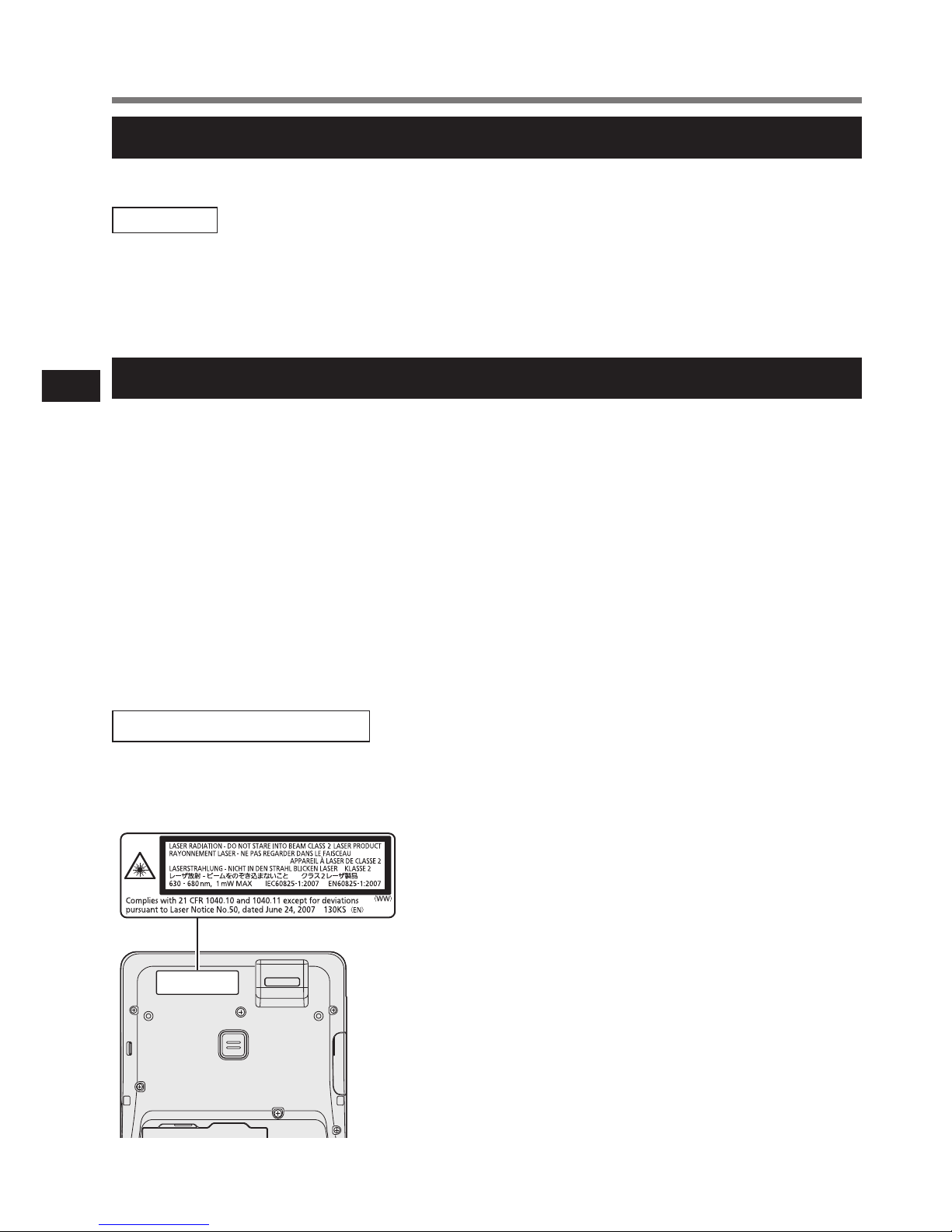
Laser Devices
<Only for model with Barcode Reader>
This equipment is using lasers that comply with US21CFR1040.10, 1040.11,
EN 60825-1:2007 and IEC60825-1:2007 regulations.
The laser is a “Class 2” laser which is indicated on the label for this product.”
Class 2 laser readers use a low power, visible light diode. As with any very bright
light source, such as the sun, the user should avoid staring directly into the light
beam.
Momentary exposure to a Class 2 laser is not known to be harmful.
Caution-Procedures other than those specied herein may result in hazardous
radiation exposure.
630 - 680 nm, 1 mW MAX.
Labeling/Marking
13-E-1
Page 23

23
Read Me First
For U.S.A.
Federal Communications Commission Radio Frequency Interference
Statement
Note: This equipment has been tested
and found to comply with the limits for
a Class B digital device, pursuant to
Part 15 of the FCC Rules. These limits
are designed to provide reasonable
protection against harmful interference
in a residential installation. This equipment generates, uses and can radiate radio frequency energy and, if not
installed and used in accordance with
the instructions, may cause harmful
interference to radio communications.
However, there is no guarantee that
interference will not occur in a particular installation. If this equipment does
cause harmful interference to radio or
television reception, which can be determined by turning the equipment off
and on, the user is encouraged to try to
correct the interference by one or more
of the following measures:
l Reorient or relocate the receiving
antenna.
l Increase the separation between
the equipment and receiver.
l Connect the equipment into an out-
let on a circuit different from that to
which the receiver is connected.
l Consult the Panasonic Service
Center or an experienced radio/TV
technician for help.
Warning
To assure continued compliance, use
only shielded interface cables when
connecting to a computer or peripheral.
Also, any changes or modications not
expressly approved by the party responsible for compliance could void the
user’s authority to operate this equipment.
FCC RF Exposure Warning:
<Only for model with wireless LAN/
wireless WAN/Bluetooth>
l This equipment complies with FCC
radiation exposure limits set forth
for an uncontrolled environment.
l This equipment has been approved
for portable operation, and does not
require any minimum spacing be
provided between antennas and all
person’s body.
l This equipment may not be co-
located or operated with any other
antenna or transmitter.
25-M-4
This device meets the government’s
requirements for exposure to radio
waves.
This device is designed and manufactured not to exceed the emission
limits for exposure to radio frequency (RF) energy set by the Federal
Communications Commission of the
U.S. Government.
The exposure standard for wireless
device employs a unit of measurement known as the Specifi c Absorp-
tion Rate, or SAR. The SAR limit set
by the FCC is 1.6 W/kg.
Tests for SAR are conducted us-
ing standard operating positions
accepted by the FCC with the
device transmitting at its highest
certifi ed power level in all tested
frequency bands.
Although the SAR is determined
at the highest certifi ed power
level, the actual SAR level of the
device while operating can be well
below the maximum value. This is
because the device is designed to
operate at multiple power levels
so as to use only the poser required to reach the network. In
general, the closer you are to a
wireless base station antenna, the
lower the power output.
*
Page 24
24
Read Me First
Regulatory Information
This device complies with Part 15 of the FCC Rules. Operation is subject to the
following two conditions:
(1) This device may not cause harmful interference, and
(2) This device must accept any interference received, including interference that
may cause undesired operation.
Responsible Party:
Panasonic Corporation of North America
Two Riverfront Plaza
Newark, NJ 07102
Support Contact:
http://www.panasonic.com/contactinfo
6-M-1
<For USA-California Only>
This product contains a CR Coin Cell Lithium Battery which contains Perchlorate
Material - special handling may apply.
See www.dtsc.ca.gov/hazardouswaste/perchlorate/
38-M-1
USA Only:
Disposal may be regulated in your community due to environmental considerations.
For disposal or recycling information, please visit Panasonic website:
http://www.panasonic.com/environmental or call 1-888-769-0149
65-M-2
<For USA and Canada>
A lithium ion battery that is recyclable powers the product you
have purchased.
Please call 1-800-8-BATTERY for information on how to recycle
this battery.
L’appareil que vous vous êtes procuré est alimenté par une
batterie au lithium-ion.
Pour des renseignements sur le recyclage de la batterie,
veuillez composer le 1-800-8-BATTERY.
48-M-1
<Only for model with wireless LAN> This product is restricted to indoor use
due to its operation in the 5.15 to 5.25 GHz frequency range.
FCC requires this product to be used indoors for the frequency range 5.15 to
5.25 GHz to reduce the potential for harmful interference to co-channel
Mobile Satellite systems. High power radars are allocated as primary users of
the 5.25 to 5.35 GHz and 5.65 to 5.85 GHz bands. These radar stations can
cause interference with and /or dam-age this product.
25-M-W-4
Page 25
25
Read Me First
For Canada / Pour le Canada
Canadian ICES-003
CAN ICES-003(B) / NMB-003(B)
7-M-3
<Only for model with wireless LAN/
Bluetooth>
Industry Canada
This product complies with RSS210
Industry Canada.
Operation is subject to the following
two conditions;
(1) this device may not cause interfer-
ence, and
(2) this device must accept any inter-
ference, including interference that
may cause undesired operation of
the device.
<Ne s’applique qu’aux modèles avec
technologie Bluetooth/LAN sans l>
Industrie Canada
Cet équipement est conforme à la
norme CNR-210 d’Industrie Canada.
Son fonctionnement est soumis aux
deux conditions suivantes :
(1) ce dispositif ne peut produire de
brouillage, et
(2) ce dispositif doit accepter le brouil-
lage, y compris le brouillage pouvant entraîner le fonctionnement
non désiré de l’appareil.
30-Ca-1-1
<Only for model with wireless LAN>
This product (local network devices) for
the band 5150-5250 MHz is only indoor
usage to reduce potential for harmful
interference to co-channel Mobile Satellite systems.
High power radars are allocated as
primary users (meaning they have
priority) of 5250-5350 MHz and 56505850 MHz and these radars could
cause interference and/or damage to
LELAN devices.
<Ne s’applique qu’aux modèles avec
technologie LAN sans l>
Cet appareil (pour réseaux locaux
radioélectriques) dans les bandes de
fréquences 5150-5250 MHz est réser-
vé à une utilization à l’intérieur an de
réduire le risque d’interférence avec les
systèmes satellites mobiles bicanaux.
Les radars forte puissance sont désignés comme étant les premiers utilisateurs (c’est-à-dire qu’ils ont la priorité) des bandes de fréquences 52505350 MHz et 5650-5850 MHz. Ces
stations radars peuvent provoquer des
interférences et/ou des dommages à
ce périphérique.
30-Ca-2-1
FOR USE WITH MODEL NO. :
CF-AA6373A
POUR UTILISER AVEC MODÈLE :
CF-AA6373A
20-Ca-1
<Only for model with wireless LAN/
wireless WAN/Bluetooth>
This computer complies with Indus-
try Canada radiation exposure limits
set forth for an uncontrolled environment.
This PC with WLAN and/or Blue-
tooth transmitters installed, has
been approved for portable operation and does not require any minimum spacing be provided between
antennas and all person’s body.
<Ne s’applique qu’aux modèles avec
technologie Bluetooth/LAN sans fi l/
WAN sans fi l>
Cet équipement est conforme aux
limites d’exposition aux rayonnements d’Industrie Canada établies
pour un environnement non contrôlé.
Ce PC avec émetteurs WLAN et/ou
Bluetooth a été approuvé à des fi ns
d’opération mobile; aucun espace
minimum entre les antennes et le
corps de l’utilisateur n’est requis.
Page 26
26
Getting Started
Introduction
Thank you for purchasing this Panasonic product. For optimum performance and
safety, please read these instructions carefully.
In these instructions, the names are referred as follows.
Terms and illustrations in these instructions
CAUTION
: Conditions that may result in minor or moderate
injury.
NOTE
: Useful and helpful information.
: Page in these Operating Instructions or in the
Reference Manual.
: Reference to the on-screen manuals.
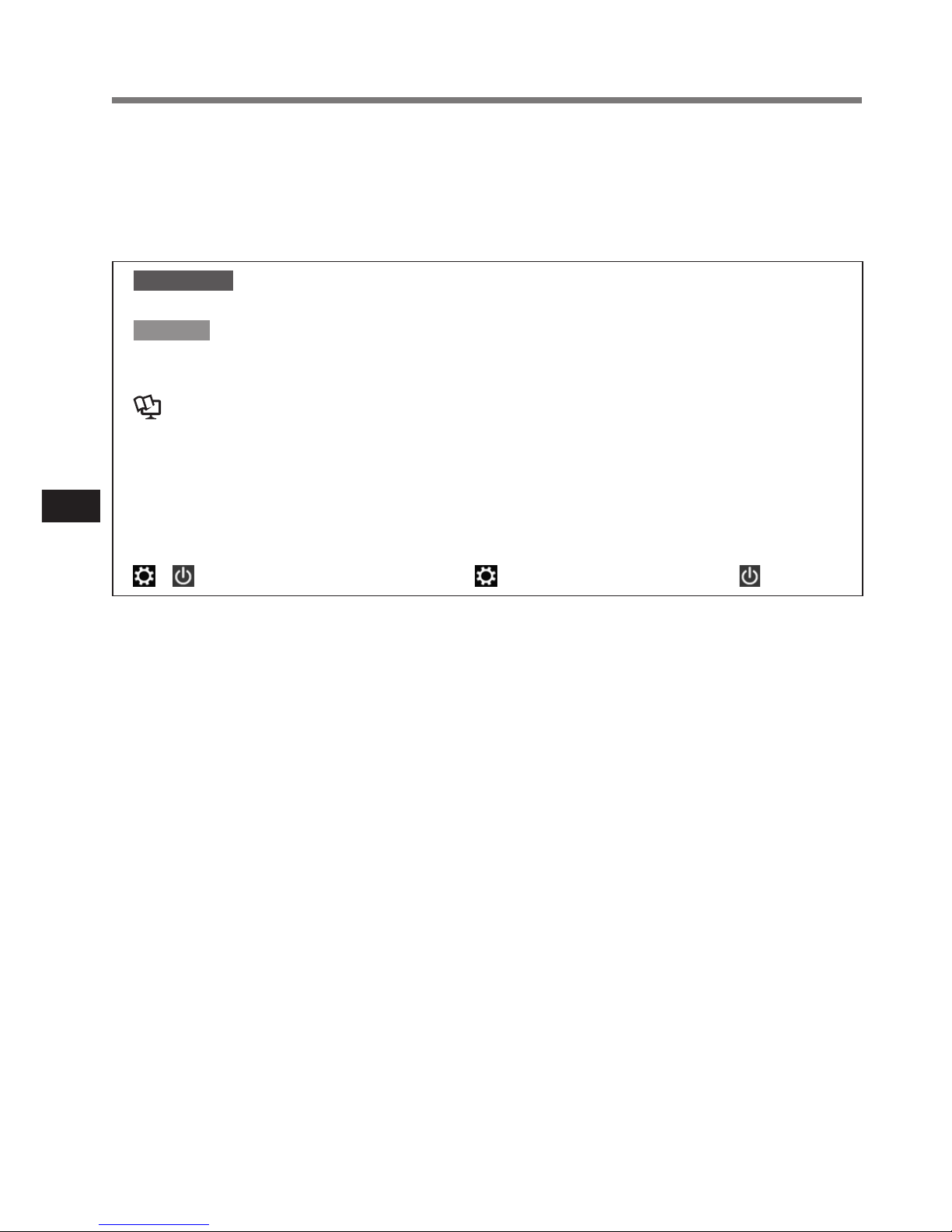
Display “Charm”: Align the cursor to the top right (or bottom right)
corner of the screen to display Charm menu.
Alternatively:
Flick toward the center of the screen from the
right edge.
- : Touch (Settings) and then touch (Power).
l Some illustrations are simplied to help your understanding and may look
differently from the actual unit.
l If you do not log on as an administrator, you cannot use some functions or
cannot display some screens.
l Refer for the latest information about optional products to the catalogs, etc.
l In these instructions, the names and terms are referred as follows.
y “Windows
®
8.1 Pro 64-bit” and “Windows® 8.1 with Bing 64-bit” as “Windows”
or “Windows 8.1”
l Screen messages are explained in [English (United States)].
(Depending on the language preference, some screen messages in these
instructions are different from the actual screen messages. For example, [Flight
mode] may be displayed instead of [Airplane mode] in some language preference.)
Disclaimer
Computer specications and manuals are subject to change without notice. Panasonic Corporation assumes no liability for damage incurred directly or indirectly
from errors, omissions or discrepancies between the computer and the manuals.
Page 27
27
Getting Started
Trademarks
Microsoft
®
, Windows®, and the Windows logo are registered trademarks of Microsoft Corporation of the United States and/or other countries.
Intel, Core, Centrino and PROSet are either registered trademarks or trademarks
of Intel Corporation.
microSDXC Logo is a trademark of SD-3C, LLC.
Adobe, the Adobe logo and Adobe Reader are either registered trademarks or
trademarks of Adobe Systems Incorporated in the United States and/or other
countries.
Bluetooth® is a registered trademark owned by Bluetooth SIG, Inc., U.S.A. and
licensed to Panasonic Corporation.
HDMI, the HDMI Logo and High-Denition Multimedia Interface are trademarks
or registered trademarks of HDMI Licensing LLC in the United States and other
countries.
Names of products, brands, etc., appearing in this manual are trademarks or registered trademarks of their respective own companies.
On-screen Manual
For further information about the computer, you can refer to the on-screen manual.
l Reference Manual
The Reference Manual contains the practical information to help you fully enjoy
the computer’s performance.
l Important Battery Tips
The Important Battery Tips will provide you with the battery information so that
you can use the battery in the optimum condition to obtain longer operation
time.
To access the on-screen manuals, follow the steps below.
On the Start screen, touch the [Manual Selector] tile, and select the on-screen
manual.
NOTE
l [Contents] tab or [Search] tab is displayed on the left side of the window.
Select tab and display the desired item.
Page 28
28
Getting Started
Description of Parts
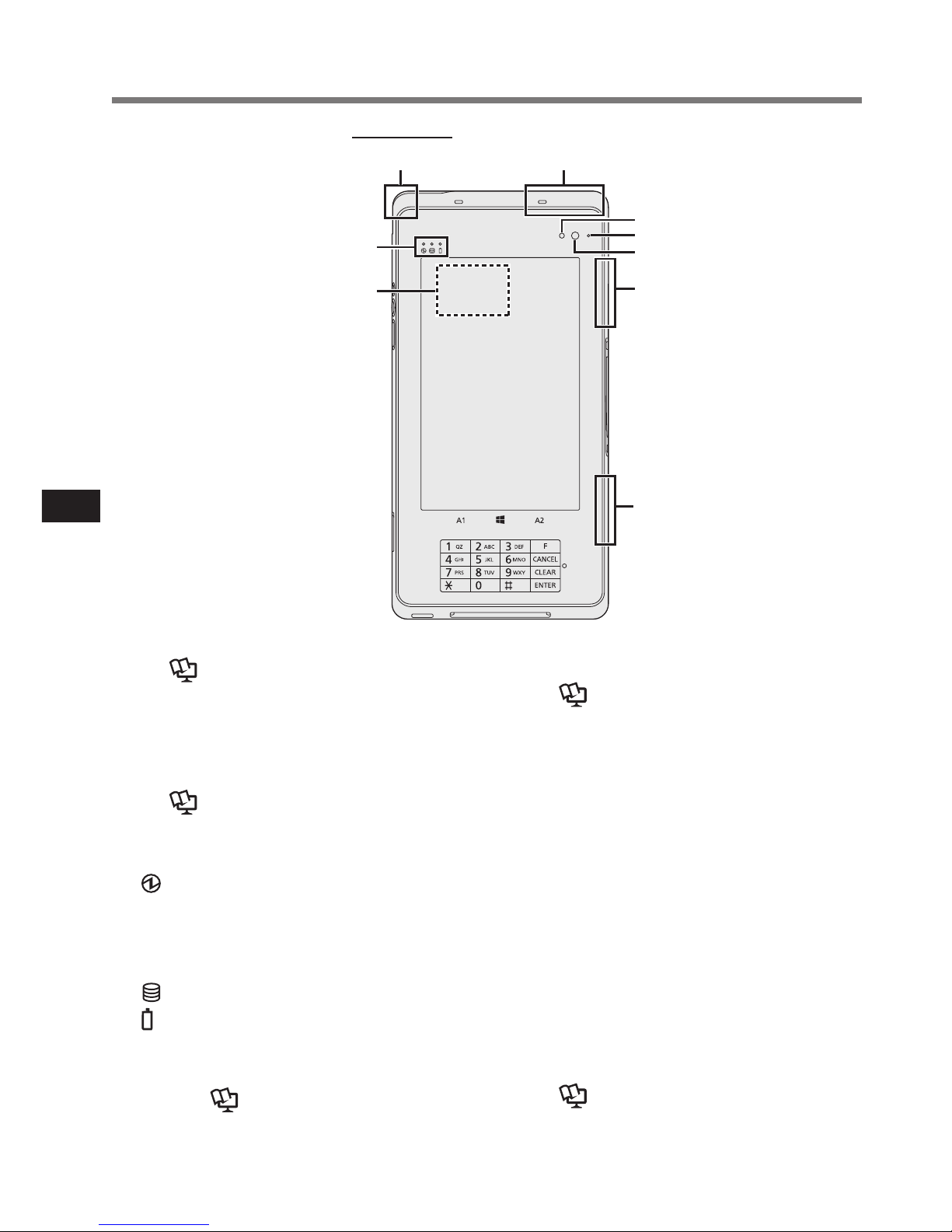
A
C
G
B
D
F
E
H
B
Front side
A: Wireless LAN Antenna
Reference Manual “Wireless
LAN”
B: Wireless WAN Antenna
<Only for model with wireless
WAN>
Reference Manual “Wireless
WAN”
C: LED Indicators
: Power Indicator
Off: Power off/Hibernation,
Green: Power on,
Blinking green: Sleep.
: Drive status
: Battery status
page 46 “When the battery
indicator does not light on”
Reference Manual “Bat-
tery Power”
<Only for model with Front Camera>
Front Camera
Reference Manual “Camera”
D: Ambient Light Sensor
The ambient light sensor is
equipped with an automatic
brightness adjustment function
that adjusts the display screen.
( page 48)
E: Camera Lens
F: Camera Indicator
G: Contactless IC Card Reader
You can read the data from NFC
(Near Field Communication) de-
vices (Contactless Card, etc.).
( page 42)
H: Wireless LAN Antenna / Blue-
tooth Antenna
Reference Manual “Wireless
LAN” “Bluetooth”
Page 29
29
Getting Started
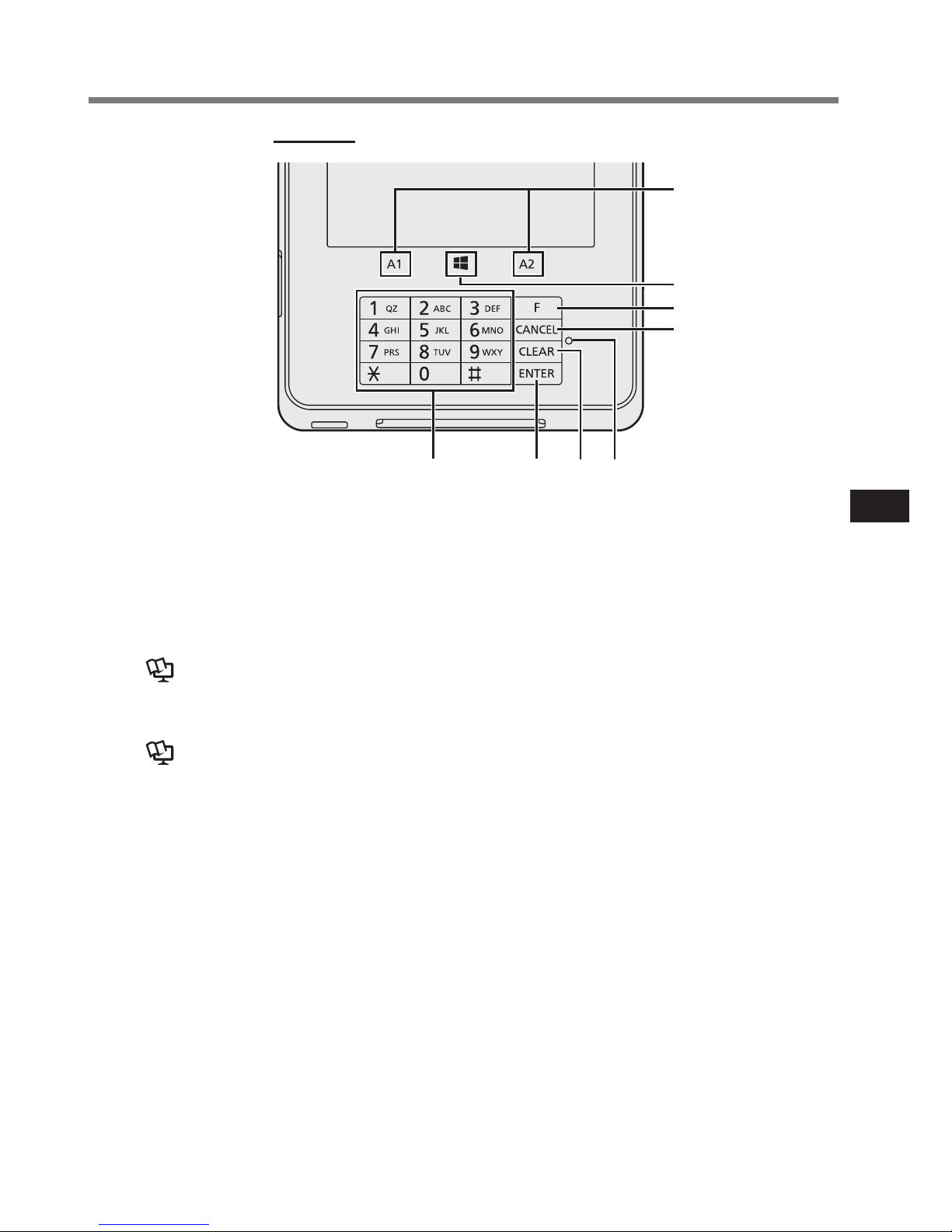
A: A1 / A2 Button
Reference Manual “Tablet
Buttons”
B: Windows Button
Reference Manual “Tablet
Buttons”
C: Number Key
Press to input numbers.
D: Function Key
Press to execute the function assigned in the application software.
E: CANCEL Key
Press to cancel transaction.
F: CLEAR Key
Press if you input a wrong value.
Pressing the key will clear the input
value.
G: ENTER Key
Press to conrm the input data.
H: LED Indicator
Off: In hibernation or when input-
ting numbers is possible in normal state.
Green: In secure state where input-
ting password is possible.
Red: Detecting a security problem.
A
B
D
E
C G F
H
Key Pad
Page 30
30
Getting Started
Description of Parts
D
E
F
G
H
I
Left side
L
M
Right side
A B
Top
C
Top (optional)
J K
Bottom
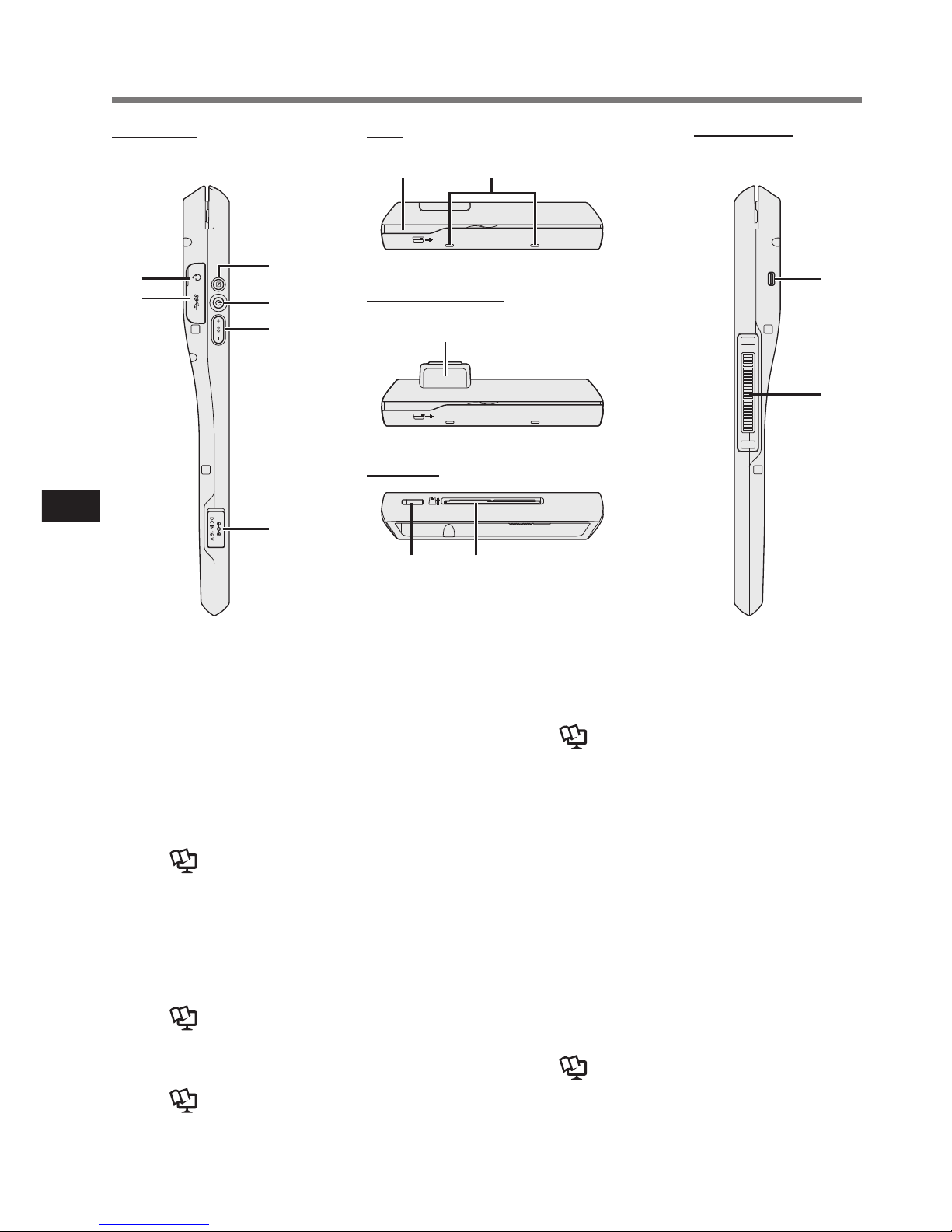
A: Magnetic Stripe Card Reader
Reads information of a credit
card (magnetic stripe card).
( page 43)
B: Microphone
C: Barcode Reader
<Only for model with Barcode Reader>
Reference Manual “Barcode
Reader”
D: Headset Jack
A headset or headphone can be
connected.
E: USB3.0 Port
Reference Manual “USB
Devices”
F: Rotation Lock Button
Reference Manual “Display
Rotation”
G: Power Switch
H: Volume Button
Reference Manual “Tablet
Buttons”
I: DC-IN Jack
J: Speaker
K: Smart Card Reader
Reads information of a credit card
(Smart card). ( page 44)
L: Security Lock
A Kensington cable can be con-
nected.
For further information, read the
manual that comes with the cable.
M: Expansion Bus Connector
Reference Manual “Cradle”
Page 31
31
Getting Started
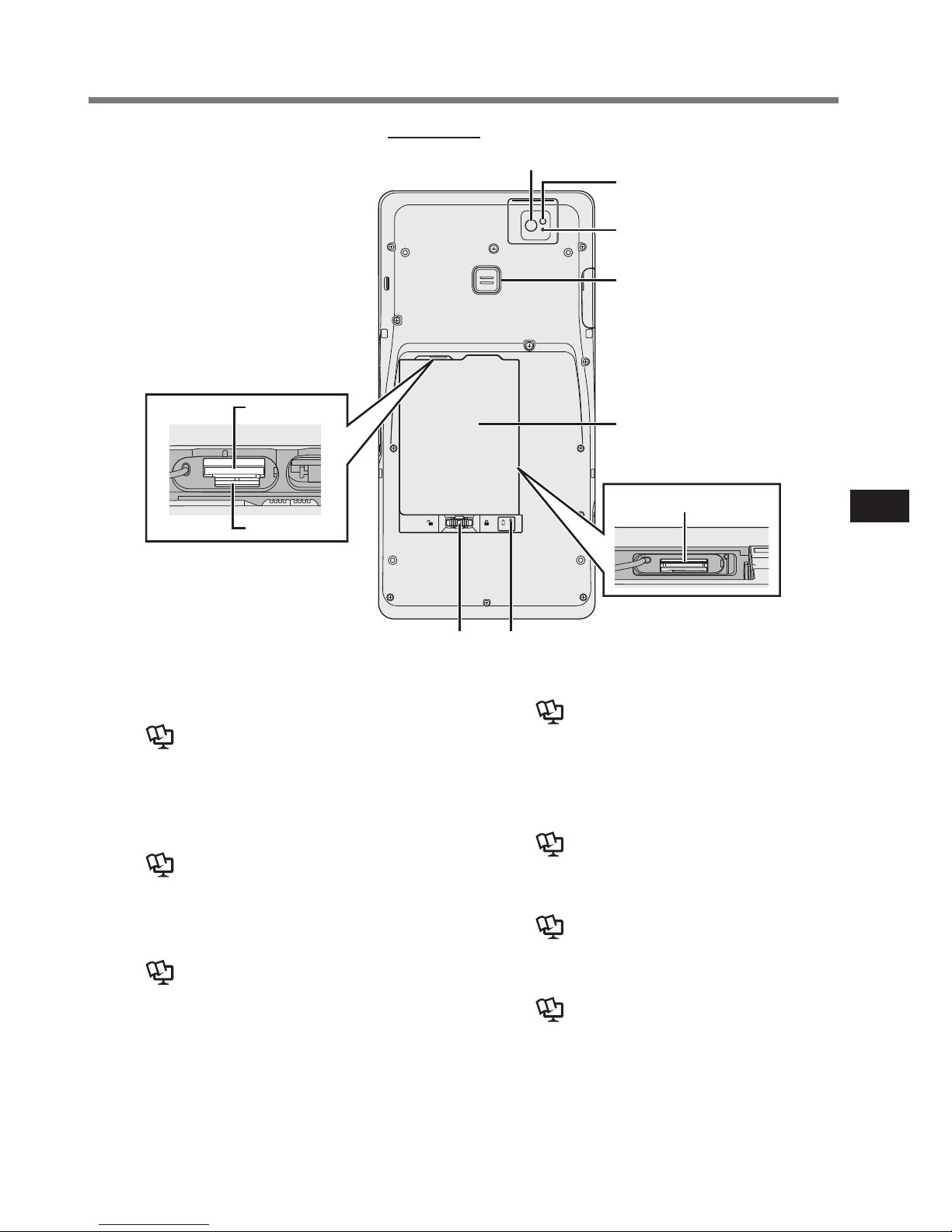
Rear side
<Only for model with Rear Camera>
Rear Camera
Reference Manual “Camera”
A: Camera Lens
B: Camera Light
C: Camera Indicator
D: A3 Button
Reference Manual “Tablet
Buttons”
<Only for model with Barcode Reader>
Trigger Button
Reference Manual “Barcode
Reader”
E: Battery Pack
F: Battery Indicator
<Only for model with Built-in Bridge
Battery>
G: Battery Latch
Reference Manual “Battery
Power”
H: microSIM Card Slot
<Only for model with wireless
WAN>
Reference Manual “Wireless
WAN”
I: microSD Memory Card Slot
Reference Manual “microSD
Memory Card”
J: SAM Card Slot
Reference Manual “SAM
Card”
G F
A
J
E
D
C
B
H
I
Page 32
32
Getting Started
Preparation
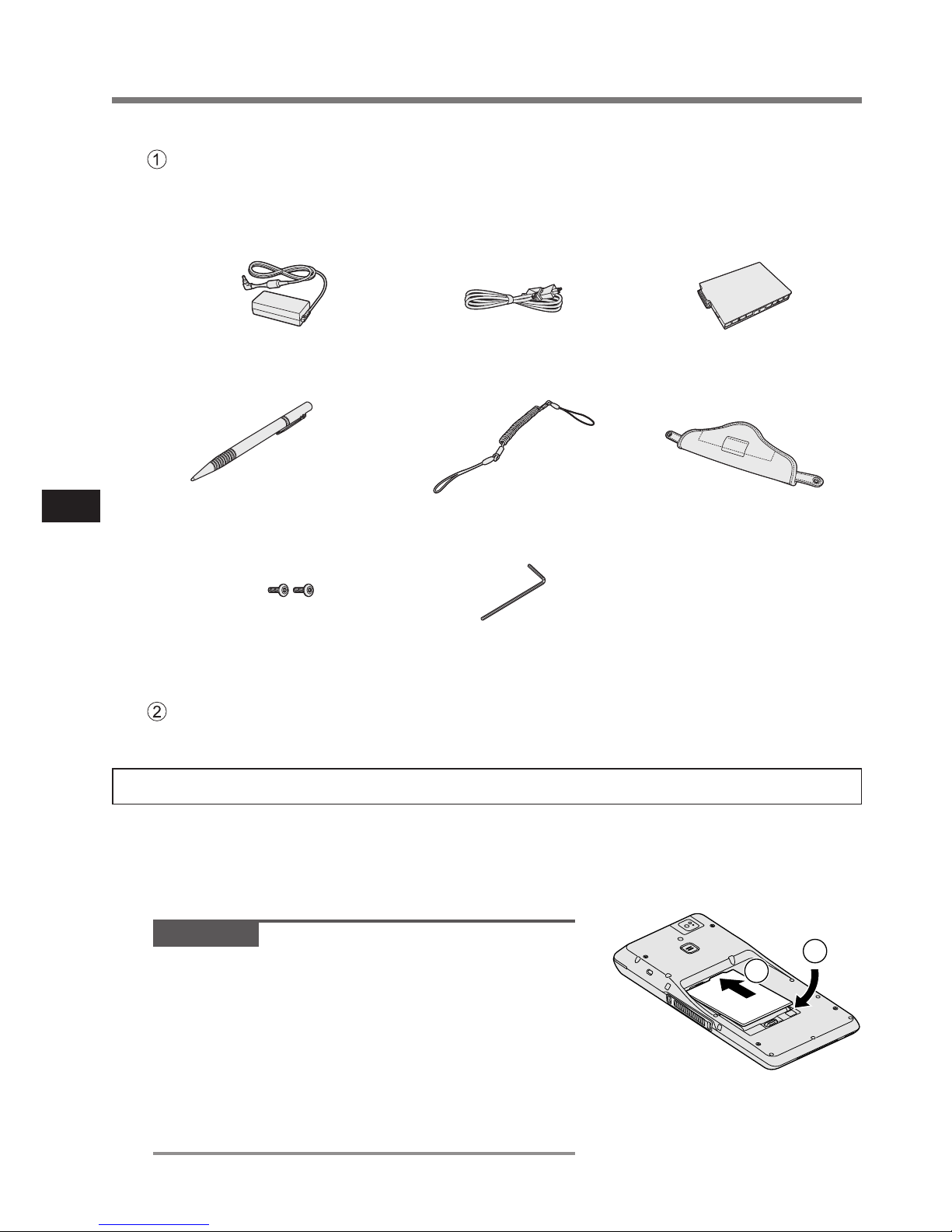
Check and identify the supplied accessories.
If you do not nd the described accessories, contact Panasonic Technical
Support ( page 75).
• AC Adaptor .....1
Model No: CF-AA6373A
• AC Cord .......1 • Battery Pack ...1
Model No: FZ-VZSU94W
• Stylus .........1 • Tether .........1 • Hand Strap .....1
• Screw for Hand
Strap ..........2
• Hexagon wrench
..............1
• Soft Cloth .............................................1
• OPERATING INSTRUCTIONS (This book) ................... 1
Read the LIMITED USE LICENSE AGREEMENT before breaking the seal
on the computer’s packaging ( page 65).
First-time Operation
1 Inserting the Battery Pack.
Turn over the computer and insert the battery
pack until it touch to the secured position.
l
Make sure no foreign objects are under the
computer.
CAUTION
l Make sure the latch is securely locked.
Otherwise the battery pack may fall when
you carry the computer.
l Do not touch the terminals of the battery
pack and the computer. Doing so can
make the terminals dirty or damaged, and
may cause malfunction of the battery pack
and the computer.
1
2
Page 33
33
Getting Started
NOTE
l
Note that the computer consumes electricity even when the computer power is off.
If the battery pack is fully charged, the battery will fully discharge in the following
period of time:
Status FZ-VZSU94W FZ-VZSU95W (optional)
When power is off Approx. 6 weeks Approx. 13 weeks
In sleep
*1
Approx. 5 days Approx. 11 days
In hibernation Approx. 6 weeks Approx. 13 week
*1
<Only for model with LAN>
If “Wake Up from wired LAN” is enabled, the period of time will be
shorter.
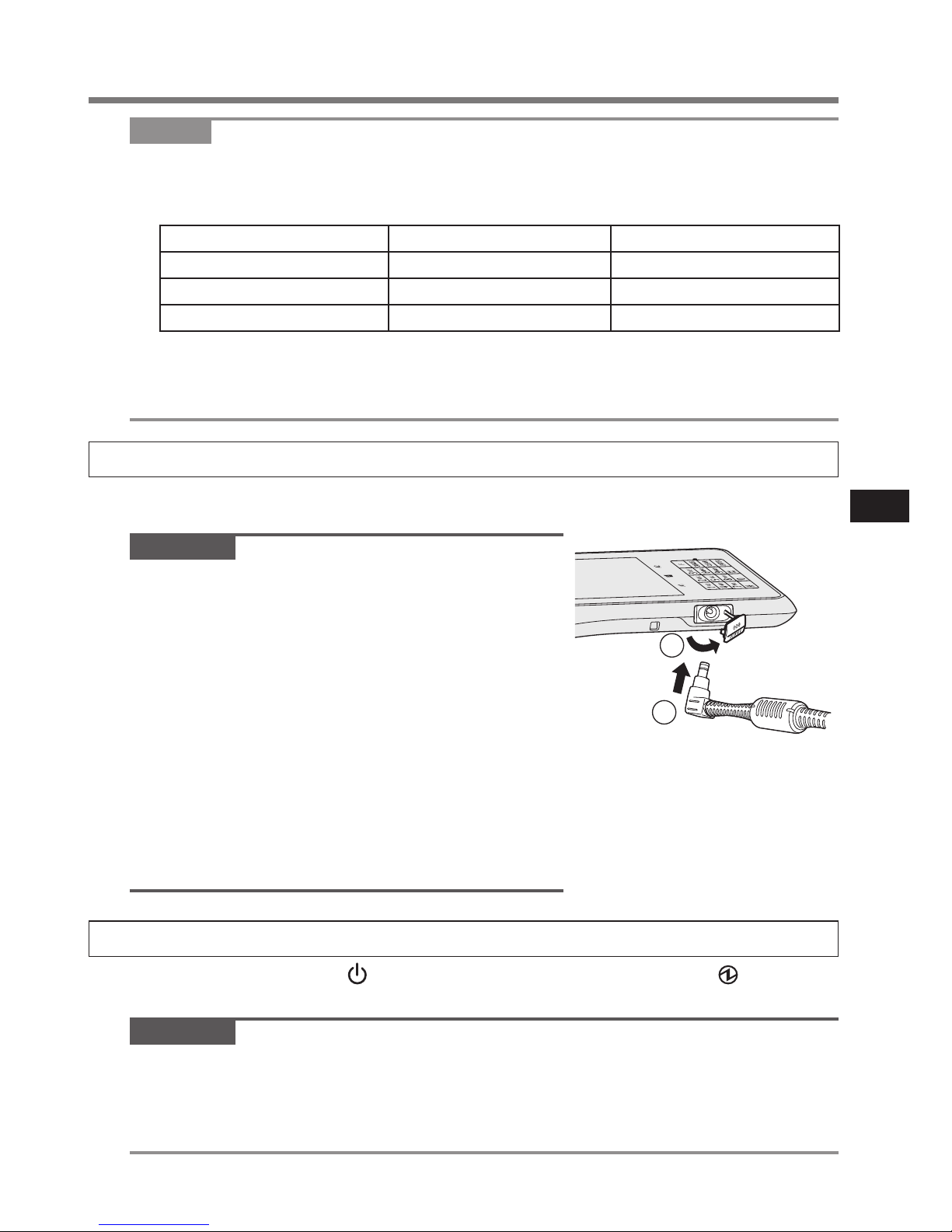
2 Connect your computer to a power outlet.
The battery charging starts automatically.
CAUTION
l Do not disconnect the AC adaptor until the
rst-time operation procedure is completed.
l When using the computer for the rst time,
do not connect any peripheral device (including wired LAN cable) except the battery
pack and AC adaptor.
l Handling the AC adaptor
y Problems such as sudden voltage drops
may arise during periods of thunder and
lightning. Since this could adversely affect
your computer, an uninterruptible power
source (UPS) is highly recommended unless running from the battery pack alone.
2
1
3 Turn on the computer.
Press the power switch ( page 30) until the power indicator
( page 28) lights. ( page 39)
CAUTION
l Do not p
ress
the power switch repeatedly or do not hold the power switch
for four seconds or longer.
l Any changes from the default setting of the Setup Utility must not be made
until the First-time Operation is completed.
Page 34
34
Getting Started
First-time Operation
4 Setup Windows.
Follow the on-screen instructions.
l The computer restarts several times. Do not touch the screen or tablet but-
tons, and wait until the drive indicator has turned off.
l After the computer is turned on, the screen remains black or unchanged for
a while, but this is not a malfunction. Wait for a moment until the Windows
setup screen appears.
l Setup of Windows will take approximately 5 minutes.
Go to the next step, conrming each message on the display.
l You can set the Wireless Network after the setup of Windows is complete.
If “Get online” is displayed, you can select “Skip this step”.
CAUTION
l You can change the user name, password, image and security setting
after setup of Windows.
l Remember your password. If you forget the password, you cannot use
Windows. Creating a password reset disk beforehand is recommended.
l Do not use the following words for user name: CON, PRN, AUX, CLOCK$,
NUL, COM1 to COM9, LPT1 to LPT9, LPT, @, &, space. In particular, if
you create a user name (account name) that includes the “@” mark, a
password will be requested at the log-on screen, even if no password has
been set. If you try to log on without entering a password, “The user name
or password is incorrect.” may be displayed and you will not be able to
sign in to Windows ( page 61).
5 Create the recovery disc.
A recovery disc allows you to install OS and restore its factory default condition, in case, for example, the recovery partition of the ash memory is damaged. We recommend creating a recovery disc before you begin using the
computer.
Refer to
Reference Manual “Recovery Disc Creation Utility” about cre-
ating the disc.
Page 35
35
Getting Started
NOTE
l PC Information Viewer
This computer periodically records the management information of the ash
memory, etc. The maximum data volume for each record is 1024 bytes.
This information is only used for estimating the cause when the ash memory
goes down by any possibility. They are never sent to outside via network nor
used for any other purpose except for the purpose described the above.
To disable the function, add the check mark for [Disable the automatic
save function for management information history] in [Hard Disk Status] of
PC Information Viewer, and touch [OK]. Then follow the on-screen instruc-
tions.
( Reference Manual “Checking the Computer’s Usage Status”)
Before using wireless function
Display “Charm”, and touch - [Change PC Settings] - [Network] - [Airplane
mode].
Set [Airplane mode] to [Off], and then;
set [Wi-Fi] to [On] (for wireless LAN).
set [Mobile broadband] to [On] (for wireless WAN).
set [GPS] to [On] (for wireless WAN).
set [Bluetooth] to [On] (for Bluetooth).
To change the partition structure
You can shrink a part of an existing partition to create unallocated disk space,
from which you can create a new partition. In the default setting, you can use a
single partition.
Perform the following procedure.
1. Touch on the Start screen, and then long touch [This PC] under “Win-
dows System”.
2. Touch [Manage] on app bar.
Touch [Disk Management].
Long touch the partition for Windows (“c” drive in the default setting), and
touch [Shrink Volume].
l The partition size depends on the computer specications.
Input the size in [Enter the amount of space to shrink in MB] and touch
[Shrink].
l You cannot input a larger number than the displayed size.
l To select [Reinstall to the OS related partitions.] in installing OS
( page 55), 35 GB or more is necessary for [Total size after shrink
in MB].
Long touch [Unallocated] (the shrunk space in the step ) and touch [New
Simple Volume].
Page 36
36
Getting Started
First-time Operation
Follow the on-screen instructions to make the settings, and touch [Finish].
Wait until formatting is completed.
NOTE
l You can create an additional partition using remaining unallocated space
or newly creating unallocated space.
l To delete a partition, long touch the partition and touch [Delete Volume] in
the step
.
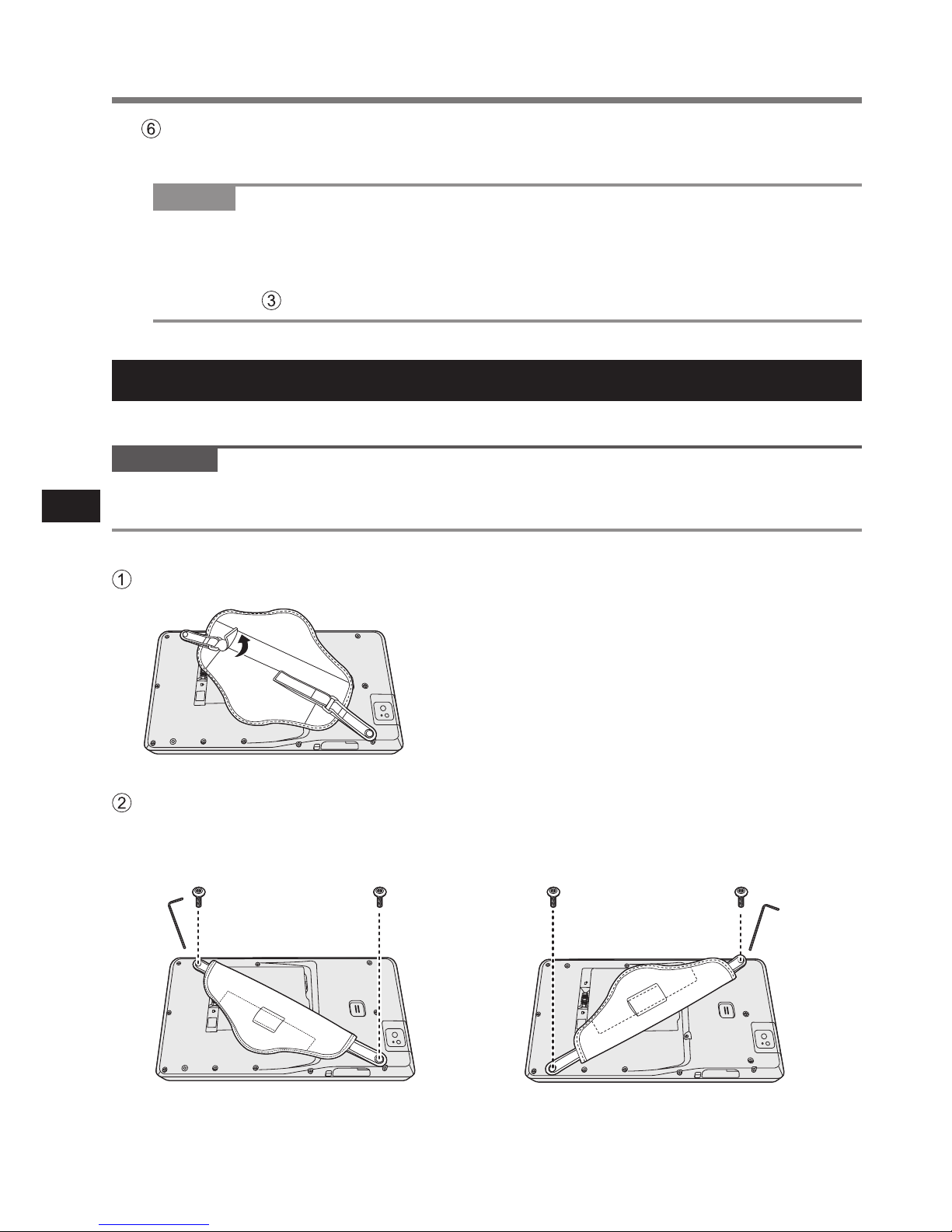
Installing the hand strap
Attaching the hand strap helps you stably hold the computer.
CAUTION
l Place the computer on a soft cloth with the panel side down. In addition, make
sure that there is no item under the computer.
Open the pad of the hand strap and adjust the length with velcro straps.
Put the hand strap so that the curved side comes near the wrist and x it with
the screws (supplied) and hexagon wrench (supplied) in the diagonal positions.
<Holding with left hand> <Holding with right hand>
Page 37
37
Getting Started
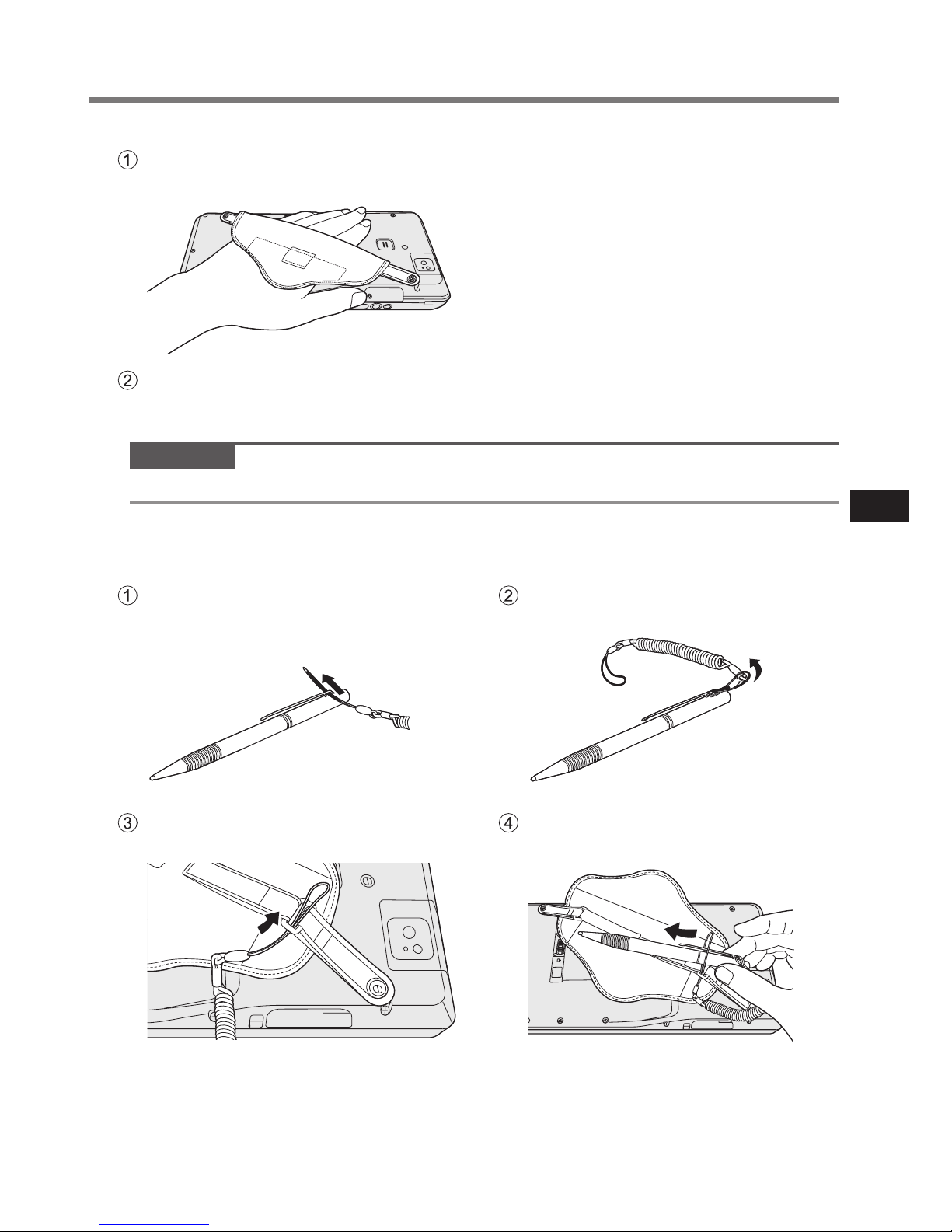
Using the hand strap
When using the computer holding with hand, insert your hand to the hand
strap.
Fix the hand strap rmly so that the computer does not come off, and then
turn it over.
CAUTION
l If the hand is not securely xed to the hand strap, the computer may drop.
Attaching the tether to the hand strap
Pass one of the loops through the
hole.
Pass one of the loops through
another loop.
Pass the loop through the ring of
the hand strap.
Pass the stylus and tether through
the second loop.
Page 38
38
Getting Started
First-time Operation
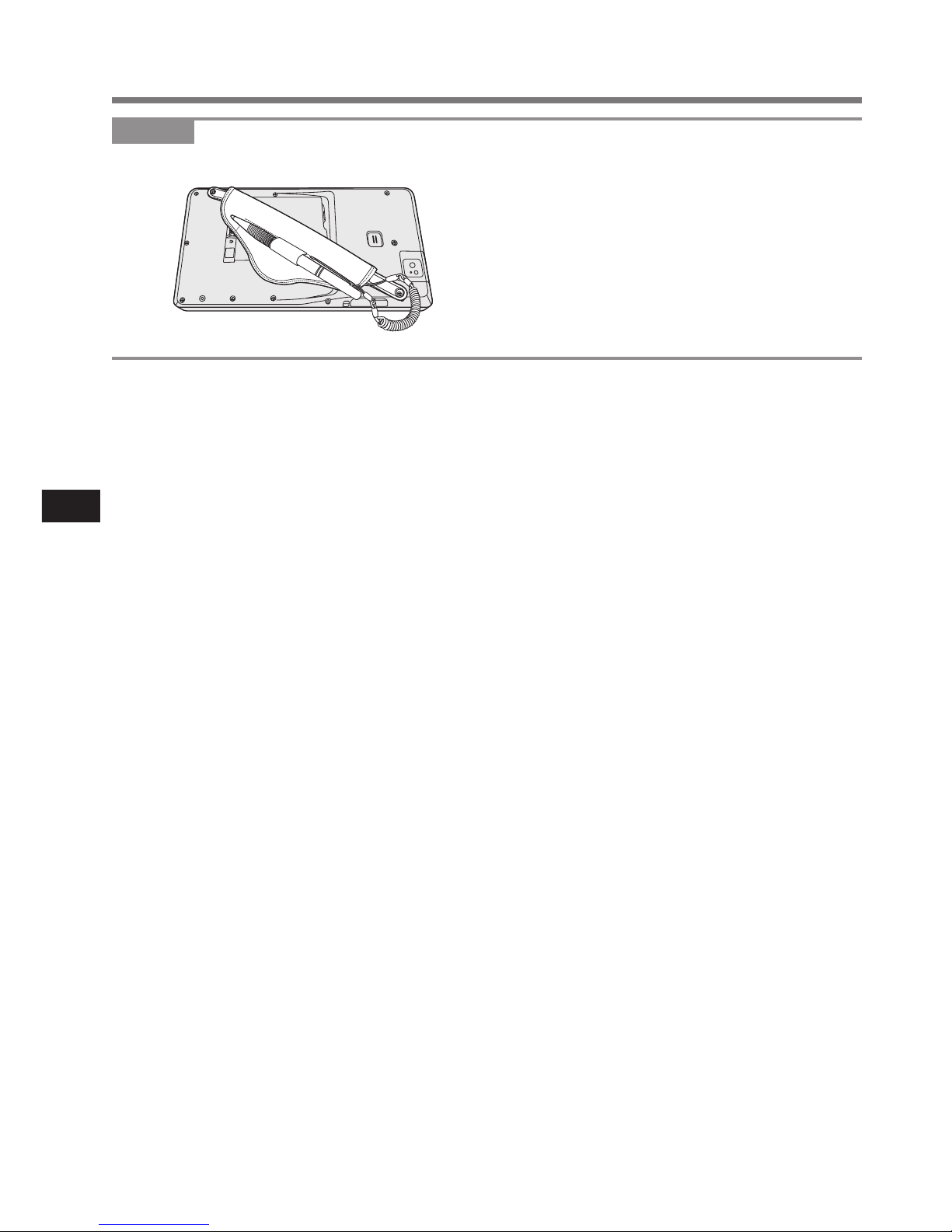
NOTE
l The stylus can be stored in the hand strap as below.
Page 39
39
Basic Operation
Turning On
Press the power switch ( page 30) until the power indicator ( page 28)
lights.
NOTE
l Do not p
ress
the power switch repeatedly.
l The computer will forcibly be turned off if you p
ress
the power switch for four
seconds or longer.
l Once you turn off the computer, wait for ten seconds or more before you turn
on the computer again.
l
Do not perform the following operation until the drive indicator turns off.
y Connecting or disconnecting the AC adaptor
y P
ressing
the power switch
y
T
ouching tablet buttons, screen or external mouse
Turning Off
S
hut down the computer.
1. Display “Charm”, and touch
.
2. Touch [Power] - [Shut down].
NOTE
l To turn off the computer completely, proceed as follows.
Display “Charm”, and touch - [Change PC settings] - [Update and recov-
ery] - [Recovery].
Touch [Restart now] under “Advanced startup”.
Touch [Turn off your PC].
Turning On / Turning Off
Page 40
40
Basic Operation
Turning On / Turning Off
Precaution against Starting Up / Shutting Down
l Do not do the following
y
Connecting or disconnecting the AC adaptor
y P
ressing the power switch
y Touching t
ablet buttons,
screen or external mouse
NOTE
l To conserve power, the following power saving methods are set at the time of
purchase.
y T
he screen automatically turns off after :
1
0 minutes (when AC adaptor is connected) of inactivity
5
minutes (when operating on battery power) of inactivity
y The computer automatically enters sleep*1 after :
20 minutes (when AC adaptor is connected) of inactivity
1
5 minutes (when operating on battery power) of inactivity
*1
Refer to Reference Manual “Sleep or Hibernation Functions” about re-
suming from sleep.
Page 41
41
Basic Operation
l Be extremely careful not to lose the product. Always lock the storage area and,
if you take it outside, always keep it with you to prevent theft or unauthorized
use by a third person.
l Before using the product, check the terminal for any trace of disassembly or
modication. Do not use it if any abnormality is observed.
l Do not open the housing of the product and do not modify the product.
l The product uses internal batteries to perform backup of important operational
data. Do not remove the battery because doing so will delete the backup data,
which may disable operation of the product. Charge the battery pack at least
once per six months if the product is not used for a long time.
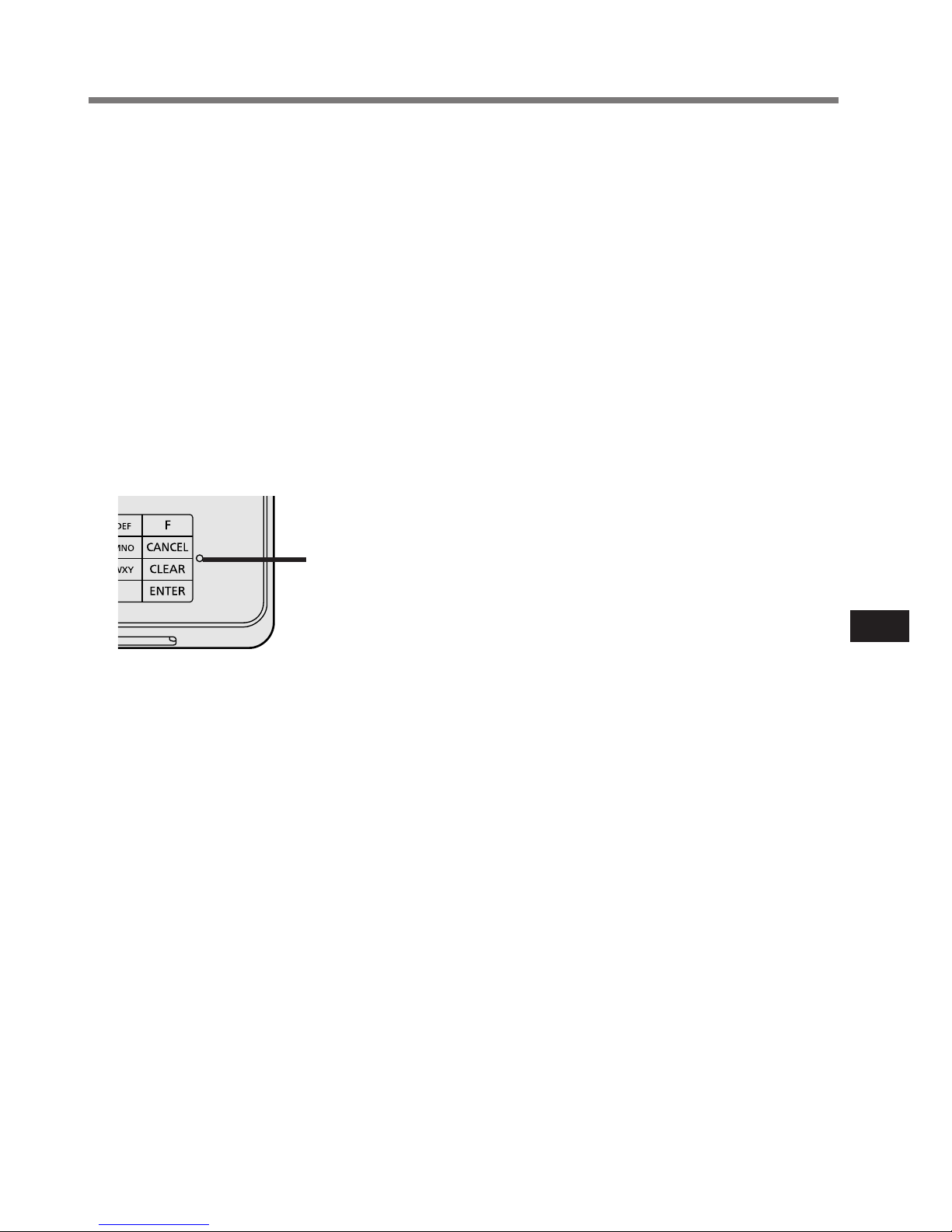
How to input a password (Give this information to customers)
l If a password is required for transaction, ask the customer to input it. Inputting
a password is possible when the LED on the side of the touch panel is lighting
green. Be sure to check the LED before asking a customer to input.
LED Indicator
Off: In hibernation or when inputting numbers is pos-
sible in normal state.
Green: In secure state where inputting password is pos-
sible.
Red: Detecting a security problem.
l To prevent unauthorized use by a third person, observe the following instruc-
tions to keep the password secret.
y The customer him/herself must input the password.
y The customer should hold the product by hand when inputting the password.
y The customer should use his/her hand or other body part to hide the pass-
word from people nearby.
y The customer should use his/her hand or other body part to hide the pass-
word from a security camera.
Signature verication <for credit cards>
l Some applications may require a printed slip and signature on it.
l If the signature eld is blank in the sales slip for the credit card company, al-
ways ask the customer to sign his/her signature in it and verify it with the signature on the back of the credit card.
(This is not necessary if “a signature is not necessary” is printed in the eld.)
Payment Function
Page 42
42
Basic Operation
Payment Function
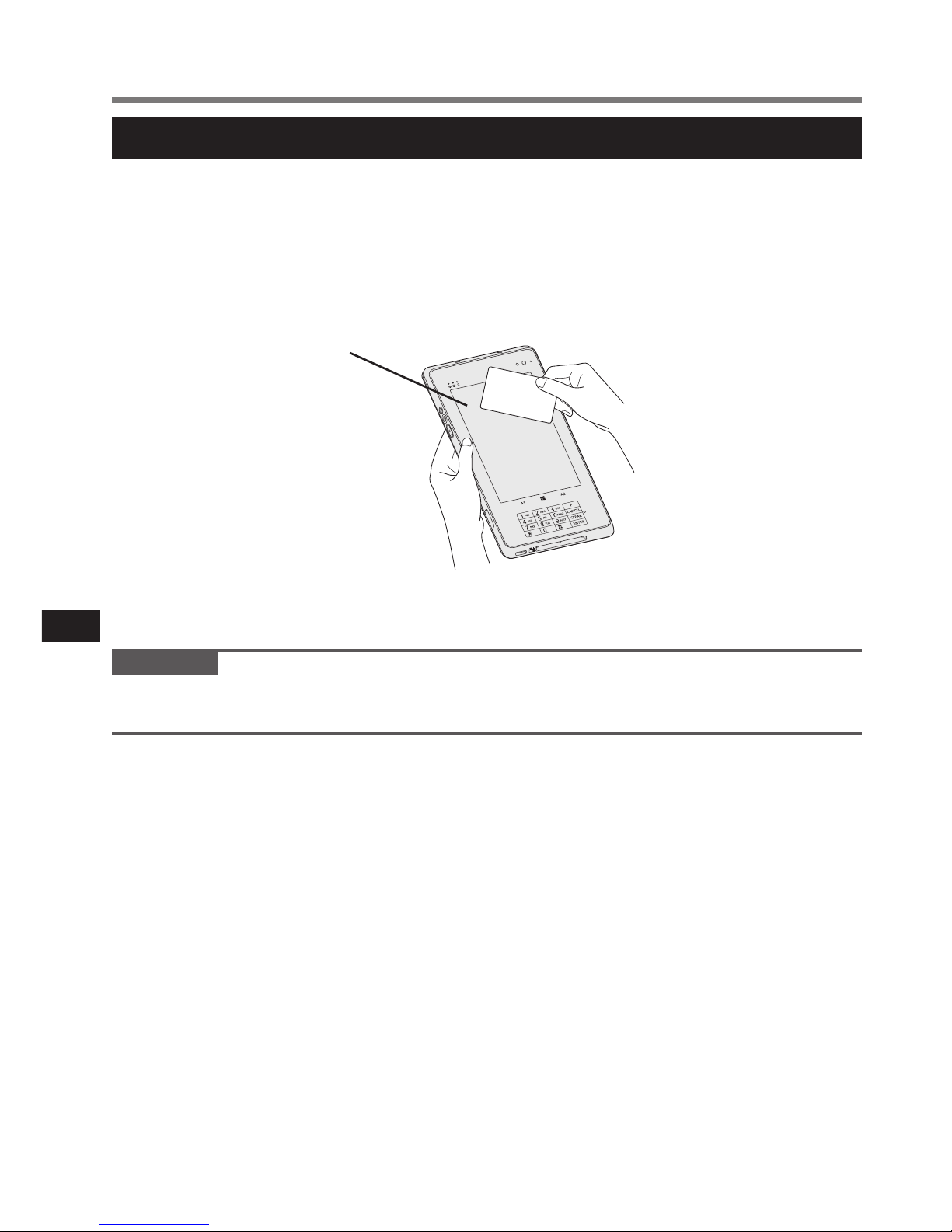
Reading the Contactless IC Card
Put your contactless IC card or mobile phone just above the logo mark shown on
the display (touch panel).
l The color and sound indicating the reading status of the contactless IC card
differ depending on the applications.
The NFC logo appears
around here on the display
Put your contactless IC card or mobile phone over the display until processing is
completed.
CAUTION
l To prevent a misoperation when reading the card, do not touch the display.
l Be careful not to hit the display (touch panel) with your mobile phone.
Page 43
43
Basic Operation
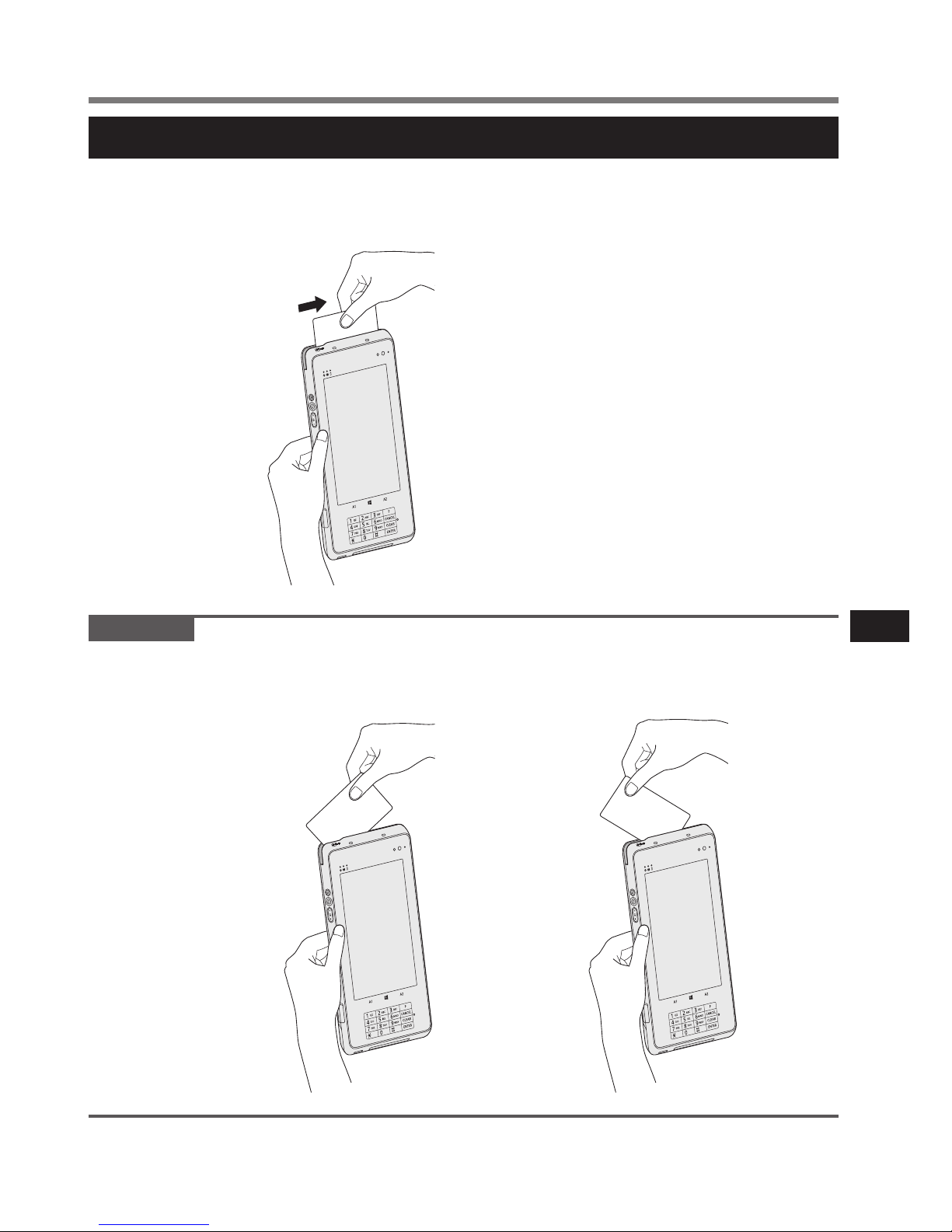
Reading the Magnetic Stripe Card
Hold the middle of the magnetic stripe card and slide it through the magnetic
stripe card reader.
Slide the card keeping its embossed
side facing you.
CAUTION
l To prevent a misoperation when reading the card, do not touch the display.
l To prevent a reading error, do not hold the end of the card.
NG NG
Page 44
44
Basic Operation
Payment Function
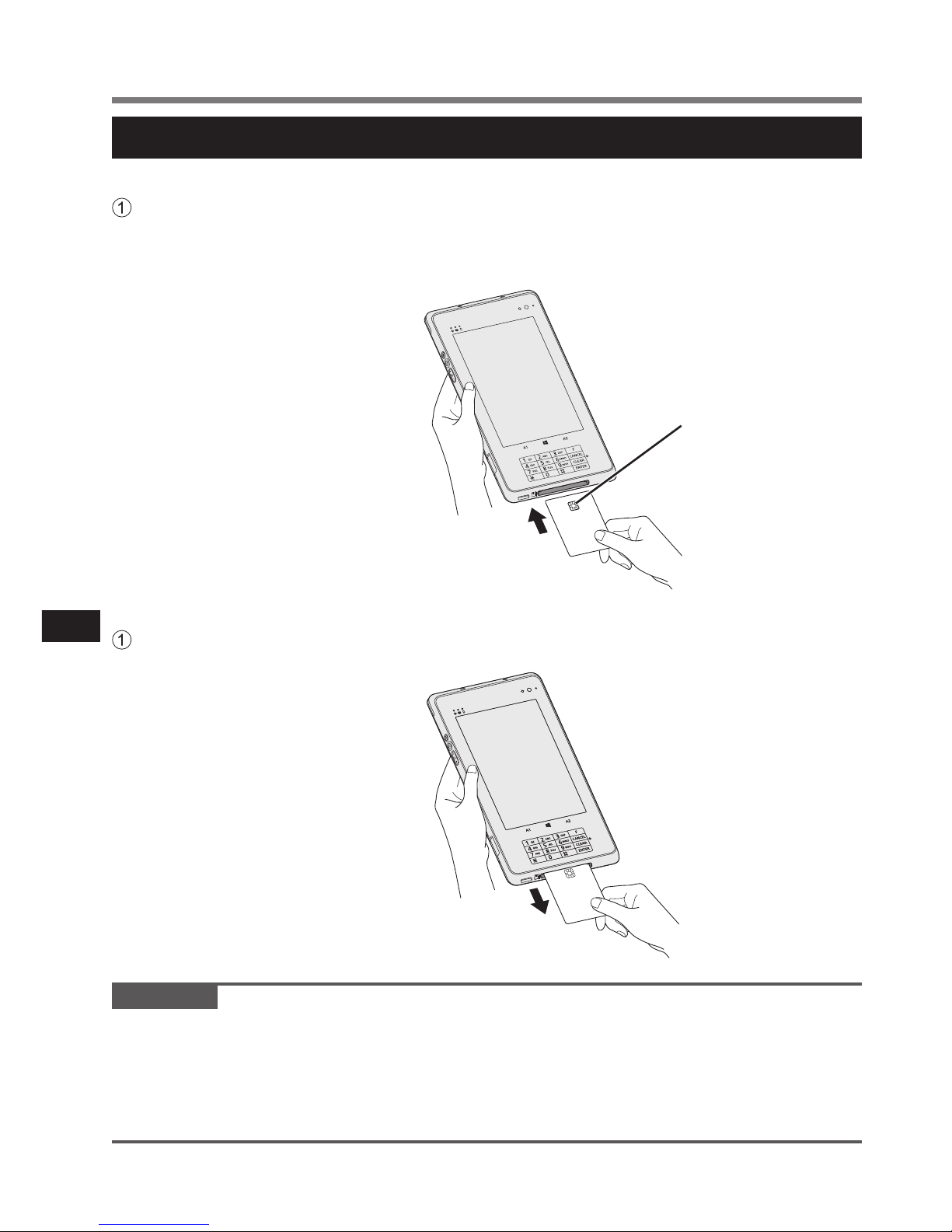
Reading the Smart Card
To insert a smart card
Insert your smart card in the Smart Card Reader.
l Keep the contact part of the smart card facing up and insert it until it reaches
the end. The card reaches the end when around half of it is inserted.
The contact part of the
smart card
To remove a smart card
Pull out the smart card to the arrow direction.
CAUTION
l Do not insert a wet smart card.
l Do not insert any other object than a smart card.
l Wipe dirt off the contact part of the smart card before use.
l To prevent a misoperation when reading the card, do not touch the display.
l Do not remove the card until processing is completed.
Page 45

45
Useful Information
Handling and Maintenance
Operation environment
l Place the computer on a at stable surface not subject to shock, vibration, and
danger of dropping. Do not place the computer upright or turn it over. If the
computer is exposed to an extremely strong impact, it may become damaged.
l Operating environment
Temperature: Operation : -10 °C to 50 °C {14 °F to 122 °F} (IEC60068-2-1, 2)
*1
Storage : -20 °C to 60 °C {-4 °F to 140 °F}
Humidity: Operation : 30% to 80% RH (No condensation)
Storage : 30% to 90% RH (No condensation)
Even within the above temperature/humidity ranges, operation for a long time
in extreme environments, smoking nearby, or operation in places where oil is
used or where there is a lot of dust will result in the product deterioration and
will shorten the product life.
*1
Do not expose the skin to this product when using the product in a hot or cold
environment. ( page 7)
If the computer is wet in temperatures of 0 °C {32 °F} or below, freeze damage
may occur. Make sure to dry off the computer in such temperatures.
l Do not place the computer in the following areas, otherwise the computer may
be damaged.
y Near electronic equipment. Image distortion or noise may occur.
y In extremely high or low temperature.
l As the computer can become hot during operation, keep it away from items
that are sensitive to heat.
Handling cautions
This computer is designed to minimize shock to parts such as the LCD and the
ash memory drive, but no warranty is provided against any trouble caused by
shock. Be extremely careful when handling the computer.
l When carrying the computer:
y Turn off the computer.
y Remove all external devices, cables, Smart Cards and other protruding ob-
jects.
y Do not drop or hit the computer against solid objects.
y Do not grip the display part.
l When you board an airplane, take the computer with you and never put it in
your checked luggage. When using the computer on airplane, follow the airline’s instructions.
l When carrying a spare battery, put it in a plastic bag to protect its terminals.
Page 46

46
Useful Information
Handling and Maintenance
l The touchscreen is designed to be used by a nger tip. Do not place any ob-
jects on its surface and do not press down strongly with sharp-pointed or hard
objects that may leave marks (e.g., nails, pencils and ball point pens).
l Avoid any harmful substances such as oil from getting into the touchscreen.
The pointer may not work correctly.
l Be careful not to get injured by dropping or getting hit when carrying the com-
puter.
l Use only the stylus to touch the screen. Do not place any object on its surface
and do not press down strongly with sharp-pointed or hard objects that may
leave marks (e.g., nails, pencils and ball point pens).
l Do not use the screen when dust or dirt (e.g., oil) is on the screen. Otherwise
foreign particles on the screen/stylus can scratch the screen surface or obstruct the stylus operation.
l Use the stylus only for touching the screen. Using it for any other purpose may
damage the stylus and result in scratches on the screen.
When the battery indicator does not light on
The battery indicator may not light on even if the AC adaptor and the battery pack
are correctly connected to the computer, due to the following reasons.
l The AC adaptor’s protection function may be working. In this case, pull out the
AC cord and wait for more than 1 minute before reconnecting the AC cord.
When using peripheral devices
Follow these instructions and the Reference Manual to avoid any damage to the
devices. Carefully read the instruction manuals of the peripheral devices.
l Use the peripheral devices conforming to the computer’s specications.
l Connect to the connectors in the correct direction.
l If it is hard to insert, do not try forcibly but check the connector’s shape, direc-
tion, alignment of pins, etc.
l If screws are included, fasten them securely.
l Remove the cables when you carry the computer. Do not pull the cables forc-
ibly.
Page 47

47
Useful Information
Preventing your computer from unauthorized use via wireless LAN/Blue-
tooth/Wireless WAN
<Only for model with wireless LAN/Bluetooth/Wireless WAN>
l Before using wireless LAN/Bluetooth/Wireless WAN, make the appropriate
security settings such as data encryption.
Battery Recalibration
l The battery recalibration may take a long time due to the large battery capac-
ity. This is not a malfunction.
<When performing “Battery Recalibration” after shutting down Windows>
y Full charge: Approximately 2.5 hours (with FZ-VZSU94W) / Approximately
4.5 hours (with FZ-VZSU95W (optional))
y Complete discharge: Approximately 5 hours (with FZ-VZSU94W) / Approxi-
mately 9 hours (with FZ-VZSU95W (optional))
When performing “Battery Recalibration” without shutting down Windows, it
may take more time to charge / discharge.
Sensors
This computer is equipped with four sensors (acceleration sensor, gyro sensor,
magnetic sensor, ambient light sensor (optional)), and you can use these sensors
with any software that is compatible.
As the accuracy of each sensor output is dependent on the operating environment
and other conditions, the results should only be used as a reference.
The acceleration sensor, gyro sensor, and magnetic sensor are located at the bottom right of the LCD. The detection results of each sensor may vary depending on
the display mode, how you are holding the computer, the application software you
are using, and other factors.
Page 48
48
Useful Information
Handling and Maintenance
l Automatic brightness adjustment
<Only for model with front camera>
The computer is equipped with an automatic brightness adjustment function
that adjusts the display screen based on the ambient light sensor. You can
congure the automatic adjustment function as follows.
Display “Charm”, and touch - [Change PC Settings] - [PC and devices] -
[Power and sleep], then set [Adjust my screen brightness automatically] to
[On].
The ambient light sensor is located at the top of LCD.
The ambient light cannot be detected properly if this area is obstructed or dirty.
l Magnetic sensor
The magnetic sensor on the computer operates by detecting geomagnetism.
Therefore, the magnetic sensor may not function properly and it readings may
be inaccurate, especially in the following environments.
y Inside or near steel structures such as buildings or bridges
y Inside or near automobiles, or near train power lines
y Near metallic furniture or appliances
y When the AC adaptor or other peripheral devices are brought closer to the
computer
y Near magnets, speakers, or other objects with strong magnetic elds
The magnetic directions indicated by the magnetic sensor may not be accurate
immediately after purchase or in environments with poor magnetic elds.
In such cases, turn on the computer and move it as follows.
Hold the computer so that its display side is facing the ground and level.
While keeping the computer level, rotate it 90 degrees or more clockwise.
Return the computer to position , and rotate it 90 degrees or more coun-
terclockwise.
Return the computer to position .
Tilt the computer 90 degrees or more to the left so that the left side of the
computer tilts down.
Return the computer to position , and tilt it 90 degrees or more to the right
so that the right side of the computer tilts down.
CAUTION
l Hold the computer rmly when moving it. Strong shocks from dropping the
computer may result in damage.
l Tether for Stylus
When using the stylus with tether, do not pull the tether with excessive force.
The stylus may hit the computer, person’s body or other objects when released.
Page 49
49
Useful Information
Maintenance
If drops of water or other stains get on the surface of the LCD panel, wipe them off
immediately. Failure to do so may result in staining.
To clean the LCD panel
Use the soft cloth. (For further information, refer to “Suggestions About Cleaning
the LCD Surface”
Reference Manual “Screen Input Operation”.)
To clean areas other than the LCD panel
Wipe with a soft dry cloth such as gauze. When using detergent, dip a soft cloth in
water-diluted detergent and wring it thoroughly.
CAUTION
l Do not use benzene, thinner, or rubbing alcohol since it may adversely af-
fect the surface causing discoloration, etc. Do not use commercially-available
household cleaners and cosmetics, as they may contain components harmful
to the surface.
l Do not apply water or detergent directly to the computer, since liquid may enter
inside of the computer and cause malfunction or damage.
Page 50
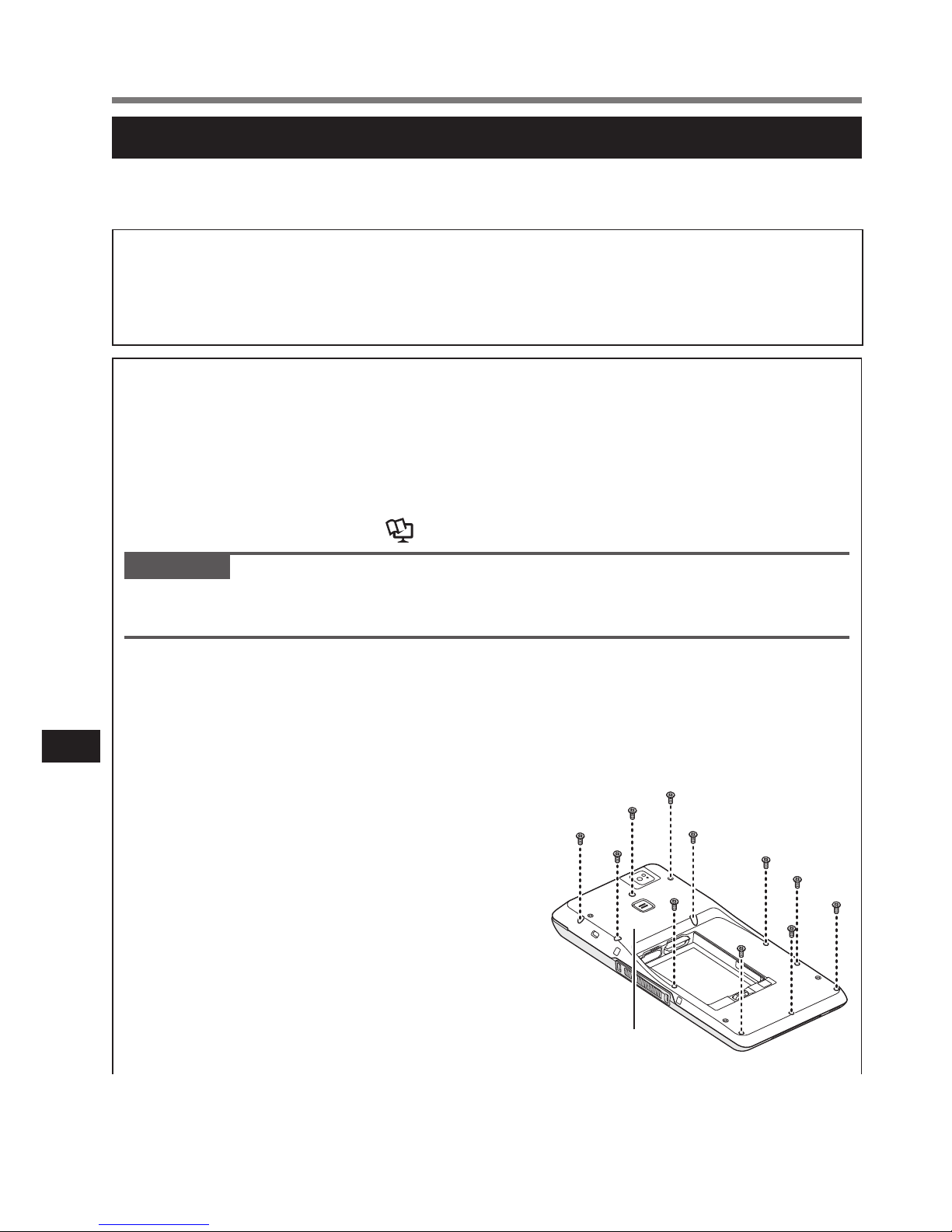
50
Useful Information
Handling and Maintenance
Dispose of Computer
<Only for model with Built-in Bridge Battery>
<For Europe and U.S.A./Canada>
Attention Customers
Don't remove the battery by yourself. The battery must be removed by quali-
ed professionals. When disposing of this product, be sure to contact qualied
professionals to remove the battery.
Attention Qualied professionals to remove the battery
Dispose of this product correctly in accordance with the local regulations after
removing the battery as shown in the following procedure.
Preparation
l Remove all peripherals (microSD memory card, etc.).
l
Erase the stored data. ( Reference Manual “Erasing Flash Memory Data”)
CAUTION
l Never disassemble the computer except before disposal.
l Refer to page 3 for precautions when disposing of the computer.
1. Turn off the computer, and disconnect the AC adaptor.
2. Turn over the computer, remove the battery pack, and wait for about 3 minutes.
3. Remove the screws (11) and the cover (A).
A
Page 51
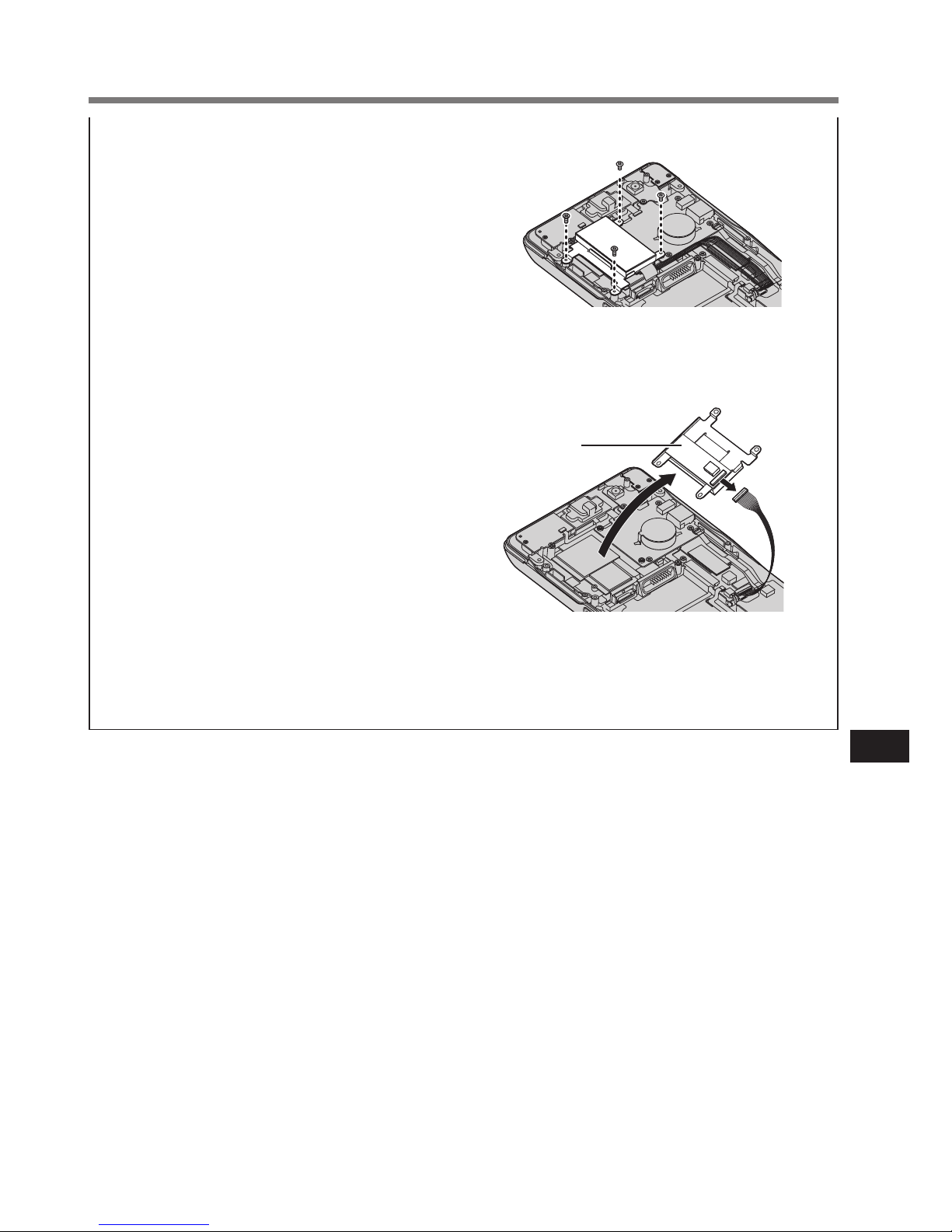
51
Useful Information
4. Remove the screws (4).
5. Turn over the battery pack (B), pull out all cables from the connector.
B
6. Insulate the connectors on the built-in battery by covering them with plastic
tape, for example.
Page 52
52
Useful Information
Installing Software
Installing software will return the computer to the default condition. When you
install the software, the ash memory data will be erased.
Back up important data to other media or an external hard disk before installation.
CAUTION
l Do not delete the Recovery Partition on the ash memory. The disk space in
the partition is not available to store data.
To check the Recovery Partition, perform the following methods.
1. Flick from the middle of the Start screen to the top, and then long touch
[This PC] under “Windows System”.
2. T
ouch [Manage] on app bar.
Touch [Disk Management].
Remove everything and reinstall Windows
Preparation
l Remove all peripherals.
l Connect the AC adaptor and do not remove it until installation is com-
plete.
1 Perform “Remove everything and reinstall Windows”.
Display “Charm”, and touch - [Change PC settings] - [Update and
recovery] - [Recovery].
Touch [Get Started] under “Remove everything and reinstall Windows”.
Touch [Next].
Select the option.
y
Just remove my les
Perform the reinstallation of the Windows in a few moments (Approximately 20 minutes).
y
Fully clean the drive
By fully cleaning, the deleted les can not be recovered easily and
the security level will be increased. The processing time will be longer
(Approximately 140 minutes).
Follow the on-screen instructions.
After the reinstallation, the computer will restart.
l Do not interrupt installation, for example by turning off the computer or
performing other operation.
Otherwise installation may become unavailable as Windows may not
start up or the data may be corrupted.
Page 53
53
Useful Information
2 Perform the “First-time Operation” ( page 34).
NOTE
l The date and time, and the time zone may not be correct. Be sure to set
them correctly.
3 Perform Windows Update.
4 Clear TPM.
Flick from the middle of the Start screen to the top.
Touch [Run] under “Windows System”, input [tpm.msc] and touch [OK].
Touch [Clear TPM…] under “Actions” on the right of the “TPM Manager
on Local Computer” screen.
Touch [Restart] of the “Manage the TPM security hardware” screen.
The computer will restart.
When “TPM conguration change was requested to ...” is displayed,
press the volume up button ( ).
Touch the Desktop tile, and when “TPM is ready” appears, touch [Close].
Page 54

54
Useful Information
Installing Software
Hard disk (Flash memory) recovery
Preparation
l Remove all peripherals.
l Connect the AC adaptor and do not remove it until installation is com-
plete.
You can reinstall the OS that was pre-installed at the time of purchase (Windows
8.1).
If reinstallation using the method described in “Remove everything and reinstall
Windows” ( page 52) is not successful, follow the steps below.
1 Start the Setup Utility.
Display “Charm”, and touch - [Change PC settings] - [Update and
recovery] - [Recovery].
Touch [Restart now] under “Advanced startup”.
Touch [Troubleshoot] - [Advanced options] - [UEFI Firmware Settings] -
[Restart].
l If the [Panasonic] boot screen is not displayed, turn on the computer
while touching top left of the screen.
l If the password is requested, enter the Supervisor Password.
2 Write down all of the contents of the Setup Utility and
touch [Exit] and double-touch [Load Default Values].
At the conrmation message, touch [Yes].
3 Touch [Exit] and double-touch [Save Values and Reboot].
At the conrmation message, touch [Yes].
Computer will restart.
4 Touch top left of the screen while [Panasonic] boot screen
is displayed.
The Setup Utility starts up.
l If the password is requested, enter the Supervisor Password.
5 Touch [Exit] and double-touch [Recovery Partition].
6 Touch [Next] and touch [YES].
7 At the License Agreement screen, touch [Yes, I agree to
the provisions above and wish to continue!] and touch
[Next].
Page 55

55
Useful Information
8 Touch [Next].
If the option is displayed, select the setting and touch [Next].
l [Reinstall Windows to the System Disk to factory default.]
Select this option when you want to install Windows to the factory
default. After installation, you can create a new partition. For how
to create a new partition, refer to “To change the partition structure”
( page 35).
l [Reinstall to the OS related partitions.]
*1
Select this option when the ash memory has already been divided into
several partitions and you want to keep the partition structure. For how
to create a new partition, refer to “To change the partition structure”
( page 35).
*1
This does not appear if Windows cannot be installed to the recovery partition
and the area usable by Windows.
9 At the conrmation message, touch [YES].
Installation starts according to the instructions on the screen. (It will take
approximately 20 minutes.)
l Do not interrupt installation, for example by turning off the computer or
performing other operation.
Otherwise installation may become unavailable as Windows may not
start up or the data may be corrupted.
10 When Ending process screen is displayed, touch [OK] to
turn off the computer.
11 Turn on the computer.
l If the password is requested, enter the Supervisor Password.
12 Perform the “First-time Operation” ( page 34).
NOTE
l The date and time, and the time zone may not be correct. Be sure to set
them correctly.
13 Start the Setup Utility and change the settings as neces-
sary.
14 Perform Windows Update.
15 Clear TPM ( page 53).
Page 56

56
Useful Information
Installing Software
Using Recovery Disc
Use the Recovery Disc in the following conditions.
y You have forgotten the administrator password.
y Installation is not complete. The recovery partition in the ash memory may be
broken.
Preparation
l Prepare the following items:
y
Recovery Disc (
Reference Manual “Recovery Disc Creation
Utility”)
y
USB DVD drive (optional) (refer to recent catalogs and other sources
for information about the products available)
l Remove all peripherals (except for the USB DVD drive).
l Connect the AC adaptor and do not remove it until installation is com-
plete.
1 Connect the DVD drive to the USB port.
2 Start the Setup Utility.
Display “Charm”, and touch - [Change PC settings] - [Update and
recovery] - [Recovery].
Touch [Restart now] under “Advanced startup”.
Touch [Troubleshoot] - [Advanced options] - [UEFI Firmware Settings] -
[Restart].
l If the [Panasonic] boot screen is not displayed, turn on the computer
while touching top left of the screen.
l If the password is requested, enter the Supervisor Password.
3 Write down all of the contents of the Setup Utility and
touch [Exit] and double-touch [Load Default Values].
At the conrmation message, touch [Yes].
4 Set the Recovery Disc into the DVD drive.
5 Touch [Exit] and double-touch [Save Values and Reboot].
At the conrmation message, touch [Yes].
Computer will restart.
6 Touch top left of the screen while [Panasonic] boot screen
is displayed.
The Setup Utility starts up.
l If the password is requested, enter the Supervisor Password.
7 Touch [Exit] and double-touch your DVD drive in [Boot
Override].
The computer will restart.
Page 57

57
Useful Information
8 Touch [Reinstall Windows] and touch [Next].
9 At the conrmation message, touch [YES].
10 At the License Agreement screen, touch [Yes, I agree to
the provisions above and wish to continue!] and touch
[Next].
11 Touch [Next].
If the option is displayed, select the setting and touch [Next].
l [Reinstall Windows to the System Disk to factory default.]
Select this option when you want to install Windows to the factory default.
After installation, you can create a new partition. For how to create a new
partition, refer to “To change the partition structure” ( page 35).
l [Reinstall to the OS related partitions.]
*2
Select this option when the ash memory drive has already been divided
into several partitions and you want to keep the partition structure. For
how to create a new partition, refer to “To change the partition structure”
( page 35).
*2
This does not appear if Windows cannot be installed to the recovery partition
and the area usable by Windows.
12 At the conrmation message, touch [YES].
Installation starts according to the instructions on the screen. (It will take
approximately 30 - 45 minutes.)
l Do not interrupt installation, for example by turning off the computer.
Otherwise installation may become unavailable as Windows may not
start up or the data may be corrupted.
13 When Ending process screen is displayed, remove the
Recovery Disc and DVD Drive and then touch [OK].
Follow the on-screen instructions.
14 Perform the “First-time Operation” ( page 33).
15 Start the Setup Utility and change the settings as neces-
sary.
16 Perform Windows Update.
17 Clear TPM ( page 53).
Page 58

58
Troubleshooting (Basic)
Follow the instructions below when a problem has occurred. There is also an
advanced troubleshooting guide in the “Reference Manual”. For a software problem, refer to the software’s instruction manual. If the problem persists, contact
Panasonic Technical Support ( page 75). You can also check the computer’s
status in the PC Information Viewer (
Reference Manual “Troubleshooting
(Advanced)”).
Starting Up
Cannot start up.
The power indicator
or battery indicator
is not lit.
l Connect the AC adaptor.
l Insert a fully charged battery.
l Remove the battery pack and the AC adaptor, then connect
them again.
l If a device is connected to the USB port, disconnect the
device, or set [USB Port] or [Legacy USB Support] to [Disabled] in the [Advanced] menu of the Setup Utility.
The power is turned
on but “Warming up
the system” appears.
l The computer is warming up before start up. Wait for the
computer to start up (the maximum waiting time will be
displayed on the screen). If, “Cannot warm up the system”
is displayed, the computer failed to warm up and does not
start. In this case, turn off the computer, leave it in an environment of 5 °C {41 °F} or higher temperature for about an
hour, and then turn on the power again.
Cannot turn on the
computer.
The computer does
not resume from
sleep.
(The battery indicator blinks green and
orange alternately.)
l Leave it in an environment of 5 °C {41 °F} or higher tem-
perature for about an hour, then turn on the power again.
You have forgotten
the password.
l Supervisor Password or User Password: Contact Pana-
sonic Technical Support ( page 75).
l Administrator password:
y If you have a password reset disk, you can reset the ad-
ministrator password. Set the disk and enter any wrong
password, then follow the on-screen instructions and set
a new password.
y If you do not have a password reset disk, reinstall
( page 52) and set up Windows, and then set a new
password.
Page 59
59
Troubleshooting
Starting Up
“Remove disks or
other media. Press
any key to restart”
or a similar message appears.
l A oppy disk is in the drive and it does not contain system
startup information. Remove the oppy disk and press any
key.
l If a device is connected to the USB port, disconnect the
device, or set [USB Port] or [Legacy USB Support] to [Disabled] in the [Advanced] menu of the Setup Utility.
l If the problem persists after removing the disk, it may be a
ash memory failure. Contact Panasonic Technical Support
( page 75).
Windows startup
and operation is
slow.
l Start the Setup Utility ( Reference Manual “Setup
Utility”) to return the Setup Utility settings (excluding the
passwords) to the default values. Start the Setup Utility and
make the settings again. (Note that the processing speed
depends on the application software, so this procedure
may not make Windows faster.)
l If you installed a resident software after purchase, turn off
the residence.
The date and time
are incorrect.
l Make the correct settings.
Open the Control Panel.
Flick from the middle of the Start screen to the top and
touch [Control Panel] under “Windows System”.
Touch [Clock, Language, and Region] - [Date and Time].
l If the problem persists, the internal clock battery may need
to be replaced. Contact Panasonic Technical Support
( page 75).
l When the computer is connected to network, check the
date and time of the server.
l The 2100 A.D. or later year will not be correctly recognized
on this computer.
[Executing Battery Recalibration]
screen appears.
l The Battery Recalibration was canceled before Windows
was shut down last time. To start up Windows, turn off the
computer by the power switch, and then turn on.
Page 60
60
Troubleshooting
Troubleshooting (Basic)
Starting Up
[Enter Password]
does not appear
when resuming
from sleep/hibernation.
l Select [Enabled] in [Password On Resume] in the [Security]
menu of the Setup Utility (
Reference Manual “Setup
Utility”).
l The Windows password can be used instead of the pass-
word set in the Setup Utility.
Add a password.
1. Display “Charm” and touch
- [Change PC settings]
- [Accounts].
2. Touch [Sign-in options], and touch [Add] under “Password”.
Set up the following.
1. Open the Control Panel, touch [System and Security]
- [Power Options] - [Require a password on wakeup].
2. Add a check mark for [Require a password].
Cannot resume.
l One of the following operations may have been carried out.
Press the power switch to turn on the computer. Data not
saved will be lost.
y In sleep mode, the AC adaptor or battery pack was
disconnected, or a peripheral was connected or disconnected.
y The power switch was pressed for four seconds or longer
to forcibly turn off the computer.
l An error may occur when the computer automatically en-
ters the sleep or hibernation mode while the screensaver is
active. In this case, turn off the screensaver or change the
pattern of the screensaver.
Other startup problems.
l Start the Setup Utility ( Reference Manual “Setup
Utility”) to return the Setup Utility settings (excluding the
passwords) to the default values. Start the Setup Utility and
make the settings again.
l Remove all peripheral devices.
l Check to see if there was a disk error.
Remove all peripheral devices including an external
display.
Flick from the middle of the Start screen to the top, and
then long touch [This PC] under “Windows System”.
Long touch [Windows (C:)], and touch [Properties].
Touch [Tools] - [Check].
Follow the on-screen instructions.
Page 61
61
Troubleshooting
Entering Password
Even after entering the password,
password input
screen is displayed
again.
<Only if the external keyboard is connected>
l The computer may be in ten-key mode.
If the NumLk indicator
lights, press
NumLk
to disable
the ten-key mode, and then input.
l The computer may be in Caps Lock mode.
If the Caps Lock indicator
lights, press
Caps Lock
to
disable the Caps Lock mode, and then input.
Cannot log on to
Windows. (“The
user name or password is incorrect.”
is displayed.)
l The user name (account name) includes an “@” mark.
- If another user account name exists:
Log on to Windows using another user account name,
and delete the account name that includes “@”. Then create a new account name.
- If no other account name exists:
You need to reinstall Windows ( page 52).
Shutting down
Windows does not
shut down.
l Remove the USB device.
l Wait one or two minutes. It is not a malfunction.
Display
No display.
l The display is turned off by the power-saving function.
Touch the screen.
l The computer entered sleep or hibernation by the power-
saving function. To resume, press the power switch.
l When using an external display,
y Check the cable connection.
y Turn on the display.
y Check the settings of external display.
The screen is dark.
l The screen is darker when the AC adaptor is not con-
nected. Open the Dashboard for Panasonic PC and adjust
the brightness. As you increase the brightness, battery consumption increases.
You can separately set the brightness for when the AC
adaptor is connected and when not connected.
Page 62
62
Troubleshooting
Troubleshooting (Basic)
Display
The screen is disordered.
l Changing the number of display colors and resolution may
affect the screen. Restart the computer.
l Connecting/disconnecting an external display may affect
the screen. Restart the computer. Under factory default settings, the brightness of the display screen will adjust automatically based on the ambient light detected by the ambient light sensor. You can adjust the settings for this sensor
( page 48).
There are red,
green, or blue dots
on the screen, or
there is unevenness in colors and
brightness on the
screen.
The following are not malfunctions.
l Although advanced high-precision technologies are used in
the production of color LCD screens, 0.002% or less of the
picture elements may be dark or remain constantly lit (more
than 99.998% of elements function properly).
l Due to the natural characteristics of LCD screens, you may
notice unevenness in colors and brightness depending on
your angle of view. Hues may also vary by product.
During Simultaneous display, one of
the screens becomes disordered.
l When using the Extended Desktop, use the same display
colors for the external display as those used by the LCD.
If you continue to experience problems, try changing the
display.
Long touch on the desktop, and touch [Graphics Properties...] - [Display].
l Simultaneous display cannot be used until Windows startup
is complete (during Setup Utility, etc.)
.
The external display does not work
normally.
l If the external display does not support the power saving
function, it may not work normally when the computer enters the power saving mode. Turn off the external display.
Cannot rotate the
display.
l The application program currently running may not support
the image rotation. Quit the program, and then try to rotate
the image. This can ameliorate the status.
l When the automatic rotation is off, screen display does not
rotate automatically.
Screen
The pointer does
not work.
l When using the external mouse, connect it correctly.
l When using the external keyboard, restart the computer
using the keyboard.
l If the computer does not respond to keyboard commands,
read “No response” ( page 64).
Page 63
63
Troubleshooting
Screen
Cannot point the
correct position using the stylus.
l Perform the screen calibration ( Reference Manual
“Screen Input Operation” ).
l Use the optional pen.
l On the Windows logon screen or the Welcome screen,
you may not be able to point the correct position using the
stylus. Use the external keyboard or the external mouse to
log on.
Payment
Cannot read the
magnetic stripe
card.
Cannot read the
Smart card.
l The card may be dirty. Wipe dirt off the card.
l The card may not be supported. Follow the on-screen in-
structions.
Cannot read the
contactless IC card.
l The card may not be supported. Follow the on-screen in-
structions.
Page 64
64
Troubleshooting
Troubleshooting (Basic)
Others
No response.
l Open Task Manager and close the software application that
is not responding.
l An input screen (e.g., password input screen at startup)
may be hidden behind another window. Touch the application icons at the bottom of the screen to check.
l Press the power switch for four seconds or longer to shut
down the computer, and then press the power switch to
turn it on. If the application program does not work normally, uninstall and reinstall the program. To uninstall,
Open the Control Panel.
Flick from the middle of the Start screen to the top and
touch [Control Panel] under “Windows System”.
Touch [Program] - [Uninstall a program].
Cannot connect to
a network.
l Set the device ([Wireless LAN] / [Bluetooth] / [Wireless
WAN] of [Wireless Conguration]) to [Enabled] in the [Advanced] menu of the Setup Utility (Wireless Conguration).
l Display “Charm”, and touch
- [Change PC Settings] [Network]. Set [Airplane mode] to [Off], and then;
set [Wi-Fi] to [On] (for wireless LAN).
set [Mobile broadband] to [On] (for wireless WAN).
set [GPS] to [On] (for wireless WAN).
set [Bluetooth] to [On] (for Bluetooth).
Page 65

65
Appendix
LIMITED USE LICENSE AGREEMENT
THE SOFTWARE PROGRAM(S) (“PROGRAMS”) FURNISHED WITH THIS
PANASONIC PRODUCT (“PRODUCT”) ARE LICENSED ONLY TO THE ENDUSER (“YOU”), AND MAY BE USED BY YOU ONLY IN ACCORDANCE WITH
THE LICENSE TERMS DESCRIBED BELOW. YOUR USE OF THE PROGRAMS
SHALL BE CONCLUSIVELY DEEMED TO CONSTITUTE YOUR ACCEPTANCE
OF THE TERMS OF THIS LICENSE.
Panasonic Corporation has developed or otherwise obtained the Programs and
hereby licenses their use to you. You assume sole responsibility for the selection of the Product (including the associated Programs) to achieve your intended
results, and for the installation, use and results obtained therefrom.
LICENSE
A. Panasonic Corporation hereby grants you a personal, non-transferable and
non-exclusive right and license to use the Programs in accordance with the
terms and conditions stated in this Agreement. You acknowledge that you are
receiving only a LIMITED LICENSE TO USE the Programs and related documentation and that you shall obtain no title, ownership nor any other rights
in or to the Programs and related documentation nor in or to the algorithms,
concepts, designs and ideas represented by or incorporated in the Programs
and related documentation, all of which title, ownership and rights shall remain
with Panasonic Corporation or its suppliers.
B. You may use the Programs only on the single Product which was accompanied
by the Programs.
C. You and your employees and agents are required to protect the condentiality
of the Programs. You may not distribute or otherwise make the Programs or related documentation available to any third party, by time-sharing or otherwise,
without the prior written consent of Panasonic Corporation.
D. You may not copy or reproduce, or permit to be copied or reproduced, the Pro-
grams or related documentation for any purpose, except that you may make
one (1) copy of the Programs for backup purposes only in support of your use
of the Programs on the single Product which was accompanied by the Programs. You shall not modify, or attempt to modify, the Programs.
E. You may transfer the Programs and license them to another party only in con-
nection with your transfer of the single Product which was accompanied by
the Programs to such other party. At the time of such a transfer, you must also
transfer all copies, whether in printed or machine readable form, of every Program, and the related documentation, to the same party or destroy any such
copies not so transferred.
Page 66

66
Appendix
LIMITED USE LICENSE AGREEMENT
F. You may not remove any copyright, trademark or other notice or product iden-
tication from the Programs and you must reproduce and include any such
notice or product identication on any copy of any Program.
YOU MAY NOT REVERSE ASSEMBLE, REVERSE COMPILE, OR MECHANICALLY OR ELECTRONICALLY TRACE THE PROGRAMS, OR ANY COPY
THEREOF, IN WHOLE OR IN PART.
YOU MAY NOT USE, COPY, MODIFY, ALTER, OR TRANSFER THE PROGRAMS OR ANY COPY THEREOF, IN WHOLE OR IN PART, EXCEPT AS EXPRESSLY PROVIDED IN THE LICENSE.
IF YOU TRANSFER POSSESSION OF ANY COPY OF ANY PROGRAM TO
ANOTHER PARTY, EXCEPT AS PERMITTED IN PARAGRAPH E ABOVE, YOUR
LICENSE IS AUTOMATICALLY TERMINATED.
TERM
This license is effective only for so long as you own or lease the Product, unless
earlier terminated. You may terminate this license at any time by destroying, at
your expense, the Programs and related documentation together with all copies
thereof in any form. This license will also terminate effective immediately upon occurrence of the conditions thereof set forth elsewhere in this Agreement, or if you
fail to comply with any term or condition contained herein. Upon any such termination, you agree to destroy, at your expense, the Programs and related documentation together with all copies thereof in any form.
YOU ACKNOWLEDGE THAT YOU HAVE READ THIS AGREEMENT, UNDERSTAND IT AND AGREE TO BE BOUND BY ITS TERMS AND CONDITIONS.
YOU FURTHER AGREE THAT IT IS THE COMPLETE AND EXCLUSIVE STATEMENT OF THE AGREEMENT BETWEEN US, WHICH SUPERSEDES ANY
PROPOSAL OR PRIOR AGREEMENT, ORAL OR WRITTEN, AND ANY OTHER
COMMUNICATIONS BETWEEN US, RELATING TO THE SUBJECT MATTER OF
THIS AGREEMENT.
GOVERNMENT RESTRICTED RIGHTS.
The Software is provided with “RESTRICTED RIGHTS.” Use duplication or disclosure by the government is subject to restrictions as set forth in FAR52.227-14
and DFAR252. 227-7013 et seq. or their successors.
Use of the Software by the government constitutes acknowledgement of Intel’s
proprietary rights therein.
Contractor or Manufacturer is Intel Corporation, 2200 Mission College Blvd.,
Santa Clara, CA 95052.
Page 67

67
Appendix
Le(s) logiciel(s) (les “Logiciels”) fournis avec ce produit Panasonic (le “Produit”)
sont exclusivement concédés en licence à l’utilisateur ultime (“vous”), et ils ne
peuvent être utilisés que conformément aux clauses contractuelles cidessous.
En utilisant les logiciels, vous vous engagez de manière dénitive à respecter les
termes, clauses et conditions des présentes.
Panasonic Corporation a mis au point ou obtenu les Logiciels et vous en concède
l’utilisation par les présentes. Vous assumez l’entière responsabilité du choix de
ce Produit (y compris des Logiciels associés) pour obtenir les résultats escomptés, ainsi que de l’installation, de l’utilisation et des résultats obtenus.
Licence
A. Panasonic Corporation vous octroie par les présentes le droit et la licence per-
sonnels, non cessibles et non exclusifs d’utiliser les Logiciels conformément
aux termes, clauses et conditions de ce contrat. Vous reconnaissez ne recevoir
qu’un droit limité d’utiliser les Logiciels et la documentation les accompagnant
et vous vous engagez à n’obtenir aucun droit de titre, propriété ni aucun autre
droit vis-à-vis des Logiciels et de la documentation les accompagnant ni vis-à-
vis des algorithmes, concepts, dessins, congurations et idées représentés par
ou incorporés dans les Logiciels et la documentation les accompagnant, dont
les titres, propriété et droits resteront tous à Panasonic Corporation ou à leurs
propriétaires.
B. Vous ne pouvez utiliser les Logiciels que sur le Produit unique qui est accom-
pagné par les Logiciels.
C. Vous et vos employés ou agents êtes requis de protéger la condentialité des
Logiciels. Vous ne pouvez ni distribuer ni mettre les Logiciels et la documentation les accompagnant à la disposition d’un tiers, par partage de temps ou
de quelque autre manière que ce soit, sans l’autorisation écrite préalable de
Panasonic Corporation.
D. Vous ne pouvez ni copier ni reproduire ni permettre la copie ni la reproduction
des Logiciels ni de la documentation les accompagnant pour quelque n que
ce soit, à l’exception d’une (1) copie des Logiciels à des ns de sauvegarde
uniquement pour soutenir votre utilisation des Logiciels sur le Produit unique
qui est accompagné par les Logiciels. Vous ne pouvez ni modier ni tenter de
modier les Logiciels.
Contrat de licence d’usage limité
Page 68

68
Appendix
Contrat de licence d’usage limité
E. Vous ne pouvez céder les Logiciels et en octroyer la licence à une autre partie
qu’en rapport avec votre cession du Produit unique qui est accompagné par
les Logiciels à cette autre partie. Au moment de cette cession, vous devez
céder également toutes les copies, que ce soit sous forme imprimée ou lisible
par la machine, de tous les Logiciels ainsi que de la documentation les accom-
pagnant, à la même partie ou détruire les copies non cédées.
F. Vous ne pouvez retirer aucune marque de droits d’auteur, marque de com-
merce ou autre ni aucune identication de produit des Logiciels et vous devez
reproduire et inclure toutes ces notices ou identications de produit sur toutes
les copies des Logiciels.
Vous ne pouvez assembler en sens inverse, compiler en sens inverse ni retracer
les Logiciels ni aucune de leurs copies, de façon électronique ou mécanique, en
tout ou en partie.
Vous ne pouvez utiliser, copier, modier, altérer ni céder les Logiciels ni aucune
de leurs copies, en tout ou en partie, à l’exception de ce qui est expressément
stipulé dans ce contrat.
Si vous cédez la possession de toute copie ou de tout Logiciel à une autre partie,
à l’exception de ce qui est autorisé au paragraphe E ci-dessus, votre licence est
automatiquement résiliée.
Termes, clauses et conditions
Cette licence n’est effective que pour la durée de possession ou de crédit-bail du
Produit, à moins d’une résiliation antérieure. Vous pouvez résilier cette licence
à tout moment en détruisant, à vos frais, les Logiciels et la documentation les
accompagnant avec toutes leurs copies, sous quelque forme que ce soit. Cette
licence sera également résiliée, avec application immédiate, si les conditions de
résiliation dénies ailleurs dans ce contrat se sont réalisées ou si vous ne respectez pas les termes, clauses et conditions qui y sont contenues. Au moment de la
résiliation, vous acceptez de détruire, à vos frais, les Logiciels et la documentation
les accompagnant avec toutes leurs copies, sous quelque forme que ce soit.
Vous reconnaissez avoir lu ce contrat, en avoir compris toute la substance et
avoir accepté de respecter ses termes, clauses et conditions. Vous reconnaissez
en outre qu’ils sont la description complète et exclusive du contrat conclu entre
nous, contrat qui remplace et annule toute proposition ou contrat précédent, écrit
ou oral, et toute autre communication entre nous, relativement à l’objet du présent
contrat.
Page 69
69
Appendix
This page provides the specications for the basic model.
The model number is different according to the unit conguration.
l To check the model number:
Check the bottom of the computer or the box the computer came in at the time
of purchase.
l To check CPU speed, memory size and the ash memory drive size:
Run the Setup Utility (
Reference Manual “Setup Utility”) and select [In-
formation] menu.
[Processor Speed]: CPU speed, [Memory Size]: Memory size, [Storage]: Flash
memory drive size
Main Specications
CPU Intel® Celeron® Processor N2807
(1 MB*1 Cache, 1.58 GHz up to 2.16 GHz)
Chipset Built-in CPU
Video controller Intel
®
HD Graphics (Built-in Chip Set)
Memory
*1*2
2 - 4 GB SDRAM (DDR3L-1333MHz)
Video Memory
*1*3
UMA 987 MB Max.
Storage
*4
eMMC: 64 GB
Display Method 7.0 WXGA type (1280 × 800 dots)
Internal LCD
*5
Max. 16,777,216 colors (1280 × 800 dots)
Wireless LAN Intel
®
Dual Band Wireless-AC 7260
( page 72)
Bluetooth
*6
v4.0 Classic mode/ Low Energy mode, Class 1
( page 73)
Sound WAVE and MIDI playback, Intel
®
High Denition Audio
subsystem support, Monaural speaker
Security Chip TPM (TCG V 1.2 compliant)
*7
Sensor Magnetic sensor
EquippedGyro sensor
Acceleration sensor
Card Slot microSD Memory
Card
*8
microSDXC compatible
microSIM Card
*9
Equipped
Specications
Page 70
70
Appendix
Specications
Main Specications
Payment Smart Card Reader ISO7816, EMV L1/2 certied
Magnetic Stripe
Card Reader
ISO7810,7811 and 7813, Track 1/2/3,
Encryption head
Contactless IC
Card Reader
ISO14443, EMV Contactless L1 certied,
PayPass EMV mode and MS mode,PayWave EMV
mode and MS mode
SAM Card slot × 2
Key Pad 16 keys, PCI-PTS4.0 certied
Interface
USB port 3.0 × 1
*10
, Expansion Bus Connector, Head-
set Jack (Miniature jack, 3.5 DIA, CTIA standard /
Headphone: Impedance 32 Ω, Output Power 4 mW × 2,
Stereo / Microphone: Monaural Input)
Touchscreen 10 Finger touch (Capacitive)
Power Supply AC adaptor or Battery pack
AC Adaptor
*11
Input: 100 V to 240 V AC, 50 Hz/60 Hz,
Output: 16 V DC, 3.75 A
Battery Pack Li-ion 7.2 V, 3220 mAh (typ.), 3050 mAh (min.)
(with FZ-VZSU94W)
Operating Time
*12
Approx. 8 hours
Approx. 7 hours with payment transactions
(with Standard battry pack : FZ-VZSU94W)
Charging Time
*13
Approx. 2.5 hours (with FZ-VZSU94W)
Built-in bridge battery
(not replaceable)
(Optional) Li-Polymer 7.4 V, 500 mAh (typ.),
490 mAh (min.)
Power Consumption
*14
Approx. 15 W
*15
/ Approx. 60 W
(maximum when recharging in the ON state)
Physical Dimensions (W × D × H)
(excluding projecting parts)
257.0 mm × 130.0 mm × 27.5 mm
{10.12 " × 5.12 " × 1.08 "}
Weight Approx. 650 g {Approx.1.43 lb.} (with FZ-VZSU94W,
excluding the optional devices)
Page 71
71
Appendix
Main Specications
Environment
Operating
Temperature
-10 °C to 50 °C {14 °F to 122 °F}
(IEC60068-2-1, 2)
*16
Humidity 30% to 80% RH (No condensation)
Storage Tempera-
ture
-20 °C to 60 °C {-4 °F to 140 °F}
Humidity 30% to 90% RH (No condensation)
Optional Devices
Wireless WAN
*17
Sierra™ Wireless High-speed module
Camera
*18
Front 1920 × 1080 dots, 30 fps (Video) / 1920 × 1080 dots
(Still), Dual Microphone
Rear 2048 × 1536 dots, 15 fps (Video) / 2592 × 1944 dots
(Still) / With camera light
Sensor Ambient light
sensor
x 1
Barcode Reader x 1
Large Battery Pack (FZ-VZSU95W)
Li-ion 7.2 V, 7100 mAh (typ.), 6800 mAh (min.)
Operating Time
*12
Approx. 16 hours
Charging Time
*13
Approx. 4.5 hours
Built-in bridge battery
(not replaceable)
For battery hot swap
Page 72
72
Appendix
Specications
Software
Base OS Windows® 8.1 with Bing 64-bit
or
Windows® 8.1 Pro 64-bit
Installed OS
*19
Pre-installed Software
*19
Adobe Reader, PC Information Viewer, Battery Recalibration Utility, Hand Writing Utility, Inneon TPM Professional Package
*8 *20
, Dashboard for Panasonic PC,
Recovery Disc Creation Utility, Power Plan Extension
Utility, Camera Utility, Intel
®
PROSet/Wireless Soft-
ware, Intel
®
PROSet/Wireless Software for Bluetooth®
Technology, Microsoft Ofce Trial
*21,
Wireless Manager
6.0
*20 *22
, Touch Operation Help Utility
*20
, Touch Screen
Mode Setting Utility, Display Rotation Tool, Display
Helper, Barcode Setting Utility
*23
, Barcode Congura-
tion Utility
*23
, Barcode HID Language Setting Utility
*23
,
Barcode HID Mode Setting Utility
*23
, GPS Viewer
*24
Payment Device Maintenance Utility, Payment Device_USB
Wireless Toolbox, Camera for Panasonic PC
Aptio Setup Utility, PC-Diagnostic Utility, Hard Disk
Data Erase Utility
*25
Wireless LAN
Data Transfer Rates
*26
IEEE802.11a : 54 Mbps
IEEE802.11b : 11 Mbps
IEEE802.11g : 54 Mbps
IEEE802.11n : HT20 : 150 Mbps
HT40 : 300 Mbps
IEEE802.11ac : VHT80 : 866.7 Mbps
VHT40 : 433.3 Mbps
Standards Supported IEEE802.11a / IEEE802.11b / IEEE802.11g /
IEEE802.11n / IEEE802.11ac
Transmission method OFDM system, DSSS system
Wireless Channels Used IEEE802.11ac / IEEE802.11a / IEEE802.11n :
Channels 36/40/44/48/52/56/60/64/
100/104/108/112/116/120/124/128/
132/136/140/149/153/157/161/165
IEEE802.11b / IEEE802.11g / IEEE802.11n :
Channels 1 to 11
RF Frequency Band 2.4 GHz Band : 2.412 GHz - 2.462 GHz
5 GHz Band :
5.18 GHz - 5.32 GHz, 5.5 GHz - 5.7 GHz,
5.745 GHz - 5.825 GHz
Page 73
73
Appendix
Bluetooth
*6
Bluetooth Version 4.0
Classic mode / Low Energy mode
Transmission method FHSS system
Wireless Channels Used Channels 1 to 79 / Channels 0 to 39
RF Frequency Band 2.402 GHz - 2.480 GHz
*1
1 MB = 1,048,576 bytes/1 GB = 1,073,741,824 bytes
*2
Memory size of the factory default depends on the model.
The total amount of usable memory available will be less depending on the actual sys-
tem conguration.
*3
A segment of the main memory is allotted automatically depending on the computer’s
operating status. The size of the Video Memory cannot be set by the user.
*4
1 MB = 1,000,000 bytes / 1 GB = 1,000,000,000 bytes. Your operating system or some
application software will report as fewer GB.
*5
Depending on the OS settings.
*6
Does not guarantee operation of all Bluetooth peripherals.
*7
For information on TPM, on the Start screen, touch the [Manual Selector] tile, and se-
lect “Installation Manual for Trusted Platform Module (TPM)”.
*8
Operation has been tested and conrmed using Panasonic microSD Memory Card with
a capacity of up to 2 GB and Panasonic microSDHC Memory Card with a capacity of up
to 32 GB.
Operation on other microSD equipment is not guaranteed.
*9
Only for model with wireless WAN. The slot accepts microSIM Cards.
12 mm
{0.47”}
15 mm
{0.59”}
*10
Does not guarantee operation of all USB-compatible peripherals.
*11
<Only for North America>
The AC adaptor is compatible with power sources up to 240 V AC adaptor.
This computer is supplied with a 125 V AC compatible AC cord.
20-M-1-1
*12
Measured at LCD brightness: 60 cd/m
2
Varies depending on the usage conditions, or when an optional device is attached.
*13
Varies depending on the usage conditions.
Page 74

74
Appendix
Specications
*14
Approx. 0.5 W when the battery pack is fully charged (or not being charged)
and the computer is OFF.
<When using with 115 V AC>
Even when the AC adaptor is not connected to the computer, power is consumed (Max. 0.3 W) simply by having the AC adaptor plugged into an AC
outlet.
*15
Rated power consumption 23-E-1
*16
Do not expose the skin to this product when using the product in a hot or cold environment. (
page 7)
When using in hot or cold environment, some peripherals and battery pack may fail to
work properly. Check the operation environment of the peripherals.
Using this product continuously in a hot environment will shorten the product life. Avoid
use in these types of environments.
When using in low temperature environment, startup may become slow or battery op-
eration time may become short. The computer consumes power when the hard disk is
warming up during startup. Therefore, if you are using battery power and the remaining
power is low, the computer may not start up.
*17
The specications may differ depending on the models.
*18
Depending on the specication of application software, the following cases may occur.
In these cases, select a smaller resolution.
y Cannot select a large resolution.
y When selecting a large resolution, an error occurs.
*19
Operations of this computer are not guaranteed except for the pre-installed OS and the
OS which is installed by using the hard disk recovery and the recovery disc.
Installed OS depends on the product model.
*20
Must be installed before use.
*21
To continue using this software after the end of the trial, purchase a license by following
the on-screen instructions.
*22
For information on Wireless Manager, refer to the supplementary instructions by the fol-
lowing procedure.
Touch on the Start screen.
Touch [Run] under “Windows System”, input “c:\util\wlprjct\Supplementary Instruc-
tions.pdf” then touch [OK].
*23
Only for model with barcode reader.
*24
Only for model with wireless WAN.
*25
Perform on the recovery disc.
*26
Maximum data transfer rates of wireless LAN standards.
Actual speeds may differ.
Page 75

75
Appendix
LIMITED WARRANTY
For U.S.A.
Panasonic System Communications Company of North America
(PSCNA)
Computer Products - Worldwide Warranties
Section 1: Limited Warranty - Hardware
PSCNA, referred to hereinafter as “Panasonic”, will repair the products listed below with
new or rebuilt parts, free of charge in a Global Panasonic designated service location
or Panasonic Authorized Service Center for the period specied below from the date of
original purchase in the event of a defect in materials or workmanship. These warranties
are extended solely to the original purchaser. A purchase receipt or other proof of date of
original purchase will be required before warranty performance is rendered.
• Laptop PC (CF-##) - 3 Years • Ultra-Mobile (CF-U#/CF-H# Series) - 3 Years
• Tablet PC (FZ-## / JT-B# ) - 3 Years • PDRC - LCD & Keyboard Assembly - 3 Years
Original Battery Warranty
Batteries supplied with the product are covered under the warranty for one (1) year from
date of purchase.
Batteries purchased separately are covered under the warranty for one (1) year from the
date of purchase. A replacement battery furnished under the product warranty is covered
for the remaining period of the one year warranty on the original or purchased battery.
Optional: Extended Warranty Program (PC)
If this coverage is purchased, the serial numbered unit is entitled to the same warranty
coverage on the unit with the exception of the battery. The cost of labor, parts, and shipping
are included in the price of the Extended Warranty Program.
Optional: Panasonic “Protection Plus” Warranty
Any unit for which the Panasonic “Protection Plus” warranty has been purchased will
receive additional coverage for any failure that occurs due to accidental damage. All other
terms and conditions of the standard warranty apply and this additional coverage will
exist for the duration of the standard warranty period of the unit. If an extended Protection
Plus warranty program is purchased, coverage is extended to the end of the last year of
extended coverage purchased.
This warranty does not cover failures or defects that are caused by re, intentional
acts, loss, theft, improper maintenance, modication or service by anyone other than a
Panasonic Authorized Service Provider, or damage that is attributable to acts of God.
Cosmetic damage that does not affect functionality is not covered. Cosmetic damage on
units with hardware failures will be repaired in accordance with the warranty terms. This
warranty is extended solely to the original purchaser on the unit serial number for which it
was purchased. Complete unit replacement fullls the full obligation and is at the discretion
of Panasonic and is limited to once during the coverage term.
Refer to the Panasonic website for full terms and conditions on the above programs.
Page 76

76
Appendix
LIMITED WARRANTY
Wireless Module Warranty
Panasonic approved wireless modems installed in Panasonic brand computers and
integrated by Panasonic or an Authorized Panasonic Wireless Integrator are covered
under the warranty for the remaining warranty period of the device in which the modem
is installed. For devices with less than three (3) months remaining on the unit warranty,
the wireless modem will be covered for a period of three (3) months from the date of
installation of the modem, covering only modem replacement or modem installation related
issues.
All modems must be approved by the wireless carrier prior to use. Any use or attempted
use of a wireless modem not approved and activated by the carrier for use on their network
is strictly prohibited and is not sanctioned or warranted by Panasonic and may result in
legal action. In addition, all modems must be approved by Panasonic as compatible with
the device hardware before installation or use.
Panasonic’s sole responsibility for the warranty or technical support of the software
required to install or operate the modem is dened in Section 2 (Limited Software
Warranty). Any attempted software installation by anyone other than a Panasonic
Authorized Wireless Integrator is not covered under warranty and may result in service
charges.
Installation or attempted installation by any party other than Panasonic or an Authorized
Panasonic Wireless Integrator is strictly not covered under the warranty and may void the
computer warranty if damage results.
Options and Accessories Warranties
The below listed Panasonic brand or supplied options and accessories are covered under
this limited warranty for the period specied from the date of purchase or as specically
stated:
• AC Adapter / Power Cord – 3 Years
• Memory Expansion Card (Panasonic Brand) – 3 Years
• Desktop Port Replicator, I-O Box, Docking Cradle (like CF-U1) – 3 Years
• Backlit or Full-sized keyboard - 3 Years or assumes warranty of the unit in which it is
installed
• Integrated Panasonic supplied options and kits including, but not limited to Wireless
Modems, Media Bay Drives (Floppy, CD, DVD, Combo), Camera, GPS, Bluetooth,
Smartcard Reader, Magnetic Card Reader, Barcode Scanner, and Fingerprint Reader
- 3 Years or assumes warranty period of the unit in which it is installed provided the
integration was performed by Panasonic or an Authorized Integrator.
• Hard Drive / Solid State Drive (Internal) - 3 Years
• Separately purchased 2
nd
Hard Drive – 1 Year
• External USB Drives (CD / DVD / Floppy / Hard Drive) – 1 Year
• Optional Battery – 1 Year
• Battery Charger / Multi-Bay Battery Charger – 1 Year
• Stylus Pens, Digitizer & Standard - 90 Days (physical damage excluded)
Page 77

77
Appendix
Section 2 - Limited Warranty - Software
Panasonic warrants to you only that the disk(s) or other media on which the Programs
are furnished will be free from defects in material and workmanship under normal use for
a period of sixty (60) days from the date of delivery thereof to you, as evidenced by your
purchase receipt.
This is the only warranty Panasonic makes to you. Panasonic does not warrant that the
functions contained in the Programs will meet your requirements or that the operation of
the Programs will be uninterrupted or error free. Panasonic shall have no obligation for any
defects in the disk(s) or other media on which the Programs are furnished resulting from
your storage thereof, or for defects that have been caused by operation of the disk(s) or
other media
Panasonic’s entire liability and your exclusive remedy under this warranty shall be limited
to the replacement, in the United States or other Panasonic designated location, of any
defective disk or other media which is returned to Panasonic’s Authorized Service Center,
together with a copy of the purchase receipt, within the aforesaid warranty period.
Section 3 - Limited Warranty Exclusions - Specically excluded from the warranty
are:
• All consumable items; such as screen protection films, logo badges, labels, cleaning
cloths, carry cases, manuals, cables, straps, belts, holsters, tethers, and harnesses
and any other options and accessories not listed above or covered under a separate
warranty.
• Failures related to the product operating system, hard drive or solid state drive image,
software setup, software program, virus, other program(s) or file(s) on any drive or in any
computer memory location.
• Failures due to BIOS settings or changes, as well as any cosmetic or physical damage
to the unit. • Any unit or device with a missing or altered model number or serial number
label
• Cosmetic damage or any damage which occurs in shipment
• Failures which are caused by products not supplied by Panasonic
• Failures which result from alteration, accident, misuse, introduction of liquid or other
foreign matter into the unit, abuse, neglect, installation, maladjustment of consumer
controls, improper maintenance or modification, use not in accordance with product use
instructions
• Failures due to service by anyone other than a Panasonic Authorized Service Provider
• Failures caused by improper installation of options or accessories or due to integration
by any company other than Panasonic or a Panasonic Authorized Integrator
• Damage, failure, or loss due to the unit being stolen, lost, misplaced, or used by anyone
other than the original purchaser
• Damage that is attributable to acts of God
THIS PRODUCT IS NOT INTENDED FOR USE AS OR PART OF NUCLEAR
EQUIPMENT/SYSTEMS, AIR TRAFFIC CONTROL EQUIPMENT/SYSTEMS, OR
AIRCRAFT COCKPIT EQUIPMENT/SYSTEMS*1. PANASONIC WILL NOT BE
RESPONSIBLE FOR ANY LIABILITY RESULTING FROM THE USE OF THIS PRODUCT
ARISING OUT OF THE FOREGOING USES.
Page 78

78
Appendix
LIMITED WARRANTY
*1
AIRCRAFT COCKPIT EQUIPMENT/SYSTEMS include class 2 Electronic Flight Bag
(EFB) Systems and Class 1 EFB Systems when used during critical phases of ight
(e.g., during take-off and landing) and/or mounted onto the aircraft. Class 1 EFB
Systems and 2 EFB Systems are dened by FAA: AC (Advisory Circular) 120-76A or
JAA: JAA TGL (Temporary Guidance Leaets) No. 36.
Other Limits and Exclusions: There are no other express warranties except as listed above.
PANASONIC SHALL NOT BE LIABLE FOR LOSS OF DATA OR OTHER INCIDENTAL OR
CONSEQUENTIAL DAMAGES RESULTING FROM THE USE OF THIS PRODUCT, OR
ARISING OUT OF ANY BREACH OF THIS WARRANTY. ALL EXPRESS AND IMPLIED
WARRANTIES, INCLUDING THE WARRANTIES OF MERCHANTABILITY AND FITNESS
FOR A PARTICULAR PURPOSE ARE LIMITED TO THE APPLICABLE WARRANTY
PERIOD SET FORTH ABOVE. Some states do not allow the exclusion or limitation of
incidental or consequential damages, or limitations on how long an implied warranty lasts,
so the above limitations or exclusions may not apply to you.
This limited warranty gives you specic legal rights, and you may also have other rights
which vary from state to state. For technical support or to arrange for service on your
Panasonic computer product, call our toll-free hotline at 1-855-PSC-TECH [option 1] (855772-8324).
Page 79

79
Appendix
For Canada
PANASONIC COMPUTER AND PERIPHERALS LIMITED WARRANTY
Coverage – Panasonic Canada Inc. (“PCI”) warrants to you, the rst end user customer,
this computer product (excluding software media), when purchased from PCI or from a PCI
authorized reseller, to be free from defects in materials and workmanship under normal
use, subject to the terms set forth below, during the period of warranty coverage specied.
Scope of Coverage Period of Cover-
age
Type of Failure
Coverage
• Laptop Computers (except Battery) and
AC Adaptor
• Factory/PCI installed options including
Wireless WAN, GPS, Bluetooth, Finger
print reader, Backlit keyboard, Memory
Card and Media Bay Drives (Floppy, CD/
DVD)
• Mobile Wireless Display
• PDRC – LCD and Keyboard Assemblies
• Port Replicator
Three (3) Years from
Date of Original End
User Customer Purchase
Defective Materials or
Workmanship
• Hand-held Computers
• Battery
• Battery charger
• Auto Adaptor
• External USB Drives
One (1) Year from
Date of Original End
User Customer Purchase
Defective Materials or
Workmanship
• Digitizer pen or stylus
Ninety (90) Days
from Date of Original
End User Customer
Purchase
Defective Materials or
Workmanship
• All consumable items including protec-
tion lm, cleaning cloth, carry case,
tether and harness
No Coverage
Remedy – In the event of a warranty claim, contact PCI’s representatives within the applicable warranty period, identifying the nature of the defect claimed, at 1-800-668-8386
between 9:00 A.M. and 5:00 P.M., Eastern Time Zone, Mon. – Fri. (excluding holidays) for
instructions on how to obtain service. A purchase receipt or other proof of date of original
purchase is required before warranty service is performed. Defective parts covered by this
Limited Warranty will be repaired or replaced with new or comparable rebuilt parts on an
exchange basis. Warranty replacement or repair is subject to the terms of this Limited Warranty for the balance of the original period of warranty coverage.
No Coverage – This Limited Warranty does not cover products purchased outside Canada.
Neither does it cover damage to, failure of, or defects in a product or accessory through
mishandling, improper installation, abnormal use, misuse, neglect, accident, introduction of
liquid or other foreign matter into the product, alteration or servicing by anyone not authorized by PCI, or act of God.
THIS PRODUCT IS NOT INTENDED FOR USE AS, OR AS PART OF, NUCLEAR EQUIPMENT/SYSTEMS, AIR TRAFFIC CONTROL EQUIPMENT/SYSTEMS, OR AIRCRAFT
COCKPIT EQUIPMENT/SYSTEMS
*2
. PANASONIC WILL NOT BE RESPONSIBLE FOR
ANY LIABILITY RESULTING FROM THE USE OF THIS PRODUCT ARISING OUT OF
THE FOREGOING USES.
LIMITED WARRANTY (GARANTIE LIMITÉE)
Page 80

80
Appendix
*2
AIRCRAFT COCKPIT EQUIPMENT/SYSTEMS include Class2 Electrical Flight Bag
(EFB) Systems and Class1 EFB Systems when used during critical phases of ight (e.g.,
during take-off and landing) and/or mounted on to the aircraft. Class1 EFB Systems
and 2 EFB Systems are dened by FAA: AC (Advisory Circular) 120-76A or JAA: JAA
TGL (Temporary Guidance Leaets) No.36
IF YOU SHIP THE PRODUCT FOR WARRANTY SERVICE
Carefully pack the product, preferably in the original carton. Include details of defect
claimed and proof of date of original purchase. No liability is assumed for loss or damage
to the product while in transit, if you chose your own transportation carrier.
SOFTWARE MEDIA LIMITED WARRANTY
Coverage – PCI warrants to you, the rst end user customer, that the disk(s) or other
media on which software program(s) is/are supplied will be free from defects in materials
and workmanship under normal use in Canada for a period of sixty (60) days from date of
receipt as evidenced by your purchase receipt for your Panasonic Computer product.
THIS IS THE ONLY WARRANTY THAT PCI MAKES RESPECTING THE SOFTWARE
MEDIA. PCI does not warrant the software. Please refer to the software licensor’s written
warranty (accompanying the copy of the software) for any software warranty claim.
Claim Procedure – In the event of a defect in material or workmanship in the media during
the sixty (60) day warranty period, and you return it, transportation costs prepaid, to Panasonic Canada Inc., Computer Products Marketing, 5770 Ambler Drive, Mississauga, Ontario L4W 2T3, within the warranty period, together with a copy of your purchase receipt, and
an explanation of the suspected defect, PCI will replace in Canada the defective disk(s) or
other media.
Remedy – PCI’s entire liability, and your only remedy for any breach of this software media
warranty is limited to replacement of the media only. It does not cover any other damages,
including, but not limited to, loss of use or prot loss, or special, indirect or consequential
damages, or other claims, whether or not of similar character.
No Coverage – This limited warranty does not apply if the disk(s) or other media has been
used in other than a Panasonic product, or in environmental conditions other than those
specied by PCI or the manufacturer, or if subjected to misuse, neglect, mishandling, modication or attempted modication of the program, or if damaged by accident or act of God.
PCI is not responsible for damage to or loss of any program, data or removable storage
media.
GENERAL
NO OTHER WARRANTIES – PCI DISCLAIMS ALL OTHER WARRANTIES, EITHER EXPRESS OR IMPLIED, INCLUDING, BUT NOT LIMITED TO, IMPLIED WARRANTIES OF
MERCHANTABILITY AND FITNESS FOR A PARTICULAR PURPOSE, WITH RESPECT
TO THE SOFTWARE, SOFTWARE MEDIA, COMPUTER PRODUCT, OPTIONS AND ACCESSORIES.
NO LIABILITY FOR CONSEQUENTIAL DAMAGES – IN NO EVENT SHALL PCI BE LIABLE FOR ANY SPECIAL, INDIRECT OR CONSEQUENTIAL DAMAGES ARISING FROM
ANY BREACH OF THE LIMITED WARRANTIES SET OUT IN THIS DOCUMENT, OR
FROM THE USE OF THE COMPUTER PRODUCT, INCLUDING, WITHOUT LIMITATION,
LOSS OF DATA, BUSINESS, PROFIT OR GOODWILL.
IN ANY EVENT, PCI’S MAXIMUM LIABILITY FOR ANY BREACH SHALL NOT EXCEED
THE AMOUNT ACTUALLY PAID BY YOU FOR THE COMPUTER PRODUCT.
NO ACTION, REGARDLESS OF ITS BASIS, MAY BE BEGUN AGAINST PCI MORE
THAN TWO (2) YEARS AFTER THE CAUSE OF ACTION AROSE.
Statutory Warranties – Some jurisdictions do not allow these limitations or exclusions, so
they may not apply to you.
LIMITED WARRANTY (GARANTIE LIMITÉE)
Page 81
81
Appendix
Pour le Canada
GARANTIE LIMITÉE – ORDINATEURS ET PÉRIPHÉRIQUES PANASONIC
Couverture –
Panasonic Canada Inc. (« PCI ») garantit à l’acheteur original que ce produit informatique (à l’exclusion des supports des logiciels) est, au moment de sa vente par PCI ou d’un
revendeur agréé par PCI, exempt de défauts de pièces et de fabrication dans les conditions
normales d’utilisation, et ce, pendant la période de couverture de la garantie, sous réserve des
modalités décrites ci-dessous.
Éléments couverts Durée de couver-
ture
Type de couverture
• Ordinateurs blocs-notes (sauf batteries)
et adaptateur secteur
• Options installées en usine/par PCI
incluant : WAN sans l, GPS, Bluetooth,
lecteur d’empreintes digitales, clavier
rétroéclairé, carte mémoire et lecteurs
(disquettes, CD/DVD)
• Écran mobile sans l
• Ensembles PDRC – ACL et clavier
• Duplicateur de port
Trois (3) ans à partir
de la date d’achat
original.
Défauts de pièces et
de fabrication
• Ordinateurs de poche
• Batterie
• Chargeur de batterie
• Adaptateur pour voiture
• Périphériques USB
Un (1) an à partir de
la date d’achat original.
Défauts de pièces et
de fabrication
• Stylo pointeur standard ou pour numériseur graphique
Quatre-vingt-dix (90)
jours à partir de la date
d’achat original.
Défauts de pièces et
de fabrication
• Tous les articles consommables incluant
les pellicules protectrices, chiffons de
nettoyage, étuis de transport, longes et
sangles
Aucune couverture
Recours –
Pour obtenir des informations sur la marche à suivre dans le cas où une réclamation en vertu de la garantie deviendrait nécessaire, communiquez par téléphone avec un
représentant de PCI au 1-800-668-8386, entre 9h00 et 17h00 (heure de l’Est) du lundi au
vendredi (sauf les jours fériés), avant l’échéance de la garantie applicable, en prenant soin
d’identier la nature de la défaillance.
Un reçu ou toute autre pièce justicative de la date d’achat original sera exigé avant toute
réparation. Toute pièce défectueuse couverte par la présente garantie limitée sera réparée ou
remplacée par une pièce neuve ou remise à neuf. Le remplacement ou la réparation sera fait
conformément aux modalités de la présente garantie limitée pendant la durée restante de la
période originale de la garantie.
Produits non couverts – La présente garantie limitée ne couvre pas les produits achetés
à l’extérieur du Canada. Elle ne couvre pas non plus les dommages, la défaillance ou les
défauts attribuables à une manutention inadéquate, une mauvaise installation, une utilisation anormale ou abusive, de la négligence, un accident, un déversement ou la pénétration
d’un objet étranger, une modication, un cas fortuit ou une réparation effectuée par une
personne non agréée par PCI.
Page 82

82
Appendix
CE PRODUIT N’EST PAS DESTINÉ À ÊTRE UTILISÉ, EN TOUT OU EN PARTIE, COMME
SYSTÈME/ÉQUIPEMENT NUCLÉAIRE, SYSTÈME/ ÉQUIPEMENT DE CONTRÔLE DU TRAFFIC AÉRIEN OU SYSTÈME/ÉQUIPEMENT DE POSTE DE PILOTAGE D’AVION*3. PANASONIC
DÉCLINE TOUTE RESPONSABILITÉ CONCERNANT L’UTILISATION DE CE PRODUIT DANS
LES CAS SUSMENTIONNÉS.
*3
Les SYSTÈMES/ÉQUIPEMENTS DE POSTE DE PILOTAGE D’AVION sont dotés
de systèmes OEPP (organiseur électronique de poste de pilotage) de classe 2 et de
classe 1 utilisés pendant des phases critiques de vol (par exemple, pendant le décollage et l’atterrissage) et(ou) montés sur l’avion. Les systèmes OEPP de classe 1 et de
classe 2 sont dénis par le circulaire d’information FAA: AC (Advisory Circular) 120-76A
ou le feuilet n° 36 JAA: JAA TGL (Temporary Guidance Leaets) No 36.
EXPÉDITION DU PRODUIT POUR SERVICE SOUS GARANTIE
Emballez soigneusement le produit, de préférence dans son emballage d’origine. Joignez
une description de la défaillance de même qu’une pièce justicative de la date d’achat.
Panasonic Canada Inc. ne peut être tenue responsable pour tout dommage ou perte subi
pendant le transport si vous avez choisi le transporteur.
GARANTIE LIMITÉE – SUPPORTS DES LOGICIELS
Couverture – Panasonic Canada Inc. (« PCI ») garantit à l’acheteur original que la ou les
disquettes ou tout autre support sur lequel le ou les programmes sont fournis sont exempts
de défauts de pièces et de fabrication dans des conditions normales d’utilisation au Canada, et ce, pour une période de soixante (60) jours suivant la date de réception indiquée sur
la preuve d’achat.
LA PRÉSENTE GARANTIE EST LA SEULE OFFERTE PAR PCI COUVRANT LES SUPPORTS DE LOGICIELS. PCI ne garantit pas les logiciels. Reportez-vous à la garantie
écrite du concédant de licence d’utilisation du logiciel (qui accompagne la copie du logiciel)
pour toute réclamation en vertu de la garantie.
Réclamation – marche à suivre –
Panasonic Canada Inc. remplacera toute disquette ou
support défectueux si l’article en question est retourné, port payé, à son service de Marketing –
produits informatiques, 5770 Ambler Drive, Mississauga (Ontario) L4W 2T3, dans les soixante (60)
jours suivant la date d’achat original. Joignez à votre envoi une pièce justicative de votre achat
et une description du problème.
Recours –
La responsabilité de PCI - et votre seul recours - dans le cas de toute défaillance
couverte par la garantie sur ce support de logiciel est limitée au seul remplacement du support. Elle ne couvre aucun autre dommage, y compris, mais non exclusivement, la perte
d’usage ou de prots, ni aucun dommage spécial, indirect ou consécutif, ni aucune autre
réclamation de nature similaire ou autre.
Produits non couverts –
La présente garantie limitée ne s’applique pas si la ou les disquettes
ou autre support ont été utilisés dans un produit d’une marque autre que Panasonic ou dans
des conditions environnementales autres que celles spéciées par PCI ou le fabricant, ou soumis à une mauvaise utilisation, à la négligence, à une manutention inadéquate ou encore si le
programme a été modié ou subi une tentative de modication ou des dommages attribuables
à un accident ou à un cas fortuit. De plus, PCI n’assume aucune responsabilité pour toute perte
de, ou tout dommage à, un programme, des données ou un support de sauvegarde amovible.
LIMITED WARRANTY (GARANTIE LIMITÉE)
Page 83

83
Appendix
GÉNÉRALITÉS
PCI NE RECONNAÎT AUCUNE AUTRE GARANTIE, EXPLICITE OU IMPLICITE, Y
COMPRIS, MAIS NON EXCLUSIVEMENT, LES GARANTIES IMPLICITES DE VALEUR
COMMERCIALE ET D’UTILITÉ À UNE FIN QUELCONQUE, À L’ÉGARD DU LOGICIEL,
SUPPORTS DE LOGICIELS, PRODUITS INFORMATIQUES, PÉRIPHÉRIQUES ET ACCESSOIRES.
SOUS AUCUNE CIRCONSTANCE PCI NE POURRA ÊTRE TENUE RESPONSABLE DES
DOMMAGES SPÉCIAUX, INDIRECTS OU CONSÉCUTIFS ATTRIBUABLES À UN MANQUEMENT AUX GARANTIES LIMITÉES DÉCRITES DANS LE PRÉSENT DOCUMENT
OU À L’UTILISATION DU PRODUIT INFORMATIQUE, Y COMPRIS, SANS RESTRICTION, LA PERTE DE DONNÉES, D’AFFAIRES, D’ACHALANDAGE OU DE PROFIT.
DANS TOUS LES CAS, LA RESPONSABILITÉ MAXIMALE DE PCI POUR TOUT MANQUEMENT NE POURRA EXCÉDER LE PRIX DE VENTE DU PRODUIT INFORMATIQUE.
AUCUNE RÉCLAMATION, SANS ÉGARD À SES MOTIFS, NE POURRA ÊTRE FAITE
AUPRÈS DE PCI PLUS DE DEUX (2) ANS APRÈS LES FAITS INVOQUÉS À LA BASE
D’UNE TELLE RÉCLAMATION.
Garantie statutaires –
Certaines juridictions interdisent de telles limitations ou exclusions;
aussi, pourraient-elles ne pas s’appliquer
.
Page 84

Panasonic System Networks Co., Ltd.
Fukuoka, Japan
Panasonic System Communications Company of North America
Two Riverfront Plaza,
Newark NJ 07102
Panasonic Canada Inc.
5770 Ambler Drive, Mississauga,
Ontario L4W 2T3
Web Site : http://www.panasonic.com
© Panasonic System Networks Co., Ltd. 2015
Printed in Japan
PB0115-0
DFQW5A48ZA
As an ENERGY STAR® Partner, Panasonic Corporation has determined
that this product meets ENERGY STAR
®
guidelines for energy efciency. By
enabling available power management settings, Panasonic computers enter
a low-power sleep mode after a period of inactivity, saving the user energy.
To learn more about power management, please visit the web site:
www.energystar.gov/index.cfm?c=power_mgt.pr_power_management
Outline of the International ENERGY STAR
®
Ofce Equipment Program
The international ENERGY STAR
®
Ofce Equipment Program is an international program
that promotes energy saving through the use of computers and other ofce equipment.
The program backs the development and dissemination of products with functions
that effectively reduce energy consumption. It is an open system in which business
proprietors can participate voluntarily. The targeted products are ofce equipment such
as computers, displays, printers, facsimiles, and copiers. Their standards and logos are
uniform among participating nations.
For information about ENERGY STAR
®
, refer to the following web site:
Web Site: www.energystar.gov
22-M-1
 Loading...