

Page 1
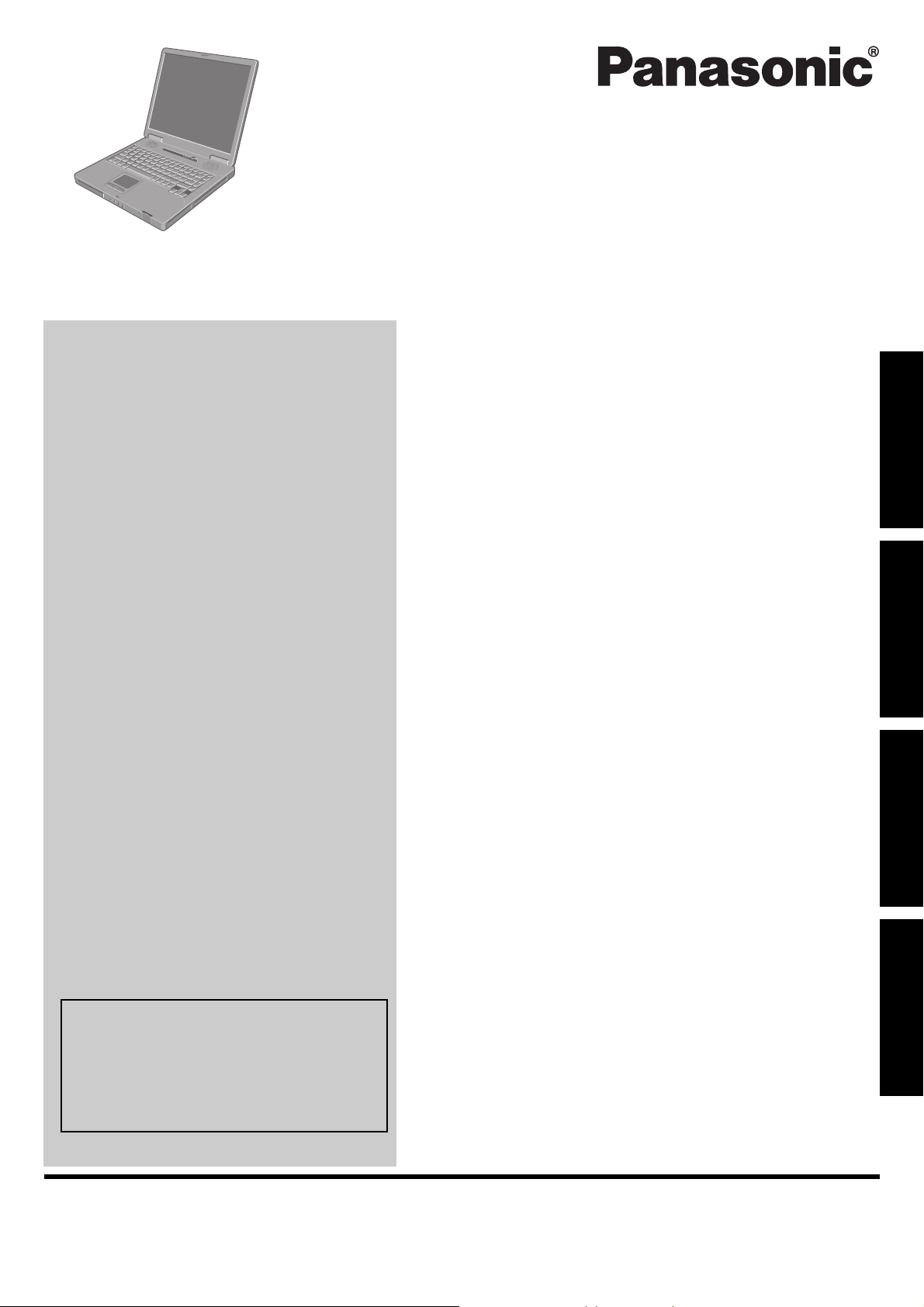
OPERATING INSTRUCTIONS
Personal Computer
Model No. CF-51 series
Contents
Getting Started
Introduction.................................................2
Read Me First ..............................................3
Description of Parts .......................................9
First-time Operation .....................................11
Useful Information
On-screen Manual.......................................14
Getting StartedUseful InformationTroubleshootingAppendix
For more information about the computer, you can refer to the on-screen
manual.
To access the on-screen manual.
Î page 14 “On-screen Manual”
Handling and Maintenance.............................15
Hard Disk Data Erase Utility ...........................17
Reinstalling Software....................................18
Troubleshooting
Error Code/Message ....................................20
Troubleshooting (Basic) ................................21
Appendix
LIMITED USE LICENSE AGREEMENT..............24
Contrat de licence d’usage limité ......................25
Specifications ............................................26
LIMITED WARRANTY ..................................29
Please read these instructions carefully before using this product and save this manual for future use.
Page 2
Introduction
Thank you for purchasing this Panasonic computer. For optimum performance and safety, please read these instructions carefully.
Terms and illustrations in these instructions
CAUTION
NOTE
Enter
Fn
+ F5 : Press and hold [Fn] key, and then press [F5] key.
[start] - [Run] : Click [start], and then click [Run]. You may need to double-click in some cases.
Î : Page in these Operating Instructions or in the Reference Manual.
z Some illustrations are simplified to help your understanding and may look different from the actual unit.
z If you do not log on as an administrator, you cannot use some functions or cannot display some screens.
z Refer for the latest information about optional products to the catalogs, etc.
z In these instructions, the names and terms are referred as follows.
• “Microsoft
“Windows XP”
• “WinDVD™ 5 (OEM Version)” as “WinDVD”
Getting StartedUseful InformationTroubleshootingAppendix
• “B’s Recorder GOLD8 BASIC” as “B’s Recorder”
• “B’s CLiP 6” as “B’s CLiP”
• DVD-ROM & CD-R/RW drive and DVD MULTI drive as “CD/DVD drive”
• Circular media including DVD-ROM and CD-ROM as “discs”
: Conditions that may result in minor or moderate injury.
: Useful and helpful information.
: Press [Enter] key.
: Reference to the on-screen manuals.
®
Windows® XP Professional Service Pack 2 with Advanced Security Technologies” as “Windows” or
Copyright
This manual is copyrighted by Matsushita Electric Industrial Co., Ltd. with all rights reserved. No part of this manual may
be reproduced in any form without the prior written permission of Matsushita Electric Industrial Co., Ltd.
No patent liability is assumed with respect to the use of the information contained herein.
© 2007 Matsushita Electric Industrial Co., Ltd. All Rights Reserved.
Disclaimer
Computer specifications and manuals are subject to change without notice. Matsushita Electric Industrial Co., Ltd.
assumes no liability for damage incurred directly or indirectly from errors, omissions or discrepancies between the computer and the manuals.
Trademarks
®
Microsoft
and/or other countries.
Intel, Core, Viiv, Centrino and PROSet are either registered trademarks or trademarks of Intel Corporation.
SD Logo is a trademark.
Adobe, the Adobe logo and Adobe Reader are either registered trademarks or trademarks of Adobe Systems Incorporated in the United States and/or other countries.
Bluetooth is a trademark owned by Bluetooth SIG, Inc., U.S.A. and licensed to Matsushita Electric Industrial Co., Ltd.
InterVideo, WinDVD™, the InterVideo logo, Ulead and the Corel logo are trademarks or registered trademarks of Corel
Corporation and/or its subsidiaries in Canada, the United States and/or other countries.
Panasonic
Names of products, brands, etc., appearing in this manual are trademarks or registered trademarks of their respective
own companies.
, Windows® and the Windows logo are registered trademarks of Microsoft Corporation of the United States
®
is a registered trademark of Matsushita Electric Industrial Co., Ltd.
2
Page 3

Read Me First
Models for U.S.A.
Federal Communications Commission Radio Frequency Interference Statement
Note: This equipment has been tested and found to comply with the limits for a Class B digital device, pursuant to
Part 15 of the FCC Rules. These limits are designed to
provide reasonable protection against harmful interference in a residential installation. This equipment generates, uses and can radiate radio frequency energy and, if
not installed and used in accordance with the instructions,
may cause harmful interference to radio communications.
However, there is no guarantee that interference will not
occur in a particular installation. If this equipment does
cause harmful interference to radio or television reception, which can be determined by turning the equipment
off and on, the user is encouraged to try to correct the
interference by one or more of the following measures:
z Reorient or relocate the receiving antenna.
z Increase the separation between the equipment and
receiver.
z Connect the equipment into an outlet on a circuit differ-
ent from that to which the receiver is connected.
z Consult the Panasonic Service Center or an experi-
enced radio/TV technician for help.
Warning
To assure continued compliance, use only shielded interface cables when connecting to a computer or peripheral.
Also, any changes or modifications not expressly
approved by the party responsible for compliance could
void the user’s authority to operate this equipment.
This device complies with Part 15 of the FCC Rules.
Operation is subject to the following two conditions:
(1) This device may not cause harmful interference, and
(2) This device must accept any interference received,
including interference that may cause undesired operation.
Responsible Party:
Panasonic Corporation of North America
One Panasonic Way
Secaucus, NJ 07094
Tel No:1-800-LAPTOP5 (1-800-527-8675)
<Only for model with wireless LAN>
FCC RF Exposure Warning:
z This equipment complies with FCC radiation exposure
limits set forth for an uncontrolled environment.
z This equipment must be installed and operated in
accordance with provided instructions and minimum
1.5 cm spacing must be provided between antenna
and all person’s body (excluding extremities of hands,
wrist and feet) during wireless modes of operation.
z This transmitter must not be co-located or operated in
conjunction with any other antenna or transmitter.
z This computer is provided with a PC Card slot that
could be used with wireless transmitter(s), which will
be specifically recommended, when they become
available. Other third-party wireless transmitter(s)
have not been RF exposure evaluated for use with this
computer and may not comply with FCC RF exposure
requirements.
This product is restricted to indoor use due to its operation
in the 5.15 to 5.25 GHz frequency range.
FCC requires this product to be used indoors for the frequency range 5.15 to 5.25 GHz to reduce the potential for
harmful interference to co-channel Mobile Satellite systems.
High power radars are allocated as primary users of the
5.25 to 5.35 GHz and 5.65 to 5.85 GHz bands. These
radar stations can cause interference with and/or damage
this product.
FCC Regulation Notice for modem
This equipment contains a FCC approved modem.
1. This equipment complies with CFR47 Part 68 rules.
On the computer is a label that contains, among other
information, the FCC registration number and ringer
equivalence number (REN) for this equipment. If
required, this information must be provided to the telephone company.
2. An FCC compliant telephone cord and modular plug is
provided with this equipment. This equipment is
designed to be connected to the telephone network or
premises wiring using a compatible modular jack
which is Part 68 compliant. See Installation Instructions for details.
3. The REN is used to determine the quantity of devices
which may be connected to the telephone line. Excessive RENs on the telephone line may result in the
devices not ringing in response to an incoming call. In
most, but not all area, the sum of RENs should not
exceed five (5.0). To be certain of the number of
devices that may be connected to a line, as determined by the total RENs, contact the local telephone
company.
4. If your telephone equipment cause harm to the telephone network, the telephone company will notify you
in advice that temporary discontinuance of service
may be required. But if advice notice isn’t practical, the
telephone company will notify the customer as soon as
possible. Also, you will be advised of your right to file a
complaint with the FCC if you believe it is necessary.
5. The telephone company may take changes in its facilities, equipment, operations or procedures that could
affect the operation of the equipment. If this happens
the telephone company will provide advance notice in
order for you to make necessary modifications to
maintain uninterrupted service.
6. If trouble is experienced with this equipment, for repair
or warranty information, please contact Panasonic
Corporation of North America at DIAL TOLL FREE 1800-LAPTOP5 (1-800-527-8675). If the equipment is
causing harm to the telephone network, the telephone
company may request that you disconnect the equipment until the problem is resolved.
7. There are no user serviceable parts contained in this
equipment.
8. This equipment may not be used on coin service provided by the telephone company. Connection to party
lines is subject to state tariffs.
9. The Telephone Consumer Protection Act of 1991
makes it unlawful for any person to use a computer or
other electronic device to send any message via a
telephone fax machine unless such message clearly
contains in a margin at the top or bottom of each
Getting StartedUseful InformationTroubleshootingAppendix
3
Page 4

Read Me First
transmitted page or on the first page of the transmission, the date and time it is sent and an identification of
the business or other entry, or other individual sending
the message and the telephone number of the sending
machine or such business, other entity, or individual. In
order to program this information into your fax software, you should refer to the manual of the Fax software being used.
10.According to the FCC’s electrical safety advisory, we
recommend that you may install an AC surge arrestor
in the AC outlet to which this equipment is connected.
Telephone companies report that electrical surges,
typically lightning transients, are very destructive to
customer terminal equipment connected to AC power
sources and that this is a major nationwide problem.
“Caution : To reduce the risk of fire, use only No.26 AWG or
larger telecommunication line cord.”
Models for Canada
Industry Canada (IC) Notice for modem
Getting StartedUseful InformationTroubleshootingAppendix
This equipment contains an Industry Canada approved
modem unit.
The Industry Canada label is affixed on the modem unit.
EQUIPMENT ATTACHEMENT LIMITATIONS
“NOTICE: The Industry Canada label identifies certified
equipment. This certification means that the equipment
meets telecommunications network protective, operational and safety requirements as prescribed in the appropriate Terminal Equipment Technical Requirements
document(s). The Department does not guarantee the
equipment will operate to the user’s satisfaction.
Before installing this equipment, users should ensure that
it is permissible to be connected to the facilities of the
local telecommunications company. The equipment must
also be installed using an acceptable method of connection. The customer should be aware that compliance with
the above conditions may not prevent degradation of service in some situations.
Repairs to certified equipment should be coordinated by a
representative designated by the supplier. Any repairs or
alterations made by the user to this equipment, or equipment malfunctions, may give the telecommunications
company cause to request the user to disconnect the
equipment.
Users should ensure for their own protection that the electrical ground connections of the power utility, telephone
lines and internal metallic water pipe system, if present,
are connected together. This precaution may be particularly important in rural areas. Caution: Users should not
attempt to make such connections themselves, but should
contact the appropriate electric inspection authority, or
electrician, as appropriate.”
“NOTICE: The Ringer Equivalence Number (REN)
assigned to each terminal device provides an indication of
the maximum number of terminals allowed to be connected
to a telephone interface. The termination on an interface
may consist of any combination of devices subject only to
the requirement that the sum of the Ringer Equivalence
Numbers of all the devices does not exceed 5.”
REN: See bottom of the computer
“ATTENTION : Pour réduire le risque d’incendie, utiliser
uniquement des conducteurs de télécommunications 26
AWG ou de section supérieure.”
Notice for the products using LCD
This product has a fluorescent lamp that contains mercury. Disposal may be regulated in your community due to
environmental considerations.
For disposal or recycling information, please contact your
local authorities, or the Electronics Industries Alliance:
<http://www.eiae.org/>
For U.S.A.-California Only
This product contains a CR Coin Cell Lithium Battery
which contains Perchlorate Material - special handling
may apply.
See http://www.dtsc.ca.gov/hazardouswaste/perchlorate/
RESTRICTIONS CONCERNANT LE RACCORDEMENT
DE MATÉRIEL
“AVIS: L’étiquette d’Industrie Canada identifie le matériel
homologué. Cette étiquette certifie que le matériel est
conforme aux normes de protection, d’exploitation et de
sécurité des réseaux de télécommunications, comme le
prescrivent les documents concernant les exigences techniques relatives au matériel terminal. Le Ministère
n’assure toutefois pas que le matériel fonctionnera à la
satisfaction de l’utilisateur.
Avant d’installer ce matériel, l’utilisateur doit s’assurer
qu’il est permis de le raccorder aux installations de l’entreprise locale de télécommunication. Le matériel doit également être installé en suivant une méthode acceptée de
raccordement.
L’abonné ne doit pas oublier qu’il est possible que la conformité aux conditions énoncées ci-dessus n’empêche
pas la dégradation du service dans certaines situations.
Les réparations de matériel homologué doivent être coordonnées par un représentant désigné par le fournisseur.
L’entreprise de télécommunications peut demander à
l’utilisateur de débrancher un appareil à la suite de réparations ou de modifications effectuées par l’utilisateur ou à
cause de mauvais fonctionnement.
Pour sa propre protection, l’utilisateur doit s’assurer que
tous les fils de mise à la terre de la source d’énergie électrique, des lignes téléphoniques et des canalisations
d’eau métalliques, s’il y en a, sont raccordés ensemble.
Cette précaution est particulièrement importante dans les
régions rurales. Avertissement: L’utilisateur ne doit pas
tenter de faire ces raccordements lui-même; il doit avoir
recours à un service d’inspection des installations électriques, ou à un électricien, selon le cas.”
“AVIS: L’indice d’équivalence de la sonnerie (IES) assigné
à chaque dispositif terminal indique le nombre maximal de
terminaux qui peuvent être raccordés à une interface. La
terminaison d’une interface téléphonique peut consister
en une combinaison de quelques dispositifs, à la seule
condition que la somme d’indices d’équivalence de la
sonnerie de touts les dispositifs n’excède pas 5.”
IES: Voir sous le fond de l’ordinateur
4
Page 5
<Only for model with wireless LAN>
Industry Canada
This product complies with RSS210 Industry Canada.
Operation is subject to the following two conditions;
(1) this device may not cause interference, and
(2) this device must accept any interference, including
interference that may cause undesired operation of
the device.
Models for Europe
<Only for model with a “CE” mark on the bottom of
the computer>
Declaration of Conformity (DoC)
“Hereby, we declare that this Personal
Computer is in compliance with the
essential requirements and other relevant provisions of the Directive 1999/5/
EC.”
Hint:
If you want to get a copy of the original DoC of our products which relates to the R&TTE, please contact our web
address: http://www.doc.panasonic.de
Contact:
Panasonic Services Europe
A Division of Panasonic Marketing Europe GmbH
Panasonic Testing Centre
Network connection.
The terminal equipment is intended for connection to the
following public network;
In all the countries of European Economical Area;
- Public Switched Telephony Networks
Technical Features.
The terminal equipment includes the following features;
- DTMF dialing
- Maximum bitrate receiving mode: 56 kbit/s
- Maximum bitrate sending mode: 33.6 kbit/s
This product is designed to interwork with the Public
Switched Telecommunication Networks in UK, Ireland,
Netherlands, Sweden, Denmark, Finland, Switzerland,
Luxembourg, Belgium, France, Germany, Spain, Portugal,
Iceland, Greece, Italy, Norway and Austria.
Compliance Notice - CE Mark
This equipment is in conformance with the requirements
of the European Council Directive listed below:
73/23/EEC Low Voltage Directive with amendment 93/68/
EEC
89/336/EEC EMC Directive with amendments 92/31/EEC
and 93/68/EEC
1999/5/EC R&TTE
2. Avoid using a telephone (other than a cordless type)
during an electrical storm. There may be a remote risk
of electric shock from lightning.
3. Do not use the telephone to report a gas leak in the
vicinity of the leak.
4. Use only the power cord and batteries indicated in this
manual. Do not dispose of batteries in a fire. They may
explode. Check with local codes for possible special
disposal instructions.
SAVE THESE INSTRUCTIONS
Certaines mesures de sécurité doivent être prises pen-
dant l’utilisation de matérial téléphonique afin de réduire
les risques d’incendie, de choc électrique et de blessures.
En voici quelquesunes:
1. Ne pas utiliser l’appareil près de l’eau, p.ex., près
d’une baignoire, d’un lavabo, d’un évier de cuisine,
d’un bac à laver, dans un sous-sol humide ou près
d’une piscine.
2. Éviter d’utiliser le téléphone (sauf s’il s’agit d’un appareil sans fil) pendant un orage électrique. Ceci peut
présenter un risque de choc électrique causé par la
foudre.
3. Ne pas utiliser l’appareil téléphonique pour signaler
une fuite de gaz s’il est situé près de la fuite.
4. Utiliser seulement le cordon d’alimentation et le type
de piles indiqués dans ce manual. Ne pas jeter les
piles dans le feu: elles peuvent exploser. Se conformer
aux règlements pertinents quant à l’élimination des
piles.
CONSERVER CES INSTRUCTIONS
Lithium Battery / Pile au lithium
Lithium Battery!
This computer contains a lithium battery to enable the
date, time, and other data to be stored. The battery should
only be exchanged by authorized service personnel.
Warning!
A risk of explosion from incorrect installation or misapplication may possibly occur.
Pile au lithium!
Le micro-ordinateur renferme une pile au lithium qui permet de sauvegarder certaines données, notamment la
date et l’heure. La pile ne doit être remplacée que par un
technicien qualifié.
Danger !
Risque d’explosion en cas de non respect de cette mise
en garde!
Getting StartedUseful InformationTroubleshootingAppendix
Important Safety Instructions /
Importantes Mesures De Sécurité
When using your telephone equipment, basic safety precautions should always be followed to reduce the risk of
fire, electric shock and injury to persons, including the following:
1. Do not use this product near water, for example, near
a bath tub, wash bowl, kitchen sink or laundry tub, in a
wet basement or near a swimming pool.
Information to the User
<Only for model with wireless LAN and/or Bluetooth>
This product and your Health
This product, like other radio devices, emits radio frequency electromagnetic energy. The level of energy emitted by this product however is far much less than the
electromagnetic energy emitted by wireless devices like
for example mobile phones.
5
Page 6
Read Me First
Because this product operates within the guidelines found in
radio frequency safety standards and recommendations, we
believe this product is safe for use by consumers. These
standards and recommendations reflect the consensus of
the scientific community and result from deliberations of panels and committees of scientists who continually review and
interpret the extensive research literature.
In some situations or environments, the use of this product may be restricted by the proprietor of the building or
responsible representatives of the organization. These situations may for example include:
z Using this product on board of airplanes, or
z In any other environment where the risk of interference
to other devices or services is perceived or identified
as harmful.
If you are uncertain of the policy that applies on the use of
wireless devices in a specific organization or environment
(e.g. airports), you are encouraged to ask for authorization to use this product prior to turning on the product.
Regulatory Information
Getting StartedUseful InformationTroubleshootingAppendix
We are not responsible for any radio or television interference caused by unauthorized modification of this product.
The correction of interference caused by such unauthorized modification will be the responsibility of the user. We
and its authorized resellers or distributors are not liable for
damage or violation of government regulations that may
arise from failing to comply with these guidelines.
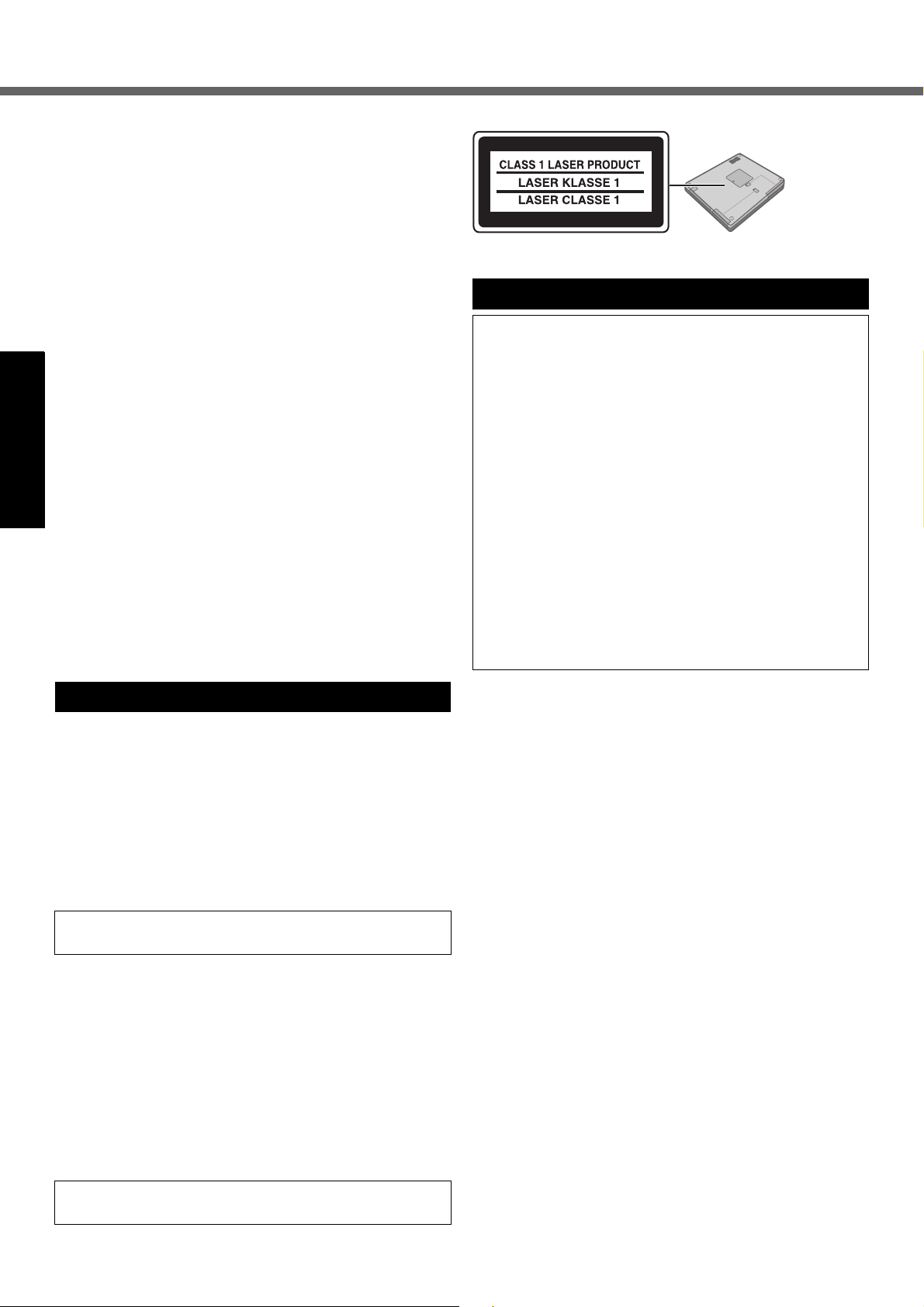
CD/DVD Drive Caution
CAUTION!
THIS PRODUCT UTILIZES A LASER.
USE OF CONTROLS, ADJUSTMENTS OR PERFORMANCE OF PROCEDURES OTHER THAN THOSE
SPECIFIED HEREIN MAY RESULT IN HAZARDOUS
RADIATION EXPOSURE.
DO NOT OPEN COVERS AND DO NOT REPAIR YOURSELF.
REFER SERVICING TO QUALIFIED PERSONNEL.
Laser safety information is appropriate only when drive
with laser is installed.
AVERTISSEMENT!
CET APPAREIL UTILISE UN LASER.
L’UTILISATION DE COMMANDES OU DE RÉGLAGES
OU L’EXÉCUTION DE PROCÉDURES AUTRES QUE
CELLES SPÉCIFIÉES ICI PEUVENT PROVOQUER
UNE EXPOSITION À DES RADIATIONS
DANGEREUSES.
NE PAS OUVRIR LES COUVERCLES NI ESSAYER DE
RÉPARER SOIMÊME.
CONFIER TOUT TRAVAIL D’ENTRETIEN À UN
PERSONNEL QUALIFIÉ.
Les mesures de sécurité relatives au laser ne s’appliquent que lors de l’installation d’une unité avec laser.
Bottom
Precautions
THIS PRODUCT IS NOT INTENDED FOR USE AS, OR AS
PART OF, NUCLEAR EQUIPMENT/SYSTEMS, AIR TRAFFIC CONTROL EQUIPMENT/SYSTEMS, OR AIRCRAFT
COCKPIT EQUIPMENT/SYSTEMS
NOT BE RESPONSIBLE FOR ANY LIABILITY RESULTING
FROM THE USE OF THIS PRODUCT ARISING OUT OF
THE FOREGOING USES.
*1
AIRCRAFT COCKPIT EQUIPMENT/SYSTEMS include Class2
Electrical Flight Bag (EFB) Systems and Class1 EFB Systems
when used during critical phases of flight (e.g., during take-off
and landing) and/or mounted on to the aircraft. Class1 EFB Systems and 2 EFB Systems are defined by FAA: AC (Advisory Circular) 120-76A or JAA: JAA TGL (Temporary Guidance Leaflets)
No.36.
Panasonic cannot guarantee any specifications, technologies, reliability, safety (e.g. Flammability/Smoke/
Toxicity/Radio Frequency Emission, etc) requirements
related to aviation standards that exceed the specifications of our COTS (Commercial-Off-The-Shelf) products.
This computer is not intended for use in medical equipment including life-support systems, air traffic control systems, or other equipment, devices or systems that are
involved with ensuring human life or safety. Panasonic
cannot be held responsible in any way for any damages
or loss resulting from the use of this computer in these
types of equipment, devices or systems, etc.
This computer has been designed so as to minimize
shock to the LCD and hard disk drive, the leakage of liquid (e.g., water) on to the keyboard, etc., but no warranty
is provided against such trouble. Therefore, as a precision
instrument, be extremely careful in the handling.
If a Malfunction Occurs, Immediately Unplug the AC
Cord and the Battery Pack
• Computer is damaged
• Foreign object inside computer
• Smoke emitted
• Unusual smell emitted
• Unusually hot
Continuing to use the computer while any of the above
conditions are present may result in fire or electric shock.
• If a malfunction occurs, immediately turn the power off
and unplug the AC cord, and then remove the battery
pack.
Do Not Touch the Computer and Cable When It Starts
Thundering
Electric shock may result.
*1
. PANASONIC WILL
6
Page 7

Do Not Connect the AC Adaptor to a Power Source
Other Than a Standard Household AC Outlet
Otherwise, a fire due to overheating may result. Connecting to a DC/AC converter (inverter) may damage the AC
adaptor. On an airplane, only connect the AC adaptor/
charger to an AC outlet specifically approved for such
use.
Do Not Do Anything That May Damage the AC Cord,
the DC Plug, or the AC Adaptor
Do not damage or modify the cord, place it near hot tools,
bend, twist, or pull it forcefully, place heavy objects on it,
or bundle it tightly.
Continuing to use a damaged cord may result in fire, short
circuit, or electric shock.
Do Not Pull or Insert the DC Plug If Your Hands Are
Wet
Electric shock may result.
Clean the DC Plug of Dust and Other Debris Regularly
If dust or other debris accumulates on the plug, humidity,
etc. may cause a defect in the insulation, which may result
in a fire.
• Pull the plug, and wipe it with a dry cloth.
Pull the plug if the computer is not being used for a long
period of time.
Insert the AC Plug Completely
If the plug is not inserted completely, fire due to overheating or electric shock may result.
• Do not use a damaged plug or loose AC outlet.
Do Not Place Containers of Liquid or Metal Objects on
Top of the Computer
If water or other liquid spills, or if paper clips, coins, or foreign matter get inside the computer, fire or electric shock
may result.
• If foreign matter has found its way inside, immediately
turn the power off and unplug the AC cord, and then
remove the battery pack. Then contact your technical
support office.
Do Not Disassemble the Computer
There are high-voltage areas inside which may give you
an electric shock if you should touch them. Do not touch
the pins and circuit boards inside, and do not allow foreign
matter to enter inside.
Also, remodeling or disassembly may cause a fire.
Keep SD Memory Cards Away from Infants and Small
Children
Accidental swallowing will result in bodily injury.
In the event of accidental swallowing, see a doctor immediately.
Do Not Place the Computer on Unstable Surfaces
If balance is lost, the computer may fall over or drop,
resulting in an injury.
Avoid Stacking
If balance is lost, the computer may fall over or drop,
resulting in an injury.
Do Not Keep the Computer Wherever There is a Lot of
Water, Moisture, Steam, Dust, Oily Vapors, etc.
Otherwise, possibly resulting in fire or electric shock.
Do Not Leave the Computer in High Temperature
Environment Such as in a Sun-Heated Car, for a Long
Period of Time
Leaving the computer where it will be exposed to
extremely high temperatures such as in a sun-heated car
or in direct sunlight may deform the cabinet and/or cause
trouble in the internal parts. Continued use in such a
resulting condition may lead to short-circuiting or insulation defects, etc. which may in turn lead to a fire or electric
shocks.
Do Not Block the Ventilation Hole
Otherwise, heat will build up inside, possibly resulting in a
fire.
Hold the Plug When Unplugging the AC Cord
Pulling on the cord may damage the cord, resulting in a
fire or electric shock.
Do Not Move the Computer While the DC Plug Is Connected
The AC cord may be damaged, resulting in fire or electric
shock.
• If the AC cord is damaged, unplug the DC plug immediately.
Use Only the Specified AC Adaptor With Your Computer
Using an AC adaptor other than the one supplied
(attached to your computer or supplied by Panasonic)
may resulting in a fire.
Do Not Subject the AC Adaptor to Any Strong Impact
Using the AC adaptor after a strong impact such as being
dropped may result in electric shock, short circuit, or fire.
Take a Break of 10-15 Minutes Every Hour
Using the computer for long periods of time may have detrimental health effects on the eyes or hands.
Do Not Look into the CD/DVD Drive
Looking directly at the internal laser light source may
result in damage to eyesight.
Do Not Use Disks That Are Cracked or Deformed
Because the disks rotate at high speeds, damaged disks
may break apart causing injury.
• Disks that are not round and disks that have been
repaired using adhesives are similarly dangerous, and
so should not be used.
Do Not Turn the Volume Up to Loud When Using
Headphones
Listening at high volumes that overstimulate the ear for
long periods of time may result in loss of hearing.
Use the Modem with a Regular Telephone Line
Connection to an internal phone line (on-premise
switches) of a company or business office, etc. or to a digital public phone or use in a country or area not supported
by the computer may result in a fire or electric shocks.
Getting StartedUseful InformationTroubleshootingAppendix
7
Page 8
Read Me First
Do Not Connect a Telephone Line, or a Network Cable
Other Than the One Specified, into the LAN Port
If the LAN port is connected to a network such as the
ones listed below, a fire or electric shock may result.
• Networks other than 1000BASE-TX, 100BASE-TX or
10BASE-T
• Phone lines (Telephone lines, internal phone lines
(onpremise switches), digital public phones, etc.)
Precautions (Battery Pack)
Do Not Use with Any Other Computer
The battery pack is rechargeable and was intended for
the specified computer or charger. If it is used with a computer other than the one for which it was designed, electrolyte leakage, generation of heat, ignition or rupture may
result.
Do Not Charge the Battery Using the Methods Other
Getting StartedUseful InformationTroubleshootingAppendix
Than Indicated in This Manual
If the battery pack is not charged using one of the methods indicated in this manual, electrolyte leakage, generation of heat, ignition or rupture may result.
Do Not Throw the Battery Pack into a Fire or Expose It
to Excessive heat
Generation of heat, ignition or rupture may result.
Avoid Extreme Heat (Near the Fire, in Direct Sunlight,
for Example)
Electrolyte leakage, generation of heat, ignition or rupture
may result.
Do Not Insert Sharp Objects into the Battery Pack,
Expose It to Bumps or Shocks, Disassemble, or Modify It
Electrolyte leakage, generation of heat, ignition or rupture
may result.
Do Not Short the Positive (+) and Negative (-) Contacts
Generation of heat, ignition or rupture may result. Do not
place the battery pack together with articles such as necklaces or hairpins when carrying or storing.
Do Not Use This Computer with a Battery Pack Other
Than the One Specified
Use only the specified battery pack (CF-VZSU29A) with
your CF-51. Use of battery packs other than those manufactured and supplied by Panasonic may present a safety
hazard (generation of heat, ignition or rupture).
z Do not touch the terminals on the battery pack. The
battery pack may no longer function properly if the
contacts are dirty or damaged.
z Do not expose the battery pack to water, or allow it to
become wet.
z If the battery pack will not be used for a long period of
time (a month or more), charge or discharge (use) the
battery pack until the remaining battery level becomes
30% to 40% and store it in a cool, dry place.
Do Not Use with Exposing the Skin to the Computer
for a Long Period of Time
Using the computer with exposing the skin to the heat
source of the computer or AC adaptor for a long period of
time can cause a low-temperature burn.
z Do not place the computer near a television or radio
receiver.
z Keep the computer away from magnets. Data stored
on the hard disk may be lost.
z This computer prevents overcharging of the battery by
recharging only when the remaining power is less than
approx. 95% of capacity.
z The battery pack is not charged when the computer is
first purchased. Be sure to charge it before using it for
the first time. When the AC adaptor is connected to the
computer, charging begins automatically.
z Should the battery leak and the fluid get into your
eyes, do not rub your eyes. Immediately flush your
eyes with clear water and see a doctor for medical
treatment as soon as possible.
NOTE
z The battery pack may become warm during recharging
or normal use. This is completely normal.
z Recharging will not commence if internal temperature
of the battery pack is outside of the allowable temperature range (0 °C to 50 °C {32°F to 122°F}) (Î Ref-
erence Manual “Battery Power”). Once the allowable
range requirement is satisfied, charging begins automatically. Note that the recharging time varies based
on the usage conditions. (Recharging takes longer
than usual when the temperature is 10 °C {50°F} or
below.)
z If the temperature is low, the operating time is short-
ened. Only use the computer within the allowable temperature range.
z This computer has a high temperature mode function
that prevents the degradation of the battery in high
temperature environments. (Î Reference Manual
“Battery Power”) A level corresponding to a 100%
charge for high temperature mode is approximately
equivalent to an 80% charge level for normal temperature mode.
z The battery pack is a consumable item. If the amount
of time the computer can be run by using a particular
battery pack becomes dramatically shorter and
repeated recharging does not restore its performance,
the battery pack should be replaced with a new one.
z When transporting a spare battery inside a package,
briefcase, etc., it is recommended that it be placed in a
plastic bag so that its contacts are protected.
z Always power off the computer when it is not in use.
Leaving the computer on when the AC adaptor is not
connected will exhaust the remaining battery capacity.
8
Page 9
Description of Parts
Getting StartedUseful InformationTroubleshootingAppendix
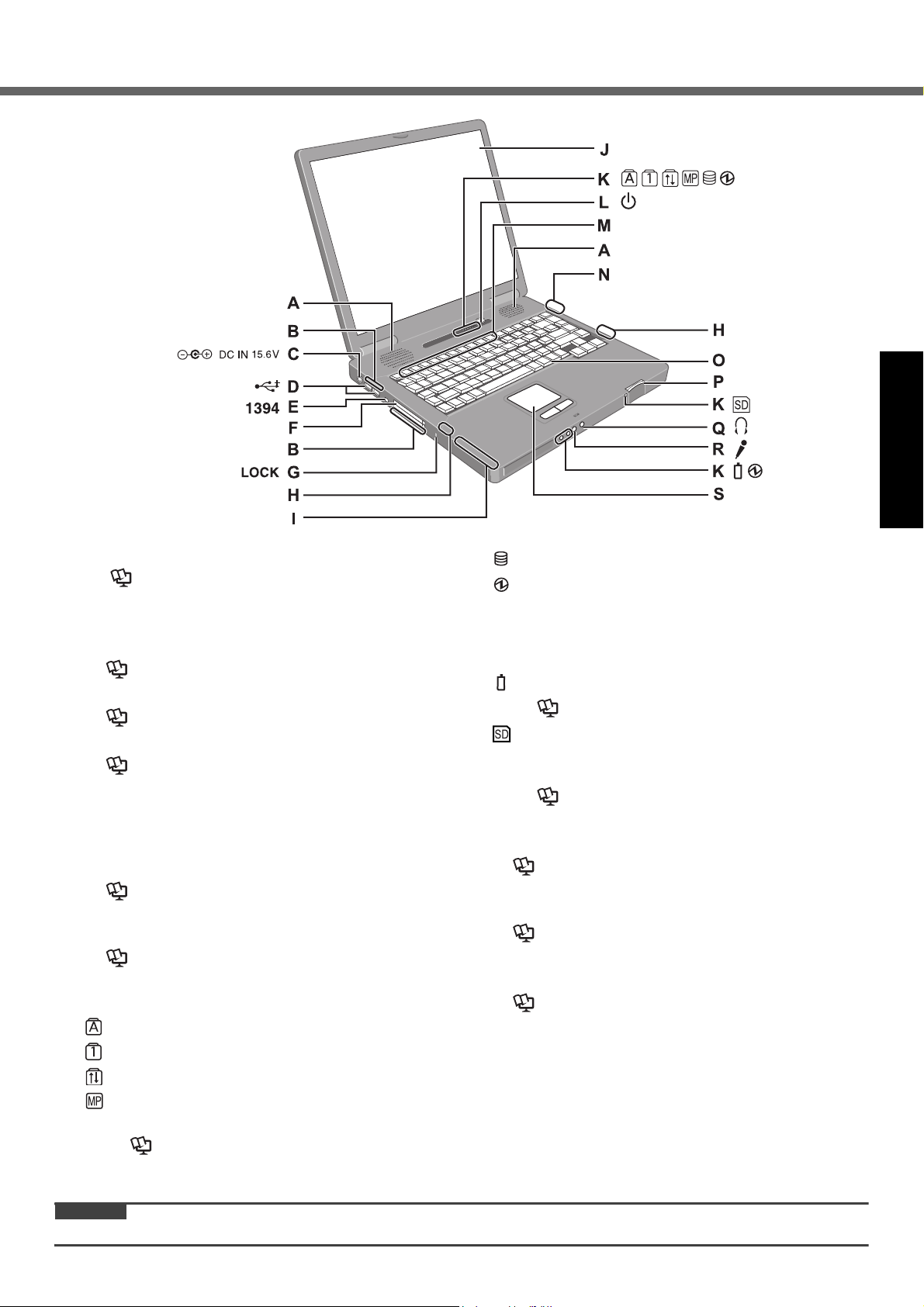
A : Speaker
Î Reference Manual “Key Combinations”
B : Ventilation hole
C : DC-IN jack
D : USB port
Î Reference Manual “USB Devices”
E : IEEE 1394 interface connector
Î Reference Manual “IEEE 1394 Devices”
F : PC Card slot
Î Reference Manual “PC Cards”
G : Security lock
You can connect a Kensington cable. Refer to the
instruction manual of the cable.
H : Wireless LAN antenna
<Only for model with wireless LAN>
Î Reference Manual “Wireless LAN”
I : Smart Card slot
<Only for model with Smart Card slot>
Î Reference Manual “Smart Card”
J : LCD
K : LED indicator
Caps lock
Numeric key (NumLk)
Scroll lock (ScrLk)
Multimedia pocket device status or the second
battery status
Î Reference Manual “Multimedia Pocket”
“Battery Power”
Hard disk drive status
Power status
(Off: Power off/Hibernation, Green: Power on,
Blinking green: Standby, Blinking green rapidly:
Cannot power on or resume due to low temperature.)
Battery status
Î Reference Manual “Battery Power”
SD Memory Card status
(Blinking: During access or a password is
requested)
Reference Manual “SD Memory Card”
Î
L : Power button
M : Function key
Î Reference Manual “Key Combinations”
N : Bluetooth antenna
<Only for model with Bluetooth>
Î Reference Manual “Bluetooth”
O : Keyboard
P : SD Memory Card slot
Î Reference Manual “SD Memory Card”
Q : Headphone jack
You can connect headphones or amplified speakers.
When they are connected, audio from the internal
speakers is not heard.
R : Microphone jack
You can use a stereo condenser microphone. Connecting other type of microphone may interrupt audio
input or may cause a malfunction.
S : Touch pad
CAUTION
z Do not put a metallic object or magnetic media close to the speakers.
9
Page 10
Description of Parts
Getting Started
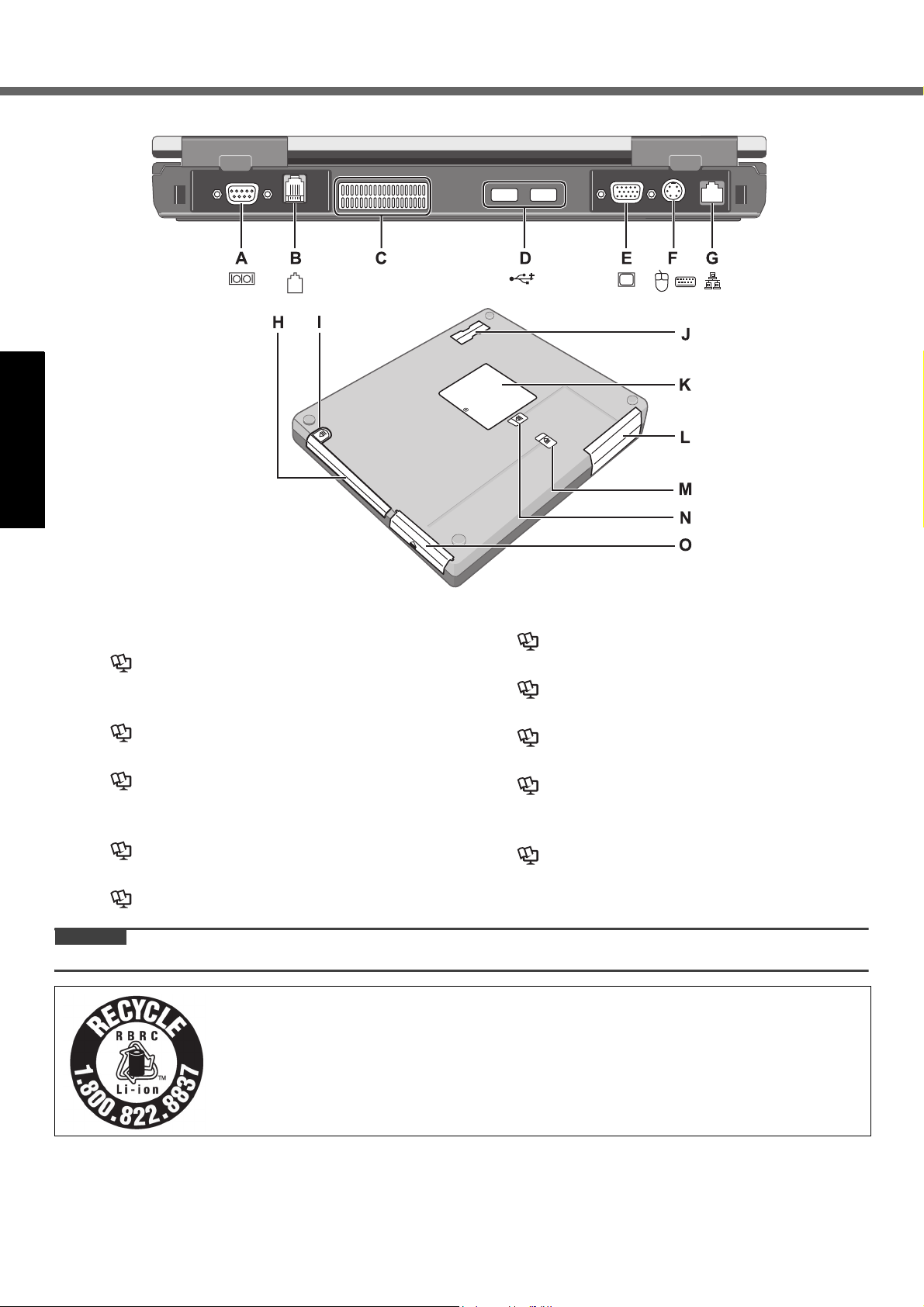
A : Serial port
B : Modem port
Î Reference Manual “Modem”
C : Ventilation hole
D : USB port
Î Reference Manual “USB Devices”
E : External display port
Î Reference Manual “External Display”
F : External keyboard/Mouse port
G : LAN port
Î Reference Manual “LAN”
H : Multimedia pocket
Î Reference Manual “Multimedia Pocket”
CAUTION
z Do not block the ventilation hole with a thick cloth etc. Select a position with good ventilation.
A lithium ion battery that is recyclable powers the product you have purchased.
Please call 1-800-8-BATTERY for information on how to recycle this battery.
I : Multimedia pocket release button
Î Reference Manual “Multimedia Pocket”
J : Expansion bus connector
Î Reference Manual “Port Replicator”
K : RAM module slot
Î Reference Manual “RAM Module”
L : Hard disk drive
Î Reference Manual “Hard Disk Drive”
M : Battery latch
N : Hard disk drive latch
Î Reference Manual “Hard Disk Drive”
O : Battery pack
10
L’appareil que vous vous êtes procuré est alimenté par une batterie au lithium-ion.
Pour des renseignements sur le recyclage de la batterie, veuillez composer le
1-800-8-BATTERY.
Page 11
First-time Operation
Preparation
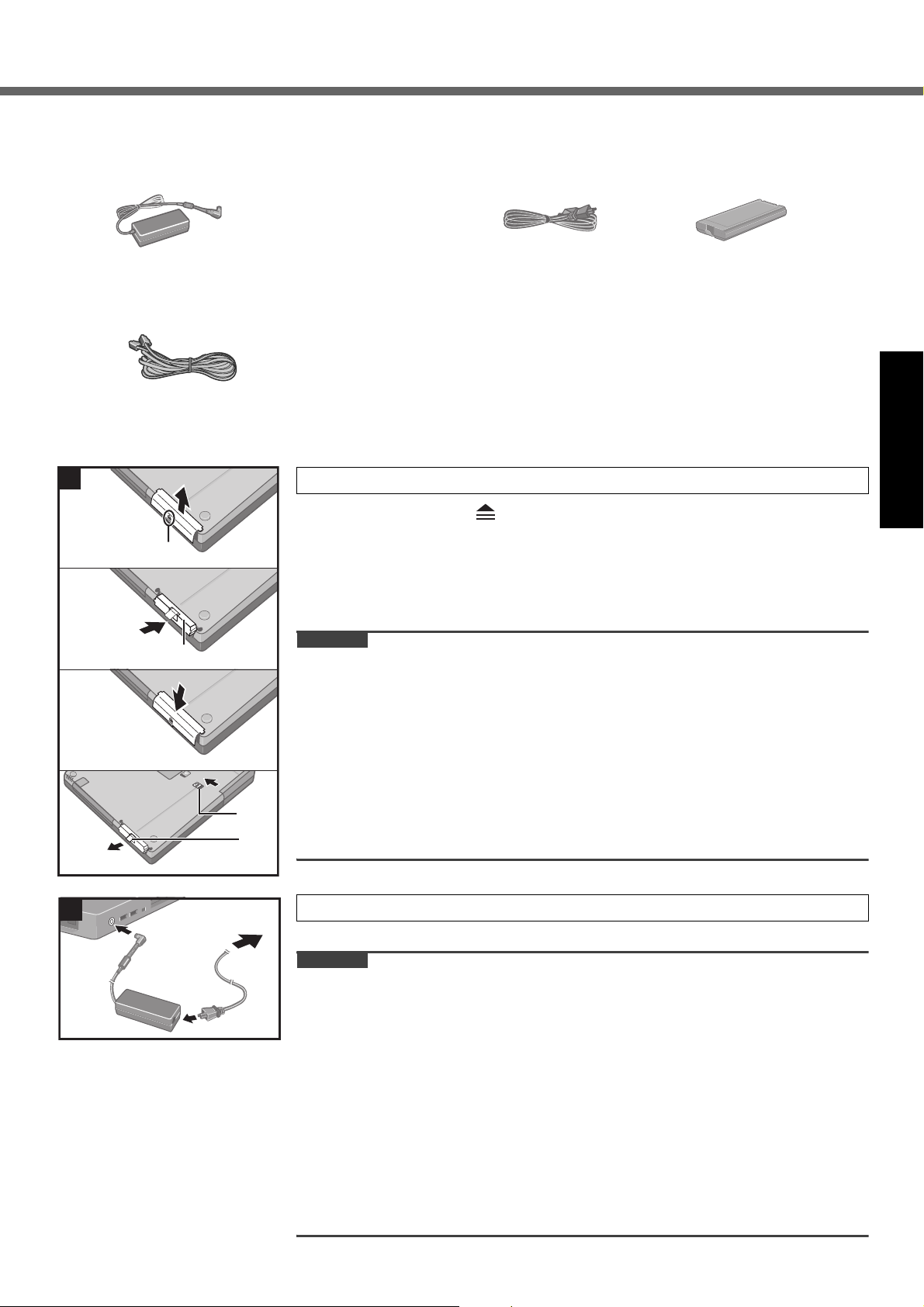
A Check and identify the supplied accessories.
If you do not find the described accessories, contact Panasonic Technical Support (Î page 29).
• AC Adaptor . . . . . . 1
• AC Cord . . . . . . . . . 1 • Battery Pack . . . . . 1
Model No: CF-AA1683A (Models for U.S.A)
CF-AA1653A (Models for Canada)
• Modem Telephone
Cable . . . . . . . . . . . 1
z You will need the serial number when you reinstall B’s Recorder/B’s CLiP using Product Recovery DVD-ROM
(Î page 23).
Read the LIMITED USE LICENSE AGREEMENT before breaking the seal on the computer’s packaging (Îpage 24).
B
1
A
B
C
D
• Product Recovery DVD-ROM . . . . . . . . . . . . . . 1
• Operating Instructions (This book) . . . . . . . . . 1
®
•Windows
Book . . . . . . . . . . . . . . . . . . . . . . . . . 1
1 Insert the battery pack.
A Press and hold the mark part (A), and slide and remove the cover.
B Insert the battery pack (B) until it securely fits the connector.
C Slide the cover back.
To remove the battery pack
In step B above, slide and hold the latch (C), and pull the tab (D) of the battery pack.
CAUTION
z Be careful not to catch the tab when you close the cover.
z Make sure the cover is securely attached. Otherwise the battery pack may fall
when you carry the computer.
z Do not touch the terminals of the battery pack and the computer. Doing so can
make the terminals dirty or damaged, and may cause malfunction of the battery
pack and the computer.
z Use only the specified battery pack (CF-VZSU29A) with your computer. If you
use the former type of battery (CF-VZSU29), the computer’s processing speed
will become slower.
z The computer’s processing speed will become slower when the computer oper-
ates by the second battery pack.
Model No: CF-VZSU29A
Getting StartedUseful InformationTroubleshootingAppendix
2
2 Connect your computer to a power outlet.
The battery charging starts automatically.
CAUTION
z Do not disconnect the AC adaptor until the first-time operation procedure is com-
pleted.
z When using the computer for the first time, do not connect any peripheral device
except the battery pack and AC adaptor.
z Handling the AC adaptor
• Do not twist or pull the AC power cord forcefully. Doing so may damage the
connections.
• Use only the specified AC adaptor with your computer. Using an AC adaptor
other than the one supplied might damage the battery and/or the computer.
• When the DC plug is not connected to the computer, disconnect the AC cord
from your AC wall outlet.
• Problems such as sudden voltage drops may arise during periods of thunder and
lightning. Since this could adversely affect your computer, an uninterruptible power
source (UPS) is highly recommended unless running from the battery pack alone.
11
Page 12
First-time Operation
Getting Started
3
A
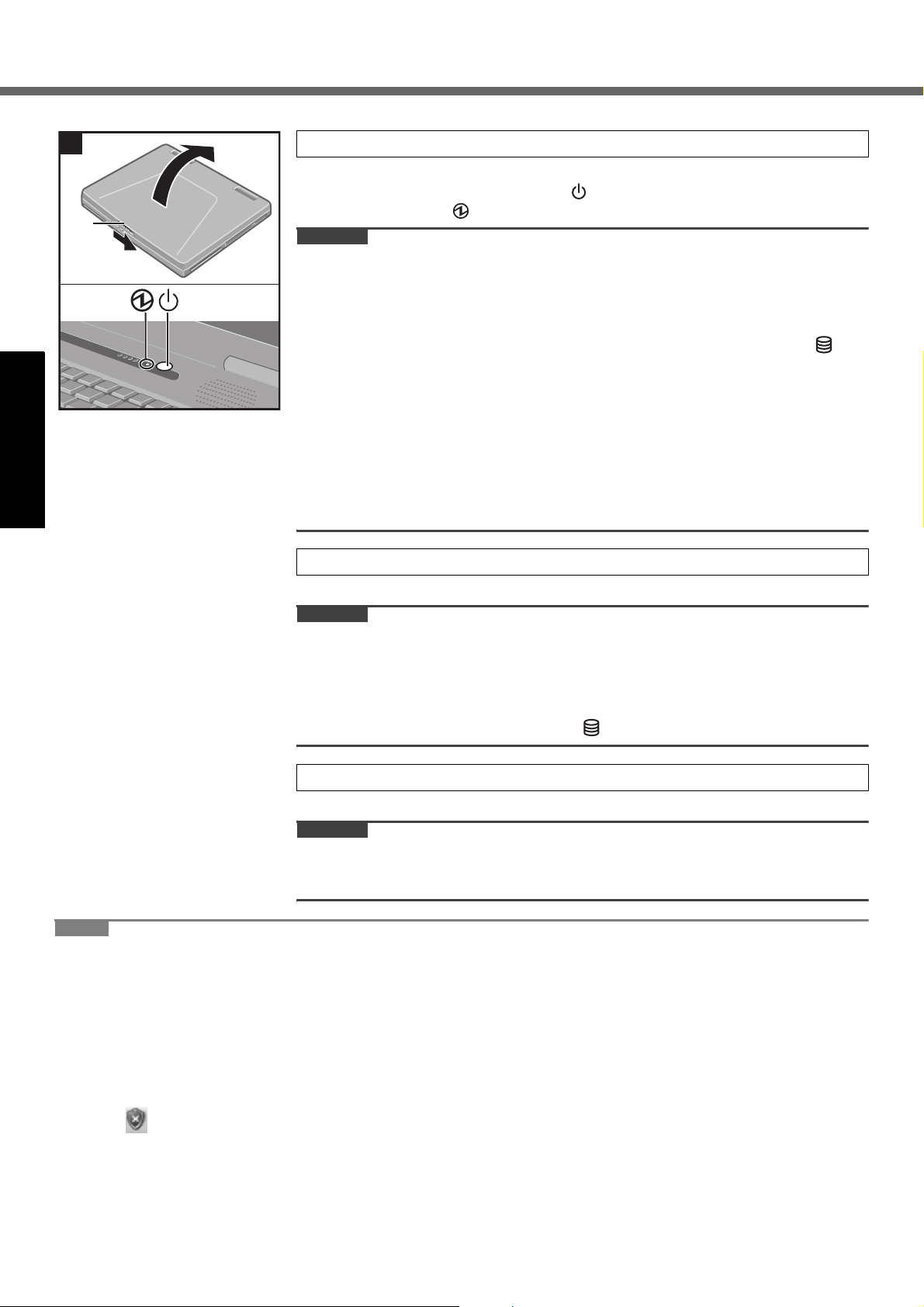
3 Turn on the computer.
A Slide the latch (A), and open the display.
B Press and hold the power button for approximately one second until the
power indicator lights.
CAUTION
z Do not press the power button repeatedly.
z The computer will be forcibly turned off if you press and hold the power button for
four seconds or longer.
z Once you turn off the computer, wait for ten seconds or more before you turn on
the computer again.
z Do not perform the following operation until the hard disk drive indicator
turns off.
• Connecting or disconnecting the AC adaptor
• Pressing the power button
• Touching the keyboard, touch pad or external mouse
• Closing the display
z When the CPU temperature is high, the computer may not start up to prevent
overheating of the CPU. Wait until the computer cools down, and then turn the
power on again. If the computer does not power on even after cooling down,
contact Panasonic Technical Support (Î page 29).
4 Setup Windows.
A Follow the on-screen instructions.
CAUTION
z When you set date/time/time zone and click [Next], the screen may not go to the
next step for a few minutes. Do not touch the keyboard or touch pad, and wait
until the screen changes.
z If “An unexpected error has occurred …” (or a similar message) is displayed,
select [OK]. This is not a malfunction.
z Wait until the hard disk drive indicator has turned off.
5 Create a new account.
A Click [start] - [Control Panel] - [User Accounts] - [Create a new account].
CAUTION
z Remember your password. If you forget the password, you cannot use the Win-
dows operation system. Creating a password reset disk beforehand is recommended.
NOTE
z Regarding Windows XP
You can select the Classic view of Control Panel or the Classic Start menu. You can also change the way a user logs
on or off. This manual explains using the Windows XP default setting (not Classic view or Classic Start menu etc.).
z Windows Update
You can update to the latest patches and service packs for Windows with the following menus.
Click [start] - [All Programs] - [Windows Update].
Do not apply “Driver Updates” even if a message to update a driver appears. If a driver update is required,
contact Panasonic Technical Support (Î page 29).
z If the message “Your computer might be at risk” is displayed
Select on the taskbar and make the appropriate settings. The Windows Security Center regularly gives you
notice so that you can make the optimum settings.
This is not an error message and you can use the computer. However, making appropriate measures is recommended to reduce the risk of virus and other attacks.
z Note that the computer consumes electricity even when the computer power is off.
If the battery pack is fully charged, the battery will fully discharge in Approx. 3 weeks. (When second battery pack is
attached: Approx. 4 weeks)
12
Page 13

z To conserve power, the following power saving methods are set at the time of purchase.
• The screen automatically turns off after 15 minutes of inactivity.
*1
• The computer goes automatically into standby mode
*1
Refer to Reference Manual “Standby or Hibernation Functions” of your computer about resuming from standby.
z Power Consumption in each mode is as follows.
When the screen is off: 19 W
In standby: 2.4 W
The battery pack is fully charged (or not being charged) and the computer is off: 0.9 W
z Note that the computer consumes electricity even when the computer power is off. If the battery pack is fully
charged, the battery will be fully discharged in the following period of time:
When power is off: 3 weeks
In standby: 3 days
In hibernation: 3 days
If “Wake up from LAN” is disabled, the period of time in standby will become slightly longer, and the period of time in
hibernation will become about the same as during power-off.
after 20 minutes of inactivity.
Getting StartedUseful InformationTroubleshootingAppendix
13
Page 14
On-screen Manual
You can access the Reference Manual and the Important Tips on the computer screen.
When you access the Reference Manual and the Important Tips for the first time, the License Agreement of the Adobe
Reader may be displayed. Read it carefully and select [Accept] to proceed.
Reference Manual
The Reference Manual contains the practical information to help you fully enjoy the computer’s performance.
To access the Reference Manual:
A Click [start] - [Reference Manual].
Contents
z Key Combinations
z Standby/Hibernation Functions
z Security Measures
z Battery Power
z Multimedia Pocket
z CD/DVD Drive
z WinDVD
z B’s Recorder/B’s CLiP
z PC Cards
Getting StartedUseful InformationTroubleshootingAppendix
z SD Memory Card
z SD Security
z Smart Card
z RAM Module
z Port Replicator
z External Display
z USB Devices
z IEEE 1394 Devices
z Modem
z LAN
z Wireless LAN
z Bluetooth
z Wireless Switch Utility
z Hard Disk Drive
z Setup Utility
z Icon Enlarger
z Loupe Utility
z DMI Viewer
z Technical Information
z Troubleshooting (Advanced)
NOTE
z In the Reference Manual “LAN”, the procedure for “Enabling the Wake Up from LAN function” is described. But
“Wake Up from LAN” is enabled at the time of purchase. “The Wake Up from LAN” function can be switched to
enable/disable on the “Power Management” screen, which is described in the Reference Manual “LAN” -
“Enabling the Wake Up from LAN function”.
Important Tips
The Important Tips will provide you with the battery information so that you can use the battery pack in the optimum
condition to obtain longer operation time.
To access the Important Tips:
A Double-click on the desktop.
z Alternatively click [start] - [All Programs] - [Panasonic] - [On-Line Manuals] - [Important Tips].
14
Page 15

Handling and Maintenance
Operation Environment
z Place the computer on a flat stable surface. Do not place the computer upright or turn it over. If the computer is
exposed to an extremely strong impact, it may become inoperable.
z Temperature: Operation : 5 °C to 35 °C {41 °F to 95 °F}
Storage : -20 °C to 60 °C {- 4 °F to 140 °F}
Humidity: Operation : 30% to 80% RH (No condensation)
Storage : 30% to 90% RH (No condensation)
Even within the above temperature/humidity ranges, using for a long time in an extreme environment will result in
the product deterioration and will shorten the product life.
z Do not place the computer in the following areas, otherwise the computer may be damaged.
• Near electronic equipment. Image distortion or noise may occur.
• In extremely high or low temperature.
z As the computer can become hot during operation, keep it away from items that are sensitive to heat.
Handling Cautions
This computer is designed to minimize shock to parts such as the LCD and the hard disk drive, but no warranty is provided against any trouble caused by shock. Be extremely careful when handling the computer.
z When carrying the computer:
• Turn off the computer.
• Remove all external devices, cables, PC Cards and other protruding things.
• Remove a disc in the CD/DVD drive.
• Do not drop or hit the computer against solid objects.
• Do not leave the display open.
• Do not grip the display part.
z Do not put anything (e.g., a piece of paper) between the display and keyboard.
z When you board an airplane, take the computer with you and never put it in your checked luggage. When using the
computer on airplane, follow the airline’s instructions.
z When carrying a spare battery, put it in a plastic bag to protect its terminals.
z The touch pad is designed to be used with a finger tip. Do not place any object on its surface and do not press down
strongly with sharp-pointed or hard objects that may leave marks (e.g., nails, pencils and ball point pens).
z Avoid any harmful substances such as oil from getting into the touch pad. The cursor may not work correctly.
Getting StartedUseful InformationTroubleshootingAppendix
When using peripheral devices
Follow these instructions and the Reference Manual to avoid any damage to the devices. Carefully read the instruction
manuals of the peripheral devices.
z Use the peripheral devices conforming to the computer’s specifications.
z Connect to the connectors in the correct direction.
z If it is hard to insert, do not try forcibly but check the connector’s shape, direction, alignment of pins, etc.
z If screws are included, fasten them securely.
z Remove the cables when you carry the computer. Do not pull the cables forcibly.
Preventing your computer from unauthorized use via wireless LAN
<Only for model with wireless LAN>
z Before using wireless LAN, make the appropriate security settings such as data encryption.
15
Page 16

Handling and Maintenance
Maintenance
To clean the LCD panel
z Do not use water to clean the panel. Ingredients included in water may leave scratches and reduce readability of the
screen.
z To remove dust or dirt, do not use a cloth to rub it off since it may leave scratch on the screen.
Use a fine brush to sweep dust or dirt, then wipe with a dry soft glass-cleaning cloth.
z To clean the oily surface, use a soft gauze dipped in camera lens cleaner, and then wipe with a dry soft glass-clean-
ing cloth.
To clean areas other than the LCD panel
Wipe with a soft dry cloth such as gauze. When using detergent, dip a soft cloth in water-diluted detergent and wring it
thoroughly.
CAUTION
z Do not use benzene, thinner, or rubbing alcohol since it may adversely affect the surface causing discoloration, etc.
Do not use commercially-available household cleaners and cosmetics, as they may contain components harmful to
the surface.
z Do not apply water or detergent directly to the computer, since liquid may enter inside of the computer and cause
malfunction or damage.
Getting StartedUseful InformationTroubleshootingAppendix
16
Page 17
Hard Disk Data Erase Utility
When disposing the computer or transferring the ownership, erase all hard disk data in order to avoid data leakage.
Even if you erase the data or initialize the hard disk using normal Windows commands, the data can be read with some
special software. Use the hard disk data erase utility to erase the data completely.
Note that transferring of the ownership without uninstalling the commercial software will be a violation of the software’s
license agreement.
The hard disk data erase utility erases the data using overwriting method. If a malfunction or other operational error
occurs during the erasing process, the data may not be completely erased. Also there may be special devices to read
the erased data. To erase highly confidential data, ask a specialized company. Matsushita Electric Industrial Co., Ltd.
will bear no responsibility for losses or damages suffered as a result of the use of this utility.
Preparation
z Prepare the following items:
• The Product Recovery DVD-ROM (included)
• Panasonic CD/DVD drive
z Remove all peripherals (except for the CD/DVD drive).
z Connect the AC adaptor and do not remove it until hard disk data erase is complete.
NOTE
z Even if hard disk data erase is performed, the number of times of DVD’s region code setting will not be reset.
Getting StartedUseful InformationTroubleshootingAppendix
1 Turn off the computer and insert the CD/DVD drive into the multimedia pocket
(Î Reference Manual “Multimedia Pocket”).
2 Turn on the computer, and press F2 several times while [Panasonic] boot screen is dis-
played.
The Setup Utility starts up.
z If the password is requested, enter the Supervisor Password.
3 Select the [Boot] menu, then select [IDE MP] and press F6 until [IDE MP] is at the top of
the boot priority order.
4 Select the [Security] menu and set [MP CD/DVD Operation] to [Enable].
5 Set the Product Recovery DVD-ROM into the CD/DVD drive.
6 Press
At the confirmation message, select [Yes] and press
The computer restarts.
F10
.
Enter
.
7 Press 2 to execute [2. [Erase HDD]].
z To cancel this operation, press 0.
8 At the confirmation message, press Y.
9 When [<<< Start menu >>>] is displayed, press
The approximate time required for erasing data will be displayed.
10 Press
At the confirmation message, press
The hard disk erase process starts. When the operation is completed, the [Hard disk data has been deleted.]
message will appear. If a problem has occurred during the operation, an error message will appear.
z To cancel partway, press
Space
.
Enter
Ctrl
+ C. The data erasure will be up to that point.
.
Enter
.
11 Remove the Product Recovery DVD-ROM, and then press any key to turn off the com-
puter.
17
Page 18
Reinstalling Software
When you reinstall the software, the hard disk data will be erased. Back up important data before reinstallation.
Reinstalling software will return the computer to the default condition. Even if the data is stored in partitions on the
hard disk, it may be erased or corrupted.
Preparation
z Prepare the following items:
• The Product Recovery DVD-ROM (included)
• Panasonic CD/DVD drive
z Remove all peripherals (except for the CD/DVD drive).
z Connect the AC adaptor and do not remove it until reinstallation is complete.
NOTE
z Even if reinstallation is performed, the number of times of DVD’s region code setting will not be reset.
1 Turn off the computer and insert the CD/DVD drive into the multimedia pocket
(Î Reference Manual “Multimedia Pocket”).
2 Turn on the computer, and press F2 several times while [Panasonic] boot screen is dis-
played.
The Setup Utility starts up.
z If the password is requested, enter the Supervisor Password.
Getting StartedUseful InformationTroubleshootingAppendix
3 Write down all of the contents of the Setup Utility and press F9.
At the confirmation message, select [Yes] and press
Enter
.
4 Select the [Boot] menu, then select [IDE MP] and press F6 until [IDE MP] is at the top of
the boot priority order.
5 Select the [Security] menu and set [MP CD/DVD Operation] to [Enable].
6 Set the Product Recovery DVD-ROM into the CD/DVD drive.
7 Press
At the confirmation message, select [Yes] and press
The computer will restart.
F10
.
Enter
.
8 Press 1 to execute [1. [Recovery]].
The License Agreement screen appears.
z To cancel partway, press
0
.
9 Press 1 to select [1. Yes, I agree to the provisions above and wish to continue!].
10 Select the settings.
z [2]: Enter the size of operating system partition and press
(The size of data partition will be determined by subtracting the operating system partition size from the
maximum size.)
[3]: Windows will be installed in the first partition.
(The size of the first partition must be 20 GB or more. If smaller, installation will not be possible.)
Y
At the confirmation message, press
Reinstallation starts automatically. (It will take approximately 25 - 50 minutes.)
z Do not interrupt reinstallation, for example by turning off the computer or pressing
wise reinstallation may become unavailable as Windows may not start up or the data may be corrupted.
.
Enter
.
Ctrl
+
Alt
+
Del
. Other-
11 Remove the Product Recovery DVD-ROM, and then press any key to turn off the com-
puter.
F2
12 Turn on the computer, and press
several times while [Panasonic] boot screen is dis-
played.
The Setup Utility starts up.
z If the password is requested, enter the Supervisor Password.
13 Press F9.
At the confirmation message, select [Yes] and then press
The Setup Utility settings excluding the password(s) will return to the default values.
Enter
.
18
Page 19

14 Select the [Exit] menu and then select [Save Current Values], then press
At the confirmation message, select [Yes] and press
Enter
.
Enter
.
15 Turn the computer off by using the power button.
z If additional instructions are included with the computer, be sure to read them. It may be necessary to perform
additional operations during the following procedure.
16 Perform the First-time Operation (Î page 11).
17 Start the Setup Utility and change the settings as necessary.
To change the drive letter of hard disk or CD/DVD drive
NOTE
z Drive letters can be changed only when two or more partitions have been created on the hard disk drive.
z The name of the C: drive cannot be changed.
z Change the drive letters before installing applications.
A Click [start] - [Control Panel] - [Performance and Maintenance] - [Administrative Tools], and double-click [Com-
puter Management].
B Click [Disk Management] from [Storage].
C Right-click the hard disk partition or the CD/DVD drive name, and click [Change Drive Letter and Paths...].
D Click [Change...].
E Click [Assign the following drive letter] and the new drive letter, and then click [OK].
At the confirmation message, click [Yes].
Getting StartedUseful InformationTroubleshootingAppendix
19
Page 20
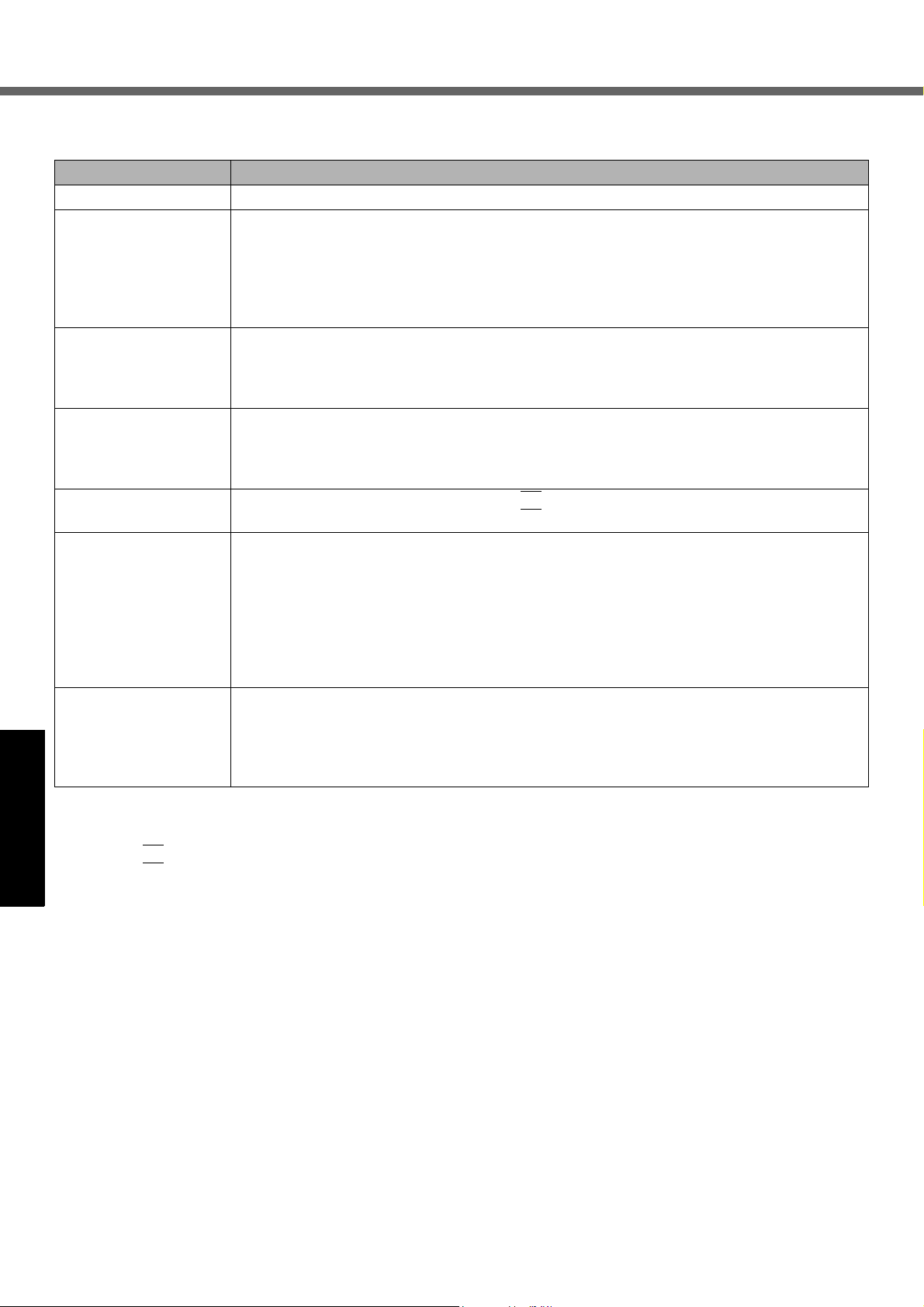
Error Code/Message
Follow the instructions below when an error message or code appears. If the problem persists or if the error code/message is not shown here, contact Panasonic Technical Support (Î page 29).
Error Code/Message Solution
0211 Keyboard error z Disconnect external keyboard or mouse.
0251 System CMOS
checksum bad Default configuration
used
0271 Check date and
time settings
0280 Previous boot
incomplete - Default
configuration used
Press <F2> to Setup z Write down the error details and press
Getting StartedUseful InformationTroubleshootingAppendix
Operating System not
found
RAM Module Failed When the RAM module is not inserted correctly or the RAM module is not conforming to the
An error has occurred in the memory of Setup Utility settings. This occurs when the memory
content is changed by an unexpected program operation, etc.
z Start the Setup Utility and return the settings to the default values, and then change the
settings as necessary.
z If the problem persists, the internal clock battery may need to be replaced. Contact
Panasonic Technical Support (Î page 29).
The date and time settings are not correct.
z Start the Setup Utility and set the correct date and time.
z If the problem persists, the internal clock battery may need to be replaced. Contact
Panasonic Technical Support (Î page 29).
Startup has failed repeatedly, so the Setup Utility settings have been returned to the default
values to startup the computer.
z Start the Setup Utility and return the settings to the default values, and then change the
settings as necessary.
F2
to start the Setup Utility. Change the settings if
necessary.
The operating system is not installed in the floppy disk or the hard disk that you are going to
boot from.
z If using a floppy disk, change the disk to the one you can use for boot.
z If using the hard disk, check if the hard disk is recognized in [Information] menu of the
Setup Utility. If the hard disk is recognized, perform the reinstallation (Î page 18). If not,
contact Panasonic Technical Support (Î page 29).
z If a device is connected to the USB port, disconnect the device, or set [USB Port] or
[Legacy USB Support] to [Disable] in [Advanced] menu of the Setup Utility.
computer’s specifications, so a beep will sound and the “RAM Module Failed” message will
be displayed when you turn the power on.
z Press the power button for four seconds or longer to turn off the computer, confirm that
the RAM module conforms to the specifications, and reinsert it.
To start the Setup Utility
A Restart the computer.
F2
B Press
procedure.
several times while [Panasonic] boot screen is displayed soon after the computer begins the startup
20
Page 21
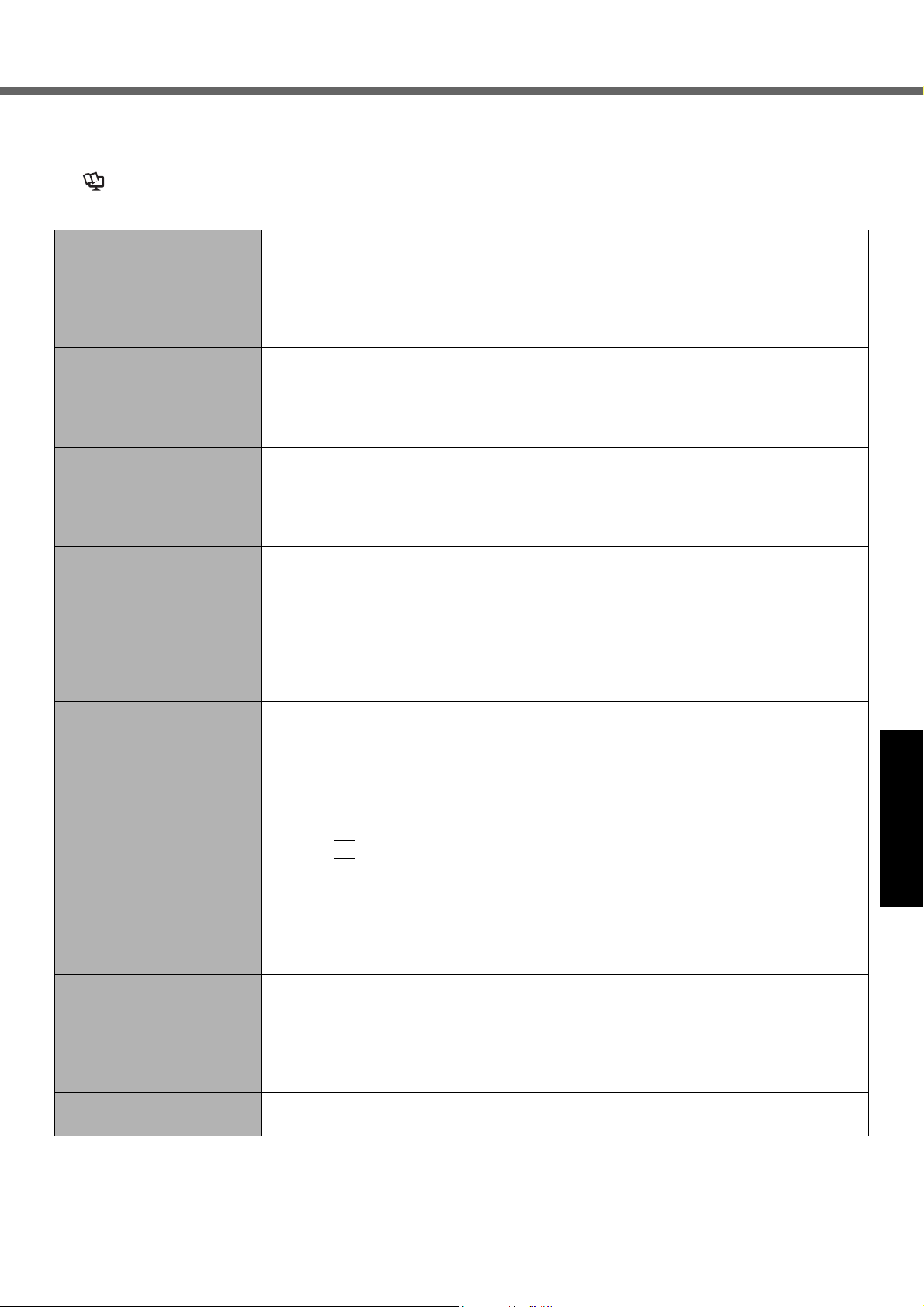
Troubleshooting (Basic)
Follow the instructions below when a problem has occurred. There is also an advanced troubleshooting guide in the
“Reference Manual”. For a software problem, refer to the software’s instruction manual. If the problem persists, contact
Panasonic Technical Support (Î page 29). You can also check the computer’s status in the PC Information Viewer
(Î Reference Manual “Troubleshooting (Advanced)”).
Starting Up
Cannot start up.
The power indicator or battery indicator is not lit.
The power is turned on but
“Warming up the system (up
to 30 minutes)” appears.
Cannot turn on the computer.
The computer does not
resume from standby mode.
(The power indicator blinks
quickly in green.)
You have forgotten the
password.
“Remove disks or other
media. Press any key to
restart” or a similar message appears.
Windows startup and operation is slow.
The date and time are incorrect.
[Executing Battery Recalibration] screen appears.
z Connect the AC adaptor.
z Insert a fully charged battery.
z Remove the battery pack and the AC adaptor, then connect them again.
z Remove the USB device, or set [USB Port] or [Legacy USB Support] to [Disable] in
[Advanced] menu of the Setup Utility. The computer may not start up when certain
USB devices are connected.
z The computer is warming up before start up. Wait for the computer to start up (takes
up to 30 minutes). If, “Cannot warm up the system” is displayed, the computer failed
to warm up and does not start. In this case, turn off the computer, leave it in an environment of 5 °C {41 °F} or higher temperature for about an hour, and then turn on
the power once more.
z Leave it in an environment of 5 °C {41 °F} or higher temperature for about an hour,
then turn on the power once more.
Getting StartedUseful InformationTroubleshootingAppendix
z Supervisor Password or User Password: Contact Panasonic Technical Support
(Î page 29).
z Administrator password:
• If you have a password reset disk, you can reset the administrator password. Set
the disk and enter any wrong password, then follow the on-screen instructions and
set a new password.
• If you do not have a password reset disk, reinstall (Î page 18) and set up Windows, and then set a new password.
z A floppy disk is in the drive and it does not contain system startup information.
Remove the floppy disk and press any key.
z This message may appear with some USB devices. Remove the USB device, or set
[USB Port] or [Legacy USB Support] to [Disable] in the [Advanced] menu of the
Setup Utility.
z If the problem persists after removing the disk, it may be a hard disk failure. Contact
Panasonic Technical Support (Î page 29).
z Press F9 in the Setup Utility (Î page 20 “To start the Setup Utility”) to return the
Setup Utility settings (excluding the passwords) to the default values. Start the
Setup Utility and make the settings again. (Note that the processing speed depends
on the application software, so this procedure may not make Windows faster.)
z If you installed a resident software after purchase, turn off the residence.
z Disable Indexing Service in the following menu.
Click [start] - [Search] - [Change preferences] - [Without Indexing Service].
z Make the correct settings. Click [start] - [Control Panel] - [Date, Time, Language,
and Regional Options] - [Date and Time].
z If the problem persists, the internal clock battery may need to be replaced. Contact
Panasonic Technical Support (Î page 29).
z When the computer is connected to LAN, check the date and time of the server.
z The 2100 A.D. or later year will not be correctly recognized on this computer.
z The Battery Recalibration was canceled before Windows was shut down last time.
To start up Windows, turn off the computer by the power button, and then turn on.
21
Page 22
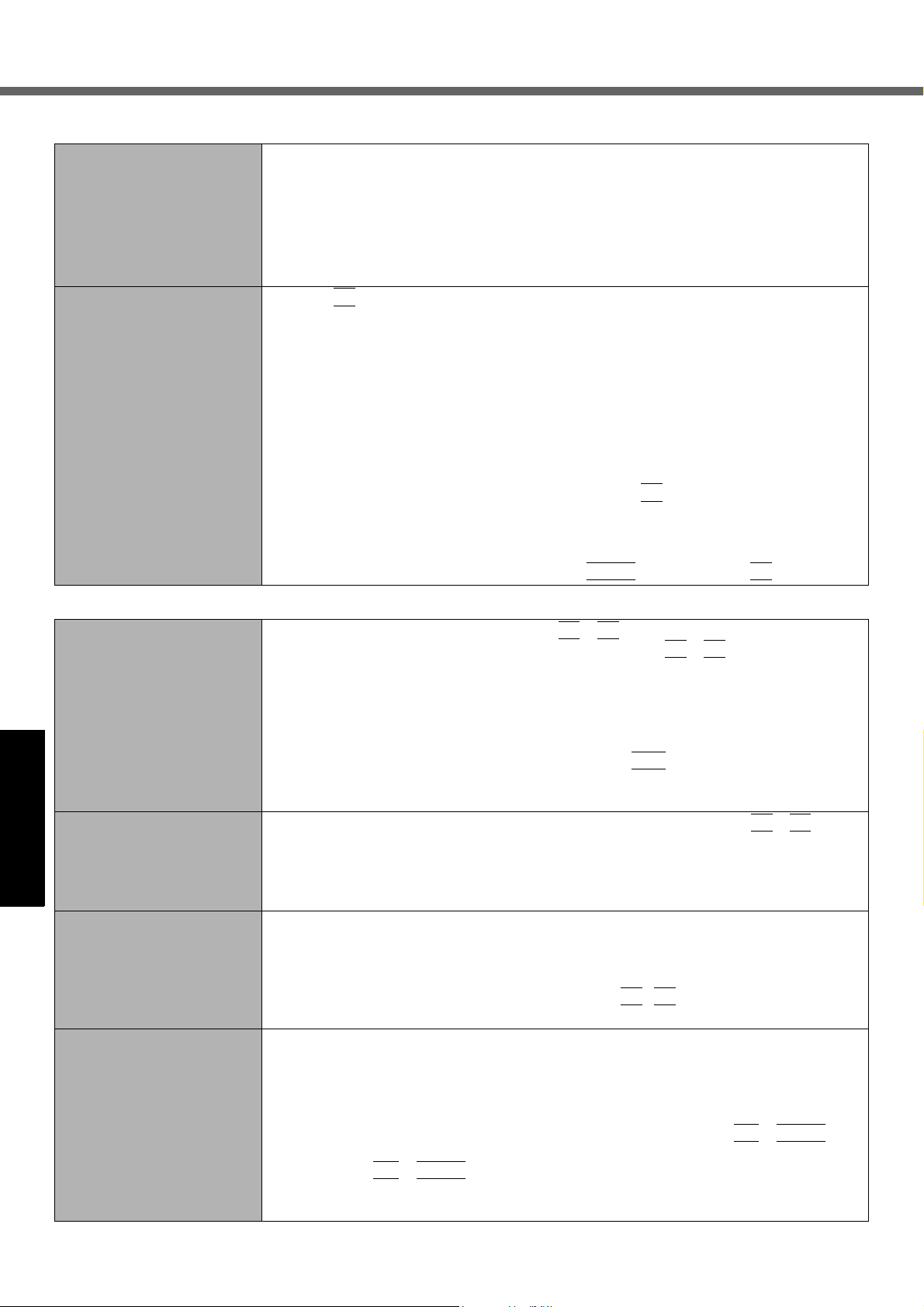
Troubleshooting (Basic)
Starting Up
[Enter Password] does not
appear when resuming from
standby/hibernation.
Other startup problems. z Press F9 in the Setup Utility (Î page 20 “To start the Setup Utility”) to return the
Getting StartedUseful InformationTroubleshootingAppendix
Display
z To display [Enter Password] at resuming, set the Windows password. The password
you have set in the Setup Utility is not requested at resuming.
A Click [start] - [Control Panel] - [User Accounts] and select the account, and set
the password.
B Click [start] - [Control Panel] - [Performance and Maintenance] - [Power Options]
- [Advanced] and add a check mark for [Prompt for password when computer
resumes from standby].
Setup Utility settings (excluding the passwords) to the default values. Start the
Setup Utility and make the settings again.
z Remove all peripheral devices.
z Check to see if there was a disk error.
A Click [start] - [My Computer] and right-click [Local Disk(C:)], and click [Proper-
ties].
B Click [Tools] - [Check Now].
C Select the option in [Check disk options] and click [Start].
z Start the computer in Safe Mode and check the error details. When the [Panasonic]
boot screen disappears
Options Menu is displayed.
*1
When [Password on boot] is set to [Enable] in the [Security] menu of the Setup Utility, [Enter Password] appears after the [Panasonic] boot screen disappears. As
soon as you enter the password and press
*1
at startup, press and hold F8 until the Windows Advanced
Enter
, press and hold F8.
No display. z The external display is selected. Press Fn + F3 to switch the display. Wait until the
Fn
display has been switched completely before pressing
z When using an external display,
• Check the cable connection.
• Turn on the display.
• Check the settings of external display.
z The display is turned off by the power-saving function. To resume, do not press the
direct selection keys, but press any other key like
z The computer entered standby or hibernation by the power-saving function. To
resume, press the power button.
The screen is dark. z The screen is darker when the AC adapter is not connected. Press Fn + F2 and
adjust the brightness. As you increase the brightness, battery consumption
increases.
You can separately set the brightness for when the AC adaptor is connected and
when not connected.
The screen is disordered.
<Only for model with Intel
945GM chipset>
During Simultaneous display, one of the screens
becomes disordered.
<Only for model with Intel
945GM chipset>
z Changing the number of display colors and resolution may affect the screen. Restart
®
®
the computer.
z When using Simultaneous display, set the same display colors for the external dis-
play as those for the LCD.
z When using Simultaneous display, do not press
z Enable or disable Simultaneous display, and soon restart the computer.
z When using the Extended Desktop, use the same display colors for the external dis-
play as those used by the LCD.
z If you continue to experience problems, try changing the display by clicking [start] -
[Control Panel] - [Other Control Panel Options] - [Intel(R) GMA Driver for Mobile] [Display Devices].
z When the [Command Prompt] is set to “Full Screen” by pressing
picture is displayed on one of the screens only. When the window display is restored
Alt
+
by pressing
z Simultaneous display cannot be used until Windows startup is complete (during
Setup Utility, etc.).
Enter
, the picture is displayed on both screens.
Ctrl
Fn +F3
+ F3 again.
.
.
Alt
+
Enter
, the
22
Page 23
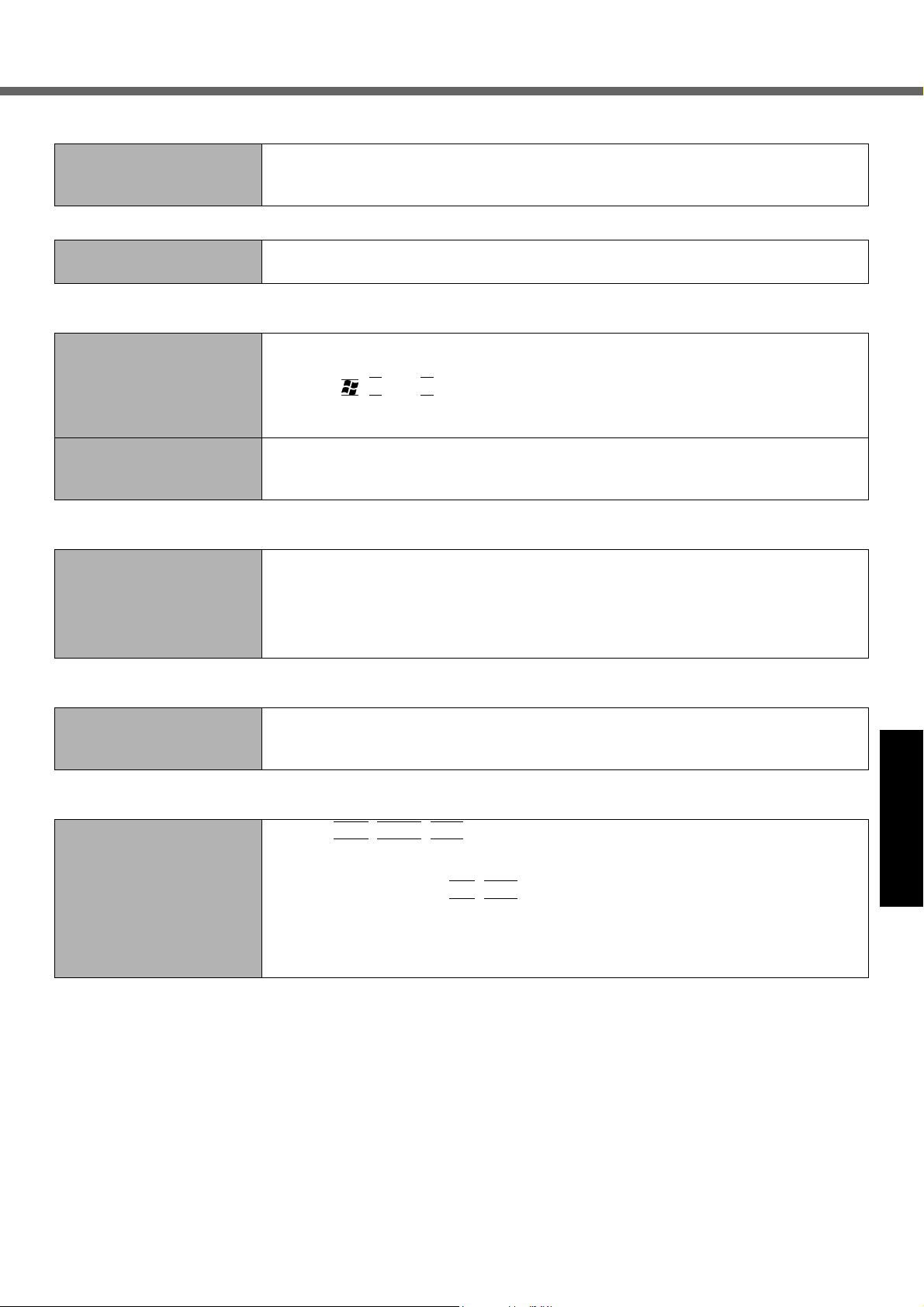
Display
The external display does
not work normally.
Shutting down
Windows does not shut
down.
Touch Pad
The cursor does not work. z When using the external mouse, connect it correctly.
Cannot input using the
touch pad.
Reference Manual
The Reference Manual is
not displayed.
z If the external display does not support the power saving function, it may not work
normally when the computer enters the power saving mode. Turn off the external
display.
z Remove the USB device.
z Wait one or two minutes. It is not a malfunction.
z Restart the computer using the keyboard.
(Press ,
z If the computer does not respond to keyboard commands, read “No response”
(Î below).
z Set [Touch Pad] to [Enable] in the [Main] menu of the Setup Utility.
z The drivers for some mice may disable the touch pad. Check your mouse’s operat-
ing instructions.
z Install Adobe Reader.
A Log on to Windows as an administrator.
B Click [start] - [Run], input [c:\util\reader\AdbeRdr70_enu_full.exe], then click
[OK].
C Follow the on-screen instructions.
U
, and R to select [Restart].)
Getting StartedUseful InformationTroubleshootingAppendix
Reinstalling B’s Recorder/B’s CLiP
A serial number is
requested when reinstalling.
Others
No response. z Press
z Input the following serial number
B’s Recorder:
B’s CLiP:
that is not responding.
z An input screen (e.g., password input screen at startup) may be hidden behind
another window. Press
z Press the power button for four seconds or longer to shut down the computer, and
then press the power button to turn it on. If the application program does not work
normally, uninstall and reinstall the program. To uninstall, click [start] - [Control
Panel] - [Add or Remove Programs].
Ctrl+Shift+Esc
to open Task Manager and close the software application
Alt+Tab
to check.
23
Page 24
LIMITED USE LICENSE AGREEMENT
THE SOFTWARE PROGRAM(S) (“PROGRAMS”) FURNISHED WITH THIS PANASONIC® PRODUCT (“PRODUCT”)
ARE LICENSED ONLY TO THE END-USER (“YOU”), AND MAY BE USED BY YOU ONLY IN ACCORDANCE WITH
THE LICENSE TERMS DESCRIBED BELOW. YOUR USE OF THE PROGRAMS SHALL BE CONCLUSIVELY
DEEMED TO CONSTITUTE YOUR ACCEPTANCE OF THE TERMS OF THIS LICENSE.
Matsushita Electric Industrial Co., Ltd. (“MEI”) has developed or otherwise obtained the Programs and hereby licenses
their use to you. You assume sole responsibility for the selection of the Product (including the associated Programs) to
achieve your intended results, and for the installation, use and results obtained therefrom.
LICENSE
A. MEI hereby grants you a personal, non-transferable and non-exclusive right and license to use the Programs in
accordance with the terms and conditions stated in this Agreement. You acknowledge that you are receiving only a
LIMITED LICENSE TO USE the Programs and related documentation and that you shall obtain no title, ownership
nor any other rights in or to the Programs and related documentation nor in or to the algorithms, concepts, designs
and ideas represented by or incorporated in the Programs and related documentation, all of which title, ownership
and rights shall remain with MEI or its suppliers.
B. You may use the Programs only on the single Product which was accompanied by the Programs.
C. You and your employees and agents are required to protect the confidentiality of the Programs. You may not distrib-
ute or otherwise make the Programs or related documentation available to any third party, by time-sharing or other-
wise, without the prior written consent of MEI.
D. You may not copy or reproduce, or permit to be copied or reproduced, the Programs or related documentation for
Getting StartedUseful InformationTroubleshootingAppendix
any purpose, except that you may make one (1) copy of the Programs for backup purposes only in support of your
use of the Programs on the single Product which was accompanied by the Programs. You shall not modify, or
attempt to modify, the Programs.
E. You may transfer the Programs and license them to another party only in connection with your transfer of the single
Product which was accompanied by the Programs to such other party. At the time of such a transfer, you must also
transfer all copies, whether in printed or machine readable form, of every Program, and the related documentation,
to the same party or destroy any such copies not so transferred.
F. You may not remove any copyright, trademark or other notice or product identification from the Programs and you
must reproduce and include any such notice or product identification on any copy of any Program.
YOU MAY NOT REVERSE ASSEMBLE, REVERSE COMPILE, OR MECHANICALLY OR ELECTRONICALLY TRACE
THE PROGRAMS, OR ANY COPY THEREOF, IN WHOLE OR IN PART.
YOU MAY NOT USE, COPY, MODIFY, ALTER, OR TRANSFER THE PROGRAMS OR ANY COPY THEREOF, IN
WHOLE OR IN PART, EXCEPT AS EXPRESSLY PROVIDED IN THE LICENSE.
IF YOU TRANSFER POSSESSION OF ANY COPY OF ANY PROGRAM TO ANOTHER PARTY, EXCEPT AS PERMITTED IN PARAGRAPH E ABOVE, YOUR LICENSE IS AUTOMATICALLY TERMINATED.
TERM
This license is effective only for so long as you own or lease the Product, unless earlier terminated. You may terminate
this license at any time by destroying, at your expense, the Programs and related documentation together with all copies thereof in any form. This license will also terminate effective immediately upon occurrence of the conditions thereof
set forth elsewhere in this Agreement, or if you fail to comply with any term or condition contained herein. Upon any
such termination, you agree to destroy, at your expense, the Programs and related documentation together with all copies thereof in any form.
YOU ACKNOWLEDGE THAT YOU HAVE READ THIS AGREEMENT, UNDERSTAND IT AND AGREE TO BE BOUND
BY ITS TERMS AND CONDITIONS. YOU FURTHER AGREE THAT IT IS THE COMPLETE AND EXCLUSIVE STATEMENT OF THE AGREEMENT BETWEEN US, WHICH SUPERSEDES ANY PROPOSAL OR PRIOR AGREEMENT,
ORAL OR WRITTEN, AND ANY OTHER COMMUNICATIONS BETWEEN US, RELATING TO THE SUBJECT MATTER OF THIS AGREEMENT.
®
About Intel
The enclosed software products and documentation were developed at private expense, and are provided with
“RESTRICTED RIGHTS.” Use, duplication or disclosure by the government is subject to restrictions as set forth in
FAR 52.227-14 and DFARS 252.227-7013 et. seq. or its successor. The use of this product by the government
constitutes acknowledgment of Intel’s proprietary rights in the product.
software products
24
Page 25

Contrat de licence d’usage limité
Le(s) logiciel(s) (les “Logiciels”) fournis avec ce produit Panasonic
licence à l’utilisateur ultime (“vous”), et ils ne peuvent être utilisés que conformément aux clauses contractuelles
cidessous. En utilisant les logiciels, vous vous engagez de manière définitive à respecter les termes, clauses et
conditions
des présentes.
Matsushita Electric Industrial Co., Ltd. (“MEI”) a mis au point ou obtenu les Logiciels et vous en concède l’utilisation par
les présentes. Vous assumez l’entière responsabilité du choix de ce Produit (y compris des Logiciels associés) pour
obtenir les résultats escomptés, ainsi que de l’installation, de l’utilisation et des résultats obtenus.
Licence
A. MEI vous octroie par les présentes le droit et la licence personnels, non cessibles et non exclusifs d’utiliser les
Logiciels conformément aux termes, clauses et conditions de ce contrat. Vous reconnaissez ne recevoir qu’un droit
limité d’utiliser les Logiciels et la documentation les accompagnant et vous vous engagez à n’obtenir aucun droit de
titre, propriété ni aucun autre droit vis-à-vis des Logiciels et de la documentation les accompagnant ni vis-à-vis des
algorithmes, concepts, dessins, configurations et idées représentés par ou incorporés dans les Logiciels et la
documentation les accompagnant, dont les titres, la propriété et les droits resteront tous à MEI ou à leurs
propriétaires.
B. Vous ne pouvez utiliser les Logiciels que sur le Produit unique qui est accompagné par les Logiciels.
C. Vous et vos employés ou agents êtes requis de protéger la confidentialité des Logiciels. Vous ne pouvez ni
distribuer ni mettre les Logiciels et la documentation les accompagnant à la disposition d’un tiers, par partage de
temps ou de quelque autre manière que ce soit, sans l’autorisation écrite préalable de MEI.
D. Vous ne pouvez ni copier ni reproduire ni permettre la copie ni la reproduction des Logiciels ni de la documentation
les accompagnant pour quelque fin que ce soit, à l’exception d’une (1) copie des Logiciels à des fins de sauvegarde
uniquement pour soutenir votre utilisation des Logiciels sur le Produit unique qui est accompagné par les Logiciels.
Vous ne pouvez ni modifier ni tenter de modifier les Logiciels.
®
(le “Produit”) sont exclusivement concédés en
Getting StartedUseful InformationTroubleshootingAppendix
E. Vous ne pouvez céder les Logiciels et en octroyer la licence à une autre partie qu’en rapport avec votre cession du
Produit unique qui est accompagné par les Logiciels à cette autre partie. Au moment de cette cession, vous devez
céder également toutes les copies, que ce soit sous forme imprimée ou lisible par la machine, de tous les Logiciels
ainsi que de la documentation les accompagnant, à la même partie ou détruire les copies non cédées.
F. Vous ne pouvez retirer aucune marque de droits d’auteur, marque de commerce ou autre ni aucune identification de
produit des Logiciels et vous devez reproduire et inclure toutes ces notices ou identifications de produit sur toutes
les copies des Logiciels.
Vous ne pouvez assembler en sens inverse, compiler en sens inverse ni retracer les Logiciels ni aucune de leurs
copies, de façon électronique ou mécanique, en tout ou en partie.
Vous ne pouvez utiliser, copier, modifier, altérer ni céder les Logiciels ni aucune de leurs copies, en tout ou en partie, à
l’exception de ce qui est expressément stipulé dans ce contrat.
Si vous cédez la possession de toute copie ou de tout Logiciel à une autre partie, à l’exception de ce qui est autorisé au
paragraphe E ci-dessus, votre licence est automatiquement résiliée.
Termes, clauses et conditions
Cette licence n’est effective que pour la durée de possession ou de crédit-bail du Produit, à moins d’une résiliation
antérieure. Vous pouvez résilier cette licence à tout moment en détruisant, à vos frais, les Logiciels et la documentation
les accompagnant avec toutes leurs copies, sous quelque forme que ce soit. Cette licence sera également résiliée,
avec application immédiate, si les conditions de résiliation définies ailleurs dans ce contrat se sont réalisées ou si vous
ne respectez pas les termes, clauses et conditions qui y sont contenues. Au moment de la résiliation, vous acceptez de
détruire, à vos frais, les Logiciels et la documentation les accompagnant avec toutes leurs copies, sous quelque forme
que ce soit.
Vous reconnaissez avoir lu ce contrat, en avoir compris toute la substance et avoir accepté de respecter ses termes,
clauses et conditions. Vous reconnaissez en outre qu’ils sont la description complète et exclusive du contrat conclu
entre nous, contrat qui remplace et annule toute proposition ou contrat précédent, écrit ou oral, et toute autre
communication entre nous, relativement à l’objet du présent contrat.
25
Page 26
Specifications
This page provides the specifications for the basic model CF-51PF66EBM. The model number is different according to
the unit configuration.
z To check the model number:
Check the bottom of the computer or the box the computer came in at the time of purchase.
z To check CPU speed, memory size and the hard disk drive (HDD) size:
Run the Setup Utility (Î Reference Manual “Setup Utility”) and select [Information] menu.
[CPU Speed]: CPU speed, [System Memory]: Memory size, [Primary Master]: Hard disk drive size
Main Specifications
Model No. CF-51PF66EBM
CPU
Chipset
Memory
Video Memory
Hard Disk Drive
Floppy Disk Drive
CD/DVD Drive Î page 28
Getting StartedUseful InformationTroubleshootingAppendix
Display Method 15.0 UXGA type (TFT)
Wireless LAN
Bluetooth
LAN IEEE 802.3 10Base-T, IEEE 802.3u 100Base-TX, IEEE 802.3ab 1000Base-T
Modem Data: 56 kbps (V.92) FAX: 14.4 kbps
Sound
Security Chip
Card
Slot
RAM Module Slot 200-pin, SO-DIMM, PC2-4200 DDR2 SDRAM
Interface USB port (4-pin, USB 2.0) x 4, Serial Port (Dsub 9-pin male), Modem port (RJ-11), LAN port (RJ-45),
Keyboard / Pointing Device
Power Supply AC adaptor or Battery pack
AC Adaptor
*1*2
*1
Internal LCD
External Display
*6
*8
*9
PC Card Type I or Type II x 2, or Type III x 1 (3.3 V: 400 mA, 5 V: 400 mA)
SD Memory
*11
Card
Smart Card
*14
*4
*5
*7
*13
®
Core™ Duo Processor T2500
Intel
®
945PM
Intel
2048 MB (4096 MB*3 Max.)
128 MB
80 GB
720 KB/1.44 MB (two-mode)
65,536/16,777,216 colors (800 × 600 dots/1024 × 768 dots/1600 × 1200 dots)
65,536/16,777,216 colors (800 × 600 dots/1024 × 768 dots/1280 × 1024 dots/1600 × 1200 dots/
× 1536 dots)
2048
Î page 28
Version 2.0+EDR
WAVE and MIDI playback, Stereo speaker, Intel
TPM (TCG V1.2 compliant)
x 1 (Data transfer rate = 8 MB per second
x 1
External display port (Mini Dsub 15-pin female), External keyboard/ Mouse port (Mini DIN 6-pin female),
Expansion Bus Connector (Dedicated 100-pin female), IEEE1394a Interface Connector (4-pin
Microphone Jack (Miniature jack, 3.5 DIA, Stereo), Headphone Jack (Miniature jack, 3.5 DIA, Impedance
32
Ω, Output Power 4 mW × 2, Stereo)
87 keys / Touch Pad
Input: 100 V to 240 V AC, 50 Hz/60 Hz, Output: 15.6 V DC, 8.0 A
*10
(2
GHz
, 2 MB L2 cache, 667
®
High Definition Audio subsystem support
*12
)
MHz
FSB)
× 1),
26
Page 27
Main Specifications
Battery Pack Li-ion 11.1 V, 7.65 Ah
Operating Time
*15
Main Battery: Approx. 2 hours to 4 hours
Main Battery + Second Battery: Approx. 3.5 hours to 6.5 hours (Approx. 6 hours)
Charging
*15
Time
Power on Main Battery: Approx. 4.5 hours
Main Battery + Second Battery: Approx. 7 hours
Power off Main Battery: Approx. 4.5 hours
Main Battery + Second Battery: Approx. 7 hours
Clock Battery Coin type lithium battery 3.0 V
Power Consumption
*18
Approx. 60 W
*19
/ Approx. 90 W
(Maximum when recharging in the ON state)
Physical Dimensions
× H × D)
(W
325 mm × 47 mm × 278 mm {12.8" × 1.9" × 10.9" }
Weight Approx. 2.9 kg {Approx. 6.4 lb.} (excluding multimedia pocket device)
Approx. 3.1 kg {Approx. 6.8 lb.} (including CD/DVD drive in the multimedia pocket)
Operation Environment Temperature: 5 °C to 35 °C {41 °F to 95 °F}
Humidity: 30% to 80% RH (No condensation)
Storage Environment Temperature: -20 °C to 60 °C {-4 °F to 140 °F}
Humidity: 30% to 90% RH (No condensation)
Operating System
Microsoft
®
Windows® XP Professional Service Pack 2 with Advanced Security Technologies
Utility Programs DMI Viewer, Adobe Reader, PC Information Viewer, SD Utility, Icon Enlarger, Loupe Utility, WinDVD™ 5
(OEM Version), B’s Recorder GOLD8 BASIC, B’s CLiP 6, Intel
*8
LAN Switch
, Bluetooth™ Stack for Windows® by TOSHIBA*9, Bluetooth Switch*9, Wireless Switch Util-
ity, Hotkey Settings, Battery Recalibration, Infineon TPM Professional Package
Setup Utility, Hard Disk Data Erase Utility
*1
1MB = 1,048,576 bytes
*2
When expanding memory, remove the RAM module that was inserted at the time of factory shipment, and insert two 2048 MB-RAM modules.
*3
You can physically expand the memory up to 4 GB, but the total amount of usable memory available will be less depending on the
actual system configuration.
*4
1GB = 1,000,000,000 bytes. Your operating system or some application software will report as fewer GB.
*5
The drives included in the computer cannot be inserted into the multimedia pocket simultaneously.
1KB = 1,024 bytes
1MB = 1,024,000 bytes. Your operating system or some application software will report as fewer MB.
*6
A 16,777,216 color display is achieved by using the dithering function.
*7
Maximum resolution depends on the specifications of the external display.
*8
Only for model with wireless LAN
*9
Only for model with Bluetooth
*10
For information on TPM, click [start] - [Run] and input “c:\util\drivers\tpm\README.pdf”, and refer to the Installation Manual of
“Trusted Platform Module (TPM)”.
*11
This slot does not support the MultiMedia card.
Operation has been confirmed for Panasonic SD Memory Cards with up to 2 GB capacity.
*12
Theoretical value and not the actual speed. The transfer rate does not become higher even if you use a card that supports the
higher transfer rate.
*13
Only for model with Smart Card slot
*14
The AC adaptor is compatible with power sources up to 240 V AC adaptor. The computer is supplied with a 125 V AC compatible AC cord.
*15
Varies depending on the usage conditions.
*16
Measured using BatteryMark™ Version 4.0.1 (LCD brightness: Maximum - Minimum)
*17
Measured using MobileMark™ 2002 (LCD brightness: 60 cd/m2)
*18
Approx. 0.9 W when the battery pack is fully charged (or not being charged) and the computer is OFF.
*19
Rated power consumption
*20
You need to install to use the feature.
*21
The Product Recovery DVD-ROM is required.
*16
(Approx. 4 hours
*21
*17
)
®
PROSet/Wireless Software*8, Wireless
*20
Getting StartedUseful InformationTroubleshootingAppendix
27
Page 28
Specifications
CD/DVD Drive
CD/DVD Drive DVD MULTI Drive
*24
*23
DVD-ROM: 8X (Max.), CD-ROM: 24X (Max.)
CD-R: 8X/8-12X/8-16X/8-24X
CD-RW: 4X
High-Speed CD-RW: 4X/8X/10X
Ultra-Speed CD-RW: 8X/10X
DVD-R: 1X/2X/2-4X/2-6X/2-8X
DVD-RW: 1X/2X/2-4X
DVD-RAM: 2X/3X/3-5X
+R: 2.4X/2.4-4X/2.4-6X/2.4-8X
+R DL: 2.4X
+RW: 2.4X/2.4-4X
DVD-R DL (8.5 GB), DVD-RW
2.8 GB, 2.6 GB, 5.2 GB, 4.7 GB, 9.4 GB), +R (4.7 GB), +R DL (8.5 GB), +RW (4.7 GB),
CD-Audio, CD-ROM, CD-R, Photo CD, Video CD, CD-RW, CD TEXT, CD-EXTRA
DVD-RW
+R (4.7 GB), +R DL (8.5 GB), +RW (4.7 GB), CD-R, CD-RW
Data
Transfer
*22
Rate
Supported
Discs/For-
*25
mat
Getting StartedUseful InformationTroubleshootingAppendix
*22
The data transfer rate of DVD per 1X speed is 1,350 KB/s.
The data transfer rate of CD per 1X speed is 150 KB/s.
*23
If an unbalanced disc (e.g., a disc with which the balance has been displaced from the center) is inserted, the speed may become
slower if there are large vibrations while the disc is rotating.
*24
Depending on the disc, the writing speed may become slower.
*25
1GB = 1,000,000,000 bytes. Your operating system or some application software will report as fewer GB.
*26
Does not support DVD-RW Ver.1.0.
*27
DVD-RAM: Only non-cartridge type or removable cartridge type can be used.
Reading
Writing
Reading DVD-ROM (4.7 GB, 8.5 GB, 9.4 GB, 17 GB), DVD-Video, DVD-R (1.4 GB, 3.95 GB, 4.7 GB),
Writing DVD-R (1.4 GB, 4.7 GB for General),
*26
(1.4 GB, 2.8 GB, 4.7 GB, 9.4 GB), DVD-RAM
*26
(1.4 GB, 2.8 GB, 4.7 GB, 9.4 GB), DVD-RAM
*27
(1.4 GB,
*27
(1.4 GB, 2.8 GB, 4.7 GB, 9.4 GB),
Wireless LAN
<Only for model with wireless LAN>
Intel® PRO / wireless 3945 ABG (802.11 a + b + g) PCI Ex. 1/4
Data Transfer Rates IEEE802.11a: 54/48/36/24/18/12/9/6 Mbps (automatically switched)
IEEE802.11b: 11/5.5/2/1 Mbps (automatically switched)
IEEE802.11g: 54/48/36/24/18/12/9/6 Mbps (automatically switched)
Standards Supported IEEE802.11a/IEEE802.11b/IEEE802.11g
Transmission method OFDM system, DSSS system
Wireless Channels Used IEEE802.11a: Channels 36 to 64, 149 to 165
IEEE802.11b/IEEE802.11g: Channels 1 to 11
RF Frequency Band IEEE802.11a: 5.18-5.32 GHz, 5.745-5.825 GHz
IEEE802.11b/IEEE802.11g: 2.412-2.462 GHz
28
Page 29

LIMITED WARRANTY
For U.S.A.
PANASONIC PERSONAL COMPUTER AND PERIPHERALS LIMITED WARRANTY
Panasonic Computer Solutions Company (referred to as “Panasonic”) will repair this product (other than software, which is covered
by a separate warranty) with new or rebuilt parts, free of charge in the U.S.A. for three (3) years from the date of original purchase in
the event of a defect in materials or workmanship. This warranty includes the AC adaptor but excludes the batteries and all other
options and accessories which are covered for a period of one (1) year from the date of purchase.
This warranty is extended solely to the original purchaser. A purchase receipt or other proof of date of original purchase will be
required before warranty performance is rendered.
This warranty only covers failures due to defects in materials or workmanship which occur during normal use. It does not cover damage which occurs in shipment or failures which are caused by products not supplied by Panasonic, or failures which result from alteration, accident, misuse, introduction of liquid or other foreign matter into the unit, abuse, neglect, installation, maladjustment of
consumer controls, improper maintenance, modification or service by anyone other than a Factory Service Center or authorized
Panasonic Service Dealer, or damage that is attributable to acts of God.
THIS PRODUCT IS NOT INTENDED FOR USE AS, OR AS PART OF, NUCLEAR EQUIPMENT/SYSTEMS, AIR TRAFFIC CON-
TROL EQUIPMENT/SYSTEMS, OR AIRCRAFT COCKPIT EQUIPMENT/SYSTEMS
FOR ANY LIABILITY RESULTING FROM THE USE OF THIS PRODUCT ARISING OUT OF THE FOREGOING USES.
*1
AIRCRAFT COCKPIT EQUIPMENT/SYSTEMS include Class2 Electrical Flight Bag (EFB) Systems and Class1 EFB Systems
when used during critical phases of flight (e.g., during take-off and landing) and/or mounted on to the aircraft. Class1 EFB Systems
and 2 EFB Systems are defined by FAA: AC (Advisory Circular) 120-76A or JAA: JAA TGL (Temporary Guidance Leaflets) No.36.
Limits and Exclusions:
There are no other express warranties except as listed below.
PANASONIC SHALL NOT BE LIABLE FOR LOSS OF DATA OR OTHER INCIDENTAL OR CONSEQUENTIAL DAMAGES
RESULTING FROM THE USE OF THIS PRODUCT, OR ARISING OUT OF ANY BREACH OF THIS WARRANTY. ALL EXPRESS
AND IMPLIED WARRANTIES, INCLUDING THE WARRANTIES OF MERCHANTABILITY AND FITNESS FOR A PARTICULAR
PURPOSE ARE LIMITED TO THE APPLICABLE WARRANTY PERIOD SET FORTH ABOVE. Some states do not allow the exclusion or limitation of incidental or consequential damages, or limitations on how long an implied warranty lasts, so the above limitations
or exclusions may not apply to you.
This limited warranty gives you specific legal rights, and you may also have other rights which vary from state to state. If a problem
with your product develops during or after the warranty period, you may contact our representatives at 1-800-LAPTOP5. If the problem is not handled to your satisfaction, then write to the Consumer Affairs Division at the address indicated below.
SOFTWARE LIMITED WARRANTY
Panasonic Computer Solutions Company (referred to as “Panasonic”) warrants to you only that the disk(s) or other media on which
the Programs are furnished will be free from defects in materials and workmanship under normal use for a period of sixty (60) days
from the date of delivery thereof to you, as evidenced by your purchase receipt.
*1
. PANASONIC WILL NOT BE RESPONSIBLE
Getting StartedUseful InformationTroubleshootingAppendix
This is the only warranty Panasonic makes to you. Panasonic does not warrant that the functions contained in the Programs will meet
your requirements or that the operation of the Programs will be uninterrupted or error free.
Panasonic’s entire liability, and your exclusive remedy under this warranty shall be limited to the replacement, in the United States, of
any defective disk or other media which is returned to Panasonic’s Authorized Service Center, together with a copy of the purchase
receipt, within the aforesaid warranty period.
Anything in the foregoing to the contrary notwithstanding, Panasonic shall have no obligation for any defects in the disk(s) or other
media on which the Programs are furnished resulting from your storage thereof, or for defects that have been caused by operation of
the disk(s) or other media otherwise than on the Product or in environmental conditions other than those specified by Panasonic by
alteration, accident, misuse, abuse, neglect, mishandling, misapplication, installation, maladjustment of consumer controls, improper
maintenance, modification of damage that is attributable to acts of God. In addition, Panasonic shall have no obligation for any
defects in the disk(s) or other media if you have modified, or attempted to modify any Program.
DURATION OF IMPLIED WARRANTIES, IF ANY, IS LIMITED TO SIXTY (60) DAYS.
PANASONIC ASSUMES NO RISK OF AND SHALL NOT IN ANY CASE BE LIABLE FOR ANY DAMAGES, INCLUDING, WITHOUT
LIMITATION, ANY SPECIAL, INCIDENTAL, CONSEQUENTIAL, OR PUNITIVE DAMAGES ARISING FROM BREACH OF WARRANTY OR CONTRACT, NEGLIGENCE OR ANY OTHER LEGAL THEORY, INCLUDING, WITHOUT LIMITATION LOSS OF
GOODWILL, PROFITS OR REVENUE, LOSS OF USE OF THE PROGRAMS OR PRODUCTS OR ANY ASSOCIATED EQUIPMENT, COST OF CAPITAL, COST OF ANY SUBSTITUTE EQUIPMENT, FACILITIES, SERVICES, DOWNTIME COSTS, OR
CLAIMS OF ANY PARTY DEALING WITH YOU FOR SUCH DAMAGES.
Some states do not allow the exclusion or limitation of incidental or consequential damages, or limitations on how long an implied
warranty lasts, so the above limitations or exclusions may not apply to you.
This limited warranty gives you specific legal rights, and you may also have other rights which vary from state to state.
This Limited Warranty will be governed by the laws the State of New York, without regard to its conflict-of-laws rules.
* * *
To obtain service or technical assistance within the continental U.S.A. and Alaska.
DIAL TOLL FREE: 1-800-LAPTOP5
Correspondence requesting product information should be sent to:
Panasonic Computer Solutions Company
50 Meadowlands Parkway, Panazip 2F-5, Secaucus, NJ 07094
29
Page 30
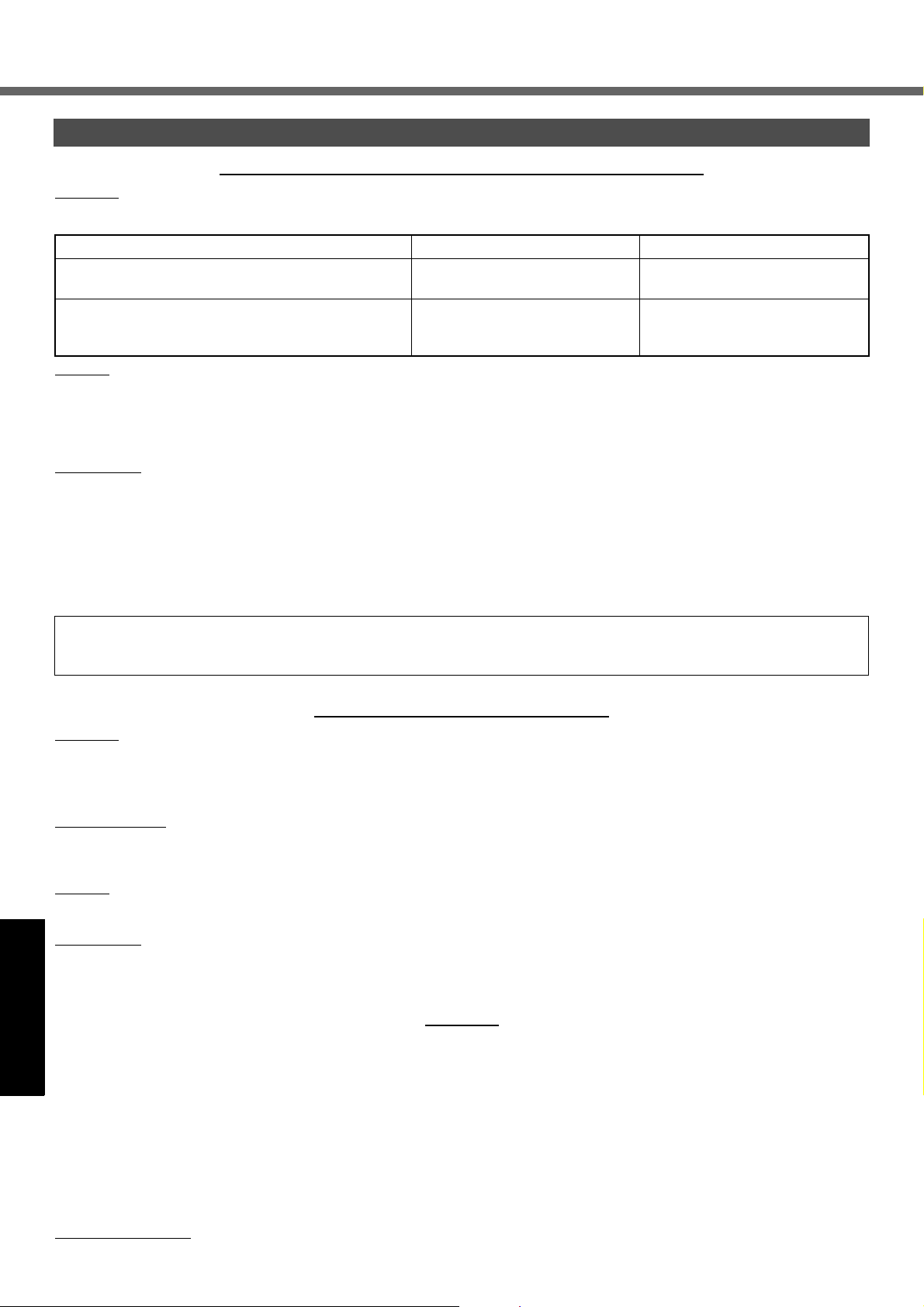
LIMITED WARRANTY
For Canada
PANASONIC COMPUTER AND PERIPHERALS LIMITED WARRANTY
Coverage – Panasonic Canada Inc. (“PCI”) warrants to you, the first end user customer, this computer product (excluding software
media), when purchased from PCI or from a PCI authorized reseller, to be free from defects in materials and workmanship under normal use, subject to the terms set forth below, during the period of warranty coverage specified.
Scope of Coverage Period of Coverage Type of Failure Coverage
Whole Product (except Batteries), AC adaptor and CDROM (if factory installed)
Batteries, CD-ROM (unless factory installed), Port
Replicator, Extra Memory Modules and all other Peripherals, Options and Accessories
Remedy
of the defect claimed, at 1-800-668-8386 between 9:00 A.M. and 5:00 P.M., Eastern Time Zone, Mon. – Fri. (excluding holidays) for
instructions on how to obtain service. A purchase receipt or other proof of date of original purchase is required before warranty service is performed. Defective parts covered by this Limited Warranty will be repaired or replaced with new or comparable rebuilt parts
on an exchange basis. Warranty replacement or repair is subject to the terms of this Limited Warranty for the balance of the original
period of warranty coverage.
No Coverage – This Limited Warranty does not cover products purchased outside Canada. Neither does it cover damage to, failure
of, or defects in a product or accessory through mishandling, improper installation, abnormal use, misuse, neglect, accident, introduction of liquid or other foreign matter into the product, alteration or servicing by anyone not authorized by PCI, or act of God.
Getting StartedUseful InformationTroubleshootingAppendix
THIS PRODUCT IS NOT INTENDED FOR USE AS, OR AS PART OF, NUCLEAR EQUIPMENT/SYSTEMS, AIR TRAFFIC CONTROL EQUIPMENT/SYSTEMS, OR AIRCRAFT COCKPIT EQUIPMENT/SYSTEMS
FOR ANY LIABILITY RESULTING FROM THE USE OF THIS PRODUCT ARISING OUT OF THE FOREGOING USES.
*2
– In the event of a warranty claim, contact PCI’s representatives within the applicable warranty period, identifying the nature
AIRCRAFT COCKPIT EQUIPMENT/SYSTEMS include Class2 Electrical Flight Bag (EFB) Systems and Class1 EFB Systems
when used during critical phases of flight (e.g., during take-off and landing) and/or mounted on to the aircraft. Class1 EFB Systems
and 2 EFB Systems are defined by FAA: AC (Advisory Circular) 120-76A or JAA: JAA TGL (Temporary Guidance Leaflets) No.36.
Three (3) Years from Date of Original End User Customer Purchase
One (1) Year from Date of Original
End User Customer Purchase
*2
. PANASONIC WILL NOT BE RESPONSIBLE
Defective Materials or Workmanship
Defective Materials or Workmanship
IF YOU SHIP THE PRODUCT FOR WARRANTY SERVICE
Carefully pack the product, preferably in the original carton. Include details of defect claimed and proof of date of original purchase.
No liability is assumed for loss or damage to the product while in transit, if you chose your own transportation carrier.
SOFTWARE MEDIA LIMITED WARRANTY
Coverage – Panasonic Canada Inc. (“PCI”) warrants to you, the first end user customer, that the disk(s) or other media on which
software program(s) is/are supplied will be free from defects in materials and workmanship under normal use in Canada for a period
of sixty (60) days from date of receipt as evidenced by your purchase receipt for your Panasonic Computer product.
THIS IS THE ONLY WARRANTY THAT PCI MAKES RESPECTING THE SOFTWARE MEDIA. PCI does not warrant the software.
Please refer to the software licensor’s written warranty (accompanying the copy of the software) for any software warranty claim.
Claim Procedure
you return it, transportation costs prepaid, to Panasonic Canada Inc., Computer Products Marketing, at the above address, within the
warranty period, together with a copy of your purchase receipt, and an explanation of the suspected defect, PCI will replace in Canada the defective disk(s) or other media.
Remedy – PCI’s entire liability, and your only remedy for any breach of this software media warranty is limited to replacement of the
media only. It does not cover any other damages, including, but not limited to, loss of use or profit loss, or special, indirect or consequential damages, or other claims, whether or not of similar character.
No Coverage
or in environmental conditions other than those specified by PCI or the manufacturer, or if subjected to misuse, neglect, mishandling,
modification or attempted modification of the program, or if damaged by accident or act of God. PCI is not responsible for damage to
or loss of any program, data or removable storage media.
– In the event of a defect in material or workmanship in the media during the sixty (60) day warranty period, and
– This limited warranty does not apply if the disk(s) or other media has been used in other than a Panasonic product,
GENERAL
NO OTHER WARRANTIES – PCI DISCLAIMS ALL OTHER WARRANTIES, EITHER EXPRESS OR IMPLIED, INCLUDING, BUT
NOT LIMITED TO, IMPLIED WARRANTIES OF MERCHANTABILITY AND FITNESS FOR A PARTICULAR PURPOSE, WITH
RESPECT TO THE SOFTWARE, SOFTWARE MEDIA, COMPUTER PRODUCT, OPTIONS AND ACCESSORIES.
NO LIABILITY FOR CONSEQUENTIAL DAMAGES – IN NO EVENT SHALL PCI BE LIABLE FOR ANY SPECIAL, INDIRECT OR
CONSEQUENTIAL DAMAGES ARISING FROM ANY BREACH OF THE LIMITED WARRANTIES SET OUT IN THIS DOCUMENT,
OR FROM THE USE OF THE COMPUTER PRODUCT, INCLUDING, WITHOUT LIMITATION, LOSS OF DATA, BUSINESS,
PROFIT OR GOODWILL.
IN ANY EVENT, PCI’S MAXIMUM LIABILITY FOR ANY BREACH SHALL NOT EXCEED THE AMOUNT ACTUALLY PAID BY YOU
FOR THE COMPUTER PRODUCT.
NO ACTION, REGARDLESS OF ITS BASIS, MAY BE BEGUN AGAINST PCI MORE THAN TWO (2) YEARS AFTER THE CAUSE
OF ACTION AROSE.
Statutory Warranties
– Some jurisdictions do not allow these limitations or exclusions, so they may not apply to you.
30
Page 31

MEMO
Getting StartedUseful InformationTroubleshootingAppendix
31
Page 32
As an ENERGY STAR® Partner, Matsushita Electric Industrial Co., Ltd. has
determined that this product meets the
ENERGY STAR
®
guidelines for energy efficiency.
Outline of the International ENERGY STA R® Office Equipment Program
®
The international ENERGY STAR
Office Equipment Program is an international program that promotes energy
saving through the use of computers and other office equipment. The program backs the development and dissem-
ination of products with functions that effectively reduce energy consumption. It is an open system in which busi-
ness proprietors can participate voluntarily. The targeted products are office equipment such as computers,
displays, printers, facsimiles, and copiers. Their standards and logos are uniform among participating nations.
®
For information about ENERGY STAR
, refer to the following web site:
Web Site: http://www.energystar.gov
Panasonic Computer Solutions Company
50 Meadowlands Parkway, Panazip 2F-5,
Secaucus, NJ 07094
Panasonic Canada Inc.
5770 Ambler Drive Mississauga,
Ontario L4W 2T3
© 2007 Matsushita Electric Industrial Co., Ltd. All Rights Reserved.
TA0106-4107
DFQX5589WAT
 Loading...