

Page 1
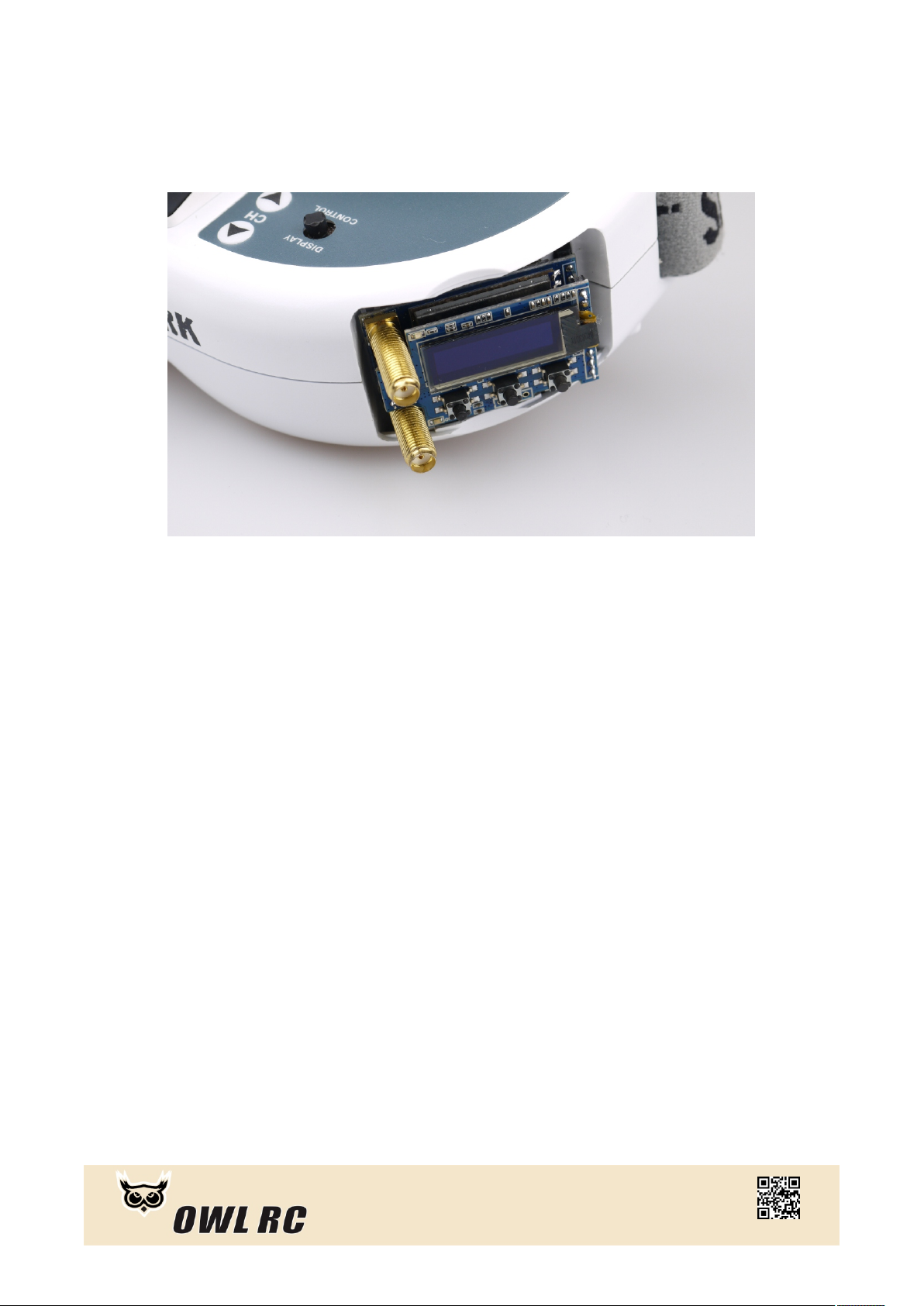
OWLRX 5.8GHz Goggle Receiver
User Manual
Ver 1.1
ww w.ow l-rc .com
Page 2
Introduction
OwlRX is an improved diversity receiver that made to provide stable video
feed in complicated environments such as indoor, forest or structures with
high rate of blocking and multi-pathing areas.
How OWLRX works
The reason OwlRX performs better than most receivers on market it that
special algorithm allows it to switch between antennas with no harm to
video feed as may happen in other diversity modules (noticeable lines on
video when switching between two receivers). That allows to minimize
signal latency, increase switch rate and allows to "extract & reconstruct"
each frame of image from small pieces of available signal from different
antennas. Also OwlRX makes video signal restoration to improve stability,
video quality and prevent frame rolls.
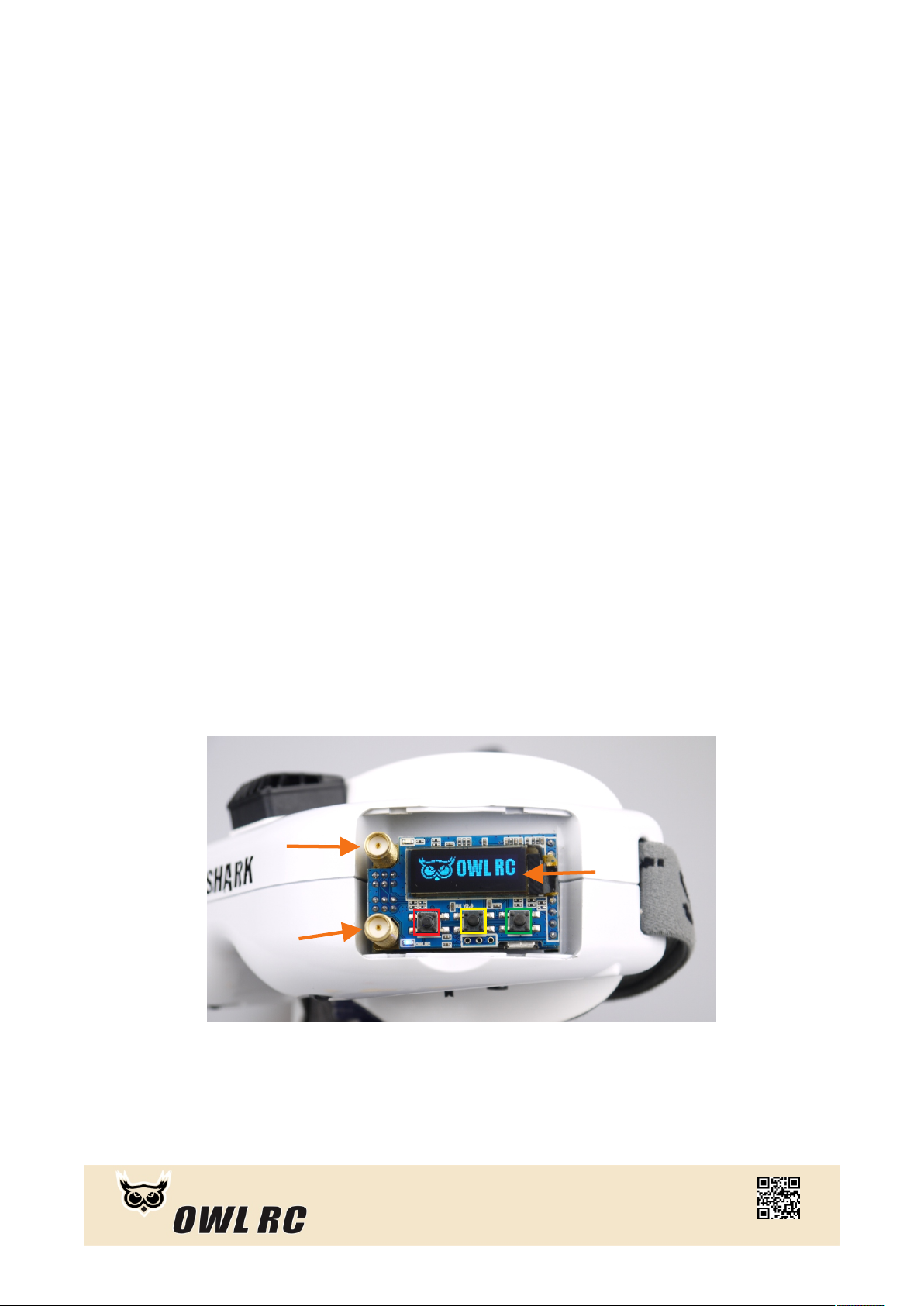
Top Rx
0.91' OLED
Bottom Rx
Up/left
select
Down/right
ww w.ow l-rc .com
Page 3

Specification
• Size: 42 * 25 * 23mm
• Weight(net): 23g
• Compatibility: All Fatshark series goggles
(V1,V2,V3,HD1,HD2,HD3,SE,HDO and Attitude V3, V4)
• Interface: Touch buttons * 3, 0.91" 128x32 OLED screen, Micro-USB
• OSD: Yes
• Firmware Updatable: Yes
• Voltage: 5V
• Consumption: 390mA
• Frequency: 5.3-6.0Ghz (A,B,E,F,R,H and Low U,L,O bands)
• Menu: Channel, Frequency, Favorites, Band Scan and Finder
• Antenna Connectors: 2 x SMA (Inner Hole)
• Features: High speed switching rate, special anti-interference algorithm
(non-open source)
Accessories
• Module Door 3D Printed for Dominator goggle(PETG)
• Quick guide
More 3D printed file of module door can be download from our website
at www.owl-rc.com
ww w.ow l-rc .com
Page 4
Main Menu
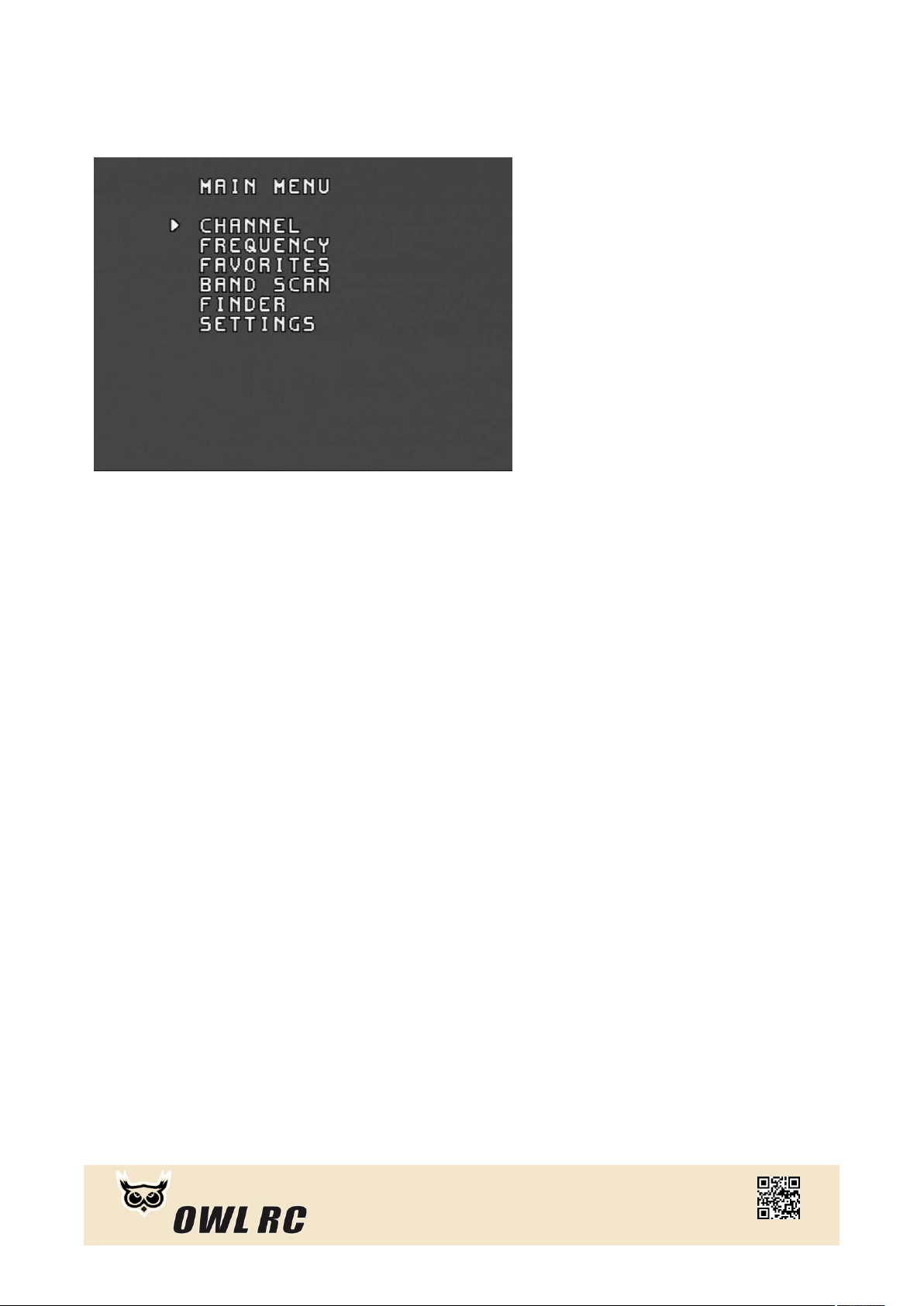
Long press “Select Button” into Main menu
Channel: Popular, preset channels
Frequency : Free channel selecting ( Stepping 1/10Mhz)
Favorites : A folder list of all collected Channels
Band Scan: Scan occupied channels or interference from local environment
Finder: Track the signal by using bottom Rx.
Setting: Customized setting for receiver
ww w.ow l-rc .com
Page 5
Channel
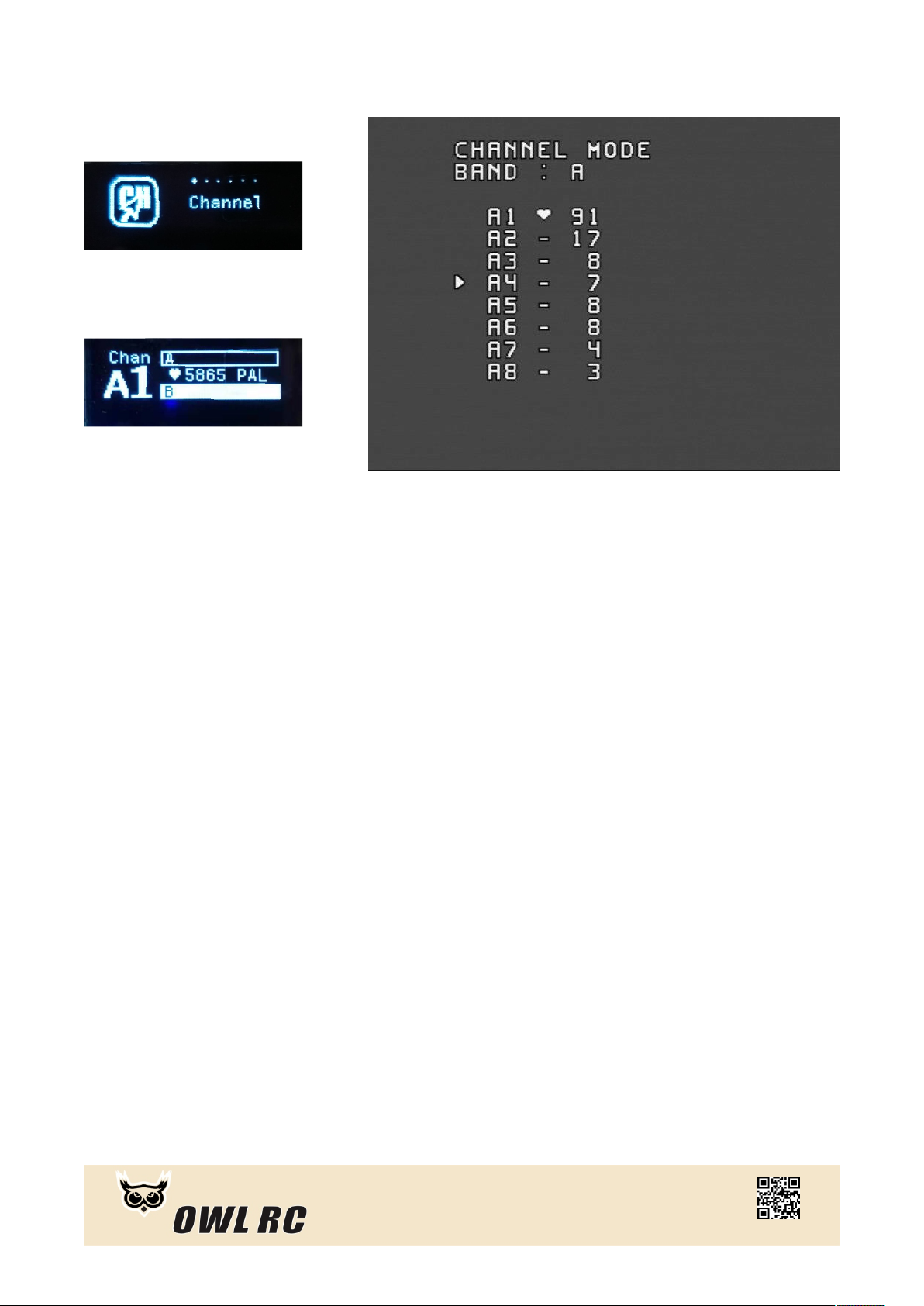
Channel mode includes preset channels as most of video transmitter supported.
The channel number x1-x8 is list on the left and signal strength is list on the
right. The hear t icon means this channel has been added to the favorites list.
Up/left buttons
Long press: select previous bands
Short press: select previous channel
Select buttons
Long press: back to main menu
Short press: add/remove present channel to favorites folder
Down/right buttons
Long press: switch next bands
Short press: select next channel
• The Fatshark build-in CH buttons can also used to select channel
ww w.ow l-rc .com
Page 6
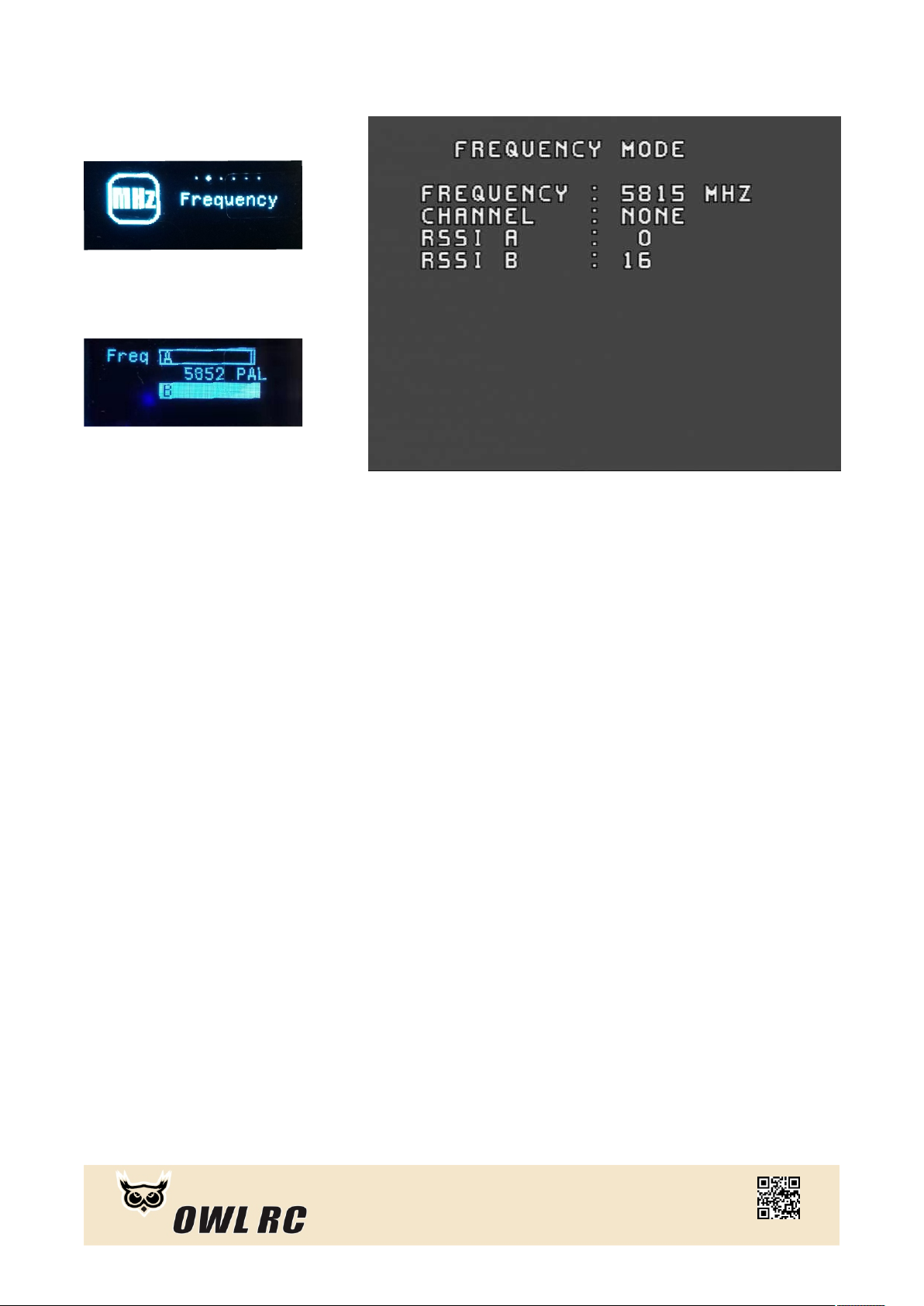
Frequency
Frequency mode is designed for freely chooses any of frequencies that owlrx
supported. Stepping precision is 1Mhz when left/right button is pressed.
It shows the Channel number if the chosen frequency meet to the preset
channel. Rssi A and Rssi B shows signal strength of present frequency .
Up/left buttons
Long press: frequency rolls to lower band at 10Mhz stepping rate
Short press: frequency rolls to lower band at 1Mhz stepping rate
Select buttons
Long press: back to main menu
Short press: back to preset frequency on channel mode
Down/right buttons
Long press: frequency rolls to higher band at 10Mhz stepping rate
Short press: frequency rolls to higher band at 1Mhz stepping rate
ww w.ow l-rc .com
Page 7
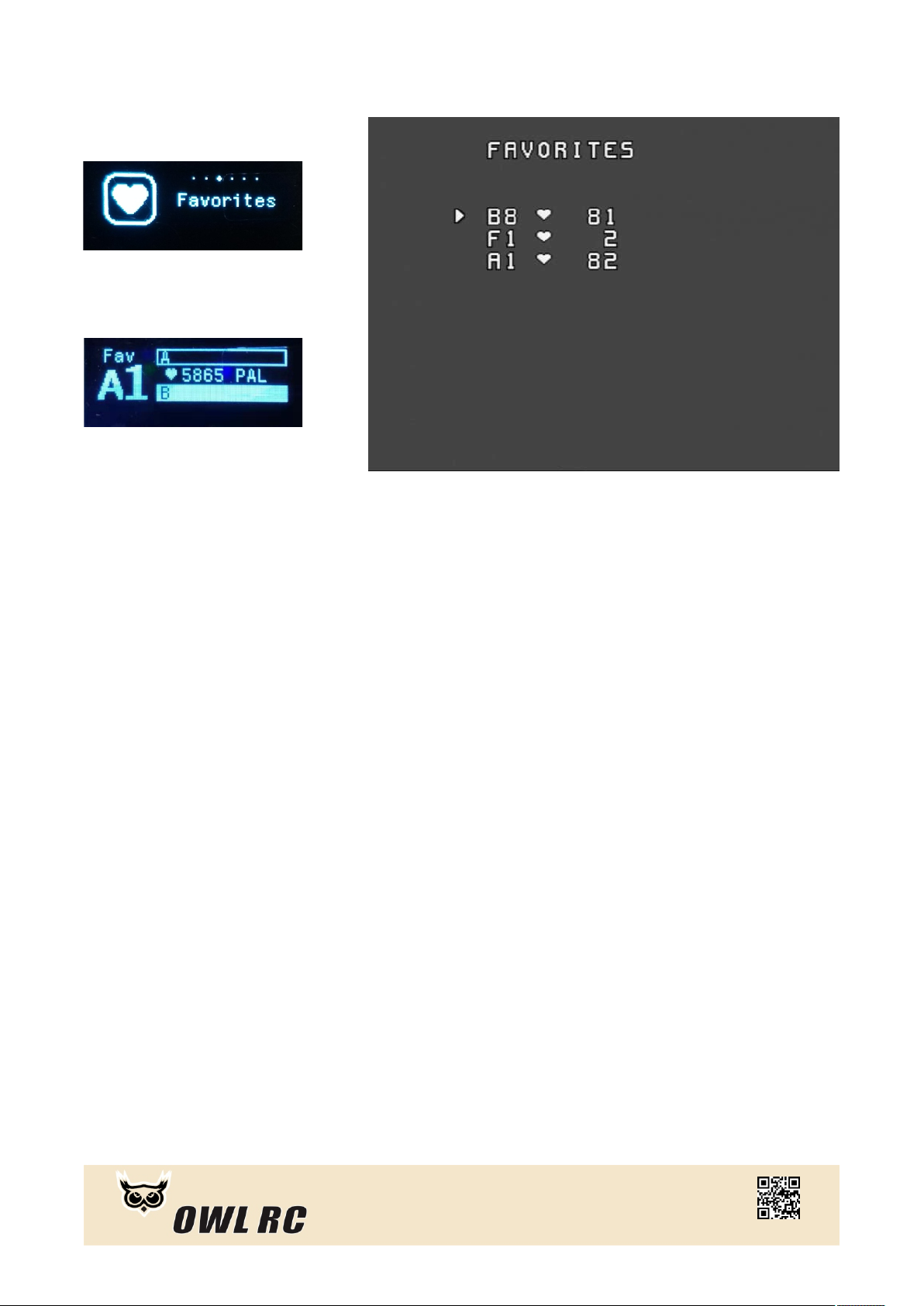
Favorites
Favorites folder lists channels has been marked as favorite on channel mode.
Favorites folder can support a maximum of 8 favorite channels. it allows you
fast switching between collected channels.
Up/left buttons
Short press: select previous channel
Select buttons
Long press: back to main menu
Short press: add/remove present channel from favorites folder
Down/right buttons
Short press: switch next channel
• The Fatshark build-in CH buttons can also used to select channel
ww w.ow l-rc .com
Page 8
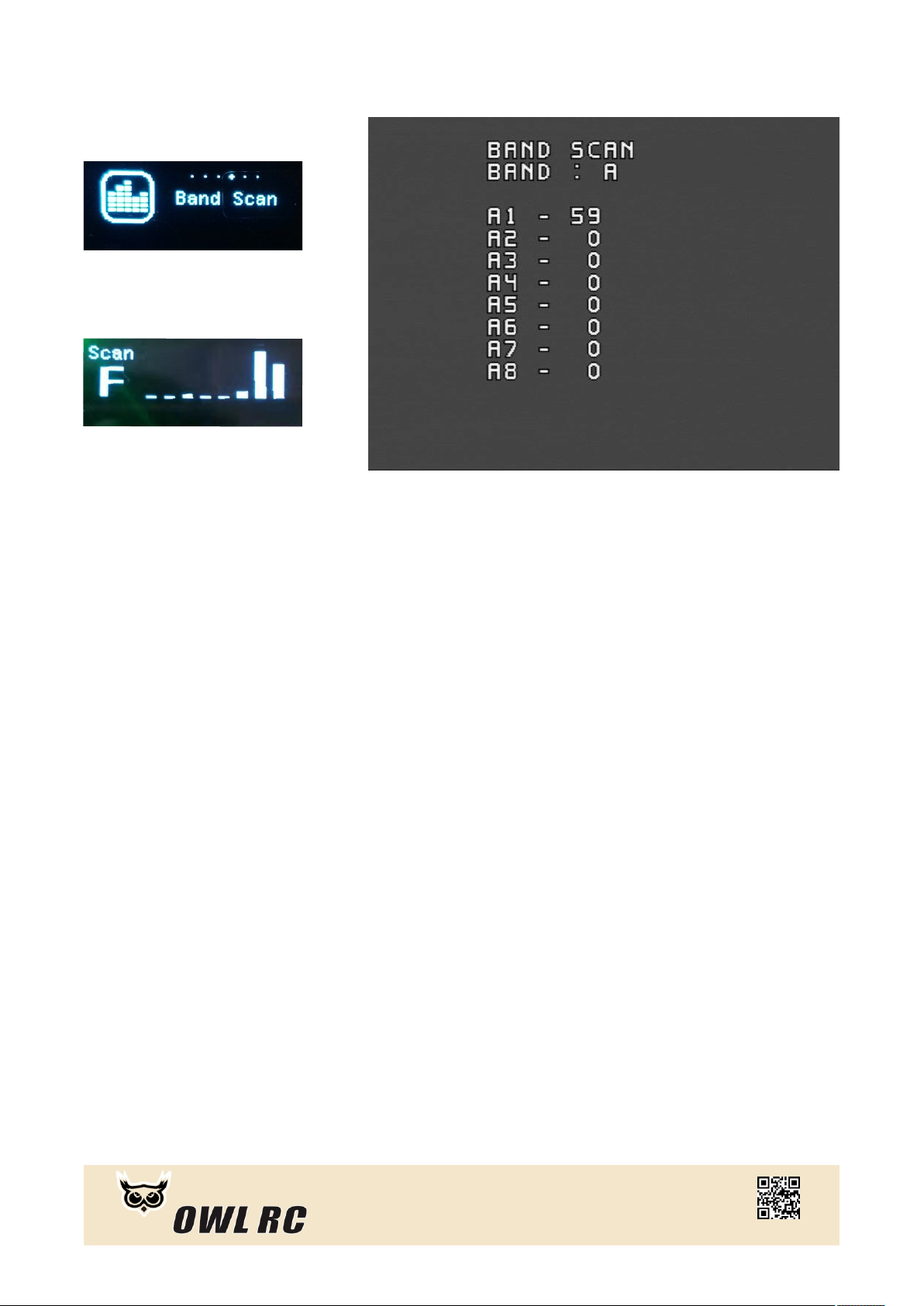
Band Scan
Band Scan mode is very similar to channel mode. The difference is band scan
mode allows you swiftly change frequency between bands by short pressing
bottons. It also helps detect occupied channels or possible interference on
surrounding area.
Up/left buttons
Short press: Switch to previous bands
Select buttons
Long press: back to main menu
Down/right buttons
Short press: Switch to next bands
ww w.ow l-rc .com
Page 9
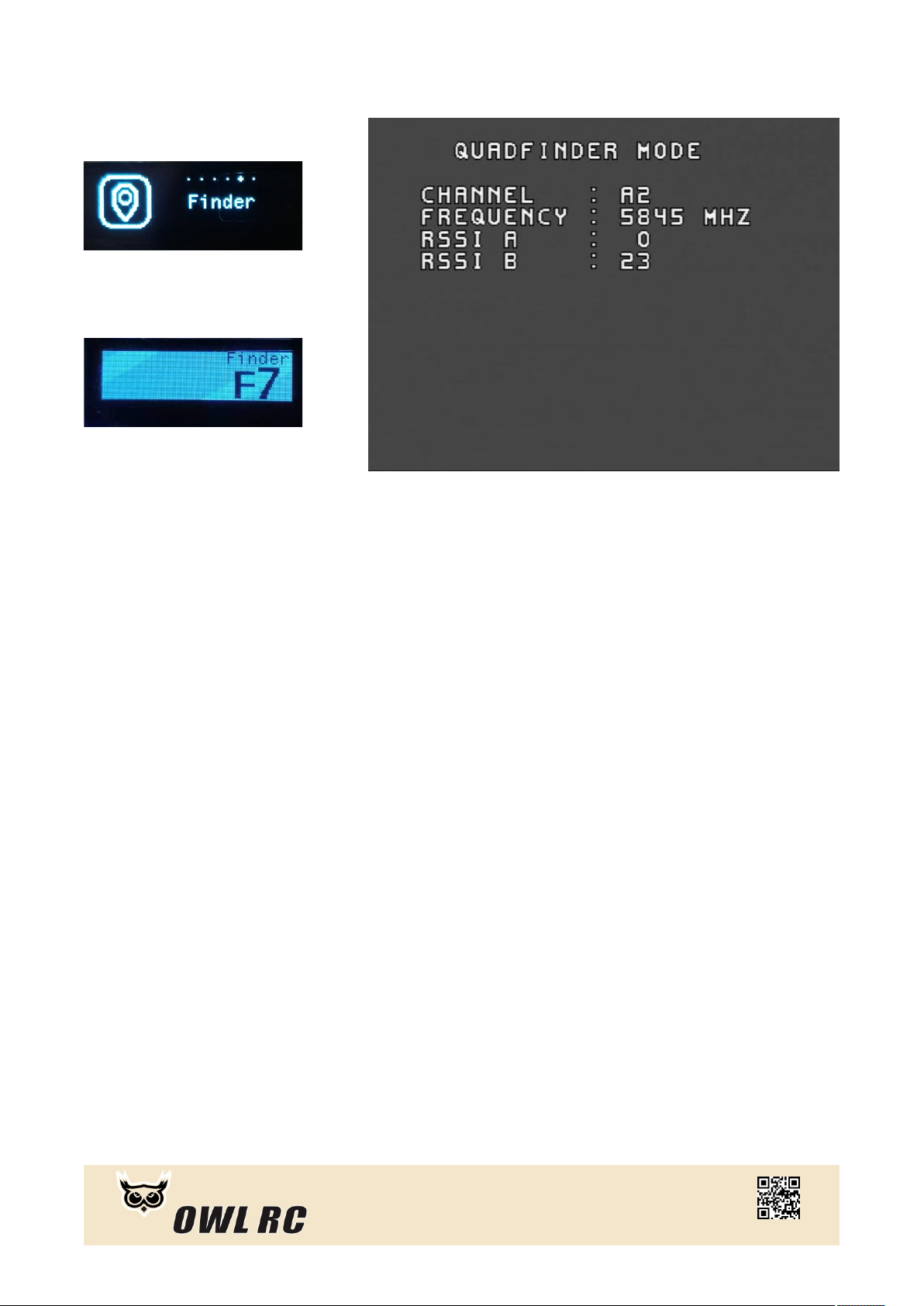
Finder
On Finder mode, the receiver will turn to search mode by using bottom Rx,
RSSI A(Top Rx is temporarily disabled)Therefore, patch antenna or any
directivity antennas is highly recommended for bottom Rx.
Up/left buttons
Long press: select previous band
Short press: select previous channel
Select buttons
Long press: back to main menu
Down/right buttons
Long press: switch next band
Short press: select next channel
ww w.ow l-rc .com
Page 10
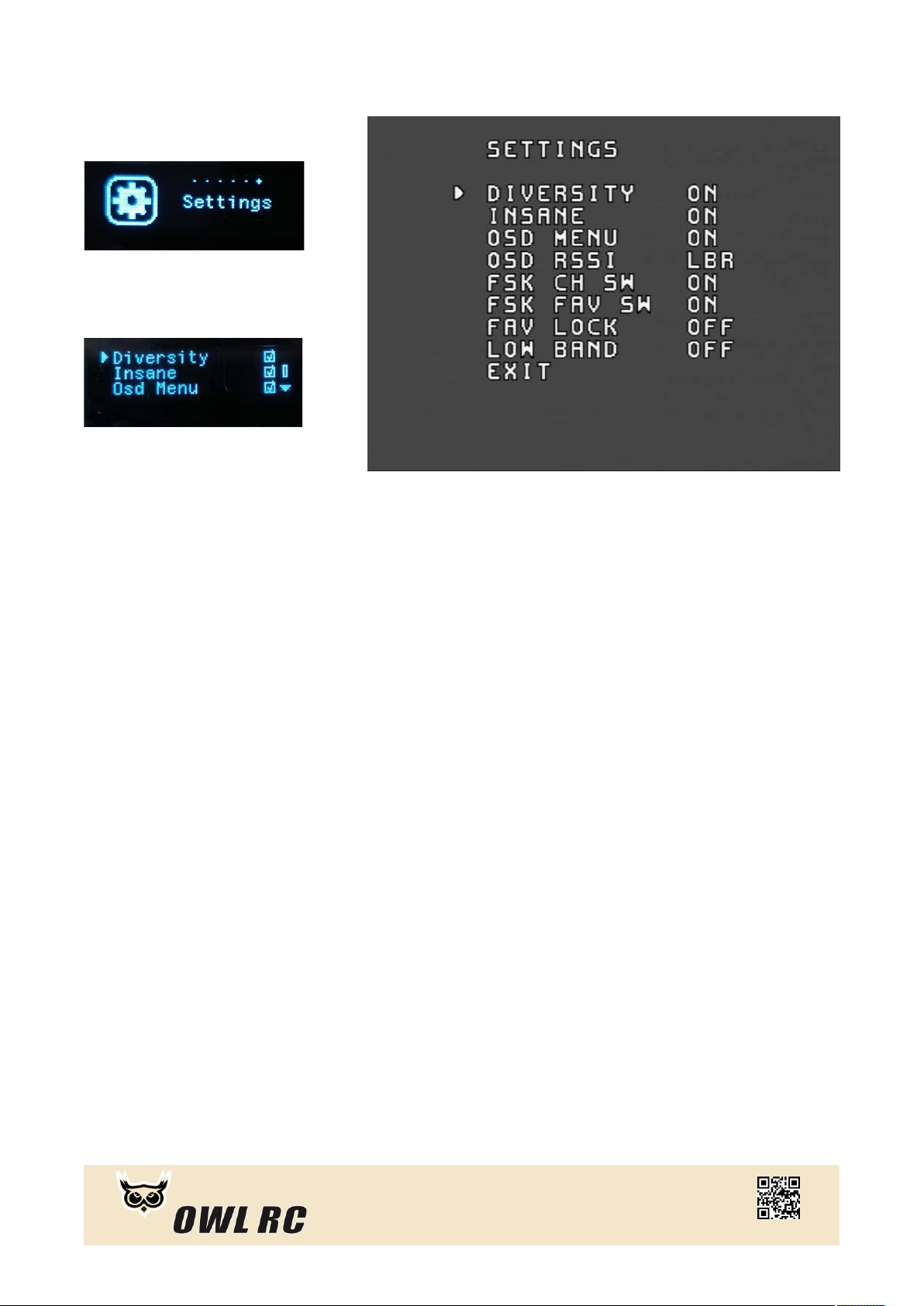
Setting
Setting mode allows user to customized receiver accordingly to personal
preference.
Diversity: when OFF, receiver works with only one reception module
Insane: when OFF, owlrx will work as legacy diversity receivers
OSD Menu: when OFF, there will be no OSD on goggles's screen
OSD RSSI: when OFF, there will be no signal strength indicator on screen
- Digits (right side); - Digits (left side); - Small bars(right side); DGR DGL SBR
- Small bars(left side); - Large bars(right side); - Large bars(left side)SBL LBR LBL
FSK CH SW: when OFF, Fatshark built-in CH bottons will be disabled
FSK FAV SW: when OFF, Fatshark built-in CH bottons will be disabled ON
favorites mode only
Fav Lock: when ON, channels will not allowed to be removed from favorites list
Low band: when ON, more low band channels are available
Up/left buttons
Short press: select previous option
Select buttons
Long press: back to main menu
Short press: enter/confirm
Down/right buttons
Short press: select next option
ww w.ow l-rc .com
Page 11
References Information
Choice of Antennas: we highly recommended an omni antenna + patch antenna
combination for OWLRX. This can cover close or long range flight on most of
circumstances.
OWLRX works better on goggles: owlrx requires part of analog processing in
most of goggles, such as fatshark or skyzone. Most of monitors does not include
analog processing device. If owlrx be used on NO signal processing device, it will
results a significant performance reduction.
RSSI OSD: Due to goggles signal processing particularity. In order to maximize
performance, we recommend to disable RSSI OSD or use digits mode at least.
Support
For repairing or after-sale service, please contact local dealers or retailers. If
there is a problem to get assistant from them, please do not hesitate to contact
us at : [email protected]
Or our Facebook group:
facebook.com/groups/206020743301458/
For more information, please visit our website:
www.owl-rc.com
Thank you for your support to OWLRC
ww w.ow l-rc .com
 Loading...