

Page 1
Page 2

Page 3

Welcome to total sonic freedom.
Page 4

www.outdoortechnology.com
Page 5

SHELL ANATOMY
POWER UP
* GET CONNECTED
* GET LISTENING
* GET TALKING
SPECIFICATIONS
FAQ’S
CONTENTS
1
3
4
7
8
9
10
Page 6
ANATOMY
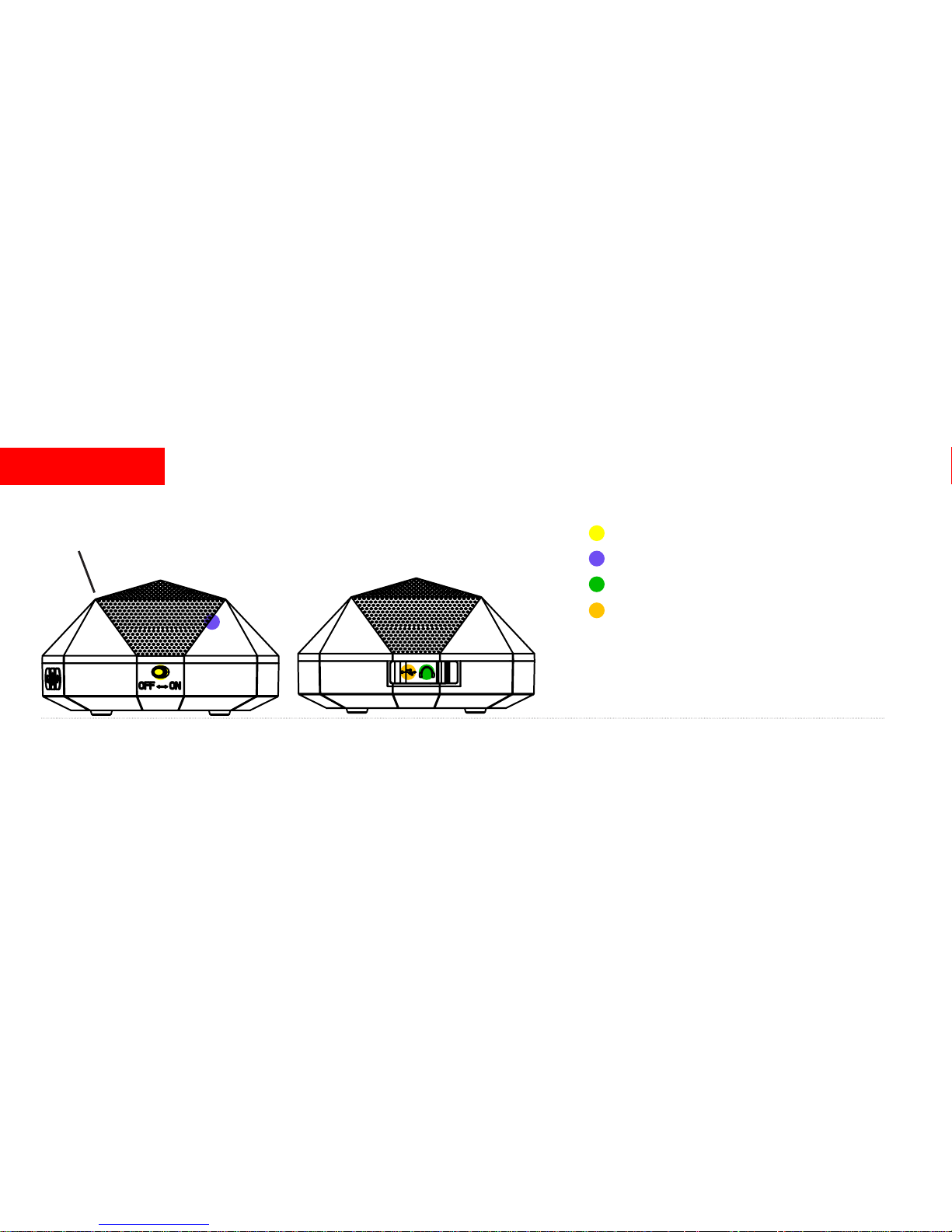
On / O Switch & Indicator Light
Built in Microphone
3.5mm Audio Input
Mini USB Charge Port
1.
Microphone Location
Page 7
ANATOMY
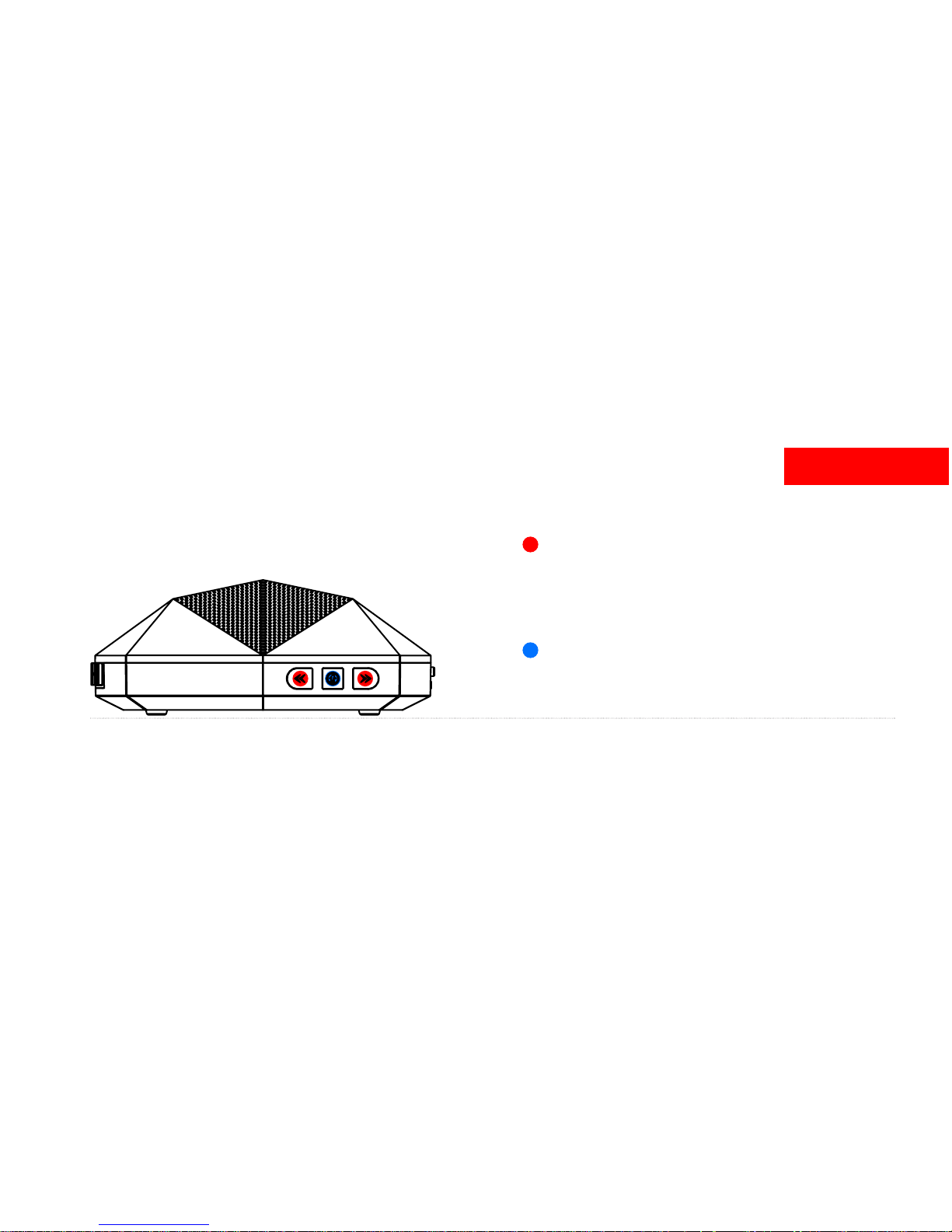
Volume / Track Control
Raise Volume by pressing >>
Lower volume by pressing <<
Skip forward by holding >> for 1-2 seconds
Skip backward by holding << for 1-2 seconds
Multi-Function Button: Music / Calls / Pairing
Press once to Play / Pause OR Answer / Hang up
Hold down for 6 seconds to enter pairing mode
2.
Page 8

For best results, fully charge your Turtle Shell before use. To charge, plug the Turtle Shell
into your wall charger or computer via mini USB charge port.
- Battery Alerts
- Flashes RED - Low Battery
- Steady BLUE glow - Fully Charged
NOTE: It takes 2 hours to give your Turtle Shell an 80% charge. A full charge takes around 3 hours.
POWER
3.
Page 9
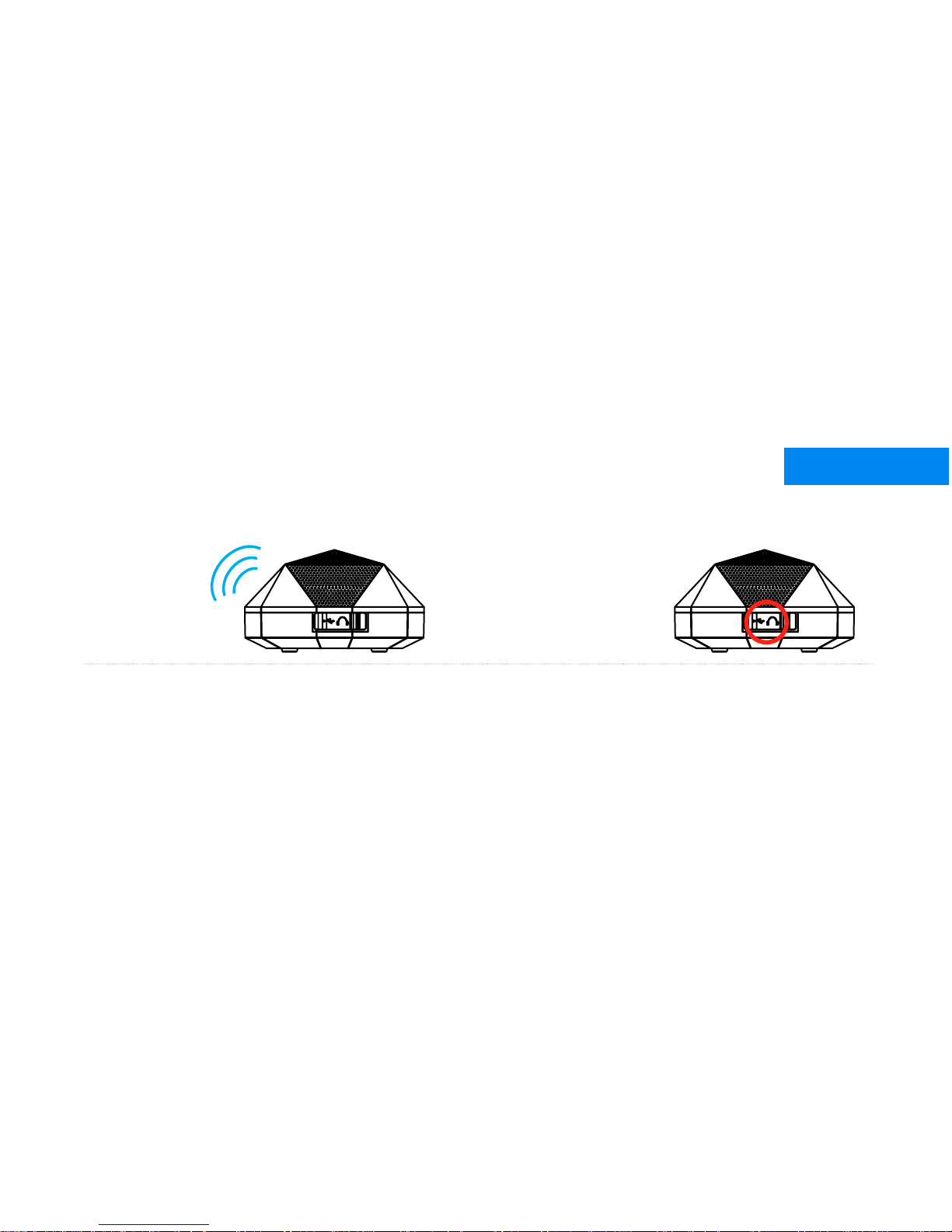
Please note that the built-in microphone only works while connected via Bluetooth.
Your Turtle Shell can wirelessly stream audio from any Bluetooth device up to 30 feet away.
CONNECT
Connect Wirelessly via Bluetooth or via 3.5mm Stereo Input.
Bluetooth 3.5mm stereo input
(Wireless audio) (Wired audio)
Page 10
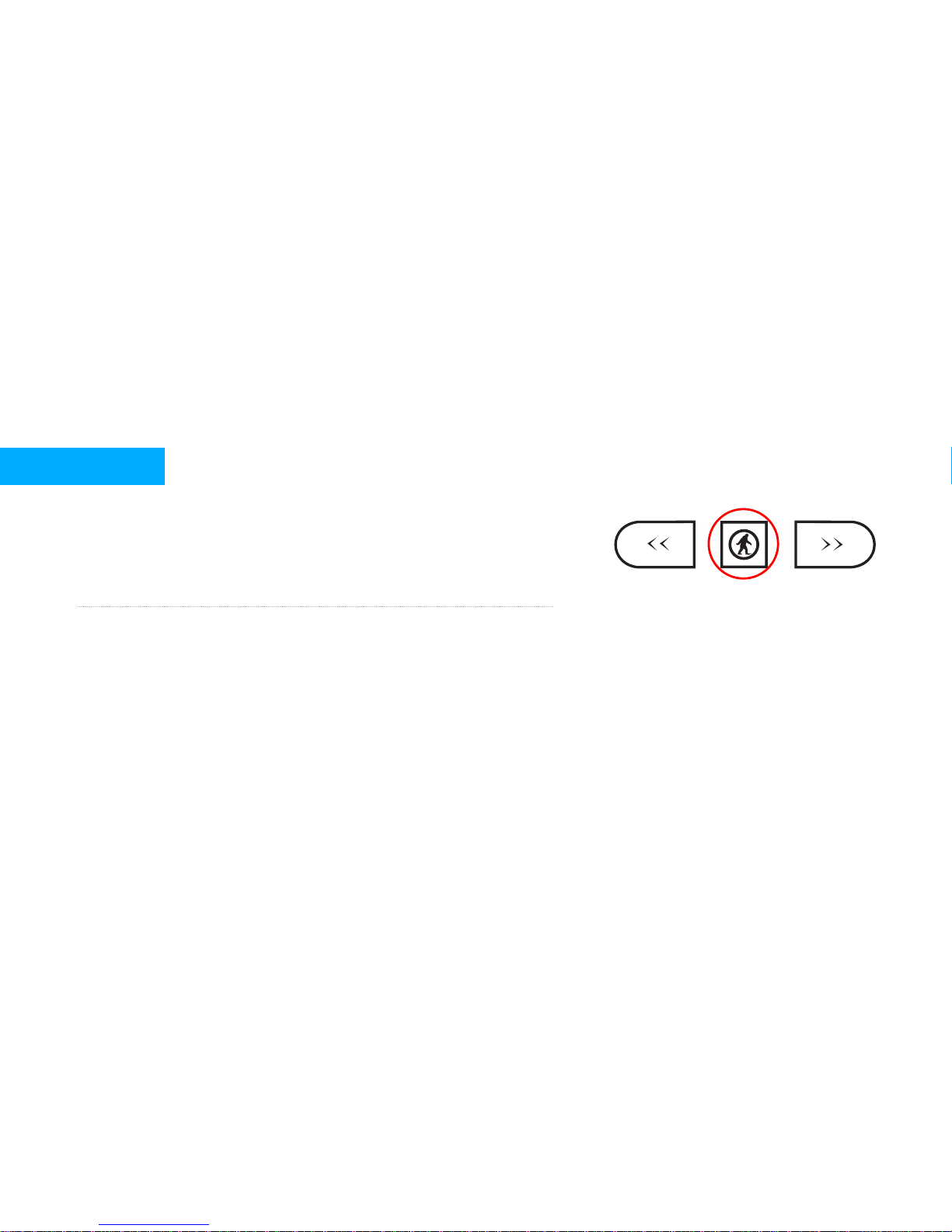
Enter Pairing Mode
1. Press and hold the multi-function button for about 6 seconds
2. Wait for the indicator light to ash RED and BLUE.
3. Release multi-function button, you are now in pairing mode.
Prepare your phone or device - Turn on Bluetooth.
iPhone, iPod, or iPod: Settings > General > Enable Bluetooth
Android: Settings > Wireless & Networks > Bluetooth Settings
Blackberry: Settings / Options > Bluetooth > Enable Bluetooth
Other Cell Phones: Review the instruction manual that came with your phone, or Google it.
HOLD FOR 6 SECONDS FOR
PAIRING MODE
PAIR
5.
Page 11
Pair
Go to your device’s Bluetooth settings
ADD or SEARCH devices. When “OT TURTLE SHELL” appears, select it.
*If asked for a pass code: Enter “0000”
Plug & Play - 3.5mm stereo line in
PAIR
6.
No Bluetooth? The Turtle Shell also connects via 3.5mm stereo input.
Play audio from any device with a headphone jack or audio output
Page 12

The Turtle Shell is built to go anywhere, but for optimal sound quality follow the steps below.
Make sure Turtle Shell is resting on its base and facing upwards.
When connected wirelessly via Bluetooth, it’s best to turn the volume on your phone/device fully up and
then use the volume control (<< / >>) on the Turtle Shell.
When connected via 3.5mm stereo input, your phone/device may distort the audio signal if turned up too
loud. Turn down the volume on your phone/device before adjusting the volume on Turtle Shell.
LISTEN
7.
Page 13

The built in microphone means that the Turtle Shell can be used as a wireless
speakerphone. Just speak in the direction of the top grill.
*NOTE The built-in microphone only works when connected via Bluetooth.
Answer or End a Call: Press the multifunction button to answer and end a call.
Decline a Call: Press and hold the multifunction button for 2 seconds.
Make a Call: Use your phone to dial as usual. Listen and talk through the Turtle Shell.
Redial Last Number: Press the Main Function Button twice.
Mute: Hold the >> and << Buttons for 2 seconds, or until you hear a beep.
Simultaneous Calls: To answer another call, just press the multifunction button.
TALK
8.
Page 14

Battery Life: Music playing for 8 hours, talk time about 30 hours, standby time 700 hours
*Battery life varies subject to dierent playing circumstance such as music type or volume.
Speaker: 2W x 2 < 0.1% THD
Average Output: [email protected]
Frequency: 60Hz – 20kHz
Input Power: 100-240V 50/60Hz 800mA
Dimensions: 143 x 100 x 55 mm
Weight: 350g
Bluetooth Range: Up to 30 feet from device
SPECS
9.
Page 15

Hearing Distortion
A. Lower the volume on your Turtle Shell and / or phone /device.
B. Make sure it’s charged up. Check for low battery, then charge if necessary.
Not Loud Enough
A. Turn up the volume on your phone / device or your Turtle Shell.
B. Make sure it’s charged up.
C. Plug the Turtle Shell in to your phone / device via 3.5mm stereo cable.
Unable to Pair
A. Conrm your phone / device is Bluetooth compatible.
B. Re-Pair: Follow pairing instructions in this guide (Page 5).
Signal Loss or Dropouts via Bluetooth
A. Move Turtle Shell closer to your phone / device.
B. Make sure it’s charged up.
C. Turn o your Turtle Shell and phone / device, then power up and reconnect.
FAQ
10.
Page 16

www.outdoortechnology.com
 Loading...