

Page 1

Page 2

Hi.
Page 3

Good call on picking up the Outdoor
Tech® DJ Slims wireless headphones.
Your experience of the universe will
soon be enhanced wirelessly. This
manual exists to help make sure that
you use them correctly, so you’re
definitely going to want to relax for a hot
second and look through this.
Kisses,
Page 4
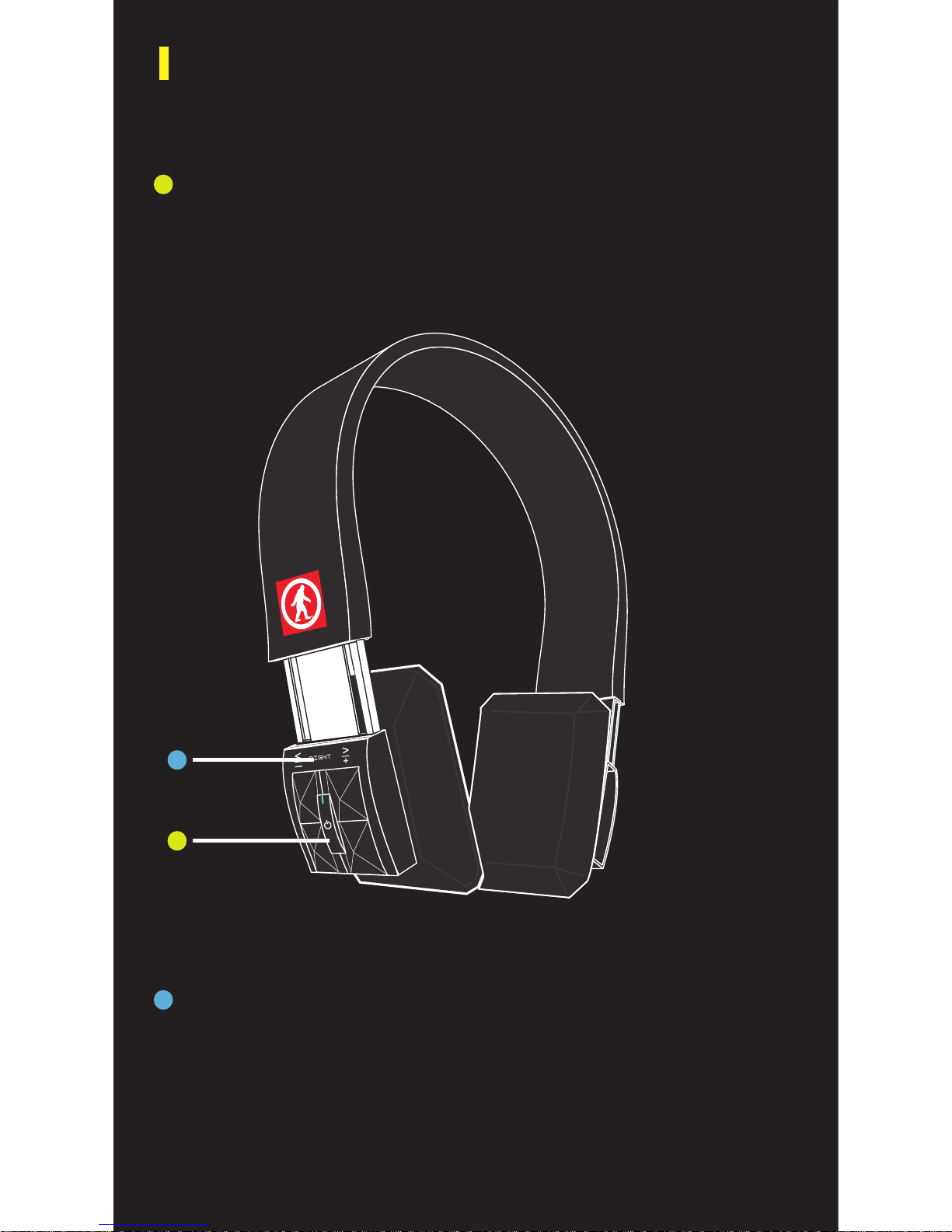
Multi-Function Button: Music/Calls/Pairing
Press once to Play/Pause OR Answer/Hang up
Hold down for 6 seconds to enter pairing mode
Volume / Track Control
Raise Volume by pressing >
Lower volume by pressing <
Skip forward by holding > for 1-2 seconds
ANATOMY
Page 5
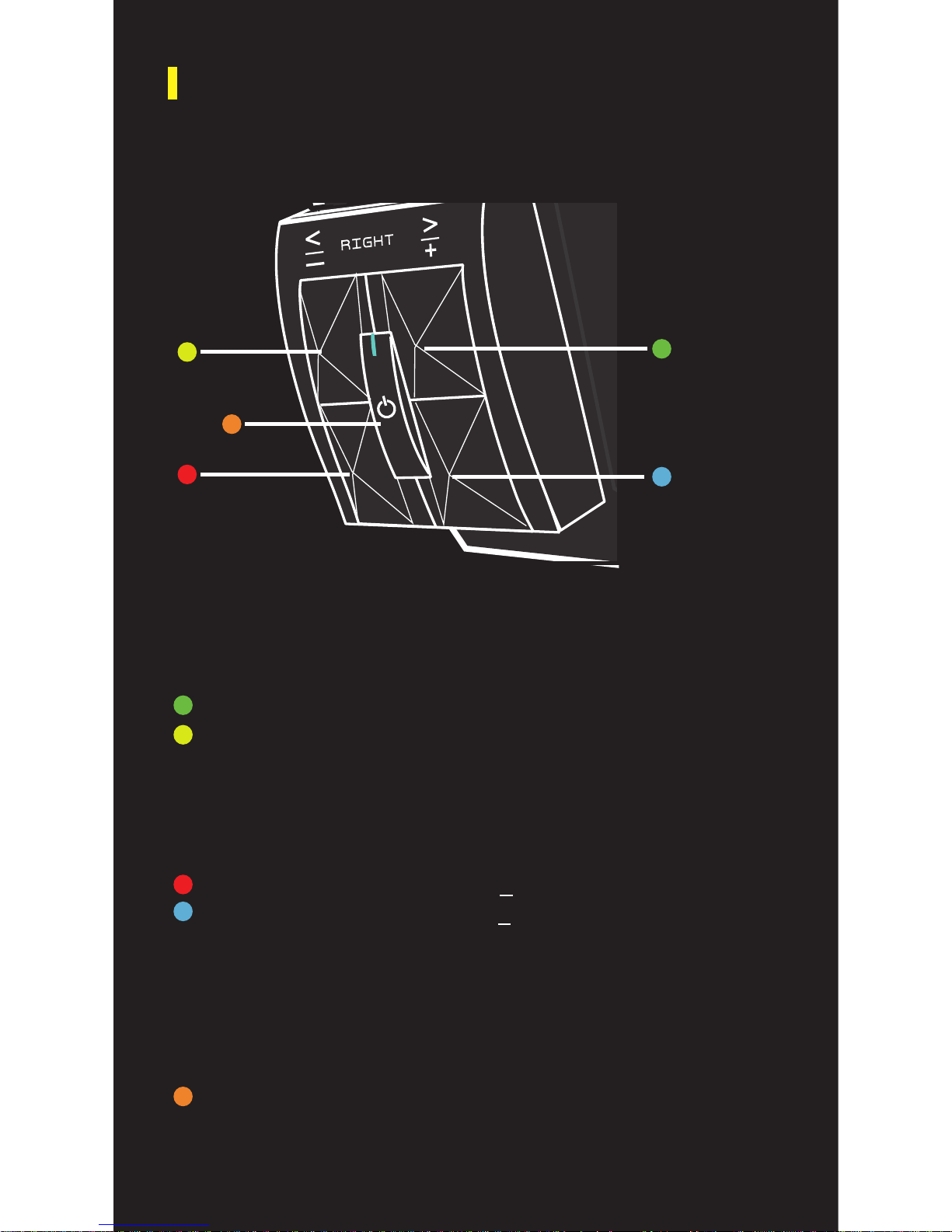
ANATOMY (CONTINUED)
Skip forward by holding > for 1-2 seconds
Skip backward by holding < for 1-2 seconds
Press once to Play / Pause OR Answer / Hang up
Hold down for 6 seconds to enter pairing mode
Raise Volume by pressing >
Lower volume by pressing <
Track Control
Volume Control
Multi-Function Button: Music / Calls
/ Pairing
Page 6
POWER UP
For best results, fully charge your DJ Slims before use.
The indicator light located on the Multi-Function Button
will flash red to indicate an low battery.
NOTE: It takes 2 hours to give your DJ Slims an 80%
charge. A full charge take 2.5 hours.
Page 7
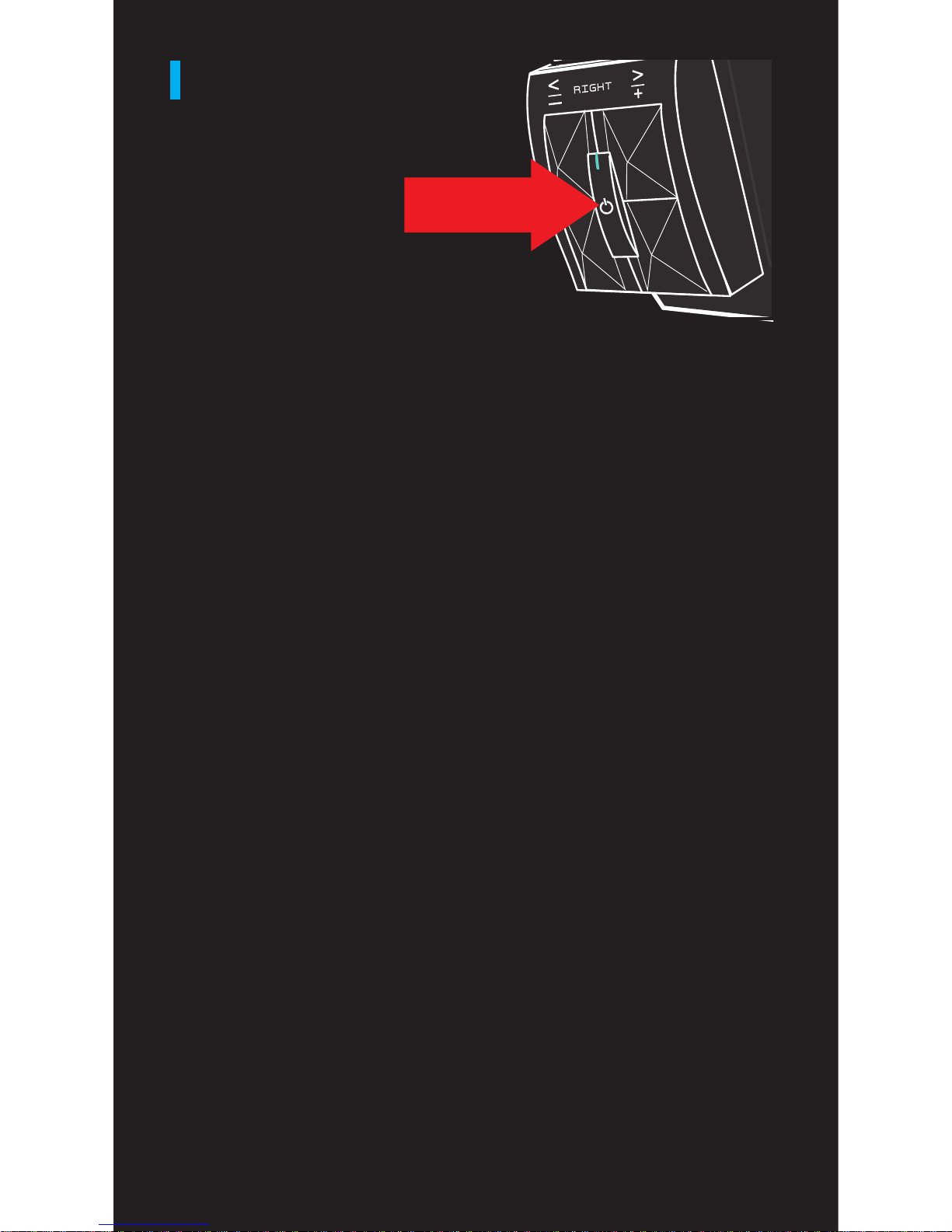
PAIRING
To pair the headset with a Bluetooth-enabled
device:
Prior to using the DJ Slims for the first time, you will
have to pair them with a Bluetooth-enabled device.
The pairing procedure may be different for different
models of devices. Please refer to your device’s user
manual for further information. The general pairing
procedure is as follows:
1.) Place the DJ Slims and Bluetooth-enabled
device no more than 3 feet apart.
2.) Hold the multi-function button down for 6-7
seconds or until the LED flashes red and blue
alternately.
3.) Activate your device’s Bluetooth function and
set your device search for Bluetooth devices
within range. Select “OT DJ Slims” from
the list of devices shown.
4.) According to the indication, enter password or
PIN No. “0000”.
5.) If prompted by your device to connect, select
“Yes” (this will vary among devices)
6.) After successfully connecting, the blue LED will
flash twice or three times every 4 seconds.
You should now be able to play music &
make/receive calls using the headset. Hooray.
Page 8

TALK
The built-in microphone means that the DJ
Slims can be used as a wireless headset.
*NOTE: The built-in microphone only works when
connected via Bluetooth.
The following are tips on how to use your DJ Slims to
speak on the telephone:
Answer a call...........Press the multifunction button.
End a call.................Press the multifunction button.
Decline a call...........Press and hold the multifuntion
button for two seconds.
Make a call..............Use your phone to dial as usual.
Listen and talk through the DJ
Slims.
Redial last number...Press the multifunction button
twice.
Mute........................Hold the >> and << buttons for 2
seconds, or until you hear a beep.
Simultaneous calls..To answer another call, press the
multifunction button.
Page 9
SPECS
Battery life............Music playing/8 hours, talk
time/30 hours, standby
time 700 hours
*Battery life varies subject to different
playing circumstances, such as music type
and volume.
Speaker.................2W x 2 < 0.1% THD
Average Output......[email protected]
Frequency..............60Hz - 20kHz
Input power............100 - 240V 50/60Hz
800mA
Dimensions............143 x 100 x 55 mm
Weight....................350g
Bluetooth range......Up to 30 feet from device
Page 10

What if I experience hearing distortion?
A. Lower the volume on your DJ Slims and/
or phone/device
B. Make sure your Slims are charged up.
Check for low battery, then charge as
necessary.
Why aren’t my headphones louder?
A. Turn up the volume on your device and/
or your DJ Slims
B. Make sure your Slims are charged up.
Why can’t I pair my headphones?
A. Confirm that your device is Bluetooth
compatible.
B. Re-pair: follow pairing instructions in
this guide
Why do I have Bluetooth signal loss/dropout?
A. Move your Slims closer to your device.
B. Make sure your Slims are charged up.
C. Turn off your Slims and device, then
power up and reconnect.
FAQ
Page 11

K, bye.
outdoortech.com
 Loading...