

Page 1

®
Page 2

Hi.
Page 3

Good call on picking up the Outdoor
Tech® CHIPS®, universal wireless helmet
audio. Your experience of the universe
will soon be enhanced wirelessly. This
manual exists to help make sure that
you use them correctly, so you’re
denitely going to want to relax for a hot
second and look through this.
Kisses,
Page 4
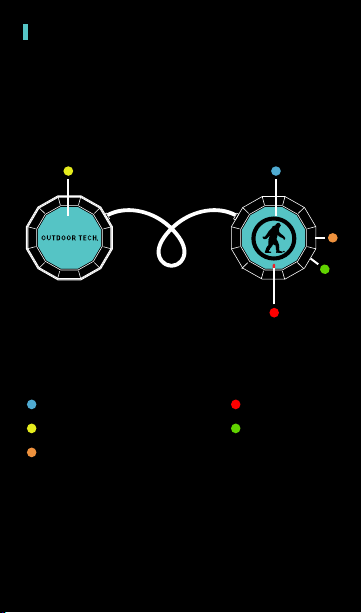
ANATOMY
Right ear button
Left ear button
Charge port/3.5 mm
LED light
Microphone
Page 5
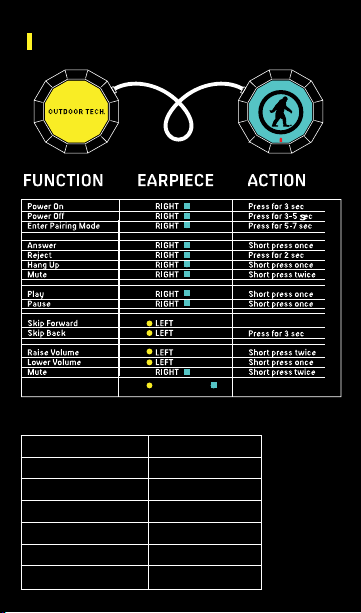
ANATOMY (CONTINUED)
Press till song skips
Siri / Voice Activation
LEFT + RIGHT
FUNCTION VOICE PROMPT
Power On “Power On”
Power Off “Power Off”
Enter Pairing Mode “Pairing”
Successful Pairing “Connected”
Answer “Answer”
Reject “Reject”
Hang Up “Call Terminated”
Press & hold until you
hear voice prompt
Page 6
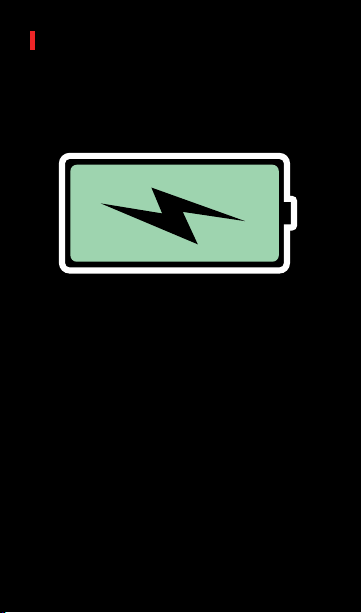
POWER UP
For best results, fully charge your CHIPS® using the supplied 3.5 mm to USB charging cable before use.
You can manage/check your CHIPS® batter by the fuel
gage that appears on your smartphone,
The indicator light located on the right ear piece will
ash red to indicate a low battery.
Once the CHIPS ® are plugged into the micro-USB, the indicator light will turn red. It will turn off once the CHIPS
are completely charged.
NOTE: It takes 2.5 hours to give your CHIPS® a full
charge.
Page 7

PAIRING
To pair the CHIPS® with a Bluetooth-enabled
device:
Prior to using the OT CHIPS® for the rst time, you will
have to pair them with a Bluetooth-enabled device.
The pairing procedure may vary for different devices.
Please refer to your device’s user manual for further
information. The general pairing procedure is as
follows:
1.) Place the OT CHIPS® and Bluetooth-enabled
device no more than 3 feet apart.
2.) Hold the right ear button down until the LED
ashes red and blue alternately. The voice
prompt will state “Pairing”
3.) Activate your device’s Bluetooth function and
set your device search for Bluetooth devices
within range. Select “ODT CHIPS” from
the list of devices shown.
4.) According to the indication, enter password or
Use pairing code: 00007.
5.) If prompted by your device to connect, select
“Yes” (this will vary among devices)
6.) After successfully connecting, the blue LED will
ash twice or three times every 4 seconds. The
voice prompt will state “Connected.”
If your Bluetooth device disconnects from the
CHIPS the voice prompt will state “Your headset
is disconnected.”
Page 8

TALK
The built-in microphone means that the CHIPS® can be
used wirelessly.
*NOTE: The built-in microphone only works when
connected via Bluetooth.
The following are tips on how to use your CHIPS
speak on the telephone:
Answer a call............. Press right ear button
End a call................... Press right ear button
Decline a call............. Press and hold the right ear
button for two seconds
Make a call................ Use your phone to dial as usual
Listen & talk through the CHIPS
Mute/cancel mute
during a call.............. Press the right ear button twice
Transfer conversation
to mobile phone or
headset during call.. Press and hold right ear button for
2 seconds
Volume up during a
call.......................... Double press the left ear button
Volume down during
a call........................ Press left ear button
Voice Activation....... Press and hold both left and right
ear buttons simultaneously.
Release and speak when you hear
the voice prompt.
to
®
®
Page 9

SPECS
Battery life............ 10 hours of play time / 200
hours of standby
*Battery life varies subject to different
playing circumstances, such as music type
and volume.
Bluetooth Version.... V4.0
Bluetooth Proles.... A2DP, AVRCP
Operating distance.. 32 feet
Charging input......... DC5.0V/90~130mA
Dimensions.............. 51x14.5mm
Weight...................... 60g
Battery capacity...... 240mAH
Page 10

FAQ
Why is the red LED ashing twice every 20
seconds?
The battery is low. Recharge it.
Why is the red LED off when charging?
A. Make sure the connection between the charging
cable and the CHIPS® is tight.
B. If the CHIPS® haven’t been used in awhile, the
light may not come on immediately. Charge the
battery for at least 30 minutes.
Why can’t I pair my CHIPS®?
A. Your Bluetooth device and the CHIPS® must both
be in pairing mode.
B. Your CHIPS® should not be paired to any other
devices.
Why do I have Bluetooth signal loss/dropout/unclear conversations?
A. Move your device closer to your CHIPS®.
B. Make sure your CHIPS® are charged up.
C. Turn off your CHIPS® and device, then power up
and reconnect.
Why can’t the CHIPS® hear my voice during a call?
A. Make sure the CHIPS® are on.
B. Make sure the volume is not too low or muted.
C. Make sure the CHIPS® are properly connected
with your device.
D. Make sure the CHIPS® are within range of your
device.
Page 11

CARE & MAINTENANCE
-Keep the CHIPS® dry
-Keep the CHIPS® away from direct sunlight or hot
places. High temperatures will shorten the life
of electronic devices, destroy the battery or
distort certain plastic parts.
-Do not try to disassemble the CHIPS®.
-Do not let the CHIPS® fall onto the oor or other
hard surfaces. The internal circuit board may get
damaged.
-Do not use intensive chemical products or
detergent to clean the product.
-Do not scratch the surface with sharp things.
Page 12
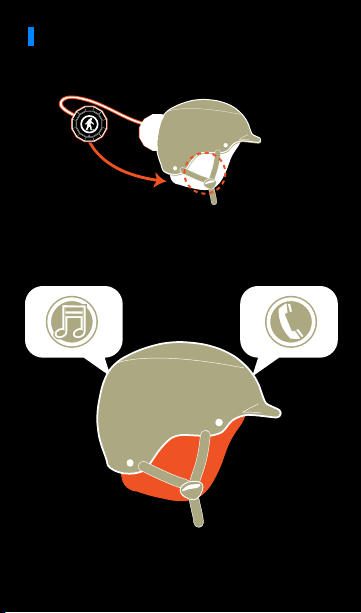
PUT THE CHIPS IN YOUR HELMET
1. Drop the CHIPS® into the slots inside your
helmet liner.
2. Rock out, make calls, and, you know, ski
and snowboard and whatnot.
Page 13
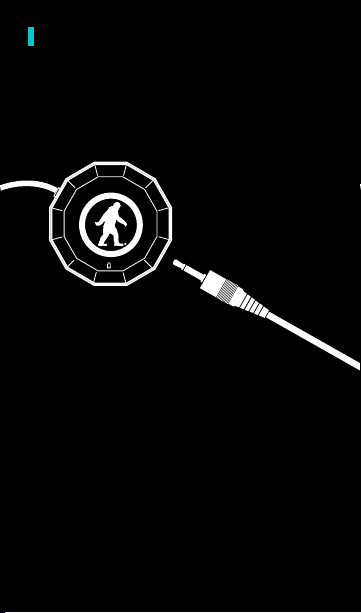
JACK IT IN
The included 3.5mm cord allows you to rock
out when the CHIPS
Plug the end with the microphone and control
wheel into the CHIPS®, and into your preferred
music playing robotic device. Then proceed
to rock out.
*The microphone on the CHIPS® will not
function when you’re playing music through
the 3.5 mm jack. Instead, you’ll be able to use
the inline mic on the 3.5mm cord.
are out of power.
®
Page 14

DON’T BE SO ANTISOCIAL
Facebook.com/outdoortech
Twitter & Instagram: @outdoortech
Questions, comments, complaints, secret desires,
or just to say what’s up: email [email protected]
K bye.
outdoortech.com
U.S. Des. Pat. No. D704,676 S.
 Loading...