

Page 1
Outback STX™
Quick Reference Guide
Part Number: 875-0332-000 Rev A1
Starting STX
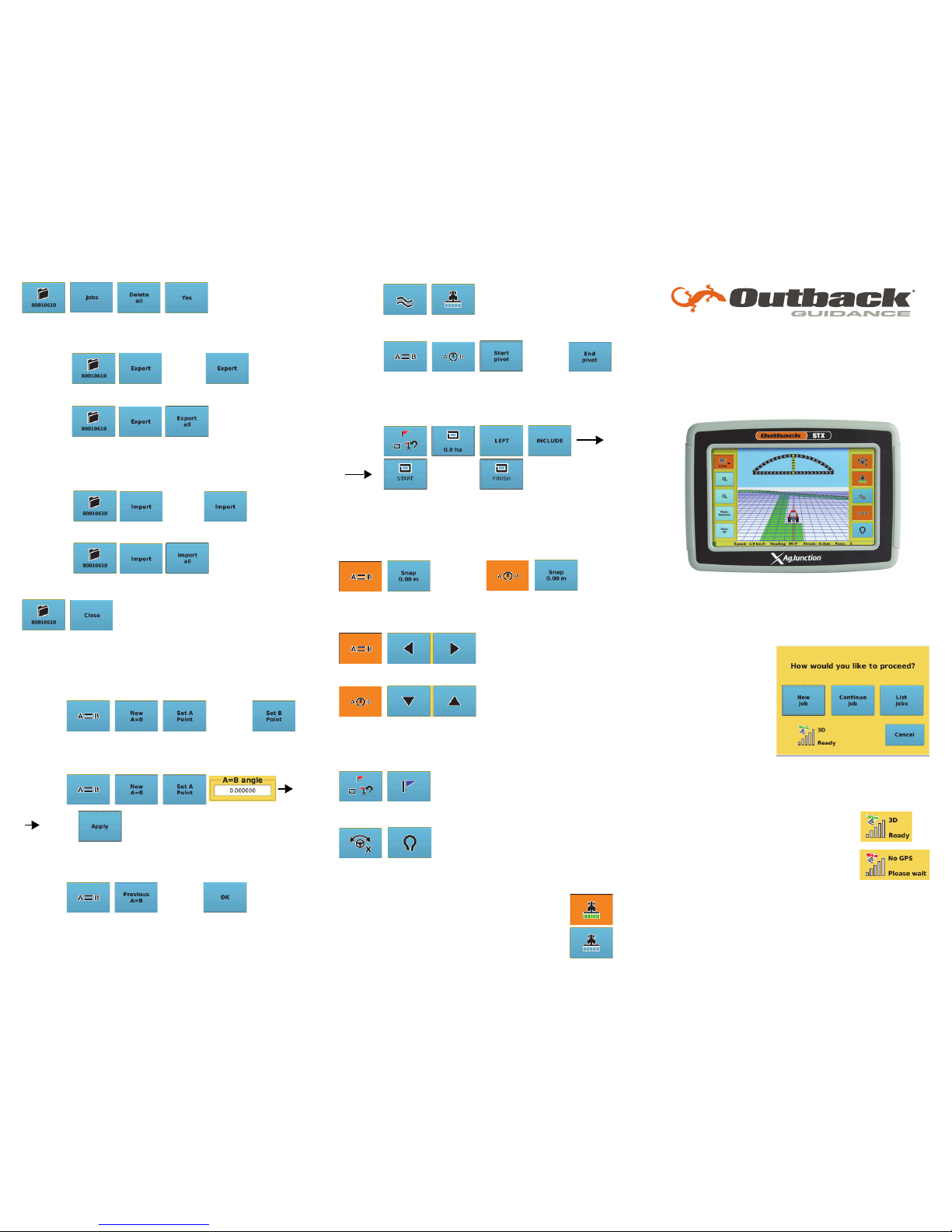
1. Power up the STX and any additional components connecte d
to STX.
2. Press Accept on the
warning screen. The
window at right
appears.
3. Press any of the Job
buttons to work with a
job or press Cancel
to start STX without a
job.
The first time you
start STX only the
New job and Cancel buttons are available. After you create a
job, the next time you start STX all four buttons are available.
STX must have GPS to begin a job and
provide guidance. The satellite indicator and
signal strength bars show if you have GPS
and the signal strength. If there is no GPS
signal, none of the job buttons on the above
window are available (they are all gray).
To delete all jobs:
Exporting a Job
To export a single job:
To export all jobs:
Importing a Job
Job files must be in 'S3Jobs' folder on USB drive.
To import a single job:
To import all jobs:
Closing a Job
Paths and Boundaries
Setting an A=B Line
Apply can be on or off when setting an A=B line.
Setting an A + Direction Line
Apply can be on or off when setting an A + Direction line.
Using a Previous A=B Line
Apply can be on or off when using a previous A=B line.
Creating an Initial Contour Pass
Setting a Pivot Line
Creating a Boundary
LEFT and INCLUDE buttons used to show path (options are
LEFT/RIGHT/CENTER and INCLUDE/EXCLUDE).
Adjusting Paths
Snapping the Guidance Line to the Current Location
In Straight guidance mode: In Pivot guidance mode:
Shifting the Guidance Line
In Straight guidance mode:
In Pivot guidance mode:
Other Tasks
Dropping a Marker
Making an eTurn
Apply Control Button
Press the Apply control button to toggle on and off
data logging or coverage data for the current job:
• On (orange button) indicates data logging
• Off (blue button) indicates no data logging
Select
job to
export
Insert USB
drive in
terminal
Insert USB
drive in
terminal
Select
job to
import
Insert USB
drive in
terminal
Insert USB
drive in
terminal
Drive the
first pass
Veh ic le at
start of
first pass
Veh ic le at
start of
first pass
Enter
angle
Veh ic le at
start of
first pass
Select
A=B line
from list
Veh ic le at
start of
first pass
Drive
the
contour
Veh ic le at
start of
first pass
Begin
driving
the circle
Veh ic le at
start of
boundary
Drive
the
boundary
Page 2
STX Display
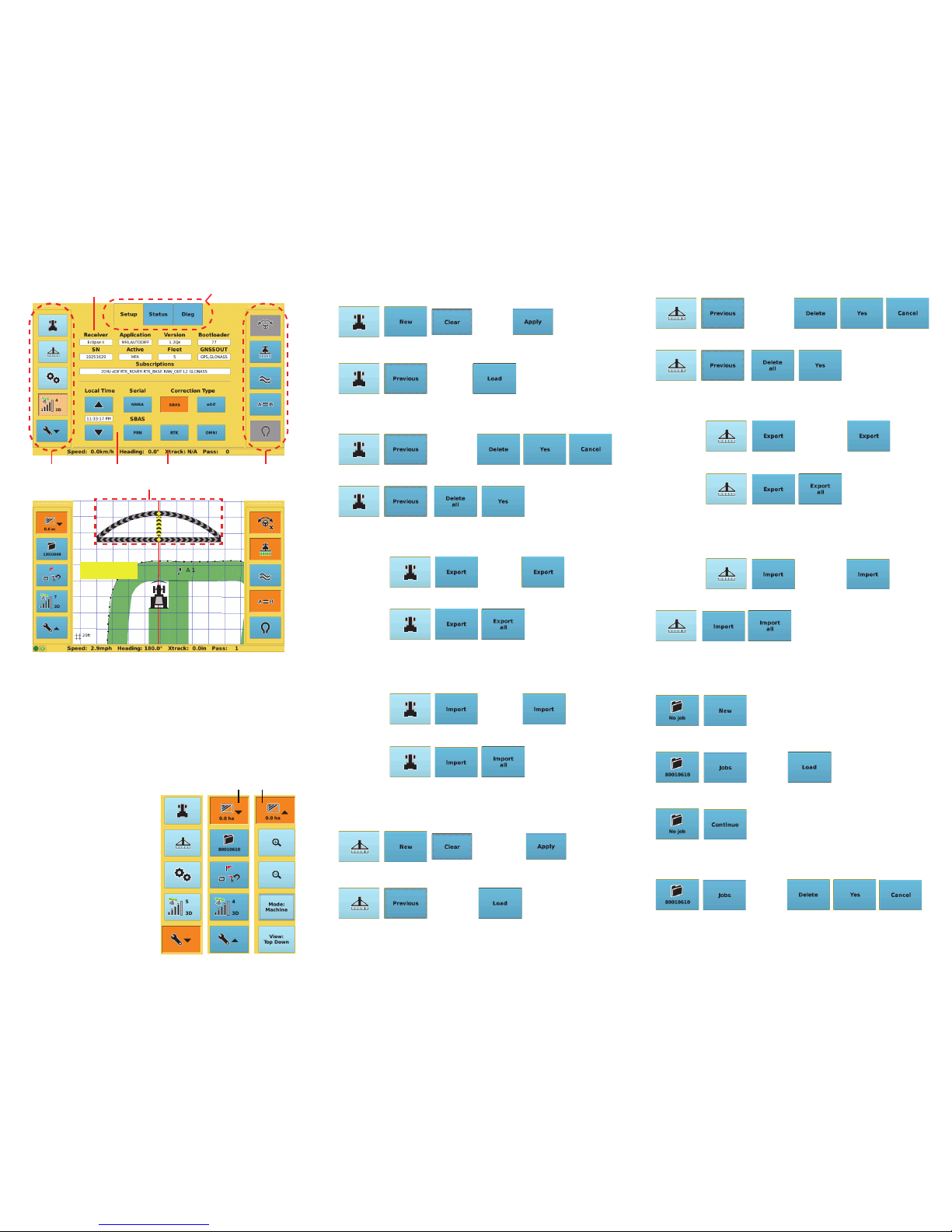
You navigate the display using screen buttons/tabs. Press a
screen button to display a screen. Some screens have multiple
tabs (such as Setup, Status, and Diag in the top figure above).
Use fields to edit settings and buttons to adjust settings or
activate functionality. You can edit a field with a thin outline
around it. If a button/field is gray, you cannot use/edit it. Use
control buttons to perform such tasks as engaging automated
steering and setting paths. An orange screen/control button or
tab is active. The status bar shows current vehicle status—
speed, heading, cross track (Xtrack) error, and pass number.
Use the Setup (wrench) and
Map screen buttons to display
other screen buttons:
• Press the Setup screen
button to toggle between
the buttons shown in the
middle and left buttons
sets shown at right
• Press the Map screen
button to toggle between
the buttons shown in the
middle and right buttons
sets shown at right
Working with Vehicles
Adding a New Vehicle
Loading a Previous Vehicle
Deleting a Vehicle
To delete a single vehicle:
To delete all vehicles:
Exporting a Vehicle
To export a single vehicle:
To export all vehicles:
Importing a Vehicle
Vehicle files must be in 'vehicles' folder on USB drive.
To import a single vehicle:
To import all vehicles:
Working with Implements
Adding a New Implement
Loading a Previous Implement
Deleting an Implement
To delete a single implement:
To delete all implements:
Exporting an Implement
To export a single implement:
To export all implements:
Importing an Implement
Implement files must be in 'implements' folder on USB drive.
To import a single implement:
To import all implements:
Working with Jobs
Starting a New Job
Loading a Job
Continuing a Job
Deleting a Job
To delete a single job:
Screen ta bs
Fields
Screen buttons Control buttonsStatus barButtons
Press in this area to toggle full screen v iew on/off
Map screen
Map screen button
Enter
vehicle
name
Select
vehicle
to load
Select
vehicle
to delete
Select
vehicle
to export
Insert USB
drive in
terminal
Insert USB
drive in
terminal
Select
vehicle
to import
Insert USB
drive in
terminal
Insert USB
drive in
terminal
Enter
implement
name
Select
implement
to load
Select
implement
to delete
STX creates new
‘default’ implement.
Select
implement
to export
Insert USB
drive in
terminal
Insert USB
drive in
terminal
Select
implement
to import
Insert USB
drive in
terminal
Starting a new job closes the
current job.
Select
job to
load
This continues the most recent
open job.
Select
job to
delete
 Loading...