

Page 1
Getting Started Guide
Page 2
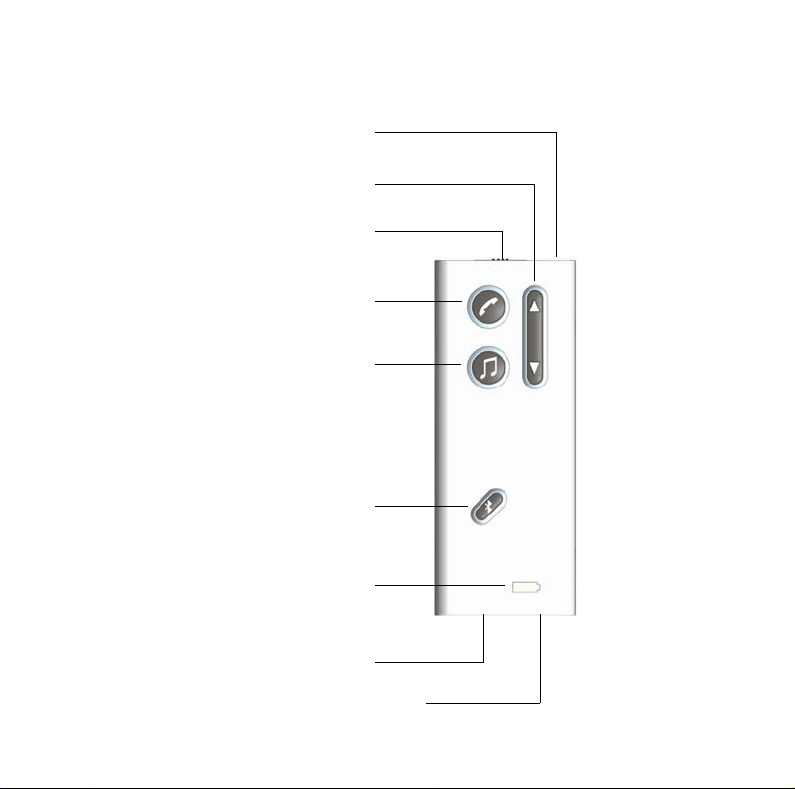
Oticon Streamer Overview
Microphone
Volume and programme
shift Up/Down
Key lock
Phone
Music/Audio
Bluetooth
Battery indicator
Music connection
e.g. MP3
Power
Page 3

Table of Contents
Introduction 3
Wearing the Streamer 4
How to get started 6
How to use with a mobile phone 7
How to listen to music/audio 8
How to use as remote control 9
Important information 10
Battery 10
Key lock 10
On/Off button 10
Page 4

Introduction
The Streamer connects your hearing instruments wirelessly to different audio
sources and makes your hearing instruments work like wireless headphones.
The Streamer transmits sound to both hearing instruments and thereby
improves the audio experience.
Together with the hearing instruments the Streamer gives you the following
possibilities:
Hands-free mobile phone conversation•
Listening to sound or music from the radio, PC, MP3 player connected with•
a wire to the Streamer
Listening to sound or music from other sources wirelessly via Bluetooth•
Remote volume control and programme shift in the hearing instruments•
3
Page 5
Wearing the Streamer
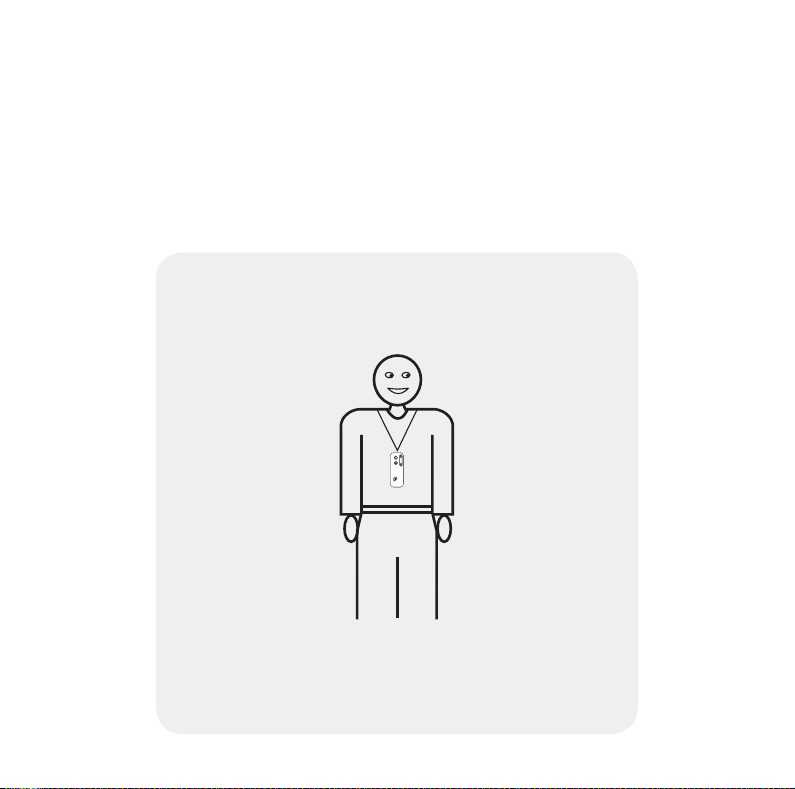
To get the most out of your Streamer, wear it hands-free by using the included
neck strap. There is a short and a long neck strap. If you use the Streamer
handheld you risk occasional audio dropouts in the hearing instruments.
See the illustrations below on how to wear and use the Streamer.
Hands-free
Neck strap
Purpose: Mobile Phone,
Music, PC, Stand-by,
Remote Control etc.
4
Page 6
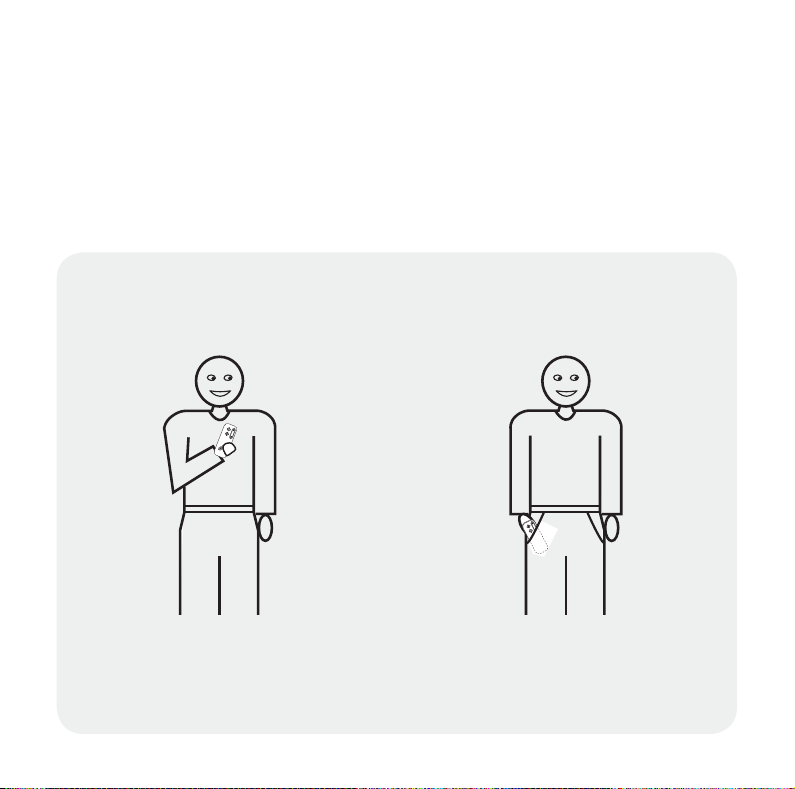
Stand-by is when the Streamer is not being actively used (idle state). In this
situation the Streamer can be in your pocket and still allow you to receive
phone calls.
Handheld
In your hand In the pocket
Purpose: Mobile Phone Purpose: Remote Control,
Stand-by
5
Page 7
How to get started
Pairing
Before your Streamer can be used with mobile phones and other Bluetooth
devices, the Streamer must be prepared by pairing it to the phone etc.
Set Streamer
into pairing
mode
Turn on
Bluetooth
function
The Bluetooth function must be off. Press and hold
the Bluetooth button for 7 seconds until the blue
light flashes.
After 2 seconds the blue light turns on, and after
7 seconds it flashes rapidly, which indicates the
pairing mode.
The Bluetooth function must be active to ensure the
wireless connection between the Streamer and the
audio sources.
Press and hold the Bluetooth button for 2 seconds
until the blue light turns on.
After 2 seconds the blue light will start to pulsate to
save power.
Refer to the Streamer manual for detailed pairing instructions.
For more information on pairing your mobile phone with the Streamer, visit the
Oticon website on www.oticon.com
6
Page 8
How to use with a mobile phone
When talking
Talk into the microphone of the Streamer (optimal up to 30 cm/12 inch
distance).
Answer
incoming
phone calls
Hanging up
the phone
Make a call
Turn hearing
instrument
microphones
On/Off
When your mobile phone rings, you will see a blinking green light around the Phone button. You will
also hear a tone in your hearing instruments.
Press the Phone button to answer the call. The ring
around the Phone button now lights solid green.
(Bluetooth function must be active – see “Turn on
Bluetooth function”.)
When you wish to end the call, press the Phone
button. The green light turns off and the call is
ended.
Use your mobile phone to make the call. When the
call goes through talk into the Streamer – do not
press the Phone button on the Streamer.
Press and hold the Music/Audio button for
2 seconds to reduce background noise.
7
Page 9
How to listen to music/audio
Listening
to music
Stop the
music
Turn hearing
instrument
microphones
On/Off
Adjust
volume
Connect the cable of the audio source to the Music
Connection of the Streamer.
Press the Music/Audio button. The yellow ring
around the button lights up and the music starts.
Press the Music/Audio button. The yellow ring
around the button turns off.
Press and hold the Music/Audio button for
2 seconds.
Use the Volume Up/Down button.
Press Up or Down until the volume in the hearing
instruments is comfortable.
8
Page 10
How to use as remote control
Adjust
volume
Shift
programme
Press Up or Down shortly to adjust volume. Repeat
until the volume in the hearing instruments has
reached the desired level.
Press and hold Up or Down for 2 seconds to go forwards or backwards in the programme cycle.
Only possible if more programmes are present in
the hearing instrument.
9
Page 11
Important information
Battery
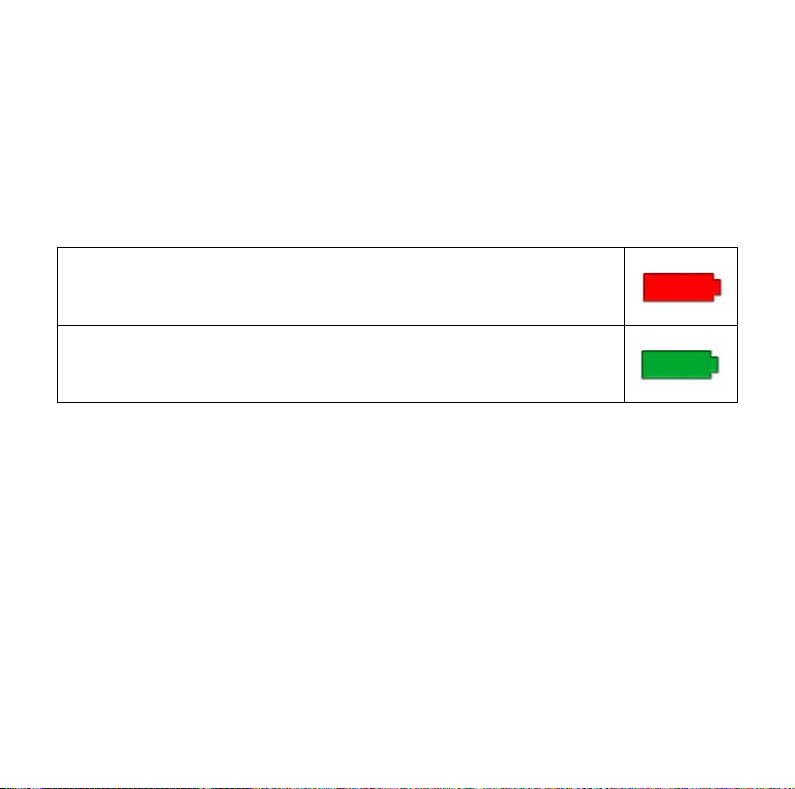
The Streamer has a built-in rechargeable battery. The battery will last 5 hours
when audio streaming is active.
When Bluetooth is on (Stand-by) the battery will last for 70 hours.
The battery indicator will light up solid red when the battery is low
(about 20 minutes left). The battery indicator will start blinking when
the battery is close to empty (about 5 minutes left).
Recharging the battery takes approximately 4 hours. When charging
the battery, the indicator blinks green. When fully recharged, the
battery indicator lights solid green.
The battery should be charged frequently.
Key lock
You can lock the keys to avoid pressing the buttons unintentionally.
The key lock slider on the top of the Streamer locks and unlocks the keys.
On/Off button
The Streamer has no On/Off button, as it only uses little power. If you plan not
to use the Streamer for longer periods, turn off the Bluetooth connection.
The slider button on top of the Streamer is a keyboard lock, not an
On/Off switch.
10
Page 12

My paired Bluetooth devices
Page 13

908 64 510 00 / 04.08
 Loading...