

Page 1
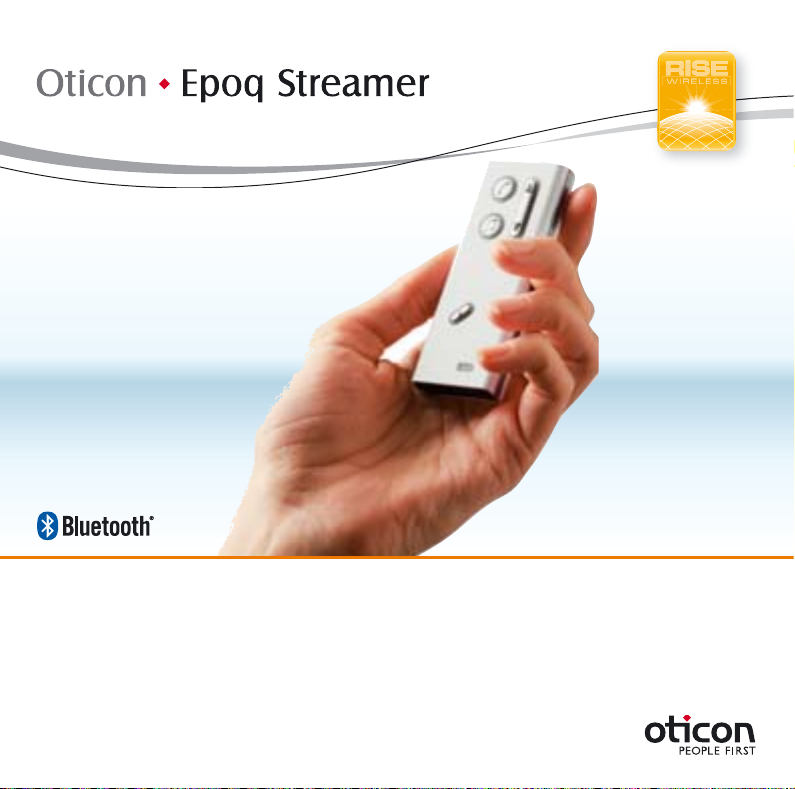
Instructions for Use
Page 2

Introduction
Table of Contents
We would like to congratulate you on selecting one of the most user friendly
and advanced hearing device accessories on the market to enhance your
hearing solution for important and valuable everyday purposes.
At Oticon we believe that people should live the life they want with the hearing they have. The Oticon Epoq Streamer is the key to connecting your hearing
instruments to the expanding world of electronic media. The Streamer allows
signals from modern communication devices such as mobile phones to be
streamed directly into your hearing instruments.
This solution gives you the world’s smallest hands-free headset and personal
headphones for many listening and communication purposes.
The Streamer uses Bluetooth to connect to electronic media and will support
connectivity with most Bluetooth enabled sound sources in the market.
The Streamer is designed for premium comfort and ease of use.
To get a quick understanding of the basic functions and operations, we ask you
to study the “Getting Started” guide included in the package.
We furthermore advise you to carefully read these instructions and familiarise
yourself with the entire content before using the Streamer. This will help you to
achieve the optimal benefi ts of the product for the longest time possible.
1. Typical package content 5
2. Product overview Buttons and connectors 6
3. Basic use and wearing 8
3.1 What is a Streamer 8
3.2 How to wear it 9
3.3 How to use the Streamer 11
4. Streamer wireless ranges 14
4.1 EarStream range 14
4.2 Bluetooth range 15
5. Battery life and maintenance 16
5.1 Charging the Streamer 17
6. Functional description 20
6.1 Key lock 20
6.2 Principle Operation 22
6.3 Using a mobile phone 24
6.3.1 Preparing the Streamer and mobile phone 25
6.3.2 Incoming Call 26
6.3.3 Making a phone call 27
6.3.4 Phone button 28
6.4 Listening to Audio sources 30
6.4.1 Connecting to wired audio input 31
2 3
Page 3

6.4.2 Connecting to Bluetooth audio 33
6.4.3 Audio button 34
6.5 Volume Control 35
6.6 Bluetooth 37
6.7 Connecting to Bluetooth device 40
6.8 Out of range handling Bluetooth 40
6.9 Pairing to a Bluetooth device 41
6.10 Microphone 43
6.11 Call Waiting 44
6.12 Mobile phone sounds 45
7. Visual indicators 47
8. Audible indicators 50
9. Resetting the Streamer 52
10. Cleaning and maintenance 53
11. Trouble shooting 54
1. Typical package content
Streamer Neck Strap Pocket Clip This manual
Getting Started guide Power supply (charger) USB charger cord
12. International Warranty 59
13. Product Approval, precautions and markings 61
Warnings Yellow Pages
4 5
Audio cable, 1 m (40 inches)
Make sure to identify all components and check that the
package content is complete.
Page 4
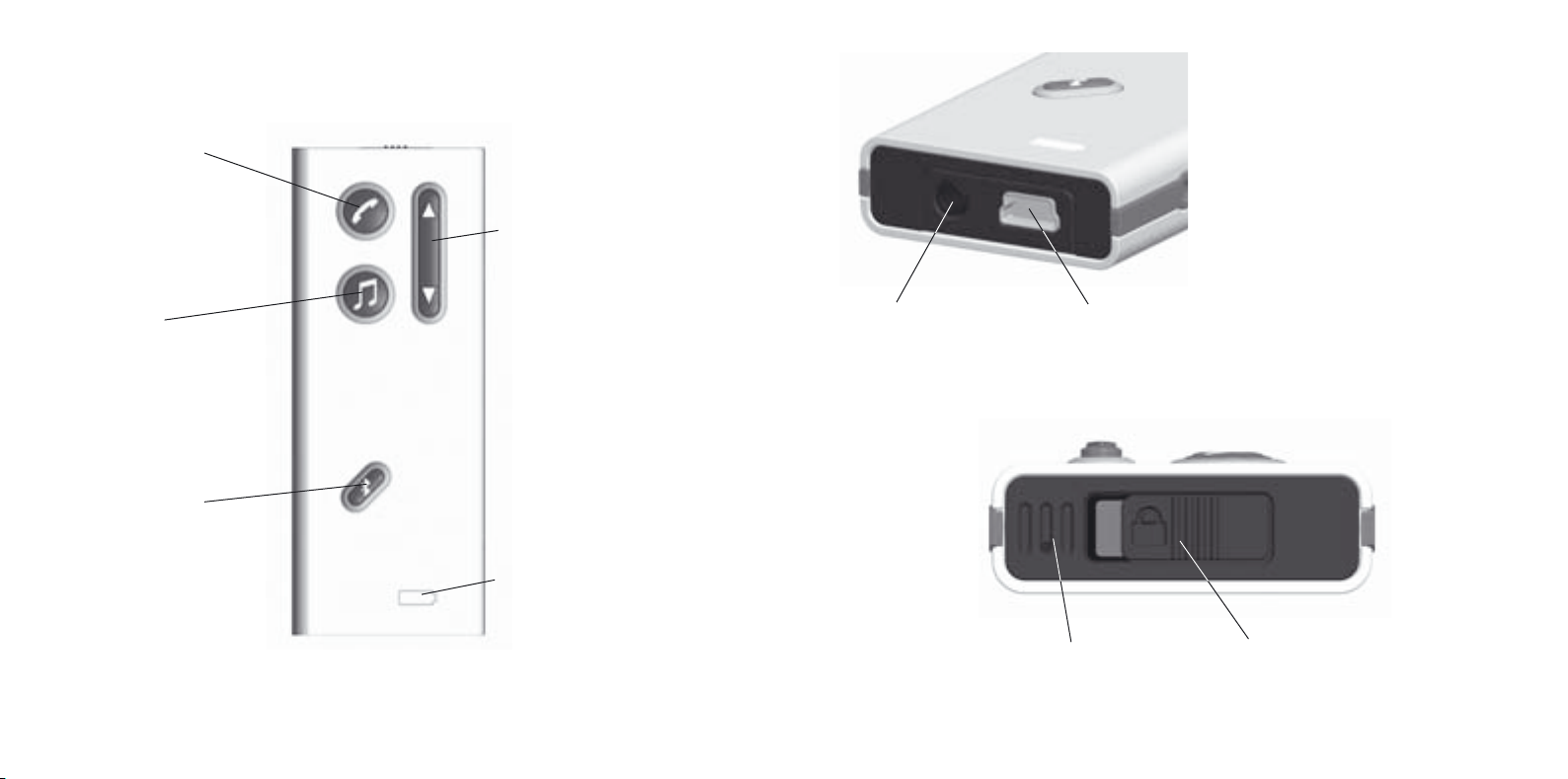
2. Product overview
Buttons and connectors
Phone Button
Short press:
Accept incoming call
Disconnect call
Long press:
Reject incoming call
Volume Control
Short press: Volume up / down
Audio Button
Short press: Start / stop audio
Long press: Enable /
disable hearing instrument
microphones
Bluetooth Button
Long press:
Enable / disable Bluetooth
Very long press:
Start pairing mode
Jack connector for
audio input
Battery status indicator
6 7
Mini USB connector for
charging the battery
Key lockMicrophone
Page 5

3. Basic use and wearing
3.1 What is a Streamer
The Streamer is a body-worn device that can connect your hearing instruments
wirelessly to many diff erent sound and communication media and thus, enables your instruments to function as wireless headphones.
If you have two hearing instruments, the sound will be directed to both ears.
Through the Streamer, your hearing instruments can connect to a number of
audio sources and allows you to
• use a mobile phone fully hands-free.
• listen to music and audio from the radio, computer, portable music players
(like mp3’s)
You can also use the Streamer as a remote control of the volume in the hearing
instruments.
3.2 How to wear it
To make sure that you receive the best signal
through the Streamer, it must be kept inside the
Body Area Network. This is the area surrounding the hearing instruments within a range of
approx. 0,5 meter. The wireless function enabling the Streamer and hearing instruments to
communicate, called EarStream, operates at
extremely low power levels.
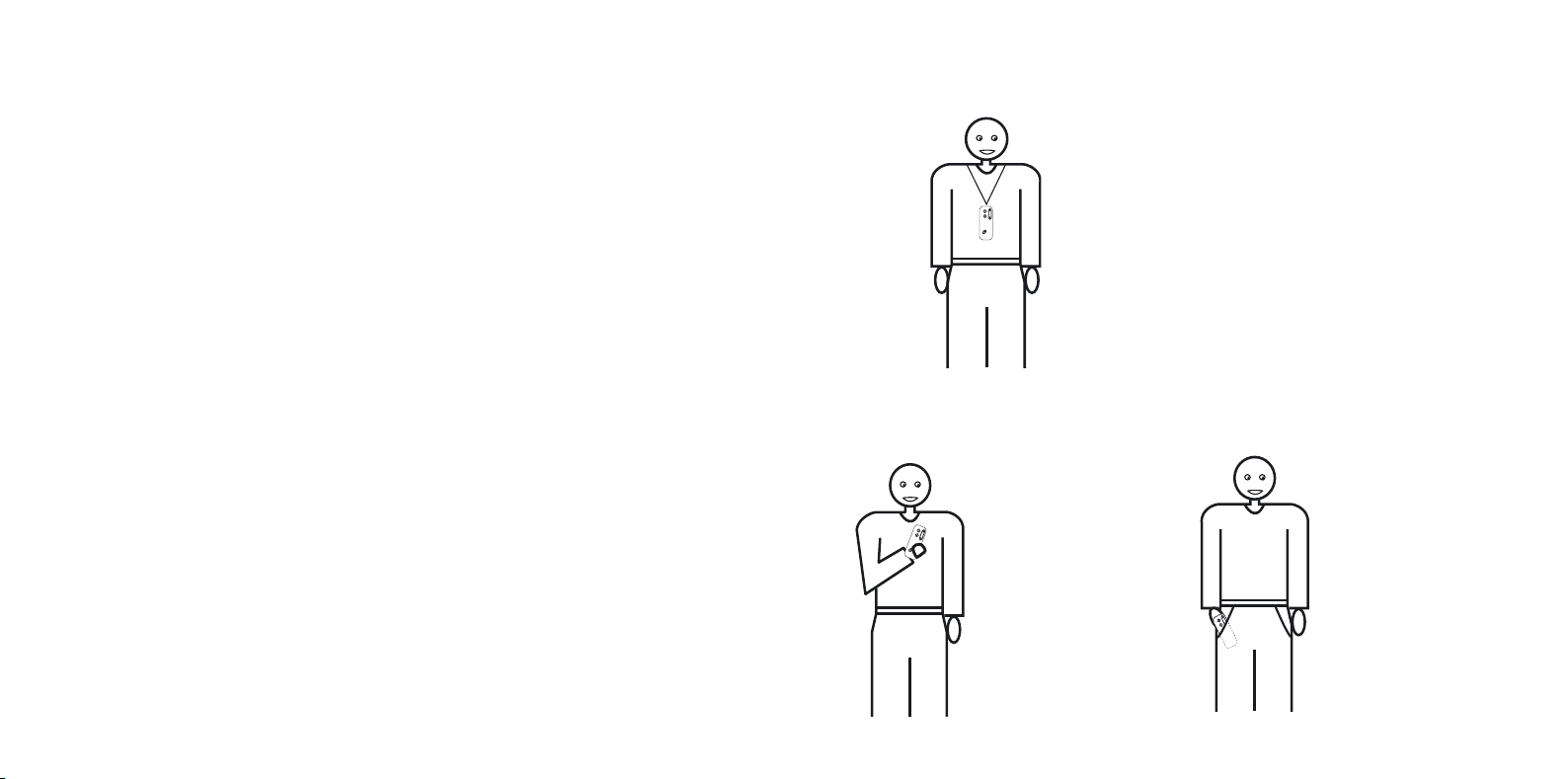
The Streamer can be worn and carried in various
ways to satisfy your personal taste, clothing and
life style.
8 9
Page 6
When using the Streamer the best result is always achieved by using the neck
strap.
The following accessories are included:
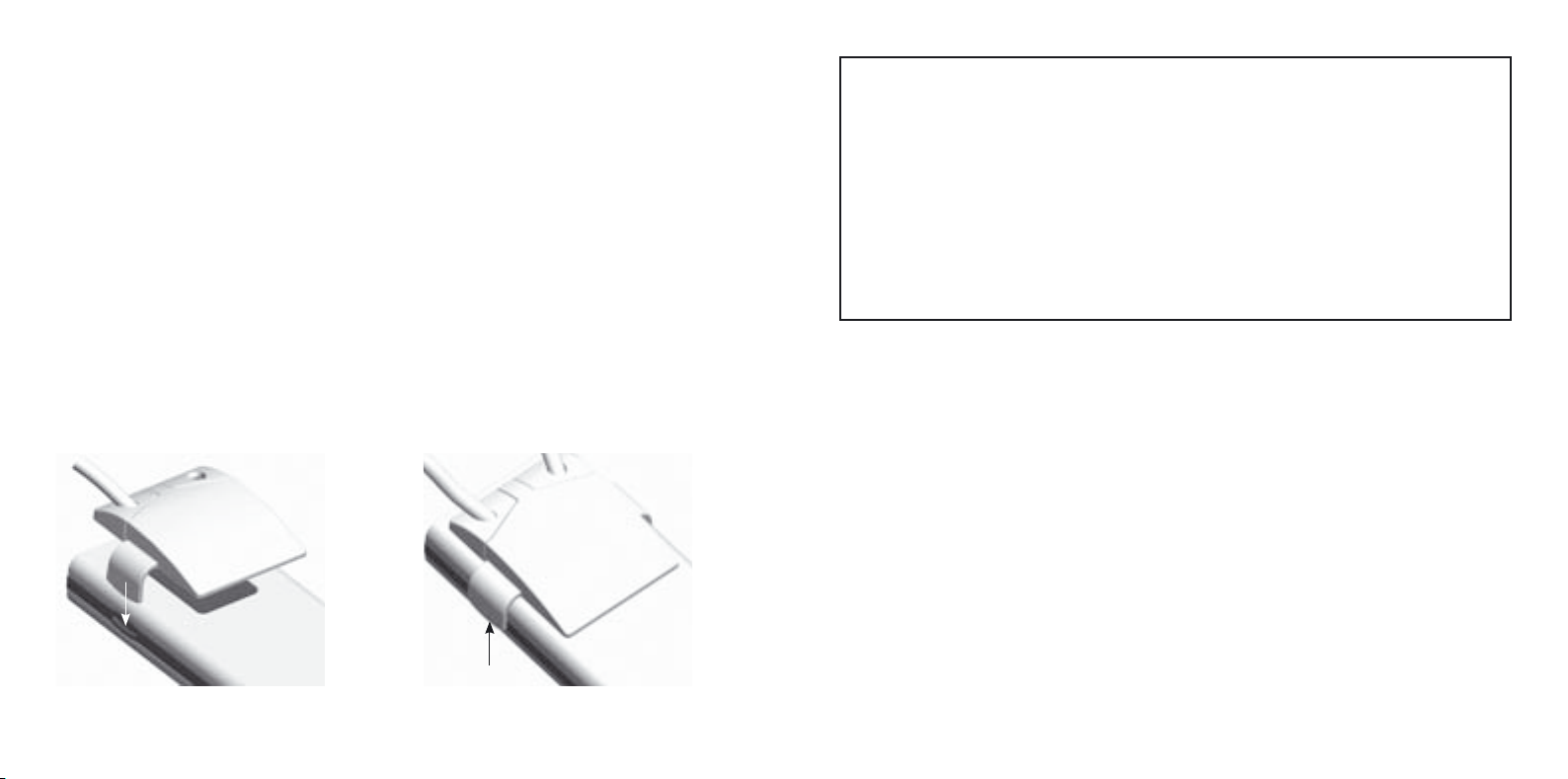
• neck strap to be used to carry and use the Streamer hands-free
in a lavaliere.
• pocket clip to be used to attach the Streamer to a pocket / inside a pocket /
or belt while not streaming audio.
Only one of the carrying devices can be attached to the Streamer at a time.
The devices are clicked onto the Streamer by pressing the device onto the back
of the streamer aligning the two points of attachments.
Use a fi nger nail to lift and release the device from the Streamer again.
ON OFF
IMPORTANT NOTICE
Please, use the neck strap carefully. Due to security reasons (to avoid
strangulation) the neck strap will automatically break if it gets caught in
something. Do not shorten or modify the neck strap in any way, i.e. such
as tie a knob to shorten the length.
If a neck strap breaks, it cannot be repaired and must be renewed. New
neck straps can be purchased at your local Hearing Care Professional.
If a neck strap breaks, it can not be repaired and must be renewed.
Consult your Hearing Care Professional for a replacement.
3.3 How to use the Streamer
1. The best listening quality is achieved by using the neck strap, i.e. hands free
around the neck. The neck strap enhances the sound quality because it has
an additional antenna built-in.
2. The Streamer can be kept in a pocket when not streaming audio, however
still ready to receive a phone call.
3. The Streamer can be handheld during a phone conversation by holding it
close to the mouth. This ensures good quality of your speech brought to the
other person.
4. When using the Streamer outside in strong wind, the sensitive microphone
should be protected against wind noise, i.e. avoid the wind going directly
into the microphone.
10 11
Page 7
5. Like a normal phone, the Streamer microphone is sensitive to mechanical
noise (handling, knocking and scratching). Make sure that the Streamer is
positioned and held calmly and still during a phone conversation.
6. The microphone must be oriented directly towards your mouth while
speaking within a distance from 10 to 30 cm (4 – 12 inches). This is ensured
when using the neck strap.
7. Depending on the placement of the Streamer minor drop outs of sound can
occur. If you have two hearing instruments, sound should remain in one ear
even though a drop out is happening. (To prevent drop outs, the neck strap
should be used).
The following illustration show how the Streamer should be placed during use.
Hands free
Neck Strap
Purpose: Mobile Phone,
Music, PC, Stand-by,
Remote Control etc.
Hand held
In your hand
In the pocket
Purpose: Mobile
Phone
12 13
Purpose: Remote
Control, Stand-by
Page 8
4. Streamer wireless ranges
4.1 EarStream range
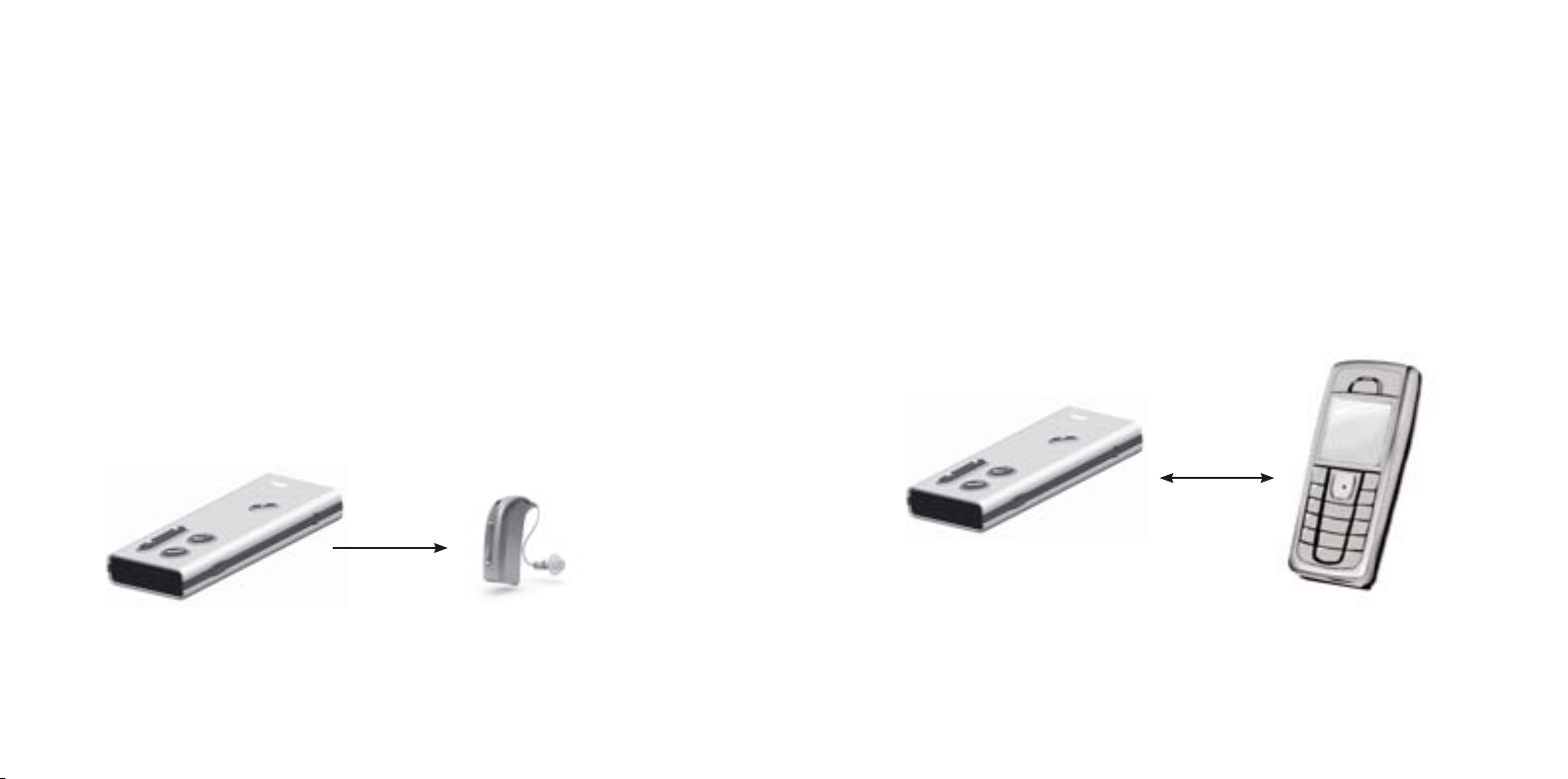
The Streamer has a digital wireless transmitter (EarStream) built-in that
streams information to your hearing instruments. The EarStream radio is activated automatically when requested and cannot be permanently switched off .
When the Streamer is streaming audio, the range to the hearing instrument is
approx. 0.5 meter (20 inches). This means that the Body Area Network has an
outer perimeter 0,5 meter from the ears and that the Streamer must be used
inside this perimeter.
The range could be reduced by metal objects and strong magnetic fi elds.
Use of the neck strap is strongly recommended to achieve optimal EarStream
performance.
4.2 Bluetooth range
The Streamer has a Bluetooth transmitter built-in that can be manually turned
on/off as a separate function.
Bluetooth is used to communicate and send audio from your external sound
and communication units, like a Bluetooth-enabled mobile phone.
The wireless range from the Streamer to a mobile phone is 10 meters (33 feet)
in open space. Bluetooth range is reduced by objects between the Streamer
and the mobile phone.
The range also depends on the quality of the antenna of the other device.
Streamer to hearing instruments: 0.5 meter range
When the Streamer is used for remote volume control only or just “stand-by”
(ready for incoming phone call) the range can expand up to 1 meter.
14 15
Mobile phone distance to/from the Streamer: 10 meters range
Page 9
5. Battery life and maintenance
The Streamer has a built-in rechargeable battery.
Always start by charging your new Streamer for 2-4 hours until fully charged.
5.1 Charging the Streamer
The best way to preserve capacity on the battery is to charge it frequently. The
Streamer should be charged every night to always ensure battery life for a full
day of operation.
The battery life of the Streamer depends on the usage.
USE BATTERY LIFE*
Talking in mobile phone 5 hours
Listening to music with Bluetooth
stereo wireless connection
Listening to music / audio with wired
connection
Stand-by (BT on, no streaming) 70 hours
Bluetooth off 2 years
The table is based on a fully charged new battery.
* the maximum time your battery will run before it must be recharged.
Even though the Streamer has no dedicated on/off button, turning off
Bluetooth will result in a prolonged battery life.
5 hours
6 hours
16 17
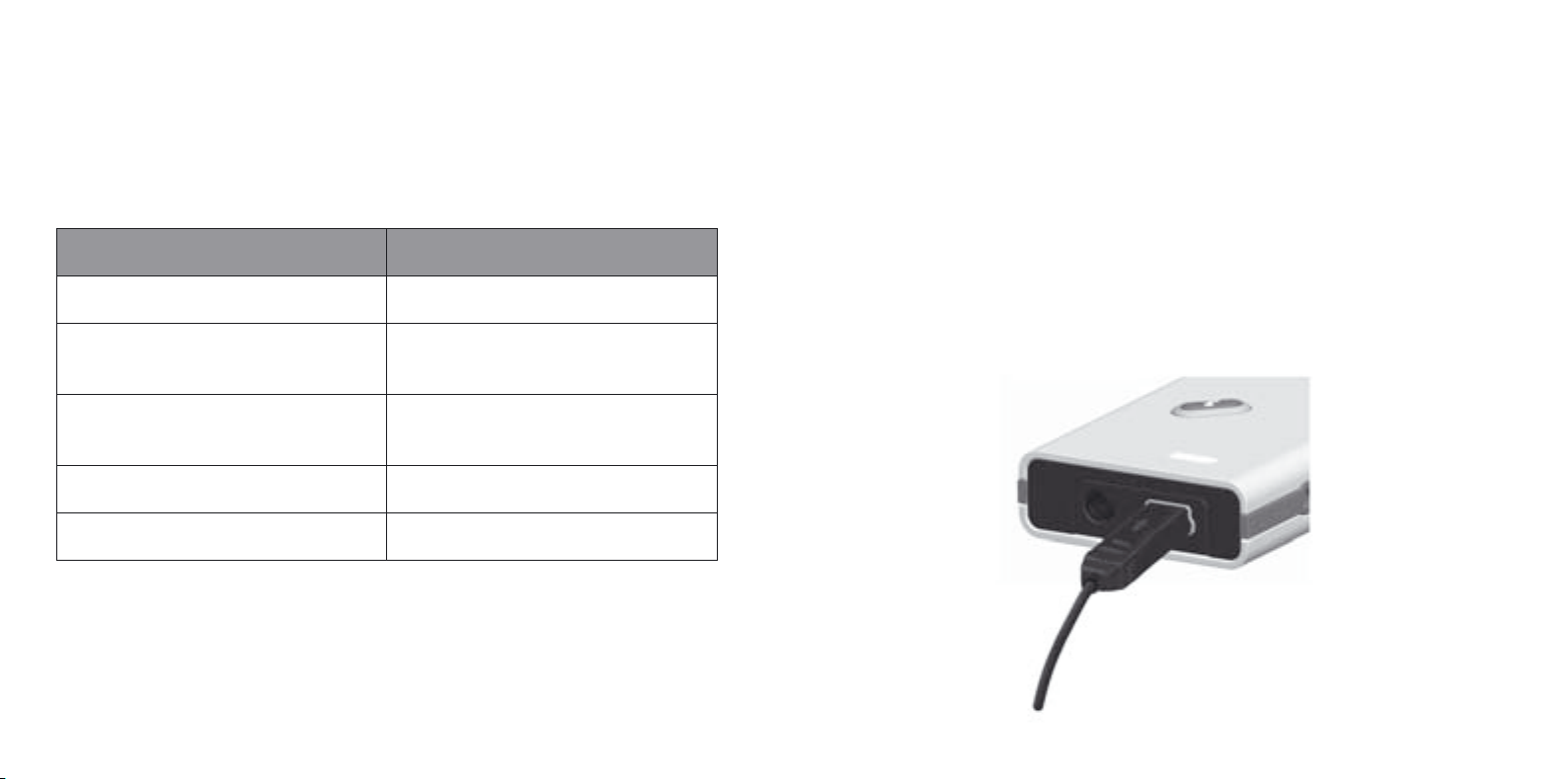
To charge the Streamer, connect the power adapter cord to the mini USB
connector placed at the button of the Streamer.
Page 10

Included in the package, you will also fi nd a USB cord that can be used to
connect and charge the Streamer from a PC, allowing for frequent charging in
the offi ce.
STATUS INDICATOR MEANING CONDITION
Steady red light Low battery ~ 20 min talk time left
The battery status indicator fl ashes RED when the battery is very low. The
battery low condition is also acoustically indicated by two beeps in the hearing instruments.
Make sure to always charge the battery when the status indicator fl ashes.
When charging, the status indicator fl ashes GREEN.
When the status indicator shows a fi xed green light, the battery is fully
charged.
When unplugging the fully charged Streamer from the charger, the status
indicator will switch off .
Flashing red light Very low battery ~ 5 min talk time left
Flashing green
Battery charging Do not disconnect charger
light
Steady green
Battery fully charged Ready to go
light
Full recharging of the battery will take approx. 5 hours.
The Streamer can be charged during use as well. This will prolong the charging
time.
Please, check that the device you connect the Streamer to via the USB cable
has been approved according to international security standards.
IMPORTANT NOTICE
The battery should be prevented from being drained completely. The better
the battery is treated, the longer it will keep its capacity.
The battery can not be replaced by the user. The Streamer cannot be
opened without damaging it.
18 19
Page 11
6. Functional description
This section provides a detailed description of each function.
If you try to operate the Streamer while the keys are locked, the back light in
the buttons will fl ash a few times to indicate the non-operational mode of keys
in the Streamer.
An overview of the visual and audio indications provided by the Streamer and
the hearing instruments are described in section 7 and 8.
6.1 Key lock
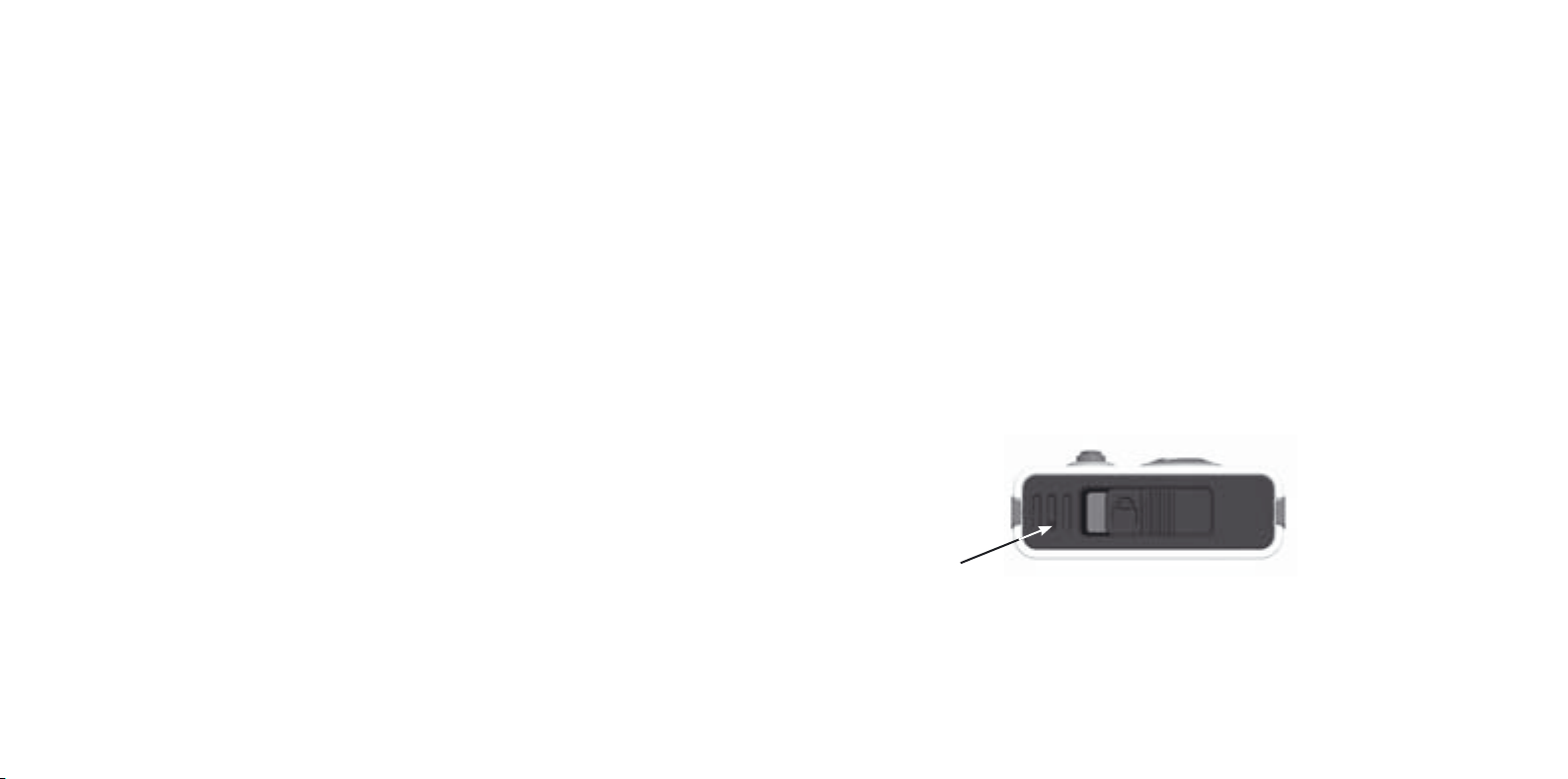
To prevent accidental key presses, the Streamer has a key lock function.
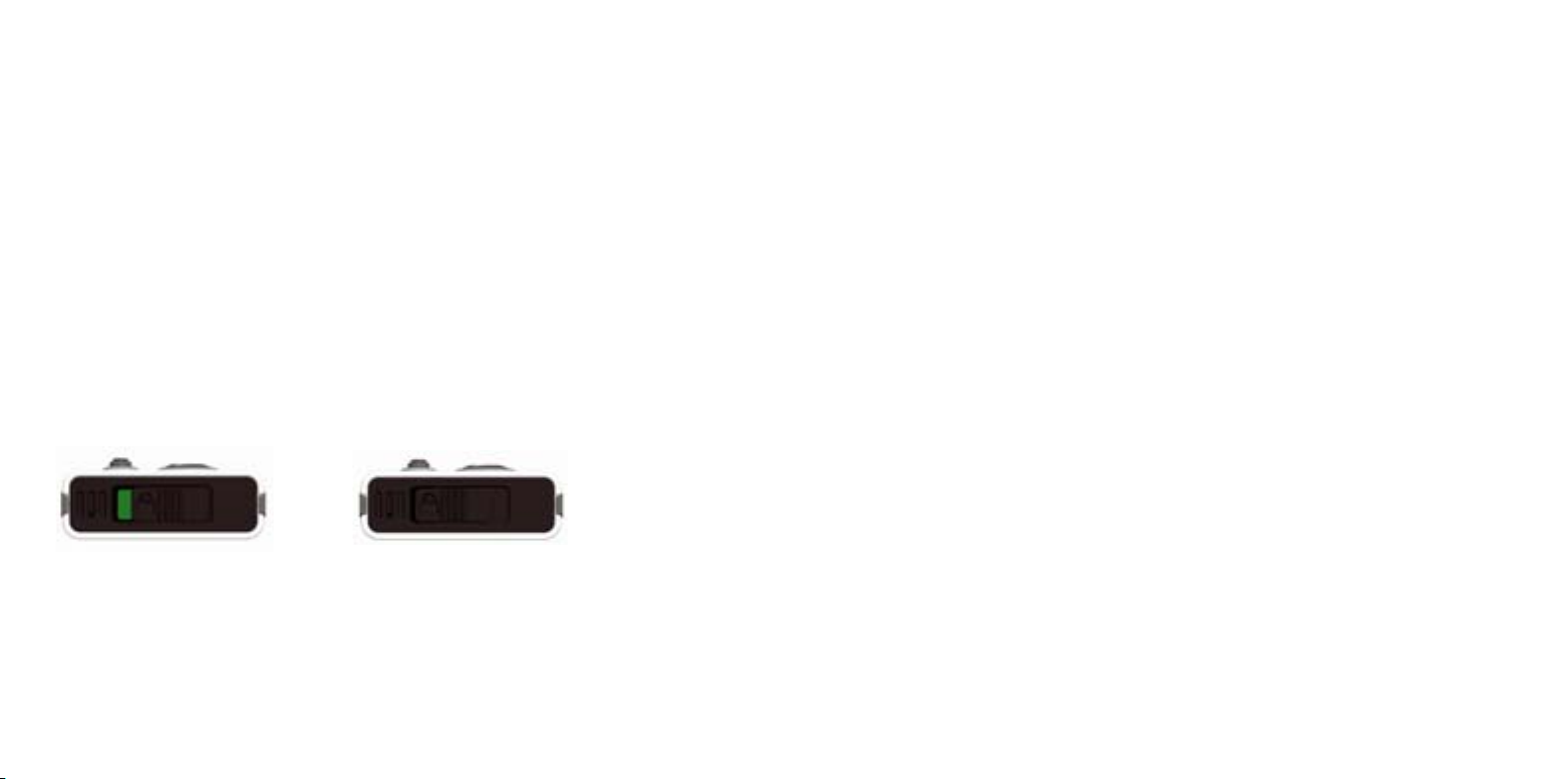
The key lock is operated by the slider on top of the Streamer marked with the
padlock symbol.
When the slider reveals the GREEN mark, the keys can be operated.
When the slider covers the green mark, the keys are locked.
The Streamer cannot be operated when the keys are locked, apart from accepting a call from the mobile phone. (All keys will then be active until the call is
terminated).
The key lock should not be seen or perceived as an ON / OFF function.
20 21
Page 12

6.2 Principle Operation
Some of the Streamer buttons have more functions depending on the listening situation and the duration of the press, i.e. how long a button is activated.
Duration of button presses is defi ned as:
Key Press defi nitions Duration
Short Less than 1 second
Long Approx. 2 seconds
Very long More than 4 seconds
Note:
Audio streaming is one-way communication from the Streamer to the
hearing instruments i.e. the Streamer has no information about the state of
the hearing instruments. When audio streaming is stopped, the Streamer
instructs the hearing instruments to release controls and resume normal
operation.
If the hearing instruments for some reason during a streaming situation do
no longer receive the audio information from the Streamer for a period of
5 seconds, the hearing instruments will themselves automatically return to
normal operation.
The Streamer and a set of hearing instruments is a secure system. The hearing
instrument(s) will only accept audio streaming from the Streamer to which they
are linked. (Linking have been done by the Hearing Care Professional). This ensures that other Epoq instruments cannot intercept phone calls or audio from
your Streamer.
22 23
Page 13

6.3 Using a mobile phone
The Streamer allows you to use a mobile phone in conjunction
with your hearing instruments. Together, the hearing instruments
and the Streamer works similar to a wireless Bluetooth headset.
If you have two hearing instruments you will have the speech
from your conversation in both ears for optimal intelligibility.
In noisy environments it may be necessary to position the
Streamer closer to your mouth.
By operating the phone button, you can;
Accept an incoming phone call Short press
6.3.1 Preparing the Streamer and mobile phone
The Bluetooth function between the Streamer and the mobile phone must be
prepared so the two devices can connect and work together.
This initial confi guration of the devices is referred to as pairing.
If you have not paired the Streamer to your mobile phone, you should follow
the pairing guidelines in section 6.9.
The following operations require that a mobile phone is connected to the
Streamer and the Streamer is inside the wireless working ranges of the mobile
phone and the hearing instruments.
Reconnection Tip
Normally, two paired Bluetooth devices will fi nd each other when turned on.
Disconnect a phone call Short press
Reject an incoming phone call Long press
During a phone conversation, the volume level can be adjusted using the
volume control on the Streamer.
24 25
If the devices do not connect automatically or have not been set up to
connect automatically, the devices must be connected manually.
Always turn on the mobile phone before turning on the Bluetooth function in
the Streamer.
Page 14

6.3.2 Incoming Call
When an incoming call is received by the Streamer, a ringing tune appears in
the instruments.
The incoming call is also shown on the Streamer by the fl ashing green rim
light around the phone button.
When accepting the incoming call, your hearing instruments will automatically switch to a dedicated Streamer phone program.
While a phone call is active, the green rim light around the phone button will
switch to constant light.
Note: It will take about 1 second before the link from the mobile phone to
the hearing instruments is established.
6.3.3 Making a phone call
Before making a phone call, make sure that the Streamer is inside the Body
Area Network, e.g. by using the neck strap.
To make a phone call, you must use the mobile phone keyboard just as making
a normal call from the phone. The Streamer and the hearing instruments will
automatically switch to headset functionality when you make a phone call.
The mobile phone automatically makes a connection to the Streamer and to
the hearing instruments as soon as the call is active.
26 27
Page 15

6.3.4 Phone button
The table shows how to use the Streamer for incoming phone calls.
Voice Dial
If this is implemented in the connected mobile phone, the function will be
activated by pressing the Streamer phone button shortly.
Short press When a connected mobile phone is ringing, a
short press will answer the incoming call.
An active phone call is terminated also with a
short press.
The Streamer can receive an incoming call while
streaming other types of audio, e.g. when you
are listening to music.
Long press When a connected phone is ringing, a long
press will reject the incoming call. No action
will be applied to the hearing instruments.
Some mobile phones will also support the following additional dedicated
Bluetooth features:
Last Number Redial
If this is implemented in the connected mobile phone, the function will be
activated by a long press on the Streamer phone button.
These two features cannot be activated during another phone call or when
listening to music with the Streamer.
Listening Tip
When a phone call is started, the microphones in your hearing instruments
are always switched on, allowing you to hear the acoustical sound from the
surrounding environment.
To focus on the phone conversation, especially in noise situations, you can
switch off the hearing instrument microphones by pressing the Streamer
audio button for two seconds.
28 29
Page 16
6.4 Listening to Audio sources
The Streamer can connect your hearing instruments to many different audio sources and allows you to use your hearing instruments to function as wireless headphones.
An audio source can be connected to your hearing instruments through the
Streamer in two ways:
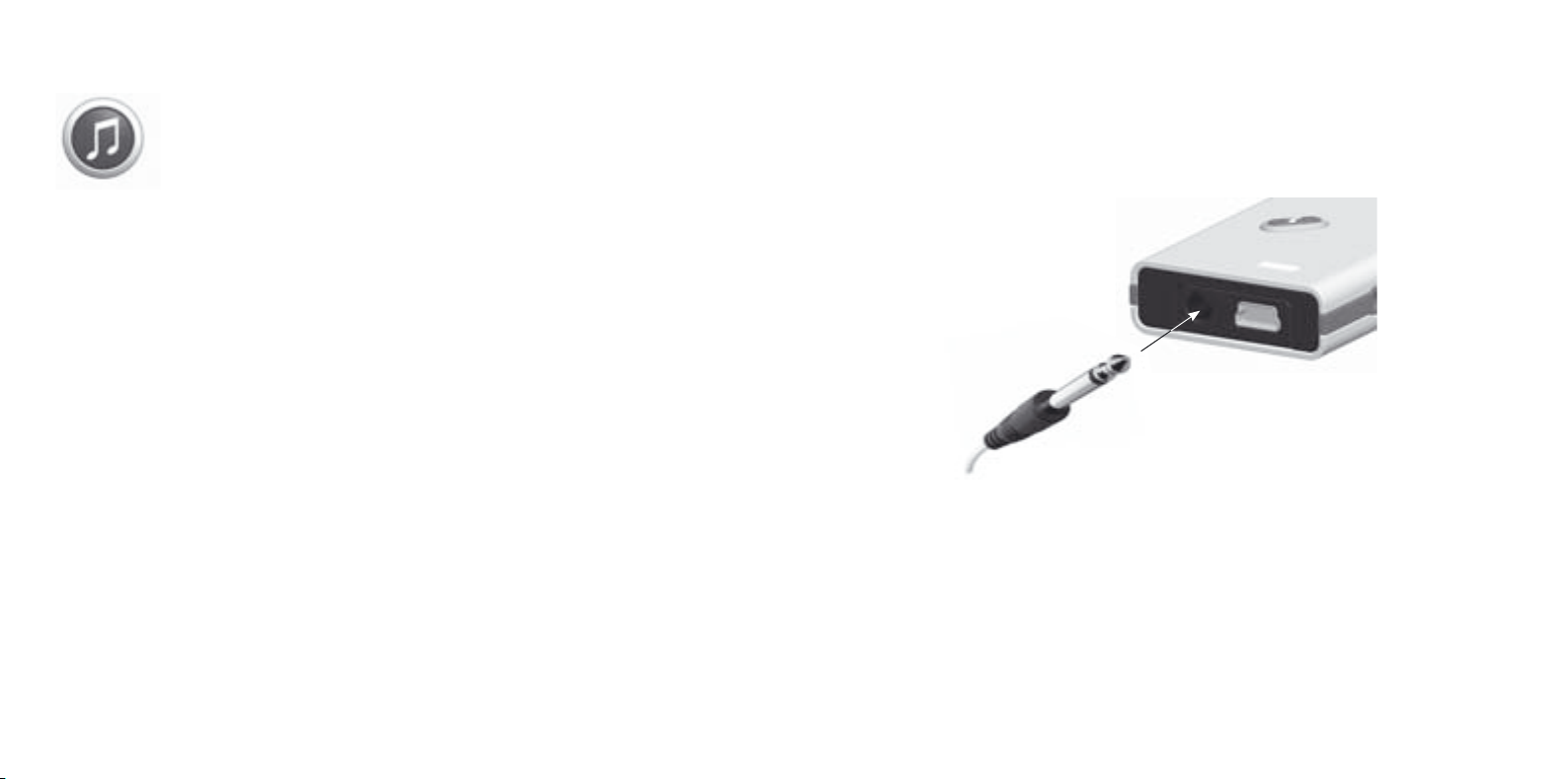
• by wired input to the micro jack
• by a wireless Bluetooth connection
From the audio button on the Streamer, you can start and stop audio
streaming to the hearing instruments.
Before streaming audio, you must place the Streamer inside the Body Area
Network. It is recommended to use the neck strap.
Audio streaming can be activated in the hearing instruments independent of
which program you have selected in your hearing instruments.
6.4.1 Connecting to wired audio input
When the included audio cable is connected to an audio player and the
Streamer, the Streamer starts streaming after the audio button is pressed
shortly. The light around the audio button turns on constant light
(see section 7)
Use the included audio cable to connect the Streamer to the audio source.
30 31
Page 17

Since the Streamer can handle multiple audio sources, the following
describes how the Streamer will react to various operations:
• If Bluetooth audio streaming is active when the jack is inserted and the
audio button is pressed again, the Bluetooth audio is stopped and the
wired audio is streamed instead (priority control). When the jack is removed Bluetooth audio does NOT automatically resume, but must be
activated by pressing the audio button shortly again.
• If a phone call is active when the jack is inserted, the call is NOT
terminated.
• When the jack is removed during audio streaming, the Streamer stops
audio streaming and the hearing instruments return to standard program.
• If the audio button is pressed without a jack connected, streaming will not
start.
6.4.2 Connecting to a Bluetooth audio source
The Bluetooth function between the Streamer and the audio source must be
prepared so the two devices can connect and work together.
This initial confi guration of the devices is referred to as pairing.
If you have not paired the Streamer to your Bluetooth audio source, you should
follow the pairing guide lines in section 6.9.
A Bluetooth audio source can be connected to the Streamer when:
• the Bluetooth function of the Streamer is turned on
• the Bluetooth enabled audio source is turned on
• when the Streamer and audio source is inside their Bluetooth range
First turn on the Bluetooth function on the Streamer before turning on the
audio source.
If more than one Bluetooth audio source is present e.g. two Bluetooth Stereo
devices, the Streamer will connect to only one of them. If possible, this will be
the last one connected.
It is not possible to seamlessly switch between two Bluetooth audio sources.
(One Bluetooth device must be turned off or moved out of range from the
Streamer before the second device is turned on or moved inside the range of
the Streamer).
32 33
Page 18
6.4.3 Audio button
The table shows how to use the Streamer with all types of audio streaming
Short
press
A short press starts/stops streaming of the available audio.
The available audio source can be wired audio or a Bluetooth enabled stereo / music player.
Streaming from audio sources is prioritized by the Streamer,
priority control is in this order:
1. Wired audio
2. Bluetooth Stereo
When no wired connection is present, the Streamer will
attempt to connect to the last connected Bluetooth device.
This will take a few seconds and in that time the orange light
around the audio button will blink (see section 7).
Note that phone calls will be received when listening to
music/audio
Listening Tip
When audio streaming is started, the microphones in your hearing instruments are always switched off , allowing you to focus on the audio being
played.
To also hear the acoustical sound from the environment, you can switch on
the hearing instrument microphones by pressing the Streamer audio button
for 2 seconds.
6.5 Volume Control
The volume control allows you to remotely adjust the sound level in the hearing
instruments in all listening situations to achieve a good and convenient
listening result.
Long
press
Turn the microphones on/off in the hearing instruments
while streaming audio. When the microphones are activated
in the hearing instruments, both the streamed audio and
the environment sounds can be heard.
Note that this will reset the volume control to the
preferred level.
34 35
Page 19

The volume control is functioning as described in the table
A short press adjusts the volume level up or down in the hearing
instruments. If you have 2 hearing instruments, volume is
adjusted in both hearing instruments at the same time.
The volume can be turned up to 4 steps up and 8 steps down.
Each step is indicated by a click in the hearing instruments.
Two beep indicates that the preferred volume level is reached.
6.6 Bluetooth button
Bluetooth is the wireless application that connects the Streamer to external
wireless audio sources. Bluetooth is a global standard used in many electronic
media. Most Bluetooth enabled devices will work together.
To see whether an electronic media has a built-in Bluetooth function, you may
look for the Bluetooth symbol:
The volume control can be used during all types of audio streaming (i.e. listening to music or in phone call) but also when the
Streamer is not streaming audio.
During audio streaming, adjusting the volume can only be done
on the Streamer.
The controls on the hearing instruments are disabled.
When not streaming audio, adjusting the volume can be done on
both the Streamer and on the hearing instruments.
the Streamer works as remote control of the volume control in
addition to the volume control on the hearing instruments.
36 37
Most mobile phones today have Bluetooth built-in.
The Bluetooth function must always be turned on when you need or expect to
use and communicate with your Bluetooth devices.
Page 20
The basic operation of the Bluetooth function in described in the following
table.
Short
press
A short press will prompt the status of the Bluetooth
function.
If Bluetooth is on, the rim light around the button will
light for a few seconds.
Long press This switches the Bluetooth function on/off in the
Streamer.
When Bluetooth is on, the rim light around the button
fades in and out (like a heart beat).
Bluetooth must be active to connect with the
Streamer.
Very long
press
This activates the Bluetooth pairing mode. See
section 6.9 describing the pairing sequence.
(7 sec.)
Bluetooth must be turned off before the Streamer can
enter the pairing mode. Pairing mode is active for
120 seconds or until the pairing is complete. Pairing
can be cancelled manually with a long press on the
Bluetooth button.
The Streamer can be paired with up to 8 devices at
the same time. When the max number is reached, the
Streamer starts overwriting the oldest pairings.
When not necessary for use, the Bluetooth function can be switched off to save
battery power. (See section 5).
39
Page 21

6.7 Connecting to Bluetooth devices
Whenever the Bluetooth function in the Streamer or in the external audio
source, has been turned off , the devices must fi nd and connect to each other
again when turned on.
Reconnection Tip
Normally, two paired Bluetooth devices will fi nd each other when turned on.
If the devices do not connect automatically or have not been set up to
connect automatically, the devices must be connected manually.
Always turn on the mobile phone before turning on the Bluetooth function in
the Streamer.
Refer to the manual of the mobile phone or audio source for detailed instruction on how the device connects and how connecting can be manually
operated.
If the Bluetooth connection is lost to an audio / music player while streaming,
the audio streaming stops and must be started again when the devices are
inside their Bluetooth range again.
6.9 Pairing to a Bluetooth device
Before using the Streamer with a Bluetooth mobile phone or a Bluetooth
enabled audio source, the Streamer must be paired to the device. This means,
a secure relationship is established between the two units, enabling them to
identify each other and communicate whenever they are turned on and within
range of each other.
You only have to make the pairing once as the units will hereafter recognize
each other.
Pairing is done by putting both units (i.e. the Streamer and the device) into
pairing mode. Here, the units automatically will search for and fi nd each other.
[The units must be kept only a few meters apart].
The following few basic steps will take you through a pairing sequence:
6.8 Out of range handling Bluetooth
If the Streamer is brought out of the Bluetooth range of the mobile phone, the
connection is momentarily lost. Normally, the devices will re-connect when
they are inside the Bluetooth range again.
If the Bluetooth connection is lost during a phone call, the phone will hang up
(this is standard Bluetooth headset behaviour).
40 41
1. Prepare Device
Make sure that the Bluetooth function is turned on in the mobile
phone or the audio source.
Find the menu or identify the activation required to start the
pairing process.
Refer to the manual of the mobile phone or audio device to be paired with
for detailed instruction on how to conduct the pairing. Normally, it is referred
to as “fi nd new audio equipment” and set up the device as instructed.
Page 22
2. Set Streamer into pairing mode
Make sure that the Bluetooth function of the Streamer is turned off .
The Streamer is then put into paring mode by a very long press of 7 seconds
on the Bluetooth button until it fl ashes. The Streamer is now in pairing mode
and awaits the device, indicated by the fast blinking blue light.
Mobile phone issues:
After a successful pairing sequence, a symbol should appear in the mobile
phone display (e.g. a headphone), indicating that a headset is now connected
to the phone and that the phone can only be used via the Streamer and
hearing instruments.
See also section 6.6 for further info on Streamer Bluetooth pairing mode
3. Start Pairing
Activate the pairing feature on the device.
The device is now searching for active Bluetooth devices in the area.
When the Streamer is found by the device, the word ‘Streamer’ will appear in
the display of the device (if featured).
Go to the word ‘Streamer’ and press select or OK.
4. Enter Pin code
The Streamer code is: 0000 (four zeros)
Upon entering the pin code, the Streamer and the device are now paired.
Depending of the external Bluetooth device, you might also have to manually
activate the connection between the Streamer and the device (e.g. the mobile
phone). This is normally done by selecting “Connect.” in the display menu.
For further Epoq Streamer pairing and product support,
visit www.oticon.com
42 43
Diff erent phones have diff erent behaviour when used with a wireless Bluetooth
headset - like a Streamer. If a problem occurs in the connection between your
mobile phone and the Streamer, you should generally consult your mobile
phone manual for detailed trouble shooting.
6.10 Microphone
The microphone in the Streamer is active only during a phone call. In all other
situations the microphone is turned off .
When using the Streamer for phone communication, the microphone must be
placed 10 – 40 cm from the mouth in order to ensure good sound quality to the
person at the other end of the line.
Page 23

6.11 Call waiting
The Streamer supports call waiting by sending notifi cation to the hearing
instruments if a second call is incoming during an active call. The audible
notifi cation is added to the phone conversation by the telecom provider.
To switch to the second call, the mobile phone must be operated. Refer to the
instructions of the mobile phone.
6.12 Mobile phone sounds
Some mobile phones will try to send their ringing tones, key-press beeps,
keyboard locked beep, etc. to any connected headset over the Bluetooth connection.
(In mobile phone manuals, this is normally referred to as In-band-ringing).
The Streamer does not support in-band ringing, and will not receive dedicated
ringing tunes from mobile phones. The Streamer ringing tune is always played
by the hearing instruments and is fi xed.
NOTE, if the mobile phone is confi gured to stream keyboard beeps over the
Bluetooth connection, the mobile phone will, when operated, interrupt any
ongoing audio streaming and will force the hearing instruments to switch
program.
44 45
Page 24
Mobile phone Tip
It is strongly recommended to disable the key-press beeps, lock/un-lock
beeps etc. on your mobile phone. This will prevent unintended program
shifts in your hearing instruments when operating the mobile phone while
con nected by Bluetooth to the Streamer.
7. Visual indicators
Light Blinking
description
Phone Blinking
GREEN light
State description Prerequisites
Phone ringing
Streamer is paired
and connected to
mobile phone
Constant
GREEN light
No light
46 47
Active phone call
No active calls
Streamer is paired
and connected to
mobile phone
Page 25
Audio Constant
ORANGE light
Streaming is on
Connection is
established to
Bluetooth or wired
connection is
present
Battery low Constant RED
light
Blinking RED
light
Battery low
Battery very low
~ 20 minutes left
~ 5 minutes left
No light
Slow fl ash
ORANGE light
(fade) until audio
is re-activated
Bluetooth Slow fading BLUE
light
(every 4th second)
Fast BLUE
blinking
No light
Streaming is off
Battery charging Blinking GREEN
light
Streaming is
pending
Audio connected
from wired
music player or
Bluetooth audio
Constant GREEN
light
dongle
Bluetooth is
turned on
Backlight Constant light for
10 seconds
5 short blinks in
Pairing
Pairing is
1 second
activated
Bluetooth is
turned off
48 49
Battery charging
Battery fully
charged
A button pressed
A button pressed
USB cable connected to power
source
USB cable connected to power
source
Key lock OFF
Key lock ON
Page 26

8. Audible indicators
This section describes the hearing instrument sounds that the Streamer can
initiate.
The sounds provide feedback about button pressed and functions activated
from the Streamer. The sounds also provide information about the mobile
phone functions e.g. incoming call.
Volume at preferred level Two beeps
(can be disabled by your Hearing Care
Professional)
Battery low Two short beeps to give fi rst battery
warning from Streamer.
All sounds are played by the hearing instruments in any given active program,
so the ringing tune can e.g. be played when listening to audio streaming.
Event Audio indication in hearing
instruments
Phone ringing (incoming call) Ringing tune
START audio streaming Program change beep shifting to rel-
evant streaming program in hearing
instrument
STOP audio streaming Program change beep shifting back
to the standard program in hearing
instrument
Call waiting Two short beeps (standard call wait-
ing beeps added by phone company)
Volume change Click
50 51
Battery very low Two short beeps to give fi nal battery
warning from Streamer.
Page 27

9. Resetting the Streamer
If, for some reason, the Streamer halts in a non-functional mode, it can be
reset.
To reset the Streamer, press the Phone button for 10 seconds.
10. Cleaning and maintenance
The Streamer is a sealed product that requires only a minimum of
maintenance.
Any dirt, moisture or grease should be cleaned off by using a dry or damp cloth.
It is recommended to clean on a regular basis.
All rim lights will fl ash shortly to indicate that a reset has been made.
Note that all pairings to external Bluetooth devices stored in the Streamer will
still remain!
If, for some reason, you need to clear all stored pairings in the Streamer, this
can be done by pressing the Bluetooth button and the Volume up button at the
same time for more than 10 seconds.
52 53
The microphone opening and the connectors for audio input and charging
must be kept free of dirt or debris. The dedicated cleaning brush following your
hearing instruments can be used to clean these areas.
The Streamer and the neck strap must never be washed or immersed into water
or other liquids.
Make sure not to drop the Streamer onto hard surfaces.
The Streamer cannot be opened without damaging it.
If problems occur which cannot be solved by following the guidelines in the
trouble shooting section, you should consult your local Hearing Care Professional.
Avoid heat, humidity and Chemicals
Your Streamer must never be exposed to extreme heat e.g. left inside a parked
car in the sun. It must never be exposed to a lot of moisture e.g. stream baths,
showers or heavy rain. Nor must it be dried in micro wave ovens or other ovens.
The Streamer must not be exposed to or cleaned with cleaning chemicals or
alcohols.
Page 28

11. Trouble shooting
Phone Problem Solution
Pairing Problem Solution
My Streamer will not
enter Bluetooth pairing mode
The Streamer can no
longer be found by
the external Bluetooth
device that it was previously paired to
Streamer’s key lock is activated
Streamer is out of power
Bluetooth was on when you tried
to put your Streamer in pairing
mode
The device might be overwritten (lost) in the Streamer if more
than 7 new Bluetooth devices are
paired to the Streamer subsequent
to the one lost.
Deactivate the key lock located on
top of the Streamer. When the key
lock slider reveals a GREEN label,
the keys can be operated
Re(charge) the battery
Bluetooth must be off for the
Streamer to enter pairing mode.
If the Bluetooth fades in and out,
it is on and you will need to turn it
off by pressing the Bluetooth button for about 2 to 3 seconds. Now
repeat the pairing process
Re-make the pairing between the
Streamer and the external device.
The phone button does
not blink when the
phone is ringing and
there is no ringing indication in the Hearing
Instruments
Bluetooth is off in the phone and/
or in the Streamer
Your phone and your Streamer are
disconnected from each other
The Streamer is not paired to the
mobile phone
Ensure Bluetooth is on in the
phone – please reference your
phone’s user guide.
Ensure Bluetooth is on in the
Streamer. If the Bluetooth does
not fade in and out, it is off . Press
the Bluetooth button for 2 to 3
seconds to turn Bluetooth on
Reconnection can be accomplished in three ways:
1) Turn Streamer’s Bluetooth off ,
then on.( Bluetooth is turned
off /on with a 2 to 3 second press
on the Bluetooth button)
2) Turn off : a) your phone and
b) the Streamer’s Bluetooth.
Reconnection is now accomplished by turning on fi rst
your phone and then your
Streamer’s Bluetooth
3) From the phone’s Bluetooth
menu select the Streamer as
the “active device”
Follow the pairing process described in section 6.9.
54 55
Page 29

The phone button is
blinking when the
phone is ringing but I
hear no ring indication
in the Hearing Instruments
The audio in the
Hearing Instruments
drops out
The other party has
diffi culties hearing me
on the phone
Streamer is out of power
The Bluetooth connection between
the Streamer and your phone is
unsteady
Streamer is out of EarStream range Make sure the Streamer is kept
Streamer is out of Bluetooth range Make sure the Streamer is kept
The Streamer’s microphone does
not pick up your voice clearly
Recharge the battery
Oticon cannot guarantee compatibility with every Bluetooth ®
product on the market. If both
products are Bluetooth ® Qualifi ed, the likelihood that they will
interoperate is good, but some
incompatibilities may still exist
within 50 cm (20 inches) of the
Hearing Instruments. Holding the
Streamer horizontal helps range.
For optimum performance use the
neck strap
within 10 meter (30 feet) of the
phone. This range is reduced
signifi cantly indoors with lots of
obstacles (walls, furniture) and it
is also phone dependente
Talk straight into the microphone.
Be careful not to let the Streamer
rub against clothes or other
material during calls
I have diffi culties
hearing the other part
on the phone in noisy
environments
The phone call does
not go through when
the phone button is
pressed
I hear multiple beeps
in my Hearing Instruments while operating
my phone
Environmental sounds disturb
speech understanding
You may be pressing the phone
button too long when you are
answering a call. The call will be
rejected
The key sound feature may be on
in your phone
Turn the Hearing Instruments’
microphones off by pressing the
audio button for 2 to 3 seconds.
You will hear the program change
beep and after 1 second the microphones in both Hearing Instruments will be off . Be careful not to
turn off the Hearing Instruments’
microphones in traffi c!
To accept a call make a short
press (less than 0.8 seconds)
Deactivate key sounds on your
phone
Wired audio Problem Solution
No audio in the Hearing Instruments
Volume is too low/high Volume needs to be adjusted on
Audio source needs to be turned onIf the Streamer is connected to
e.g. a PC, make sure that the
volume is turned up on the PC
Adjust volume on the audio
the audio source
source e.g. a PC to a level
that suits you when using the
Streamer
56 57
Page 30

Charging Problem Solution
Streamer does not
work even while
charging
The battery of the Streamer is
drained completely
The Streamer needs to charge for
approximately 20 minutes before
it can operate. For optimal battery
life avoid draining the battery
completely
Volume Problem Solution
When I press a button the Streamer is
blinking and nothing
happens
I can receive phone
calls but I cannot
adjust the volume
When I turn the
microphones off by
doing a long press on
the audio button the
volume changes
Keyboard is locked to prevent
accidental button activation
The volume changes to default
level when changing program
Deactivate the key lock located on
top of the Streamer. When the key
lock slider reveals a GREEN label,
the keys can be operated
This is by design
12. International Warranty
The Streamer is covered by a limited warranty issued by the manufacturer for a
period of 12 months from the day of the original purchase.
Please notice that extended warranties may apply in your country. Please
contact your local Hearing Care Professional for more information.
What is covered by this warranty?
Any electrical component, because of workmanship, manufacturing or design
defects, fails to function properly under normal use during life of this warranty
will be replaced or repaired at no charge for parts or labour when returned to
the point of purchase.
If it is determined that repair is not feasible, the entire unit may be replaced
with an equivalent unit upon mutual agreement of the Hearing Care Professional and the customer.
What is not covered by this warranty?
Problems arising from improper handling or care, excessive use, accidents,
repairs made by an unauthorized party, exposure to corrosive conditions or
damage due to foreign objects entering the device are NOT covered by the
limited warranty and may void it.
The above warranty does not aff ect any legal rights that you might have under
applicable national legislation governing sale of consumer products. Your
Hearing Care Professional may have issued a warranty that goes beyond the
clauses of this limited warranty. Please consult your Hearing Care Professional
for further information.
58 59
Page 31

Oticon Warranty Certifi cate
Name of Owner:
Dispenser:
Dispenser Address:
Dispenser Phone:
Purchase date:
Warranty period: Month:
Serial no.:.
13. Product Approval, precautions and markings
Beside the Bluetooth transmitter, the Streamer contains a radio transmitter
using short range magnetic induction technology working at 3.84 MHz.
The magnetic fi eld strength of the transmitter is < -15 dBμA/m @ 10m
The emission power from the Streamer is below international emission limits
for Human Exposure. For comparison, the radiation of the Streamer is less than
unintended electromagnetic radiation from for example hair dryers, electric
shavers etc. The Streamer complies with international standards concerning
Electromagnetic Compatibility.
Due to the limited size available on the device many of the relevant approval
markings are found in this document.
This instrument is certifi ed under:
ID: U28STREAM01
IC: 1350B-STREAM01
The device complies with Part 15 of the FCC rules and RSS-210 if Industry
Canada.
Operation is subject to the following two conditions:
this device may not cause harmful interference
this device must accept any interference received, including interference that
may cause undesired operation.
60 61
Page 32
Changes or modifi cations made to the equipment not expressly approved by
Oticon may void the FCC’s authorization to operate the equipment.
NOTE:
This equipment has been tested and found to comply with the limits for a
Class B digital device, pursuant to Part 15 of the FCC Rules.
These limits are designed to provide reasonable protection against harmful
interference in a residential installation. This equipment generates, uses and
can radiate radio frequency energy and, if not installed and used in accordance with the instructions, may cause harmful interference to radio communications. However, there is no guarantee that interference will not occur in a
particular installation.
If this equipment does cause harmful interference to radio or television
reception, which can be determined by turning the equipment off and on,
the user is encouraged to try to correct the interference by one or more of the
following measures:
• Reorient or relocate the receiving antenna.
• Increase the separation between the equipment and receiver.
• Connect the equipment into an outlet on a circuit diff erent from that to
which the receiver is connected.
• Consult the dealer or an experienced radio/TV technician for help.
Hereby, Oticon declares that this Streamer is in compliance with the essential
requirements and other relevant provisions of Directive 1999/5/EC
Declaration of conformity is available at:
Oticon A/S
Kongebakken 9
DK-2765 Smørum
Denmark
www.oticon.com
Waste from electronic equipment
must be handled according to
local regulations.
N1175
R 202NYLJMS0624458
ID NO: xxxxxx
62 63
Page 33

Warnings
The Streamer is not a toy and therefore should be kept out of the reach of
children and anyone else who might swallow parts or otherwise cause injury
to themselves. Special attention should be paid to the smaller components in
order to prevent children from swallowing them and choking.
If a part is swallowed, see a doctor immediately.
The safety of the use of Streamer with auxiliary input cable is determined by
external signal source. When the input cable is connected to mains-operated
equipment, this equipment must comply with IEC-60065, IEC-60601 or equivalent safety standards.
The safety of recharging batteries with the USB connector only is determined
by the external equipment. When the USB connector is connected to mainsoperated equipment, this equipment should be UL approved or comply with
equivalent safety requirements.
Never exposure the Streamer to great heat by putting it in the oven, micro wave
oven or burning it. There is a risk that it will explode and cause serious injury.
The Streamer is designed to comply with the most stringent Standards of
International Electromagnetic Compatibility. However, the Streamer might
cause interference with other medical devices such as defi brillators and
pacemakers. Please, contact the manufacturer of your implantable device for
information about the risk of disturbance. Interference can also be caused by
power line disturbances, airport metal detectors, electromagnetic fi elds from
other medical devices, radio signals and electrostatic discharges.
Use in cars:
Using the Streamer with a mobile phone while driving can distract you. If
driving conditions demand it, pull of the road and park before making or
answering calls.
Use on aircrafts:
The Streamer should not be used onboard aircrafts unless specifi cally
permitted by the fl ight personnel.
Use of the neck strap:
If by accident the neck strap should get caught in something while wearing
it, the neck strap is constructed to break automatically. Therefore, never try
to shorten or modify the neck strap in an unauthorized way. The neck strap
should not be used for children who weights less than 11 kg.
64 65
Page 34

Page 35
906 71 910 00 / 05.07
 Loading...