

Page 1

MVM230
Quad Split LCD
Monitor
USER MANUAL
Page 2
Product Information
Model:
MVM230 Quad Split LCD Monitor
Version:
V010004
Release Date:
March 12th, 2015
Company
OSEE TECHNOLOGY CO., LTD.
Contact Information
Address:
No.22 Building, No.68 zone, Beiqing Road, Haidian District,
Beijing, China
Post Code:
100094
Tel:
(+86) 010-62434168
Fax:
(+86) 010-62434169
Web:
http://www.osee-dig.com/
E-mail:
Page 3
MVM230 Quad Split LCD Monitor
User Manual
Content
Chapter 1 Overview .................................................................................... 2
Introduction ............................................................................................................................... 2
Feature ....................................................................................................................................... 2
Chapter 2 Safety Precaution for Use ....................................................... 4
Chapter 3 Unpackaging and installation ..................................................... 6
Chapter 4 Description of product structure ................................................ 7
Chapter 5 Usage .......................................................................................... 9
5.1 Description for Display status ............................................................................................. 9
5.2 Signal Format .................................................................................................................... 11
5.3 Supported Format: ............................................................................................................. 11
5.4 Interface of rear panel ....................................................................................................... 12
5.4 Interface of front panel ...................................................................................................... 13
Chapter 6 Menu Description ..................................................................... 14
6.1 Main menu ........................................................................................................................ 14
6.2 Function menu ................................................................................................................... 23
6.3 Adjustment menu .............................................................................................................. 24
6.4 Screen mode ...................................................................................................................... 24
Chapter 7 Specification ............................................................................. 25
7.1 Description for Specification ............................................................................................ 25
7.2 Input signal format ............................................................................................................ 25
7.3 Specifications .................................................................................................................... 25
7.4 Input/Output Resolution, Frame Refresh Rate and Color Matrix: .................................... 26
Page 4
MVM230 Quad Split LCD Monitor
User Manual
—2—
MVM230 Quad Split LCD Monitor
Chapter 1 Overview
Introduction
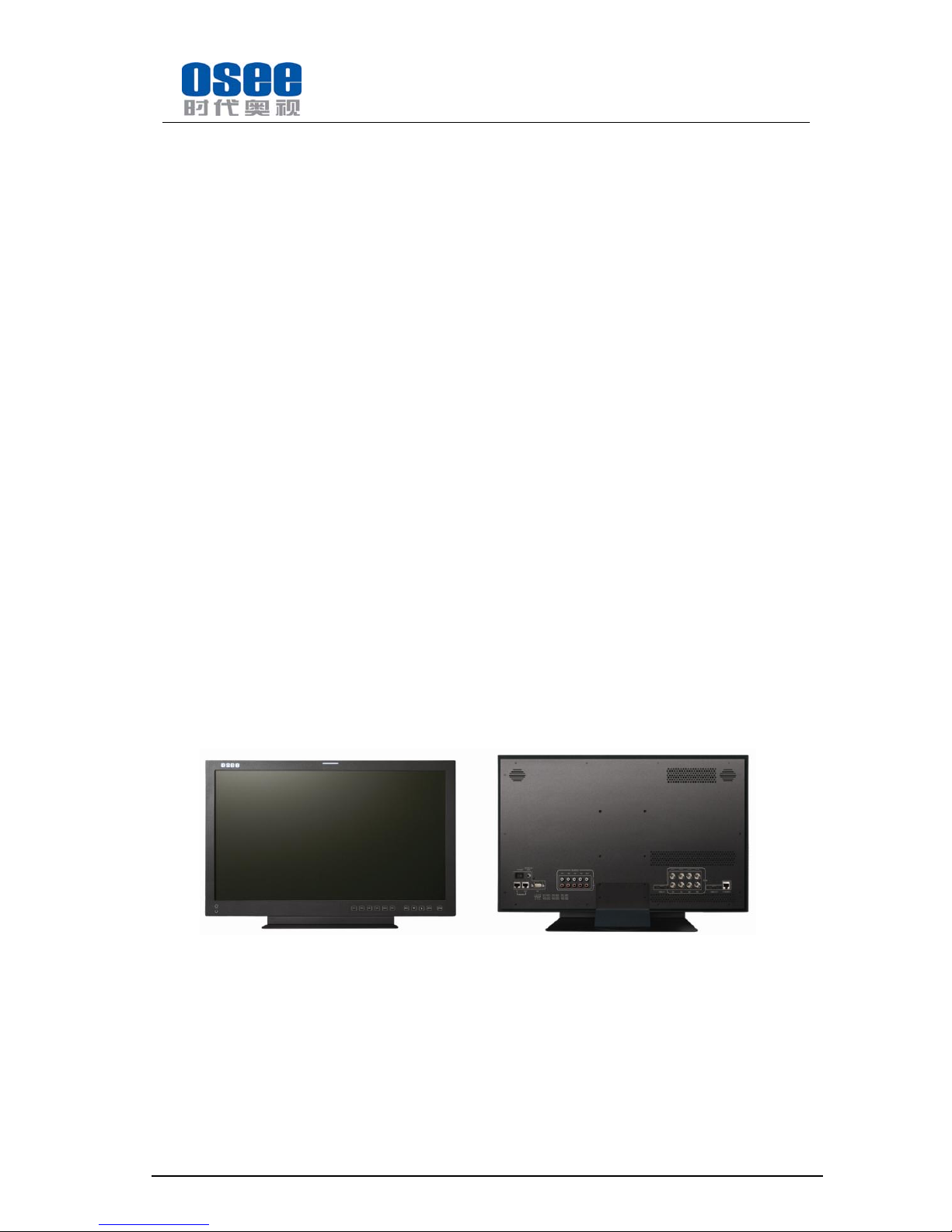
The MVM230 Quad Split LCD Monitor is a high-performance 23" professional LCD monitor featuring
quad split display. It supports high quality quad split displays and is designed to tailor the extensive
needs for programming, concentrated on download and upload, broadcast master control, studio,
centralized monitoring and so on.
The MVM230 Quad Split LCD Monitor supports the advanced 10- bit digital processing technology
and also supports 3D comb filter and de-interlace, accurate scaling engine, GAMMA correction and
color temperature adjustment function, in order to achieve the best possible image display. Each display
screen of the MVM230 is an independent professional monitor. So it can achieve the various
professional parameters and can be adjusted independently, including GAMMA, color temperature,
brightness, and so on.
The MVM230 Quad Split LCD Monitor supports 4ch 3G/HD/SD-SDI/CVBS signal and 1-way HDMI /
DIV-D signal input. It can simultaneously display four signal inputs, with three typical display modes
(including one full screen display, one - big with three - small screen display and four uniform size
screen display). Each display screen can achieve professional monitor display functions, including
embedded audio solution, audio monitoring, audio meter display, TC code display, IMD, various
Markers and so on.
Feature
178-degree viewing angle
Multi-format analog and digital audio signals
Support select 4 from 5 input signals to display
Support a single screen display as a professional monitor
Support the independent adjustment of the parameters for single screen
With all the important functions of multi-view processor
Page 5
MVM230 Quad Split LCD Monitor
User Manual
—3—
Support high-quality waveform, vector monitoring
Support HDMI output or HD-SD display, can achieve the cascade and copy output of devices
MARKER, Time Code, MET display
Pre-set the color temperature, user-adjustable color temperature
Page 6
MVM230 Quad Split LCD Monitor
User Manual
—4—
Chapter 2 Safety Precaution for Use
FCC Caution:
Any Changes or modifications not expressly approved by the party responsible for
compliance could void the user's authority to operate the equipment.
This device complies with part 15 of the FCC Rules.
Operation is subject to the following two conditions: (1) This device may not cause
harmful interference, and (2) this device must accept any interference received, including
interference that may cause undesired operation.
Note: This equipment has been tested and found to comply with the limits for a Class B
digital device, pursuant to part 15 of the FCC Rules. These limits are designed to provide
reasonable protection against harmful interference in a residential installation. This
equipment generates uses and can radiate radio frequency energy and, if not installed and
used in accordance with the instructions, may cause harmful interference to radio
communications. However, there is no guarantee that interference will not occur in a
particular installation. If this equipment does cause harmful interference to radio or
television reception, which can be determined by turning the equipment off and on, the
user is encouraged to try to correct the interference by one or more of the following
measures:
Reorient or relocate the receiving antenna.
Increase the separation between the equipment and receiver.
Connect the equipment into an outlet on a circuit different from that to which the receiver
is connected.
Consult the dealer or an experienced radio/TV technician for help.
Page 7
MVM230 Quad Split LCD Monitor
User Manual
—5—
Read and keep these instructions. Heed all warnings. Follow all instructions.
About the Position
1. Do not block any ventilation openings.
2. Do not use this unit near water.
3. Do not expose the unit to rain or moisture.
4. Do not install near any heat sources such as radiators, heat registers, stoves, or other
apparatus (including amplifiers) that product heat.
5. A nameplate indicating operating voltage, etc., is located on the rear panel. Install only
in accordance with the instructions in the section entitled, “Unpacking and Installation”
on page 3.
6. The socket-outlet shall be installed near the equipment and shall be easily accessible.
About the Power-supply Cord
7. Do not defeat the safety purpose of the polarized or grounding-type plug.
8. Do not damage the power cord, place the heavy objects on the power cord, stretch the
power cord, or bend the power cord.
9. Protect the power cord from being walked on or pinched, particularly at plugs,
convenience receptacles, and the point where they exit from the unit.
10. If the power cord is damaged, turn off the power immediately. It is dangerous to use the
unit with a damaged power cord. It may cause fire or electric shock.
11. Unplug this apparatus during lighting storms or when unused for long periods of time.
12. Disconnect the power cord from the AC outlet by grasping the plug, not by pulling the
cord.
13. Should any solid object or liquid fall into the cabinet, unplug the unit and have it
checked by qualified personnel before operating it any further.
Monitor
14. Do not beat with a hard object or scratch the LCD display.
15. Do not make the freeze picture displaying on the screen time too long, otherwise, it will
leave the afterimage on the screen.
16. Install in accordance with the manufacturer’s instructions
17. If the brightness is adjusted to the minimum, then it might be hard to see the display
screen.
18. Refer all servicing to qualified service personnel. Servicing will be required under all of
the following conditions:
The unit has been exposed to rain or moisture.
Liquid had been spilled or objects have fallen onto the unit.
The unit has been damaged in any way, such as when the power-supply cord or
plug is damaged.
The unit does not operate normally.
19. Clean only with dry cloth.
20. Specifications are subject to change without notice.
Page 8
MVM230 Quad Split LCD Monitor
User Manual
—6—
Chapter 3 Unpackaging and installation
Opening the box, please check whether the device has been damaged during transport. Check all
the things listed on the packing list are received. If there is any missing, contact your distributors
or OSEE for it.
We recommend that you should save the packing materials for future needs.
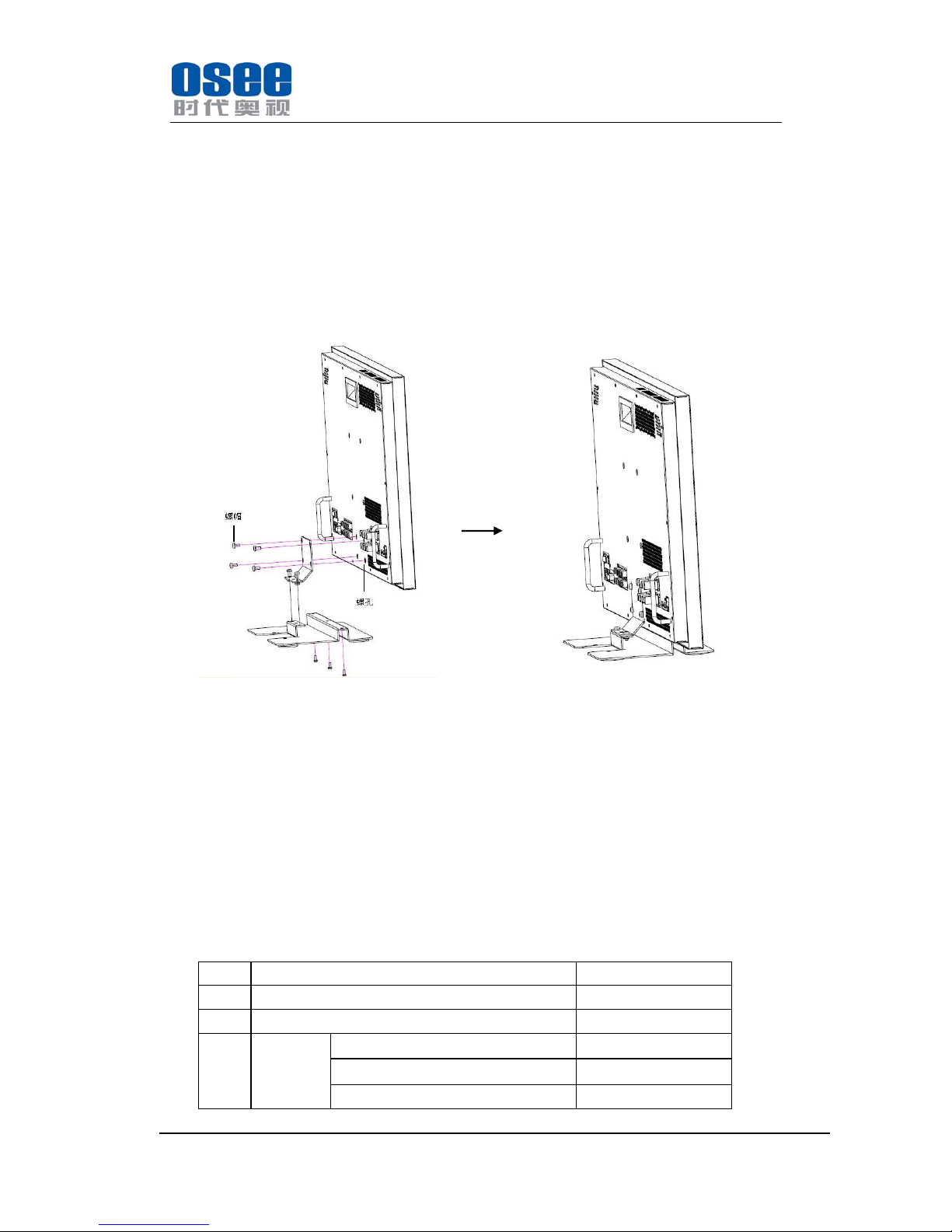
1. Install the base.
Installation
2. Put the MVM230 on the position you need for installing, and connect the power. Please
make sure the place you put is safety.
3. Connect a standard signal lines to the corresponding input port. All BNC connector
impedance must be 75Ω.
Note: Please use the power adapter supplied to avoid unnecessary trouble.
4. Use the power adapter and cord to connect single-phase three-wire AC power or following
the local power supply conditions. Make sure the power cord grounding well.
5. Finally, turn on the power switch, so that the device will be ready for work.
Packing List:
NO. Detail list Quantity
1 Host 1
2 Base 1
3
Accessory warranty card
1
the base installation instruction
1
User manual 1
Page 9
MVM230 Quad Split LCD Monitor
User Manual
—7—
4
The
electric
accessory
19V adapter
1
Power cord
1
Base board with screws 1
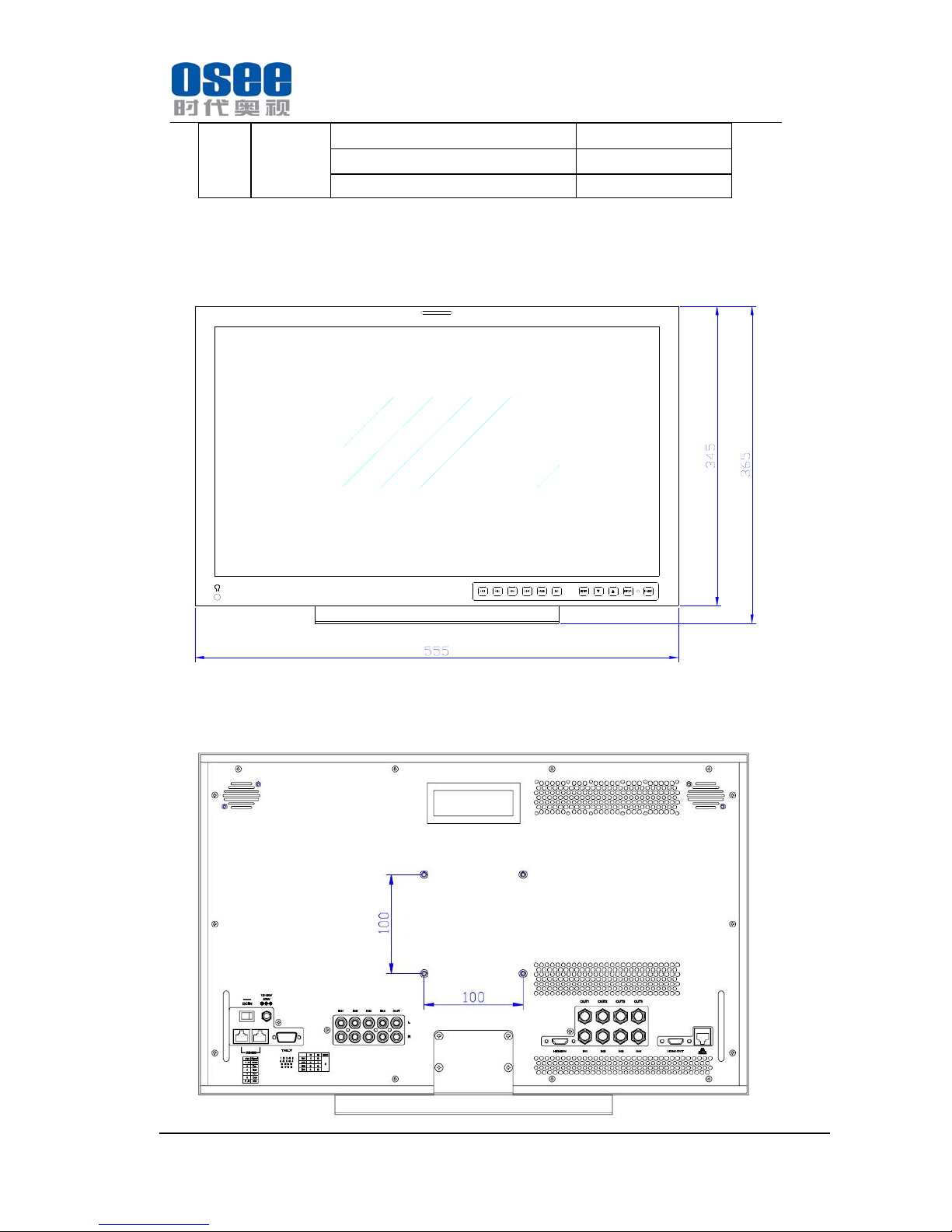
Chapter 4 Description of product structure
Front panel (Unit: mm)
Rear panel (Unit: mm)
Page 10
MVM230 Quad Split LCD Monitor
User Manual
—8—
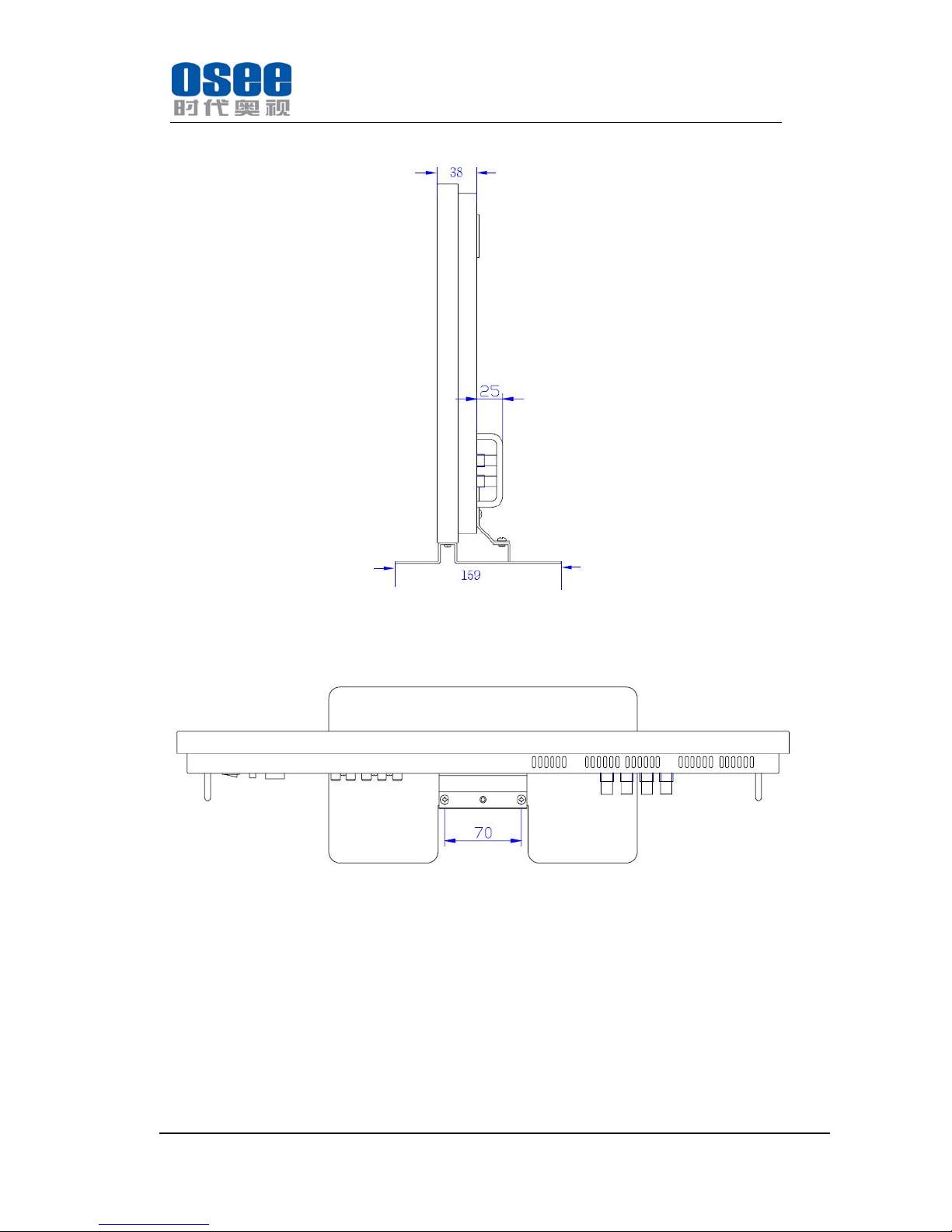
Side view (Unit: mm)
Top view (Unit: mm)
Page 11
MVM230 Quad Split LCD Monitor
User Manual
—9—
Chapter 5 Usage
5.1 Description for Display status
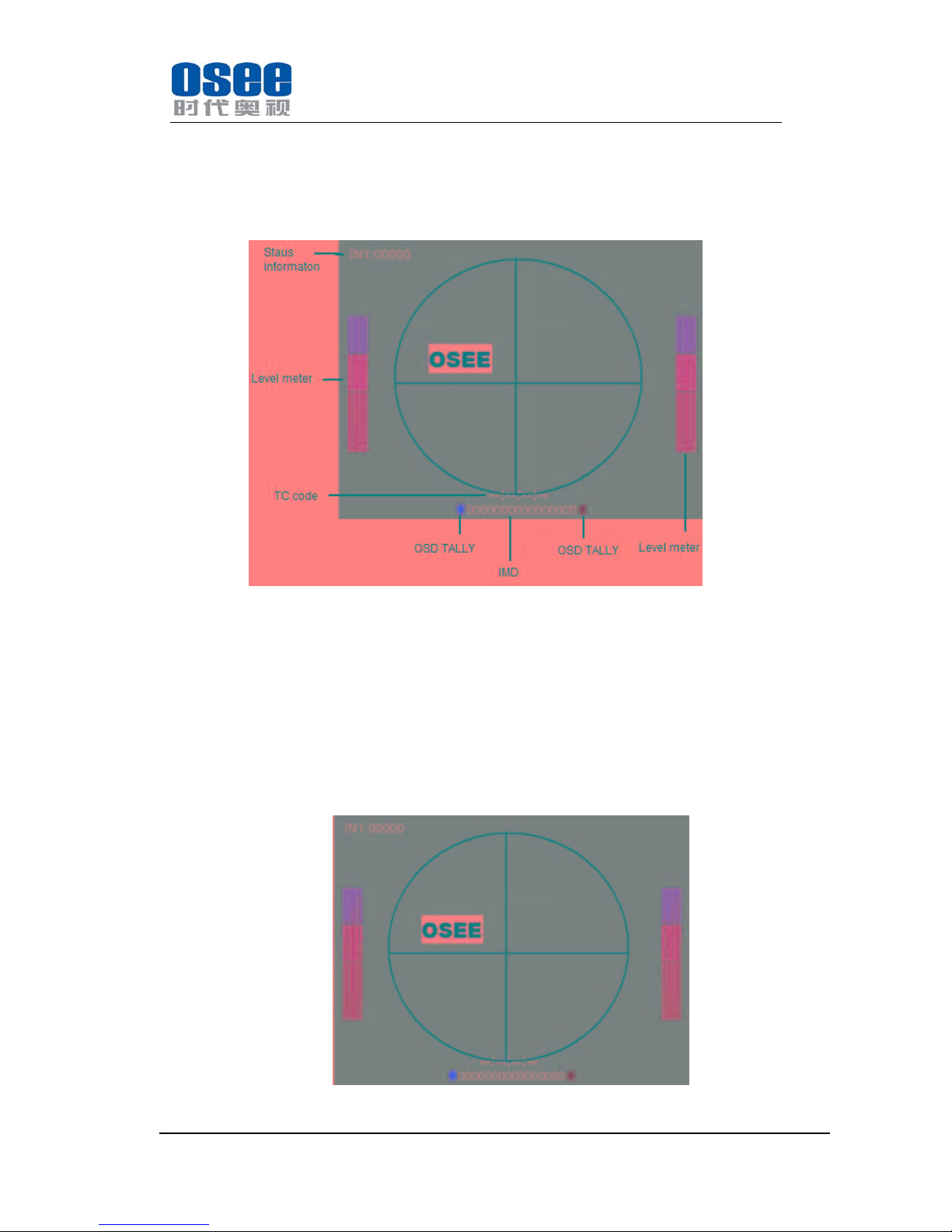
Status information: Displayed in the upper left corner of each window, including
the input channel number and signal format.
TC code: Display Format: HH: MM: SS: FF and if there is no TC code, display
--:--:--:--.
IMD:16 characters can be displayed. Support the character color change (red,
green, yellow, white).
OSD T ALLY: Display OSD TALLY. Supports color change (red, green, yellow,
white).
Level meter: Display audio meter. Support for semi-transparent display, can
reduce the impact for the image.
Single-screen, full 16-channel audio meter
Page 12
MVM230 Quad Split LCD Monitor
User Manual
—10—
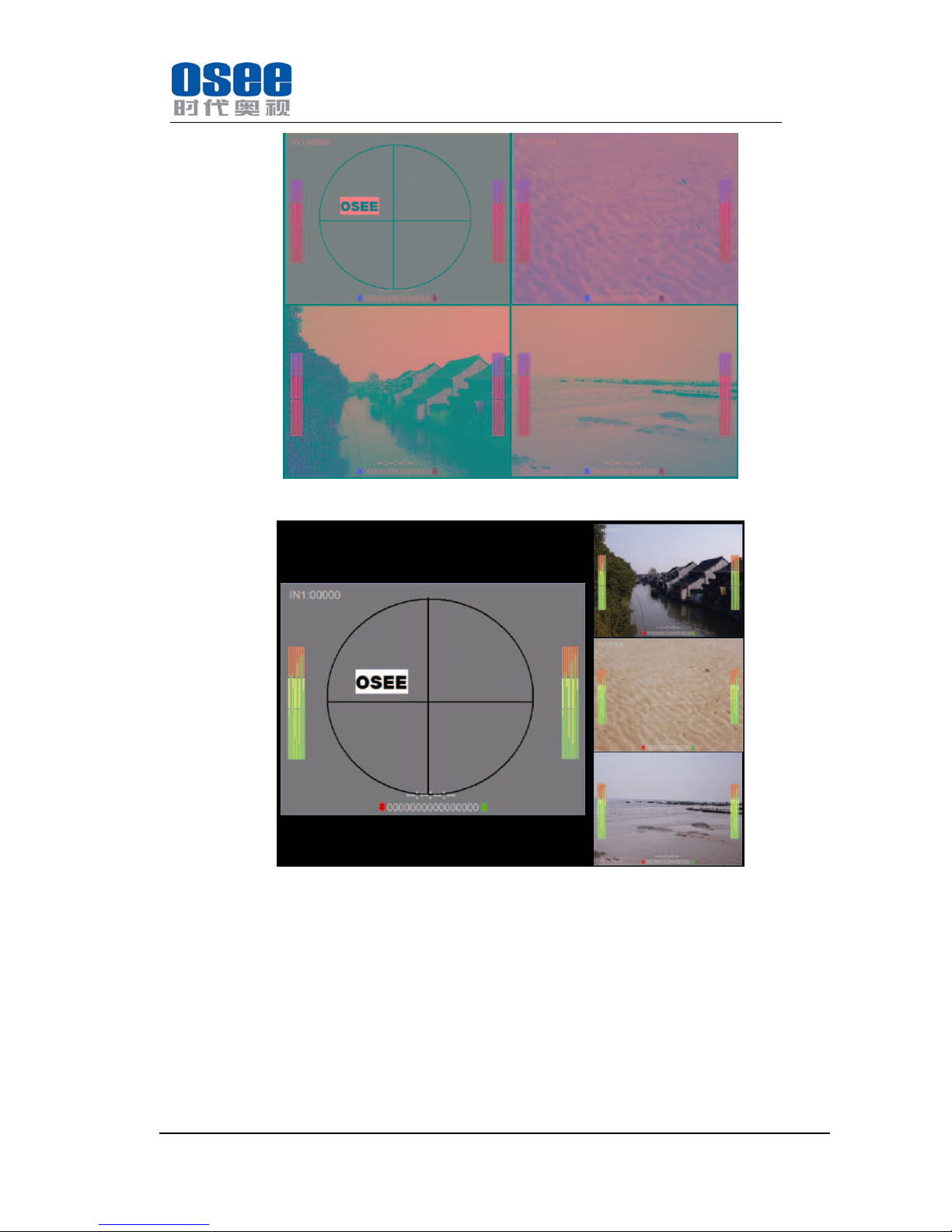
Four-screen, full 16-channel audio meter
One-big and with three-small screen, full 16-channel audio meter
Page 13
MVM230 Quad Split LCD Monitor
User Manual
—11—
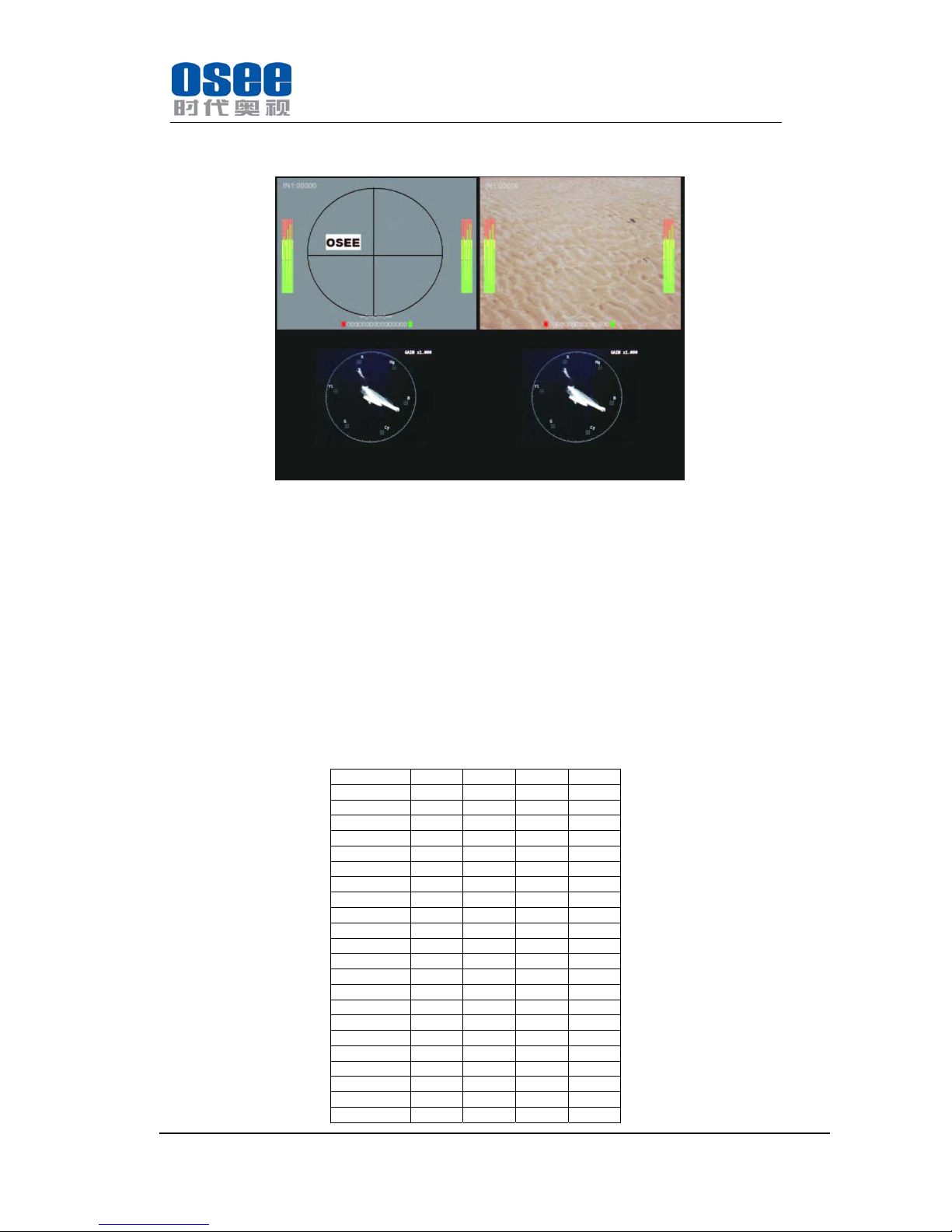
Waveform and vector display: Display in the screen. (Only for CH1 and CH2.)
As below.
5.2 Signal Format
Video input signal: 4 adaptive CVBS, SD/HD/3G-SDI video (supports embedded
audio) and one DVI -D/ HDMI (as the same as IN1).
Audio input signal: Four pairs of stereo analog audio.
Video output signal: 1 DVI-D/HDMI (with audio).
Audio output signal: 1 audio monitor output and 1 headphone output.
Other: RS-485, GPIO, LAN, etc.
5.3 Supported Format:
Format SDI Video HDMI DVI
NTSC YES
PAL YES
SECAM YES
NTCS-4.43
YES
PAL-M YES
480I60 YES YES
576I50 YES YES
480P60 YES
576P50 YES
720P24 YES
720P25 YES
720P30 YES
720P50 YES YES
720P60 YES YES
1035I60 YES YES
1080I60 YES YES
1080I50 YES YES
1080P24 YES YES
1080P25 YES YES
1080P30 YES YES
1080P50 YES YES
1080P60 YES YES
Page 14
MVM230 Quad Split LCD Monitor
User Manual
—12—
1080SF24 YES
VGA YES
SVGA YES
XGA YES
SXGA YES
UXGA YES
WVGA YES
WXGA YES
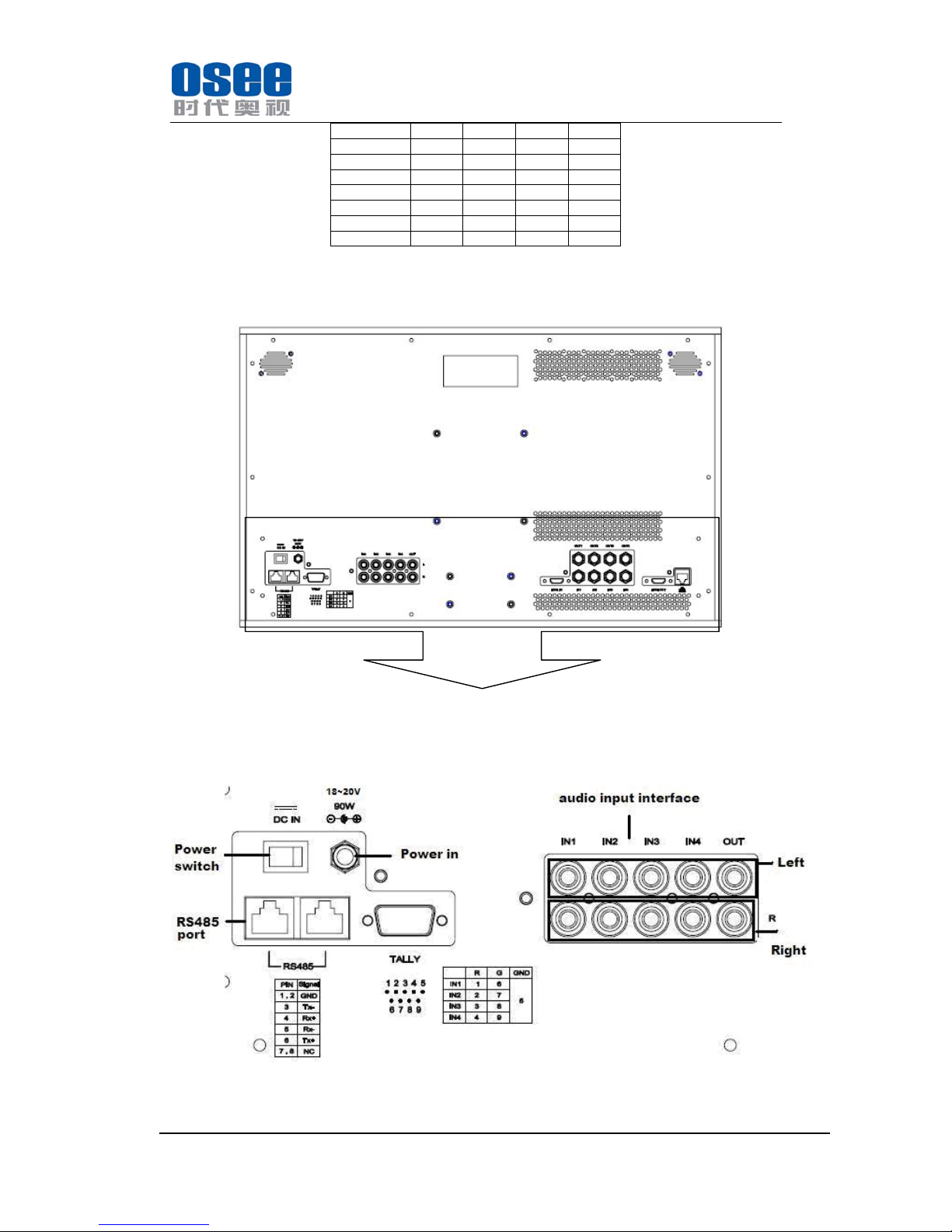
5.4 Interface of rear panel
Detail
Left of the rear panel:
Page 15
MVM230 Quad Split LCD Monitor
User Manual
—13—
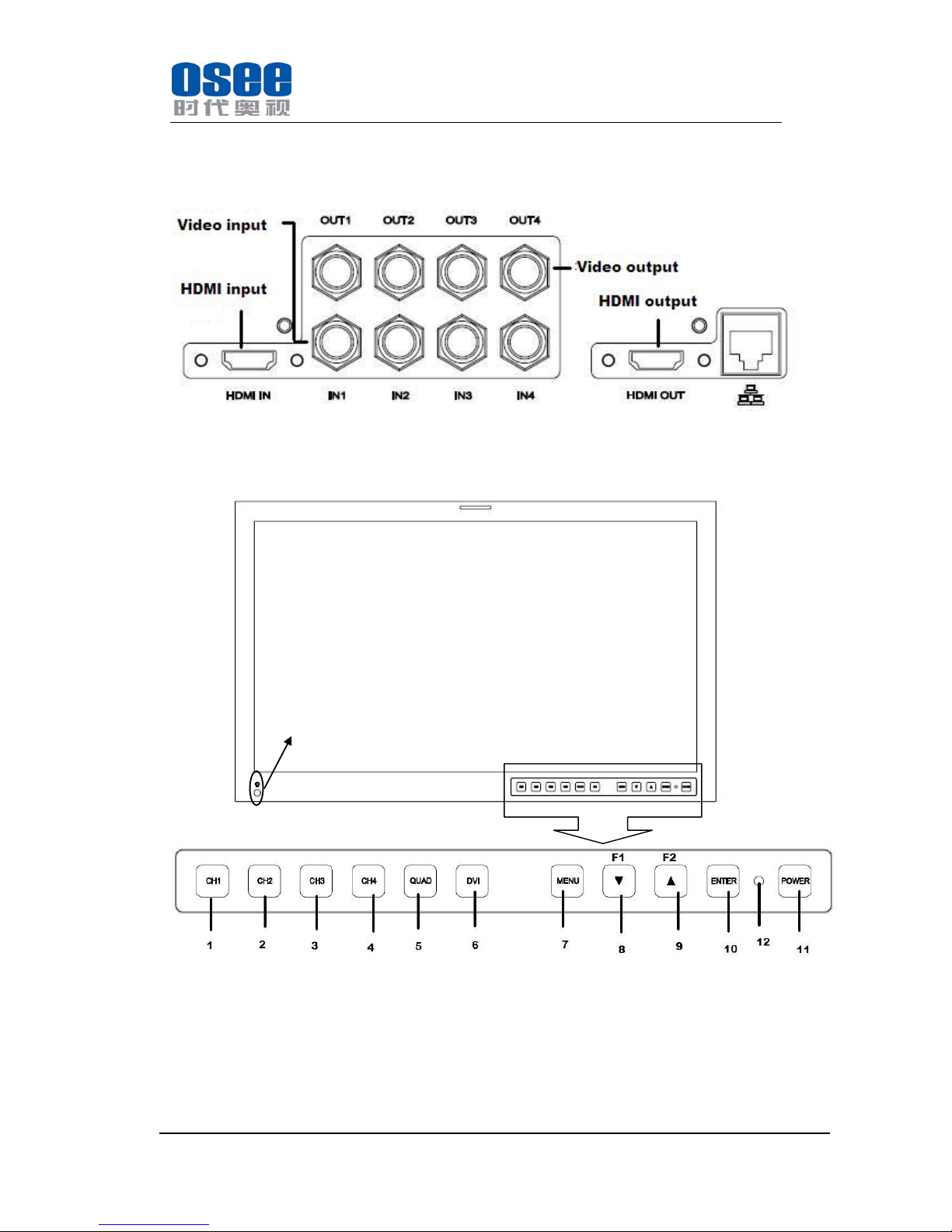
Note: The specs are subject to change without prior notice.
Right of the rear panel:
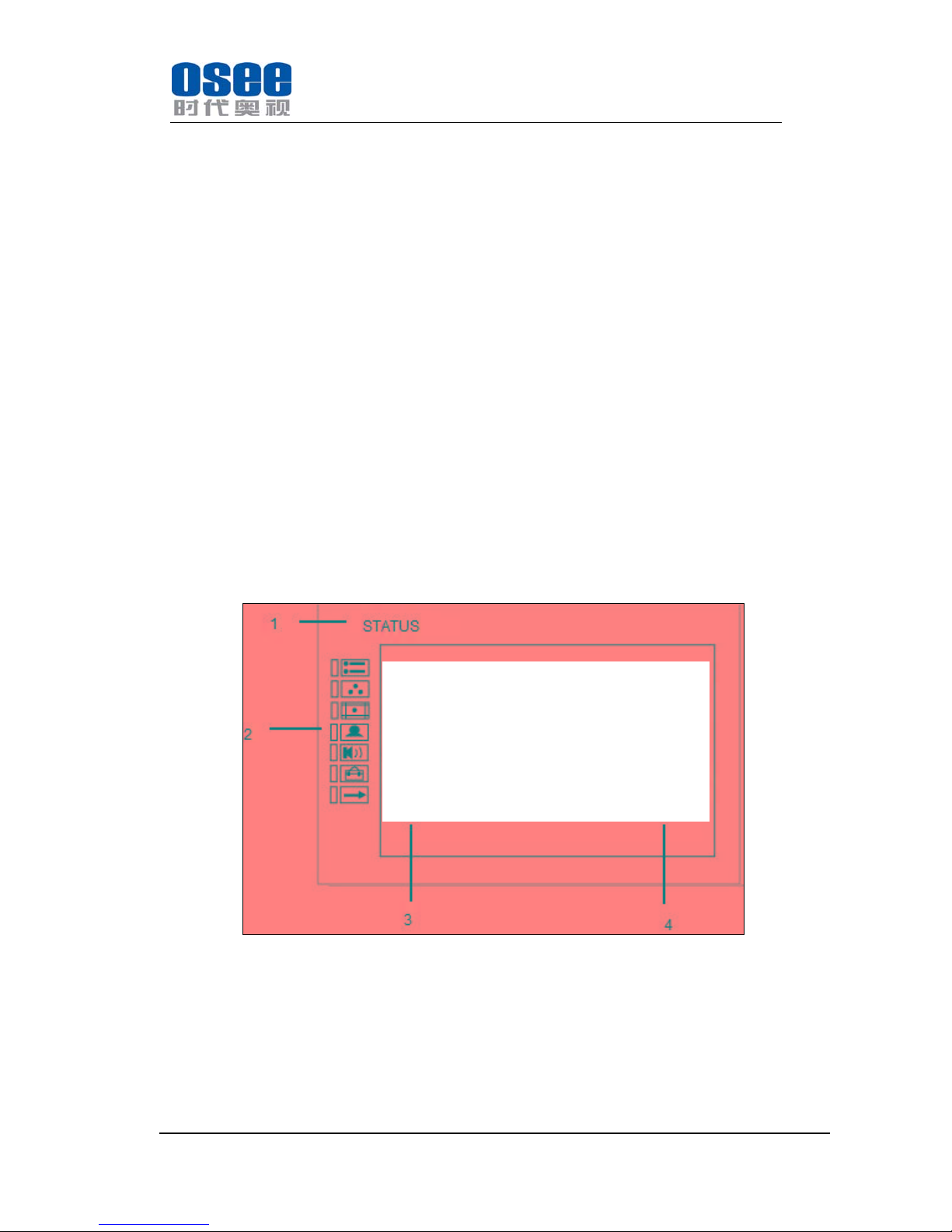
5.4 Interface of front panel
Detail
1~4: Channel 1-4, switch to full screen for CH, and press the key again, the screen
will return to quartered screen.
5:Layout, there are two modes to choose: quartered screen and one add trisection
screen.
6:DVI input, there are two formats: HDMI or IN1. And it is for CH1. And press this
Headphone port
Page 16
MVM230 Quad Split LCD Monitor
User Manual
—14—
key for a moment, the settings will restore to default settings.
7:MENU, enter the menu item. Or press this key for a moment; the startup logo setup
menu will appear.
8:DOWN/F1, function key and DOWN. And the function key is only active for the
selected channel.
9:UP/F2, function key and UP. And the function key is only active for the selected
channel.
10:ENTER, save the setup or enter the item selected.
11:Power switch
12:Power indicator, Red: standby, Green: normal.
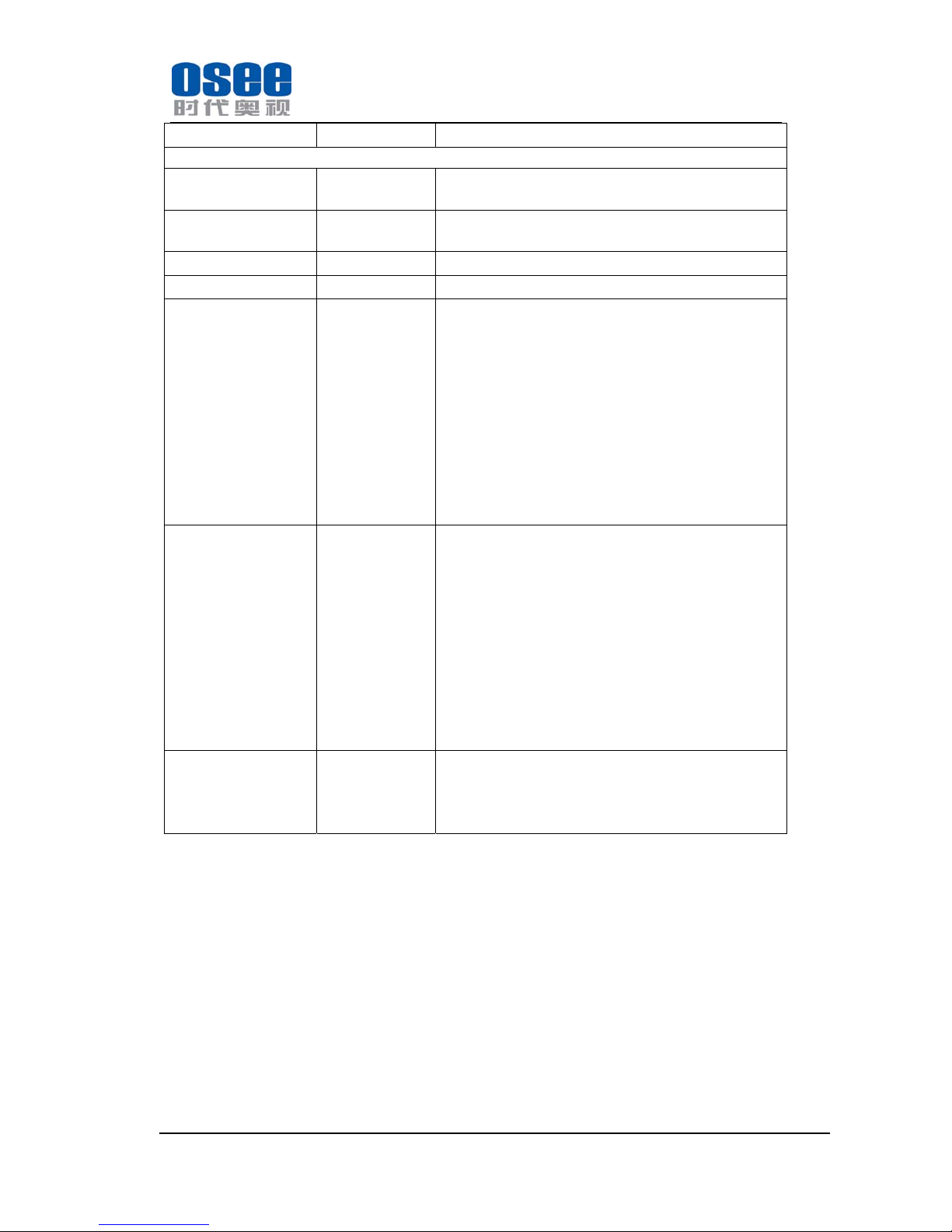
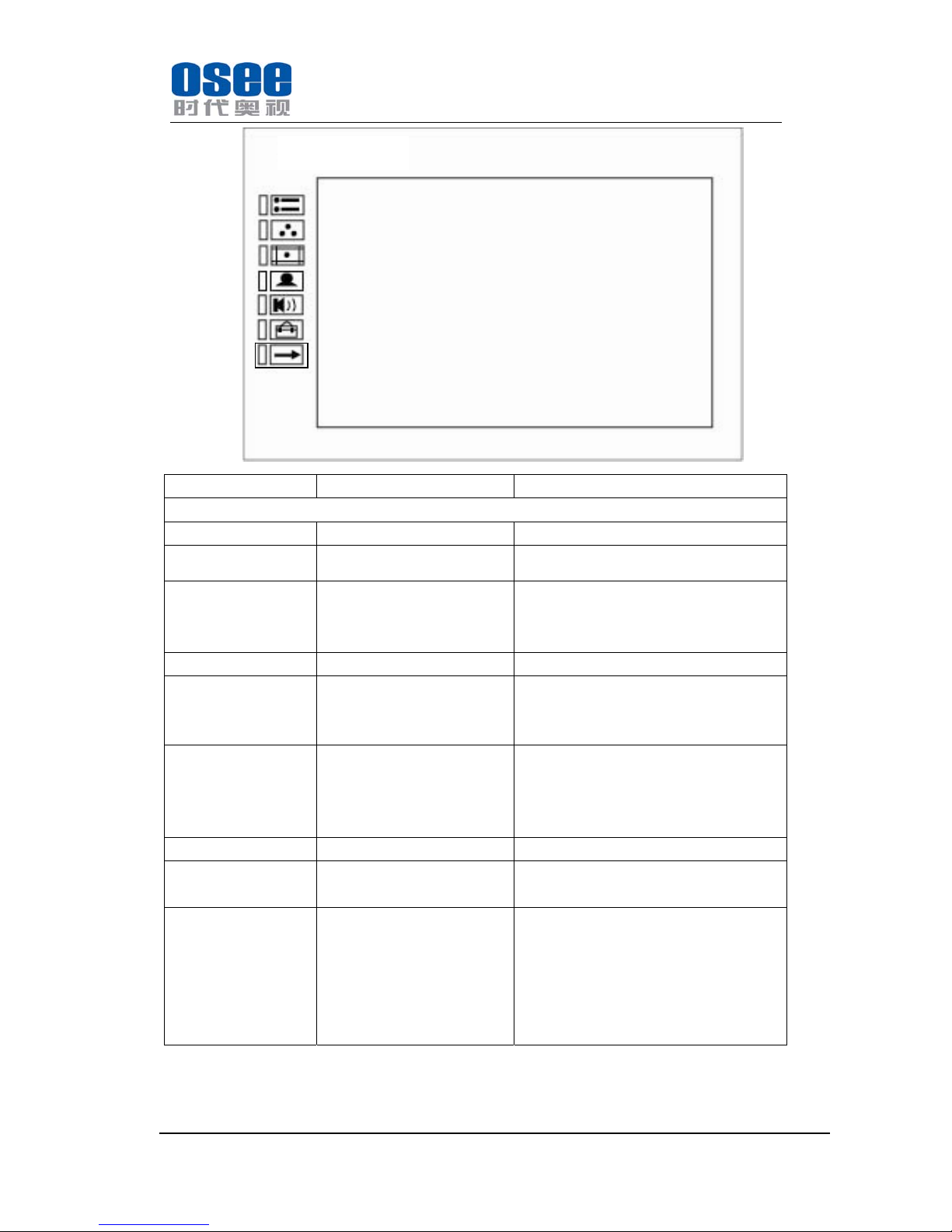
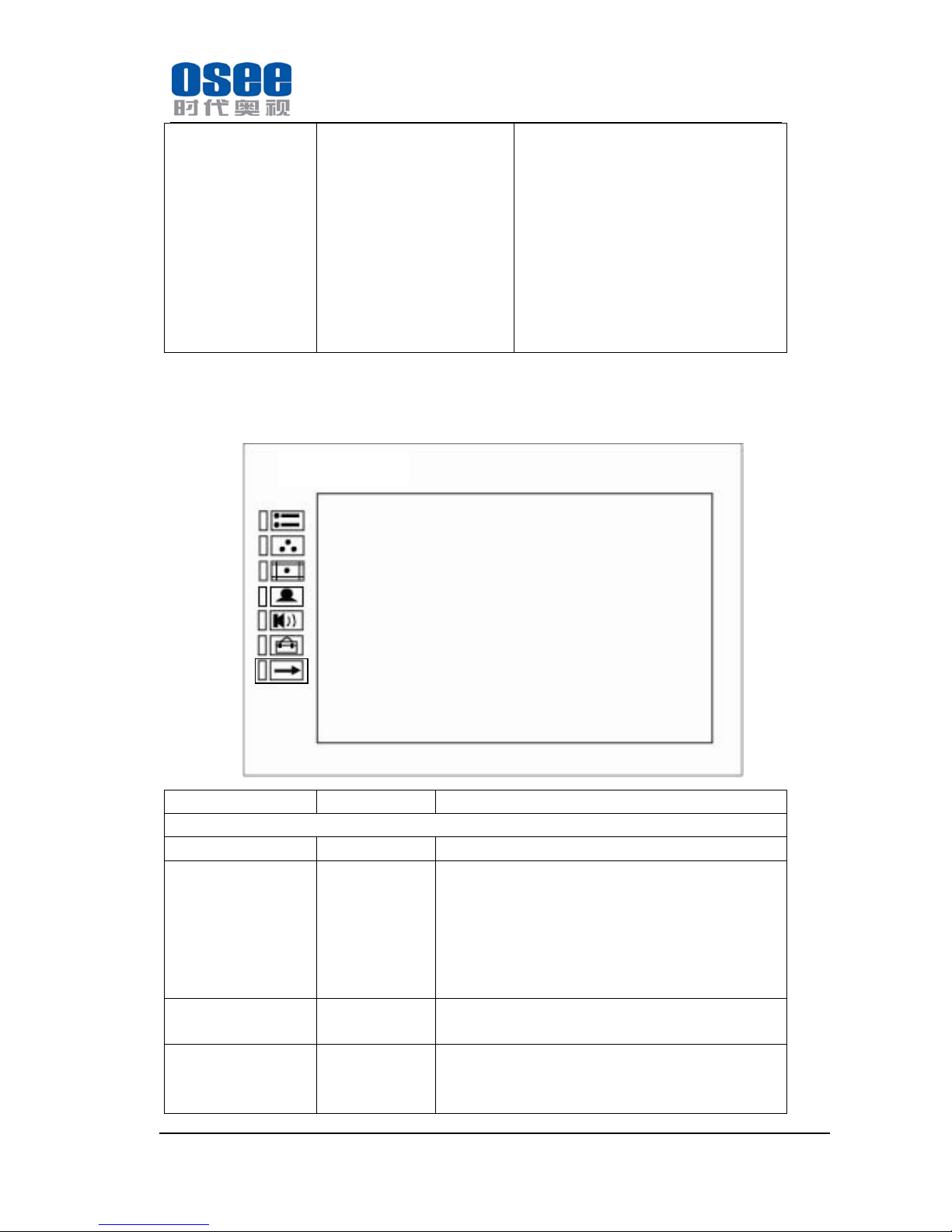
Chapter 6 Menu Description
6.1 Main menu
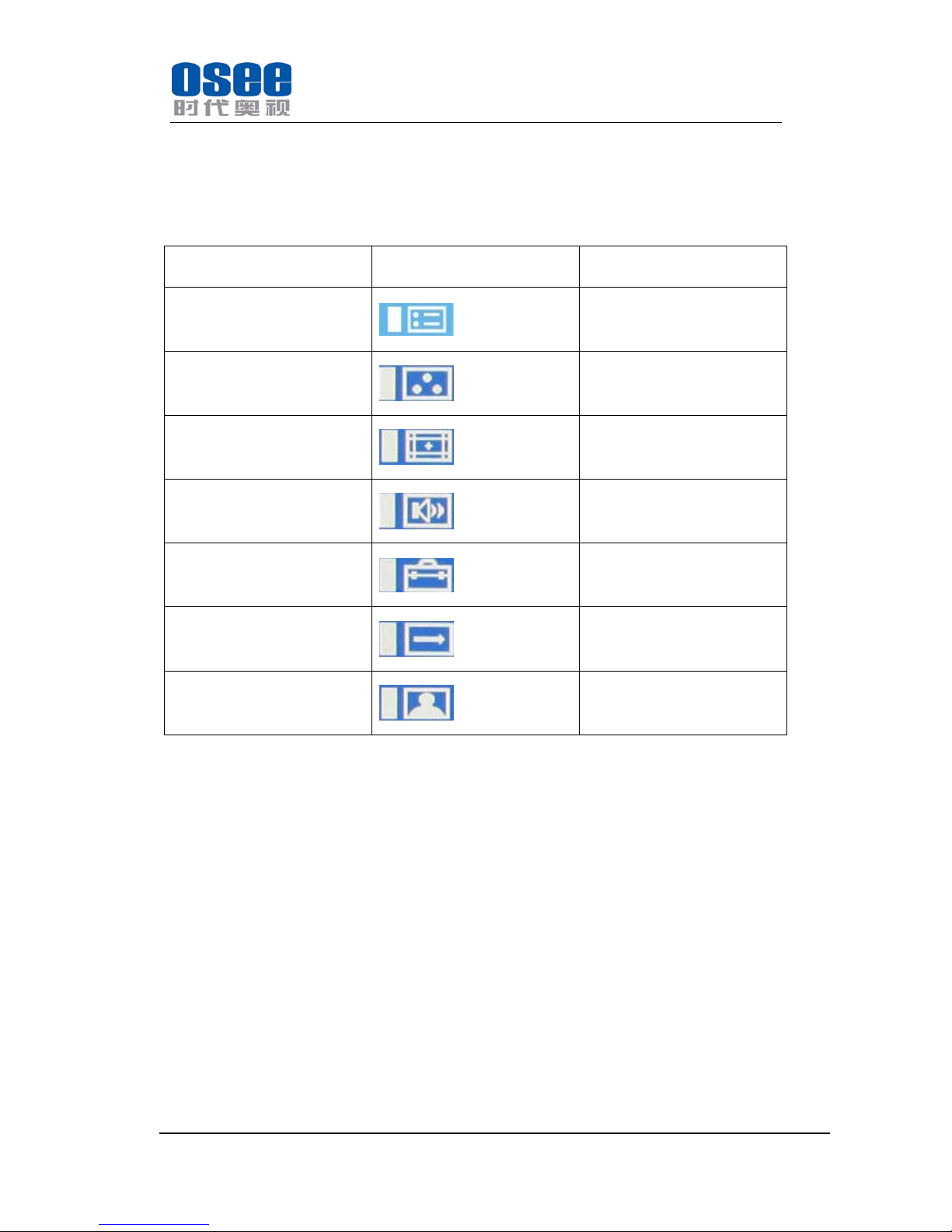
It displays by pressing the MENU button.
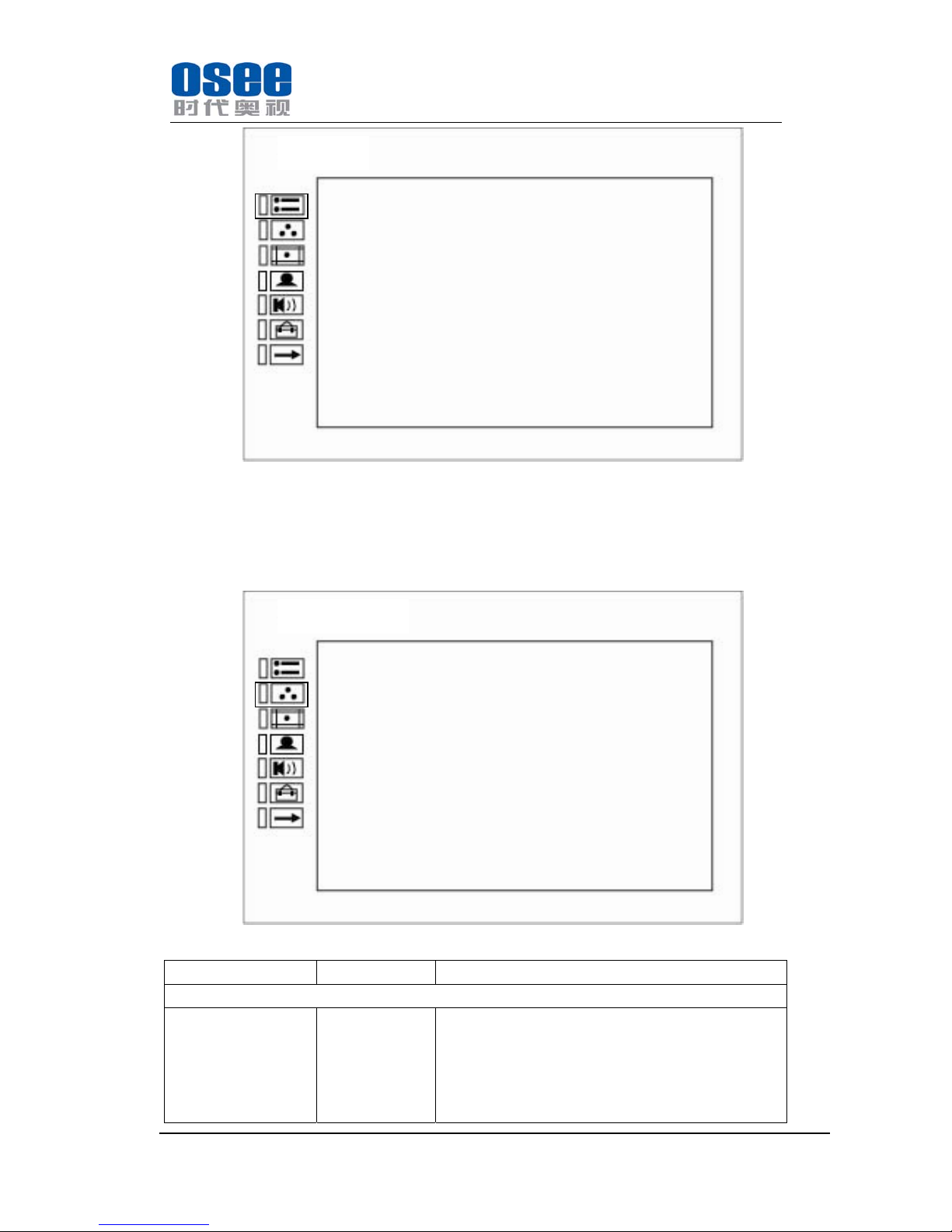
Menu
1- MENU name, it shows the menu item.
2- Main menu item selection part and it shows the menu item icons. It includes the main menu
items.
3- Menu setup item, it shows the setup parameter of main menu items. Press ENTER and
UP/DOWN to select the items.
CH 3
COLOR TEMP D65
ASPECT MODE NONE
SCAN MODE OVER
IP ADDRESS 192.168.1.1
SUBNET MASK 255.255.255.0
SERIAL NO. MVM23020110801
MODEL MVM230-H
Page 17
MVM230 Quad Split LCD Monitor
User Manual
—15—
4- Parameter information of the items. Changes the item setup parameter of the item you
selected, press ENTER and it will also save your setup. If you don’t want to change the
parameter, press MENU to turn back to the previous menu. The item selected will be yellow
and when the character is white it can be changed and when the character is blue it cannot be
changed.
Menu item Icon Detail
STATUS
COLOR TEMP
MARKER
AUDIO CONFIG
USER CONFIG
OSD CONFIG
-
Not being
Detail information of the menu is as follow:
(1) STATUS
Page 18
MVM230 Quad Split LCD Monitor
User Manual
—16—
This item displays the monitor information, and the parameters cannot be adjusted.
And maximum 9 items in one page.
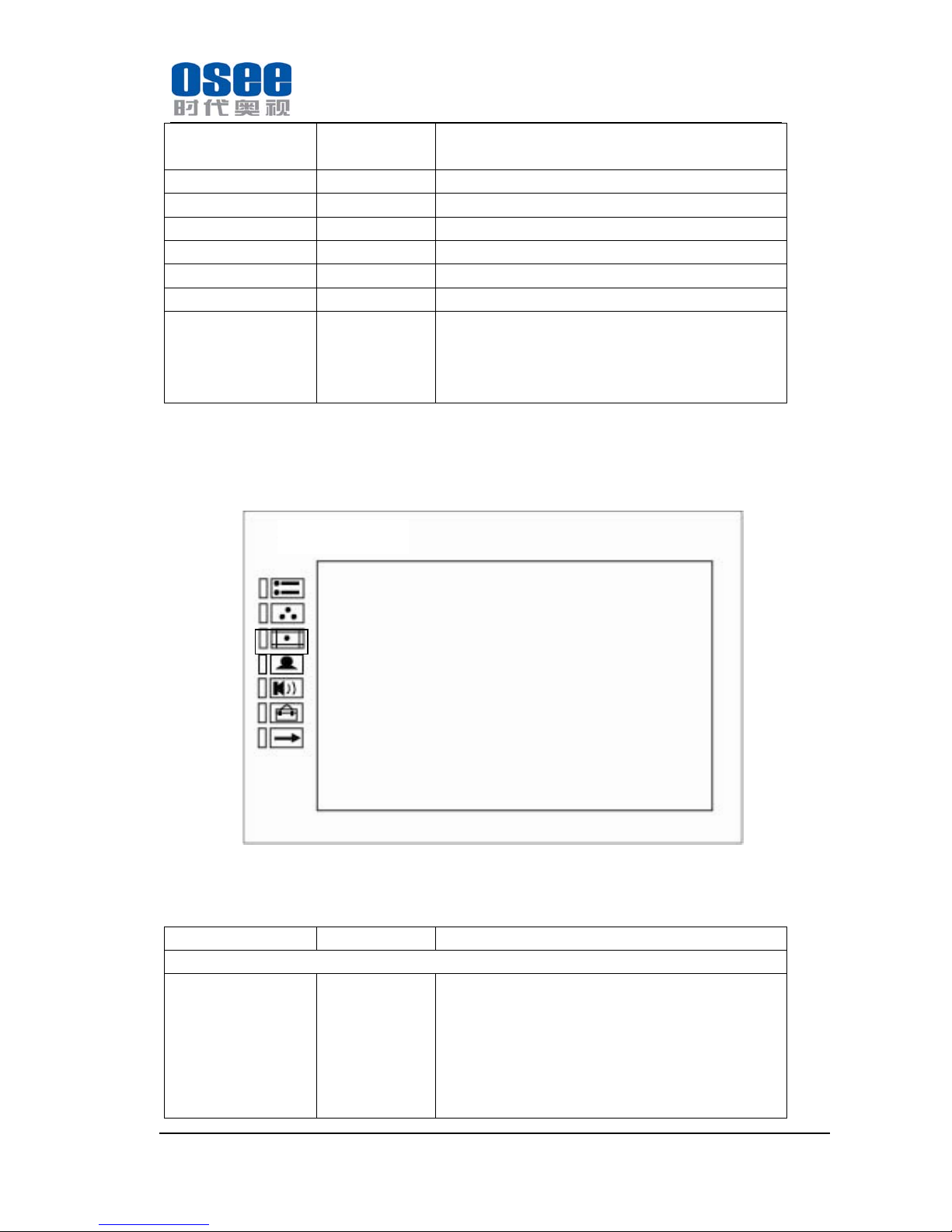
(2) COLOR TEMP
The COLOR TEMP menu is used for adjusting the picture white balance.
Sub Menu Settings Explanation
COLOR TEMP
COLOR TEMP D65 Setting the color temperature
<D93>
<D65>
<D56>
<USER> (User setup), In USER, RED GAIN,
STATUS
CH 3
COLOR TEMP D65
ASPECT MODE NONE
SCAN MODE OVER
IP ADDRESS 192.168.1.1
SUBNET MASK 255.255.255.0
SERIAL NO. MVM23020110801
MODEL MVM230-H
COLOR TEMP
-COLOR TEMP D65
-RED GAIN 128
-GREEN GAIN 128
-BLUE GAIN 128
-RED BIAS 32
-GREEN BIAS 32
-BLUE BIAS 32
-RESET
Page 19
MVM230 Quad Split LCD Monitor
User Manual
—17—
GREEN GAIN, BLUE GAIN, RED BIAS, GREEN
BIAS, BLUE BIAS and RESET can be adjusted.
RED GAIN 128 <0-255>
GREEN GAIN 128 <0-255>
BLUE GAIN 128 <0-255>
RED BIAS 32 <0-64>
GREEN BIAS 32 <0-64>
BLUE BIAS 32 <0-64>
RESET Color temperature reset, when enabled, RED GAIN,
GREEN GAIN, BLUE GAIN, RED BIAS, GREEN
BIAS and BLUE BIAS will return to the default
values.
When adjusting the GAIN and BIAS settings, the item display moves to the lower part of the
screen.
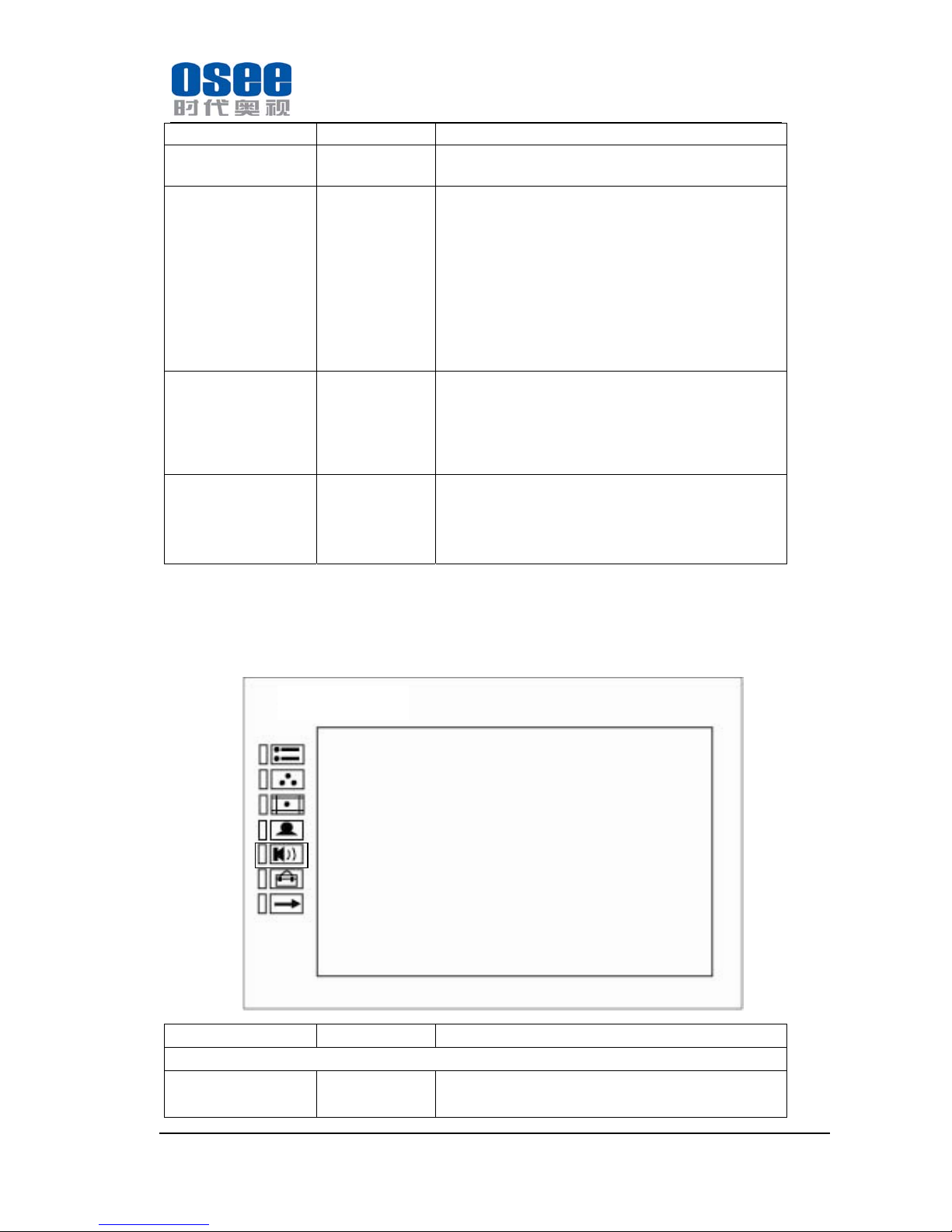
(3) MARKER
The MARKER menu is used for setting the marker.
Only when one single screen displays as full-screen, MARKER is enabled. The current state is
NATIVE or DVI input, MARKER is disenabled.
Sub Menu Settings Explanation
MARKER
AREA MARKER OFF
Setting the area marker aspect ratio, for 16:9 only.
<OFF>
<4:3>
<15:9>
<14:9>
<13:9>
<1.85:1>
MARKER
-AREA MARKER OFF
-CENTER MARKER OFF
-SAFETY MARKER 85%
-MARKER LEVEL 1
-MARKER MAT HALF
Page 20
MVM230 Quad Split LCD Monitor
User Manual
—18—
<2.35:1>
CENTER MARKER OFF
<ON> marker displayed
<OFF> marker not displayed
SAFETY MARKER OFF
Setting the picture safe area marker which is in the
area of AREA MARKER.
<OFF>
<80%>
<85%>
<88%>
<90%>
<93%>
<95%>
MARKER LEVEL <1>
Sets the luminance to display SAFTY, CENTER and
AREA MARKER line.
<1>: 50% white level
<2>: 75% white level
<3>: 100% white level
MARKER MAT <OFF>
Sets the area marker mat transparency.
<OFF>Normal background, only use line for area
marker edge indication
<HALF> 50% background brightness
<BLACK> Black
16:9 and 4:3 area marker settings should be stored in E2PROM separately. Use 16:9 setting if
display aspect is 16:9; Use 4:3 setting if display aspect is 4:3
Marker is disabled when SCAN is NATIVE, input is DVI.
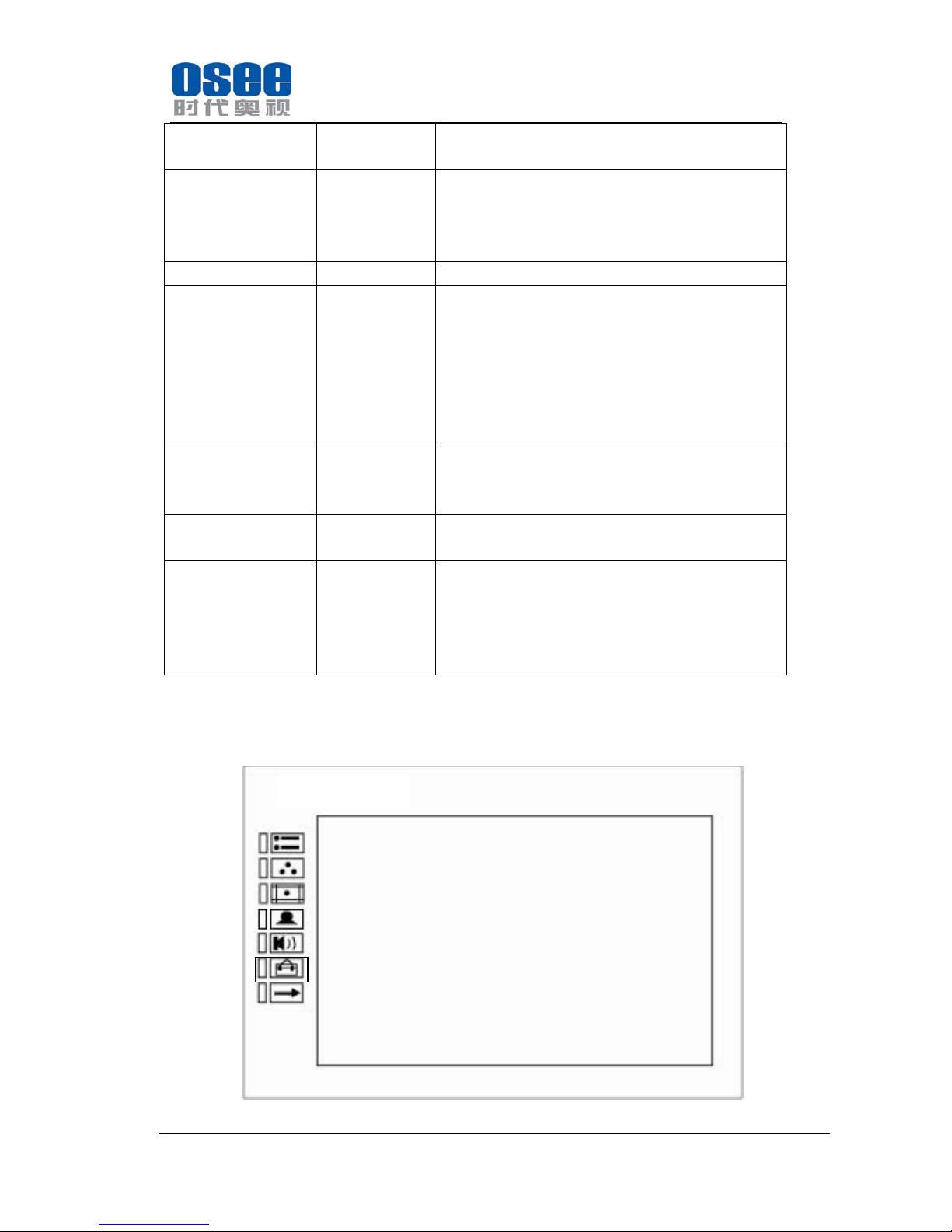
(4) AUDIO CONFIG
Sub Menu Settings Explanation
AUDIO CONFIG
AUDIO SRC OFF Select external audio source
<OFF>
AUDIO CONFIG
-AUDIO SOURCE EBD
- SPEAKER L EBD CH1
- SPEAKER R EBD CH2
-ACTIVE ONLY OFF
-METER DISP OFF
-REF LEVEL -20dB
-OVER LEVEL -10dB
Page 21
MVM230 Quad Split LCD Monitor
User Manual
—19—
<EXT>
<EBD>
SPEAKER L EBD CH1 Select the embedded audio channel to the left speaker
and line out
<OFF>
<EBD CH1 – CH16>
SPEAKER R EBD CH2 The same as above
METER DIS OFF
<OFF>
<2CH>
<4CH>
<6CH>
<8CH>
<10CH>
<12CH>
<14CH>
<16CH>
ACTIVE ONLY OFF Display the active embedded audio group only
<OFF>
<ON>
REF LEVEL -20dB <-20dB>
<-18dB>
OVER LEVEL -10dB <-10dB>
<-8dB >
<-6dB >
<-4dB >
<-2dB >
The SDI embedded audio outputs are selected by these items, the HDMI outputs and analog audio
outputs are fixed.
(5) USER CONFIG
USER CONFIG
-B.LIGHT 15
-LANGUAGE ENGLISH
- PHASE 50
-APERTURE 8
-F1 BUTTON SCAN MODE
- F1 BUTTON ASPECT MODE
-LAYOUT2 MODE 16:9
-LOCK NUMBER RVAA003J
Page 22
MVM230 Quad Split LCD Monitor
User Manual
—20—
Sub Menu Settings
Explanation
USER CONFIG
BACKLIGHT 13
Adjusts the backlight
<0 ... 30>
LANGUAGE ENGLISH
<ENGLISH>: English
<中文>: Chinese
PHASE (NTSC only) 50
<0 ... 100>
APPERTURE 20
<0 ... 63>
F1 BUTTON MARKER
<MARKER>: Control all MARKERS. ON-OFF
<AUD METER>: Control all audio meter display,
ON-OFF
<WAVEFORM>: ON-OFF
<H/V DELAY>: OFF-H-V-H/V
<NATIVE>: ON-OFF
<BLUE ONLY>: ON-OFF
<MONO>: ON-OFF
<ASPECT>:For SD Signal,16:9-4:3 adjust
<SCAN>:NORMAL-OVER
<NONE>: no settings
F2 BUTTON SCAN
<MARKER>: Control all MARKERS. ON-OFF
<AUD METER>: Control all audio meter display,
ON-OFF
<WAVEFORM>: ON-OFF
<H/V DELAY>: OFF-H-V-H/V
<NATIVE>: ON-OFF
<BLUE ONLY>: ON-OFF
<MONO>: ON-OFF
<ASPECT>:For SD Signal,16:9-4:3 adjust
<SCAN>:NORMAL-OVER
<NONE>: no settings
LOCK NUMBER -
Function lock code input, 8 characters. Each character
can input number or letter.
Note: Be careful to adjust this option to avoid
unnecessary mistakes.
(6) OSD CONFIG
PAGE 1:OSD DISPLAY
Page 23
MVM230 Quad Split LCD Monitor
User Manual
—21—
Sub Menu Settings Explanation
OSD CONFIG
NEXT PAGE - For turning to the next page.
IMD DISPLAY OFF
<OFF>
<ON>
IMD COLOR RED
<RED>
<GREEN>
<YELLOW>
<WHITE>
IMD CHARACTER LM170 HD MONITOR 16 characters
TC DISPLAY OFF <OFF>
<LTC>
<VITC>
WAVE FORM OFF <OFF>
<WAVE FORM>
<VECTOR 75>
<VECTOR 100>
WAVE OVER LIMIT 50 <0-100>
WAVE UNDER
LIMIT
50 <0-100>
STATUS DISPLAY AUTO <OFF> the display is hidden
<AUTO> the input source and format are
displayed for about 10 seconds when the
input of the signal changes
<ON> the input source and format are
always displayed
OSD CONFIG
-NEXT PAGE
-IMD DISPLAY ON
- IMD COLOR RED
-IMD CHAR MVM230-H
-TC DISPLAY ON
-WAVE FORM OFF
-WAVE OVER LIMIT 90
-WAVE UNDER LIMIT 10
-FORMAT DISPLAY AUTO
-CC OFF
Page 24
MVM230 Quad Split LCD Monitor
User Manual
—22—
CC OFF <OFF>
<CC1>
<CC2>
<CC3>
<CC4>
<TEXT1>
<TEXT2>
<TEXT3>
<TEXT4>
<XDS>
1. Only channel 1 and 3 have wave form and vector functions.
2. CC is inactive.
PAGE 2:IMD DISPLAY
Sub Menu Settings Explanation
OSD CONFIG
NEXT PAGE - For turning to the next page.
IMD PROTOCOL LOCAL
LOCAL/TSL3.1/TSL4.0/IMAGE VIDEO
LOCAL: Use IMD setting to control.
TSL3.1: Use the TSLV3.1 protocol setting to control.
TSL4.0: Use the TSLV4.0 protocol setting to control.
IMAGE VIDEO: Use the Image video protocol setting
to control.
IMD ID
0 <0 – 255>
IMD NAME M00000 16 Characters for Option, the character range is 0x10
to 0x7e of ASCII encoding
Use this setting to assign a name to the Remote
OSD CONFIG
-NEXT PAGE
-IMD PROTOCOL LOCAL
- IMD ID 2
-IMD NAME M00000
-BAUD RATE 19200
-OSD TLY MODE RG
-IMD TLY MODE T1
-TLY SOURCE STANDARD
Page 25
MVM230 Quad Split LCD Monitor
User Manual
—23—
Display.
Press ENTER to edit the IMD name, Use UP and
DOWN to select characters, Press ENTER to go to
next cursor, Press MENU to exit editor.
BAUD RATE 19200 9600/19200/38400
TSL V3.1 and TSL V4.0 is 38400, Image video is one
of the 9600/19200/38400.
LED TLY
OFF
ON/OFF
Set the LED Tally ON or OFF.
OSD TLY MODE OFF
RG/GR/RGY/OFF
Use this setting to choose OSD Tally Mode, Only the
TALLY SOURCE is STANDARD or
STANDARD+IV422, the setting is available.
IMD TLY MODE T1 T1/T2/T1T2/T2T1/T1-/T2-/T1T2-/T2T1-
Use this setting when using the Image Video tally
control; this setting will determine the state which is
selected.
TLY SOURCE STANDARD
STANDARD/ IMAGE VIDEO 422/TSL
STANDARD: Use the Standard setting to control tally
via contact closure on GPI tally.
IMAGE VIDEO 422: Use the setting to control tally
state via 422 ports, GPI toggle is no available.
TSL: Use the TSL 422 setting to control OSD and
LED tally via the TSL serial protocol.
6.2 Function menu
*F1/F2
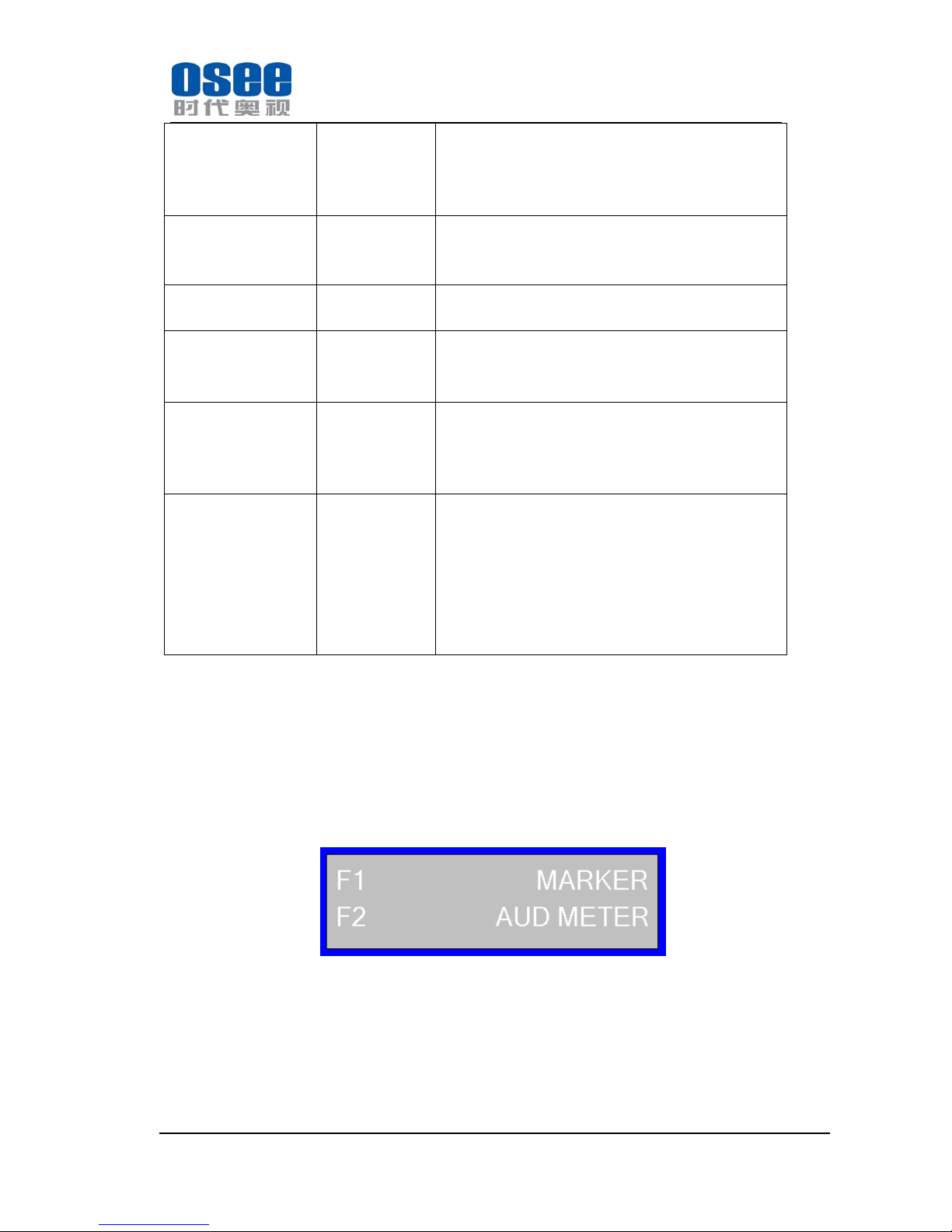
When the main menu does not appear, pressing F1 or F2 key it will display the shortcuts menu.
About F1/F2 key setup please refers to the USER CONF IG of the main menu item.
Press F1 or F2 to enter the function menu. It displays as follow:
*DVI
Press the DVI key for 5s above, it will enable reset function to restore all settings to factory
default settings.
Page 26
MVM230 Quad Split LCD Monitor
User Manual
—24—
6.3 Adjustment menu
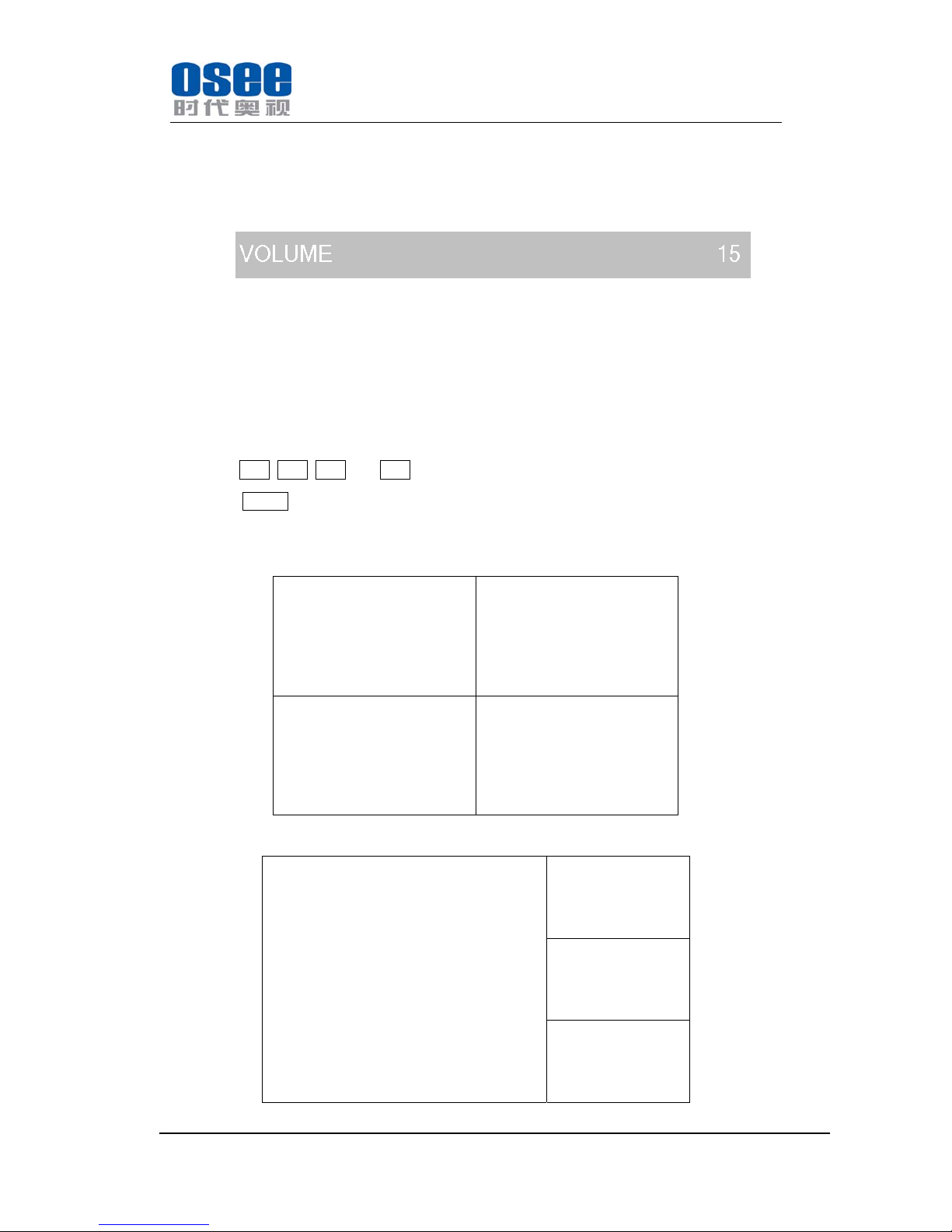
Press ENTER to enter the adjustment menu. It includes VOLUME, BRIGHTNESS, CONTRAST,
and CHROMA. It displays as follow:
Press UP and DOWN to adjust the parameter of the current item and press ENTER to enter the
next item of the adjustment menu. Press MENU to esc the adjustment menu.
6.4 Screen mode
The screen can be displayed as one full screen display, one-big with three-small screen display and
four uniform size screen display.
Press key (CH1, CH2, CH3, and CH4) can enter one full screen display.
Press key (QUAD) can switch within one-big with three-small screen display and four uniform
size screen display.
Mode 1: Four uniform size screen display
Window 1 Window 2
Window 4 Window 3
Mode 2: three-small screen display layout as 16:9 or 4:3
Window 1 Window 2
Window 3
Window 4
Page 27
MVM230 Quad Split LCD Monitor
User Manual
—25—
All images show the biggest screen in center under the premise of keeping the same aspect ratio.
IMD, audio level meter and other kinds of information show in the window without affecting the
image display.
Window and the enter channel is correspondence. Channel 1 corresponds to window 1 and
channel 2 corresponds to window 2, etc. And the windows serial number cannot change.
Chapter 7 Specification
7.1 Description for Specification
LCD Dimension 23”
Screen Scale 4:3/16:9
Resolution 1920 (H) x 1080 (V)
Color Depth 16.7M, 24-bit
Viewing Angle 178°(H/V)
Brightness 250 cd/m^2
Contrast Ratio 1000:1
Video Input BNC x 4, SDI/ CVBS; HDMI x 1, HDMI/DVI-D
Video Output HDMI x 1, HDMI/DVI(composite signal,1080p50 or 1080p60)
Audio Input RCA x 8, 4 analog stereo,SDI embedded audio
Audio Output RCA x 2, analog stereo( monitoring signal)
7.2 Input signal format
Analog Composite: PAL, NTSC
SD-SDI: 480i、576i
HD-SDI: 1080i50、1080i 59.94、 1080i 60, 720p50、720p 59.94、720p 60,
1035i59.94、1035i 60
3G-SDI: 1080p50、1080p 59.94、1080p 60
7.3 Specifications
CVBS Input/ Output:
Signal Type NTSC, PAL
Signal Amplitude 1Vp-p+/-3dB
Page 28
MVM230 Quad Split LCD Monitor
User Manual
—26—
Impedance 75 ohms
Return Loss >40 dB 到 5 MHz
DC Offset 0V±0.05 V
Frequency Response ±0.2 dB to 5 MHz
Differential Gain <1%
Differential Phase <1.5°
3G-SDI /HD-SDI /SDI-SDI Input/ Output:
Signal Type SMPTE 424M, SMPTE 292M, SMPTE 259M, SMPTE 297M
Connector BNC per IEC 169-8
Impedance 75 ohms
Return Loss >18 dB 5 to 270 MHz
>15 dB 270 MHz to 1.5 GHz
>10 dB up to 3 GHz
Maximum Signal Level 800 mV pk-pk 10%
Signal Amplitude 800 mV pk-pk 10%
DC Offset 0 V ±0.5 V
Overshoot <10%
Total Jitter <0.2 UI
Rise and Fall Time <700 ps for SD
<270 ps for 1.5 Gb/s HD
<135 ps for 3 Gb/s HD
Wavelength 1310 nm +/-30 nm FP, 1270 nm, 1290 nm, 1310 nm, 1330 nm,
1350 nm, 1370 nm, 1430 nm, 1450 nm, 1470 nm, 1490 nm, 1510 nm,
1530 nm, 1550 nm, 1570 nm, 1590 nm, 1610 nm DFB
Extinction Ratio >8
Back Reflection <-14 dB
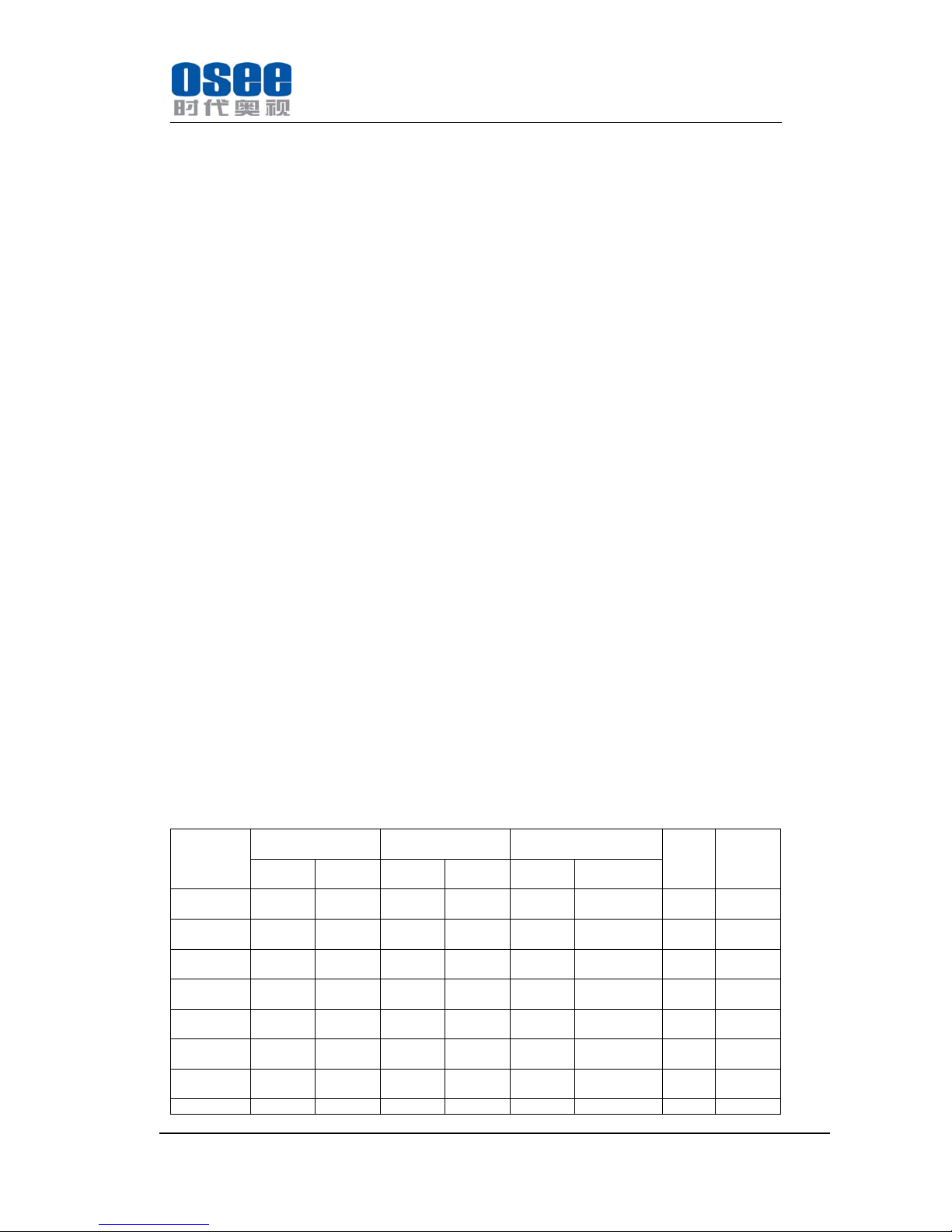
7.4 Input/Output Resolution, Frame Refresh Rate and Color Matrix:
OVERSCAN NATIVE FULL
NORMAL
Frame
Rate
Color
Matrix
INPUT OUTPUT INPUT OUTPUT INPUT
ALL
OUTPUT
NORMAL
NTSC 684X462 1366X768
1024X768
720X487 720X487 720X487 1366X768
1024X768
60 601
PAL 684X548 1366X768
1024X768
720X576 720X576 720X576 1366X768,
1024X768
50 601
SECAM 684X548 1366X768
1024X768
720X576 720X576 720X576 1366X768,
1024X768
50 601
NTCS-4.43 684X462 1366X768
1024X768
720X487 720X487 720X487 1366X768,
1024X768
60 601
PAL-M 684X462 1366X768
1024X768
720X487 720X487 720X487 1366X768,
1024X768
60 601
480I60 684X462 1366X768
1024X768
720X487 720X487 720X487 1366X768,
1024X768
60 601/709
576I50 684X548 1366X768
1024X768
720X576 720X576 720X576 1366X768,
1024X768
50 601
480P60 684X462 1366X768 720X487 720X487 720X487 1366X768, 60 601/709
Page 29
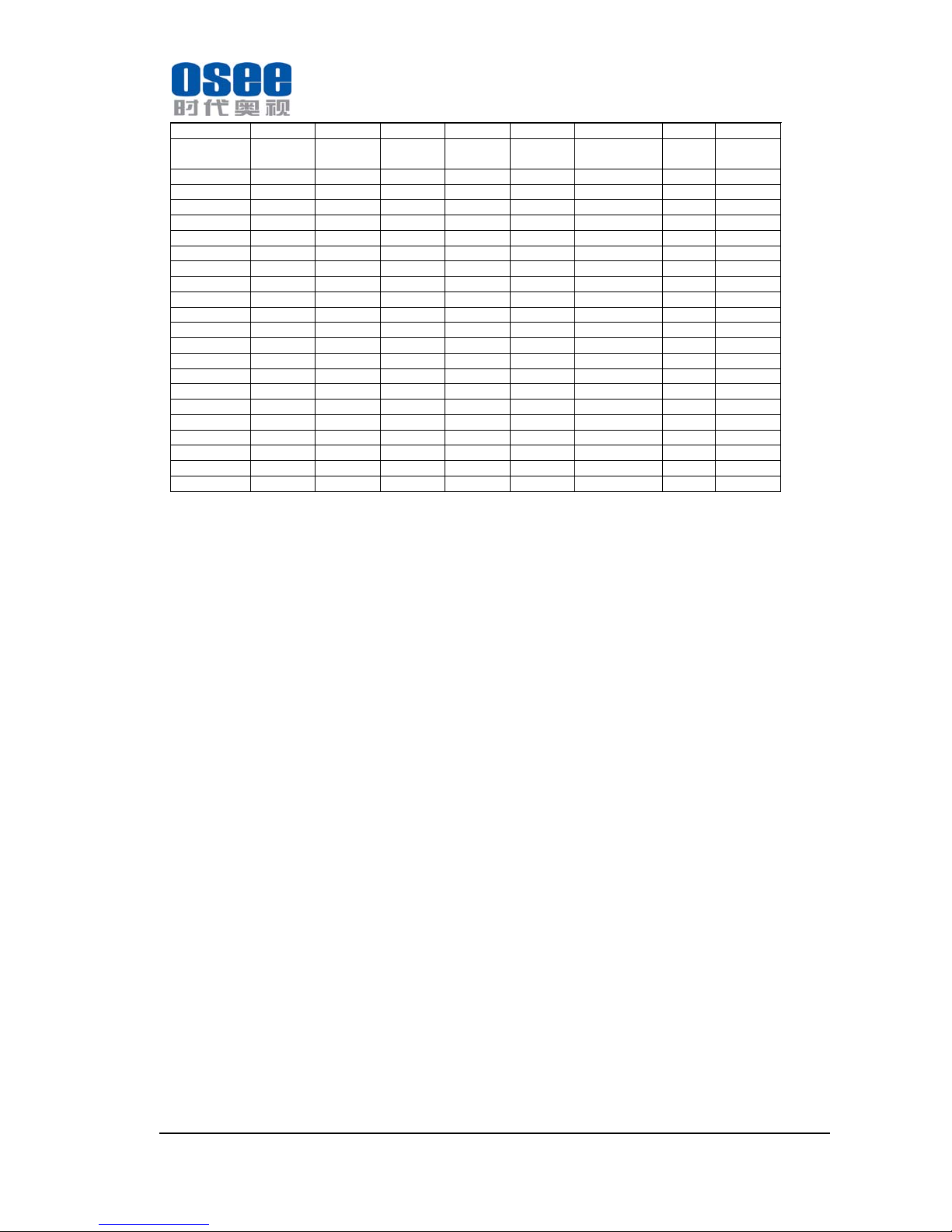
MVM230 Quad Split LCD Monitor
User Manual
—27—
1024X768 1024X768
576P50 684X548 1366X768
1024X768
720X576 720X576 720X576 1366X768,
1024X768
50 601
720P24 1216X684 1366X768, 1280x720 1280x720 1280x720 1366X768, 48 709
720P25 1216X684 1366X768, 1280x720 1280x720 1280x720 1366X768, 50 709
720P30 1216X684 1366X768, 1280x720 1280x720 1280x720 1366X768, 30 709
720P50 1216X684 1366X768, 1280x720 1280x720 1280x720 1366X768, 50 709
720P60 1216X684 1366X768, 1280x720 1280x720 1280x720 1366X768, 60 709
1035I60 1824X984 1366X768, 1920X1035 1920X1035 1920X1035 1366X768, 60 709
1080I60 1824X1026 1366X768, 1920X1080 1920X1080 1920X1080 1366X768, 60 709
1080I50 1824X1026 1366X768, 1920X1080 1920X1080 1920X1080 1366X768, 50 709
1080P24 1824X1026 1366X768, 1920X1080 1920X1080 1920X1080 1366X768, 48 709
1080P25 1824X1026 1366X768, 1920X1080 1920X1080 1920X1080 1366X768, 50 709
1080P30 1824X1026 1366X768, 1920X1080 1920X1080 1920X1080 1366X768, 60 709
1080P50 1824X1026 1366X768, 1920X1080 1920X1080 1920X1080 1366X768, 50 709
1080P60 1824X1026 1366X768, 1920X1080 1920X1080 1920X1080 1366X768, 60 709
1080SF24 1824X1026 1366X768, 1920X1080 1920X1080 1920X1080 1366X768, 48 709
VGA 640X480 1366X768 60-75
SVGA 800X600 1366X768 60-75
XGA 1024x768 1366X768 60-75
SXGA 1280x1024 1366X768 60-75
UXGA 1600x1200 1366X768 60
WXGA 1360X768
1360X768 60
WUXGA 1920x1200 1366X768 60
*Don’t display all OSD except FORMAT when SCAN is NATIVE.
*Don’t display MARKER when SCAN is NATIVE.
Note: The specs are subject to change without prior notice!
 Loading...