

Page 1
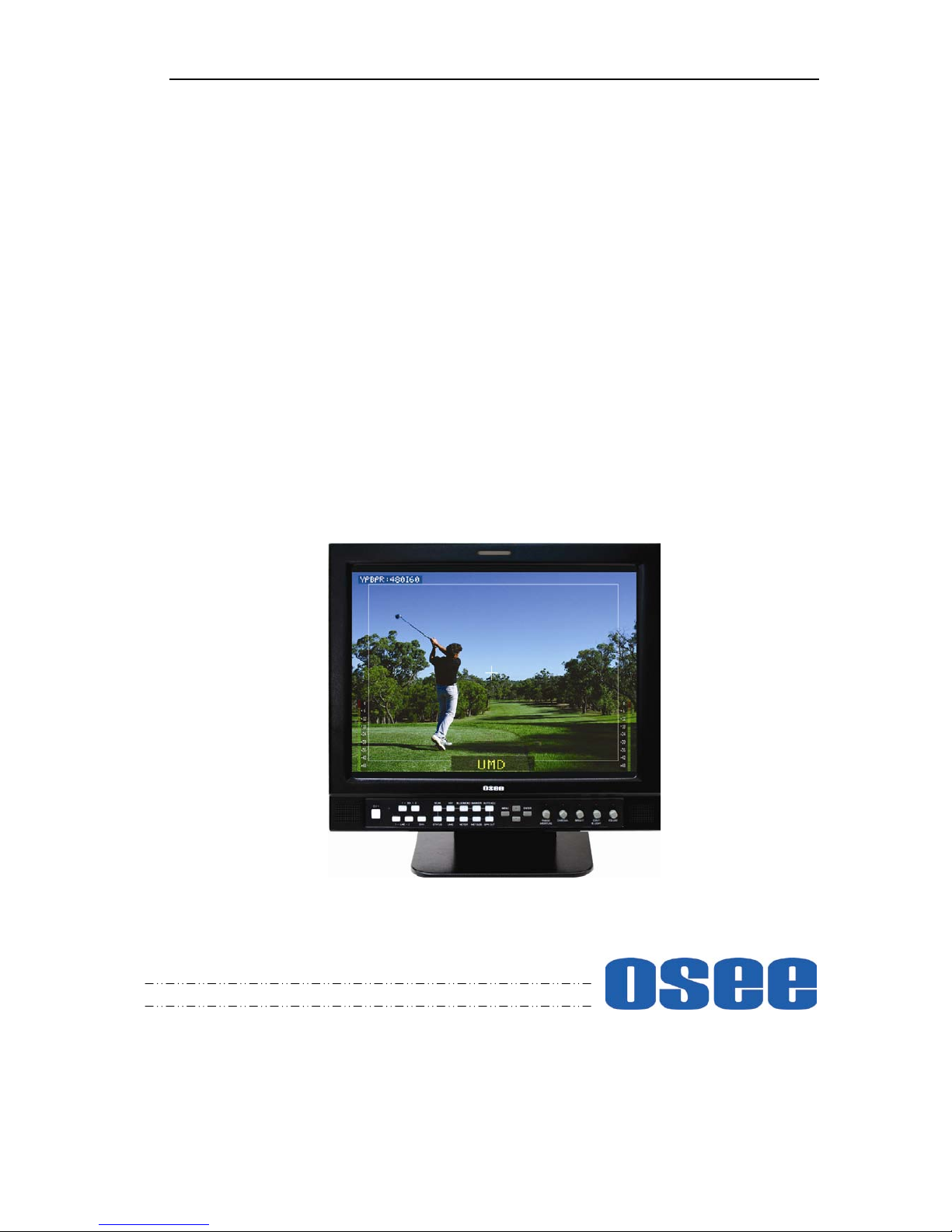
LM-150 SERIES LCD MONITOR
USER MANUAL
Page 2
PRODUCT INFORMATION
MODEL: LM-150 SERIES LCD MONITOR
Version: V030100
Release Date: 2010-1-25
COMPANY NAME
Beijing Osee Digital Technology Ltd.
CONTACT INFORMATION
Address: Room 702, Tower D, Jinyujiahua Building, No.9, 3rd Shangdi Street, Haidian
District, Beijing, China
Post code: 100085
Tel: 8610-62968823
Fax: 8610-62977165
Http://www.osee-dig.com
E-mail:[email protected]
Page 3

About The USER MANUAL
The user manual applies to the following device types:
LM-150V-D
LM-150V-Z
LM-150S-D
LM-150S-Z
The images of LM-150S-Z are adopted in the following descriptions.
Any of the different specifications between the device types are elaborated.
Before reading the manual, please confirm the device type.
Note:LM-150V-Z and LM-150V-D do not support the input and output SDI signal.
LM-150S-Z and LM-150S-D support the input and output SDI signal.
Page 4

Contents
Chapter 1 Product Overview .............................................................................................. 1
Chapter 2 Unpacking and Installation ............................................................................... 2
Chapter 3 Dimensions .......................................................................................................... 3
Chapter 4 Operation ............................................................................................................ 5
4.1 Status Display ............................................................................................................................. 5
4.2 Input Signals ................................................................................................................................ 5
4.3 Rear Panel Terminals ................................................................................................................. 6
4.4 Front Panel Control Buttons And Functions ............................................................................ 9
4.4.1 Power Standby/ON .............................................................................................................. 9
4.4.2 Input Terminal Select Area ................................................................................................. 9
4.4.3 Functional Button Operation Area .................................................................................. 10
4.4.4 Menu Configuration Area ................................................................................................ 11
4.4.5 Adjustment Knob Operation Area ................................................................................... 13
Chapter 5 Technical Specifications ................................................................................... 15
Chapter 6 Supplied Accessories ........................................................................................ 16
Page 5
LM-150 SERIES LCD MONITOR Operating Manual
—1—
Chapter 1 Product Overview
The LM-150S is a 15" multiple function TFT-LCD Monitor with 1024X768 screen resolution (4:3
native aspect). Interlaced signals are processed with utilizing a 3D comb filter and 3D de-interlacer.
Analog signals are internally digitized with a high quality 10 bit over sampled Analog to Digital
converter.
Video inputs are provided for standard definition SDI (2 inputs) and DVI-I digital sources plus VGA
(using DVI connector) Component (YPbPr), Y/C, and CVBS analog signals.
In addition to 16 channels of SDI embedded audio, 4 channels of unbalanced analog audio are accepted
with unbalanced outputs available for 2 channels. 4 bar graph audio meters can be superimposed on the
screen for A/V functionality. Metered channels 1 and 2 are also available for use with internal speakers
GPI style Tri-color Tally is accommodated with red/green/orange indication using an industry standard
RJ-45 connection.
Note:
LM-150V-Z and LM-150V-D do not support the input and output SDI signal.
Not support SDI embedded audio.
LM-150S-Z and LM-150S-D support the input and output SDI signal.
Support 16 channels of SDI embedded audio.
Type
Description
LM-150V-D
Support VIDEO(CVBS),Y/C,YPBPR,DVI-I(VGA),DVI-D input signals.
Four external audio input connectors, two external audio output connectors.
LM-150V-Z
Support VIDEO(CVBS),Y/C,YPBPR,DVI-I(VGA),DVI-D input signals.
Four external audio input connectors, two ext er nal audio output connectors.
LM-150S-Z
Support VIDEO(CVBS),Y/C,YPBPR, SDI ,DVI-I(VGA),DVI-D input signals.
Four external audio input connectors, two external audio output connectors.
LM-150S-D
Support VIDEO(CVBS),Y/C,YPBPR, SDI ,DVI-I(VGA),DVI-D input signals.
Four external audio input connectors, two external audio output connectors.
Page 6

LM-150 SERIES LCD MONITOR Operating Manual
—2—
Chapter 2 Unpacking and Installation
Unpack the LM-150 Monitor and inspect for any apparent physical damage that may have occurred in
transit. In addition to the monitor, the packaging should contain a power cord, warranty card, and, if
ordered, the optional table stand. Four M4 x 10mm screws are also provided for the VESA-100 mount,
four M3 x 8mm screws for optional table stand. Standard and optional accessories are covered in
Chapter 6 of this manual.
We recommend you retain the shipping carton for future use.
1. When installing a mount option please assure a soft, non-scratch surfa ced is us ed to pla ce the
monitor on.
2. Place the monitor on the soft surface screen face down for installation of table stand or
VESA-100 mount.
3. Use the included M4x10mm screws to attach either option. The table stand attaches on the rear
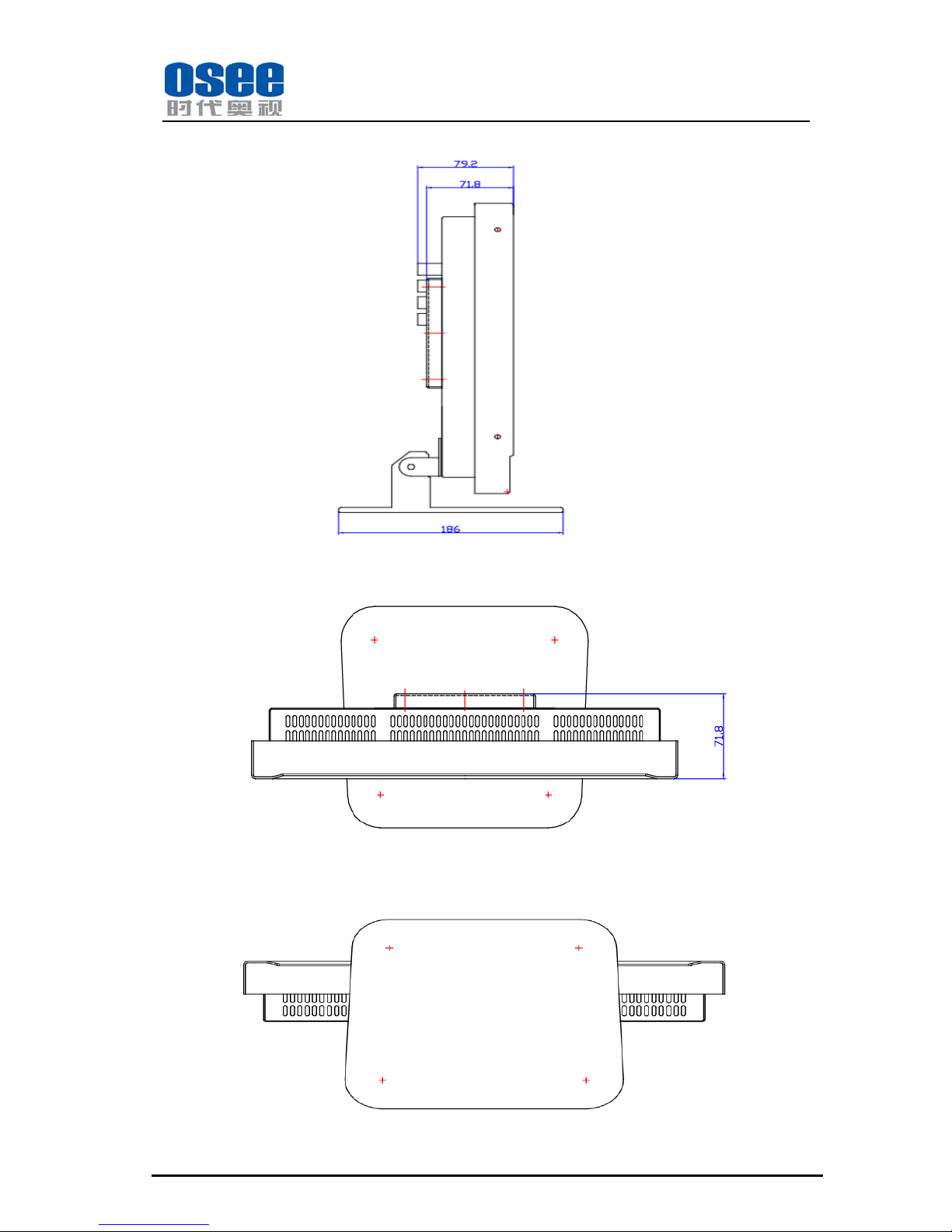
bottom of the unit whilst the VESA-100 is located on the rear center. Please refer to Chapter 3
for further reference.
4. Place the LM-150 in the required location for operation.
5. Connect the required signals. For BNC connections use 75Ω rated connectors
6. Connect A.C. Mains power using the included EIC power cord. Please ensure an Earth ground
present to ensure proper op eration of the unit.
7. As a final step turn on the mains power using the toggle switch located on the rear of the LM-150
above the power connection
Page 7
LM-150 SERIES LCD MONITOR Operating Manual
—3—
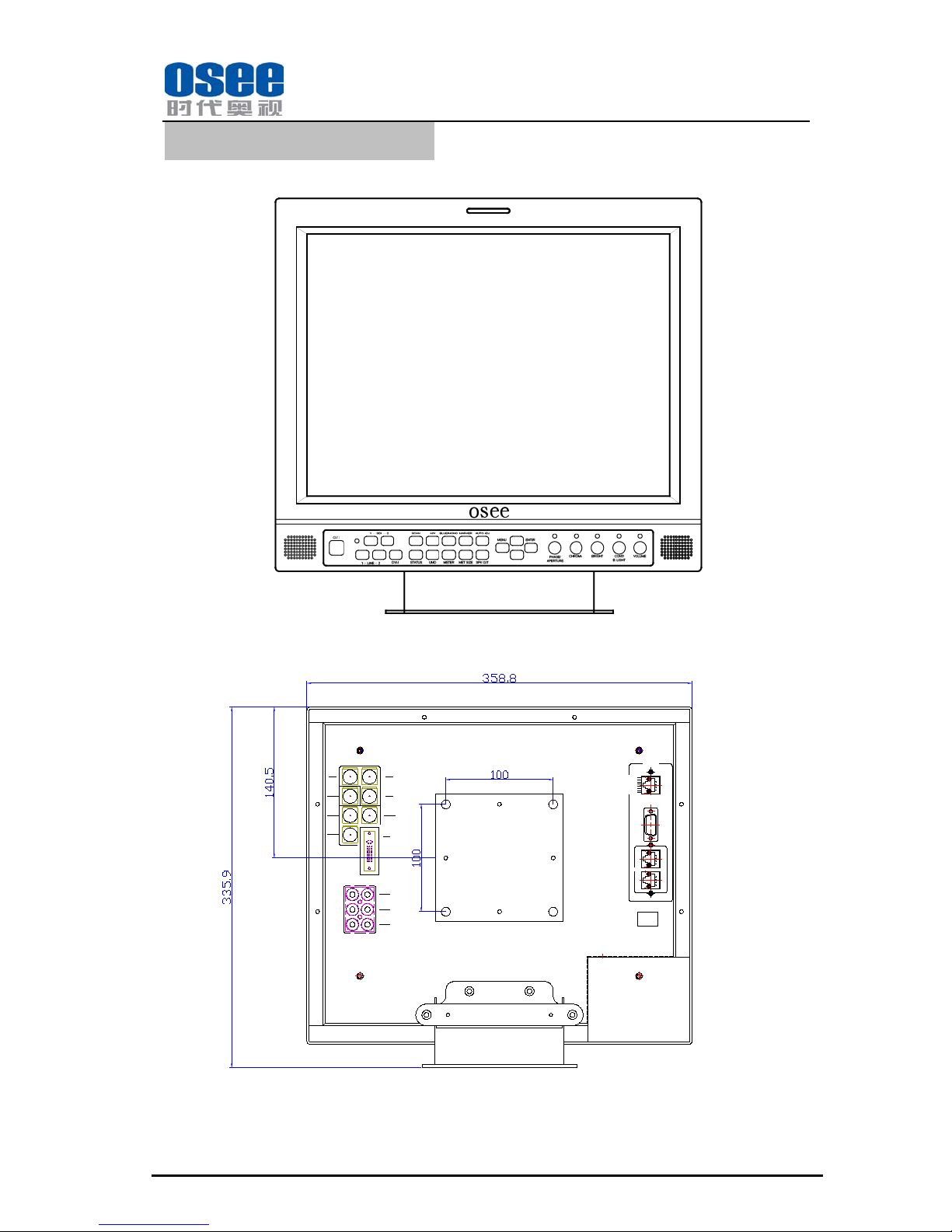
Chapter 3 Dimensions
Front View
Rear View Unit: mm
/VGA
DVI-I
DVI-D
/HDMI
IN 1
OUT
AUDIO
AUDIO
IN 2
AUDIO
Pr
L
L
LINE 2
R
R
IN 2
LINE 2
C/Pb
SDI
OUT
SDI
IN 1
LINE 2
VIDEO/Y
LINE 1
VIDEO
SDI
OUT
RS485
IN
GPI
RS232
REMOTE
Pin1:GREEN
Pin2:RED
Pin3-7:NC
Pin8:GND
1
8
Page 8
LM-150 SERIES LCD MONITOR Operating Manual
—4—
Side View Unit: mm
Top Side View Unit: mm
Bottom Side View
Page 9
LM-150 SERIES LCD MONITOR Operating Manual
—5—
Chapter 4 Operation
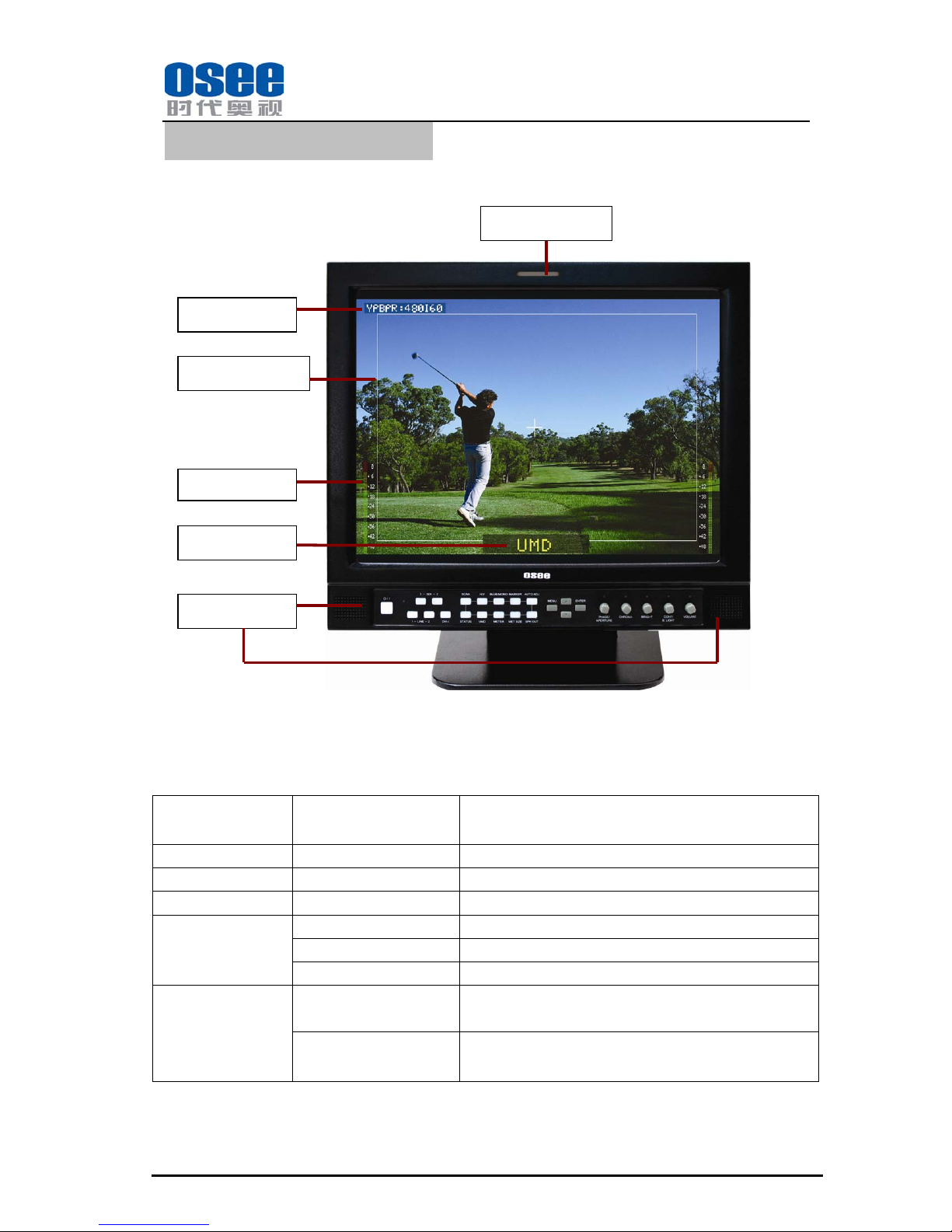
4.1 Status Display
4.2 Input Signals
The following input signals are supported by the LM-150 monitor:
Input Terminal
Signal Type
Of Input Terminal
Signal Format
SDI-1 * SDI 480I60, 576I50
SDI-2 * SDI 480I60, 576I50
Line-1 Video NTSC, PAL, SECAM, NTSC-4.43, PAL-M
Line-2
Video NTSC, PAL, SECAM, NTSC-4.43, PAL-M
Y/C NTSC, PAL, SECAM, NTSC-4.43, PAL-M
YPbPr 480I60, 576I50
DVI-I
VGA
VGA@(60-75), SVGA@(60-75), XGA@(60-75),
SXGA@(60-75)
DVI-D
VGA@(60-75), SVGA@(60-75), XGA@(60-75),
SXGA@(60-75)
*: Only LM-150S-Z and LM-150S-D are available.
Signal format
UMD
Audio Meter
TALLY Indicator
MARKER
Speakers
Page 10
LM-150 SERIES LCD MONITOR Operating Manual
—6—
4.3 Rear Panel Terminals
A. Audio and Video Connections
The specifications of terminals are as follows :
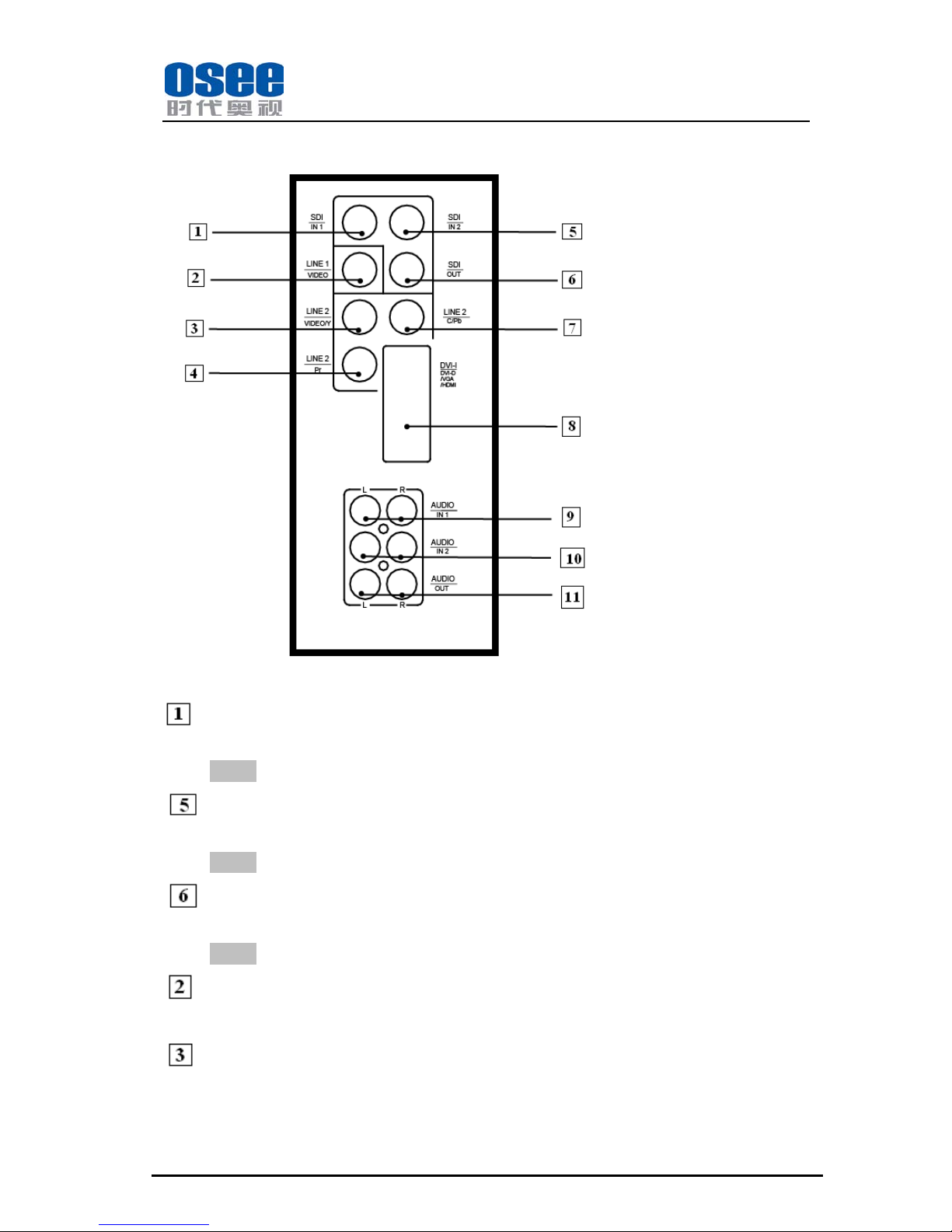
SDI IN1 : SDI 1 Input Terminal
SD-SDI input signal which is in compliance with SMPTE259M and ITU-R BT656 standard.
Note: Only LM-150S-Z and LM-150S-D are available for this Terminal.
SDI IN2 : SDI 2 Input Terminal
SD-SDI input signal which is in compliance with SMPTE259M and ITU-R BT656 standard.
Note: Only LM-150S-Z and LM-150S-D are available for this Terminal.
SDI OUT : SDI Output T erminal
Output terminal for
selected SDI signal.
Note: Only LM-150S-Z and LM-150S-D are available for this Terminal.
LINE1(VIDEO) : LINE 1 Input Terminal
Analog Composite Video Signal only.
LINE2 (VIDEO/Y): LINE 2 Input Terminal
Analog Composite Video input signal, or luminance (Y) signal of Y/C or YPbPr.
Page 11
LM-150 SERIES LCD MONITOR Operating Manual
—7—
LINE2 (C/Pb): LINE 2 Input terminal
Chroma (C) signal of Y/C or Pb(Blue) component of YPbPr .
LINE2 (Pr): LINE 2 Input terminal
Pr (Red) component of YPbPr .
DVI-I(DVI-D/VGA/HDMI): DVI-I Input terminal
DVI analog/digital. Requires adapter for VGA signals. Don’t support HDMI input signal.
AUDIO IN1: Analog Audio (IN1) Terminal
Input terminal for the analog audio signal.
L:left audio channel; R: right audio channel.
AUDIO IN2: Analog Audio (IN2) Te rminal
Input terminal for the analog audio signal.
L:left audio channel; R: right audio channel.
AUDIO OUT: Analog Audio (OUT) Terminal
Output terminal for the selected audio .
L:left audio channel; R: right audio channel.
B. The right part of rear panel
Page 12
LM-150 SERIES LCD MONITOR Operating Manual
—8—
The specifications of terminals are as follows :
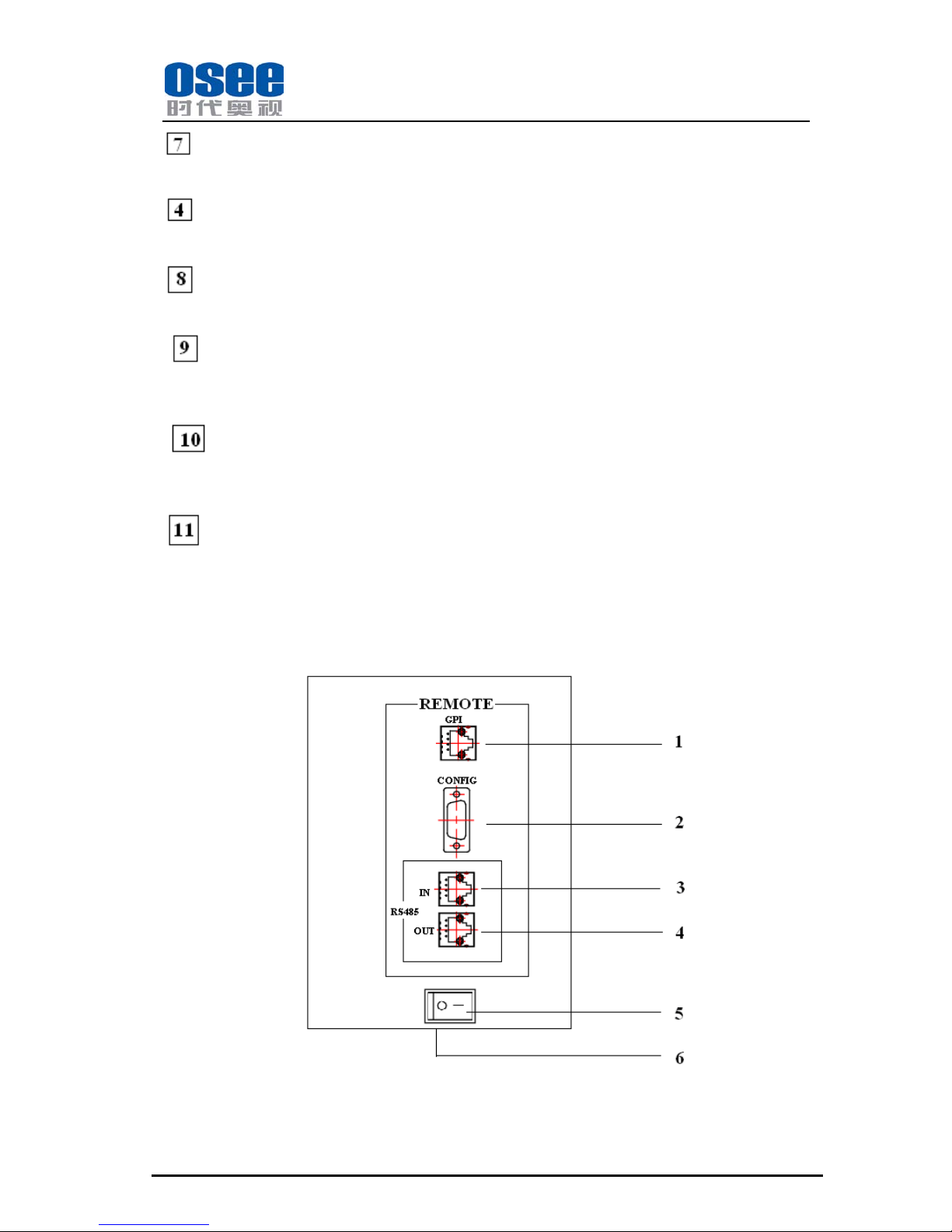
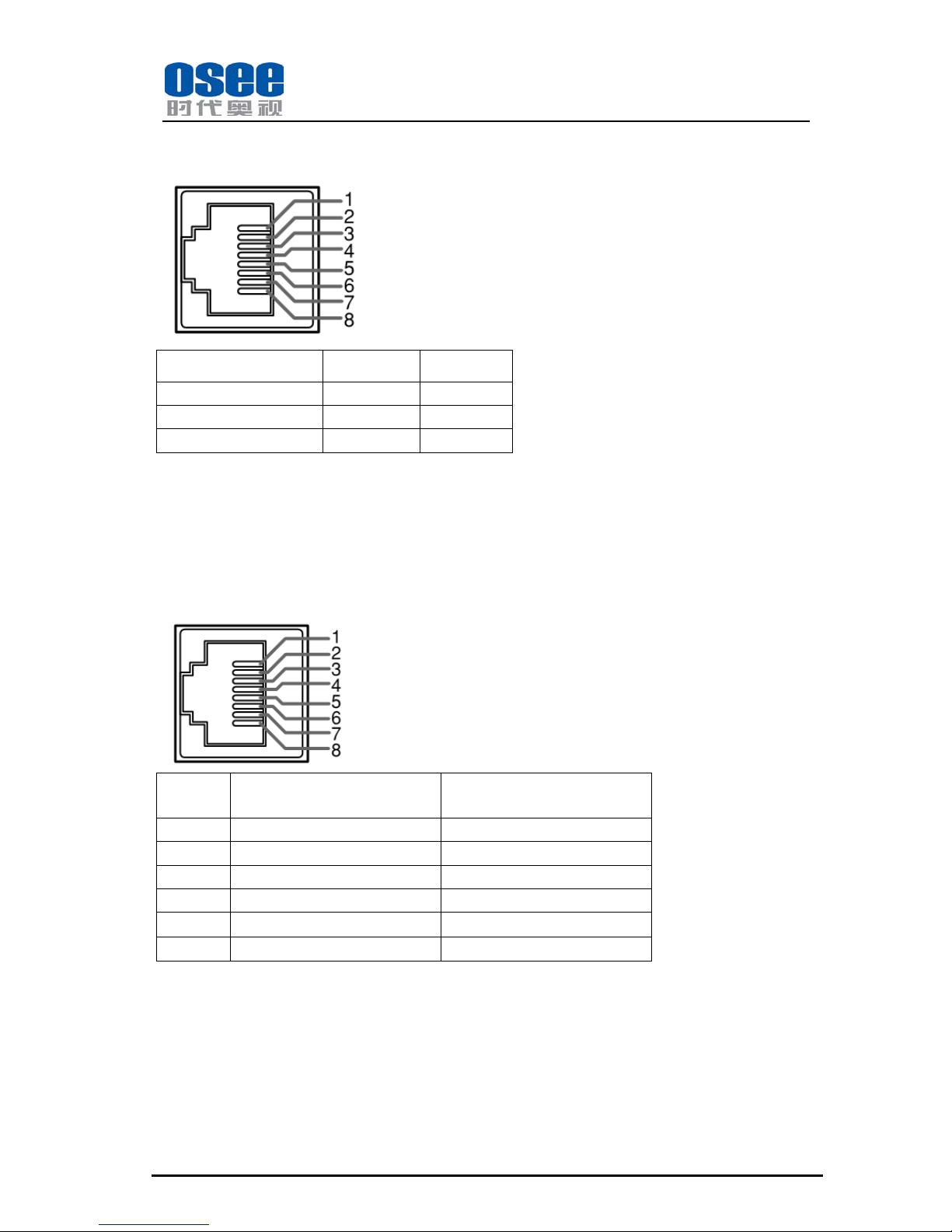
1 GPI :GPI Terminal
Female RJ-45 Receptacle
TALLY Lamp Status GPI 1 Pin GPI 2 Pin
Green GND Open
Red Open GND
Orange GND GND
2 CONFIG :Configuration Terminal
It is used to update the program only.
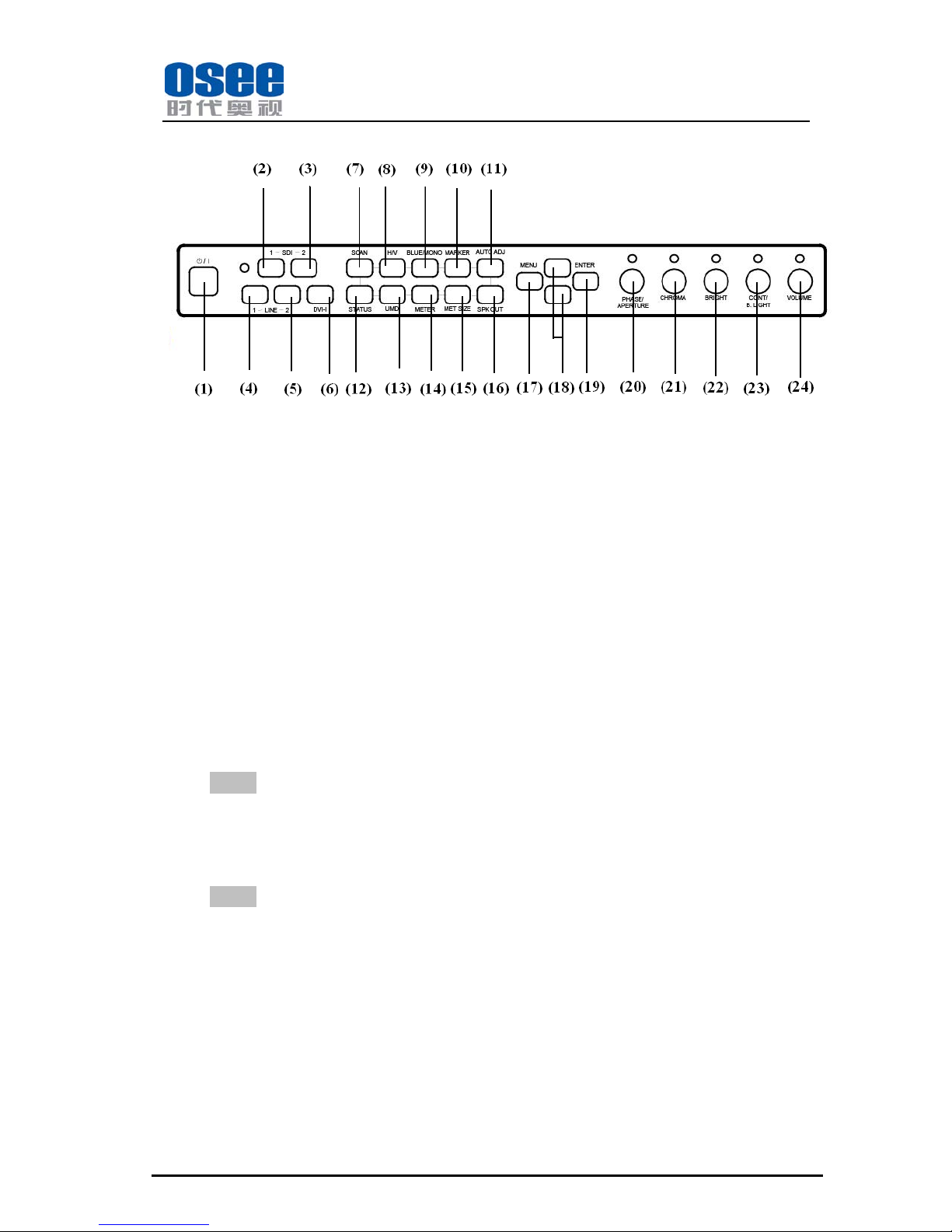
3 RS485 IN : RS485 IN T erminal ;
4 RS485 OUT : RS485 OUT Terminal ;
Female RJ-45 Receptacles
Pin No. RS485 IN terminal signal RS485 OUT terminal signal
1、2 GND GND
3 Tx- Tx4 Rx+ Rx+
5 Rx- Rx6 Tx+ Tx+
7、8 NC NC
5 O/– (Power) Switch
The power is turned on or off.
The monitor is turned on by pressing side–.
6 Power Input Connector
Total power consumption: 100-240V AC, 50-60Hz;
Equipment power consumption: 30W;
A power source with the capacity of more than 45W is recommended.
Page 13
LM-150 SERIES LCD MONITOR Operating Manual
—9—
4.4 Front Panel Control Buttons And Functions
4.4.1 Power Standby/ON
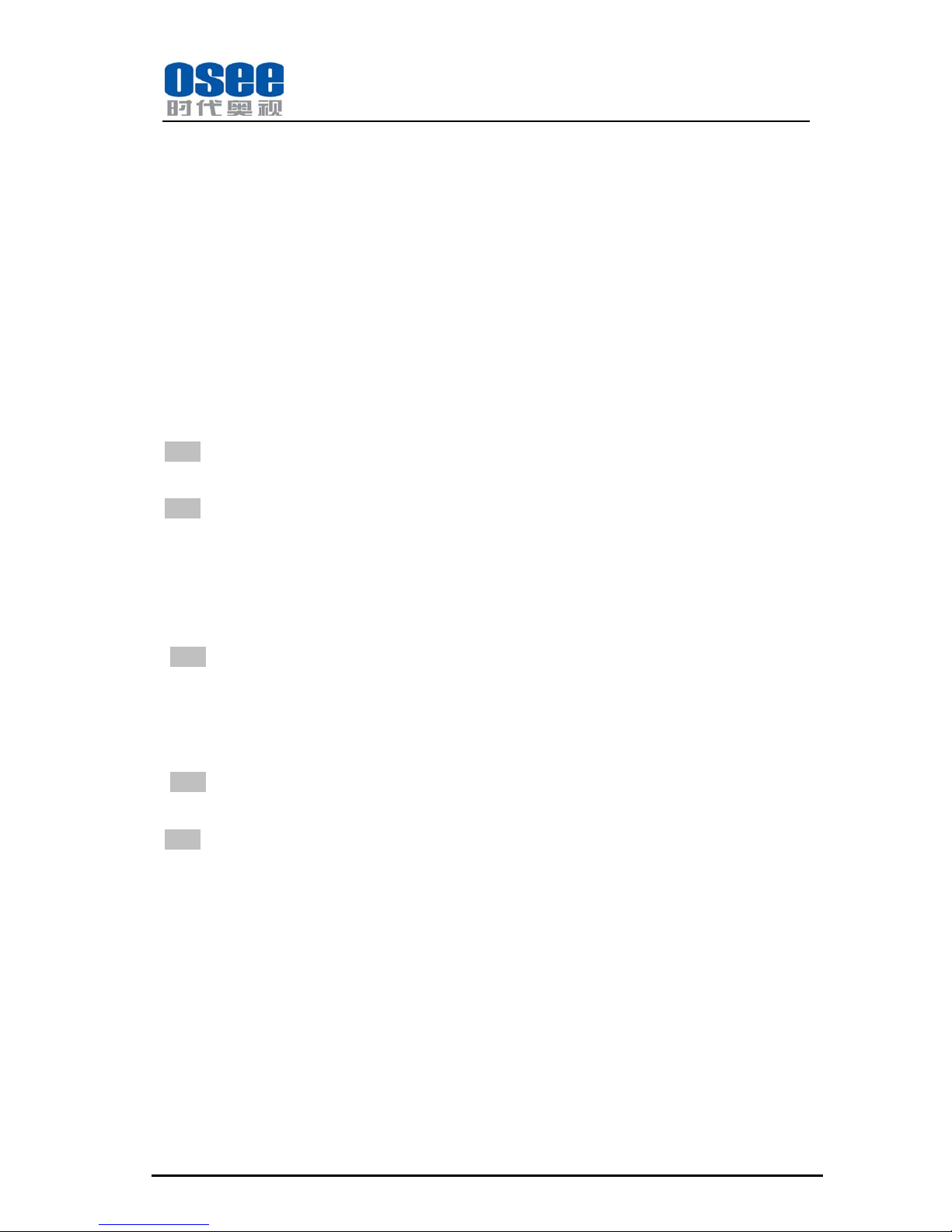
(1)POWER : Power Standby / ON Switch
Press this switch to turn on the power of this unit or to set this unit in the standby m ode .
Last settings recall with power.
Unlit : The monitor is completely off (mains switch is off).
Lights in Green : The monitor is on.
Lights in Red : The monitor is off ( standby ).
4.4.2 Input Terminal Select Area
(2)SDI 1 : SDI1 Input Terminal Select Button/Lamp
Press this button, the SDI1 button lamp lights. The signal of input terminal SDI 1 displays
on the screen.
Note: Only LM-150S-Z and LM-150S-D are available for this button.
(3)SDI 2 : SDI2 Input Terminal Select Button/Lamp
Press this button, the SDI2 button lamp lights. The signal of input terminal SDI 2 displays
on the screen.
Note: Only LM-150S-Z and LM-150S-D are available for this button.
(4)LINE 1 : VIDEO Input Terminal Select Button/Lamp
Press this button, the LINE 1 button lamp lights. The signal of input terminal LINE1
displays on the screen.
(5)LINE 2 : LINE 2 Input Terminal Select Button/Lamp
From this button, three types of input terminal signal can be selected, which are
VIDEO,Y/C,YPBPR in turn. When you press the button , the LINE 2 button lamp lights.
Repeatedly press the button, you can select the signal mentioned above in turn. The
selected signal can be saved, when you return to it next time, it will be the channel you
selected last time.
Page 14
LM-150 SERIES LCD MONITOR Operating Manual
—10—
(6)DVI-I : DVI-I Input Terminal Select Button/Lamp
From this button, two types of input terminal signal can be selected, which are analog VGA
and Digital in turn. When you press the button, the DVI-I button lamp lights. Repeatedly
press the button, you can toggle the signal. The selected signal is saved, when you return to
it next time, it will be the channel you selected last time.
4.4.3 Functional Button Operation Area
(7) SCAN: Scan Button/lamp
From this button, the display mode can be switched as follows:
NOMRAL- OVER - NATIVE- NOMRAL.
When OVER mode is selected, this button lamp lights. It can save the state, when power-off.
When NATIVE mode is selected, this button lamp lights. Only the status information of OSD is
displayed on the screen. When power-off, it can not save the state. When restarted, it return to the
OVER mode.
Note: For VGA or DVI-D input signal, its default mode is NORMAL and this button does not work.
(8)H/V : H/V Delay Switch Button/lamp
Note: Only for SDI input signal, press this button, it can be chosen to switch modes of H, V, H / V and
OFF. When modes of H, V or H / V are selected, this button lamp lights. However, it does not save state,
when power-off. It does not work, for any other modes of input signal.
(9)BLUE/MONO: BLUE/MONO Switch Button/lamp
From this button, it can be chosen to switch modes of BLUE, MONO and OFF. Only when modes of
BLUE or MONO are selected ,this button lamp lights. It does not save the state, when power-off.
Note: For VGA or DVI-D input signal, its default mode always is OFF and this button does n ot w or k.
(10)MARKER: MARKER Button/lamp
From this button, it can be chosen to switch modes of SAFE, SAFE+CENTER and OFF. Only when
modes of SAFE or SAFE+CENTER are selected, this button lamp lights. It can save the state, when
power-off.
Note: For VGA or DVI-D input signal, its default mode is OFF and this button does not work.
(11)AUTO ADJ: AUTO ADJ Button/lamp
Note: Only for VGA input signal, press this button to start the auto adjust sequence. When active, the
lamp lights. When the auto adjustment is finished, its lamp will tur n out. It does not work for any other
modes of input signal.
(12)STATUS: Status Indication Button
From this button, it can be chosen to switch the status: AUTO, ON and OFF. The status bar is displayed
on the up left corner of the screen.
1. When set to AUTO, the status bar will display, while the signal state or input information changes.
The status bar automatically disappears in about 15 seconds after the last status operation.
2. When set to ON, the state bar displays all the time.
3. When set to OFF, the state does not display the instructions.
(13)UMD: UMD Character Color Set-up And Turn on/off Status Button
From this button, it can be chosen to switch the types of character color: RED, GREEN, YELLOW,
WHITE and OFF in turn. When corresponding color type is selected, the UMD character color
displayed on the bottom of the screen will change as above. For OFF mode, the UMD will be turned off.
Page 15
LM-150 SERIES LCD MONITOR Operating Manual
—11—
For the other mode, you will turn on the UMD display.
Note: For VGA or DVI-D input signal, its default mode is OFF and this button does not work.
(14)METER: METER Button
From this button, it can be chosen to switch the display modes of audio meter, which are METER1,
METER2, METER1+METER2 and OFF. Repeatedly press the button, you can cycle the display mode
mentioned above.
Note: For VGA or DVI-D input signal, this button does not work.
(15)METER SIZE: METER SIZE Button
Note: Only when you turn on the audio meter from METER button, press this button, you can switch
the METER SIZE between SMALL and LARGE.
(16)SPK OUT: SPK OUT Button
Press this button to select speaker output from METER1 and METER2. The speaker output will mute
for VGA and DVI-D input.
4.4.4 Menu Configuration Area
(17)MENU: Menu Select Button
When the monitor power-on the very first time, press the Menu button, METER1L menu will firstly
display on the screen. When the submenu automatically disappears, press Menu button again, t he menu
which operated last time will display on the screen. Repeatedly press the Menu button, the next
submenu will display on the screen.
The order of submenu is: METER1L,METER1R,METER2L,METER2R,COMPO LEVEL,COLOR
TEMP, UMD CHAR, ASPECT. All of the menus are automatically cleared in about 15 seconds after the
last menu operation.
Note:
Only when the input signal is YPBPR: 480I60, COMPO LEVEL menu is available.
When the input signal is VGA and DVI-D, Only COLOR TEMP menu is available.
(18)UP,DOWN: Up or Down Button
Up/down navigation of selected menu.
(19)ENTER: ENTER Button
When UMD CHAR menu is selected, press this button to select the UMD character position. Not valid
for any other menus.
Menu items descriptions are as follows:
METER1L: Input Audio
1. When the input signal is SDI, the optional audio modes are : NO, EBD1, EBD2, EBD3, EBD4,
EBD5, EBD6, EBD7, EBD8, EBD9, EBD10, EBD11, EBD12, EBD13, EBD14, EBD15, EBD16 ,
AUD1L, AUD1R, AUD2L, AUD2R. Press MENU button to select METER1L menu. You can
select the audio mode mentioned above by pressing the button "UP, DOWN".
2. When the input signal is VIDEO, Y / C, YPBPR, the optional audio modes are: NO, AUD1L,
Page 16
LM-150 SERIES LCD MONITOR Operating Manual
—12—
AUD1R, AUD2L, AUD2R. You can select the audio mode mentioned above by pressing the
button "UP, DOWN".
3. When the input signal is VGA and DVI-D, no audio mode can be selected.
METER1R: the same as METER1L.
METER2L: the same as METER1L.
METER2R: the same as METER1L.
COMPO LEVEL : Component Level
Note: Only when input signal is YPBPR: 480I60, this menu can be displayed on the screen. At this
point, the modes of LEVEL are: SMPTE, BETA0, BETA7.5. When you press MENU button to
select this menu, you can select the mode mentioned above by pressing the button "UP, DOWN".
For any other signal formats, its default format is SMPTE and can not be adjusted.
Component Level Definitions are as follo w s:
BETA7.5 SMPTE BETA0
SETUP 53.37mV 0mV 0mV
Y
714.29 mV
(Peak Luma,100% White)
700.00 mV
(Peak Luma,100% White)
714.30 mV
(Peak Luma,100% White)
PB/PR
700.00 mVp-p
(75% Color Bars)
525.00 mVp-p
(75% Color Bars)
756.80 mVp-p
(75% Color Bars)
933.34 mVp-p
(100% Color Bars)
700.00 mVp-p
(100% Color Bars)
1009.0 mVp-p
(100% Color Bars)
SYNC -286 mV -300 mV -286 mV
COLOR TEMP : Switch Color Temperature of DVI or VGA signal
From this menu, you can switch color temperature between D93, D56 and D65. When you press
MENU button to select COLOR TEMP menu, you can select the mode mentioned above by
pressing the button "UP, DOWN".
ASPECT : Aspect Ratio Set-up
From this menu, you can set the picture aspect ratio from 4:3 and 16:9 for SD signal format.
1. Press the MENU button to select this menu;
2. Press the button "UP, DOWN" to set the aspect ratio from 4:3 and 16:9.
Note: The menu is not valid for VGA and DVI-D. VGA and DVI-D always set to 4:3.
CC: Set the closed caption
From this menu, you can switch the close d cap tion between <OFF>,<CC1>,<CC2>,<CC3>,
<CC4>,<TEXT1>,<TEXT2>,<TEXT3>,<TEXT4>,<XDS>.
When you press MENU button to select COLOR TEMP menu, you can select the mode mentioned
above by pressing the button "UP, DOWN".
Note: 1. The menu is only valid for the LM-150V-Z,LM-150S-Z LCD monitor.
The menu is not valid for the LM-150V-D,LM-150S-D LCD monitor.
2. CC only can be used for VIDEO: NTSC and Y/C: NTSC input signal.
UMD CHAR : UMD Character Set-up
From this menu, you can set the display UMD character.
1. Press the MENU button to select this function;
2. Press the ENTER button to select the position of edited character where the cursor will locate.
Page 17
LM-150 SERIES LCD MONITOR Operating Manual
—13—
There are the characters displayed on the screen. Press "UP, DOWN" to select specific character in
the character library.
3. Repeatedly press ENTER button, the cursor will move to the right position. Follow the second
procedure as above, you can edit each UMD character.
4.4.5 Adjustment Knob Operation Area
(20) PHASE/APERTURE: Display and Adjust Picture Hue and Sharpness Value
1. When you repeatedly press this knob, you can display the picture hue or aperture (image
sharpness) values.
2. Repeated pushes will toggle between the adjustment menus and function off.
3. When the adjustment is active, the indicator above the knob will illuminate. Indicating
adjustment is now allowed. When a knob is turned, the adjustment happens then.
4. After adjusting you can toggle the function off by once again pushing the knob.
5. If one of the adjustment functions is enabled and left unattended, the menu will automatically
close after 15 seconds.
6. Both of the adjustment values range: 0-100.
Note:
1. Only for the input signals( VIDEO and Y/C:NTSC ), the PHASE menu is available.
2. Aperture adjustment is not available for VGA/DVI-D inputs.
(21) CHROMA: Display and Adjust Picture Color Saturation Default Value
1. When you press this knob, it will display the picture color saturation menu. At the same time, the
Indicator lamp above the knob will light.
2. When you press the knob again, you can cancel the display menu.
3. If left unattended, the menu automatically disappears after 15 seconds.
4. Adjustment values range: 0-100.
Note: When the input signals are VGA or DVI-D, this knob is not available.
(22) BRIGHT : Display and Adjust Picture Brightness Default Value
1. When you press this knob, it will display the picture brightness menu. At the same time, the
indicator lamp above the knob will light. When you press the knob again, you can cancel the
display menu.
2. If the adjustment function is enabled and left unattended, the menu will automatically close after
15 seconds.
3. Adjustment values range: 0-100.
(23) CONT/B.LIGHT: Display and Adjust Image Contrast and Backlight Intensity
Default V alue
1. When you repeatedly press this knob, you can display the pict ur e c on tr as t or backlight intensity
values.
2. Repeated pushes will toggle between the adjustment menus and function off.
Page 18

LM-150 SERIES LCD MONITOR Operating Manual
—14—
3. When the adjustment is active, the indicator above the knob will illuminate. Indicating
adjustment is now allowed.
4. After adjusting you can toggle the function off by once again pushing the knob.
5. If one of the adjustment functions is enabled and left unattended, the menu will automatically
close after 15 seconds.
6. Both of the adjustment values range: 0-100.
Note: Backlight Intensity is a factor in the operating life of the backlight. Reducing the intensity will
lengthen the backlight life whilst maximum intensity will decrease backlight life.
(24) Volume: Display and Adjust Speaker Volume Default and Enable/Disable Speaker
Mute Function
1. Turning the knob will adjust the speaker volume
2. When you repeatedly press this knob, you can display the speaker volume or toggle mute
on/off.
3. When the volume adjustment is active, the indicator above the knob will illuminate. Indicating
adjustment is now allowed.
4. After adjusting, the volume menu will automatica lly close after 3 seconds.
5. If toggled to the mute function, the indicator will flash. To cancel this function, repeatedly
press or turn VOLUME knob.
6. Volume adjustment range is 0-30.
Note: For VGA or DVI-D input signal, there is no audio and its default mode is MUTE .
Notes:
1. All of the menus are automatically cleared in about 15 seconds after the last menu operation.
2. For input signal for the DVI-D and VGA, there is no audio;
When there is no DVI-I signal, the monitor will automatically shutdown in about 15 seconds later.
The monitor will automatically power on, when it detects the DVI-I signal or you press this Power
button again.
Page 19
LM-150 SERIES LCD MONITOR Operating Manual
—15—
Chapter 5 Technical Specifications
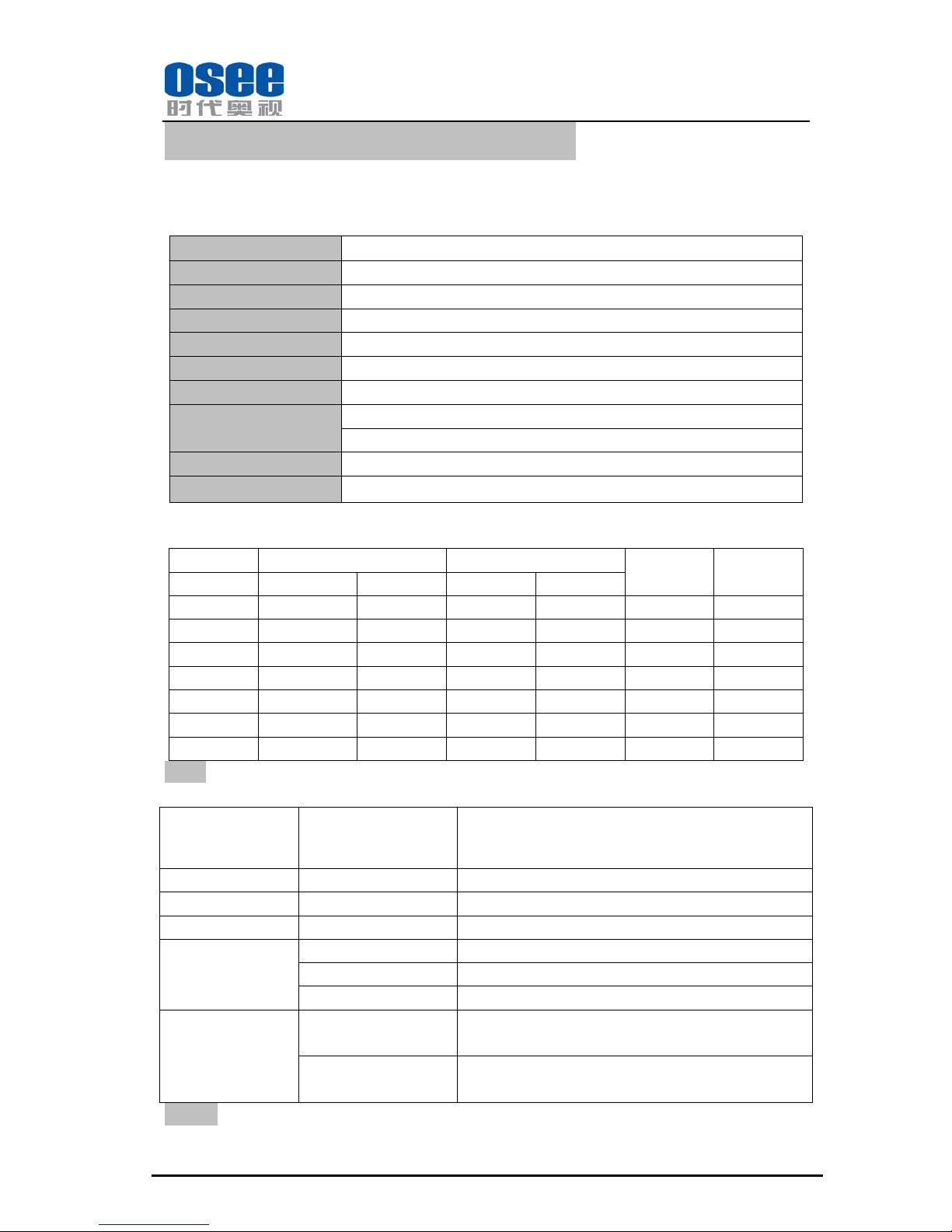
Product detailed information:
Display Area 15” diagonal (11.97” x 8.98”, 304.13mm x 228.10mm)
View ing Angles 160 degree H and V
Color Depth 16.7M
Resolution 1024H x 768V
Dot Pitch 0.297mm x 0.297mm
Contrast Ratio 600 :1
Response Time <8ms
Power 100-240V AC,50-60Hz, 30W
Operating Temperature 0° C to 60° C
Inputs
2 SDI , 1 Video, 1Video-Y/C-YPbPr, 1 VGA-DVI, 4 Audio
Outputs
1 SDI , 2 Audio
Standard Definition Video,Frame Refresh Rate and Color Matrix (1024X 768):
OVERSCAN NORMAL
FRAME
RATE
COLOR
MATRIX
INPUT OUTPUT INPUT OUTPUT
NTSC 684 x 463 1024x 768 720x 487 1024x 768 30 601
PAL 684 x 548 1024x 768 720x 576 1024x 768 25 601
SECAM 684 x 548 1024x 768 720x 576 1024x 768 25 601
NTSC-4.43 684 x 463 1024x 768 720x 487 1024x 768 30 601
PAL-M 684 x 463 1024x 768 720x 487 1024x 768 30 601
480I60, 684 x 463 1024x 768 720x 487 1024x 768 30 601
576I50 684 x 548 1024x 768 720x 576 1024x 768 25 601
Note: The LM-150S does not accept progress video formats.
Refer to the table below for signal formats that can be displayed on the LM-150S.
Input Terminal
Select Area
---Button Items
Signal Type
Of Input T erminal
Signal Format
SDI-1 SDI 480I60, 576I50
SDI-2 SDI 480I60, 576I50
Line-1 Video NTSC, PAL, SECAM, NTSC-4.43, PAL-M
Line-2
Video NTSC, PAL, SECAM, NTSC-4.43, PAL-M
Y/C NTSC, PAL, SECAM, NTSC-4.43, PAL-M
YPbPr 480I60, 576I50
DVI-I
VGA
VGA@(60-75), SVGA@(60-75), XGA@(60-75),
SXGA@(60-75)
DVI-D
VGA@(60-75), SVGA@(60-75), XGA@(60-75),
SXGA@(60-75)
Note:LM-150V-Z and LM-150V-D do not support the input and output SDI signal.
LM-150S-Z and LM-150S-D support the input and output SDI signal.
Page 20
LM-150 SERIES LCD MONITOR Operating Manual
—16—
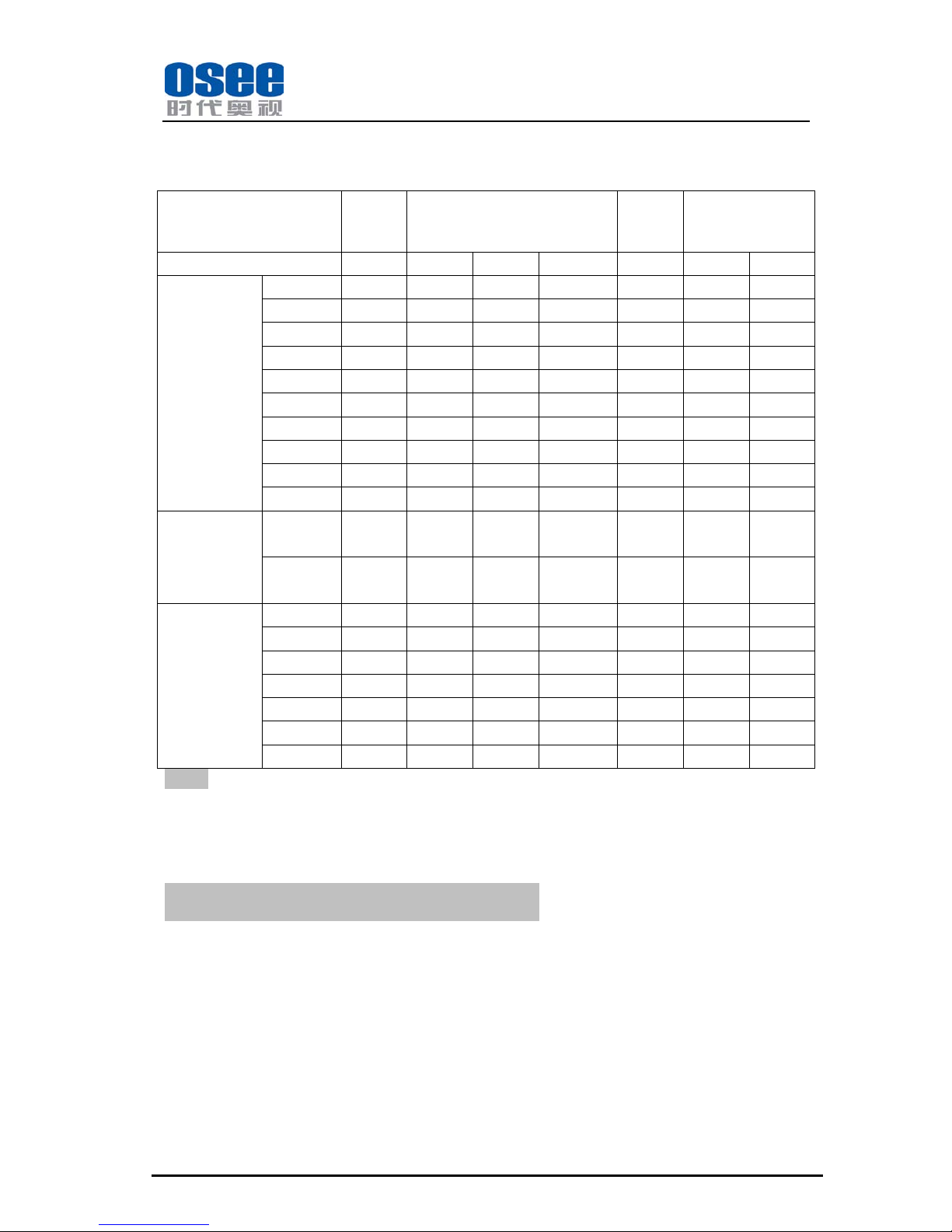
When the signal successfully displays on the screen, each of the available buttons on the front panel are
not the same, depending on the input terminal or the input signal type. The detailed corresponding
relationships are as follows:
Input T erminal Select Area
---Button Items
Line-1 Line-2
SDI-1
or SDI-2
DVI-I
Signal Type Video Video Y/C YPbPr SD SDI SD VGA DVI-D
Functional
Button
Operation Area
---Available
Buttons
Scan
YES YES YES YES YES \ \
H/V
\ \ \ \ YES \ \
Blue/Mono
YES YES YES YES YES \ \
Marker
YES YES YES YES YES \ \
AutoAdj
\ \ \ \ \ YES \
Status
YES YES YES YES YES YES YES
UMD
YES YES YES YES YES \ \
Meter
YES YES YES YES YES \ \
Met Size
YES YES YES YES YES \ \
Spk Out
YES YES YES YES YES \ \
Submenu Of
Menu
Configuration
Area ---Specific
Items
Compo
level
SMPTE SMPTE SMPTE 480I60 SMPTE SMPTE SMPTE
Color
Temp
YES YES YES YES YES YES YES
Adjustment
Knob
Operation Area
---Available
Buttons
Bright
YES YES YES YES YES YES YES
Contrast
YES YES YES YES YES YES YES
B.Light
YES YES YES YES YES YES YES
Chroma
YES YES YES YES YES \ \
Phase
NTSC NTSC NTSC \ \ \ \
Apperture
YES YES YES YES YES \ \
Volume
YES YES YES YES YES \ \
Note:
In the sub-menu of Menu Configuration Area, for Compo level function, it is adjustable only when the
signal format is YPbPr: 480I60. For any other signal formats, its default format is SMPTE and can not
be adjusted.
Chapter 6 Supplied Accessories
1. Display 1
2. AC Power Cord 1
3. M3 x 8mm Screws 4
4. Warranty Card 1
5. Optional Accesories:
Table Stand,
Rack Mount Ears.
Note:Specifications are subject to change without notice.
 Loading...