

Page 1
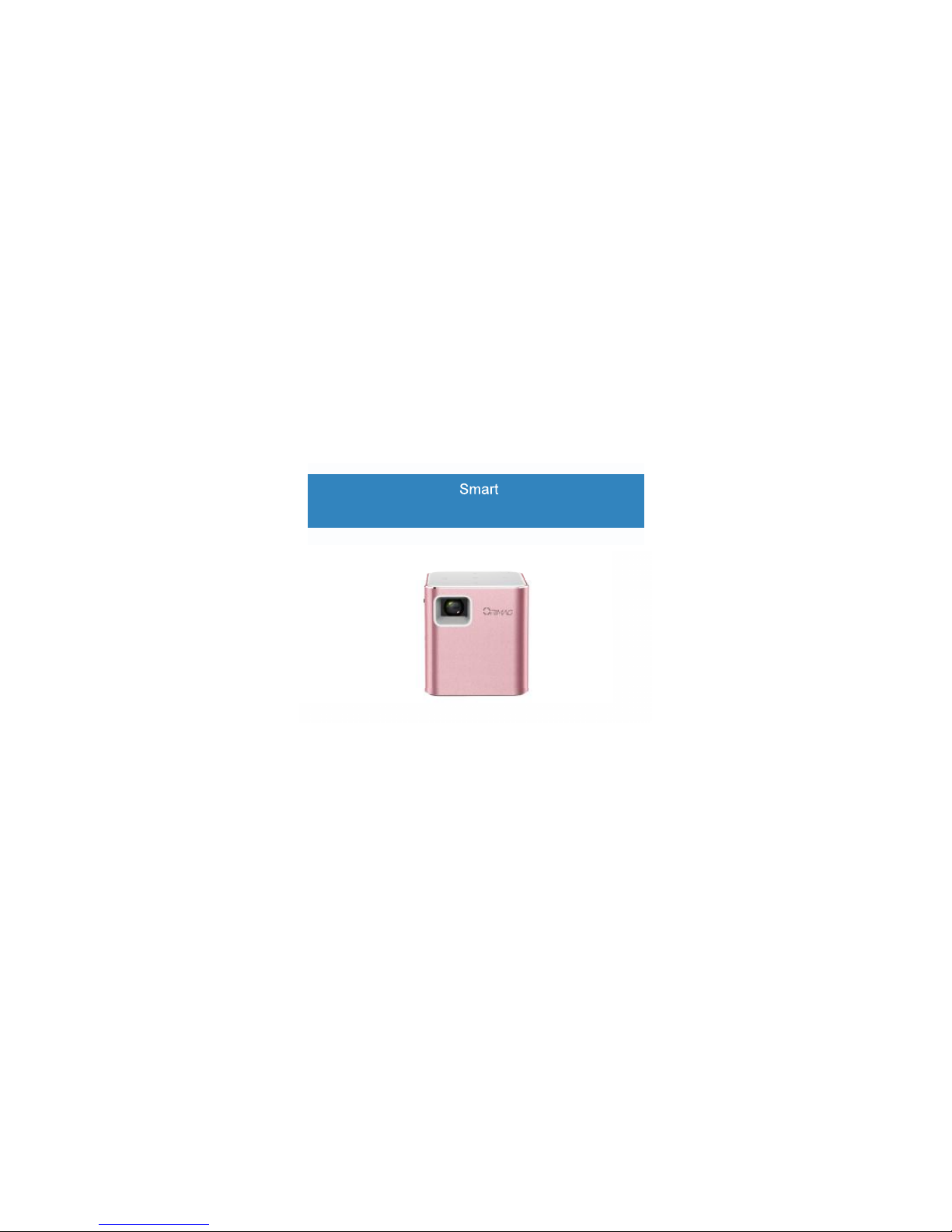
Smart Projector
P6
Operation guidance
P6 Projector
User Manual
Page 2
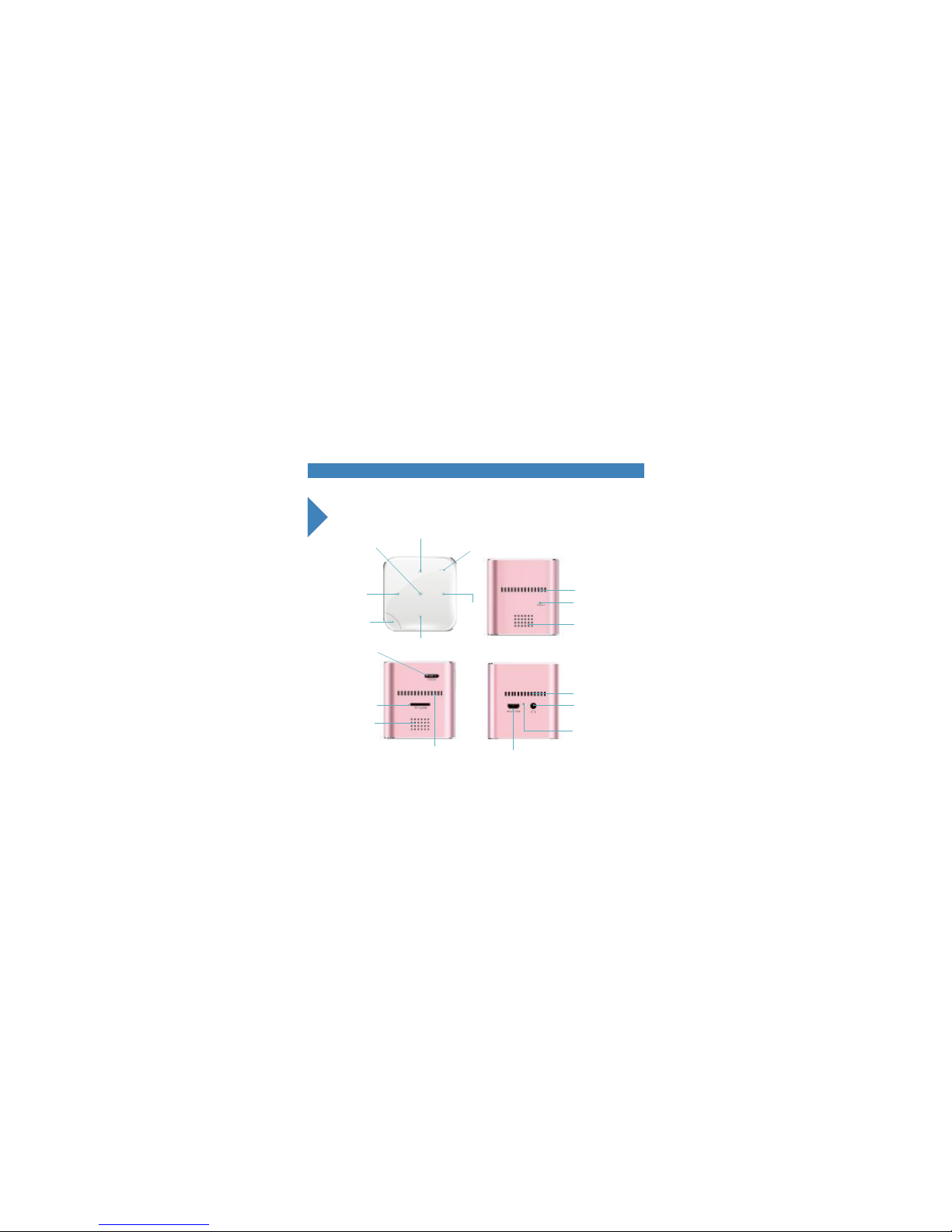
2 Introduction of appearanceIntroduction of appearance
Up
Enter
Back
Down
Right
Left
Power
Vent
Reset
Speaker
Speaker
TF Card Slot
Focus Adjustment
Dissipation Vent
Micro USB Recharging Interface
Vent
Ear Jack
Recharging
Indicator
Page 3

31.How to turn on/off
Power
2.Projection Focus/Brightness Adjustment
1.Click and hold the power button for 5
seconds to turn on or off the projector
1.Roll clockwise or anti-clockwise the
focusadjustment until having vivid
projection image.
2.Go to “Setting”page,and then “Brightness
Setting” to adjust projection
Focus Adjustment
Page 4
4
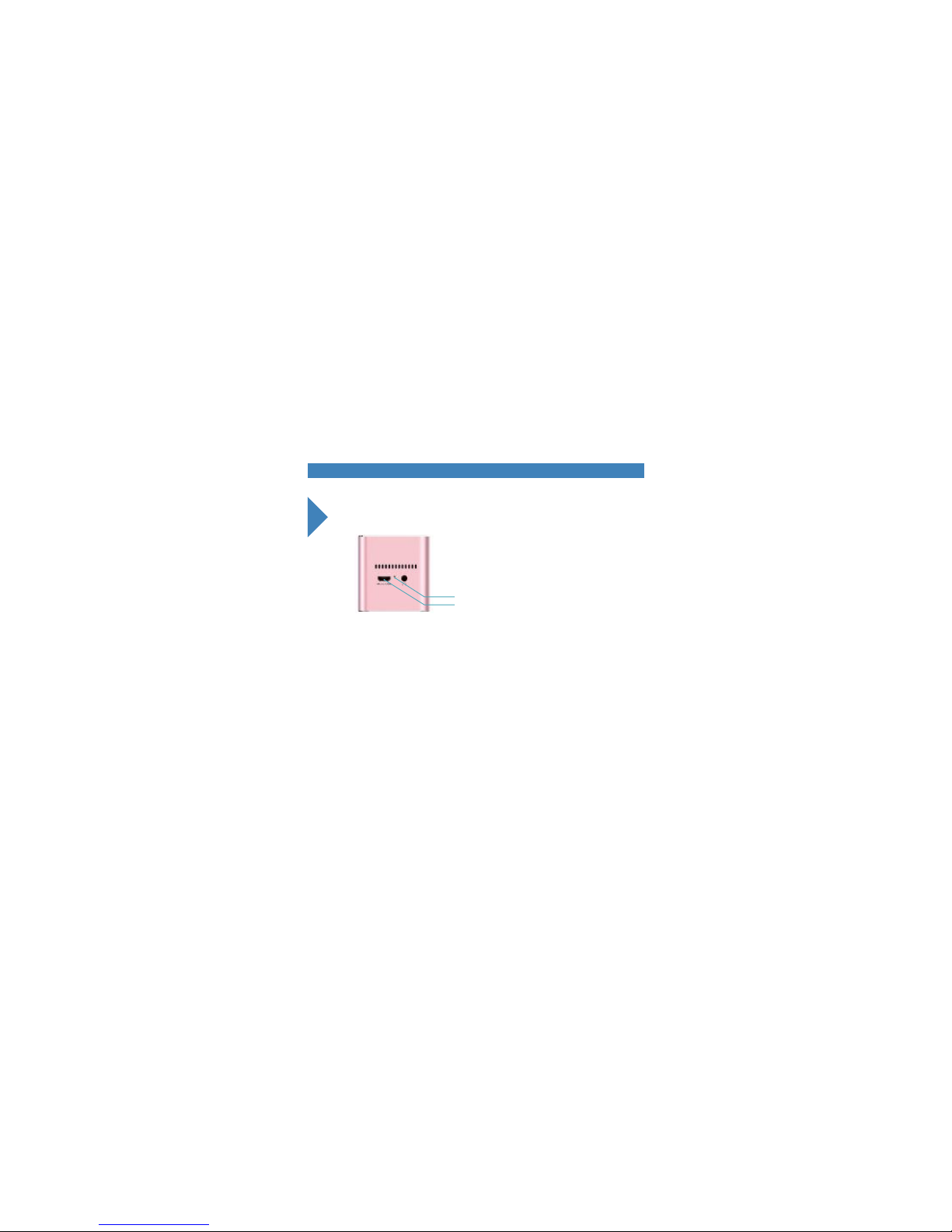
Recharging
Specifications
Recharging Indicator
Micro USB Recharging Interface
LED on for being recharged,while LED off for
recharged fully.
Brightness: 80 ANSI Lumens
Screen Size: 5inch~120inch Projection Size:5”-200”
Resolution: VGA 640X480(Throw Ratio:4:3 Contrast Ratio:1000:1)
Lamp life: 30,000hours
Wireless connection: Wifi 2.4
Battery: Max 1.5hours use
8ohm/1w Speaker
Other I/O interfaces:USB OTG,3.5mm Earphone jack
Available Mirroring:Miracast,AirPlay,Windows
External TF Card:Max 128G
Page 5
5
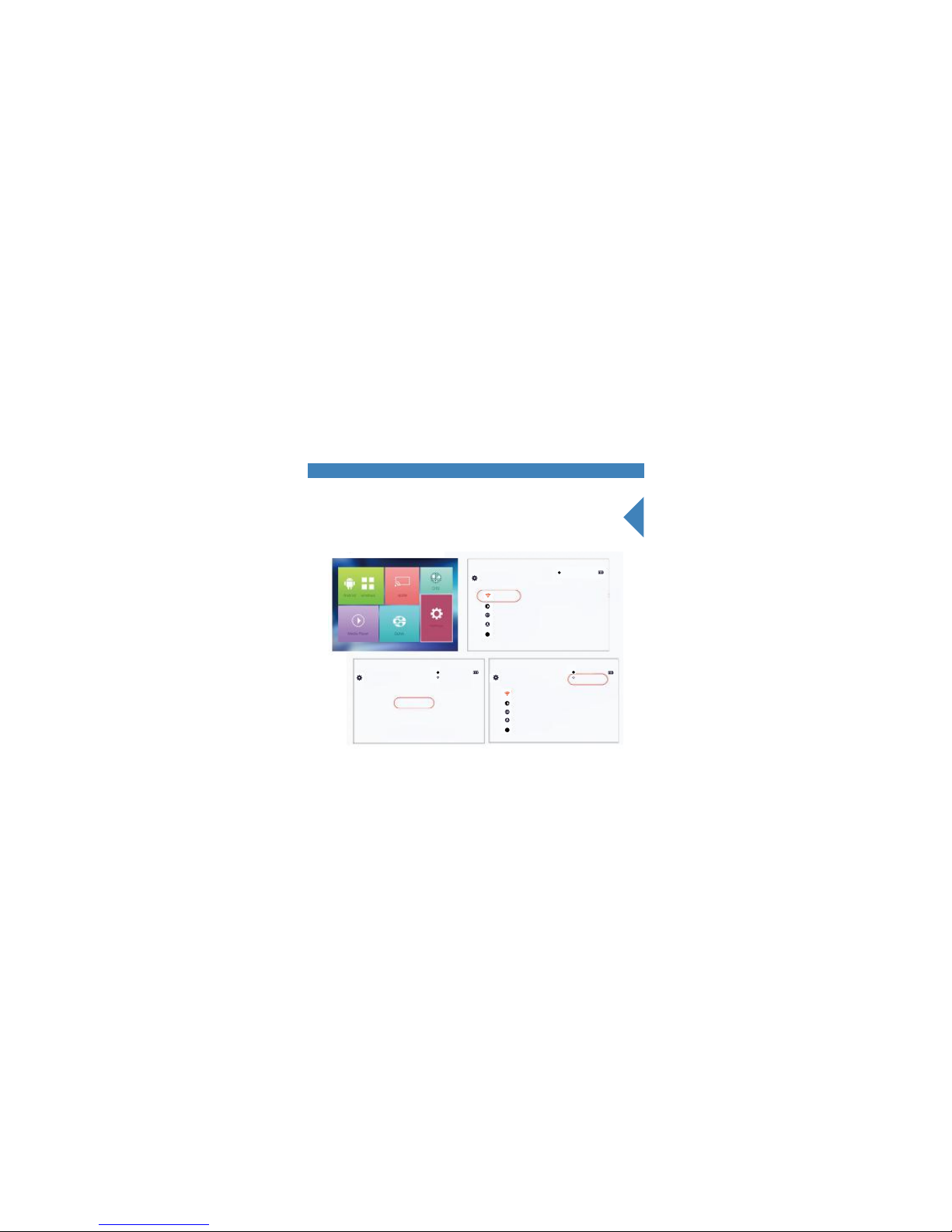
Wifi Setting
Go to Setting page,and then the Wi-Fi Setting.Pick up a network after
all local connectivities are searched.Connection would be showed on
the right-top side,once password entered is right.
Setting
Setting Setting
P6-6F7CSE
P6-6F7CSE P6-6F7CSE
Ayhttp//:192.168.49.4Ayhttp//:192.168.49.4
Wi-Fi setting
Wi-Fi setting
Brightness Setting
Language
Online Update
Device info
Brightness Setting
Language
Online Update
Device info
Searching...........
Searching all available connectivities
Successfully connection
would be showed here.
i
i
i
i
i
Page 6
6
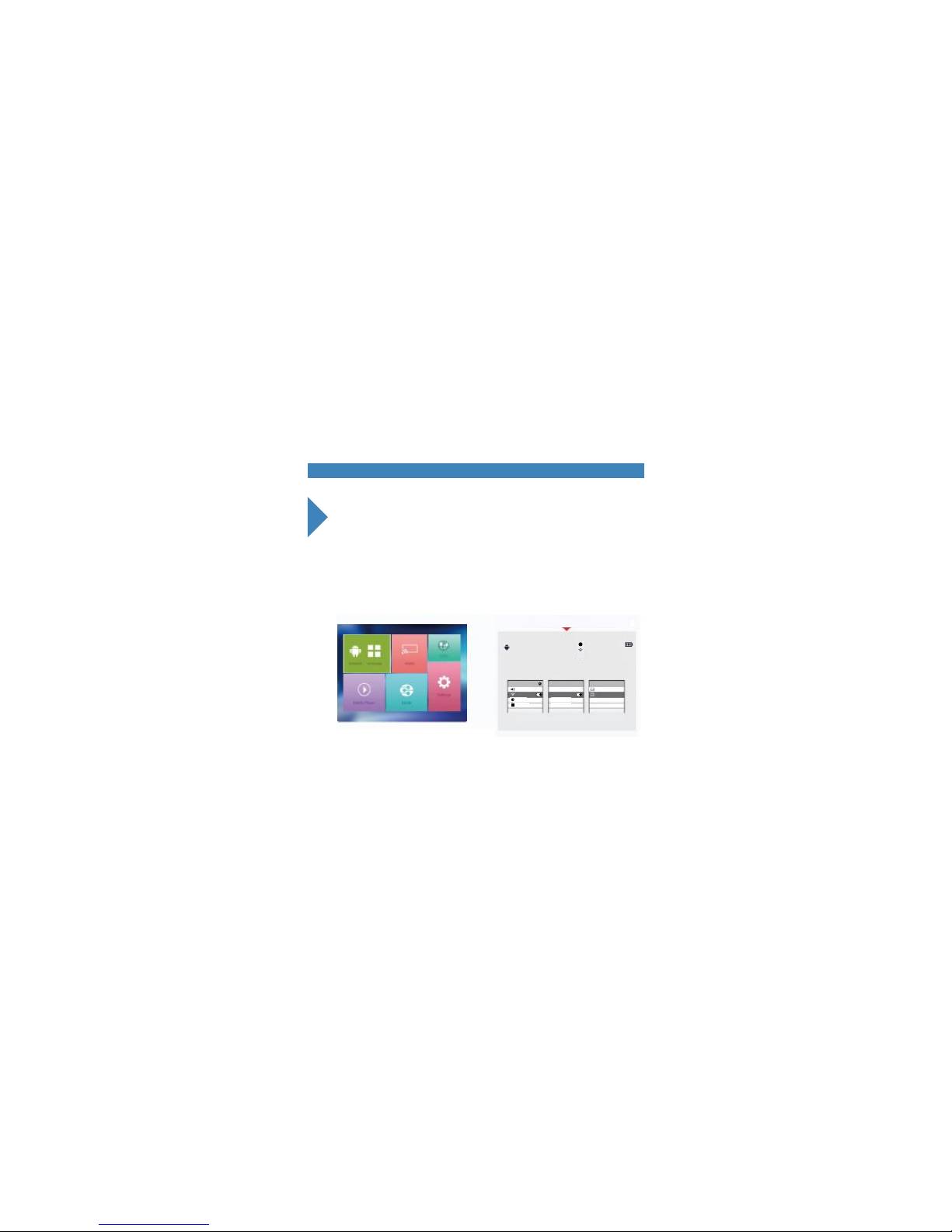
Miracast Mirroring For Android Phones
1.Orimag P6 is only allowed to miracast the phones of Android 4.4 or above.
Miracast would be renamed as Smartview or else instead of Miracast itself,
depends on different phones.
Miracast
Choose Android and will show the below menu is mirroning connecting
P6-6F7CSE
Ayhttp//:192.168.49.4
Enter “Android/windows”page and keep projector staying in this page,as showed below;
2.4G Aycodis 2.4G WifiSupport for Android OS 4.2 or later
1.Turn on Wi-fi 2.Go to display setting,
enable Miracast
3.Select-P6-XXXXXX
With a Miracast enabled Android device,you can mirror your contents to the projector
Settings Wireless display Devices list
Sound VPN p6
Airplane mode
Mobile hotspot
Display
Language
WLAN Miracast
P6-XXXXXX
A
i
Page 7
7
i
A
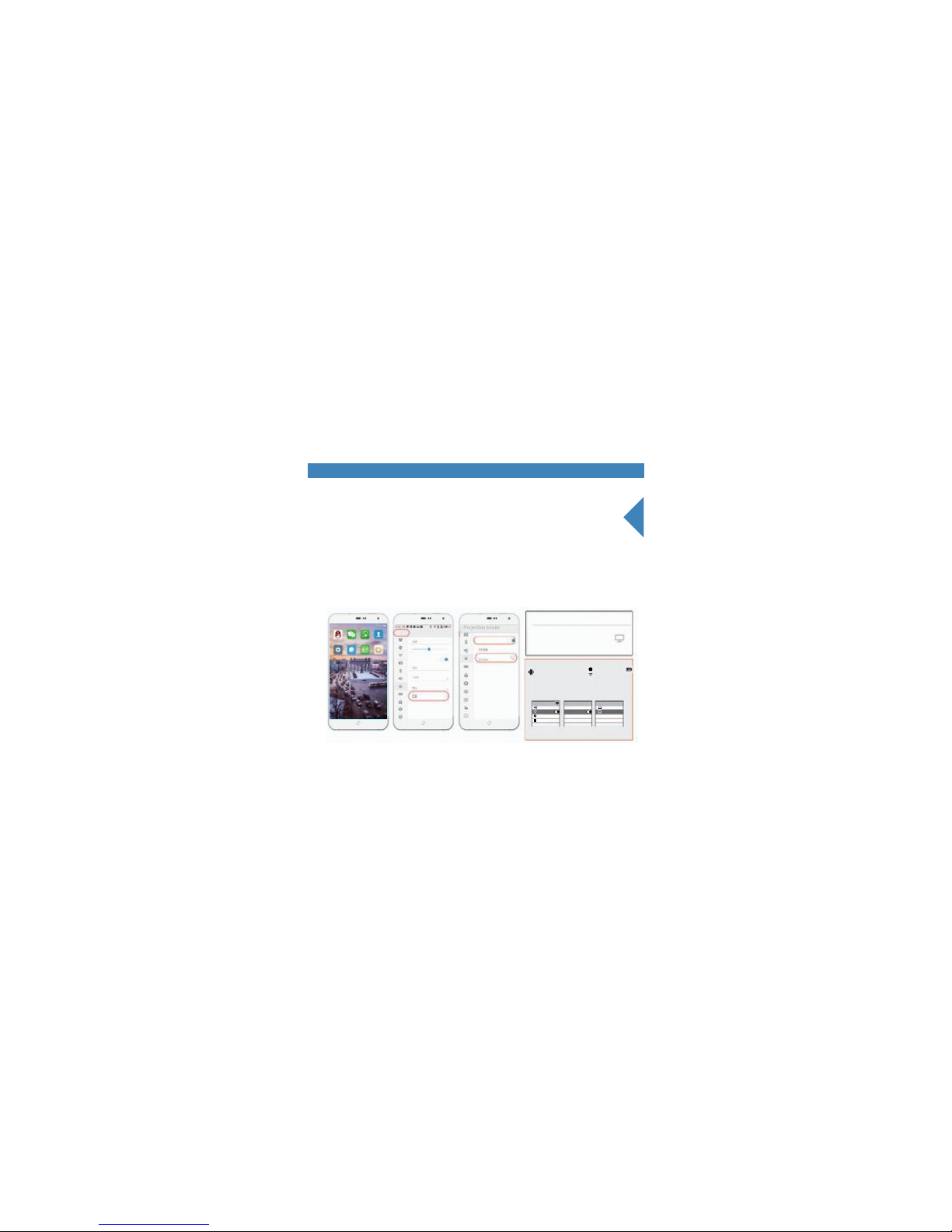
Miracast connections--Android mobile phone
2.Enable screen projection on phone.Search local wifi hotspots to find out
Orimag P6’s connectivity,commonly it is named as “P6-******”,and enter
without password.Here is done the connection between P6 and an Android
Phone.
(Note:The demostration phone is Meizu M463C.)
P6-6F7CSE
P6-6F7C SE
Connected
Available Devices
P6-6F7CSE
Ayhttp//:192.168.49.1
Miracast
Support for Android OS 4.2 or later
1.Turn on Wi-fi 2.Go to display setting,
enable Miracast
3.Select-P6-XXXXXX
With a Miracast enabled Android device,you can mirror your contents to the projector
Settings
Sound
Display
Language
WLAN
Wireless display
VPN
Airplane mode
Mobile hotspot
Miracast
P6
P6-XXXXXX
showing
Automatic Adjust
Screen Standby
Text Size
Projection screen
Projection screen
2.4G Aycodis 2.4G Wifi
Page 8
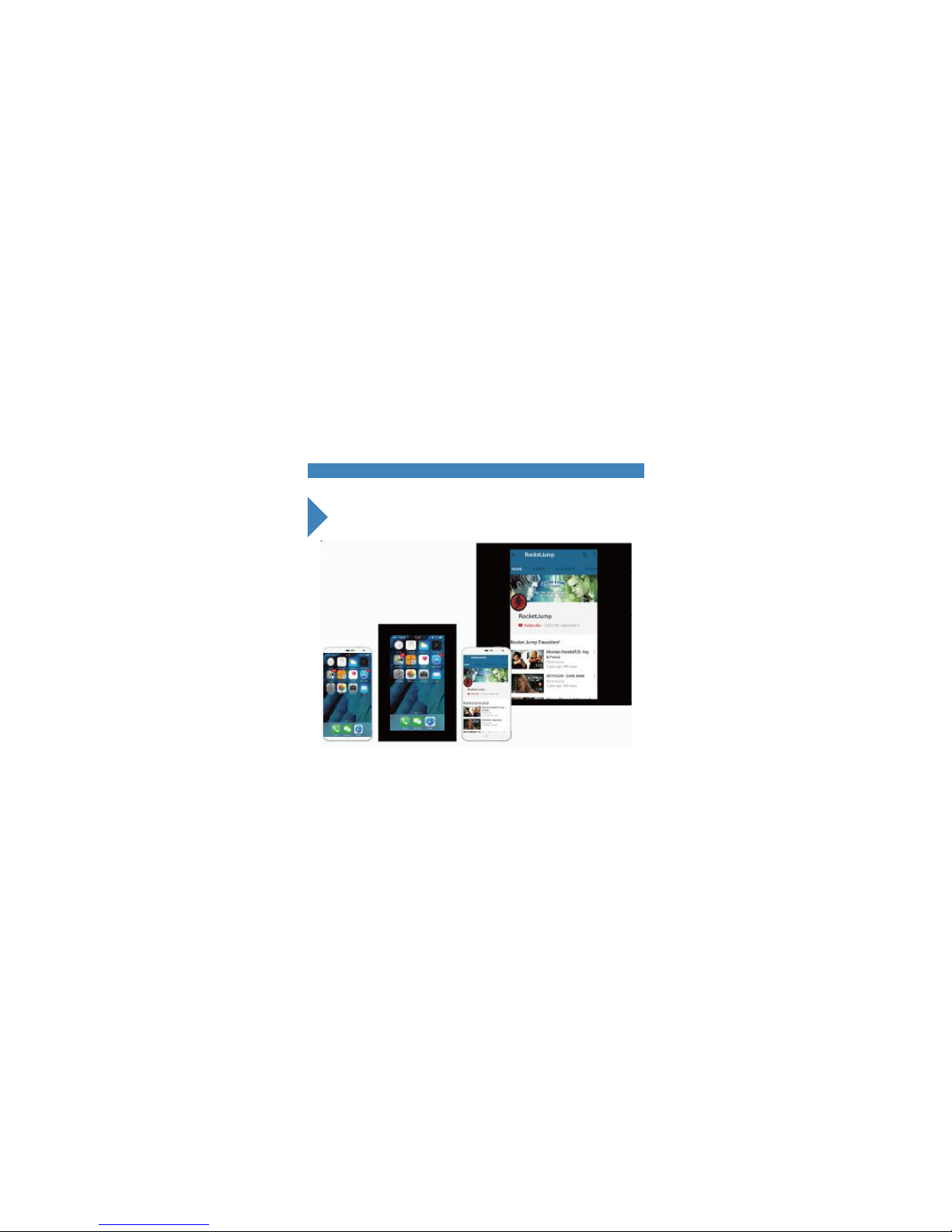
8 Airpaly Mirroring for Iphones
Here is done too the projection of the phone.
Note:projection quality might be subjected to
the connectivity.
Page 9
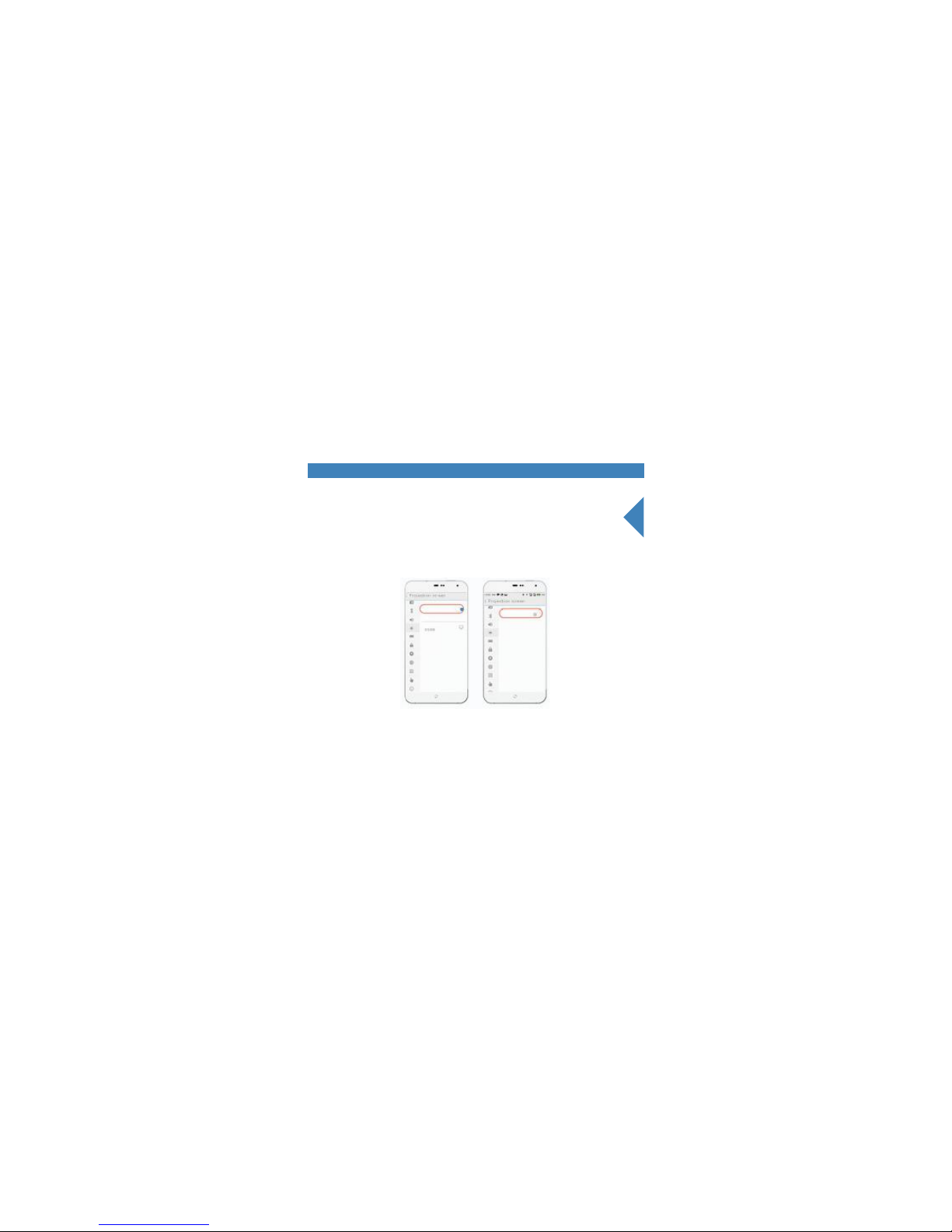
9Miracast Disconnection
Turn off screen projection on the phone,to quit the projection.
P6-6F7C SE
Projection screen
Projection screen
Page 10
10
Airpaly Mirroring for Iphones
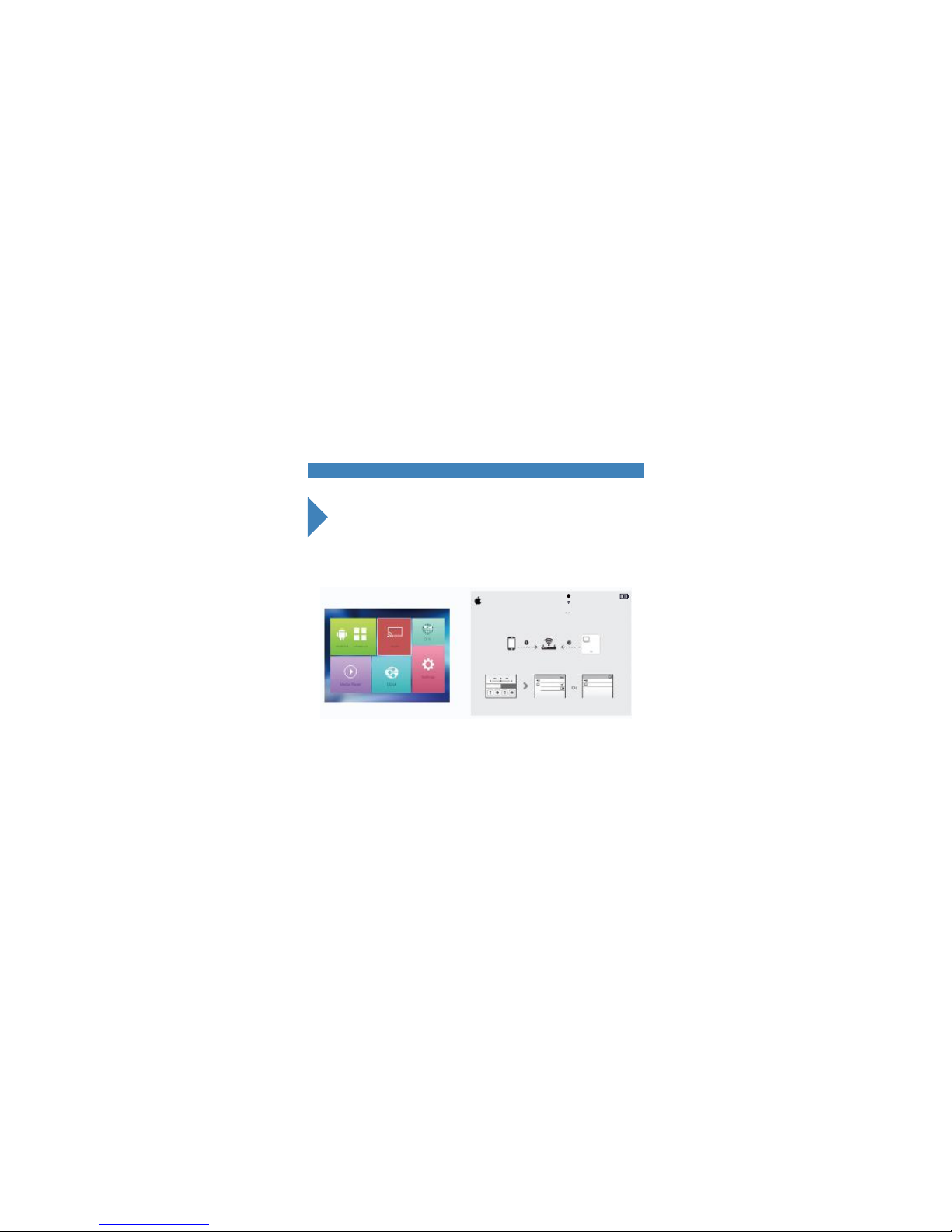
Enter the “Apple”page,and keep staying in this page.
iphone
p6-xxxxxx
iphone
p6-xxxxxx
Mirroring
Airplay (iOS II)
Support ios 5.0 or latter
P6-6F7CSE
Ayhttp//:192.168.49.1
2.4G Aycodis 2.4G Wifi
Casts IOS device’s local images,videos or third party video data to the projector
Both IOS device and projector are connected to your home WIFI
1.Swipe up on control panel
and press Airplay icon
2.Select P6-XXXXXX and enable Mirroring if you prefer
And then third party video app that supports
Airplay press Airplay icon.
i
Page 11
11
Airpaly Mirroring for Iphones
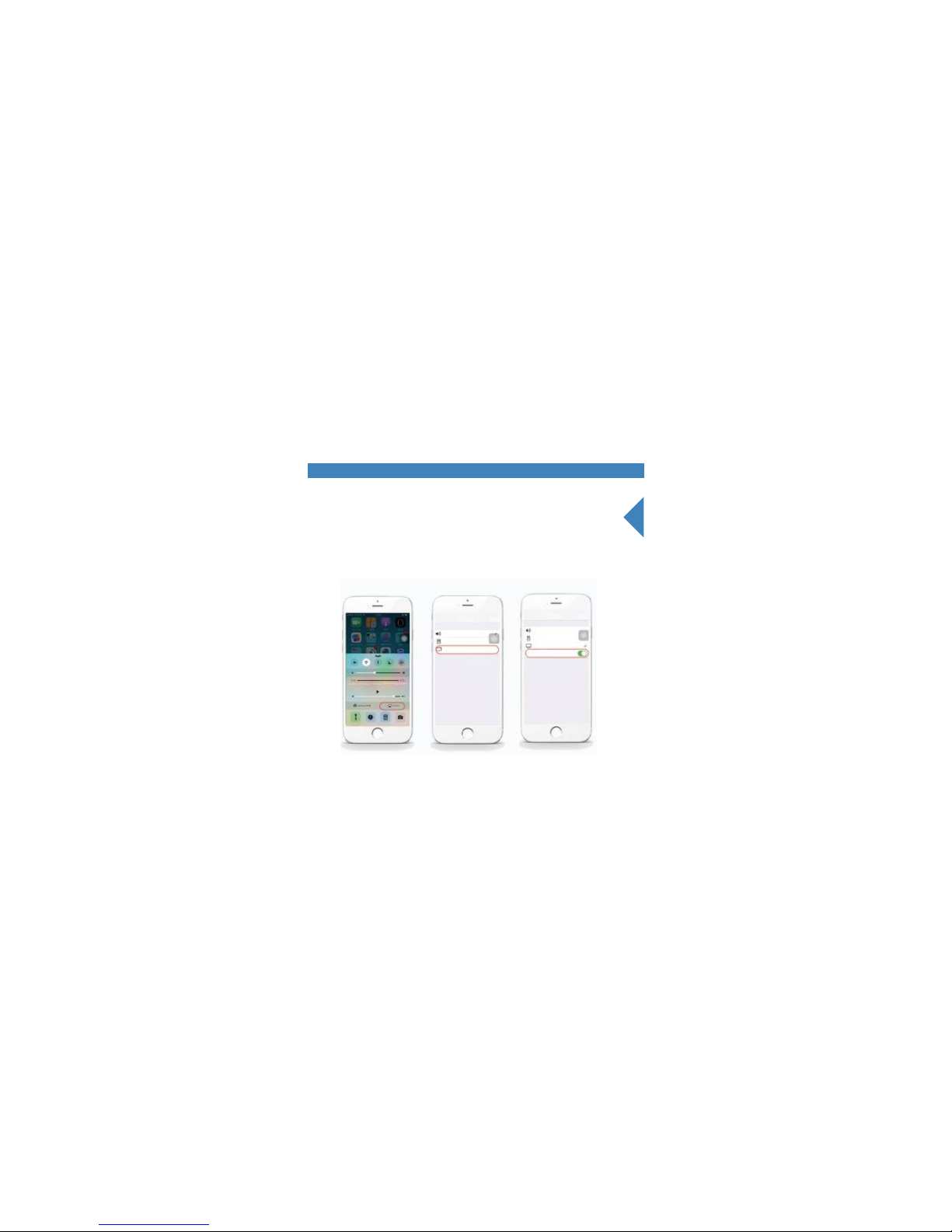
Search on phone the local wifi hotspots and find out Orimag P6’s
connectivity,enter without password.
Once the connection done,switch on “Airplay Mirroring”from the control
panel on the phone.Here comes the projection.
P6-6F7CSE
Mirroring
P6-6F7CSE
iphone
cb100@164
iphone
cb100@164
With AirPlay Mirroring youcan send everythingon your
iPhone’s display to an AppleTV,wirelessly.
With AirPlay Mirroring youcan send everythingon your
iPhone’s display to an AppleTV,wirelessly.
Airplay Done
Airplay Done
Page 12
12
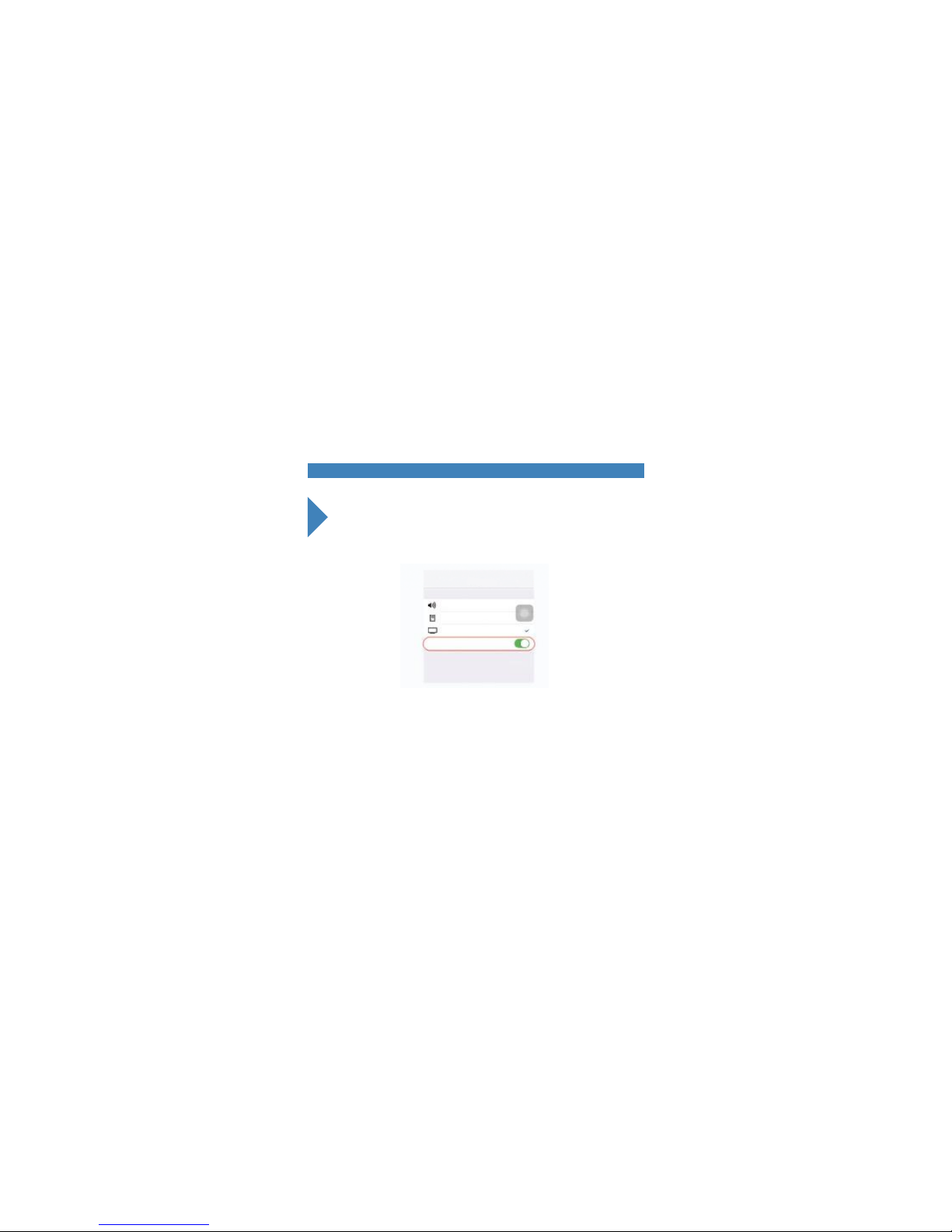
Airplay to quit connection
3.shut down mobile phone mirror output to quit connection
Mirroring
P6-6F7CSE
iphone
cb100@164
With AirPlay Mirroring youcan send everythingon your
iPhone’s display to an AppleTV,wirelessly.
AirPlay
Page 13
13OTG CONNECTION–APPLE IPHONE
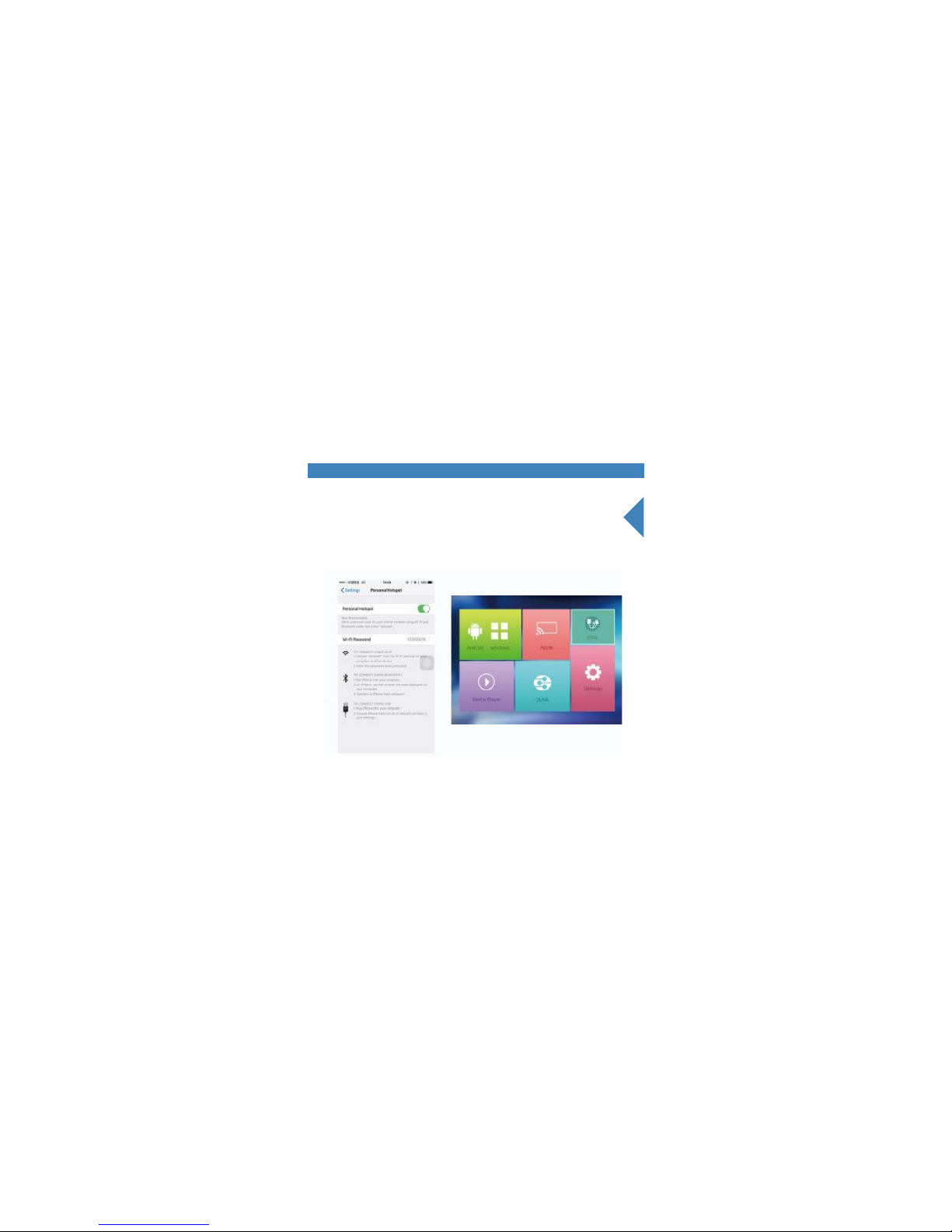
1. Turn on personal hotspot,Slect "setting" on the desktop and then click
"WIFI setting" to connect the personal hotspot. when connected
successfully turn back to the desktop.pls keeping turn on the personal
hotspot.
Setting
P6-6F7CSE
Ayhttp//:192.168.49.1
Wi-fi setting
Brightness Setting
Language
Online Update
Device info
Click and connecting
Wifi successfully connecting stafus
2.4giPhone6
i
i
Page 14
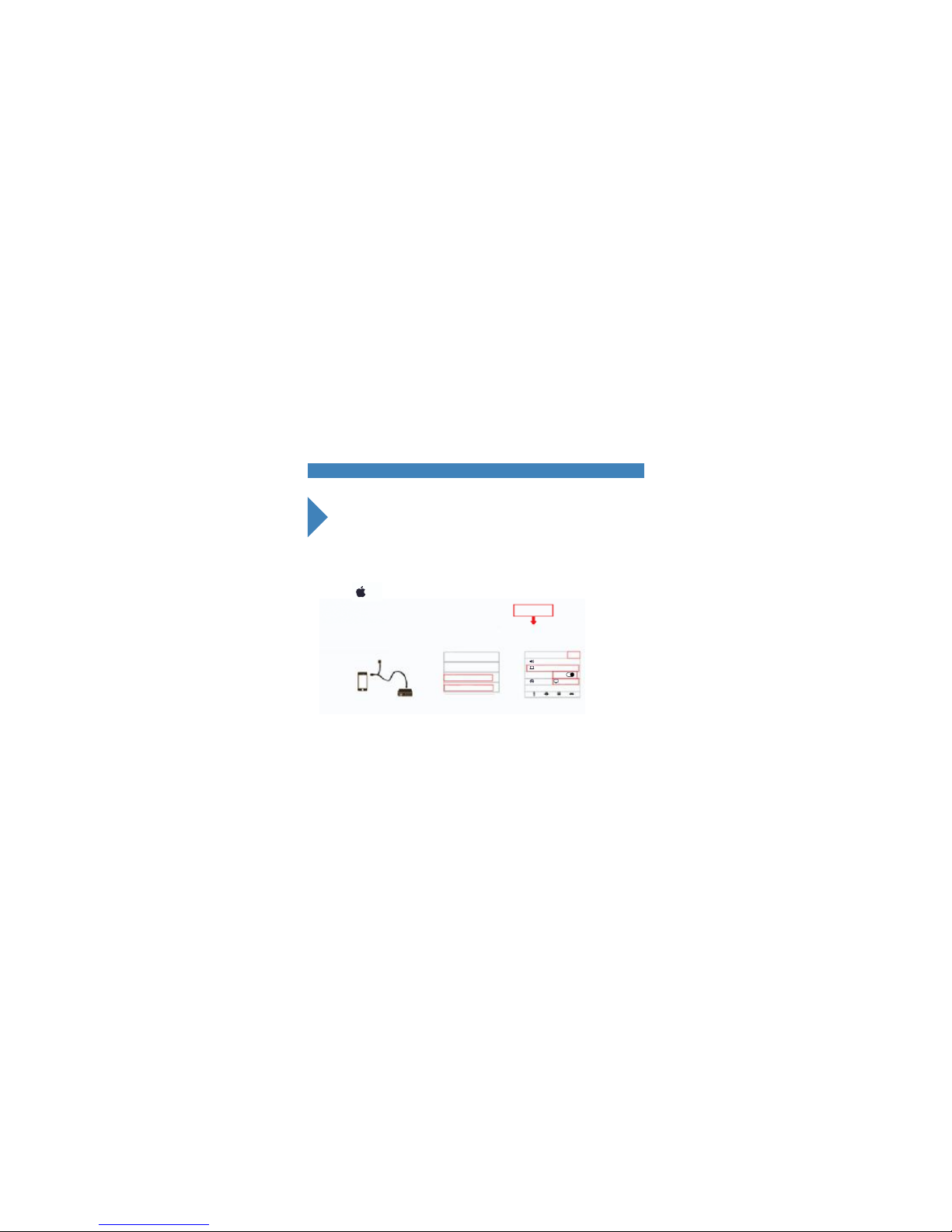
14 OTG CONNECTION–APPLE IPHONE
2. Connect the projector with your phone by OTG cable, then select the
"OTG" and click to turn the below right image.waitting for automatic
connection caption as the below image shows.
P6-6F7CSE
Connected
this info shows the projector
connect to the phone successfully
power Setting
Bluetooth
Celullar data network
Personal hotspot
Airplay
iPhone
P6-xxxxxx
Mirror
airdropairplay
Done
Mobile phone
mini projector
1.To connect data cable as image shows(fenale
port to connect to mobile phone)
2.Select"setting"-"celular data network
"open"Hotspot"
3.Push:open Airplay-select "hotspot"connect ahd done.
click icon in playing video
Minoting :open Airplay-select
"hotspot" to open mirror and done
ios
Notice:online video play will consume the
Cellular data which cost will be collected by the prodder
Page 15
15
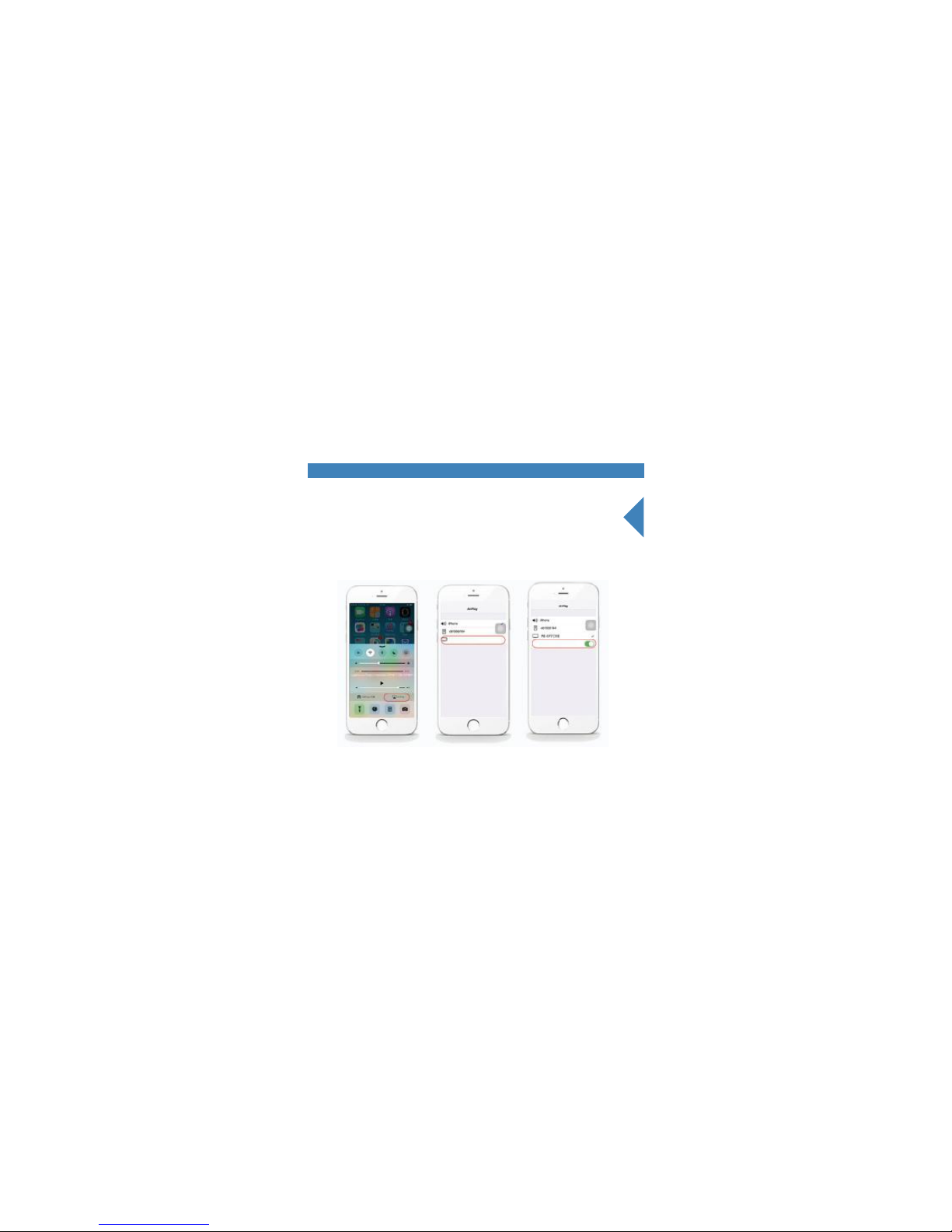
OTG CONNECTION–APPLE IPHONE
3.Slide up from bottom of the phone and click the "Airplay"
to use the mirroring function.
P6-6F7CSE
Mirroring
With AirPlay Mirroring youcan send everythingon your
iPhone’s display to an AppleTV,wirelessly.
With AirPlay Mirroring youcan send everythingon your
iPhone’s display to an AppleTV,wirelessly.
Page 16
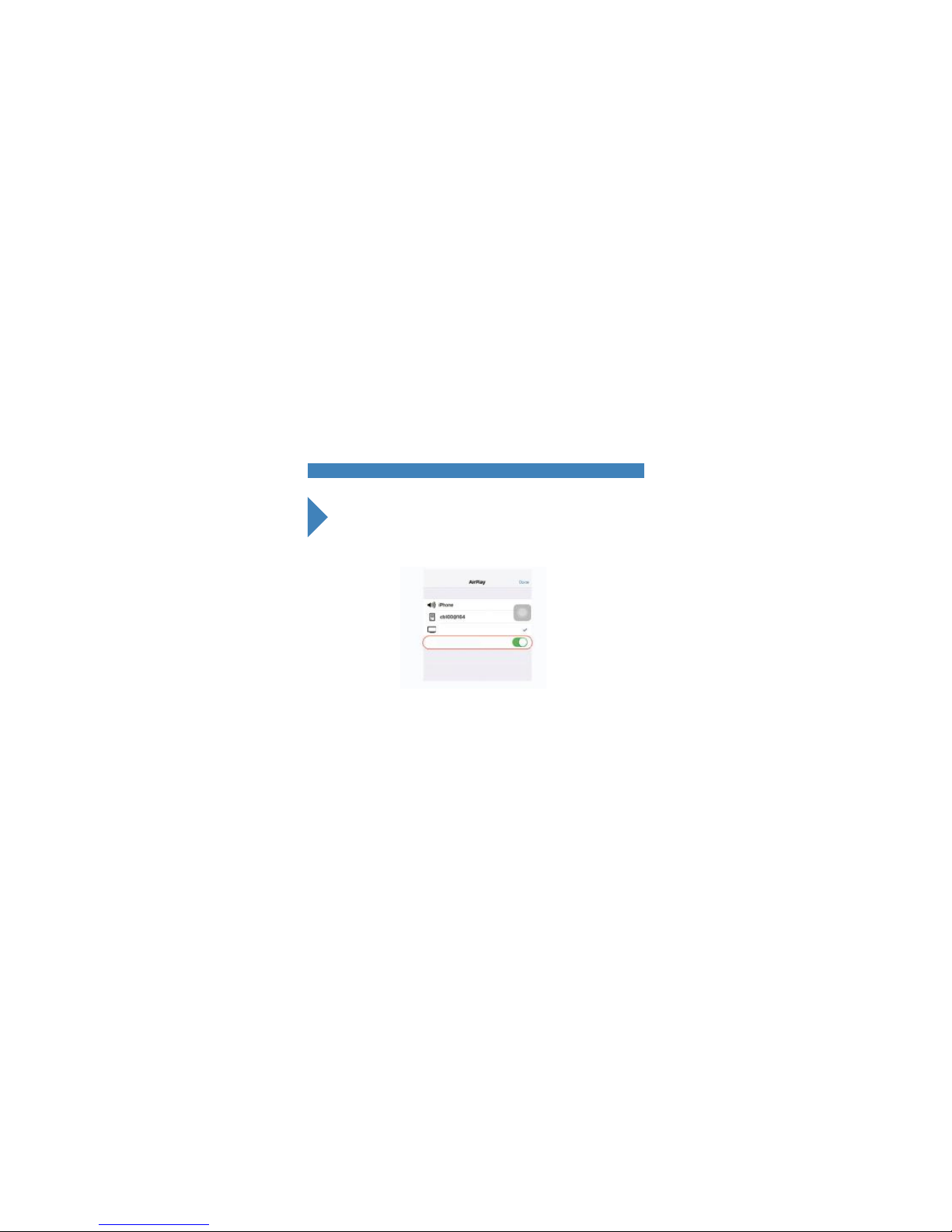
16 OTG to quit connection
4. Shut down mobile phone mirror output to quit connection.
P6-6F7CSE
Mirroring
With AirPlay Mirroring youcan send everythingon
your iPhone’s display to an AppleTV,wirelessly.
Page 17
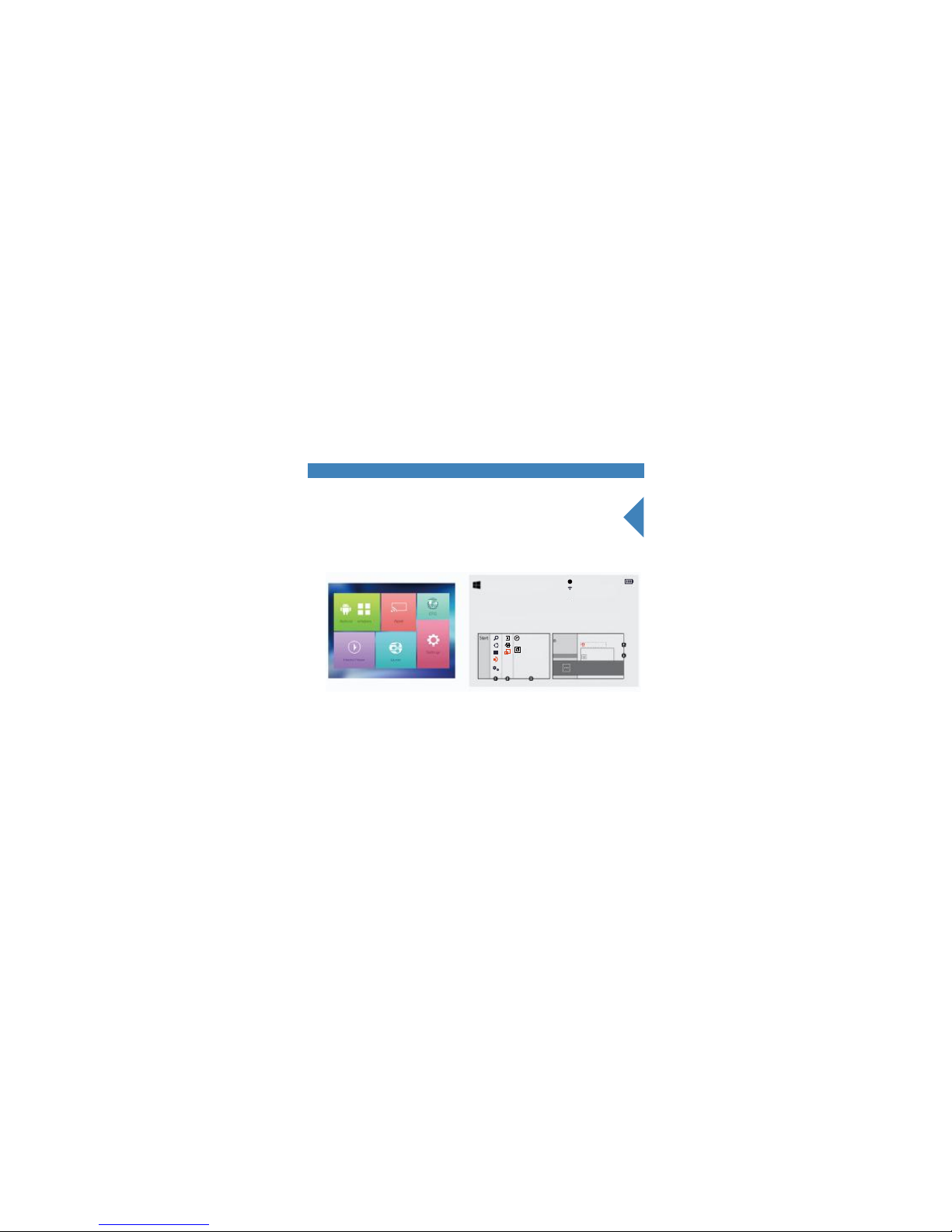
17CONNECT TO WINDOWS SYSTEM
Same Wi-Fi “will be shared between the mobile phone and projector.
1.Select “Windows” from desktop to enter the interface as below right
image shows
Windows Miracast
P6-6F7CSE
Ayhttp//:192.168.49.1
2.4G Aycodis 2.4G Wifi
With a Miracast enabled Windows device, you can mirror your contents to the projector
Project
Project
To Project,connect a diaplay.
Add devices
P6-XXXXXX
Entertainment device
Connecting to p6-xxxxxx
Add a devices
Searching devices
Second screen
Add a wireless display
PC and devlces
Lock screen
Display
Bluetooth
Devices
Typing
i
Page 18
18 Connect to Windows system
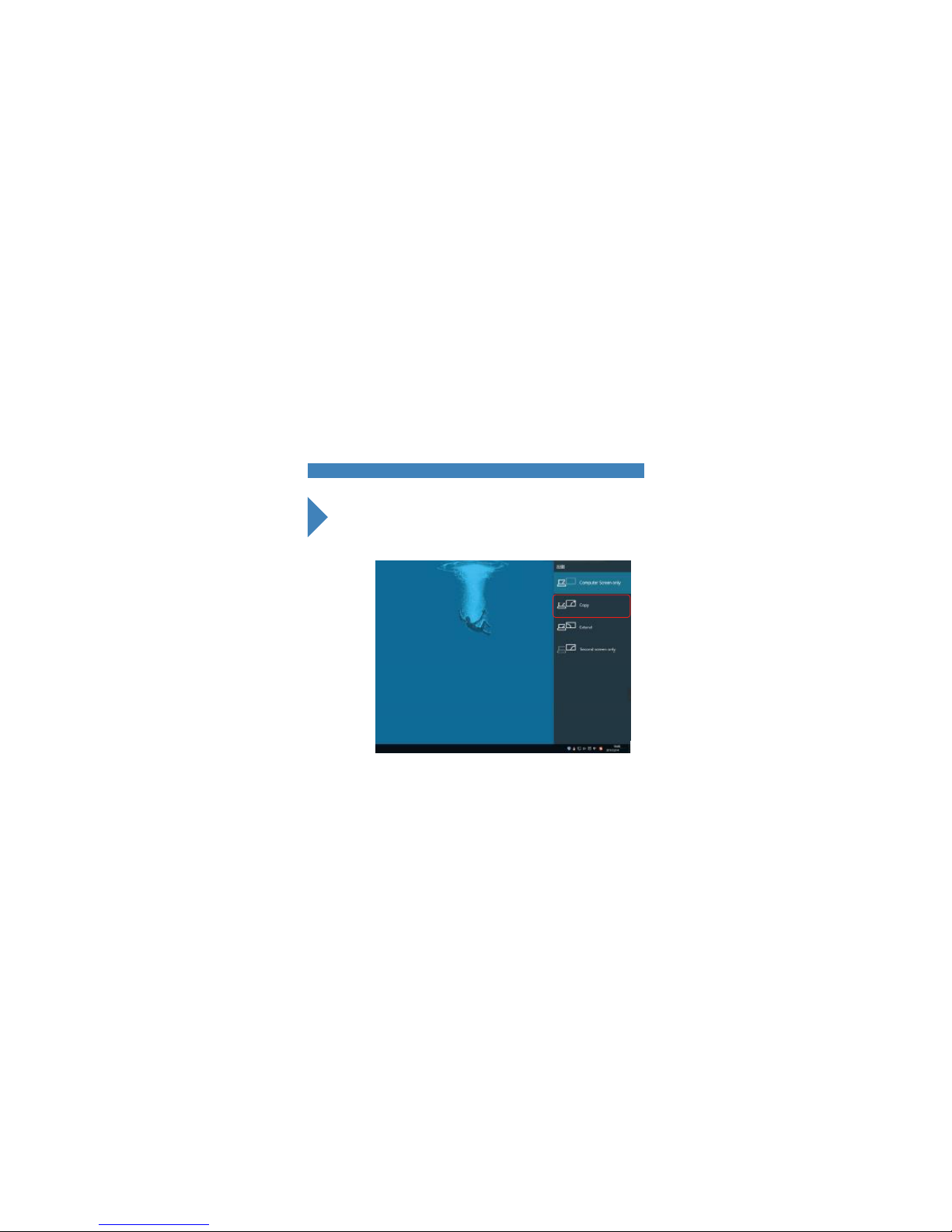
2.To press Fn+F3 to open “Copy” and select other projection modes
Select “Projection--Computer Screen Only”and
search to connect the available projector device
Page 19

19Connect to Windows system
3.3.Searching and connect the projector device until it’s projection
successfully.
Page 20
20
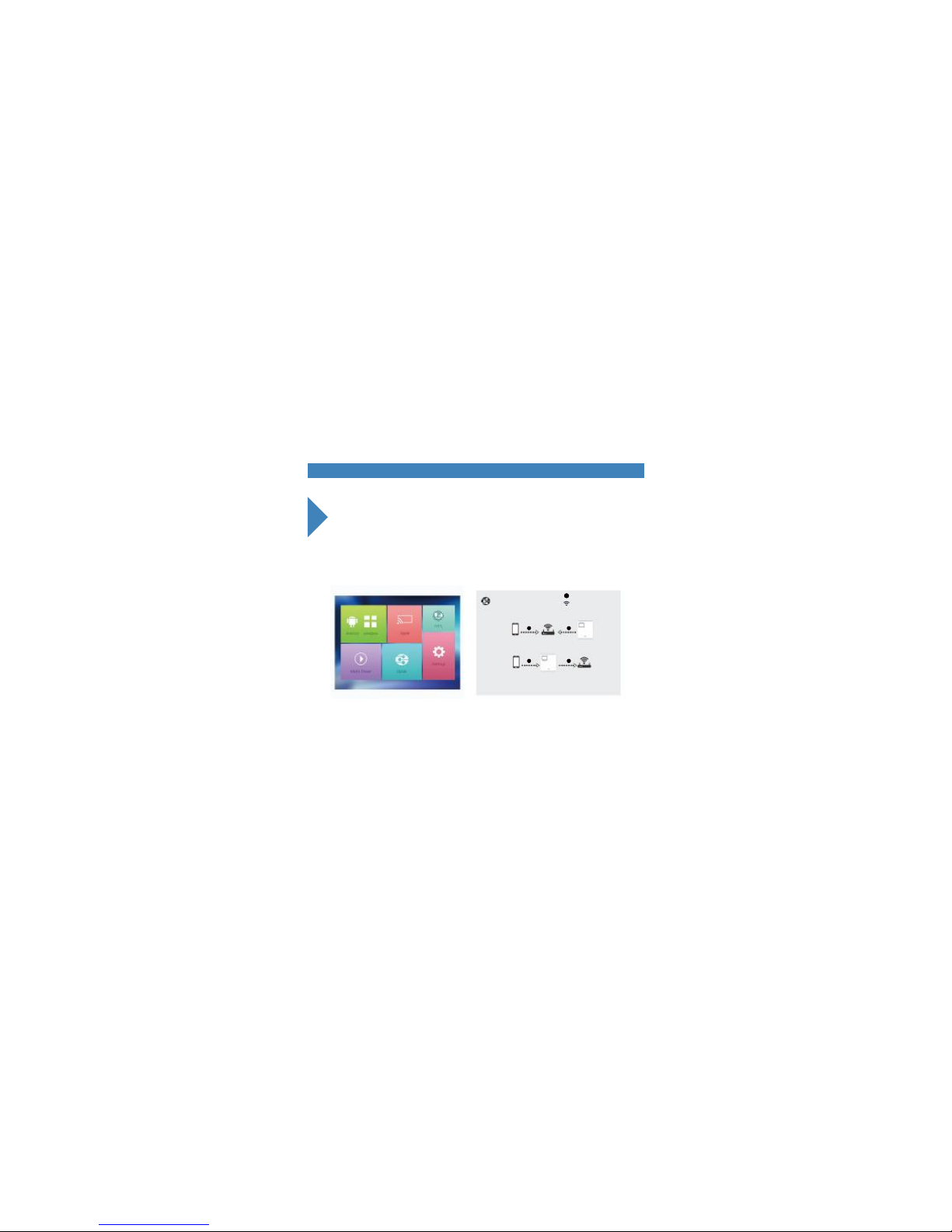
DLNA push
1.DLNA:to transfer local images videos or 3rd party video data
to projector (need in the same Wi-Fi Router for smart device and projector )
2.And otherwise,this device also can connect to Iphone cellular personal
hotspot,and show the same screen when surfing on the phone net.
P6-6F7CSE
http//:192.168.49.1
With DLNA,casts smart device’s local images, videos or third party video data to the projector
1 2
1 2
Both smart device and projector are connected to your home WIFI
or
Projector has been connected to your home WIFI,and smart device is
connected to projector’s WIFI In the third party app that supports DLNA,
press DLNA and then select p6-xxxxxx
DLNA
i
Page 21

21
DLNA push
3.As the below picture shows.Click the TV Screen Mirroring on the Vedio
App.Please Note:Most Vedio App support the DLNA function(such as
Tecent video, Thunder KANKAN, PPTV,YOUKU,SOHU video etc.),while
still someAPP does not support.
Page 22
DLNA disconnection
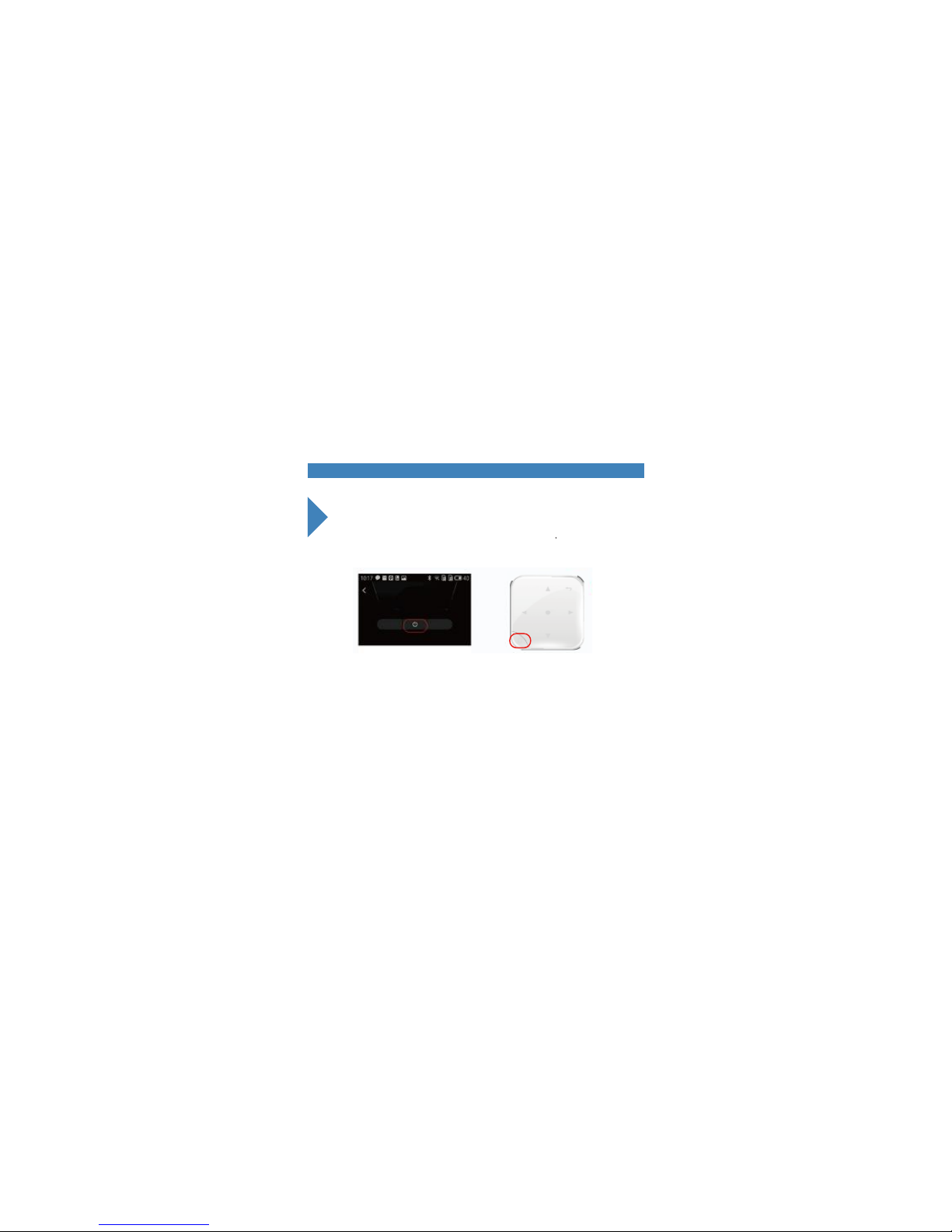
3.To click quit projection or disconnect on mobile phone
or click “return” button of projector to quit.
Projecting
P6-6F7CSE
HD
Change device
22
Page 23
23Player
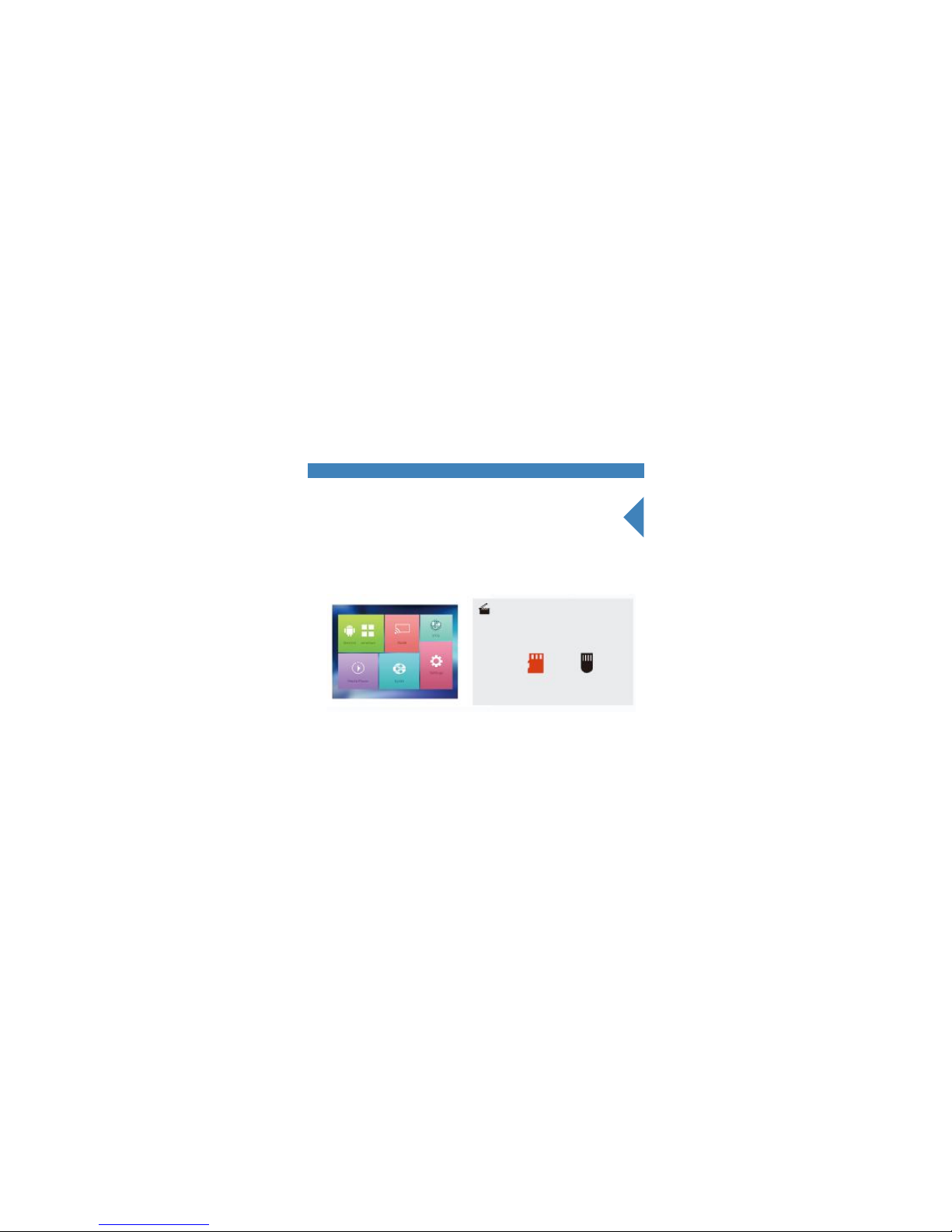
To play videos and images from TF card or flash disk by selecting “player”
Attention : To change volume size and forward or previous from projector as
well as smart device.
Media Player
SD Card USB Disk
Page 24

Precautions
To prevent internal overheating,install the projector in a well-ventilated place
Do not place anything near the projector that may block its air
vents if the air vents are blocked,the internal temperature
of the projector will increase.
Be sure to prevent foreign objects such as paper debris from
entering the projector.
Do not install the projector in a hot or humid environment.
Never open any cover on the projector.
Page 25

 Loading...