

Page 1
PR18manualSpecialtyversion 6/28/06 11:49 AM Page 1
Page 2
About Your SmartGlobe™ Deluxe Edition Kit
Getting Started
AC/DC adapter
Auto off
Low battery indicator
PC requirements
Key functions
Activities
Touch
Compare
Find
Spanish activities
Knowledge
Sound Options
Built-in speaker
Base speaker
Headphones
Register Your SmartGlobe™ Deluxe Edition
Access code
SmartGlobe™ Deluxe Edition PC program installation
Register and update your SmartGlobe™ Deluxe Edition
How to Renew Your Internet Subscription
Bonus
Dear customer,
Thank you for purchasing SmartGlobe™ Deluxe Edition by Oregon Scientific.
We hope that this product will help you and your family to learn more about the world we live in,
and to develop and interest in geography, history, and in cultures around the world.
As a truly international company, all of us at Oregon Scientific take a personal interest in designing
products that help both children and adults understand more about our global neighbors.
It is our goal that you will learn something new and inspiring that might change your perspective
of the world. The SmartGlobe™ Deluxe Edition can be continually updated by connecting the
SmartGlobe™ Deluxe Edition to the Internet via USB cable. As such,
we hope that every day will bring a new adventure to your world using SmartGlobe™ Deluxe Edition.
1
3
5
8
9
15
15
TTable of Contents
able of Contents
PR18manualSpecialtyversion 6/28/06 11:49 AM Page 2
Page 3
Adaptor
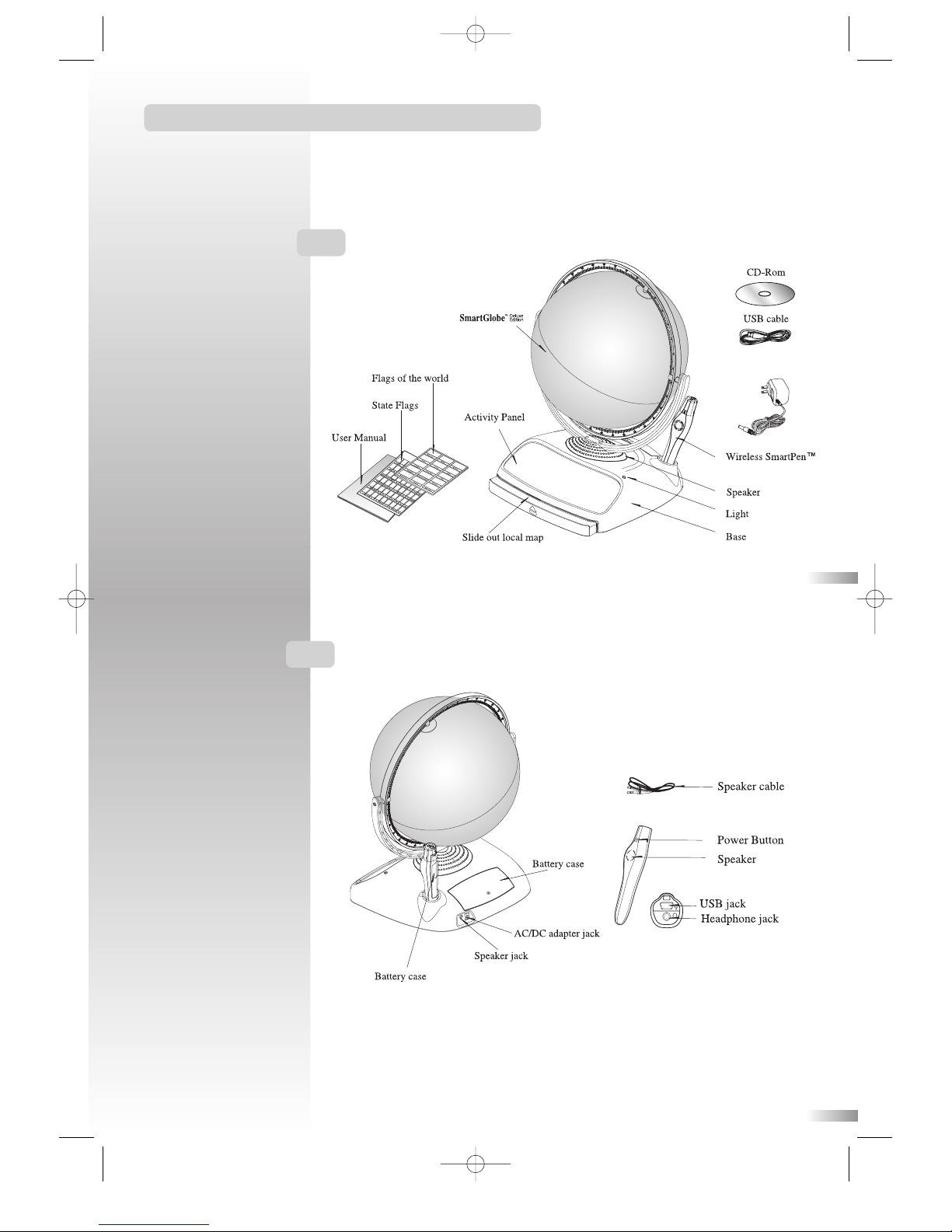
About Your SmartGlobe™ Deluxe Edition Kit
Your SmartGlobe™ Deluxe Edition is supplied with the following
parts; please contact Oregon Scientific if any parts are missing.
1
Back
Front
2
PR18manualSpecialtyversion 6/28/06 11:49 AM Page 3
Page 4
Getting Started
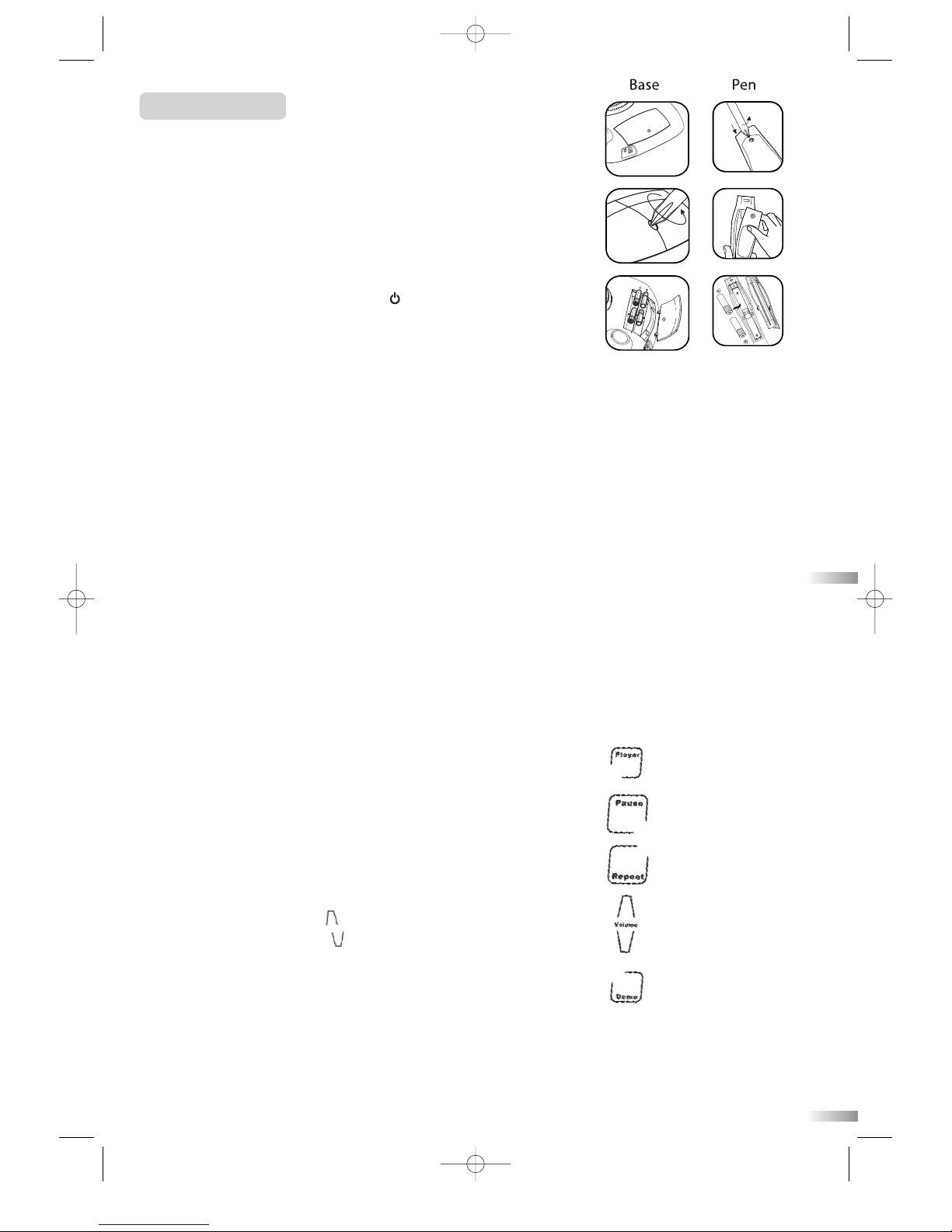
Your SmartGlobe™ Deluxe Edition base uses four AA alkaline
batteries, which are installed in the back of the base as shown. It is
also equipped with an AC/DC adapter connection, which allows the
base speaker to work without batteries.
Your SmartPen™ uses two AAA alkaline batteries. To open the battery
cover, remove the screw on the back of the pen with a Phillips-head
screwdriver and then pull it open from the top as shown. Once you
have installed the batteries in the pen, remove the plastic tag from the
back of the pen located next to the reset button. The tag is only for
demo use.
Turn on the SmartPen™ by pressing the button.
AC/DC adapter
Please remove the batteries from the base unit before plugging in the
AC/DC adapter. Otherwise the unit may be damaged. Plug the adapter
into the adapter jack (center positive type) at the rear side of the unit.
Plug the adapter into a wall outlet.
Auto off
The SmartPen™ will automatically shut off after five minutes of not
being used, and the base speaker can only be used when plugged into
the SmartPen™.
Low battery indicator
A flashing red LED light indicates that the SmartPen™ is running out
of batteries.
Note: The clock in SmartPen™ will be inaccurate when out of batteries for
over 2 minutes.
Key functions
• Player
Touch this icon to select up to four players in the “Find” activities.
• Pause
Touch this icon if you would like to pause the game. Touch it again to
resume your game.
• Repeat
Touch this icon to repeat a question or instruction prompt.
• Volume
To raise the volume, touch [ ]
To lower the volume, touch [ ]
• Demo
Touch this icon to listen to a demonstration of some of the exciting
features and games on your SmartGlobe™ Deluxe Edition.
• Local Map
To use the U.S. map, push in the drawer at the bottom of the base and it will open out, enough for you to
pull it out by its sides. To close the drawer, push it back in until it clicks again.
Caution
• Different types of batteries or new and used
batteries are not to be mixed.
• Only use batteries of the same or equivalent type.
• Remove batteries from the unit if the unit is not
going to be used for a long time.
• Remove all batteries when replacing.
• Do not dispose of batteries in fire.
• Non-rechargeable batteries are not to be recharged.
• Rechargeable batteries are to be removed from the
product before being charged.
• Rechargeable batteries are only to be charged under
adult supervision.
• Exhausted batteries are to be removed from the product.
• The supply terminals are not to be short-circuited.
• The base unit must not be connected to a power
supply greater than 6V.
• Due to AC/DC adapter connection - Not suitable
for children under 3 years of age. Use only under
adult supervision.
PC requirements
In order to register and update your SmartGlobe™ Deluxe Edition, we recommend
at least a Pentium III 600MHz with 128 MB RAM. To install the program, you
must have Windows XP, Windows 2000 (Home or Professional).
3
4
PR18manualSpecialtyversion 6/28/06 11:49 AM Page 4
Page 5
Find
To play a search game, touch one of the ‘Find’ categories with your SmartPen™. The
SmartGlobe™ Deluxe Edition will tell you to find certain places on the map, and you
must answer the questions as quickly as you can. Each activity has 3 different levels, and
for each level the player must answer the required number of questions correctly. Players
need to answer the questions within the time limit; the time limit varies depending on the
age group the player has selected. The “Ultimate Challenge” game is a combination of
questions from all the other categories.
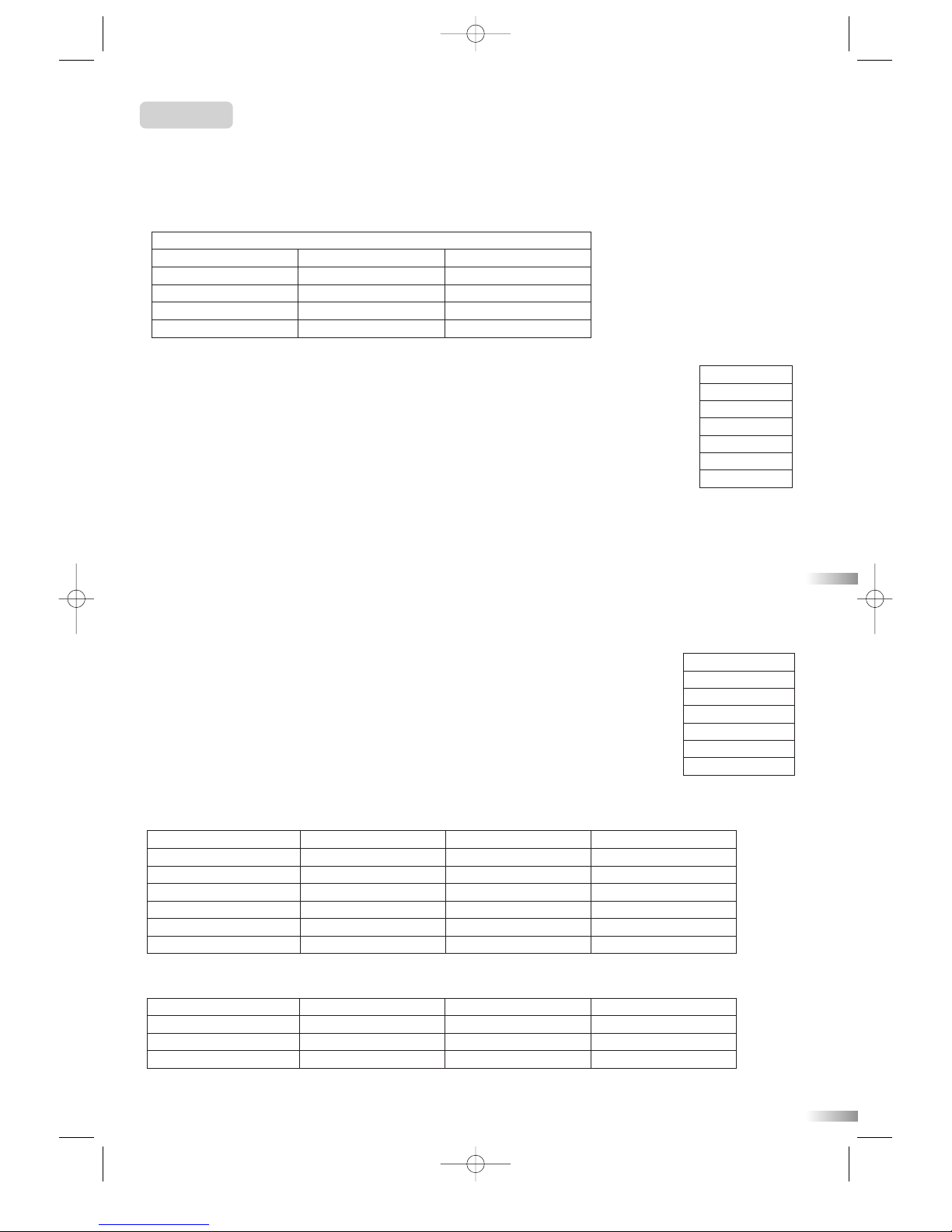
This table shows the time limit of each game for each age group.
This table shows the number of correct answers required from the player to advance to a higher level.
Activities
Touch
To learn about a country, use the tip of the SmartPen™ to touch one of the 'Touch' categories on the activity
panel (located on the base), and then use the SmartPen™ to point to a place on the globe. To learn more about
a particular country, use the SmartPen™ to touch a different category on the activity panel, and touch the
country again.
Compare
To compare information between two places, such as distances, flying times, and exchange
rates, choose a category under ‘Compare,’ and then touch two countries on the globe one
after the other. The SmartPen™ will even let you compare places on the U.S. map with
places on the main Globe.
Note: The time function will only be accurate once you have registered and updated the SmartPen™;
see pages 9 and 14 for instructions. Also, the exchange rates will be based on those automatically
updated at the time of your last download.
TOUCH
Continent Time Weather
Name Area Features
Capital Highest Point History
Leader Geography Language
Population Currency National Anthem
Compare
Population
Area
Currency
Time
Distance
Flying Time
Find
Continents
Countries
Capitals
Cities
Local Places
Ultimate Challenge
Game/Age Age 5-8 Age 9-14 Age 15+
Continents 90 seconds 60 seconds 45 seconds
Countries 120 seconds 90 seconds 60 seconds
Capitals 120 seconds 90 seconds 60 seconds
Cities 120 seconds 90 seconds 60 seconds
Local Places 120 seconds 90 seconds 60 seconds
Ultimate Challenge 120 seconds 90 seconds 60 seconds
Age/Level Age 5-8 Age 9-14 Age 15+
Level 1 1 question 2 questions 2 questions
Level 2 2 questions 2 questions 3 questions
Level 3 3 questions 3 questions 3 questions
5
6
PR18manualSpecialtyversion 6/28/06 11:49 AM Page 5
Page 6
Spanish Activities ( )
To learn about a country in Spanish, use the tip of the SmartPen™ to touch one of the ‘ ’ categories
on the activity panel (located on the base), and then use the SmartPen™ to point to a place on the globe or
local map. To learn more about a particular country in Spanish, use the SmartPen™ to touch an activity under
the ‘ ’ category, and touch the country again.
Knowledge
For up-to-date World News, Amazing Facts and Earth Facts, touch an icon with the SmartPen under the
‘Knowledge’ column.
Earth Facts
Each time you select the Earth Facts icon, you will hear facts about the Earth.
Amazing Facts
To explore amazing facts in our world, use the tip of the SmartPen™ to touch Amazing Facts on the activity
panel (located on the base), and then use the SmartPen™ to point to a place on the globe.
World News
Each time you select the World News icon, you will hear up-to-date World News. Updates are available; see
“Register and update your SmartGlobe™ Deluxe Edition” on the pages 9 and 14 for details.
Sound Options
Your SmartGlobe™ Deluxe Edition can be used in three different sound modes:
Built-in speaker
With the SmartPen’s built-in speaker.
Base speaker
With the larger, louder speaker in the base; just use the speaker
cable to connect the pen to the speaker jack.
Headphones
With headphones connected to the SmartPen™.
Note: Purchasing multiple SmartPens™ allows multiple users to
learn with one SmartGlobe™ Deluxe Edition at one time; we recommend using
headphones in this case.
Speaker
1.
2.
3.
Continente
(Continent)
Nombre (Name)
Capital (Capital)
Líder (Leader)
Características (Feature)
Hora local (Time)
7
8
PR18manualSpecialtyversion 6/28/06 11:49 AM Page 6
Page 7

Register Your SmartGlobe™ Deluxe Edition
Your new SmartGlobe™ Deluxe Edition is not only ready to be used right out of the box, but can also be
customized by age level and can receive new educational content updated weekly by Oregon Scientific editors.
Note: It is recommended that you register your SmartGlobe™ Deluxe Edition in order to download the latest
information for your Globe.
Access code
Your SmartGlobe™ Deluxe Edition has a personal access code (located on this page and the back of the
CD-ROM cover) that will allow you to use our Internet services, free of charge until the end of the year 2008
(December 31st, 2008). To use the service, you must register and activate the access code.
SmartGlobe™ Deluxe Edition PC program installation
Windows XP
Note: Before the installation, please connect your PC to the internet.
1. Insert the SmartGlobe™ Deluxe Edition CD-ROM into the disc drive of your PC.
2. A window will pop up, and the program will guide you through the installation process.
*If the window does not pop up, you can download the latest program at the following website:
http://smartglobe.oregonscientific.com/updates/deluxe.html
3. After the installation process, connect the SmartPen™ to your computer using the USB cable provided.
4. Your PC will recognize the SmartPen™ and complete the driver installation. **
9
10
** If your Windows XP is not up-to-date. The "Found New Hardware Wizard” will pop up, and you can follow
the below steps to complete the SmartPen driver installation.
a. Choose “No, not this time”
and click the “Next” button.
b. Choose “Install from a list
or specific location [Advanced]”
and click the “Next” button.
PR18manualSpecialtyversion 6/28/06 11:49 AM Page 7
Page 8

c. Click the “Browse” button to browse the
following location if your Windows XP
is installed in the C drive(C:\):
C:\Program Files\Common Files\USB9KD
*If your Windows XP is installed in other
drives (e.g. E drive E:\), then you should
browse for the location below:
E:\Program Files\Common Files\USB9KD
d. Click the “Continue Anyway” button to
continue the installation. Then, the SmartPen
™
will be installed completely.
Window 2000
Note: Before the installation, please connect your PC to the internet.
1. Insert the SmartGlobe™ Deluxe Edition CD-ROM into the disc drive of your PC.
2. A window will pop up, and the program will guide you through the installation process.
*If the window does not pop up, you can download the latest program at the following website:
http://smartglobe.oregonscientific.com/updates/deluxe.html
3. After the installation, connect the SmartPen™ to your computer using the USB cable provided.
** If your Window 2000 is not up-to-date. The "Found New Hardware Wizard” will be pop up, and you can follow the below steps
to complete the SmartPen driver installation.
11
12
b. Choose “Search for a suitable driver for my
device” and click the “Next” button.
a. The "Found New Hardware Wizard”
will pop up, click the “Next” button.
PR18manualSpecialtyversion 6/28/06 11:49 AM Page 8
Page 9
For further updates, click on the Oregon Scientific logo on your toolbar and follow the directions on
your screen. Through our server, you will be able to change your age group, language version** and
download the latest information, including World News.
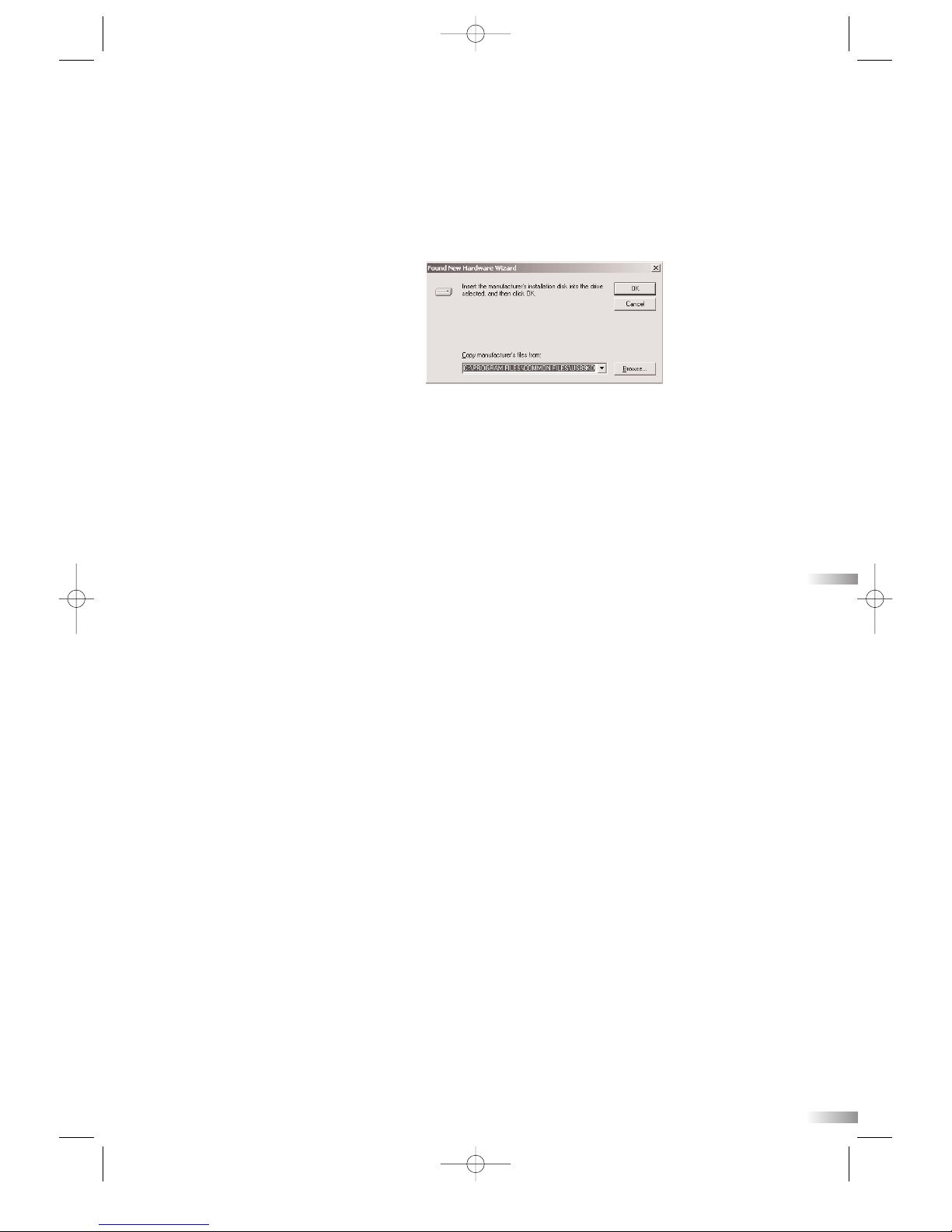
1) Connect the SmartPen to your computer
using the USB cable provided.
2) A panel will pop up.
3) Select an age group or language. (Default is
age 5-8, US English). When a language is
selected, the flag icon will light up.
4) Press the “Download” button to download
the latest version from the Server.
5) Unplug the Pen when it shows “Download
Completed”.
* As a result of our efforts to continually improve our products, the actual screen displays from the product may differ
slightly from the diagrams shown.
** Different languages will be available soon. The program will inform you when these languages are available.
14
Register and update your SmartGlobe™ Deluxe Edition
1) After the installation, a web page will open up; please fill in the information and enter the Access Code
(located on page 9 and the back of the CD-ROM cover).
2) You can now download the latest information from our server. Follow the on-screen instructions on the PC
control panel to update your SmartGlobe™ Deluxe Edition.
13
d. Click the “Browse” button to browse the
following location if your Windows 2000 is
installed in the C drive(C:\):
C:\Program Files\Common Files\USB9KD
*If your Windows 2000 is installed in other
drives (e.g. E drive E:\), then you should
browse for the location below:
E:\Program Files\Common Files\USB9KD
e. Click the “Next” button to install the driver.
f. Click the “Finish” button to complete the installation process.
c. Choose “Specify a location” and click
the “Next” button.
PR18manualSpecialtyversion 6/28/06 11:49 AM Page 9
Page 10
Oregon Scientific, Inc.
19861 SW 95th Avenue
Tualatin, OR 97062, USA
Hotline: 1-800-853-8883
Website: www.oregonscientific.com
This device complies with Part 15 of the FCC Rules. Operation is subject to the following two conditions:
(1) This device may not cause harmful interference, and (2) This device must accept any interference received, including interference
that may cause undesired operation.
Warning: Changes or modifications to this unit not expressly approved by the party responsible for compliance could void the user's
authority to operate the equipment.
NOTE:
This equipment has been tested and found to comply with the limits for a Class B digital device, pursuant to Part 15 of the FCC Rules.
These limits are designed to provide reasonable protection against harmful interference in a residential installation. This equipment
generates, uses, and can radiate radio frequency energy and, if not installed and used in accordance with the instructions, may cause
harmful interference to radio communications. However, there is no guarantee that interference will not occur in a particular installation.
If this equipment does cause harmful interference to radio or television reception, which can be determined by turning the equipment off
and on, the user is encouraged to try to correct the interference by one or more of the following measures:
• Reorient or relocate the receiving antenna.
• Increase the separation between the equipment and receiver.
• Connect the equipment into an outlet on a circuit different from that to which the receiver is connected.
• Consult the dealer or an experienced radio TV technician for help.
“ This Class B digital apparatus complies with Canadian ICES-003.”
“ Cet appareil numérique de la class B est conforme à la norme NMB-003 du Canada”
086L004507-013
Included in your SmartGlobe™ Deluxe Edition kit are flags from around the world. You can use your SmartPen™
to touch each flag and learn about the places they represent. When you've learned all the flags, you can
test your knowledge by guessing the country and then checking your answer with the SmartPen™.
Your SmartPen™ and all cables should be checked regularly for damage to avoid the danger of an
electric shock. Do not use them if they are damaged.
Always remove the batteries and disconnect the power supply before cleaning. Do not attempt to
dismantle any part of the product, and only use a soft, dry cloth for cleaning.
Do not get SmartGlobe™ Deluxe Edition or any of its parts wet, and be sure that your hands and the
tip of the SmartPen™ are clean before touching the globe surface; otherwise, the SmartPen™ may fail
to read information from the Globe.
As this product is updateable, prompts, instructions and game functions may change as we
continue to improve SmartGlobe™ Deluxe Edition and its user interface. We would be happy to
receive your comments and suggestions, and appreciate your feedback. Feel free to contact us at
[email protected], or visit us at www.oregonscientific.com/smartglobe/us.
Bonus
Note: All SmartGlobe™ Deluxe Edition data is for reference only, and is not intended to be used
as a source for academic or professional research.
Contact Information
Cleaning and Maintenence
15
How to Renew Your Internet Subscription
Your SmartGlobe™ Deluxe Edition purchase includes the free download service until the end
of the year, 2008 (December 31st, 2008).
You will be reminded to renew your subscription 30 days before it expires.
Press the ‘Renew now’ button on the control panel window, and you will be directed to a web
site through which you can renew your subscription.
PR18manualSpecialtyversion 6/28/06 11:49 AM Page 10
 Loading...