

Page 1

www.orbitsound.com
USER GUIDE
ONE P70W
Page 2
2 3
Let’s get started.
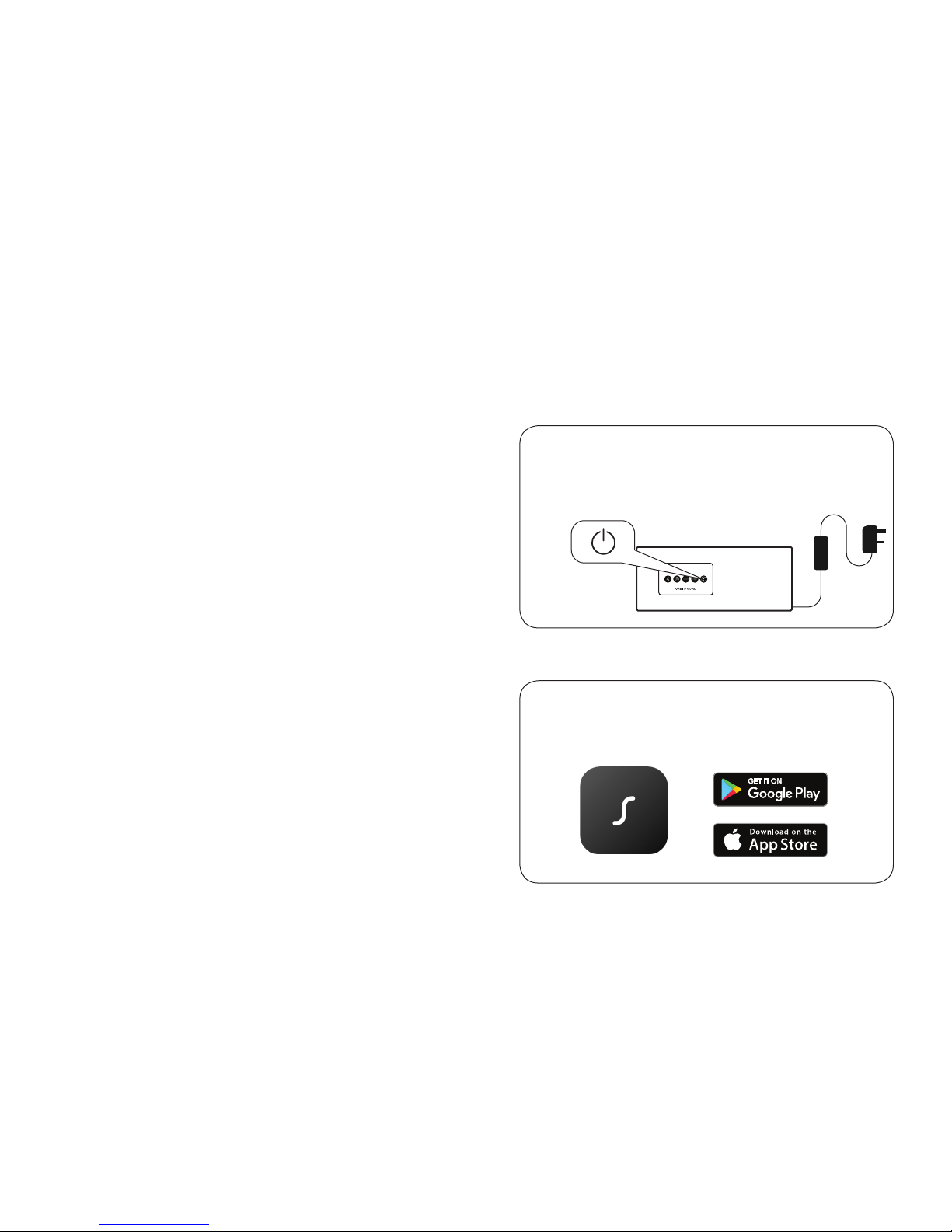
Plug it in
Get the app
Connect the power adapter to your
speaker and turn it on.
Download the Orbitsound app.
orbitsound.com/app
1.
2.
Eine deutsche Version dieses Leitfadens finden Sie unter
dem oben. aufgeführten Link.
Per una versione italiano di questa guida, visitare il link di
cui sopra.
Pour une version Français de ce guide, veuillez consulter
le lien ci-dessus.
Para obtener una versión en Español de esta guía, visite el
enlace que aparece arriba.
如需中文版本的指南,請瀏覽上述連結。
For an online version of this guide please
visit the above link.
orbitsound.com/support/onep70w
Page 3
4 5
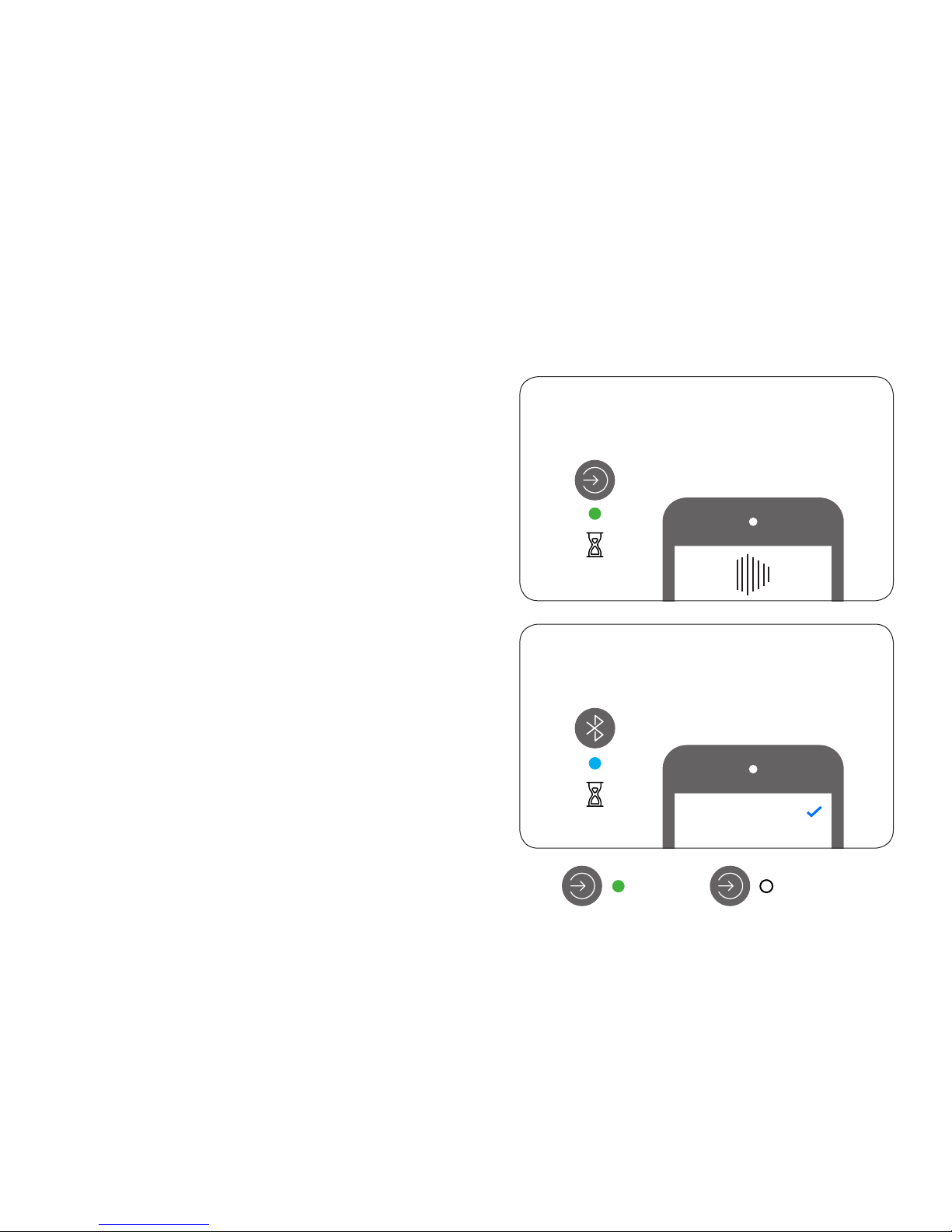
Wi-Fi
Bluetooth
Follow in-app instructions
Press and hold 3 sec
AUX Optical
0:03
0:03
ONE P70W Connected
Connect
Page 4
6 7
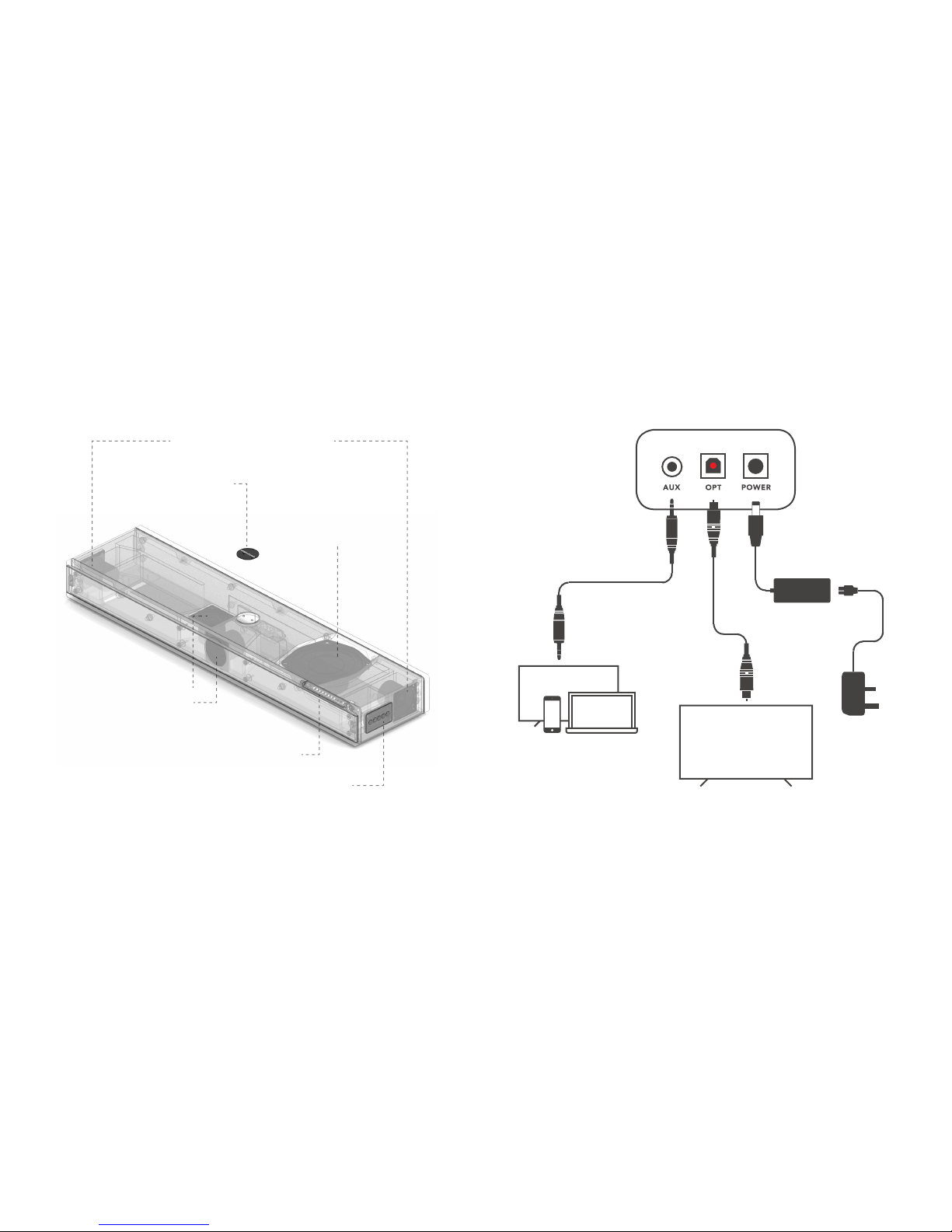
Spatial AirsoundTM speakers
Rotatable badge
Front/Top speakers
Control panel
Display
Low profile subwoofer
Inputs
AUX (3.5MM)
OPTICAL
(TV)
POWER
Page 5
8 9
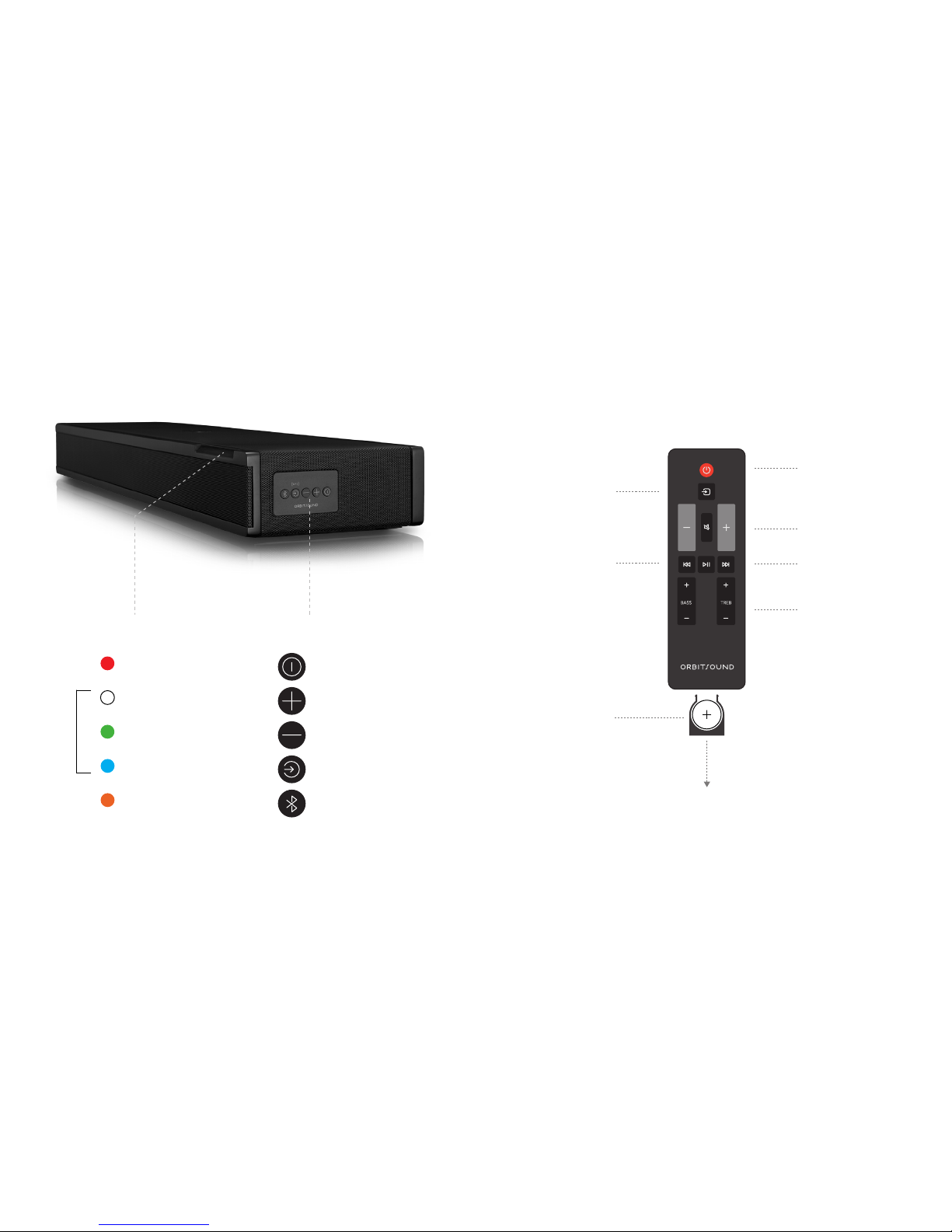
Controls & display
Power On/Off
Volume Up
Volume Down
Source
Bluetooth
Standby
Optical (TV)
Wi-Fi & AUX
Bluetooth
Mute
DISPLAY LIGHTS BUTTONS
Source
Bluetooth
Pairing
Remote
Power
Source
Volume Control
Bluetooth
Playback
Bass/Treble
Battery
3V - 2032
Pull plastic tab
IMPORTANT
Page 6
10 11
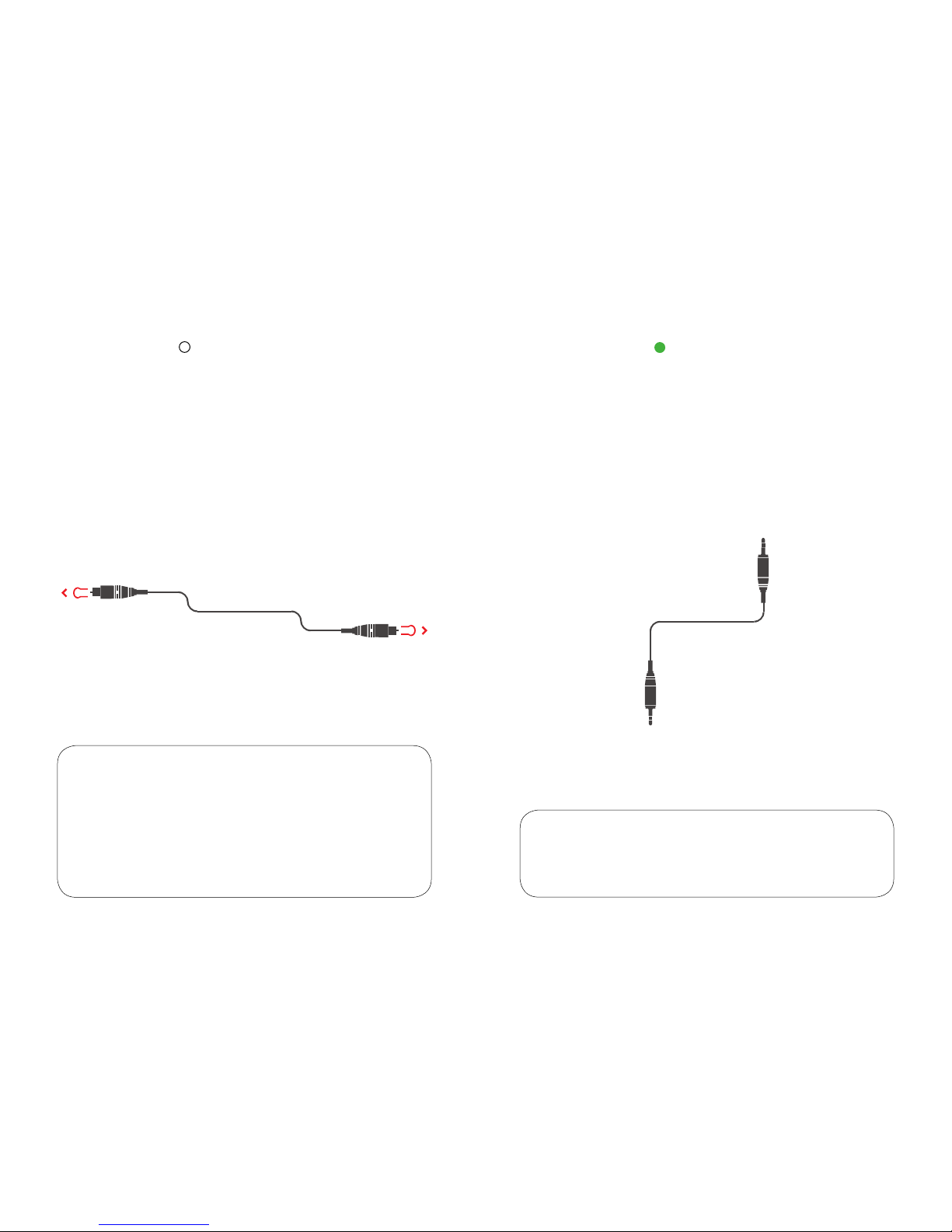
Optical
TV
We recommend using Optical to connect to the
ONE P70 for the best possible sound.
Remove protective plastic covers from the optical cable.
Remove the optical input cap on the back of the ONE P70 or it may
damage your equipment.
IMPORTANT
AUX
CD/MP3/TV
For other music players, record decks, CD, MP3 or
other devices, use the AUX 3.5mm jack input. Press
SOURCE until the green input is highlighted.
Make sure you increase the volume on your device to
80% or higher.
Turn your TV speakers off: To prevent an echo or external audio
output, go to TV settings -> sound/audio menu. Select Digital
Audio (Optical) as the audio output.
IMPORTANT: The ONE P70W does not support Dolby/DTS or multi
channel surround. You may need to change your TV’s digital audio
output to Normal or PCM to ensure best performance.
Page 7
12 13
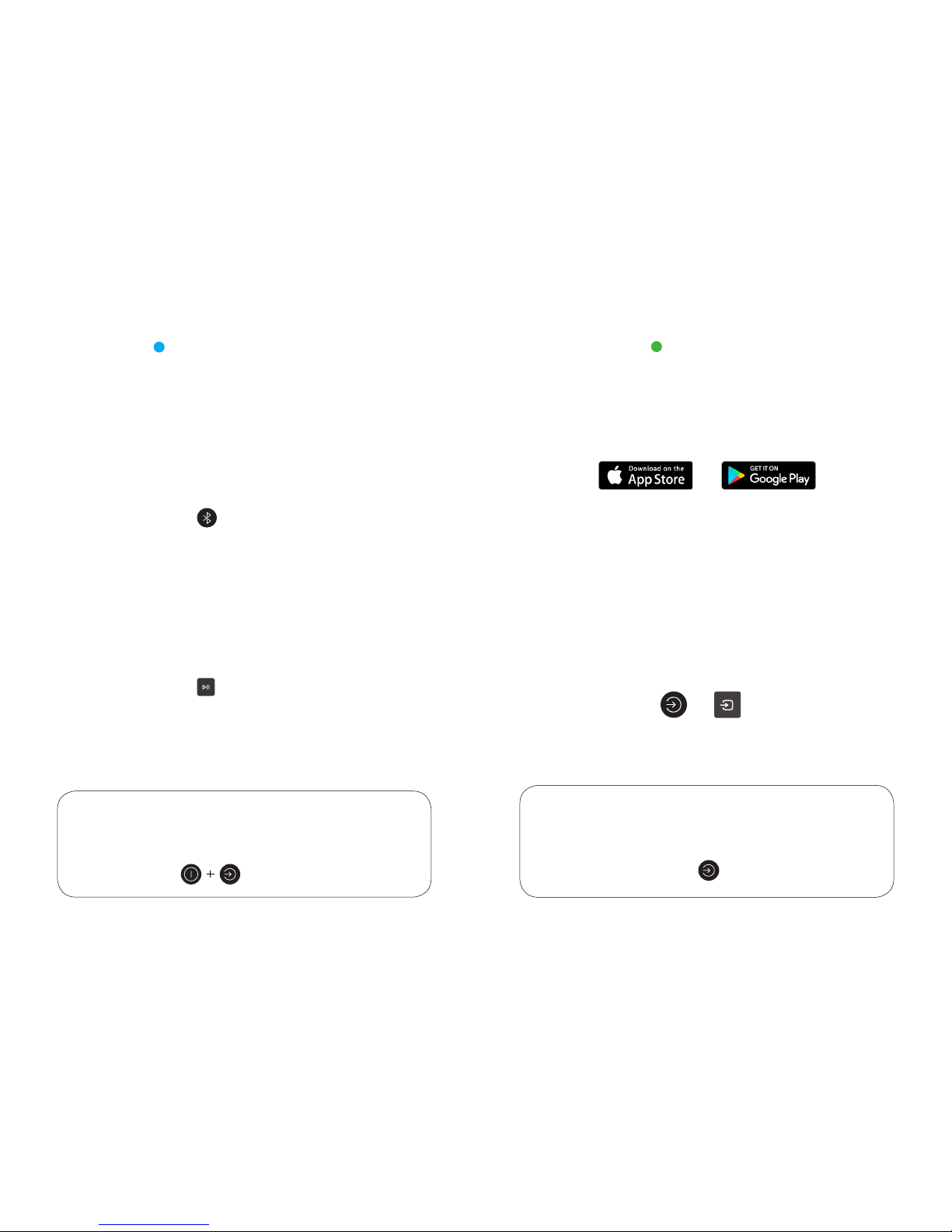
Bluetooth
Press and hold (BLUETOOTH) until the blue
light flashes quickly. Look for ‘Orbitsound ONE’
in your devices Bluetooth list and connect.
PAIRING ON THE CONTROL PANEL
PAIRING WITH THE ORBITSOUND REMOTE
Press and hold (PLAY/PAUSE) until the blue
light flashes quickly. Look for ‘Orbitsound ONE’
in your devices Bluetooth list and connect.
If you are having issues with your Bluetooth connection: do a
System Reset by pressing and holding POWER and SOURCE for
3 seconds.
3 seconds
To use your phone / tablet with Bluetooth, you
need to pair it to the ONE P70W
OR
Wi-Fi
1. Download and install the free Orbitsound app.
Follow the in-app instructions.
WI-FI RESET: If you are having difficulty connecting your speaker
via Wi-Fi, reset the Wi-Fi settings by pressing and holding the
(SOURCE) button for 10 seconds.
2. When prompted by the app, press and hold
(SOURCE) on the control panel or remote control
for three seconds. This enters Wi-Fi setup mode to
enable the ONE P70W to connect to your Wi-Fi.
Wi-Fi enables seamless streaming and the ability
to connect multiple speakers.
WI-FI RESET: 10 seconds
SETUP: or 3 seconds
Page 8
14 15
Remote learning
Alternative remotes can learn the controls of the ONE P70W.
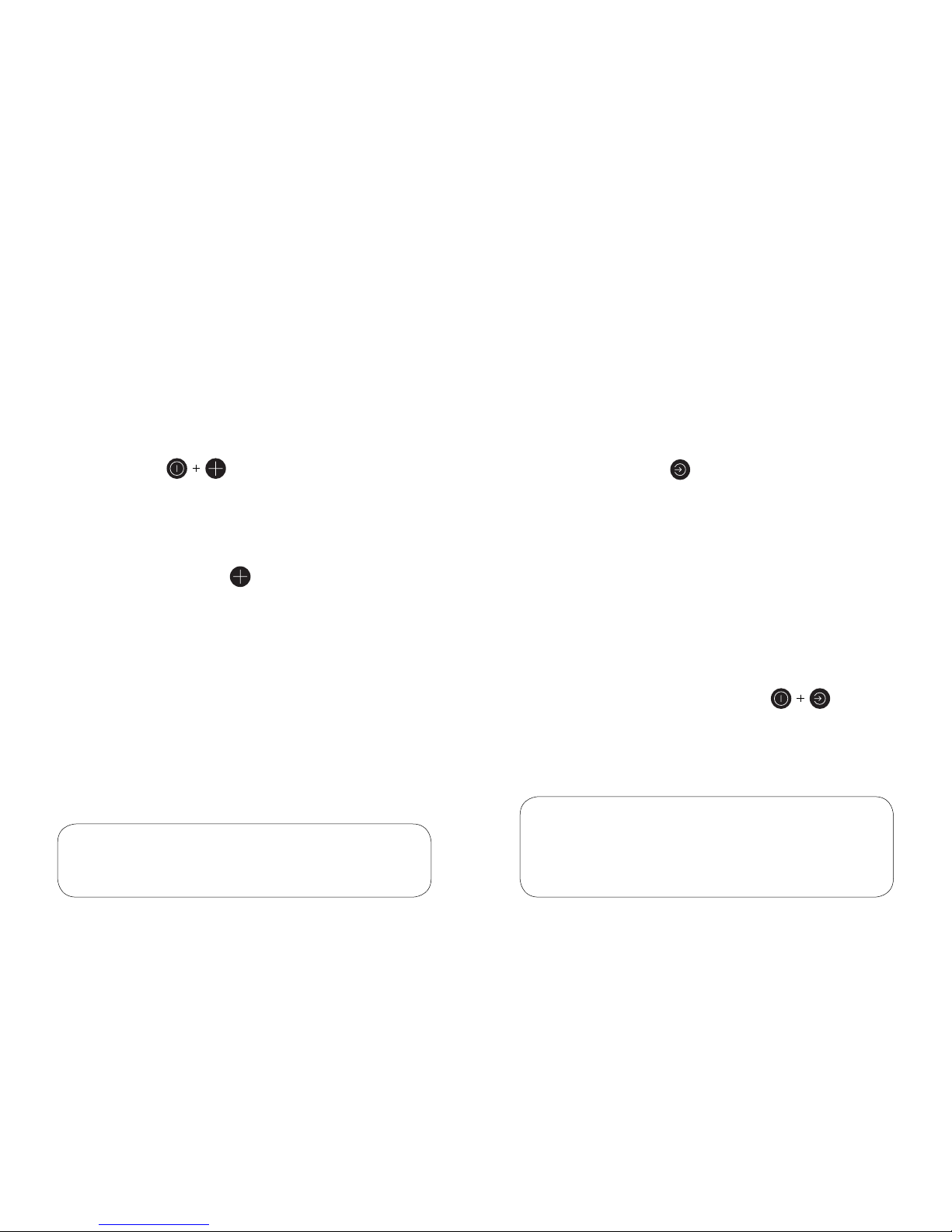
1. Press and hold (POWER and VOLUME+) together
on the control panel for 3 seconds until the lights animation is
displayed.
2. Press the button on the control panel you wish to teach.
For example (VOLUME +) .
3. Press the button on your TV remote you wish to correspond.
For example VOLUME +.
4. Lights on your speaker will animate to indicate learning.
5. Press the same button from Step 3 on your TV remote again.
6. Repeat the same process for other controls.
Only Infra-Red remotes are compatible.
POWER cannot be learnt.
To exit mode:
Do a system reset by pressing and holding (POWER
and SOURCE) together for 3 seconds.
Optical volume boost
To make the OPTICAL volume louder:
This will only affect the OPTICAL source.
This function can only be enabled using the
VOLUME + on the Orbitsound Remote.
1. Change the (SOURCE) to OPTICAL.
2. Increase the volume to maximum/full.
3. Press and hold VOLUME+ on the Orbitsound remote for 5
seconds.
4. Press VOLUME + to access additional volume.
Page 9
16 17
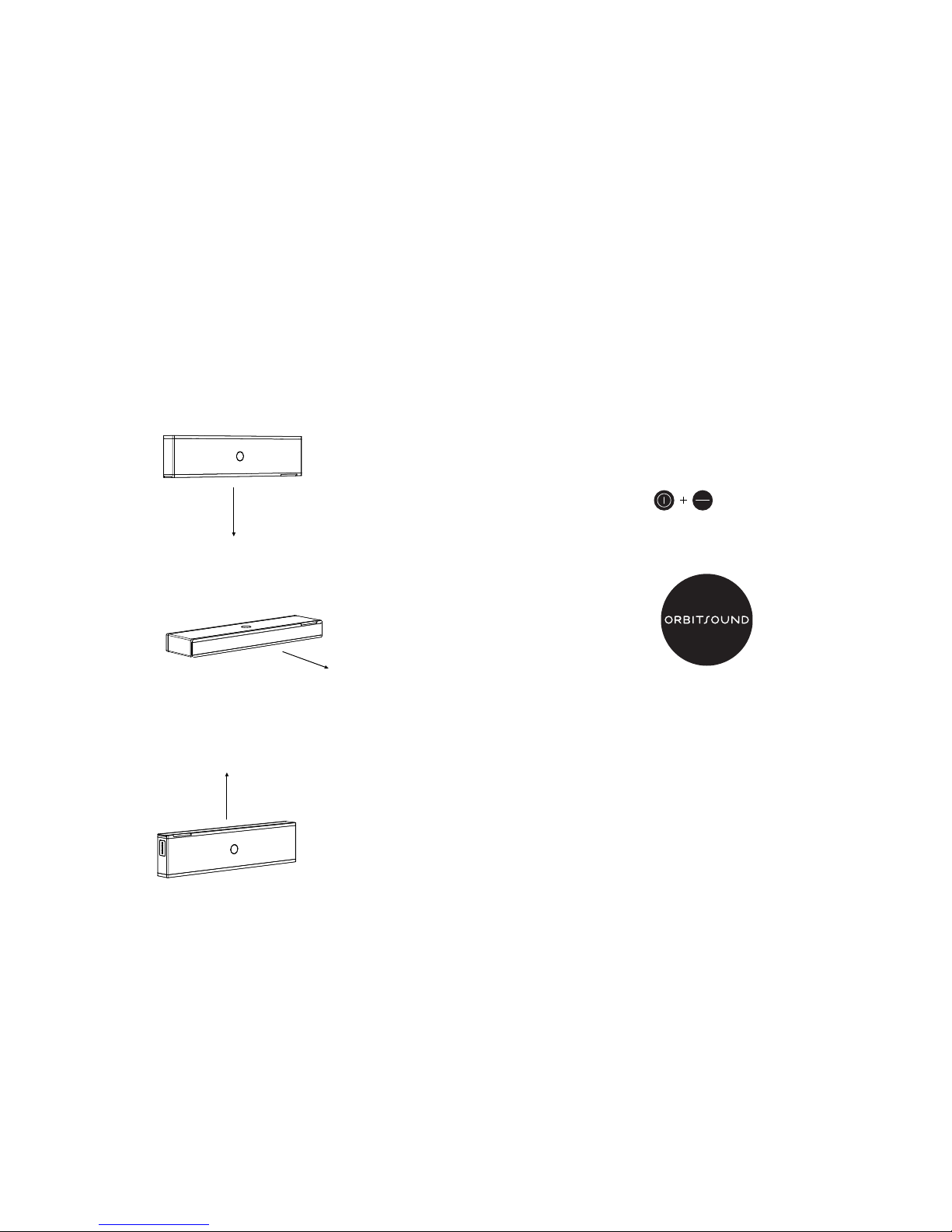
1. HIGH WALL MOUNT
3. LOW/SHELF MOUNT
2. SURFACE MOUNT
Position options
Front speaker facing down.
Front speaker facing towards.
Front speaker facing up.
REVERSE DISPLAY
ROTATE BADGE
Low/shelf options
Press and hold (POWER + VOLUME -)
for 5 seconds. Lights will flash to indicate the change.
You can also rotate the Orbitsound badge so it faces
the right way.
To pop the Orbitsound badge out use a strong piece
plastic, such as a credit card, to ease out the badge.
When flipping the orientation you can change the
display so the display reads left to right.
Page 10
18 19
Orbitsound accepts no liability for damage due to improper
installation. Ensure the wall is suitable for the wall plugs provided. If
not you may need to purchase additional plugs.
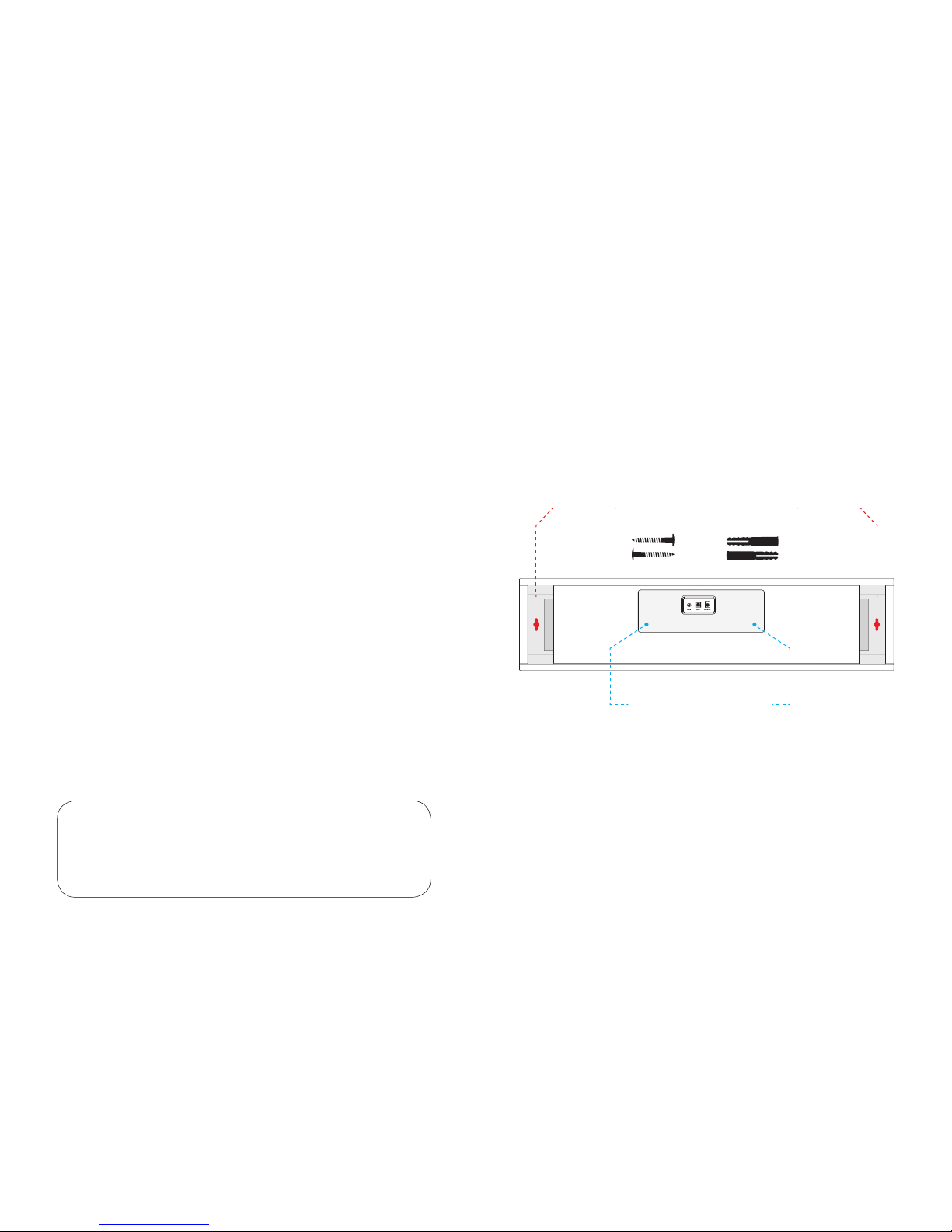
Wall mounting
OPTION A. Drill 2 x 6mm
holes in wall 637mm apart
OPTION B. 200mm VESA
mounting points
IMPORTANT
Easily wallmount your ONE P70W with the
included template and kit.
OPTION A.
OPTION B.
Standard 200mm VESA mount.
VESA is a universal bracket mounting system.
Page 11
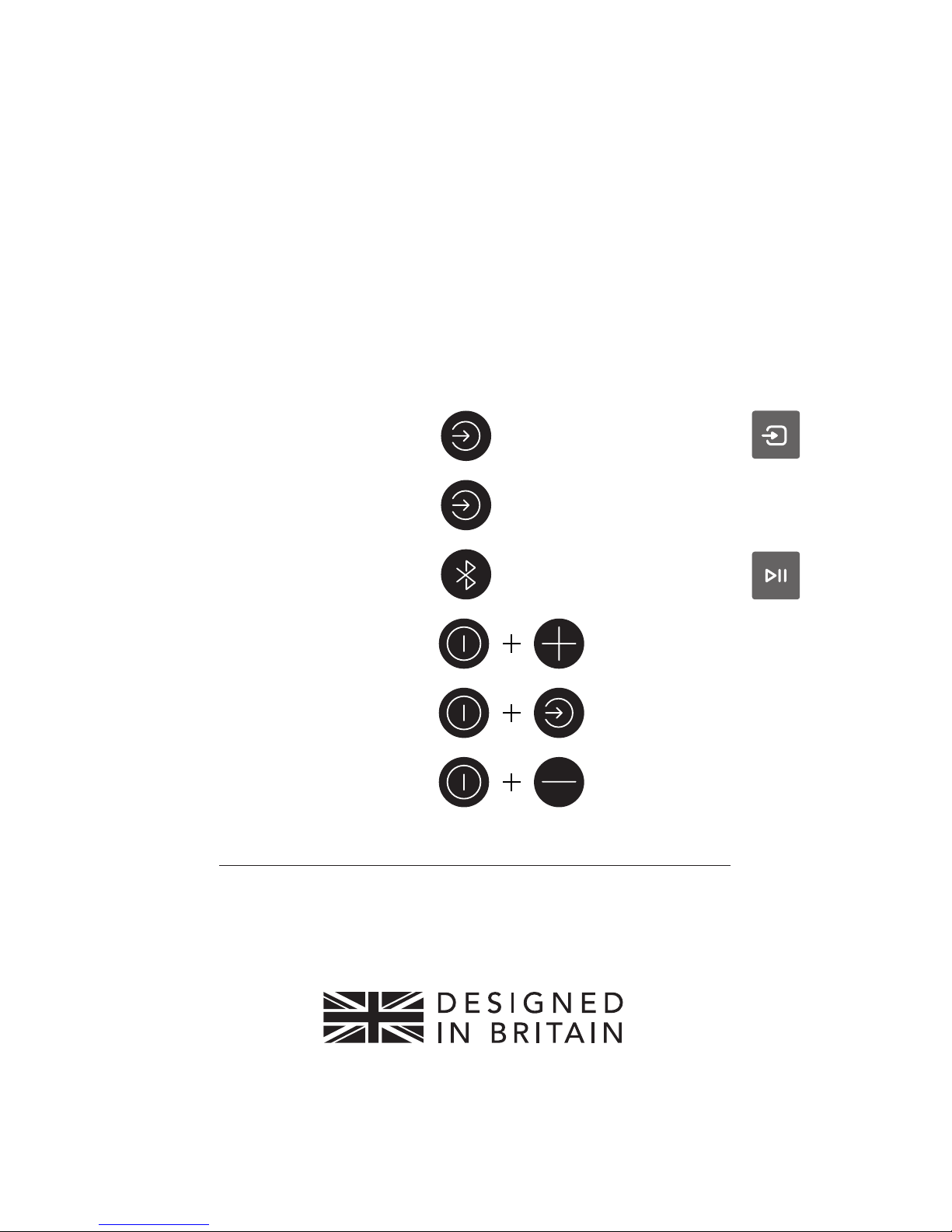
Wi-Fi Setup
Wi-Fi Reset
Bluetooth Pairing
Remote Learning
System Reset
Reverse Display
3 sec
9 sec
3 sec
5 sec
3 sec
3 sec
P.13
P.13
P.12
P.14
P.12
P.17
Quick reference
CONTROL PANEL OR REMOTE
For more information, please visit: www.orbitsound.com/support
©2017 Orbitsound Ltd. 65-69 East Road, London, N1 6AH. UK.
 Loading...