

Page 1

USER GUIDE
www.orbitsound.com
DOCK E30
Page 2
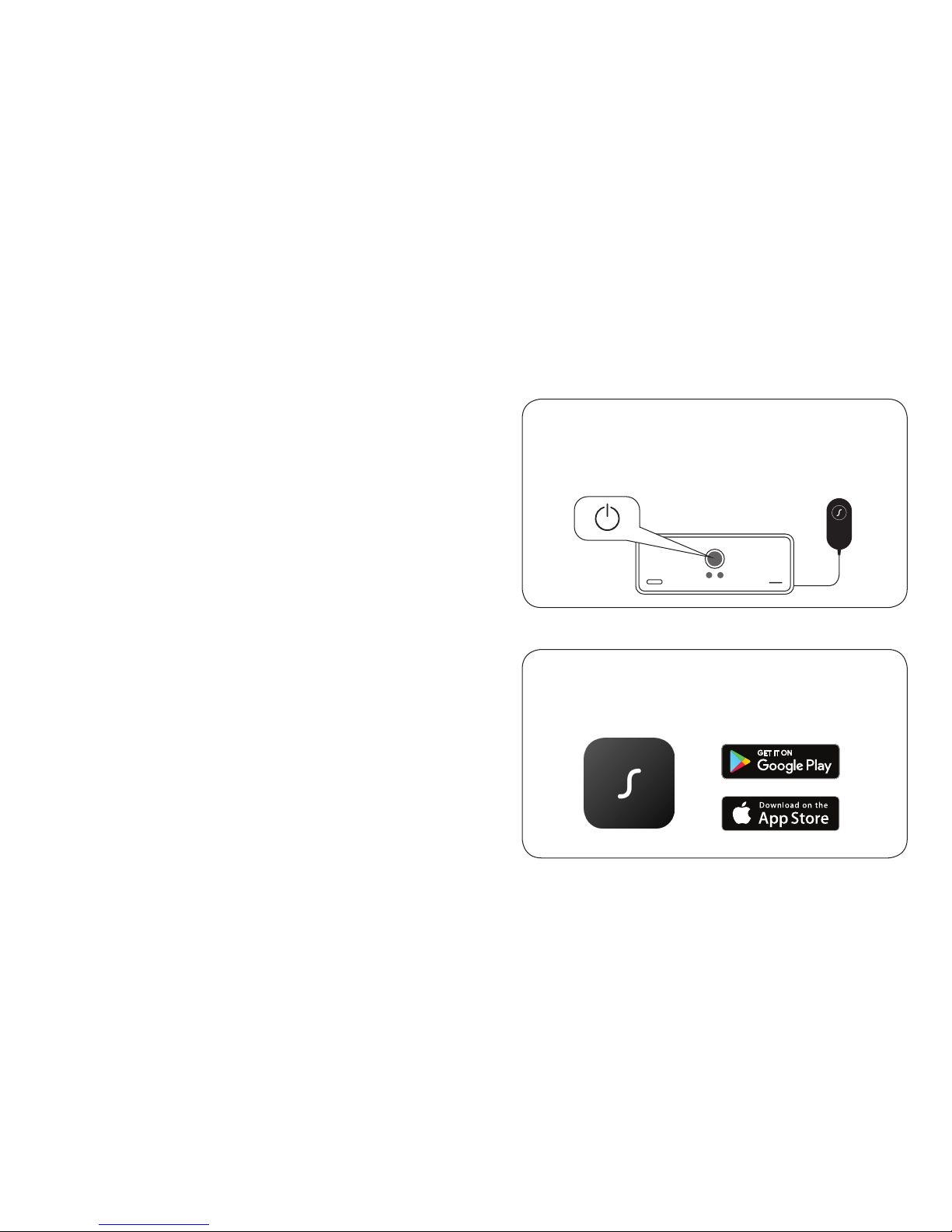
Let’s get started.
Plug it in
Get the app
Connect the power adapter to your
speaker and turn it on.
Download the Orbitsound app.
orbitsound.com/app
Eine deutsche Version dieses Leitfadens nden
Sie unter dem oben. aufgeführten Link.
Per una versione italiano di questa guida, visitare
il link di cui sopra.
Pour une version Français de ce guide, veuillez
consulter le lien ci-dessus.
Para obtener una versión en Español de esta
guía, visite el enlace que aparece arriba.
如需中文版本的指南,請瀏覽上述連結。
For an online version of this guide please
visit the above link.
orbitsound.com/support/docke30
1.
2.
32
Page 3
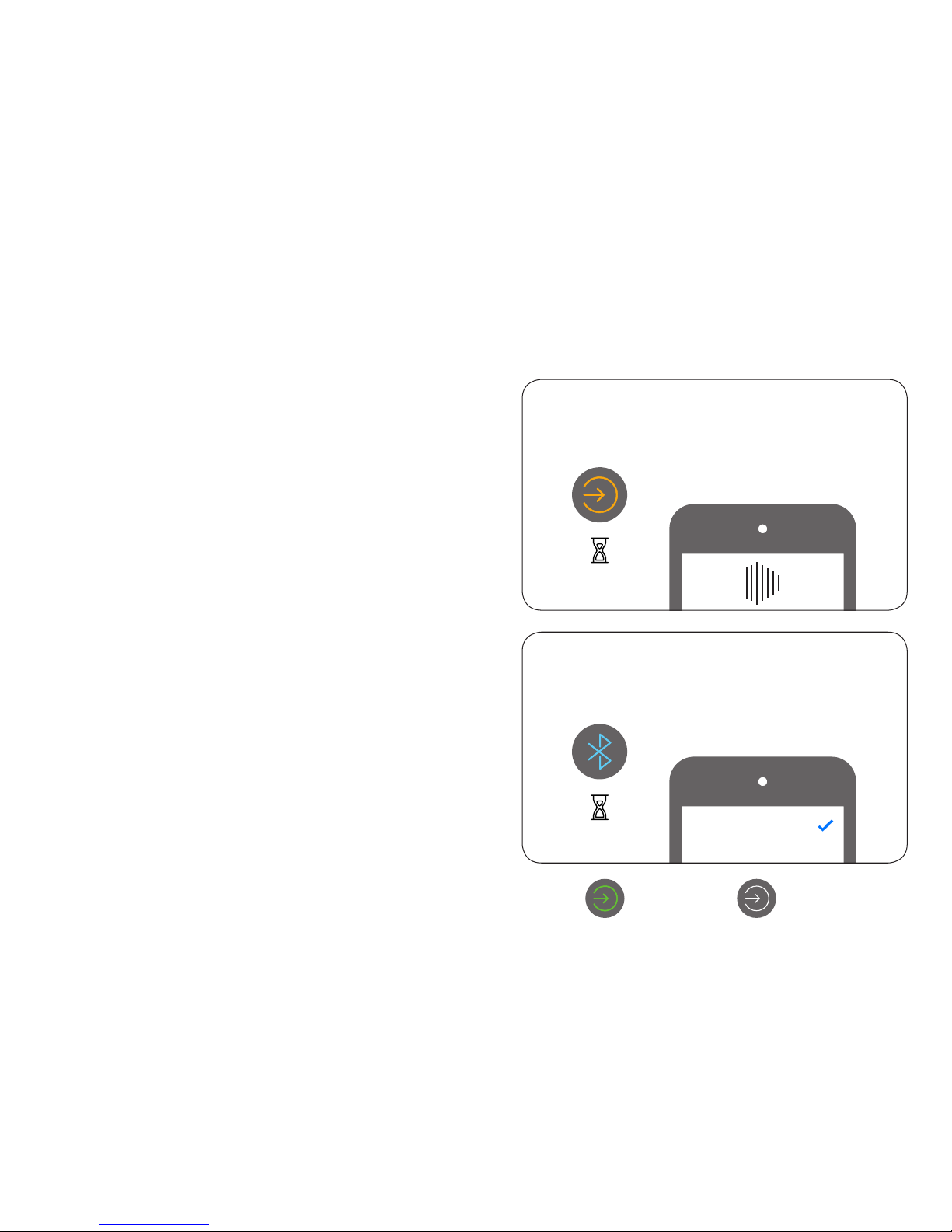
Wi-Fi
Bluetooth
Follow in-app instructions
Press and hold 3 sec
AUX Optical
0:03
0:03
DOCK E30 Connected
Connect
54
Page 4
Front Rear
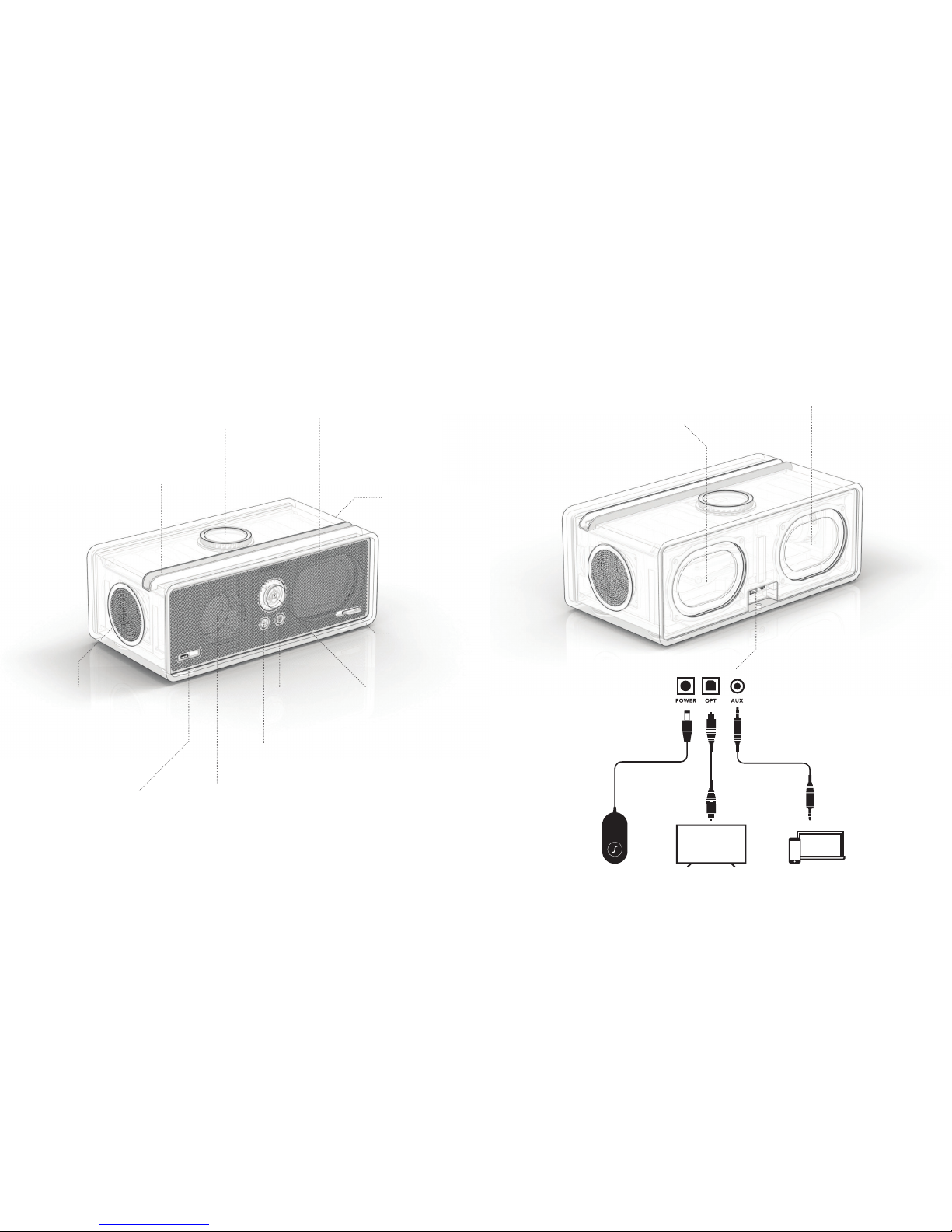
Device slot
Wireless charger
Airsound
speaker
Remote sensor &
USB-C fast charge
Main speaker
Front grille
tab
Volume / Power
[ push ]
Source
Bluetooth
Airsound
speaker
Halo bass
radiator
Halo bass radiator
Halo bass radiator
OPTICAL
(TV)
POWER AUX
76
Page 5
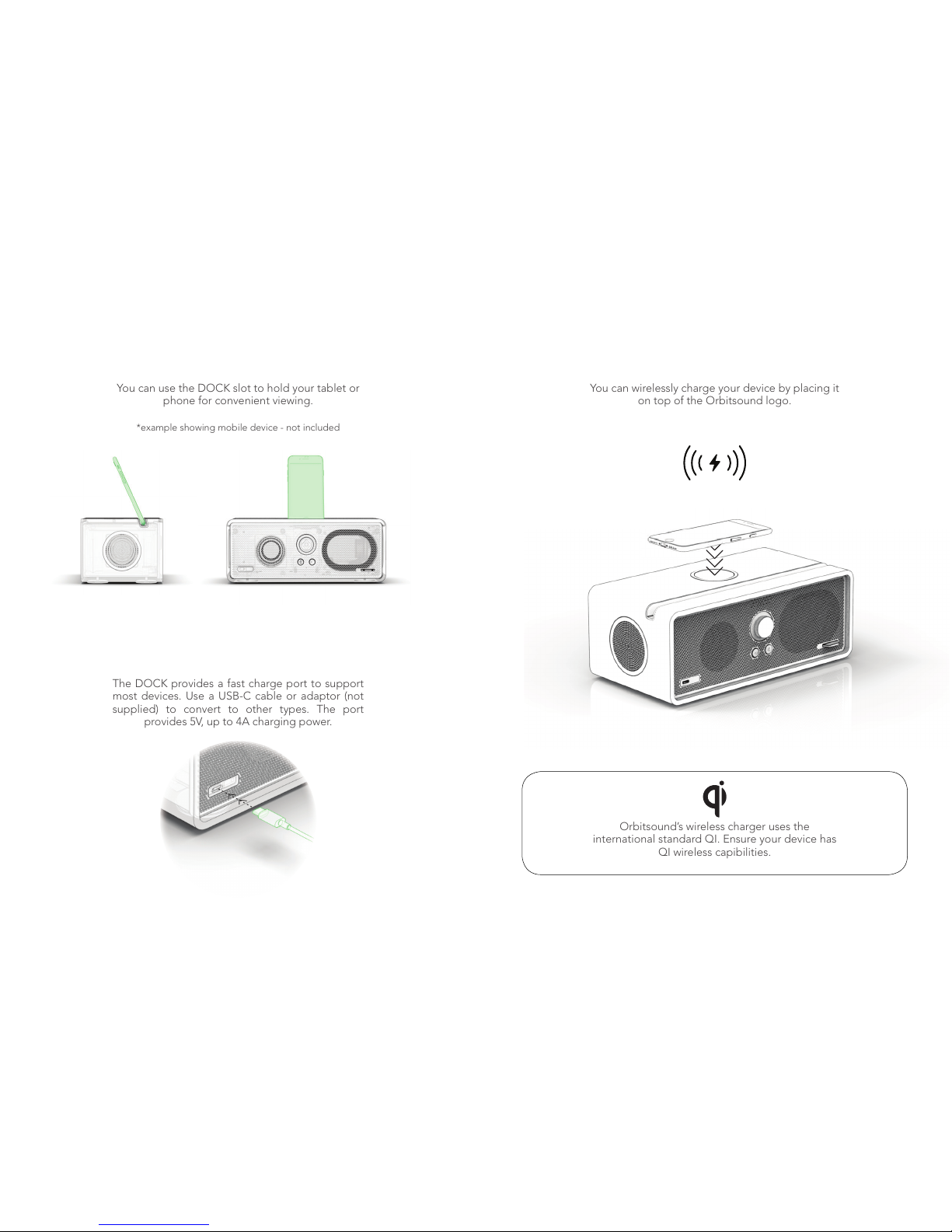
Device slot
USB-C charge
You can use the DOCK slot to hold your tablet or
phone for convenient viewing.
*example showing mobile device - not included
The DOCK provides a fast charge port to support
most devices. Use a USB-C cable or adaptor (not
supplied) to convert to other types. The port
provides 5V, up to 4A charging power.
Wireless charger
You can wirelessly charge your device by placing it
on top of the Orbitsound logo.
Orbitsound’s wireless charger uses the
international standard QI. Ensure your device has
QI wireless capibilities.
98
Page 6
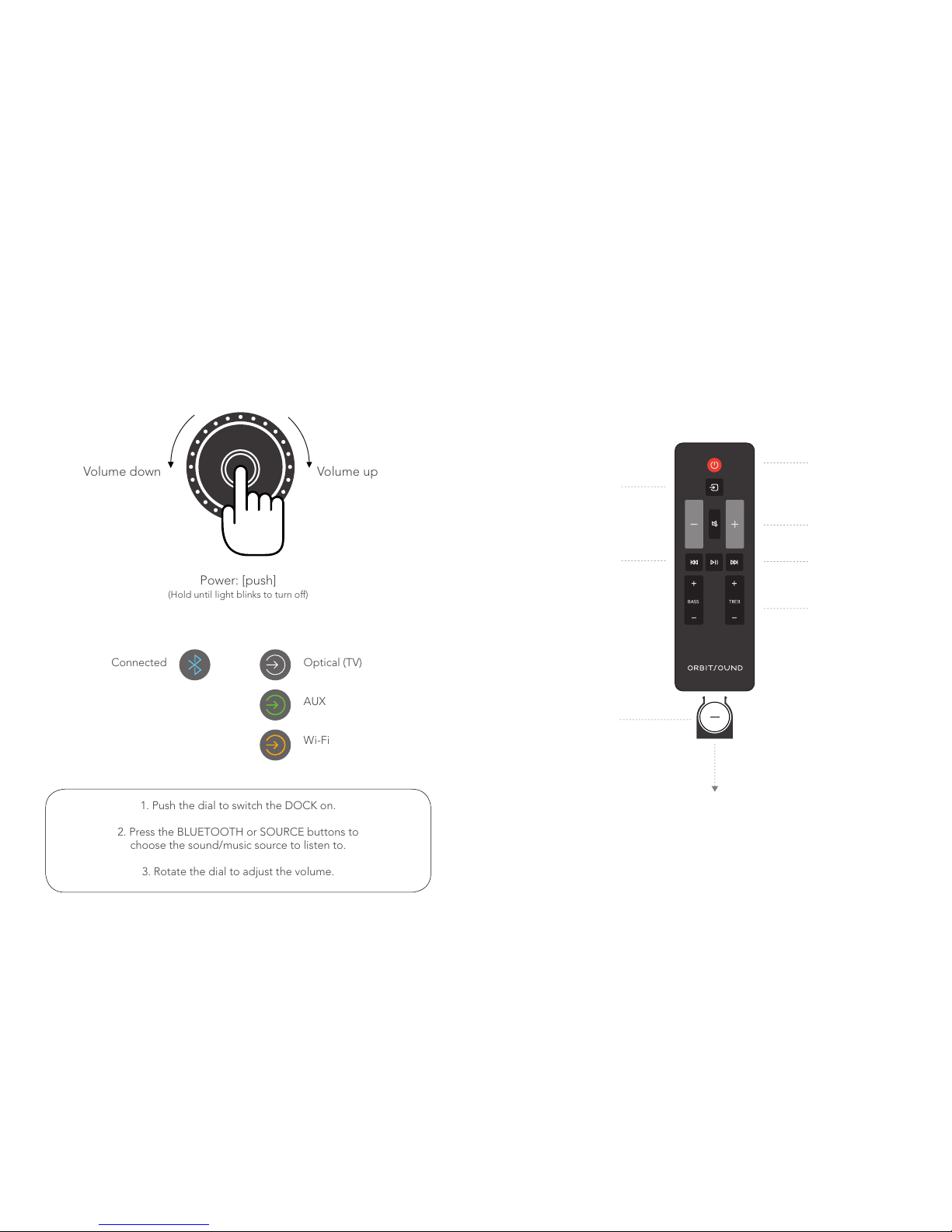
Control panel
Connected
Optical (TV)
AUX
Wi-Fi
SOURCEBLUETOOTH
Volume down
Volume up
Power: [push]
(Hold until light blinks to turn off)
VOLUME / POWER DIAL
1. Push the dial to switch the DOCK on.
2. Press the BLUETOOTH or SOURCE buttons to
choose the sound/music source to listen to.
3. Rotate the dial to adjust the volume.
Remote control
Bluetooth
pairing
(hold PLAY)
Power
Source
Volume control
Bluetooth
playback control
Bass / Treble
Battery
3V - 2032
Pull out plastic tab to
engage battery
IMPORTANT
Use the included remote to control the DOCK.
1110
Page 7
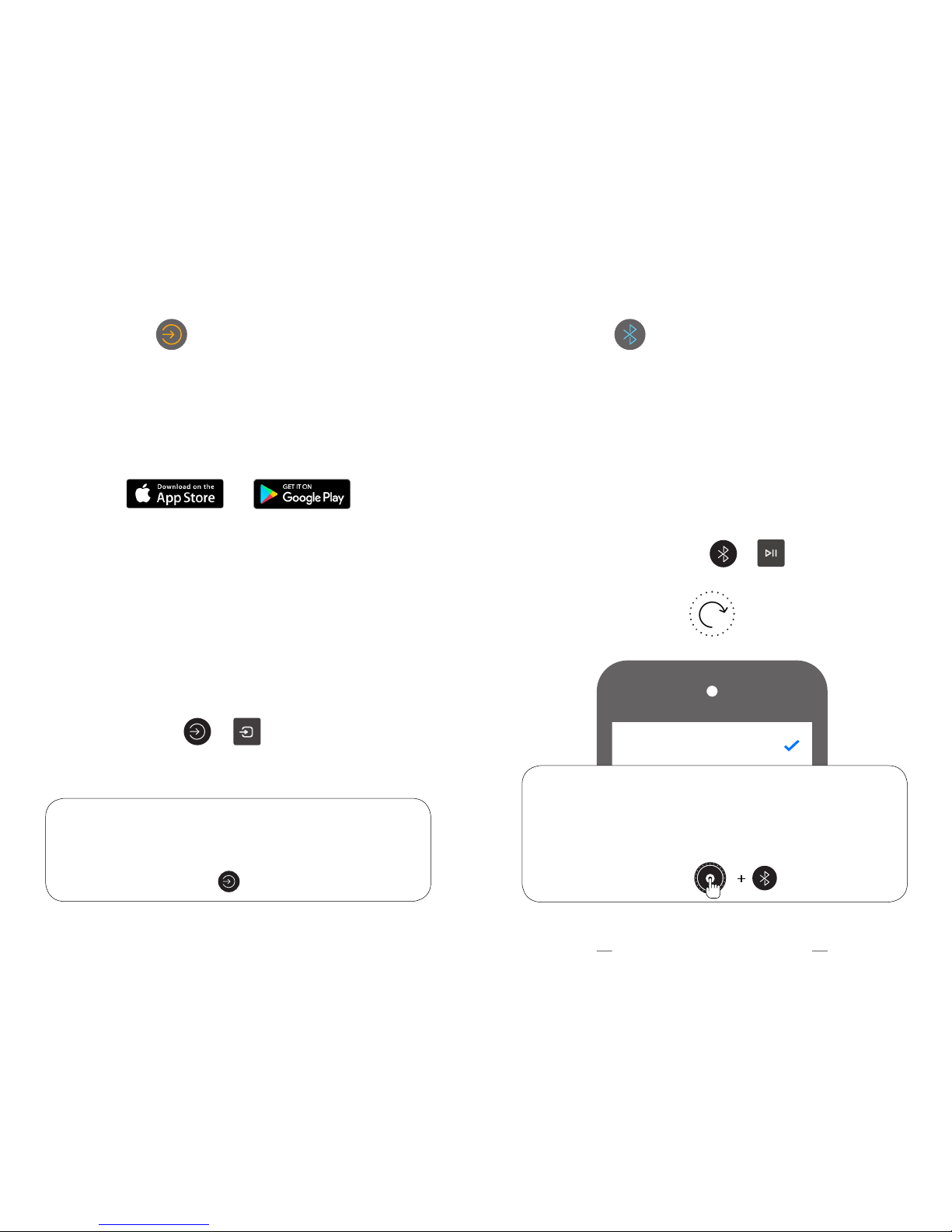
Wi-Fi
1. Download and install the free Orbitsound app.
Follow the in-app instructions.
WI-FI RESET: If you are having difficulty connecting your speaker
via Wi-Fi, reset the Wi-Fi settings by pressing and holding the
(SOURCE) button for 10 seconds.
2. When prompted by the app, press and hold
(SOURCE) on the control panel or remote control
for three seconds. This enters Wi-Fi setup mode to
enable the DOCK to connect to your Wi-Fi.
Wi-Fi enables seamless streaming and the ability to
connect multiple speakers.
WI-FI RESET: 10 seconds
SETUP: or 3 seconds
Bluetooth
BLUETOOTH RESET: If you are having difficulty connecting, do a reset
by pressing and holding the VOLUME DIAL and BLUETOOTH buttons
for 5 seconds.
NOTE: If you are using a wireless subwoofer with the DOCK, after a
Bluetooth reset, you will need to re-pair it. See ‘SUBWOOFER PAIRING’.
BLUETOOTH PAIRING: Press and hold (BLUETOOTH) on
the control panel or (PLAY) on the remote for 3 seconds.
The dial will show a seeking animation. Look for ‘Orbitsound
DOCK E30’ in your device’s Bluetooth list and tap to connect.
To use your phone / tablet with Bluetooth, you need
to pair it to the DOCK E30:
BLUETOOTH PAIRING: or 3 seconds
BLUETOOTH RESET: 5 seconds
Orbitsound DOCK E30 Connected
1312
Page 8
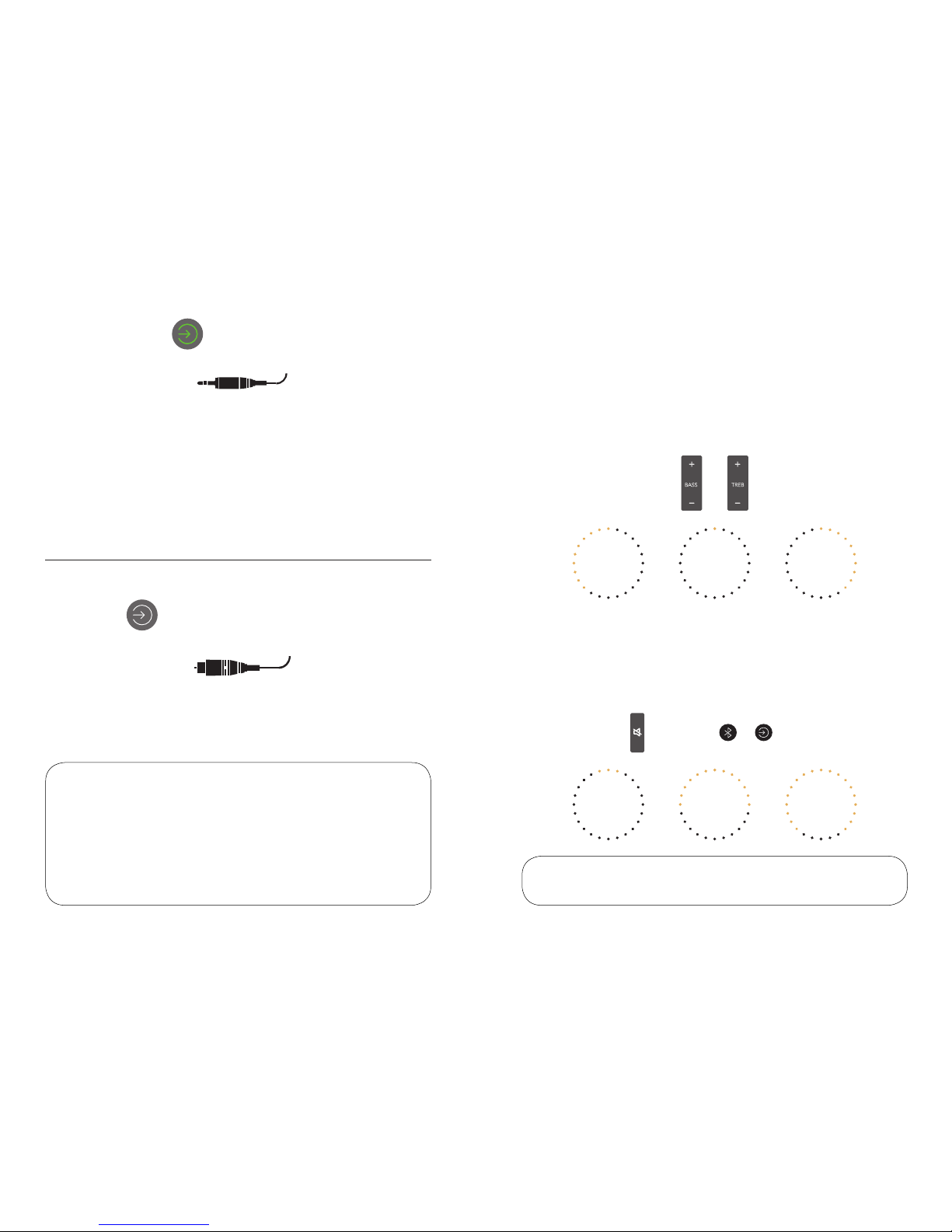
Aux
Optical (TV)
We recommend using Optical when using the
DOCK as a TV listening device.
Turn your TV speakers off: To prevent an echo or external audio
output, go to TV settings -> sound/audio menu. Select Digital
Audio (Optical) as the audio output.
IMPORTANT: The DOCK does not support Dolby/DTS or multi
channel surround. You may need to change your TV’s digital audio
output to Normal or PCM to ensure best performance.
For other music players, record decks, CD, MP3 or other
devices, use the AUX 3.5mm jack input. Press SOURCE until
the green input is highlighted.
NOTE: Start by setting the volume of your playing
device to 80%.
Sound adjustment
3 secs or + 1 sec
BASS & TREBLE
Use the remote control to adjust the amount of Low or High
frequencies (BASS) and (TREBLE). The dial display will show
the amount of boost or cut you are using. Trim the sound to
your preference.
ADJUST AIRSOUND
If you want to adjust the amount of Airsound, you can change
this, making the DOCK sound wider or narrower. Press and
hold the (MUTE) button on the remote, or press (SOURCE)
and (BLUETOOTH).
NORMAL
NORMAL
MAX
MAX
MIN
MIN
NOTE: You can reset the bass/treble to default by doing a system reset.
NOTE: The Airsound adjust will reset when you turn the DOCK off/on.
1514
Page 9
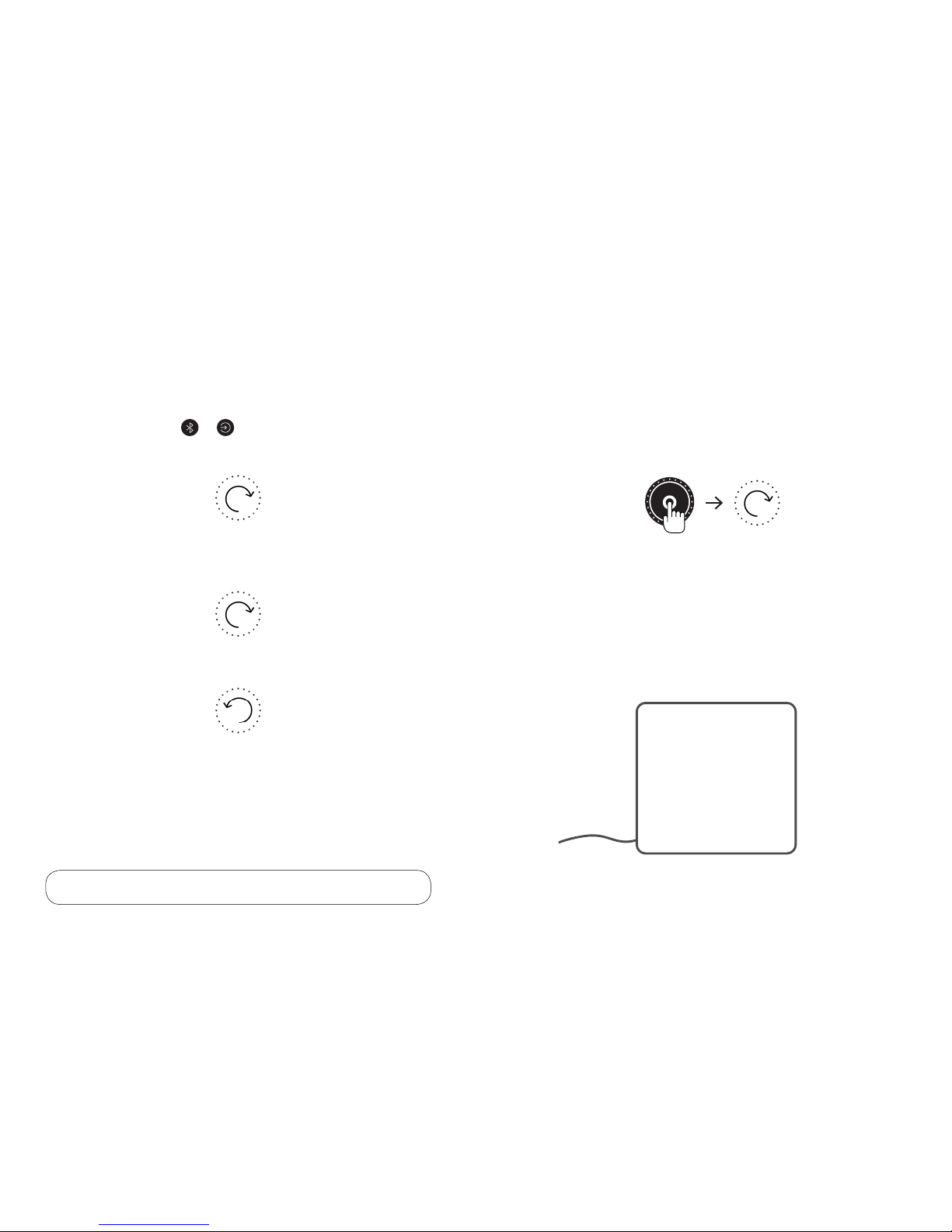
Remote control learning
The DOCK E30 can let you change its volume
with most TV remote controls.
1. Push and hold + (SOURCE and BLUETOOTH)
together on the control panel for 5 seconds until the dial
shows an animation showing [volume up]:
2. Press the VOL+ button on the remote you want to teach. If
the button is scanned correctly, the DOCK will flash its lights
and then show the animation again:
3. Press VOL + again to confirm, the DOCK will show a
[volume down] animation:
4. Press the VOL- button on the remote to be learned. The
DOCK will again ask for VOL-. If the remote has been scanned
correctly, then all the dial lights will flash, and your remote will
be able to control the DOCK’s volume.
The DOCK can now respond to your TV remote for volume
adjustment.
NOTE: Only some Infra-Red remotes are compatible.
Pairing a subwoofer
The DOCK E30 can also be used with an Orbitsound S4 subwoofer.
To pair a subwoofer: Push and hold the VOLUME DIAL for 8
seconds
(until the seeking animation is displayed):
Push and hold the PAIR button on the back of the subwoofer
for 5 seconds (until the STATUS light starts to flash).
After a short time, the system will pair, and you can
hear the subwoofer working with the DOCK E30.
NOTE: if you are having difficulties pairing the DOCK with
a subwoofer, we recommend a BLUETOOTH RESET (page 13).
*Optional S4 Subwoofer
1716
Page 10
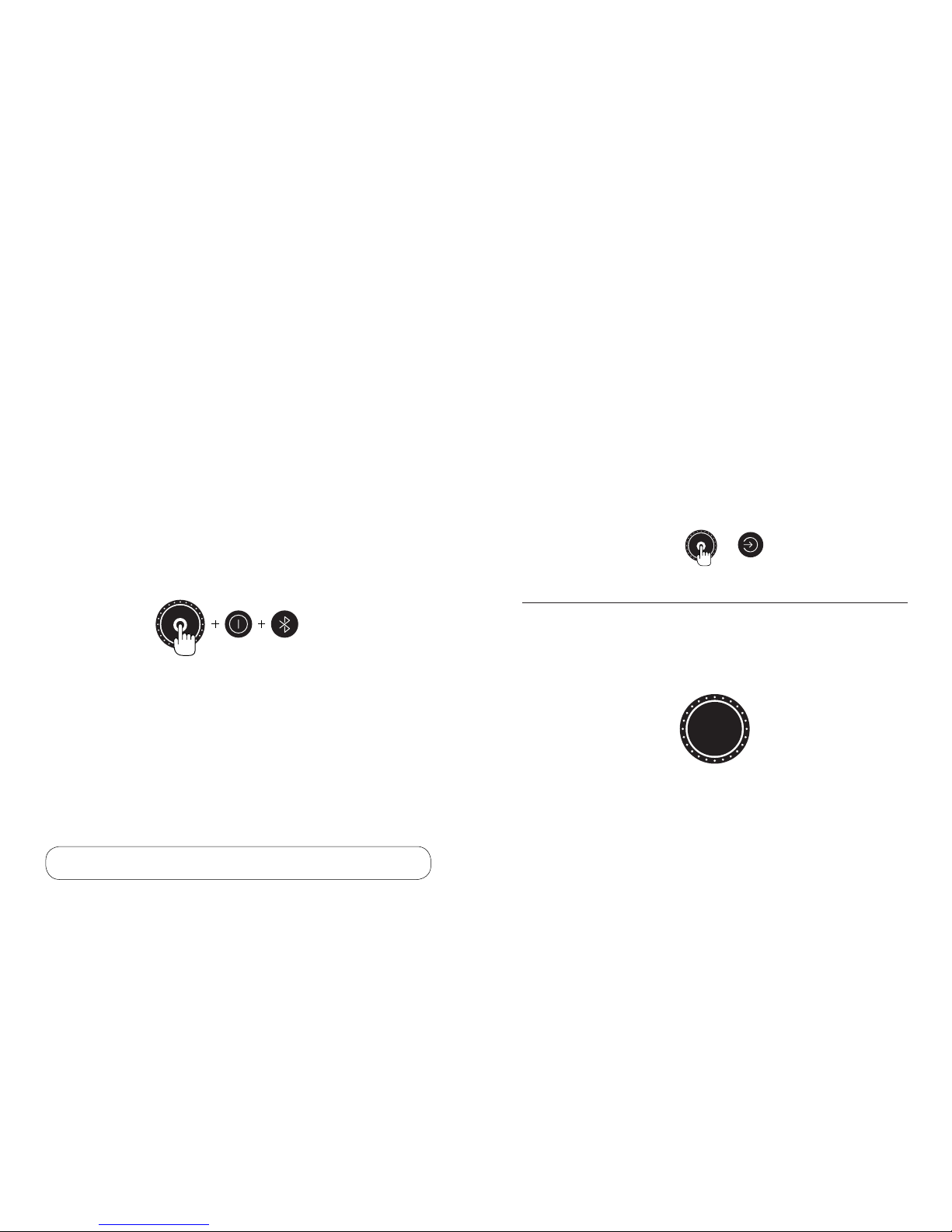
10 seconds
If you want to use the DOCK in a public environment where you
are worried about people changing the settings, you can use
the INSTALL / DEMO mode to make sure it is always set up as
you intended.
Set up the DOCK as you want (source, volume, bass, treble etc.)
Press and hold VOL. DIAL + BLUETOOTH + SOURCE for 10
seconds:
The DOCK will memorise these settings, and after 5 minutes of
no buttons being pressed it will automatically recall your stored
settings.
Install / demo mode
NOTE: Do a system reset to exit INSTALL / DEMO mode.
Reset
SYSTEM RESET
To reset the DOCK to the factory defaults, press and hold the
VOLUME DIAL and SOURCE buttons for 5 seconds.
The DOCK will flash all the dial lights to confirm, and switch to
optical source. Everything is now reset to default settings.
Please note, Bluetooth and Wi-Fi settings remain. Perform a
Bluetooth or Wi-Fi reset to restore settings (p.12-13).
Doze
If no sound is playing for over 5 minutes, the source light will go
out. This is the DOCK in DOZE, energy saving mode. If you play
sound into the currently selected input, or press any button, the
DOCK will wake up.
SYSTEM RESET: + 5 seconds
1918
Page 11
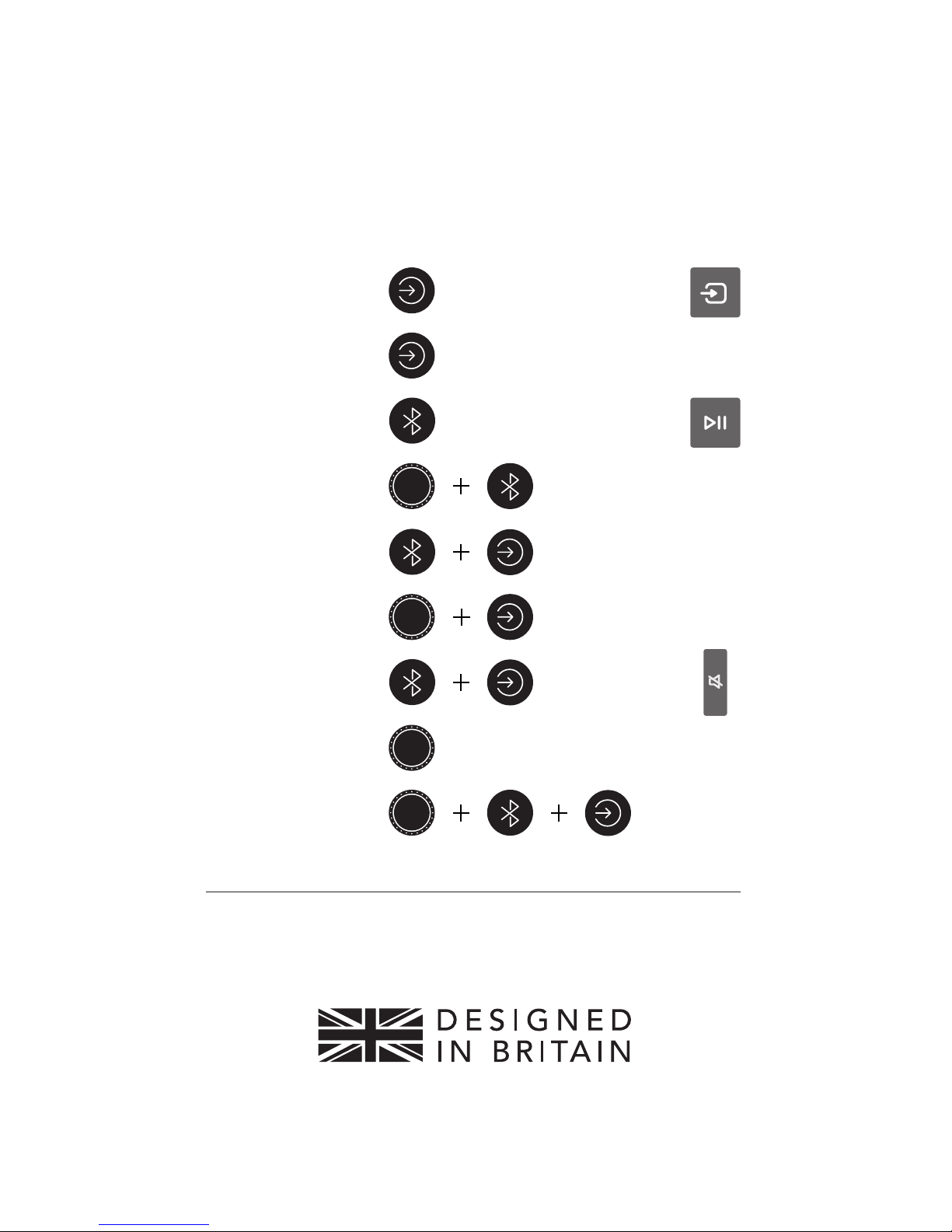
Quick reference
CONTROL PANEL OR REMOTE
P.12 - Wi-Fi Setup
P.12 - Wi-Fi Reset
P.13 - Bluetooth Pairing
P.13 - Bluetooth Reset
P.16 - Remote Learning
P.19 - System Reset
P.15 - Airsound Adjust
P.17 - Subwoofer Pair
P.18 - Demo Mode
3 secs
9 secs
3 secs
5 secs
5 secs
5 secs
1 sec
8 secs
3 secs
3 secs
5 secs
For more information, please visit: www.orbitsound.com/support
©2017 Orbitsound Ltd. 65-69 East Road, London, N1 6AH. UK.
10 secs
 Loading...