

Page 1
©2014 Orbitsound ltd.
Subwoofer Pairing:
1) Long Press
subwoofer PAIR;
STATUS will flash
2) Long Press
soundbar Vol+ and Vol-
TV OPTICAL
AUDIO OUT
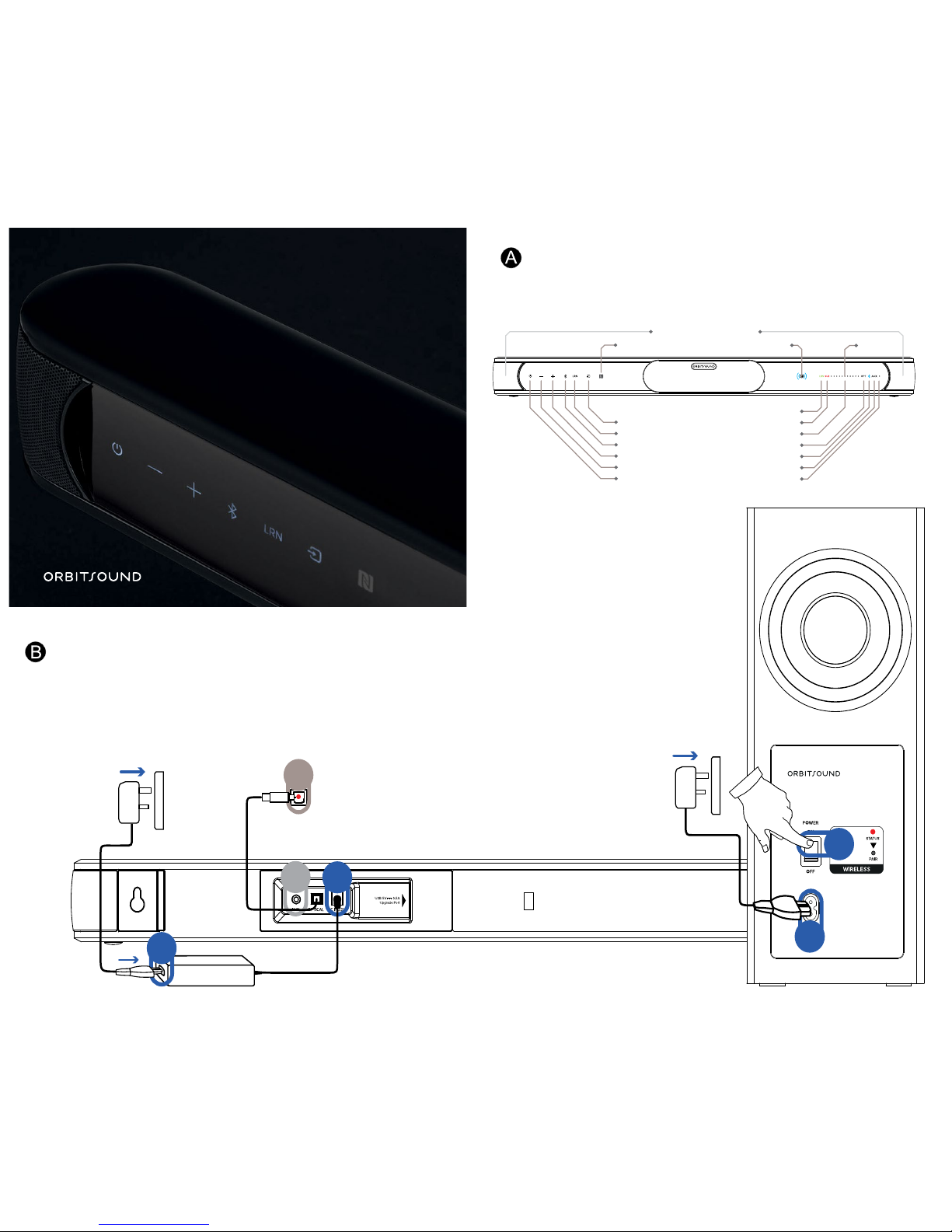
1
2 2
1
1
2
3
4
5
NFC Tag
Bluetooth (Hold to pair)
Volume +
Volume -
Input Source
Remote Control Learning
Power / Standby
Remote Learning
Remote Receiver
Optical Source
Bluetooth Source
AUX Source
Wireless Subwoofer Info
Volume/Bass/Treble
Power/Mute
airSOUND™ SPEAKERS
TV
TOUCH PANEL BUTTONS
Display
THANK YOU FOR CHOOSING ORBITSOUND
This guide is all you need to set up your Orbitsound
BAR A60 to start enjoying natural, immersive room
lling airSOUND™.
You can table or wall mount your airSOUND Bar
with the included xings. Please ensure the centre
speakers and side airSOUND speakers are free from
obstacles to get the best sound.
CONNECTING YOUR A60
CONNECT YOUR TV
Connect your TV using the optical cable included,
Make sure to remove the protective caps on each end
of the cable before plugging the cable in. Connect
the optical cable (4) to your TV and soundbar.
CONNECT POWER
Connect power to the rear of your soundbar
(1) and subwoofer (2). Switch on the
subwoofer power (3).
NO OPTICAL? (OPTION)
If your TV doesn’t have an optical socket,
connect using the 3.5mm AUX cable
supplied to the audio out of your TV and
the AUX input (5) on the airSOUND Bar.
BAR A60
QUICK START GUIDE
Page 2
Drill 2x6mm holes in wall
Cable access
TV
Recommended Soundbar Placement (wall mounting)
Cable clip
Subwoofer Pairing:
1) Long Press
subwoofer PAIR;
STATUS will flash
2) Long Press
soundbar Vol+ and Vol-
1
1
3
2
Subwoofer Pairing:
1) Long Press
subwoofer PAIR;
STATUS will flash
2) Long Press
soundbar Vol+ and Vol-
1
1
3
2
2
1
Pair with Device?
NO YES
2
Subwoofer Pairing:
1) Long Press
subwoofer PAIR;
STATUS will flash
2) Long Press
soundbar Vol+ and Vol-
1
1
3
2
2
1
2
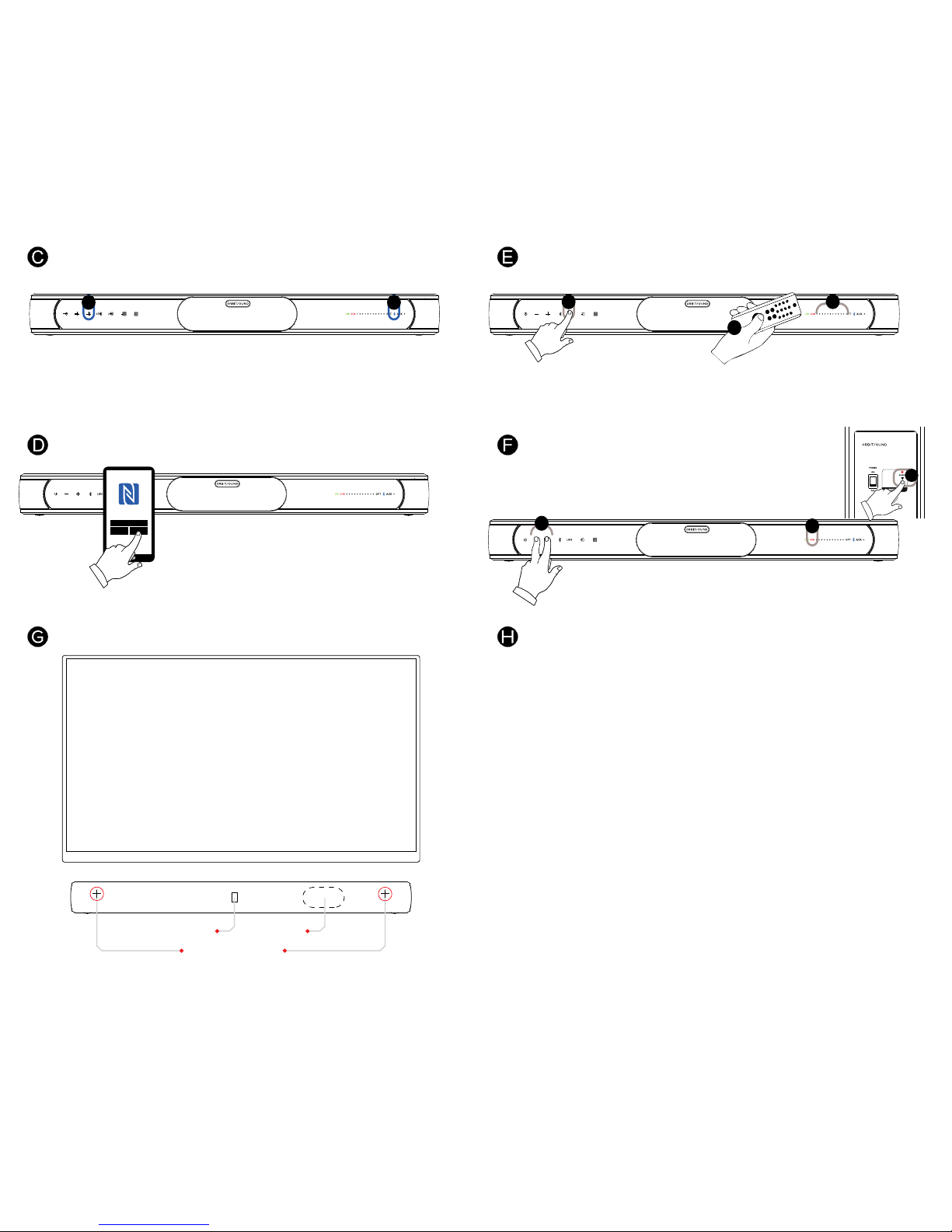
Press and hold (3 seconds) LRN (1) to learn from a new
remote. Press Vol+ on new remote when prompted (2),
wait, then repeat when prompted by the soundbar.
Repeat for Vol- when prompted. The system will conrm
successful remote learning (2) and ash all lights.
The subwoofer should already be paired. To re-pair:
Press and hold (3 seconds) subwoofer PAIR button (1),
the subwoofer pair light will ash. Press and hold Vol and Vol+ (2) on the soundbar together. The SUB light
To pair a Bluetooth device: Press and hold (3 seconds)
the Bluetooth button (1), the Bluetooth light (2) will ash
faster. Search for ‘Orbitsound A60’ on your device list
and pair.
CONNECTING BLUETOOTH
CONNECT WITH NFC
Use NFC to easily connect. Make sure Bluetooth
and NFC are enabled on your device. Place your
device’s NFC tag close to the NFC logo on the
soundbar. You will be prompted to pair.
©2014 Orbitsound ltd.
Subwoofer Pairing:
1) Long Press
subwoofer PAIR;
STATUS will flash
2) Long Press
soundbar Vol+ and Vol-
TV OPTICAL
AUDIO OUT
1
3
1
1
2
2 2
3
4
1
1
2
3
2
1
2
3
2
2
1
Pair with Device?
NO YES
2
4
5
WALL MOUNTING
Note: Tap the Bluetooth button (1) to disconnect
or to reconnect your device easily. You can
use the Play controls on the remote to control
bluetooth audio playback.
DOES YOUR DEVICE HAVE NFC?
LEARNING TV REMOTE VOLUME
If it did not work no lights will ash, try again and
use short presses on the new remote, and wait to be
prompted for a press. Note: the A60 can learn from
many popular remotes. It is not compatible with all
remote control types. Please refer to website for details.
PAIRING THE SUBWOOFER (OPTION)
(3) will ash. The soundbar
and subwoofer will connect.
The SUB light (3) lights solid,
when the system is paired.
IMPORTANT: WALL MOUNTING TO BE DONE ONLY BY AN EXPERIENCED PROFESSIONAL. ORBITSOUND
ACCEPT NO LIABILITY FOR DAMAGE DUE TO IMPROPER OR UNSAFE WALL MOUNTING INSTALLATION
Ensure the wall is suitible for the wall plugs provided.
Drill holes in your wall as shown to t the plugs and
screws. Carefully hang the A60 as shown.
FREQUENTLY ASKED QUESTIONS
There is no sound from the
subwoofer
Check that power to subwoofer
is ON. Restart soundbar. If the
wireless subwoofer error light on
the sound bar is solid red, please
follow “pairing the subwoofer”
instructions above.
No Sound from optical (TV) source,
No Sound from optical Set-Top-Box
(STB) source,
Loud noise when watching HD
channels on optical
Please check your TV or STB
settings. Make sure that the
optical output format is set to
‘STEREO’ or ‘PCM’ format. This
is the correct format for the
sound bar.
(Factory reset) I need to reset my
settings
Press and hold SRC and POWER
on the soundbar for 3 seconds.
All lights will ash to show a
reset has happened.
I cannot make my soundbar learn
from my remote. When I complete
learning process, no lights ash.
Please note: Not all remotes
are supported with our learning
process. Check the website for
compatability information. If
your remote should work but is
not, make sure you are aiming
the remote at the IR receiver
(near the light panel). Make sure
you tap the key on the remote
to be learned once when shown
to by the sound bar, and repeat
when shown.
Switching from TV to Bluetooth,
there is a big volume difference the TV is quiet.
Some TVs reduce the volume
of sound that comes out of
the optical port. You will need
higher volume settings on the
soundbar to compensate. This is
normal.
How do I position my soundbar to
get the best sound?
Simply make sure that the
side speakers are clear from
obstacles. The subwoofer is
wireless, but the best sound is
achieved when the subwoofer is
within 5m of the soundbar, and
in the same general area.
My remote control is not working
Ensure the battery protection
lm has been removed. Pull the
tab and remove.
Subwoofer STATUS light: On: Connected and working.
Flashing: Looking for soundbar. Off: Low power mode
Problems? You may need to clear the Bluetooth
memory if the subwoofer does not pair. Press and
hold Bluetooth AND Source buttons for 3 seconds,
then proceed to pair the subweoofer as above.
The optical cable does not work
Please check the optical cable
and remove any protective
covers from connectors. Check
the optical output format is PCM
or STEREO on your source.
I’m using Bluetooth and sometimes
the sound is interrupted
Bluetooth is a short range
wireless technology. We
recommend you keep your
bluetooth device in the same
room as the sound bar and not
obstructed by walls or metallic
objects as they can block the
signal. Please do not place
other wireless devices such
as wireless routers, cordless
telephones and microwave
ovens close to your sound bar
as they can interfere with the
Bluetooth connection.
I need more information
Please visit www.orbitsound.
com to nd the full product user
manual or contact a customer
support representative.
A multi-language version of this
guide is available at:
www.orbitsound.com/support
 Loading...